
DP32648 - TV SANYO - Free user manual and instructions
Find the device manual for free DP32648 SANYO in PDF.


User questions about DP32648 SANYO
0 question about this device. Answer the ones you know or ask your own.
Ask a new question about this device
Download the instructions for your TV in PDF format for free! Find your manual DP32648 - SANYO and take your electronic device back in hand. On this page are published all the documents necessary for the use of your device. DP32648 by SANYO.
USER MANUAL DP32648 SANYO
Table of Contents .... 4
ESPAÑOL
TV de LCD HDTV
Visit our Web site at
www.sanyoctv.com
or call toll free
1-800-877-5032
We can Help!
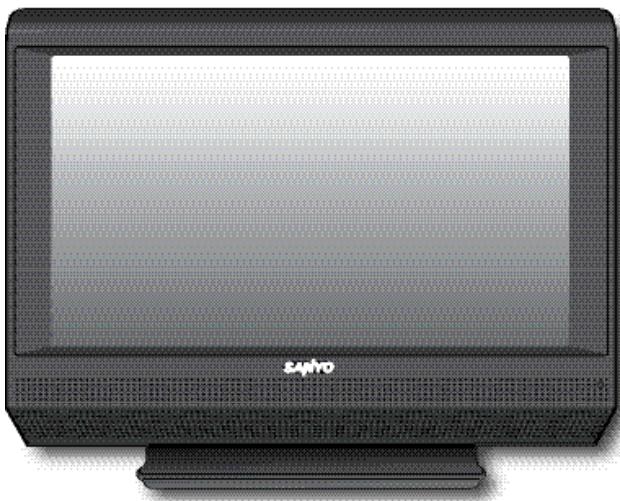
natural_image
Illustration of a retro television monitor with a blank screen (no text or symbols visible)Welcome to the World of Sanyo
Thank you for purchasing this Sanyo LCD High-Definition Digital Television. You made an excellent choice for Performance, Reliability, Features, Value, and Styling.
CAUTION: TO REDUCE THE RISK OF ELECTRIC SHOCK, DO NOT REMOVE COVER (OR BACK). NO USER-SERVICEABLE PARTS INSIDE. REFER SERVICING TO QUALIFIED SERVICE PERSONNEL.
THIS SYMBOL INDICATES THAT DANGEROUS VOLTAGE CONSTITUTING A RISK OF ELECTRIC SHOCK IS PRESENT WITHIN THIS UNIT.
THIS SYMBOL INDICATES THAT THERE ARE IMPORTANT OPERATING AND MAINTENANCE INSTRUCTIONS IN THE LITERATURE ACCOMPANYING THIS UNIT.
WARNING: TO REDUCE THE RISK OF FIRE OR ELECTRIC SHOCK, DO NOT EXPOSE THIS APPLIANCE TO RAIN OR MOISTURE.
IMPORTANT SAFETY INSTRUCTIONS
- Read these instructions.
- Keep these instructions.
- Heed all warnings.
- Follow all instructions.
- Do not use this apparatus near water.
- Clean only with dry cloth.
-
Use only with the cart, stand, tripod, bracket, or table specified by the manufacturer, or sold with the apparatus. When a cart is used, use caution when moving the cart/apparatus combination to avoid injury from tip-over.
-
Do not block any ventilation openings. Install in accordance with the manufacturer's instructions.
-
Do not install near any heat sources such as radiators, heat registers, stoves, or other apparatus (including amplifiers) that produce heat.
-
Do not defeat the safety purpose of the polarized or grounding-type plug. A polarized plug has two blades with one wider than the other. A grounding-type plug has two blades and a third grounding prong. The wide blade or the third prong are provided for your safety. If the provided plug does not fit fully into your outlet, consult an electrician for replacement of the obsolete outlet.
-
Protect the power cord from being walked on or pinched particularly at plugs, convenience receptacles, and the point where they exit from the apparatus.
-
Only use attachments/accessories specified by the manufacturer.

-
Unplug this apparatus during lightning storms or when unused for long periods of time.
-
Refer all servicing to qualified service personnel. Servicing is required when the apparatus has been damaged in any way, such as power-supply cord or plug is damaged, liquid has been spilled or objects have fallen into the apparatus, the apparatus has been exposed to rain or moisture, does not operate normally, or has been dropped.
-
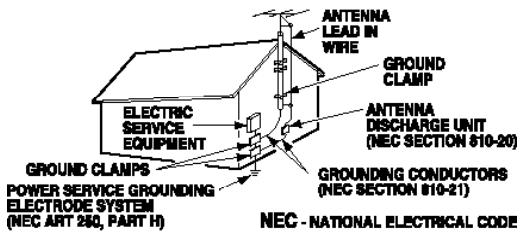
If an outside antenna is connected to the television equipment, be sure the antenna system is grounded so as to provide some protection against voltage surges and built up static charges. In the U.S. Selection 810-21 of the National Electrical Code provides information with respect to proper grounding of the mast and supporting structure, grounding of the lead-in wire to an antenna discharge unit, size of grounding conductors, location of antenna discharge unit, connection to grounding electrodes, and requirements for the grounding electrodes.
- An outside antenna system should not be located in the vicinity of overhead power lines or other electrical light or power circuits, or where it can fall into such power lines or circuits. When installing an outside antenna system, extreme care should be taken to keep from touching such power lines or circuits as contact with them might be fatal.
EXAMPLE OF ANTENNA GROUNDING ACCORDING TO NATIONAL ELECTRICAL CODE, ANSI/NFPA 70
"Note to CATV system installer:
This reminder is provided to call the CATV system installer's attention to Article 820-40 of the NEC that provides guidelines for proper grounding and, in particular, specifies that the cable ground shall be connected to the grounding system of the building, as close to the point of cable entry as practical."
- Wall or Ceiling Mounting—The product should be mounted to a wall or ceiling only as recommended by the manufacturer.
- "Apparatus shall not be exposed to dripping or splashing and no objects filled with liquids, such as vases, shall be placed on the apparatus."
- When the MAINS plug is used as the disconnect device, the disconnect device shall remain readily operable.
FCC INFORMATION
This equipment has been tested and found to comply with the limits for a Class B digital device, pursuant to Part 15 of the FCC Rules. These limits are designed to provide reasonable protection against harmful interference in a residential installation. This equipment generates, uses and can radiate radio frequency energy and, if not installed and used in accordance with the instructions, may cause harmful interference to radio communications. However, there is no guarantee that interference will not occur in a particular installation. If this equipment does cause harmful interference to radio or television reception, which can be determined by turning the equipment off and on, the user is encouraged to try to correct the interference by one or more of the following measures:
- Reorient or relocate the receiving antenna.
- Increase the separation between the equipment and receiver.
- Connect the equipment into an outlet on a circuit different from that to which the receiver is connected.
- Consult the dealer or an experienced radio/TV technician for help.
CAUTION: FCC Regulations state that improper modifications or unauthorized changes to this unit may void the user's authority to operate the unit.
TRADEMARKS
Manufactured under license from Dolby Laboratories. "Dolby" is a trademark of Dolby Laboratories.

"As an Energy Star® Partner, Sanyo Manufacturing Corporation has determined that this product meets the Energy Star® guidelines for energy efficiency."

This symbol on the nameplate means the product is Listed by Underwriters' Laboratories Inc. It is designed and manufactured to meet rigid U.L. safety standards against risk of fire, casualty and electrical hazards.
SPECIFICATIONS
Power Requirement: Source: AC 120V, 60Hz
AC Power Consumption (average):
DP26648
120 watts
DP32648
160 watts
PROTECTING THE LCD SCREEN
The screen can be damaged if it is not maintained properly. Do not use hard objects such as hard
cloth or paper. Do not use excessive pressure when cleaning the screen; excessive pressure can cause permanent discoloration or dark spots.
NEVER spray liquids on the screen.


HANDLING PRECAUTIONS
- Handle by the cabinet only. Never touch the screen when handling.
- Excessive pressure on the screen can cause permanent discoloration or dark spots.
- Handling damage is not covered under warranty.

CONTAINS MERCURY LAMPS, DISPOSE OF PROPERLY

CONTENTS
IMPORTANT SAFETY INSTRUCTIONS ..... 2
FCC INFORMATION ....3
TRADEMARKS 3
PROTECTING THE LCD SCREEN ....3
PRECAUTIONS—
Handling 3
Disposal 3
SPECIFICATIONS 3
CONTENTS 4
ASSEMBLY—ATTACHING THE TV STAND .....4
INSTALLATION—
Positioning the LCD HDTV ....5
Wall Mounting (Optional) 5
GETTING STARTED—
Precautions 5
Remote Control Battery Installation ....5
Antenna Connections to off-air or cable .....5
Controls and Jacks 6
Remote Control Operation ....7
Connections 8
Power Connection / Initial Channel Search .....9
ADVANCED AV CONNECTIONS—
HDMI 1 / 2 ....10
Digital Audio / Audio Out Jacks (Fixed Analog) ....10
PC CONNECTIONS ....11
PC Menu Navigation Map ....11
PC Preparation .....11
PC Monitor Setup 11
PC Menu Operating Tips 11
Manual Adjustments ....11
Channel Scan Memory 13
Adding Channels to Scan Memory .....13
Deleting Channels from Scan Memory .....13
V-Guide (Parental Control)
V-Guide Operation 14
V-Guide Operation (Advanced) .....15
Picture / Sound Adjustment
Adjusting the Picture / Sound Manually .....16
Advanced Picture / Sound Adjustments .....16
Digital Caption 17
Menu Language .....17
Energy (power) Saver .....17
HELPFUL HINTS-Problems/Solutions 18
WARRANTY....19
ASSEMBLY—ATTACHING THE TV STAND
NOTE: Skip this Step if you are wall-mounting the unit.
Tools Needed: Phillips screwdriver (remove screws from
![stand mounting inserts [D] before installing stand base.) Padded Surface](/content/2019/11/96540/images/c05f40d54e88a3f8f94c5c350978fb9e6261ef19b2a1d45f124c9287d7d82ab5.jpg)

natural_image
Cartoon illustration of a smiling computer monitor with eyes and a smile (no text or symbols)Hello! I'm your new Sanyo Wide-screen LCD HDTV. Don't plug me in just yet! Please read this manual carefully so you can learn about my many features, such as, my integrated HD Tuner, V-Guide control, Digital Channels, my PC Input and many more...
INSTALLATION
POSITIONING THE LCD HDTV

Always use a firm-flat surface when positioning your HDTV. Do not position the unit in a confined area. Allow adequate space for proper ventilation.
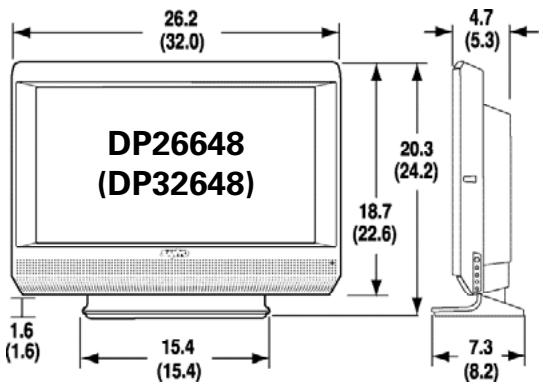
NOTE: All dimensions are in inches.
WALL MOUNTING (OPTIONAL)
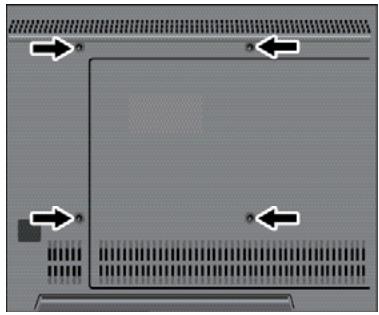
Use the screws that are threaded into the stand-mounting inserts on the back of your HDTV to secure it to a wall mounting kit.
NOTE: Wall Mounting kit is not supplied.
VESA standard interface:
200 × 200
Wall Mounting
Inserts
natural_image
Pure diagram of a computer monitor layout with no text, numbers, or symbolsMounting screws measurements:
M6 Diameter, Length—12mm (min.) 16mm (max.)
GETTING STARTED
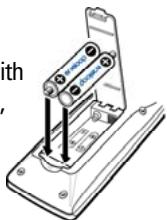
1 Install supplied batteries in the Remote. (2 "AAA" eneloop Ni-MH rechargeable batteries)

PRECAUTIONS
Do not use rechargeables together with dry cells, other types, mixed new and old, or batteries with different charge levels.
Do not expose the Remote or batteries to moisture or heat.
natural_image
Technical line drawing of a mechanical clamp or bracket assembly (no text or symbols visible)Match the "+" and "-" signs on the batteries with marks inside the Remote Control.
For eneloop battery recharging, please refer to your battery charger's instructions (battery charger not included).

Please recycle used up rechargeable batteries.
For more information visit: www.eneloopusa.com
2 Antenna Connection for off-air signals
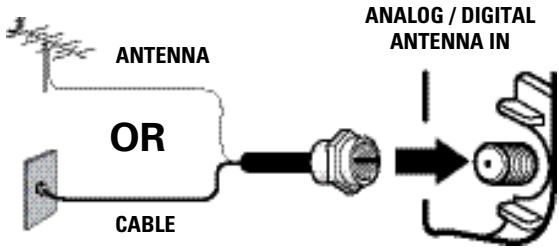
THE TUNER IN THIS HDTV CAN RECEIVE:
a. Digital and Analog off-air signals from an antenna.
OR
b. Analog or ClearQAM cable channels from a direct Cable TV connection.
NOTES: You must use the on-screen MENU to Search for ClearQAM Cable channels. (See page 12.)
For the best picture, connect your Cable box or Satellite receiver to HDMI1, 2, or component jacks (Video2 or 3).
This HDTV can receive ANY unscrambled RF signal being broadcast.
GETTING STARTED—CONTROLS AND JACKS
① S-Video Input (VIDEO1), PAGE 8—To enhance video detail use the S-Video jack instead of the Video jack, if available on your external equipment. (An S-Video connection will override a connection to the Video1 input jack.)
② Digital Audio Output (Coaxial), PAGE 10—Use a Phono-Type (Coaxial) Digital Audio Out Cable to connect Digital Audio Output to an advanced stereo home theater system equipped with Dolby® Digital 5.1.
③ Component Video Input (VIDEO2 or VIDEO3), PAGE 8—Connect digital video equipment to the Video Green (Y), Blue (Pb), Red (Pr) jacks, and matching Audio White (L) and Red (R) jacks. These jacks will automatically detect the type of signal being received.
④ Stereo Audio Out (L/R) Jacks, PAGE 10—Connect stereo audio equipment to these jacks.
⑤ PC Input (15-Pin Monitor and Mini Stereo Audio) Page 11—Connect computer and audio outputs to these terminals.
• MONITOR RGB (D-SUB)
• AUDIO R/L (Stereo Mini Jack)
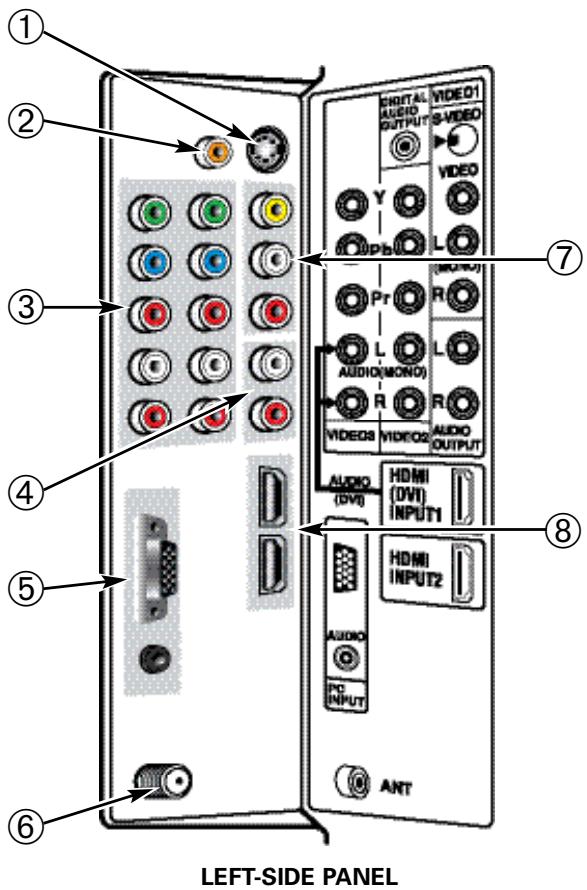
⑥ Analog / Digital Antenna Input, PAGE 5—Connect an RF antenna or Analog Cable system to this jack.
⑦ AV Input (VIDEO1), PAGE 8—Connect analog video equipment here.
⑧ HDMI Input (INPUT1 or INPUT2), PAGE 10—An all digital AV interface that accepts uncompressed video signals for the very best picture possible. HDMI supports HDCP copy protection, allowing transmission of copy-protected digital content. The signal can also include Dolby® Digital or PCM audio, when available.
① PIX Shape Key—Press to choose between options Pix1 \~ Pix4. Available options depend on the signal and the broadcast's aspect ratio.
② Input Key—Press to select the source to view: Analog RF, Digital RF, Video 1, Video 2, Video 3, HDMI 1, HDMI 2, or PC Input.
③ Info Key—Press to display Channel Banner information.
Digital Antenna Banner may contain: Tuner ID, Channel Number, Station ID, Program Rating, Signal Strength, Detailed Program Info, Audio Information, & Program Title.
Analog Antenna Banner may contain: Tuner ID, Channel Number, Station ID, Program Rating, & Audio Information.
Cable Banner may contain: Tuner ID, Channel Number, Station ID (analog only), Program Rating, Signal Strength, & Audio Information.
④ Reset Key—Press this key twice to restore factory settings. The TV will automatically start Channel Search and clear customized settings.
NOTE: The Channel Scan Memory database will be replaced.
⑤ Number Keys—Press two keys to select a channel. Example: Press 0 then 6 to select channel 6. (See #13.)
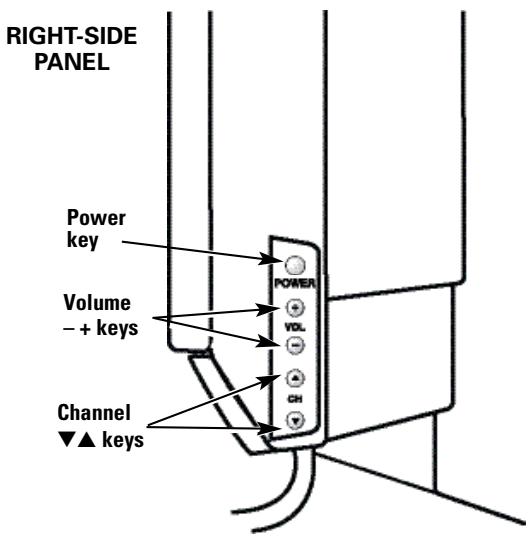
⑥Channel Scanning (CH ▲▼) Keys—Press to scan through the channels in memory.
⑦ Recall Key—Press to switch between the last two channels selected.
⑧ Menu Navigational Keys:
Menu—Press to display on-screen menu.
Cursor ▲ (up) ▼ (down) keys—Press these keys to move the cursor up and down.
Cursor < (left) > (right) keys—Press these keys to move the cursor left and right.
Enter Key—Press to select an option from the menu system, when required.
Exit Key—Press to exit from the menu.
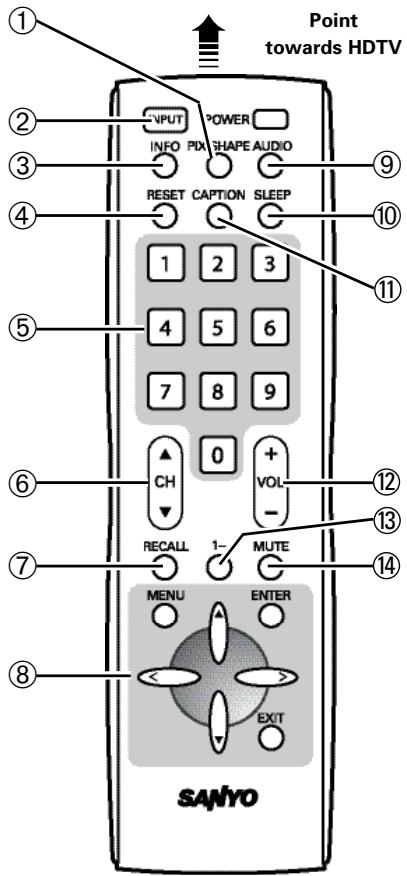
⑨ Audio Key—Press to select the desired audio mode, if available.
⑩ Sleep Key—Press SLEEP then "0" to set the Off Timer. Off time can be set in 30-minute increments up to 3 hours.
NOTE: The Off Timer cancels if the TV is turned off or if a power failure occurs.
⑪ Caption Key—Press to select mode options: Digital CC1 \~ CC6, or Analog CC1 \~ CC4, QuikCap, or OFF. (QuikCap turns captions on or off with the Mute function.) Digital Captions can be changed using the menu settings.
⑫ Volume Keys—Press VOL - + to decrease or increase the audio volume.
⑬ 1--Key—For Cable channels above 99, press this key, then press the other two numbers.
⑭ Mute Key—Press to mute or restore the sound.
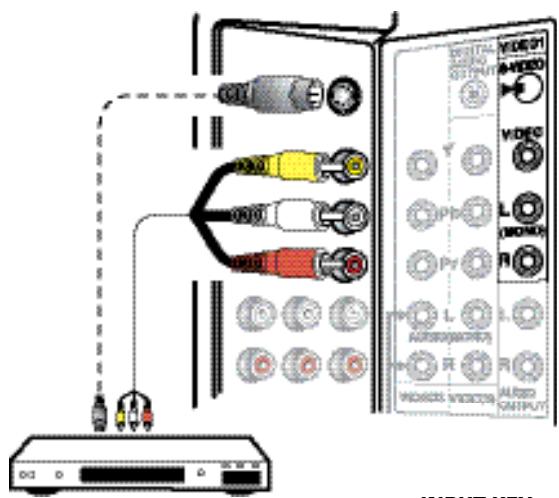
3 Analog Signal Connections—Video1 (optional)
Connect an analog device, such as, an Analog Cable Box, Satellite Receiver, or VCR
Composite connectors are included on your new HDTV to provide continued compatibility with older analog devices, such as a VCR. The S-Video connector will provide the best analog resolution. If you have an S-Video connector on your old analog equipment, you should use it instead of the standard video connector. (Cables are not supplied.)
- Connect an AV cable to the VIDEO1 jacks on the HDTV and to your analog AV equipment, as shown. Match the connector colors to jack colors.
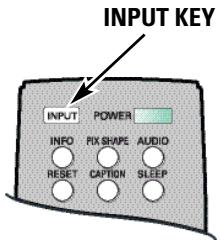
- Press the INPUT key to step through the signal inputs to select Video 1.
ANALOG DEVICE
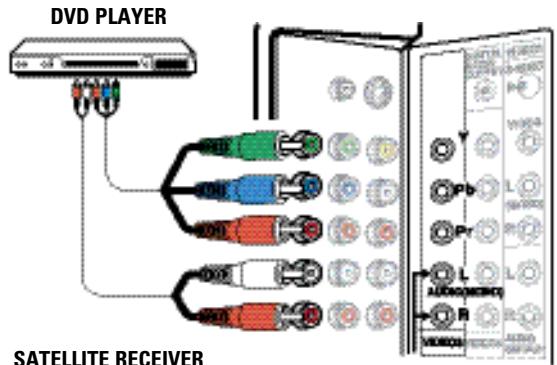
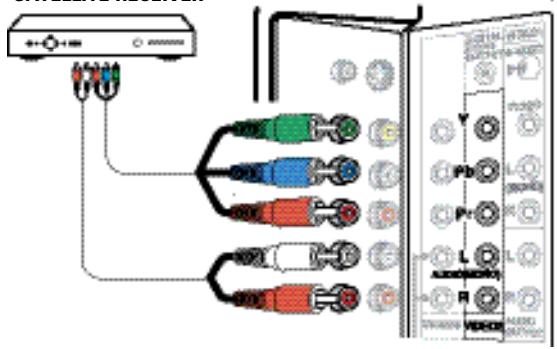
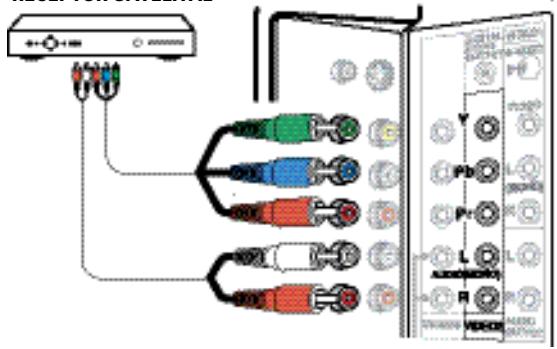
4 Digital Signal Connections—Video2 & Video3 (optional)
Connect Digital devices, such as, an HD Cable Box, HD Satellite Receiver, DVD Player, and Game System
The Component jacks on this HDTV will accept HDTV, EDTV, and SDTV video signals, making Component a great choice when connecting your compatible external devices.
- Connect a COMPONENT cable to a set of Green, Blue, and Red video jacks (Video2 or Video3) on the HDTV and to your digital device, as shown. (Cable is not supplied.)
- Connect an AUDIO cable to the matching set of White and Red audio jacks, as shown. (Cable is not supplied.)
- Press the INPUT key to step through the signal inputs to select Video 2 or Video 3.
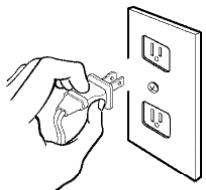
POWER CONNECTION
5 Plug in AC power cord (120V AC, 60 Hz).
6 Press the POWER key. (Follow the on-screen instructions.)
natural_image
Illustration of a hand using a power tool to switch an electrical outlet (no text or symbols present)To 120V AC outlet.
INITIAL CHANNEL SEARCH
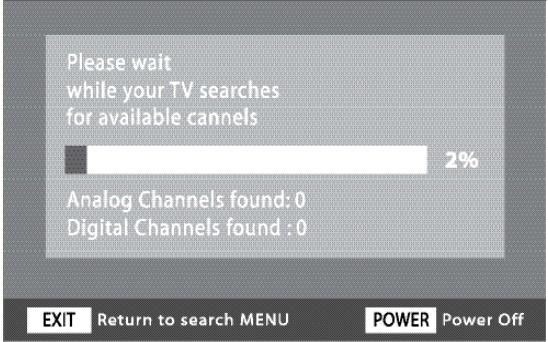
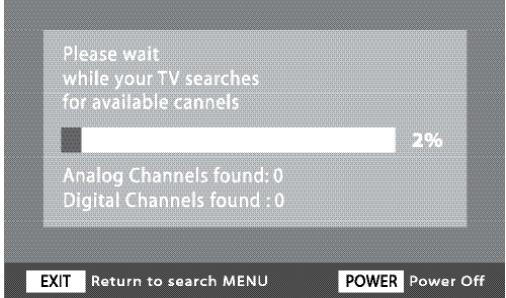
7 Press the CHANNEL ▲ (Up) key to search for signals connected to the Antenna terminal.
Channel Search will check for Antenna and Cable signals. If Antenna signals are detected, the HDTV searches for both analog and digital off-air channels. If Cable signals are detected, the HDTV will search for analog Cable channels.
Channels are stored in Channel Memory and can be scanned using the CHANNEL ▲ (Up) and ▼ (Down) keys.
If no Antenna signals are detected, the HDTV will begin an AV search.
If neither of these searches detected a valid signal, the HDTV will tune to input Video1.
Please connect all antennas and signals to the jacks and terminals.
Press Channel UP for channel search.
Press Channel DOWN for AV search.
INITIAL DISPLAY
ALL CHANNEL SEARCH
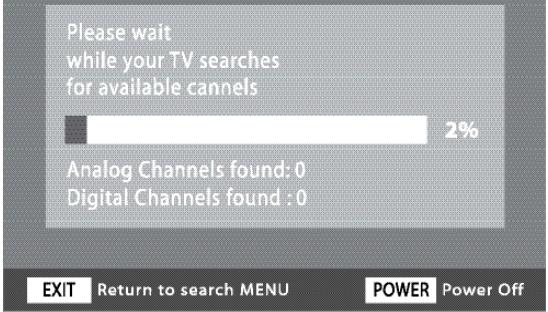
CHANNEL SEARCH DISPLAY
AV SEARCH
NOTE: Be sure all the external video devices you connected to the HDTV are powered ON before you begin an AV Search.
8 Press the CHANNEL ▼ (Down) key to search for signals from devices you connected to the AV input jacks (Initial Display).
AV Search will begin checking the AV inputs for valid signals, beginning with input Video1. When a valid signal is detected, the search process ends and the HDTV tunes to that input source.
If a valid signal is not detected on any of the AV inputs, the HDTV will tune to input Video1.
Please wait while your TV searches the AV connections for available signals
AV SIGNAL SEARCH DISPLAY
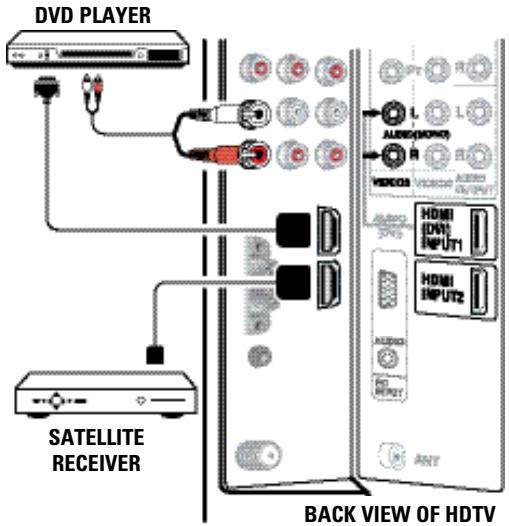
ADVANCED DIGITAL SIGNAL CONNECTIONS—HDMI TO HDMI
Connect compatible Digital devices, such as, an HD Cable Box, HD Satellite Receiver, DVD Player, and Game System
HDMI—High-Definition Multimedia Interface.
An all digital AV interface that accepts uncompressed video signals for the very best picture possible. It supports HDCP copy protection, allowing transmission of copy-protected digital content. The signal can also include Dolby® Digital or PCM audio, when available.
1 Connect an HDMI cable to one of the HDTV's HDMI inputs and to your external device. (Cable is not supplied.)
NOTE: Press the INPUT key to step through the signal inputs to select HDMI 1 or HDMI 2.
DVI TO HDMI
1 Use an adapter (not supplied) to connect a DVI device to an HDMI input jack.
2 Connect the device's audio out to the VIDEO3 Audio In L/R.
NOTE: Audio is available only when using HDMI1.
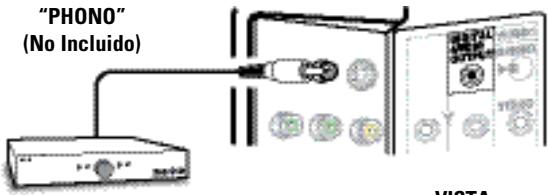
DIGITAL AUDIO
1 Connect the Digital Audio output to a multichannel receiver, as shown.
NOTE: Dolby® Digital 5.1 audio is available at the Digital Audio Output only when received as part of a Digital Antenna signal being viewed on the screen.
PHONO-TYPE
DIGITAL AUDIO
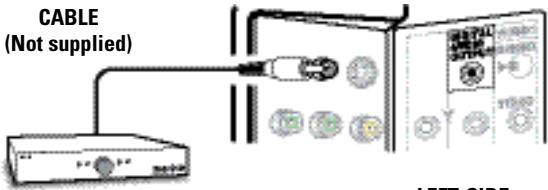
MULTICHANNEL
RECEIVER
LEFT-SIDE
VIEW OF
HDTV BACK
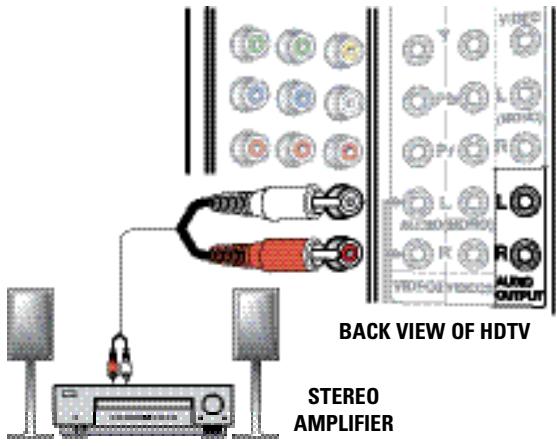
AUDIO OUT JACKS (FIXED ANALOG)
1 Connect the Stereo Audio Out jacks to a stereo amplifier, as shown.
NOTE: Do not connect external speakers directly to the HDTV.
PC CONNECTIONS

NOTE: Before connecting any cables, disconnect the AC Power Cords of both the HDTV and Personal Computer from the AC outlets.
1 Connect an RGB cable from the monitor output on your PC to the RGB connector on the HDTV and tighten the screws. (Monitor Cable not supplied.)
2 Insert one end of a Stereo Mini-Audio cable into the PC Audio Out jack and the other end into the HDTV PC Audio Input jack. (Stereo Mini-Audio Cable not supplied.)
HINT: Volume can be adjusted both from the PC and the HDTV VOLUME ▲ and ▼ keys.
3 Select Auto Adjustment from the PC Setup Menu.

NOTE: Power on the HDTV and any other peripheral equipment before powering on the computer.
PC MENU NAVIGATION MAP
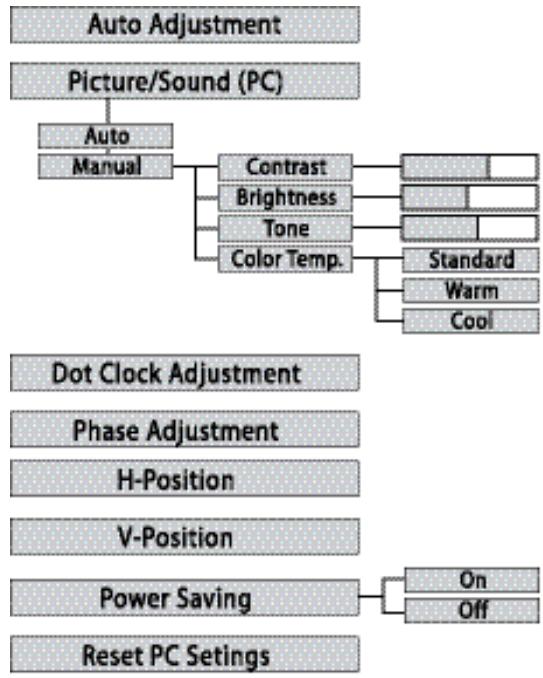
flowchart
graph TD
    A["Auto Adjustment"] --> B["Picture/Sound (PC)"]
    B --> C["Auto"]
    C --> D["Manual"]
    D --> E["Contrast"]
    E --> F["Brightness"]
    E --> G["Tone"]
    E --> H["Color Temp."]
    H --> I["Standard"]
    H --> J["Warm"]
    H --> K["Cool"]
    L["Dot Clock Adjustment"] --> M["Phase Adjustment"]
    M --> N["H-Position"]
    O["V-Position"] --> P["Power Saving"]
    Q["Reset PC Settings"] --> R["Reset PC Settings"]
    S["On"] --> T["Reset PC Settings"]
    U["Off"] --> V["Reset PC Settings"]
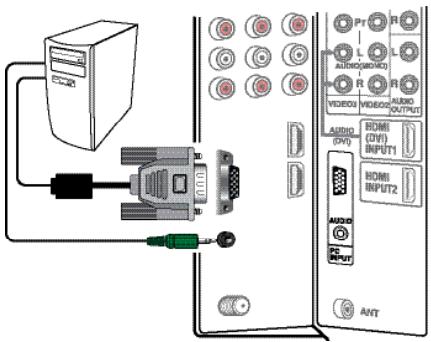
To avoid an “Out of Range” condition, preset your PC’s output resolution to an XGA value, such as, 1024 x 768, before you disconnect it from your regular monitor.
PC MONITOR SETUP
The Frequency, Resolution, Dot Clock, Phase, Horizontal Position, and Vertical Position are set automatically when Auto Adjustment is selected.
Picture and Sound settings in the PC Menu do not affect other input settings.
Press RESET twice to reset ALL settings to factory defaults.
MANUAL ADJUSTMENTS
Color Temp.—Press ENTER to choose setting.
Dot Clock—Dot Clock adjusts the Dot frequency to match your computer's dot frequency.
Phase—Adjust the Phase when the picture appears to flicker or is blurred.
H-Position—Moves the image horizontally.
V-Position—Moves the image vertically.
Power Saving—When the HDTV no longer detects H- and V-sync signals from the PC, it switches to standby mode. It will return to normal operation when H- and V-sync signals are again detected.
Reset PC Settings—Resets all the PC Menu options to Factory default values.
| NOTE: “Not available” will appear on the screen when an option is unavailable. | |
| TUNING MODE | UNAVAILABLE MENU OPTION(S) |
| Analog RF | Digital Caption |
| Digital RF | None (all Menu options available) |
| Video 1 | Manual Channel Search, Channel Scan Memory, Digital Caption |
| Video 2/3 and HDMI 1/2 | Manual Channel Search, Channel Scan Memory, Digital Caption, V-Guide |
IMPORTANT FACT: This HDTV maintains only one database of digital channels. Therefore, when you search for cable channels, the database of antenna digital channels will be deleted. You will only be able to receive those ClearQAM channels your cable company provides.
MANUAL CHANNEL SEARCH
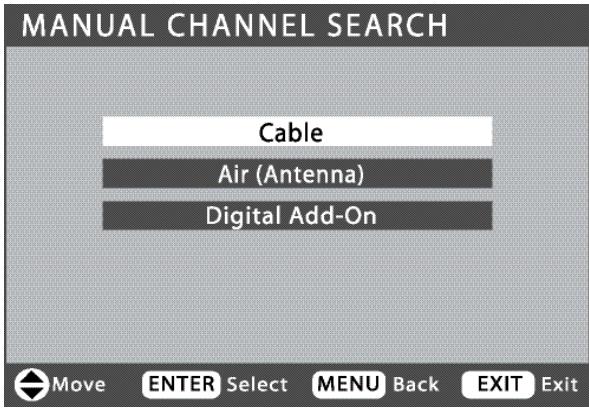
MANUAL CHANNEL SEARCH HAS THREE CATEGORIES
- Cable - Air (Antenna) - Digital Add-On
Cable Search looks for analog cable channels and unscrambled (ClearQAM) digital cable channels.
This search may take several minutes. After the search is complete, the HDTV will tune to the lowest ClearQAM channel, if available. Otherwise, the HDTV will tune to the lowest analog cable channel.
Air(Antenna) Search will search for analog and digital channels that are broadcast over-the-air.
After the search is complete, the HDTV will tune to the lowest Digital channel or the lowest analog channel. If no digital or analog channels are found, the HDTV will tune to Video 1.
Digital Add-On Search will add new digital channels that are found to the Channel Scan Database.
1 Press the MENU key on the remote control to display the Main menu. (See page 7.)
2 Use the CURSOR ▲▼ keys to highlight Manual Channel Search. Press ENTER.
3 Use the CURSOR ▲▼ keys to select Cable, Air (Antenna), or Digital Add-On.
After the search is complete, the HDTV will exit the menu system and return to normal TV viewing.
NOTE: For information on local digital channels, visit www.antennaweb.org.
CHANNEL SCAN MEMORY
Channel Scan Memory is a database of active channels you scan through using the CHANNEL ▲▼ keys. Customize it by deleting or adding channels.
1 Press the MENU key on the remote control to display the Main menu. (See page 7.)
2 Use the CURSOR ▲▼ keys to highlight Chanel Scan Memory. Press ENTER.
ADDING CHANNELS TO SCAN MEMORY
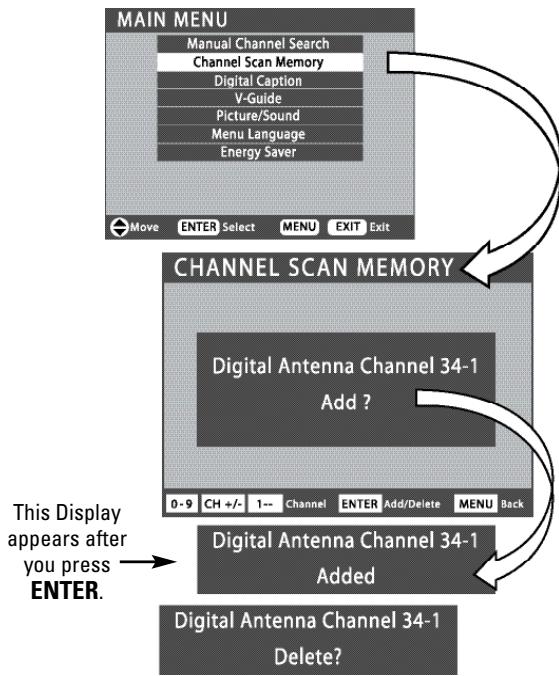
3 Use the NUMBER keys to select the channel you want to Add.
NOTE: Use the 1-- key to select cable channels above 99.
4 Press ENTER to Add the channel to Channel Scan Memory.
flowchart
graph TD
    A["MAIN MENU"] --> B["CHANNEL SCAN MEMORY"]
    B --> C["Digital Antenna Channel 34-1 Add ?"]
    C --> D["Digital Antenna Channel 34-1 Added"]
    D --> E["Digital Antenna Channel 34-1 Delete?"]
    style A fill:#f9f,stroke:#333
    style B fill:#ccf,stroke:#333
    style C fill:#cfc,stroke:#333
    style D fill:#fcc,stroke:#333
    style E fill:#cff,stroke:#333
After 3 seconds the TV screen will display "Delete?"
DELETING CHANNELS FROM SCAN MEMORY
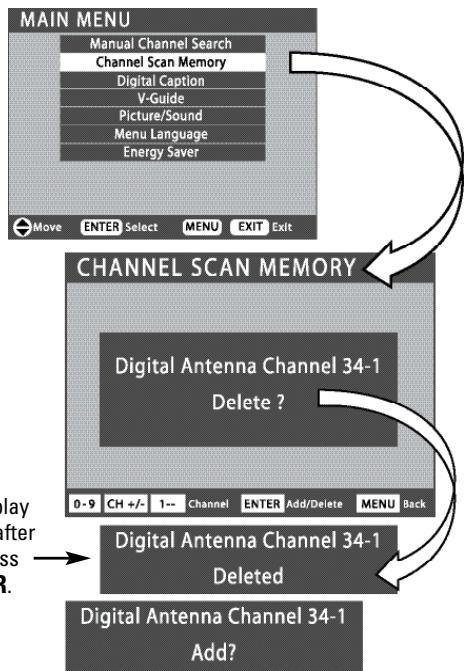
3 Use the CHANNEL ▲▼ or NUMBER keys to select the channel you want to Delete.
NOTE: Use the 1-- key to select cable channels above 99.
4 Press ENTER to Delete the channel from Channel Scan Memory.
5 Press EXIT to return to normal TV viewing.
flowchart
graph TD
    A["CHANNEL SCAN MEMORY"] --> B["Digital Antenna Channel 34-1 Delete ?"]
    B --> C["Digital Antenna Channel 34-1 Deleted"]
    C --> D["Digital Antenna Channel 34-1 Add?"]
    E["MAIN MENU"] --> F["Manual Channel Search"]
    F --> G["Channel Scan Memory"]
    G --> H["Digital Caption"]
    H --> I["V-Guide"]
    I --> J["Picture/Sound"]
    J --> K["Menu Language"]
    K --> L["Energy Saver"]
    M["Move"] --> N["ENTER"] --> O["Select"] --> P["MENU"] --> Q["EXIT"] --> R["Exit"]
After 3 seconds the TV screen will display "Add?"
IMPORTANT FACTS: When a digital channel is deleted, all of that channel's sub-channels are deleted as well. Only previously deleted digital channels can be added back to the Channel Scan Memory.
Tune to “deleted” channels using the number keys. If one digital sub-channel is added back to the Channel Scan Memory list, all of that channel’s sub-channels will be added back.
(Menu operations continued on page 14.)
ON-SCREEN MENU OPERATION (CONTINUED)
V-GUIDE (PARENTAL CONTROL)
NOTE: THIS FEATURE IS DESIGNED TO COMPLY WITH THE UNITED STATES OF AMERICA'S FCC V-CHIP REGULATIONS. THEREFORE, IT MAY NOT FUNCTION WITH BROADCASTS THAT ORIGINATE IN OTHER COUNTRIES.
This Sanyo television is equipped with an electronic V-Chip to interpret MPAA (Motion Picture Association of America) and TV Parental Guidelines rating codes. When these codes are detected, the HDTV will automatically display or block the program, depending upon choices you make when setting up the V-Guide system.
Use this feature to block automatically programs with content you deem as inappropriate for your children to view.
MORE INFORMATION
Additional information about MPAA and V-Chip rating can be found at: www.mpaa.org and www.v-chip.org, respectively.
V-GUIDE OPERATION
1 Use the CURSOR ▲▼ keys to highlight V-Guide in the Main menu. Press ENTER.
2 Use the CURSOR ▲▼ keys to highlight On, in the V-Guide menu. Press ENTER.
3 Use the CURSOR ▲▼ keys to highlight Adjust. Press ENTER.
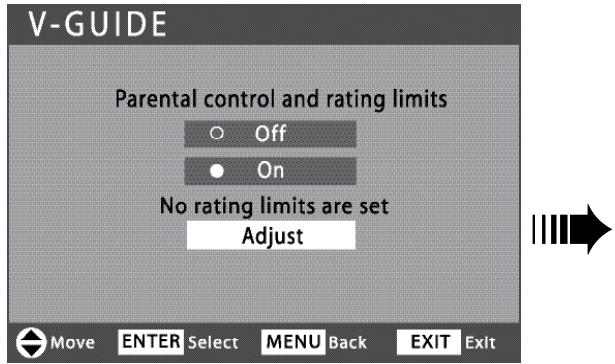
4 Use the CURSOR ▲▼ and < > keys to select MOVIE, TV, or Content Ratings. (A green square will appear beside the selected item.)
NOTE: Content ratings are under the letters FV, D, L, S, and V.
5 Press the ENTER key to Block or Unblock selected rating. A lock symbol will appear beside the selected rating option indicating that it is blocked.
OPERATING TIPS
■ V-Guide settings are effective for Analog channels, Digital channels, and Video1 signals.
■ You can block portions of a TV rating by choosing one or more of the Content ratings (D, L, S, and V). By blocking just the L and S content ratings of TV-14, for example, TV-14 rated programs with a D and/or V content rating could still be viewed.
STANDARD V-GUIDE RATINGS—AT-A-GLANCE
MPAA (Movie) RATING TV RATING CONTENT RATING
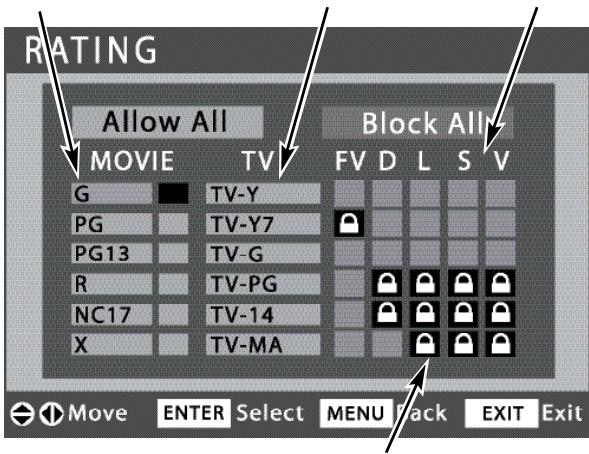
BLOCKED RATINGS (Lock symbol)
REGIONAL V-GUIDE OPERATION (ADVANCED)
V-Chip Regional Ratings 5 (RRT5) is an advanced V-Chip ratings system for digital channels that are received with an antenna. Your new Sanyo HDTV supports this alternative system.
When the HDTV detects compatible RRT5 data, it is downloaded and stored in memory and the menu is modified to include an advanced adjustment option.
When the Adjust (Advanced) setup option is selected the Advanced Rating screen appears.
1 Use the CURSOR ▲▼ keys to highlight V-Guide in the Main menu. Press ENTER.
2 Use the CURSOR ▲▼ keys to highlight On, in the V-Guide control menu. Press ENTER.
3 Use the CURSOR ▲▼ keys to highlight Adjust (Advanced). Press ENTER.
4 Use the CURSOR ▲▼ and < > keys to select a rating.
5 Press the ENTER key to Block or Unblock selected rating. A Lock symbol will appear beside the selected rating option indicating that it is blocked.
The advanced rating table will reflect previous choices you may have made.
NOTE: If the HDTV is reset to factory defaults or if a Manual Cable Search is performed, only the Adjust option will appear in the menu. The Adjust (Advanced) option will reappear when the HDTV again detects RRT5 data.
The V-Guide ratings screen below is just an example. Actual rating options will vary by region. For example, the RRT5 ratings for San Francisco, California may differ from those in Little Rock, Arkansas.
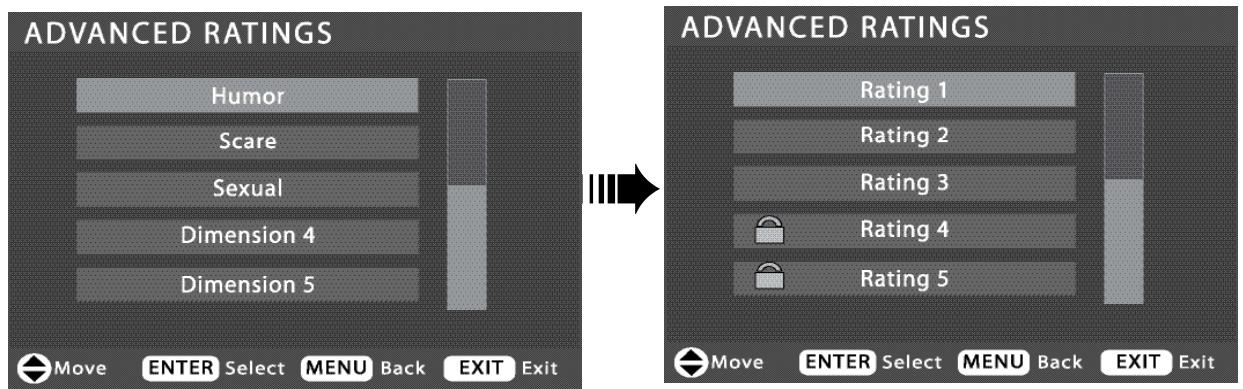
HINT: There may be more ratings than can be displayed on one screen. When vertical scroll bars appear, use the CURSOR ▲▼ keys to gain access to the additional ratings.
ON-SCREEN MENU OPERATION (CONTINUED)
PICTURE / SOUND ADJUSTMENT
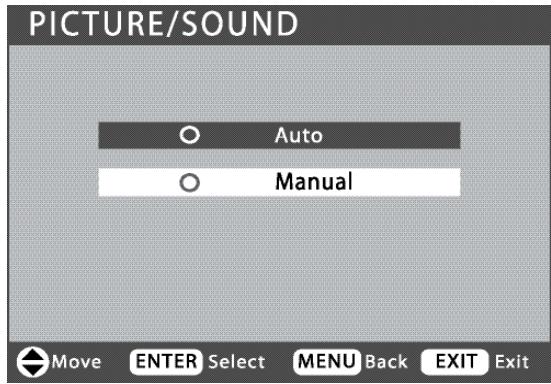
Choose Auto to accept predetermined values for each parameter.
Choose Manual to adjust Picture / Sound values individually to suit your personal preferences.
ADJUSTING THE PICTURE / SOUND MANUALLY
1 Use the CURSOR ▲▼ keys to highlight Picture / Sound. Press ENTER.
2 Use the CURSOR ▲▼ keys to highlight Manual. Press ENTER.
ADJUSTING THE PICTURE / SOUND LEVELS
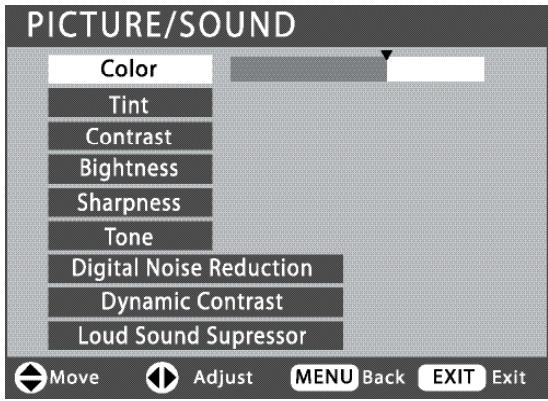
3 Use the CURSOR ▲▼ keys to select Color, Tint, Contrast, Brightness, Sharpness, or Tone.
4 Use the CURSOR <> keys to adjust the levels.
ADVANCED PICTURE / SOUND ADJUSTMENTS
3 Use the CURSOR ▲▼ keys to select Digital Noise Reduction, Dynamic Contrast, or Loud Sound Suppressor.
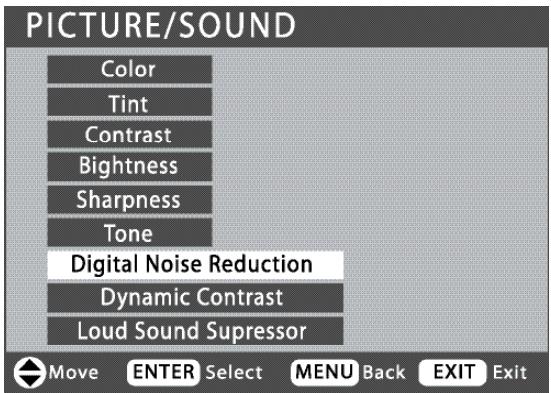
4 Press the right CURSOR > key for options.
5 Use the ▲▼ keys to highlight On or Off. Press ENTER.
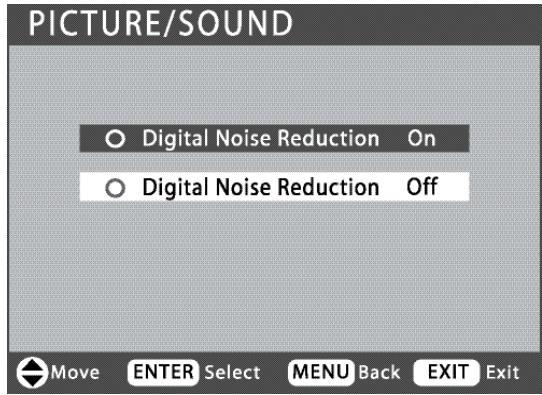
6 Press the MENU key to return to the previous menu or the EXIT key to return to normal viewing.
DIGITAL CAPTIONING
Captioning is textual information transmitted along with the picture and sound. Turning Captioning ON causes the HDTV to open these captions (digital or analog) and superimpose them on the screen. (Local broadcasters decide which caption signals to transmit.)
Digital Captions can be changed using the menu settings as shown.
1 Use the CURSOR ▲▼ keys to highlight Digital Caption. Press ENTER.
2 Use the CURSOR ▲▼ keys to select the option you want to adjust.
3 Use the CURSOR <> keys to adjust the value.
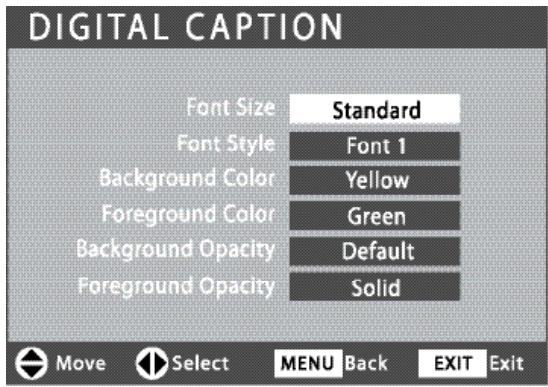
NOTES: If Background Opacity is set to transparent, captions may be difficult to see.
Only true EIA 708B Digital Closed-Captions are affected by all of these settings.
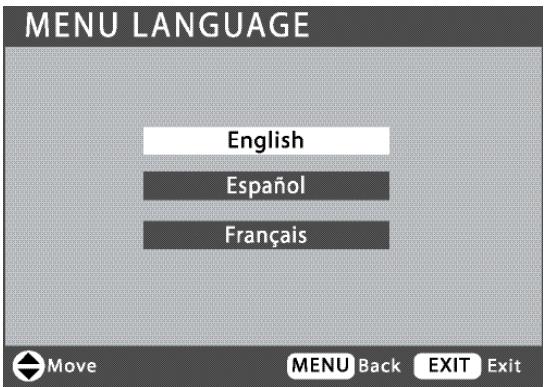
MENU LANGUAGE
1 Use the CURSOR ▲▼ keys to highlight Menu Language. Press ENTER.
2 Use the CURSOR ▲▼ keys to select English, Español, or Français. Press EXIT.
ENERGY (POWER) SAVER
This power saving feature reduces the backlight brightness level. The options are:
- OFF—the feature is off and the power consumption is normal.
- LOW—power saving level is low and the backlight brightness level is lower than normal.
- HIGH—power saving level is high and the backlight brightness is set to the lowest level.
1 Use the CURSOR ▲▼ keys to highlight Energy Saver. Press ENTER.
2 Use the CURSOR ▲▼ keys to select Off, Low, or High.
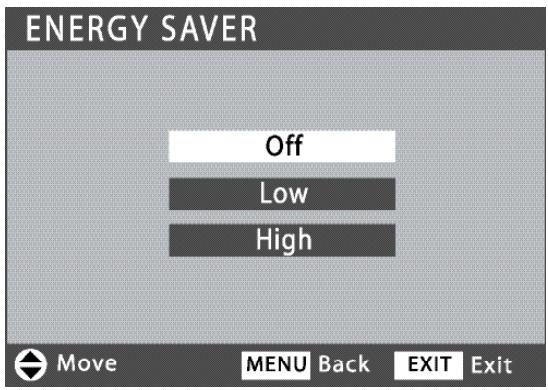
NOTE: The Energy Saver settings level varies with the Picture/Sound mode.
HELPFUL HINTS—Problems/Solutions
If you are having problems with your HDTV, check this trouble shooting chart to find one or more possible solutions.
Before returning your HDTV, please visit our website at www.sanyoctv.com or call us toll free at 1.800.877.5032. We can Help!
| Problem: | Check these Conditions: | Try these Solutions: | Page No. |
| No picture, sound (Digital Picture) | Check antenna/external connectionsMay be station trouble, NO signal broadcast.MUTE function may be ON. | Adjust antenna.Try a different channel.Press RESET twice to restart channel search. (All customized settings will be cancelled.)Adjust Volume. | 5, 716 |
| No Captioning | Check if station is broadcasting a Closed-Caption signal.Select another channel. | Press CAPTION to select captioning mode. | 7, 17 |
| Cannot customize Caption | Digital Caption signal is not being broadcast. | Press CAPTION to select Analog captioning. | 7, 17 |
| Can't display picture on a full screen | Press PIX SHAPE to change setting. | 7 | |
| Poor Picture/Sound (watching Analog) | Check if program is in color.Check antenna/external connections.Color or Tint misadjusted.May be station trouble.Maybe MUTE function is ON. | Try a different channel.Adjust antenna.Press RESET twice to restart channel search.Adjust Volume and/or Picture. | 5, 716 |
| “No Signal” message appears on screen | Check Audio/Video connections.Check external equipment connections.Check external equipment setting.Check antenna connection. | Press INPUT.Switch on external equipment.Turn antenna, install signal booster.Set external equipment output connections to match input connections. | 5 – 10 |
| Pixilation of Digital image | Press INFO and check signal strength. | Turn antenna, install signal booster.Install outdoor Digital antenna. | 5, 7 |
| Cannot select or scan some channels | Channel may be removed from memory.Check antenna connections.No digital signal being broadcast.V-Guide is set to block programming.Weak Signal. | Select Channel Scan Memory to add channels or start channel search.Set V-Guide to “ALLOW ALL” or press RESET twice to clear all settings and restart channel search.Turn antenna, install signal booster. | 713 – 15 |
| No Cable channels above number 13 | Cable Channel Indicator C should appear next to channel number. | Search for Cable channels using Manual Channel Search. | 13 |
| Remote Control will not operate TV | Check batteries.Check if TV is plugged in. | Replace batteries.Aim remote control at front of TV. | 5, 7 |
| Cabinet makes pop-ping sound. | This is a normal condition during warm-up and cool down of the plastic cabinet parts. |
ONE-YEAR LIMITED PARTS AND LABOR WARRANTY
THIS LIMITED PARTS AND LABOR WARRANTY IS VALID ONLY ON SANYO TELEVISIONS PURCHASED AND USED IN THE UNITED STATES OF AMERICA, CANADA, AND PUERTO RICO, EXCLUDING ALL OTHER U.S. TERRITORIES AND PROTECTORATES. THIS LIMITED WARRANTY APPLIES ONLY TO THE ORIGINAL RETAIL PURCHASER, AND DOES NOT APPLY TO PRODUCTS USED FOR INDUSTRIAL OR COMMERCIAL PURPOSES.
WARRANTY APPLICATION
FOR ONE YEAR from the date of original retail purchase Sanyo Manufacturing Corporation (SMC) warrants this TV to be free from manufacturing defects in materials and workmanship under normal use and conditions for parts and labor.
For the FIRST 90 DAYS from the date of original retail purchase, Sanyo Manufacturing Corporation will replace any defective TV via exchange at the retailer. To ensure proper warranty application, keep the original-dated-sales receipt for evidence of purchase. Return the defective TV to the retailer along with the receipt and the included accessories, such as the remote control. The defective TV will be exchanged for the same model, or a replacement model of equal value, if necessary. Replacement model will be contingent on availability and at the sole discretion of Sanyo Manufacturing Corporation.
THE FOREGOING WARRANTY IS EXCLUSIVE AND IN LIEU OF ALL OTHER WARRANTIES OF MERCHANTABILITY OR FITNESS FOR A PARTICULAR PURPOSE.
OBLIGATIONS
For one year from the date of purchase, Sanyo Manufacturing Corporation warrants this product to be free from defects in material and workmanship under normal use and conditions. During the first 90 days under this warranty for any manufacturing defect or malfunction Sanyo Manufacturing Corporation will provide a new TV via exchange at the retailer.
HOW TO MAKE A CLAIM UNDER THIS WARRANTY
Please call 1-800-877-5032. Please be prepared to give us the television's model number and serial number when you call. The model number and serial number are printed on a label attached to the back of the unit.
For customer assistance, call toll free 1-800-877-5032.
Weekdays 7:30 AM – 7:00 PM Central Time
Saturday 7:30 AM – 4:00 PM Central Time
This warranty expresses specific contractual rights; retail purchasers may have additional statutory rights which vary from state to state.
(EFFECTIVE: March 1, 2007)
For your protection in the event of theft or loss of this product, please fill in the information requested below and KEEP IN A SAFE PLACE FOR YOUR OWN PERSONAL RECORDS.
Model No. ____
Serial No.
(Located on back of unit)
Date of Purchase ____
Purchase Price ____
Where Purchased ____

Sanyo Manufacturing Corp.
3333 Sanyo Road, Forrest City, AR 72335
ADVERTENCIA : PARA REDUCIR EL RIESGO DE FUEGO O TOQUE ELÉCTRICO, NO EXPONGA ESTE APARATO A LLUVIA O HUMEDAD.
natural_image
Prohibition symbol of a laptop with a magnifying glass overlay, crossed out by a diagonal line (no text or symbols)Guía-V (Control Paternal) .....32
natural_image
Cartoon illustration of a smiling computer monitor with eyes and a smile (no text or symbols)natural_image
Diagram of a computer monitor with ventilation grilles and directional arrows indicating flow (no text or symbols)natural_image
Mechanical assembly diagram showing a connector with pins and mounting base (no text or symbols)RECEPTOR SATELITAL
CONEXIÓN ELÉCTRICA
natural_image
Illustration of a hand using a power tool to switch an electrical outlet (no text or symbols present)A la toma de 120VAC
Please connect all antennas and signals to the jacks and terminals.
Press Channel UP for channel search.
Press Channel DOWN for AV search.
PANTALLA INICIAL
ALL CHANNEL SEARCH
PANTALLA DE BÚSQUEDA AV
CONEXIONES AVANZADAS DE SEÑAL DIGITAL—HDMI A HDMI
DIGITAL TIPO "PHONO"
(No Incluido)
RECEPTOR MULTICANAL
Sanyo Manufacturing Corp.
3333 Sanyo Road, Forrest City, AR 72335
MESURES DE SÉCURITÉ
natural_image
Silhouette of a person pushing a ladder under a large 'no' symbol (no text or symbols present)natural_image
No sign depicting a computer monitor with a screen, crossed out by a diagonal line (no text or symbols)
natural_image
Cartoon illustration of a smiling computer monitor with eyes and a smile (no text or symbols)natural_image
Diagram of a computer monitor with ventilation grilles and directional arrows indicating movement (no text or symbols)natural_image
Technical illustration of a mechanical clamp or bracket assembly (no visible text or symbols)APPAREIL ANALOGIQUE
ÉCRAN INITIAL
ALL CHANNEL SEARCH
ÉCRAN DE RECHERCHE DE CHAÎNES
RECHERCHE AV
APPLICATION DE LA GARANTIE
Sanyo Manufacturing Corp.
3333 Sanyo Road, Forrest City, AR 72335