
Plaza DS-100A - Receiver MANHATTAN - Free user manual and instructions
Find the device manual for free Plaza DS-100A MANHATTAN in PDF.


| Product Type | Satellite Receiver |
| Brand | Manhattan |
| Model | Plaza DS-100A |
| Dimensions (W x D x H) | 250 x 150 x 50 mm |
| Weight | 1.0 kg |
| Power Supply | 12V DC, 1A |
| Power Consumption | 12 W max |
| Input Connector | F-type female, 75 Ohm |
| Output Connectors | SCART, RCA (audio/video), RF loop-through |
| Supported Satellite | Astra 19.2°E (pre-configured) |
| Number of Channels | Up to 2000 |
| Channel Search | Automatic and manual |
| Video Output | PAL / NTSC |
| Audio Output | Mono / Stereo |
| Remote Control | Infrared, 2x AAA batteries |
| Display | LED front panel |
| Operating Temperature | 0°C to 40°C |
| Storage Temperature | -10°C to 60°C |
| Cleaning | Dry soft cloth; avoid liquids |
| Safety Precautions | Do not expose to moisture; unplug during storms |
| Spare Parts | Remote control, power adapter (available separately) |
| Repairability | Service by qualified technician only |
| General Information | Designed for free-to-air satellite channels |
Frequently Asked Questions - Plaza DS-100A MANHATTAN
User questions about Plaza DS-100A MANHATTAN
0 question about this device. Answer the ones you know or ask your own.
Ask a new question about this device
Download the instructions for your Receiver in PDF format for free! Find your manual Plaza DS-100A - MANHATTAN and take your electronic device back in hand. On this page are published all the documents necessary for the use of your device. Plaza DS-100A by MANHATTAN.
USER MANUAL Plaza DS-100A MANHATTAN
User Guide
Plaza DS • 100A
freesat digital TV receiver

CONGRATULATIONS
on buying a Manhattan Plaza DS•100A freesat receiver.
This high performance unit is designed to provide you with the best of digital TV and radio from freesat, with high quality digital pictures and digital sound via satellite.
You can only use the Plaza DS•100A with a suitable satellite dish;
When installed and used correctly, this equipment should provide many years of trouble-free entertainment in your home.
Please take the time to read this user guide carefully before installing or using the unit, and keep it for future reference.
If you experience any difficulties connecting or using the Plaza DS•100A, see the Troubleshooting section at the end of this guide before contacting us.
Some of the features of the Plaza DS•100A are:
• Over 150 freesat TV and radio channels
• Subscription-free reception
• On-screen channel list and channel browsing
• 8-day electronic programme guide
• Automatic programme reminders
• Programmable favourite channel list
• Digital text and interactive services
• Easy viewing of non-freesat channels
• Audio Description (AD)
- Subtitles
• SCART connection
- Remote control
• Automatic setup
• Auto-update for new channels
• Auto-standby for power saving


TV narration for people with sight problems
FURTHER INFORMATION
FREESAT
You can get more information and help from the freesat website at:
www.freesat.co.uk
MANHATTAN
You can get more information and help from our website at:
www.manhattan-tv.com
or you can phone us on: 020 8450 0005

www.manhattan-tv.com
CONTENTS
In The Box 5
Your receiver 6
Remote control 8
Preparation 10
The satellite dish 10
Connecting your receiver 10
Switching on 11
Tuning in 12
Everyday Use 15
Turning on the receiver 15
Changing channels 15
Changing the volume 16
Browsing bar 16
Subtitles and Audio Description (AD) 17
Using the channel list 18
Regional channels 18
Using the programme guide 19
Interactive TV services 21
Recording freesat programmes 21
Advanced Use 22
The lock PIN 22
Display mode 22
TV/DTV 23
Changing the channel list 23
Using the favourite channel list 23
Using the menu system 24
The setup menu 25
General menu section 25
Picture menu section 26
Sound menu section 28
System menu section 29
Information menu 30
Non-Freesat Channels 31
Tuning in non-freesat channels 31
Watching non-freesat channels 32
Appendix A Safety 34
Appendix B Troubleshooting 36
Appendix C Specifications 38

In The Box
In your Plaza DS•100A freesat receiver pack you should find the following items:
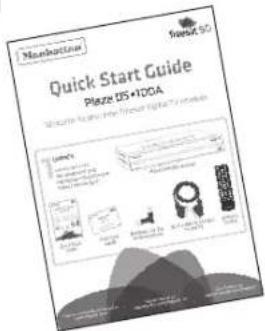
Quick Start Guide

Main User Guide

Batteries for the remote control

Scart cable to connect to the TV

Remote control
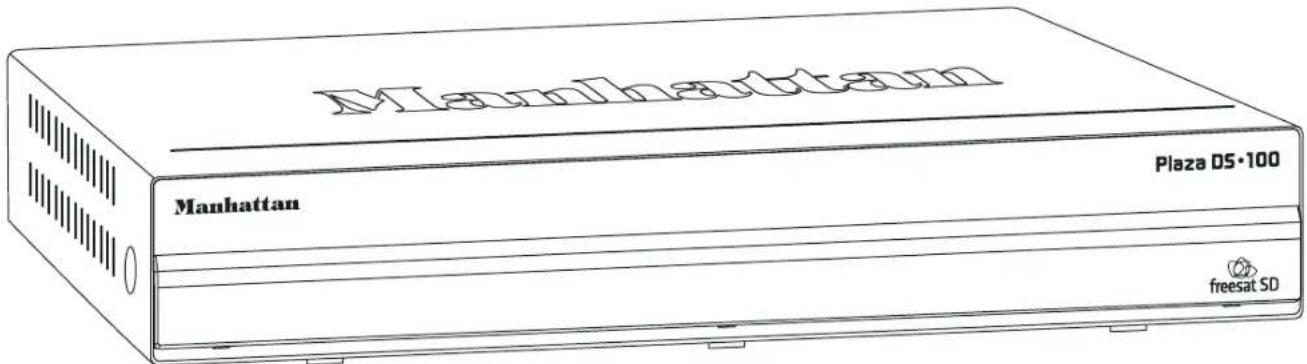
Plaza DS•100A receiver
YOUR RECEIVER
Manhattan Plaza DS•100A
Open the receiver's front cover by gently pulling forward at the sides.
Front

Manhattan Plaza DS·100A
Back
Mains power input for connecting to the mains supply.

REMOTE CONTROL
Manhattan Plaza DS•100A
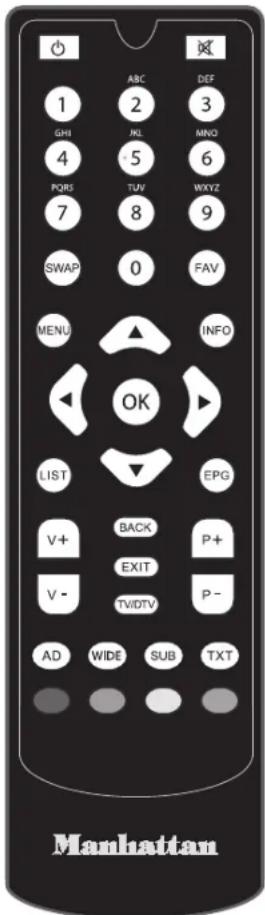
Standby - switches the receiver on and off.
Mute - silences the receiver's sound.
1 0, 1 ... 9 - buttons to choose channels and so on, and to enter your postcode.
SWAP Switches to the last channel watched and switches between favourite and main channel lists.
FAV Switches to the next channel in the favourite channels list.
MENU Displays (and exit) the main menu screen.
INFO Displays channel and programme information.
Up, down, left, right - moves the highlight bar in menus and in the EPG. Allows you to browse the channels and programmes.
OK Chooses the option in the menu.
LIST Displays the channel list.
EPG Displays the electronic programme guide (EPG).
BACK Exits a menu and returns to the main menu.
EXIT Exits a menu and returns to normal TV viewing.
TV/DTV Switches between freesat and the TV's tuner.
v+ Turns the volume up and down. v-
P+ Switches to the next or previous channel. Moves one page up or down the channel list.
AD Displays the available audio menu to choose between normal sound and audio description
WIDE Switches between widescreen display formats on a conventional TV.
SUB Displays the subtitles menu used to select subtitles.
TXT Displays the interactive and digital text services (where available).
Red, green, yellow, blue - chooses options within menus.

Preparation
This section explains how to set up your Plaza DS•100A to receive freesat channels.
THE SATELLITE DISH
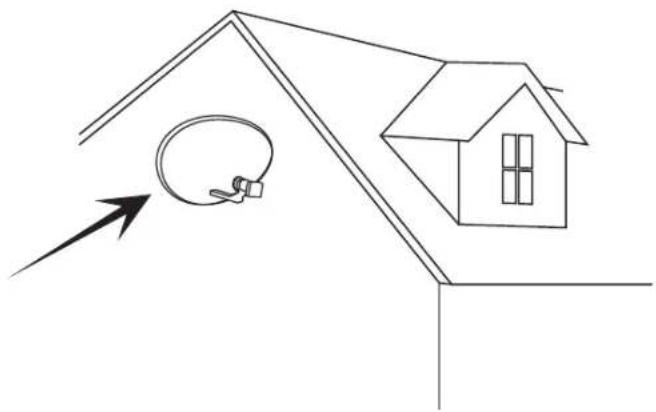
To receive freesat, you must connect your Plaza DS•100A receiver to an appropriate satellite dish, fixed in position and accurately pointed at the 28.2° East satellite position.
For safety reasons and to provide reliable reception, we strongly recommend that you have your dish installed by a professional. You may be able to use a satellite dish already installed at your home. If you have any questions about the dish, please consult your installer.
CONNECTING YOUR RECEIVER
Place your Plaza DS•100A receiver on a firm, level surface close to the television, a mains electricity socket, and the cable from the dish. (See Appendix A - Safety.)
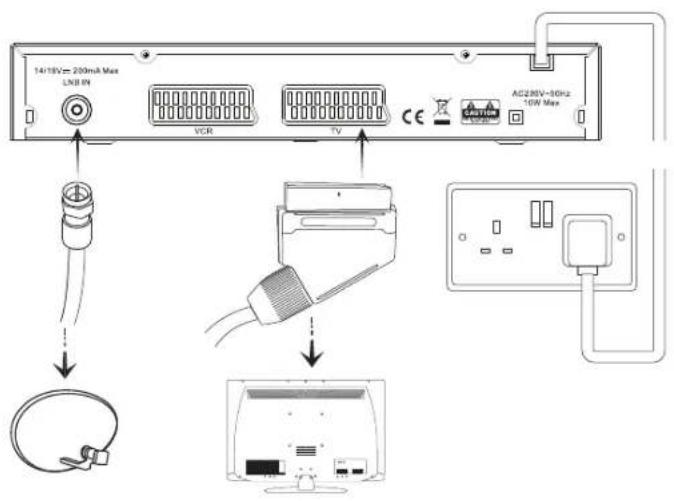
Connect the cable from your dish to the LNB IN socket at the back of the receiver (if the dish cable is fitted with a wall socket inside your home, you will need a connecting cable, which you can get from your installer).
HINT: The "F-connector" used for the satellite dish cable connection has a central wire that is inserted into the hole in the LNB IN socket while the collar is screwed onto the socket. When screwing on the collar, make sure that the central wire goes into the socket hole and is not bent to one side.
Turn off your television and connect the SCART cable supplied between the TV SCART socket at the back of your Plaza DS•100A receiver and a SCART socket on your television (usually labelled AV). There may be more than one SCART socket on your television. If you are not sure which to use, check the television's manual.
HINT: If your television has different connectors, you will need an adapter or special cable. Ask your dealer or check the manual for your TV.
Plug the mains power lead from the back of the receiver into an available mains socket that is turned off.
You may have other equipment, such as a DVD recorder or surround sound system, to connect to the receiver.
A video recorder or DVD recorder may be connected to your Plaza DS•100A receiver to record freesat programmes and to play them back. You will need to connect a second SCART cable (not supplied) between the VCR SCART socket on the back of the receiver and a SCART socket on the video or DVD recorder. Check the recorder's manual for guidance.
You can also connect the Plaza DS•100A receiver to a stereo or surround sound system, so that you can listen to its sound through the sound system instead of (or as well as) the television's speakers. You will need an adapter or special cable (available from your dealer) to connect between the receiver's TV SCART or VCR SCART socket and the sound system, to listen to the sound in stereo.
SWITCHING ON
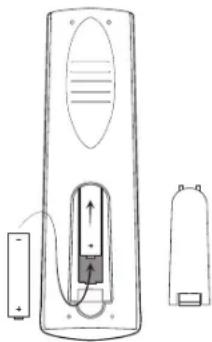
Take off the battery compartment cover from the back of the Plaza DS•100A remote control by lifting it up while pushing the catch. Insert the two AAA batteries supplied, as shown on the inside of the compartment, and replace the compartment cover.
SWITCHING ON (continued)
Turn on your TV set and choose the correct SCART input for the receiver (you usually do this by pressing an 'AV' button on your TV remote – see your television's manual for guidance).
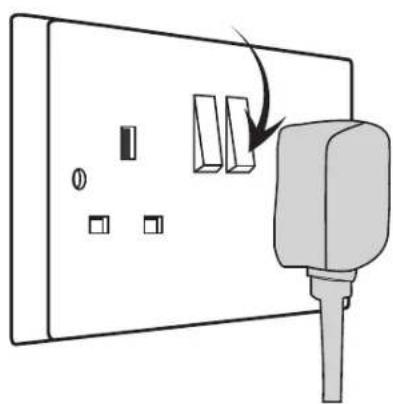
Switch on the mains socket the Plaza DS•100A is connected to.
After a few seconds, the receiver's first freesat installation screen shown below will appear on the television screen:

HINT: If you do not see this screen on your television, see 'Troubleshooting' at the back of this user guide.
TUNING IN
When the first installation screen is displayed, use the ▶ or ◀ buttons to select the screen format of your television (16:9 Widescreen or the squarer 4:3 Traditional). Then press the ▼ button to highlight the SCART output selection box, and use the ▶ or ◀ buttons to select the correct output for your television. Press the Ⓧ button to display the next installation screen.
HINT: You should set the SCART output to RGB if your television is compatible with this output (see your television's manual). If in doubt, set the output to Composite.
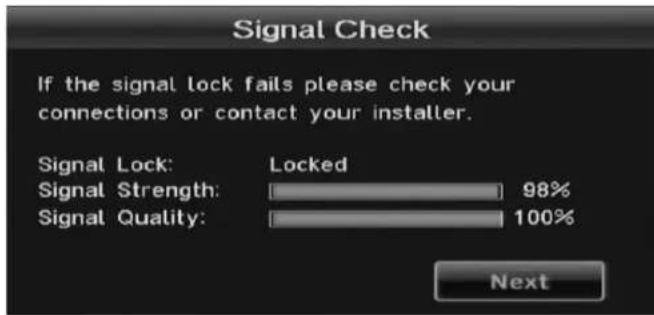
The signal check screen shows the strength and quality of the freesat signal received from your satellite dish. If the signal strength or quality is below 50%, you should check the satellite dish connection at the back of the receiver (switch the receiver off and reconnect the cable if necessary). If the connection is OK, consult your dealer or installer.
When the signal strength and signal quality shown are 50% or more, you can continue to tune in the receiver. Press OK to proceed.

Enter your postcode using the number buttons on the remote control. You do not need to enter a space. Once you have entered your postcode, press the button and then press to proceed.
HINT: Enter your postcode with the number buttons by pressing the correct button on the remote a number of times to produce the relevant letter (printed above each button), or number, in the same way as 'texting' with a mobile phone. For example, for an 'S', you would press the ⑦ button four times. If you make a mistake, the 🔊 button deletes the last character entered.
TUNING IN (continued)

Your Plaza DS•100A receiver will take a couple of minutes to find and store the available freesat channels. The number of freesat TV and radio channels found is shown on the screen as the scan proceeds, along with an indication of how far the scan has to go. When the scan is complete, press the button to proceed.
To hide adult channels or lock channels of your choosing, you need to create a PIN. Enter your choice of PIN by pressing the required number button (0, 1 ... 9) for each of the four PIN digits, then press OK to proceed.

The setup completion screen confirms the lock PIN you have set. Press the OK button and your Plaza DS•100A receiver is now ready for you to watch freesat digital TV.
HINT: When new freesat channels are introduced, you do not need to retune your Plaza DS•100A receiver because it is automatically updated.
3
Everyday Use
This section describes the day-to-day use of your Plaza DS•100A receiver – how to select the channels that you want to watch, view the programme schedules, and control the basic features.
TURNING ON THE RECEIVER
Press the ☐ button on the remote control or the button on the front of the receiver. The power light on the front panel changes from red to blue when the receiver is powered up.
You can turn off the Plaza DS•100A, so it goes into standby, by pressing the button on the remote control or the button on the receiver. When the receiver is in standby, the power light on the front panel turns red. The Plaza DS•100A uses less power when in standby.
HINT: You should leave the Plaza DS•100A receiver plugged in with the socket switched on, at all times (except when there is lightening – see Appendix A). When you are not using the receiver, put it in standby by pressing the ☐ button on the remote control or the button on the front of the receiver.
HINT: The Plaza DS•100A receiver will automatically switch to standby if it is not used for a long time. This feature can be disabled – see the Advanced Use section of this guide.
CHANGING CHANNELS
Step through the channels by pressing the + buttons on the remote control (or the + and - buttons behind the fold-down flap on the front of the Plaza DS•100A receiver). Pressing the + or + button will select the next channel in the channel list. Pressing the - or - button will select the previous channel in the list.
If you know the channel's number, you can switch directly to the channel you want by using the number buttons on the remote control. As you enter a channel number, each digit appears at the top left of the screen to show the number button you have pressed. All the freesat channel numbers have three digits and the first channel is 101. The radio stations are stored from channel number 700.
Press the SWAP button to switch from the channel you are currently watching to the channel you were watching before.
HINT: There are some channel numbers missing in the channel list because spaces are left for future channels to join freesat.
HINT: If you enter a number that does not exist, the channel will not change.
CHANGING CHANNELS (continued)
There are other ways to change channel:
- Use the browsing bar at the bottom of the screen (see below)
- Use the on-screen channel list (see page 18)
- Use the programme guide (see page 19)
CHANGING THE VOLUME
You can increase or decrease the volume by using the v+ and v- buttons on the remote control (or the v+ and v- buttons on the front of the receiver). The sound is silenced by pressing the button and restored to its previous level by pressing the button again.
HINT: The mute control also affects the sound supplied to the VCR SCART socket, and so using this control while a programme is being recorded will affect the recording.
BROWSING BAR
Whenever you change channel, the Plaza DS•100A briefly displays a browsing bar at the bottom of the screen that contains information about the current channel and programme. You can press the button at anytime to display the bar again.
It shows:
• the name and number of the channel
• the name of the programme you are watching
• the start and finish time of the programme
• the progress through the programme
- the date and time

HINT: You can also display the browsing bar by pressing 🙏 or 📞 on the remote control while you are watching TV.
The information bar may also display symbols to indicate:
SUB Subtitles are available.
AD Audio Description is available.
6 Parental guidance is advised as the programme contains language or scenes that may not be suitable for children.
The channel is locked (see the Advanced Use section).
While the bar is displayed, press the button to see details of the next programme, and the button to go back again. To see what is on another channel, press the or buttons. To change to this channel, press OK while the bar is still displayed. To remove the bar from the screen at anytime, press EXIT
While the browsing bar is displayed, press INFO again to display more information about the selected programme, including a short summary. Pressing the INFO button once more removes the extra information from the screen.

The Fall Guy
[Drama] The Fall Guy: 1: Pilot episode of the series about a movie stuntman who has a sideline in tracking down bail-jumpers. Colt tracks down a hit-and-run driver who injured a child. [AD,S]
HINT: When the extra programme information is displayed, you can still press ◀ or ▶ to see what is on now or next and ▶ and ▶ to see what is on other channels.
SUBTITLES AND AUDIO DESCRIPTION
Many freesat programmes are broadcast with subtitles for people who are deaf or hard of hearing. Channels with subtitles available show the Symbol in the information bar.
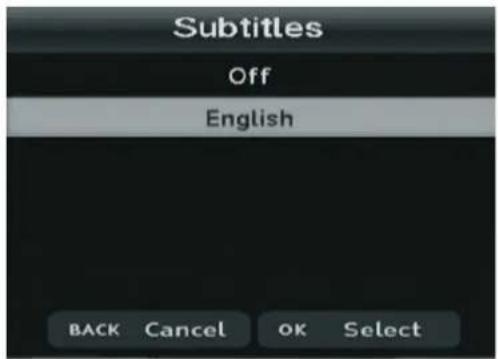
If you want to turn on subtitles, first display the subtitles menu by pressing the SUB button and then use the ▲ and buttons to highlight "English", and press OK. To turn off subtitles, select "Off" from the subtitles menu and press OK.
Some programmes have an extra soundtrack to tell people who are blind or partially sighted what is happening on screen. Channels with this audio description available show the ☐ bol in the information bar.
To turn on audio description, press the AD button to display the available audio menu and then select "English Audio Description."
USING THE CHANNEL LIST
Display the on-screen channel list by pressing the button on the remote control. This lists the channels on the left-hand side of the screen, in number order, and displays a preview window of the currently selected channel on the right-hand side of the screen. You can return to watching TV at any time by pressing the EXIT button.

HINT: You can also display the channel list by pressing the OK button while watching TV.
Use the or buttons on the remote control to highlight a channel then press OK to view it in the preview window. Press OK again to exit the channel list and watch the channel full-screen. 18
HINT: Move a page at a time through the channel list by using the ▶ and buttons.
TV and radio channels are stored in separate lists. Switch between the TV and radio channel lists by pressing the 🔊 or 🔍 buttons. The name of the list is displayed at the top of the screen.
REGIONAL CHANNELS
With freesat, some channels, such as BBC1, broadcast regional variations of their channels. The initial regional variations are based on the postcode that you entered when you installed the Plaza DS•100A.
You can replace the regional variation of a channel in the channel list by pressing the yellow button while the channel is highlighted. The current list will change to show the regional variations of that channel (if available).
Choose the region that you want from the list by moving the highlight bar through the list with the and buttons and then pressing OK or press aAG leave the region setting unchanged.

USING THE PROGRAMME GUIDE

The Plaza DS•100A programme guide displays details of all programmes showing on freesat channels for the next week ahead.
To access the guide, press the 📄 button on the remote control. Choose the section of the guide you want to look at – either all channels or a specific channel genre – by pressing the , Or buttons to highlight the section, and then to select it.
![freesat Entertainment Mon 5 Dec 9:28am 102 BBC 2 England - Big Barn Farm [Children] CBeebies. 16/20. Adventures of Petal: Animated adventures of a group of baby animals who live on Big Barn Farm. Petal gets into dange.. 10:15am 10:25am Mon 5 Dec 10:00am 10:30am 101 BBC 1 London Homes Under the Hamme…](/content/2026/05/964188/images/6287c2829323efdd2707d4d8272b9ea8fa1e8dbb30f829a53c4fcbc7898451fd.jpg)
HINT: You can skip the genre choice stage by pressing the EPG button a second time, to jump straight to the programme guide for all of the channels.
The programme guide shows a table of the programmes, with each page showing eight channels over a one-hour period. Information on the highlighted programme is shown above the table and you can read a full summary by pressing the button. Press again to remove the summary box.
USING THE PROGRAMME GUIDE (continued)
The current date and time is displayed at the top right of the screen and an orange line at the top of the table shows the present time in the schedule. You look through the scheduled programmes using the and buttons to move through the channels and the and buttons to highlight programmes showing at different times.
HINT: You can jump through the list more quickly using the 🎨 or buttons to move to the next or previous page. The green and red buttons move the highlight bar through the schedule a day forward or back.
As you move the highlight bar through the schedule, the programme summary shown above the list changes to reflect the programme highlighted.
![freesat Entertainment Mon 5 Dec 9:31am 102 BBC 2 England - Waybuloo [Children] CBeebies. Carrotbeet Day: Series set in the m carrot MC 101 102 103 104 105 106 BBC THREE This Is BBC Three 107 BBC FOUR This Is BBC Four 110 BBC ALBA Seo BBC ALBA. This is BBC ALBA](/content/2026/05/964188/images/4ff78a205be4e6529d07ba75c10372fdbf801b8b0506b044b2305c4a98dfc538.jpg)
20
Press OK to switch the receiver to the channel and programme highlighted. If the programme is on at the time, the receiver will switch to that channel immediately.
HINT: You can return to the genre selection menu, to browse a different section of the programme guide, by pressingSWAP.
If the programme is scheduled for later on, a reminder is set so that when the programme is about to start, a message is displayed on-screen and, after a few seconds, the receiver automatically switches to the relevant channel. In the programme guide a clock symbol (①) is shown next to a programme with a reminder set.
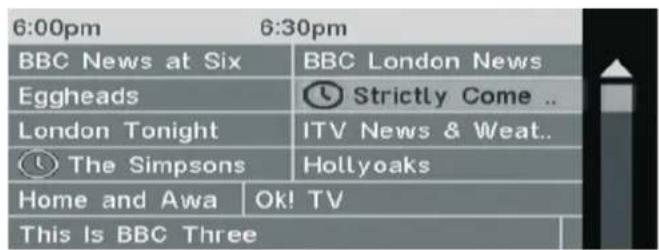
You can cancel a reminder by highlighting the programme in the programme guide and pressing OK again
You can set as many reminders as you want but if you try to set a reminder on one channel for the same time as one you have already set on another channel, a warning is displayed on the screen.

You leave the programme guide and return to watching TV by pressing BACK or EXIT button.
INTERACTIVE TV SERVICES
Several freesat channels broadcast a range of digital text and interactive services, such as news, weather, games, sports information and video, alongside normal TV. If interactive services are available, they will be indicated by an on-screen prompt - usually a red button in the top right-hand corner of the screen.
You can use the interactive options by pressing ✗ or the red button while watching the TV channel. This will display a menu of the services available.
When you have finished with the interactive services, return to watching normal TV by pressing again or the button.


RECORDING FREESAT PROGRAMMES
You can record a programme by connecting a VCR or DVD recorder to the VCR SCART socket on the back of the Plaza DS•100A. You will need to choose the recorder's SCART input for recording (see your recorder's manual for guidance).
You can also record a programme even when you are not at home. Highlight the programme in the programme guide list, make a note of its scheduled date and times, and set a reminder with the OK button. Then set the recorder's event timer to record from its SCART input on the date and times noted.
HINT: Do not use the channel list, programme guide, interactive services or any other menu while a recording is in progress as these functions will also be recorded.

Advanced Use
This section explains how to get the most out of your Plaza DS•100A receiver.
THE LOCK PIN
Some of the Plaza DS•100A menu functions can be locked to avoid accidental changes to the receiver's setup, and you can lock particular channels to prevent some family members, such as children, from watching them.
To use a locked menu function or watch a locked channel, you need to enter the four-digit PIN that you set when you first installed the Plaza DS•100A. You can change the lock PIN, without re-installing the receiver, as explained later in this section.

DISPLAY MODE
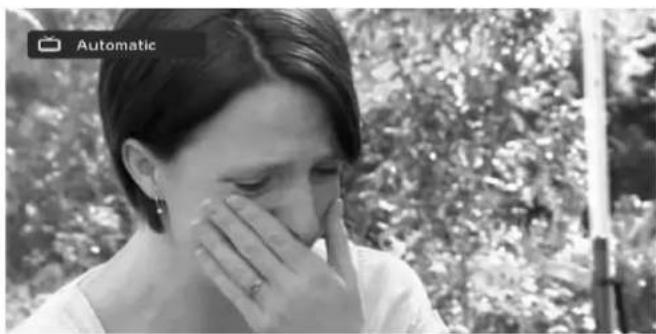
Most freesat programmes are broadcast using a widescreen 16:9 format, designed for a widescreen TV. If you watch a widescreen broadcast on a squarer 4:3 television the Plaza DS•100A provides a choice of how the image is displayed. Pressing the ⬤️ button will take you through the three available options.
If you have set up your receiver for a 4:3 Traditional TV, the options are:
- Full Frame- a 16:9 broadcast is squeezed to fill the full width & height of the TV.
- Centre Cut-out - a 16:9 broadcast is cropped to show only the centre of the image.
- Letterbox - a 16:9 broadcast is shown unaltered with black bars above and below it.
If you have set up your receiver for a 16:9 Widescreen TV, the DS-100A is permanently set to automatically choose the display format that best suits the broadcast.
TV/DTV
Pressing the button switches the channel displayed on the television between the signal from the aerial (TV) and digital television from freesat (DTV). When the Plaza DS-100A is turned on, some televisions will always switch to the SCART lead to display the freesat channel. You can use the TV/DTV button to release that automatic switch without having to switch off or disconnect the receiver.
CHANGING THE CHANNEL LIST
The channel list contains all the freesat channels that the Plaza DS•100A found when it was first installed, and may include some channels that you do not watch, do not want to include in the on-screen list, or do not want some members of your family to watch.
If you want to alter the channel list, first press the button to display the channel list screen. To remove a channel, highlight it and press the red button to delete the channel. You need to confirm your choice to ensure you don't delete a channel accidentally.

You can lock a channel to prevent it being selected for viewing without first entering the lock PIN. Highlight the channel and press the green button to lock it. A padlock symbol is shown next to all locked channels in the channel list.
HINT: If you want to unlock a channel that you have locked before, highlight it in the channel list and press the green button. You will need to enter the PIN to complete the process.
USING THE FAVOURITE CHANNELS LIST
The favourite channel list makes it easier for you to choose the channel that you want to watch, by limiting the on-screen list to just a few channels, such as those of a particular type, or that you watch the most.

23
USING THE FAVOURITE CHANNELS LISTS (continued)
It only takes a short time to set up the list before it can be used. First, display the channel list by pressing the LIST button.
Highlight each channel that you want to include in the favourite channels list, and press the 📄 button. A star will appear next to the channel in the list. You can add as many channels to the favourites list as you like. Press eto leave the channel list when you have finished.
When the favourite channels list contains some channels, you can limit the normal channel list (press it to displaying just the favourite channels by pressing the SWAP button. Pressing SWAP again restores the channel list to normal.
While watching TV, you can tune to a favourite channel by pressing the FAV button to switch to the next channel in the favourites list, or to the first channel in the favourites list if you are currently watching a channel not in that list.
When the browsing bar is displayed, the button may be used to step through the details of channels in the favourite channels list only, while staying tuned to the current channel. This is useful for seeing what is on your favourite channels before changing to one. You can then select a favourite channel to watch by pressing when its details are shown.
HINT: The channels in a favourite channels list appear in the same order as in the normal channel list, regardless of the order you added them.
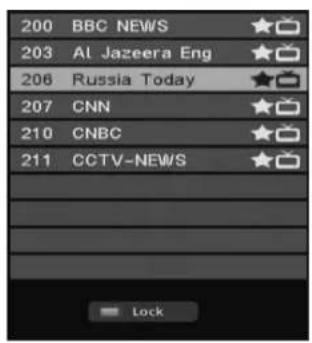
HINT: You can remove a channel from the favourite channels list by following the same process - with the favourite channel highlighted in the channel list, press FAV to remove the star symbol and remove the channel from the favourites list.
You display the Plaza DS•100A main menu by pressing the menu button on the remote control.
The menu choices are shown with a symbol for each choice. Choose a menu item by pressing the OK buttons to move the orange highlight through the options and then press to select the highlighted item.
Each of the first two choices has the same effect as pressing the corresponding button on the remote control:
TV Guide - same as EPG button Channel Lists - same as button Setup - see below Information - see page 30.

SETUP MENU
You display the setup menu by selecting the setup item in the main menu. Choose between the menu sections by pressing the or buttons to move the highlight along the section bar. You choose an option within the section shown by pressing the button to move the highlight bar through the option list.
Some of the selections available from the setup menu are for advanced use of the Plaza DS•100A. We recommended that you take the time to read this section carefully before you make any changes.
GENERAL MENU SECTION
Highlight the option you want to alter using the 🔊 and √ buttons. When you have finished making the changes you want, leave the menu system by pressing ⏻, EXIT

SUBTITLES
Press OK to switch on subtitles for all channels that provide them. Switch subtitles off by pressing OK again.
SUBTITLE LANGUAGE
The freesat channels can broadcast with subtitles available in a number of languages. The Plaza DS•100A is set to English subtitles, but you can change this setting by pressing OK to show the subtitle language menu.
Use and to highlight the language you want for subtitles (if available) and press (See screenshot on page 26)
SUBTITLE LANGUAGE (continued)

AUTO STANDBY
To conserve power, the Plaza DS-100A will switch to standby after three hours if no buttons are pressed on the remote control or front panel. The Auto standby function is normally turned on, and can be turned off by pressing the OK button.
PICTURE MENU SECTION
Highlight the option you want to alter using the 🔒 and 🔽 buttons. When you have finished making the changes you want, leave the menu system by pressing ⏻. EXIT
SCREEN TYPE
Press OK to show the screen type menu and use the and buttons to choose between 16:9 Widescreen and 4:3 Traditional. 26
Press OK to confirm your choice.
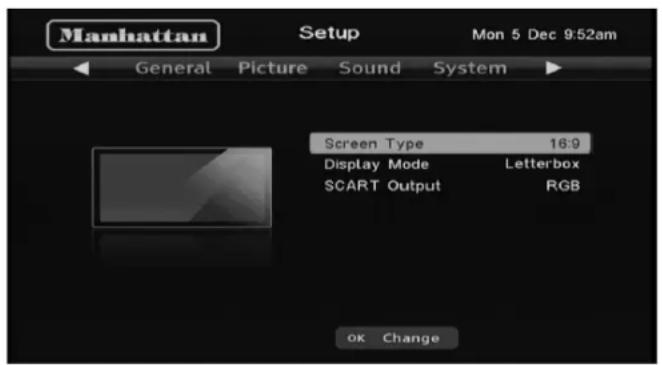
HINT: This setting overrides the screen type you selected when you first installed the receiver.
DISPLAY MODE
Press OK to show the display mode menu. If the screen type is set to 4:3 Traditional use the and buttons to choose between Full Frame, Centre Cut-Out, and Letterbox, if the screen type is set to 16:9, the receiver is permanently set to Automatic and will choose the display format that best suits the broadcast. See Advanced Use - Display Mode (page 22) for more information.
HINT: This menu option has the same effect as the button.

SCART OUTPUT
Press OK to show the SCART mode menu and use the and buttons to choose between Composite and RGB for the correct output for a television connected to the receiver's TV SCART output. Press OK to confirm your choice.
HINT: The RGB setting will usually produce the best quality SCART picture but a few televisions cannot accept this signal (see your TV manual).

SOUND MENU SECTION
Highlight the option you want to alter using the 🔒 and 🔽 buttons. When you have finished making the changes you want, leave the menu system by pressing ⏻️. ⏻️ EXIT
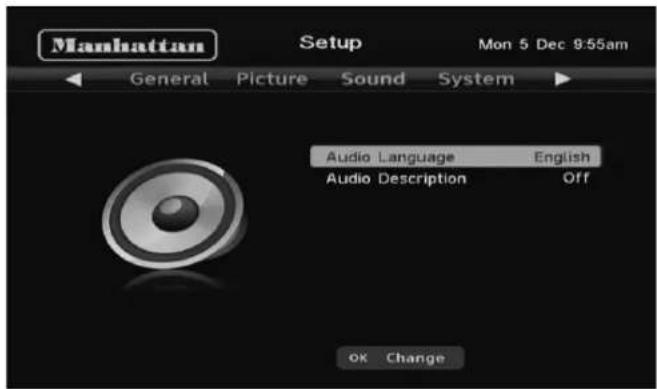
AUDIO LANGUAGE
The freesat channels can broadcast in a number of languages. The Plaza DS•100A is set to the English, but you can change this setting by pressing ☑ to show the audio language menu.
Use and to move the orange highlight bar to the language you want for the soundtrack and press OK.

AUDIO DESCRIPTION
Press OK to switch on audio description for all channels that provide it. Switch audio description off by pressing OK again.
SYSTEM MENU SECTION
Highlight the option you want to alter using the 🔒 and 🔽 buttons. When you have finished making the changes you want, leave the menu system by pressing ⏻️☒ EXIT.

FREESAT INSTALLATION
Press to retune all the freesat channels. If you retune freesat, you will lose all channels from the favourite channels list, remove any channel locks you have set, and restore channels deleted from the channel list.
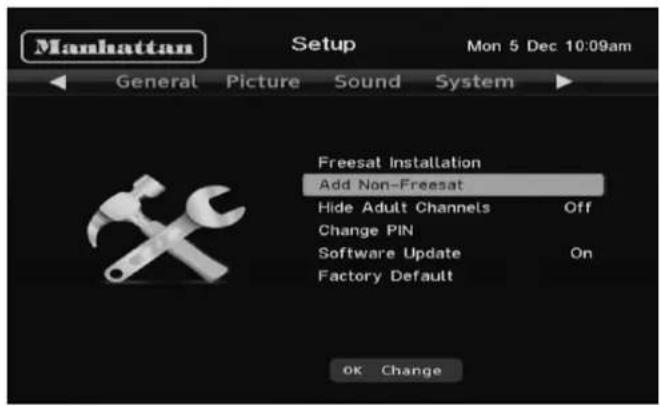
ADD NON-FREESAT CHANNELS
See the Non-freesat Channels section of this guide (page 31) for full details of how you can add and watch non-freesat channels.
HIDE ADULT CHANNELS
Press to hide or show the adult freesat channels. If you set the Plaza DS•100A to hide adult channels, all adult genre channels are removed from the programme guide and the channel list, and they cannot be selected by putting in the channel number or by skipping through the channels with the and buttons.
CHANGE PIN
Press do show the lock PIN menu. Change the PIN used by first entering the current PIN and then entering and confirming your choice of new PIN.

SOFTWARE UPDATE
Press ☐ to turn on or off the automatic software update.
FACTORY DEFAULT
Press OK to revert all the receiver settings to what they were when you first got your receiver and to start the installation procedure described in the Preparation section of this guide.
You must then confirm that you really want to start the process because it will delete all channels, favourite channels, reminders, and the receiver configuration.
INFORMATION MENU
The information menu displays important information about your Plaza DS-100A and is helpful in diagnosing any potential problems with your receiver.
You display the information menu by selecting the information option in the main menu. It contains:
- Basic information used to identify the receiver.
- The regional postcode the receiver is set to.
• A phone number and website address for product support.
HINT: We recommend that you have this screen displayed on your TV if you need to phone the Plaza DS-100A helpline.

5
Non-Freesat Channels
This section explains how to set up your Plaza DS•100A receiver to receive channels that are not included with freesat. As well as receiving the many freesat channels, the Plaza DS•100A can also be used to watch other channels, as long as they are broadcast from the same satellites as freesat and are free.
TUNING IN NON-FREESAT CHANNELS
Go to the Add Non-Freesat Channels menu by pressing, then twice followed by send to display the system menu, and to highlight the option to add non-freesat channels, then press OK
In the manual scan, enter the frequency and symbol rate of the transponder to scan, using the number buttons, and its polarization by using the ☐ or Buttons. You can move between the three items using the and buttons. When you have entered the tuning information, press ☐ to start the scan.


HINT: The tuning information for non-freesat channels may be printed in specialist magazines, or given on a specific channel's website.
TUNING IN NON-FREESAT CHANNELS (continued)
The Plaza DS•100A will take a few seconds to complete the scan. While it is scanning, the receiver displays the number of TV and radio channels found so far. When it is finished, the receiver will display a list of all the channels found.
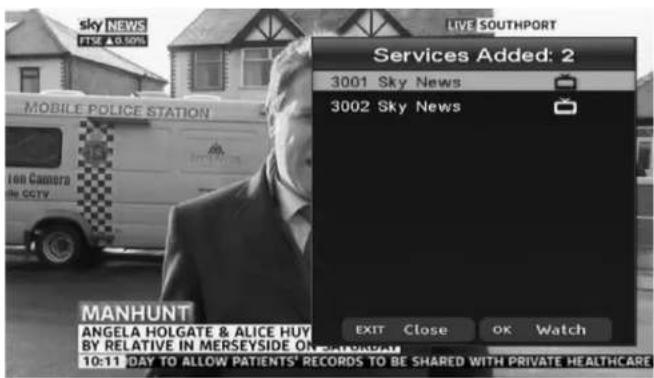
You can choose to watch a non-freesat channel from this list by moving the orange bar using the and buttons to highlight the channel you want and pressing OK, or return to watching TV by pressing OK. EXIT
WATCHING NON-FREESAT CHANNELS
Non-freesat channels and freesat channels are stored separately in the receiver but you can switch between them quite easily. When you are watching a non-freesat channel, the information bar displays the Manhattan logo instead of the freesat logo.

While watching TV, you can step through all the channels by pressing the + or - buttons. So pressing while watching a non-freesat channel will tune to the next non-freesat channel and will select the previous non-freesat channel. If you press + while watching the last freesat channel in the list, the receiver will tune to the first non-freesat channel, and pressing while watching channel 101 (the first freesat channel in the list) will select the last non-freesat channel stored.
HINT: Non-freesat TV channels are stored from channel number 3001 and non-freesat radio channels from 4001.
You cannot enter a four-digit channel number to tune to a non-freesat channel, but you can press the 📄NAP button to switch to the channel you last watched, whether it was a freesat or non-freesat channel.
You can browse through the non-freesat channels and programmes in the same way as you browse the freesat channels. Press or to display the information bar and then press the or buttons to see what is showing at the moment on any of the other non-freesat channels, and to see the programmes on next.
HINT: The programme guide does not display non-freesat channels.
When you have some non-freesat channels stored, the channel list displays both freesat and non-freesat channels. Go to the channel list by pressing the LIST button.
Now pressing ◀ or ⚡ will take you through the four channel lists available:
- freesat TV Channels
- freesat Radio Channels
• non-freesat TV Channels
• non-freesat Radio Channels
You can use the same channel list functions for any of the lists, so you can lock or delete a non-freesat channel, or add it to your favourite channels list.
If you put your favourite freesat channels and your favourite non-freesat channels in the favourite channels list, you can switch from one to the other freely and easily.


Appendix A - Safety
POWER
The receiver should be plugged into a 230V to 240V AC, 50Hz supply.
CABLES
Make sure all cables are positioned so they are not likely to be walked on, crushed or damaged by things placed on or against them. Pay particular attention to the power cable where it goes into the socket and where it comes out of the receiver. Do not connect or adjust cables to the receiver when it is plugged in.
TEMPERATURE AND MOISTURE
Do not use or leave the receiver in a hot, cold or humid (moist) environment. Do not allow the receiver to get wet – from drips or splashes – as this is dangerous. Do not place vases or other water-filled objects on top of the receiver.
VENTILATION
Slots and openings in the receiver's cover are for ventilation. Do not cover or block them as this could lead to the receiver overheating.
CLEANING
Unplug the receiver before you clean it with a lightly dampened cloth. Do not use liquid or aerosol cleaners.
HEAT AND FLAMES
Do not place the receiver near to naked flames or sources of intense heat, such as an electric fire. Make sure that no flames, such as lighted candles, are placed on top of the receiver.
LIGHTNING
If there is a storm or lightning, unplug the receiver.
SERVICING
Make sure that anyone who services your receiver is qualified to do so. Do not remove the cover yourself – you could get an electric shock.
REPLACEMENT PARTS
If your receiver needs repairing, make sure the person carrying out the repair uses parts which are specified by us or which have the same specifications as the original part. Other parts may cause a fire, electric shock or other dangers.
ELECTRICAL SAFETY
Your receiver needs a 230V AC \~ 50Hz mains supply and is fitted with a moulded plug. If the plug breaks or becomes damaged, do not use it. If you change the fuse in the plug, make sure you refit the fuse cover. If the plug needs replacing, follow these instructions. The wires in the mains lead are coloured in line with the following code.
Blue - Neutral
Brown - Live

PROTECTING THE ENVIRONMENT

If you one day find that your receiver or remote control needs replacing, or are of no further use to you, do not throw them out with your household waste. Under the Waste Electrical and Electronic Equipment (WEEE) regulations, your local council must provide a suitable recycling centre.
Do not throw batteries in the bin or on a fire. Make sure that you dispose of batteries safely at a local recycling centre. You can also recycle batteries at many supermarkets.
Appendix B - Troubleshooting
| PROBLEM POSSIBLE CAUSE WHAT TO DO | ||
| Power light off | Power supply cable disconnected Check the power supply cable. | |
| No set up screen | Receiver not switched on | Check the mains adapter is plugged in and mains socket is turned on. Turn on receiver. |
| SCART cable disconnected | Check SCART cable connection to receiver and television. | |
| Television not switched to SCART input Select television's SCART input. | ||
| Signal lock failed | Cable from the satellite dish disconnected | Check the cable connections at receiver and dish. Consult your installer if necessary. |
| Dish in the wrong position Reinstall the dish. Consult your installer if necessary. | ||
| Signal strength below 50% | Dish in the wrong position Reinstall the dish. Consult your installer if necessary. | |
| Not accepting postcode | Broadcast error | Postcode tables are not being transmitted. Use red Default Channels button to activate default tuning. |
| ‘No signal’ message | Cable from the satellite dish disconnected | Check the cable connections at receiver and dish. Consult your installer if necessary. |
| Dish damaged or in the wrong position Check the dish. Consult your installer if necessary. | ||
| No picture or sound | SCART cable disconnected | Check SCART cable connections at receiver and television. |
| Television not switched to SCART input Select television's SCART input. | ||
| Full picture not visible | Mismatched screen format Choose the correct screen size to suit your TV. | |
| No response with remote control | Receiver in standby Switch on the receiver. | |
| Remote control not aimed at the receiver correctly | Aim the remote control at the receiver. | |
| Remote sensor on the front of the receiver is obstructed | Check for obstructions in front of the receiver. | |
| Receiver switches off after 3 Hrs | Auto Standby is on Turn off the Auto Standby in the General menu. | |
| Cannot view a channel | Wrong channel number used Choose the channel from Channel List. | |
| Channel locked | Enter the PIN. If you have forgotten the PIN, phone the helpline on 020 8450 0005. | |
| No information for a channel in the programme guide | Information on the channel not downloaded Wait for the download. | |
| You are on a non-freesat channel Select a freesat channel. | ||
| No digital text or interactive services | Services not available on chosen channel | Switch to a channel broadcasting interactive services. |
| Can't record a channel | No connection to recorder Install a SCART lead from the receiver to the recorder. | |
| Wrong recorder input selected | Select recorder's SCART input (see your recorder's manual for guidance). | |
HELPLINE
020 8450 0005
www.manhattan-tv.com
Appendix C - Specifications
| Tuner | Input frequency 950~2150MHz | |
| Input connector F type, female 75 ohm | ||
| LNB supply 14.0V / 19.0V (maximum 350mA), short-circuit protected | ||
| Digital signal input level -25 to -65 dBm | ||
| Video | Aspect ratio 4:3, 16:9 and letter box | |
| Video output Two SCART sockets; TV (CVBS/RGB) & VCR (CVBS) | ||
| Audio | Audio output Audio left and right | |
| Power Requirements | Mains input voltage 230-240VAC~ 50Hz | |
| Power consumption Maximum 10W (LNB with 200mA) | ||
| Dimensions | Width, depth and height Width: 258mm, x depth: 175mm, height: 44mm |
- User guide
- Congratulations
- Some of the features of the plaza DS•100A are
- Further information
- Freesat
- Manhattan
- Contents
- In the box 5
- Preparation 10
- Everyday use 15
- Advanced use 22
- Non-freesat channels 31
- In the box
- Your receiver
- Manhattan plaza DS•100A
- Manhattan plaza DS·100A
- Remote control
- Preparation
- Connecting your receiver
- Switching on
- Switching on (continued)
- Tuning in
- Tuning in (continued)
- 3
- Everyday use
- Turning on the receiver
- Changing channels
- Changing channels (continued)
- Changing the volume
- Browsing bar
- The fall guy
- Subtitles and audio description
- Using the channel list
- Regional channels
- Using the programme guide (continued)
- Interactive tv services
- Recording freesat programmes
- Advanced use
- The lock pin
- Display mode
- Tv/dtv
- Changing the channel list
- Using the favourite channels list
- Using the favourite channels lists (continued)
- Setup menu
- General menu section
- Subtitles
- Subtitle language
- Subtitle language (continued)
- Auto standby
- Picture menu section
- Screen type
- Scart output
- Sound menu section
- Audio language
- Audio description
- System menu section
- Freesat installation
- Add non-freesat channels
- Hide adult channels
- Change pin
- Software update
- Factory default
- Information menu
- 5
- Non-freesat channels
- Tuning in non-freesat channels
- Tuning in non-freesat channels (continued)
- Watching non-freesat channels
- Appendix a - safety
- Power
- Cables
- Temperature and moisture
- Ventilation
- Cleaning
- Heat and flames
- Lightning
- Servicing
- Replacement parts
- Electrical safety
- Protecting the environment
- Helpline
- 020 8450 0005
- Www.Manhattan-tv.com
Brand : MANHATTAN
Model : Plaza DS-100A
Category : Receiver