
Plaza HDR-S (Freesat) - Receiver MANHATTAN - Free user manual and instructions
Find the device manual for free Plaza HDR-S (Freesat) MANHATTAN in PDF.


| Product Type | Freesat+ HD Digital TV Recorder |
| Brand | Manhattan |
| Model | Plaza HDR-S (Freesat) |
| Dimensions (W x D x H) | 280 mm x 183 mm x 41 mm |
| Power Supply | External 100-240 V AC, 50 Hz, 12 V DC output |
| Power Consumption | Max 25 W (standby < 1 W) |
| Tuner Type | DVB-S/S2 Twin Tuners |
| Input Frequency | 550 - 2150 MHz |
| Hard Disk Capacity | 320 GB |
| Video Outputs | HDMI (up to 1080p), SCART (CVBS/RGB) |
| Audio Outputs | Optical S/PDIF (Dolby Digital +), RCA L/R analogue |
| Connectivity | Ethernet RJ-45 (10/100 Base-T), USB 2.0 (for software upgrade) |
| Key Features | Over 150 freesat channels, HD reception, digital recording and playback, pause/rewind live TV (up to 2 hours), 8-day EPG, BBC iPlayer and on-demand, non-freesat channel support |
| Remote Control Range | 5 m, within 60° angle |
| Safety Precautions | Do not expose to moisture, heat or flames; unplug during lightning; no user-serviceable parts inside |
| Cleaning Instructions | Unplug and wipe with a lightly dampened cloth; do not use liquid or aerosol cleaners |
| Repairability / Spare Parts | No user-serviceable parts; power supply must be replaced by qualified personnel |
| Environmental Compliance | WEEE compliant; recycle at local centre |
Frequently Asked Questions - Plaza HDR-S (Freesat) MANHATTAN
User questions about Plaza HDR-S (Freesat) MANHATTAN
0 question about this device. Answer the ones you know or ask your own.
Ask a new question about this device
Download the instructions for your Receiver in PDF format for free! Find your manual Plaza HDR-S (Freesat) - MANHATTAN and take your electronic device back in hand. On this page are published all the documents necessary for the use of your device. Plaza HDR-S (Freesat) by MANHATTAN.
USER MANUAL Plaza HDR-S (Freesat) MANHATTAN
freesat digital HD TV recorder

CONGRATULATIONS
on buying a Manhattan Plaza HDR•S freesat receiver.
This high performance unit lets you record and watch the best of digital TV and radio from freesat.
You can only use the Plaza HDR•S with a suitable satellite dish, and you must connect an HD-ready television to watch TV in High Definition.
When installed and used correctly, this equipment should provide many years of trouble-free entertainment in your home.
Please take the time to read this user guide carefully before installing or using the unit, and keep it for future reference.
If you experience any difficulties connecting or using the Plaza HDR•S, see the Troubleshooting section at the end of this guide before contacting us.
Some of the key features of the Plaza HDR•S are:
• Over 150 freesat TV and radio channels
• Subscription-free reception
- Stunning High Definition pictures
• Digital recording and playback of programmes
- Pause and rewind live TV
• On-screen channel list and channel browsing
• 8-day electronic programme guide
• Automatic programme reminders
- Programmable favourite channels list
• Digital text and interactive services
• BBC iPlayer and on-demand TV services
• Easy viewing of non-freesat channels
• Audio Description (AD)
Subtitles
• Automatic setup
• Auto-update for new freesat channels
• Auto-standby for power saving
• HDMI connection
• SCART connection

Approved product

TV narration for people with sight problems
HIGH DEFINITION MULTIMEDIA INTERFACE
HDM, the HDMI logo, and High-Definition Multimodic Intersec and its markets in registered networks of HDMI (including LLC) in the United States and other countries.

FURTHER INFORMATION
FREESAT
You can get more information and help
from the freesat website at:
www.freesat.co.uk
MANHATTAN
You can get more information and help
from our website at:
www.manhattan-tv.com
or you can phone us on: 020 8450 0005
DOLBY
DIGITAL PLUS
Mensils based under-press from Jolly characteristics Colby and the double-2 symbol are trademarks of Jolly Laboratories
DV3
Digital Video Broadcasting
Broadcasting
www.manhattan-lv.com
CONTENTS

In The Box 5
Your receiver 6
Remote control 8

Preparation
The satellite dish 10
Connecting your receiver 10
Switching on 1
Tuning in 12

Everyday Use
Turning on the receiver 15
Changing channels 15
Changing the volume 16
Browsing bar 16
Subtitles and Audio Description (AD) 17
Using the channel list 18
Regional channels 18
Using the programme guide 19
Interactive TV services 21
Pausing live TV 21
Recording a programme 23
Using the library 24
Playing a recorded programme 26

Advanced Use 27
The lock PIN 27
Display mode 28
TV/DTV 28
Changing the channel list 28
Using the favourite channel lists 29
Manual timer recording 29
Using the menu system 30
Setup menu 31
General menu section 31
Picture menu section 32
Sound menu section 33
Record menu section 33
System menu section 35
Information menu 36

On Demand TV
Setting up for On Demand TV 37
Watching On Demand TV 38

Non-Freesat Channels
Tuning in non-freesat channels 39
Watching non-freesat channels 40
Pausing and recording non-freesat channels 41
Appendix A Safety 42
Appendix B Troubleshooting 44
Appendix C Specifications 46

In The Box
In your Plaza HDR•S freesat+ receiver pack you should find the following items:
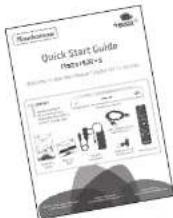
Quick Start Guide
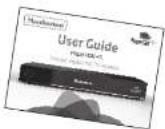
Main User Guide

Plug and transformer
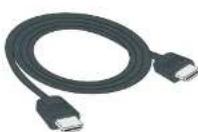
HDMI cable to connect to an HD-ready TV

Batteries for the remote control

Remote control

Plaza HDR•5 receiver

REMOTE CONTROL
Manhattan Plaza HDR•S
Use the remote control within a maximum distance from the front of the receiver of 5m and within an angle of 60° . Ensure there is a clear line of sight between the remote control and the receiver. The operating distance may vary depending on the brightness of the room.

Power - switches the receiver on and off.
Mute - silences the receiver's sound.
1.0.1...9 - enter channel numbers, numeric values in the setup menus or a jump point in playback. Also enters your postcode during the installation process.
Turns the volume up and down.
Switches to the next or previous channel. Moves one page up or down in the channel list and programme guide.
Exit Exits a menu and returns to normal TV viewing.
Red, green, yellow, blue - Chooses options within menus.
Guide Displays the programme guide.
i Displays channel and programme information.

Up, down, left, right - move the highlight bar in menus and in the programme guide, and allow you to browse the s and programmes.

Selects the highlighted option in a menu.

Displays the list of programmes already recorded and set to recorded.

Exits a menu and returns to the previous menu.

Winds backwards or forwards through a recording being ed. Moves through the programme guide in 2 hour steps.

Stops playback of a recorded programme. Returns to live TV, paused live TV.

Pauses live TV. Starts and stops playback of a recorded ramme or paused live TV.

Jumps backwards or forwards through a recording being ed. Moves through the programme guide in 24 hour steps.

Records the selected programme.

Displays the main menu screen.

Selects favourite channels sequentially whilst watching TV adds favourite channels to the channel list.

Displays the channel list.

Switches between available screen display modes.

Switches back to the last channel watched.

Switches the TV SCART output between freesat and the TV's tuner.

Displays the available audio menu used to change between rent soundtracks (such as languages and audio description).

Displays the subtitles menu used to select subtitles.

Displays interactive and digital text services (where available).

Preparation
This section explains how to set up your Plaza HDR•S to receive freesat channels.
THE SATELLITE DISH

To receive freesat, you must connect your Plaza HDR•S receiver to an appropriate satellite dish, fixed in position and accurately pointed at the 28.2° East satellite position.
For safety reasons and to provide reliable reception, we strongly recommend that you have your dish installed by a professional. You may be able to use a satellite dish already installed at your home. If you have any questions about the dish, please consult your installer.
CONNECTING YOUR RECEIVER
Place your Plaza HDR•S receiver on a firm, level surface close to the television, a mains electricity socket, and the cables from the dish. (See Appendix A – Safety.)
![graph TD A["Device 1"] --> B["Cable"] B --> C["Switch"] C --> D["Monitor"] D --> E["Display"] E --> F["USB"] F --> G["Control Unit"] G --> H["External Portugal"] H --> I["Output Terminal"]](/content/2026/05/924880/images/be540bca55f048cfd3ba387df236e3e7c7edb0e3ae643a8784d0ed7627f67805.jpg)
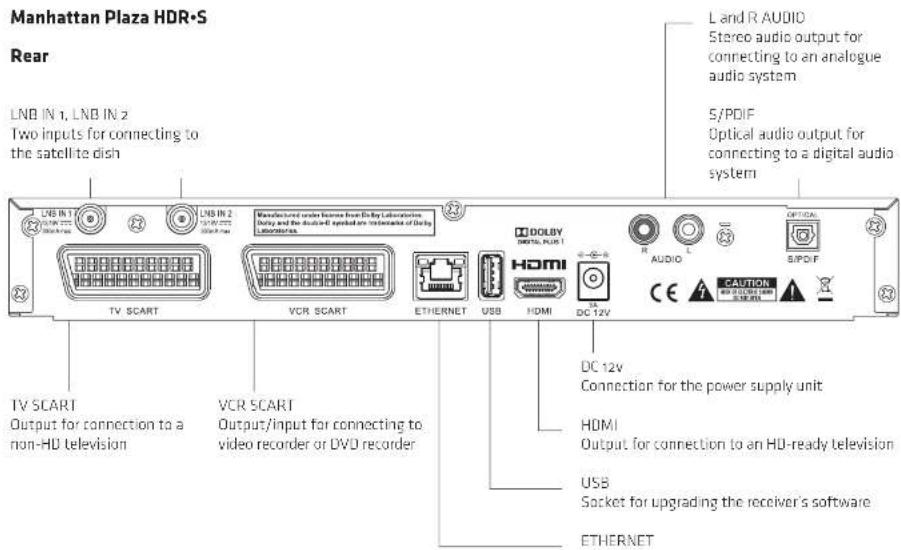
Connect the two cables (or one double cable) from your dish to the LNB IN 1 and LNB IN 2 sockets at the back of the receiver (if the dish cables are fitted with a wall socket inside your home, you will need connecting cables, which you can get from your installer). It does not matter which of the two cables from the dish is connected to which LNB IN socket.
HINT: Each "F-connector" used for the satellite dish cable connections has a central wire that is inserted into the hole in the LNB IN socket while the collar is screwed onto the socket. When screwing on the collar, make sure that the central wire goes into the socket hole and is not bent to one side.
Turn off your television and connect the HDMI cable supplied between the HDMI socket at the back of your Plaza HDR•S receiver and an HDMI socket on your television. There may be more than one HDMI socket on your television. If you are not sure which to use, check the television's manual.
HINT: If your television has no HDMI socket, then it must be connected to the receiver by SCART cable, and you will not be able to watch freesat channels in High Definition.
Plug the power supply lead into the POWER socket at the back of the receiver and plug the power supply into the mains socket that is turned off.
You may have other equipment, such as a DVD recorder or surround sound system, to connect to the receiver.
A video recorder or DVD recorder may be connected to your Plaza HDR•S receiver to make permanent archive recordings of freesat programmes. You will need to connect a SCART cable between the VCR SCART socket on the back of the receiver and a SCART
socket on the video or DVD recorder. Check the recorder's manual for guidance.
You can listen to the sound from your Plaza HDR+S through a stereo or surround sound system. For digital sound, connect an optical lead from the sound system's S/PDIF socket to the one on the Plaza HDR+S. For analogue sound, connect a suitable lead between the receiver's L and R AUDIO sockets and the L and R audio inputs on the sound system.
SWITCHING ON

Remove the battery compartment cover from the back of the Plaza HDR•S remote control by pressing it gently while sliding it off. Insert the two AAA batteries supplied, as shown on the inside of the compartment, and replace the compartment cover.
SWITCHING ON (continued)
Turn on your TV set and choose the HDMI input (see your television's manual for guidance). Switch on the mains socket that the Plaza HDR•S is connected to.

After a few seconds, the receiver's first freesat installation screen shown opposite will appear on the television screen:
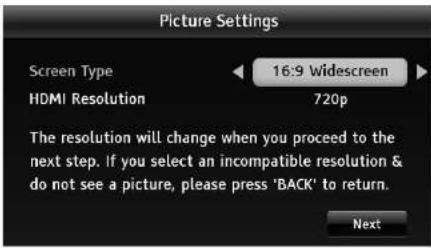
HINT: If you do not see this screen on your television, see 'Troubleshooting' on page 44.
TUNING IN
When the first installation screen is displayed, use the button to select between 16:9 Widescreen or the squarer 4:3 Traditional as the screen format of your television. Then press the button or the button to highlight the HDMI Resolution selection box, and use the button to select the correct resolution for your television. You should set the HDMI resolution to the highest that your television can display (see your television's manual). If in doubt, set the resolution to 720p.
Press 🔍 to highlight the "Next" box and then press 🔍 to display the next installation screen. If after doing this you lose the picture on your screen press 🔍 to return to the first installation screen using the default resolution of 720p (supported by all HDTVs)
HINT: Setting the HDMI resolution has no effect on the SCART output.

The signal check screen shows the strength and quality of the freesat signal received from your satellite dish. The receiver scans the signal for a few seconds and reports if the signal lock is successful. If the signal lock shows "Failed", you should check the satellite dish connection at the back of the receiver (switch the receiver off and reconnect the cable if necessary). If that connection is OK, consult your dealer or installer.
When the signal lock shows "Successful", you can continue to tune in the receiver. Press Ⓧ to proceed.

Enter your postcode using the number buttons on the remote control. You do not need to enter a space. Press the button when you have entered your postcode, and then press again to proceed.
HINT: Enter your postcode with the number buttons by pressing the correct button on the remote a number of times to produce the required letter (printed on each button), or number, in the same way as 'texting' with a mobile phone. For example, for an 'S', you would press the 75mm button four times. If you make a mistake, the button deletes the last character entered.
TUNING IN (continued)


Your Plaza HDR-S receiver will take a couple of minutes to automatically find and store the available freesat channels. The number of freesat TV and radio channels found is shown on the screen as the scan proceeds, along with an indication of how far the scan has to go. When the scan is complete, press the button to proceed.
To use the receiver's parental guidance function, hide adult channels, lock online content or lock channels of your choice, you need to create a PIN. Enter your choice of PIN by pressing the required number button (0, 1...9) for each of the four PIN digits, then press Ⓧ to proceed.
The setup completion screen confirms the lock PIN you have set. Press the Ⓧ button and your Plaza HDR•S receiver is now ready for you to watch freesat digital TV.
HINT: When new freesat channels are introduced, your Plaza HDR•5 is automatically updated and you do not need to return.

Everyday Use
This section describes the day-to-day use of your Plaza HDR•S receiver – how to select the channels that you want to watch, view the programme schedules, pause live TV, and record and playback programmes.
TURNING ON THE RECEIVER
When the receiver is in standby the symbol on the front panel is illuminated red. To turn it on, press the button on the remote control or on the front panel of the receiver. The power symbol and ring around it become illuminated blue when the receiver is on.
You can turn off the Plaza HDR•S, so it goes into standby, by pressing the ⏻ button on the remote control or the ⏻ ton on the receiver. The Plaza HDR•S uses less power when in standby.
HINT: You should leave the Plaza HDR•S receiver plugged in with the socket switched on, at all times (except when there is lightening - see Appendix A). When you are not using the receiver, put it in standby by pressing the button on the remote control or the button on the front of the receiver.
HINT: The Plaza HDR•S receiver will automatically switch to standby if it is not used for a long time. This feature can be disabled – see the Advanced Use section of this guide.
CHANGING CHANNELS
Step through the channels by pressing the button on the remote control. Pressing the button will select the next channel in the channel list. Pressing the button will select the previous channel in the list.
If you know the channel's number, you can switch directly to the channel you want by using the number buttons on the remote control. As you enter a channel number, each digit appears at the top left of the screen to show the number button you have pressed. All the freesat channel numbers have three digits and the first channel is 101. The radio stations are stored from channel number 700.

Press the button to switch from the channel you are currently watching to the channel you were watching before.
HINT: There are some channel numbers missing in the channel list because spaces are left for future channels to join freesat.
HINT: If you enter a number that does not exist, the channel will not change.
CHANGING CHANNELS (continued)
There are other ways to change channel:
- Use the browsing bar at the bottom of the screen (see below)
• Use the on-screen channel list (see page 18)
• Use the programme guide (see page 19)
CHANGING THE VOLUME
You can increase or decrease the volume by using the 📋 button on the remote control. The sound is silenced by pressing the 📋 button and restored to its previous level by pressing the 📋 button again.

BROWSING BAR
Whenever you change channel, the Plaza HDR•S briefly displays a browsing bar at the bottom of the screen that contains information about the current channel and programme. You can press the button at any time to display the bar again.
The browsing bar shows:
• the name and number of the channel
• the name of the programme you are watching
• the start and finish time of the programme
• the progress through the programme
- the date and time
16
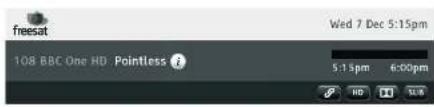
HINT: You can also display the browsing bar by pressing 🚗 or 📞 the remote control while you are watching TV.
At the bottom left of the browsing bar these symbols are displayed to indicate:
the channel is locked (see the Advanced Use section)
the programme is being recorded
① a reminder has been set for the programme
① an HD version is available on another channel
(press the button for further details)
At the bottom right of the browsing bar symbols are displayed to indicate:
SUB subtitles are available
Audio Description is available
Dolby Digital audio is available
6 parental guidance is advised as the programme contains language or scenes that may not be suitable for children
HD the programme is in High Definition
the programme is one of a series
While the browsing bar is displayed, press again to display more information about the selected programme, including a short summary and further details on the parental guidance and/or the HD version available, if applicable. Pressing the button once more removes the extra information from the screen.
i Pointless
[Entertainment] Quiz in which contestants try to score as few points as possible by plumbing the depths of their general knowledge to come up with the answers no-one else can think of. [S]
To remove the bar from the screen at anytime, press 📄.
While the bar is displayed, press the air buttons to see what is on another channel. To change to this channel, press while the bar is still displayed. You can also press the button to see details of the programmes coming up in the next 12 hours on the channel currently displayed, and the button to go back again.
SUBTITLES AND AUDIO DESCRIPTION
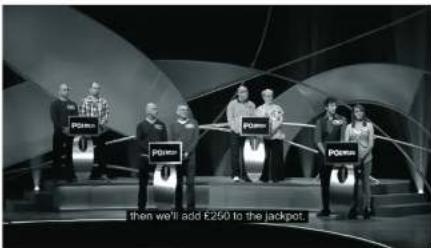
Many freesat programmes are broadcast with subtitles for people who are deaf or hard of hearing. Channels with subtitles available show the symbol in the browsing bar.
If you want to turn on subtitles, fi rst display the subtitles menu by pressing the button and then use the ▲ but rns to highlight the subtitles required and press ☑. To turn off subtitles, select "Off" from the subtitles menu and press ☑
Some programmes have an extra soundtrack to tell people who are blind or partially sighted what is happening on screen. Channels with this audio description available show the AD-0 symbol in the browsing bar.
To turn on audio description, press the 📄 button to display the available audio menu and then select "English Audio Description".
HINT: Once turned on, subtitles and audio description remain on for all channels until turned off.
USING THE CHANNEL LIST
Display the on-screen channel list by pressing the button on the remote control. This lists the channels on the left-hand side of the screen, in number order, and displays a preview window of the currently selected channel on the right-hand side of the screen. You can return to watching TV at any time by pressing the button.

HINT: You can also display the channel list by pressing the Ⓧ button while watching TV.
Use the 🔒 buttons on the remote control to highlight a channel then press 🔒 to view it in the preview window. Press 🔒 again to exit the channel list and watch the channel full-screen. 18
HINT: Move a page at a time through the channel list by using the 🎨 and 🔊 buttons.
TV and radio channels are stored in separate lists. Switch between the TV and radio channel lists by pressing the 📋 or 🔍 buttons. The name of the list is displayed at the top of the screen. In addition, a symbol next to each channel distinguishes the TV channels (☐) from radio stations (☐).
REGIONAL CHANNELS
With freesat, some channels, such as BBC1, broadcast regional variations of their channels. The initial regional variation is chosen according to the postcode that you entered when you installed the Plaza HDR•S.
You can change to a different regional variation of a channel by pressing the yellow button while the channel is highlighted. The prompt to use the yellow button will only be displayed at the bottom of the screen if a choice of regions is available.
Choose the region that you want from the list by moving the highlight bar through the list with the and buttons and then pressing OK, or press 📄 to leave the region setting unchanged.

USING THE PROGRAMME GUIDE
The Plaza HDR•S programme guide displays details of all programmes showing on freesat channels for the next week ahead.

To access the guide, press the 📂 button on the remote control. Choose the section of the guide you want to look at - either all channels or a specific channel genre - by pressing the 🔊 or ➕ buttons to highlight the section, and then ⚫ select it.

The programme guide shows a table of the programmes, with each page showing eight channels over a two-hour period. Information on the highlighted programme is shown above the table and you can read a full summary by pressing the ① button. Press ② or ③ again to remove the summary box.
USING THE PROGRAMME GUIDE (continued)
The current date and time is displayed at the top right of the screen and an orange line at the top of the table shows the present time in the schedule.
You look through the scheduled programmes using the and buttons to move through the channels and the and buttons to highlight programmes showing at different times.
HINT: You can jump through the list more quickly using the ▶ and ● buttons to move the highlight bar through the schedule two hours forward or back, and the 📂 buttons to move a day forward or back. Use the 📋 buttons to move through the channels a page at a time.
As you move the highlight bar through the schedule, the programme summary shown above the list changes to reflect the programme highlighted.
Press ⚙ to switch the receiver to the channel and programme highlighted. If the programme is on at the time, the receiver will switch to that channel immediately. If the programme is scheduled for later on, a reminder is set so that when the programme is about to start, a message is displayed on-screen and, after a few seconds, the receiver automatically switches to the relevant channel. In the programme guide a ⚙ symbol is shown next to a programme with a reminder set.
HINT: Programmes in standard definition that are also available on another channel in HD are labelled in the schedules with an Ⓗ symbol. You can see the time and channel that the HD version is broadcast by highlighting the programme and pressing ⓘ.
| 6:00pm | 6:30pm | 7:00pm |
| BBC News at Six | BBC London News | The One Show |
| Eggheads | Strictly Come .. | The Big Bread Exp.. |
| London Tonight | ITV News & Weat.. | Emmerdale |
| The Simpsons | Hollyoaks | Channel 4 News |
You can cancel a reminder by highlighting the programme in the programme guide and pressing ✗ again.
You can set as many reminders as you want but if you try to set a reminder on one channel for the same time as one you have already set on another channel, a warning is displayed on the screen and you are given the choice to cancel one of the reminders.
HINT: You can also set, and reset. reminders for programmes from the browsing bar - press ☑ when a future programme is displayed in the browsing bar and a reminder will be set for that programme or, if a reminder is already set (and shown by the symbol in the browsing bar), the reminder will be removed.
Press 📄 to record the programme highlighted. If the programme is on at the time, the receiver will record the remainder of the programme. If the programme is scheduled for later on, the receiver will automatically record the whole programme when it is broadcast (see Recording a Programme on P23).
![101 BBC 1 London - That's Britain [News and Factful] S/A Show looking at modern Britain: Graine Dodge lecture hosting car park charges and Alex Edmondson follows the journey of a letter axis. Wind 7 Dec 6:30pm 101 BBC 1 London 102 BBC 2 England 103 TVV London 104 Channels & 105 Channel 5 106 BBC THR…](/content/2026/05/924880/images/cc8c237aa9b6ed5761724a70304bd0f923c97bdfefd06c6fb3fa5e0fa1eafd02.jpg)
Leave the programme guide and return to watching TV by pressing BACK or EXIT
INTERACTIVE TV SERVICES
Several freesat channels broadcast a range of digital text and interactive services, such as news, weather, games, sports information and video, alongside normal TV. You can use the interactive options by pressing them the red button while watching the TV channel. This will display a menu of the services available.

When you have finished with the interactive services, return to watching normal TV by pressing again or the button.
PAUSING LIVE TV
With the Plaza HDR•S, you can pause live TV to, say, answer the phone, and then later carry on watching from where you left off. You can even rewind a live programme to watch a section again.
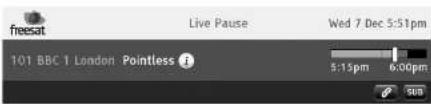
While watching live TV, press the million to pause the programme. In the top left corner of the screen the pause symbol appears and the pause counter shows the length of time the programme has been paused – how many minutes your viewing is behind live TV. "Live Pause" is shown in the browsing bar and the progress bar shows both the portion of the programme you have watched (in orange) and the length of paused programme that remains to watch in red.
PAUSING LIVE TV (continued)

When you want to continue watching TV, press 📄 again to restart your viewing from where you left off. You can now press 📄 or 📃 skip any parts of the programme that do not interest you, to catch up with the live programme, and/or press 📄 to review any sections of the programme again.
Each time that you press the → button, the rewind or fast forward speed increases - to 2x, 4x, 8x, 16x, 32x and 64x normal speed. If you press the → button while the programme is paused, it will advance or rewind in slow motion, changing to 1/8x, 1/4x, 1/2x normal speed with each press.
HINT: As well as the pause time, the pause counter at the top left of the screen shows the current playback mode - paused, play, fast forward, etc - and the current speed of rewind or fast forward.
Pressing the 📄 or 📄 buttons skips forwards or backwards through the paused programme. You can set the length of the skip from 10 to 60 seconds in the "Record" section of the Setup menu (see the Advanced Use section). The default is to skip forwards 30 seconds and backwards 10 seconds, which makes it easy to skip adverts. Press 🎯 while watching a paused programme to return to watching live TV.
You can also rewind live TV without first pausing it, by pressing the button and then pressing when you have reached the part of the programme that you want to see again. You can only rewind as far back as the last channel change or to the limit of the live pause length. A thin red line on the progress bar shows how far back you can rewind the programme.
HINT: You can set the limit of the live pause length up to two hours (see the Advanced Use section).
HINT: When you change channel, the continuously stored broadcast is deleted, so you cannot rewind to watch either the old channel or the new channel, before the channel change took place.
RECORDING A PROGRAMME
There are two ways to record a programme to watch later - either record a programme that is on at the time, or set the timer to automatically record a programme later.
To record the programme you are currently watching, press the button. Recording will start immediately and the browsing bar will be displayed with the symbol in the bottom left hand corner. Once a recording has been started, you can change channel to watch another programme and the recording will continue. You can also start to watch a recorded programme before the recording has finished.
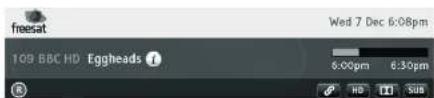
You can stop the recording of a programme by pressing the button while the browsing bar is displaying that programme's details (and the symbol). Press or if the bar is not already on-screen.
You can also start and stop recording a channel from the browsing bar, while watching another channel. When the browsing bar is displaying the channel you want to record, press the button to start the recording (if that channel is not being recorded) or to stop the recording (if that channel is being recorded and the symbol is displayed).
HINT: The Plaza HDR+S can record a programme from one channel while you are watching another or record programmes on two different channels at the same time. If you try to record a third programme or watch a third channel, the Plaza HDR+S will display a warning and options of the actions you can take (eg to stop recording one of the programmes so you can watch the third channel).
To record a programme that will be broadcast in the future, either highlight the programme in the programme guide or use the browsing bar to display that programme's details, and press the button.
If the programme is part of a series (indicated with Ⓞ symbol in the browsing bar and in the programme guide full summary), you will be given the option of setting the Plaza HDR+S to automatically record future episodes of the series as well - highlight the option you want and press ⚙. Programmes set to series link record display an ⏚ symbol instead of an ⏚ symbol.

RECORDING A PROGRAMME (continued)
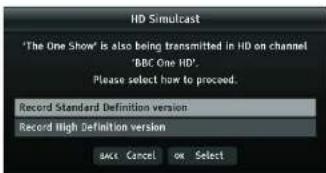
If you choose to record a programme in Standard Definition, which is also available in HD (indicated in the browsing bar and in the programme guide with a symbol), you will be given the option to record the HD version instead - highlight the version you want and press ☒
Both the programme guide and browsing bar displays next to any programme set to record just once, and next to any programme set to series link record.

To cancel a scheduled recording, highlight the programme in the programme guide or display that programme's details in the browsing bar, and press the button. You can also cancel a scheduled recording using the library schedule list (see below). 24
HINT: You can set the Plaza HDR•S to record a programme that is not in the programme guide (one that is on a non-freesat channel or far into the future) using the manual recording menu (see the Advanced Use section)
USING THE LIBRARY
You can see a list of recordings scheduled for the future, and programmes already recorded and ready for playback in the library. Open the library by pressing the button (or selecting the library item in the main menu).
The recordings list shows all the recordings currently stored by the Plaza HDRS, listed with the name of the programme, the channel, the date on which the recording was made, and its status – recorded, viewed, or still recording. There may be symbols next to each entry in the list to show:
★ the recording is protected against quick or automatic deletion ● the recording is one of a series R the programme is still being recorded
A series of recordings (with the same title and recorded from the same channel, but at different times or on different days) are grouped together as a single entry in the list, with a label showing the number of episodes within the group. If you highlight a group of recordings and press the group is expanded on a new screen, with each individual episode listed. Press to return to the main list.

The preview window at the top of the screen continues to show the channel you were tuned to before opening the library screen. Above the recordings list is shown the space free for further recordings.
The panel at the top of the screen shows details of the recording highlighted, including the symbols seen in the browsing bar. You can highlight the different recordings listed using the and cttons.
A highlighted recording (or group) may be deleted (press the red button) to make room for new recordings once it has been watched. You can protect a recording (press the ● button) to prevent automatic deletion if the Plaza HDR+S runs out of recording space, or accidental deletion with the red button (as an on-screen confirmation is then required for deletion).
If your press 📂 the highlighted recording begins playback in the preview window at the top of the screen and a ▶ symbol is shown next to the programme name. While a recording is being
previewed, you can continue to browse the other recordings in the recordings list. Press ☐ to stop preview playback and return the preview window to live TV.
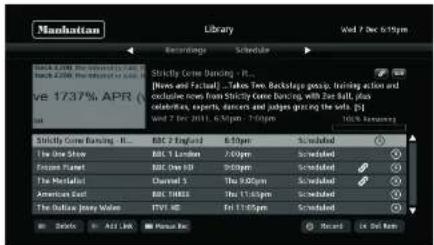
The library schedule list shows all programmes with a reminder set or scheduled to be recorded. You can open the library by pressing the button (or selecting the library item in the main menu) and then display the schedule list by pressing the button.
The scheduled programmes are listed with the name of the programme, the channel, the day on which the recording or reminder will occur, and symbols to show:

the recorded programme will be protected from deletion the recording is one of a series that will all be recorded the programme is set for a reminder the programme is set to be recorded
USING THE LIBRARY (continued)
Details of the programme highlighted, including the symbols seen in the browsing bar, are shown at the top of the screen. You can highlight the different scheduled programmes in the list using the ▲ and 🔍 buttons.
Pressing the button will set or reset the highlighted programme for recording. Pressing will set or reset the highlighted programme for a reminder. If you reset a programme for both recording and reminder, it will be deleted from the schedule list. You can also press the red button to delete the highlighted programme from the schedule list (an on-screen confirmation is required). Once a programme has been deleted from the schedule list, a reminder will not be given and the programme will not be recorded.
Press the green button to change a single recording to a series recording (shown by the ☐ ribo) - this episode and all successive episodes of the series will be automatically recorded. Pressing the green button with a series recording highlighted will change it to a single recording and further episodes will not be recorded.
PLAYING A RECORDED PROGRAMME
To watch a recorded programme, open the library, by pressing 📄, highlight the recording you want to view and press Ⓧ.
If you have started to watch the recording before, you will be asked if you want to carry on viewing from where you left it, or start viewing from the beginning. Select the option required and press Ⓞ. 26
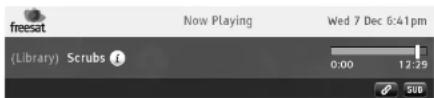
During playback of a recording, the browsing bar shows 'Now Playing' and the progress bar shows playback progress through the programme in orange. The whole progress bar shows the entire length of the scheduled recording with the portion recorded but not yet viewed in red. The playback counter at the top left of the screen shows the playback time elapsed from the beginning of the recording.
HINT: If you start to watch a recorded programme before recording has finished, the end of the red portion shows the point in the programme currently being broadcast and recorded.
While watching playback, you can use the browsing bar as usual, to see what programmes are being broadcast or coming up on any channel, and to set reminders or recordings.
You can fast forward or rewind through the recording with the and buttons. Each time that you press the or button, the rewind or fast forward speed increases - to 2x, 4x, 8x, 16x, 32x and 64x normal speed. If you press the or button while playback is paused, it will advance or rewind in slow motion, changing to 1/8x, 1/4x, 1/2x normal speed.
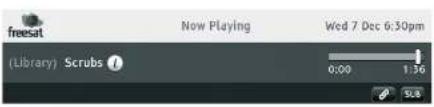
HINT: As well as the playback time, the playback counter at the top left of the screen shows the current playback mode - play, fast forward, rewind, and so on - and the current speed of rewind or fast forward.
Pressing the 📄 or ⬆ buttons skips forwards or backwards through the recording. You can set the length of the skip from 10 to 60 seconds in the "Record" section of the Setup menu (see the Advanced Use section).
To skip to a particular point in the recording, press on and the playback counter will change to allow you to use the number buttons to enter the time you want to skip to in hours and minutes (H:MM). Press once you've entered a time and or cancel.
You can temporarily halt playback by pressing the 📋 button, or stop playback and return to the library by pressing 📋

Advanced Use
This section explains how to get the most out of your Plaza HDR•S receiver.
THE LOCK PIN
Some of the Plaza HDR•S menu functions can be locked to avoid accidental changes to the receiver's setup, and you can lock particular channels to prevent other family members, such as children, from watching them.
To use a locked menu function or watch a locked channel, you need to enter the four-digit PIN that you set when you first installed the Plaza HDR•S. You can change the lock PIN, without re-installing the receiver, as explained later in this section.

DISPLAY MODE
Most freesat programmes are broadcast using a widescreen 4:6 format, designed for a widescreen TV. If you watch a widescreen broadcast on a squarer 4:3 television, or a 4:3 broadcast on a widescreen TV, the Plaza HDR-5 provides a choice of how the image is displayed. Pressing the mouse button will take you through the three available options.
If you have set up your receiver for a 16:9 Widescreen TV, the options are:
• Auto - the broadcaster chooses the best display format.
- Widescreen - a 4:3 broadcast is stretched to fill the 16:9 screen.
- Pillarbox - a 4:3 broadcast is shown unaltered with black bars on each side.
If you have set up your receiver for a 4:3 Traditional TV, the options are:
• Auto - the broadcaster chooses the best display format.
- Centre Cut-out - a 16:9 broadcast is cropped to show only the centre of the image.
- Letterbox - a 16:9 broadcast is shown unaltered with black bars above and below it.
TV/DTV
If your TV is connected to the Plaza HDR•S's TV SCART socket, pressing the screen button switches the channel displayed on the television between the signal from the aerial (TV) and digital television from freesat (DTV). This button has no effect if your TV is connected to the receiver's HDMI socket.
28
CHANGING THE CHANNEL LIST
The channel list contains all the freesat channels that the Plaza HDR•S found when it was first installed, and may include some channels that you do not watch, do not want to include in the on-screen list, or do not want some members of your family to watch.
If you want to alter the channel list, first press the button to display the channel list screen. To remove a channel, highlight it and press the red button to delete the channel. You need to confirm your choice to ensure you don't delete a channel accidentally.

You can lock a channel to prevent it being selected for viewing without first entering the lock PIN. Highlight the channel and press the green button to lock it. A 🔒 symbol is shown next to all locked channels in the channel list. To unlock a channel, highlight it in the channel list and press the green button. You will need to enter the PIN to complete the process.
USING THE FAVOURITE CHANNELS LIST
The favourite channels list make it easier for you to choose the channel that you want to watch, by limiting the selection to a few chosen channels, such as those of a particular type, or that you watch the most
It only takes a short time to set up the favourites list before it can be used. First, display the channel list, by pressing the button. Highlight each channel that you want to include in the favourite channels list, in turn, and press the button. A star will appear next to the channel in the list.

HINT: You can remove a channel from a favourite channels list by following the same process - with the favourite channel highlighted in the channel list, press delete the star and remove the channel from the favourites list
When you have put some channels in the favourite channels list, you can limit the normal channel list to displaying just the favourite channels by pressing the button. Pressing the button again restores the channel list to normal.
While watching TV, you can tune to a favourite channel by pressing the button to switch to the next channel in the favourite channels list, or to the first channel in the favourites list if you are currently watching a channel not in that list.
When the browsing bar is displayed, the ▶ston may be used to step the banner through your favourite channels, while staying tuned to the current channel. This is useful to browse what is on your favourite channels before changing to one. To change to a channel, press Ⓧ when its details are shown
HINT: The channels in a favourite channels list appear in the same order as in the normal channel list, regardless of the order you added them.
If you want to record all editions of a programme that isn't a series but is broadcast repeatedly, or a programme outside of the timetable listed in the programme guide, or a non-freesat channel, you can set a recording manually.
MANUAL TIMER RECORDING (continued)
Open the library schedule list by pressing the button followed by the or button, and them press the yellow button to display the manual recording menu.
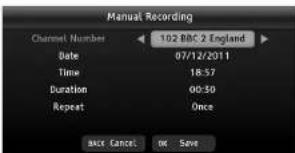
In the manual recording menu, use the ▲ and 🔍 buttons to move the highlight between each setting and the ◀ and 🔍 buttons to change the settings.
Set the channel to record to any channel, including non-freesat channels. Set the date for the recording, the time to start the recording and the length of the programme to record. You can set the manual recording to occur just once, each week, each month, every day, or weekdays, or on weekends.
To set the channel, date, time and length, you can also use the number buttons to key in the value directly. If you enter an invalid setting, such as a date in the past or a channel that does not exist, the setting will no be made. When you have made the settings press ☑ to set the manual recording, and it will be added to the library schedule list.
Display the Plaza HDR•5's main menu by pressing the 📣 button on the remote control. The menu choices are shown on the left hand side, with an icon for each choice. Choose a menu item by pressing the 🔊 or 🔒 buttons to move the orange highlight through the options and then press 🔒 to select the highlighted item.

Each of the first three main menu choices has the same effect as pressing the corresponding button on the remote control:
• TV Guide - same as button
• Channel Lists - same as button
- Library - same as (16) button
- Setup - see next page
• Information - see page 36 (this is the "Information Menu"
section on page 36 of this guide)
SETUP MENU
You display the setup menu by selecting the setup item in the main menu. Choose between the menu sections by pressing the 🔊 or Buttons to move the highlight along the section bar, and then press the 🔊 and buttons to move the highlight bar through the option list.

Some of the selections available from the setup menu are for advanced use of the Plaza HDR•S. We recommended that you take the time to read this section carefully before you make any changes.
GENERAL MENU SECTION
Highlight the option you want to alter using the ▲ and ▼ buttons. When you have finished making the changes you want, leave the menu system by pressing 📂 or EXIT
SUBTITLES
Press Ⓧ to switch on subtitles for all channels that provide them. Switch subtitles off by pressing 📍 again.
SUBTITLE LANGUAGE
The freesat channels can broadcast with subtitles available in a number of languages. The Plaza HDR•S is set to English subtitles, but you can change this setting by pressing ☒ to show the subtitle language menu. Use 📂 and ▶ highlight the language you want for subtitles (if available) and press ☒
AUTO STANDBY
To conserve power, the Plaza HDR·S will switch to standby after three hours if no buttons are pressed on the remote control or front panel. The Auto standby function is normally turned on, and can be turned off by pressing the button.
HDCP
HDCP prevents copying of digital audio and video from the HDMI output of the receiver. By default it is turned on for all programmes, however you can turn it off for programmes that have not been flagged as protected by the broadcaster by pressing ✉ess to 📞in it back on again.
PICTURE MENU SECTION
Highlight the option you want to alter using the 🔒 and 🔽 buttons. When you have finished making the changes you want, leave the menu system by pressing BACK or EXIT
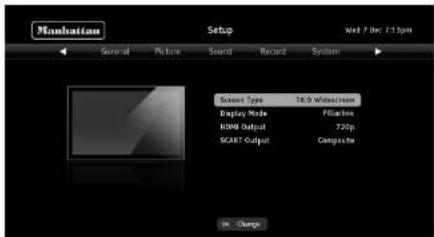
SCREEN TYPE
Press Ⓧ to show the screen type menu and use the 📄 and buttons to choose between 16:9 Widescreen and 4:3 Traditional. Press Ⓧ confirm your choice.
DISPLAY MODE
Press ⬤ to show the display mode menu and use the ✗ and √ buttons to choose between Auto, Centre Cut-Out, and Letterbox, if the screen type is set to 4:3 Traditional, or between Auto. Widescreen and Pillarbox if the screen type is set to 16:9 32
Widescreen. Press Ⓧ to confirm your choice. See Advanced Use Display Mode (page 28) for more information.
HINT: This menu option has the same effect as the button.
HDMI RESOLUTION
Press 📍 show the HDMI resolution menu and use the 🔒 and 🔒 buttons to choose the correct resolution for your TV. You should set the HDMI resolution to the highest that your television can display (see your television's manual). If in doubt, set the resolution to 720p. Press 🔒 confirm your choice.
HINT: This setting overrides the HDMI resolution set when you first installed the receiver. It has no effect on the receiver's TV SCART output.
SCART MODE
Press 📄 show the SCART mode menu and use the buttons to choose between Composite and RGB for the correct output for a television connected to the receiver's TV SCART output. Press 📄 confirm your choice.
HINT: The RGB setting will usually produce the best quality picture but a few televisions cannot accept this signal (see your TV manual). This setting has no effect on the receiver's HDMI output.
SOUND MENU SECTION
Highlight the option you want to alter using the 🎨 and 🏱 buttons. When you have finished making the changes you want, leave the menu system by pressing ⚠️. ⚡️
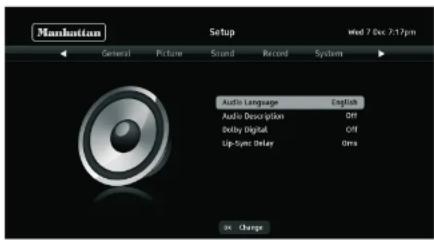
AUDIO LANGUAGE
Some programmes are broadcast in a number of languages. The Plaza HDR•S is set to English, but you can change this setting by
pressing Ⓧ to show the audio language menu. Use 📂 and 📃 move the orange highlight bar to the language you want and press Ⓧ.
AUDIO DESCRIPTION
Press ☐ switch on audio description for all channels that provide it. Switch audio description off by pressing again.
DOLBY DIGITAL
Press switch on the Dolby Digital surround sound output from the S/PDIF and HDMI sockets, for all programmes that provide it (channels with Dolby Digital sound available show the symbol in the browsing bar). Switch off Dolby Digital by pressing again.
LIP-SYNC DELAY
If you find the sound and picture falling out of sync, you can delay the sound output by a small amount to compensate. Press ☐ to show the lip-sync delay bar on top of the normal TV picture, and use the ◀ and ● buttons to alter the amount of audio delay. Press ⚙ confirm your choice and return to the sound menu.
RECORD MENU SECTION
Highlight the option you want to alter using the ▲ and ▼ buttons. When you have finished making the changes you want, leave the menu system by pressing ⏻️EXIT.
RECORD MENU SECTION (continued)

DEFAULT REC MODE
Press Ⓧ to show the default recording mode menu and use the 📄️ buttons to choose between always recording the Standard Definition (SD) version of a programme, always recording the High Definition (HD) version, or asking which version should be recorded. Press Ⓧ confirm your choice.
HINT: A programme will only be recorded in HD if a High Definition version is available.
ADD TO START OF REC
Press OK to show the add to start of recording menu and use the 📄 and 🔍 buttons to select how far in advance of the scheduled time a recording will start, to account for scheduling inaccuracies 34
in the broadcast. The automatic setting starts the recording according to timing data from the broadcaster. Press ☑ to confirm your choice.
ADD TO END OF REC
Press ☒ to show the add to end of recording menu and use the 🔒 and 🔒 buttons to select how long after the scheduled time a recording will end, to account for scheduling inaccuracies in the broadcast. The automatic setting ends the recording according to timing data from the broadcaster. Press ☒ confirm your choice.
LIVE PAUSE LENGTH
Press 📂 show the live pause length menu and use the button buttons to select between 60 minutes and 120 minutes as the length of time the receiver will record live TV. Press 📂 confirm your choice.
SKIP FORWARDS TIME
Press 📂 show the skip forwards time menu and use the and buttons to select the length of the jump in a recording from the button. Press to confirm your choice.
SKIP BACKWARDS TIME
Press 📂 show the skip backwards time menu and use the and buttons to select the length of the jump in a recording from the button. Press to confirm your choice.
AUTO DISK MANAGEMENT
If the HDR+S is running out of disk space it will automatically delete old, unprotected recordings to make space for new ones. Press ☑ to turn off automatic management. If the hard disk is full further programmes will not be able to be recorded. Press ☑ to turn it back on again.
FORMAT HARD DISK DRIVE
Press ☑ to format the receiver's hard disk drive. To continue, you will need to enter the lock PIN if parental guidance is turned on in the System Menu section.
HINT: Formatting the hard disk drive will erase all of your previously recorded programmes.
SYSTEM MENU SECTION

Highlight the option you want to alter using the ▲ and ▼ buttons. When you have finished making the changes you want, leave the menu system by pressing BACK or EXIT
FREESAT INSTALLATION
Press 40 return all the freesat channels. If you retune freesat, you will lose all channels from the favourite channels list, remove any channel locks you have set, restore any deleted channels, and reset the regional settings, TV type and lock PIN.
ADD NON-FREESAT CHANNELS
See the Non-freesat Channels section of this guide on page 39 for full details of how you can add and watch non-freesat channels.
See the On Demand TV section of this guide on page 37 for full details of how you can connect to and watch online services.
PARENTAL GUIDANCE
Press ☑ to turn on parental guidance. This prevents watching any programme broadcast before the watershed with a parental guidance warning without first entering your PIN. It also prevents displaying the system menu or formatting the hard disk without entering the PIN. To turn off parental guidance again press and enter your PIN.
HIDE ADULT CHANNELS
Press Ⓧ to hide and prevent access to the freesat adult genre and channels. To show them again press Ⓧ and enter your PIN.
CHANGE PARENTAL PIN
Press 📄 show the lock PIN menu. Change the PIN used by first entering the current PIN and then entering and confirming your choice of new PIN.
SOFTWARE UPDATE VIA OAD
Press ☑ to turn on or off the automatic software update.
SOFTWARE UPDATE VIA USB
To perform a software upgrade via USB, insert a USB stick with a suitable upgrade file and press. Further instructions will accompany any software upgrade downloadable from the Manhattan website.
CHECK FOR SOFTWARE UPDATE
Press ☒ to immediately check if there is a software update available.
RESTORE FACTORY DEFAULT
Press to revert all of the receiver settings to what they were when you first got your receiver and to start the installation procedure described in the Preparation section of this guide. Select between the options of reverting all settings and formatting the receiver's hard disc or just reverting the settings, and press to start the process. 36
HINT: Do not operate this function unless you mean to delete all channels, favourite channels, and the receiver's configuration.
INFORMATION MENU
The information menu displays important information about your Plaza HDR•S and is helpful in diagnosing any potential problems with your receiver.
You display the information menu by selecting the information option in the main menu. Choose between the information sections by pressing the 40+ units to move the highlight along the section bar.
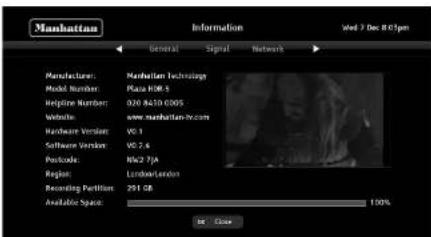
HINT: We recommend that you have this screen displayed on your TV if you need to phone the Plaza HDR•S helpline.
The General menu section contains:
- Basic information used to identify the receiver.
- The current region the receiver is set to (based on the postcode input during installation).
• A phone number and website address for product support.
• Information about how much hard disk space you have available for recording.
The Signal menu section is used to help align your satellite dish or to troubleshoot a signal problem.
The Network menu displays your network settings. If it says "Not Connected" this means you do not have a network connection. Please see Section 5, "On Demand TV", for more information about network settings.

On Demand TV
This section explains how to set up the Plaza HDR•S receiver to watch On Demand TV services, such as the BBC iPlayer and ITV Player catch-up services. You must have a broadband Internet connection in your home to watch On Demand TV.
SETTING UP FOR ON DEMAND TV
Connect a network cable from the Ethernet network socket on the back of the Plaza HDR•S receiver to either your broadband modem/router or a network switch in your home network, as appropriate. Consult your modem/router manual for guidance.
HINT: If the receiver has made a connection with your modem or home network, one or both of the small green and orange lights immediately above the Ethernet socket will light and/or flicker.
Press the MENU button on the remote control, select the Setup item, and then press 🔒 to display the system menu. Select Network Configuration and press ⬆ to display the Network Configuration menu. Check that the first menu item shows "DHCP" to automatically configure the network connection.
SETTING UP FOR ON DEMAND TV (continued)

If your broadband modem/router is not compatible with DHCP (Dynamic Host Configuration Protocol), you will need to set the addresses manually. Use the ☑ or ☒ buttons to change the configuration to "static" and for each of the addresses in turn (IP Address, Subnet Mask, Router Address, and DNS Address) press ☑ to highlight the address and then enter the 12 figures to set that address.
When you have set the four addresses, press Ⓧ to return to the System menu.
HINT: Consult the manual or supplier for your modem/router or network for help choosing the correct addresses.
WATCHING ON DEMAND TV
You can switch to On Demand TV either through the interactive services on a channel providing On Demand TV, or through an online channel chosen by number or using the channel list or programme guide.

HINT: The On Demand TV channels are numbered from 900 and are in the On Demand section of the programme guide
When you switch to an On-Demand TV channel, it may take a few seconds longer to show the picture than a freesat satellite channel. You will then need to progress through a series of menus, using the number buttons, the coloured buttons, and the button, to find and start the programme you want to watch. You go through these menus in a different way depending on the online broadcaster.

HINT: The controls for playback of an online programme may differ to those you are used to on the Plaza HDR•S. For example, BBC iPlayer uses the 📄 button to pause and play a programme, instead of the 📋 button.
6 Non-Freesat Channels This section explains how to set us receiver to receive channels that a freesat. As well as receiving the m
TUNING IN NON-FREESAT CHANNELS
Go to the Add Non-Freesat Channels menu by pressing 📂 then select the Setup item, press 📂 to display the system menu, and 📋 to highlight the option to add non-freesat channels, then press 📋


You can add non-freesat channels either by manually entering the tuning details for an individual transponder (a group of channels) or by allowing the Plaza HDR•S to scan all the transponders for non-freesat channels. Choose a manual scan or an automatic scan by pressing the 3000 buttons.
TUNING IN NON-FREESAT CHANNELS (continued)
If you choose a manual scan, you should enter the frequency and symbol rate of the transponder to scan, using the number buttons, and its polarization, modulation and broadcast system by using the 📁 or Buttons. You can move between the five items using the 📁 and buttons. When you have entered the tuning information, press to start the scan.
HINT: The tuning information for non-freesat channels may be printed in specialist magazines, or given on a specific channel's website.
If you choose an automatic scan, just press to start the scan.
The Plaza HDR+S will take a few seconds to complete a Manual Scan and several minutes to finish an automatic scan. While it is scanning, the receiver displays the number of TV and radio channels found so far. When it is finished, the receiver will display a list of all the channels found.
You can choose to watch a non-freesat channel from this list by moving the orange bar using the 📂 and buttons to highlight the channel you want and pressing 🐎 or return to watching TV by pressing 🐎. EXIT
WATCHING NON-FREESAT CHANNELS
Non-freesat channels and freesat channels are stored separately in the receiver but you can switch between them quite easily. When you are watching a non-freesat channel, the browsing bar displays the Manhattan logo instead of the freesat logo.

While watching a non-freesat channel, you can step through the other non-freesat channels by pressing the 📄 or 📋 buttons. You cannot enter a four-digit channel number to switch to a non-freesat channel, but you can press the 📋 button to switch to the channel you last watched, whether it was a freesat or non-freesat channel.
HINT: Non-freesat TV channels are stored from channel number 3001 and non-freesat radio channels from 3500.
You can browse through the non-freesat channels and programmes in the same way as you browse the freesat channels. Press (6) or to display the browsing bar and then press the buttons to see what is showing at the moment on any of the other non-freesat channels, and to see the programmes on next.
HINT: The programme guide does not display non-freesat channels but most non-freesat channels will display information about the current and next programmes in the browsing bar.
To set a recording of a non-freesat channel in the future, use the manual recording menu (see the Advanced Use section on page 27).
When you have some non-freesat channels stored, the channel list displays both freesat and non-freesat channels. Go to the channel list by pressing the button. Now pressing your take you through the four channel lists available:
- freesat TV Channels
- freesat Radio Channels
• non-freesat TV Channels
• non-freesat Radio Channels
You can use the same channel list functions for any of the lists – lock or delete a channel, or add it to your favourite channels list.
If you put both freesat channels and non-freesat channels in the favourite channels list, you can switch from one to the other freely and easily.
PAUSING AND RECORDING NON-FREESAT CHANNELS
You can pause a live non-freesat channel using the 📋 button, just like a freesat channel.
Most non-freesat channels will display information about the current and next programmes in the browsing bar. You can set any programme displayed to record, just like on a freesat channel.
Appendix A - Safety
POWER
The receiver's external power supply should be plugged into a 230V to 240V AC, 50Hz supply.
CABLES
Make sure all cables are positioned so they are not likely to be walked on, crushed or damaged by things placed on or against them. Pay particular attention to the power cable where it goes into the socket and where it comes out of the receiver's external power supply unit. Do not connect or adjust cables to the receiver when it is plugged in.
TEMPERATURE AND MOISTURE
Do not use or leave the receiver in a hot, cold or humid (moist) environment. Do not allow the receiver to get wet - from drips or splashes - as this is dangerous. Do not place vases or other water-filled objects on top of the receiver.
VENTILATION
Slots and openings in the receiver's cover are for ventilation. Do not cover or block them as this could lead to the receiver overheating.
CLEANING
Unplug the receiver before you clean it with a lightly dampened cloth. Do not use liquid or aerosol cleaners.
HEAT AND FLAMES
Do not place the receiver near to naked flames or sources of intense heat, such as an electric fire. Make sure that no flames, such as lighted candles, are placed on top of the receiver.
LIGHTNING
If there is a storm or lightning, unplug the receiver.
SERVICING
Make sure that anyone who services your receiver is qualified to do so. Do not remove the cover yourself - you could get an electric shock.
REPLACEMENT PARTS
If your receiver needs repairing, make sure the person carrying out the repair uses parts which are specified by us or which have the same specifications as the original part. Other parts may cause a fire, electric shock or other dangers.
ELECTRICAL SAFETY
Your receiver is supplied with an external 100V - 240V AC, 50Hz power supply that connects by 12V DC plug to the receiver and by UK mains plug adapter to the mains. Always connect the 12V DC plug to the receiver before connecting the mains plug.
If the mains plug breaks or becomes damaged, do not use it. Do not cut or open the adapter, as this will expose you to dangerous high voltages present inside. The adapter is non-serviceable and does not have any replaceable parts inside. If the power supply is damaged, it must be replaced by the manufacturer, its service agent, or suitably qualified persons in order to avoid a hazard.
To reduce the risk of electric shock, do not remove screws from the receiver or open it as it contains no user-serviceable parts. Please leave all maintenance work to qualified personnel.
PROTECTING THE ENVIRONMENT

If you one day find that your receiver or remote control needs replacing, or are of no further use to you, do not throw them out with your household waste. Under the Waste Electrical and Electronic Equipment (WEEE) regulations, your local council must provide a suitable recycling centre.

Do not throw batteries in the bin or on a fire. Make sure that you dispose of batteries safely at a local recycling centre. You can also recycle batteries at many supermarkets.
Appendix B - Troubleshooting
| PROBLEM POSSIBLE CAUSE WHAT TO DO | ||
| Power light off | Power supply cable disconnected Check the power supply cable | |
| Mains fuse blown Check fuse | ||
| No set up screen | Receiver not switched on Switch on receiver. Check mains cable, switch and fuse. | |
| HDMI/SCART cable disconnected | Check HDMI/SCART cable connection to receiver and television. | |
| Television not switched to HDMI/SCART input Select television's HDMI/SCART input. | ||
| Signal lock failed | Cable from the satellite dish disconnected | Check the cable connections at receiver and dish Consult your installer if necessary. |
| Dish in the wrong position Reinstall the dish. Consult your installer if necessary. | ||
| Signal strength below 50% | Dish in the wrong position Reinstall the dish. Consult your installer if necessary. | |
| Not accepting postcode | Broadcast error | Postcode tables are not being transmitted. Use red Default Channels button to activate default tuning. |
| 'No signal' message | Cable from the satellite dish disconnected | Check the cable connections at receiver and dish Consult your installer if necessary. |
| Dish damaged or in the wrong position Check the dish. Consult your installer if necessary. | ||
| No picture or sound | HDMI/SCART cable disconnected | Check HDMI/SCART cable connections at receiver and television. |
| Television not switched to HDMI/SCART input Select television's HDMI/SCART input. | ||
| Full picture not visible | Mismatched screen format Choose the correct screen size to suit your TV. | |
| TV picture not HD | Tuned to an SD channel Tune to an HD channel. | |
| TV not capable of HD Connect the receiver to an HD-Ready TV. | ||
| TV connected by SCART Connect the TV with the HDMI load. | ||
| No response with remote control | Receiver in standby Switch on the receiver | |
| Remote control not aimed at the receiver correctly | Aim the remote control at the receiver. | |
| Remote sensor on the front of the receiver is obstructed | Check for obstructions in front of the receiver. | |
| Receiver switches off after 3 Hrs | Auto Standby is on Turn off the Auto Standby in the Set Up menu. | |
| Cannot view a channel | Wrong channel number used Choose the channel from Channel List. | |
| Channel locked | Enter the PIN. If you have forgotten the PIN, phone the helpline on 020 8450 pops. | |
| Can't record a programme | Already recording two other programmes | The HDR-S can only record two channels simultaneously. Stop one of the recordings to record the programme. |
| No information for a channel In the programme guide | Information on the channel not downloaded Wait for the download. | |
| You are on a non-freesat channel Select a freesat channel. | ||
| No digital text or interactive services | Services not available on chosen channel | Switch to a channel broadcasting interactive services. |
| No On Demand TV | No connection to Internet | Check broadband connection and network configuration in system menu. |
Appendix C - Specifications
| Tuner | Standard DVB-5/S2 Twin Tuners | |
| Input frequency 550-2150MHz | ||
| Input connector 2 x F type, Female 75 ohm | ||
| LNB supply 13.0V / 18.0V (max 300mA), Short Circuit Protected | ||
| Digital signal input level -20 to -65 dBm | ||
| Hard Disk Drive | Capacity 320 GB | |
| Video | HDMI output Resolution 576i / 576p / 720p / 1080i /1080p | |
| SCART output TV (CVBS/RGB) & VCR (CVBS) | ||
| Aspect ratio 4:3, 16:9 & Letter Box | ||
| Audio | TV & VCR SCART output Audio left and right | |
| Optical S/PDIF output Dolby Digital, Dolby Digital + & PCM | ||
| USB | Host 2.0 (5V@1A max) for software upgrade only | |
| Internet Connectivity | Ethernet RJ-45 10/100 Base-T (with green Link LED & yellow Data LED) | |
| Power Requirements | Mains input voltage 100-240VAC-50Hz | |
| Power consumption | Max 25W (LNB with 200mA) & Standby less than 1W | |
| Dimensions | Width, depth and height Width: 280mm, x depth: 183mm, height: 41mm | |
Notes
HELPLINE
020 8450 0005
ONLINE
www.manhattan-lv.com

freesat
Find out more about freesat at www.freesat.co.uk
Follow freesat on
www.twitter.com/freesat_TV
Like freesat on
www.facebook.com/freesat
- CONGRATULATIONS
- SOME OF THE KEY FEATURES OF THE PLAZA HDR•S ARE
- FURTHER INFORMATION
- FREESAT
- MANHATTAN
- DOLBY
- DIGITAL PLUS
- DV3
- CONTENTS
- IN THE BOX
- REMOTE CONTROL
- MANHATTAN PLAZA HDR•S
- PREPARATION
- CONNECTING YOUR RECEIVER
- SWITCHING ON (CONTINUED)
- TUNING IN
- TUNING IN (CONTINUED)
- EVERYDAY USE
- TURNING ON THE RECEIVER
- CHANGING CHANNELS
- CHANGING CHANNELS (CONTINUED)
- CHANGING THE VOLUME
- BROWSING BAR
- I POINTLESS
- SUBTITLES AND AUDIO DESCRIPTION
- USING THE CHANNEL LIST
- REGIONAL CHANNELS
- USING THE PROGRAMME GUIDE
- USING THE PROGRAMME GUIDE (CONTINUED)
- INTERACTIVE TV SERVICES
- PAUSING LIVE TV
- PAUSING LIVE TV (CONTINUED)
- RECORDING A PROGRAMME
- RECORDING A PROGRAMME (CONTINUED)
- USING THE LIBRARY
- USING THE LIBRARY (CONTINUED)
- PLAYING A RECORDED PROGRAMME
- ADVANCED USE
- THE LOCK PIN
- DISPLAY MODE
- TV/DTV
- CHANGING THE CHANNEL LIST
- USING THE FAVOURITE CHANNELS LIST
- MANUAL TIMER RECORDING (CONTINUED)
- SETUP MENU
- GENERAL MENU SECTION
- SUBTITLES
- SUBTITLE LANGUAGE
- AUTO STANDBY
- HDCP
- PICTURE MENU SECTION
- SCREEN TYPE
- HDMI RESOLUTION
- SCART MODE
- SOUND MENU SECTION
- AUDIO LANGUAGE
- AUDIO DESCRIPTION
- DOLBY DIGITAL
- LIP-SYNC DELAY
- RECORD MENU SECTION
- RECORD MENU SECTION (CONTINUED)
- DEFAULT REC MODE
- ADD TO START OF REC
- ADD TO END OF REC
- LIVE PAUSE LENGTH
- SKIP FORWARDS TIME
- SKIP BACKWARDS TIME
- AUTO DISK MANAGEMENT
- FORMAT HARD DISK DRIVE
- FREESAT INSTALLATION
- ADD NON-FREESAT CHANNELS
- PARENTAL GUIDANCE
- HIDE ADULT CHANNELS
- CHANGE PARENTAL PIN
- SOFTWARE UPDATE VIA OAD
- SOFTWARE UPDATE VIA USB
- CHECK FOR SOFTWARE UPDATE
- RESTORE FACTORY DEFAULT
- INFORMATION MENU
- ON DEMAND TV
- SETTING UP FOR ON DEMAND TV
- WATCHING ON DEMAND TV
- 6 NON-FREESAT CHANNELS THIS SECTION EXPLAINS HOW TO SET US RECEIVER TO RECEIVE CHANNELS THAT A FREESAT. AS WELL AS RECEIVING THE M
- TUNING IN NON-FREESAT CHANNELS
- TUNING IN NON-FREESAT CHANNELS (CONTINUED)
- WATCHING NON-FREESAT CHANNELS
- PAUSING AND RECORDING NON-FREESAT CHANNELS
- APPENDIX A - SAFETY
- POWER
- CABLES
- TEMPERATURE AND MOISTURE
- VENTILATION
- CLEANING
- HEAT AND FLAMES
- LIGHTNING
- SERVICING
- REPLACEMENT PARTS
- ELECTRICAL SAFETY
- PROTECTING THE ENVIRONMENT
Brand : MANHATTAN
Model : Plaza HDR-S (Freesat)
Category : Receiver