
RMS3JC080 - Controller INTEL - Free user manual and instructions
Find the device manual for free RMS3JC080 INTEL in PDF.


| Product Type | RAID Controller |
| Brand | Intel |
| Model | RMS3JC080 |
| Form Factor | PCIe 3.0 x8 Low Profile |
| Interface | SAS 3.0 (12 Gbps) / SATA 3.0 (6 Gbps) |
| Supported RAID Levels | 0, 1, 10, 5, 50, 6, 60 |
| Number of Ports | 8 internal |
| Data Transfer Rate | Up to 12 Gbps per port |
| Cache Memory | 1 GB DDR3 |
| Battery Backup | Optional AXXRBBU9 |
| Operating Temperature | 0°C to 55°C |
| Dimensions (L x H) | 167.6 mm x 68.9 mm |
| Weight | 150 g |
| Power Consumption | 12 W typical |
| System Requirements | PCIe 3.0 slot, compatible server motherboard |
| Certifications | CE, FCC, RoHS |
| Installation | Plug into PCIe slot, connect storage cables |
| Maintenance | Keep firmware updated via Intel Storage Manager |
| Security | Secure erase, TCG Opal support |
Frequently Asked Questions - RMS3JC080 INTEL
User questions about RMS3JC080 INTEL
0 question about this device. Answer the ones you know or ask your own.
Ask a new question about this device
Download the instructions for your Controller in PDF format for free! Find your manual RMS3JC080 - INTEL and take your electronic device back in hand. On this page are published all the documents necessary for the use of your device. RMS3JC080 by INTEL.
USER MANUAL RMS3JC080 INTEL
Intel® RAID Module RMS3JC080 Quick Installation User's Guide
Thank you for buying an Intel® RAID Module. Your Intel® RAID Module provides reliability, high performance, and fault-tolerant drive subsystem management, and it offers an ideal RAID solution for the internal storage of workgroup, departmental, and enterprise systems. The following information will help you assemble your Intel® RAID Module and install components.
Perform all installation work at an electrostatic discharge (ESD)-safe workstation that meets the requirements of EIA-625, Requirements for Handling Electrostatic Discharge Sensitive Devices. You must perform all actions in accordance to the latest revision of the IPC-A-610 ESD-recommended practices.
This guide and other supporting documents are located on the web at: http://www.intel.com/support.
(This page is intentionally left blank.)
Table of Contents
Product Overview 1
General Installation Process 2
Unpack the RAID Module 2
Prepare the Host Computer 2
Install the Barrel Standoff 2
Install the RAID Module 2
Configure and Install the SAS/SATA Devices 3
Connect the RAID Module to the SAS/SATA Devices 3
Power up the System 3
Run the Intel® RAID BIOS Configuration Utility 3
Install the Operating System Driver 4
Reference Documents 4
Warning
Read all caution and safety statements in this document before performing any of the instructions. Also see the Intel® Server Board and Server Chassis Safety Information document at: http://www.intel.com/support/motherboards/server/sb/cs-010770.htm for complete safety information.
Warning

Installation and service of this product to be performed only by qualified service personnel to avoid risk of injury from electrical shock or energy hazard.
Caution
Observe normal ESD
[Electrostatic Discharge] procedures during system integration to avoid possible damage to server board and/or other components.
Tools Required
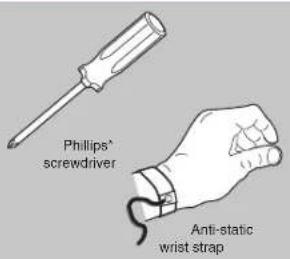
Intel ^® is a registered trademark of Intel Corporation or its subsidiaries in the United States and other countries. *Other names and brands may be claimed as the property of others. Copyright © 2014, Intel Corporation. All rights reserved.
Product Overview
The Intel ^® RAID Module RMS3JC080, which is based on the LSISAS3008 I/O controller, uses an 8-MB Flash memory device for storing the BIOS and firmware and controls eight internal SAS/SATA ports through two SFF-8643 mini-SAS HD-4i internal connectors.
The Intel ^® RAID Module RMS3JC080 is a PCI-Express ^ (PCIe ^ ) 3.0 RAID adapter whose PCIe ^* connector is a custom 80-pin connector capable of performance up to 8GT/s per lane.
This 12Gb/s Intel ^® RAID Module is based on the LSI first-to-market SAS IC technology and proven MegaRAID technology. As third-generation PCIe RAID modules, these modules address the growing demand for increased data throughput and scalability requirements across midrange and enterprise-class server platforms. These RAID modules provide these features:
• 12.0 Gb/s SAS III performance
• 6.0 Gb/s SATA III performance
• Eight-lane 8 GT/s PCIe host interface
SAS technology brings a wealth of options and flexibility with the use of SAS devices and SATA devices within the same storage infrastructure. However, SAS devices and SATA devices bring individual characteristics that make each one a more suitable choice depending on your storage needs.
NOTE: These RAID modules support SATA II and SATA III technologies.
NOTE: Record your RAID module serial number in a safe location in case you need to contact Intel.
General Installation Process
1 Unpack the RAID Module

CAUTION: It is good practice to back up your data before adding hardware, such as a RAID module, to your system.
Unpack the RAID module in a static-free environment. Remove the module from the antistatic bag, and inspect it for damage. A low-profile bracket is included with the RAID module. If the RAID module appears to be damaged or the low-profile bracket is missing, contact Intel or your reseller support representative.
The latest versions of the documentation, drivers, and firmware are available on the Intel website at http://www.intel.com/support. See Reference Documents for more information.
The website contains utility programs, device drivers for various operating systems, and related documentation.
2 Prepare the Host Computer
CAUTION: Before you install the RAID module, make sure that the host computer is disconnected from the power and from any networks.
Turn off the host computer, and unplug the power cords from the rear of the power supply. Remove the cover from the host computer.
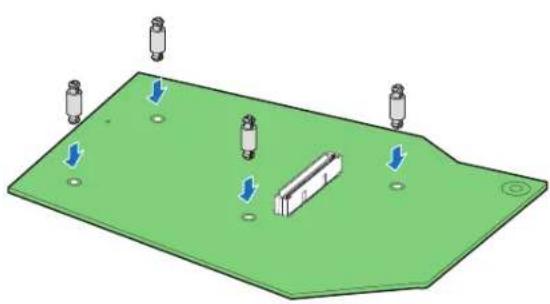
3 Install the Barrel Standoff
A Power down the system and disconnect the power cord.
B Locate the matching SAS Module connector on your server board. See your server board documentation.
Insert the barrel standoffs into the matching holes in the server board. The Intel® Server Board S2600GZ is shown for illustrative purpose.
natural_image
3D diagram of a green electronic component with four cylindrical pins and directional arrows indicating movement or force (no text or symbols)4 Install the RAID Module
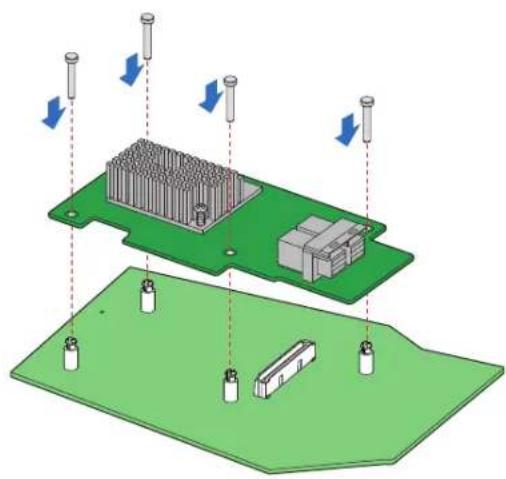
A Attach the RAID Module to the matching server board connector and press the module card firmly to engage the barrel standoffs.
B Press down gently but firmly to ensure that the card is properly seated in the connectors, and then insert the four pin standoffs into the barrel standoffs respectively.
natural_image
3D diagram of a microcontroller assembly with cooling elements and battery cells, showing no text or symbolsGeneral Installation Process
5
Configure and Install the SAS/SATA Devices
Configure and install the SAS devices, SATA devices, or both in the host computer case.
Refer to the documentation for the devices for any preinstallation configuration requirements.
7
Power up the System
Reinstall the computer cover, and reconnect the power cords. Turn on the power to the host computer. Make sure that the power is turned on to the SAS devices and the SATA III devices before or at the same time that the power to the host computer is turned on. If the power is turned on to the host computer before it is turned on to the devices, the host computer might not recognize the devices.
The firmware takes several seconds to initialize. During this time, the RAID module scans the ports.
8
Run the Intel® RAID BIOS Configuration Utility
Run the Intel ^® RAID BIOS Configuration Utility to configure the groups and the virtual drives. When the message about the configuration utility appears on the screen, immediately press Ctrl+C to run the utility.

NOTE: Refer to the Intel® RAID Software User Guide for detailed steps on configuring drive groups and virtual drives.
6
Connect the RAID Module to the SAS/SATA Devices
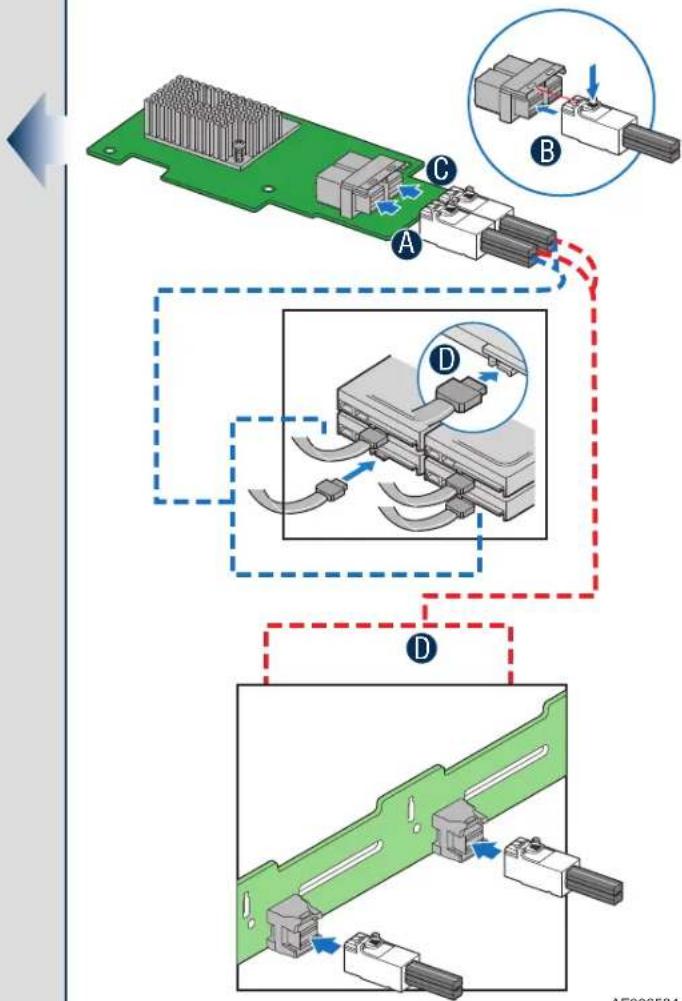
A Connect the wide end of the provided cable to the up SFF-8643 connector (ports 0-3).
B Push the cable into the SFF-8643 connector until it makes a slight
C If using more than four drives, connect the wide end of the second cable to the down SFF-8643 connector (ports 4-7).
D Connect the other ends of the cables to SATA drives or to the ports on a SATA or SAS backplane.

NOTE: Both non-expander backplanes (one cable per drive) and expander backplanes (one or two total cables) are supported. Drive power cables (not shown) are required.
flowchart
graph TD
    A["Component A"] --> B["Component B"]
    B --> C["Component C"]
    C --> D["Component D"]
    D --> E["Component E"]
    style A fill:#99ccff,stroke:#333
    style B fill:#ccffcc,stroke:#333
    style C fill:#ccffff,stroke:#333
    style D fill:#ccffff,stroke:#333
    style E fill:#ccffff,stroke:#333
AF006534
General Installation Process

Install the Operating System Driver
The RAID module can operate under various operating systems, but you must install the software drivers first.
You can view the supported operating systems and download the latest drivers for RAID modules from the Intel website at http://www.intel.com/support.
Refer to the Intel ^® RAID Software User Guide on http://www.intel.com/support for more information about installing the driver. Be sure to use the latest service packs that are provided by the operating system manufacturer and to review the readme file that accompanies the appropriate driver.
Reference Documents
If you need more information about any topic covered in this guide, refer to the following documentation on the Intel website at http://www.intel.com/support:
• 12Gb/s Intel® RAID Controllers User Guide
Intel® RAID Software User Guide
• Software license agreement
(This page is intentionally left blank.)
- Intel® RAID Module RMS3JC080 Quick Installation User's Guide
- Table of Contents
- Warning
- Caution
- Product Overview
- General Installation Process
- Unpack the RAID Module
- Prepare the Host Computer
- Install the Barrel Standoff
- Install the RAID Module
- 5
- Configure and Install the SAS/SATA Devices
- 7
- Power up the System
- 8
- Run the Intel® RAID BIOS Configuration Utility
- 6
- Connect the RAID Module to the SAS/SATA Devices
- Install the Operating System Driver
- Reference Documents
Brand : INTEL
Model : RMS3JC080
Category : Controller