EC-5850X - Printer EC Line - Free user manual and instructions
Find the device manual for free EC-5850X EC Line in PDF.


| Product Type | Multifunction Printer |
| Model | EC-5850X |
| Brand | EC Line |
| Functions | Print, Copy, Scan |
| Print Technology | Inkjet |
| Print Resolution | 4800 x 1200 dpi |
| Paper Size | A4, A5, Letter, Legal |
| Paper Capacity | 100 sheets (input tray) |
| Connectivity | USB 2.0 |
| Display | LED indicator panel |
| Power Supply | 100-240V AC, 50/60Hz |
| Power Consumption | 10 W (active), 1 W (standby) |
| Dimensions (W x D x H) | 430 x 305 x 200 mm |
| Weight | 5.2 kg |
| Noise Level | 45 dB (printing) |
| Supported Operating Systems | Windows, macOS, Linux |
| Cartridge Type | Black and tri-color ink cartridges |
| Maintenance | Clean print heads periodically; use lint-free cloth |
| Safety | Do not block ventilation; unplug before cleaning |
| Repairability | Replaceable ink cartridges; user-replaceable print head |
Frequently Asked Questions - EC-5850X EC Line
User questions about EC-5850X EC Line
0 question about this device. Answer the ones you know or ask your own.
Ask a new question about this device
Download the instructions for your Printer in PDF format for free! Find your manual EC-5850X - EC Line and take your electronic device back in hand. On this page are published all the documents necessary for the use of your device. EC-5850X by EC Line.
USER MANUAL EC-5850X EC Line
natural_image
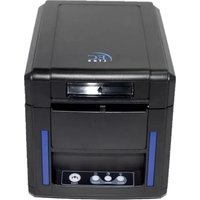
Black rectangular electronic device with a paper label, no visible text or symbols on the body.www.eclineproducts.com
Safety Notice:
* Don't touch the Head of printer with anything.
* Don't touch the cutter blade.
* Don't bend the power cord excessively or place any heavy objects onto it.
* Don't use the printer when it is out of order. This can cause a fire or and electrocution.
* Only use the power cord excessively or place any heavy objects onto it.
* When connecting or disconnecting the plug, always hold the plug-not the cord.
* Keep the desiccant out of children's reach.
* Use only approved accessories and do not try to disassemble, repair or remodel it for yourself.
* Install the printer on the stable surface. Choose firm, level surface where avoid vibration.
* Don't let water or other foreign objects in the printer.
* Don't connect a telephone line into the peripheral drive connector.
* We recommend that you unplug the printer from the power outlet if no use it for long periods.
Available fields:
* Print POS system Receipts
* Print EFT POS system Receipts
* Print Gym, Post, hospital, civil aviation system Receipts
* Print Inquiry. Service system Receipts
* Print Instrument test Receipts
* Print Tax. Tab Receipts
Main Features:
* Command protocol is based on ESC/POS standard
* Low-noise thermal printing.
* Various Layouts are possible by using page mode.
* Repeated operation and copy printing are possible.
* Character font size optional.
* Easy paper-roll installation.
* Easy paper jam clearance.
* Easy maintenance for tasks such as head cleaning.
* Built-in interface provides control capability for cash drawer.
Technique Spec.
| Print method Thermal line printing | |
| Print speed 50/70/90mm/sec. | |
| Paper width 57.50:5mm | |
| Print columns 384dots/line | |
| Character | ANK Character: Font A: 12*24dotsSimplify/Traditional: 24*24 dots |
| Print command Compatible with | ESC/POS |
| Interface Parallel/Serial/Wireless/Ethernet | |
| Barcode mode | UPC-A/UC-E/JAN13(EAN13)/JAN8(EAN8)/CODE39/ITF/CODABAR/CODE93/CODE128 |
| Reliability print 100Km | |
| Paper thickness 0.06~0.08mm | |
| Adaptor power input AC 110V/2 | 20V, 50~60Hz |
| Adaptor power output | DC8.5V/3A (for GP-5850/5870series)DC12V/3A (for GP-5890series) |
| Printer power input | DC8.5V/3A (for GP-5850/5870series)DC12V/3A (for GP-5890series) |
| Cash Drawer DC 12-24V/1A | |
| Work Temperature 0~45°C, Dampness: 10~80% | |
| Storage temperature -10~50°C, | Dampness: 10~90% |
Connection
a. Connect the adapter cable to power connector of the printer.
b. Connect the interface cable to the connector on the rear panel of the printer.
c. Connect the cash drawer's RJ-11 phone jack to the connector on the rear panel.

Paper Roll Installation
a. Open the top cover, install the paper roll as the picture showing direction.
b. Set the paper roll into the hollow, and pull on the leading edge of the paper towards you as shown.
c. Press the center of printer cover firmly to prevent paper miss loading.
d. Tear off the paper outside the cover as shown.

Print character:
ANK Character, custom/times of character print. adjust row space.
Font A: 12*24 dots, 1.25*3.00mm(W*H)
Simplify/Traditional: 24*24 dots, 3.00*3.00mm(W*H)
International code:
PC437/Katakana/PC850/PC860/PC863/PC/865/West /Europe/ Greek/Hebrew/East
Europe/Iran/WPC1252/PC866/PC852/PC858
Barcode mode:
UPC-A/UPC-E/JAN13 (EAN13)/JAN8 (EAN8)/ CODE39/ CODEBAR/ITF/CODE93/
CODE128 (Available for GP-5850 series);
JAN13 (EAN13)/JAN8 (EAN8)/ CODE39 (Available for GP-5870/ GP-5890 series)
Driver Installation
. Insert the bundled CD disk into the CD-ROM drive, in the CD-Rom menu, click DRV58EN V4.4G file to begin driver installation

b
. Please read and accept the principle first, and then go on with installation.
![Setup - GP 58mm Series Printer Driver V4.4G License Agreement Please read the following important information before continuing. Please read the following License Agreement. You must accept the terms of this agreement before continuing with the installation. SOFTWARE LICENSE AGREEMENT IMPORTANT - PLEASE READ CAREFULLY! The GAINSCHA software you are about to download will be licensed to you, the licensee, on the condition that you agree with GAINSCHA to the terms and conditions set forth in this legal agreement. PLEASE READ THIS AGREEMENT CAREFULLY. YOU' WILL BE BOUND BY THE TERMS OF THIS AGREEMENT IF YOU INSTALL, DOWNLOAD, COPY, OR OTHERWISE USE THE SOFTWARE. If you do not agree to the terms contained in this agreement, please do not install or download the software. Please record the date of download in order to activate the limited ninety [90] day warranty (see below). I accept the agreement I do not accept the agreement < Back Next > Cancel](/content/2026/05/963813/images/5a836e1649fd5aa50325f58178e3fc465114d435c2e855709fdc41fb9bc6ab58.jpg)
c. Please choose the OS that matches with your computer system and press next.

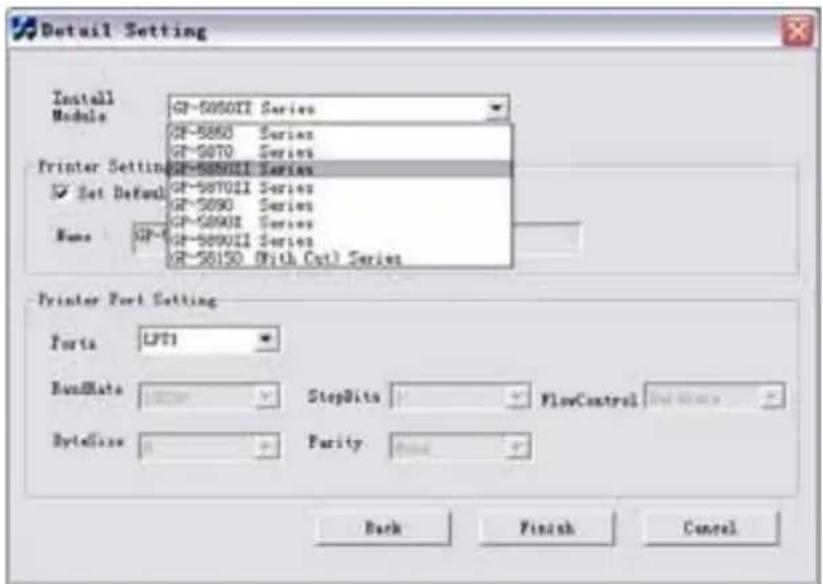
d. Please select GP-5890II
Brand : EC Line
Model : EC-5850X
Category : Printer