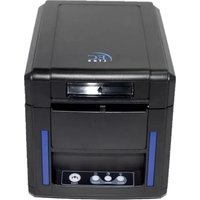
EC-PM-7645II - Printer EC Line - Free user manual and instructions
Find the device manual for free EC-PM-7645II EC Line in PDF.


Pick your language and provide your email: we'll send you a specifically translated version.
| Product Type | Thermal Receipt Printer |
| Model | EC-PM-7645II |
| Brand | EC Line |
| Dimensions (W x D x H) | 200 x 148 x 130 mm |
| Weight | 1.2 kg |
| Power Supply | 24V DC, 2.5A |
| Connectivity | USB 2.0, RS-232 Serial |
| Printing Method | Direct Thermal |
| Paper Width | 80 mm (max) |
| Resolution | 203 dpi |
| Print Speed | 250 mm/s |
| Supported Paper Types | Thermal paper rolls |
| Auto Cutter | Yes, full cut |
| Functions | Receipt printing, barcode printing, label printing |
| Maintenance | Clean thermal head and platen roller with isopropyl alcohol |
| Safety Features | Overheating protection, auto power-off on jam |
| Spare Parts | Thermal head, platen roller, cutter blade, power adapter |
| Repairability | Modular design; replaceable thermal head and cutter |
| Interface | USB (B-type), RJ45 (serial), DC jack |
| Operating Temperature | 0°C to 40°C |
Frequently Asked Questions - EC-PM-7645II EC Line
How do I load paper into the EC-PM-7645II?
Open the paper cover by pressing the button. Insert a roll of thermal paper with the printable side facing out. Pull a small amount of paper out and close the cover securely. Use 80mm wide thermal paper for best results.
Why is my printer not printing?
Check that the printer is powered on and connected via USB or serial cable. Ensure the paper is loaded correctly and the error LED is off. If the LED is red, open the cover and remove any paper jam. Press the feed button to test.
What type of paper should I use?
Use 80mm x 80mm thermal paper rolls with a core diameter of 12.7mm. The paper must be compatible with direct thermal printing. Avoid paper with adhesive labels if not intended.
How do I clean the thermal head?
Turn off the printer and open the cover. Gently wipe the thermal head (the dark strip) with a cotton swab moistened with isopropyl alcohol. Let it dry for 2 minutes before closing. Clean the platen roller similarly.
The print quality is poor; what should I do?
Clean the thermal head as explained. If streaks remain, replace the thermal head. Also check that you are using high-quality thermal paper and that the print density setting in the driver is not too low.
How do I connect the printer to my computer?
Use the provided USB cable (B-type) to connect to a USB port on your computer. Install the driver from the CD or EC Line website. For serial connection, use an RS-232 cable and configure the baud rate to 115200.
What does the red LED flashing mean?
A flashing red LED indicates a paper jam or cover open. Clear the jam and ensure the cover is closed. If it continues, reset the printer by turning it off and on. If persistent, check the cutter for obstructions.
Can I print labels with this printer?
Yes, if you use thermal transfer label stock designed for direct thermal printing. However, for adhesive labels, ensure they are approved for thermal printers to avoid residue on the platen.
How do I change the print density?
Adjust the print density via the printer driver settings on your computer. Open the printer properties, find the 'Print Density' option, and set it between 1 (light) and 5 (dark). Default is 3.
Where can I find replacement parts?
Contact EC Line customer support or visit their official website. Common spare parts include the thermal head, cutter blade, platen roller, and power adapter. Use only genuine parts for warranty.
User questions about EC-PM-7645II EC Line
0 question about this device. Answer the ones you know or ask your own.
Ask a new question about this device
No questions yet. Be the first to ask one.
Download the instructions for your Printer in PDF format for free! Find your manual EC-PM-7645II - EC Line and take your electronic device back in hand. On this page are published all the documents necessary for the use of your device. EC-PM-7645II by EC Line.
USER MANUAL EC-PM-7645II EC Line
Manual assistant
Powered by Anthropic
Waiting for your message
Product information
Brand : EC Line
Model : EC-PM-7645II
Category : Printer