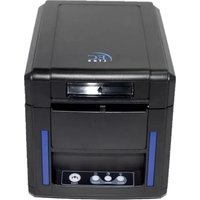
EC-PM-530D-USB - Printer EC Line - Free user manual and instructions
Find the device manual for free EC-PM-530D-USB EC Line in PDF.


Pick your language and provide your email: we'll send you a specifically translated version.
| Product Type | Thermal Receipt Printer |
| Brand | EC Line |
| Model | EC-PM-530D-USB |
| Connectivity | USB 2.0 (Type B) |
| Printing Method | Direct Thermal |
| Resolution | 203 dpi (8 dots/mm) |
| Print Speed | Up to 127 mm/s |
| Paper Width | 80 mm (max) |
| Print Width | 72 mm |
| Paper Thickness | 0.06 - 0.08 mm |
| Input Power | 24V DC, 2.5A (adapter included) |
| Power Consumption | Standby: 0.8W; Printing: 30W |
| Operating Temperature | 5°C to 45°C |
| Storage Temperature | -10°C to 60°C |
| Operating Humidity | 10% to 80% RH (non-condensing) |
| Dimensions (W x D x H) | 185 x 145 x 125 mm |
| Weight | 1.35 kg |
| Interface | USB (plug-and-play, Windows/Linux) |
| Maintenance | Clean print head with alcohol swab every 3 months or after 30 km of paper |
| Cleaning Instructions | Open paper cover, gently wipe print head and platen roller with a soft cloth moistened with isopropyl alcohol |
| Safety Features | Overheating protection, thermal head overload sensor, automatic paper-out detection |
| Spare Parts | Available: print head, platen roller, auto-cutter blade, DC motor |
| Repairability | Modular design allows easy replacement of main components; service manual available |
| Compliance | CE, FCC, RoHS |
Frequently Asked Questions - EC-PM-530D-USB EC Line
How do I connect the EC-PM-530D-USB printer to my computer?
Connect the printer to your PC using the included USB cable. Install the driver from the provided CD or download it from the EC Line website. On Windows, the device will appear as a standard POS printer in Devices and Printers.
What paper size does this printer support?
The printer supports 80 mm wide thermal paper (max roller outer diameter 80 mm). The printable area is 72 mm. Use paper rolls with a core diameter of 12.7 mm (0.5 inch) and thickness between 0.06 and 0.08 mm.
How do I load paper into the EC-PM-530D-USB?
Open the paper cover by pressing the release button. Place the thermal paper roll so it unrolls from the bottom or as indicated by the diagram on the printer. Pull the paper slightly out, close the cover, and press the Feed button to position it. Ensure the paper tracks straight through the cutter slot.
Why does the printer print blank or faded labels?
Blank or faded output usually indicates the thermal paper is loaded upside down or the print head is dirty. Check that the coated side faces the print head. Clean the print head with a cotton swab dipped in isopropyl alcohol, and replace the paper if it is outdated or damaged.
The printer suddenly stops printing and the status LED is red. What should I do?
A red LED indicates a paper-out condition, thermal head overheating, or a jam. Open the cover, clear any paper jams, install a fresh roll, and close the cover. If overheating, allow the printer to cool for a few minutes. If the problem persists, check the USB connection and restart the print job.
What software works with this printer?
The printer is compatible with most POS systems and label design software. It uses standard ESC/POS commands. On Windows, it can be configured as a generic text-only driver or with the vendor driver. For Linux, it works with the open-source ESC/POS drivers and can be used via CUPS or Python libraries.
How do I clean the print head and platen roller?
Turn off the printer, open the cover, and remove the paper. Use a lint-free cloth or cotton swab lightly moistened with isopropyl alcohol to gently wipe the thermal print head and the rubber roller. Wait for the alcohol to evaporate completely before reloading paper. Clean every 30 km of printing or when print quality degrades.
Can I use this printer without installing drivers?
Yes, on many systems. On Windows, the printer appears as a standard serial/USB printer and can be used with generic printer drivers. On Linux/macOS, it may automatically enumerate as a USB printer. However, to use advanced features like barcodes and graphics, installing the dedicated driver is recommended.
How do I perform a self-test to verify the printer is working?
With the printer turned off, hold the Feed button while turning on the power. Release the button when printing starts. The printer will print a self-test page showing the firmware version, printer settings, and a sample print. This helps confirm the print head and paper feed are functional.
What should I do if the printer cuts paper too early or not at all?
First, ensure you are using paper within the supported thickness range. If the auto-cutter is not working, remove any paper fragments from the cutter blade and clean it. If the problem persists, the cutter blade may be dull or misaligned; check the auto-cutter settings in the driver or replace the blade as a spare part.
User questions about EC-PM-530D-USB EC Line
0 question about this device. Answer the ones you know or ask your own.
Ask a new question about this device
No questions yet. Be the first to ask one.
Download the instructions for your Printer in PDF format for free! Find your manual EC-PM-530D-USB - EC Line and take your electronic device back in hand. On this page are published all the documents necessary for the use of your device. EC-PM-530D-USB by EC Line.
USER MANUAL EC-PM-530D-USB EC Line
Manual assistant
Powered by Anthropic
Waiting for your message
Product information
Brand : EC Line
Model : EC-PM-530D-USB
Category : Printer