
CHS 8Ci - Barcode scanners Socket Mobile - Free user manual and instructions
Find the device manual for free CHS 8Ci Socket Mobile in PDF.


| Product Type | Bluetooth Cordless Barcode Scanner |
| Model | CHS 8Ci (SKU# CX2881-1476) |
| Light Source | 630nm ± 30nm visible red LED |
| Scan Rate | 5 scans/sec |
| Sensor | Linear CMOS sensor |
| Resolution | 5mil / 0.127mm |
| Bluetooth Profiles | SPP, HID |
| Battery Life | 8 hours (1 scan/5 sec) |
| Charge Time | 4 hours fully charged |
| Wireless Range | 10m / 33ft line of sight |
| Operating Temperature | 0° to 50°C (32° to 122°F) |
| Symbologies | All major 1D barcodes |
| Package Contents | CHS 8Ci scanner, USB charging cable, Klip Case (compatible with iPhone 5/5S, iPod touch 5th Gen, Samsung Galaxy S4) |
| Power On/Off | Press and hold power button until beep (low-high for on, high-low for off) |
| Indicators | LED: Bluetooth (blue), Good Read (green), Battery (green/red); Beep patterns for various status |
| Bluetooth Modes | HID (default), SPP, iOS |
| Compatible Operating Systems | Apple iOS, Android, Windows |
| Compliance | FCC Part 15 Class B, CE, RoHS, WEEE |
| Software Requirement for SPP/iOS | SocketScan 10 (Android) or SocketScan 10 SDK (iOS) |
Frequently Asked Questions - CHS 8Ci Socket Mobile
User questions about CHS 8Ci Socket Mobile
0 question about this device. Answer the ones you know or ask your own.
Ask a new question about this device
Download the instructions for your Barcode scanners in PDF format for free! Find your manual CHS 8Ci - Socket Mobile and take your electronic device back in hand. On this page are published all the documents necessary for the use of your device. CHS 8Ci by Socket Mobile.
USER MANUAL CHS 8Ci Socket Mobile
Bluetooth Cordless Scanner

natural_image
Close-up of a black electronic device with a square display and a triangular button (no visible text or symbols)This document pertains to the following model:
CHS 8Ci
SKU# CX2881-1476
(P/N 8550-00069)
PACKAGE CONTENTS

Thank you for choosing Socket Mobile!
Let's get started!
© 2013 Socket Mobile, Inc. All rights reserved. Socket and the Socket logo are registered trademarks or trademarks of Socket Mobile, Inc. The Bluetooth word mark and logo are registered trademarks of the Bluetooth SIG, Inc. USA, and any use by Socket Mobile, Inc. is under license. All other trademarks and trade names contained herein may be those of their respective owners.
PRODUCT INFORMATION
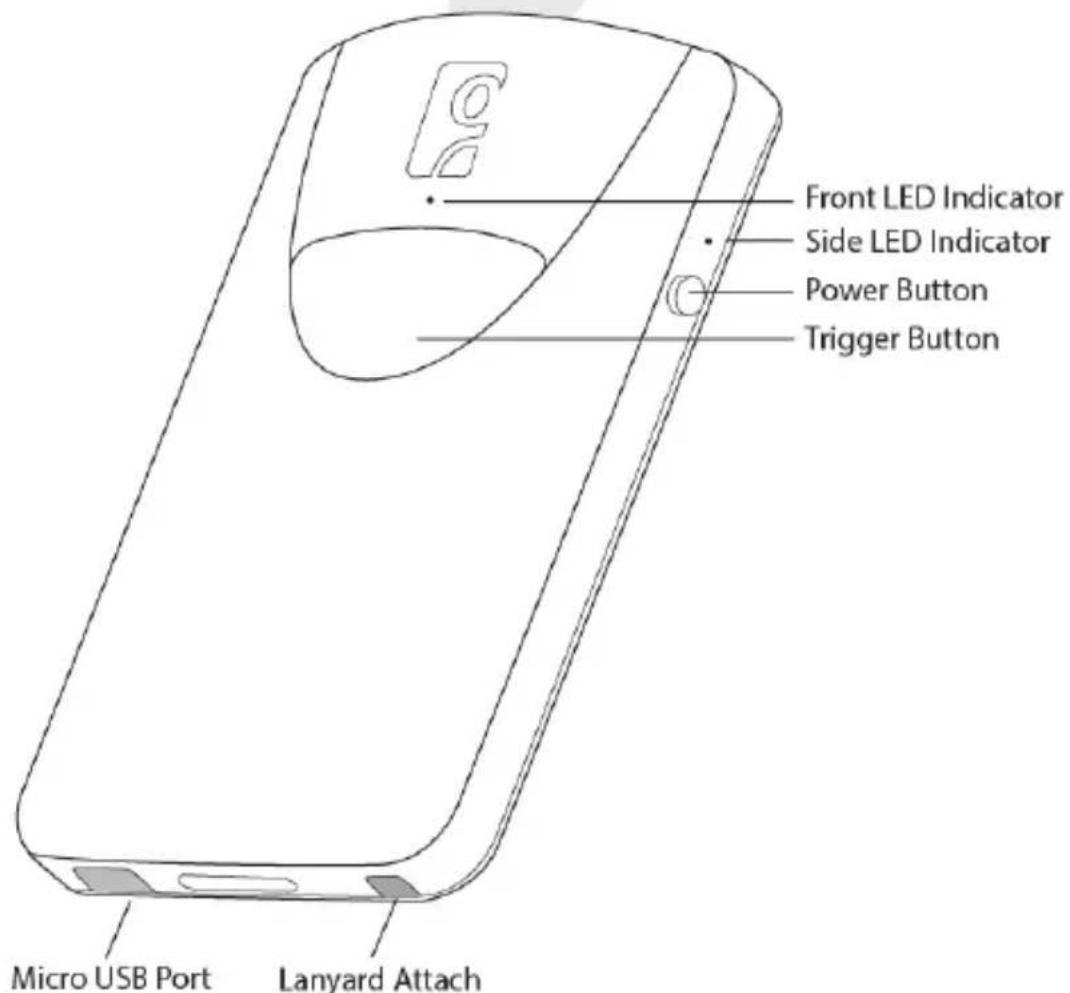
PRODUCT SPECIFICATIONS
Light Source 630nm +- 30nm visible red LED
Scan Rate 5 scans / sec
Sensor Linear CMOS sensor
Resolution 5mil / 0.127mm
Bluetooth Profile SPP, HID
Battery Life 8 hours (1 scan / 5 sec)
Charge Time 4 hours fully charged
Wireless Range 10M / 33ft line of sight
Operating Temp 0° to 50° C (32° to 122° F)
Symbologies All major 1D barcodes
CHARGE THE BATTERY
Charge the CHS
The CHS must be fully charge before first use. Initial charging takes 4 hours with the USB charging cable connected to a USB charging port.
Insert the Micro USB side of the USB Charging Cable (included) into the CHS port and the USB side of the Charging Cable into the USB connector of an AC adapter (not included). The CHS will beep twice when connected to a USB Charging Port.
Power On
Press and hold down the small power button until the CHS beeps (low-high tone).
See below for instructions on pairing with your Apple or Android devices.

natural_image
Simple line drawing of a stopwatch with no text or symbols4 Hours

GETTING STARTED
Successful Scanning
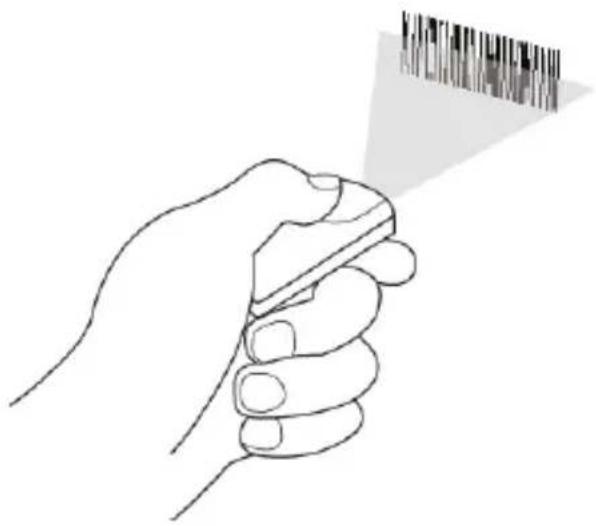
- Hold the scanner 5-7 cm away from the barcode.
- Aim the scan beam straight across the entire barcode.

- Keep your hand steady!


natural_image
Line drawing of a hand holding a pen with a pointer and barcode bar above (no text or symbols)
natural_image
Simple gray circular icon with a wavy mouth and two dots above it, resembling a sad face or neutral expression (no text or symbols)BLUETOOTH MODE - HID - SPP - iOS
The CHS 8Ci supports three modes of Bluetooth wireless communication: HID, SPP, and iOS.
By default, the CHS 8Ci is set to HID Keyboard mode.
| Operating System | Apple Android Windows | |
| HID | ✓✓✓ | |
| SPP | ✓ | |
| iOS | ✓ |
HID (Human Interface Device): Default mode. No software installation required.
SPP (Serial Port Profile): Recommended for Android, Windows and other operating systems. Allows two-way communications. SocketScan 10 software (available at socketmobile.com) or another third party SDK application is required.
iOS: Recommended for Apple. Allows two-way communications. Compatible application developed with SocketScan 10 SDK required.
Learn more about HID and SPP at http://www.socketmobile.com/pdf/techbrief/socketscan-10-sdk_white-paper.pdf
BLUETOOTH BASICS
Pair and Connect
When Bluetooth is activated on your device and the CHS is in discoverable mode, Bluetooth pairing will begin. When the two devices recognize each other, they can pair.
Once the devices have paired, it is necessary to connect. (Follow the instructions in the following pages to connect the CHS to your device.)
Once the devices have connected, they will automatically recognize each other whenever they are within range, and it will not be necessary to connect again.
If the CHS is connected to a device and gets disconnected, it will try to reconnect. Make sure the computer or device is on and in range. If the CHS cannot reconnect, it will beep long. Power off then on again to reconnect.
To unpair from the last connected host, press and hold the trigger button while turning off the scanner.
BLUETOOTH BASICS
The CHS 8Ci keeps the pairing information of the last connected host. Power off to disconnect the scanner, then power on to reconnect the scanner.
To disconnect your CHS:
- Power off - press and hold down the power button until the CHS beeps (high-low tone).
- Power on - press and hold down the power button until the CHS beeps (low-high tone).
Your CHS is ready to reconnect.
APPLE - BLUETOOTH MODE HID (KEYBOARD EMULATION)
Connect your CHS with an Apple device using HID mode.
(HID is the default mode.)
- Power on the CHS.
- Scan this barcode to set the CHS to HID mode.

- Enable Bluetooth on the Apple device. A Bluetooth device search will begin.
- Select Socket CHS in the list of found devices.
- Tap Pair if prompted.
- The CHS will beep once to confirm connection.
Now you are ready to scan barcodes in HID mode using your Apple device!
APPLE - BLUETOOTH MODE iOS
Connect your CHS with an Apple device using iOS mode.
(This is required only the first time you connect.)
- Power on the CHS.
- Scan this barcode to set the CHS to iOS mode. (This is often part of a program setup.)

-
Enable Bluetooth on the Apple device. A Bluetooth device search will begin.
-
Select Socket CHS in the list of found devices.
-
The CHS will beep once to confirm connection.
Now you are ready to scan barcodes in iOS mode using your Apple device!
Use ScannerSettings (available at the App Store - http://www.socketmobile.com/appstore) or other compatible applications developed with the SocketScan SDK on your Apple device.
ANDROID - SPP - INSTALL SOCKETSCAN 10
To install the software:
- Use this QR code to find SocketScan 10 software for your Android device in the Google Play Store, or search for it manually using keyword "SocketScan 10."
- Follow the on-screen instructions to download and install SocketScan 10.
- If prompted, allow the app to access your Bluetooth settings / USB storage / SD card / WiFi access / Coarse location.

Scan the QR code with your Android device (requires QR scanning app).
ANDROID - SPP - CONFIGURE DEVICE
Configure your device:
- Open SocketScan 10 application.
- If prompted, allow SocketScan 10 to turn on Bluetooth.
-
When prompted to set SocketScan 10 as the keyboard language, tap Back ↩
-
Tap Home, then Menu.
-
Tap on Settings, then Language and Keyboard.
-
Under Keyboard Settings, select SocketScan 10.
-
Open SocketScan 10 on your device.
-
When prompted to enable SocketScan 10 as Input Method, tap Back.
-
Tap Menu, then select Input Method.
-
On the next screen, select SocketScan 10.
-
Tap Back.
ANDROID - SPP - BLUETOOTH CONNECTION
To pair and connect the CHS and Android device:
(Required only the first time you connect)
- Power on the CHS.
- Enable Bluetooth on your Android device.
- Tap Input Method and select SocketScan 10 as the input method.
- In SocketScan 10, tap Menu then select Socket EZ Pair.
- Scan the barcode on the screen to put your scanner in SPP mode. The CHS will beep 3 times.
- Tap [On screen] button.
- On the next screen, tap [1D Scanner] button.
- Scan the barcode on the screen (provides Bluetooth address). The CHS will beep 3 times.
ANDROID - SPP - BLUETOOTH CONNECTION
- When notified of a pairing request, swipe the notification down then tap Pairing request.
- On the next screen, tap Pair.
- The CHS will beep once when it has connected and is ready to scan barcodes. Tap Back to close Socket EZ Pair.
- A CHS registration icon will appear on top of the screen. Swipe the icon down to open the registration software. Follow the instructions to register your CHS.
Now you are ready to scan barcodes in SPP mode using your Android device!
USING THE SCANNER
Scanning Barcodes
After connecting the CHS to your device, open an application. Place the cursor where you want to enter data.
Hold the CHS about 5-7 cm from the barcode and press and hold the trigger button. Make sure the red aiming beam covers the entire width of the barcode. Keep your hand steady.
By default, the CHS will beep, vibrate, and the side LED will flash green to confirm that the barcode was decoded and sent to the host device.

natural_image
Line drawing of a hand holding a pen with a barcode symbol above it (no text or symbols present)For more details, please refer to the User's Guide.
USING THE SCANNER WITH THE KLIP CASE
Scanning Barcodes Using the Klip Case
The Klip Case connects the CHS 8Ci to various phone models allowing for single-handed scanning and multi-tasking operations.
Socket provides Klip Cases that fit with the following phone models:
• Apple iPhone 5 and 5S
• Apple iPod touch 5th Generation
• Samsung Galaxy S4
Attach the Klip Case to your phone, then attach the CHS to the Klip Case. (See diagrams following.)
Also available is a Universal Klip Case with permanent adhesive. CAUTION: Use a protective case. Attachment directly to the phone will be permanent and removal could cause cosmetic damage.

natural_image
Line drawing of a mobile phone casing with a closed lid and display screen (no text or symbols)USING THE SCANNER WITH THE KLIP CASE
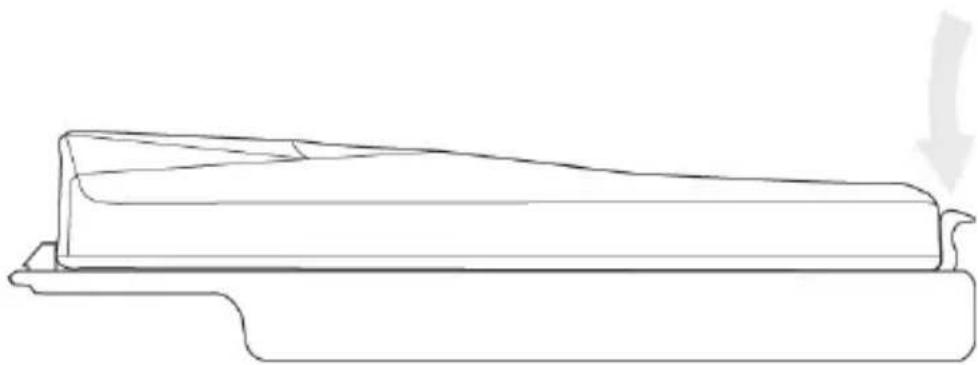
- Place front end of the scanner in the Klip Case.
- Push the back end of the scanner down until it clicks into place.

natural_image
Technical line drawing of a device casing with two steps: top shows internal components, bottom shows a close-up of the casing (no text or symbols)USING THE SCANNER WITH THE KLIP CASE
The bottom of the scanner and the Klip Case surface should lay flush against each other, with no room to wiggle.

natural_image
Line drawing of a mechanical component or bracket (no text or symbols)Press tab to remove scanner from Klip Case.
natural_image
Line drawing of a mechanical component or bracket with a downward arrow indicating force or motion (no text or symbols)SINGLE-HANDED SCANNING
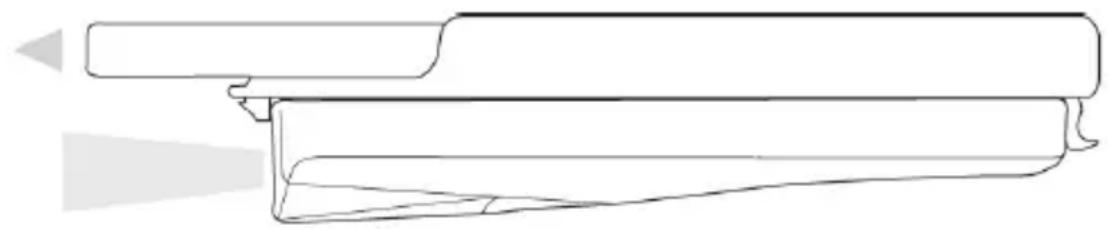
For single-handed scanning and multi-tasking operation of the CHS, attach the Klip Case to your phone or iPod touch. Make sure the scan beam window of the CHS is pointing in the same direction as the TOP of your phone or iPod touch.
Top of phone
or iPod touch
natural_image
Line drawing of a mechanical component or housing with no visible text, numbers, or symbolsScan beam window
MULTI-TASKING OPERATION
For optimal convenience, hold the CHS and device in one hand, with the CHS on the underside, and the surface of the device facing up so that you may use your other hand to interact with the application.

natural_image
Line drawing of two hands holding a pen, no text or symbols presentLED STATUS INDICATORS
| LED Activity Meaning | ||
| Bluetooth Front LED | 1 BLUE blink every second | Bluetooth is ON but not connected. |
| 1 BLUE blink every 3 seconds | CHS is connected to host device. | |
| Solid BLUE light for 10 seconds | Hard reset sequence initiated. | |
| Good Read Side LED | GREEN (while scanning) | Data successfully transmitted to host device. |
| Battery Status Side LED | GREEN (while charging) | Battery is fully charged. |
| RED Blinking (while scanning) | 20% or less battery capacity remaining. | |
| RED off (while scanning) | Battery status is good. | |
BEEP STATUS INDICATORS
| Beep Pattern Meaning | |
| Low-high tone Power ON | |
| High-low tone Power OFF | |
| High-high tone A proper USB charging port is detected. | |
| 1 beep CHS connected to host device and ready to scan barcodes. | |
| 1 low beep You have double-pressed the power button when support for simultaneous scanning an onscreen keyboard entry for Apple iOS. | |
| 1 beep with green LED | Data successfully scanned and sent to host device. |
| 2 beeps, same tone | CHS disconnected from host device. |
| 1 long beep CHS | unsuccessfully tried for 2 minutes to connect to the last host device it paired with. CHS will remain unpaired. |
COMMAND BARCODES - BLUETOOTH MODE
Bluetooth Mode - HID - SPP - iOS
Use the following barcodes to change Bluetooth mode.
HID Mode

SPP Mode
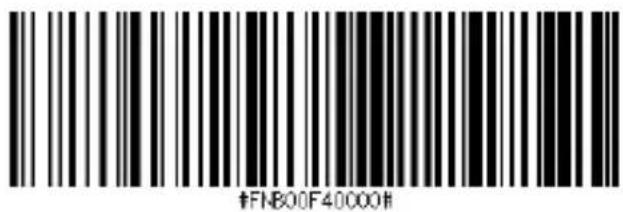
iOS Mode
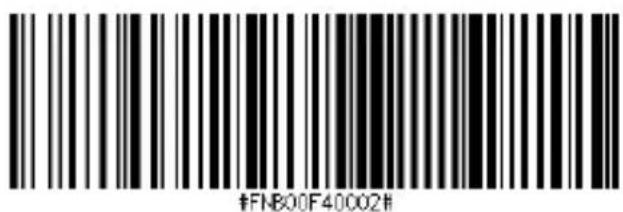
COMMAND BARCODES - FACTORY RESET
Factory Reset
Configures the CHS to revert all settings to factory defaults. The CHS will power off after scanning this barcode.

NOTES
FCC WARNING STATEMENT
This equipment has been tested and found to comply with the limits for a Class B digital device, pursuant to Part 15 of the FCC Rules. These limits are designed to provide reasonable protection against harmful interference in a residential installation. This equipment generates, uses and can radiate radio frequency energy and, if not installed and used in accordance with the instructions, may cause harmful interference to radio communications. However, there is no guarantee that interference will not occur in a particular installation. If this equipment does cause harmful interference to radio or television reception, which can be determined by turning the equipment off and on, the user is encouraged to try to correct the interference by one of the following measures:
- Reorient or relocate the receiving antenna.
- Increase the separation between the equipment and receiver.
- Connect the equipment into an outlet on a circuit different from that to which the receiver is connected.
- Consult the dealer or an experienced radio/TV technician for help.
CANADIAN DOC STATEMENT
This digital apparatus does not exceed the Class B limits for radio noise for digital apparatus set out in the Radio Interference Regulations of the Canadian Department of Communications.
Testing for compliance to CE requirements was performed by an independent laboratory. The unit under test was found compliant with all the applicable Directives, 2004/108/EC and 2006/95/EC.
WASTE ELECTRICAL AND ELECTRONIC EQUIPMENT
The WEEE directive places an obligation on all EU-based manufacturers and importers to take-back electronic products at the end of their useful life.
ROHS STATEMENT OF COMPLIANCE
This product is compliant to Directive 2002/95/EC.
NON-MODIFICATION STATEMENT
Changes or modifications not expressly approved by the party responsible for compliance.




9/2013
# 6430-00351-B
Printed in U.S.A


- PACKAGE CONTENTS
- PRODUCT INFORMATION
- PRODUCT SPECIFICATIONS
- CHARGE THE BATTERY
- Charge the CHS
- Power On
- GETTING STARTED
- Successful Scanning
- BLUETOOTH MODE - HID - SPP - iOS
- BLUETOOTH BASICS
- Pair and Connect
- To disconnect your CHS:
- APPLE - BLUETOOTH MODE HID (KEYBOARD EMULATION)
- Connect your CHS with an Apple device using HID mode.
- APPLE - BLUETOOTH MODE iOS
- Connect your CHS with an Apple device using iOS mode.
- ANDROID - SPP - INSTALL SOCKETSCAN 10
- To install the software:
- ANDROID - SPP - CONFIGURE DEVICE
- Configure your device:
- ANDROID - SPP - BLUETOOTH CONNECTION
- To pair and connect the CHS and Android device:
- USING THE SCANNER
- Scanning Barcodes
- USING THE SCANNER WITH THE KLIP CASE
- Scanning Barcodes Using the Klip Case
- SINGLE-HANDED SCANNING
- MULTI-TASKING OPERATION
- LED STATUS INDICATORS
- BEEP STATUS INDICATORS
- COMMAND BARCODES - BLUETOOTH MODE
- COMMAND BARCODES - FACTORY RESET
- Factory Reset
- NOTES
- FCC WARNING STATEMENT
- CANADIAN DOC STATEMENT
- WASTE ELECTRICAL AND ELECTRONIC EQUIPMENT
- ROHS STATEMENT OF COMPLIANCE
- NON-MODIFICATION STATEMENT
Brand : Socket Mobile
Model : CHS 8Ci
Category : Barcode scanners