
CHS 7DIRx - Barcode scanners Socket Mobile - Free user manual and instructions
Find the device manual for free CHS 7DIRx Socket Mobile in PDF.


| Product Type | Barcode Scanner |
| Model | CHS 7DIRx |
| Brand | Socket Mobile |
| Dimensions (approx.) | 6.2 x 2.4 x 1.3 in (157 x 61 x 33 mm) |
| Weight (approx.) | 4.5 oz (128 g) |
| Power Source | Rechargeable Lithium-ion battery |
| Battery Life | Up to 10 hours continuous scanning |
| Charging Interface | Micro USB or charging cradle |
| Scan Technology | Imager (1D/2D) |
| Wireless Connectivity | Bluetooth 4.0+ |
| Range | Up to 30 ft (10 m) line of sight |
| Scan Rate | Up to 200 scans/sec |
| Supported Barcodes | UPC, EAN, Code 39, Code 128, QR, Data Matrix, PDF417 |
| Operating System Compatibility | iOS, Android, Windows, macOS |
| Maintenance | Clean with dry, lint-free cloth; avoid liquids |
| Safety Classification | Class 2 Laser Product (if laser model), otherwise LED safe |
| Spare Parts / Accessories | USB cable, charging cradle (sold separately), protective case |
| Repairability | Battery replacement possible; contact support for other repairs |
| Warranty | 1 year limited warranty |
| General Information | Designed for inventory, retail, and logistics; Bluetooth HID/SPP modes |
Frequently Asked Questions - CHS 7DIRx Socket Mobile
User questions about CHS 7DIRx Socket Mobile
0 question about this device. Answer the ones you know or ask your own.
Ask a new question about this device
Download the instructions for your Barcode scanners in PDF format for free! Find your manual CHS 7DIRx - Socket Mobile and take your electronic device back in hand. On this page are published all the documents necessary for the use of your device. CHS 7DIRx by Socket Mobile.
USER MANUAL CHS 7DIRx Socket Mobile
1D Imager Models — CHS 7Ci, 7Di, 7DiRx
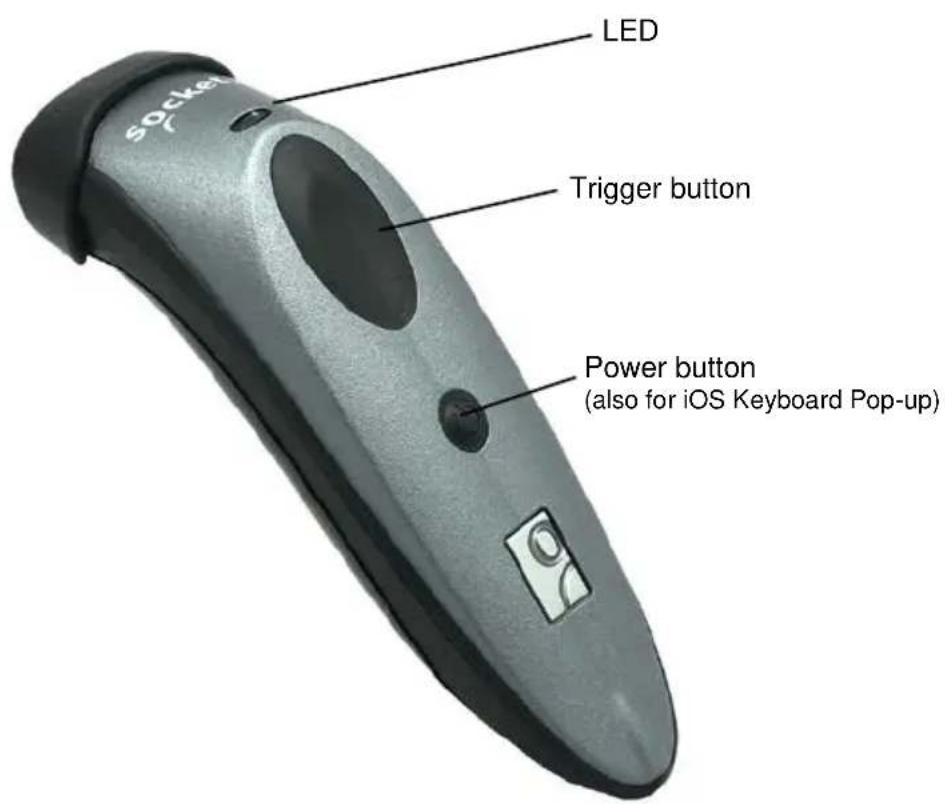
Model shown: CHS 7Di
This document pertains to the following CHS models:
•7Ci gray SKU# CX2870-1409 (P/N 8550-00062)
•7Ci yellow SKU# CX2883-1480 (P/N 8550-00068)
•7Ci red SKU# CX2885-1484 (P/N 8550-00070)
•7Ci blue SKU# CX2887-1486 (P/N 8550-00071)
•7Di SKU# CX2877-1472 (P/N 8550-00065)
•7DiRx SKU# CX2879-1474 (P/N 8550-00066)
The part number (PIN) is labeled inside the battery compartment.
- Socket Bluetooth Cordless Hand Scanner (CHS)
- Lanyard / belt clip with retractable tether
• Rechargeable batteries (2) - AC adapter
- USB to DC plug cable
HELPFUL RESOURCES

Software and Documentation Downloads:
Download the latest software and documentation from: http://www.socketmobile.com/support/downloads/data-collection/series7/ss10/
- User's Guide: Full installation and usage instructions.
- Command Barcodes: Scan to configure the CHS. Many are at the end of this Quick Start Guide. For a full set, download Command Barcodes Sheet.

Product Registration:
Need technical support? Want special offers? Register your product online: http://support.socketmobile.com/
Alternatively, if you install SocketScan 10 software for Android / Windows / BlackBerry OS or Scanner Settings for iOS, you can use it to register the CHS.

Technical Support:
• Online Knowledge Base: http://support.socketmobile.com/EU_S1a.asp
• Online Requests: Register to submit an inquiry. http://support.socketmobile.com
• Phone: +1-510-933-3020 USA/Canada 800-279-1390 EU +49 9401 5299 036

Software Development Kit:
SocketScan 10 SDK for Apple iOS, Android, Windows and BlackBerry is available to members of the Socket Mobile Developer Program (\$19.95 / year). Learn more at: http://developer.socketmobile.com/
Thank you for choosing Socket Mobile!
Let's get started!
natural_image
Two black remote control devices with a red arrow pointing to one, and a separate battery labeled '1000' on the right (no visible text or symbols on device body)
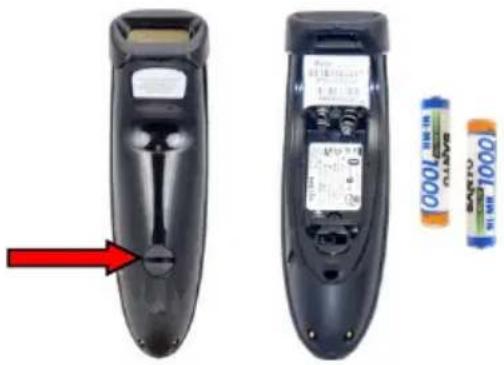
Insert the Batteries:
Unlock the battery cover by using a screwdriver or coin to turn the lock under the CHS to a horizontal position.

Remove the battery cover.
Install the batteries in their correct position as indicated by the +/- symbols.

IMPORTANT! Only use NiMH batteries.

natural_image
Close-up of a transparent plastic device with internal components and a blue base, connected by a cable (no text or symbols visible)
Attach the Lanyard (Optional):
Wrap the string loop of the tether around the inside part of the lock.
Replace the battery cover and lock it by turning the lock into a vertical position.

natural_image
Close-up of a handheld electronic device with a black handle and cable (no visible text or symbols)
Charge the CHS:
The CHS must be fully charged before first use. Initial charging takes about 5 hours.
For the 7Di or 7DiRx, lift the rubber flap to access the power connector.
- Red LED = Charging
- Green LED = Fully charged

Charging from a computer USB port is not reliable and not recommended.
natural_image
Hand holding a black remote control device with a circular button (no visible text or symbols)Powering ON:
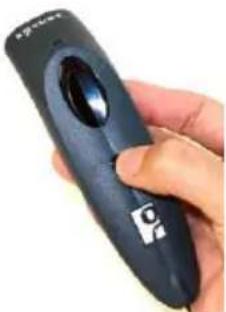
Press and hold down the small power button until the LED turns blue and the CHS beeps twice (low-high).
Powering OFF / Disconnecting:
Press and hold down the small power button until the CHS beeps twice (high-low).


natural_image
Hand holding a black handheld device with a small logo (no visible text or symbols on the device itself)Scanning Barcodes:
After connecting the CHS to your device, open an application. Put the cursor where you want to enter data.
Hold the CHS about 4 inches (10 cm) from the barcode and press and hold the trigger button. Keep your hand steady and make sure the red beam covers the entire width of the barcode.
By default, the CHS will beep and vibrate, and the LED will flash green to confirm that data was decoded and sent to the host device.
BLUETOOTH PAIRING
natural_image
Illustration of a smartphone displaying app icons with wireless signal waves, alongside a handheld device (no text or symbols visible)Automatic Reconnections:
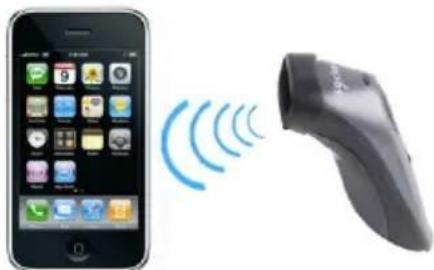
After you power on the CHS, it will automatically try to connect to the last device it paired and connected to.
- Make sure the device is in range with Bluetooth on.
- If using SPP mode, make sure SocketScan 10 software or an application developed with SocketScan 10 SDK is running.
If the CHS is connected to a device and gets disconnected, it will try to reconnect for a few minutes. Make sure the device is on and in range. If the CHS cannot reconnect, it will emit a long beep. Press the trigger button to restart the reconnection process.
natural_image
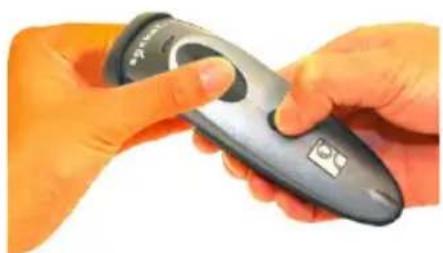
Close-up of hands holding a black and gray electronic device with a camera icon (no visible text or symbols)Unpairing the CHS: Deleting the Bluetooth Pairing
In most cases, if the CHS is paired with a device, you should unpair it before trying to connect to a new device.
- Power on the CHS.
- Press and hold down the trigger button.
- Press and hold down the power button.
- After you hear 3 beeps, release both buttons.
- The CHS will unpair and automatically power off. The next time you power on the CHS, it will be discoverable.
The CHS supports three modes, based on different types of Bluetooth connections:
• Human Interface Device (HID): Default mode of CHS. No software installation required.
- Serial Port Profile (SPP): Highly recommended, allows two-way communications with Android, BlackBerry and Windows. SocketScan 10 software installation required.
- iOS: Highly recommended, allows two-way communications with Apple iOS devices. Compatible application developed with SocketScan 10 SDK required.
| OS | Apple iOS | Android OS | Windows Embedded*/ PC | BlackBerry OS | Most Other OS** |
| HID | √ | √2.2 and later with HID support | √ | ✕ | √ |
| SPP | ✕ | √2.1 and later | √ | √ | ✕ |
| iOS | √compatible app required | ✕ | ✕ | ✕ | ✕ |
*Windows Embedded Handheld only **Includes Mac OS, Windows RT, Linux, etc.

By default, the CHS is set to HID mode for Keyboard devices, which requires no software installation.
For easiest setup, choose HID mode if supported by your device:
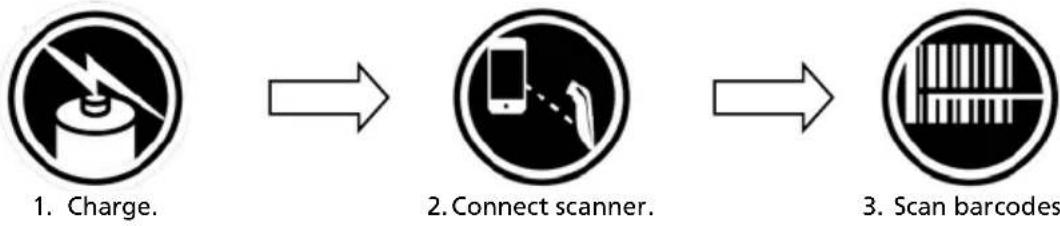
To learn how to connect by scanning a custom barcode, refer to the User's Guide.
To change modes, use command barcodes (page 11).
To pair the CHS with the Apple device: (required only the first time you connect)
- Power on the CHS.
- Make sure the CHS is set to HID Keyboard mode (default). If needed, scan this barcode to set it to the correct mode. The CHS will beep 3 times.

-
Enable Bluetooth on the Apple device. A Bluetooth device search will begin.
-
In the list of found devices, select Socket CHS [xxxxxx]. If prompted, tap Pair.
The characters in brackets are the last 6 characters of the Bluetooth Address, which is labeled in the CHS battery compartment.
- After the CHS connects and is ready to scan barcodes, it will beep once.
Now you are ready to scan barcodes, see instructions on page 4.
To connect to a new device, you must first unpair the CHS. See page 4.
To access the onscreen keyboard while connected to the CHS:

See a video demo at: http://www.youtube.com/socketmobile#p/u/5/VhtttoC6ROs
- Make sure the CHS is connected to your Apple device.
- Open your application and place the cursor where you want to enter data.
- Quickly double-press the power button of the CHS (like double-clicking a mouse) to open or close the onscreen keyboard.

IMPORTANT! Follow the instructions below ONLY if you are using a compatible iOS application developed with SocketScan 10 SDK!
To view a selected listing of compatible apps developed with SocketScan 10 SDK, please visit: http://www.socketmobile.com/appstore
The proper setup instructions may vary depending on your application. Follow the instructions provided by your software application developer.
To install the software:
Install a compatible application onto your device that was developed with SocketScan 10 SDK. Follow the installation instructions from the application developer.
To pair the CHS with the Apple device: (required only the first time you connect)
- Power on the CHS and scan this barcode. The CHS will beep 3 times.
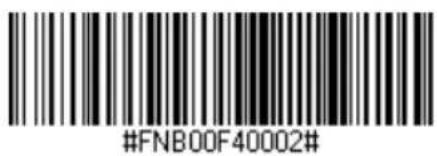
- Open the application.
- Enable Bluetooth on the Apple device. A Bluetooth device search will begin.
- In the list of found devices, select Socket CHS [xxxxxx]. If prompted, tap Pair.
The characters in brackets are the last 6 characters of the CHS Bluetooth Address, which is labeled in the CHS battery compartment.
- Go to your application. It will attempt to connect your device to the CHS.
Now you are ready to scan barcodes into your compatible application, see instructions on page 4.
To connect to a new device, you must first unpair the CHS. See page 4.

The instructions below are based on the Asus Nexus 7 running Android OS 4.2. Instructions for other devices may slightly differ. For Bluetooth HID instructions, please see the User's Guide.
To install the software and configure your device:

- If you installed barcode scanning software for your device camera, scan this barcode to launch the SocketScan 10 page in Google Play. Alternatively, open Google Play and search for SocketScan 10 Keyboard Wedge software.
- Follow the on-screen instructions to download and install SocketScan 10 software. If prompted, allow the app to access your Bluetooth settings / USB storage / SD card.
- If SocketScan 10 prompts you to turn on Bluetooth, touch Allow.
- You will be prompted to set SocketScan 10 as the keyboard language. Touch Back ☐.
- Touch Home | Apps | Settings | Language & input.
- Under Keyboard & Input Methods, select SocketScan 10. Touch Back
- In SocketScan 10, touch Menu | Input Method. Select SocketScan 10. Touch Back
To pair and connect the CHS and Android device: (required only the first time you connect)
- Power on the CHS.
- In SocketScan 10, touch Menu | Socket EZ Pair.
- Scan the barcode on the screen. The CHS will beep 3 times.
-
Touch On screen. Touch 1D Scanner.
-
Scan the barcode on the screen. The CHS will beep 3 times.
-
When notified of a pairing request, swipe the notification down. Touch Pairing request. Touch Pair.
-
After the CHS pairs and is ready to scan barcodes, it will beep once. The icon at the top of the screen will also change (see below). Touch Back
Status Bar Icon

CHS not connected.

CHS connected.

- A CHS registration icon will appear on top of the screen. Swipe the icon down to open the registration software. Follow the instructions to register your CHS.
Now you are ready to scan barcodes, see instructions on page 4.

To connect to a new device, you must first unpair the CHS. See page 4.
To install the software and configure a COM port:

Windows 8 or 7: Make sure you have administrative privileges to install software.
- Download the latest SocketScan 10 software from: http://www.socketmobile.com/support/downloads/data-collection/series7/ss110/
- Follow the on-screen instructions to install the software. In the last screen, click Finish.
- In SocketScan Settings, select an incoming Bluetooth serial COM port. Click OK.

Click Ports to create a new incoming COM port or identify an incoming COM port.
To pair the CHS with the PC: (required only the first time you connect)
- Power on the CHS.
- Turn on Bluetooth on your computer.
- Click on the SocketScan 10 icon in the system tray. If the icon does not appear, open SocketScan 10 by clicking on the desktop shortcut icon.
- In the pop-up menu, click Socket EZ Pair.
- Scan the barcode on the screen. The CHS will beep 3 times.
- Click On screen. Click 1D Scanner.
- Scan the barcode on the screen. The CHS will beep 3 times.
- You will be notified of a connection request. Click on the notification balloon.
- After the CHS connects and is ready to scan barcodes, it will beep once. The system tray icon will also change (see below).
Task Tray Icon

CHS not connected.

CHS connected.
- Close Socket EZ Pair. The Registration screen will appear. Follow the instructions to register your CHS.
Now you are ready to scan barcodes, see instructions on page 4.

To connect to a new device, you must first unpair the CHS. See page 4.
To pair the CHS with the PC or PDA: (required only the first time you connect)
- Power on the CHS and scan this barcode. The CHS will beep 3 times.

- Turn on Bluetooth on your PDA or PC and start a device search.
- Select Socket CHS. If prompted for a passkey, enter 0000 (four zeroes). If prompted to select services, select Input Device.
- After the CHS connects and is ready to scan barcodes, it will beep once.
Now you are ready to scan barcodes, see instructions on page 4.

To connect to a new device, you must first unpair the CHS. See page 4.
BLACKBERRY OS
SPP MODE

SocketScan 10 software works with BlackBerry OS 5.0.0.714 or later for Bold 9700. Other phones may be compatible. For instructions for the Bold 9900, please visit: http://www.socketmobile.com/pdf/data-collection/chs-7ci_blackberry-9900.pdf
To install the software: On your phone, open http://www.socketmobile.com/blackberry Follow the instructions to download and install the software.
To pair the CHS with the phone: (required only the first time you connect)
- Power on the CHS and scan this barcode. The CHS will beep 3 times.

- Use the phone's Bluetooth software to start a device search.
- Select Socket CHS. If prompted for a passkey, enter 0000 (four zeroes).
- In the Home screen, click Downloads | SocketScan 10. If prompted to grant trusted application status, click Yes.
- Click Menu | Socket EZ Pair. Click 1D Scanner. If prompted, select your CHS.
- After they pair and connect, the CHS will beep once to confirm the connection, then beep twice to signal a disconnection. Click Menu | Close to close Socket EZ Pair.
- SocketScan 10 will try to connect to the CHS. If asked to confirm, click Yes. After the CHS connects and is ready to scan barcodes, it will beep once.
- Close Socket EZ Pair by clicking Menu | Close. The CHS registration screen will appear. Follow the instructions to register your CHS.
Now you are ready to scan barcodes, see instructions on page 4.
Scan command barcode(s) to quickly configure the CHS.

Make sure the CHS is not connected to a host computer or device before scanning a command barcode!

To use the CHS on multiple hosts, perform the unpair sequence. For instructions, see page 4.

By default, the CHS is in HID mode as a Keyboard device.
For a complete set of command barcodes, download the Command Barcodes Sheet: http://www.socketmobile.com/pdf/data-collection/command-barcodes-sheet-7C.pdf
| Bluetooth Connection Modes | |
| HID-Keyboard (default) Configures the CHS to Human Interface Device (HID) mode as a Keyboard class device. | 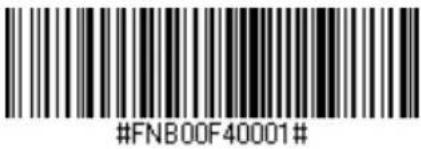 |
| SPP Mode Changes the CHS to Serial Port Profile (SPP) mode. |  |
| iOS Mode Changes the CHS to iOS mode. | 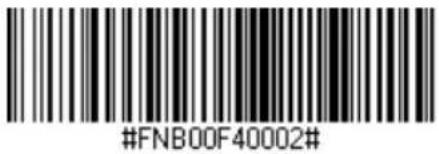 |
| Factory Defaults | |
| Factory ResetConfigures the CHS to revert all settings to factory defaults. The CHS will power off after scanning this barcode. |  |
| Beep Settings | |
| Beep after CHS Decodes Data ON (default)Enables CHS to beep to indicate successful scans. |  |
| Beep after CHS Decodes Data OFFDisables CHS from beeping to indicate successful scans. | 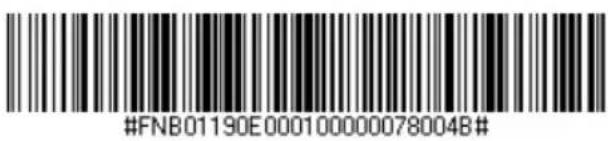 |
| Beep after Host Receives Data ON (default)Enables CHS to beep after a host computer or device acknowledges a successful scan.Scan with CHS in SPP mode. | 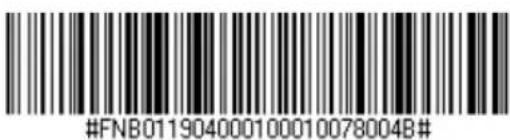 |
| Beep after Host Receives Data OFFDisables CHS from beeping after a host computer or device acknowledges a successful scan.Scan with CHS in SPP mode. |  |
Apple iOS Onscreen Keyboard (only for HID mode)
| Double-Press to Open Onscreen KeyboardEnables CHS to open iOS onscreen keyboard after CHS power button double-press | Opens iOS Keyboard - With Beep (default) |
Opens iOS Keyboard – No Beep | |
| Disable Double PressDisables double press feature for the CHS. |  |


- This document pertains to the following CHS models:
- HELPFUL RESOURCES
- Software and Documentation Downloads:
- Product Registration:
- Technical Support:
- Software Development Kit:
- Insert the Batteries:
- Attach the Lanyard (Optional):
- Charge the CHS:
- Powering ON:
- Powering OFF / Disconnecting:
- Scanning Barcodes:
- BLUETOOTH PAIRING
- Automatic Reconnections:
- Unpairing the CHS: Deleting the Bluetooth Pairing
- IMPORTANT! Follow the instructions below ONLY if you are using a compatible iOS application developed with SocketScan 10 SDK!
- To install the software:
- To pair the CHS with the Apple device: (required only the first time you connect)
- Now you are ready to scan barcodes into your compatible application, see instructions on page 4.
- To install the software and configure your device:
- To pair and connect the CHS and Android device: (required only the first time you connect)
- Now you are ready to scan barcodes, see instructions on page 4.
- To install the software and configure a COM port:
- To pair the CHS with the PC: (required only the first time you connect)
- BLACKBERRY OS
- SPP MODE
Brand : Socket Mobile
Model : CHS 7DIRx
Category : Barcode scanners