Find the device manual for free MPF 99 MPMAN in PDF.
Rate this manual
Loading...
0 question about this device. Answer the ones you know or ask your own.
The email remains private: it is only used to notify you if someone responds to your question.
Download the instructions for your Portable audio player in PDF format for free! Find your manual MPF 99 - MPMAN and take your electronic device back in hand. On this page are published all the documents necessary for the use of your device. MPF 99 by MPMAN.
Read this manual carefully to get the best performance from this unit.
Package Contents....4
Features......4
Charging the Battery....6
Charging with a Computer ....6
Tunning the Player On/Off ....6
Play Music Screen....8
Play Music Controls....8
Repeat A-B Mode 9
Repeat Mode 9
Voice Playing Screen....10
Voice Playing Controls....10
Record Controls....12
Folder Controls .... 13
Transferring/Managing Files 15
Disconnecting to a Computer 16
Congratulations on your purchase of the MP3 player. This manual is designed to help you easily set up and begin using your new player right away. Please read this manual carefully and retain it for future reference.
Please make sure that the items shown below are included in the package. Should an item be missing, please contact the local retailer from which you purchased this product.
★ MP3 player ✦ Professional stereo earphones USB Cable ✦ Instruction manual & documentation
This package may contain plastic bags or other materials that pose a hazard to children. Be sure to safely dispose of all packing materials after opening.
◆ Plays MP3 and WMA digital music files ✦ Integrated microphone for digital voice recording ✦ Mobile data storage function USB 2.0 Hi-speed for fast file transfers ✦ Integrated rechargeable battery
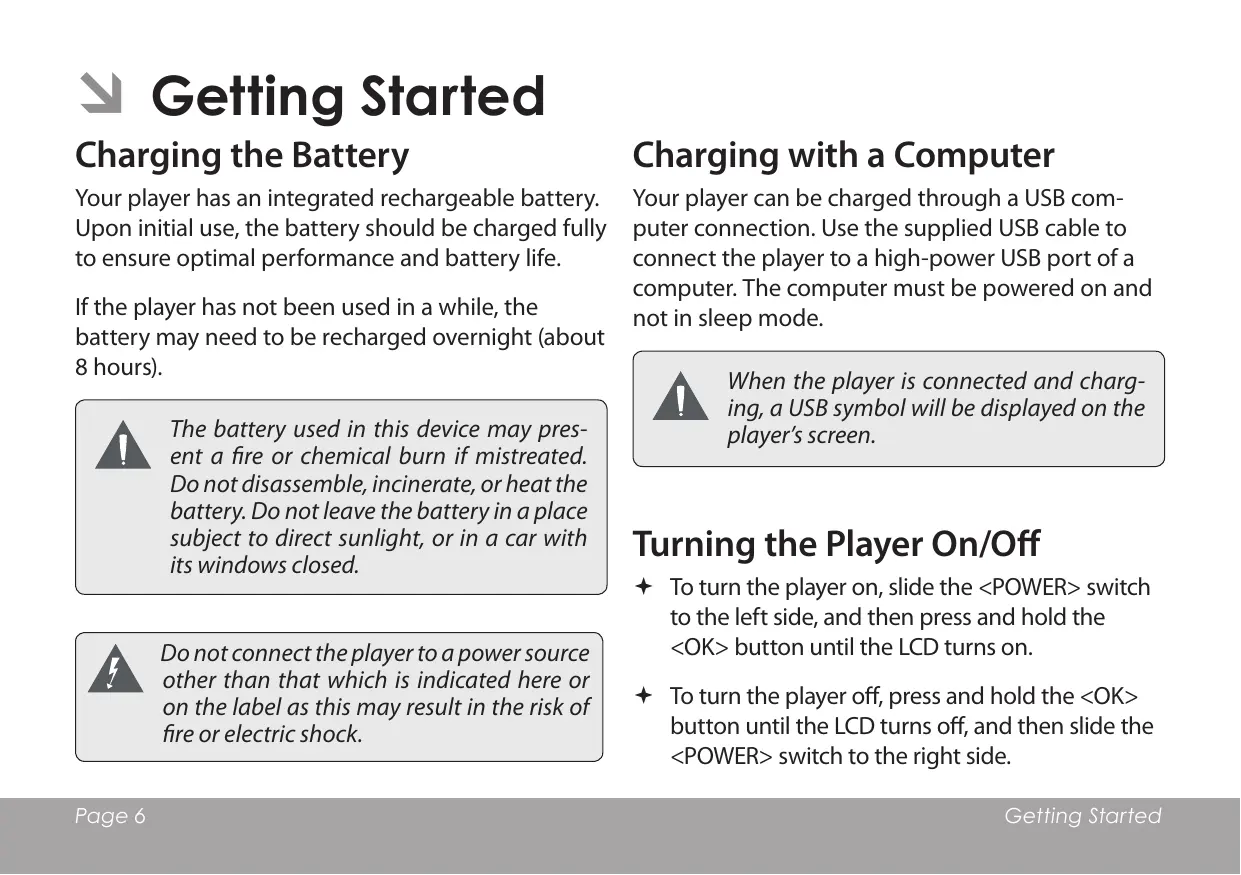
Your player has an integrated rechargeable battery. Upon initial use, the battery should be charged fully to ensure optimal performance and battery life.
If the player has not been used in a while, the battery may need to be recharged overnight (about 8 hours).
The battery used in this device may present a fire or chemical burn if mistreated. Do not disassemble, incinerate, or heat the battery. Do not leave the battery in a place subject to direct sunlight, or in a car with its windows closed.
Do not connect the player to a power source other than that which is indicated here or on the label as this may result in the risk of fire or electric shock.
Your player can be charged through a USB computer connection. Use the supplied USB cable to connect the player to a high-power USB port of a computer. The computer must be powered on and not in sleep mode.
When the player is connected and charging, a USB symbol will be displayed on the player's screen.
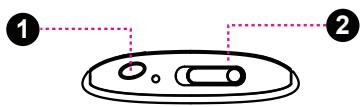
To turn the player on, slide the switch to the left side, and then press and hold the button until the LCD turns on. To turn the player off, press and hold the button until the LCD turns off, and then slide the switch to the right side.
The Main Menu gives you access to the different function modes of your player.
To enter the Main Menu from Play Music mode, press and hold
Play your digital MP3 or WMA music files.
Play the digital voice recordings.
Make voice recording from the integrated microphone.
Set your player's internal options.
Play, view, or delete files from your player.
Enter Play Music mode from the Main menu to play your MP3 or WMA music files.
Please refer to the section "Getting Started" to learn how to get music onto your player.
Play Music Screen
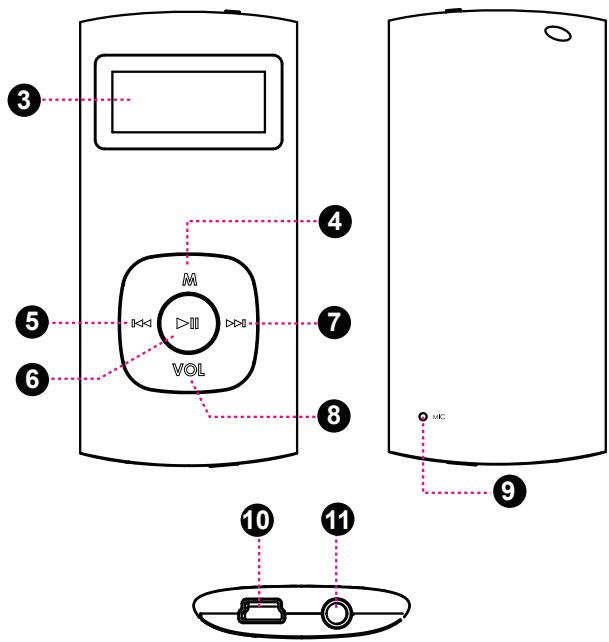
Use the following controls during music playback.
Set a segment of a music track to repeat in a continuous loop. During playback:
To set the starting point "A" of the loop, press
To set the end point "B" of the loop, press
The repeat mode options can be changed in the Settings mode menu. Please refer to the "Setting Mode" section of this manual for more information.
Enter Voice mode from the Main menu to play the digital Voice Recording files.
Please refer to the section "Record" to learn how to make voice recording from your player.
Voice Playing Screen
Use the following controls during voice playback.
Set a segment of a voice track to repeat in a continuous loop. During playback:
Enter RECORD mode from the Main Menu to record from the integrated microphone (voice).
Use the following controls in RECORD mode.
Recording will start immediately when RECORD is selected from the Main Menu.
Recordings are saved to the folder "MICIN.DIR". Recorded voice files are named "MICXXXXX. WAV" where XXXXX corresponds to the numerical sequence in which the recording was made (numbering starts from 00001).
Enter FOLDER mode to view, play, or delete files on your player.
You can also connect your player to a computer to easily manage your file library.
A directory tree will be displayed on-screen upon entering FOLDER mode from the Main Menu.
Use the following controls in FOLDER mode.
Enter SETTING mode from the Main Menu to change your player's internal option settings.
To select an option, press or . To confirm and enter, press . To exit the Setting Menu, press .
Connect the player to a computer with the USB cable provided to:
✦ Transfer files to and from your player ◆ Perform basic file management functions.
Upon connection:
Your computer will automatically recognize the player as a Removable Disk. An icon representing your player will appear under "Devices with Removable Storage" when you open "My Computer". It may take Windows several minutes to recognize and set up the device the first time it is connected depending on your hardware configuration.
The USB 2.0 connection makes it easy to transfer music quickly between the player and your computer. Simply use the player as you would any removable disk using basic operating system commands.
You can also use your player to store video, photo, or any other type of files.
If you need further assistance with transferring and managing files, please refer to your operating system's instruction manual or on-screen help. If you are using media management software such as iTunes, Winamp, or Windows Media Player, please refer to their documentation for support.
Do not disconnect or otherwise interrupt the player during file transfer—this could damage or corrupt the player's firmware or your files.
For more information and support regarding music transfer and synchronization with Windows Media Player (WMP), please see the help section included with WMP (click "Help > Synchronizing Content to Devices").
Disconnect your player as instructed below to prevent data loss or file/firmware corruption.
taskbar located on the lower-right side of the computer screen (Safely Remove Hardware).
Select "USB Mass Storage Device" from the list that appears and then click on "Stop".
Select "USB Mass
Storage Device" from the list that appears and then click on "OK".
Design, specifications, and manual are subject to change without notice.
* Estimated playing time based on a 128kbps MP3 file. Actual time may vary.
For music synchronisation and conversion, please use MPMANAGER software supplied in the CD ROM.
This software can be used also for UPDATE of your player
MPMANAGER manual is included in your CDROM
If you have a problem with this device, please read the troubleshooting guide below.
◆ Ensure that the player is fully charged. Try charging the player overnight (8 hours). ◆ Ensure that the Hold/Lock switch is disengaged.
◆ Ensure that your computer is running a supported operating system. If using a USB extension cable, ensure that it is securely attached to the player and the PC, or try using another USB cable. If you have connected the player through a USB hub, try connecting the player directly to your computer. Ensure that the player's memory capacity is not full.
◆ Ensure that the Hold/Lock switch is disengaged.
✨ Check the volume level. ◆ Ensure that the headphones are attached securely to the player.
Try playing the file on your computer. If the sound quality is still poor, try downloading the file again or re-encoding the file yourself. ◆ Ensure that the bit rate of the file is not too low. The higher the bit rate of the file, the better it will sound. The minimum recommended bitrate is 128kbps for MP3s and 96kbps for WMAs. ★ Try lowering the volume of the player. ◆ Ensure that the headphones are attached securely to the player.
◆ Ensure that the file is in a compatible format. The file may be copy-protected and you no longer have authorization to play this file. If you feel this is in error, please contact the service from which you downloaded the file.
CE
A pleine puissance, l'écoute prolongée du baladeur peut endommager l'oreille de l'utilisateur
Discover other manuals and user guides for the brand MPMAN
Brand : MPMAN
Model : MPF 99
Category : Portable audio player