
Lem Echo Music - Audio software MARTINIC - Free user manual and instructions
Find the device manual for free Lem Echo Music MARTINIC in PDF.


| Product Type | Audio Plugin (VST 2.4, AU, CLAP) |
| Developer | Martinic |
| Model | Lem Echo Music |
| Platform | Windows 7 or newer, macOS 10.9 or newer |
| Format | 32/64-bit VST, AU, CLAP; also standalone (not specified) |
| Sample Rate | 44.1 kHz minimum recommended |
| Delay Lines | 3 fixed delay lines: 80ms, 210ms, 330ms |
| Channels | Stereo (left/right) with per-channel controls |
| Main Controls | On/Off, Delay Selectors, Echo (dry/wet), Repeat (feedback), Volume, Bass, Treble, Vol.Rec. |
| Additional Settings | Master Volume, Panning, Reverb, Tape Saturation, Stereo/Mono |
| Tape Saturation | Adjustable tape overdrive effect on echoes |
| Reverb | Classic spring reverb pre-delay |
| Wow & Flutter | Emulated imperfections of original tape machine |
| Demo Mode | 30-day free trial with periodic noise and watermark |
| License | Optional license key for full version |
| Safety Warning | High Repeat values can cause extreme feedback; use limiter |
| Usage | Insert or bus effect in DAW |
| Manual Pages | 16 pages in PDF |
Frequently Asked Questions - Lem Echo Music MARTINIC
User questions about Lem Echo Music MARTINIC
0 question about this device. Answer the ones you know or ask your own.
Ask a new question about this device
Download the instructions for your Audio software in PDF format for free! Find your manual Lem Echo Music - MARTINIC and take your electronic device back in hand. On this page are published all the documents necessary for the use of your device. Lem Echo Music by MARTINIC.
USER MANUAL Lem Echo Music MARTINIC
System Requirements 4
Windows Installation 5
Mac Installation 7
Loading Lem Echo Music 8
Getting Around 8
Using the controls (plus fine-tuning and value entry) 9
FX view and Settings view 9
How it Works 10
Using the controls 11
Shift and Double-click 11
Delay Controls 11
On/Off 11
Delay Selectors 11
Echo and Repeat 12
Volume 12
Bass and Treble 13
Volume Record (Vol.Rec.) 13
Settings 13
Master Volume 14
Panning 14
Reverb 15
Tape 15
Stereo 15
Introduction
Thank you for purchasing or trying Martinic Lem Echo Music.
The Lem Echo Music plugin recreates the nostalgic tones of the vintage Italian tape delay effect from LEM.
History
In 1959, Matteo Galanti introduced the GEM (Galanti Egidio Mondaino) instrument brand, by developing and building the first electric organ made in Italy. Over the next ten years the company would branch out into audio effects, which were housed under a subdivision of the brand, LEM (Electro Music Laboratory).
The Lem Echo Music hardware was one of the earliest pieces of studio equipment that was birthed from the Laboratory, and was first used on a commercial music recording in the 1967 Italian hit La Pelle Nera, by Nino Ferrer.
https://www.youtube.com/watch?v=9xsDNSMdnHo
Features
Martinic Lem Echo Music simulates the classic sound of a vintage tape delay unit. The Echo Music's effect was created by recording to a single reel of tape which then moved past magnetic playheads placed at different positions (times) relative to each other, playing back multiple copies of the original signal.
The playhead positions (and therefore the delay times) are fixed, so the Echo Music does not sync to a DAW's host tempo.
The imperfections of the original machine's mechanical design have been recreated, so you get all the wonderful wow, flutter, and degradation that makes the effect so unique. There are additional features on the plugin including tape saturation level, stereo mode with pan controls, and reverb, which weren't present on the original machine.
CAUTION!
High values of feedback (the Repeat control) can cause extreme feedback loops. We recommend that you use the Lem Echo Music plugin with a limiter activated on your master channel to prevent damage to your playback equipment and to your hearing.
Free Trial
Before purchasing a license you are allowed to try Lem Echo Music free of charge for up to 30 days for testing purposes and in non-published work.

When Lem Echo Music runs in demo mode, once every minute the user interface will display Trial Version in red, and white noise is added to the output signal.
Installation
System Requirements
Lem Echo Music is available as a VST 2.4, AU (Audio Units), or CLAP (CLever Audio Plugin) effect plugin, which means it needs to run inside VST, AU, or CLAP hosting software, e.g. Ableton Live, Cubase, GarageBand, Logic Pro, REAPER, Studio One, etc.
Although Lem Echo Music should be able to run at any sample rate the host provides, a rate of at least 44.1 kHz is recommended.
Lem Echo Music is designed to run on Windows 7 or newer, or Mac OS X 10.9 (Mavericks) or newer.
Windows Installation
To install Lem Echo Music on Windows, download the Windows 32/64-bit VST/CLAP installer, and save it on your computer (e.g. in your Downloads folder).
Navigate to this folder, locate the installer and double-click on it, and then click on the Next button to start the installation process.

Carefully read the license, and then click on the I Agree button to continue. Next select which versions of the plugin you want to install. Select Customize GUI Scale to manually override the scaling factor of the plugin in a later screen. Optionally you can select License Key if you have purchased a license. Click on the Next button to continue.

Optionally change the install location, and again click on the Next button. Then select your VST2 32-bit and/or 64-bit plugin folder, and optionally select your license key file (if you have purchased a license), confirming each selection by clicking on the Next button.
If you have previously chosen to customize the GUI scale, you will be able to select different options before selecting Next to begin installation.

Now wait for the installation to complete (this should take only a few seconds), click on the Close button, and you are ready.
Mac Installation
To install Lem Echo Music on Mac OS X or macOS download the Mac 64-bit VST/AU/CLAP installer disk image (DMG), and save it on your computer (e.g. in your Downloads folder).

If you have purchased a license, then you should copy your license key file to the same folder in which you have saved the installer disk image (DMG), so it can be installed along with the plug-in(s).
Navigate to the folder in which you have saved the installer, locate the installer disk image (DMG) and double-click on it, and then double-click on the Lem Echo Music Installer.pkg icon. Click on the Continue button to confirm that the installation package will run a program, and then click on Continue (in the bottom right corner of the installation window) to start the installation process.
Carefully read the license, click on the Continue button, and then click on Agree. Next select which versions of the plug-in you want to install (it is recommended that you install the VST2, AU, and CLAP versions, just to be sure), optionally select License Key if you have purchased a license, and click on the Continue button. Optionally change the install location, and then click on the Install button.

Now wait for the installation to complete (this should take only a few seconds), click on the Close button, and you are ready.
Loading Lem Echo Music
Launch your host, and create an audio track or load a project to which you want to add Lem Echo Music. Please refer to the documentation of your hosting software on how to do this.
Note: Most hosts will list Lem Echo Music as Martinic Lem Echo Music, but some may list it as Lem Echo Music or LemEchoMusic.
Lem Echo Music is primarily meant to be used as an “insert” effect, which is also the way in which it was originally used. However, it can also be used as a “bus” effect.
Getting Around
Using the controls (plus fine-tuning and value entry)
You can adjust controls by clicking and dragging them up or down using the mouse. To fine-tune a parameter to a more exact value, hover your cursor over it, hold the Ctrl key (Mac and Windows), and scroll the mouse wheel. You can also right-click on a knob to enter a value using the computer keyboard.
Double-clicking a knob or fader will reset it to its default value.
FX view and Settings view
The Lem Echo Music can be used in either FX view or Settings view.

FX view allows you to control some of the Lem Echo Music's parameters, as you would on a physical version of the device.

Settings view provides an abstracted set of controls for the plugin, giving you control over every parameter on the Lem Echo Music. Here you can access all the controls, including
master volume, Reverb Mix, Panning Mix, Delay Tape Age and Delay Mono/Stereo.
Lem Echo Music is a stereo effect, so it is applied to both the left and right channels. When the switch is off the effect is bypassed. Note that this is likely not the same as bypassing Lem Echo Music in your hosting software, because the input signal is still fed into the effect, meaning that you can turn it on again at any time, smoothly and without any pops or clicks.
How it Works
The Lem Echo Music offers a combination of three delay lines over two channels. The delay lines are fixed to particular speeds and do not sync with your host tempo; each delay line (1, 2 and 3) can be switched on or off, and all three can be run at the same time.

The delay properties include Echo (dry/wet), and Repeat (feedback). These are common to both channels.
By default, the two channels are set to control left and right sides of the stereo signal, but this can be customized in the Settings screen. Each channel has its own input volume (Vol Rec) output Volume, and EQ controls for Bass and Treble emphasis/de-emphasis. The delay times remain the same for each channel.
On the Settings page, there are additional controls including Reverb and Tape saturation.
Using the controls
You can adjust controls by dragging them up/down using the mouse, or you can use the mouse wheel while holding the Ctrl key down. You can also right-click on a knob to enter a value using the computer keyboard.
Shift and Double-click
Holding Shift and dragging a knob on either side of the unit will control the corresponding knob on the opposite channel at the same time.
Double-clicking a knob or fader will reset it to its default value.
Delay Controls
On/Off
The tape delay effect can be turned on by pushing in the On button, and you will notice the bottom right of the VU meter light up when you do.

Delay Selectors
With the On button pushed in, you can apply the playheads by pushing in the numbered buttons in the Effects section. 1 is a short delay (80ms), 2 is medium (210ms) and 3 is long (330ms). Each delay time is fully fixed and non-syncable to host tempo, just like the original unit.
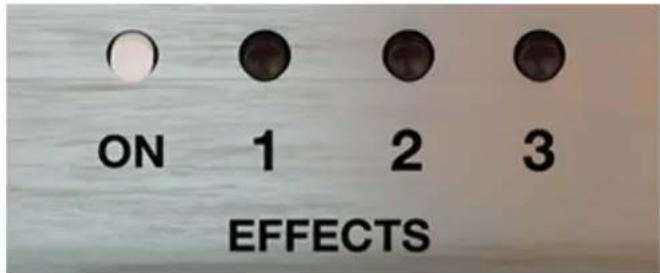
You can choose to use one delay by pushing it in and leaving the others, or combine them for a more chaotic effect by switching on multiple buttons at once.
Echo and Repeat
The Echo knob controls how much of the echo is applied to the sound, like a dry/wet control. Higher values result in a more intense effect, while lower values will be more subtle.
The Repeat knob acts much like a feedback control to extend the number of delays you hear. Feedback works by routing the delayed output signal back into the input to create a "feedback loop". Higher values on the Repeat knob will extend the delay multiple times, while lower values will only add a few, or even one echo.

DANGER: High values of Repeat can cause extreme feedback loops. We recommend that you use the Lem Echo Music plugin with a limiter activated on your master channel to prevent damage to your payback equipment and to your hearing.
Tip: Manipulating the Repeat control during playback will change the unit's properties in real time, resulting in the pitch of the echoes being lowered or raised, emulating a waveform on a tape being played back at different speeds.
Volume
The Volume slider controls the level of the signal coming out of each channel, after the
delay processing. Its default setting of 10 represents unity gain, and it can be lowered all the way to -inf dB.
Bass and Treble
Bass and Treble knobs can be adjusted to shape the tone of both the left and right channels. These are overall tone shaping controls that will apply to both the input and output signal.
Volume Record (Vol.Rec.)
The Vol Rec knob acts like an input gain control, sending the dry signal into the delay at lower or higher levels. You can disable the delay effect entirely for a channel by reducing its Vol.Rec. to 0.
Settings
In the Settings tab you will find five extra controls which were not present on the original tape echo hardware, alongside the same controls from the FX section, albeit fully digitally represented. Any changes you make to the original controls in the Settings tab will be represented on the FX interface, and vice versa.

Master Volume
In the centre is a Master volume control, ranging from -36dB to +24dB. This is an overall output control, so if you have created a nice balance between the two channels, adjusting the Master knob will preserve this balance, and alter the volume of everything in unison.
Panning
Both channels of the Lem Echo Music have a Pan knob. By default, the left channel is set to -10.00 (left), and the right channel is set to +10.00 (right), but these can be decreased, reversed, or anything in between using the Pan controls.

Setting a channel's Pan control to 0 will center its signal.
Reverb
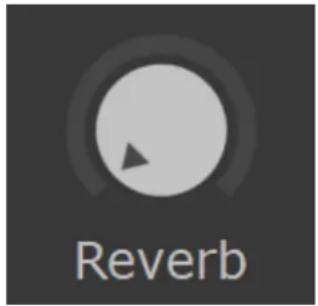
The Reverb knob adds a classic spring reverb to the plugin, which is applied pre-delay. When combined with the echo effect, this will create an even more lush and enveloping sound.
Tape
Recording sound on to tape, at a high enough volume level, overloads the tape's capabilities. This leads to an overdrive effect known as “tape saturation” which produces a characteristic distorted yet warm tone. The Tape knob allows you to control the amount of tape saturation that is applied to the echoes. If there is no delay applied using the plugin, the Tape control will not affect your signal.

natural_image
Close-up of a circular gauge with a triangular pointer and the word 'Tape' below it, no additional text or symbols visible.Stereo
The Stereo button applies to the tape delay specifically – switching it on (black square) will put the effect in stereo, while switching it off makes it mono.

As mentioned before, this also affects the Volume Record controls for each channel of the mixer. In stereo mode, raising the Vol Rec levels on the left and right will emphasize the tape delay effect for each side. With the stereo button switched off, the effect will intensify in mono.
© 2019 - 2022 Martinic

- Getting Around 8
- How it Works 10
- Using the controls 11
- Delay Controls 11
- Settings 13
- Introduction
- History
- Features
- CAUTION!
- Free Trial
- Installation
- System Requirements
- Windows Installation
- Mac Installation
- Loading Lem Echo Music
- Getting Around
- Using the controls (plus fine-tuning and value entry)
- FX view and Settings view
- How it Works
- Using the controls
- Shift and Double-click
- Delay Controls
- On/Off
- Delay Selectors
- Echo and Repeat
- Volume
- Bass and Treble
- Volume Record (Vol.Rec.)
- Settings
- Master Volume
- Panning
- Reverb
- Tape
- Stereo
Brand : MARTINIC
Model : Lem Echo Music
Category : Audio software