
MP-F400 - Portable media player MPMAN - Free user manual and instructions
Find the device manual for free MP-F400 MPMAN in PDF.


User questions about MP-F400 MPMAN
0 question about this device. Answer the ones you know or ask your own.
Ask a new question about this device
Download the instructions for your Portable media player in PDF format for free! Find your manual MP-F400 - MPMAN and take your electronic device back in hand. On this page are published all the documents necessary for the use of your device. MP-F400 by MPMAN.
USER MANUAL MP-F400 MPMAN
1.1 MP-F400 Features
Supports the following music formats: MP1, MP2, MP3, WMA
LCD screen
- Graphical user interface control
1.2 The package contents
MP3 player
- Stereo earphones
- CD-ROM with driver programs and useful software
Quick-start guide
USB cable
1.3 Computer requirements
- Pentium 100 MHz or faster
32 MB RAM or more
CD-ROM
Hard disk with a minimum of 15 MB free space
USB 1.1/2.0 - Windows 98/ME/2000/XP, Mac OS 10, Linux 2.4.2
1.4 The player interface
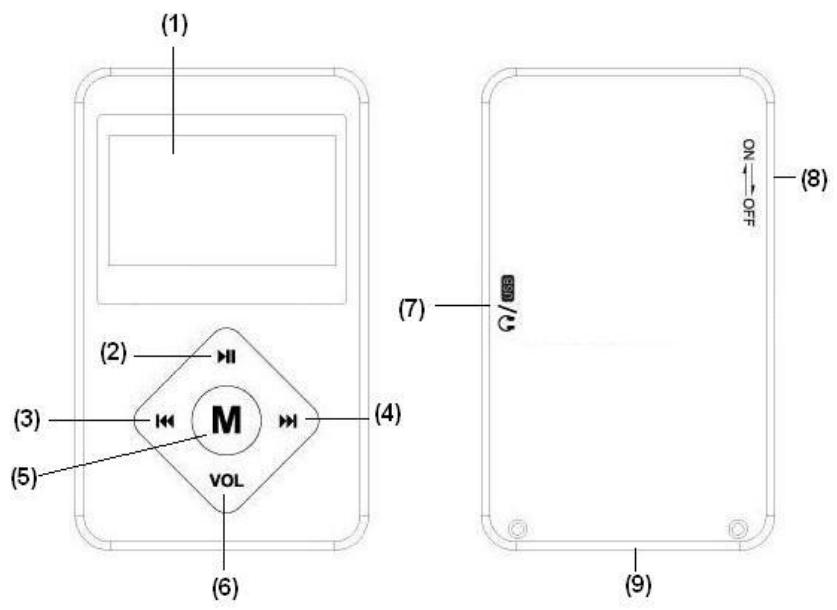
1.5 Layout and controls
(1) LCD screen
(2) PLAY button
(3) PREV/REV or reduce volume
(4) NEXT/FWD or increase volume
(5) MENU button (press and hold for 2 seconds to return to the main menu)
(6) VOL : volume mode
(7) Earphone and USB cable connection
(8) ON/OFF switch
(9) Attachment point for carrying cord
1.6 Battery
The MP-F400 has an on-screen battery power indicator:
- Charge the battery when the remaining power is low (connect the MP-F400 via USB to the PC or optional charger).
1.7 Switching on and off
- Switch the player on and off with the ON/OFF switch.
- If you press and hold the PLAY button for 2 seconds, the player will be switched off. If you press and hold the PLAY button again, the player will be switched on again.
OPERATION
2.0 Main menu
In the main menu you can choose one of three modes with different features:
Music
Setting
You can choose a function with the NEXT and PREV buttons. Press the MENU button to activate the function. Keep the MENU button pressed for 2 seconds to return to the main menu.
2.1 Music mode
Choose MUSIC mode in the main menu and press MENU to activate it.
You can choose a music file with the NEXT and PREV buttons. Press PLAY to play the file. MUSIC mode has two sub-modes:
Play mode (available during playback)
- Stop mode (available during standby)
Play mode
During playback, press the MENU button to activate Play mode. There are 7 options:
Repeat
| Normal | All songs will be played once |
| Repeat One | Repeat the current song |
| Folder | Play all the songs in a specific folder |
| Repeat Folder | Repeat all the songs in a specific folder |
| Repeat All | Repeat all songs |
| Random | Play all the songs in random order |
| Intro | Play the first 10 seconds of each song |
Equalizer
| Natural |
| Rock |
| Pop |
| Classic |
| Soft |
| Jazz |
| DBB |
Tempo rate
Press the NEXT and PREV buttons to change the playback speed.
Note: The Tempo rate option only works with MP3 files!
Replay
A-B replay - you can mark selected music segments for continual replay.
When Replay mode is selected, the icon appears and the letter A flashes.
Press NEXT to set the starting point (A) of the segment to be repeated.
The letter B starts to flash.
Press NEXT to set the end point (B) of the segment to be repeated.
The A-B segment will now be replayed continuously. Press the MENU button to return to normal playback.
Replay times
Choose how many times the A-B segment must be repeated (1 to 10 times).
Replay gap
Choose the time interval between each A-B-segment (1-10 seconds).
Exit
Stop mode
Press the MENU button briefly while the player is in standby to activate Stop mode. There are 4 options:
Local folder
You can browse files and folders saved on the player here.
Select with the NEXT and PREV buttons and press MENU to activate or confirm the selection.
Delete file
You can delete files and folders saved on the player here.
Select with the NEXT and PREV buttons and press MENU to confirm the deletion.
Delete all
Exit
- Deletes all the music files on the player.
2.2 Setting mode
Choose SETTING mode in the main menu and press MENU to activate it.
- Backlight
Here you can set how quickly the LCD screen will be switched off.
You can briefly press any button to switch the LCD screen on again.
Choose a duration between 0 and 30 seconds. 0 seconds means that the screen will always be lit.
Language
Here you can choose the interface language.
Power off
Off time - Battery saving function. Here you can set the number of seconds after which the player will be switched off when it is not being used. (0-60 seconds in 10-second intervals).
Sleep time - Here you can set the time after which the player will be switched off automatically (0-120 minutes in 10-minute intervals)
Note: 0 seconds /minutes means that automatic switching off or sleep mode are disabled.
Sleep mode must always be set again.
- Contrast
Memory info
Here you can see the storage capacity (in MB) of the F400 and the percentage capacity used.
F/W version
Here you can find information about the current firmware version. - Exit
SPECIFICATIONS
| SCREEN | LCD screen |
| PC CONNECTION | USB 2.0, high speed |
| FLASH MEMORY | 1, 2, 4 GB |
| POWER SUPPLY | Rechargeable lithium polymer battery |
| MUSIC FORMAT | MP1, MP2, MP3, WMA |
| DISTORTION | Less than 0.1 % |
| FREQUENCY RANGE | 20 Hz~20 KHz |
| EARPHONE OUTPUT | 5 mW (320 Ohm) |
| OPERATING SYSTEM | Windows 98/ME/2000/XP, Mac OS 10, Linux 2.4.2 |
TECHNICAL SUPPORT
For more information, please visit our website www.mpmaneurope.com
CE