
PICKIT20 - Camera SereneLife - Free user manual and instructions
Find the device manual for free PICKIT20 SereneLife in PDF.


| Product Type | Digital Camera |
| Brand | SereneLife |
| Model | PICKIT20 |
| Image Sensor | CMOS |
| Resolution | 12 Megapixels |
| Video Resolution | 720p HD |
| Display | 2.4 inch LCD |
| Storage | MicroSD Card (up to 32GB) |
| Power Source | Rechargeable Battery (USB-C) |
| Dimensions | 10.2 x 6.1 x 2.5 cm |
| Weight | 125 g |
| Color | White / Pink available |
| Connectivity | USB-C, MicroHDMI |
| Flash | Built-in LED Flash |
| Self-Timer | 2s / 10s delay |
| Maintenance | Clean lens with soft cloth; store in dry place |
| Safety | Avoid exposure to water and extreme temperatures |
| Spare Parts | Contact manufacturer for replacement parts |
Frequently Asked Questions - PICKIT20 SereneLife
User questions about PICKIT20 SereneLife
0 question about this device. Answer the ones you know or ask your own.
Ask a new question about this device
Download the instructions for your Camera in PDF format for free! Find your manual PICKIT20 - SereneLife and take your electronic device back in hand. On this page are published all the documents necessary for the use of your device. PICKIT20 by SereneLife.
USER MANUAL PICKIT20 SereneLife
Download on the App Store
Google play
Step 2 App Installation
1. Android Device
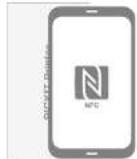
A TYPE *NFC Support Android Device ONLY
-
Turn NFC on in your smart phone.
-
Tap the phone on the top of Pickit printer.
Google Play Store app installation page will show up.
- Install the app into your smartphone from the store.
B TYPE
-
Go to Google Play Store in your smartphone.
-
Search "Pickit Printer"
-
Install "Pickit Printer" into your smartphone.
2. Apple Device
-
Go to Appstore in your iPhone, iPod touch or iPad.
-
Search "Pickit Printer"
-
Install "Pickit Printer" Application into your device.
Step 3 Connecting
-
WiFi Access Point (AP) "Apple and Android Devices."
-
Turn WiFi on in your smartphone.
- Go to WiFi setting and find "Direct-Cube-XXXX".
* Printer names are vary and 4 digits. The 4 digits are combination of
number and alphabet. - Password is "12345678".
-
Select the WiFi network to connect the printer.
-
NFC and WiFi Direct *NFC. WiFi Direct support devices ONLY
-
Turn NFC and WIFI on in your smartphone.
*Set the NFC setting as - Tap your device on the center of the printer where the NFC mark is.
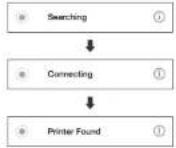
Within 20 seconds, the app will automatically connect to WiFi Direct
When the printer is connected to WiFi Direct, green mark will be shown in the app.
Step 4 Printing in the App
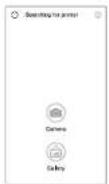
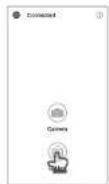
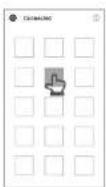
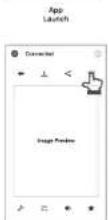
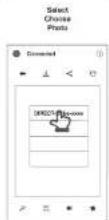
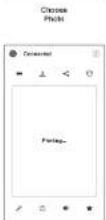
* In case of multiple printers are available
Power and active status
| Status | * ☐ ☑ |
| Power ON | White |
| Power OFF (2sec) | Off |
| Printing | White Flickering |
| F/W Upgrade | Pink Flickering |
| No Cartridge | Red Flickering |
| Error (Paper Jam, etc.) | Red Flickering |
| Waiting/Cooling | White |
Battery Status
| Status | D |
| Charging | Red |
| Charging Complete | Green |
Troubleshooting
| Symptom | CAUSE / SOLUTION |
| Paper Jam | Power OFF and Power ON again. Paper will be automatically rejected. If not, please contact customer service. |
| Image quality is not good | Print quality could be less if your photo source has low resolution. Over 1280 x 2/48 pixel is recommended for best image quality |
| Printer is not responding | Press Reset button with sharp tool like pin. |
Step 6 Note and FCC
Note
• Photo Paper will go in and out 4 times (YMCG, Yellow, Magenta,
Cyan, Overcoating). Do NOT touch the paper during printing
process for best image quality.
- Do not pull paper out by force during printing.
- Do not place an object in front of the paper exit slot.
- Use the latest Pickit application for law print quality. Check the latest app
version from Google Play Store and Apple Appstore
- Printer has Built-In Battery. Charge the printer before using.
- Handle with care during charging to prevent electric shock.
• Do not disassemble or deform.
- Avoid too high or low temperature or humidity
- If NFC tag is not read, check its position on the printer and smartphone.
Then try again.
- The higher resolution the image has, the higher quality the printed
photo has. Recommended image size is 1280" 2448 pixel. Operating Temperature: 37, 1955
Operating Temperature: 52-104
FCC (Federal Communications Commission)
This device complies with part 15 of the FCC Rules. Operation is subject to the
following two conditions:
-
This device may not cause the main function of it and 2. This device must accept any interference reached in
-
The device must accept any suitable resolution, including the same line that
CALIFORN: Any changes or modifications in the equipment, until expressly approved by the
partly responsible responsible for remissure revenue and user's authority in upscale line
socio
This device (FCCID: POSM1) complies with FCC SAR requirement.

VISIT US ONLINE:
have a question
Need service or repair!
Want to leave a comment?
PyleUSA.com ContactUs
PYLE
Brand : SereneLife
Model : PICKIT20
Category : Camera