miniBit - Sound synthesizer AudioThing - Free user manual and instructions
Find the device manual for free miniBit AudioThing in PDF.


| Product Type | Audio Plugin (VST, AU, AAX) |
| Platform | Windows, macOS |
| Plugin Formats | VST2, VST3, AU, AAX |
| Bit Depth | 64-bit |
| License Type | Paid (with demo mode) |
| Demo Limitations | 3 seconds silence every 45 seconds, no preset saving |
| Registration | Online or offline via license file |
| Main Oscillator Waveforms | 18 built-in + 8 user-editable |
| Sub Oscillator | Tunable square wave (-24, -12, 0 semitones) |
| Polyphony | Polyphonic mode with glide |
| LFO | Syncable, multiple waveforms, assignable destination |
| Envelopes | Volume and Pitch (ADSR) |
| Filter | Low-pass or High-pass with cutoff and resonance |
| Delay | Syncable time, feedback, wet mix |
| Bitcrusher | Bit depth reduction and downsampling |
| Step Sequencer | 8 steps (adjustable), multiple tracks, randomize |
| Custom Waveforms | 32-step editor, 8 slots per preset, copy/paste |
| MIDI Learn | Assignable hardware controllers |
| Randomizer | Lock/unlock parameters, full or partial randomize |
| Preset Management | Copy/paste preset data to clipboard |
| Window Resize | 3 predefined sizes + drag resize |
| Global Settings | Volume boost (+12dB), custom wave update toggle |
| Velocity | Enable/disable and curve adjustment (soft to hard) |
| Pitch Bend Range | Up to ±12 semitones (independent up/down) |
Frequently Asked Questions - miniBit AudioThing
User questions about miniBit AudioThing
0 question about this device. Answer the ones you know or ask your own.
Ask a new question about this device
Download the instructions for your Sound synthesizer in PDF format for free! Find your manual miniBit - AudioThing and take your electronic device back in hand. On this page are published all the documents necessary for the use of your device. miniBit by AudioThing.
USER MANUAL miniBit AudioThing
MINIBIT
USER GUIDE
v1.6
MINIBIT....3
INSTALLATION....3
REGISTRATION....4
PARAMETERS....5
MAIN....5
STEP SEQUENCER....6
CUSTOM WAVEFORMS....7
FEATURES......8
MIDI LEARN....8
RANDOMIZER....8
GLOBAL - VOLUME BOOST......8
GLOBAL - UPDATE CUSTOM WAVES......8
SEQUENCER STEPS....8
PITCH BEND RANGE....9
VELOCITY....9
PRESET COPY/PASTE....9
WINDOW SIZE....9
END....10
WHERE IS EVERYTHING?......10
CREDITS....10
EULA....10
THANK YOU....10
MINIBIT
miniBit is an 8-bit/chiptune style synthesizer plugin that emulates the sound of 80s game consoles and retro computers.
It features a main oscillator with 18 built-in and 8 user-editable waveforms, paired with a tunable sub oscillator (square wave).
The waveforms are not band limited and will produce aliasing. Same of the waveforms were carefully created and edited with an Amiga 1200, while others were meticulously recreated from the sounds of the best classic games that we have collected over the years.
You can create all kind of noisy and retro sounds with the built-in bitcrusher, delay section and filter. You can also use the synced 8 Steps Stepper/Sequencer with multiple destinations.
From noisy, snare-like steps to ambient subs, miniBit has many uses beyond what one expects from a chip tune synth.
INSTALLATION
MAC OS
- Double click on the DMG archive to extract it
- Right click on the PKG installer and click open
- Follow the instructions to install the plug-in(s)
WINDOWS
- Extract the ZIP archive
•Double click on the setup file (.exe) - Follow the instructions to install the plug-in(s)
REGISTRATION
In demo mode the plug-in will output silence for 3 seconds every 45 seconds, and you won't be able to save presets.
You can open the registration window by clicking on the ≡ icon next to the bypass button, in the top-right corner.
You can choose between Online and Offline authorization.
ONLINE
- If you haven't created an account yet, you can signup here using the same email address used at check out.
- Just input your credentials into the text fields and click on Log In

OFFLINE
- Download the license file from your account.
- Copy the file to your offline computer.
- Just drag and drop the license into the registration window or click on the Load License File button and browse to the downloaded license.

PARAMETERS
MAIN
LFO
Sync Selects the range for the Rate knob (% or synced) Rate Controls the frequency of the modulation Wave Selects the modulation waveforms Destination Destination parameter for the modulation Amount Controls the amount of modulation
ENVELOPE Volume
Attack Controls the attack time of the volume envelope Decay Controls the decay time of the volume envelope Sustain Controls the gain value of the volume envelope Release Controls the release time of the volume envelope
ENVELOPE Pitch
Amount Controls the amount of modulation Attack Controls the attack time of the volume envelope Decay Controls the decay time of the volume envelope Sustain Controls the gain value of the volume envelope Release Controls the release time of the volume envelope
OSCILLATOR
FineTune Controls the pitch of the main oscillator in cents Tune Controls the pitch of the main oscillator in semitones Volume Controls the volume of the main waveform Waveform Selects the main oscillator waveform Sub Osc Controls the volume of the sub oscillator Sub Osc Tune Controls the pitch of the sub oscillator (-24, -12, 0) Poly Enables or disables the polyphonic mode Glide Controls the portamento between two notes
FILTER
Filter Type Selects the type of filter: Low Pass or High Pass
Cutoff Controls the cutoff frequency of the filter
Resonance Controls the resonance of the filter
DELAY
Sync Selects the range of the Time knob (% or synced)
Time Controls the time between each repetitions
Feedback Controls the amount of repetitions
Wet Controls the amount of Delay signal
CRUSHER
Bits Reduces the bit-depth of the sound causing distortion
Downsample Reduces the samplerate frequency causing aliasing
STEP SEQUENCER
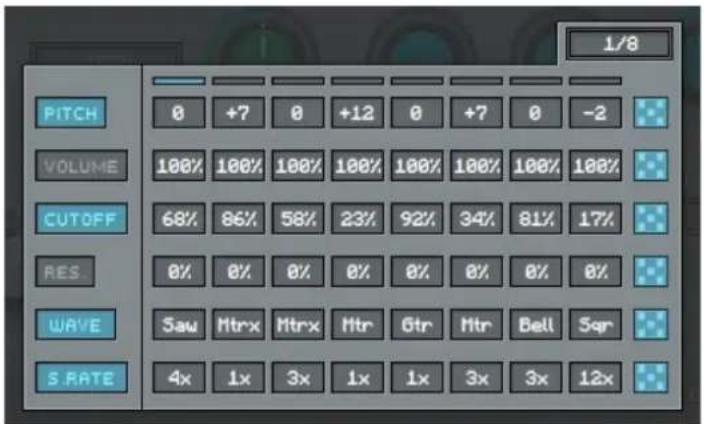
You can show/hide the Sequencer by clicking on the icon next to the presets box.
Each track in the step sequencer can be enabled or disabled by clicking on the parameter names on the left. Each track can also be randomized using the dice buttons on the right.
You can change the amount of steps by clicking on the ≡ icon.
CUSTOM WAVEFORMS

To open the Custom Waveform Editor select one of the Custom Waveforms from the Waveform monitor and click on the Editor button.
The Custom Waveform Editor features 32 steps and 8 waveform slots per preset.
You can draw your waveforms by clicking and dragging on the editor. You can also use some of the built-in examples as a starting point.
Since each preset has its own custom waveforms, if you want to use a custom wave with another preset you can use the Copy/Paste buttons.
If you want to keep your custom waveforms while browsing the presets, you can disable the Global Setting – Update Custom Waves, see below.
FEATURES
You can access the MIDI Learn and Randomizer menu by right-clicking on any parameter in the interface.
MIDI LEARN
You can assign your hardware MIDI controller to any parameter in miniBit. Right-click on the parameter you'd like to control, and select Learn... then move the knob or slider on your MIDI controller which you'd like to use.
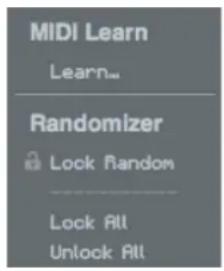
miniBit will detect the MIDI CC number of that particular control, and link it automatically to the selected parameter.
RANDOMIZER
It is possible to randomize all the parameters in the interface by clicking on the Random button in the top bar.
Lock/Unlock Random Decides if the parameter can be randomized
Lock All No parameters will be randomized
Unlock All All parameters will be randomized
By clicking on the ≡ icon you can access additional features.
GLOBAL - VOLUME BOOST
You can increase the overall volume of miniBit up to +12dB. Be careful as this is a global setting. All presets and also previous saved projects will be affected by this!
GLOBAL - UPDATE CUSTOM WAVES
Every time you load a preset, the 8 Custom Waveforms will be overwritten with the Custom Waveforms saved in the preset. However, if you want to keep one set of Custom Waveforms while browsing the presets, you can disable this option.
SEQUENCER STEPS
You can change the number of steps for the step sequencer (default 8 steps). This can be useful if you want to sync the sequencer to an odd tempo.
PITCH BEND RANGE
You can change the range of the pitch bend, indipendently for up and down bending, up to 12 semitones.
VELOCITY
You can disable the velocity if you want to play each note at the same volume. You can also change the curve of the velocity, from soft to hard. If your MIDI controller has a velocity curve option, we recommend to use that and leave miniBit setting to Linear.
PRESET COPY/PASTE
You can easily share presets by using this Copy/Paste feature instead of sharing the actual preset file.
By clicking on Copy to Clipboard, the status of all parameters will be saved to the Clipboard.
By clicking on Paste from Clipboard instead, you can load a preset shared using the previous function.
WINDOW SIZE
You can resize the plugin window using three predefined sizes (small, standard, big). You 9can 9also 9resize 9the 9plugin 9window 9by 9clicking 9and 9dragging 9the 9bottom-right corner of the interface. Double clicking will reset to the standard size.
END
WHERE IS EVERYTHING?
The installer will place the plugins, presets and other data in these folders.
MAC OS
AU: /Library/Audio/Plug-ins/Components/
VST: /Library/Audio/Plug-ins/VST/
VST3: /Library/Audio/Plug-ins/VST3/
AAX: /Library/Application Support/Avid/Audio/Plug-Ins/
Data: /Users/Shared/AudioThing/
WINDOWS
VST: custom path from installer
VST3: \Program Files\Common Files\VST3\
AAX: \Program Files\Common Files\Avid\Audio\Plug-Ins\
Data: \Users\Public\Public Documents\AudioThing\
CREDITS
DSP & Code: Carlo Castellano
Design: John Gordon (vstyler)
EULA
Please visit www.audiothing.net/eula/ to review this product EULA.
THANK YOU
Thank you for your purchase! We hope you will have as much fun using it as we had making this product.
For help or any question, feel free to contact us here: www.audiothing.net/contact/

natural_image
Simple line drawing of a conical flask containing liquid (no text or symbols)

- MINIBIT
- USER GUIDE
- MINIBIT....3
- PARAMETERS....5
- FEATURES......8
- END....10
- INSTALLATION
- MAC OS
- WINDOWS
- REGISTRATION
- ONLINE
- OFFLINE
- PARAMETERS
- MAIN
- LFO
- ENVELOPE Volume
- ENVELOPE Pitch
- OSCILLATOR
- FILTER
- DELAY
- CRUSHER
- STEP SEQUENCER
- CUSTOM WAVEFORMS
- FEATURES
- MIDI LEARN
- RANDOMIZER
- GLOBAL - VOLUME BOOST
- GLOBAL - UPDATE CUSTOM WAVES
- SEQUENCER STEPS
- PITCH BEND RANGE
- VELOCITY
- PRESET COPY/PASTE
- WINDOW SIZE
- END
- WHERE IS EVERYTHING?
- CREDITS
- EULA
- THANK YOU
Brand : AudioThing
Model : miniBit
Category : Sound synthesizer