
LGA120 - Phone LG - Free user manual and instructions
Find the device manual for free LGA120 LG in PDF.


| Product Type | Mobile Phone |
| Brand | LG |
| Model | LGA120 |
| Dimensions | 110 x 50 x 15 mm |
| Weight | 100 g |
| Battery Type | Li-Ion 1000 mAh |
| Talk Time | Up to 5 hours |
| Standby Time | Up to 300 hours |
| Display | 1.8-inch CSTN, 128x160 pixels |
| Keypad | Numeric keypad with navigation keys |
| Camera | VGA (0.3 MP) |
| Radio | FM radio with RDS |
| Connectivity | Bluetooth 2.0, USB 2.0 |
| Memory | Internal: 128 MB, expandable via microSD up to 16 GB |
| SIM Card | Mini-SIM (1 slot) |
| Messaging | SMS, EMS, MMS |
| Ringtone | Polyphonic, MP3 |
| Maintenance | Clean with a soft, dry cloth. Do not use water or chemicals. |
| Safety | Avoid exposure to water, extreme temperatures, and drop impacts. |
| Spare Parts | Battery, charger, earphones (available separately) |
| Repair | Contact authorized LG service center for repairs. |
| General Information | Designed for basic calling and texting with essential features. |
Frequently Asked Questions - LGA120 LG
User questions about LGA120 LG
0 question about this device. Answer the ones you know or ask your own.
Ask a new question about this device
Download the instructions for your Phone in PDF format for free! Find your manual LGA120 - LG and take your electronic device back in hand. On this page are published all the documents necessary for the use of your device. LGA120 by LG.
USER MANUAL LGA120 LG
PRINTED WITH SOY INK
CE0168
P/N: MMBB0389410 (1.0)
www.lg.com
| LG-A120 | USER GUIDE
This manual may differ from the phone depending on the phone software version and service provider used.
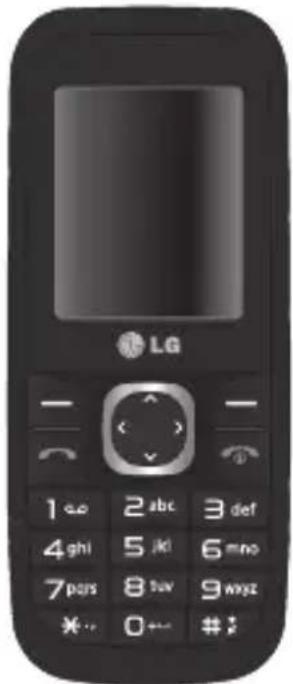
Contents
Installing the SIM Card and
Charging the Battery ....3
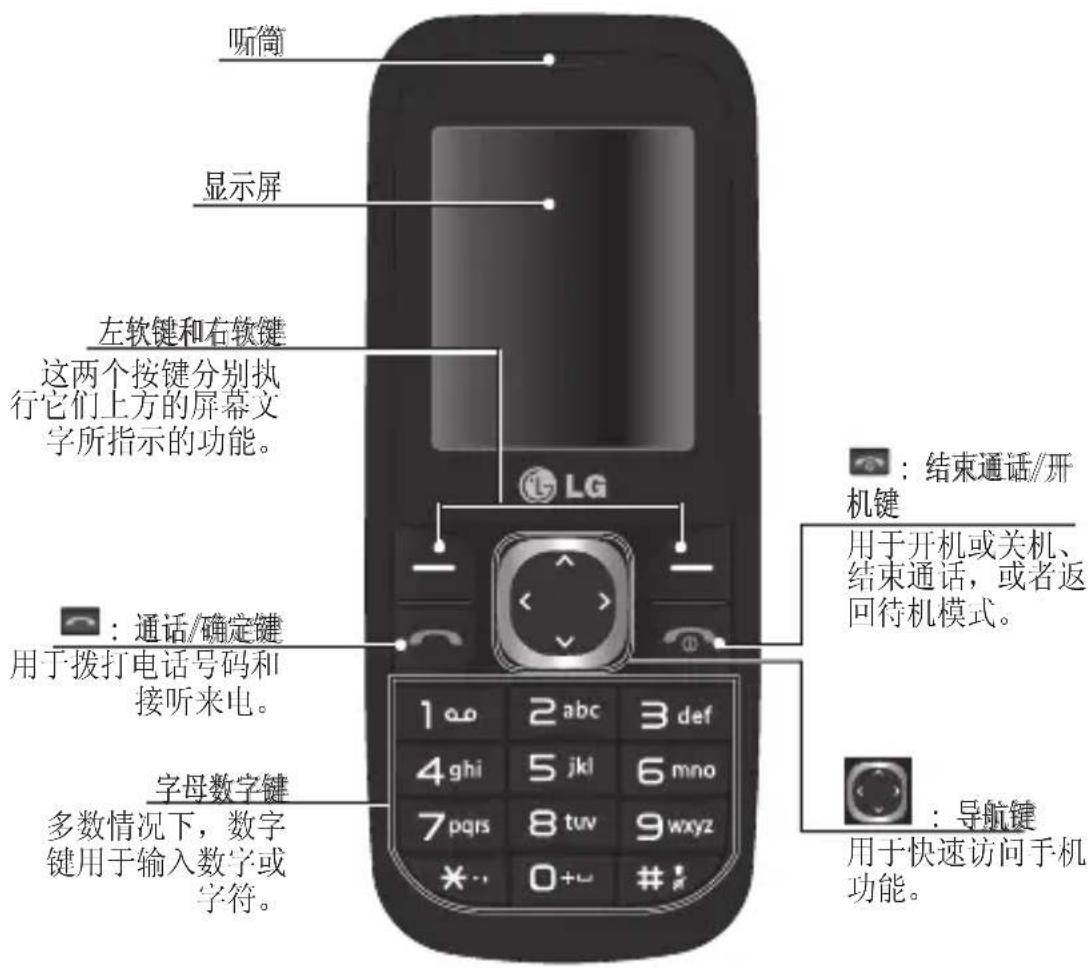
Phone Components ....4
Turning Your Phone On and Off ....7
Making a call ....7
Answering a call ......7
Making an international call ......7
Menu and Options ......8
Entering Text ......9
How to set the tone 10
Anti Theft Mobile Tracker (ATMT) 11
Menu Tree....12
Quick feature reference ...... 13
Guidelines for safe and efficient use....20
Troubleshooting 24
Technical Data 27
Installing the SIM Card and Charging the Battery
When you subscribe to a cellular network, you are provided with a SIM card loaded with your subscription details, such as your PIN, any optional services available and many others.
Important!
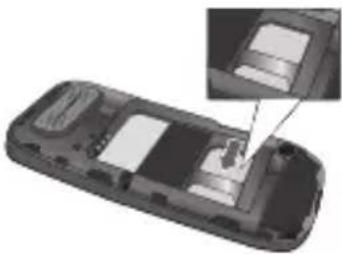
The SIM card and its contacts can be easily damaged by scratches or bending, so be careful when handling, inserting or removing the card. Keep all SIM cards out of the reach of small children.
USIM is not supported in this phone.
If the battery is removed for about 1 minute, the clock returns to its default setting. You will then need to reset the time.
Illustrations
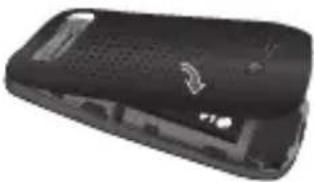
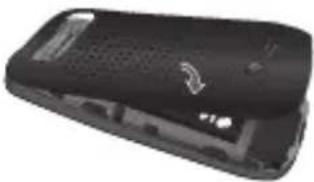
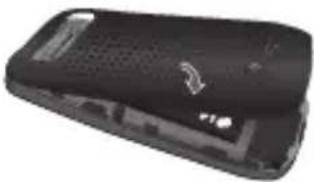
1 Open the battery cover
2 Insert your SIM card
3 Close battery cover
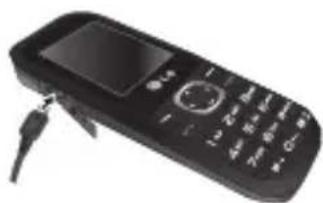
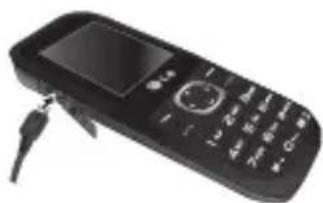
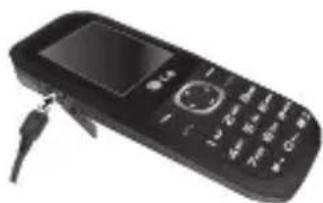
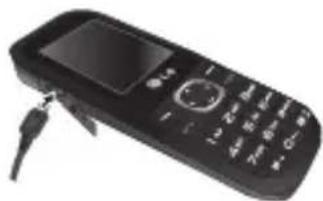
4 Charge your battery
1
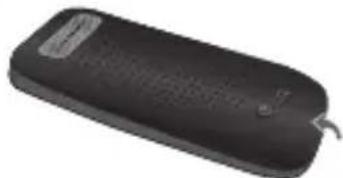
natural_image
Black handheld device with a strap and scroll, no visible text or symbols2
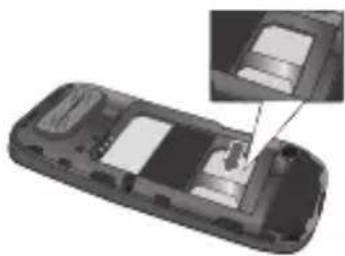
natural_image
3D rendering of a mobile phone casing with an inset showing internal components (no text or symbols visible)3
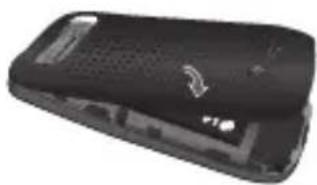
natural_image
Black handheld electronic device with ventilation slots and a display (no visible text or symbols)4
natural_image
Black handheld mobile phone with control panel and earplifier (no visible text or symbols)Align the back cover to the phone
Fully Charge the battery before using it for the first time
Phone Components
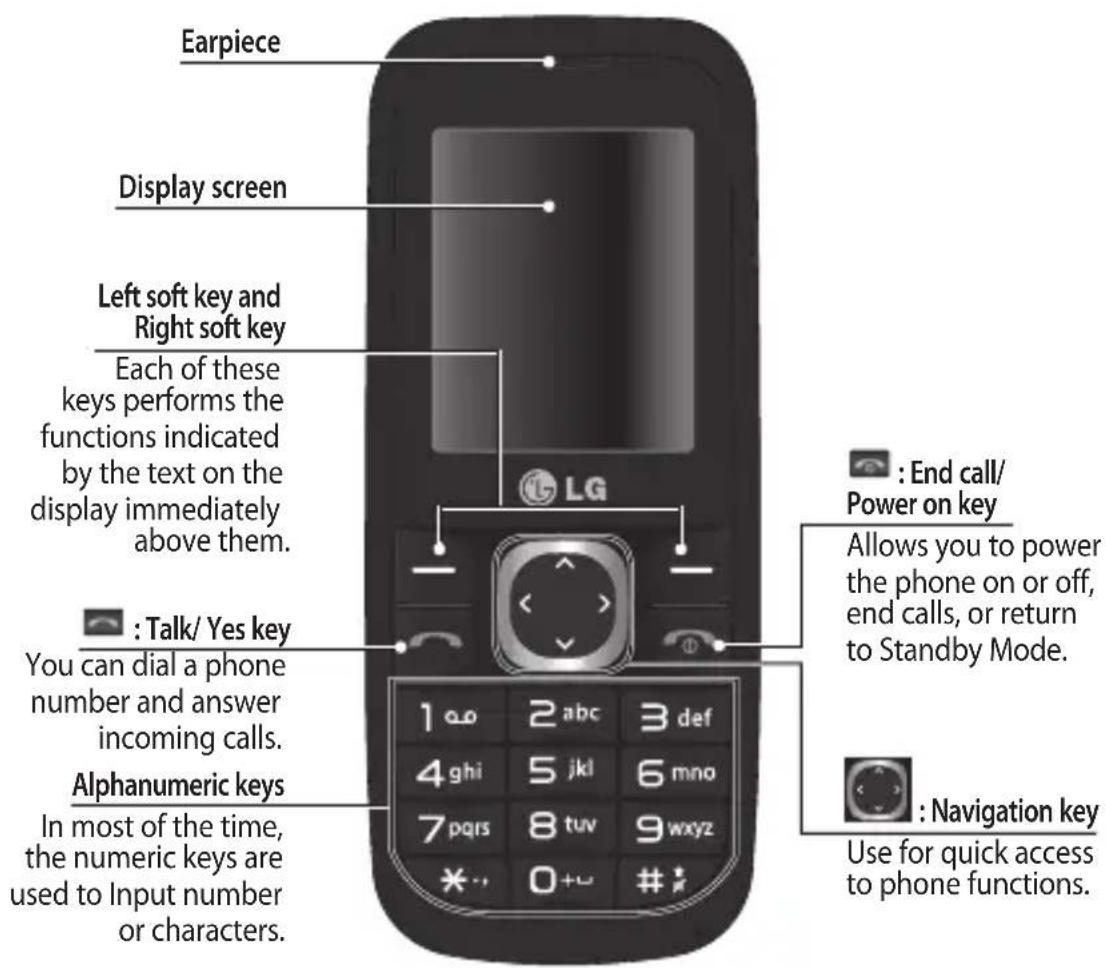
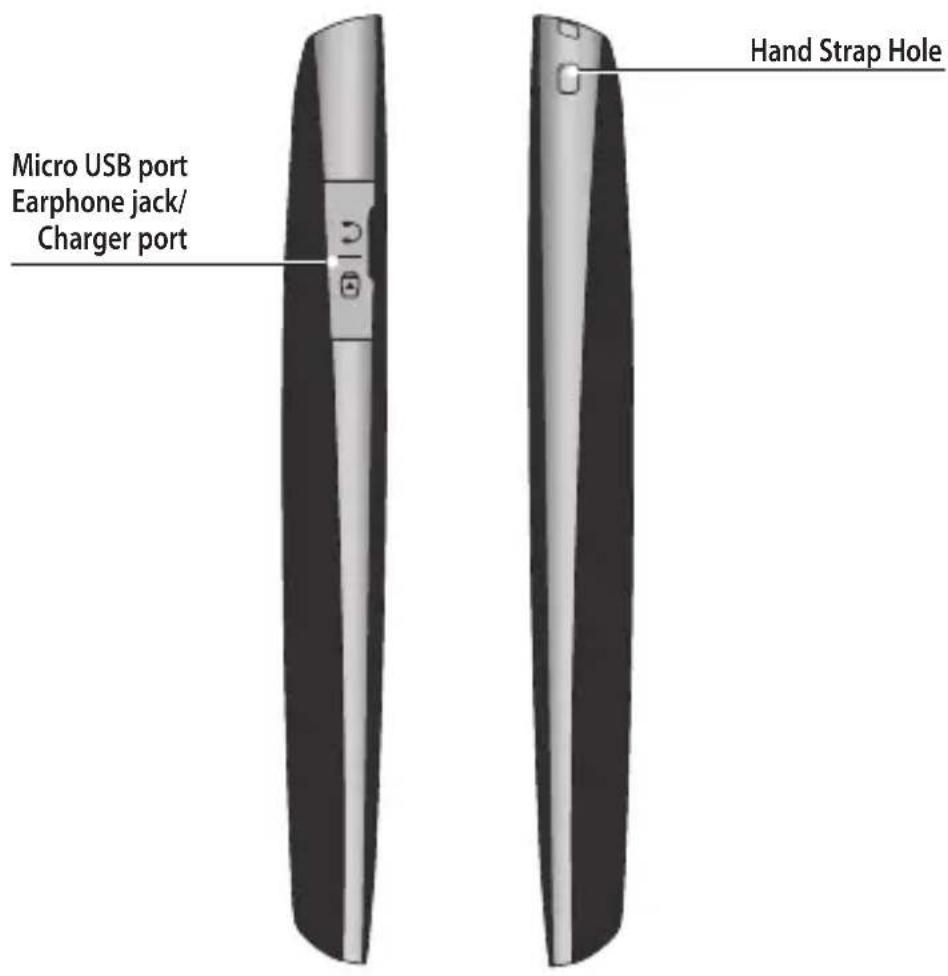
Display Information
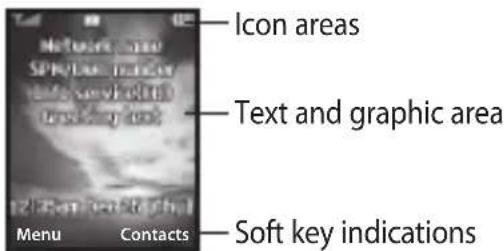
On-Screen Icons
 | Tells you the strength of the network signal. |
 | Indicates the battery charge level. |
 | Indicates your phone is locked. |
 | Indicates new text message(s). |
 | Indicates new voice message(s). |
 | Indicates the alarm clock is set. |
| [HSD4] | Indicates your phone uses the silent settings. |
| [ASC1] | Indicates your phone uses the outdoor settings. |
| [HT2] | Indicates your phone uses the headset setting. |
 | Indicates all calls are diverted to another number. |
| [2CC7] | Indicates your phone is in flight mode. |
Turning Your Phone On and Off
You can power on and power off the phone by pressing or holding the power key.
Making a call
- In the standby mode, enter the area code and the phone number.
- Press the talk key to call the number.
Answering a call
Press the □ talk key to answer the call when the phone rings.
If the Any Key menu option has been set, any key press will answer a call except for the 📄 End key or the right soft key.
Making an international call
- In the standby mode, long press the 0 key until a + (international prefix character) sign is displayed.
- Enter the country code, the area code and the phone number.
- Press the talk key to call.
Menu and Options
Your phone offers a set of functions that allow you to customize it. These functions are arranged in menus and sub-menus, accessed via the left and right soft keys. The label on the bottom of the display screen immediately above the soft keys indicates their current function.
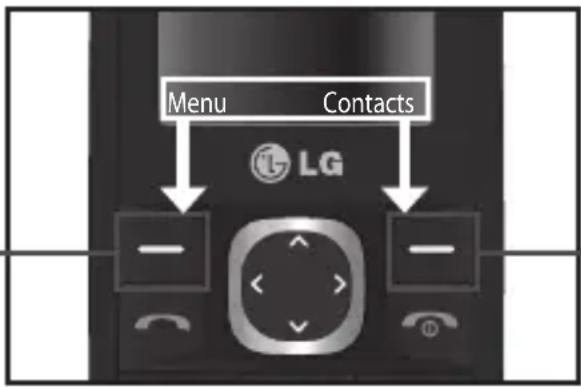
Press the left soft key to access the available Menu.
Press the right soft key to access the Contacts.
Entering Text
You can enter alphanumeric characters by using the phone's keypad. To change modes, press the key.
T9 Mode
This mode allows you to enter words with only one keystroke per letter. Each key on the keypad has more than one letter. The T9 mode automatically compares your keystrokes with an internal linguistic dictionary to determine the correct word, thus requiring far fewer keystrokes than the traditional ABC mode.
The input method is display at the upper right corner of your phone.
| Indicator Function (English Smart mode) | |
| T9abc | T9 Smart Abc |
| T9abc | T9 Smart abc |
| T9ABC | T9 Smart ABC |
| 123 | Numeric |
| Abc | Multitap Abc |
| abc | Multitap abc |
| ABC | Multitap ABC |
How to set the tone
You may set up the following different profiles to adapt to different environmental conditions. Your phone provides 4 different profiles.
- Select [Profiles] from the main menu.
- Select a profile and press [Options - Personalise] to set the ring tone.
- Press the left soft key [OK] and then you can set the desired ring tone.
Your phone also provides the following options to customize tones/alert types:
- Call alert type: Selects an alert type (Ring, Vibrate, Ring & Vibrate, Ring after Vibrate, and Silent) for the ringing tone.
- Ring tones: Sets desired ring tone.
- Ring volume: Adjusts the volume of ring tone.
- Message alert type: Selects different alert types (Ring Once, Ring periodically, Ring & Vibrate. Vibrate, Silent) for message alert tone.
- Message tones: Selects desired message alert tone.
- Message volume: Adjusts the volume of message alert tone.
- Keypad tones: Selects desired keypad tone.
- Keypadvolume: Adjusts the keypad volume.
- Power on/off tones: Selects different type of ring tone for power on/off.
- Power on/off volume: Adjusts the volume of power on/off ring tone.
Anti Theft Mobile Tracker (ATMT)
Anti-theft mobile tracker (ATMT) allows you to track your lost phone. When someone uses your phone without your permission, the tracking service will be activated.
You are reminded by a text message sent to the default phone number you have set, without the unauthorized user's knowledge. You can always activate the ATMT and configure your personal settings.
To activate Anti-theft mobile tracker
- From the main menu, selectSettings > Security > Anti-theft mobile tracker and press Ok.
- Select Set ATMT and press Ok.
- Switch On or Off and press Ok.
- Input the security code to enable or disable this function.
- Then from the "Number for ATMT" menu, edit and save the name in Sender name and numbers in Sending number list.
Note: The default ATMT code is "0000". You have to enter the code before configuring the ATMT settings.
Menu Tree
1. FM radio
2. Call history
2.1 All calls
2.2 Missed calls
2.3 Dialed calls
2.4 Received calls
2.5 Call duration
2.6 Call costs
3. Tools
3.1 Alarm clock
3.2 Calendar
3.3 Calculator
3.4 To do
3.5 Unit converter
3.6 World clock
3.7 Sim Services
3.8 Torch
4. Multimedia
4.1 Music player
4.2 Schedule FM record
4.3 Voice recorder
4.4 Melody composer
5. Messaging
5.1 New message
5.2 Inbox
5.3 Drafts
5.4 Outbox
5.5 Sent
5.6 Listen to voicemail
5.7 Info message
5.8 Templates
5.9 Settings
6. My stuff
6.1 Sounds
6.2 Games & Apps
7. Profiles
7.1 Normal
7.2 Silent
7.3 Outdoor
7.4 Flight mode
8. Contacts
8.1 Search
8.2 New contact
8.3 Speed dials
8.4 Groups
8.5 Copy all
8.6 Delete all
8.7 Information
9. Settings
9.1 Date & Time
9.2 Languages
9.3 Display
9.4 Shortcut
9.5 Fake call
9.6 Call
9.7 Security
9.8 Connectivity
9.9 Power save
9.10 Reset
9.11 Memory status
Quick feature reference
FM radio Menu 1
(This function may be different in different regions.)
Listens to FM radio station. You can enjoy listening FM without using headset as phone supports wireless FM service.
- From main menu select FM radio.
- Use navigation keypad to search radio station. You can also press Options to search radio frequency for available channels and automatically store to the channel list.
-
Press Options to edit the channel list. There are 9 stations you may pre-set. Your phone provides the following options for FM radio:
-
Radio on/off: Select radio state is on or off.
- Channel List: Bookmark up to 9 radio stations by entering the channel name and frequency.
- ManualInput: You can input frequency manually by using this option.
- Preset Auto Search: Auto search available channels and automatically store them to the channel list.
- Settings: Allows you to switch on the loud speaker. Changes the background play, the skin of the FM radio, the record audio quality and the record format. You can record in AMR or WAV formats.
• Record: Records your favorite radio programs. - Append: Resumes a previously recorded file.
- Filelist: Manages recorded audio files.
Call history Menu 2
You can check the record of missed, received, and dialed calls only if the network supports the Calling Line Identification (CLI) within the service area. The number and name (if available) are displayed together with the date and time at which the call was made. You can also view call durations.
- All calls: Displays all the lists of three types (Received/Dialled/Missed calls) by time.
- Missed calls: This option lets you view the last 40 unanswered calls.
- Dialed calls: This option lets you view the last 40 outgoing calls (called or attempted).
- Received calls: This option lets you view the last 40 incoming calls.
- Call duration: Allows you to view the duration of your incoming and outgoing calls.
- Call costs: Allows you to check the cost of your last call, all calls, and reset the cost.
Tools Menu 3
- Alarm clock: Allows you to set one of five alarms. At the alarm time, the Alarm icon will be displayed on the LCD screen and the alarm will sound.
- Calendar: You can check track of daily or monthly schedules.
- Calculator: This contains the standard functions such as Addition, Subtraction, Multiplication and Division.
- To do: You can save the tasks and you can view it.
- Unit converter: This converts any measurement into a unit you want.
Tools Menu 3
- World clock: Allows you to determine the current time in another time zone or country.
- Torch: You can activate torch menu.
Multimedia Menu 4
• Music player: Listens to MP3 music files on your phone.
- Schedule FM record: Allows you to pre-schedule FM radio recording.
• Voice recorder: Allows you to record voice memo.
- Melody composer: Allows you to make the melody in this menu.
Messaging Menu 5
- New message: This menu allows you to write a new SMS.
Send to Many/Send to Group: (New Message->Options->Send to Many/Send to Group) You can send SMS to many users at a time. Option Send to Many will open the contacts list where in user can mark/unmark contacts for sending message. To send the SMS to a particular group of Contacts select Send to Group and then Press OK.
- Inbox: You will be alerted when you have received a message. And it will be saved here.
- Drafts: This menu shows the saved message.
- Outbox: This menu allows you to view the message which is about to be sent or has failed to be sent.
- Sent: This menu allows you to view the messages which have already been sent, including time and content.
Messaging Menu 5
- Listen to voicemail: This menu provides you with a quick way of accessing your voice mailbox.
- Info message: Info service messages are text messages delivered by the network to your handset.
- Templates: There are pre-defined messages in the list. You can view and edit the template messages or create new messages.
- Settings: This menu allows you to set features of your network service provider.
My stuff Menu 6
- Sounds: This folder saved all of your audio files.
- Games & App: List of default games available in the phone.
Profiles Menu 7
- Normal: After setup this profile, the indicator will be displayed on the standby screen.
- Silent: Ring tone and vibrator is set to be off. After setup this profile, the indicator will be displayed on the standby screen.
- Outdoor: This is the default profile. Ring tone and key tone volume is set to maximum. After setup this profile, the indicator will be displayed on the standby screen.
- Flight Mode: Wireless network of your phone is disabled. Allows you to safely use the non-wireless functions of your phone (such as multimedia, tools, or games...ext.). After setup this profile, the indicator will be displayed on the screen.
Contacts Menu 8
- Search: You can Search for contacts in Phonebook.
Note: Instant searching is available by inputting the initial letter of the name you want to search.
- New contact: You can add phonebook entries by using this menu.
- Speed dials: Assign contacts to any of keys between 2 and 8.
SOS Message: (Speed dials-> Ok ->Key 9) An emergency message can be sent to the predefined number's (3 maximum) by long press of 9 Key. On long press of 9 key, a popup comes, 'Set SOS message?'. Press 'Yes' then type the required message and input 3 numbers for which you want to send the message in emergency mode and press Save/Done.
- Groups: There are seven default groups on the phone. With Groups function, you can send a message to all members of a group at the same time.
- Copy all: You can copy all entries from SIM card memory to Phone memory and also from Phone memory to SIM card memory.
- Delete all: You can delete all entries from SIM card memory or Phone memory.
• Information
Service dial number: Access the list of service numbers assigned by service provider safely.
Own number: You can save and check your own numbers in SIM card.
Settings Menu 9
- Date & Time: You can set functions relating to the date and time.
- Languages: You can change the language for the display texts in your phone. This change will also affect the Language Input mode.
- Display: You can adjust settings for the phone display.
- Shortcut: You can customize your shortcuts.
- Fake call: You can set a fake incoming call which will come after specific time with name and number you set. To set fake Call, Goto Fake call in settings. Set fake call to ON. Select the time from the options when the set Fake call should invoke. Give the Name and Number from whom the Fake call should come and finally Press save to save the settings. Now to invoke the fake call press from idle screen.
- Call: You can set the menu relevant to a call.
- Call settings: Changing the Call settings
You can set the menu relevant to a call. Press Menu, select Settings and choose Call.
Call divert - Choose whether to divert your calls.
Call barring – Select when you would like calls to be barred.
Fixed dial number- Choose a list of numbers that can be called from your phone. You'll need your PIN2 code from your operator. Only numbers included in the fixed dial list can be called from your phone.
Answer mode- Choose whether to answer the phone using any key or send key only.
Send my number- Choose whether your number will be displayed when you call someone. (Depends on your network provider.)
Call waiting- Be alerted when you have a call waiting. (Depends on your network provider.)
Minute minder - Select On to hear a tone every minute during a call.
Auto redial - Choose On or Off.
Settings Menu 9
• Security: This menu allows you to set the phone safely.
Pin code request - Choose a PIN code to be requested when you turn your phone on.
Auto key lock - You can make the key pad locked automatically after some time.
Phone lock - Choose a security code to lock your phone, When power on, When SIM changed or Immediately.
Anti-theft mobile tracker - When the handset is stolen, handset sends the SMS to the numbers configured by real owner. User has to configure the ATMT settings with name, primary phone number, secondary number. User has to Set ATMT ON to activate the ATMT feature. Default ATMT code is "0000". ATMT SMS will contain information about the stolen phone IMEI, current location & number of the person who is using that handset.
Change codes - Changing your security code or PIN1 code or PIN2 code, ATMT code, enter the old code followed by the new code.
- Connectivity: You can select a network that will be registered either automatically or manually.
- Power save: If you set this to On, you can save the power when you are not using the phone.
- Reset:
-
Reset settings: Allow you to reset the entire phone to its factory
-
Reset handset memory: delete all the files saved on your phone memory.
-
Reset all: Allow you to reset the entire phone to its factory defaults or delete all the files saved on your phone.
- Memory status: You can check free space and memory usage of each repository.
□ Guidelines for safe and efficient use
Please read these simple guidelines. Ignoring them may be dangerous or illegal. Further detailed information is given in this manual.
Warning
For your safety, use ONLY specified ORIGINAL batteries and chargers.
Switch off the phone in any area where required by special regulations, e.g. in a hospital where it may affect medical equipment.
Batteries should be disposed off in accordance with relevant legislation.
Product care and maintenance
WARNING! Only use batteries, chargers and accessories approved for use with this particular phone model. The use of any other types may invalidate any approval or warranty applying to the phone, and may be dangerous.
Do not disassemble this unit. Take it to a qualified service technician when repair work is required.
The unit should be kept away from heat sources such as radiators or cookers.
Use a dry cloth to clean the exterior of the unit. (Do not use any solvents.)
Do not keep the phone next to credit cards or transport tickets; it can affect the information on the magnetic strips.
Electronic devices
All mobile phones may get interference, which could affect performance.
Do not use your mobile phone near medical equipment without requesting permission. Avoid placing the phone over a pacemaker, i.e. in your breast pocket.
☐ Guidelines for safe and efficient use (Continued)
Road safety
Check the laws and regulations on the use of mobile phones in the areas when you drive.
Do not use a hand-held phone while driving.
Use a hands-free kit, if available.
Pull off the road and park before making or answering a call if driving conditions so require.
Blasting area
Do not use the phone where blasting is in progress. Observe restrictions, and follow any regulations or rules.
Potentially explosive atmospheres
Do not use the phone at a refueling point. Do not use near fuel or chemicals.
In aircraft
Wireless devices can cause interference in aircraft.
Turn off your mobile phone before boarding any aircraft.
Children
Keep the phone in a safe place out of children's reach. It includes small parts which if detached may cause a choking hazard.
☐ Guidelines for safe and efficient use (Continued)
Emergency calls
Emergency calls may not be available under all cellular networks. Therefore, you should never depend solely on the phone for emergency calls. Check with your local service provider.
Battery information and care.
You do not need to completely discharge the battery before recharging. Unlike other battery systems, there is no memory effect that could compromise the battery's performance.
Use only LG batteries and chargers. LG chargers are designed to maximize the battery life.
Do not disassemble or short-circuit the battery pack.
Replace the battery when it no longer provides acceptable performance. The battery pack may be recharged hundreds of times before it needs to replaced.
Do not expose the battery charger to direct sunlight or use it in high humidity, such as the bathroom.
Risk of explosion if battery is replaced by an incorrect type.
Dispose off used batteries according to the manufacturer's instructions.
☐ Guidelines for safe and efficient use (Continued)
Exposure to radio frequency energy
Radio wave exposure and Specific Absorption Rate (SAR) information
This mobile phone model has been designed to comply with applicable safety requirement for exposure to radio waves. This requirement is based on scientific guidelines that include safety margins designed to ensure safety of all persons, regardless of age and health.
The radio wave exposure guidelines employ a unit of measurement known as the Specific Absorption Rate, or SAR. Tests for SAR are conducted using standardized methods with the phone transmitting at its highest certified power level in all used frequency bands.
While there may be differences between the SAR levels of various LG phone models, they are all designed to meet the relevant guidelines for exposure to radio waves.
The SAR limit recommended by the international Commission on Non-Ionizing Radiation Protection (ICNIRP) is 2W/kg averaged over ten (10) gram of tissue.
The highest SAR value for this model phone tested by DASY4 for use at the ear/body is [0.837/0.487] W/kg (10g).
SAR data information for residents in countries/regions that have adopted the SAR limit recommended by the Institute of Electrical and Electronics Engineers (IEEE) is 1.6 W/kg averaged over one (1) gram of tissue.
Troubleshooting
| Problem Possible Solution | |
| Telephone cannot be switched on | Please take out battery and insert again. Then press Power on key to power on the phone. |
| Battery empty Charge battery. | Check charging indicator on display. |
| The battery doesn’t charge properly or the phone sometimes turns itself off | Wipe the charging contacts, both on the phone and on the battery, with a clear soft cloth. |
| Usage time of battery becomes shorter | If the battery time is short, it may be due to the user environment, a large volume of calls, or weak signals. |
| Charging error—Temperature out of range | Make sure the ambient temperature is right, wait for a while, and the then charge again. |
| Charging error—Wrong charger | Only use original LG accessories. |
| Charging error—Battery defective | Replace battery. |
| Charging error—No battery icon appears when charging | The battery is empty or has been not used for a long time. It may take a while before the battery icon appears on the screen. |
Troubleshooting
| Problem Possible Solution | |
| Forgot the phone code or password | The default phone code is “0000”. |
| Enter PUK The PIN code has been | entered incorrectly three times in succession, and the phone is now blocked. Enter the PUK supplied by your service provider. |
| Loss of Network You may be in | a weak signal area. Move and try again. You are trying to access an option for which you have no subscription with your service provider. Contact the service provider for further details. |
| You have entered a number but it was not dialed | Be sure that you have pressed Talk/ Yes key.Be sure that you have accessed the right network service.Be sure that you have not set an outgoing call barring option.Be sure that you have entered the area code. |
| Your correspondent cannot reach you | Be sure that your phone is switched on. Press Talk/ Yes keyfor more than one second. Be sure that you are accessing the network service. Be sure that you have not set an incoming call barring option. |
Troubleshooting
| Problem Possible Solution | |
| Your correspondent cannot hear you speaking | Be sure that you have switched off the loudspeaker. Be sure that you are holding the phone close enough to your mouth. The microphone is located at the bottom of the phone. |
| The voice quality of the call is poor | Check the signal strength indicator on the display. The number of bars indicates the signal strength. Try moving the phone slightly or moving closer to a window if you are in a building. |
| No number is dialed when you recall a contact | Use the Phonebook Search feature to ensure the number has been stored correctly. Resave the number, if necessary. |
| Cannot use the Browser Your subscription does not include data capability. You will need to contact your service provider to enable the service. | |
| If the above guidelines do not help you to solve the problem | Take note of the model number of your mobile phone and a clear description of the problem. Contact your phone dealer or LG Service Center for help. |
□ Technical Data
General
Product name : LG-A120
System : GSM 900 / DCS 1800
Ambient Temperatures
Max.: Discharging (+55°C), Charging (+45°C)
Min : -10°C
Memo
| LG-A11220 | 用户指南
natural_image
Black handheld device with textured surface and visible buttons (no text or symbols)3
natural_image
Black handheld electronic device with ventilation slots and a logo (no visible text or symbols)将后盖与手机对齐
natural_image
3D rendering of a mobile phone casing with an inset showing internal components (no text or symbols visible)4
natural_image
Black handheld mobile phone with control panel and keypad (no visible text or symbols)第一次使用前,请完全充电
手机部件
Memo
| LG-A120 | PANDUAN PENGGUNA
natural_image
Black handheld electronic device with a strap and scroll (no visible text or symbols)3
natural_image
Black handheld electronic device with visible ports and ventilation slots (no text or symbols)natural_image
Interior view of a mobile phone showing internal components and a close-up of the screen (no text or symbols visible)4
natural_image
Black handheld mobile phone with control panel and keypad (no visible text or symbols)| LG-A120 | PETUNJUK PENGGUNAAN
natural_image
Black handheld device with a small white tag and a small blue clip, no visible text or symbols.2
natural_image
Interior view of a mobile phone showing internal components and a close-up of the screen (no text or symbols visible)3
natural_image
Black handheld electronic device with ventilation slots and display (no visible text or symbols)4
natural_image
Black remote control phone with keypad and display screen (no visible text or symbols)PT. LG ELECTRONICS INDONESIA
Kawasan Industri MM2100 Blok G
- | LG-A120 | USER GUIDE
- Contents
- Installing the SIM Card and Charging the Battery
- Important!
- Illustrations
- Phone Components
- Display Information
- On-Screen Icons
- Turning Your Phone On and Off
- Making a call
- Answering a call
- Making an international call
- Menu and Options
- Entering Text
- T9 Mode
- How to set the tone
- Anti Theft Mobile Tracker (ATMT)
- Menu Tree
- FM radio
- Call history
- Tools
- Multimedia
- Messaging
- My stuff
- Profiles
- Contacts
- Settings
- Quick feature reference
- FM radio Menu 1
- Call history Menu 2
- Tools Menu 3
- Multimedia Menu 4
- Messaging Menu 5
- My stuff Menu 6
- Profiles Menu 7
- Contacts Menu 8
- Settings Menu 9
- □ Guidelines for safe and efficient use
- Warning
- Product care and maintenance
- Electronic devices
- ☐ Guidelines for safe and efficient use (Continued)
- Road safety
- Blasting area
- Potentially explosive atmospheres
- In aircraft
- Children
- Emergency calls
- Battery information and care.
- Exposure to radio frequency energy
- Troubleshooting
- □ Technical Data
- General
- Ambient Temperatures
- Memo
- | LG-A11220 | 用户指南
- 手机部件
- | LG-A120 | PANDUAN PENGGUNA
- | LG-A120 | PETUNJUK PENGGUNAAN
Brand : LG
Model : LGA120
Category : Phone