
Dakota BP800Play - Receiver BLAUPUNKT - Free user manual and instructions
Find the device manual for free Dakota BP800Play BLAUPUNKT in PDF.


| Product Type | Car Multimedia Receiver |
| Display | Touchscreen user interface |
| Radio Bands | FM/AM with RDS |
| USB Playback | Audio (MP3/WMA), video, image |
| microSDHC Playback | Audio (MP3/WMA), video, image |
| Bluetooth | Hands-free calling, audio streaming (A2DP, AVRCP) |
| Apple CarPlay | Yes |
| Android Auto | Yes (Android 5.0+) |
| AV Inputs | 2 external (front and rear) |
| Audio Outputs | Front, rear, subwoofer, line out |
| Steering Wheel Control | Programmable (SWC input) |
| Equalizer | Presets (Classic, Rock, Jazz, etc.) + Custom |
| Volume Range | 0 (off) to 39 (maximum) |
| Mute Function | Yes (short press power button) |
| Power Supply | 12 V vehicle system voltage |
| Installation | DIN slot |
| Reception Area Setting | Multiple regions (e.g., USA1, Europe) |
| OSD Language | Selectable (English, etc.) |
| Key Color Adjustment | Yes |
| Safety Compliance | CE, FCC Part 15 |
| Cleaning | Dry or slightly moistened cloth |
Frequently Asked Questions - Dakota BP800Play BLAUPUNKT
User questions about Dakota BP800Play BLAUPUNKT
0 question about this device. Answer the ones you know or ask your own.
Ask a new question about this device
Download the instructions for your Receiver in PDF format for free! Find your manual Dakota BP800Play - BLAUPUNKT and take your electronic device back in hand. On this page are published all the documents necessary for the use of your device. Dakota BP800Play by BLAUPUNKT.
USER MANUAL Dakota BP800Play BLAUPUNKT
Enjoy it.

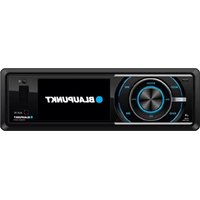
1 button
Activate Siri voice control
2 button
Short press: Switch on device In operation: Mute audio source Long press: Switch off device
3 button
Call up main menu / Return to previous source
4 button
Show the volume bar
5 USB socket / AV IN jack / Reset button
Access only with open cover (Pressing the bottom of the cover to pop it)
6 Touchscreen user interface
7 microSD card reader
Safety notes 4
Cleaning notes 4
Disposal notes....4
Placing the device in operation 5
Switching on/off 5
Volume 5
Main menu ....5
Setting the reception area ....5
Radio mode 6
Start radio mode ....6
Select memory band ....6
Tuning into a station 6
Storing stations manually 6
Storing stations automatically (Travelstore) ......6
Manual Store....6
Tune to a Preset Station 6
Adjusting the seek tuning sensitivity ....6
RDS (Radio Data System) 6
USB/microSDHC media playback 7
Audio playback from USB or microSDHC ....7
Video playback from USB or microSDHC ....7
Image playback from USB or microSDHC ....8
Bluetooth mode 9
Starting Bluetooth mode 9
Registering Bluetooth devices 9
Telephone mode 9
Alphabetic search 9
Audio playback via Bluetooth streaming 10
Bluetooth settings 10
Apple CarPlay 10
Android Auto 11
External audio/video sources 12
Sound settings 12
Volume distribution (fader/balance) 12
Equalizer 12
Steering Wheel Control 12
Basic settings 13
Useful information 13
Connection diagram 14
Safety notes
The car sound system was manufactured according to the state of the art and established safety guidelines. Even so, dangers may occur if you do not observe the safety notes in these instructions.
These instructions are intended to familiarise you with the most important functions. Detailed information can be found on the Internet under www.blaupunkt.com.
- Read these instructions carefully and completely before using the car sound system.
- Keep the instructions at a location so that they are always accessible to all users. • Always pass on the car sound system to third parties together with these instructions.
In addition, observe the instructions of the devices used in conjunction with this car sound system.
Symbols used
These instructions employ the following symbols:

DANGER!
Warns about injuries

DANGER!
Warns about high volume

The CE mark confirms the compliance with EU directives.
Identifies a sequencing step • Identifies a listing
Road safety
Observe the following notes about road safety:
- Use your device in such a way that you can always safely control your vehicle. In case of doubt, stop at a suitable location and operate your device while the vehicle is standing. As the driver, you may not use the applications that will distract you from traffic (depending on the scope of functions of the device, e.g. viewing videos, entering a destination).
- Follow the driving recommendations during the route guidance only if you are not violating any traffic regulations! Traffic signs and traffic regulations have always priority over driving recommendations.
• Always listen at a moderate volume to protect your hearing and to be able to hear acoustic warning signals (e.g. police sirens). During mute phases (e.g. when changing the audio source), changing the volume is not audible. Do not increase the volume during this mute phase.
General safety notes
Observe the following note to protect yourself against injuries:
Do not modify or open the device.
Use as directed
This car sound system is intended for installation and operation in a vehicle with a 12 V vehicle system voltage and must be installed in a DIN slot. Observe the output limits of the device. Repairs and installation, if necessary, should be performed by a specialist.
Declaration of conformity
Blaupunkt Technology GmbH declares that this device complies with the essential requirements and other relevant provisions of Directive 1999/5/EC.
The declaration of conformity can be found on the Internet at www.blaupunkt.com.
Cleaning notes
Solvents, cleaning and scouring agents, as well as dashboard spray and plastic care products, may contain ingredients that can damage the surface of the car sound system.
Use only a dry or slightly moistened cloth to clean the car sound system.
Disposal notes
Do not dispose of your old unit in the household trash!

Use the return and collection systems available to dispose of the old device, the remote control, and exhausted batteries.
Placing the device in operation
Switching on/off
Switching on/off with the ⏻ button
- To switch on, press the ⏻ button.
- To switch off, hold the ⏻ button pressed for more than 2 seconds.
Switching on/off via vehicle ignition
If the car sound system is connected with the vehicle ignition and it was switched off with the ⏻ button, it is switched on or off with the ignition.
Volume
Adjusting the volume
You can adjust the volume in steps from 0 (off) to 39 (maximum).
- Press the 📁 button and drag left/right on the volume bar to change the volume.
Muting the car sound system (Mute)
- Briefly press the ⏻ button to mute the device or to reactivate the previous volume.
Main menu
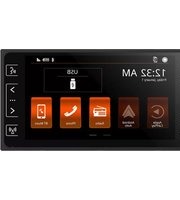
In the main menu, you press the buttons on the touchscreen to call up the different sources and operating modes.
- Press the [ ] button.
-Or-
• In the current source, press the top left corner.
The main menu is displayed.

As long as you do not select a new audio source, the last active audio source is played back.
Note:
The figures used in these instructions are intended to facilitate the explanations and details may deviate from your device.
Setting the reception area
This car sound system is designed for operation in different regions with different frequency ranges and station technologies. The factory default of the reception area is "USA1 (FM/AM)". You can set a different reception area.
• In the main menu, press the [ ] button.
The Setting menu is displayed.
- In the left area of the Setting menu, press the [General] button.
The current setting is displayed behind "Radio Area".
- Tap on the Radio region button to display the list of available reception areas.
- Select the desired reception area.
The list is hidden, the selected reception area is set.
- Press the [ ] button.
The main menu is displayed again.
Radio mode
Start radio mode
In the main menu, press the [button].
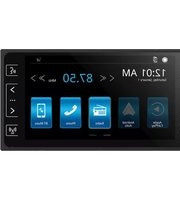
The radio playback menu is displayed.

Select memory band
Different memory bands and wavebands are available. Up to 18 FM and 12 AM stations can be stored in each memory bank.
- Press the [ ] button to switch band.
Tuning into a station
Tuning into stations manually
- Press the [◀/ [ ] ▶ button for approx. 2 seconds to change the frequency in increments.
Enter broadcast frequency directly
If the frequency of the desired stations is known, it can be entered directly via the touchscreen.
- Press the [■■] button.
A numeric keypad is displayed for the frequency input.
- Enter the frequency of the desired station with the numeric keypad.
- Press the [OK]button.
The radio playback menu is displayed, the station of the frequency entered is played back.
Starting station seek tuning
- Briefly press the [ ] button to start station seek tuning.
The radio tunes into the next receivable station.
Note:
For the reception area Europe: In the FM waveband, only traffic information stations are tuned into if the priority for traffic information is switched on.
Storing stations manually
- Select the desired memory band.
- Set the desired station.
- Press one of the memory buttons on center of the screen for approx. 2 seconds to store the current station at the button.
The station is stored.
Storing stations automatically (Travelstore)
With Travelstore, you can automatically search for and store the 6 FM stations offering the strongest reception in the region in the current memory bank. Any previously stored stations in this memory bank are deleted in the process.
- Press the [ .... ] and [ 🔒 ] button.
The tuner starts the automatic station seek tuning. After the storing is completed, the radio plays the station at memory location 1 of the previously selected memory bank.
Note:
For the reception area Europe: With switched-on priority for traffic information, only traffic information stations are stored.
Manual Store
- Tune to a station manually.
- Touch [★].
- Touch one of the channels P1 to P6 to save the selected station.
Tune to a Preset Station
- Touch [ ]
- Touch one of the preset channels on the screen.
Adjusting the seek tuning sensitivity
The seek tuning sensitivity decides whether the automatic station seek tuning finds only strong stations or also weaker stations that may be noisy.
Press the [...] and [...] button to adjust the sensitivity of station seek tuning.
If LOC is on, only stations with a strong signal are found during seek tuning.
- If LOC is off, stations with a strong and weak signal are found during seek tuning.
RDS (Radio Data System)
The unit provides basic functions of RDS.
RDS service availability varies with areas. Please verify if RDS service is available in your area.
- Press the [ .... ] and [ 📋 ] button to show RDS options.
USB/microSDHC media playback
Audio playback from USB or microSDHC
The principles of the audio playback (MP3/WMA) from data carriers are identical for all sources.
- Select the desired source via the main menu.
The device changes to the desired source and the playback starts.
If the playback does not start with the audio playback,
- press the [≡] button to change to the folder/file list.
- Press the [♪] button to display all the audio files of the data carrier.

Briefly tap on the name of the folder/track. The folder is opened/the track is started.
After starting a title, the playback menu is displayed.

[ ] short press: Title selection. Long press: Fast searching.
[Ⅱ/▶ Interrupt playback and continue playback.
[ ] Short press: Title selection. Long press: Fast searching.
[ ] Display the folder/file list.
[ .... ] Show additional operating options.
- Tap on [......] to display additional operating options of the playback menu.

[ ] Hide additional operating options.
Audio playback from USB or microSDHC:
[ ⇌ ] Start and end REPEAT function.
The REPEAT mode changes each time the [⇨] button is pressed.
| REPEAT mode |
| Repeat current track |
| Repeat current folder |
| Repeat all tracks of data carrier |
[→] Start MIX random track play and end it again.
If the MIX function is switched on, the symbol is displayed in white.
The MIX mode depends on the selected REPEAT function.
[ ↑↑ ↑ ] Display equalizer.
Video playback from USB or microSDHC
- Select the desired source via the main menu.
The device changes to the desired source and the playback starts.
If the playback does not start with the video playback,
- press the [≡] button to change to the folder/file list.
- Press the [田] button to display all the video files of the data carrier.

Note:
Folders and videos are selected and started as described under audio playback.
If you selected a movie, the playback is started. During the movie playback, the playback menu is hidden.
- Briefly touch the touchscreen once to display the playback menu again.
The playback menu is shown.


[ ] select previous movie.
[II/▶] Interrupt playback and continue playback.
[▶] Select next movie.
[ ] Display the folder/file list.
[ ..... ] Show additional operating options.
- Tap on [......] to display additional operating options of the playback menu.


[ ] Hide additional operating options.
Audio playback from USB or microSDHC:
[ ⇌ ] Start and end REPEAT function.
The REPEAT mode changes each time the [←] button is pressed.
| REPEAT mode |
| Repeat current chapter |
| Repeat current folder |
| Repeat all chapters of data carrier |
[→] Start MIX random play and end it again.
If the MIX function is switched on, the symbol is displayed in white.
The MIX mode depends on the selected REPEAT function.
[ ††† ] Display equalizer.
Image playback from USB or microSDHC
- Select the desired source via the main menu.
The device changes to the desired source and the playback starts.
If the playback does not start with the image playback,
- press the [≡] button to change to the folder/file list.
- Press the [icon] button to display all the images of the data carrier.

Note:
Folders and images are selected and started as described under audio playback.
Bluetooth mode
The Bluetooth® function allows registering cell phones and media playback devices with the car sound system.
When you register a cell phone with the car sound system, you can make phone calls with the built-in hands-free function. You can access the lists of dialled numbers and the phone book of the registered cell phone.
If the connected Bluetooth® device supports the functions A2DP and AVRCP, you can play the music via the car sound system and control the playback. During a call, the music playback is interrupted and continued again after the call.
If a cell phone is registered via Bluetooth® and a call is received during the playback of another source, the source playback is interrupted and the call menu is displayed.
Starting Bluetooth mode
• In the main menu, press on BT Phone.
The Bluetooth® menu is displayed. It contains the list of known Bluetooth® devices. Other audio sources are switched off.

[ ] Add new Bluetooth® device.
[ ] Display options menu.
- Press the [icon] button of the Bluetooth® device with which you want to establish a connection.
When the device is in range, the connection is established and the menu for the device is displayed.
- Press the [ ] button if you want to delete the Bluetooth® device from the list.
Registering Bluetooth devices
If you want to register a device with the car sound system for the first time, proceed as follows:
Ensure that Bluetooth® is activated at the car sound system and at your Bluetooth® device.
Search for new devices/connections on your Bluetooth® device.
The car sound system appears as "Blaupunkt" in the list of Bluetooth® devices.
Establish the connection; you may have to enter the pairing code that was previously entered on the car sound system.
The connection is being established and the menu for the registered device is displayed.
Note:
If a telephone is connected with the car sound system, the Bluetooth® icon is displayed at the top right edge of the display in all audio/video sources.
Telephone mode
If you connected a phone with the car sound system via Bluetooth®, the following menu appears.

[ ] Call up the phone book. [ ] Call up records lists. [ ] Display the dial keypad menu. [ ] Disconnect connection with current device. [ ] Display options menu.
Enter a phone number with the dial keypad and press the [ ] button.
- Or -
Select a contact/number via the records lists or phone book.
The connection is being established.
If a call is coming in, the call menu is displayed.

: Reject a call. [ ] (Answer): Answer a call.
Alphabetic search
Press [ ] at the bottom left of the screen to access the Phonebook. To search for a contact, press [ ] and enter the characters using the keypad.
Audio playback via Bluetooth streaming
If an audio streaming device is connected to the car sound system via Bluetooth®, you can play back the music through the car sound system and control the playback.
- Press the BT Music button on the main menu to switch to audio playback.

[ ] Short press: Title selection. Long press: Fast searching.
[▶] Interrupt playback and continue playback.
[ ] Short press: Title selection. Long press: Fast searching.
Bluetooth settings
In the options menu for Bluetooth®, you can make the basic settings for the Bluetooth® mode.
- Press the [icon] button.
The options menu is displayed.

Auto Connect - If "Auto Connect" is activated, the device automatically connects with known Bluetooth® devices as soon as they are in range.
Auto Answer – If "Auto Answer" is activated, incoming phone calls are automatically answered.
Synchronous Phone-Book – To be able to access the phone book of a connected telephone, you must first synchronise it via this menu entry.
- Press the top left of the screen to exit the options menu.
Apple CarPlay
Available on select cars, CarPlay is a smarter, safer way to use your iPhone in the car. CarPlay takes the things you want to do with your iPhone while driving and puts them right on your car's built-in display. You can get directions, make calls, send and receive messages, and listen to audiobooks and music, all in a way that allows you to stay focused on the road.
How to enter CarPlay mode
- Connect your iPhone to the CarPlay connector of the unit via the Apple Digital Cable. The unit will enter CarPlay mode automatically.

- To exit CarPlay mode, touch the [icon] button on the front panel.
If you want to return to CarPlay mode, touch [CarPlay] on the main menu.
How to use CarPlay
CarPlay features and Siri voice control are specially designed for driving scenarios. They also work with your car's controls. And the apps you want to use in the car have been reimagined, so you can use them while your eyes and hands stay where they belong.
Voice
To activate Siri voice control, just press the [🔍] button on the front panel.
Touch
You can use the touch screen of the unit to control CarPlay.
Android Auto
Android Auto brings the most useful apps to your phone screen or your compatible car display, in a format that makes it easy for you to keep your main focus on driving. You can control things like navigation and maps, calls and text messages, and music.
Prepare your phone
Make sure your phone is running Android 5.0 (Lollipop) and up. For best performance, we recommend Android 6.0 (Marshmallow) and up.
Download the Android Auto app from Google Play.
Make sure your phone has a strong and fast network connection. We recommend running Android Auto for the first time within Wi-Fi range for the fastest installation.
Android Auto on your phone screen
- An Android phone running Android 5.0 (Lollipop) and up with a data plan. For best performance, we recommend Android 6.0 (Marshmallow) and up.
- A car mount for your phone (optional but recommended).
- A USB cable (optional for charging)
- The Android Auto app.
Android Auto on your car display (with a USB cable)
- An Android phone running Android 5.0 (Lollipop) and up with a data plan. For best performance, we recommend Android 6.0 (Marshmallow) and up.
- A car stereo that's compatible with Android Auto.
- A high-quality USB cable.
- The Android Auto app.
External audio/video sources
AV inputs
This device features two external AV inputs for audio and video playback:
- AV-IN is implemented as a cinch socket on a cable at the rear of the device. You can specify the installation location of the port during the installation of the device.
Danger!
Increased risk of injury from connector.
In case of an accident, the protruding connector in the front AV-IN socket may cause injuries. The use of straight plugs or adapters leads to an increased risk of injury.
- Start the AV-IN mode with the button [Aux Front]/[Aux Back].
The display shows the audio or video playback of the selected AV source.

Sound settings
Volume distribution (fader/balance)
You can adjust the volume distribution in the vehicle for all sources.
- In the main menu or on the control bar of the current audio source, press the [ ] button.
The equalizer menu is displayed.
- Press the [ ] button.
The menu for fader and balance is displayed.

- Adjust fader and balance with [▼] or [▲] [◀]/ [▶]
Equalizer
You can adjust the equalizer for all sources.
- In the main menu or on the control bar of the current audio source, press the [Menu] button.
The equalizer menu is displayed.

- Select a preset equalizer via the buttons. - Or -
- Press the [Customize] button to adjust the level of the available frequency bands according to your preferences.
Note:
With the [Original] button, you can reset the customised setting again.
- Or -
- Press the [Loudness] button to switch increasing the bass at low volume on or off.
Steering Wheel Control
Select [SWC] on the General Settings menu to enter SWC setting menu.
Touch number button to select a SWC button.

- Select a function.
- Press each individual steering wheel control button for each corresponding function.
- Touch [Match] to program.
- Once the final steering wheel control button is programmed, the functions are saved and the programming will end.
- Touch [Reset] to reset the programming.
Basic settings
In the settings menu, you can adjust the basic settings for the different functions of the device to your requirements.
- In the main menu, press the [ ] button.
The settings menu is displayed, the General submenu is activated.

Note:
Scroll through the list, if necessary, to access the desired setting.
The settings display features the following functions and displays:
① Menu items ② Change to the main menu ③ Currently selected menu item ④ Time ⑤ Submenu items
General
The following settings are possible:
- Select the OSD language.
- Select the key color.
- Select the reception region for the radio reception. Switch confirmation beep on/off.
- Enter the SWC menu.
- Switch the LOC function on/off. When local seeking is on, only radio stations with strong radio signal will be received.
Video
Day/Night Mode - Adjust the display brightness. - If "Parking" is activated, video/pictures will not be displayed during driving. Please set according to
Volume
You can adjust the volume ratio for all audio sources in the volume menu.
Time
Making settings for date and time:
- Selecting time and date format
System
- To view software version information.
- Restore to default settings.
Useful information
Warranty
We provide a manufacturer's warranty for products bought within the European Union. For devices purchased outside the European Union, the warranty terms issued by our respective responsible domestic agency are valid.
Subject to technical changes!

FCC Statement
- This device complies with Part 15 of the FCC Rules. Operation is subject to the following two conditions: (1) This device may not cause harmful interference, and (2) This device must accept any interference received, including interference that may cause undesired operation.
- Changes or modifications not expressly approved by the party responsible for compliance could void the user's authority to operate the equipment.
NOTE: This equipment has been tested and found to comply with the limits for a Class B digital device, pursuant to Part 15 of the FCC Rules. These limits are designed to provide reasonable protection against harmful interference in a residential installation.
This equipment generates, uses, and can radiate radio frequency energy and, if not installed and used in accordance with the instructions, may cause harmful interference to radio communications. However, there is no guarantee that interference will not occur in a particular installation. If this equipment does cause harmful interference to radio or television reception, which can be determined by turning the equipment off and on, the user is encouraged to try to correct the interference by one or more of the following measures:
- Reorient or relocate the receiving antenna.
- Increase the separation between the equipment and receiver.
- Connect the equipment into an outlet on a circuit different from that to which the receiver is connected.
- Consult the dealer or an experienced radio/TV technician for help.
FCC Radiation Exposure Statement
This equipment complies with FCC radiation exposure limits set forth for an uncontrolled environment. This equipment should be installed and operated with a minimum distance of 20 centimeters between the radiator and your body.

- BUTTON
- USB SOCKET / AV IN JACK / RESET BUTTON
- TOUCHSCREEN USER INTERFACE
- MICROSD CARD READER
- SAFETY NOTES
- SYMBOLS USED
- DANGER
- ROAD SAFETY
- GENERAL SAFETY NOTES
- DO NOT MODIFY OR OPEN THE DEVICE
- USE AS DIRECTED
- DECLARATION OF CONFORMITY
- CLEANING NOTES
- DISPOSAL NOTES
- PLACING THE DEVICE IN OPERATION
- SWITCHING ON/OFF
- SWITCHING ON/OFF WITH THE ⏻ BUTTON
- SWITCHING ON/OFF VIA VEHICLE IGNITION
- VOLUME
- ADJUSTING THE VOLUME
- MUTING THE CAR SOUND SYSTEM (MUTE)
- MAIN MENU
- NOTE
- SETTING THE RECEPTION AREA
- RADIO MODE
- START RADIO MODE
- SELECT MEMORY BAND
- TUNING INTO A STATION
- TUNING INTO STATIONS MANUALLY
- ENTER BROADCAST FREQUENCY DIRECTLY
- STARTING STATION SEEK TUNING
- STORING STATIONS MANUALLY
- STORING STATIONS AUTOMATICALLY (TRAVELSTORE)
- MANUAL STORE
- TUNE TO A PRESET STATION
- ADJUSTING THE SEEK TUNING SENSITIVITY
- RDS (RADIO DATA SYSTEM)
- USB/MICROSDHC MEDIA PLAYBACK
- AUDIO PLAYBACK FROM USB OR MICROSDHC
- VIDEO PLAYBACK FROM USB OR MICROSDHC
- IMAGE PLAYBACK FROM USB OR MICROSDHC
- BLUETOOTH MODE
- STARTING BLUETOOTH MODE
- REGISTERING BLUETOOTH DEVICES
- TELEPHONE MODE
- ALPHABETIC SEARCH
- AUDIO PLAYBACK VIA BLUETOOTH STREAMING
- BLUETOOTH SETTINGS
- APPLE CARPLAY
- ANDROID AUTO
- EXTERNAL AUDIO/VIDEO SOURCES
- AV INPUTS
- INCREASED RISK OF INJURY FROM CONNECTOR
- SOUND SETTINGS
- VOLUME DISTRIBUTION (FADER/BALANCE)
- EQUALIZER
- STEERING WHEEL CONTROL
- BASIC SETTINGS
- GENERAL
- VIDEO
- TIME
- SYSTEM
- USEFUL INFORMATION
- WARRANTY
- FCC STATEMENT
- FCC RADIATION EXPOSURE STATEMENT
Brand : BLAUPUNKT
Model : Dakota BP800Play
Category : Receiver