
INF-MPK250 - Radio INFINITY - Free user manual and instructions
Find the device manual for free INF-MPK250 INFINITY in PDF.


| Product Type | Marine Bluetooth Stereo Receiver |
| Model | INF-MPK250 |
| Brand | Infinity by Harman |
| Tuner Bands | AM/FM (3 FM bands, 1 AM band, 4 presets each) |
| Bluetooth | Audio streaming, range approx. 30 ft |
| USB Input | Supports MP3/WMA playback and phone charging |
| Auxiliary Input | 3.5 mm headphone jack (requires adapter SEAMINI2) |
| RCA Output | 1 pair (front/rear or subwoofer) |
| Amplifier Power | 50W x 4 channels |
| Waterproof Rating | Waterproof faceplate (marine grade) |
| Remote Options | RF remote (MILRF9 UART) and wired remote (JBLMC20/JBLREM50) |
| Tuning | U.S. and European frequency selectable |
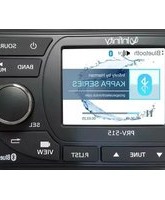
| Front Panel Controls | Power, Mode, SEL, BAND, A.PS, Presets 1-4, Volume, Tuning |
| Display | LCD with track/time info |
| Power Supply | 12V DC negative ground |
| Mounting | DIN or custom cutout, bracket and gasket included |
| Dimensions | Standard marine receiver size (approx. 7" x 2" x 4") |
| Weight | Approx. 1.5 lbs (0.68 kg) |
| Maintenance | Wipe with damp cloth; avoid abrasive cleaners |
| Safety | Disconnect battery before wiring; avoid water ingress in harness |
Frequently Asked Questions - INF-MPK250 INFINITY
User questions about INF-MPK250 INFINITY
0 question about this device. Answer the ones you know or ask your own.
Ask a new question about this device
Download the instructions for your Radio in PDF format for free! Find your manual INF-MPK250 - INFINITY and take your electronic device back in hand. On this page are published all the documents necessary for the use of your device. INF-MPK250 by INFINITY.
USER MANUAL INF-MPK250 INFINITY
natural_image
Close-up of a golden, interlocking looped metal object against a black background (no text or symbols visible)
Infinity
by HARMAN
*Important Bluetooth note: While in Bluetooth mode, in order to initialize the pairing process, preset #3 must be pressed*
INF PRV250.2 MANUAL
INSTALLATION BULLETIN
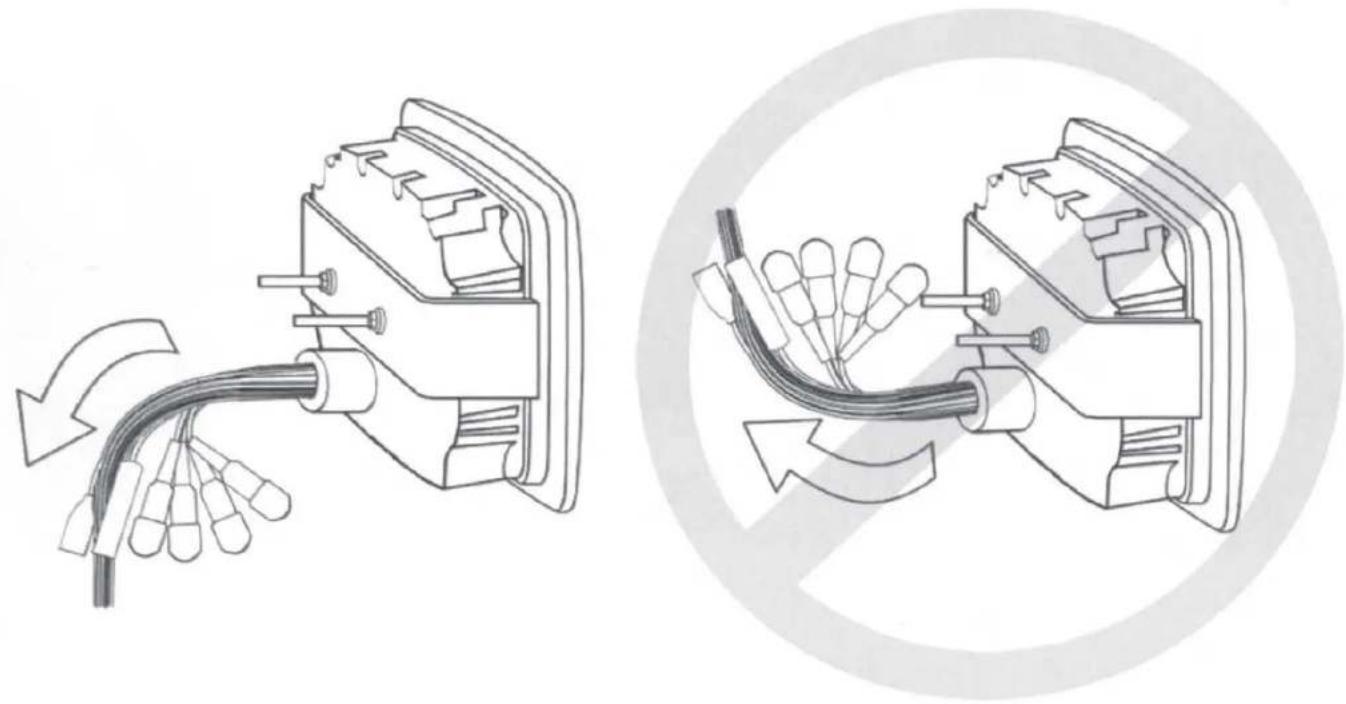
To avoid possible water ingress into wire harness area, route the harness in the downward direction as shown below on the left. Do not route the harness in the upward direction as shown on the right.
natural_image
Technical illustration of a mechanical device with cable and connectors, showing internal components and directional arrows (no text or symbols)TABLE OF CONTENTS
Product Description ____ pg 1
Front Panel Layout pg 2
User Operation pg 3
Radio pg 4
USB pg 5
Bluetooth pg 6
Auxiliary Input pg 6
RCA output pg 6
Remote Option pg 6
Installation pg 7
Wiring pg7
Troubleshooting pg 8
This radio features state of the art Bluetooth technology allowing music to wirelessly stream from an audio source to the receiver you just purchased. Why Bluetooth? From a practical standpoint, Bluetooth enables your music device (if applicable) to be placed in a glove box, your overhead console, or even your pocket-places that are dry-without having to install a separate docking station. In addition, Bluetooth audio streaming will work with any Bluetooth enabled device, not just one brand of media. Once connected, you can use your receiver to control your media device and vice versa! Bluetooth has a range of approximately 30', depending upon conditions, so once your boat is parked, feel free to control the stereo through your media device!
The INFPRV250 incorporates the following features:
| AM/FM | |
| Bluetooth Audio Streaming | |
| USB input | |
| Auxiliary input | |
| Waterproof faceplate | |
| 50W x 4 amplifier | |
| RF remote/wired remote option | |
| U.S. and European tuning | |
| Charging through USB | |
| 1 pair of RCA output |
Did you know that the Infinity brand is part of Harman International Industries?
In 1958, Harman Kardon developed the world's first stereo receiver and we are proud to bring you the world's first Infinity marine Bluetooth receiver!
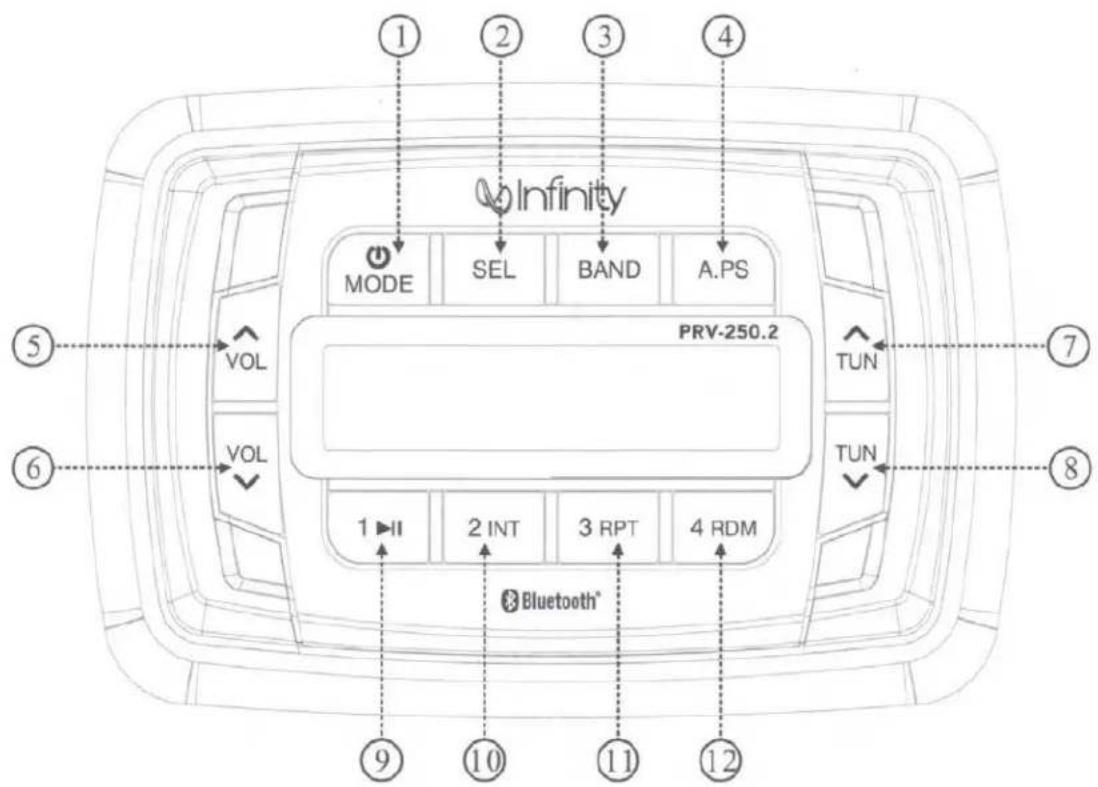

Power On/Off button.
Short push for the first time to turn the unit on.
Press and hold for more than 2 seconds to turn the unit off.
MODE
Mode Function.
Switches amongst Radio, Bluetooth, USB and Auxiliary mode.
SEL
SEL stands for SELECT.
BAND
Band Function. Switches amongst AM and FM bands.
A.PS
Auto Preset and Presets Scan.
1 ▶||
Preset 1 while in Radio mode;
Play/Pause while in USB and BT Music mode.
Front Panel Layout
2 INT Preset 2 while in Radio mode; Introduction while in USB mode.
3 RPT Preset 3 while in Radio mode; Repeat while in USB mode.
4 RDM Preset 4 while in Radio mode; Random while in USB mode.
VOL^ Volume Increase
VOL ∨ Volume Decrease
TUN^ Track Up / Tune Up / Fast Forward
TUN▼ Track Down / Tune Down / Reverse
Radio Operation
A. SEL button
- Pressing this button in succession results in the following menu options: volume, bass, treble, balance, fader, display. Press the VOL^ or VOL▼ to adjust the options.
- A long press of the SEL button initially followed by a short press results in the following menu options: Initial Volume, Area Frequency, Beep, Time, Loud, BT Volume. Press the VOL^ or VOL▼ to adjust the options.
a. Initial Volume. Refers to the loudness level upon start of the receiver.
b. Frequency. Choose between U.S. And European.
c. Beep. Choose between Beep ON, Beep 2ND, Beep OFF. Beep ON will result in the beep sound at the press of every button; Beep 2ND will result in the beep sound once the button is long pressed; Beep OFF results i the beep sound off completely.
d. LOUD. Chose between Loud ON or OFF.
e. BT Volume. Adjust to change the initial Bluetooth volume.
B. Pres BAND to access FM and AM. There are three FM bands and AM band, each band containing four presets.
C. A.PS button. Short push to scan preset stations in current band. Long push to automatically preset four stations into the current band.
D. Presets. Upon finding a desirable station, hold either the preset 1, 2, 3, or 4 down for 2 seconds to store.
E. Tuning. A short press of the TUN ∧ or TUN ∨ button results in a search of the station of the station of next sufficient signal strength. A long press results in manual tuning mode, allowing you to search one odd digit frequency at a time.
USB Operation

Note: USB slot is for USB sticks only. For play of other brands of media, please use the auxiliary input or if applicable, utilize Bluetooth mode.
A. Insert a USB stick into the USB slot. *Songs must be of the mp3 or wma format.*
B. Press 1▶ to pause the track. Press 1▶ button again to resume play.
C. A short press of the TUN^ or TUN√ buttons will track up or track down respectively. A long press on the TUN^ or TUN√ will fast forward and rewind the current track respectively.
D. INT button (INT stands for Introduction). A press of this button will result in playing the first 10 seconds of each track located on the USB stick. Pressing the button again will allow the unit to resume on the current track and correspondingly stops the Introduction process.
E. RPT button (RPT stands for Repeat). Pressing this button will result in repetitive playing of the current track. Pressing the RPT button again will stop the repeat process. A long push plays the tracks in the current folder repeatedly.
F. RDM (RDM stands for Random). Pressing this button will result in random playing of the USB stick files. Pressing this button again will stop the random playing process.
H. APS (APS stands for Autopreset)
- The first press of this button will result in track search mode. Press VOL^ or VOL▼ to your desired track and push SEL to confirm.
- The second push will result in song name search mode. Press VOL^ or VOL▼ to the desired track and push SEL to confirm.
- The third push will result in directory name. Press VOL^ or VOL▼ to scan Directory name and at desired directory push SEL to confirm.
Phone Charging Capability
The USB input can be used for charging most phones. A successful charging will be manifested by the battery indication status on the phone itself. In addition, the PRV250 will also note "USB CHRG".
Your media device must incorporate the Bluetooth option in order to stream music.
A. To pair your Bluetooth device, press the Mode button on the stereo until BT MUSIC appears.
B. Next, go to settings on the Bluetooth device and turn the Bluetooth option to "on".
C. Pick the "INFINITY" option on your Bluetooth enabled device (please note that if you are prompted for a password, the code entered will be "1234". If your stereo does not immediately pair, press preset 3. This will allow the pairing process to finalize. A higher pitch frequency noise will alert you to the connection/success! The display will also read "CONN OK" (connection ok).
D. To disconnect your device, press preset 4 button. "DISCONN" will appear letting you know you have successfully disconnected.
Auxiliary Input Mode
A. Press the Mode button until "AUX" appears on the LCD screen.
B. The use of auxiliary mode allows you to play the portable music device through the headphone jack.
Note: An additional accessory/adaptor must be purchased in order for this to happen. Prospec's part, SEAMINI2, fulfills this option.
RCA output

Description: The use of RCA outputs allow an amplifier or subwoofer to be hooked up.
Remote Option
A. RF remote option.
In order to take advantage of the remote option, a transmitter and receiver must be purchased (together part #, MILRF9 UART). Once plugged in the RF remote dongle, the RF remote will allow for wireless remote control possibility.
B. Wired remote.
Proprietary wired remotes may also be used with this Infinity unit. Part # JBLMC20 may be purchased. Part # JBLMC20 may be purchased as well as part # JBLREM50.
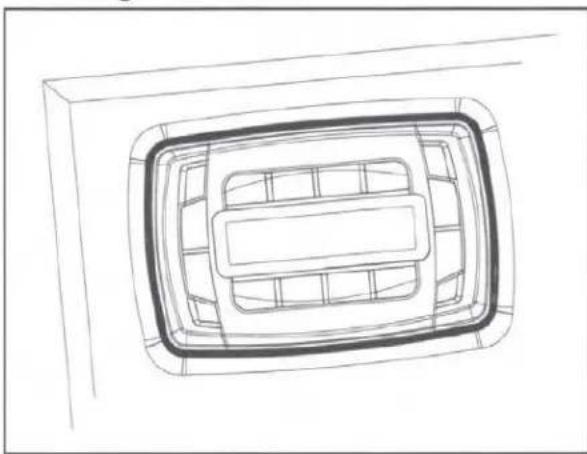
A mounting gasket has been added inside the package for convenience. Trace along the outside edge and this will be your cutout.
Mounting Illustration
natural_image
Top-down line drawing of a rectangular room with internal compartments and a central space (no text or symbols)- Please install this unit in the place you prefer.
natural_image
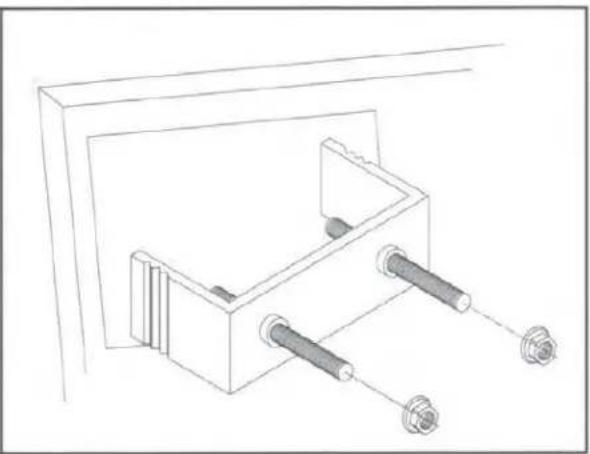
Technical line drawing of a mechanical assembly with two screws and a bracket (no text or symbols)- Use the bracket and screw to fix the unit. Install the U bracket behind the unit, using two nuts per bolt for ultra hold.
Wiring Identification
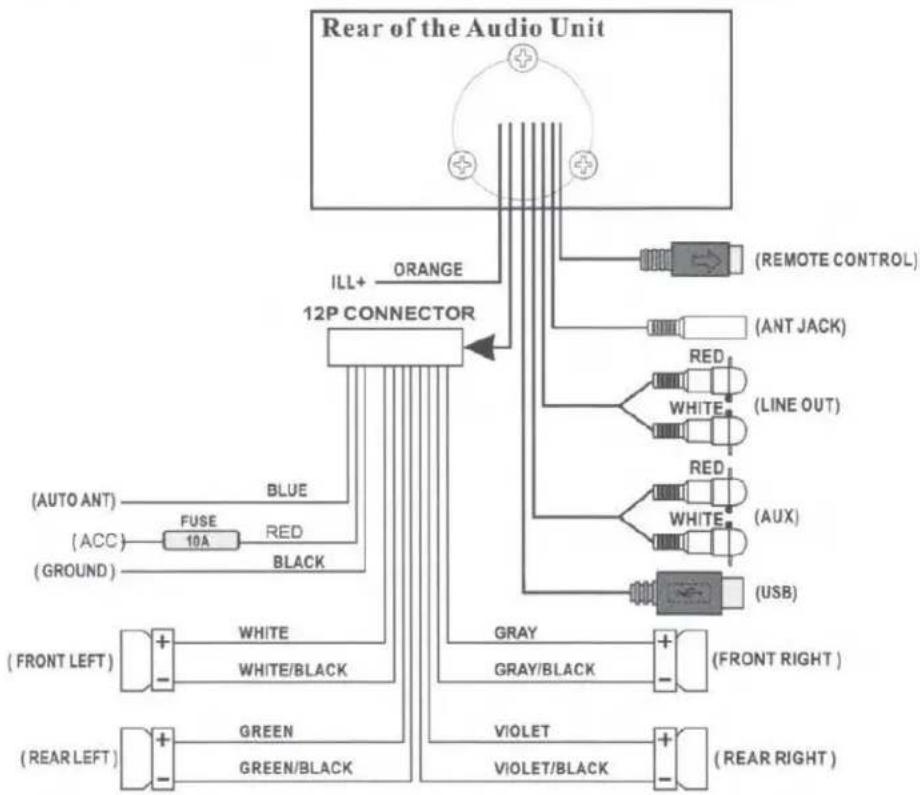
flowchart
graph TD
    A["Rear of the Audio Unit"] --> B["12P CONNECTOR"]
    B --> C["(REMOTE CONTROL)"]
    B --> D["(ANT JACK)"]
    B --> E["RED"]
    B --> F["WHITE"]
    B --> G["RED"]
    B --> H["WHITE"]
    B --> I["(AUX)"]
    B --> J["(USB)"]
    B --> K["GRAY"]
    B --> L["GRAY/BLACK"]
    B --> M["VIOLET"]
    B --> N["VIOLET/BLACK"]
    B --> O["(FRONT LEFT)"]
    B --> P["(REAR LEFT)"]
    B --> Q["(AUG OUT)"]
    B --> R["(ACC)"]
    B --> S["(AUTO ANT)"]
    B --> T["BLE"]
    B --> U["BLUE"]
    B --> V["BLUE"]
    B --> W["GREEN"]
    B --> X["GREEN/BLACK"]
    B --> Y["GREEN/BLACK"]
    style A fill:#f9f,stroke:#333
    style B fill:#ccf,stroke:#333
    style C fill:#cfc,stroke:#333
    style D fill:#fcc,stroke:#333
    style E fill:#cff,stroke:#333
    style F fill:#ffc,stroke:#333
    style G fill:#ffc,stroke:#333
    style H fill:#ffc,stroke:#333
    style I fill:#ffc,stroke:#333
    style J fill:#ffc,stroke:#333
    style K fill:#ffc,stroke:#333
    style L fill:#ffc,stroke:#333
    style M fill:#ffc,stroke:#333
    style N fill:#ffc,stroke:#333
    style O fill:#ffc,stroke:#333
    style P fill:#ffc,stroke:#333
    style Q fill:#ffc,stroke:#333
    style R fill:#ffc,stroke:#333
    style S fill:#ffc,stroke:#333
*Note: In many respects, a stereo acts much like a computer and occasionally requires a reboot. In the unlikely event of product malfunction, a reset can usually fix the issue. A reset is accomplished by holding the Mode and Preset 1 button simultaneously until the unit turns off.
| Issue | Cause | Solution |
| No power | Incorrect wiringFuse is blownLow battery voltage | Double check wiringReplace fuseCheck voltage of vehicle battery with multimeter. Voltage must be at least 11V. |
| No Sound | Speaker connection came looseBad speakerOutput blownVolume too low on media device | Double check connections.Replace bad speaker with known good speaker and connect.Send unit in for repair.Increase volume of media device |
| No Reception | Antenna not firmly seated in socket | Insert firmly |
| USB stick not reading | File must be a mp3 or wma file | Convert format to mp3 or mwa. |
| While in Bluetooth mode: | ||
| No Connection | You are not connect to the “INFINITY” address on your portable media device.Out of rangeThe connection is already in use. | Choose “INFINITY”Bring portable media device closer to the receiver. Device needs to be within 30’.Ask the person who first paired to drop out. |

natural_image
Abstract circular logo with stylized letter 'P' and wave-like pattern (no text or symbols)PROSPEC
PROSPEC ELECTRONICS
prospecelectronics.com
843.849.9037


Brand : INFINITY
Model : INF-MPK250
Category : Radio