
REFPRV415 - Radio INFINITY - Free user manual and instructions
Find the device manual for free REFPRV415 INFINITY in PDF.


| Product Type | Marine and Off-Road Stereo Receiver |
| Brand | Infinity (by Harman) |
| Model | REFPRV415 |
| Amplifier Power | 50W x 4 |
| Display | 3.5" Color TFT |
| Waterproof Faceplate | Yes |
| Tuner Bands | AM, FM, Weather Band (WB) |
| SiriusXM Ready | Yes (tuner and subscription required) |
| Bluetooth | Audio streaming with ID tagging |
| USB Input | Yes (iPod/iPhone compatible, charging) |
| AUX Input | Yes |
| Rear Camera Input | Yes |
| NMEA 2000 Connectivity | Yes (Can Bus Control) |
| RGB Speaker Control | Yes (requires MIL-LEDPWR) |
| Wired Remote Option | Yes |
| Tuning Regions | USA, Europe, Japan |
| Audio Settings | Bass, Middle, Treble, Balance, Preset EQ, Loudness |
| Parental Control | Yes (for SiriusXM) |
| Power Supply | 12V DC |
| Mounting Hole Size | 3.5" diameter (cut out) |
| Service | Exclusively by Prospec Electronics |
Frequently Asked Questions - REFPRV415 INFINITY
User questions about REFPRV415 INFINITY
0 question about this device. Answer the ones you know or ask your own.
Ask a new question about this device
Download the instructions for your Radio in PDF format for free! Find your manual REFPRV415 - INFINITY and take your electronic device back in hand. On this page are published all the documents necessary for the use of your device. REFPRV415 by INFINITY.
USER MANUAL REFPRV415 INFINITY
*This stereo should not be washed with a pressure washer nor should it be washed with chemicals. A wet sponge or damp cloth will suffice.*

Prospec Electronics
Sound Systems For The Outdoor Enthusiast
3325 South Morgans Point Rd. | Mt. Pleasant, SC 29466
P: 843·849·9037 | www.prospecelectronics.com
Table of Contents
Table of Contents 1
Product Description 2
Installation Instructions 3
Wiring Configuration 4
General Function of Buttons 5
Start up Display & Home Menu 6
General Operations 7
General Settings 8
Radio Section Operation 9
SiriusXM® Section Operation 11
Bluetooth Section Operation 15
USB Section Operation 17
iPod/iPhone Operation 19
AUX Section Operation 20
Troubleshooting 21
This radio is another forward-thinking product from Infinity by Harman. Other Harman brands include JBL, JBL Professional, AKG, Mark Levinson, Harman Kardon, and Revel. Harman was purchased by Samsung in 2016. Prospec Electronics is Harman's exclusive distributor to OEM's in the marine, side by side, golf car, and hot tub industries. Our products range from mechless receivers, amplifiers, subwoofers, speakers, to other accessories. Prospec is located in Mount Pleasant, S.C., a stone's throw away from Charleston, S.C. Should you need our expertise, please do not hesitate to give us a call. We're all about the music and this music should resonate from components verified to complement your hard-earned off-road purchase.
The REFPRV415 incorporates the following features:
| AM/FM/WB/ RBDS | |
| ((sxm)) | SiriusXM-ReadyTM(SiriusXM connect tuner and subscription required) |
| Bluetooth Audio Streaming with ID tagging | |
| USB input and control, iPod/iPhone compatible | |
| Auxiliary input | |
| 3.5" color TFT screen / Waterproof faceplate | |
| 50W x 4 amplifier | |
| Wired remote option | |
| U.S., European and Japan tuning | |
| Charging through USB | |
| 4 pair of RCA output including subwoofer output | |
| Can Bus Control via NMEA2000 | |
| Video input | |
| RGB Speaker Control (MIL-LEDPWR required) |
Sirius XM and all related marks and logos are trademarks of Sirius XM Radio Inc. All rights reserved.
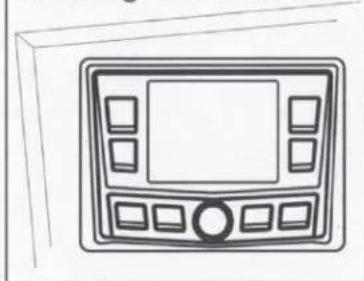
The unused portion of the mounting gasket has been included to for use in tracing the perfect 3 1/2" mounting hole cut out.
Mounting Illustration
natural_image
Line drawing of a vintage home control panel with buttons and display (no text or symbols)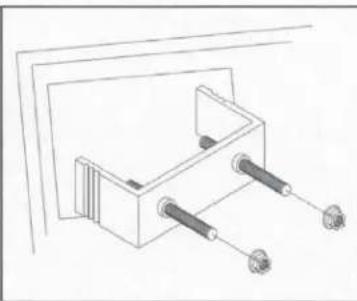
natural_image
Technical line drawing of a mechanical assembly with two cylindrical components and mounting holes (no text or symbols)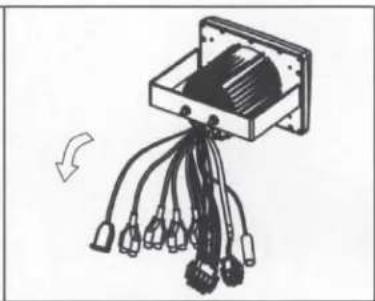
natural_image
Diagram of a mechanical or electrical component with multiple wires and connectors, no visible text or symbols-
Avoid installing stereo below cupholders! Make sure mounting surface is flat to avoid flexing of the plastic.
-
Use the back bracket and studs to affix the unit. Install the U bracket behind the unit, using two nuts per bolt for ultra hold.
-
To avoid possible water ingress into wire harness area, route the harness in the downward direction as shown above.
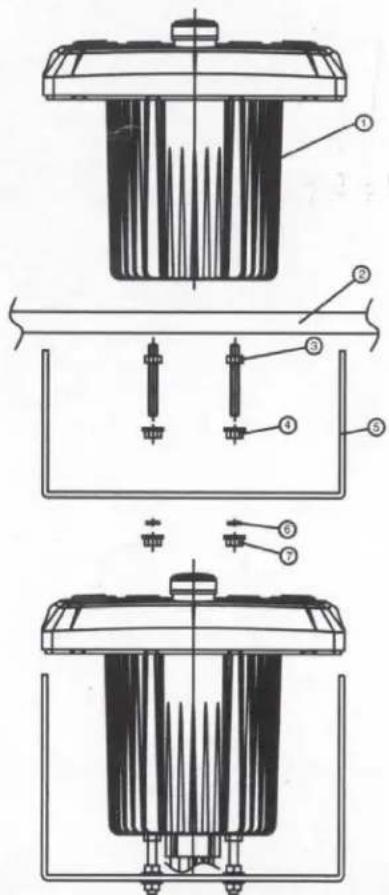
| NO. | PART DESCRIPTION |
| 1 | RADIO |
| 2 | MOUNTING PLATE |
| 3 | MOUNTING STUDS |
| 4 | JAMB NUTS |
| 5 | MOUNTING BRACKET |
| 6 | SPRING WASHER |
| 7 | OUTER NUTS |
Instructions:
-
Install jamb nuts (4) loosely on mounting studs (3), so they will not touch mounting brackets (5) when installed.
-
Slip mounting bracket (5) on and make flush with mounting surface (2). DO NOT TIGHTEN
-
Snug spring washer (6) and outer nuts (7) against mounting plate (2). DO NOT TIGHTEN
-
Position jamb nuts (4) approximately 1/16" from mounting bracket.
-
Tighten outer nuts (7) completely.
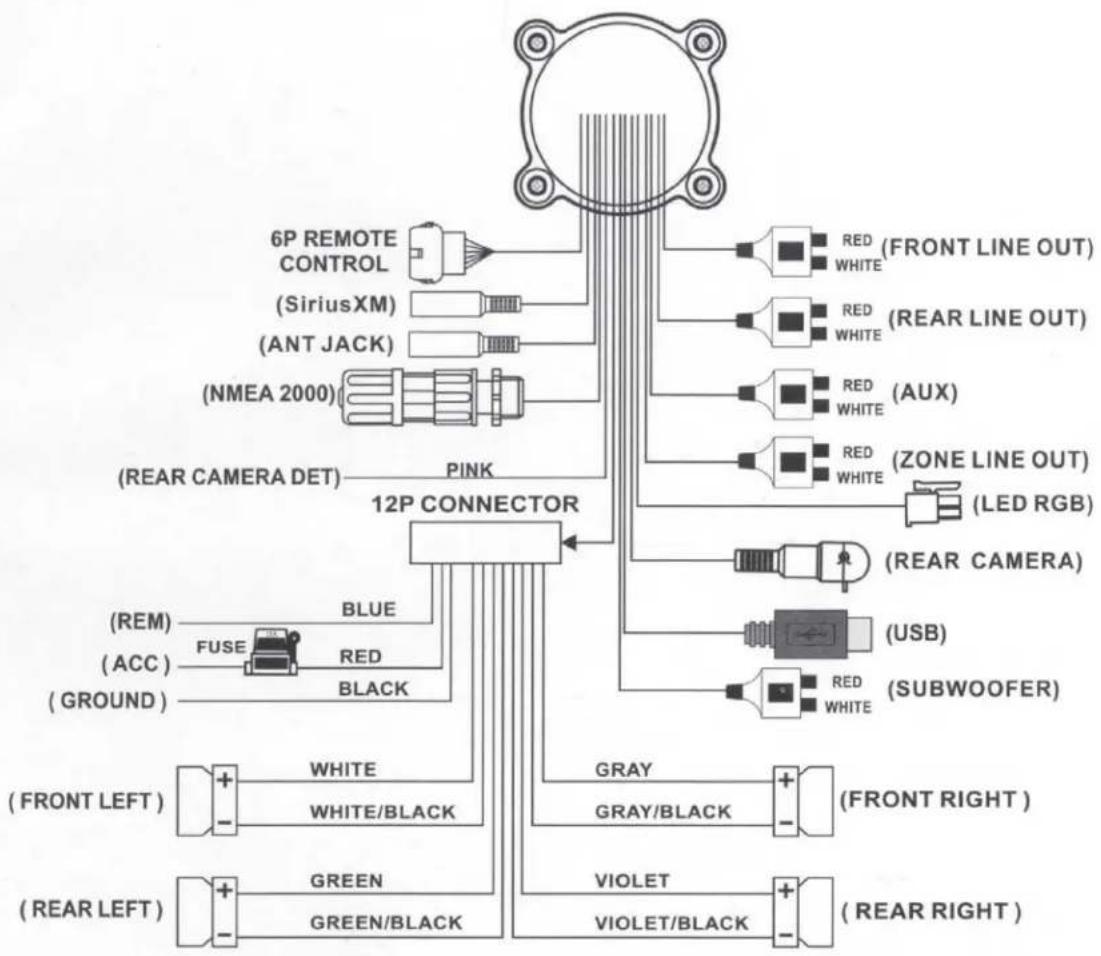
flowchart
graph TD
    A["6P REMOTE CONTROL"] --> B["(SiriusXM)"]
    A --> C["(ANT JACK)"]
    A --> D["(NMEA 2000)"]
    D --> E["(REAR CAMERA DET)"]
    D --> F["PINK"]
    F --> G["12P CONNECTOR"]
    G --> H["RED (FRONT LINE OUT)"]
    G --> I["RED (REAR LINE OUT)"]
    G --> J["RED (AUX)"]
    G --> K["RED (ZONE LINE OUT)"]
    G --> L["(LED RGB)"]
    G --> M["(REAR CAMERA)"]
    G --> N["(USB)"]
    G --> O["(SUBWOOFER)"]
    G --> P["WHITE/BLACK"]
    G --> Q["GREEN"]
    G --> R["VIOLET"]
    G --> S["VIOLET/BLACK"]
    T["(REM)"] --> U["FUSE"]
    U --> V["BLUE"]
    W["(ACC)"] --> X["RED"]
    X --> Y["BLACK"]
    Z["(GROUND)"] --> AA["+"]
    AB["(FRONT LEFT)"] --> AC["+"]
    AD["(REAR LEFT)"] --> AE["+"]
    AF["(FRONT RIGHT)"] --> AG["+"]
    AH["(REAR RIGHT)"] --> AI["+"]
NOTE:
- When wiring, the red lead is recommended to be wired to ACC/ignition power lead.
- Ensure the black ground wire is connected to a good grounding point. If connecting the ground to the chassis of a vehicle, make sure the grounding point is scraped clean of paint and rust before doing so. The application of an anti-corrosive agent in that area is recommended.
Warning: in the case of an aluminum boat, it it never recommended to ground any electronics to the chassis.
- Before wiring your system, disconnect your boat battery's positive (+) cable. This helps prevent damage in case of a short.
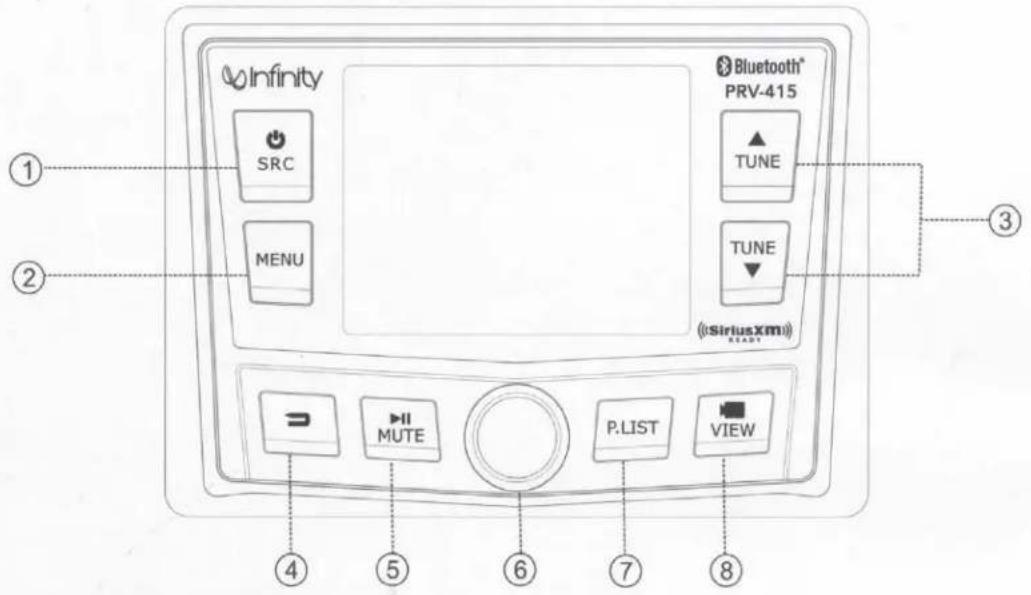
1. POWER, SRC button
- With unit off, press to power the unit on.
- With the unit on, press and hold for over 3s to power the unit off.
- Press SRC button to switch modes among AM/FM/WB/Bluetooth/USB/SXM/AUX.
2. MENU button
- In any source playing, short press to display sub-menu of current source.
- In any source playing, press and hold for 2s to enter Settings.
3. Tune Up/ Down button
- In Radio (FM/AM/WB) mode playing, short press to select previous or next station.
- In USB/BT Music source playing, short press to select the previous or next track.
- In USB source playing, press and hold to go fast forward or rewind.
4. Return button
- While in any menu, press to return to the previous screen.
- If not in a menu, press for Home menu to switch modes.
5. Pause, Mute button
- In USB, BT Music source playing, press to PAUSE playback, press again to resume playback.
- In Radio, SiriusXM, AUX source, press to MUTE sound output, press again to resume sound output.
6. VOL, Selection/Enter button
- At source playing status, turn the knob to increase or decrease volume level.
- For selection mode, turn the knob to highlight the desired feature/music track, then press the knob to confirm that feature or music track.
7. P.LIST button
- In FM, AM, WB, SXM source, press to display Global Preset List.
- In USB source, press to display Fold/ File List.
8. View button
- In any source, press to activate Rear camera display, press again to exit.
1. Start up
Once the unit powers on, the introductory home screen appears for 5 seconds, then switches to the last played mode before powering off occurred.

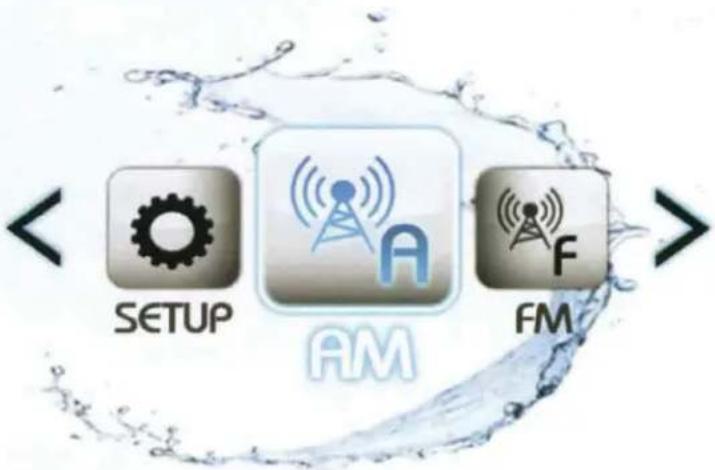
2. Home menu (source display)
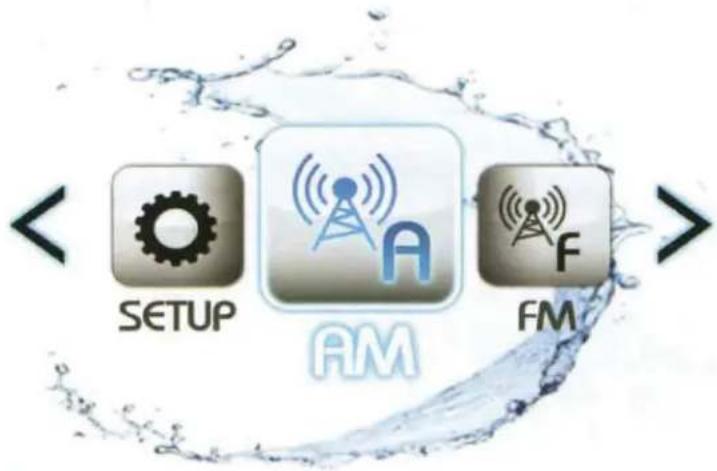
Press ← to enter Home Menu. Turn the VOL knob and toggle to the desired mode, then confirm by pressing the VOL knob.
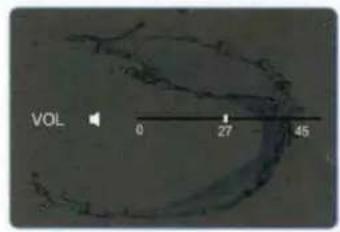
1. VOLUME Control
In any source playing status, turn VOL knob to adjust volume level.
2. MUTE Control
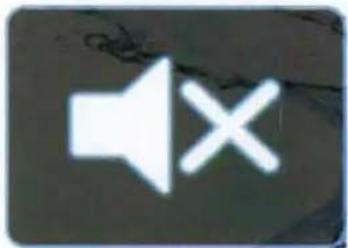
In Radio, SiriusXM, or AUX mode, press MUTE button to mute sound output; press again to resume sound output.
natural_image
Simple speaker icon with no text or symbols3. SETUP
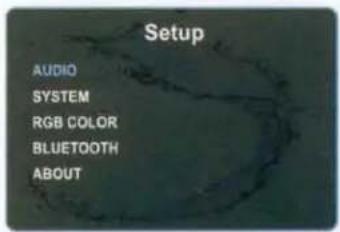
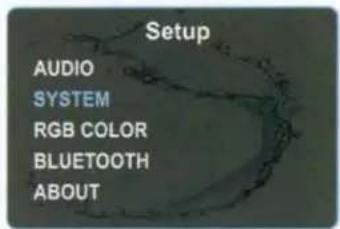
Press ← to enter Home Menu, turn VOL knob and press it to enter SETUP, then turn VOL knob to move amongst Audio, System, RGB Color, and Bluetooth, About. Press the knob at desired feature and turn the knob again to adjust the level. Press the knob again to exit current feature adjustment.
Note: If no operation occurs, it will revert back after 5s. You can also enter Setup by pressing and hold MENU button at any status.
3-1. Audio Settings
At Audio Settings, turn VOL knob and press it to select the sub-item of what you desire to adjust, then turn VOL knob to adjust the level, and press VOL knob again to exit current item adjustment. Then you can repeat above operations to adjust other items to desired value.
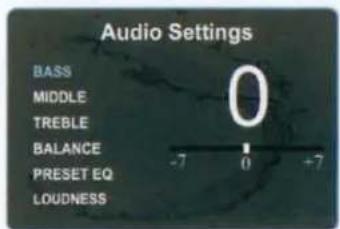
- BASS: Minimum -7 to maximum +7.
- MIDDLE: Minimum -7 to maximum +7.
- TREBLE: Minimum -7 to maximum +7.
- BALANCE : L10 (full left) to R10 (full right).
- PRESET EQ: OFF, JAZZ, POP, CLASSIC, ROCK, VOCAL.
- LOUDNESS: OFF, ON
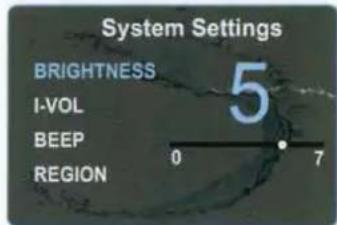
3-2. System Settings
At System Settings, turn VOL knob and press it to select the sub-item of what you desire to adjust, then turn VOL knob to adjust the level, and press VOL knob again to exit current item adjustment. Then you can repeat above operations to adjust other items to desired value.
- BRIGHTNESS: This feature controls the brightness of the display panel. It is adjustable from 0 to 7.
- I-VOL: This feature controls the initial volume level of next power on.
- BEEP: This feature controls the beep sound when button was pressed. With beep 2nd selected, you will hear a beep sound when the button was pressed over 2s; With beep on selected, you will hear a beep sound when any button was pressed; With beep off selected, no beep sound will be heard when button is pressed.
- REGION: The Tuner Region is optional for EURO, USA, JAPAN. (Note: with wrong Region selected, the tuner reception might be affected.)
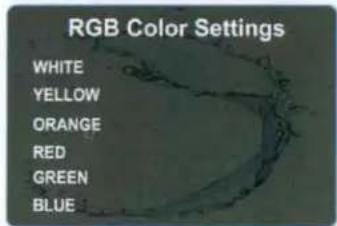
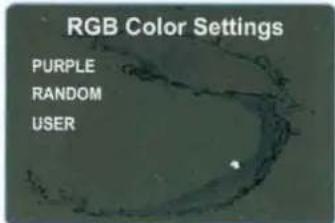
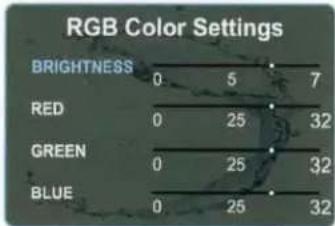
3-3. RGB Color Settings
When MIL-LEDPWR is connected, long press MENU button to enter setting screen. Turn VOL knob to select RGB Color, thus enabling you to adjust the color which you desire.
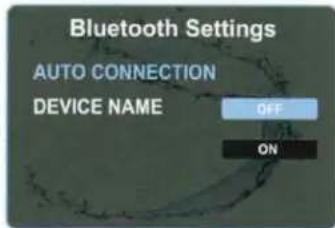
3-4. Bluetooth Settings
At Bluetooth Settings, turn VOL knob and press it to select the sub-item that you desire to adjust, then turn VOL knob to adjust the level, and press VOL knob again to exit current item adjustment.
- Auto Connection: With ON selected, it will try to connect with the last paired BT device once Bluetooth source is selected.
- Device Name: PRV415 will show once you turn VOL knob to Device Name highlighted.
3-5. About
Press VOL knob at About highlighted to show the firmware information of the product.
- FACTORY RESET: The unit works like a computer and may occasionally get "stuck". If encountered, initialize a Factory Reset. Press and hold VOL button for more than 5s to display Factory Reset, then press SEL button to confirm.
(Note: once Factory Reset is carried out, prior presets will be cleared, and you will need to setup the features and Global Presets once again.)
1. To Select Radio mode
Press ← to enter Home Menu. Turn the VOL knob and toggle to AM, FM or WB mode, then confirm by pressing the VOL knob. You can also press SRC to select the desired mode.
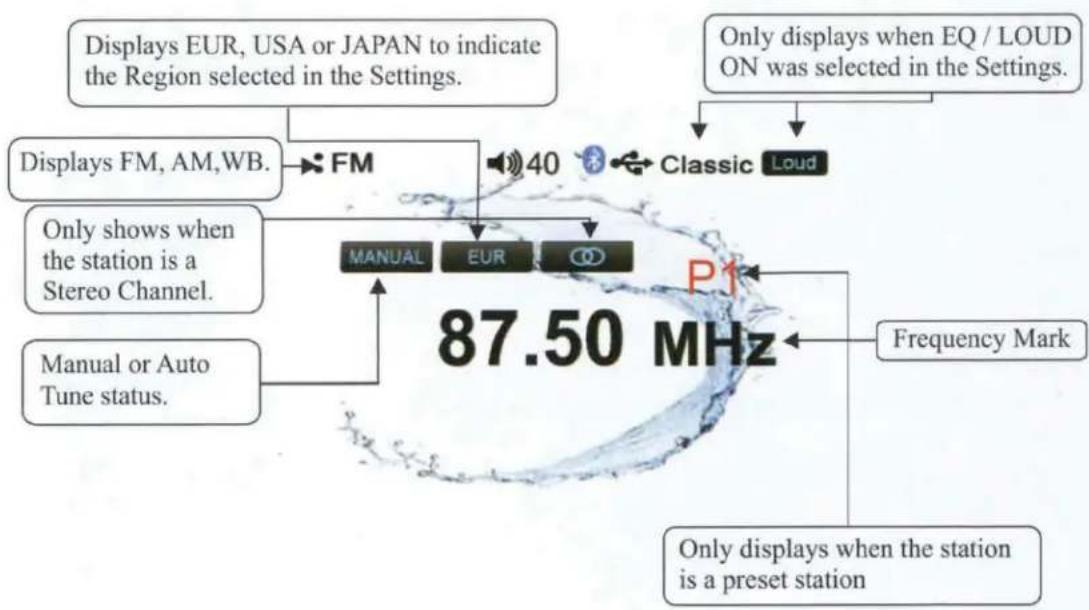
2. Radio Screen Description
3. Auto Tuning
By default, pressing the Tune up or down buttons in AM, FM, WB modes results in the tuner automatically stopping at the next station of sufficient signal strength.
4. Manual Tuning
For manual tuning, press and hold either Tune up or Tune down for 2 seconds. This will allow incremental tuning.
Note: Auto tuning mode will resume once the stereo is idle for 5 seconds.
5. Station Save
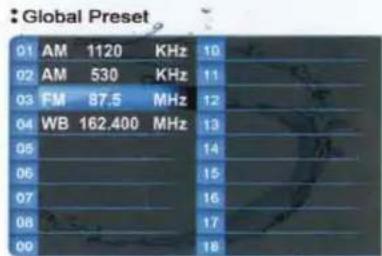
At your favorite station, press MENU button to enter Radio Settings, press VOL knob at SAVE AS PRESET to show the Global Preset List, then turn VOL knob to select a preset No. and press it to save the station into Preset List. The Preset No. will display once the station is saved.
Note: It will revert back to previous display after 5s without operation.
6. Recall Preset Station
In Radio (FM, AM, WB) or SXM source, press P.LIST button to show the Global Preset List, then turn VOL knob and press it to select the station saved on that Preset No.
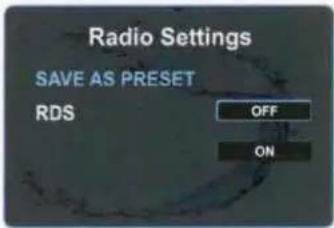
7. RDS Functions
While in radio mode, press the menu button and select RDS using the VOL knob, then press the knob to enter the RDS menu. Use the VOL to select from ON or OFF, then press the knob to confirm.
With RDS on, station information will display such as station name, song tile... Note: Not all stations support RDS.
1. What is SiriusXM
Only SiriusXM® brings you more of what you love to listen to, all in one place. Get over 140 channels, including commercial-free music plus the best sports, news, talk, comedy and entertainment. Welcome to the world of satellite radio. A SiriusXM Vehicle Tuner and Subscription are required. For more information, visit www.siriusxm.com
Activating your SiriusXM Subscription
- After installing your SiriusXM Connect Tuner and antenna, power on your radio and select SiriusXM mode. You should be able to hear the SiriusXM preview channel on Channel 1. If you cannot hear the preview channels, please check the installation instructions to make sure your SiriusXM Connect tuner is properly installed.
For more information on how to install the SiriusXM Connect Vehicle tuner, consult the installation guide included with the tuner.
- After you can hear the Preview channel, tune to Channel 0 to find the Radio ID of your tuner. In addition, the Radio ID is located on the bottom of the SiriusXM Connect Vehicle Tuner and its packaging. You will need this number to activate your subscription. Write the number down for reference.
Note: the SiriusXM Radio ID does not include the letters I, O, S or F.
In the USA, you can activate online or by calling SiriusXM Listener care:
Visit www.siriusxm.com/activatenow
Call SiriusXM Listener Care at 1-866-635-2349
For Canadian Subscriptions, please contact:
Visit www.siriusxm.ca/activatexm
Call XM Customer Care at 1-877-438-9677
As part of the activation process, the SiriusXM satellites will send an activation message to your tuner. When your radio detects that the tuner has received the activation message, your radio will display: Subscription Updated, press Enter to continue. Once subscribed, you can tune to channels in your subscription plan. Note, the activation process usually takes 10 to 15 minutes, but may take up to an hour. Your radio will need to be powered on and receiving the SiriusXM signal to receive the activation message.
2. To Select SiriusXM Mode
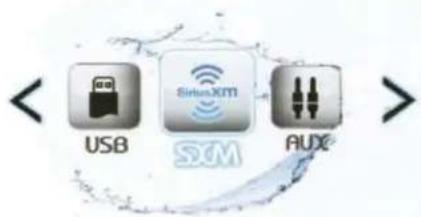
Press ← to enter Home Menu. Turn the VOL knob and toggle to SXM mode, then confirm by pressing the VOL knob. You can also press SRC to select the SXM mode..
3. SiriusXM Screen Description
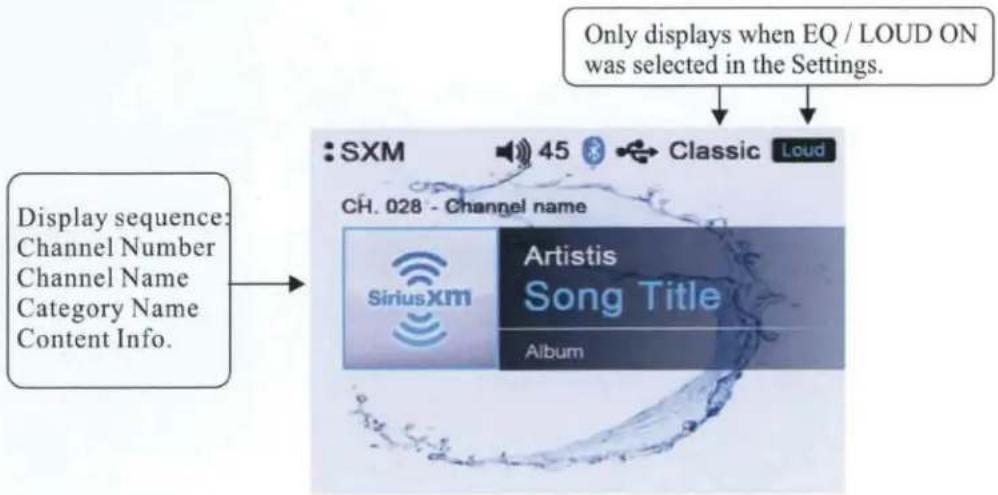
4. To Display Radio ID
Tune to Channel 0 or direct Tune to Channel 0 to display the Radio ID.
5. MUTE
In SiriusXM mode, press the MUTE button to mute sound output, and press it again to resume sound output.
6. To Select the Previous / Next Channel
In SiriusXM mode, press TUNE Up or Down button to select the previous or next channel. Press and hold TUNE Up or Down button to rapid tune/browse channels, and release the button when the desired channel is displayed.
7. Storing a Channel as a Preset
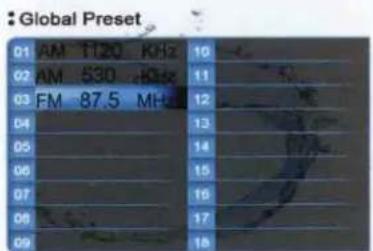
In SiriusXM playing mode, tune to or direct tune to a channel which you want to store as a preset, then press P.LIST button. It will display the Global Preset List screen, turn knob to select a preset number and press rotary button to save current channel into Preset List. The unit will revert back to the previous display if no operation is performed in 5s.
8. Category List
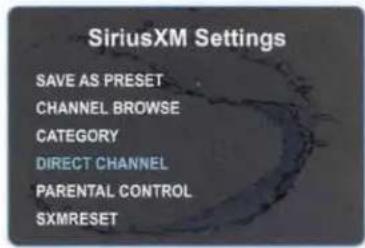
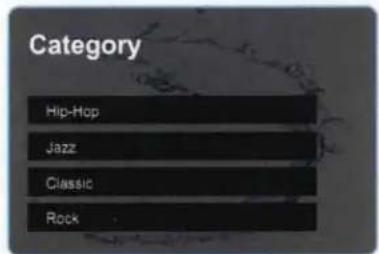
In SiriusXM mode, press menu button to enter Setting menu. Turn the VOL knob to select CATEGORY LIST and press VOL knob to view the category list.
Turn the VOL knob to the desire category and confirm by pressing the VOL knob.
9. Direct Channel Input
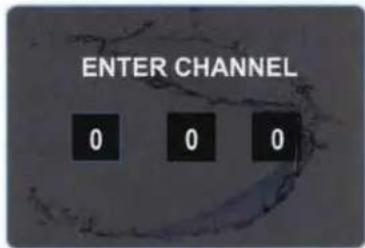
In SiriusXM mode, press menu button to enter Setting menu. Turn the VOL knob to select DIRECT CHANNEL and press VOL knob to confirm. Three fields will display. To enter a channel: Turn the VOL knob to select the appropriate digit, then press the knob to confirm. Repeat for each field.
Note: If a wrong digit is entered, turn knob to move to previous digit input. Repeat above operation until the correct channel is entered.
10. Preset List Channel Tuning
In SiriusXM play mode, press P.List to display the Global Preset List.
Turn the VOL knob to select the desired preset. then press the knob to confirm.
11. Parental Control
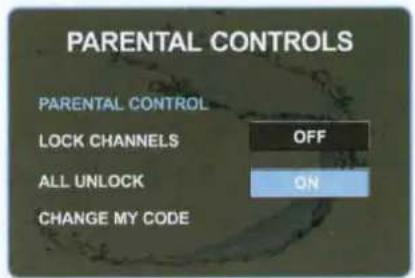
The Parental Control feature allows you to limit access to any Sirius channel, including those with mature content. If a channel is locked, the user will be required to enter the Parental Control code before access to that channel is granted.
- Parental Control On / Off
Rotate the VOL knob to select PARENTAL CONTROLS and press the VOL button to enter the setting menu.
With PARENTAL LOCK on, the code will be required on any channel which has been selected a locked. If PARENTAL LOCK is off, all channels can be accessed without the code.
Note: the code is required to change these settings.
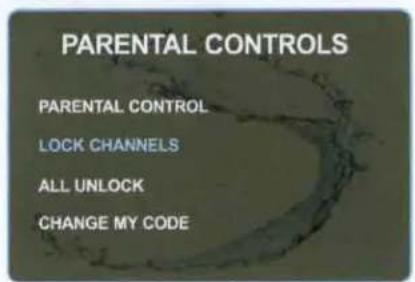
- To Lock/Unlock channels one by one
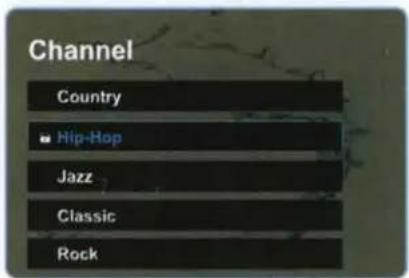
While in the Parental Controls menu, using the VOL knob, select LOCK CHANNELS, then press the VOL knob to enter that menu. Use the VOL knob to select a channel to lock, then press the VOL knob to confirm.
- To Unlock all channels
Turn VOL knob to move highlight to ALL UNLOCK, then press the knob to unlock all channels.
- Change Code
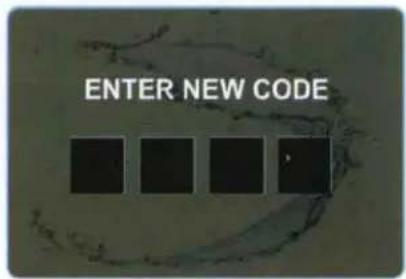
While in the PARENTAL CONTROLS menu, select CHANGE MY CODE using the VOL knob, then press the VOL knob to confirm. You will be prompted to enter the new code twice.
To enter a code: in the first field, turn the VOL knob to select the appropriate digit for that field, then press the VOL knob to confirm. The next field will be selected automatically. Repeat for each field.
Note: Factory default passcode was 0000.
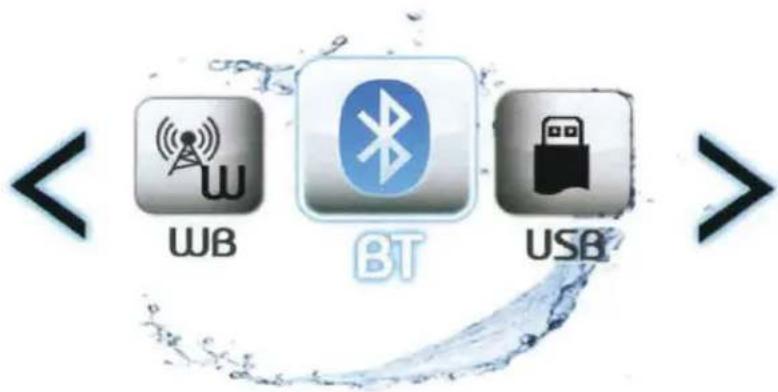
1. To Select Bluetooth mode
Press ← to enter Home Menu. Turn the VOL knob and toggle to BT mode, then confirm by pressing the VOL knob. You can also press SRC to select BT mode.
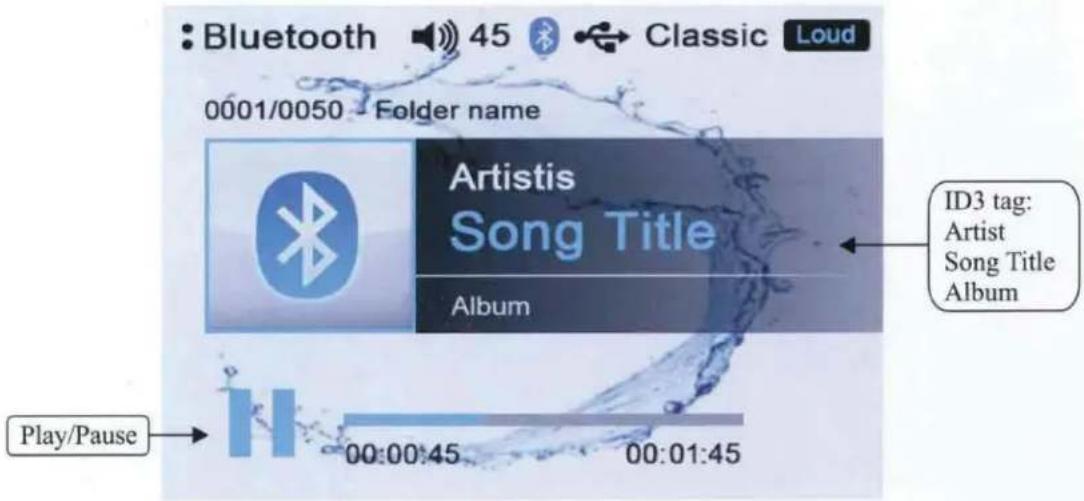
2. Bluetooth Screen Description
3. Pair BT Device
In Bluetooth source, pick "PRV415" option on your Bluetooth enabled device.
(if you are prompted for a password, the code entered will be "0000".)
Note: The Bluetooth pairing only happens with unit in Bluetooth source.
4. Play/Pause Play
Once the BT device being paired is successful, music will begin to play.
Note: For some Bluetooth enabled phones, you may need to activate play from your phone first. It depends on the phone itself.
While BT Music is playing, press the PAUSE button to pause the playback, and press it again to resume playback.
Note: || refers to PLAY; ▶ refers to PAUSE.
5. Disconnect
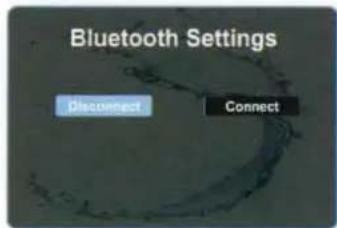
In BT Music playing mode, in order to disconnect the BT device, press MENU to display Bluetooth Settings, turn VOL knob and press it at Disconnect.
Note: When your BT device battery is at low charge, the Bluetooth connection may occasionally be lost. To maintain good connectivity ensure that your BT device battery is adequately charged.
6. Connect
With BT device paired OK, but disconnected, if you want to re-establish the BT connection, press MENU to display Bluetooth Settings, turn VOL knob and press it at Connect. It will send a connect request to the last paired device.
Note: With the Bluetooth connection disconnected, once you power on the unit next time, you should go into Bluetooth mode, then it will establish the Bluetooth connection automatically. Sometimes, with Bluetooth Source not in use for over 1 hour, when you switch to BT Source again, it might take some time (5\~10s) to re-establish the connection by itself.
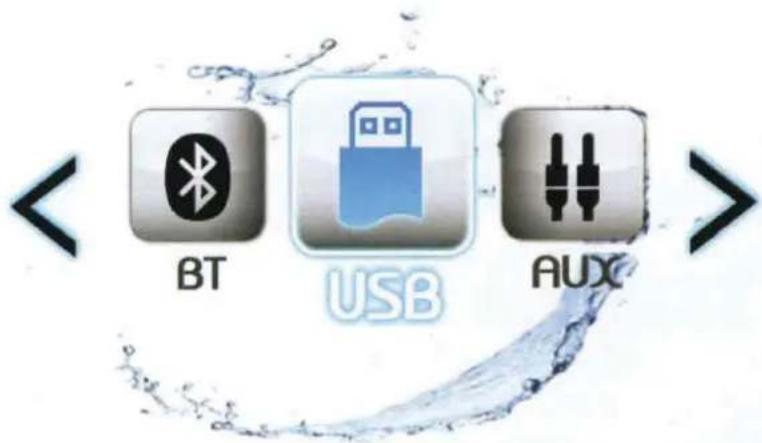
1. To Select USB mode
Press ← to enter Home Menu. Turn the VOL knob and toggle to USB mode, then confirm by pressing the VOL knob. You can also press SRC to select USB mode.
Note: This input is designed to play USB flash drives (mp3 and wma file types).
Direct connection to other media devices is not supported except for iPod and iPhone.
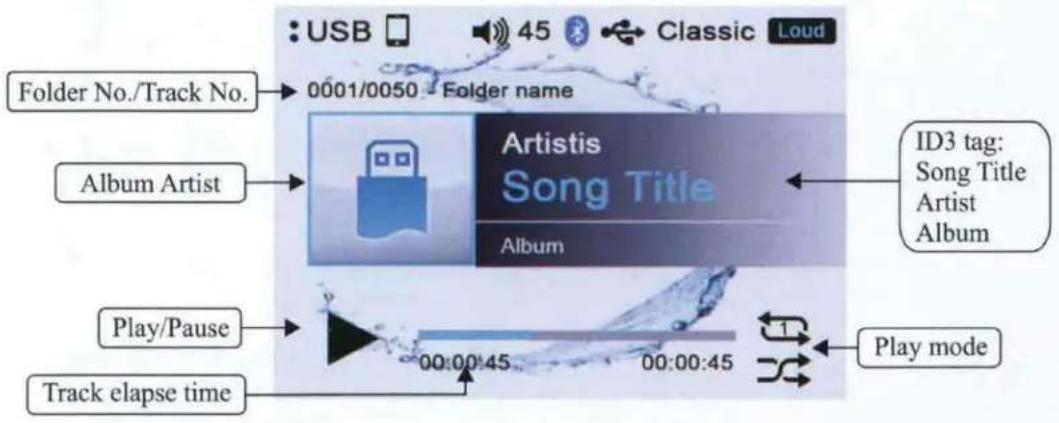
2. USB Screen Description
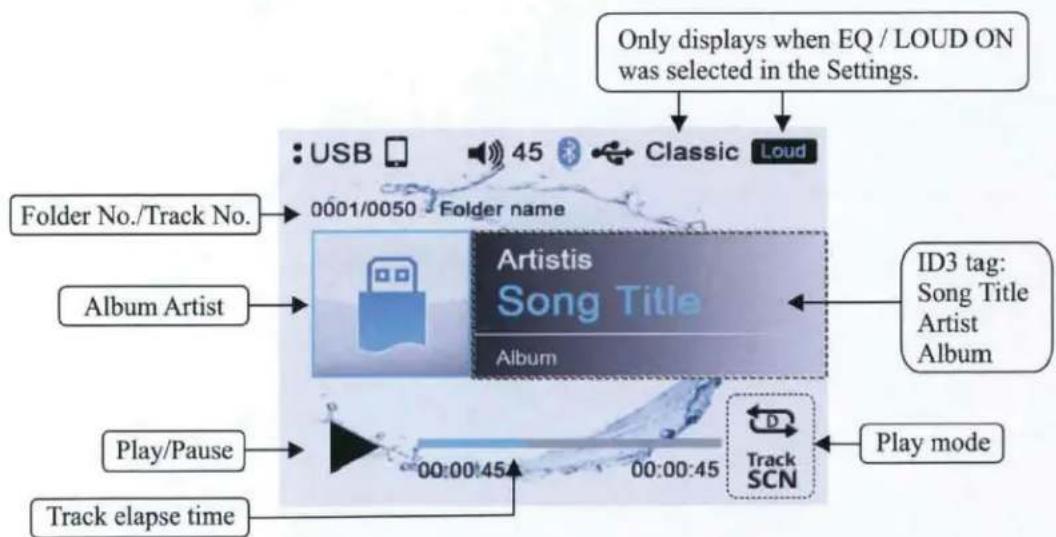
SCAN: Intro Scan play (Track / Directory Scan play)
RPT: Repeat play (Track / Directory Repeat play)
RDM: Random play (Track / Directory Random play)
3. Play/Pause Play
While USB is playing, press the PAUSE button to pause the playback, and press again to resume playback.
Note: Ⅱ refers to PAUSE; ▶ refers to PLAY.
4. Track Up/Down
While USB is playing, simply turn the TUNE button to select the next or previous track. To fast forward or rewind, press and hold TUNE button.
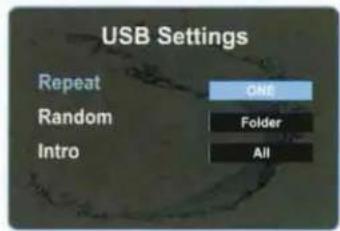
5. Repeat play
While USB is playing, press MENU button to show USB settings, turn VOL knob and preset it at Repeat, then turn VOL knob to select one, folder or all. Press the VOL knob to confirm your selection.
- Select Repeat One to play current track repeatedly.
- Select Repeat Folder to repeatedly play the tracks in current folder.
- Select Repeat All to repeatedly play all the tracks in drive.
6. Random play
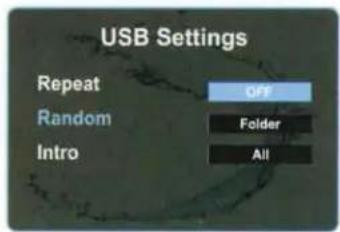
While USB is playing, press MENU button to show USB settings, turn VOL knob and press at Random, then turn VOL knob to select off, folder or all. Press the VOL knob to confirm your selection.
- Select Random off to disable Random play.
- Select Random Folder to play the tracks in current folder in a random sequence.
- Select Random All to play all the tracks in the USB device randomly.
5. Intro Play
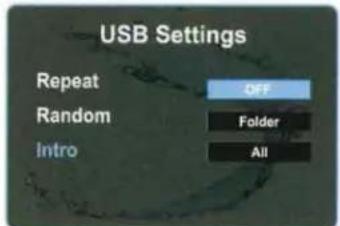
While USB is playing, simply press MENU button to show USB settings, turn VOL knob and press it at Intro, then turn VOL knob to select off, folder, or all. Press the VOL knob to confirm your selection.
- Select Intro off to disable Random play.
- Select Intro Folder to play the first 10s of the tracks in current folder.
- Select Intro All to play the first 10s of all the tracks in current directory.
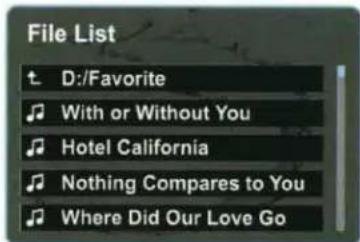
8. P.LIST (Folder / File Search)
While USB is playing, press P.LIST button to enter track search mode, it will display all the tracks in current playing folder.
- To select other tracks in current folder, turn VOL knob and press it at desired track.
- To select the track in other folders, press VOL button at the desired folder.
Made for

iPhone
iPod
Use of the Made for Apple badge means that an accessory has been designed to connect specifically to the Apple product(s) identified in the badge, and has been certified by the developer to meet Apple performance standards. Apple is not responsible for the operation of this device or its compliance with safety and regulatory standards.
Please note that the use of this accessory with an Apple product may affect wireless performance.
iPhone and Lightning are trademarks of Apple Inc., registered in the U.S. and other countries.
Made for iPhone 8, iPhone 8 Plus, iPhone 7, iPhone 7 Plus, iPhone SE, iPhone 6s, iPhone 6s Plus, iPhone 6, iPhone 6 Plus, and iPod touch (6th generation). Minimum iOS 10.3.2 or later.
1. Connect
Once you connect an iPod/iPhone to the USB input, the system will read the files automatically. It can take up to 30 seconds to load all of the files, so please be patient. The more music you have, the longer it will take.
2. Play/Pause Play
While iPod/iPhone is playing, press the PAUSE button to pause the playback, and press it again to resume playback. Ⅱ refers to PLAY; ▶ refers to PAUSE.
3. Track Up/Down
While iPod/iPhone is playing, press TUNE UP/DN button to select the next or previous track.
4. Repeat play
While iPod/iPhone is playing, press MENU button to show IPOD settings, turn VOL knob and preset it at Repeat, then turn VOL knob to select off, one, all. Press the VOL knob to confirm your selection.
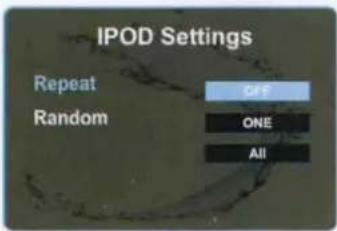
5. Random play
While iPod/iPhone is playing, press MENU button to show IPOD settings, turn VOL knob and press at Random, then turn VOL knob to select off or on. Press the VOL knob to confirm your selection.
Note: Please make sure the iPod/iPhone cable is connected correctly. It is recommended to use the original cable for connection.
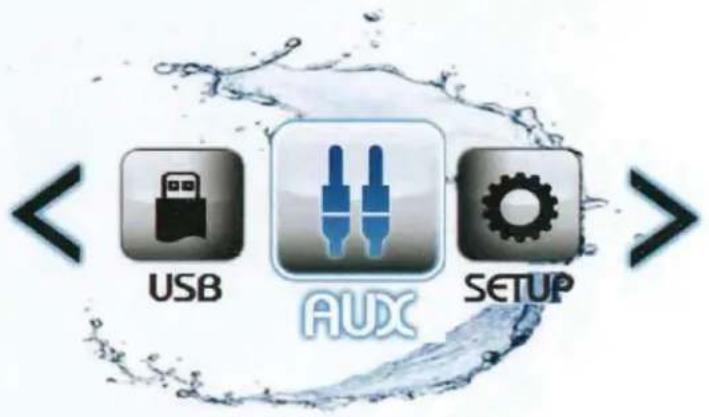
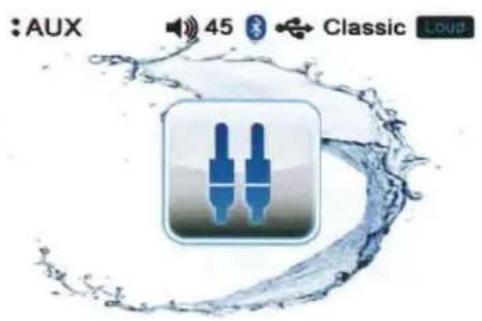
1. To Select AUX mode
Press ← to enter Home Menu. Turn the VOL knob and toggle to AUX mode, then confirm by pressing the VOL knob. You can also press SCR to select AUX mode.
Note: current selection is indicated by the change of icon color to light blue.
The use of auxiliary mode allows you to play a portable music device through the headphone jack.
Note: An additional accessory/adaptor must be purchased in order for this to happen. Prospec's part, SEAMINI2 or SEAUSBMINI36 fulfills this option.
natural_image
Audio player interface with two blue audio jack buttons inside a water splash background (no text or symbols on the buttons)*Note: In many respects, a stereo acts much like a computer and occasionally requires a reboot. In the unlikely event of product malfunction, a reset can usually fix the issue. For software reset operation, please refer to page 8.
| Issue | Cause | Solution |
| No power | 1. Incorrect wiring2. Fuse is blown3. Low battery voltage | 1. Double check wiring2. Replace fuse3. Check voltage of vehicle battery with multimeter. Voltage must be at least 11V. |
| No Sound | 1. Speaker connection came loose2. Bad speaker3. Output blown4. Volume too low on media device | 1. Double check connections.2. Replace bad speaker with known good speaker and connect.3. Send unit in for repair.4. Increase volume of media device |
| No Reception | 1. Antenna not firmly seated in socket | 1. Insert firmly |
| USB stick not reading | 1. File must be a mp3 or wma file | 1. Convert format to mp3 or mwa. |
| While in Bluetooth mode: | ||
| No Connection | 1. You are not connected to the “PRV415” address on your portable media device.2. Out of range3. The connection is already in use. | 1. Choose “PRV415”2. Bring portable media device closer to the receiver. Device needs to be within 30’.3. Ask the person who first paired to drop out. |
The following information helps you self-diagnose common issues without the need for contacting SiriusXM support.
| Advisory Name | Recommended Description |
| Check Antenna | The radio has detected a fault with the SiriusXM antenna. The antenna cable may be either disconnected or damaged.Verify that the antenna cable is connected to the SiriusXM Connect Vehicle Tuner.Inspect the antenna cable for damage and kinks. Replace the antenna if the cable is damaged.SiriusXM products are available at your local car audio retailer or online atwww.shop.siriusxm.com. |
| Check Tuner | The radio is having difficulty communicating with the SiriusXM Connect Vehicle Tuner. The tuner may be disconnected or damaged.Verify that the SiriusXM Connect Vehicle Tuner cable is securely connected to the radio. |
| No Signal | The SiriusXM Connect Vehicle Tuner is having difficulty receiving the SiriusXM satellite signal.Verify that your vehicle is outdoors with a clear view of the sky.Verify that the SiriusXM magnetic mount antenna is mounted on a metal surface on the outside of the vehicle.Move the SiriusXM antenna away from any obstructions.Inspect the antenna cable for damage and kinks.Consult the SiriusXM Connect Vehicle tuner installation manual for more information on antenna installation. Replace the antenna if the cable is damaged. SiriusXM products are available at your local car audio retailer or online atwww.shop.siriusxm.com. |
| Subscription Updated | The radio has detected a change in your SiriusXM subscription status. Press ENTER button to clear the message.Visit www.siriusxm.comor call 866-635-2349 in the USA or 877-438-9677 in Canada if you have questions about your subscription. |
| Channel Not Available | The channel that you have requested is not a valid SiriusXM channel or the channel that you were listening to is no longer available.You may also see this message briefly when first connecting a new SiriusXM Connect Vehicle tuner.Visit www.siriusxm.com for more information about the SiriusXM channel lineup. |
| Channel Not Subscribed | The channel that you have requested is not included in your SiriusXM subscription package or the channel that you were listening to is no longer included in your SiriusXM subscription package.In the U.S.A., visit www.siriusxm.com or call 1-866-635-2349 if you have questions about your subscription package or would like to subscribe to this channel. In Canada, visit www.siriusxm.ca or call 1-877-438-9677. |
| Channel Locked | The channel that you have requested is Locked by the radio Parental Control feature. See the description on Parental Control, page 14 for more information on the Parental Control feature and how to access locked channels. |

PROSPEC
Prospec Electronics
Sound Systems For The Outdoor Enthusiast
This product is serviced exclusively by Prospec Electronics Inc. and must be returned to Prospec for in and out of warranty repairs. It cannot be serviced under warranty by other Infinity service centers.
For service contact us :
3325 South Morgans Point Road Mt Pleasant SC 29466
Tel 843-849-9037
Or visit: www.prospecelectronics.com


- Prospec Electronics
- Table of Contents
- Mounting Illustration
- Instructions:
- NOTE:
- POWER, SRC button
- MENU button
- Tune Up/ Down button
- Return button
- Pause, Mute button
- VOL, Selection/Enter button
- P.LIST button
- View button
- Start up
- Home menu (source display)
- VOLUME Control
- MUTE Control
- SETUP
- 3-1. Audio Settings
- 3-2. System Settings
- 3-3. RGB Color Settings
- 3-4. Bluetooth Settings
- 3-5. About
- To Select Radio mode
- Radio Screen Description
- Auto Tuning
- Manual Tuning
- Station Save
- Recall Preset Station
- RDS Functions
- What is SiriusXM
- Activating your SiriusXM Subscription
- To Select SiriusXM Mode
- SiriusXM Screen Description
- To Display Radio ID
- MUTE
- To Select the Previous / Next Channel
- Storing a Channel as a Preset
- Category List
- Direct Channel Input
- Preset List Channel Tuning
- Parental Control
- - Parental Control On / Off
- - To Lock/Unlock channels one by one
- - To Unlock all channels
- - Change Code
- To Select Bluetooth mode
- Bluetooth Screen Description
- Pair BT Device
- Play/Pause Play
- Disconnect
- Connect
- To Select USB mode
- USB Screen Description
- Play/Pause Play
- Track Up/Down
- Repeat play
- Random play
- Intro Play
- P.LIST (Folder / File Search)
- Connect
- Play/Pause Play
- Track Up/Down
- Repeat play
- Random play
- To Select AUX mode
Brand : INFINITY
Model : REFPRV415
Category : Radio