Primer SX-EB700 - E-reader Skytex - Free user manual and instructions
Find the device manual for free Primer SX-EB700 Skytex in PDF.


| Product Type | E-reader / Media Player |
| Model | Primer SX-EB700 |
| Display | 7-inch TFT LCD, 800 x 480 pixels |
| Dimensions | 207 x 132 x 12 mm |
| Processor | ARM9 400 MHz |
| Internal Storage | 2 GB |
| Expandable Storage | microSD card up to 16 GB |
| Battery Type | Li-Polymer, 1800 mAh |
| Power Adapter Input | AC 100-240V, 50/60 Hz |
| Power Adapter Output | DC 5.0-5.5V, 1000 mA |
| USB Port | Mini-USB 2.0 for data transfer and charging |
| Audio Jack | 3.5 mm stereo headphone |
| Card Slot | microSD slot |
| Supported Audio Formats | MP3, WMA, APE, FLAC, AAC |
| Supported Video Formats | MKV, AVI, RM, RMVB, VOB, DAT, MP4, FLV, 3GP |
| Supported Image Formats | JPG, BMP, GIF |
| Included Accessories | USB cable, power adapter, earphones, quick start guide, leather case |
| Care Instructions | Clean body with slightly damp cotton cloth; screen with dry microfiber cloth. Avoid extreme temperatures, dampness, dust, strong magnetic fields, direct sunlight. |
| Safety Warnings | Do not disassemble. Use only manufacturer-approved accessories. Avoid liquid exposure. Check volume before listening. |
Frequently Asked Questions - Primer SX-EB700 Skytex
User questions about Primer SX-EB700 Skytex
0 question about this device. Answer the ones you know or ask your own.
Ask a new question about this device
Download the instructions for your E-reader in PDF format for free! Find your manual Primer SX-EB700 - Skytex and take your electronic device back in hand. On this page are published all the documents necessary for the use of your device. Primer SX-EB700 by Skytex.
USER MANUAL Primer SX-EB700 Skytex
7" Color eBook Reader and Media Player
Contents
- Foreword ....3
- Product Configuration....4-6
1). Keyboard function introduction....4
2).Transferring media、recharging....6
- Operations....7-17
1). Opening reader....7
2). Main interface....7
3). Browse history record....7
4). eBook Reading....8-9
5). Music Playback....10
6). Movie Playback....11
7). Photo Viewing....12
8). FM Radio....13
9). Recording....14
10). Explorer....15
11). Calendar....15
12). Search....16
13). Settings....17
4.Shutting Down....17
5. Resetting reader....17
6. Specifications....18
7. Troubleshooting....19
- 1 - Foreword
Thank you for purchasing Primer by SKYTEX. In this section of Primer's User Guide, we will provide an overview of the device and highlight a few basic features so you can start reading as quickly as possible.
NOTES:
- With new lithium batteries, it's always a good idea to fully charge and drain the battery for the first 3-4 cycles. Doing so will ensure optimum battery life and performance over the life of the device.
- We recommend keeping a backup of all of the media files that are transferred onto the device. While all products are quality tested to perform up to the highest standards, we can't guarantee against data loss. SKYTEX is not responsible for lost information.
- Primer is a highly sophisticated electronic device. Do not disassemble by yourself, or your warranty may be voided.
- Avoid using Primer under the following conditions: extremely high/low temperatures, dampness and dust, around strong magnetic fields or extended exposure to direct sunlight.
- Try to avoid breaking, crushing, dropping, chopping, slicing and/or dicing the player.
- To clean, you may use a slightly dampened cotton cloth lightly on the body of the device. Use a dry, clean microfiber cloth on the screen to avoid scratches. Do not use chemical solutions to clean the device.
- The player should not be subjected to water droplets, splashing, or complete submersion, moreover we recommend not placing it close proximity to any liquids (cups, vases, swimming pools, etc) where accidents can easily occur.
- When listening to audio eBooks, movies, or music through the provided earphones, check the volume level first to avoid damaging your hearing.
- Do not attempt to alter the software or hardware. It will void your warranty.
- Only use appropriately rated power adapters and other accessories from the manufacturer for charging your device. Doing otherwise will void the warranty, may damage your device and could potentially be dangerous.
- When disposing of the device or accessories, please follow all appropriate environmental standards for electronics disposal.
- If you encounter any problems with the software functionality, or a defective device, please contact your local distributor, SKYTEX customer support, or visit our website for troubleshooting and FAQs (www.skytex.com)
- 2 - Product Configuration

1).keyboard function introduction:
1. Power key
Long press power on/off
2、3、Navigation keys
- On the main interface or the catalog list, short press Navigation key to select up /down file
- Under the interface of e-book, music, and radio, a short press up/down can select up/down page, volume+/volume- and previous/next track, a long press can fast forward/backward.
4. Numeric key
At the right of Numeric keypad, press one number to enter the relevant menu interface directly. For example, on the main interface, "Music" is placed in the third position, therefore you can press "3" to enter the music directory list quickly.
5. Rotate key
When reading, short press [Rotate] to rotate file
On search menu, short press [Rotate] to alter input method
6. Space key
On search menu, short press [Space] to insert space
7. Back key
Press [Back] button to return to previous interface. Long press [Back] to return main menu
8. Zoom in /out
On the book page screen: press [Zoom] button, the page is magnified in steps and returns to the original scale after the maximum magnification.
On search menu, shortly press [Zoom] to alter the search category
9. Play/Pause/delete key
- In the Music and video play interface, press [Play/Pause /Delete] to alter play pause, or delete
- On explorer, press [Exploer] can delete file.
10. Confirm function/OK key
Short press [OK] to select the current menu option
11. Directional Pad
Short press works as navigation in menus and eBook interface, will advance music tracks or video files and change volume in music or video interfaces
12. 3.5mm Earphone jack
Audio output
13. DC jack
Connect power adapter for recharge
14. SD slot
Expandable micro SD card slot (compatible up to 16GB)
15. Mini USB port
Connect to computer for transferring files or charging via USB
16. Speaker and Microphone
Built-in speaker with microphone directly below it
17. Reset
Restart device
2). Transferring media and recharging:
1. Transferring media files
Connect Primer to your computer via the included USB data cable. Your computer will recognize Primer as a mass storage device. Drag your eBook, music, and/or video files onto the device. Alternately, you can drag and drop your media files onto a micro SD card (up to 16GB) and insert your card into Primer's SD card slot. Primer will automatically sort your files into the proper categories.
2. Recharging
1). Using the standard USB data cable
Use the included USB data cable to connect your device to the USB port on the back of your computer (using USP port on the front of your computer may extend the recharge time)
2). Using the adapter recharge
Plug the included power adapter into the DC input of the device.
Notice:
The power adapter must comply with below requirements, otherwise any resulting damage or malfunction will be regarded as user error
Input : AC110V\~240V 50/60Hz Max:150mA
Output : DC5.0\~5.5V 1000mA (USB) 1000mA(DC)
- 3 - Operation
1). Opening reader
Holding down the power key for about 3-5 seconds will power on the device
2). Main interface

3). Browse history record
From the main menu short press [up/down] to highlight “browser history” and click the [OK] key to enter, you can search and find the nearest file name and page information
Note: short pressing the delete key can delete files under the history record menu
4). eBook Reading
From the main menu, bring the cursor to EBook and press [OK]. Find the file you want to read, highlight it and press [OK].

Function operation brief description: while in the eBook interface, short press the [OK] key to enter the current eBook's menu, it includes the below functions
Page Jump
Highlight Page Jump and press [OK]. Enter the page number you would wish to jump to using the numeric keypad and press [OK].
Save Bookmark
Highlight Save Bookmark and press [OK]. Highlight an empty file (or file you wish you overwrite) and press [OK] to place the bookmark on the current page of the eBook.
Load Bookmark
Highlight Load Bookmark and press [OK]. Highlight the bookmark you wish to continue from and press [OK] again.
Delete Bookmark
Highlight Delete Bookmark from and press [OK]. Highlight the bookmark you wish to delete and press [OK].
Browser Mode
Highlight Browser Mode and press [OK]
Manual Mode: allows users to flip pages at their own pace. Highlight and press [OK]
Automatic Mode: eBook pages will flip automatically. Highlight and press [OK]
The eBook reader always defaults to manual mode.
Flip Time
Sets the time for Automatic Mode page flip.
Highlight Flip Time from the eBook menu and press [OK]. Highlight the time you wish to set the page flip to and press [OK]
Text Color
Allows you to change the color of the eBook's text. Highlight Text Color and press [OK].
Highlight the desired color and press [OK]
Background Color
Allows you to change the color of the eBook's background. Highlight Background Color and press [OK]. Highlight the desired color and press [OK]
5). Music playing

Function Explanation
Volume adjust: press [up/down] key to adjust volume
Play/Pause Key: Briefly press to play music or pause
Previous/next track: press left/right key to go to previous/next track
Fast forward /backward: Press and hold [Left] arrow key to play backward, press and hold [Right] arrow key to fast forward. Press [Left] arrow key to previous track, and press [Right] arrow key to the next track.
Music setting menu: press [OK] key in the music interface to open the music setting menu. The menu includes Repeat Mode, Play Mode, PlayFX, Equalizer, User EQ Setup, and Lyric Display
Repeat Mode: Play Once, Repeat Song, Play All, Repeat All
Play Mode: In Order, Random
Microsoft PlayFX: 3D Headphone, PureBass, Auto Volume
EQ Setting: Normal, Microsoft PlayFX, Rock, Pop, Classical, Bass, Jazz, User EQ
User EQ: Tweak the audio settings to your own settings and save
Lyric Display: Turn on or off lyric scrolling during music playback
6). Video Playback

Function Explanation
Volume adjust: press [LEFT/RIGHT in horizontal orientation] to adjust volume Play/pause: while watching videos pressing [Play/pause] will play/pause current video Fast Forward/Rewind: press and hold [UP/DOWN in horizontal orientation] to fast forward or rewind. A short press of [UP/DOWN] will skip to the previous or following video files
Sub menu: pressing the [OK] key during playback will bring up a sub menu that will let you skip to a specific point in time in the video file or adjust screen settings:
- To advance to a specific time in your video, highlight “Select Time Play” and press [OK] use the [LEFT/RIGHT] navigation keys to select between fields and the [UP/DOWN] keys to change the values, then highlight “yes” and press [OK]
- To adjust the screen size, highlight the screen selection and press [OK] to change the settings. When finished, press the [back] key or wait a few seconds and the menu will automatically shut off
Return to menu: pressing the [Back] key will return you back to the previous menu
7). Photo Viewing
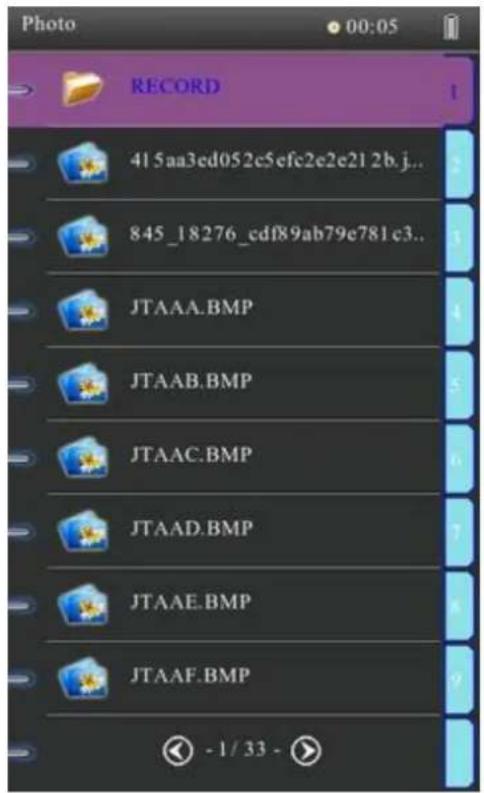
Function Explanation
Photo rotate: In the photo view interface, short press [Rotate] button
Photo enlarge/reduce: When viewing a photo, short pressing the [Zoom In/Out] button can enlarge/reduce the photo
Return/Exit: Short press the [Back] button to exit to the parent directory; long press the [Back] button to go back to the main menu
Rotation and Zooming can also be controlled through the photo menu by pressing [OK] while viewing a photo. The photo menu will also give you access to the Slideshow timer option.
Slideshow Timer: Select the speed at which you wish the slideshow to change photos, or chose to turn the function off by highlighting your selection and pressing [OK].
Note: You can listen to music and view photos simultaneously. First play the music file, then view photos.
8). FM Radio
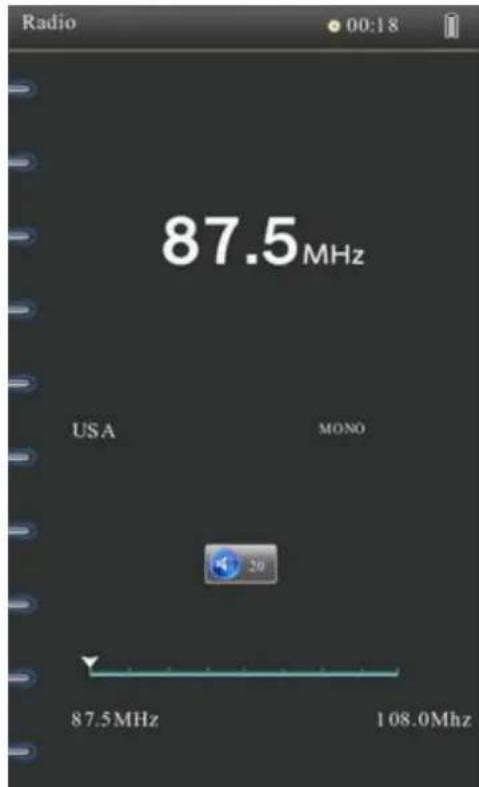
Function Explanation
Volume adjust: press [UP/DOWN] to adjust volume
Radio setup: Clicking [OK] in the radio interface will bring up the Radio setup menu. In this menu you can choose how to search for available frequencies, save and edit your presets, set your region and record live radio.
Search by band: Select and press [OK]. Short press [LEFT/RIGHT] key to select the desired channel a long press will seek the next available frequency.
Auto Search: Choosing this option will seek the first available frequency.
Preset Mode: In preset mode, pressing [LEFT/RIGHT] will go through your saved preset channels.
Save/Delete Channel: Save or delete preset channels.
Stereo Switch: Allows you to choose between stereo (headphone) or mono (speaker) operation.
Receive Area: Allows you to set the FM tuner to your region
FM Record: Allows you to record the channel you are currently listening to
Note:
For optimum performance, plug the earphone in when using the FM radio. The earphone will serve as a signal booster.
9). Recording

Function Explanation
Record/Pause: Short press [PLAY/PAUSE] key to start and stop recording
Exit and Save: Short press [BACK] key, a prompt will ask if you would like to save. Press the [LEFT/RIGHT] keys to save or not.
Play recorded file: Go into your music menu. Choose “recordings” and select the file you wish to listen to.
10).Explorer

11). Calendar
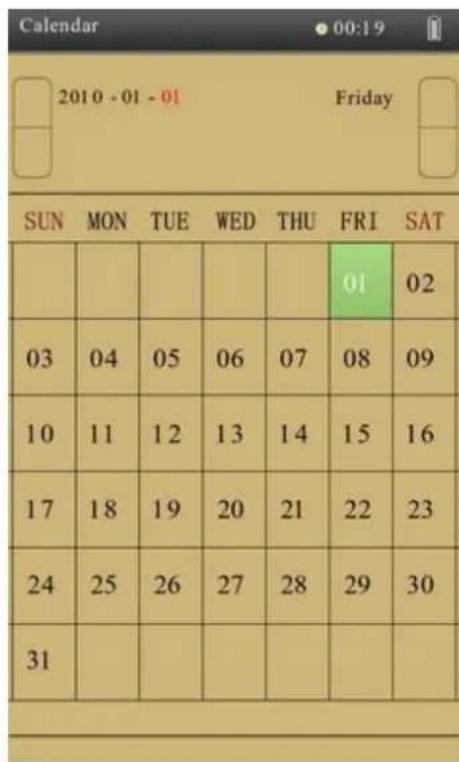
Function Explanation
Navigation: Short press [OK] key to highlight day, month, or year. Use the directional keys to go through dates.
12).Search

Function Explanation
Input Method: To switch between upper and lower case text or numeric entry, short press [ROTATE] key
Search by location: To change location in which to search from, short press [ZOOM] key
13).Settings

Function Explanation
Display setting:
Backlight Timer: Allows you to set backlight-off timer.
Brightness: Allows you to set the brightness level.
System Setting:
Restore Setting: Restore Primer to factory default
Key Lock Timer: Allows you to set a timer to lock key functions.
Language selection: Select between 19 different languages
Sleep Timer: Set to automatically shut down after a period of inactivity (3, 5, 10, 15, 20 minutes).
Power Off Timer: Set to automatically shut down after a specified period of time.
Time: Set Time/Date
- 4 - Shutting down
Long press the power button will shut down the reader. A “good-bye” screen will flash briefly before the device shuts down.
- 5 - Resetting reader
The reader can be reset through the reset hole on the back of the device.
- 6 - Specifications
Panel: 7" TFT LCD
Resolution: 800 x 480
Unit size: 207 x 132 x 12mm
HARDWARE
CPU: ARM9 400Hz
Internal Storage: 2GB
Expandable micro SD Card Support: Up to 16GB
SUPPORTED FORMATS
Audio/Video Formats: MP3, WMA, APE, FLAC, AAC, MKV, AVI, RM RMVB, VOB, DAT, MP4, FLV, 3GP
Image Formats: JPG, BMP, GIF
INS AND OUTS
USB: Mini-USB2.0 Port
Card Reader: SD Slot
3.5mm Headphone jack
POWER
Voltage: AC 100 - 240V 50/60Hz
Battery: 1800mA (Li-Polymer)
INCLUDED ACCESSORIES
Mini-USB Cable ....1
Power Adapter.... 1
Pair of earphones....1
Quick start guide....1
Leather case....1
- 7 - Troubleshooting
1. The reader does not turn on
- Plug in the power adapter and try again
- If still does not turn on after battery is fully charged or while the device is plugged in, please contact customer service/tech support.
2. There is no sound in earphones
- Please check to see if the volume has been set to appropriate levels.
- Please check that the earphones are plugged into the 3.5mm audio jack properly.
3. Excess noise/distortion
- Please check to see if the earphone plug is clean, dirt may cause noise or distortion.
- Check that the audio file has not been damaged. Play other music files to see if the issue is widespread. If the file is corrupt, delete it from the device.
4. The key is not working.
- Please confirm whether the Key Lock is engaged, if it is, please short press [PLAY/PAUSE] key to unlock.
- Contents
- - 1 - Foreword
- NOTES:
- - 2 - Product Configuration
- 1).keyboard function introduction:
- Power key
- 2、3、Navigation keys
- Numeric key
- Rotate key
- Space key
- Back key
- Zoom in /out
- Play/Pause/delete key
- Confirm function/OK key
- Directional Pad
- 3.5mm Earphone jack
- DC jack
- SD slot
- Mini USB port
- Speaker and Microphone
- Reset
- 2). Transferring media and recharging:
- Transferring media files
- Recharging
- 1). Using the standard USB data cable
- 2). Using the adapter recharge
- - 3 - Operation
- 1). Opening reader
- 2). Main interface
- 3). Browse history record
- 4). eBook Reading
- Page Jump
- Save Bookmark
- Load Bookmark
- Delete Bookmark
- Browser Mode
- Flip Time
- Text Color
- Background Color
- 5). Music playing
- Function Explanation
- 6). Video Playback
- 7). Photo Viewing
- 8). FM Radio
- 9). Recording
- 10).Explorer
- 11). Calendar
- 12).Search
- 13).Settings
- - 4 - Shutting down
- - 5 - Resetting reader
- - 6 - Specifications
- HARDWARE
- SUPPORTED FORMATS
- INS AND OUTS
- POWER
- INCLUDED ACCESSORIES
- - 7 - Troubleshooting
- The reader does not turn on
- There is no sound in earphones
- Excess noise/distortion
- The key is not working.
Brand : Skytex
Model : Primer SX-EB700
Category : E-reader