XGS-1005 - Network switch Luxul - Free user manual and instructions
Find the device manual for free XGS-1005 Luxul in PDF.


| Product Type | Network Switch |
| Model | XGS-1005 |
| Manufacturer | Luxul |
| Number of Ports | 5 |
| Interface | 10/100/1000 Mbps Gigabit Ethernet |
| Data Transfer Rate | Up to 1000 Mbps |
| Cabling Recommendation | Cat5e UTP or higher (Cat6 UTP for best performance) |
| Power Supply | External AC adapter (included) |
| Power Indicator | Green LED: On when powered, off when unpowered |
| Link/Activity Indicator | Green LED: On (link), Blinking (activity), Off (no link) |
| Installation | Stable desktop placement, avoid direct sunlight |
| Ventilation | Ensure adequate space around the switch for heat dissipation |
| Environment | Indoor use only |
| Safety | Use only the included power supply; damage may occur otherwise |
| Maintenance | Keep clean and dust-free |
| Technical Support | Phone: 801-822-5450 Option 3, Email: support@luxul.com |
| Sales Contact | Phone: 801-822-5450, Email: sales@luxul.com |
| Included Items | XGS-1005 switch, power adapter |
| Dimensions | Compact desktop form factor |
| Weight | Lightweight (exact not specified) |
| Compliance | Designed for reliable network connectivity |
Frequently Asked Questions - XGS-1005 Luxul
User questions about XGS-1005 Luxul
0 question about this device. Answer the ones you know or ask your own.
Ask a new question about this device
Download the instructions for your Network switch in PDF format for free! Find your manual XGS-1005 - Luxul and take your electronic device back in hand. On this page are published all the documents necessary for the use of your device. XGS-1005 by Luxul.
USER MANUAL XGS-1005 Luxul
natural_image
Black wireless router device with four green Ethernet ports (no visible text or labels)5-Port Gigabit Switch
XGS-1005
Includes:
XGS-1005 5-Port Gigabit Switch
Power Adapter
INSTALLATION AND SETUP
1 Physical Installation
Install the XGS-1005 in a stable/safe place to avoid any possible damage. Avoid placement in direct sunlight and do not place heavy articles on the XGS-1005.
Ensure there is adequate space for proper heat dissipation and ventilation around the switch.
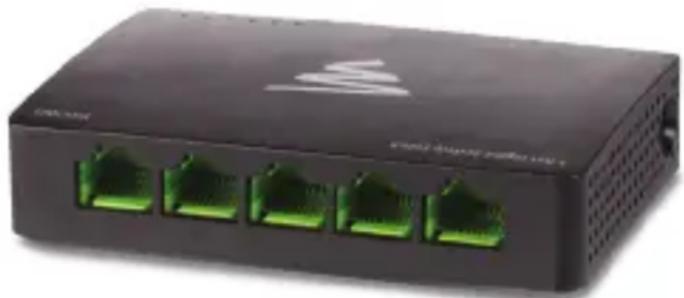
natural_image
Black wireless router with four green Ethernet ports (no visible text or labels)XGS-1005 Front Panel and Side View Showing Ventilation

Connecting Power
Connect the included AC power adapter to a power outlet near the XGS-1005, then connect the power adapter plug to the switch power connector.

natural_image
Front view of a network switch port with five green-labeled ports (no text or symbols visible)XGS-1005 Rear Panel Detail View

CAUTION: Use only the included power supply. If a different power supply is used, it could damage the XGS-1005.

Connecting Ethernet
Connecting Devices
Use standard Ethernet cable to connect the XGS-1005 to Ethernet devices as shown below. Luxul recommends at least Cat-5e unshielded twisted pair (CAT5e UTP) cabling. To ensure best performance and stable data transmission at 1000 Mbps, use Category-6 unshielded twisted pair (CAT6 UTP).

natural_image
Diagram of a network topology showing a server with four ports connected to a desktop computer (no text or labels)Connecting the XGS-1005 to a Device
When a device is properly connected, the Link/Activity LED for the port to which the device is connected lights up green. Please refer to the section on LED Indicators for definitions and troubleshooting.
Connecting to a Router or Other Switch
For best performance, and to maximize available ports, Luxul recommends connecting LAN devices to the XGS-1005, then connecting the switch to a router LAN port or another switch as shown in the illustration.

flowchart
graph TD
    A["User"] -->|Internet| B["Server"]
    B --> C["Computer 1"]
    B --> D["Computer 2"]
    B --> E["Computer 3"]
    B --> F["Computer 4"]
Connecting the XGS-1005 to a Router or Switch
When the XGS-1005 is properly connected to a router or switch, the Link/Activity LED for the appropriate port lights up green. Refer to the section on LED Indicators for definitions and troubleshooting.

Hardware Description
Front Panel
The front panel of the XGS-1005 includes five Link/Activity LEDs and one Power LED. For more information on these LEDs, refer to the table describing these indicators in the next section.

natural_image
Black electronic device with white logo and control buttons (no readable text or symbols beyond branding)XGS-1005 Front Panel View
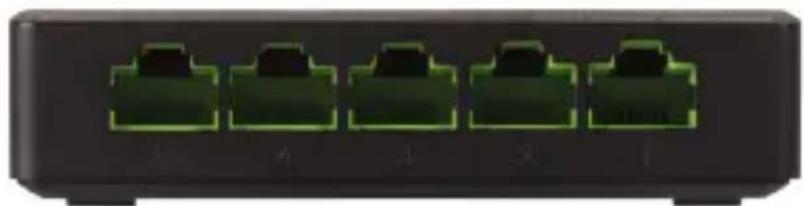
natural_image
Front view of a black network switch with five green-labeled ports (no text or symbols visible)XGS-1005 Rear Panel View

LED Indicators
The LED indicators of the XGS-1005 include one Power indicator and 5 Link/Activity indicators. These LED indicators show the operating status of the XGS-1005 and each switch connection.
The following chart shows the LED indicators of the XGS-1005 along with a description of each indicator:
| LED | Color Status Description |
| Power | Green On The switch is powered. |
| Off The switch is unpowered.Check the DC power supply to ensure proper connection to the outlet and switch. | |
| Link/Activity | Green On The switch is connected to an Ethernet device. |
| Blinking The switch is transmitting/receiving data packets. | |
| Off Indicates the port is not connected to an Ethernet device. |
Sales
P: 801-822-5450
E: sales@luxul.com
Technical Support
P: 801-822-5450 Option 3
E: support@luxul.com
Copyright and Trademark Notices
No part of this document may be modified or adapted in any way, for any purposes without permission in writing from Luxul. The material in this document is subject to change without notice. Luxul reserves the right to make changes to any product to improve reliability, function, or design. No license is granted, either expressly or by implication or otherwise under any Luxul intellectual property rights. An implied license only exists for equipment, circuits and subsystems contained in this or any Luxul product.
© Copyright 2017 Luxul. All rights reserved. The name Luxul, the Luxul logo, the Luxul logo mark and Simply Connected are all trademarks and or registered trademarks of Luxul Wireless, Inc. All other trademarks and registered trademarks are property of their respective holders.
LUX-QIG-XGS-1005-v4 06271701
A brand of legrand®

natural_image
Abstract network diagram with interconnected nodes and lines on a dark background (no text or symbols)

Brand : Luxul
Model : XGS-1005
Category : Network switch