AMS-2600 - Network switch Luxul - Free user manual and instructions
Find the device manual for free AMS-2600 Luxul in PDF.


| Product Type | 26-Port Gigabit Managed Switch |
| Total Ports | 26 Gigabit Ethernet Ports |
| RJ-45 Ports | 24 Gigabit RJ-45 Ports + 2 Gigabit RJ-45 Uplink Ports |
| SFP Ports | 2 Shared SFP Ports (Combo with Uplink RJ-45) |
| Network Speed | 10/100/1000 Mbps |
| Duplex Mode | 10/100 Mbps Half/Full Duplex; 1000 Mbps Full Duplex |
| Power Supply | Built-in, 100-240V AC, 50/60Hz |
| Power Consumption | Not specified |
| LED Indicators | Power, System, Link/Activity per port, Speed/Link/Activity on back |
| Front LED Color Selection | Blue or Green via rear switch |
| Management | Web-based configuration via browser |
| Default IP Address | 192.168.0.2 |
| Default Username | admin |
| Default Password | admin |
| Mounting Options | Desktop or 19-inch rack mount (brackets included) |
| Included Accessories | Rack mount kit, rubber feet, power cable |
| Recommended Cabling | Cat5e UTP or Cat6 UTP for 1000 Mbps |
| Dimensions (W x D x H) | Not specified |
| Weight | Not specified |
Frequently Asked Questions - AMS-2600 Luxul
User questions about AMS-2600 Luxul
0 question about this device. Answer the ones you know or ask your own.
Ask a new question about this device
Download the instructions for your Network switch in PDF format for free! Find your manual AMS-2600 - Luxul and take your electronic device back in hand. On this page are published all the documents necessary for the use of your device. AMS-2600 by Luxul.
USER MANUAL AMS-2600 Luxul
natural_image
Exterior view of a black LUXUL device with a digital display and control buttons (no readable text or symbols beyond branding)AV Series 26-Port Gigabit Managed Switch
AMS-2600
Includes:
AMS-2600 26-Port Gigabit Managed Switch
Rack Mount Kit
Rubber Feet
Power Cable
SETUP AND CONFIGURATION
1 Physical Installation
The AMS-2600 can be rack-mounted or used as a desktop switch. Install the AMS-2600 in a stable/safe place to avoid any possible damage. Avoid placement in direct sunlight. Do not place heavy articles on the AMS-2600 and verify the ground connection of the outlet is functioning properly.
Desktop/Shelf Installation
For desktop/shelf installation, attach the four rubber feet to the corner indentations on the bottom of the AMS-2600, then place the switch horizontally on a solid, level platform.
Rack Installation
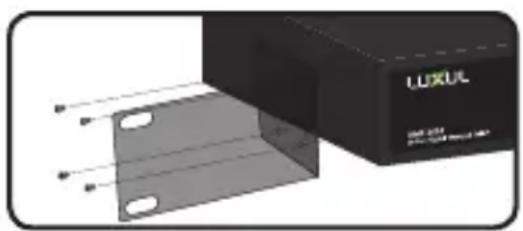
Use the included L brackets for convenient installation in a 19-inch server or audio/video rack. Use four screws to attach the L-shaped brackets on both sides of the AMS-2600 as shown below, then install the switch horizontally in the rack. Use your desired hardware to affix the switch brackets to the rack.

natural_image
Exterior view of a black LUXUL device with mounting holes (no visible text or symbols on body)Attach Feet for Desktop Installation
natural_image
3D rendering of a black rectangular electronic device with a gray panel and mounting holes, shown without any visible text or symbols.Install Brackets for Rack-Mounting
Connecting Ethernet and Power
Ethernet and Power Connections
Use any RJ-45 to connect the AMS-2600 to an Ethernet-enabled device, including servers, routers or other switches. No crossover cable is necessary.
The AMS-2600 supports 10/100/1000 Mbps Ethernet; 10/100 Mbps half/full-duplex mode and 1000 Mbps full-duplex mode.

Note: Luxul recommends at least Cat-5e unshielded twisted pair (CAT5e UTP) cabling. To ensure best performance and stable data transmission at 1000 Mbps, use Category-6 unshielded twisted pair (CAT6 UTP).
Use the included power cable to connect the AMS-2600 to a surge protected outlet. The AC input socket and a power switch are on the rear panel. The built-in power supply supports 100\~240VAC at 50/60Hz.

CAUTION: Use only the correct power cord for your environment. Any voltage other than standard 100/240 will result in damage to the AMS-2600.

Preparing for Access
IP Addressing
If the AMS-2600 is connected to a network with a 192.168.0.X address scheme, and your computer shares a similar address on the same network, you can skip to the next step, Access and Setup.

Note: If another device on your network shares the 192.168.0.2 address, you'll need to temporarily reassign or remove that device while you configure the AMS-2600.
If your network uses an address scheme other than 192.168.0.X, you'll need to set a temporary static IP address on the computer you're using for configuration. To do so, set the IP address of your computer to an address in the 192.168.0.X range, then set the Gateway/Router address to 192.168.0.2 (the default IP address of the AMS-2600).
Once you're finished configuring the switch, you can return your computer's IP configuration to normal, typically "Obtain Automatically/DHCP."

Note: Visit http://luxul.com/ip-addressing to learn more about changing your computer's IP address and getting connected.

Access and Setup
Getting Connected
Use an Ethernet cable to connect your computer to the AMS-2600, then power on the switch.
Logging In
To access the AMS-2600 web configuration, open your web browser and enter the switch's default 192.168.0.2 IP address in the address field. Log in to the switch using the default user name and password:
Default IP: 192.168.0.2
Username: admin
Password: admin
Select the menu items on the left to view and/or modify the configuration.
Refer to the Quick Setup Guide at Luxul.com for more detailed information on setup, IP configuration and routing.

Hardware Operation
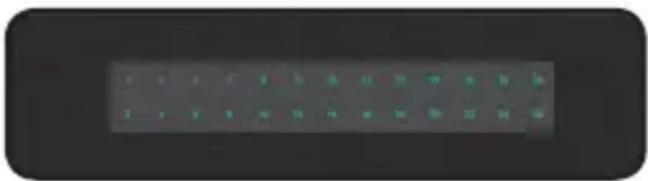
The front panel of the AMS-2600 switch features a Power LED, System LED and a Link/Activity LED for each port. The back panel of the switch includes (24) gigabit RJ-45 ports, two gigabit RJ-45 uplink ports with two shared SFP ports (combo ports), a power connector, and a switch to select blue or green front-panel LEDs. Each Ethernet port has one LED to indicate Link/Activity as well as connection speed.
natural_image
Close-up of a gray rectangular electronic control panel with teal buttons (no visible text or symbols)AMS-2600 Front Panel
Status Indicators
The following table describes the LED functionality for both front and back indicators:
| Front | ||
| Indicator | State Description | |
| Power | On The AMS-2600 is switched on. | |
| Off AMS-2600 is switched off or not connected to AC power. Check power connections and power switch at on the rear of the unit. | ||
| Link/Act | On Device connected to the port. | |
| Flashing | Port is receiving or transmitting data. | |
| Off No device connected to the port or the device is off. | ||
| Back | ||
| Indicator | State Description | |
| Speed/Link/Act | Green | Gigabit device connected to the port. |
| Amber | 10/100Mbps device connected to the port. | |
| Flashing | Port is receiving or transmitting data. | |
| Off No device connected to the port or device is off. | ||
SELECTING FRONT-PANEL LED COLOR
Use the switch on the rear panel of the AMS-2600 to select either blue or green for the Power and System LEDs on the front panel to best match the equipment in the rack where the switch is sharing space.
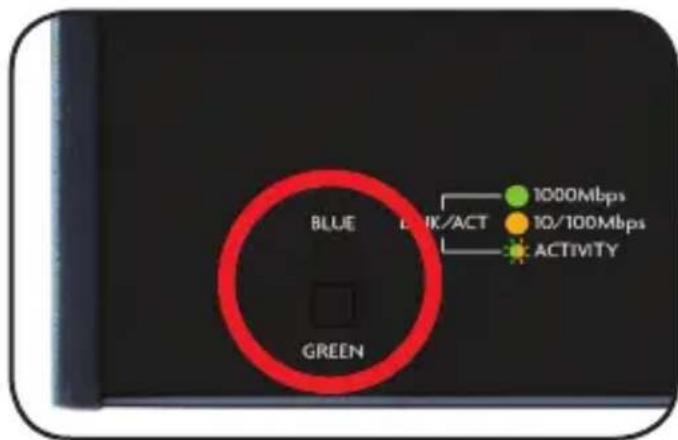
AMS-2600 Selector Switch
Sales
801-822-5450
sales@luxul.com
Technical Support
801-822-5450
support@luxul.com
Copyright and Trademark Notices
No part of this document may be modified or adapted in any way, for any purposes without permission in writing from Luxul. The material in this document is subject to change without notice. Luxul reserves the right to make changes to any product to improve reliability, function, or design. No license is granted, either expressly or by implication or otherwise under any Luxul intellectual property rights. An implied license only exists for equipment, circuits and subsystems contained in this or any Luxul product.
© Copyright 2017 Luxul. All rights reserved. The name Luxul, the Luxul logo, the Luxul logo mark and Simply Connected are all trademarks and or registered trademarks of Luxul Wireless, Inc. All other trademarks and registered trademarks are property of their respective holders.
LUX-QIG-AMS-2600-v6 05191703
A brand of legrand®

natural_image
Abstract network diagram with interconnected nodes and lines on a dark background (no text or symbols)

- AV Series 26-Port Gigabit Managed Switch
- Includes:
- SETUP AND CONFIGURATION
- Physical Installation
- Desktop/Shelf Installation
- Rack Installation
- Connecting Ethernet and Power
- Ethernet and Power Connections
- Preparing for Access
- IP Addressing
- Access and Setup
- Getting Connected
- Logging In
- Hardware Operation
- Status Indicators
- SELECTING FRONT-PANEL LED COLOR
- Sales
- Technical Support
Brand : Luxul
Model : AMS-2600
Category : Network switch