
NS-RMT5D21 - Remote control INSIGNIA - Free user manual and instructions
Find the device manual for free NS-RMT5D21 INSIGNIA in PDF.


| Product Type | Remote Control |
| Brand | Insignia |
| Model | NS-RMT5D21 |
| Dimensions (W x H x D) | Approx. 4.8 x 1.8 x 0.7 inches |
| Weight | Approx. 0.2 lbs (with batteries) |
| Power Source | 2 AAA batteries (not included) |
| Battery Life | Approx. 6 months with normal use |
| Key Functions | Power, Volume, Channel, Mute, Input, Number Pad, Menu, Navigation, Playback |
| Compatible Devices | Most Insignia TVs and many universal brands |
| Cleaning Instructions | Wipe with a soft, dry cloth. Do not use liquids or cleaners. |
| Safety Precautions | Keep away from water, heat, and children. Do not drop or disassemble. |
| Spare Parts Availability | Not available separately |
| Repairability | Not user-serviceable |
| Operating Range | Up to 30 feet |
| Infrared Frequency | 38 kHz |
| Warranty | 1 year limited |
Frequently Asked Questions - NS-RMT5D21 INSIGNIA
User questions about NS-RMT5D21 INSIGNIA
0 question about this device. Answer the ones you know or ask your own.
Ask a new question about this device
Download the instructions for your Remote control in PDF format for free! Find your manual NS-RMT5D21 - INSIGNIA and take your electronic device back in hand. On this page are published all the documents necessary for the use of your device. NS-RMT5D21 by INSIGNIA.
USER MANUAL NS-RMT5D21 INSIGNIA
IMPORTANT SAFEGUARDS....2
Features....3
Package contents....3
Remote control buttons 4
Setting up your universal remote control .....6
Installing the batteries....6
Programming and using your remote control..7
Controlling the volume on your sound bar or audio receiver....13
Using channel shortcut macros .....15
Using app shortcut macros .....16
Understanding and using Activities .....18
Troubleshooting....20
Specifications....20
ONE-YEAR LIMITED WARRANTY ....21
ESPAÑOL 23
Introduction
Thank you for purchasing the Insignia Five-device Universal Remote Control. This remote can be used to control a TV, a streaming device, a Blu-ray player, a soundbar, and a cable box/satellite receiver (STB), and boasts several extra features to make the most of your living room experience.
This manual will help you to set up your Insignia universal remote control to control five of your devices and take advantage of its features.
IMPORTANT SAFEGUARDS
1 Read these instructions.
2Keep these instructions.
3Heed all warnings.
4Follow all instructions.
5Refer all servicing to qualified service personnel.
6Remote control batteries should not be exposed to excessive heat such as sunshine, fire, or the like.
Features
- Controls up to five devices – your TV, Streaming device, Blu-ray Player, soundbar, and cable box/satellite receiver (STB)
- Easy pre-programming connects to your major brand devices without needing a code
- A long 30 ft. (9.1 m) range helps you to minimize remote switching
- Learn-ability feature enables this remote to learn additional functions from your original remote
- Shortcuts let you program specific keys for quick access to your favorite channels and streaming apps
- Fully backlit keys help you operate this remote in dim lighting
• Audio lock feature adjusts the volume of your soundbar without changing devices - Premiere design blends ergonomics and key layout for easy, enjoyable use
• 2 AA batteries required (not included)
Package contents
- Five-device universal remote control
• U s e r G u i d e
- Device Codes
Remote control buttons
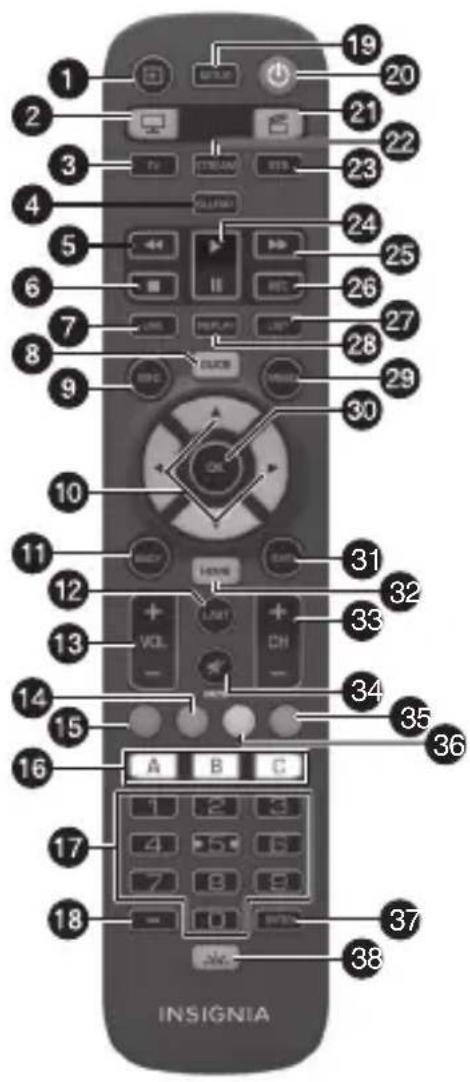
| # | BUTTON PRESS TO... | |
| 1 | Input Change the signal source. | |
| 2 | ( TV) | WCombines control of yourcTV and STB. See Understanding and using Activities on page 18. |
| 3 | TV Control your TV. | |
| 4 | BLURAY Control your Blu-ray or DVD player. | |
| 5 | ◀◀ ( reverse) | fFast reverse device playback. |
| 6 | (stop) Stop device playback. | |
| 7 | LIVE Return to live TV from time shift or recording. | |
| 8 | GUIDE Display the program guide. | |
| # | BUTTON | PRESS TO... |
| 9 INFO Display information about current shows or channel. | ||
| 10 Menu navigation | Navigate onscreen menus. | |
| 11 BACK Go back one step in an onscreen menu. | ||
| 12 LAST Go to the last channel viewed. | ||
| 13 VOL +/VOL- | Increase or decrease the volume. | |
| 14 Green Access news channels. | ||
| 15 Red Access sports channels. | ||
| 16 A,B,and C | Access programmable app shortcuts | |
| 17 Number buttons | Select channels on the current device. On audio devices, press to select inputs. | |
| 18 Dash Select sub-channels or select extra functions in the Menu mode of your set top box. | ||
| 19 SETUP Enter the setup menu for your Insignia universal remote control. | ||
| 20 (power) Turn on the selected device. | ||
| 21 (Watch Movies) | Combines control of your TV, streaming device, and audio. See Understanding and using Activities on page 18. | |
| 22 STREAM Control your streaming box. | ||
| 23 STB Control your set top box. | ||
| 24 ▶II (play/pause) | Play or pause device playback. | |
| 25 ▶▶(fast forward) | Fast forward device playback. | |
| 26 REC Record content. | ||
| 27 LIST | Show a list of recordings. | |
| 28 REPLAY | Repeat the last 30 seconds. | |
| 29 MENU | Show the setup menu for the selected device. | |
| 30 OK Select items on the menu. | ||
| 31 EXIT Exit the menu. | ||
| 32 HOME Go to the home menu. | ||
| 33 CH+/CH- | Go to the next or last channel. | |
| 34 MUTE | Mute the volume of the current device. | |
| # | BUTTON PRESS TO... | |
| 35 | Blue Access kids channels. | |
| 36 | Yellow Access movie channels. | |
| 37 | ENTER Enter the channel selected on the numeric buttons. | |
| 38 | Backlight Turn the button backlight on or off. | |
Setting up your universal remote control Installing the batteries
Your remote control requires two AA batteries (not included).
1 Remove the battery compartment cover from the back of your remote control.
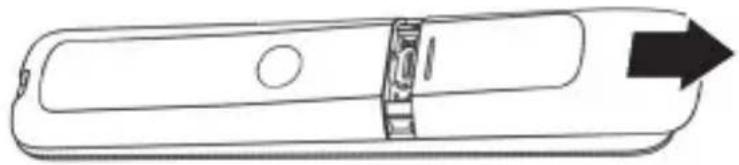
natural_image
Line drawing of a cylindrical object with a central hole and an arrow pointing right (no text or symbols)2Insert two AA batteries (not included) into the battery compartment, making sure that the + and - symbols on the batteries match the + and - symbols inside the battery compartment.
3Replace the battery compartment cover.
CAUTIONS:
- Do not spill water or any liquid on your remote control.
- Do not place your remote control on a wet surface.
- Do not place your remote control in direct sunlight or near sources of excessive heat.
- If your remote control is not going to be used for a long time, remove the batteries to avoid any damage that may be caused by leakage and corrosion.
Programming and using your remote control
Your Insignia universal remote control is pre-programmed to control five of the most popular devices, right out of the box. If you have one of the following devices, try putting the batteries in and pressing the corresponding device button (for example TV or STB), and then press a few function buttons to see if your remote controls your device.
| PRESS THIS BUTTON DEVICE CONTROLLED | |
| TV Samsung TV | |
| STB Comcast Xfinity Set Top Box | |
| STREAM Roku streaming box | |
| BLURAY Samsung Blu-ray player | |
If your device is not one of those listed above, or you have extra devices to set up, there are three ways to do this. The easiest is SimpleSet which is used for the most common brands and devices.
Setup method 1 - SimpleSet
If the brand of your device is shown in the SimpleSet tables below, you can use the SimpleSet system. Locate the brand of your device and note the numeric button associated with it.
TV
| TV BRAND PRESS | |
| LG | 1 |
| Insignia 2 | |
| Phillips, Magnavox 3 | |
| Roku, Element 4 | |
| Samsung, Panasonic 5 | |
| Sharp, Hisense 6 | |
| Sony, Sanyo 7 | |
| TV BRAND | PRESS |
| TCL, RCA 8 | |
| Toshiba, Westinghouse 9 | |
| VIZIO 0 |
STB (set top box)
| STB BRAND PRESS | |
| Bell, Bell Fibe TV, Bell MTS, Sasktel 1 | |
| Comcast/Xfinity 2 | |
| Cox Communications 3 | |
| DIRECTV, AT&T, Sky Mexico 4 | |
| DISH Network, Dish Mexico, Izzi Telecom | 5 |
| Optimum, Suddenlink, Altice USA 6 | |
| Rogers, Cogeco, Vidéotron 7 | |
| Shaw, Cable Axion, Eastlink 8 | |
| Spectrum 9 | |
| Verizon, Frontier Communications, TELUS | 0 |
STREAM
| BRAND PRESS | |
| AirTV, Sling TV | 1 |
| Apple | 2 |
| Microsoft | 3 |
| Netgear | 4 |
| NVIDIA | 5 |
| Onn | 6 |
| Roku | 7 |
| Sony 8 | |
| Western Digital 9 | |
| Xiaomi 0 |
BLURAY and DVD
| BRAND PRESS | |
| LG, Sharp 1 | |
| Insignia 2 | |
| Panasonic 3 | |
| Philips, Magnavox 4 | |
| Pioneer 5 | |
| Samsung 6 | |
| Sony 7 | |
| Toshiba 8 | |
| VIZIO, RCA 9 | |
| Yamaha | 0 |
1Turn on your device and point your Insignia universal remote control at it (if you are setting up a streaming device, make sure a movie or TV program is playing).
2Press the device button you want to set up (for example TV).
3 Press and hold the SETUP button until the LED on your remote button blinks twice.
4Press and hold the number button for your brand and device, as listed in the tables above (for example, 3 for a Phillips TV). Your remote will send the power signal every three seconds.
5Release the button as soon as your device turns off. The LED blinks twice and your remote will now operate your device.
Note: If one or more buttons do not work as expected, start again at step 2. Your remote will start with the next code in memory.
Setup method 2 - device codes
If your device brand is not listed in the SimpleSet tables, you can set up your device by using device codes.
1Turn on your device and point your Insignia universal remote control at it.
2Press the device button you wish to set up (for example - TV).
3 Press and hold the SETUP button until the LED on your remote button blinks twice.
4Enter the first four-number code listed for your brand (for example, 1840 for LG). The LED blinks twice when the last number of the code is entered.
5Point your remote towards your device and press the ⏻ (power) button. If the device turns off, your remote is ready to use. If not, repeat steps 2-5 with the next code in the list.
Note: If your original remote did not have a Power button, try testing with a different button at step 5. For example, try pressing Play or Pause when setting up your streaming device, then see if the device responds.
Setup method 3 - function learning
Your Insignia universal remote control can learn any function from any other working remote control. This is a one-time setup that lets you control any infrared controlled device you have. It also lets you add a button function that may be missing to a spare button on your Insignia universal remote control.
To do this, make sure that you have all of your original remote controls handy, and that they have fresh batteries.
1 Point the original remote control at your Insignia universal remote control from approximately two inches away.
2Press the button on the original remote control for the device you want to learn functions.
3 Press and hold the SETUP button on your Insignia universal remote control until the LED under the device button blinks twice.
4 Press 975. The LED blinks twice.
5Press the button you want to learn (for example the TV Power button). The LED begins to blink rapidly.
6Press the corresponding button on the original remote (for example the ⏻ [power] button). The LED blinks twice to indicate the button has learned correctly.
7 Repeat steps 5 and 6 for each button you want to learn.
Notes:
- Your Insignia universal remote can learn from multiple remotes, but there can only be one function per button.
- Some remotes send commands differently. If you find that a function cannot be learned, try holding down the button on the original remote instead of pressing and releasing.
8When your remote has learned all the functions you want, press and hold the SETUP button until the LED under the device button blinks twice.
Hints
- If the LED shows one long blink at step 6, the function was not learned. Try again, beginning at step 5.
- If you find one or more buttons don't work properly after set up, you can re-enter the learning mode at any time by repeating the procedure from step 1.
- If one or more of your original remotes aren't working, you can still set up your Insignia universal remote control by using SimpleSet or the device code setup.
Deleting a learned function
You can delete a learned function and return that button to its original state.
1 Press the button for the device for which you want to delete the function.
2 Press and hold the SETUP button until the LED under the device button blinks twice.
3 Enter 976. The LED blinks twice.
4Press the button you want to reset twice. The LED blinks twice and the learned function has been deleted.
Locking the volume control
If you primarily use one device for controlling volume, for example the TV, it's possible to program your Insignia universal remote control to only control that device when you use the VOL +, VOL -, or MUTE buttons.
1 Press and hold the SETUP button until the LED on your remote button blinks twice.
2 Enter 993. The LED blinks twice.
3Press the device button for the device to always control the volume (for example TV). The LED blinks twice.
Now, pressing the VOL +, VOL -, or MUTE buttons controls the audio device, no matter what device you are controlling.
Unlocking the volume control
You can unlock the volume control and return your Insignia universal remote control to controlling each device's volume individually.
1 Press and hold the SETUP button until the LED under the device button blinks twice.
2 Enter 993. The LED blinks twice. The volume control is now unlocked.
Controlling the volume on your sound bar or audio receiver
If you have your TV connected to a sound bar or audio receiver, you can set up your Insignia universal remote control to control the volume and mute of those devices.
Using audio SimpleSet
If you have a sound bar or audio device from one of the brands listed in the table below, you can use the SimpleSet method to program your remote to control it. If you do not have one of the brands on the chart, proceed to the next section.
| BRAND PRESS | |
| Bose 1 | |
| Denon 2 | |
| JBL, Polk Audio 3 | |
| LG | 4 |
| Insignia 5 | |
| Onkyo 6 | |
| Samsung 7 | |
| Sony 8 | |
| Yamaha 9 | |
| VIZIO, Sonos 0 |
Note: Each of the brands has a number associated with it, for example 4 for LG.
You can set up your Insignia universal remote control to control your sound bar or audio device.
1 Make sure that your TV and sound bar or audio device are both powered on and that there is something playing that you can hear (this procedure will test the Mute function).
2 Press and hold the SETUP and VOL + buttons together until the LED under the TV button blinks twice.
3Point your Insignia universal remote control at your sound bar or audio device and hold down the number button (from the SimpleSet table) for your audio device brand (for example 4 for LG). Your remote sends the mute signal to your device every three seconds.
4As soon as your sound bar or audio device mutes the volume, release the number button. The LED under the TV button blinks twice. Your remote has found the correct code for your audio device.
5 Press and hold the SETUP and VOL - buttons until the LED blinks twice. The VOL +, VOL -, and MUTE buttons now control your audio device.
Using audio setup codes
If your sound bar or audio device is not one of the brands listed on the SimpleSet table, you can set up your Insignia universal remote control to control it by entering a four-number code.
1 Locate the brand of your sound bar or audio system in the code list.
2 Press and hold the SETUP and VOL - buttons until the LED under the TV button blinks twice. Your remote is now ready to be programmed.
3Enter the first four-number code for your sound bar or audio device. The LED blinks twice when the last number is entered.
4 Try the VOL +, VOL -, and MUTE buttons to determine if they control your sound bar or audio device. If they work, your remote is set up. If not, try again from step 1 using the next code in the list.
Resetting volume control
You can reset the volume control to the original settings.
- Press and hold the SETUP and VOL - buttons until the LED under the device button blinks four times. The volume control is now reset.
If you have set up your Insignia universal remote control to control the volume of a sound bar or audio device, the Watch TV Activity (see Understanding and using Activities on page 18) will automatically control the volume of this device.
Using channel shortcut macros
In addition to their normal functionality, the red, green, yellow and blue buttons can be reprogrammed to select your favorite channels by genre. Initially, if you press each of these buttons, they have the same function as your original remote. However, you can reprogram them so that when the buttons are held down for three seconds they send a channel number, then when held down again for three seconds, they will send another channel number. You can group these channels by genre, such as sports, news, movies, and kids.

natural_image
Four circular light sources on a dark background, no text or symbols visibleFor example, if the first three sports channels are 200, 201, and 239, you can assign shortcuts to these channels on the red (Sports) button.
1 Select the device you normally use to watch live TV. For example, the STB button to select your set top box.
2 Hold down the SETUP button and the red (Sports) button until the LED blinks twice.
3 Enter the first channel number. In this case, 200.
4Press and release the red (Sports) button.
5Enter the next channel number. In this example 201.
6Press and release the red (Sports) button again.
7 Repeat steps 3 and 4 for each channel shortcut you want to add.
8After entering the last channel number you want, press and hold the SETUP button. The red LED blinks twice and the shortcuts are now programmed.
When watching live TV, hold down the red (Sports) button for three seconds and the first programmed channel is selected (in this example channel 200). Hold down the red (Sports) button again for three seconds and the next programmed channel is selected (in this example channel 201).
Using the same procedure, you can program each of the colored buttons with different groups of channel numbers. Each colored button has a different icon (sports, news, movies, and kids) to help you remember the types of channels that you have programmed there. You can program up to 10 different channel numbers per button.
Canceling channel shortcut macros
You can also reset the colored buttons to default.
1 Press the device button you have programmed (for example STB).
2 Press and hold the SETUP button and the colored button you want to reset (for example the green [News] button) until the LED blinks twice.
3Press the green (News) button again.
4 Press and hold the SETUP button until the LED blinks twice. The button is now reset.
Using app shortcut macros
Your Insignia universal remote control features three app shortcut buttons that can be used to open apps on your smart devices. If your original remote control has a Netflix, Amazon Prime Video, and/or YouTube button, the app shortcut buttons can be programmed to perform the same function. Even if your original remote control did not have buttons like this, but still
had the ability to connect to a streaming service, you can use these buttons as shortcuts by programming a macro to them.
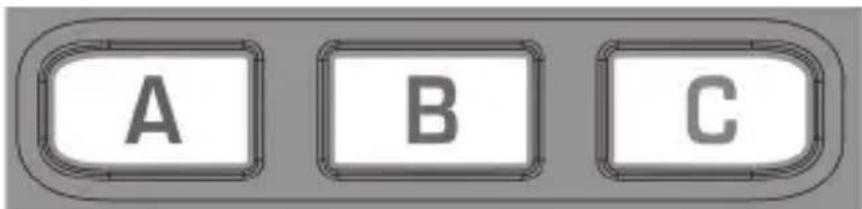
Most AV devices which are connected to the internet, such as smart TVs, have one or more applications they can run to access TV viewing via the internet. Examples of these would be Netflix, YouTube, Amazon Prime, or Hulu.
Adding app shortcut macros
To program the macro, you need to know the device you normally use to access the service, and the sequence of buttons you need to press to bring up the service you want. For example, some Panasonic TVs can start Netflix by pressing the Apps button, then Menu Down twice, and finally the OK button.
1 Determine the sequence required for your device, then turn the device on.
2 Hold down the app shortcut button (A, B, or C) until the LED blinks twice and stays lit.
3Press the device button for the device you want to use for the macro (for example STREAM).
4Press the appropriate buttons in the normal sequence. Your remote will operate your device and the macro is recorded in real time.
5After you have finished the sequence and the streaming service has started on your device, hold down the app shortcut button (A, B, or C) until the LED blinks twice and turns off. The macro is now stored.
Tips
• Make sure that your Insignia universal remote control is operating the device you want to use to access the streaming service before programming.
- If the macro doesn't work as expected, repeat the same sequence to try to program it again.
- When programming, wait for your device to respond. Your remote will remember the timing.
• The app shortcut macro is tied to one device. Make sure you are watching the correct device.
Understanding and using Activities
Using a standard universal remote control, if you want to control several different devices you need to press different device buttons in order to control each device individually. Using your Insignia universal remote control, you can create an Activity, with which you can group a combination of devices and not have to switch control between them.
For example, if want to control the input of your TV, the channels and guide of your DirecTV STB, and the volume of your sound bar, you would need to swap between these devices by pressing the TV and STB buttons. On your Insignia universal remote control, these devices can be grouped into a single Activity. So by pressing the button for the Watch TV Activity (☐), the input button will control the TV, the VOL +, VOL -, and MUTE buttons will control the sound bar, and all of the other buttons will control the set top box.
Your Insignia universal remote control has two Activity modes, specifically Watch TV (☐) and Watch Movie (☐).
Each of these modes has several devices you can combine.
Watch TV Activity
- Combination 1 – TV + STB + AUDIO (default)
• Combination 2 - TV + STB
• Combination 3 - TV + AUDIO
Watch Movie Activity
- Combination 1 - TV + STREAM + AUDIO (default)
- Combination 2 – TV + STREAM
- Combination 3 - TV + BLURAY
- Combination 4 – TV + BLURAY + AUDIO
If you set the default devices for any Activity on your Insignia universal remote control (for example TV, STB, and Audio for the Watch TV Activity), that Activity will be set up automatically on your remote.
If you have set up your remote to control the volume of a sound bar or audio device (see Controlling the volume on your sound bar or audio receiver on page 13), the Watch TV Activity and the Watch Movie Activity will automatically control the volume of that device.
You can also program Activities yourself.
1 Press and hold the SETUP button until the LED under the device button blinks twice. The LED under the current device button stays lit.
2Press the Activity button you want to set up (for example, Watch TV (☐)).
3Press the number of the combination you want to set (for example 3, for TV + audio in the Watch TV Activity). The LED blinks twice.
4Press the Activity button (☐). You can return to controlling by device by using any device button.
Using the INPUT shift
The INPUT button selects the input on your TV (most TVs use a menu to select from a list of inputs). When the INPUT button is pressed in an Activity, the MENU ▲, ▼, ◀, ▶, and OK buttons temporarily (for 10 seconds) control the TV. If the OK button is pressed, or no button is pressed for 10 seconds, these buttons revert to controlling the relevant device for the Activity (for example STB in the Watch TV Activity).
Using the power macro
If you press and hold the ⏻ (power) button for two seconds in any Activity, your remote sends the power signal to each device within that Activity. For example, pressing the ⏻ (power) button in the default setting for the Watch TV Activity turns both the TV and set top box on or off.
Troubleshooting
CAUTION: Do not try to repair your remote yourself. Doing so invalidates the warranty.
| PROBLEM SOLUTION | |
| The LED does not turn on when a button is pressed. | Replace the batteries. |
| The LED turns on, but my remote does not control my device. | Make sure that your remote is programmed to your device.Make sure that your remote is set to the correct mode (TV, STB, STREAM, or BLURAY). |
| I have tried all of the codes for my device's brand, but none of them work. | See Setup method 2 - device codes on page 10. |
| After programming, some of my remote's functions don't work | If you still have your original (working) remote, you can teach your new remote its functions. See Setup method 3 - function learning on page 10. |
Specifications
| Dimensions (HxWxD) | 8.8 x 1.8 x 1.1 in. (223 x 46 x 28 mm) |
| Range 30 ft. (9.1 m) | |
| Control Five devices | |
| Power requirements Two AA batteries (not provided) | |
ONE-YEAR LIMITED WARRANTY
Definitions:
The Distributor* of Insignia branded products warrants to you, the original purchaser of this new Insignia-branded product ("Product"), that the Product shall be free of defects in the original manufacturer of the material or workmanship for a period of one (1) year from the date of your purchase of the Product ("Warranty Period"). For this warranty to apply, your Product must be purchased in the United States or Canada from a Best Buy branded retail store or online at www.bestbuy.com or www.bestbuy.ca and is packaged with this warranty statement.
How long does the coverage last?
The Warranty Period lasts for 1 year (365 days) from the date you purchased the Product. Your purchase date is printed on the receipt you received with the Product.
What does this warranty cover?
During the Warranty Period, if the original manufacture of the material or workmanship of the Product is determined to be defective by an authorized Insignia repair center or store personnel, Insignia will (at its sole option): (1) repair the Product with new or rebuilt parts; or (2) replace the Product at no charge with new or rebuilt comparable products or parts. Products and parts replaced under this warranty become the property of Insignia and are not returned to you. If service of Products or parts are required after the Warranty Period expires, you must pay all labor and parts charges. This warranty lasts as long as you own your Insignia Product during the Warranty Period. Warranty coverage terminates if you sell or otherwise transfer the Product.
How to obtain warranty service?
If you purchased the Product at a Best Buy retail store location or from a Best Buy online website (www.bestbuy.com or www.bestbuy.ca), please take your original receipt and the Product to any Best Buy store. Make sure that you place the Product in its original packaging or packaging that provides the same amount of protection as the original packaging. To obtain warranty service, in the United States and Canada call 1-877-467-4289. Call agents may diagnose and correct the issue over the phone.
Where is the warranty valid?
This warranty is valid only in the United States and Canada at Best Buy branded retail stores or websites to the original purchaser of the product in the country where the original purchase was made.
What does the warranty not cover?
This warranty does not cover:
- Food, beverage, and or medicine loss/spoilage.
- Customer instruction/education
- Installation
- Set up adjustments
- Cosmetic damage
- Damage due to weather, lightning, and other acts of God, such as power surges
- Accidental damage
- Misuse
- A b u s e
• Negligence
- Commercial purposes/use, including but not limited to use in a place of business or in communal areas of a multiple dwelling condominium or apartment complex, or otherwise used in a place of other than a private home.
- Modification of any part of the Product, including the antenna
- Display panel damaged by static (non-moving) images applied for lengthy periods (burn-in).
• Damage due to incorrect operation or maintenance
- Connection to an incorrect voltage or power supply
- Attempted repair by any person not authorized by Insignia to service the Product
- Products sold "as is" or "with all faults"
- Consumables, including but not limited to batteries (i.e. AA, AAA, C etc.)
- Products where the factory applied serial number has been altered or removed
- Loss or Theft of this product or any part of the product
- Display panels containing up to three (3) pixel failures (dots that are dark or incorrectly illuminated) grouped in an area smaller than one tenth (1/10) of the display size or up to five (5) pixel failures throughout the display. (Pixel based displays may contain a limited number of pixels that may not function normally.)
- Failures or Damage caused by any contact including but not limited to liquids, gels or pastes.
REPAIR REPLACEMENT AS PROVIDED UNDER THIS WARRANTY IS YOUR EXCLUSIVE REMEDY FOR BREACH OF WARRANTY. INSIGNIA SHALL NOT BE LIABLE FOR ANY INCIDENTAL OR CONSEQUENTIAL DAMAGES FOR THE BREACH OF ANY EXPRESS OR IMPLIED WARRANTY ON THIS PRODUCT, INCLUDING, BUT NOT LIMITED TO, LOST DATA, LOSS OF USE OF YOUR PRODUCT, LOST BUSINESS OR LOST PROFITS. INSIGNIA PRODUCTS MAKES NO OTHER EXPRESS WARRANTIES WITH RESPECT TO THE PRODUCT, ALL EXPRESS AND IMPLIED WARRANTIES FOR THE PRODUCT, INCLUDING BUT NOT LIMITED TO ANY IMPLIED WARRANTIES OF AND CONDITIONS OF MERCHANTABILITY AND FITNESS FOR A PARTICULAR PURPOSE, ARE LIMITED IN DURATION TO THE WARRANTY PERIOD SET FORTH ABOVE AND NO WARRANTIES, WHETHER EXPRESS OR IMPLIED, WILL APPLY AFTER THE WARRANTY PERIOD. SOME STATES, PROVINCES AND JURISDICTIONS DO NOT ALLOW LIMITATIONS ON HOW LONG AN IMPLIED WARRANTY LASTS, SO THE ABOVE LIMITATION MAY NOT APPLY TO YOU. THIS WARRANTY GIVES YOU SPECIFIC LEGAL RIGHTS, AND YOU MAY ALSO HAVE OTHER RIGHTS, WHICH VARY FROM STATE TO STATE OR PROVINCE TO PROVINCE.
Contact Insignia:
1-877-467-4289
www.insigniaproducts.com
INSIGNIA is a trademark of Best Buy and its affiliated companies.
*Distributed by Best Buy Purchasing, LLC
7601 Penn Ave South, Richfield, MN 55423 U.S.A
©2022 Best Buy. All rights reserved.
ESPAÑOL
Índice
Introducción....23
MEDIDAS DE SEGURIDAD IMPORTANTES..... 23
Características 24
natural_image
Line drawing of a cylindrical device with a handle and internal components, no text or symbols presentnatural_image
Four circular gradient spots on a dark background, no text or symbols presentROJO VERDE AMARILLO AZUL
7601 Penn Avenue South, Richfield, MN 55423 E.U.A.
INSIGNIA is a trademark of Best Buy and its affiliated companies.
Distributed by Best Buy Purchasing, LLC
7601 Penn Ave South, Richfield, MN 55423 U.S.A
©2022 Best Buy. All rights reserved.
7601 Penn Avenue South, Richfield, MN 55423 E.U.A.
- Introduction
- IMPORTANT SAFEGUARDS
- Features
- Package contents
- Remote control buttons
- Setting up your universal remote control Installing the batteries
- CAUTIONS:
- Programming and using your remote control
- Setup method 1 - SimpleSet
- Setup method 2 - device codes
- Setup method 3 - function learning
- Notes:
- Hints
- Deleting a learned function
- Locking the volume control
- Unlocking the volume control
- Controlling the volume on your sound bar or audio receiver
- Using audio SimpleSet
- Using audio setup codes
- Resetting volume control
- Using channel shortcut macros
- Canceling channel shortcut macros
- Using app shortcut macros
- Adding app shortcut macros
- Tips
- Understanding and using Activities
- Watch TV Activity
- Watch Movie Activity
- Using the INPUT shift
- Using the power macro
- Troubleshooting
- Specifications
- ONE-YEAR LIMITED WARRANTY
- Definitions:
- How long does the coverage last?
- What does this warranty cover?
- How to obtain warranty service?
- Where is the warranty valid?
- What does the warranty not cover?
- ESPAÑOL
- Índice
Brand : INSIGNIA
Model : NS-RMT5D21
Category : Remote control