
GX55 - Mouse Genesis - Free user manual and instructions
Find the device manual for free GX55 Genesis in PDF.


| Product Type | Wired Gaming Mouse |
| Model | GX55 |
| Brand | Genesis (Natec) |
| Buttons | 9 Fully Programmable |
| Resolution (DPI) | Up to 3200 DPI (Adjustable: 400/1200/2000/3200 CPI) |
| Polling Rate | 125/250/500/1000 Hz |
| Lighting Modes | Full Light and Breathing (LED color varies with DPI) |
| Profiles | Up to 5 Profiles in Driver (more saved to disk) |
| Macro Support | Yes, with Recordable Delays and Loop Times |
| Interface | USB 1.1/2.0 |
| Compatible Operating Systems | Windows XP/Vista/7 |
| Ergonomic Design | Yes |
| X/Y Axis Sensitivity Adjustment | Available (Synchronous or Independent) |
| Double-Click Speed Adjustment | Yes |
| Mouse Wheel Scroll Speed Adjustment | Yes |
| Pointer Speed Adjustment | Yes |
| Enhanced Pointer Precision | Yes (Optional) |
| Power Source | USB Powered |
| Cleaning Instructions | Wipe with a dry cloth; avoid liquids |
| Safety Notes | Do not disassemble or modify; avoid extreme temperatures and dust |
| Warranty | Void if unauthorized repairs or disassembly |
Frequently Asked Questions - GX55 Genesis
User questions about GX55 Genesis
0 question about this device. Answer the ones you know or ask your own.
Ask a new question about this device
Download the instructions for your Mouse in PDF format for free! Find your manual GX55 - Genesis and take your electronic device back in hand. On this page are published all the documents necessary for the use of your device. GX55 by Genesis.
USER MANUAL GX55 Genesis
EN - NATEC GENESIS GX55 - USER MANUAL
I. Introduction
Natec Genesis GX55 is a wired gaming mouse with 9 fully customizable buttons, high precision optical engine and comfortable design.
II. Features
- High-end optical engines, positioning precision
- Adjustable resolution up to 3200DPI
- Different LED indicator colors, which depend on resolution
- Two modes of LED lightning: full lightened and breathing.
- 9 fully programmable keys – more than 40 setting to choose for each
- Adjustable polling rate: 125/250/500/1000 Hz.
- Advanced profiles management
- Ergonomic design.
III. Driver description
A. System
- Compatible with Windows XP/Vista/7 operation system
- USB (1.1/2.0) port
- CD-ROM drive
IV. Mouse configuration
A. Main Control
Main control tab allows you to assign individual functions to each button and restore default settings.
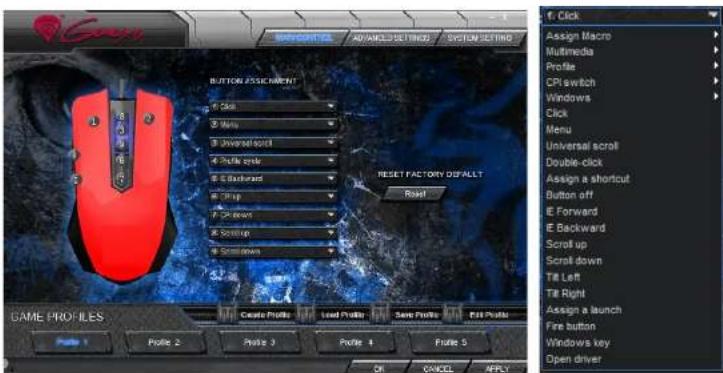
You can bind one of more than 40 functions to keys labeled by numbers on the schema above. In the middle of the window, you can see actual configuration of the number. For instance, the label is a function that is given by the number of nodes.
Defining Macros
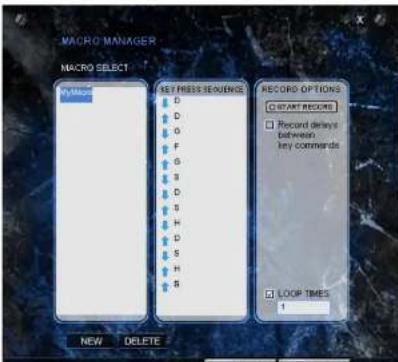
In brief speaking, a macro is a series of actions that you can bind to the keyboard. More precisely, macro is a recorded sequence of key presses, releases and time delays between them. Output delays can be recorded or predefined by user.
To define a macro, you have to choose from available function list assign macro, and then macro manager.
Natec Genesis GX55 4
- Choose a macro from the list
- Click delete
Additional options:
Record delays between key commands – you can choose whether to record time intervals between pressing and releasing the keys
Loop times – you can define how many times macro should be used after single button press.
B. Advanced Settings
In this tab, you can adjust settings related to the way the mouse works – such as precision or sensitivity.
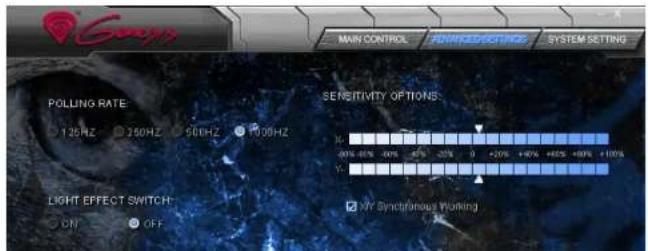
Sensitivity options - using the sliders you can adjust sensitivity for axis X and Y at once (when X / Y synchronous working box is checked) or separately (if unchecked).
CPI Switcher - defines the resolution (CPI - counts per inch) of the mouse. Available options - 400/1200/2000/3200 CPI
C. System Settings
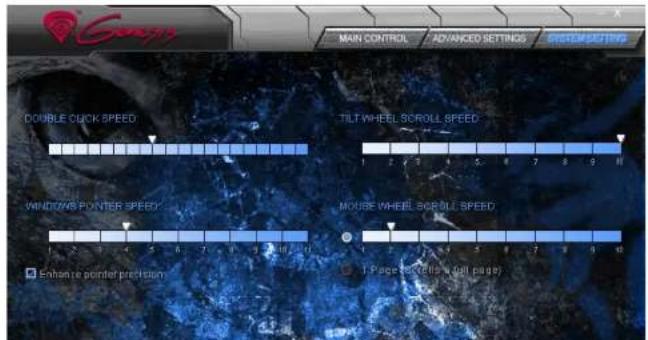
The settings here are related rather to an operation system, not the hardware itself. System settings allow you to change the way your system interprets signals from the mouse.
D. Profile management
Natec Genesis GX55 allows you to create different profiles of settings and assign them to individual games or applications. Up to five profiles can be stored in the driver – other have to be saved to your hard disk. Switching between profiles is possible by the driver interface, mouse buttons with assigned profile-related functions or automatically – by launching an application linked to the profile.

Creating a profile
- Click create profile on the driver interface
- Type the name for the profile
- In the path to executable box insert path to the executable file (.exe) of the application you want to be assigned to the profile
Editing a profile
- Click edit profile on the driver interface
- Edit the name and path to assigned application accordingly to your needs
V. General
- Non-authorized repairs or taking the device to pieces make the warranty void and may cause the product damage.
- Do not use the product in low and high temperatures and in the dusty atmosphere.
- Do not connect / disconnect the product to / from a computer when it is on.
- The safe product, conforming to the EU requirements.
- The product is made in accordance with RoHS European standard. The standard was issued in order to decrease the amount of the electronic and electrical waste emitted into the atmosphere.
- The WEEE symbol (the crossed-out wheeled bin) using indicates that this product in not home waste. You protect the environment when you recycle hazardous waste appropriately. In order to get detailed information about recycling this product please contact your retailer or a local authority.

PL - NATEC GENESIS GX55 - INSTRUKCJA OBSŁUGI
I. Wstep
- Wybierz makro z listy
- Kliknij delete
Opcje dodatkowe:
B. Advanced Settings
Tworzenie profilu


- EN - NATEC GENESIS GX55 - USER MANUAL
- Introduction
- Features
- Driver description
- System
- Mouse configuration
- Main Control
- Defining Macros
- Natec Genesis GX55 4
- Advanced Settings
- System Settings
- Profile management
- Creating a profile
- Editing a profile
- General
- PL - NATEC GENESIS GX55 - INSTRUKCJA OBSŁUGI
- Wstep
- Tworzenie profilu
Brand : Genesis
Model : GX55
Category : Mouse