
Kadru - Mouse Krom - Free user manual and instructions
Find the device manual for free Kadru Krom in PDF.


| Product Type | Gaming Mouse |
| Model | Kadru |
| Sensor | Optical AVAGO 3050 |
| Resolution | 250 - 4000 DPI (adjustable in software) |
| Number of Buttons | 6 (left, right, scroll wheel, DPI, forward, backward) |
| Internal Memory | 64 KB |
| Polling Rate | 250 / 500 / 1000 Hz |
| Acceleration | 20 G |
| Speed | 60 inches per second |
| Interface | USB 2.0 / 3.0 |
| Cable Length | 150 cm ± 10 cm |
| Dimensions (L x W x H) | 130 x 65 x 45 mm |
| Weight | 160 ± 5 grams |
| Operating System Support | Windows 7 / 8 / 8.1 / 10 |
| Software | Krom Gaming Software (downloadable) |
| Backlight | RGB with modes: Standard, Breathing, Neon |
| Button Customization | Remap all buttons, assign macros, fire keys, combos |
| Warranty | 2 years (original purchaser) |
| Cleaning | Wipe with a dry, soft cloth; avoid liquids |
| Power Supply | USB-powered (5V, 500mA) |
Frequently Asked Questions - Kadru Krom
User questions about Kadru Krom
0 question about this device. Answer the ones you know or ask your own.
Ask a new question about this device
Download the instructions for your Mouse in PDF format for free! Find your manual Kadru - Krom and take your electronic device back in hand. On this page are published all the documents necessary for the use of your device. Kadru by Krom.
USER MANUAL Kadru Krom
natural_image
Line drawing of a computer mouse with a circular head on the screen (no text or symbols)KADRU
4000 DPI Gaming Mouse
SOFTWARE MANUAL
Technical specifications
Kadru's buttons\*
- Left button
- Right button
- Scroll & wheel button
- DPI button
- Forward button
- Backward button
Compatibility Windows 7 / 8 / 8.1 / 10
Sensor optical AVAGO 3050
Resolution 250 - 4000 DPI
Buttons 6
Internal memory 64kb
Polling rate 250 - 500 - 1000 Hz
Acceleration 20 G
Speed 60 inches / sec
Cable lenght 150 cm ± 10 cm
Interface USB
Dimensions 130 x 65 x 45 mm
Weight 160 ± 5 gr

Kadru Software Manual
INDEX
Technical specification
System requirements
Software installation
Basic settings
Functions
Keys combinations
Backlit effect modes
Advanced settings
Warranty
System requirements
- Operating system:
Windows 7 / Windows 8 / Windows 8.1 / Windows 10 - Free USB 2.0 / 3.0 port.
- Software installation.
- 50MB free hard disk space.
Software installation
- Plug KROM KADRU USB connector to a USB port of your PC.
- Download the software from www.kromgaming.com
2.1 Connect to the internet and enter www.kromgaming.com
2.2 Into the product sheet right side menu [Downloads] click on "DRIVERS".
2.3 In this link you can download the Software.
- Double click "setup.exe" to start the installation program.
- Select the folder to save the software and click "Next" to continue.
- Installation runs automatically: click "Finish" to complete the installation and restart your PC
Kadru Software Manual
INDEX
Technical specification
System requirements
Software installation
Basic settings
Functions
Keys combinations
Backlit effect modes
Advanced settings
Warranty
Basic settings
- Button assignment

You can assign to any Kadru button another's function:
- Open Key Settings' dropdown menu and select the button you want to change its function.
- Choose the function you want to apply to the selected button.
Kadru Software Manual
INDEX
Technical specification
System requirements
Software installation
Basic settings
- Button assignment
·DPI switch
RGB On/Off
Functions
Keys combinations
Backlit effect modes
Advanced settings
Warranty
Basic settings
- DPI switch

You can assign DPI switch function to any Kadru button:
- Open Key Settings' dropdown menu and select the button you want to assign the function.
- Choose which DPI switch function's exact action you want to run when pressing the selected
Kadru Software Manual
INDEX
Technical specification
System requirements
Software installation
Basic settings
- Button assignment
· DPI switch
RGB On/Off
Functions
Keys combinations
Backlit effect modes
Advanced settings
Warranty
Basic settings
- RGB On/Off
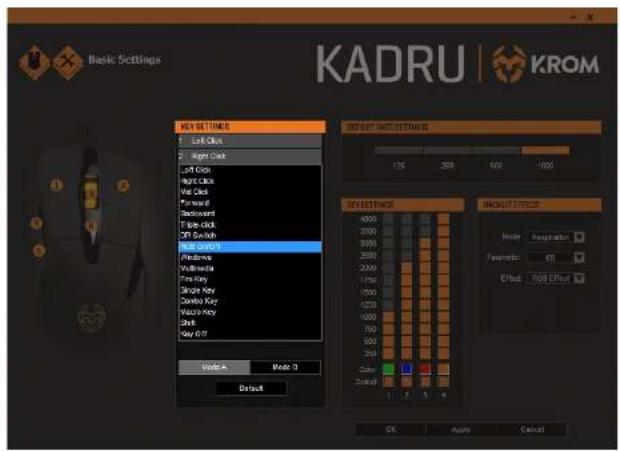
You can assign RGB ON/OFF function to any Kadru button:
- Open Key Settings' dropdown menu and select the button you want to assign the RGB ON/OFF function.
Kadru Software Manual
INDEX
Technical specification
System requirements
Software installation
Basic settings
- Button assignment
· DPI switch
- RGB On/Off
Functions
Keys combinations
Backlit effect modes
Advanced settings
Warranty
Functions
- Windows function

Assign a Windows function to any Kadru button by choosing a key in the dropdown menu into the Key Settings menu.
Click on the Windows option to open a dialog box where you can choose which Windows
Kadru Software Manual
INDEX
Technical specification System requirements Software installation Basic settings
Functions
- Windows function
- Multimedia function Keys combinations Backlit effect modes Advanced settings Warranty
Functions
- Multimedia function
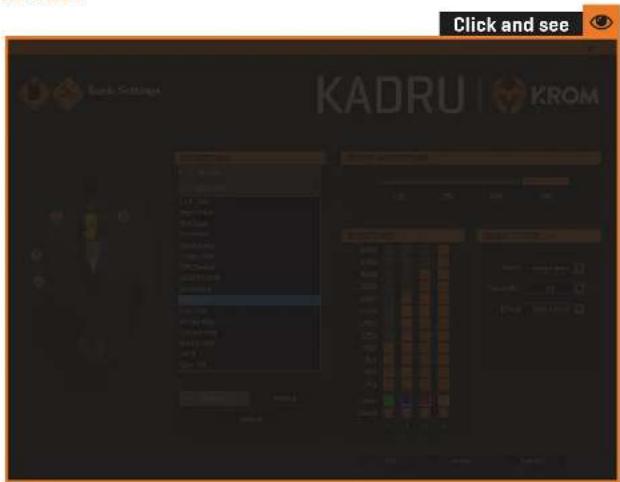
Assign a multimedia function to any Kadru button by choosing a key in the dropdown menu into the Key Settings menu.
Click on the Multimedia option to open a dialog box where you can choose which multimedia
Kadru Software Manual
INDEX
Technical specification System requirements Software installation Basic settings
Functions
- Windows function - Multimedia function Keys combinations Backlit effect modes Advanced settings Warranty
Keys combinations
- Fire key creation

Kadru Software Manual
INDEX
Technical specification
System requirements
Software installation
Basic settings
Functions
Keys combinations
- Fire key creation
- Single key creation
- Combo keys creation
- Macro keys combination
button assignment
Backlit effect modes
Advanced settings
Warranty
Create and assign a fire key function to any Kadru button by choosing a key in the Key Settings' dropdown menu. Click on the Fire Key option to open a dialog box to set:
- The firing key (you can choose from A to J).
- The firing speed.
Keys combinations
- Single key creation
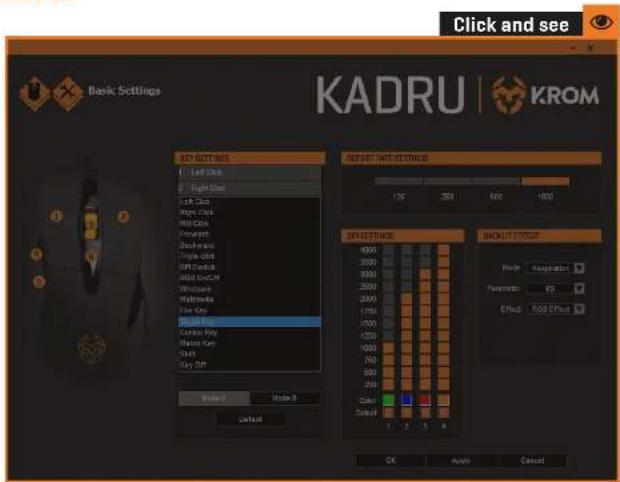
Assign a single key function to any Kadru button by choosing a key in the dropdown menu into the Key Settings menu.
Click on the Single Key option to open a dialog box where you can choose which key should
Kadru Software Manual
INDEX
Technical specification
System requirements
Software installation
Basic settings
Functions
Keys combinations
- Fire key creation
- Single key creation
- Combo keys creation
- Macro keys combination
button assignment
Backlit effect modes
Advanced settings
Warranty
Keys combinations
- Combo keys creation
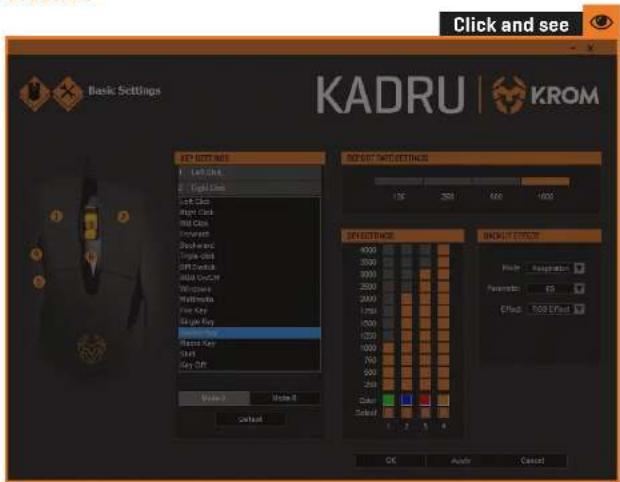
Create and assign a combo key function to any Kadru button by choosing a key in the Key Settings' dropdown menu. Click on the Combo Key option to open a dialog box to set:
- Control / Shift / Alt / Win key (you can choose one from left to right).
- The keys which complete the combo.
Keys combinations
- Macro keys combinations button assignment

Assign a macro combination to any Kadru button by choosing a key in the dropdown menu into the Key Settings menu. Click on the Macro Key option to open a dialog box to choose:
- Which Macro combination should be assigned to the selected button.
[see page 9 for Macro's creation process]
Kadru Software Manual
INDEX
Technical specification
System requirements
Software installation
Basic settings
Functions
Keys combinations
- Fire key creation
- Single key creation
- Combo keys creation
- Macro keys combination
button assignment
Backlit effect modes
Advanced settings
Warranty
Backlit effect modes
- Standard mode

Kadru Software Manual
INDEX
Technical specification
System requirements
Software installation
Basic settings
Functions
Keys combinations
Backlit effect modes
- Standard mode
- Breathing mode
- Neon mode
Advanced settings
Warranty
Standard backlit mode sets a fixed RGB illumination effect. You can regulate effect's strength by choosing a percentage in the Parameter box list.
Backlit effect modes
- Breathing mode

Breathing backlit mode sets a breathing RGB illumination effect. You can regulate effect's interval by choosing among the time frames given in the Parameter box list.
Kadru Software Manual
INDEX
Technical specification
System requirements
Software installation
Basic settings
Functions
Keys combinations
Backlit effect modes
Standard mode
- Breathing mode
- Neon mode
Advanced settings
Warranty
Backlit effect modes
- Neon mode

Neon backlit mode sets a bright neon RGB illumination effect. You can regulate effect's transition interval by choosing a time frame among the given ones in the Parameter box list.
You can also choose whether you want to add to the effect's transition a RGB flash effect or a
Kadru Software Manual
INDEX
Technical specification
System requirements
Software installation
Basic settings
Functions
Keys combinations
Backlit effect modes
Standard mode
- Breathing mode
- Neon mode
Advanced settings
Warranty
Advanced settings
- Macros creation

1. SET MACRO NAME & LOOP TIMES
To create a macro keys combination, start by setting its name and the amount of times it should repeat the assigned action.
Click the New button to save this parameters before start recording your new macro.
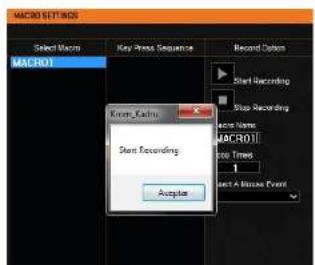
2. START RECORDING
PresstheStart Recording button to begin registering the key sequence that will comprise the macro keys combination.
Kadru Software Manual
INDEX
Technical specification
System requirements
Software installation
Basic settings
Functions
Keys combinations
Backlit effect modes
Advanced settings
- Macros creation
· Speed settings
Warranty
Advanced settings
- Macros creation

3. RUN THE KEYSTROKES
Start typing the macro key combination in your keyboard.
Kadru's software interface will show you every key stroked while the recording is running.

4. STOPRECORDING
Press the Stop Recording button to finish registering the macro keys combination.
Kadru Software Manual
INDEX
Technical specification
System requirements
Software installation
Basic settings
Functions
Keys combinations
Backlit effect modes
Advanced settings
- Macros creation
· Speed settings
Warranty
Advanced settings
- Macros creation
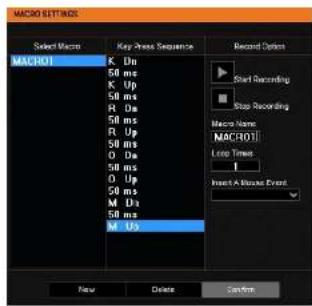
5. SAVE RECORDED MACRO COMBINATION
Press the Confirm button to save the macro keys combination just created: you will lose all the recorded data unless you press this button.
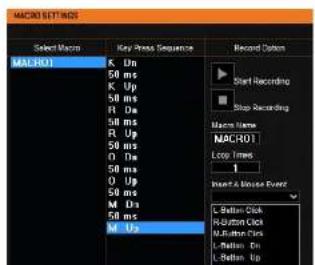
6. ASSIGN MOUSE'S BUTTONS EVENTS TO THE NEW MACRO
You can add more events from the left, right and middle button in your new macro by using this drop-down menu.
Kadru Software Manual
INDEX
Technical specification
System requirements
Software installation
Basic settings
Functions
Keys combinations
Backlit effect modes
Advanced settings
- Macros creation
· Speed settings
Warranty
Advanced settings
- Speed settings

Kadru's software allows you to change its varied range of speed levels:
- Mouse Speed: change Kadru's cursor speed and precision.
- Scrolling speed: change Kadru's scroll button speed.
Warranty
- Who the warranty Protects:
This warranty is valid to the original purchaser only.
- What the warranty protects:
For your warranty claims, please contact Krom gaming overseas distribution partners in your country. Find the distribution partner list at www.kromgaming.com
Warranty: 2 years from purchasing date. (Depending on the laws of each country)
URL: www.kromgaming.com
E-mail: support@kromgaming.com
- What the warranty does not cover:
- Any product, on which the serial number has been defaced, modified or removed.
- Accident, misuse, neglect, fire, water, lightning, or other acts of nature, unauthorized product modification, or failure to follow instructions supplied with the product.
- Repair or attempted repair by anyone not authorized by Krom gaming.
- Damage to or loss of any programs, data or removable storage media.
- Software or data loss occurring during repair or replacement.
- Any damage of the product due to shipment.
- Removal or installation of the product.
- External causes, such as electric power fluctuations or failure.
- Use of supplies or parts not meeting kromgaming's specifications.
- Normal wear and tear.
- Any other cause which does not relate to a product defect.
If you have any questions regarding technical problems please contact us via our website:
WWW.KROMGAMING.COM

natural_image
Abstract orange geometric logo on black background (no text or symbols)KROM

- KADRU
- Technical specifications
- Kadru's buttons\*
- INDEX
- Technical specification
- System requirements
- Software installation
- Basic settings
- · DPI switch
- Functions
- - Windows function
- Keys combinations
- Backlit effect modes
- Advanced settings
- SET MACRO NAME & LOOP TIMES
- START RECORDING
- RUN THE KEYSTROKES
- STOPRECORDING
- SAVE RECORDED MACRO COMBINATION
- ASSIGN MOUSE'S BUTTONS EVENTS TO THE NEW MACRO
- Warranty
- KROM
Brand : Krom
Model : Kadru
Category : Mouse