
GE72 6QD-849FR APACHE PRO - Gaming laptop MSI - Free user manual and instructions
Find the device manual for free GE72 6QD-849FR APACHE PRO MSI in PDF.
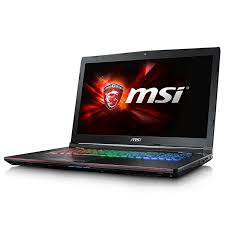


| Product type | Gaming laptop |
| Brand | MSI |
| Model | GE72 6QD-849FR APACHE PRO |
| Processor | Intel Core i7-6700HQ (2.6 GHz, Turbo 3.5 GHz) |
| RAM Memory | 8 GB DDR4 |
| Storage | 1 TB HDD |
| Graphics card | NVIDIA GeForce GTX 960M 2 GB |
| Screen | 17.3 inches Full HD (1920 x 1080) |
| Operating system | Windows 10 |
| Dimensions (W x D x H) | 418 x 287 x 30 mm |
| Weight | 2.8 kg |
| Power supply | 150 W power adapter |
| Wireless connectivity | Wi-Fi 802.11 ac, Bluetooth 4.0 |
| Ports | 1x USB 3.1 Type-C, 3x USB 3.0, HDMI, Mini DisplayPort, RJ45, audio jack |
| Keyboard | Red backlit |
| Main features | Gaming, high performance, pre-installed WTFast software |
| Care and cleaning | Use a soft dry cloth, avoid liquids |
| Security | BIOS password, Kensington lock slot |
| Spare parts and repairability | Removable battery, RAM and hard drive access |
Frequently Asked Questions - GE72 6QD-849FR APACHE PRO MSI
User questions about GE72 6QD-849FR APACHE PRO MSI
0 question about this device. Answer the ones you know or ask your own.
Ask a new question about this device
Download the instructions for your Gaming laptop in PDF format for free! Find your manual GE72 6QD-849FR APACHE PRO - MSI and take your electronic device back in hand. On this page are published all the documents necessary for the use of your device. GE72 6QD-849FR APACHE PRO by MSI.
USER MANUAL GE72 6QD-849FR APACHE PRO MSI
WTFAST/User Guide 2016
This guide is meant to get you up and running fast and seamlessly.
If you have WTFast preinstalled on your machine, please proceed. If you do not, please go here: https://www.wtfast.com/Download/Start
to download and install WTFast.
After you login to the client, you will be taken to the Game Select screen, the relevant section of which is shown below.
Select Game and Server to Begin Play...
Game
Game name...

Listed Games
Custom Games
Game configuration loaded
Network

Auto select best connection route
Multi-Server Optimization (Advanced Users Only)
Play!
Manage Settings...
Here you would select the desired game. In the Game field, start typing the name of your game, and the game, if supported, will show in an auto-populated list. Click on the game, and it will appear in the Game field.
When you see "Game configuration loaded", which is instantaneous, the proper configuration for using WTFast with the game has been established. Now you need to select the connection method in Network.
In this case, we have chosen to use WTFast's Pathfinder system to auto-select the best connection route. Now, all you need to do is click Play!, your game will launch and then you are set to game!
In certain cases, Pathfinder may not be able to pick a good route. In this case, we provide you the ability to manually select a server which will provide a good connection.
Here, in Network, on the Game Select screen, select "Manually customize network route" as shown below.
Game

Game name...

Listed Games
Custom Games
Game configuration loaded
Network

Manually customize network route
Sort by Ping
Select Optimal WTFast Server 1
Play!
Manage Settings...
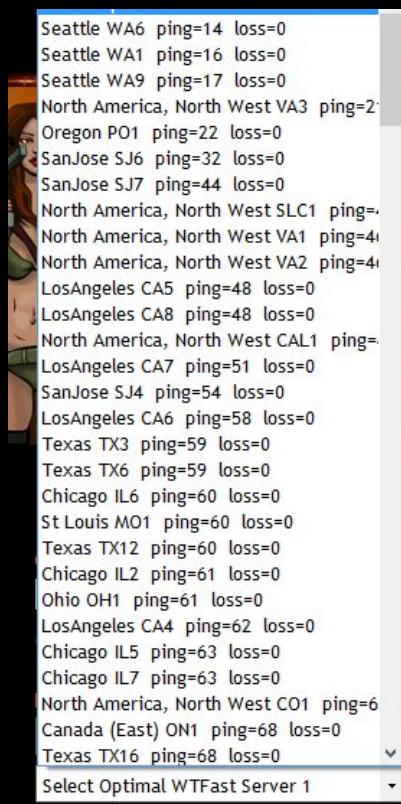
For best results, if you know the region of the game server where you will be playing, we recommend choosing the game server location with (Choose Best) selected. For example, Los Angeles (Choose Best). To determine which servers are closest to you, click "Sort by Ping". The lowest latency servers will be at the top of the list. Often, picking a WTFast server close to you will also get good results. All you need to do is select your server, then click Play!. Your game will launch connected to the server you chose and you are ready to game!
WTFast gives you the ability to go further. In Manage Settings... above, you can enable a setting which will allow you to chain two WTFast servers for an even better WTFast route. For more direction as to how to do this, please go here.
gin Play...
Listed Games Custom Games
Sort by Geo
Play!
Manage Settings...
Next, after at least 7 minutes of connection time, the WTFast Statistics screen will show statistics of the connection. The top section of that screen looks like this.
WTFAST
Support
Start New Game
Logout
GAME CONNECTION REPORTING Game name... Statistics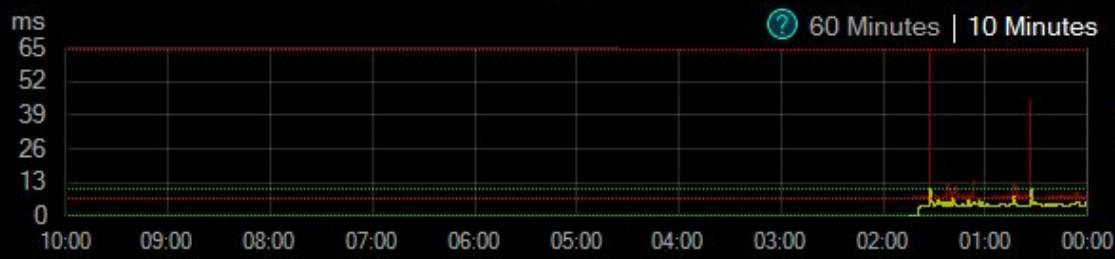
WTFast Internet
Ping Graph
Lost Packets
Here, you can see the WTFast connection latency as the green graph, and the corresponding Internet connection in red.
In this case, the WTFast latency is lower than the Internet, showing connection improvement.
Also, below the Ping Graph, there is the Lost Packets graph. In the example above, there are no lost packets for both the WTFast and the Internet connection. If there were, there would be small bars located at the time the packet loss occurred.
The other section of the Statistics screen is the Connection Statistics, shown below.
Connection Improvement 59% Active connections Est. WTFast Server Location: Milan, Italy Est. Game Server Location: Ireland Active server FR1:3724 Game Connection Time 00:04:56 38 ms Bytes received 37.57 kB Bytes sent 237.41 kB Ping Spikes Ping Flux Avg 10 Sec Ping Ping Average Lost Packets 4 2 10 ms 23 ms 38 ms 52 ms 37 ms 58 ms 0 21 No improvement 27% 36% 100%
In the top frame, you can see how many Active connections there are, and the Active server on the WTFast network.
In the bottom frame, the key statistics are the 10 Sec Ping and the Ping Average, as well as the Lost Packets.
In this case, both the WTFast 10 Sec Ping and Ping Average are lower than those for the Internet. The bar graphs to the right of those entries show the percentage improvement of WTFast over the Internet.
The Lost Packets entry will show, numerically, the amount of packets lost in each connection, and the bar graph to the right will show the percentage improvement of WTFast packet loss over the Internet connection.
And that's it! This information and direction will get you up and running with WTFast and your favorite game.

Brand : MSI
Model : GE72 6QD-849FR APACHE PRO
Category : Gaming laptop