
GE72 6QD-849FR APACHE PRO - Ordinateur portable de jeu MSI - Notice d'utilisation et mode d'emploi gratuit
Retrouvez gratuitement la notice de l'appareil GE72 6QD-849FR APACHE PRO MSI au format PDF.
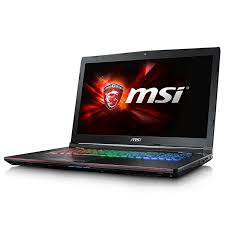


| Type de produit | Ordinateur portable de jeu |
| Marque | MSI |
| Modèle | GE72 6QD-849FR APACHE PRO |
| Processeur | Intel Core i7-6700HQ (2.6 GHz, Turbo 3.5 GHz) |
| Mémoire RAM | 8 Go DDR4 |
| Stockage | 1 To HDD |
| Carte graphique | NVIDIA GeForce GTX 960M 2 Go |
| Écran | 17.3 pouces Full HD (1920 x 1080) |
| Système d'exploitation | Windows 10 |
| Dimensions (L x P x H) | 418 x 287 x 30 mm |
| Poids | 2.8 kg |
| Alimentation | Adaptateur secteur 150 W |
| Connectivité sans fil | Wi-Fi 802.11 ac, Bluetooth 4.0 |
| Ports | 1x USB 3.1 Type-C, 3x USB 3.0, HDMI, Mini DisplayPort, RJ45, prise audio |
| Clavier | Rétroéclairé rouge |
| Fonctions principales | Gaming, performances élevées, logiciel WTFast préinstallé |
| Entretien et nettoyage | Utiliser un chiffon doux et sec, éviter les liquides |
| Sécurité | Mot de passe BIOS, fente de verrouillage Kensington |
| Pièces détachées et réparabilité | Batterie amovible, accès RAM et disque dur |
FOIRE AUX QUESTIONS - GE72 6QD-849FR APACHE PRO MSI
Questions des utilisateurs sur GE72 6QD-849FR APACHE PRO MSI
0 question sur cet appareil. Repondez a celles que vous connaissez ou posez la votre.
Poser une nouvelle question sur cet appareil
Téléchargez la notice de votre Ordinateur portable de jeu au format PDF gratuitement ! Retrouvez votre notice GE72 6QD-849FR APACHE PRO - MSI et reprennez votre appareil électronique en main. Sur cette page sont publiés tous les documents nécessaires à l'utilisation de votre appareil GE72 6QD-849FR APACHE PRO de la marque MSI.
MODE D'EMPLOI GE72 6QD-849FR APACHE PRO MSI
Ce guide est conçu pour vous permettre de démarrer rapidement et sans difficulté.
Si WTFast est déjà installé sur votre machine, veuillez continuer. Sinon, veuillez vous rendre sur : https://www.wtfast.com/Download/Start
pour télécharger et installer WTFast.
Après vous être connecté au client, vous serez dirigé vers l'écran de sélection de jeu, dont la section pertinente est affichée ci-dessous.
Sélectionnez le jeu et le serveur pour commencer à jouer...
Jeu
Nom du jeu...

Jeux répertoriés
Jeux personnalisés
Configuration du jeu chargée
Réseau

Sélection automatique de la meilleure route de connexion
Optimisation multi-serveurs (utilisateurs avancés uniquement)
Jouer !
Paramètres de gestion...
Ici, vous sélectionnez le jeu souhaité. Dans le champ Jeu, commencez à saisir le nom de votre jeu, et le jeu, s'il est pris en charge, apparaîtra dans une liste auto-complétée. Cliquez sur le jeu, et il apparaîtra dans le champ Jeu.
Lorsque vous voyez "Configuration du jeu chargée", ce qui est instantané, la configuration appropriée pour utiliser WTFast avec le jeu a été établie. Maintenant, vous devez sélectionner la méthode de connexion dans Réseau.
Dans ce cas, nous avons choisi d'utiliser le système Pathfinder de WTFast pour sélectionner automatiquement le meilleur itinéraire de connexion. Maintenant, il vous suffit de cliquer sur Jouer !, votre jeu se lancera et vous êtes prêt à jouer !
Dans certains cas, Pathfinder peut ne pas être en mesure de choisir un bon itinéraire. Dans ce cas, nous vous offrons la possibilité de sélectionner manuellement un serveur qui fournira une bonne connexion.
Ici, dans Réseau, sur l'écran de sélection du jeu, sélectionnez "Personnaliser manuellement l'itinéraire réseau" comme indiqué ci-dessous.
Jeu

Nom du jeu...

Jeux répertoriés
Jeux personnalisés
Configuration du jeu chargée
Réseau

Personnaliser manuellement l'itinéraire réseau
Trier par ping
Sélectionner le serveur WTFast optimal 1
Jouer !
Gérer les paramètres...
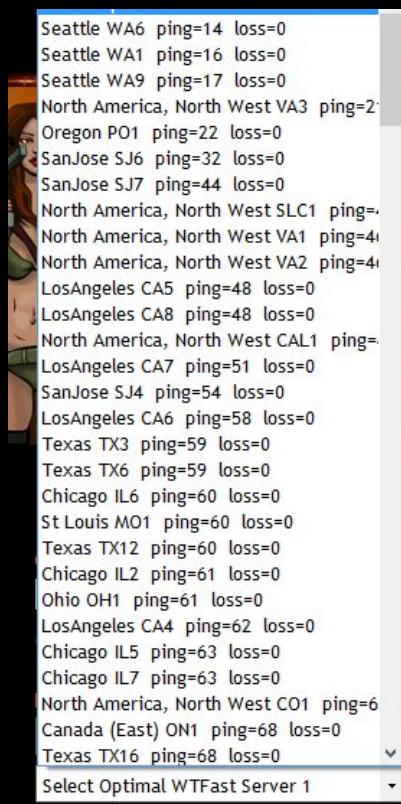
Pour de meilleurs résultats, si vous connaissez la région du serveur de jeu où vous jouerez, nous vous recommandons de choisir l'emplacement du serveur de jeu avec (Choisir le meilleur) sélectionné. Par exemple, Los Angeles (Choisir le meilleur). Pour déterminer quels serveurs sont les plus proches de vous, cliquez sur "Trier par ping". Les serveurs avec la latence la plus faible seront en haut de la liste. Souvent, choisir un serveur WTFast proche de vous donnera également de bons résultats. Tout ce que vous avez à faire est de sélectionner votre serveur, puis de cliquer sur Jouer !. Votre jeu se lancera connecté au serveur que vous avez choisi et vous êtes prêt à jouer !
WTFast vous donne la possibilité d'aller plus loin. Dans Gérer les paramètres... ci-dessus, vous pouvez activer un paramètre qui vous permettra de chaîner deux serveurs WTFast pour un meilleur itinéraire WTFast. Pour plus de directives sur la façon de procéder, veuillez aller ici.
Jouer...
Jeux répertoriés Jeux personnalisés
Trier par géo
Jouer !
Gérer les paramètres...
Ensuite, après au moins 7 minutes de temps de connexion, l'écran des statistiques WTFast affichera les statistiques de la connexion. La section supérieure de cet écran ressemble à ceci.
WTFAST
Support
Démarrer un nouveau jeu
Déconnexion
RAPPORT DE CONNEXION AU JEU Nom du jeu... Statistiques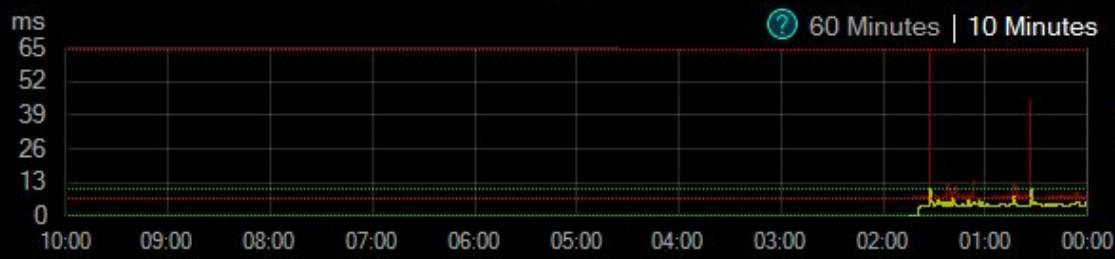
WTFast Internet
Graphique de ping
Paquets perdus
Ici, vous pouvez voir la latence de la connexion WTFast sous forme de graphique vert, et la connexion Internet correspondante en rouge.
Dans ce cas, la latence WTFast est inférieure à celle d'Internet, ce qui montre une amélioration de la connexion.
De plus, sous le graphique de ping, se trouve le graphique des paquets perdus. Dans l'exemple ci-dessus, il n'y a aucun paquet perdu pour les connexions WTFast et Internet. S'il y en avait, de petites barres apparaîtraient au moment où la perte de paquets s'est produite.
L'autre section de l'écran Statistiques est la section Statistiques de connexion, présentée ci-dessous.
Amélioration de la connexion 59% Connexions actives Emplacement estimé du serveur WTFast : Milan, Italie Emplacement estimé du serveur de jeu : Irlande Serveur actif FR1:3724 Temps de connexion au jeu 00:04:56 38 ms Octets reçus 37,57 Ko Octets envoyés 237,41 Ko Pics de ping Fluctuation du ping Moyenne du ping sur 10 s Ping moyen Paquets perdus 4 2 10 ms 23 ms 38 ms 52 ms 37 ms 58 ms 0 21 Aucune amélioration 27% 36% 100%
Dans le cadre supérieur, vous pouvez voir le nombre de connexions actives et le serveur actif sur le réseau WTFast.
Dans le cadre inférieur, les statistiques clés sont le ping sur 10 secondes et le ping moyen, ainsi que les paquets perdus.
Dans ce cas, le ping sur 10 secondes et le ping moyen de WTFast sont tous deux inférieurs à ceux d'Internet. Les graphiques à barres à droite de ces entrées montrent le pourcentage d'amélioration de WTFast par rapport à Internet.
L'entrée Paquets perdus affichera numériquement la quantité de paquets perdus dans chaque connexion, et le graphique à barres à droite montrera le pourcentage d'amélioration de la perte de paquets WTFast par rapport à la connexion Internet.
Et voilà ! Ces informations et ces instructions vous permettront de démarrer avec WTFast et votre jeu préféré.





Marque : MSI
Modèle : GE72 6QD-849FR APACHE PRO
Catégorie : Ordinateur portable de jeu