
PKBRD6139BT - Keyboard Pyle - Free user manual and instructions
Find the device manual for free PKBRD6139BT Pyle in PDF.


| Product Type | Keyboard |
| Brand | Pyle |
| Model | PKBRD6139BT |
| Number of Keys | 61 |
| Connectivity | Bluetooth 5.0, USB-C |
| Keyboard Layout | Standard QWERTY |
| Dimensions (L x W x H) | 33 x 10 x 3 cm |
| Weight | 1.2 kg |
| Power Source | Built-in rechargeable battery (USB-C charging) |
| Battery Life | Up to 10 hours |
| Compatible Systems | Windows, macOS, iOS, Android |
| Special Features | Bluetooth wireless, USB wired mode, multimedia keys, foldable design |
| Color | Black |
| Cleaning Instructions | Wipe with a soft, dry cloth. Do not use harsh chemicals. |
| Safety Warnings | Avoid exposure to liquids and extreme temperatures. Keep away from children under 3 years. |
| Spare Parts & Repairability | Contact Pyle support for spare parts. Not user-serviceable. |
| Manufacturer Warranty | 1 year limited warranty |
Frequently Asked Questions - PKBRD6139BT Pyle
User questions about PKBRD6139BT Pyle
0 question about this device. Answer the ones you know or ask your own.
Ask a new question about this device
Download the instructions for your Keyboard in PDF format for free! Find your manual PKBRD6139BT - Pyle and take your electronic device back in hand. On this page are published all the documents necessary for the use of your device. PKBRD6139BT by Pyle.
USER MANUAL PKBRD6139BT Pyle
natural_image
Black and white electronic keyboard with control panel and digital display (no readable text or symbols)PKBRD6139BT
Digital Musical Karaoke Keyboard
Portable Electronic Piano Keyboard with Keyboard Stand (61 Keys), Keyboard stool, case and headset
USER GUIDE
PLEASE READ CAREFULLY BEFORE PROCEEDING
Please keep this manual in a safe and handy place for future reference
NOTICE
• Dedicated power adapter shall be used, and in case of adaptor damage, replace it immediately
- The keyboard can only be disassembled by professionals, and no change can be made to the internal structure. In case of any functional abnormality during performance, stop performing immediately and send the keyboard to professionals for maintenance.
- When connecting the keyboard to other device, ensure both the keyboard and the device to be connected are powered off before connection.
- Do not turn and keep the volume to the maximum or to an uncomfortable degree for a long time when performing.
- Keep the keyboard away from heat source to protect its parts from damage.
- Prevent liquid, dust, small particle and other foreign matters from entering the case of the keyboard, for which may result in element short circuit.
- Pull out the plug before cleaning the keyboard, and do not pull out the plug with wet hand.
- Use dry and soft cloth to clean the keyboard. Paint, alcohol or other chemical solvents shall not be used for cleaning, for which may damage the keyboard surface.
- Pull out the plug after performing or when the keyboard is left unused for a long time.
- WARNING: The direct plug-in adapter is used as disconnect device, the disconnect device shall remain readily operable.
- Correct Disposal of this product. This marking indicates that this product should not be disposed with other household wastes throughout the EU.
To prevent possible harm to the environment or human health from uncontrolled waste disposal, recycle it responsibly to promote the sustainable reuse of material resources.
To return your used device, please use the return and collection systems or contact the retailer where the product was purchased.
They can take this product for environmental safe recycling.
I. Control Panel and External Ports TOP CONTROL PANEL

- Loudspeaker
- Power
- Master Volume
- Accom Volume
- Tempo
- Single
- Sync
-
Fill-in
-
Memory (M1-M4)
- Rec
- LCD display
- Prog
- Play
- Sustain
15.Numbers -
Sounds
-
Keyboard Percussion
- Fingered
- Start/Stop
- One-key
- Follow
- Ensemble
- Demo One
-
Demo All
-
Metronome
- Split
- Vibrato
- Styles
- Chord zone
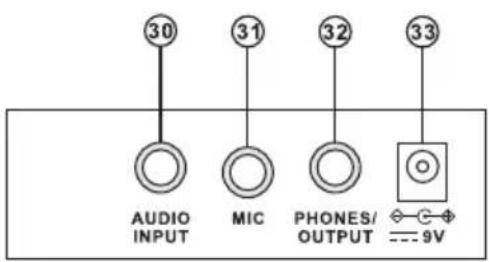
REAR PANEL PORT
- AUDIO INPUT
- MIC
- PHONES/OUTPUT
- DC 9V
II. Preparations before Playing
POWER ADAPTOR
A dedicated power adapter shall be used. Connect the output end of the adaptor to the power port on the rear panel of the keyboard, and then the other end to the power socket. (Note: the input voltage of the adaptor shall be compatible with the power supply voltage)
AUDIO OUTPUT/EXTERNAL HEADPHONE
Audio Output: Firstly, turn off the keyboard and the external audio devices, secondly, connect one end of the audio cable to the PHONES/OUTPUT port on the rear panel of the keyboard, and then connect the other end to the audio input port of the audio devices.
Headphone Connection: When connecting a headphone to the PHONES/OUTPUT port on the rear panel of the keyboard, the loudspeaker will be disabled automatically. In this way, you can play the keyboard without disturbing others.
Note: Do NOT use the headphones at a high volume for any extended period. To avoid hearing damage, use your headphones at a comfortable, moderate volume level.
MIC INPUT AND AUDIO INPUT
Mic input: Connect the microphone to the MIC port to start singing and playing.
The Keyboard has the stereo input function. Sound signals from mobile phone, computer and other audio devices can be input into the keyboard system for playing. Firstly turn off the Keyboard, then connect one end of audio cable to the output port of an audio device, and the other end to the AUDIO INPUT port on the rear panel of the Keyboard, finally turn on the keyboard.
WIRELESS BT CONNECTION
Turn ON the default BT connection, in the BT standby search state, can be any BT device search matching and connect at this time, turn ON the BT function of your phone or BT device to search. The local BT name is "piano", when the connection is successful, mobile phone or BT device back to the music player interface to play music.
III. Basic Playing Method
When [Power ON/OFF] is pressed, LCD screen will turn ON and shows the current tone, tempo and other status. Then you may operate the Keyboard as required.
MASTER VOLUME ADJUSTMENT
Press [Master Vol +/-] to turn up or turn down the master volume. "VOLUME" and the current volume level will be shown on the display. Press [Master Vol +/-] simultaneously to reset to the default value. The master volume can also control the accompaniment volume.
ACCOMPANIMENT VOLUME ADJUSTMENT
Press [Accom Vol +/-] to turn up or turn down the master volume. "RC-VOLUME" and the current volume level will show on the display. Press [Accom Vol +/-] simultaneously to reset to the default value.
SOUNDS SELECTION
The Keyboard provides 255 Sounds, from "000" to "254", for your selection. When turning on the keyboard, the Sounds selection function will be enabled automatically, and "SOUNDS" current Sound number will show on the display. When under other states, press [Sounds] to enable the Sounds selection function. The Sounds default is "000" and it can be adjusted by pressing the corresponding number buttons or pressing the "+" / "-" button.
PLAYING DEMO SONGS
50 demo songs have been stored in the keyboard, from "000" to "049", for your selection. Press the [Demo one] button, the system is in the state of playing, the present demo song plays repeatedly. For another one, press the button to stop the present song, and again to play the next one. Press the [Demo all] button, the system is in the stage of playing all demo song. In the course of playing demo songs, the Sounds of the songs can be changed. During the playing process, you can press the number buttons or the "+" / "-" buttons to select other demonstration song.
When pressing [Sounds] during the demonstration song playing process, "SOUND" will show on the display, press the number buttons or the "+" / "-" button within 3 seconds to select other Sound for playing the demonstration song.
IV. Auto Style
STYLES SELECTION
This Keyboard provides 255 Styles, from "000" to "254", for your selection, and the Style default is "000". Press [Styles] to enable the Style selection function. "STYLE" and current Style number will show on the display. Then you can press the number buttons or the "+" / "-" buttons to select other Styles.
STYLES CONTROL
1. Styles Enabling
- Press [start/stop] to start accompaniment Style.
- Press [Sync], "SYN" will show on the display and the four beat points will flash simultaneously, then play any key in the chord key zone (the 1st-19th key, from left), the accompaniment Style will be enabled.
2. Interlude
After the accompaniment Style is activated, press [Fill-in] to have a temporary Style play during the accompaniment Style.
Pressing and hold [Fill-in], the temporary Style will be continuous.
3. Stop Style
During the accompaniment Style, press [Start/Stop] to stop the accompaniment Style.
METRONOME
The metronome contains four tempos, 1/4, 2/4, 3/4 and 4/4, respectively.
Press the [Metronome] continuously to select the four tempos.
Press the [Metronome] bottom again to stop the tempo.
TEMPO ADJUSTMENT
Press [Tempo +/-] to increase or decrease the Style speed.
Press the two buttons simultaneously to reset to the default value.
V. Auto Bass Chord
SINGLE CHORD
Under the state that the Style is enabled, press [Single Chord], and "SIN" will show on the display, and then you can play a single chord on the keys in the chord zone of the keyboard.
FINGERED CHORD
Under the state that the Style is enabled, press the [Fingered Chord] button.
"FIN" will show on the display, and then you can play a fingered chord on the keys in the chord zone of the keyboard.
Fingered Chord Fingering (C Key)
(The C key fingered chord fingering is as shown in the following figure, and the rest can be obtained by analogy)
Single Chord Fingering
| M | m | 7 | m7 | |
| C | ||||
| C# | ||||
| D | ||||
| D# | ||||
| E | ||||
| F | ||||
| F# | ||||
| G | ||||
| G# | ||||
| A | ||||
| A# | ||||
| B |
VI. Status Memory Function
With the status memory function, you can save the Sound, Style, Tempo and other parameters to be changed during playing for fast shifting. This keyboard is equipped with 4 status memories, which can be flexibly called at any time during playing.
STORAGE OF STATUS MEMORY
Set the Sound, Style, Tempo and Chord as required, and then press the [Status Memory] botton and one of [Memory 1] to [Memory 4] to save the current status.
CALLING OF STATUS MEMORY
Press any one of [Memory 1] to [Memory 4] to call the setting parameters saved under this memory to replace the current status.
No power failure protection is provided for the saved contents, and the saved contents will loss after the electronic keyboard is restarted after power cut.
VII. Effect Control
SUSTAIN FUNCTION
Press [Sustain], "SUS" will show on the display, and the sustain effect will be activated. Press this button again to disenable the sustain effect.
VIBRATO FUNCTION
Press [Vibrato], "VIB" will show on the display, and the vibrato effect will be activated. Press this button again to disenable the vibrato effect.
PLAYING PERCUSSION
This Keyboard provides 61 kinds of keyboard percussions.
Press [Keyboard Percussion] to convert the key to percussion key.
Each key corresponds to one percussion instrument.
Press this button again to disenable the keyboard percussion function.
KEYBOARD SPLITTING FUNCTION
Press [SPLIT] to enable the keyboard splitting function, “SPLIT” will show on the display. 24 keys on the left of the keyboard will split with the remaining keyboard. While the left keyboard zone will increase by one octave and maintain the original tone, the right keyboard zone will decrease by one octave to maintain the same pitch with the left keyboard zone. The tone of the right keyboard zone can be set as needed so different tones can be played by the left and right keyboard zones at the same time. Press [SPLIT] again to disenable this function.
VIII. Recording and Style Programming
RECORDING
Press [REC] to enable the recording function, "REC" will show on the display.
Under this mode all playing notes will be recorded.
When the storage is full, "REC" will show on the display, and recording will stop automatically.
- Press [PLAY] to playback the recorded notes, and "PLAY" will show on the display. On completion of playback, it will enter to the recording mode and "REC" will show on the display. You can record a new Style, or you can press [PLAY] to playback the recorded Style.
- Press [Start/Stop] or press [REC] again to disenable the recording function, and all recorded Style will be removed.
STYLE PROGRAMMING
Press [PROG] to enable the Style programming function, "PRG" will show on the display, and the keyboard percussion will be activated. Under this mode, you can create custom Styles by playing the corresponding percussion key.
- 32 percussions can be recorded at maximum, after that "PRG" will flash on the display, and programming will stop automatically.
- Press [PLAY] to playback the programmed Style.
Press [PLAY] again to stop playback, "PRG" will show on the display and programming function will be enabled. You can re-program Styles or you can press [PLAY] again to playback.
- Press [Start/Stop] or press [PROG] again to disenable the programming function, and all recorded Style will be removed.
IX. Three-step Intelligent Training
TRAINING I: ONE KEY
Press [One Key] to enable the One Key training function, "LEARN", "SONG" and the song number will show on the display, and then press "+" / "-" button to select the song to be learned. Single Key training aims at duration learning, and there is no requirement for pitch or correctness. This mode allows mistakes when playing the keys, but the keyboards still plays correct notes, while the key zone in the display will also show the correct notes. After one song is finished, repeat the current song to be learned. Press [Start/Stop] or press [One Key] to disenable the training function.
TRAINING II: FOLLOW
Press [Follow] to enable the follow function, "LEARN", "SONG" and the song number will show on the display, and then press "+" / "-" button to select the song to be learned. With [Follow] function, you can learn by following the correctly playing notes. You can play according to the demonstration song, you can play correctly by following the guidance. You can also learn how to play by following the indicators in the key zone of the display. It will wait for you to play the correct note before it moves to the next one.
Notes:
Under this state, the Keyboard plays only the correct notes, and gives no response to the wrong notes.
Press [Start/Stop] or press [Follow] to disenable the training function.
TRAINING III ENSEMBLE
Press [Ensemble] to enable the Ensemble training function, "LEARN", "SONG" and the song number will show on the display, and then press "+" / "-" button to select the song to be learned. The Ensemble training aims at the correct and comprehensive learning of the song duration and notes. The keynote will be shielded for ensemble. you can perform by following the guidance of the lighted key. You need to play the correct note according the correct duration of the song. If you fail to play within 3 seconds, the keyboard will automatically play the keynote, and the keyboard zone in the screen will display the correct note and tempo. After one song is finished, repeat the current song to be learned. Press [Start/Stop] or press [Ensemble] to disenable the training function.
Appendix
I. SOUNDS TABLE
000-111
Refer to the unit panel
112 Clavi 2
113 Celesta 2
114 Harpsichord 2
115 Mellow Fm 1
116 Pi Pa 2
117 Upright Piano 1
118 Electric Piano 2
119 Hard Vibe 1
120 Wood Barafon 2
121 Music Box 2
122 Marimba 2
123 Santur
124 Reed Organ 2
125 Puff Harmonica 1
126 Ukulele 1
127 12-str. Gt 1
128 Guitar Pinch 2
129 Slow Violin 1
130 Bright String 1
131 Jungle Bass 2
132 Indian Flute 1
133 Clavi 3
134 Celesta 3
135 Church Bells
136 Marimba 3
137 Dulcimer 2
138 Reed Organ 3
139 Electric Guitar (Clean) 2
140 Koto 2
141 Xylophone 2
142 Shanai 2
143 Dulcimer 3
144 English Horn 2
145 Electric Guitar (Clean) 3
146 Shamisen 2
147 Koto 3
148 Kalimba 2
149 Steel Bell 1
150 Alto Sax 2
151 Woodblock 2
152 Synth Harpsi. 1
153 Attack Clav. 1
154 Crystal 1
155 Bag Pipe 2
156 Barafon 1
157 Organ Flute 1
158 Kalimba 3
159 Reed Horn 1
160 Hard Vibe 2
161 Twin Trombones 1
162 Synth Harpsi. 2
163 Attack Clav. 2
164 Chorus Guitar 1
165 Steel Bell 2
166 Tsugaru
167 Oct Harp 1
168 Bodhran 1
169 Tubular Bells 2
170 Suona
171 Castanets
172 Attack Harp 1
173 Electric Vibraphone 1
174 Soft Sax 1
175 Soft Clav. 1
176 Soft Guitar 1
177 Grow Guitar 1
178 Didgeridoo 1
179 Attack Barafon 1
180 Mute Barafon 1
181 Nay 1
182 Soft Santur
183 Dual Horns 1
184 Hard Barsoon 1
185 Tron Flute 1
186 Kawala 1
187 Jazz Organ 1
188 Soft Accord 1
189 Wind Organ 1
190 Viola Attack 1
191 Bari & Tenor 1
192 Soft Sax 2
193 Attack Harp 2
194 Didgeridoo 2
195 Dual Horns 2
196 Hard Barsoon 2
197 Kawala 2
198 Soft Guitar 2
199 Mute Barafon 2
200 Lead (Bass+Lead) 2
201 Melodic Tom 2
202 Grow Guitar 2
203 Lead (SaMooth)2
204 Jazz Bass 2
205 Chorus Guitar 2
206 Feedback Gt. 2
207 Fiddle 2
208 Organ Flute 2
209 Flugel Horn 2
210 Crystal 2
211 Soft Clav. 2
212 Overdriven Guitar 2
213 Ukulele 2
214 Tango Accordion 2
215 Twin Trombones 2
216 Jazz Organ 2
217 Bright String 2
218 Reed Horn 2
219 Glockenspiel 2
220 Drawbar Organ 2
221 Muted Horn 2
222 Pizzicato Strings 2
223 Nay 2
224 Puff Harmonica 2
225 Muted Trumpet 2
226 Upright Piano 2
227 Soft Accord 2
228 Uillean Harp 2
229 Tron Flute 2
230 Blown Bottle 2
231 Indian Flute 2
232 Slow Violin 2
233 Electric Guitar (Muted) 2
234 Multi Wind 2
235 Electric Vibraphone 2
236 Bodhran 2
237 Mellow Fm 2
238 Multi Reed 2
239 Contrabass 2
240 Barafon 2
241 Wind Organ 2
242 12-str. Gt 2
243 Attack Barafon 2
244 Lead (Calliope) 2
245 Viola Attack 2
246 Pad (Warm) 2
247 Oct Harp 2
248 Bari & Tenor 2
249 Agogo 2
250 Flugel Horn 3
251 Organ Flute 3
252 Fiddle 3
253 Feedback GI. 3
254 Chorus Guitar 3
II. STYLE TABLE
| 000-130 | 168 | Modern R&B 2 | 207 | Piano Ballad |
| Refer to the unit panel | 169 | Club Dance 2 | 208 | 70's Disco |
| 131 West Shuffle | 170 | Country Bossa Nova | 209 | Jazz Rock 2 |
| 132 Big Band Fast 2 | 171 | Jazz Bo 1 | 210 | Europe 8 Beat 1 |
| 133 Espag Nol 1 | 172 | Modern Cha Cha 1 | 211 | Seville 2 |
| 134 Disco Funk 2 | 173 | Pop Reggae 2 | 212 | Rumba 3 |
| 135 Pop Mambo | 174 | Rock Samba 1 | 213 | Soul Rock 2 |
| 136 Europe Swing 1 | 175 | Jazz 8 Beat 1 | 214 | European Disco 2 |
| 137 Tricks Latin | 176 | Disco | 215 | Analog Ballad 2 |
| 138 Disco Samba 2 | 177 | Seville 1 | 216 | Pub Piano 2 |
| 139 Latin Wallz | 178 | Disco Hands 2 | 217 | Europe Rumba |
| 140 Dance Pop 3 | 179 | Rock Ballad | 218 | Rock'n Roll 2 |
| 141 Jazz Rock 1 | 180 | Mixed Bossa Nova | 219 | Disco Trop |
| 142 Delroit | 181 | Jazz 16 Beat 1 | 220 | Rock Salsa 1 |
| 143 Fanatical Sand | 182 | Single 16 Beat 1 | 221 | Europe 8 Beat 2 |
| 144 European Rock 1 | 183 | Love Song | 222 | Europe Samba |
| 145 Ground Beat | 184 | Single 16 Beat 2 | 223 | Show Tune 2 |
| 146 8 Beat Modem 2 | 185 | Disco Fox 2 | 224 | Jazz 16 Beat 2 |
| 147 Jazz Disco 1 | 186 | Pop Rock 3 | 225 | Rock Samba 2 |
| 148 Dixie Jazz 1 | 187 | Tijuana Wallz | 226 | Jazz Waltz 2 |
| 149 Disco Chocolate | 188 | British Pop 2 | 227 | Europe Reggae |
| 150 Disco Latin 2 | 189 | Show Tune 1 | 228 | Modem Cha Cha 2 |
| 151 Synth Boogie | 190 | Schlager Alp | 229 | R&B Ballad 2 |
| 152 Saturday Night 2 | 191 | Single Rock | 230 | Rock Boogie |
| 153 Club Danca 1 | 192 | Swing Waltz | 231 | Jazz Bossa Nova |
| 154 Tricks Bossa Nova | 193 | Slow Waltz | 232 | Rock Salsa 2 |
| 155 Tarantella 2 | 194 | Cat Groove 2 | 233 | Slow & Easy |
| 156 USA March | 195 | Country Slow Rock | 234 | Hip Waltz 1 |
| 157 Espag Nol 2 | 196 | Rock Disco 1 | 235 | Jazz Latin 2 |
| 156 Club Latin 2 | 197 | 16 Beat Shuffle 1 | 236 | Rock Disco 2 |
| 159 Jazz Cha Cha 1 | 198 | Jazz 8 Beat 2 | 237 | Jazz Tango 2 |
| 160 Country Cha Cha | 199 | Casa | 238 | Analog Ballad 3 |
| 161 Disco Party 2 | 200 | Guad Dance 1 | 239 | Europe Swing 2 |
| 162 Modem R&B 1 | 201 | Jazz Cha Cha 2 | 240 | Hip Waltz 2 |
| 163 8 Beat Pop 2 | 202 | Country Wallz | 241 | Jazz Swing 2 |
| 164 Country Jazz | 203 | European Rock 2 | 242 | Party Pop |
| 165 Soul Rock 1 | 204 | Caribbean Dance 2 | 243 | Jazz Club |
| 166 Rumba 2 | 205 | Jazz Disco 2 | 244 | Guad Dance 2 |
| 167 Samba 3 | 206 | Medium Jazz | 245 | Jazz Bo 2 |
246 Dixie Jazz 2
247 Acoustic Ballad 2
248 Jazz Slow Rock
249 16 Beat Shuffle 2
250 Polka Pop
251 Latin Party Pop
252 Parranda
253 Carnival
254 60's Vintage Pop
Keyboard Stand Assembly

Features:
• 2-in-1 Karaoke Keyboard: Play & Sing-Along!
- Compact & Portable Musical Piano
• Simple Electronic Plug-in Operation
- Portable Piano
• Built-in Full Range Stereo Speakers
- Connect & Stream Audio from External Devices
- Can Connect to Speaker and Play Sound
- Multiple Preset Selectable Keyboard Sound, Tone & Rhythm Styles
• Digital LCD Display
- Adjustable Volume Control
• Record & Playback Mode
- Mic Input Jack
• 61 Keys Keyboard Percussion Function
- Basic Control: Master Volume / Accom Volume / Tempo Control
• Auto Chord Function: Single Chord / Fingered Chord
- Sustain Functions, Vibrato Function, Keyboard Split Function
- Teaching Functions: One-key/Follow/Assemble
• Fill-in Function, Metronome Function
• Perfect for Home Theater Living Room Performances
• Fun for Kids of All Ages: Children & Adults
What's in the Box:
• Digital Musical Karaoke Keyboard
- Book Rack
- Adapter
- Power Plug
- Keyboard Stand
- Keyboard Stool
- Headset
Headset Specs:
- Construction Material: ABS + Laser decorative sheet
- Wire Material: PVC flat wire
- Wire Length: 1.1M
- Plug Diameter: 3.5mm 1/8
- Weight: 0.14 kg
Keyboard Stand Features:
- Baked Varnish
- Detachable Function
• Height Adjusting Function - Keyboard Locking Function
• Construction Material: Iron + ABS
• Length: 31.5" -inches - Width: 8.3" -inches
• Height: 57.5\~67.5 cm - Weight: 1.75 kg
- Bearing: 15 kg
Keyboard Stool Features:
- Baked Varnish
- Folding Function
• Height Adjusting Function - Construction Material: PU Leather, Iron, Sponge, Wood
• Length: 15.75" -inches - Width: 11.81" -inches
• Height: 17.32" / 18.9" / 20.1" -inches - Weight: 2.2 kg
Technical Specs:
• (61) Keyboard Keys
• 255 Styles/ 255 Sounds
• 50 Demonstration Songs: One/All
• Audio Interface: Aux (3.5mm) Output Jack / Mic Input
• Max Sound Level: Up to 110 dB
• USB/Power Cable Length: 3.9' ft.
• Construction Material: Engineered ABS
- Piano Dimensions (L x W x H): 36.6" x 11.97" x 3.7"-inches
- Power Supply: DC 9V / AC Adapter, 6" AA" Batteries (Not Included in the Set)

natural_image
Black and white photo of a piano keyboard with control panel and digital display (no visible text or symbols)California Prop 65 Warning
! WARNING:
This product contains Butyl benzyl phthalate (BBP) which is known to the state of California to cause cancer birth defects and other reproductive harm. Do not ingest.
For more info go to: www.P65warnings.ca.gov
PYLE®
Questions? Comments?
We are here to help!
Phone: (1) 718-535-1800
Email: support@pyleusa.com


- PKBRD6139BT
- Digital Musical Karaoke Keyboard
- PLEASE READ CAREFULLY BEFORE PROCEEDING
- Please keep this manual in a safe and handy place for future reference
- NOTICE
- Control Panel and External Ports TOP CONTROL PANEL
- REAR PANEL PORT
- Preparations before Playing
- POWER ADAPTOR
- AUDIO OUTPUT/EXTERNAL HEADPHONE
- MIC INPUT AND AUDIO INPUT
- WIRELESS BT CONNECTION
- Basic Playing Method
- MASTER VOLUME ADJUSTMENT
- ACCOMPANIMENT VOLUME ADJUSTMENT
- SOUNDS SELECTION
- PLAYING DEMO SONGS
- Auto Style
- STYLES SELECTION
- STYLES CONTROL
- Styles Enabling
- Interlude
- Stop Style
- METRONOME
- TEMPO ADJUSTMENT
- Auto Bass Chord
- SINGLE CHORD
- FINGERED CHORD
- Fingered Chord Fingering (C Key)
- Single Chord Fingering
- Status Memory Function
- STORAGE OF STATUS MEMORY
- CALLING OF STATUS MEMORY
- Effect Control
- SUSTAIN FUNCTION
- VIBRATO FUNCTION
- PLAYING PERCUSSION
- KEYBOARD SPLITTING FUNCTION
- Recording and Style Programming
- RECORDING
- STYLE PROGRAMMING
- Three-step Intelligent Training
- TRAINING I: ONE KEY
- TRAINING II: FOLLOW
- Notes:
- TRAINING III ENSEMBLE
- Appendix
- SOUNDS TABLE
- Features:
- What's in the Box:
- Headset Specs:
- Keyboard Stand Features:
- Keyboard Stool Features:
- Technical Specs:
- California Prop 65 Warning
- ! WARNING:
- PYLE®
Brand : Pyle
Model : PKBRD6139BT
Category : Keyboard