99203I - Headphones InLine - Free user manual and instructions
Find the device manual for free 99203I InLine in PDF.


| Product Type | USB DAC / Headphone Amplifier |
| Model | 99203I |
| Brand | InLine |
| Supported Audio Formats | DSD up to DSD128 (5.6 MHz), PCM up to 384 kHz / 32-bit |
| DAC Chip | CS4392 |
| Headphone Output Power | 210 mW @ 16 Ω, 190 mW @ 32 Ω |
| Headphone Impedance Support | 16 – 600 Ω |
| Amplifier Type | Vacuum tube (opamp +/-12V powered) |
| Outputs | 6.3mm stereo headphone, 3.5mm stereo headphone, Toslink S/PDIF digital output |
| Volume Control | Analog rotary control with power on/off |
| Input | USB 2.0 (Type B) |
| Power Supply | USB 5V or optional 12V DC adapter (5V/0.5A not sufficient, 12V required) |
| Indicators | LED for DSD/PCM playback, sample rate, power/ USB link |
| Supported Operating Systems | Windows 10/8.1/8/7/Vista/XP (32/64-bit), Mac OS X, iOS (with Camera Kit), Android (with OTG) |
| ASIO Support | Yes (WASAPI also supported) |
| Package Includes | Device, USB cable, user manual, driver CD with JRiver Media Center license, 12V DC adapter |
| Construction | Metallic case, fine finishing |
| Special Features | De-pop function to suppress noise on power-up/shutdown |
Frequently Asked Questions - 99203I InLine
User questions about 99203I InLine
0 question about this device. Answer the ones you know or ask your own.
Ask a new question about this device
Download the instructions for your Headphones in PDF format for free! Find your manual 99203I - InLine and take your electronic device back in hand. On this page are published all the documents necessary for the use of your device. 99203I by InLine.
USER MANUAL 99203I InLine
natural_image
Exterior view of a metallic industrial device with two metal clips and a central cylindrical component (no visible text or symbols)Bedienungsanleitung
Art.-Nr. 992061
Achtung:
Zu hohe Lautstärken
können das Gehör
natural_image
Exterior view of a metallic electronic device with two metal brackets and a black terminal (no visible text or symbols)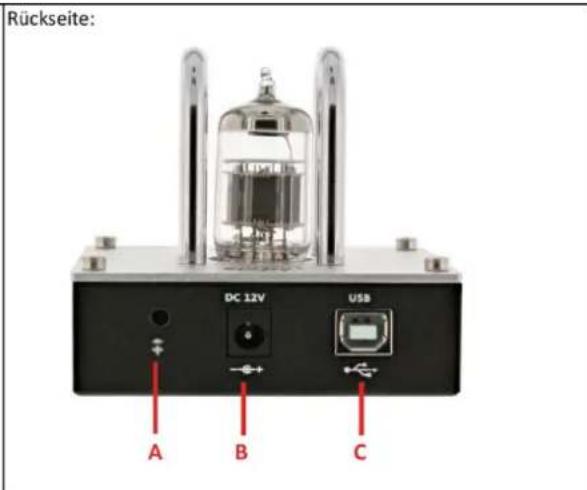
natural_image
Exterior view of a metallic electronic device with two metal clips and a black control knob (no visible text or symbols)User manual
Item number 992061
InLine® AmpUSB HiFi DSD USB Audio DAC, Headphone Vacuum Tube amplifier, 384kHz/32bit

Caution:
High volumes can cause ear-damages! Please make sure, the volume knob is minimized at beginning.
Always take care of a suitable volume.
A. DISCLAIMER
We strongly recommend you to backup all the data in the hard drive before installing the product onto your computer. We held no responsibility for any data loss due to improper installation, misuse, abuse, or neglect.
Intendes use:
The InLine® AmpUSB HiFi DSD headphone tube amplifier is connected to a PC via USB and is used for reproducing and amplifying audio signals. Headphones are connected to the unit via a stereo jack and the playback volume is adjusted via a rotary control. Too loud playback can damage your hearing, so you should always start playback at a reduced volume and avoid loud playback.
B. INTRODUCTION
InLine® AmpUSB HiFi DSD Headphone Vacuum Tube is an ultra-mastering grade digital audio playback system. It is capable of converting high resolution PCM audio (up to 384 kHz) and DSD audio (up to 128x DSD). The DAC allows you to bypass your computer's soundcard or headphone output and send digital audio signal through the USB interface. With this perfect digital interface between your computer and the music system, the sound quality is pushed to another higher level in your overall music environment.
C. FEATURES & SPECIFICATION
• Supports DSD128 2.8/5.6 MHz playback
• Supports PCM 384KHz/32bit playback
• Supports DSD native or DoP (DSD over PCM)
• Asynchronous transfer mode
• Max. Headphone Output power (at 1 KHz and single channel):
- around 210 mW / 16ohm
- around 190 mW / 32ohm
• Headphone Drive Ability: 16 – 600ohm
• High Quality DAC - CS4392
• High Quality Headphone Amplifier
- Opamp are +/-12V powered by internal power boosting circuitry
• 6.3mm & 3.5mm headphone outputs
• Toslink S/PDIF digital output
• Analog volume control
• Supports ASIO and WASAPI
- Powered by 5V, optional from USB/DC adapter (5V/0,5A).
• LED indicators for DSD and PCM playback
• Very fine finishing metallic case
- Integrated de-pop function for suppress pop noise during PC power-up and shutdown.
- Supported operating systems: Windows 10, 8.1, 8, 7, Vista, XP (32/64-Bit) and MAC OS X, works with Apple (with optional camera kit) and Android portable devices (with optional OTG adapter). Compatible Apps with DSD audio playback are available in the App stores and possibly connected with full functionality with additional costs (in-App purchases, such as App “Onkyo HF Player”)
D. PACKAGE CONTENTS
Please check whether the package contains the following items:
- InLine® AmpUSB HiFi DSD USB Audio DAC, Headphone Vacuum Tube amplifier
- USB cable
- User manual
- Driver and software CD with JRiver Media Center license key
• 12V DC power adapter
If any item is missing or damaged, please contact the retailer as soon as possible.
E. PRODUCT OVERVIEW
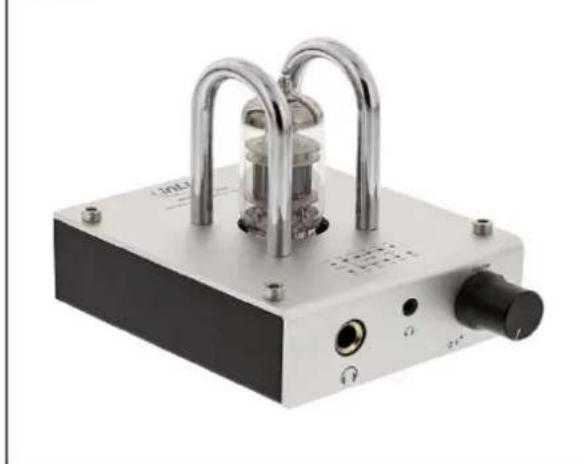
Overview:
natural_image
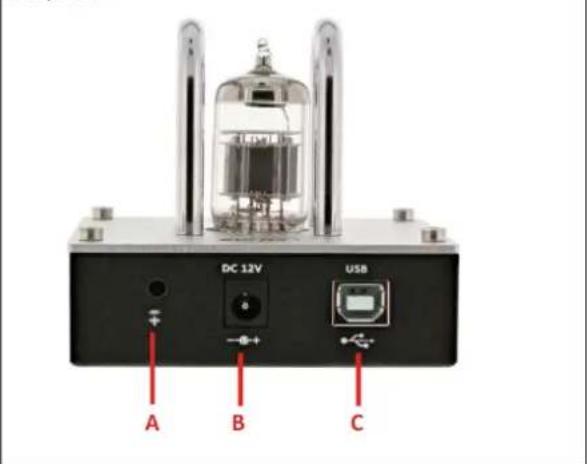
Exterior view of a metallic industrial device with two metal brackets and a central housing (no visible text or symbols)Rear panel:
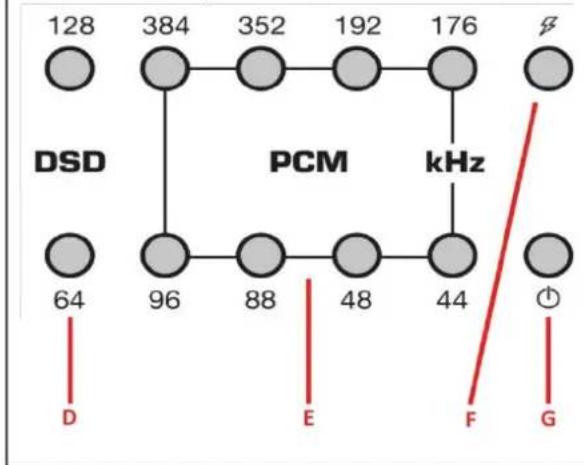
LED schematic of the top:
flowchart
graph TD
    A["128"] --> B["384"]
    B --> C["352"]
    C --> D["192"]
    D --> E["176"]
    E --> F["∅"]
    G["DSD"] --> H["PCM"]
    I["64"] --> H
    J["96"] --> H
    K["88"] --> H
    L["48"] --> M["kHz"]
    N["44"] --> M
    O["∅"] --> P["F"]
    Q["G"] --> P
    style A fill:#ccc,stroke:#333
    style B fill:#ccc,stroke:#333
    style C fill:#ccc,stroke:#333
    style D fill:#ccc,stroke:#333
    style E fill:#ccc,stroke:#333
    style F fill:#ccc,stroke:#333
    style G fill:#ccc,stroke:#333
    style H fill:#ccc,stroke:#333
    style I fill:#ccc,stroke:#333
    style J fill:#ccc,stroke:#333
    style K fill:#ccc,stroke:#333
    style L fill:#ccc,stroke:#333
    style M fill:#ccc,stroke:#333
    style N fill:#ccc,stroke:#333
    style O fill:#ccc,stroke:#333
    style P fill:#ccc,stroke:#333
Front panel:
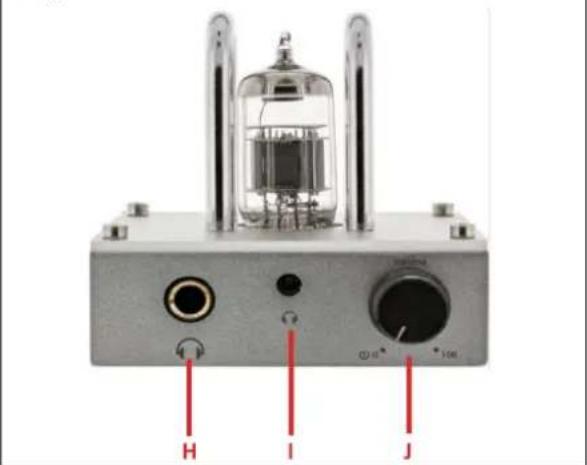
A. 3.5mm Line out & S/PDIF output
B. DC 12V input
C. USB input
D. DSD64 (2.8MHz) / DSD128 (5.6MHz) playback LEDs
E. PCM 384 / 352.8 / 192 / 176.4 / 96 / 88.2 / 48 / 44.1 KHz playback LEDs
F. Left and Right analog output indication (LED will blink during audio playback)
G. Power On and USB link indication (Red LED represents power on; Green LED represents USB is connected)
H. 6.3 mm Stereo headphone output
I. 3.5 mm Stereo headphone output
J. Output volume control and power on / off switch
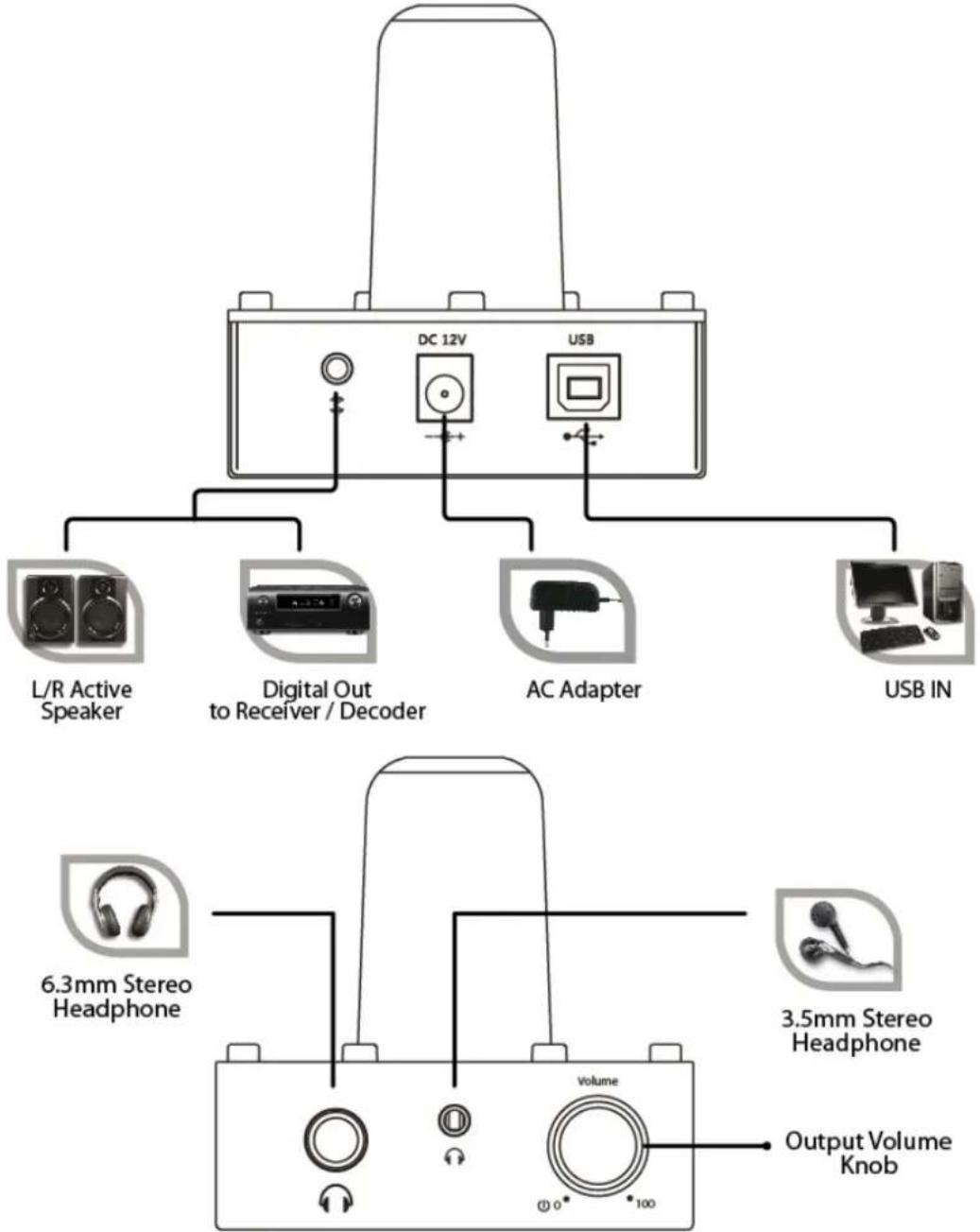
F. HARDWARE INSTALLATION
flowchart
graph TD
    A["DAV"] --> B["L/R Active Speaker"]
    A --> C["Digital Out to Receiver / Decoder"]
    A --> D["AC Adapter"]
    A --> E["USB IN"]
    F["DAV"] --> G["DC 12V"]
    F --> H["USB"]
    I["6.3mm Stereo Headphone"] --> J["Volume"]
    K["3.5mm Stereo Headphone"] --> L["Output Volume Knob"]
Please note: It is always needed to connect the 12V DC power adapter to device, USB self-powered usage is not possible.
G. DRIVER INSTALLATION
Installing Windows 10 / 8.1 / 8 / 7 / Vista / XP 32/64bit driver:
- Plug in InLine® AmpUSB HiFi DSD Headphone Vacuum Tube into one of your USB 2.0 ports of your PC and turn it on, to get detected by the computer.
- Insert the driver CD disc into your optical drive. Assume the optical drive letter is D:.
- Go to the drive folder D:\Savitech\SA9227
- Double click on „setup.exe“
- The installation wizard will guide you through the setup process. Please follow the on-screen instruction until the installation is completed.
For Mac OS, no driver installation is required.
H. JRiver Media Center Installation
After the successful installation of the driver, please install the trial version of JRiver Media Center which is included in the bundled CD in order to playback Hi-Resolution music.
Before installing the JRiver Media Center software, please make sure that your computer fulfills the minimum system requirement listed as below:
• 4GB of RAM or more
- Windows XP or later / OS X 10.6 or later.
Installing JRiver Media (Windows):
- Insert the driver CD into your optical drive. Assume the optical driver letter is D:.
- Go to the driver folder D:\JRiver\Windows\
- Double click on the executable file.
- The installation wizard will guide you through the setup process. Follow the on-screen instruction until the installation is completed.
JRiver Media Center DSD DoP setting on Windows OS:
We suggest the user to choose DoP mode for playing back the DSD in JRiver Media Center software in order to have the best experience of music enjoyment:
- Plug in InLine® AmpUSB HiFi DSD USB Audio DAC, Headphone Vacuum Tube amplifier into one of your USB 2.0 ports of your PC (the USB port with good USB signal integrity is preferred for the playback of Hi-Resolution music)
- Please Run JRiver Media Center. Inside JRiver Media Center Locate and CLICK the Player Tab and select PLAYBACK OPTIONS at the top of the screen.
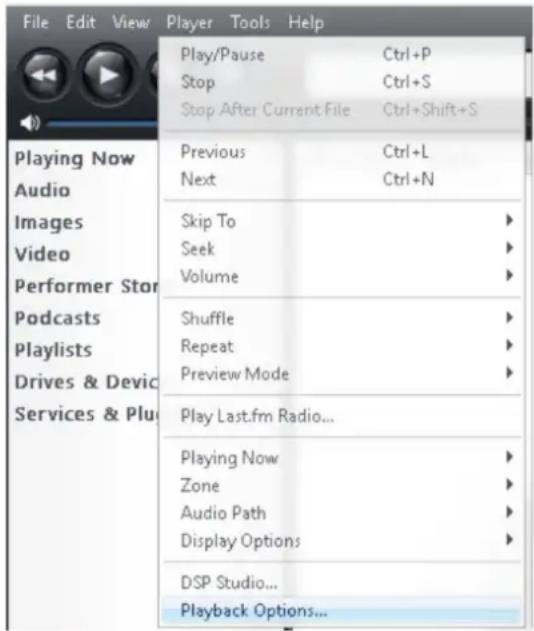
- Click the Audio Tab
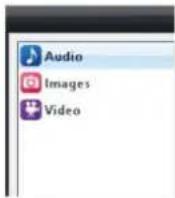
4. Under Audio Device choose BRAVO-HD [ASIO]
![Options Audio Images Video Zone to configure: Player Audio Device BRAVO-HD [ASIO] Default Audio Device [Direct Sound] Set BRAVO-HD [ASIO] foo_dsd_asio [ASIO] Digital Output (2- BRAVO-HD HS USB Audio) [WASAPI] High Definition Audio Device (1) [WASAPI] High Definition Audio Device [WASAPI] More](/content/2026/05/900197/images/aabed2187c48930d36be3c3ebc63a5cd93b286bfb5ec156fa86132ca858ba1ce.jpg)
5. Staying inside the Audio Tab click Device Settings
![Options Audio Images Video Zone to configure: Player Audio Device ✓ VIA KS Direct [ASIO] ... Device settings... Settings ... DSP & output format... ✓ Bitstreaming: None (recommended)](/content/2026/05/900197/images/0d74ef07de426ee864aba9beab46eb8450ca8f3e8be281aa4b73aa3f86dd8098.jpg)
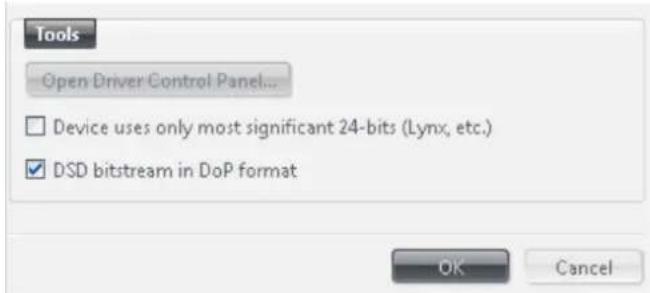
6. Inside the Device Settings Dialog box in Tools Tab select (V) box: "DSD bitstream in DoP format". Click OK to accept the changes
7. Go to Audio Tab Click Settings
![Options Audio Images Video Zone to configure: Player Audio Device ✓ VIA KS Direct [ASIO] ... Device settings... Settings ... DSP & output format... ✓ Bitstreaming: None (recommended)](/content/2026/05/900197/images/cbdb50390587f27f86f0e3e50667722bc55710b2c31f782172de3ca63deb8952.jpg)
- Under Settings click the Bitstreaming box and select Custom...
![Options Audio Images Video Zone to configure: Player Audio Device BRAVO-HD [ASIO] Device settings... Settings DSP & output format... Bitstreaming: None (recommended) None (recommended) ended HDMI S/PDIF DSD Custom... Tre e synchronization: None disk (not zone-specific) useful for HDMI audio](/content/2026/05/900197/images/d231704fa7db852fdb601188487ff0e2f96f6514b686ec422213ba1b42e6f375.jpg)
- Inside the Bitstreaming formats dialog box, select the DSD box only. Click OK.
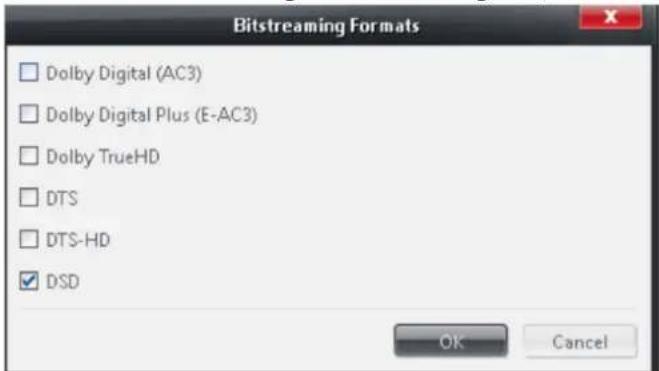
- You are now configured to stream DSD files and even PCM files directly to the 384KHz / 32bit DSD USB Audio DAC.
Installing JRiver Media Center Software unter Mac OS:
- Insert the driver CD disc into your optical drive
- Go to the driver folder \JRiver\Mac\
- Run the package file in the folder
- The Installation Wizard will guide you through the setup process. Follow the on-screen instruction until the installation is completed.
JRiver Media Center DSD setting on Mac OS:
- Plug in InLine® AmpUSB HiFi DSD USB Audio DAC, Headphone Vacuum Tube amplifier into one of your USB 2.0 ports of your PC (the USB port with good USB signal integrity is preferred for the playback of Hi-Resolution music)
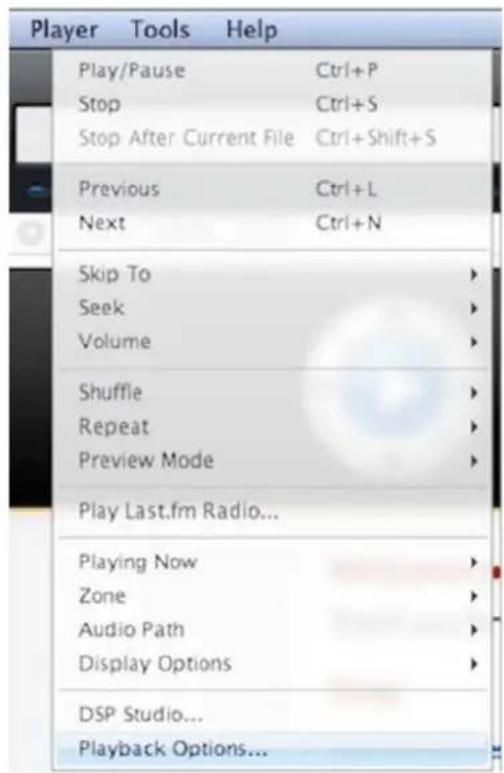
- Please Run JRiver Media Center. Inside JRiver Media Center Locate and CLICK the Player Tab and select PLAYBACK OPTIONS at the top of the screen
3. Click the Audio Tab
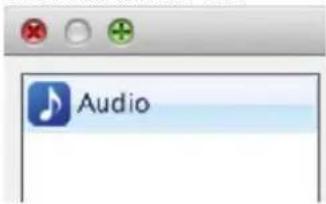
Under Audio Device choose "BRAVO-HD HS USB Audio [Core Audio]"
![Audio Zone to configure: Player Audio Device (Default) [Core Audio] (Default) [Core Audio] Set BRAVO-HD HS USB Audio [Core Audio] Built-in Output [Core Audio] HDMI [Core Audio] More](/content/2026/05/900197/images/20bf8b380264d12b6189743b0ffac270a42441818347bfdd740b64ab7fec543f.jpg)
4. Staying inside Audio Tab under Audio Device CLICK Device settings
![Audio Device ✓ SPDIF Interface [Core Audio] ... Device settings...](/content/2026/05/900197/images/f25e0458a341f7e03335273a27a4317319a784886dc43d281e7be410485ab382.jpg)
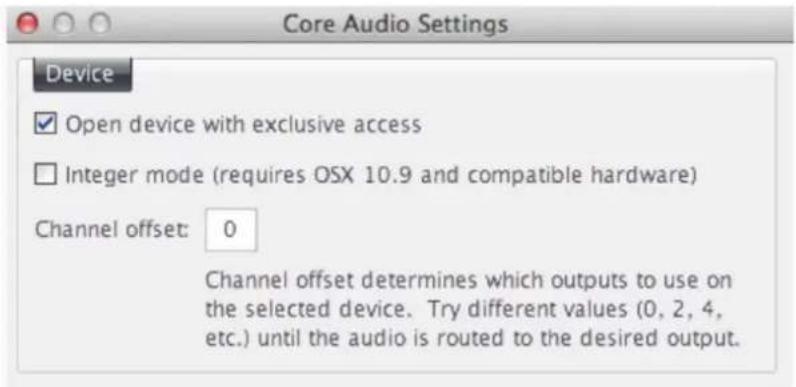
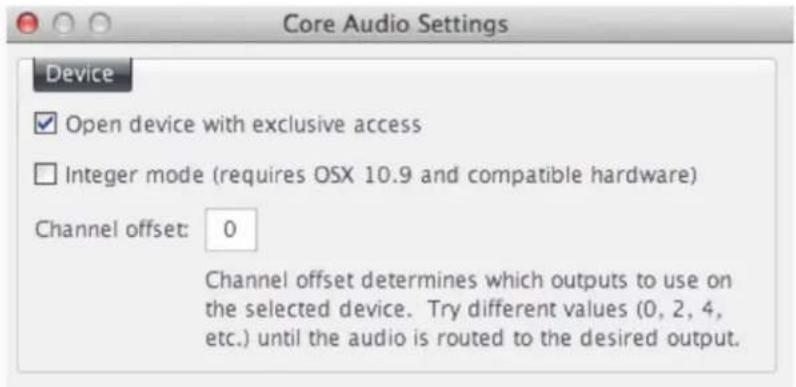
- Inside the Device setting dialog box. Select "Open device with exclusive access" and click OK.
![Audio Zone to configure: Player Audio Device ✓ SPDIF Interface [Core Audio] -- Device settings... Settings -- DSP & output format... ✓ Bitstreaming: None (recommended) ✓ None (recommended) Amended ✓ HDMI ware synchronization: None □ 8/PDIF of disk (not zone-specific) □ DSD (useful for HDMI audio) ✓ Tra Custom... Bitstreaming Formats □ Dolby Digital (AC3) □ Dolby Digital Plus (E-AC3) □ Dolby TrueHD □ DTS □ DTS-HD ✓ DSD OK Cancel](/content/2026/05/900197/images/0bcd6cc4fb9e9811283fd422d536bc8949875b63d630814a7872ad18eb2c35d5.jpg)
-
Under Audio Tab SELECT Settings Tab, CLICK Bitstreaming settings and SELECT Custom...
-
Inside the Bitstreaming Formats dialog box, select DSD box. And then CLICK OK inside the Bitstreaming Formats dialog box and OK in the Options dialog.
-
Close JRiver Playback Options and begin playing DSD and PCM files directly from the computer!
I. INSTALLATION ON MOBILE DEVICES
The InLine® AmpUSB HiFi DSD USB Audio DAC, Headphone Vacuum Tube amplifier can be connected and operated with mobile devices with Apple iOS and Android. For this purpose, an optional Camera Kit adapter cable for Apple devices or an optional USB OTG adapter cable for Android devices is needed to connect between mobile device and InLine® AmpUSB HiFi DSD USB Audio DAC, Headphone Vacuum Tube amplifier. For the power supply of InLine® AmpUSB HiFi DSD USB Audio DAC, please connect the 12V DC power adapter.
Compatible Apps with DSD audio playback are available in the app stores and possibly connected with full functionality with additional costs (in-app purchases, such as App "Onkyo HF Player").
GETTING THE LATEST SOFTWARE & DOCUMENT
To get the latest driver, software and document, please visit the following website:
http://www.drivers-download.com
In “Drivers Search” section, please enter the Download code (DL code): DL-070001 to search for the latest driver, software and document.
- Bedienungsanleitung
- Achtung:
- User manual
- Caution:
- DISCLAIMER
- Intendes use:
- INTRODUCTION
- FEATURES & SPECIFICATION
- PACKAGE CONTENTS
- PRODUCT OVERVIEW
- DRIVER INSTALLATION
- JRiver Media Center Installation
- Installing JRiver Media (Windows):
- JRiver Media Center DSD DoP setting on Windows OS:
- Under Audio Device choose BRAVO-HD [ASIO]
- Staying inside the Audio Tab click Device Settings
- Inside the Device Settings Dialog box in Tools Tab select (V) box: "DSD bitstream in DoP format". Click OK to accept the changes
- Go to Audio Tab Click Settings
- Installing JRiver Media Center Software unter Mac OS:
- JRiver Media Center DSD setting on Mac OS:
- Click the Audio Tab
- Staying inside Audio Tab under Audio Device CLICK Device settings
- INSTALLATION ON MOBILE DEVICES
- GETTING THE LATEST SOFTWARE & DOCUMENT
Brand : InLine
Model : 99203I
Category : Headphones