
NVMe31-FastLock - External hard drive Fantec - Free user manual and instructions
Find the device manual for free NVMe31-FastLock Fantec in PDF.


| Product Type | External M.2 NVMe SSD Enclosure |
| Model | NVMe31-FastLock |
| Brand | Fantec |
| Supported SSD Form Factors | M.2 2230, 2242, 2260, 2280 |
| Interface | USB 3.1 (USB-C, 10 Gbps) |
| Compatibility | Windows 7/8/10, Mac OS 9.X or above, Linux 2.4.2 |
| Enclosure Material | Aluminum |
| Dimensions | Approximately 105 x 30 x 10 mm |
| Weight | Approximately 50 g |
| Power Supply | Bus-powered via USB-C |
| Package Contents | Enclosure, USB-C to USB-C cable, thermal pad, manual, warranty card |
| Thermal Pad | Included for heat dissipation from SSD |
| Installation Mechanism | FastLock tool-free sliding bar |
| LED Indicator | Yes (on enclosure) |
| Operating System Support | No driver required (plug and play) |
| Safety Instructions | Protect from moisture and direct sunlight; prevent static discharge during assembly |
| Maintenance | Wipe off thermal pad residues; keep foil for reuse |
| Spare Parts | Thermal pad can be replaced; not sold separately |
| Warranty | RMA service via dealer outside Germany |
Frequently Asked Questions - NVMe31-FastLock Fantec
User questions about NVMe31-FastLock Fantec
0 question about this device. Answer the ones you know or ask your own.
Ask a new question about this device
Download the instructions for your External hard drive in PDF format for free! Find your manual NVMe31-FastLock - Fantec and take your electronic device back in hand. On this page are published all the documents necessary for the use of your device. NVMe31-FastLock by Fantec.
USER MANUAL NVMe31-FastLock Fantec
natural_image
3D diagram of a rectangular device with internal grid structure and red directional arrows indicating flow or movement (no text or symbols)natural_image
Diagram of a mobile phone rear panel with ventilation grilles and a green circular arrow indicating a component (no text or symbols present)natural_image
Simple geometric shape with diagonal division and corner detail (no text or symbols)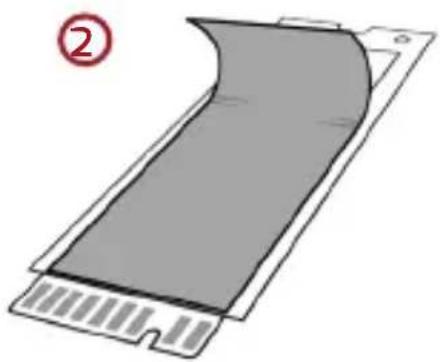
natural_image
Diagram of a gray rectangular object with a curved top and bottom edge, labeled with circled number 2 (no text or symbols on the object itself)③
natural_image
Pure geometric diagram of a rectangular shape with diagonal shading and a small rectangular base at the bottom (no text or symbols)natural_image
Diagram of a mobile phone rear panel with ventilation grating and directional arrow (no text or symbols)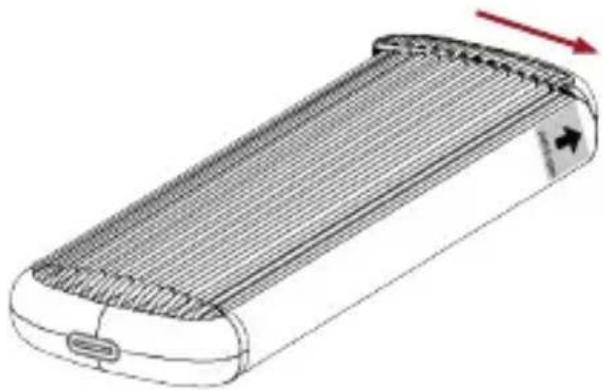
natural_image
Diagram of a cylindrical device with internal grid structure and directional arrows indicating flow or movement (no text or symbols)Your package contains the following components:
| FANTEC NVMe-Fastlock |
| USB-C to USB-C cabel |
| Thermalpad |
| Manual |
| Warranty Card |
DESCRIPTION:
This enclosure supports the installation of an M.2 PCIe NVMe (Key M or Key M+B) SSD in the 2230,2242, 2260 and 2280 format. The connection to the computer is via USB 3.1.
SYSTEM REQUIREMENTS:
- Windows 7/8/10
• Mac OS 9.X or above - Linux 2.4.2
- USB-C port
SAFETY INSTRUCTIONS:
- Protect the product against moisture and direct sunlight.
- Prevent static discharge during assembly.
RMA SERVICE:
For RMA service outside Germany, please contact your dealer!
INSTALLING THE SSD MEMORY CARD:
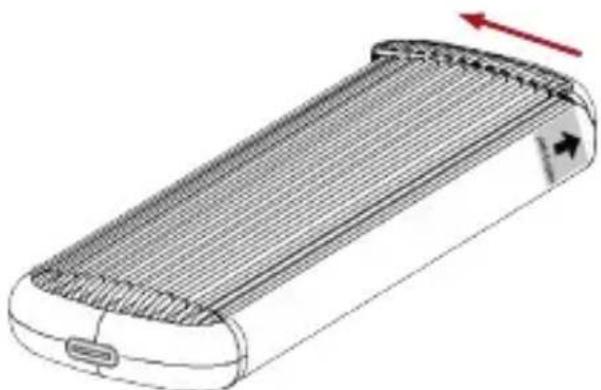
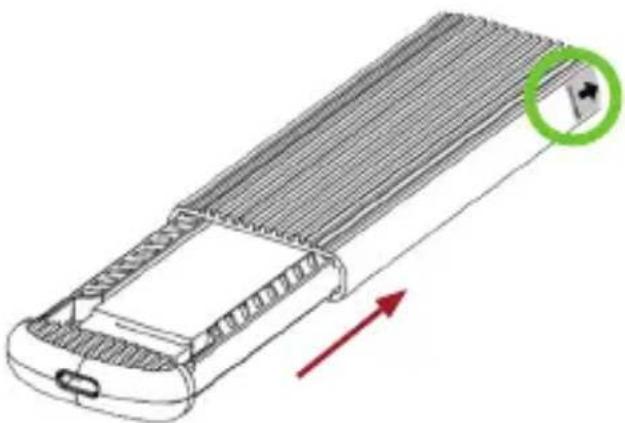
- Place the housing on a suitable mounting surface with the LED field facing down and the USB connector facing left. Pay attention to the arrow markings on the right side at the back.
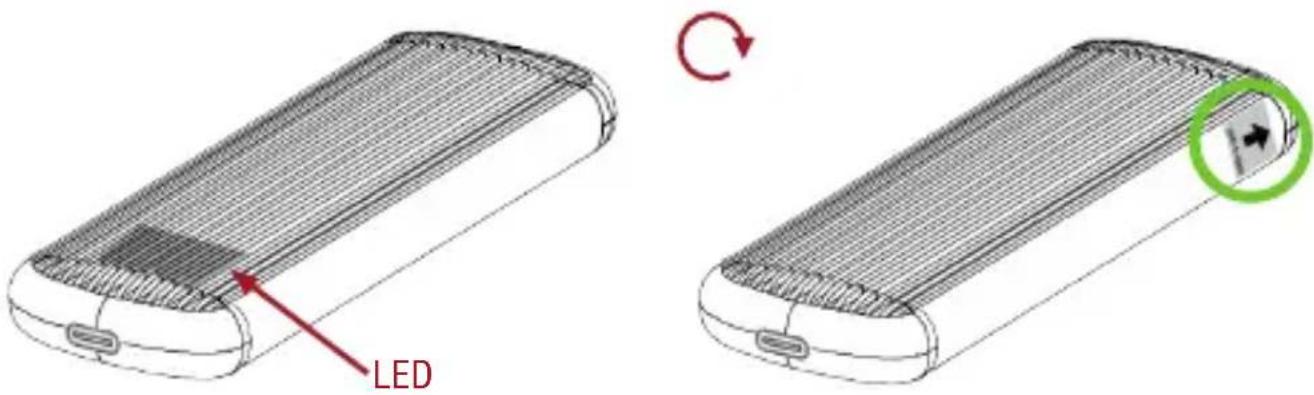
- Push the rear cap above the arrow 5mm to the left. Carefully remove the cap and set it aside so that you know in which position the cap will be put back on.
natural_image
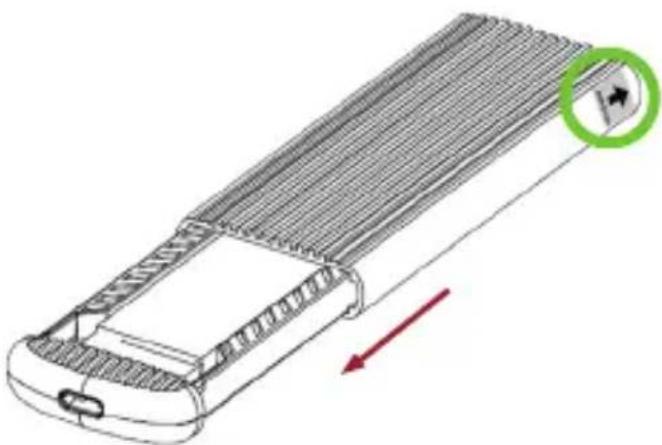
3D diagram of a rectangular device with internal grid structure and red directional arrows indicating flow or movement (no text or symbols)- Slide the inner part of the housing completely out to the lower left. Set the aluminum housing aside so that you know how to put it back together. Orient yourself to the arrow at the back top right.
natural_image
Diagram of a mobile phone rear panel with ventilation grating and a green circular arrow indicating a component (no text or symbols)- Place the inner part on the table and align the sliding bar in the mechanism in the housing according to the length of your NVMe. Position the bar exactly over the corresponding openings in the rail.
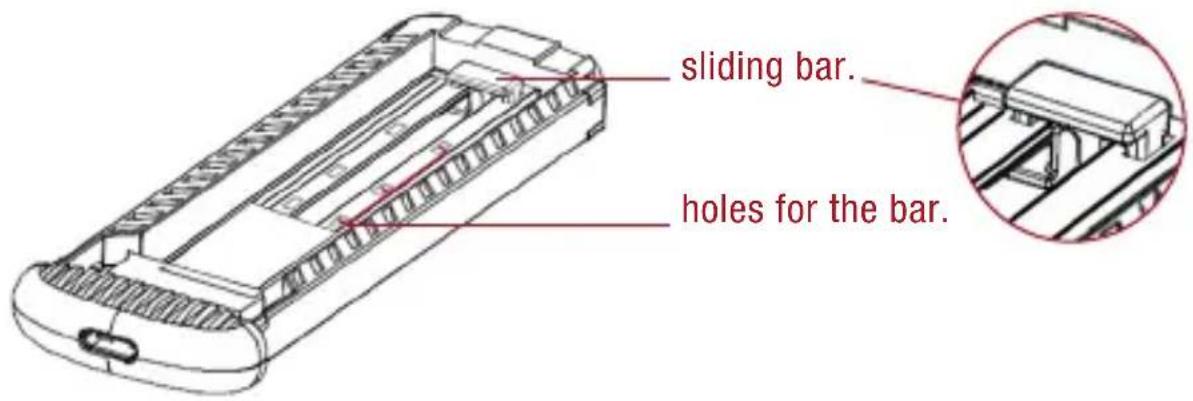
- Place the NVMe SSD into the M.2 slot. It bounces up slightly, but can be pressed down easily. When you align the NVMe horizontally and press it slightly under the sliding bar, you correct the latch and press it slightly against the table. It snaps into place with a clear „click“.
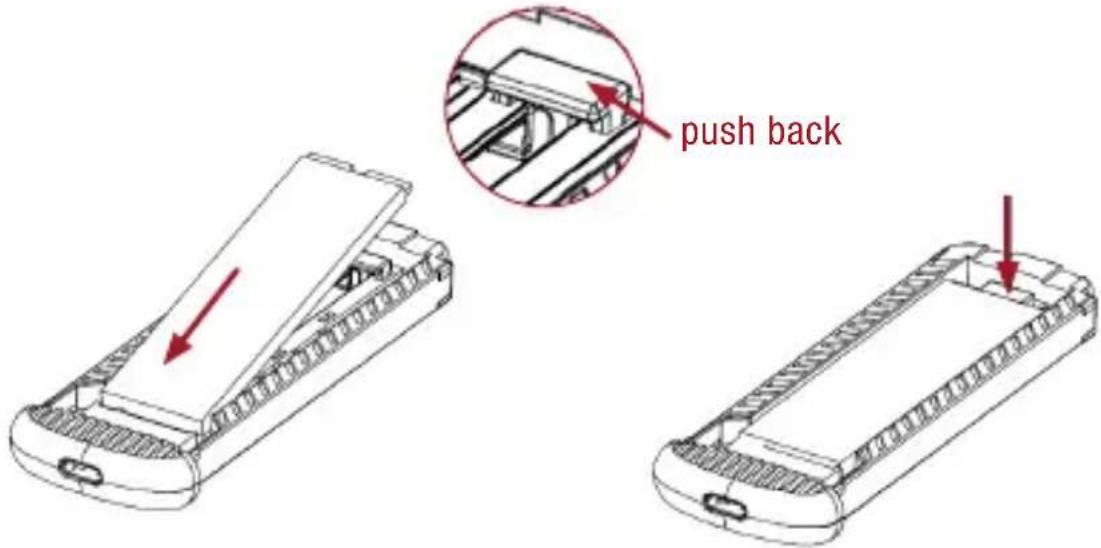
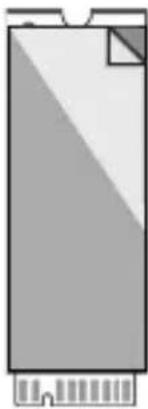
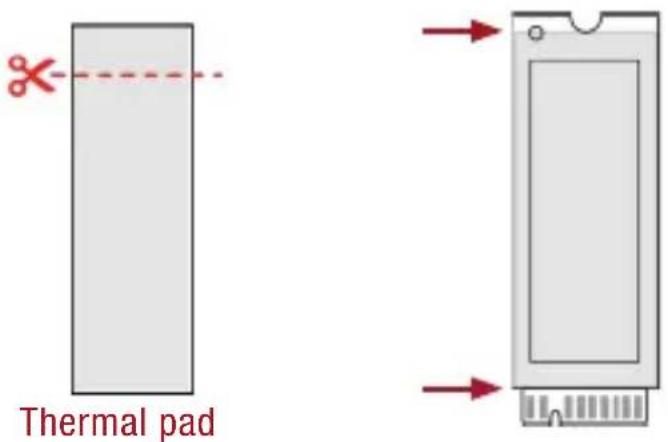
- Correct the length of the thermal pad. It has to cover the chips of the NVMe SSD over the entire length, but should not protrude beyond the ends. The width usually does not have to be corrected.
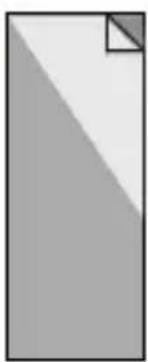
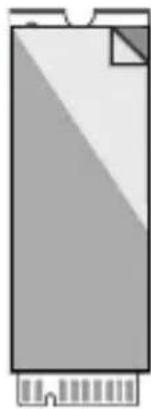
- Remove the foil from one side and place the thermal pad with the side without the foil on the NVMe SSD. Press the thermal pad lightly against the NVMe SSD. The NVMe SSD must not bounce loosely, but must be firmly clamped under the latch. Now carefully remove the second foil.
①
natural_image
Simple geometric shape with diagonal division and corner detail (no text or symbols)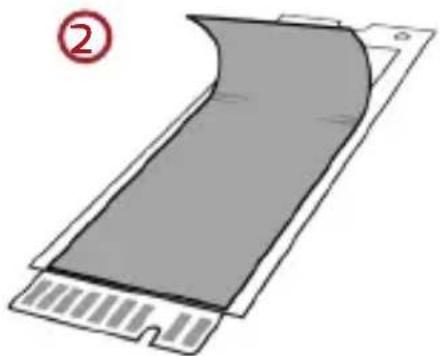
natural_image
Diagram of a gray rectangular object with a curved top and bottom edge, labeled with circled number 2 (no text or symbols on the object itself)③
natural_image
Pure geometric diagram of a rectangular shape with diagonal shading and a small square at the top (no text or symbols)- Slide the housing back together. Orientate yourself by the arrow at the top rear right. There will most likely be residues of the thermal pad on the edge of the casing. Wipe these off carefully. If everything is seated correctly, place the housing back on the table, put the cap back on the open end slightly offset by 5mm and slide the cap back to the right.
natural_image
Diagram of a mobile phone rear panel with ventilation grilles and a green circular arrow indicating a location (no text or symbols)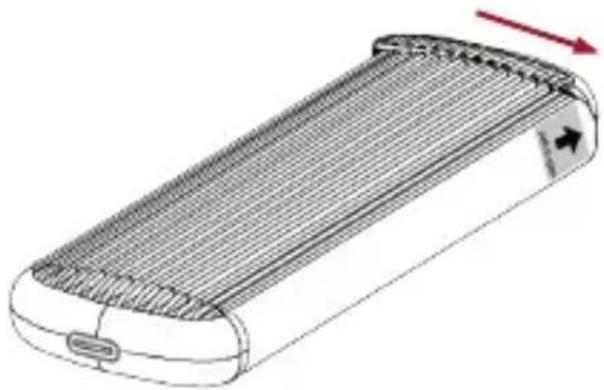
natural_image
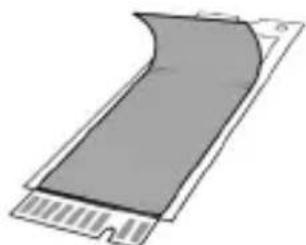
Diagram of a cylindrical device with internal grid structure and directional arrows indicating flow or movement (no text or symbols)- Keep the foil remnants in case you want to remove the NVMe again. To protect the thermal pad, put one foil back on the thermal pad and carefully take the pad down together with the foil and then put the pad on the second foil.
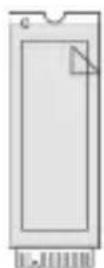
first foil on
thermal pad
natural_image
Pure diagram of a curved gray shape with a rectangular base and small rectangular cutout, no text or symbols present.Remove Thermal pad
second foil on thermal pad.
FORMATTING THE SOLID STATE DRIVE:
- Right-Click on „This PC“ icon and select the „Manage“ column.
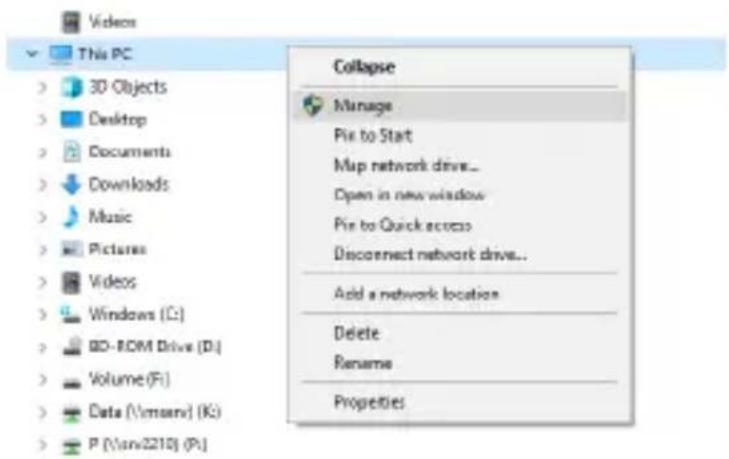
- Select „Disk Management“ and you will se your SSD showed „Not initialised“ and „Unallocated“
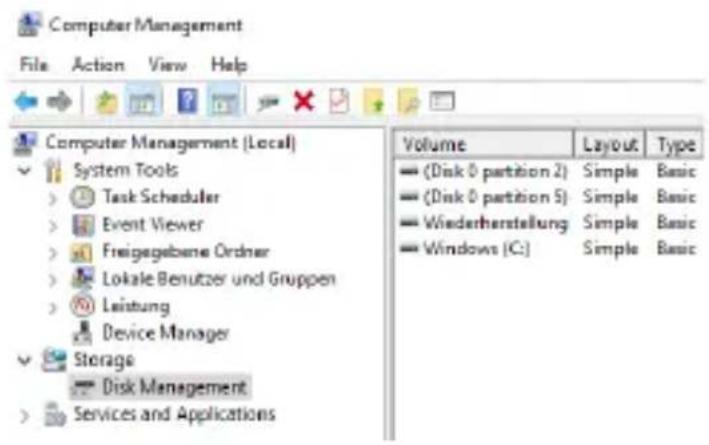
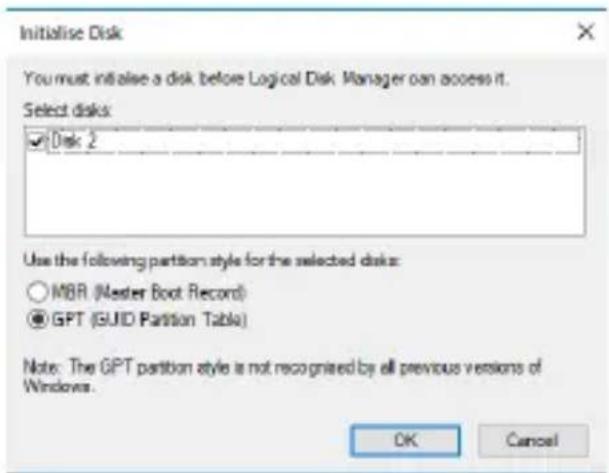
- Right-Click on the red Symbol and select „Initialise Disk“.
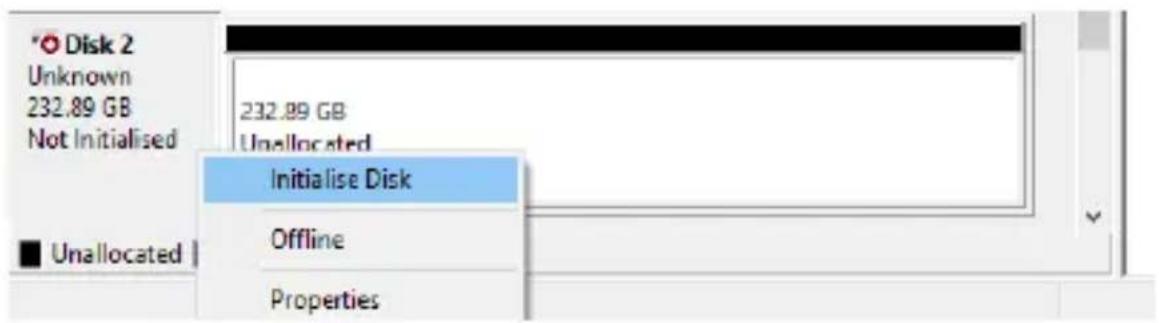
- Select „GPT“ mode. Then press OK button finish the initialising procedure.
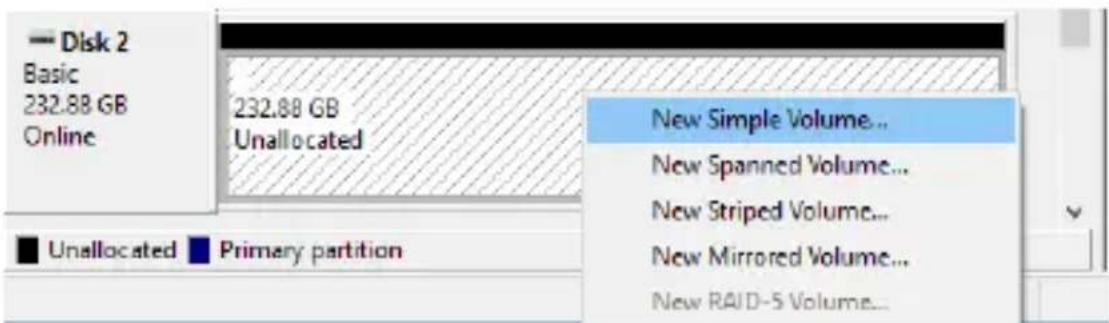
- Right-Click on the "Unallocated" block and select „New Simple Volume“. Then follow up the dialogue box with pressing the „Next" button until the „Finish" will start the formatting procedure.
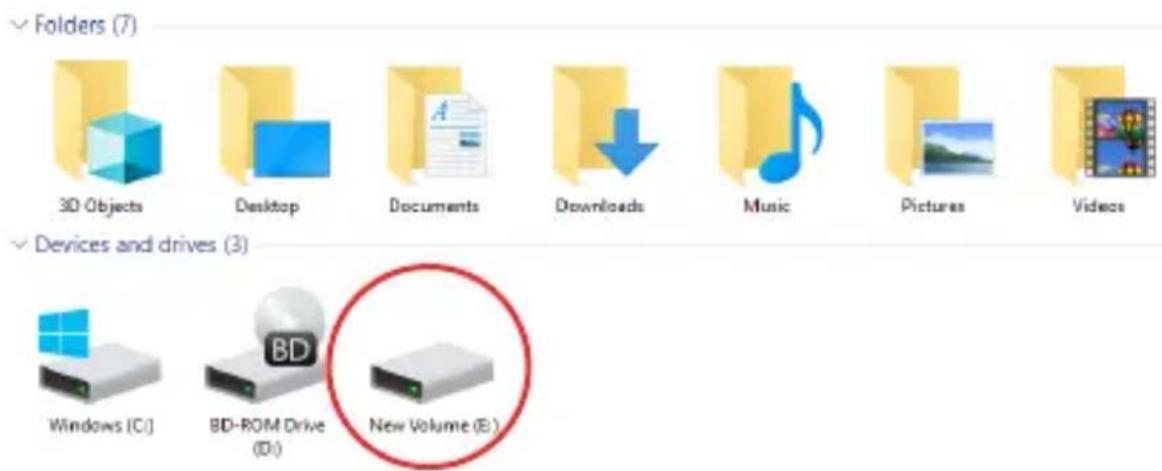
- When formatting is completed, the external SSD will be recognized as a „New Volume“.

Brand : Fantec
Model : NVMe31-FastLock
Category : External hard drive