
IB-DK2280AC - Car Mount Icy Box - Free user manual and instructions
Find the device manual for free IB-DK2280AC Icy Box in PDF.


| Product Type | Docking Station |
| Brand | Icy Box |
| Model | IB-DK2280AC |
| Power Supply | DC 20V/6.75A, 135W |
| Host Interface | USB 3.2 Gen 2 Type-C (with DP Alt Mode and Power Delivery up to 100W) |
| USB Ports | 1x USB 3.2 Gen 2 Type-C (data), 1x USB 3.2 Gen 1 Type-A (data), 4x USB 3.2 Gen 1 Type-A (data) |
| Video Output | Quadruple: 1x DisplayPort 1.4 (DP Alt Mode), 1x HDMI 2.1 (DP Alt Mode), 2x DisplayPort 1.4/HDMI 2.0 (DisplayLink) |
| Max Resolution | Single display up to 7680x4320@30Hz; Quadruple displays up to 3840x2160@60Hz each |
| Ethernet | RJ45 2.5 Gigabit Ethernet |
| Audio | 3.5mm headset combo jack |
| Card Reader | SD 4.0 card reader |
| Security | Kensington Nano Security Slot and Kensington Security Slot |
| Mounting | Screw holes for VESA plate (not included) |
| Supported Operating Systems | Windows, macOS, Chrome OS, Ubuntu (Linux) |
| Driver Requirements | DisplayLink driver required (pre-installed on Chrome OS) |
| Cleaning | Disconnect device; use dry anti-static cloth |
| Safety Warnings | Risk of electric shock; avoid moisture; do not modify; keep away from children |
Frequently Asked Questions - IB-DK2280AC Icy Box
User questions about IB-DK2280AC Icy Box
0 question about this device. Answer the ones you know or ask your own.
Ask a new question about this device
Download the instructions for your Car Mount in PDF format for free! Find your manual IB-DK2280AC - Icy Box and take your electronic device back in hand. On this page are published all the documents necessary for the use of your device. IB-DK2280AC by Icy Box.
USER MANUAL IB-DK2280AC Icy Box
DisplayLink® Hybrid DockingStation with quadruple video output
Handbuch IB-DK2280AC
natural_image
Line drawing of a rectangular electronic device with ventilation grilles and multiple ports (no text or symbols)Manual IB-DK2280AC
Please read carefully the following information to prevent injuries, damage to material and device as well as data loss:
Warning levels
Signal words and safety codes indicate the warning level and provide immediate information in terms of the probability of occurrence as well as the type and severity of the consequences if the measures to prevent hazards are not complied with.
DANGER
Warns of a directly hazardous situation causing death or serious injury.
WARNING
Warns of a potentially hazardous situation that may cause death or serious injury.
CAUTION
Warns of a potentially hazardous situation that may cause minor injury.
IMPORTANT
Warns of a potential situation that may cause material or environmental damage and disrupt operative processes.
1. Risk of electrical shock
WARNING
Contact with parts conducting electricity
Risk of death by electrical shock
- Read the operating instructions prior to use
• Make sure the device has been de-energised prior to working on it - Do not remove contact protection panels
- Avoid contact with conducting parts
- Do not bring plug contacts in contact with pointed and metal objects
• Use in intended environments only - Operate the device using a power unit meeting the specifications of the type plate only!
- Keep the device/power unit away from humidity, liquid, vapour and dust
• Do not modify the device
• Do not connect the device during thunderstorms
• Approach specialist retailers if you require repairs
2. Hazards during assembly (if intended)
CAUTION
Sharp components
Potential injuries to fingers or hands during assembly (if intended)
- Read the operating instructions prior to assembly
- Avoid coming into contact with sharp edges or pointed components
• Do not force components together - Use suitable tools
• Use potentially enclosed accessories and tools only
3. Hazards caused by a development of heat
IMPORTANT
Insufficient device/power unit ventilation
Overheating and failure of the device/power unit
- Prevent externally heating up components and ensure an exchange of air
- Do not cover the fan outlet and passive cooling elements
Manual IB-DK2280AC
- Avoid direct sunlight on the device/power unit
• Guarantee sufficient ambient air for the device/power unit - Do not place objects on the device/power unit
4. Hazards caused by very small parts and packaging

WARNING
Risk of suffocation
Risk of death by suffocation or swallowing
- Keep small parts and accessories away from children
- Store/dispose of plastic bags and packaging in an area that is inaccessible to children
• Do not hand over small parts and packaging to children
5. Potential data loss
IMPORTANT
Data lost during commissioning
Potentially irreversible data loss
- Always comply with the information in the operating instructions/quick installation guide
• Exclusively use the product once the specifications have been met
• Back up data prior to commissioning
• Back up data prior to connecting new hardware
• Use accessories enclosed with the product
6. Cleaning the device
IMPORTANT
Harmful cleaning agents
Scratches, discolouration, damage caused by moisture or short circuit in the device
- Disconnect the device prior to cleaning
- Aggressive or intense cleaning agents and solvents are unsuitable
• Make sure there is no residual moisture after cleaning
• We recommend cleaning devices using a dry, anti-static cloth
7. Disposing of the device
IMPORTANT
Environmental pollution, unsuitable for recycling
Potential environmental pollution caused by components, recycling circle interrupted

This icon on product and packaging indicates that this product must not be disposed of as part of domestic waste. In compliance with the Waste Electrical and Electronic Equipment Directive (WEEE) this electrical device and potentially included batteries must not be disposed of in conventional, domestic waste or recycling waste. If you would like to dispose of this product and potentially included batteries, please return it to the retailer or your local waste disposal and recycling point.
If you have any questions, please do not hesitate to contact our support at support@raidsonic.de or visit our website at www.icybox.de.
Handbuch IB-DK2280AC
- ON/OFF button
- Power LED (green)
- USB 3.2 Gen 2 Type-C® data interface with up to 10 Gbit/s
- USB 3.2 Gen 1 Type-A data interface with up to 5 Gbit/s
- 3.5 mm headset combo jack
- SD 4.0 card reader for SD memory cards
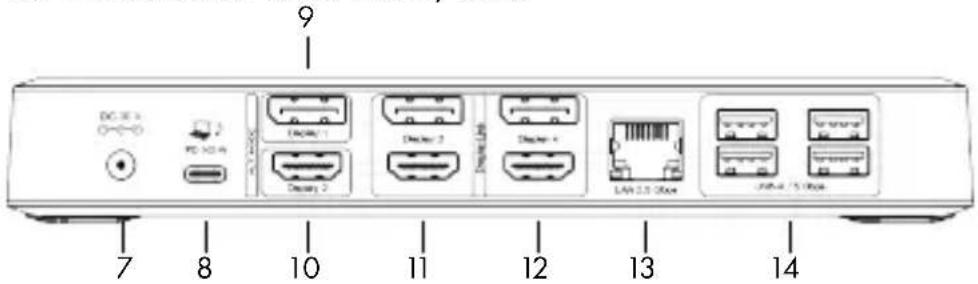
- Power jack, DC 20 V/6.75 A, 135 W
- USB 3.2 Gen 2 Type-C® host interface, Power Delivery up to 100 W
- DP Alt Mode DisplayPort™ 1.4 interface (Display 1)
- DP Alt Mode HDMI® 2.1 interface (Display 2)
- DisplayLink® HDMI® 2.0 and DisplayPort™ 1.4 interfaces (Display 3)
- DisplayLink® HDMI® 2.0 and DisplayPort™ 1.4 interfaces (Display 4)
- RJ45 2.5 Gigabit Ethernet interface
- 4x USB 3.2 Gen 1 Type-A data interface with up to 5 Gbit/s
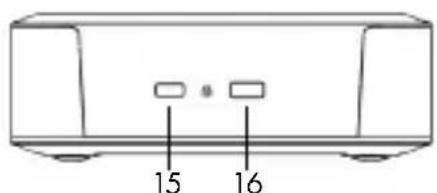
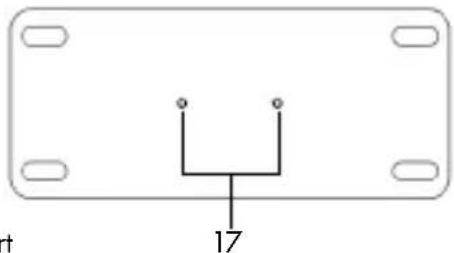
- Kensington Nano Security Slot™ support
- Kensington Security Slot™ support
- Screw holes for VESA® plate (not included)
Manual IB-DK2280AC
| USB version information | ||
| Legacy USB standards | Current USB standards | Data transfer rate |
| USB 3.0 = USB 3.1 (Gen 1) | = USB 3.2 Gen 1 | = 5 Gbit/s |
| USB 3.1 = USB 3.1 (Gen 2) | = USB 3.2 Gen 2 | = 10 Gbit/s |
| USB 3.2 (Gen 2x2) | = USB 3.2 Gen 2x2 | = 20 Gbit/s |
| - | = USB4 Gen 3x2 | = 40 Gbit/s |
Requirements
Supported Operating Systems:
- Windows®, macOS®, Chrome OS™, Ubuntu (Linux)
• Installed DisplayLink® driver
Host compatibility:
- USB Type-A, USB Type-C®, Thunderbolt™ 3/4, USB4®
• Power Delivery and DP Alt Mode function (Display 1 and 2) only via
Type-C® host computer with Power Delivery and DP Alt Mode support
USB Type-C®
Not all USB Type-C® host ports support the full functionality of the USB Type-C® standard. Some ports might only provide data transfer without supporting Power Delivery over USB.

USB Type-C ^TM ≠ USB Type-C ^TM
Important!
This ICY BOX product requires the usage of DisplayPort™ Alt Mode technology over the USB Type-C™ connector. Not all computers, notebooks or tablets with a USB Type-C™ interface support the DisplayPort™ Alt Mode.
Please check the specifications of your computer system as well as its USB Type-CTM interface or use the ICY BOX product with a ThunderboltTM 3 connector.
To use this dock to its full potential, ensure that the USB Type-C® host port of your computer supports DP Alt Mode, USB Power Delivery, Thunderbolt™ 3 / 4 or USB4®.
Attention!
In case your computer supports only the DP Alt Mode protocol and the DisplayLink® driver is not installed:
only the DP Alt Mode interfaces (Display 1 and 2) can be used.
In case your computer does not support the DP Alt Mode protocol and only has USB 3.2 Gen 2 and the DisplayLink® driver installed:
only the DisplayPort™/HDMI® 3 (4K) and DisplayPort™/HDMI® 4 (4K) interfaces can be used.
Manual IB-DK2280AC
In case your computer supports both, the DP Alt Mode protocol and USB 3.2 Gen 2 with installed DisplayLink® driver:
the DP Alt Mode HDMI® / DisplayPort™ 1 (4K) and HDMI® / DisplayPort™ 2 (4K) interfaces and the DisplayPort™/ HDMI® 3 (4K) and DisplayPort™/ HDMI® 4 (4K) interfaces can be used.
Starting up
Driver installation!
Caution: Do not connect the DockingStation to your computer before installing the driver from the download area of:
https://www.synaptics.com/products/displaylink-graphics/downloads
- Select your operating system and download the correct driver from the webpage mentioned above.
- Click on the executable file of the related version.
- Follow the instructions and finish the driver installation.
- Connect the DockingStation to a supported USB Type-C® port of the PC.
- Restart the PC.
- The IB-DK2280AC is ready for use.
Note!
Chrome OS™: The DisplayLink® driver is already pre-installed under Chrome OS™.
Manual IB-DK2280AC
Starting up
- Connect the power supply.
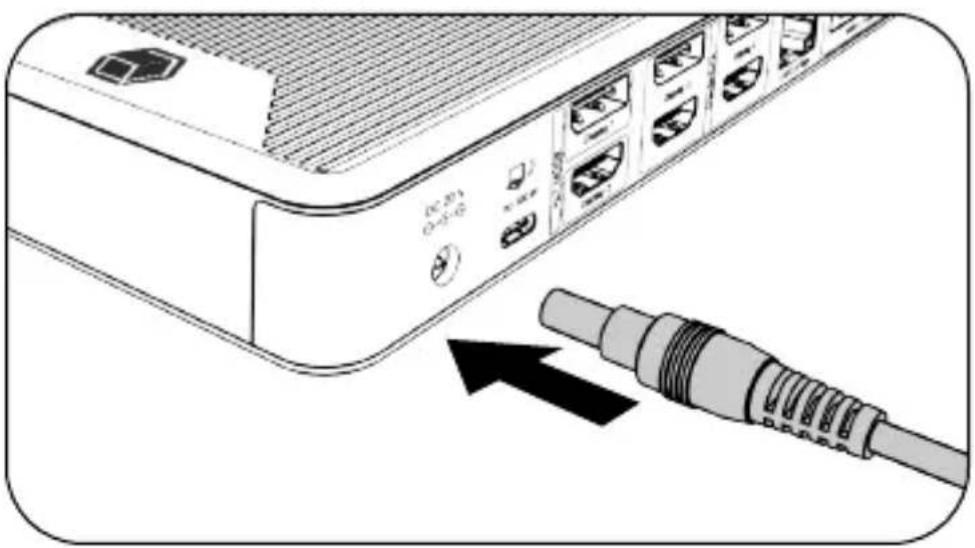
natural_image
Illustration of a server rack with attached cable and connector ports (no text or symbols)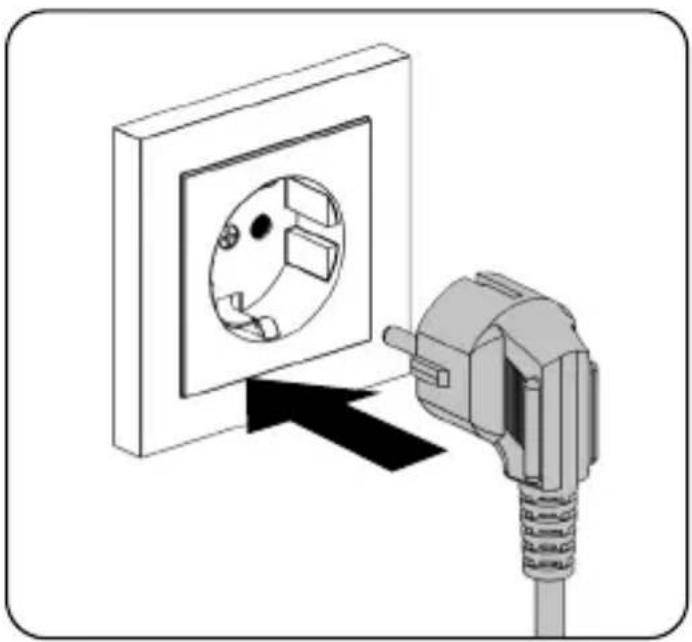
natural_image
Diagram showing a wall socket connected to an electrical plug, with no text or symbols present.Manual IB-DK2280AC
- Connect the USB Type-C® plug of the supplied data cable to the host Type-C® interface of the DockingStation.
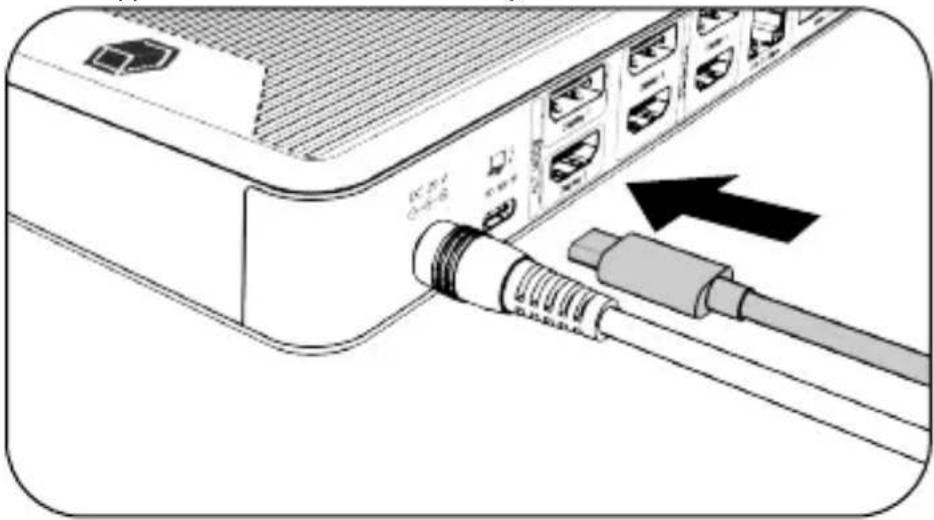
natural_image
Diagram of a server rack with two connected USB cables, showing port labels and connection arrows (no text or symbols)- Connect the other end of the data cable (either USB Type-C® or the included Type-A adapter) to a supported computer (at least USB 3.2 Gen 1).
flowchart
graph TD
    A["Laptop"] -->|Yes| B["Network Device"]
    A -->|No| C["Network Device"]
    B --> D["User Interface"]
    C --> E["User Interface"]
    D --> F["User Interface"]
    E --> G["User Interface"]
    style A fill:#f9f,stroke:#333
    style B fill:#ccf,stroke:#333
    style C fill:#cfc,stroke:#333
    style D fill:#fcc,stroke:#333
    style E fill:#cff,stroke:#333
    style F fill:#ffc,stroke:#333
    style G fill:#fcc,stroke:#333
Manual IB-DK2280AC
- Now switch on the unit and the power LED lights up green.
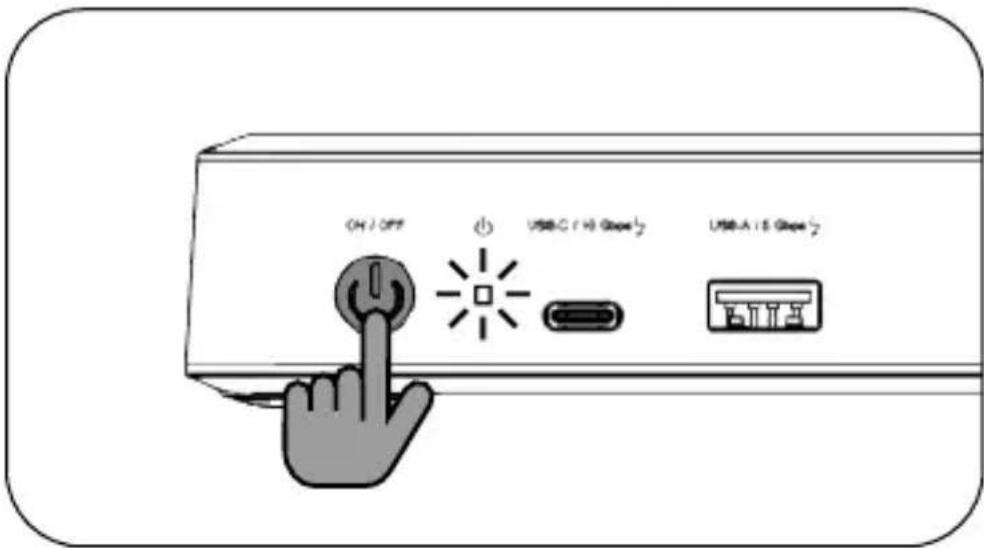
Note!
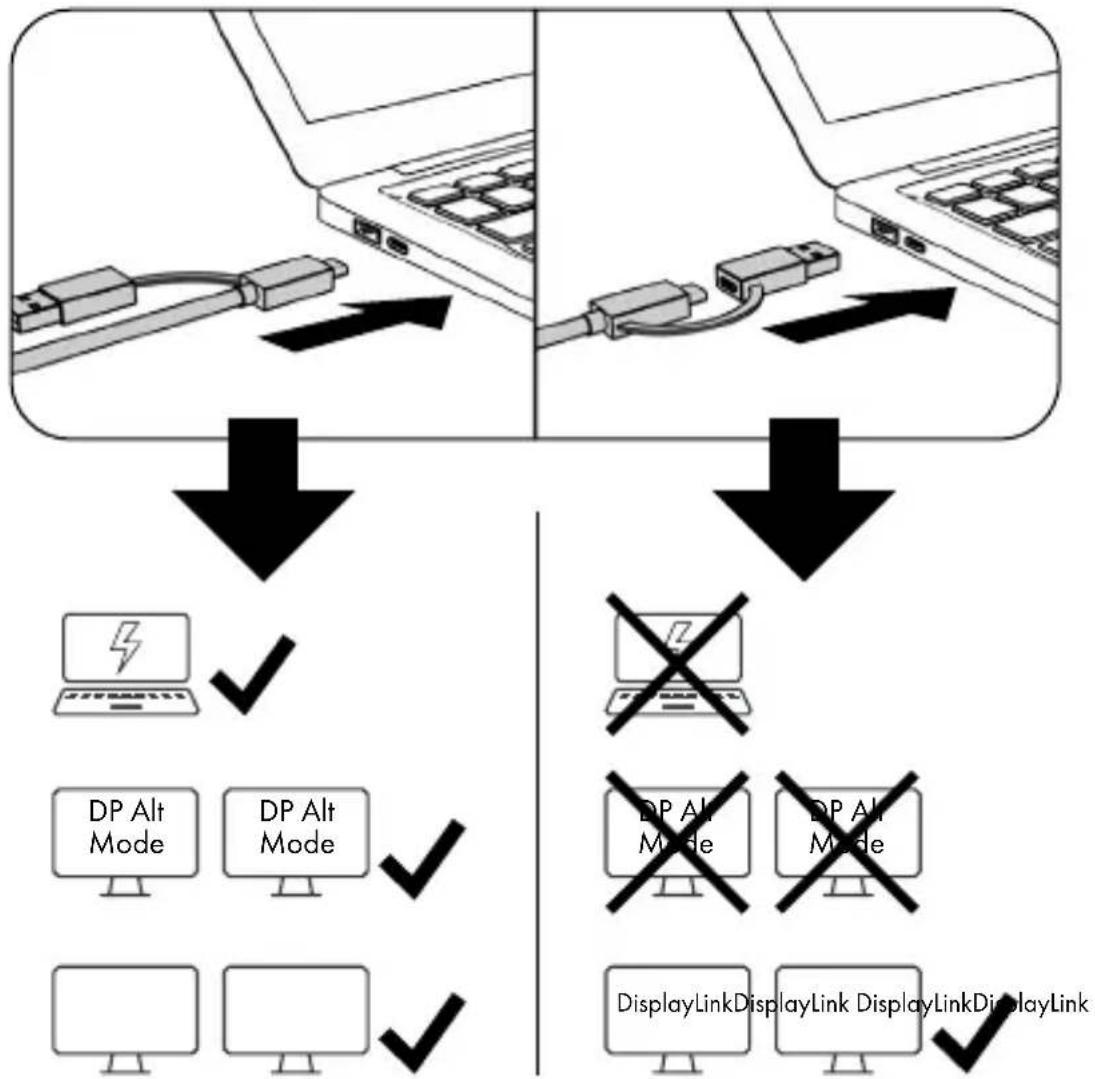
When using the device on a computer without Power Delivery support via a USB Type-C® port or using a USB Type-A port (via adapter), please note the following:
Information about the attached USB Type-C® to Type-A adapter:
For a better connection compatibility with host computers that only have a USB 3.2 Gen 1/2 Type-A interface, we have added an additional USB Type-C ^® to Type-A adapter.
Should you wish to use this adapter on your computer, please note the following technical restriction when using the DockingStation via a Type-A port:
In this case the Type-A interface does in no way support DP Alt Mode via the DP Alt Mode interfaces 1 and 2, and Power Delivery which is a prerequisite for the Power Delivery charging option. This means the DockingStation cannot be used to charge the computer.
To use this dock to its full potential, ensure that the host USB Type-C® port of your computer supports USB 3.2 Gen 2, DP Alt Mode and USB Power Delivery.
Please consult your host PC documentation or contact the PC manufacturer to confirm compatibility with these technologies. To be certain, please check whether the host PC Bios Version is the latest and confirm compatibility with USB Type-C® Power Delivery, DP Alt Mode and USB 3.2 Gen 2 before application.
Manual IB-DK2280AC
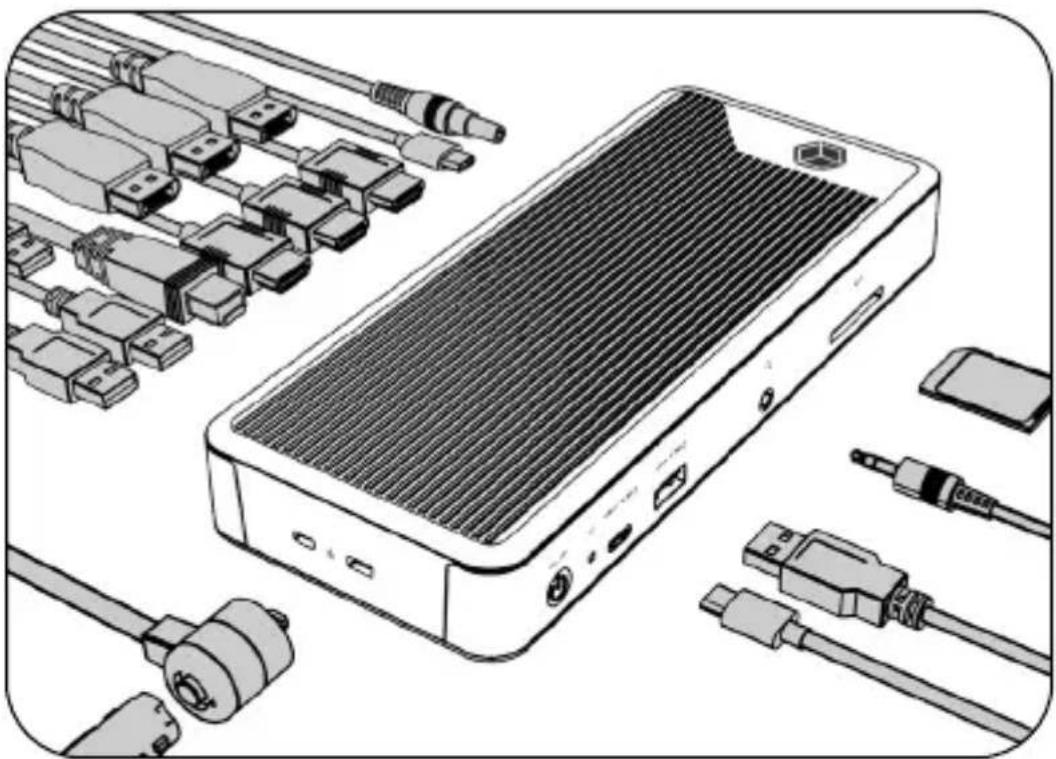
- Connect your peripheral devices to the appropriate interfaces of the dock.
natural_image
Illustration of a smartphone with attached cables and connectors, showing internal components like USB, I/O, and cable (no text or symbols)Use of memory card slot
SD card
Insert the SD card into the SD card slot with the bevelled corner first. The golden PINs of the card must show downwards.
Displays
Please set up your display settings according to your operating system and requirements.
For detailed information refer to the corresponding operation manual and description of your operating system.
Supported video resolutions
| Video matrix (Host PC = USB Type-C® DP Alt Mode + DisplayLink®, DP 1.4 HBR3, DSC**), maximum resolutions | ||||||||
| Input (plug-in) Output | ||||||||
| Number of displays | DP 1 (DP Alt Mode) | HDMI® 2 (DP Alt Mode) | HDMI® or DP 3 (DisplayLink®) | HDMI® or DP 4 (DisplayLink®) | Display 1 Display 2 Display 3 Display 4 | |||
| Quadruple video output | √√√√ | 3840x2160@60 Hz 3840x2160@60 Hz 3840x2160@60 Hz 3840x2160@60 Hz | ||||||
| Triple video output (example*** ) | √√√ | 3840x2160@60 Hz 3840x2160@60 Hz 3840x2160@60 Hz | ||||||
| Dual video output (example*** ) | √ | √ | 3840x2160@60 Hz 3840x2160@60 Hz | |||||
| √ | √ | 7680x4320@30 Hz 3840x2160@60 Hz | ||||||
| √ | 2x DP | 7680x4320@30 Hz 5120x2880@60 Hz (DP only) | ||||||
| Single video output | √ | 7680x4320@30 Hz | ||||||
| √ | 7680x4320@30 Hz | |||||||
| √ | 3840x2160@60 Hz | |||||||
| √ | 3840x2160@60 Hz | |||||||
| 2x DP | 5120x2880@60 Hz (DP only) | |||||||
| Video matrix design (Host PC = USB 3.2 Gen 1 + DisplayLink® driver, only Display 3 and Display 4), maximum resolutions | ||||||||
| Inputs (plug-in) Output | ||||||||
| Number of displays | DP 1 (DP Alt Mode) | HDMI® 2 (DP Alt Mode) | HDMI® or DP 3 (DisplayLink®) | HDMI® or DP 4 (DisplayLink®) | Display 1 Display 2 Display 3 Display 4 | |||
| Dual video output | √ | √ | 3840x2160@60 Hz 3840x2160@60 Hz | |||||
| Single video output | 2x DP | 5120x2880@60 Hz (DP only) | ||||||
| √ | 3840x2160@60 Hz | |||||||
| √ | 3840x2160@60 Hz | |||||||
* macOS® based computers only support SST (Single Stream Protocol), so the video output on the displays are the same.
** DSC (Display Stream Compression) support necessary
*** other combinations are possible
Manual IB-DK2280AC
Windows® display configuration
Note: The screenshots might vary slightly with the operating system.
Arrange your displays
Once the extra monitors are connected, they can be configured to either mirror mode, extended mode or to the setting of the primary display.
e.g: extending your monitors
- Position the mouse anywhere on the Windows ^® desktop
- Right-click and select Display settings to bring up the configuration window.
- Refer to the Display configuration section
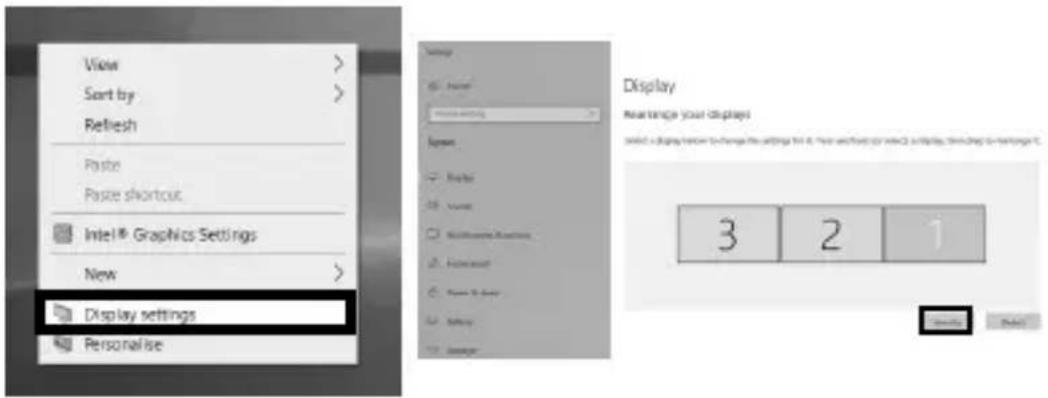
- Identify your monitors by clicking the Identify button.
- Select the relevant monitor for the following settings by clicking the identified monitor symbol
Manual IB-DK2280AC
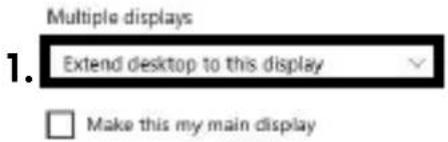
- Select Multiple displays > Extend desktop to this display if you wish to extend a monitor.
Multiple displays
2.
Duplicate desktop on 1 and 3
Duplicate desktop on 2 and 3
Extend desktop to this display
Disconnect this display
- Click Keep changes to confirm and exit.

- Once the setting is completed, simply drag and drop the application icons to arrange your monitors.
(However, some applications may not support the display on the extended desktop).
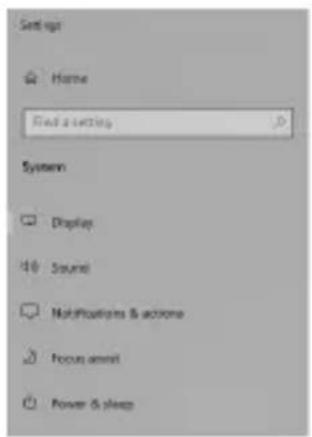
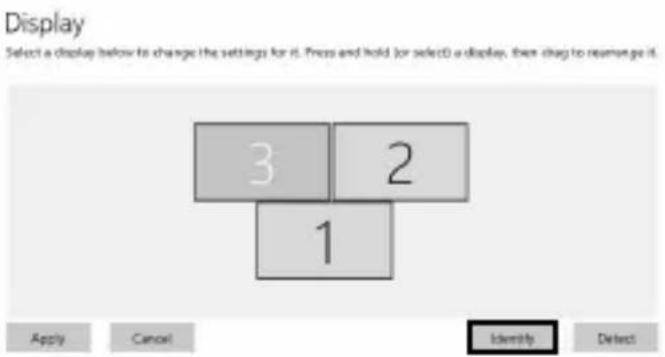
Manual IB-DK2280AC
Setting the right resolution and frequency of your displays
There are two possibilities to choose the resolution of the selected monitor:
1. Standard
- Identify your monitors by clicking the Identify button.
- Select the relevant monitor by clicking the identified monitor symbol.
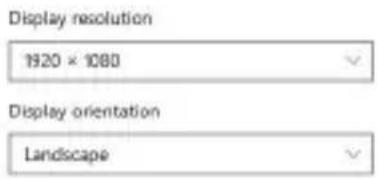
- Click on Display resolution
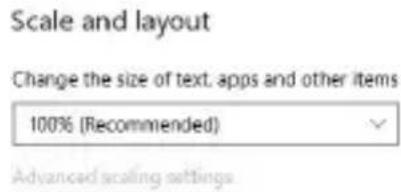
1.
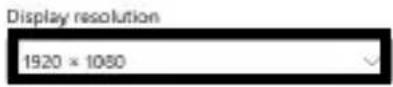
- Choose the right resolution from the drop-down menu. Refer to the video matrix table!
2.
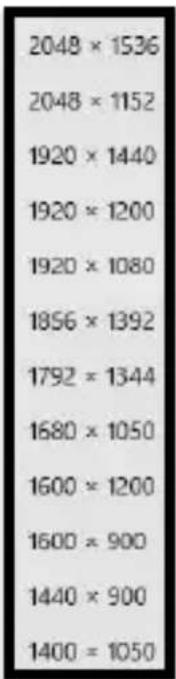
- Click Keep changes to confirm and exit.

Manual IB-DK2280AC
2. Advanced display settings
- Identify your monitors by clicking the Identify button.
- Click on Advanced display settings
Multiple displays
Multiple displays
Extend desktop to this display

Make this my main display
1.
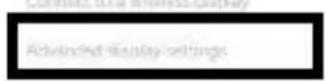
Graphics settings
A new page opens up
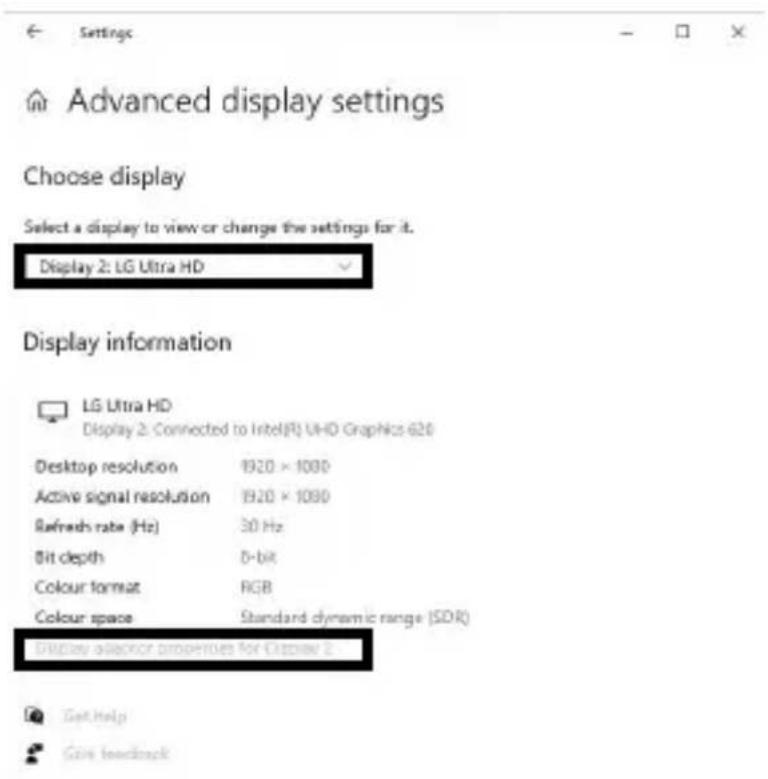
- Select the relevant monitor by clicking Choose display
- Click on Display adaptor properties for Display X
2.

Advanced display settings
Choose display
Select a display to view or change the settings for it.

Display information

LG Ultra HD
Display 2: Connected to Intel(R) UHD Graphics 620
Desktop resolution 1920 × 1000
Active signal resolution 1920 × 1030
Refresh rate (Hz) 30 Hz
Bit depth 5-bit
Colour format RGB
Colour space Standard dynamic range (SDR)


Get help

Gains basketball
Manual IB-DK2280AC
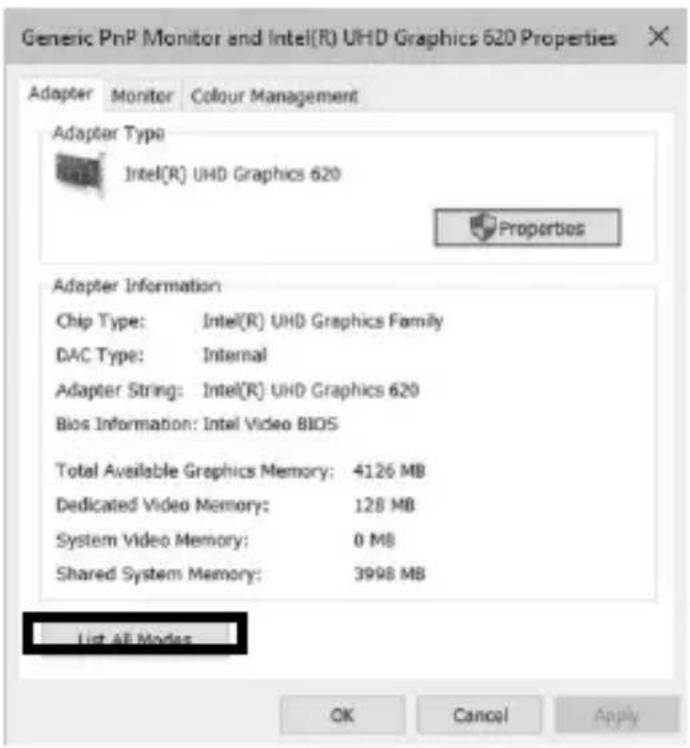
A new window opens up
- Click on List All Modes
4.
A new window opens up
- Click on a valid mode according to your demands.
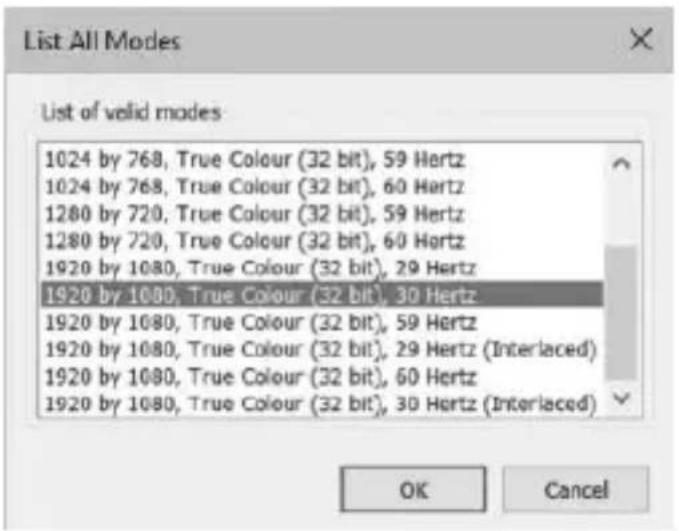
Repeat for each attached monitor if necessary.
Manual IB-DK2280AC
macOS ^® Display configuration
Once the extra monitors are connected, they can be configured to mirror mode or extend mode.
- Click on System Preferences
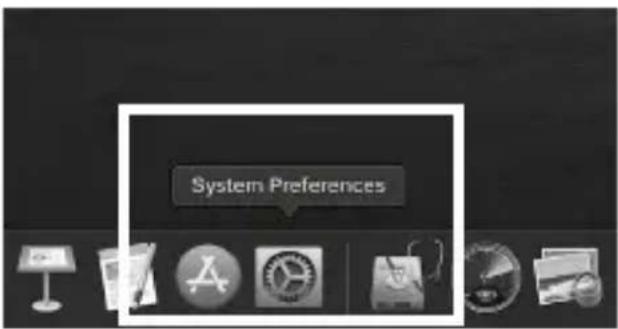
- Click on Displays
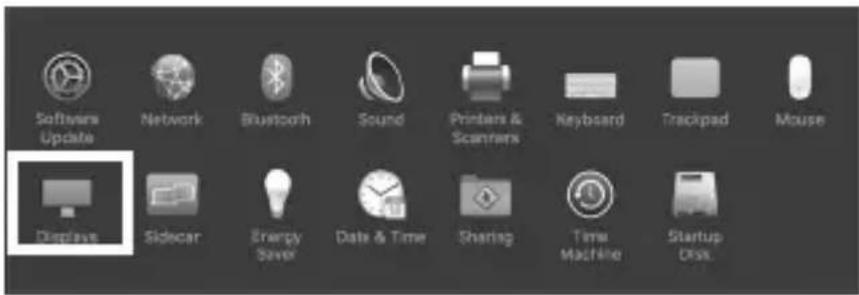
A new window opens up
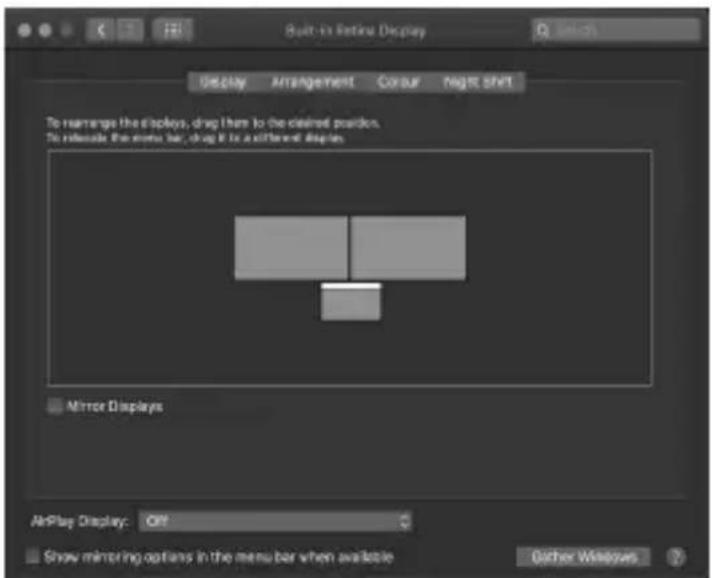
- Click Arrangement
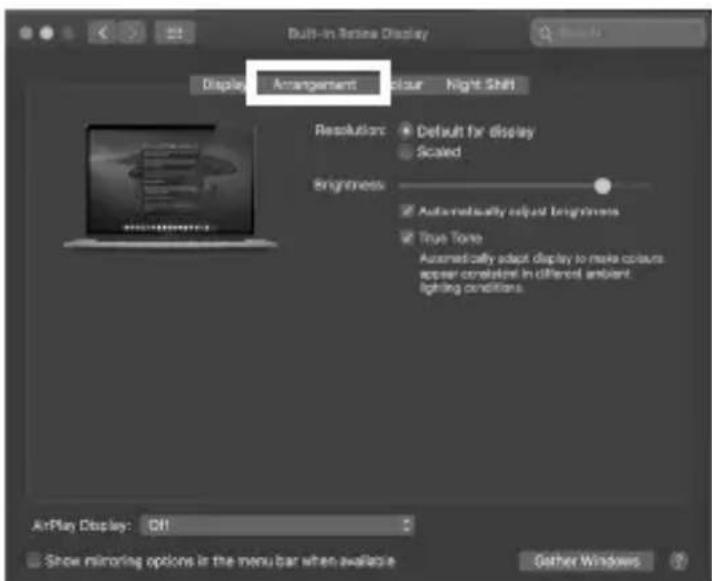
Manual IB-DK2280AC
- Select the corresponding monitor symbol by clicking and holding the symbol of the monitor that shall be placed in order to do the positioning.
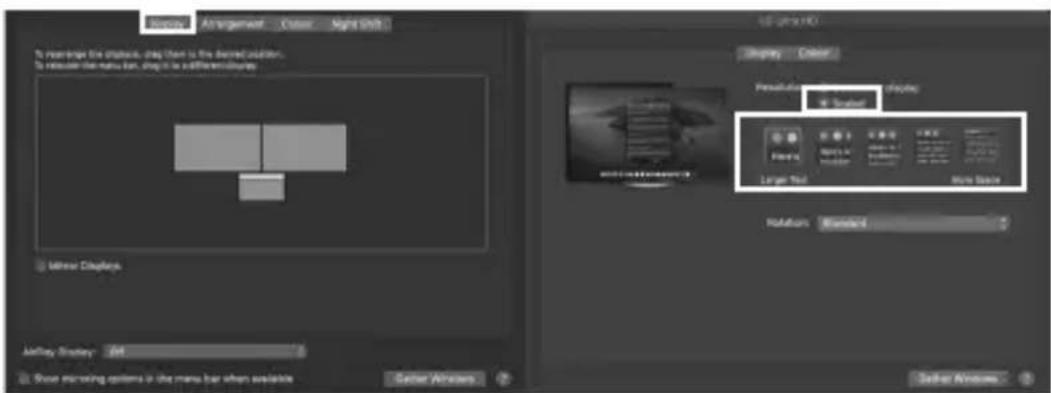
To set up scaled resolutions of the monitor displays, click the Display tab. In the window that now opens for the respective display, you can set your desired resolutions separately. Select the option Scaled and then select the appropriate size in the field below.
Manual IB-DK2280AC
Advanced display settings
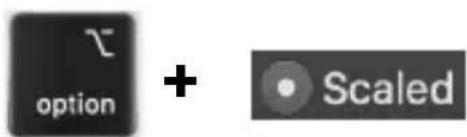
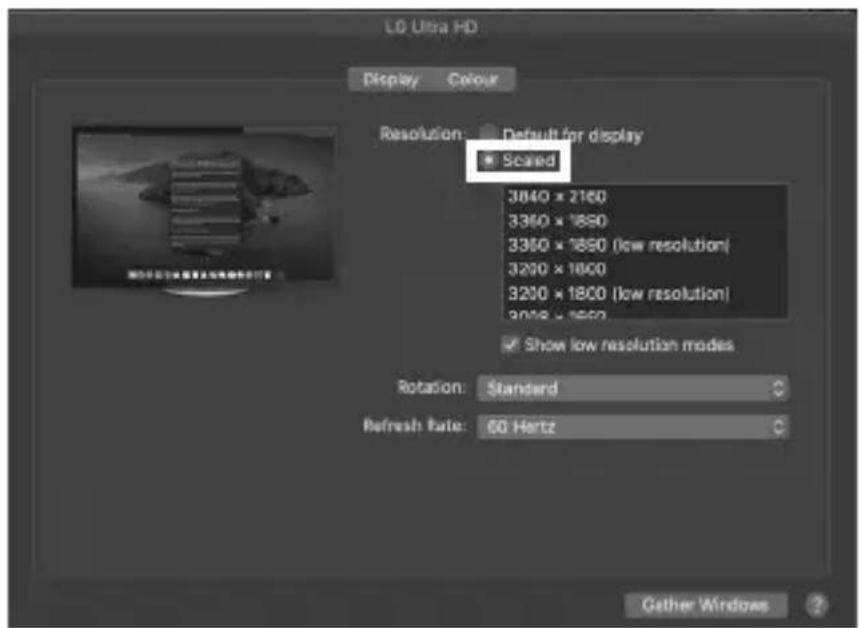
Hold down the option key and click on Scaled again and an advanced menu for setting resolution and repetition frequency opens.
Please select your preferred settings here.
Repeat for each attached monitor if necessary.
Handbuch IB-DK2280AC
Verpackungsinhalt
https://www.synaptics.com/products/displaylink-graphics/downloads
natural_image
Illustration of a server rack with attached cable and connector ports (no text or symbols)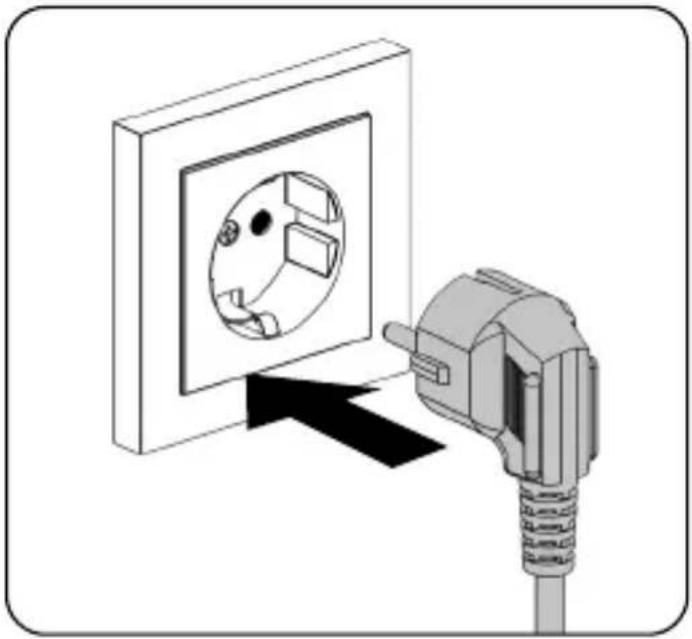
natural_image
Illustration of a wall socket connected to a plug, showing internal components and wiring (no text or symbols)Handbuch IB-DK2280AC
natural_image
Diagram of a server rack with two connected USB cables, showing port labels and connection arrows (no text or symbols)Hinweis!
natural_image
Illustration of a smartphone with attached cables and connectors, showing internal components like USB, I/O, and cable (no text or symbols)© Copyright 2023 by RaidSonic Technology GmbH. All Rights Reserved. The information contained in this manual is believed to be accurate and reliable. RaidSonic Technology GmbH assumes no responsibility for any errors contained in this manual. RaidSonic Technology GmbH reserves the right to make changes in the specifications and/or design of the above-mentioned product without prior notice. The diagrams contained in this manual may also not fully represent the product that you are using and are there for illustration purposes only. RaidSonic Technology GmbH assumes no responsibility for any differences between the product mentioned in this manual and the product you may have. DisplayLink ^ is the registered trademark of DisplayLink Corp. in the EU, the US, and other countries DisplayPort ^ and the DisplayPort ^ logo are trademarks owned by the Video Electronics Standards Association (VESA ^ ) in the United States and other countries. The terms HDMI ^ and HDMI ^ High-Definition Multimedia Interface, and the HDMI ^ logo are trademarks or registered trademarks of HDMI ^ LA, Inc. in the United States and other countries. Apple and macOS are registered trademarks of Apple Computer Inc. Microsoft, Windows and the Windows logo are registered trademarks of Microsoft Corporation.


- Handbuch IB-DK2280AC
- Manual IB-DK2280AC
- Warning levels
- DANGER
- WARNING
- CAUTION
- IMPORTANT
- Risk of electrical shock
- Contact with parts conducting electricity
- Hazards during assembly (if intended)
- Sharp components
- Hazards caused by a development of heat
- Insufficient device/power unit ventilation
- Hazards caused by very small parts and packaging
- Risk of suffocation
- Potential data loss
- Data lost during commissioning
- Cleaning the device
- Harmful cleaning agents
- Disposing of the device
- Environmental pollution, unsuitable for recycling
- Requirements
- USB Type-C®
- USB Type-C TM ≠ USB Type-C TM
- Important!
- Attention!
- In case your computer supports only the DP Alt Mode protocol and the DisplayLink® driver is not installed:
- In case your computer does not support the DP Alt Mode protocol and only has USB 3.2 Gen 2 and the DisplayLink® driver installed:
- In case your computer supports both, the DP Alt Mode protocol and USB 3.2 Gen 2 with installed DisplayLink® driver:
- Starting up
- Driver installation!
- Note!
- Information about the attached USB Type-C® to Type-A adapter:
- Use of memory card slot
- SD card
- Displays
- Windows® display configuration
- Arrange your displays
- e.g: extending your monitors
- Multiple displays
- 2.
- Setting the right resolution and frequency of your displays
- Standard
- 1.
- Advanced display settings
- 4.
- macOS ® Display configuration
- Advanced display settings
- Verpackungsinhalt
- Hinweis!
Brand : Icy Box
Model : IB-DK2280AC
Category : Car Mount