
RT-AX89X - Router ASUS - Free user manual and instructions
Find the device manual for free RT-AX89X ASUS in PDF.


| Product type | AX6000 Dual Band Wi-Fi Router |
| Brand | ASUS |
| Model | RT-AX89X |
| Power Supply | AC adapter 19 V, 3.42 A |
| LAN Ports | 8 RJ-45 Gigabit Ethernet ports |
| WAN Ports | 1 RJ-45 Gigabit Ethernet port (Internet) |
| 10G Ports | 1 10G BASE-T port, 1 10G SFP+ port |
| USB Ports | 2 USB 3.1 Gen 1 ports |
| Antennas | 8 external adjustable antennas |
| Frequency Bands | 2.4 GHz and 5 GHz |
| Wi-Fi Standards | 802.11a/b/g/n/ac/ax |
| Buttons | WPS, LED, Wi-Fi, Power, Reset |
| LEDs | Power, LAN, WAN, 2.4 GHz, 5 GHz, SFP+, 10G |
| Operating Temperature | 0°C to 40°C |
| Storage Temperature | 0°C to 70°C |
| Operating Humidity | 50% to 90% |
| Storage Humidity | 20% to 90% |
| Package Contents | Router, AC adapter, network cable, quick start guide |
| Installation | Central placement, away from metal obstacles and interference sources |
| Security | Admin password, WPA2 encryption, customizable SSID |
| Configuration | Via web interface (http://router.asus.com) or ASUS Router app |
Frequently Asked Questions - RT-AX89X ASUS
User questions about RT-AX89X ASUS
0 question about this device. Answer the ones you know or ask your own.
Ask a new question about this device
Download the instructions for your Router in PDF format for free! Find your manual RT-AX89X - ASUS and take your electronic device back in hand. On this page are published all the documents necessary for the use of your device. RT-AX89X by ASUS.
USER MANUAL RT-AX89X ASUS
natural_image
Top-down technical drawing of a mechanical component with six arms and a central logo (no text or symbols)Quick Start Guide
U15716 / First Edition / November 2019
Table of contents
English....3
Български....7
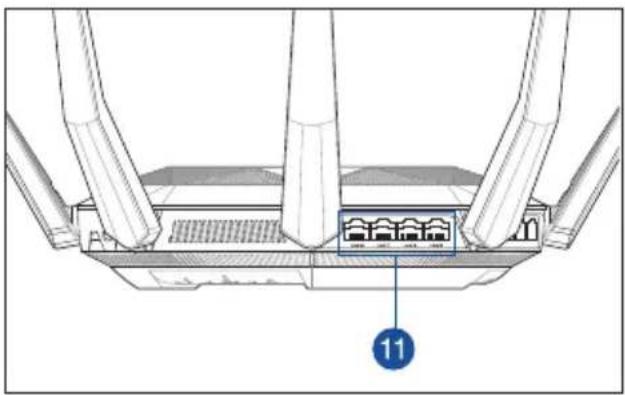
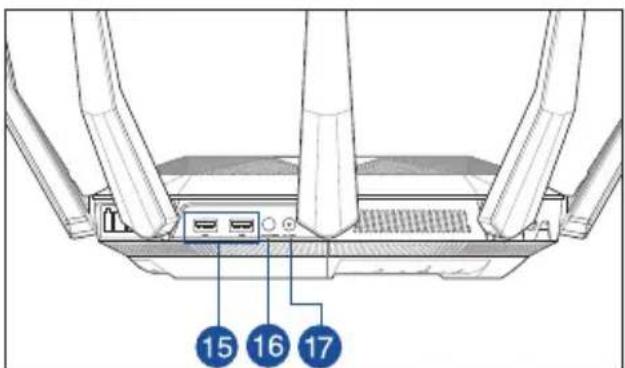
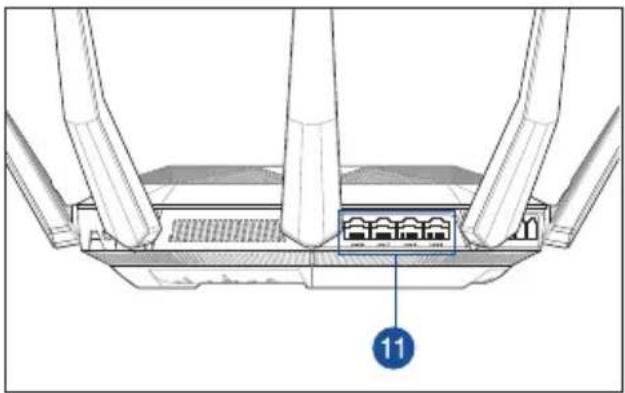
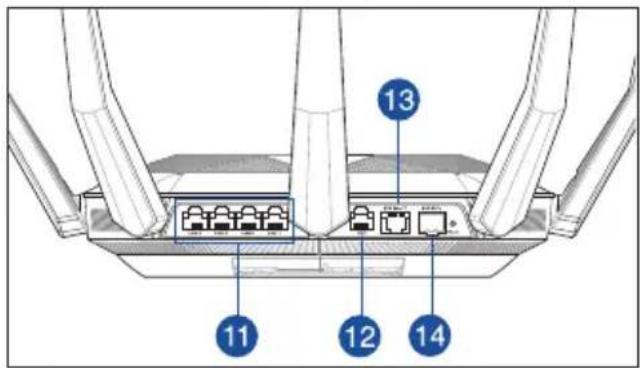
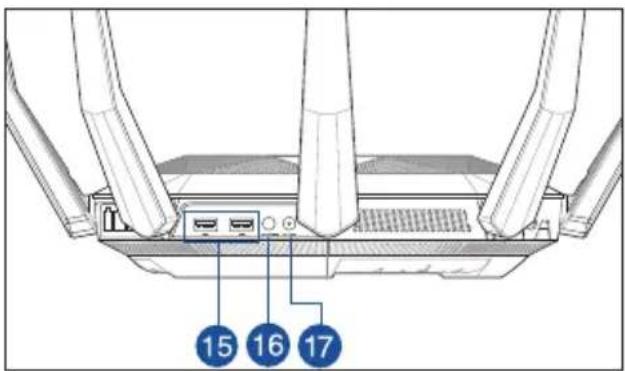
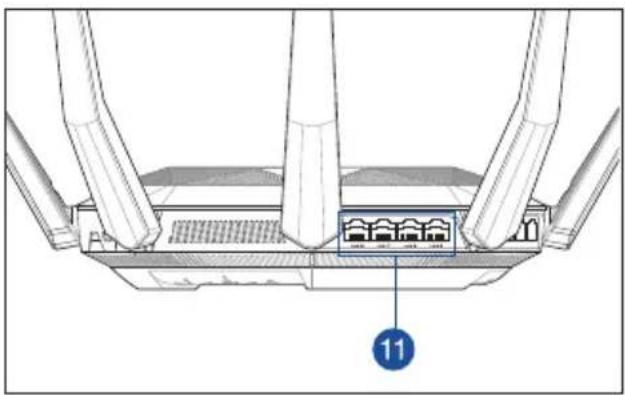
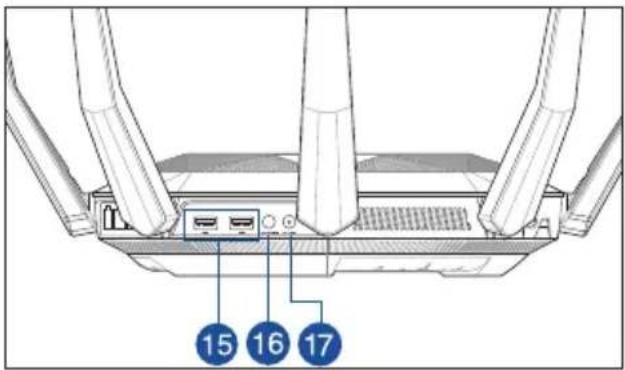
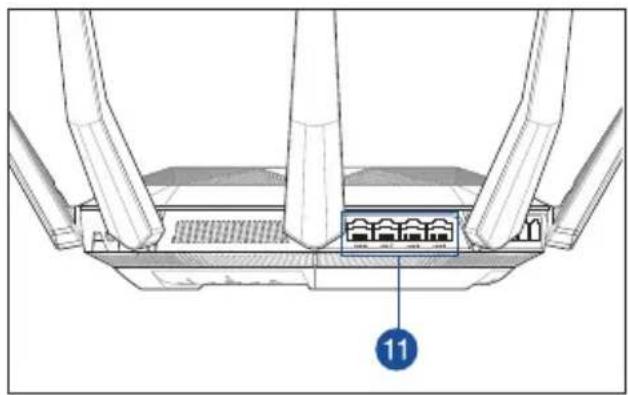
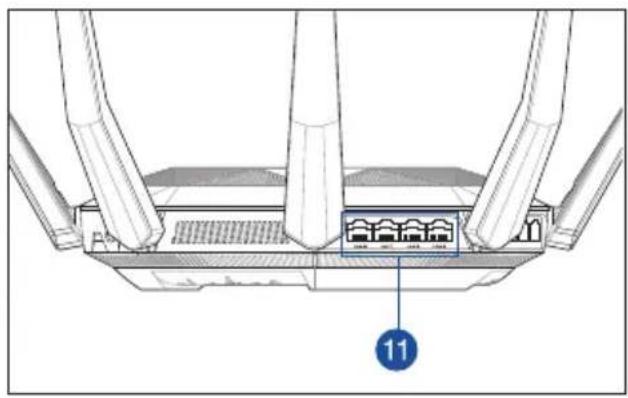
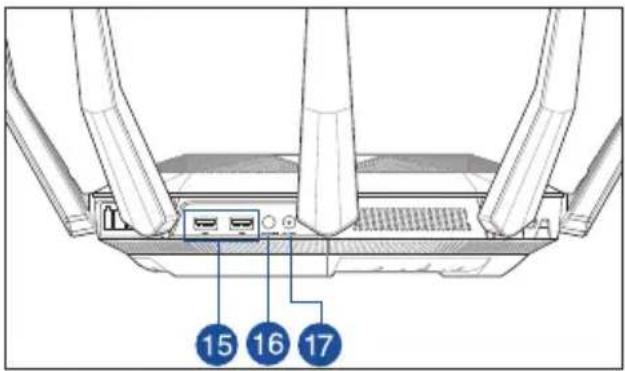
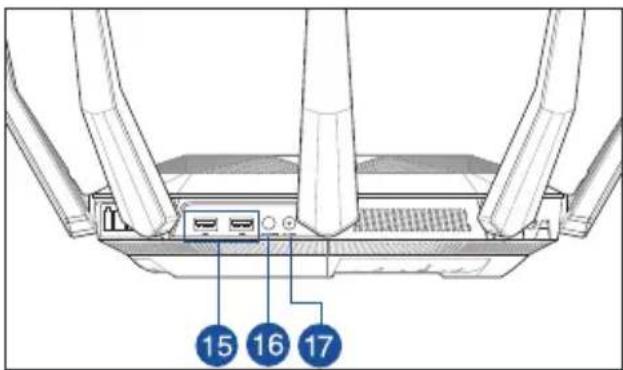
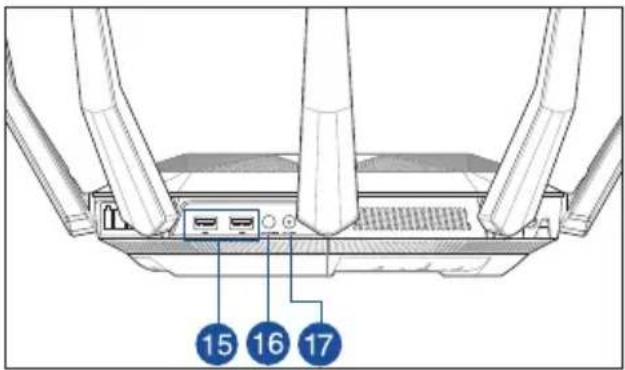
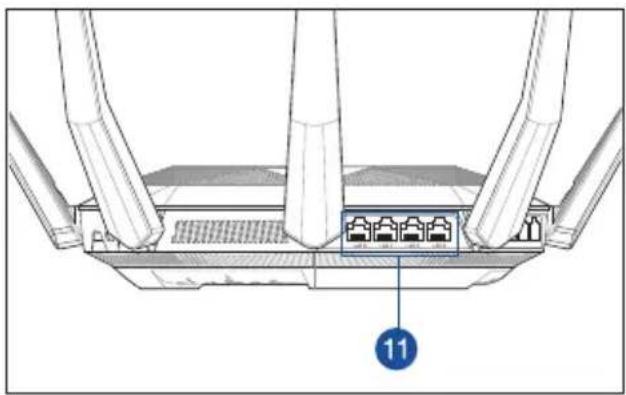
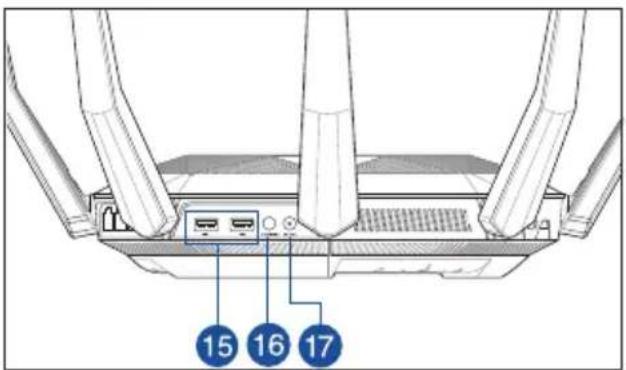
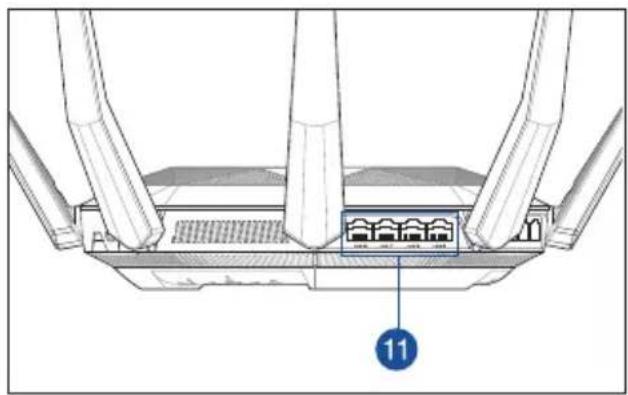
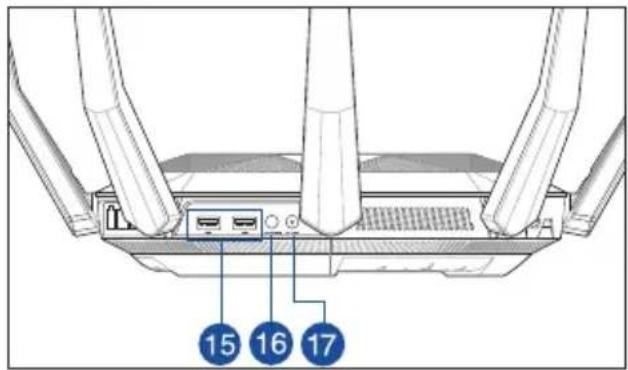
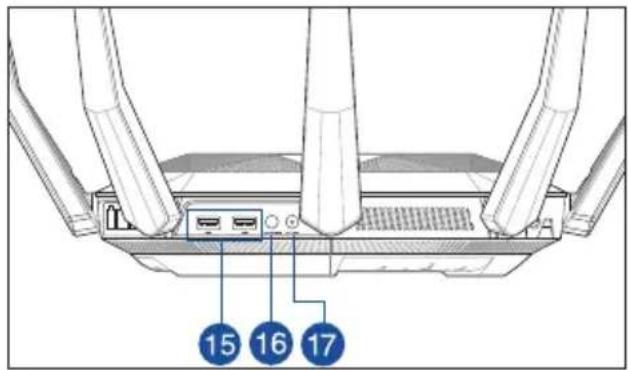
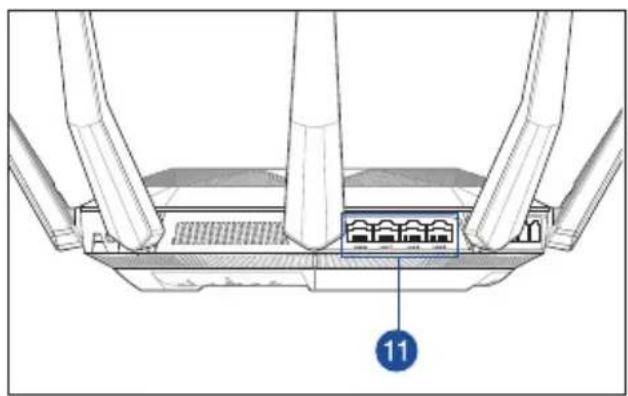
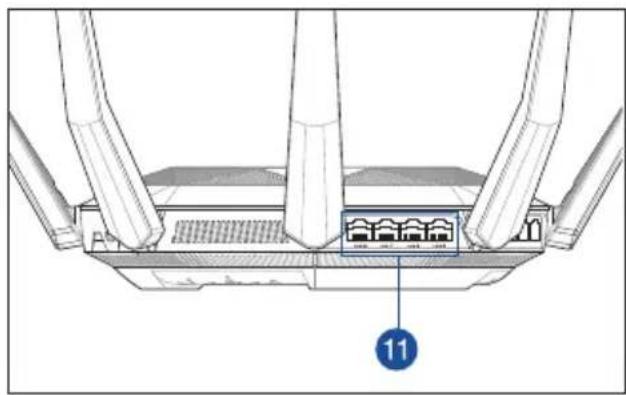
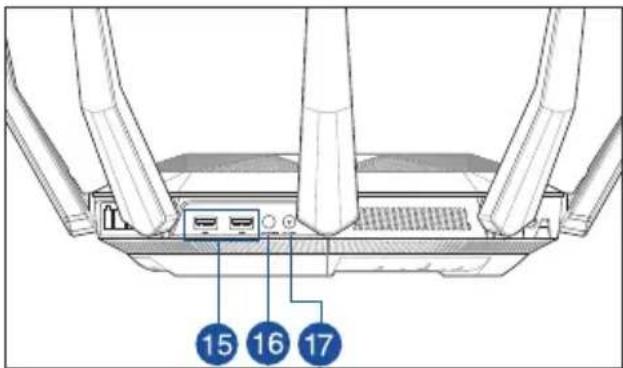
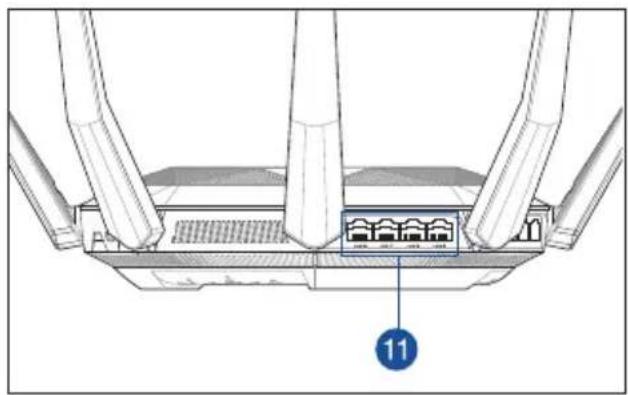
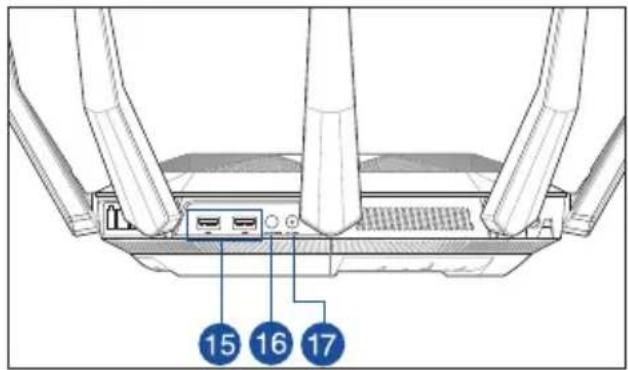
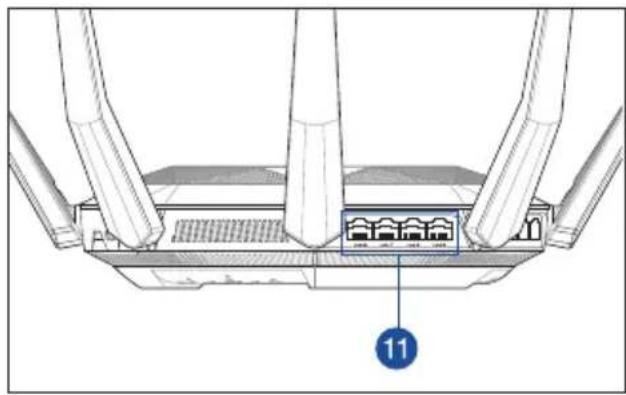
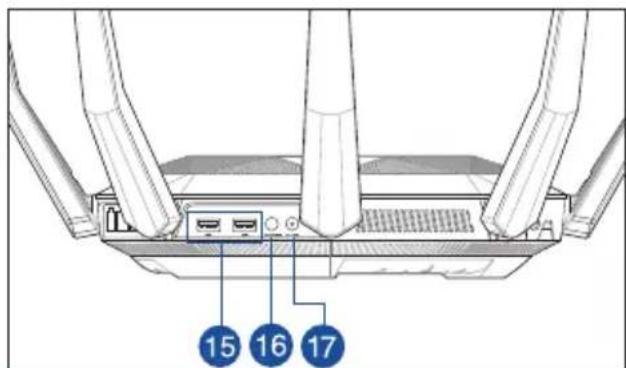
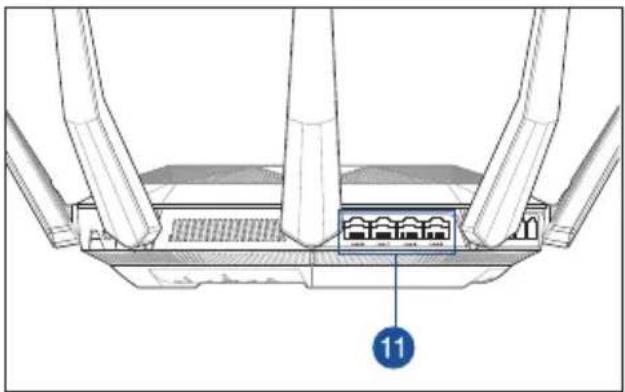
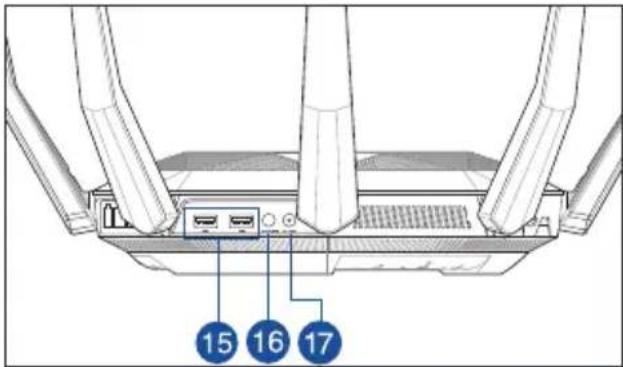
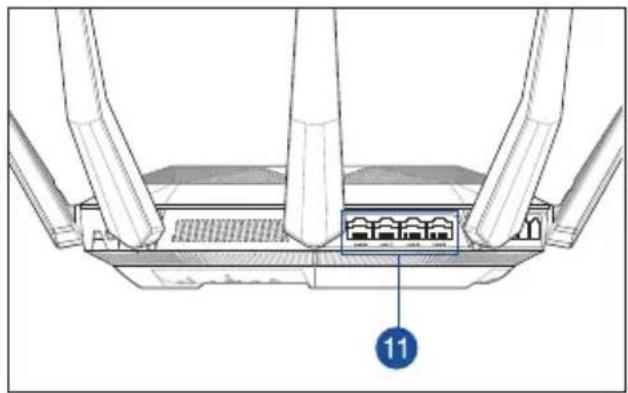
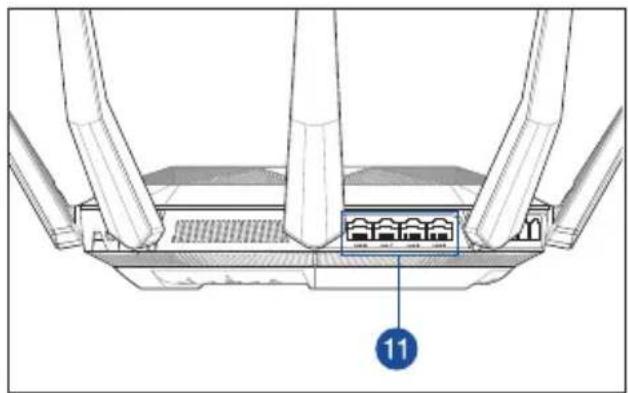
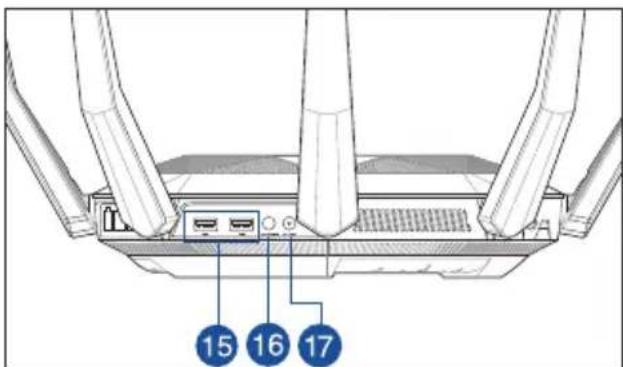
A quick look at RT-AX89X
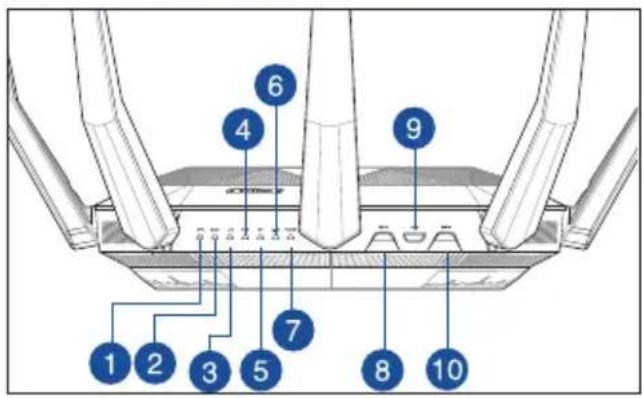
natural_image
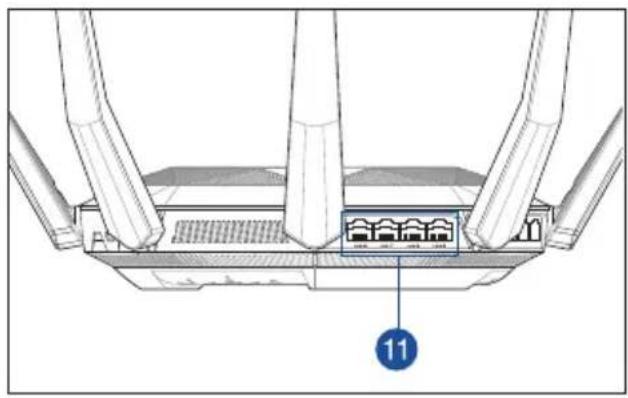
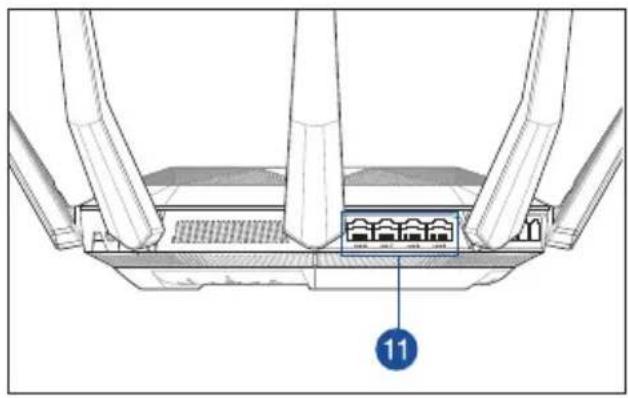
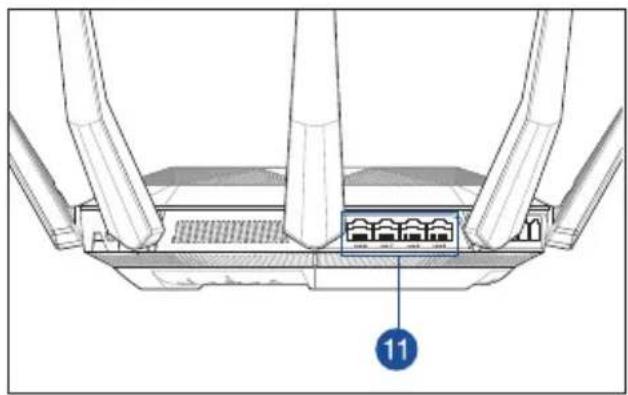
Diagram of a router with three legs and an internal connector labeled '11' (no text or symbols beyond label)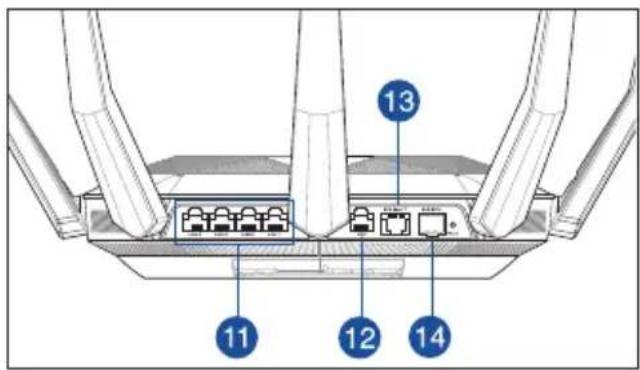
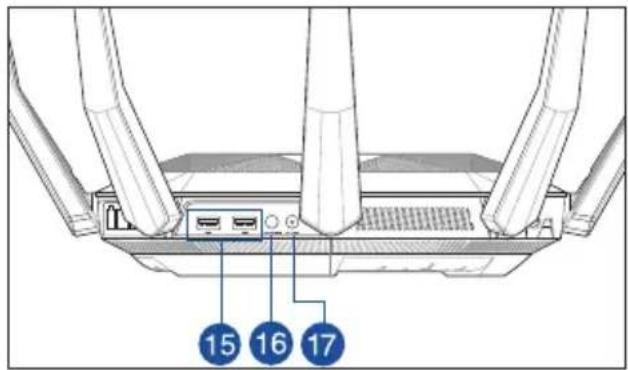
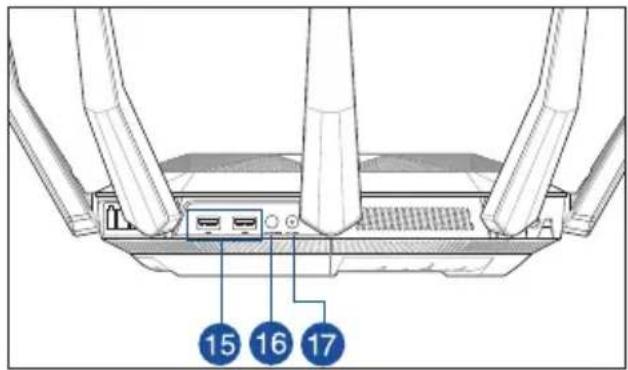
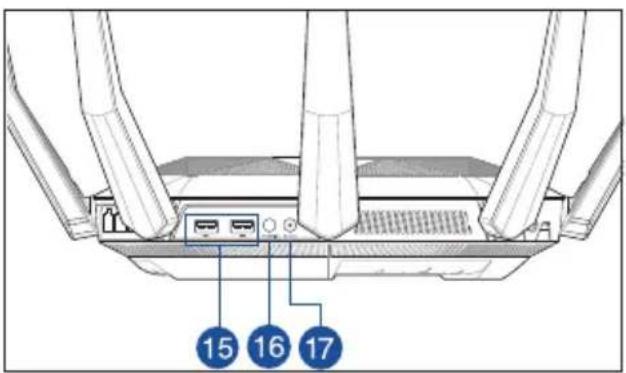
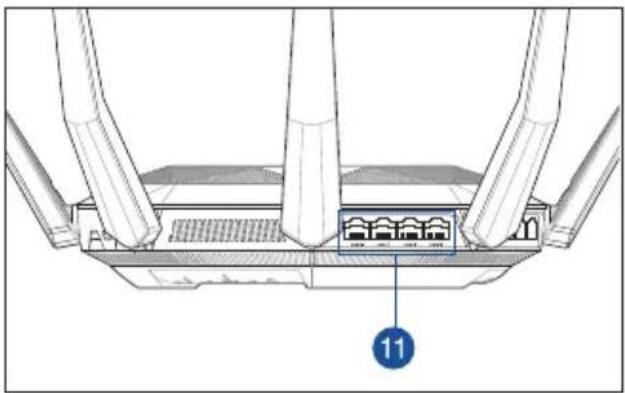
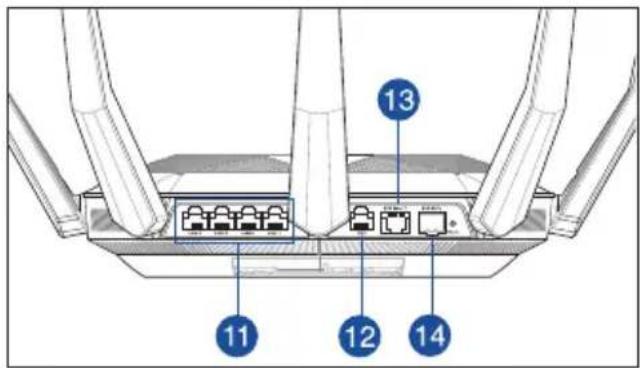
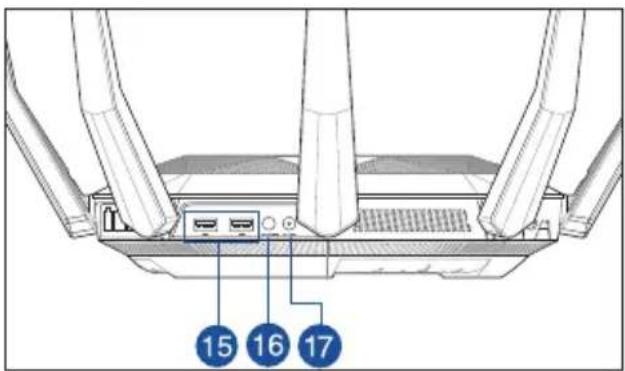
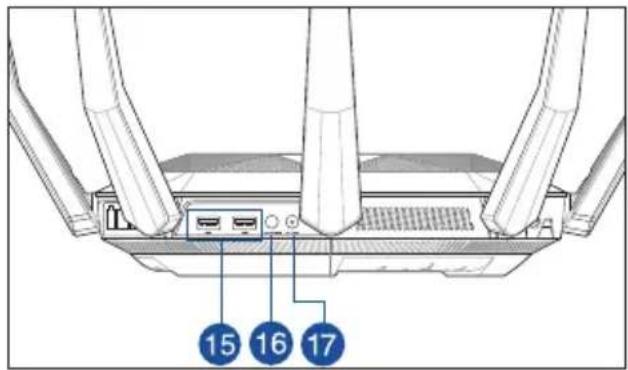
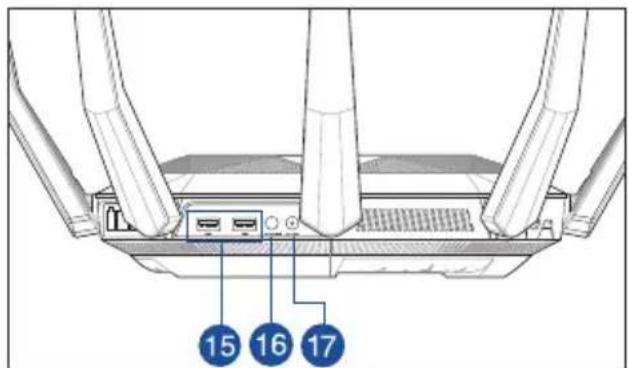
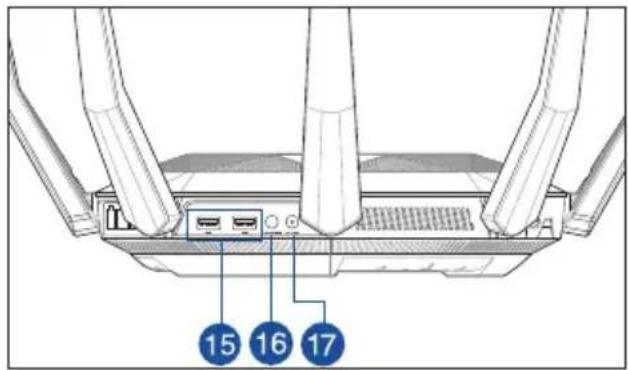
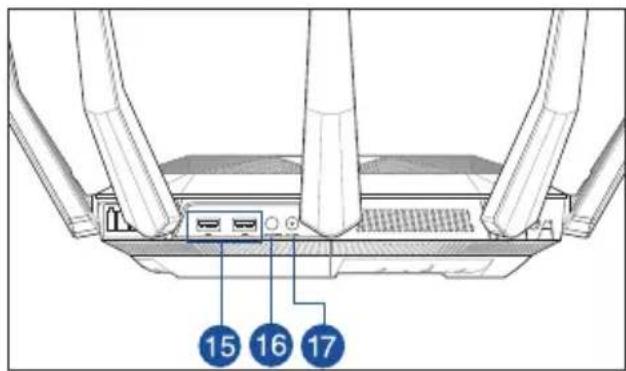
| 1 | SFP+ LED Power LED 10G base T port | 13 |
| 2 | 10GE LED WPS button 10G SFP+ port | 14 |
| 3 | LAN LED LED On/Off button USB 3.1 Gen 1 ports | 15 |
| 4 | WAN (Internet) LED Wi-Fi On/Off button Power button | 16 |
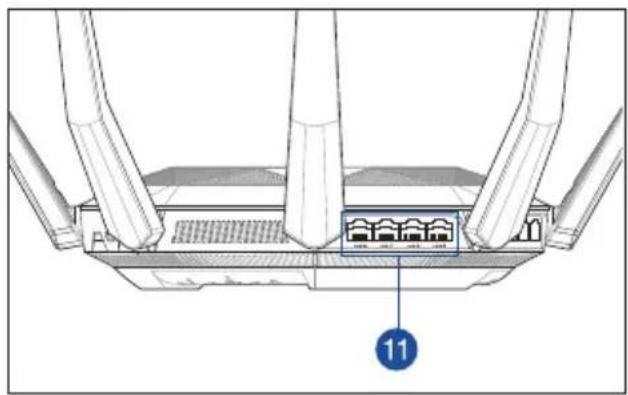
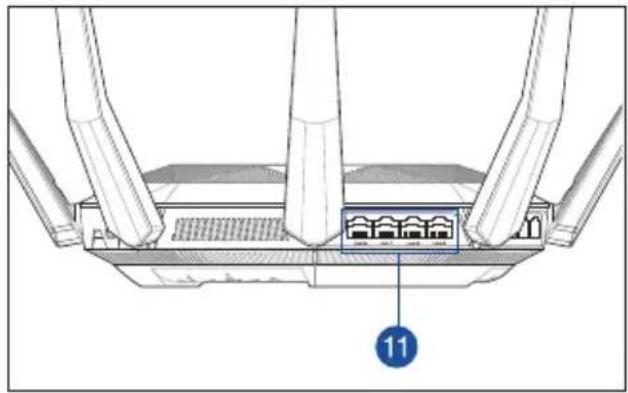
| 5 | 5GHz LED LAN ports 1 ~8IPower (DC-IN) port | 17 |
| 6 | 2.4GHz LED WAN (Internet) port |
* The SFP+ interface only operates at 10 Gbps speed and is not compatible with the 1 Gigabit data rate.
Position your wireless router
For optimal wireless transmission between the wireless router and connected wireless devices, ensure that you:
- Place the wireless router in a centralized area for a maximum wireless coverage for the network devices.
- Keep the wireless router away from metal obstructions and away from direct sunlight.
- Keep the wireless router away from 802.11g or 20MHz only Wi-Fi devices, 2.4GHz computer peripherals, Bluetooth devices, cordless phones, transformers, heavy-duty motors, fluorescent lights, microwave ovens, refrigerators, and other industrial equipment to prevent signal interference or loss.
• Always update to the latest firmware. Visit the ASUS website at
http://www.asus.com to get the latest firmware updates.
- To ensure the best wireless signal, orient the eight non-detachable antennas as shown in the drawing below.
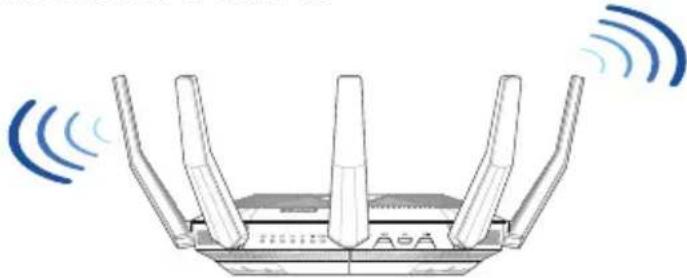
natural_image
Illustration of a network router with four antennas and wireless signal waves (no text or symbols)NOTES:
- Use only the adapter that came with your package. Using other adapters may damage the device.
- Specifications:
- Use only the adapter that came with your package. Using other adapters may damage the device. - Specifications:
| DC Power adapter DC Output: +19V with 3.42A current | |||
| Operating Temperature 0~40 | °C Storage 0~70 | °C | |
| Operating Humidity 50~90% | Storage 20~90% | ||
Preparing your modem
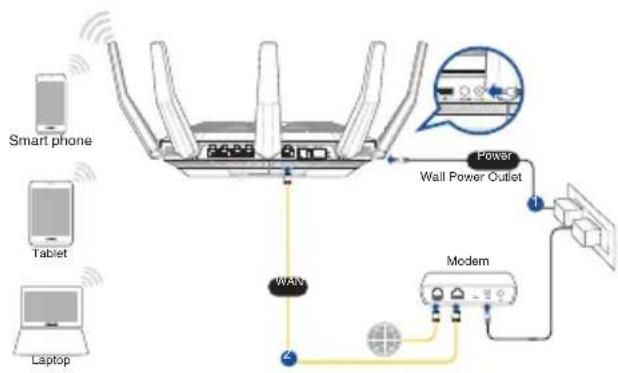
- Unplug the power cable/DSL modem. If it has a battery backup, remove the battery.
NOTE: If you are using DSL for Internet, you will need your username/password from your Internet Service Provider (ISP) to properly configure the router.
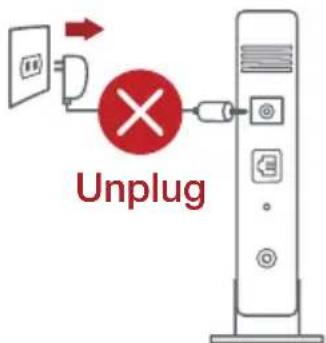
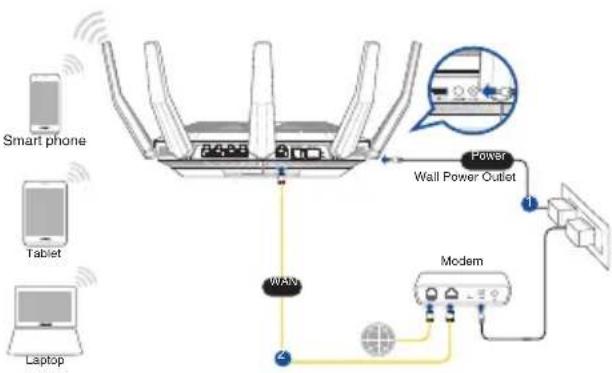
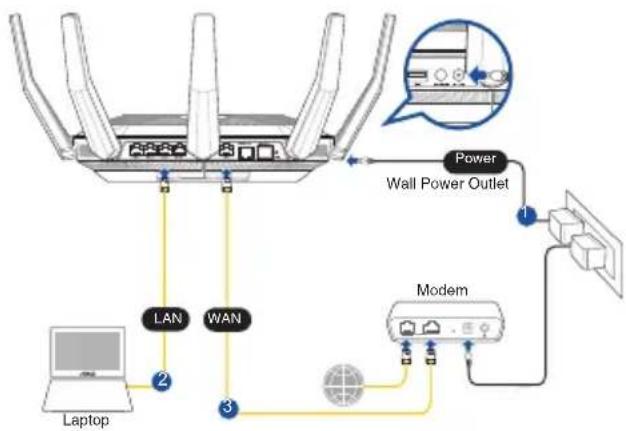
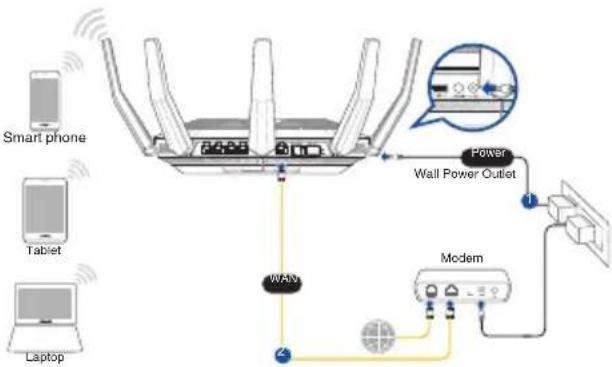
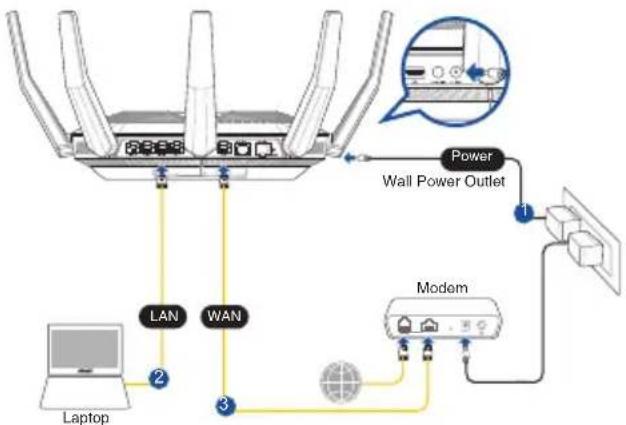
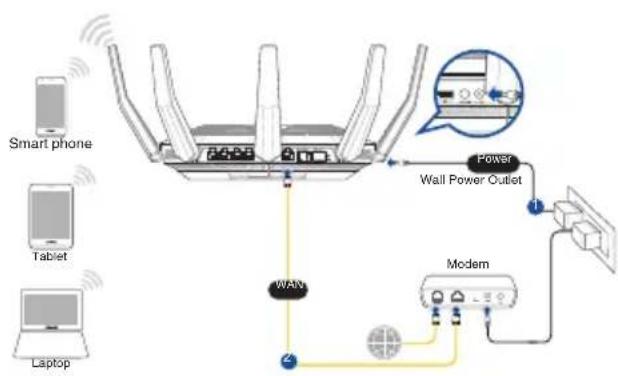
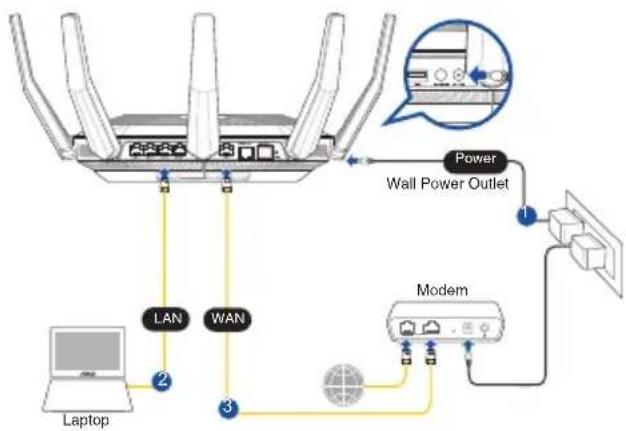
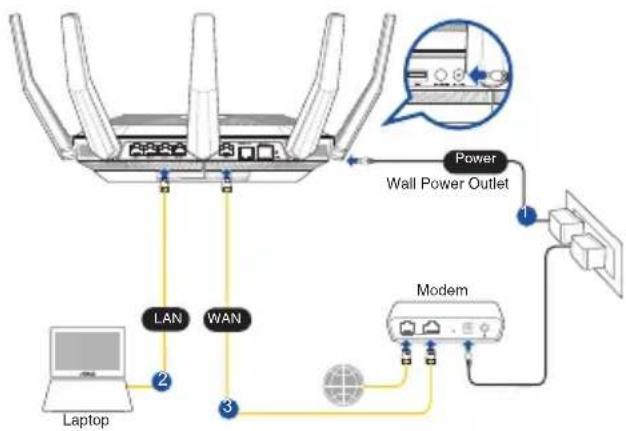
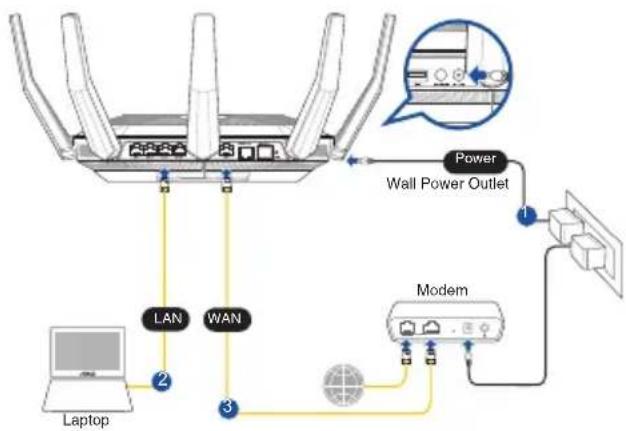
- Connect your modem to the router with the bundled network cable.
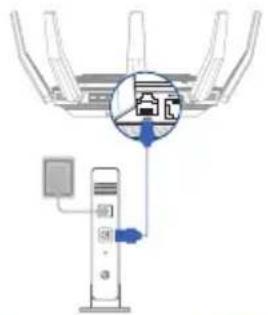
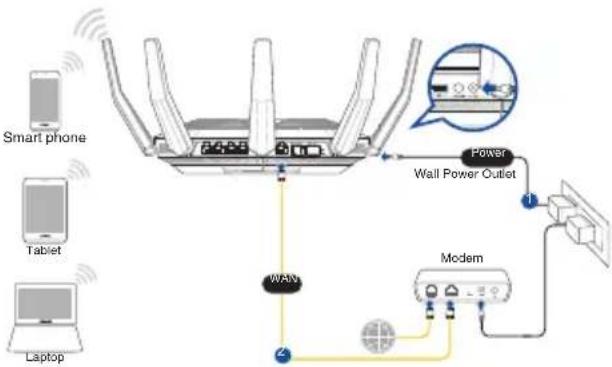
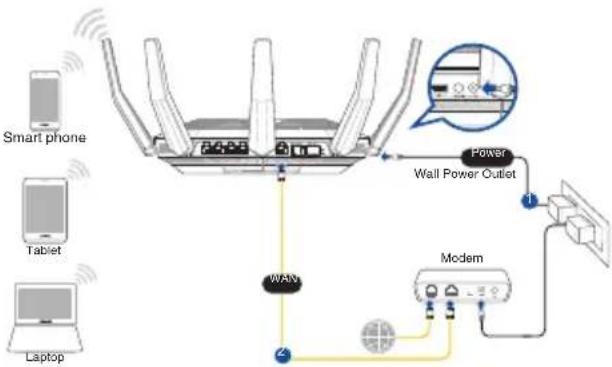
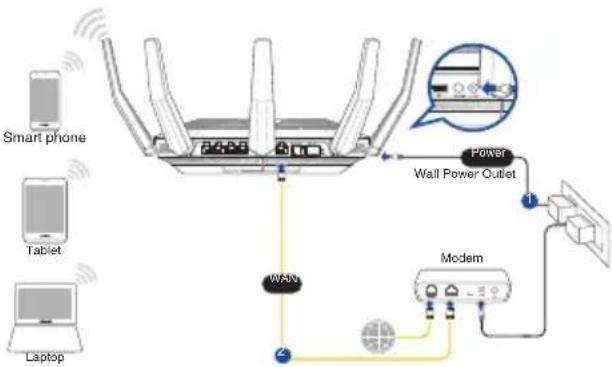
Setting up your RT-AX89X
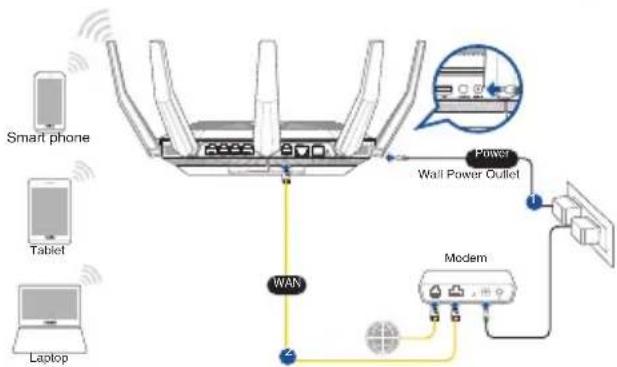
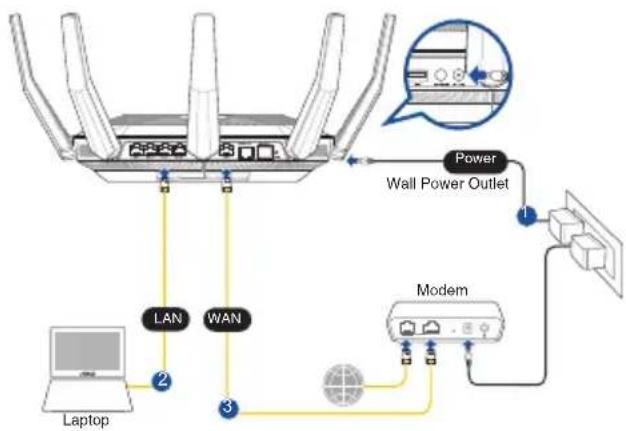
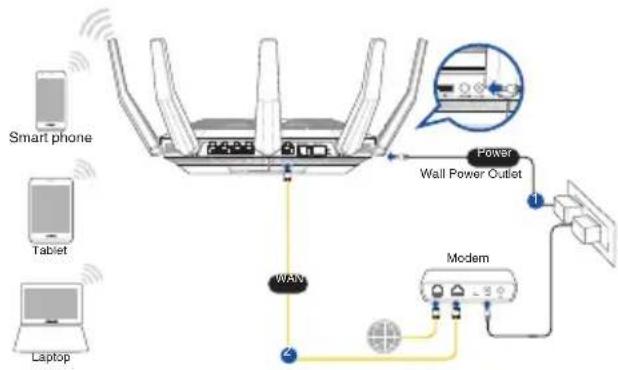
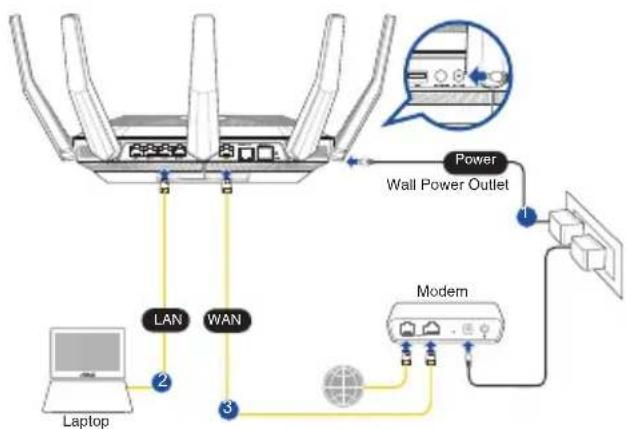
You can set up your RT-AX89X via wired or wireless connection.
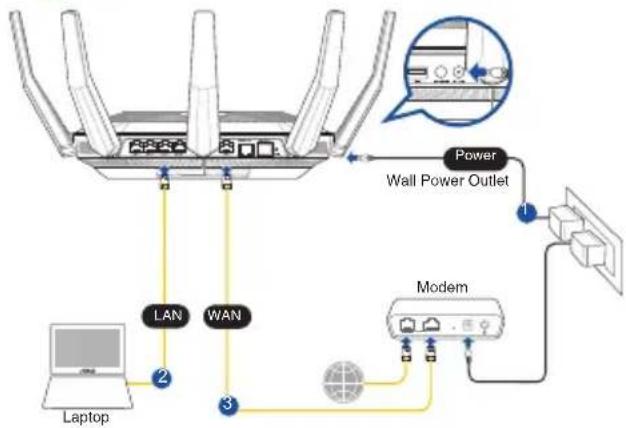
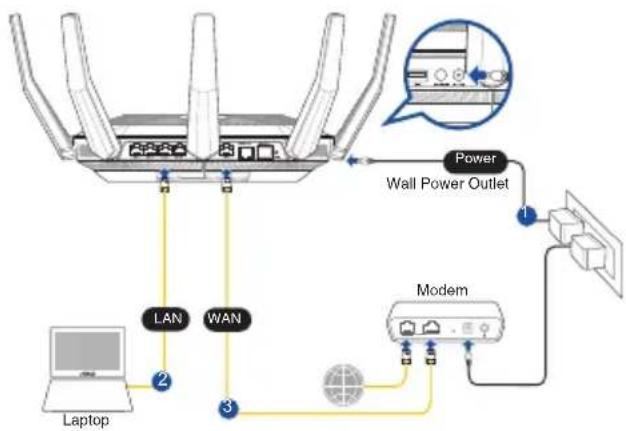
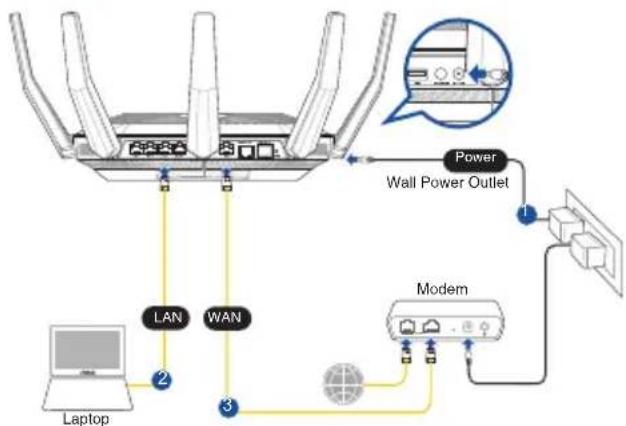
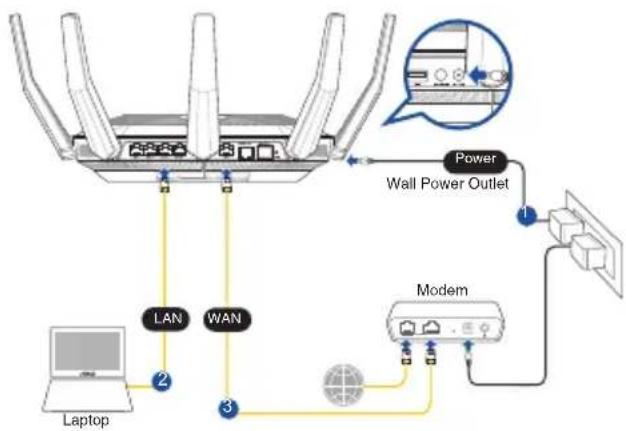
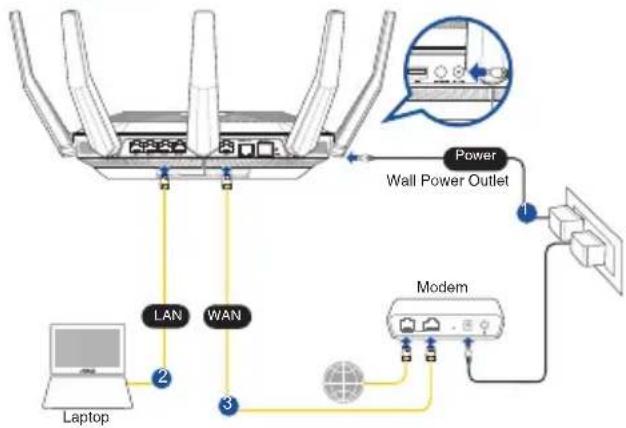
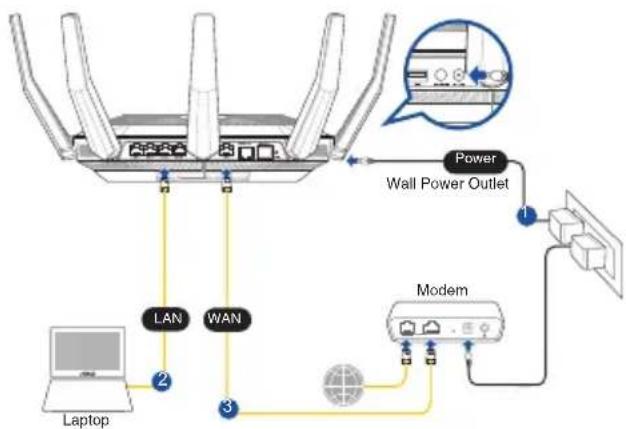
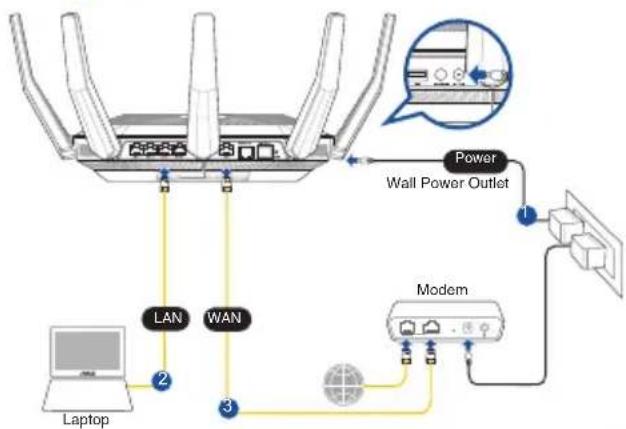
A. Wired connection
-
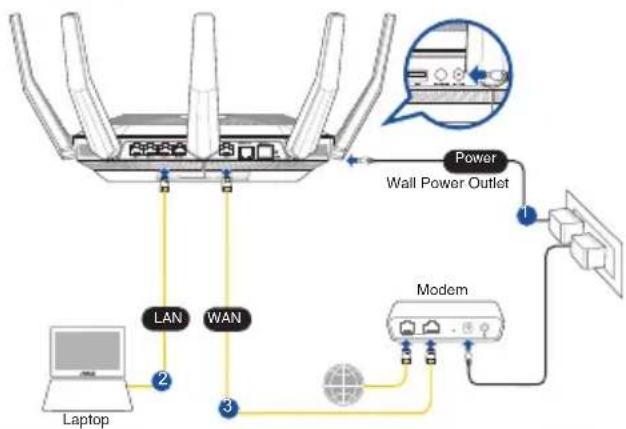
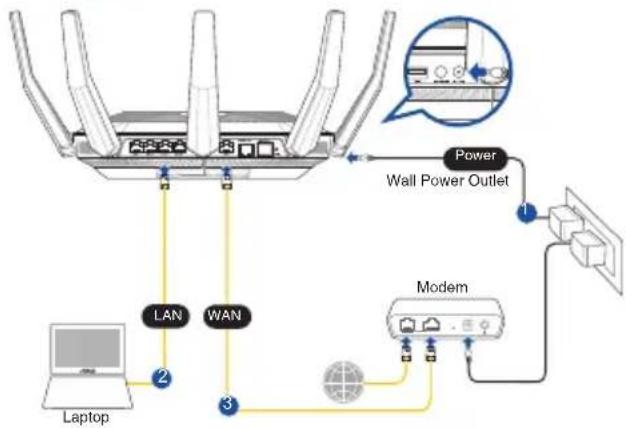
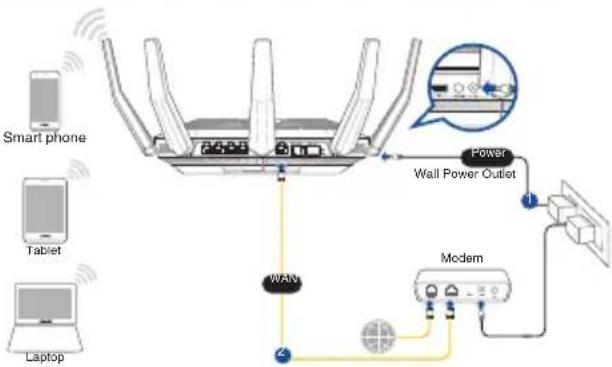
Plug your router into a power outlet and power it on. Connect the network cable from your computer to a LAN port on your router.
-
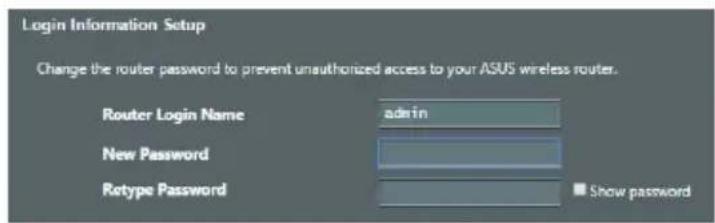
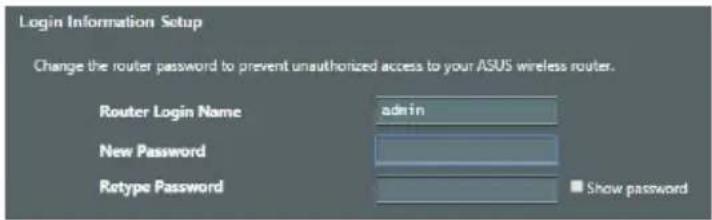
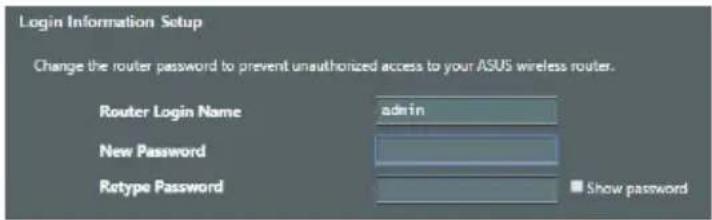
The web GUI launches automatically when you open a web browser. If it does not auto-launch, enter http://router.asus.com.
-
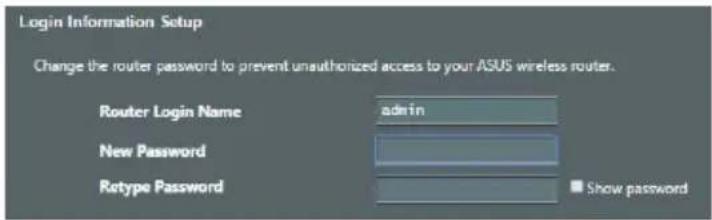
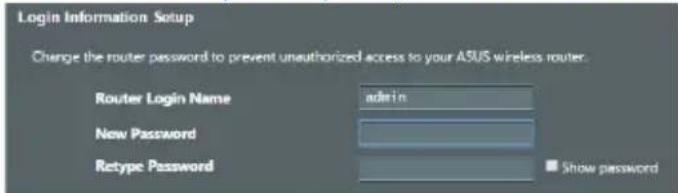
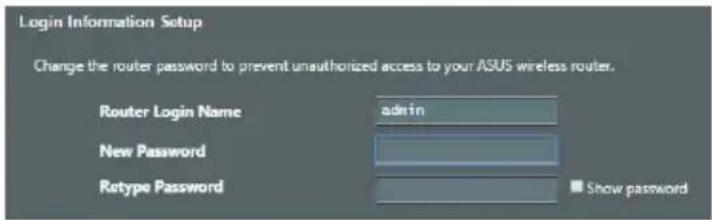
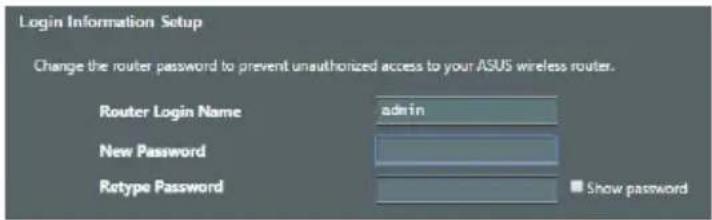
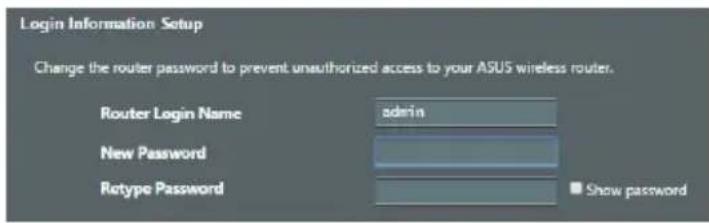
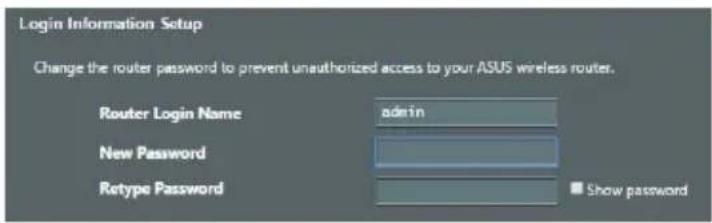
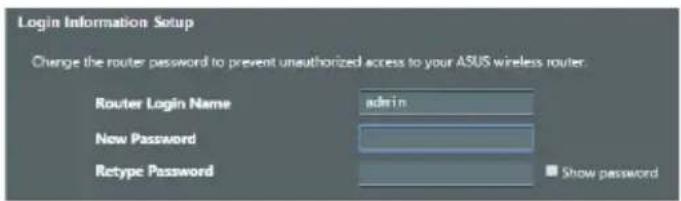
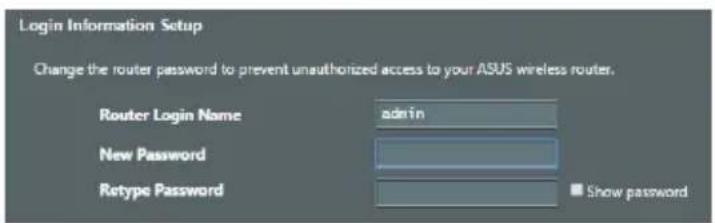
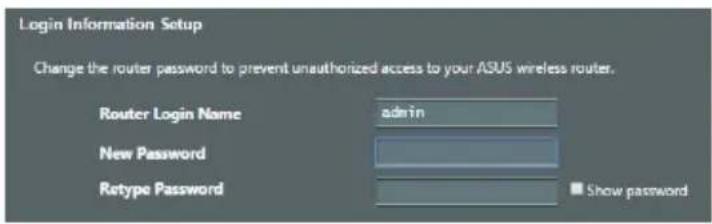
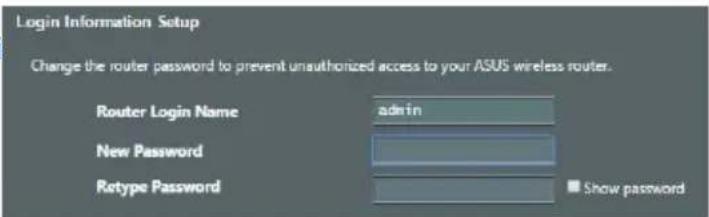
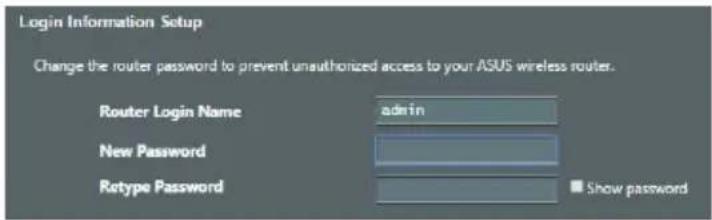
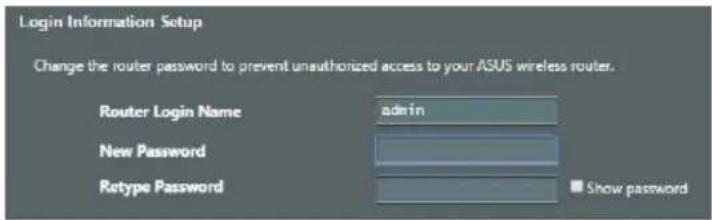
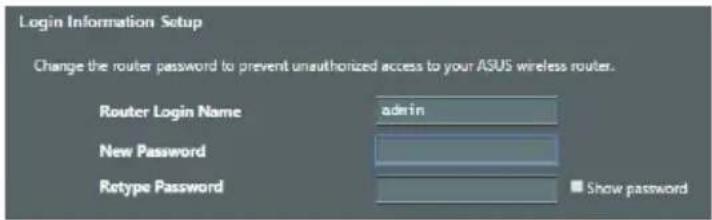
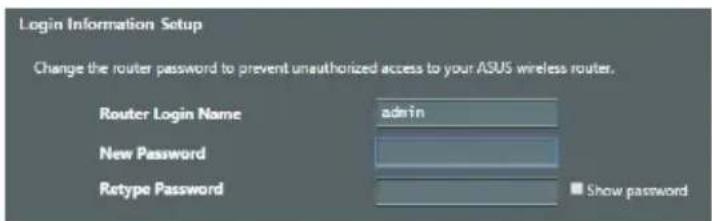
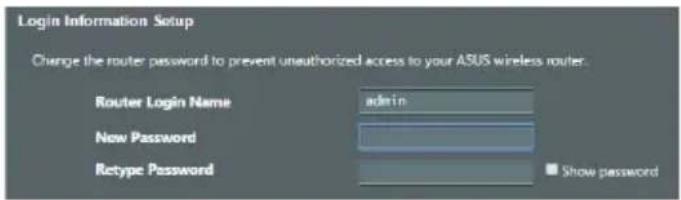
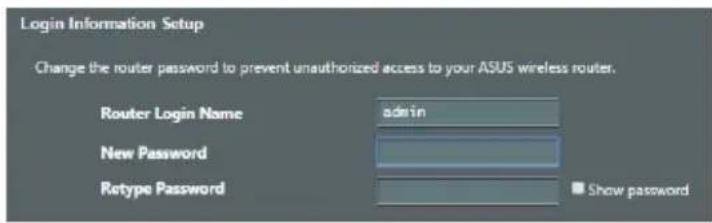
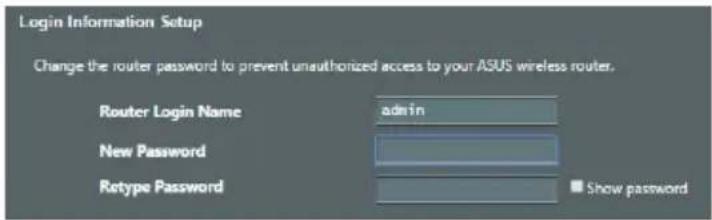
Set up a password for your router to prevent unauthorized access.
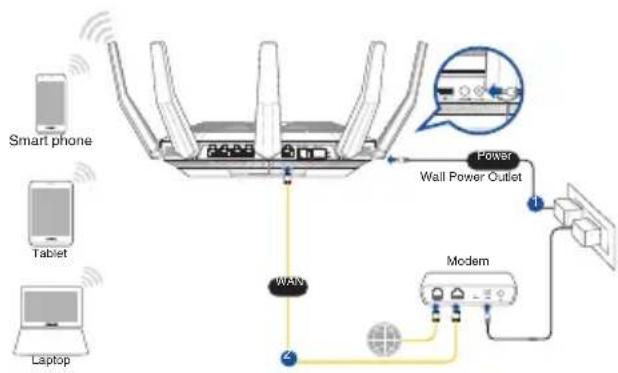
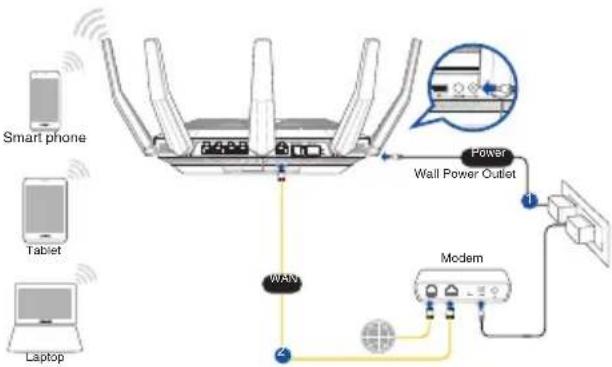
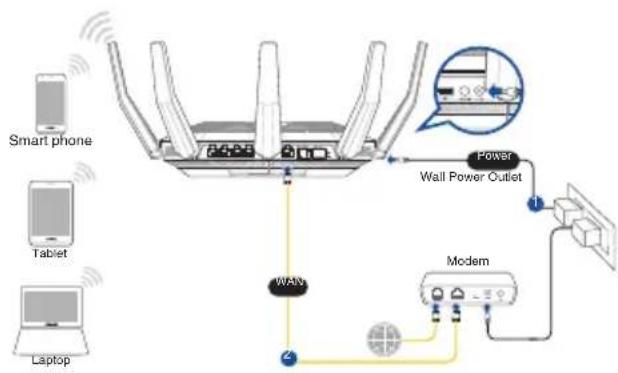
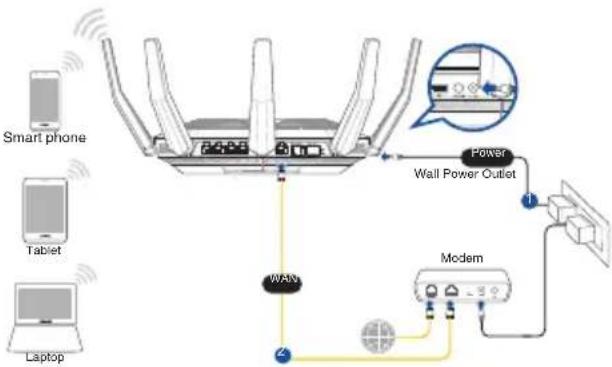
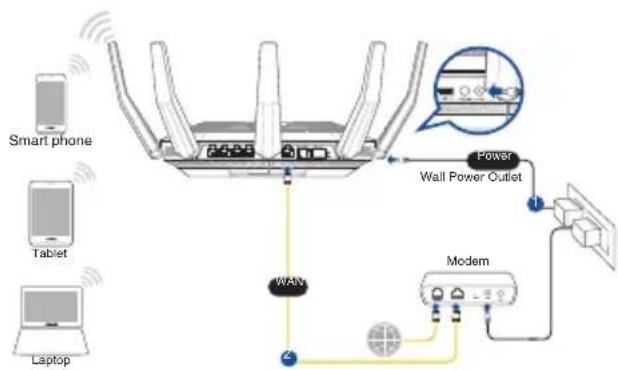
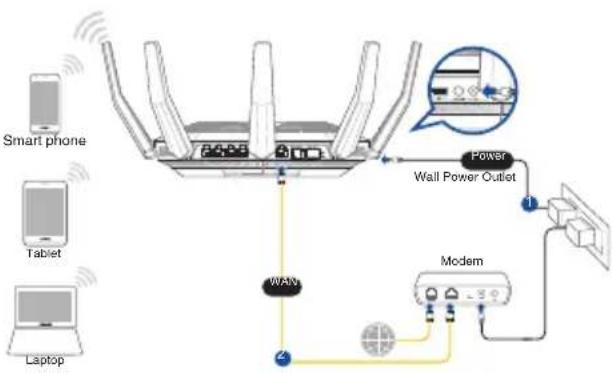
B. Wireless connection
-
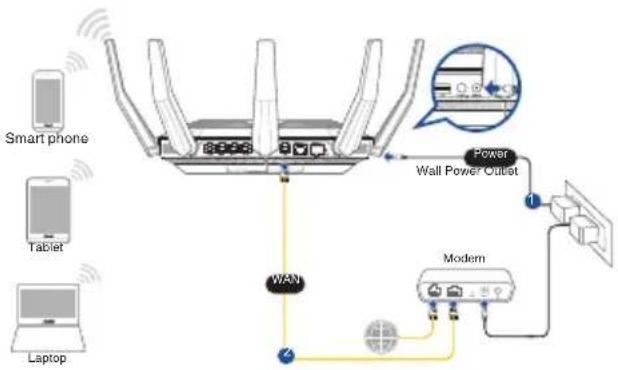
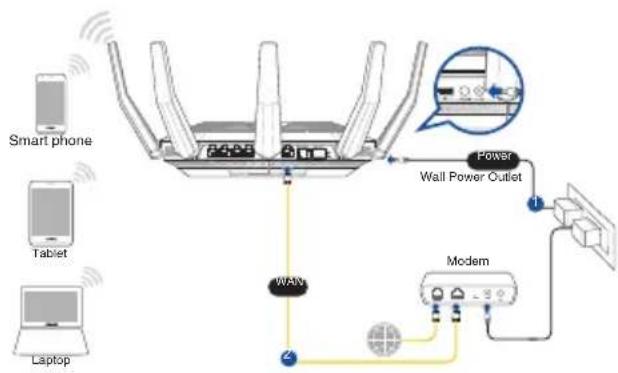
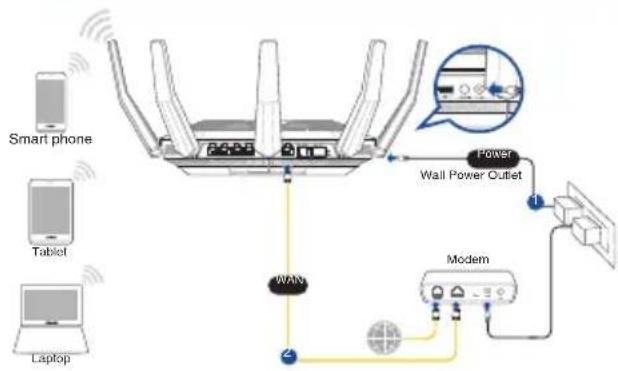
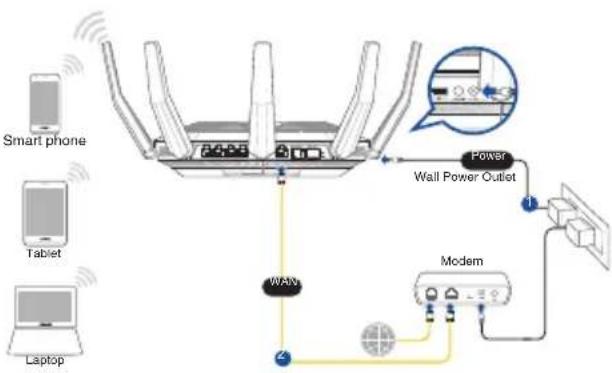
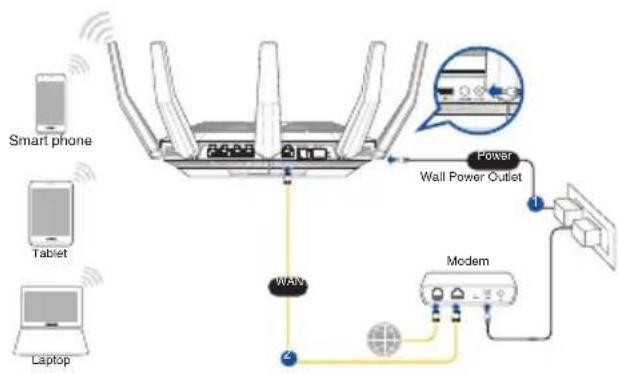
Plug your router into a power outlet and power it on.
-
Power on your cable/DSL modem.
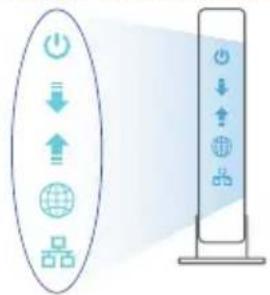
- Check your cable/DSL modem LED lights to ensure the connection is active.
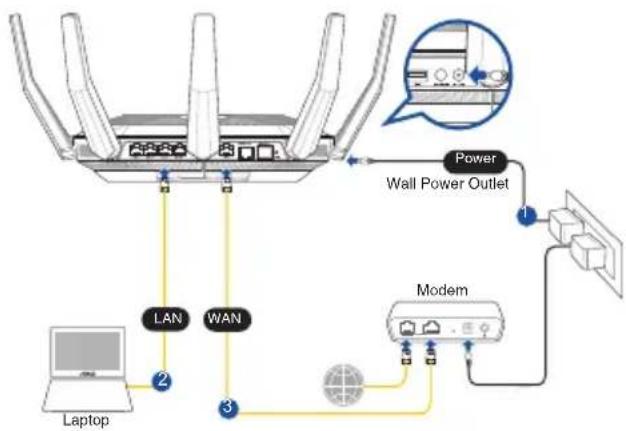
flowchart
graph TD
    A["Laptop"] -->|LAN| B["Router"]
    B -->|WAN| C["Modem"]
    C --> D["Wall Power Outlet"]
    D --> E["Power"]
    E --> F["Image Panel"]
    style A fill:#f9f,stroke:#333
    style B fill:#ccf,stroke:#333
    style C fill:#cfc,stroke:#333
    style D fill:#fcc,stroke:#333
    style E fill:#cff,stroke:#333
    style F fill:#ffc,stroke:#333
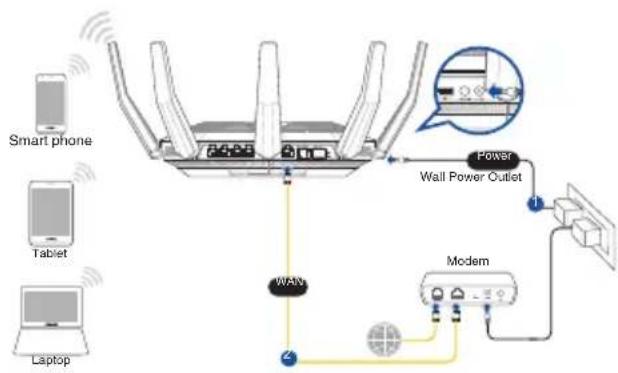
flowchart
graph TD
    A["Smart phone"] --> B["Router"]
    C["Tablet"] --> B
    D["Laptop"] --> B
    B --> E["Power Wall Power Outlet"]
    E --> F["Modem"]
    F --> G["Grid"]
    B --> H["WAN"]
    H --> I["Grid"]
    style A fill:#f9f,stroke:#333
    style C fill:#f9f,stroke:#333
    style D fill:#f9f,stroke:#333
    style B fill:#ccf,stroke:#333
    style E fill:#cff,stroke:#333
    style F fill:#ffc,stroke:#333
    style G fill:#cfc,stroke:#333
    style H fill:#fcc,stroke:#333
- Connect to the network with SSID shown on the product label on the back side of the router. For better network security, change to a unique SSID and assign a password.
Wi-Fi Name (SSID): ASUS_XX
* XX refers to the last two digits of the MAC address. You can find it on the label on the back of your RT-AX89X.
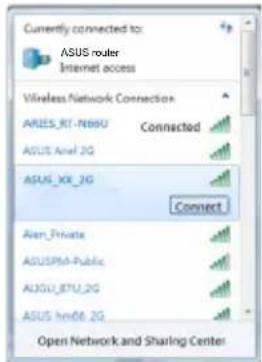
- You can choose either the web GUI or ASUS Router app to set up your router.
a. Web GUI Setup
• Once connected, the web GUI launches automatically when you open a web browser.
If it does not auto-launch, enter http://router.asus.com.
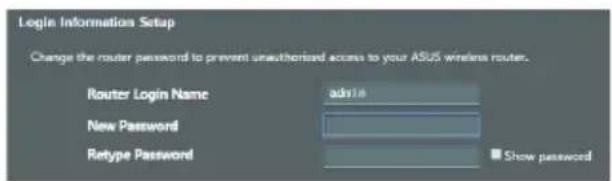
• Set up a password for your router to prevent unauthorized access.
b. App Setup
Download ASUS Router App to set up your router via your mobile devices.
• Turn on Wi-Fi on your mobile devices and connect to your RT-AX89X's network.
• Follow ASUS Router App setup instructions to complete the setup.
ASUS
Router
GET IT ON
Google Play
Download on the App Store

ASUS Router
Remembering your wireless router settings
Remember your wireless settings as you complete the router setup.
| Router Name: Password: | |
| 2.4 GHz network SSID: | Password: |
| 5GHz network SSID: | Password: |
FAQ
- Where can I find more information about the wireless router?
• Online FAQ site: https://www.asus.com/support/faq
• Technical support site: https://www.asus.com/support
- Customer hotline: refer to the Support Hotline section in this Quick Start Guide
- You can get the user manual online at https://www.asus.com/support
Бърз преглед
natural_image
Diagram of a router with three Ethernet ports and an internal port, labeled with number 11 (no text or symbols beyond label)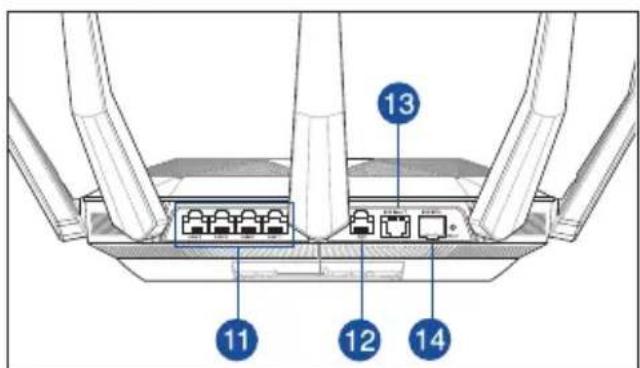
| 1 | SFP+ LED | 7 | Индикатор на захранването | 13 | Порт 10G base T |
| 2 | 10GE LED WPS бутон Порт | 10 | 10G SFP+ | 14 | |
| 3 | LAN индикатор | 9 | Бутон индикатор вкл./изкл. | 15 | USB 3.1 Gen 1 портове |
| 4 | WAN (Internet) индикатор | 10 | Бутон Wi-Fi вкл./изкл. | 16 | Превключвател на ахранването |
| 5 | 5GHz индикатор LAN | 1-8 | портове | 17 | Порт захранване (DC-IN) |
| 6 | 2.4GHz индикатор WAN | 12 | internet) порт |
natural_image
Diagram of a network router with five Ethernet ports and wireless signal waves (no text or labels)ЗАБЕЛЕЖКА:
flowchart
graph TD
    A["Laptop"] -->|LAN| B["Router"]
    B -->|WAN| C["Modem"]
    C --> D["Wall Power Outlet"]
    D -->|Power| E["User Interface"]
    style A fill:#f9f,stroke:#333
    style B fill:#ccf,stroke:#333
    style C fill:#cfc,stroke:#333
    style D fill:#fcc,stroke:#333
    style E fill:#ffc,stroke:#333
flowchart
graph TD
    A["Smart phone"] --> B["Router"]
    C["Tablet"] --> B
    D["Laptop"] --> B
    B --> E["Modem"]
    E --> F["Wall Power Outlet"]
    F --> G["Power"]
    G --> H["Image of wall-mounted device"]
    style A fill:#f9f,stroke:#333
    style C fill:#f9f,stroke:#333
    style D fill:#f9f,stroke:#333
    style B fill:#ccf,stroke:#333
    style E fill:#cff,stroke:#333
    style F fill:#ffc,stroke:#333
    style G fill:#cfc,stroke:#333
    style H fill:#fcc,stroke:#333
ASUS
Router
Google Play
Download on the App Store

ASUS Router
FAQ
natural_image
Diagram of a router with three legs and an internal connector labeled '11' (no text or symbols beyond label)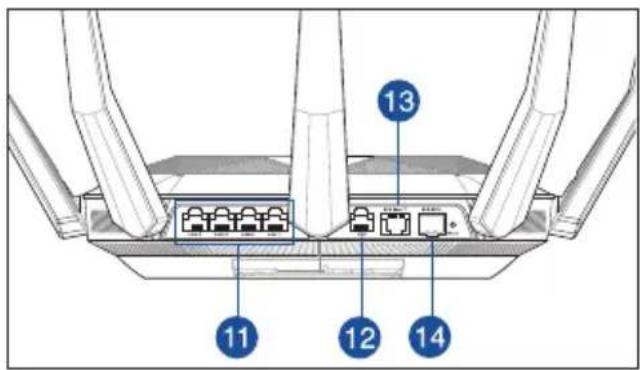
natural_image
Diagram of a network router with five ports and wireless signal waves (no text or labels)REMARQUES :
flowchart
graph TD
    A["Laptop"] -->|LAN| B["Router"]
    B -->|WAN| C["Modem"]
    C --> D["Wall Power Outlet"]
    D --> E["Power"]
    E --> F["Image Panel with Icon"]
    style A fill:#f9f,stroke:#333
    style B fill:#ccf,stroke:#333
    style C fill:#cfc,stroke:#333
    style D fill:#fcc,stroke:#333
    style E fill:#cff,stroke:#333
    style F fill:#ffc,stroke:#333
flowchart
graph TD
    A["Smart phone"] --> B["Router"]
    C["Tablet"] --> B
    D["Laptop"] --> B
    B --> E["Power Wall Power Outlet"]
    E --> F["Modem"]
    F --> G["Grid"]
    B --> H["WAN"]
    H --> I["Grid"]
    style A fill:#f9f,stroke:#333
    style C fill:#f9f,stroke:#333
    style D fill:#f9f,stroke:#333
    style B fill:#ccf,stroke:#333
    style E fill:#cfc,stroke:#333
    style F fill:#fcc,stroke:#333
    style G fill:#cff,stroke:#333
    style H fill:#ffc,stroke:#333
b. Configuration via l'application
Download on the App Store

ASUS Router
natural_image
Diagram of a network router with five Ethernet ports and wireless signal waves (no text or labels)NAPOMENE:
- Koristite samo onaj adapter koji ste dobili u pakiranju. Korištenjem drugih adaptera možete oštetiti uređaj.
• Tehnički podaci:
| Adapter DC napajanja DC izlaz: +19 V s maksimalnom strujom od 3,42 A | |||
| Radna temperatura 0 ~ 40 | °C Pohrana 0 ~ 70 | °C | |
| Radna vlažnost 50~90% Pohrana 20~90% | |||
Pripremanje modema
- Iskopčajte kabel za napajanje/DSL modem. Ako postoji baterijsko napajanje, uklonite bateriju.
- Uključite kabelski/DSL modem.
- Pogledajte LED indikatore kabelskog/DSL modema za provjeru aktivnosti veze.
Postavljanje uređaja RT-AX89X
B. Bežična veza
- Za podešavanje usmjerivača možete odabrati web GUI ili aplikaciju ASUS Router.
a. Podešavanje Web GUI
ASUS
Router
GET IT ON
Google Play
Download on the App Store

ASUS Router
ČPP
-
Gdje mogu naći više informacija o bežičnom usmjerivaču?
-
Internetska stranica za ČPP: https://www.asus.com/support/faq
- Stranica za tehničku podršku: https://www.asus.com/support
- Korisnički telefon: Potražite dežurni telefon za podršku u ovom vodiču za brzi početak rada
- Korisnički priručnik možete naći na internetu na https://www.asus.com/support
Obsah krabice
√ RT-AX89X Napájecí adaptér
natural_image
Diagram of a router with three Ethernet ports and an internal port, labeled with number 11 (no text or symbols beyond label)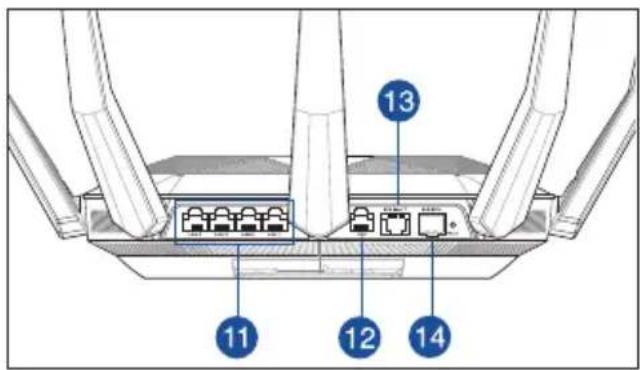
natural_image
Diagram of a wireless router with five ports and signal waves (no text or labels)POZNÁMKA:
flowchart
graph TD
    A["Laptop"] -->|LAN| B["Router"]
    B -->|WAN| C["Modem"]
    C --> D["Wall Power Outlet"]
    D --> E["Power"]
    E --> F["Image Panel with Icon"]
    style A fill:#f9f,stroke:#333
    style B fill:#ccf,stroke:#333
    style C fill:#cfc,stroke:#333
    style D fill:#fcc,stroke:#333
    style E fill:#cff,stroke:#333
    style F fill:#ffc,stroke:#333
flowchart
graph TD
    A["Smart phone"] --> B["WiFi"]
    C["Tablet"] --> B
    D["Laptop"] --> B
    B --> E["Modem"]
    E --> F["Wall Power Outlet"]
    F --> G["Power"]
    G --> H["Wireless Connection"]
    style A fill:#f9f,stroke:#333
    style C fill:#f9f,stroke:#333
    style D fill:#f9f,stroke:#333
    style B fill:#ccf,stroke:#333
    style E fill:#cff,stroke:#333
    style F fill:#ffc,stroke:#333
    style G fill:#cfc,stroke:#333
    style H fill:#fcc,stroke:#333
Download on the App Store

ASUS Router
FAQ (ODPOVĚDI NA ČASTÉ DOTAZY)
natural_image
Diagram of a router with three Ethernet ports and a numbered connector (11), no text or symbols present.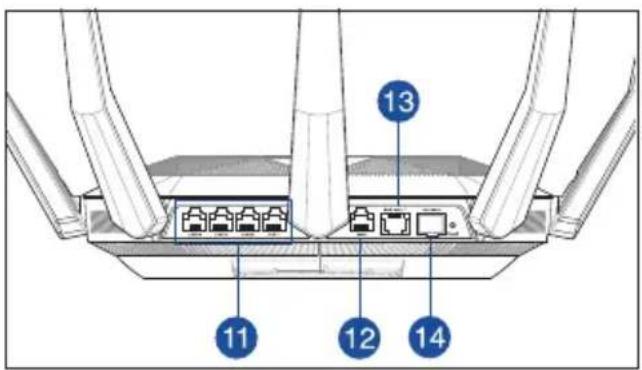
| 1 | SFP+ LED Strøm LED | 10G | base T port | 13 |
| 2 | 10GE LED WPS knap | 10G | SFP+ port | 14 |
| 3 | LAN LED WPS LED tænd | sluk-knap USB 3.1 Gen 1 porte | 15 | |
| 4 | WAN (Internet) LED WHF | tænd/sluk-knap Afbryderknappen | ||
| 5 | 5GHz LED LAN 1~8 porte | Strøm (DC-IN) port | 17 | |
| 6 | 2.4GHz LED WAN (Internet) port | |||
natural_image
Diagram of a network router with four Ethernet ports and wireless signal waves (no text or labels)BEMÆRKNINGE:
Strømadapter (DC) Strømudgang (DC): + 19V med maks. 3.42A strøm
| Betjeningstemperatur 0~40 | °C Opbevarings 0~70 | °C |
| Betjeningsfugtighed 50~90% Opbevarings | 20 ~ 90% |
Sådan indstilles din router
flowchart
graph TD
    A["Laptop"] -->|LAN| B["Router"]
    B -->|WAN| C["Modem"]
    C --> D["Wall Power Outlet"]
    D -->|Power| E["User Interface"]
    style A fill:#f9f,stroke:#333
    style B fill:#ccf,stroke:#333
    style C fill:#cfc,stroke:#333
    style D fill:#fcc,stroke:#333
    style E fill:#ffc,stroke:#333
flowchart
graph TD
    A["Smart phone"] --> B["WiFi"]
    C["Tablet"] --> B
    D["Laptop"] --> B
    B --> E["Power Wall Power Outlet"]
    E --> F["Modem"]
    F --> G["Grid"]
    B --> H["WAN"]
    H --> I["Z"]
    style A fill:#f9f,stroke:#333
    style C fill:#f9f,stroke:#333
    style D fill:#f9f,stroke:#333
    style B fill:#ccf,stroke:#333
    style E fill:#cff,stroke:#333
    style F fill:#ffc,stroke:#333
    style G fill:#cfc,stroke:#333
    style H fill:#fcc,stroke:#333
Download on the App Store

ASUS Router
natural_image
Diagram of a wireless router with four ports and signal waves (no text or labels)OPMERKING:
De router installeren
flowchart
graph TD
    A["Smart phone"] --> B["WiFi"]
    C["Tablet"] --> B
    D["Laptop"] --> B
    B --> E["Modem"]
    E --> F["Wall Power Outlet"]
    F --> G["Power"]
    G --> H["Wireless Connection"]
    style A fill:#f9f,stroke:#333
    style C fill:#f9f,stroke:#333
    style D fill:#f9f,stroke:#333
    style B fill:#ccf,stroke:#333
    style E fill:#cff,stroke:#333
    style F fill:#ffc,stroke:#333
    style G fill:#cfc,stroke:#333
    style H fill:#fcc,stroke:#333
b. App-instelling
Download on the App Store

ASUS Router
natural_image
Diagram of a router with three Ethernet ports and an internal port, labeled with number 11 (no text or symbols beyond label)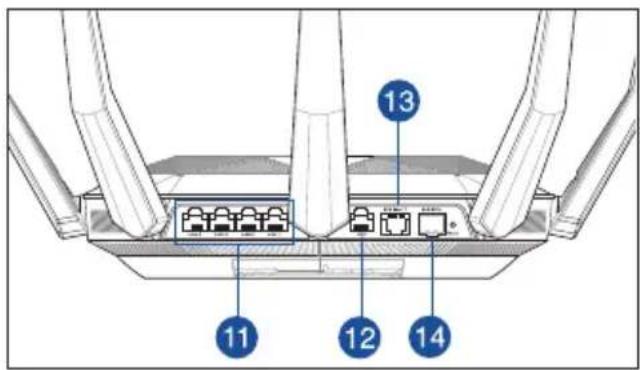
| 1 | SFP+ LED-märgutuli Toite LED indikaator 10G base T port | 13 | ||
| 2 | 10GE LED-märgutuli WPS nupp 10G SFP+ port | 14 | ||
| 3 | LAN LED indikaatorid Nupp LED Sees/Väljas USB 3.1 Gen 5 pordid | |||
| 4 | WAN-i LED indikaator (Internet) | 10 | Nupp WiFi Sees/Väljas Toitejuliti | |
| 5 | 5GHz LED indikaator LAN 11~8 pordid Toitepesa (DC-IN) | 17 | ||
| 6 | 2,4GHz LED indikaator WAN (Internet) port | |||
natural_image
Diagram of a wireless router with five ports and signal waves (no text or labels)MÄRKUSED:
flowchart
graph TD
    A["Laptop"] -->|LAN| B["Router"]
    B -->|WAN| C["Modem"]
    C --> D["Wall Power Outlet"]
    D --> E["Power"]
    E --> F["Diagram of Wall Power Outlet"]
    style A fill:#f9f,stroke:#333
    style B fill:#ccf,stroke:#333
    style C fill:#cfc,stroke:#333
    style D fill:#fcc,stroke:#333
    style E fill:#cff,stroke:#333
    style F fill:#ffc,stroke:#333
flowchart
graph TD
    A["Smart phone"] --> B["Router"]
    C["Tablet"] --> B
    D["Laptop"] --> B
    B --> E["Wall Power Outlet"]
    E --> F["Power"]
    F --> G["Modem"]
    G --> H["Grid"]
    B --> I["WAN"]
    I --> J["Grid"]
    style A fill:#f9f,stroke:#333
    style C fill:#f9f,stroke:#333
    style D fill:#f9f,stroke:#333
    style B fill:#ccf,stroke:#333
    style E fill:#cff,stroke:#333
    style F fill:#ffc,stroke:#333
    style G fill:#cfc,stroke:#333
    style H fill:#fcc,stroke:#333
b. Rakenduse seadistamine
Download on the App Store

ASUS Router
natural_image
Diagram of a router with three Ethernet ports and an internal network switch (no text or labels)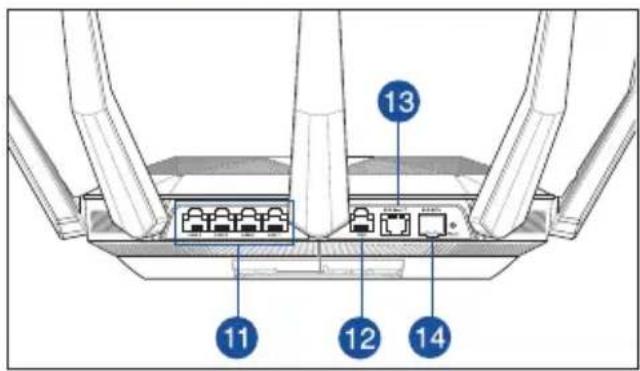
| 1 | SFP+ LED Virran LED-valo | 10G base T-portti | 13 |
| 2 | 10GE LED WPS-painike | 10G SFP+ -portti | 14 |
| 3 | LAN LED LED Päällä/Pois | -painike USB 3.1 Gen 1 -portit | 15 |
| 4 | WAN (Internet) LED Wi-Fi | Päällä/Pois -painike Virtakytkin | 16 |
| 5 | 5GHz LED-valo | 11 | LAN 1~8 portit |
| 6 | 2.4GHz LED-valo | 12 | WAN (Internet) portti |
natural_image
Diagram of a network router with five Ethernet ports and wireless signal waves (no text or labels)HUOMAA:
flowchart
graph TD
    A["Smart phone"] --> B["Router"]
    C["Tablet"] --> B
    D["Laptop"] --> B
    B --> E["Wall Power Outlet"]
    E --> F["Modem"]
    F --> G["Grid"]
    B --> H["WAN"]
    H --> I["Grid"]
    style A fill:#f9f,stroke:#333
    style C fill:#f9f,stroke:#333
    style D fill:#f9f,stroke:#333
    style B fill:#ccf,stroke:#333
    style E fill:#cff,stroke:#333
    style F fill:#ffc,stroke:#333
    style G fill:#cfc,stroke:#333
    style H fill:#fcc,stroke:#333
ASUS
Router
GET ON Google Play
Download on the App Store

ASUS Router
natural_image
Diagram of a router with three legs and an internal connector labeled '11' (no text or symbols beyond label)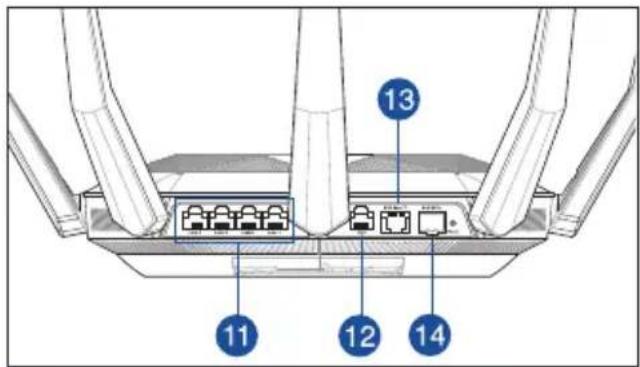
natural_image
Diagram of a wireless router with five ports and four antennas, emitting signal waves (no text or labels)HINWEISE:
flowchart
graph TD
    A["Laptop"] -->|LAN| B["Router"]
    B -->|WAN| C["Modem"]
    C --> D["Wall Power Outlet"]
    D --> E["Power"]
    E --> F["Label: 1"]
    F --> G["Label: 2"]
    G --> H["Label: 3"]
    H --> I["Label: 4"]
    I --> J["Label: 5"]
    J --> K["Label: 6"]
    K --> L["Label: 7"]
    L --> M["Label: 8"]
    M --> N["Label: 9"]
    N --> O["Label: 10"]
    O --> P["Label: 11"]
    P --> Q["Label: 12"]
flowchart
graph TD
    A["Smart phone"] --> B["Router"]
    C["Tablet"] --> B
    D["Laptop"] --> B
    B --> E["Wall Power Outlet"]
    E --> F["Modem"]
    F --> G["Grid"]
    B --> H["WAN"]
    H --> I["2"]
    style A fill:#f9f,stroke:#333
    style C fill:#f9f,stroke:#333
    style D fill:#f9f,stroke:#333
    style B fill:#ccf,stroke:#333
    style E fill:#cfc,stroke:#333
    style F fill:#fcc,stroke:#333
    style G fill:#cff,stroke:#333
Download on the App Store

ASUS Router
natural_image
Diagram of a router with three Ethernet ports and an internal port, labeled with number 11 (no text or symbols beyond label)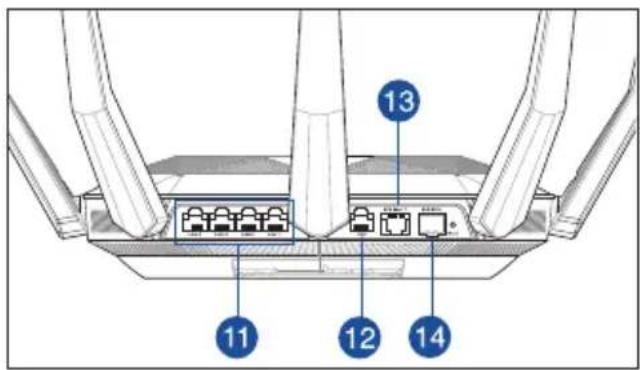
natural_image
Diagram of a wireless router with five ports and signal waves (no text or labels)MEGJEGYZÉSEK:
Az beállítása
flowchart
graph TD
    A["Laptop"] -->|LAN| B["Router"]
    B -->|WAN| C["Modem"]
    C --> D["Wall Power Outlet"]
    D --> E["Power"]
    E --> F["Computer Interface"]
    style A fill:#f9f,stroke:#333
    style B fill:#ccf,stroke:#333
    style C fill:#cfc,stroke:#333
    style D fill:#fcc,stroke:#333
    style E fill:#cff,stroke:#333
    style F fill:#ffc,stroke:#333
flowchart
graph TD
    A["Smart phone"] -->|Wireless Signal| B["Router"]
    C["Tablet"] -->|Wireless Signal| B
    D["Laptop"] -->|Wireless Signal| B
    B -->|WAN| E["Modem"]
    E --> F["Wall Power Outlet"]
    F --> G["Power"]
    G --> H["Terminal"]
Download on the App Store

ASUS Router
natural_image
Diagram of a router with three Ethernet ports and a numbered component (11), no text or symbols present.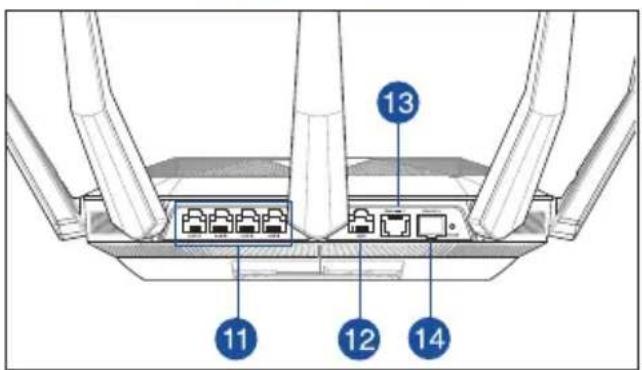
natural_image
Diagram of a network router with five ports and wireless signal waves (no text or labels)NOTE:
flowchart
graph TD
    A["Laptop"] -->|LAN| B["Router"]
    B -->|WAN| C["Modem"]
    C --> D["Wall Power Outlet"]
    D --> E["Power"]
    E --> F["Image Panel"]
    style A fill:#f9f,stroke:#333
    style B fill:#ccf,stroke:#333
    style C fill:#cfc,stroke:#333
    style D fill:#fcc,stroke:#333
    style E fill:#cff,stroke:#333
    style F fill:#ffc,stroke:#333
flowchart
graph TD
    A["Smart phone"] --> B["WiFi"]
    C["Tablet"] --> B
    D["Laptop"] --> B
    B --> E["Modem"]
    E --> F["Wall Power Outlet"]
    F --> G["Power"]
    G --> H["Wireless Connection"]
    style A fill:#f9f,stroke:#333
    style C fill:#f9f,stroke:#333
    style D fill:#f9f,stroke:#333
    style B fill:#ccf,stroke:#333
    style E fill:#cff,stroke:#333
    style F fill:#ffc,stroke:#333
    style G fill:#cfc,stroke:#333
    style H fill:#fcc,stroke:#333
Download on the App Store

ASUS Router
FAQ
natural_image
Diagram of a router with three Ethernet ports and an internal port, labeled with number 11 (no text or symbols on the diagram itself)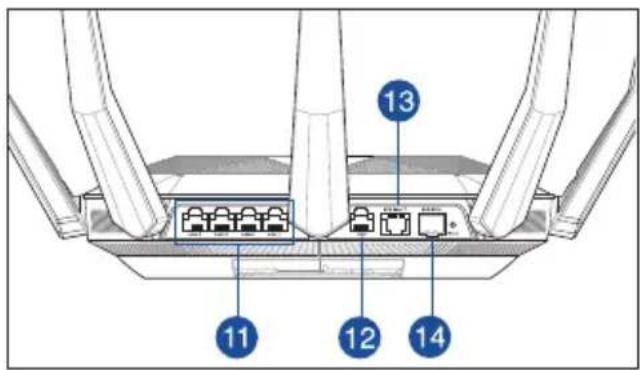
| 1 | SFP+-LED Strøm LED 10G base T-port | 13 |
| 2 | 10GE-LED WPS-knapp 10G SFP+-port | 14 |
| 3 | LAN LED På/av-knapp for LED USB 3.1 Gen 1-porter | 15 |
| 4 | WAN (Internet) LED På/avoknapp for Wi-Fi Strømbryter | 16 |
| 5 | 5GHz LED LAN 1~8 porter Strømport (DC) | 17 |
| 6 | 2,4GHz LED WAN (Internett) port |
natural_image
Diagram of a network router with five Ethernet ports and wireless signal waves (no text or labels)MERKNADER:
Sette opp RT-AX89X
natural_image
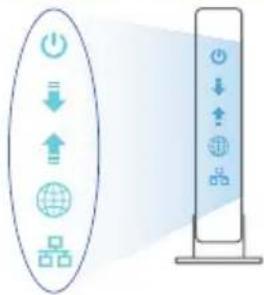
Diagram showing a circular icon with power and download symbols next to a vertical bar with icons (no text or labels)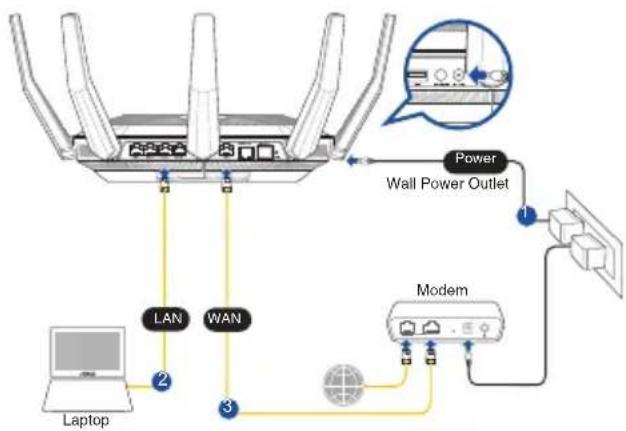
flowchart
graph TD
    A["Laptop"] -->|LAN| B["Router"]
    B -->|WAN| C["Modem"]
    C --> D["Wall Power Outlet"]
    D --> E["Power"]
    E --> F["Image Panel with Icon"]
    style A fill:#f9f,stroke:#333
    style B fill:#ccf,stroke:#333
    style C fill:#cfc,stroke:#333
    style D fill:#fcc,stroke:#333
    style E fill:#cff,stroke:#333
    style F fill:#ffc,stroke:#333
flowchart
graph TD
    A["Smart phone"] -->|Wireless Signal| B["Router"]
    C["Tablet"] -->|Wireless Signal| B
    D["Laptop"] -->|Wireless Signal| B
    B --> E["Power Wall Power Outlet"]
    E --> F["Modem"]
    F --> G["Grid"]
    B --> H["WAN"]
    H --> I["Grid"]
    style A fill:#f9f,stroke:#333
    style C fill:#f9f,stroke:#333
    style D fill:#f9f,stroke:#333
    style B fill:#ccf,stroke:#333
    style E fill:#cff,stroke:#333
    style F fill:#ffc,stroke:#333
    style G fill:#cfc,stroke:#333
    style H fill:#fcc,stroke:#333
- Du kan velge enten web-brukergrensesnittet eller ASUS Router-appen til å konfigurere ruteren.
b. Oppsett med app
Last ned ASUS Router-appen for å konfigurere ruteren via en mobilenhet.
Download on the App Store

ASUS Router
natural_image
Diagram of a router with three legs and an internal connector labeled '11' (no text or symbols beyond label)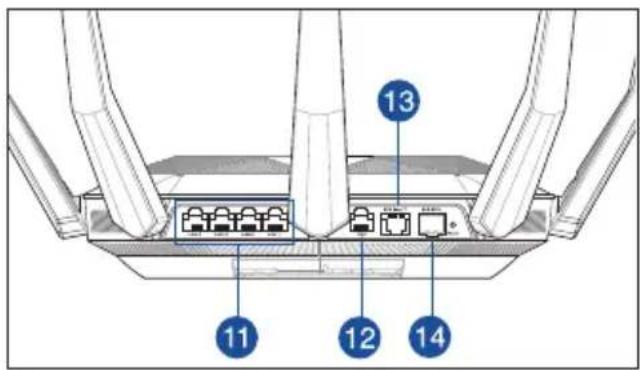
natural_image
Diagram of a wireless router with five ports and signal waves (no text or labels)NOTAS:
Configurar o RT-AX89X
flowchart
graph TD
    A["Laptop"] -->|LAN| B["Router"]
    B -->|WAN| C["Modem"]
    C --> D["Wall Power Outlet"]
    D --> E["Power"]
    E --> F["Image Panel with Icon"]
    style A fill:#f9f,stroke:#333
    style B fill:#ccf,stroke:#333
    style C fill:#cfc,stroke:#333
    style D fill:#fcc,stroke:#333
    style E fill:#cff,stroke:#333
    style F fill:#ffc,stroke:#333
flowchart
graph TD
    A["Smart phone"] --> B["WiFi"]
    C["Tablet"] --> B
    D["Laptop"] --> B
    B --> E["Modem"]
    E --> F["Wall Power Outlet"]
    F --> G["Power"]
    G --> H["Wireless Connection"]
    style A fill:#f9f,stroke:#333
    style C fill:#f9f,stroke:#333
    style D fill:#f9f,stroke:#333
    style B fill:#ccf,stroke:#333
    style E fill:#cff,stroke:#333
    style F fill:#ffc,stroke:#333
    style G fill:#cfc,stroke:#333
    style H fill:#fcc,stroke:#333
Download on the App Store

ASUS Router
natural_image
Diagram of a router with three Ethernet ports and an internal port, labeled with number 11 (no text or symbols beyond label)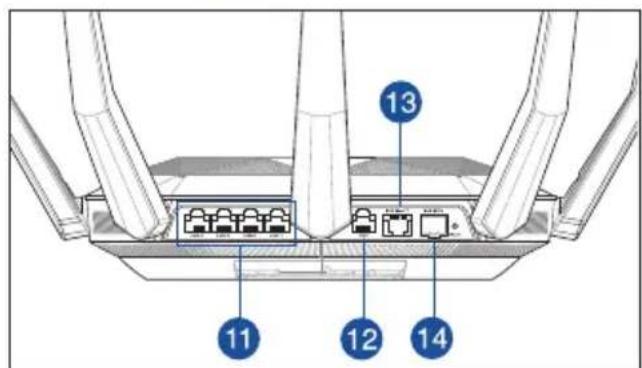
natural_image
Diagram of a wireless router with four ports and signal waves (no text or labels)UWAGI:
flowchart
graph TD
    A["Laptop"] -->|LAN| B["Router"]
    B -->|WAN| C["Modem"]
    C --> D["Wall Power Outlet"]
    D -->|Power| E["User Interface"]
    style A fill:#f9f,stroke:#333
    style B fill:#ccf,stroke:#333
    style C fill:#cfc,stroke:#333
    style D fill:#fcc,stroke:#333
    style E fill:#ffc,stroke:#333
flowchart
graph TD
    A["Smart phone"] --> B["Router"]
    C["Tablet"] --> B
    D["Laptop"] --> B
    B --> E["WiFi"]
    E --> F["Modem"]
    F --> G["Power Wall Power Outlet"]
    G --> H["Image of wall-mounted device"]
    style A fill:#f9f,stroke:#333
    style C fill:#f9f,stroke:#333
    style D fill:#f9f,stroke:#333
    style B fill:#ccf,stroke:#333
    style F fill:#cff,stroke:#333
    style G fill:#ffc,stroke:#333
    style H fill:#cfc,stroke:#333
Download on the App Store

ASUS Router
natural_image
Diagram of a router with three Ethernet ports and an internal port, labeled with number 11 (no text or symbols on the diagram itself)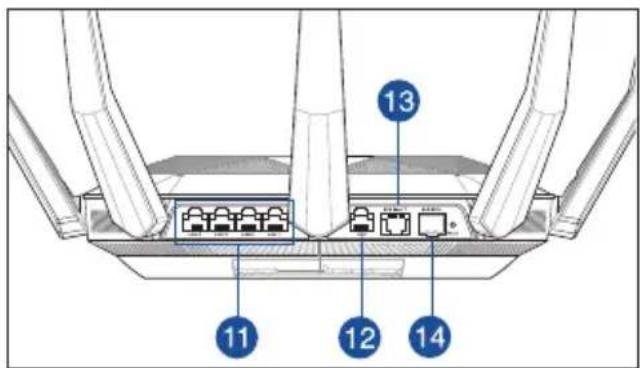
natural_image
Diagram of a wireless router with four ports and signal waves (no text or labels)ПРИМЕЧАНИЯ:
Настройка RT-AX89X
flowchart
graph TD
    A["Smart phone"] --> B["WiFi"]
    C["Tablet"] --> B
    D["Laptop"] --> B
    B --> E["Modem"]
    E --> F["Wall Power Outlet"]
    F --> G["Power"]
    G --> H["Wireless Tower"]
    style A fill:#f9f,stroke:#333
    style C fill:#f9f,stroke:#333
    style D fill:#f9f,stroke:#333
    style B fill:#ccf,stroke:#333
    style E fill:#cff,stroke:#333
    style F fill:#ffc,stroke:#333
    style G fill:#cfc,stroke:#333
    style H fill:#fcc,stroke:#333
ASUS
Router
GET IT ON
Google Play
Download on the App Store

ASUS Router
natural_image
Diagram of a router with three Ethernet ports and an internal port, labeled with number 11 (no text or symbols on the diagram itself)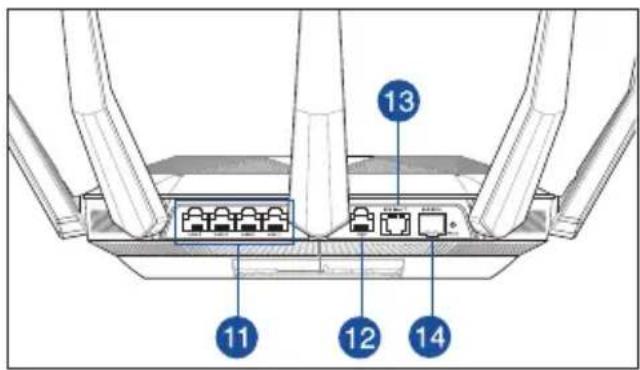
| 1 | LED SFP+ Led alimentar | 7 | Port 10G base T | 13 | |
| 2 | LED 10GE Buton WPS Port | 10 | 10G SFP+ | 14 | |
| 3 | LAN LED | 9 | Buton pornire/oprire LED | 15 | Porturi USB 3.1 Gen 1 |
| 4 | WAN (Internet) LED | 10 | Buton pornire/oprire Wi-Fi | 16 | întrerupător |
| 5 | 5GHz LED Porturi LAN | 118 | 17 | Port de alimentare (intrare c.c.) | |
| 6 | 2.4GHz LED Port WAN | (Internet) |
natural_image
Diagram of a wireless router with five ports and four antennas emitting signal waves (no text or labels)NOTE:
flowchart
graph TD
    A["Smart phone"] --> B["Wall Power Outlet"]
    C["Tablet"] --> B
    D["Laptop"] --> B
    B --> E["Modem"]
    E --> F["Power"]
    F --> G["Wall Power Outlet"]
    style A fill:#f9f,stroke:#333
    style C fill:#f9f,stroke:#333
    style D fill:#f9f,stroke:#333
    style B fill:#ccf,stroke:#333
    style E fill:#ccf,stroke:#333
    style F fill:#cfc,stroke:#333
    style G fill:#fcc,stroke:#333
Download on the App Store

ASUS Router
natural_image
Diagram of a router with visible internal ports and connectors, labeled with number 11 (no text or symbols beyond label)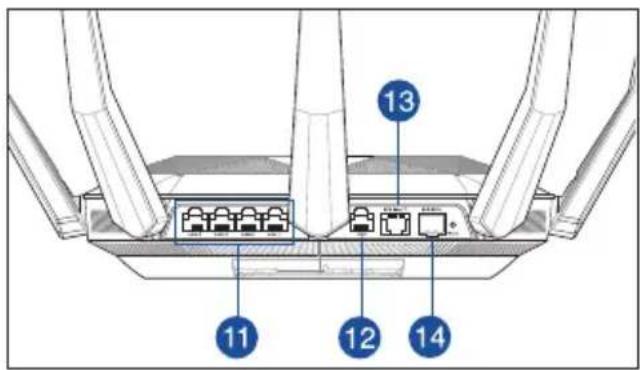
natural_image
Diagram of a network router with five Ethernet ports and wireless signal waves (no text or labels)NOTAS:
Configurar el RT-AX89X
flowchart
graph TD
    A["Laptop"] -->|LAN| B["Router"]
    B -->|WAN| C["Modem"]
    C --> D["Wall Power Outlet"]
    D --> E["Power"]
    E --> F["Image Panel with Icon"]
    style A fill:#f9f,stroke:#333
    style B fill:#ccf,stroke:#333
    style C fill:#cfc,stroke:#333
    style D fill:#fcc,stroke:#333
    style E fill:#cff,stroke:#333
    style F fill:#ffc,stroke:#333
flowchart
graph TD
    A["Smart phone"] --> B["WiFi"]
    C["Tablet"] --> B
    D["Laptop"] --> B
    B --> E["Modem"]
    E --> F["Wall Power Outlet"]
    F --> G["Power"]
    G --> H["Wireless Connection"]
    style A fill:#f9f,stroke:#333
    style C fill:#f9f,stroke:#333
    style D fill:#f9f,stroke:#333
    style B fill:#ccf,stroke:#333
    style E fill:#cff,stroke:#333
    style F fill:#ffc,stroke:#333
    style G fill:#cfc,stroke:#333
    style H fill:#fcc,stroke:#333
Download on the App Store

ASUS Router
FAQ
natural_image
Diagram of a router with three Ethernet ports and an internal connector labeled '11' (no text or symbols beyond label)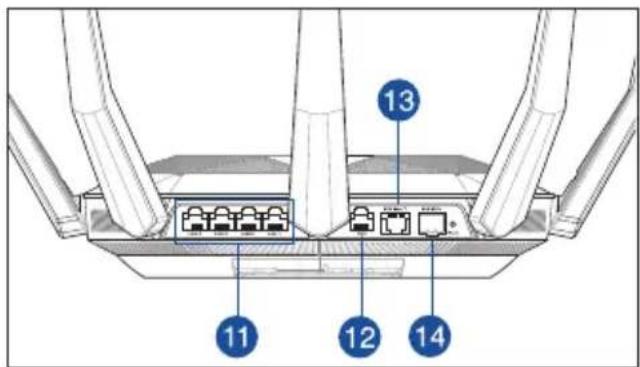

| 1 | SFP+ Lampica | 7 | Svetleća dioda za napajanje | 13 | 10 G baza T ulaz |
| 2 | 10 GE Lampica WPS | 8 | taster 10 G SFP+ ulaz | 14 | |
| 3 | LAN lampica | 9 | Dugme za uključivanje/isključivanje LED diode | 15 | USB 3.1 Gen 1 portovi |
| 4 | WAN (Internet) lampica | 10 | Dugme za uključivanje/isključivanje Wi-Fi mreže | 16 | Prekidač za napajanje |
| 5 | 5GHz svetleća dioda | 11 | LAN 1 ~ 8 portovi | 17 | Port za napajanje (DC-IN) |
| 6 | 2,4GHz svetleća dioda | 12 | WAN (Internet) portovi |
* SFP+ interfejs radi samo pri brzini od 10 Gbps i nije kompatibilan brzinom podataka od 1 gigabita.
Postavljanje vašeg bežičnog rutera
natural_image
Diagram of a network router with five ports and wireless signal waves (no text or labels)NAPOMENE:
- Koristite isključivo adapter koji ste dobili u pakovanju. Korišćenje drugih adaptera može da ošteti uređaj.
- Specifikacija:
| Adapter za jednosmernu struju | Izlaz jednosmerne struje: +19 V sa maks. strujom od 3,42 A | ||
| Radna temperatura 0°C–40°C Skladištenje 0°C–70°C | |||
| Radna vlažnost 50%–90% Skladištenje 20%–90% | |||
Priprema vašeg modema
flowchart
graph TD
    A["Laptop"] -->|LAN| B["Router"]
    B -->|WAN| C["Modem"]
    C --> D["Wall Power Outlet"]
    D --> E["Power"]
    E --> F["Image Panel with Icon"]
    style A fill:#f9f,stroke:#333
    style B fill:#ccf,stroke:#333
    style C fill:#cfc,stroke:#333
    style D fill:#fcc,stroke:#333
    style E fill:#cff,stroke:#333
    style F fill:#ffc,stroke:#333
flowchart
graph TD
    A["Smart phone"] --> B["Router"]
    C["Tablet"] --> B
    D["Laptop"] --> B
    B --> E["Power Wall Power Outlet"]
    E --> F["Modem"]
    F --> G["Grid"]
    B --> H["WAN"]
    H --> I["Grid"]
    style A fill:#f9f,stroke:#333
    style C fill:#f9f,stroke:#333
    style D fill:#f9f,stroke:#333
    style B fill:#ccf,stroke:#333
    style E fill:#cff,stroke:#333
    style F fill:#ffc,stroke:#333
    style G fill:#cfc,stroke:#333
    style H fill:#fcc,stroke:#333
b. Podešavanje aplikacije
Download on the App Store

ASUS Router
Često postavljana pitanja (FAQs)
natural_image
Diagram of a router with three Ethernet ports and an internal connector labeled '11' (no text or symbols beyond label)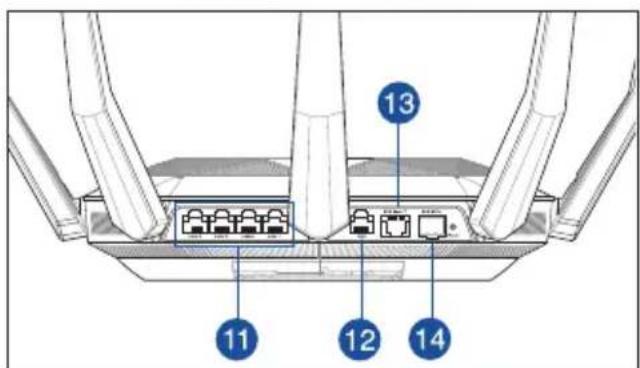
| 1 | LED-diode vmesnika SFP+ | 7 | Lučka za vklop Priključek | 10G base T |
| 2 | LED-diode vmesnika 10GE | 8 | Gumb za WPS Priključek | 114 SFP+ |
| 3 | LAN lučke LED | 9 | LED gumba za vklop/izlop | 15 Vhodi USB 3.1 prve generacije |
| 4 | WAN (internet) lučka LED | 10 | Wifi gumba za vklop/izklop | 16 Stikalo za vklop |
| 5 | Lučka 5GHz Vhodi LAN | 11-13 | 17 Vhod za napajanje (DC-IN) | |
| 6 | Lučka 2,4GHz Vhod WAN | 12 Internet) | ||
natural_image
Diagram of a network router with five ports and wireless signal waves (no text or labels)OPOMBE:
flowchart
graph TD
    A["Laptop"] -->|LAN| B["Router"]
    B -->|WAN| C["Modem"]
    C --> D["Wall Power Outlet"]
    D --> E["Power"]
    E --> F["Diagram of Wall Power Outlet"]
    style A fill:#f9f,stroke:#333
    style B fill:#ccf,stroke:#333
    style C fill:#cfc,stroke:#333
    style D fill:#fcc,stroke:#333
    style E fill:#cff,stroke:#333
    style F fill:#ffc,stroke:#333
flowchart
graph TD
    A["Smart phone"] --> B["WiFi"]
    C["Tablet"] --> B
    D["Laptop"] --> B
    B --> E["Power Wall Power Outlet"]
    E --> F["Modem"]
    F --> G["Grid"]
    B --> H["WAN"]
    H --> I["Grid"]
    style B fill:#f9f,stroke:#333
    style E fill:#ccf,stroke:#333
    style F fill:#cfc,stroke:#333
Download on the App Store

ASUS Router
natural_image
Diagram of a router with three Ethernet ports and an internal port, labeled with number 11 (no text or symbols beyond label)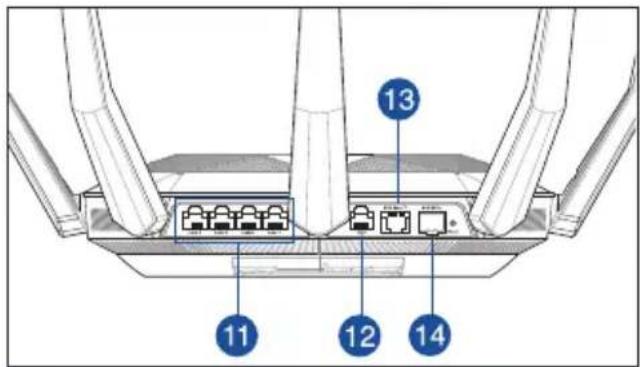
| 1 | SFP+ LED-indikator Strömlampa 10G base T-port | 13 | |
| 2 | 10GE LED-indikator WPS knapp 10G SFP+-port | 14 | |
| 3 | LAN LED-indikator Lysdiod-knapp På/Av USB 3.1 Gen Portar | 15 | |
| 4 | WAN (Internet) LED WiFi-knapp På/Av Strömbrytaren | 16 | |
| 5 | 5GHz LED LAN 1~8 Portar Strömingång (DC-IN) | 17 | |
| 6 | 2.4GHz LED WAN (Internet) Port |
natural_image
Diagram of a network router with five antennas and wireless signal waves (no text or labels)ANMÄRKNINGAR:
flowchart
graph TD
    A["Laptop"] -->|LAN| B["Router"]
    B -->|WAN| C["Modem"]
    C --> D["Wall Power Outlet"]
    D --> E["Power"]
    E --> F["Diagram of Wall Power Outlet"]
    style A fill:#f9f,stroke:#333
    style B fill:#ccf,stroke:#333
    style C fill:#cfc,stroke:#333
    style D fill:#fcc,stroke:#333
    style E fill:#cff,stroke:#333
    style F fill:#ffc,stroke:#333
flowchart
graph TD
    A["Smart phone"] --> B["WiFi"]
    C["Tablet"] --> B
    D["Laptop"] --> B
    B --> E["Modem"]
    E --> F["Wall Power Outlet"]
    F --> G["Power"]
    G --> H["Wireless Connection"]
    style A fill:#f9f,stroke:#333
    style C fill:#f9f,stroke:#333
    style D fill:#f9f,stroke:#333
    style B fill:#ccf,stroke:#333
    style E fill:#cff,stroke:#333
    style F fill:#ffc,stroke:#333
    style G fill:#cfc,stroke:#333
    style H fill:#fcc,stroke:#333
ASUS
Router
GET IT ON
Google Play
Download on the App Store

ASUS Router
Vanliga frågor
natural_image
Diagram of a router with three legs and an internal connector labeled '11' (no text or symbols beyond label)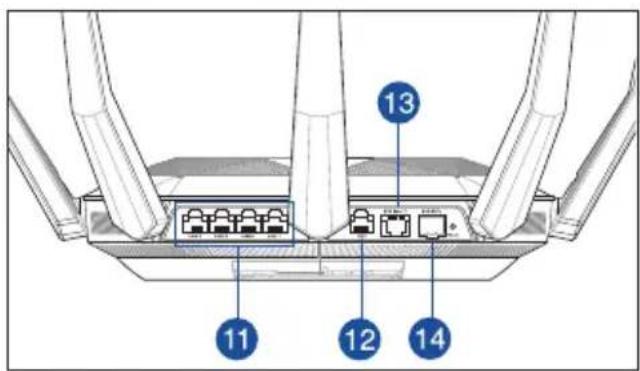
natural_image
Diagram of a wireless router with five ports and four antennas emitting signal waves (no text or labels)NOTLAR:
flowchart
graph TD
    A["Laptop"] -->|2| B["LAN"]
    B --> C["WAN"]
    C --> D["Modem"]
    D --> E["Wall Power Outlet"]
    E --> F["Power"]
    F --> G["Image Panel"]
    style A fill:#f9f,stroke:#333
    style B fill:#ccf,stroke:#333
    style C fill:#cfc,stroke:#333
    style D fill:#fcc,stroke:#333
    style E fill:#cff,stroke:#333
    style F fill:#ffc,stroke:#333
    style G fill:#fcc,stroke:#333
flowchart
graph TD
    A["Smart phone"] --> B["WiFi"]
    C["Tablet"] --> B
    D["Laptop"] --> B
    B --> E["Modem"]
    E --> F["Wall Power Outlet"]
    F --> G["Power"]
    G --> H["Image of wall outlet"]
    style A fill:#f9f,stroke:#333
    style C fill:#f9f,stroke:#333
    style D fill:#f9f,stroke:#333
    style B fill:#ccf,stroke:#333
    style E fill:#ccf,stroke:#333
    style F fill:#cfc,stroke:#333
    style G fill:#fcc,stroke:#333
    style H fill:#ffc,stroke:#333
Download on the App Store

ASUS Router
natural_image
Diagram of a router with three Ethernet ports and an internal port, labeled with number 11 (no text or symbols beyond label)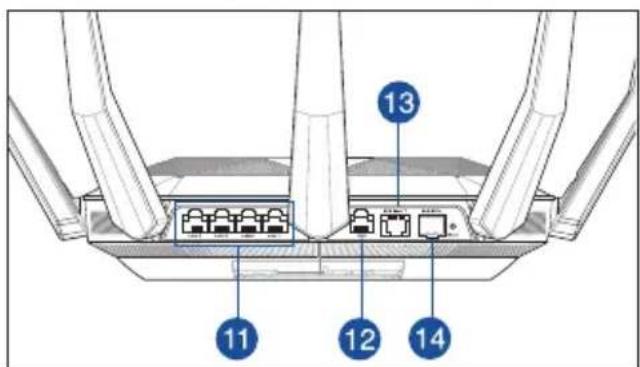
natural_image
Diagram of a wireless router with five ports and signal waves (no text or labels)ПРИМІТКИ:
flowchart
graph TD
    A["Laptop"] -->|LAN| B["Router"]
    B -->|WAN| C["Modem"]
    C --> D["Wall Power Outlet"]
    D --> E["Power"]
    E --> F["Diagram of Wall Power Outlet"]
    style A fill:#f9f,stroke:#333
    style B fill:#ccf,stroke:#333
    style C fill:#cfc,stroke:#333
    style D fill:#fcc,stroke:#333
    style E fill:#cff,stroke:#333
    style F fill:#ffc,stroke:#333
flowchart
graph TD
    A["Smart phone"] --> B["Router"]
    C["Tablet"] --> B
    D["Laptop"] --> B
    B --> E["Modem"]
    E --> F["Wall Power Outlet"]
    F --> G["Power"]
    G --> H["Image of Wall Power Outlet"]
    style A fill:#f9f,stroke:#333
    style C fill:#f9f,stroke:#333
    style D fill:#f9f,stroke:#333
    style B fill:#ccf,stroke:#333
    style E fill:#cff,stroke:#333
    style F fill:#ffc,stroke:#333
    style G fill:#cfc,stroke:#333
    style H fill:#fcc,stroke:#333
Download at the App Store

ASUS Router
ASUS recycling and takeback programs come from our commitment to the highest standards for protecting our environment. We believe in providing solutions for you to be able to responsibly recycle our products, batteries, other components, as well as the packaging materials. Please go to http://csr.asus.com/english/Takeback.htm for the detailed recycling information in different regions.
REACH
Complying with the REACH (Registration, Evaluation, Authorisation, and Restriction of Chemicals) regulatory framework, we published the chemical substances in our products at ASUS REACH website at http://csr.asus.com/english/REACH.htm
Federal Communications Commission Statement
This device complies with Part 15 of the FCC Rules. Operation is subject to the following two conditions:
• This device may not cause harmful interference.
- This device must accept any interference received, including interference that may cause undesired operation.
This equipment has been tested and found to comply with the limits for a class B digital device, pursuant to part 15 of the FCC Rules. These limits are designed to provide reasonable protection against harmful interference in a residential installation.
This equipment generates, uses and can radiate radio frequency energy and, if not installed and used in accordance with the instructions, may cause harmful interference to radio communications. However, there is no guarantee that interference will not occur in a particular installation. If this equipment does cause harmful interference to radio or television reception, which can be determined by turning the equipment off and on, the user is encouraged to try to correct the interference by one or more of the following measures:
• Reorient or relocate the receiving antenna.
- Increase the separation between the equipment and receiver.
- Connect the equipment into an outlet on a circuit different from that to which the receiver is connected.
- Consult the dealer or an experienced radio/TV technician for help.

WARNING! Any changes or modifications not expressly approved by the party responsible for compliance could void the user's authority to operate the equipment.
Prohibition of Co-location
This device and its antenna(s) must not be co-located or operating in conjunction with any other antenna or transmitter.
IMPORTANT NOTE:
Radiation Exposure Statement: This equipment complies with FCC radiation exposure limits set forth for an uncontrolled environment. End users must follow the specific operating instructions for satisfying RF exposure compliance. To maintain compliance with FCC exposure compliance requirement, please follow operation instruction as documented in this manual.

WARNING! This equipment must be installed and operated in accordance with provided instructions and the antenna(s) used for this transmitter must be installed to provide a separation distance of at least 20 cm from all persons and must not be co-located or operating in conjunction with any other antenna or transmitter.
Compliance Statement of Innovation, Science and Economic Development Canada (ISED)
This device complies with Innovation, Science and Economic Development Canada licence exempt RSS standard(s). Operation is subject to the following two conditions: (1) this device may not cause interference, and (2) this device must accept any interference, including interference that may cause undesired operation of the device.
Operation in the band 5150–5250 MHz is only for indoor use to reduce the potential for harmful interference to co-channel mobile satellite systems.
CAN ICES-3(B)/NMB-3(B)
Radio Frequency (RF) Exposure Information
The radiated output power of the ASUS Wireless Device is below the Innovation, Science and Economic Development Canada radio frequency exposure limits. The ASUS Wireless Device should be used in such a manner such that the potential for human contact during normal operation is minimized.
This equipment should be installed and operated with a minimum distance of 20 cm between the radiator any part of your body.
This device has been certified for use in Canada. Status of the listing in the Innovation, Science and Economic Development Canada's REL (Radio Equipment List) can be found at the following web address:
http://www.ic.gc.ca/eic/site/ceb-bhst.nsf/eng/h_tt00020.html
Additional Canadian information on RF exposure also can be found at the following web:
https://www.ic.gc.ca/eic/site/smt-gst.nsf/eng/sf08792.html
Precautions for the use of the device
a. Pay particular attention to the personal safety when use this device in airports, hospitals, gas stations and professional garages.
b. Medical device interference: Maintain a minimum distance of at least 15 cm (6 inches) between implanted medical devices and ASUS products in order to reduce the risk of interference.
c. Kindly use ASUS products in good reception conditions in order to minimize the radiation's level.
d. Keep the device away from pregnant women and the lower abdomen of the teenager.
https://www.asus.com/support/
English
CE statement
Simplified EU Declaration of Conformity
ASUSTek Computer Inc. hereby declares that this device is in compliance with the essential requirements and other relevant provisions of Directive 2014/53/EU. Full text of EU declaration of conformity is available at https://www.asus.com/Networking/RTAX89X/HelpDesk/.
Declaration of Conformity for Ecodesign directive 2009/125/EC
Testing for eco-design requirements according to (EC) No 1275/2008 and (EU) No 801/2013 has been conducted. When the device is in Networked Standby Mode, its I/O and network interface are in sleep mode and may not work properly. To wake up the device, press the Wi-Fi on/off, LED on/off, reset, or WPS button. This equipment complies with EU radiation exposure limits set forth for an uncontrolled environment. This equipment should be installed and operated with minimum distance 20 cm between the radiator & your body. All operational modes:
2.4GHz: 802.11b, 802.11g, 802.11n (HT20), 802.11n (HT40), 802.11ac (VHT20), 802.11ac (VHT40)
5GHz: 802.11a, 802.11n (HT20), 802.11n (HT40), 802.11ac (VHT20), 802.11ac (VHT40), 802.11ac (VHT80)
The frequency, mode and the maximum transmitted power in EU are listed below:
2412-2472MHz (802.11g 6Mbps): 19.81 dBm
5180-5240MHz (802.11ac VHT20 MCS0): 20.1 dBm
5260-5320MHz (802.11ac VHT40 MCS0): 21.31 dBm
5500-5700MHz (802.11ac VHT80 MCS0): 27.48 dBm
The device is restricted to indoor use only when operating in the 5150 to 5350 MHz frequency range.
The adapter shall be installed near the equipment and shall be easily accessible.
 | AT BE BG CZ DK EE FR | ||||||
| DE IS IE IT EL ES CY | |||||||
| LV | LI | LT | LU | HU | MT | NL | |
| NO PL PT RO SI | SK TR | ||||||
| FI | SE CH UK HR | ||||||
Safety Notices
- Use this product in environments with ambient temperatures between 0^(32^) and 40^(104^) .
• Refer to the rating label on the bottom of your product and ensure your power adapter complies with this rating.
• DO NOT place on uneven or unstable work surfaces. Seek servicing if the casing has been damaged.
• DO NOT place or drop objects on top and do not shove any foreign objects into the product. - DO NOT expose to or use near liquids, rain, or moisture. DO NOT use the modem during electrical storms.
• DO NOT cover the vents on the product to prevent the system from getting overheated.
• DO NOT use damaged power cords, accessories, or other peripherals. - If the Adapter is broken, do not try to fix it by yourself. Contact a qualified service technician or your retailer.
- To prevent electrical shock hazard, disconnect the power cable from the electrical outlet before relocating the system.
Bulgarian
- Table of contents
- Position your wireless router
- NOTES:
- Preparing your modem
- Setting up your RT-AX89X
- Wired connection
- Wireless connection
- Remembering your wireless router settings
- FAQ
- Бърз преглед
- ЗАБЕЛЕЖКА:
- REMARQUES :
- NAPOMENE:
- Pripremanje modema
- Postavljanje uređaja RT-AX89X
- Bežična veza
- ČPP
- Obsah krabice
- POZNÁMKA:
- FAQ (ODPOVĚDI NA ČASTÉ DOTAZY)
- BEMÆRKNINGE:
- Sådan indstilles din router
- OPMERKING:
- De router installeren
- MÄRKUSED:
- HUOMAA:
- HINWEISE:
- MEGJEGYZÉSEK:
- Az beállítása
- NOTE:
- MERKNADER:
- Sette opp RT-AX89X
- NOTAS:
- Configurar o RT-AX89X
- UWAGI:
- ПРИМЕЧАНИЯ:
- Настройка RT-AX89X
- Configurar el RT-AX89X
- Postavljanje vašeg bežičnog rutera
- Priprema vašeg modema
- Često postavljana pitanja (FAQs)
- OPOMBE:
- ANMÄRKNINGAR:
- Vanliga frågor
- NOTLAR:
- ПРИМІТКИ:
- REACH
- Federal Communications Commission Statement
- Prohibition of Co-location
- IMPORTANT NOTE:
- Compliance Statement of Innovation, Science and Economic Development Canada (ISED)
- Radio Frequency (RF) Exposure Information
- Precautions for the use of the device
- English
- CE statement
- Simplified EU Declaration of Conformity
- Declaration of Conformity for Ecodesign directive 2009/125/EC
- Safety Notices
- Bulgarian
Brand : ASUS
Model : RT-AX89X
Category : Router