
Lifestyle 550 - Home Theater BOSE - Free user manual and instructions
Find the device manual for free Lifestyle 550 BOSE in PDF.


| Product Type | Home Cinema 5.1 |
| Brand | Bose |
| Model | Lifestyle 550 |
| Console power supply | 10 V DC, 3.3 A / 44 V DC, 1.25 A |
| Power supply bass module | 100-240 V, 50/60 Hz, 180 W |
| Standby consumption | ≤ 0.5 W (standby), ≤ 2.0 W (network standby) |
| Wireless connectivity | Wi-Fi, Bluetooth, NFC |
| Wired connectivity | HDMI (ARC), 3.5 mm auxiliary input, optical, Ethernet |
| Speakers | 5 Virtually Invisible series II speakers + Acoustimass wireless bass module |
| Main features | UNIFY integration system, ADAPTiQ calibration, SoundTouch app, RF remote control, presets, Spotify compatibility, Deezer, etc. |
| Audio formats | Dolby Audio, DTS Digital Surround |
| Maintenance | Clean with a soft, dry cloth. Do not use solvents or aerosols. |
| Safety | Do not expose to water, do not block ventilation openings, use only the supplied adapter. |
| Repairability | Refer all repairs to qualified personnel. Limited warranty included. |
| Spare parts | Contact Bose customer service. Remote control batteries: 4 x AA (LR6). |
| General information | Manufactured by Bose Corporation. Year of manufacture indicated by the 8th digit of the serial number. |
Frequently Asked Questions - Lifestyle 550 BOSE
User questions about Lifestyle 550 BOSE
0 question about this device. Answer the ones you know or ask your own.
Ask a new question about this device
Download the instructions for your Home Theater in PDF format for free! Find your manual Lifestyle 550 - BOSE and take your electronic device back in hand. On this page are published all the documents necessary for the use of your device. Lifestyle 550 by BOSE.
USER MANUAL Lifestyle 550 BOSE
natural_image
Black Boise Audio System with various speakers and a large central speaker (no visible text or symbols)OWNER'S GUIDE
Please read and keep all safety, security, and use instructions.

Bose Corporation hereby declares that this product is in compliance with the essential requirements and other relevant provisions of Directive 2014/53/EU and all other applicable EU directive requirements. The complete declaration of conformity can be found at: www.Bose.com/compliance
Important Safety Instructions
- Read these instructions.
- Keep these instructions.
- Heed all warnings.
- Follow all instructions.
- Do not use this apparatus near water.
- Clean only with a dry cloth.
- Do not block any ventilation openings. Install in accordance with the manufacturer's instructions.
- Do not install near any heat sources such as radiators, heat registers, stoves, or other apparatus (including amplifiers) that produce heat.
-
Protect the power cord from being walked on or pinched particularly at plugs, convenience receptacles, and the point where they exit from the apparatus.
-
Only use attachments/accessories specified by the manufacturer.
-
Unplug this apparatus during lightning storms or when unused for long periods of time.
-
Refer all servicing to qualified personnel. Servicing is required when the apparatus has been damaged in any way, such as power-supply cord or plug is damaged, liquid has been spilled or objects have fallen into the apparatus, the apparatus has been exposed to rain or moisture, does not operate normally, or has been dropped.

This symbol on the product means there is uninsulated, dangerous voltage within the product enclosure that may present a risk of electrical shock.

This symbol means there are important operating and maintenance instructions in this guide.

Contains small parts which may be a choking hazard. Not suitable for children under age 3.

This product contains magnetic material. Consult your physician on whether this might affect your implantable medical device.

This product contains a tempered glass surface. Use caution to avoid impact. In the event of breakage, use care in handling broken glass.
- To reduce the risk of fire or electrical shock, do NOT expose this product to rain, liquids or moisture.
- Do NOT expose this product to dripping or splashing, and do not place objects filled with liquids, such as vases, on or near the product.
- Keep the product away from fire and heat sources. Do NOT place naked flame sources, such as lighted candles, on or near the product.
- Do NOT make unauthorized alterations to this product.
- Do NOT use a power inverter with this product.
- Do NOT use in vehicles or boats.
- The speaker wire and interconnect cables included with this system are not approved for in-wall installation. Please check your local building codes for the correct type of wire and cable required for in-wall installation.
- Use this product only with the power supply provided.
- Where the mains plug or an appliance coupler is used as the disconnect device, the disconnect device shall remain readily operable.
- Due to ventilation requirements, Bose does not recommend placing the product in a confined space such as in a wall cavity or in an enclosed cabinet.
- Do not place or install the bracket or product near any heat sources, such as fireplaces, radiators, heat registers or other apparatus (including amplifiers) that produce heat.
- The product label is located on the bottom of the console.
NOTE: This equipment has been tested and found to comply with the limits for a Class B digital device, pursuant to Part 15 of the FCC Rules. These limits are designed to provide reasonable protection against harmful interference in a residential installation. This equipment generates, uses, and can radiate radio frequency energy and, if not installed and used in accordance with the instructions, may cause harmful interference to radio communications. However, there is no guarantee that interference will not occur in a particular installation. If this equipment does cause harmful interference to radio or television reception, which can be determined by turning the equipment off and on, the user is encouraged to try to correct the interference by one or more of the following measures:
- Reorient or relocate the receiving antenna.
- Increase the separation between the equipment and receiver.
- Connect the equipment into an outlet on a circuit different from that to which the receiver is connected.
- Consult the dealer or an experienced radio/TV technician for help.
Changes or modifications not expressly approved by Bose Corporation could void the user's authority to operate this equipment.
This device complies with part 15 of the FCC Rules and with ISED Canada license-exempt RSS standard(s). Operation is subject to the following two conditions: (1) This device may not cause harmful interference, and (2) this device must accept any interference received, including interference that may cause undesired operation.
This device for operation in the 5150 - 5250 MHz is only for indoor use to reduce the potential for harmful interference to co-channel mobile satellite systems.
This device complies with FCC and ISED Canada radiation exposure limits set forth for general population.
This equipment should be installed and operated with a minimum distance of 20 cm between radiator and your body.
This transmitter must not be co-located or operating in conjunction with any other antenna or transmitter.
This device is restricted to indoor use when operating in the 5150 to 5350 MHz frequency range in all EU Member States listed in the table.
 | ||||||||
| BE DK IE | UK FR CY SK HU | AT SE | ||||||
| BG DE PT | EL HR LV LT MT | PL | ||||||
| CZ EE FI | ES IT RO LU NL SI | |||||||
This symbol means the product must not be discarded as household waste, and should be delivered to an appropriate collection facility for recycling. Proper disposal and recycling helps protect natural resources, human health and the environment. For more information on disposal and recycling of this product, contact your local municipality, disposal service, or the shop where you bought this product.
Management Regulation for Low-power Radio-frequency Devices
Article XII
According to “Management Regulation for Low-power Radio-frequency Devices” without permission granted by the NCC, any company, enterprise, or user is not allowed to change frequency, enhance transmitting power or alter original characteristic as well as performance to an approved low power radio-frequency devices.
Article XIV
The low power radio-frequency devices shall not influence aircraft security and interfere legal communications; If found, the user shall cease operating immediately until no interference is achieved. The said legal communications means radio communications operated in compliance with the Telecommunications Act.
The low power radio-frequency devices must be susceptible with the interference from legal communications or ISM radio wave radiated devices.
CAN ICES-3(B)/NMB-3(B)
For Europe:
Frequency bands of operation 2400 to 2483.5 MHz, 5150 to 5350 MHz, and 5470 to 5725 MHz.
Maximum transmit power less than 20 dBm EIRP.
Frequency band of operation 5725 to 5850 MHz.
Maximum transmit power less than 14 dBm (25mW) EIRP.
Remote Control:
Frequency band of operation 2400 to 2483.5 MHz.
Maximum transmit power less than 10 dBm (10mW) EIRP.
Maximum transmit power is below regulatory limits such that SAR testing is not necessary and exempt per applicable regulations.
Product Power State Table
The product, in accordance with the Ecodesign Requirements for Energy Related Products Directive 2009/125/EC, is in compliance with the following norm(s) or document(s): Regulation (EC) No. 1275/2008, as amended by Regulation (EU) No. 801/2013.
| Required Power State Information | Power Modes | |
| Standby Networked | Standby | |
| Power consumption in specified power mode, at 230V/50Hz inputTime after which equipment is automatically switched into mode < 2.5 hoursPower consumption in networked standby if all wired network ports are connected and all wireless network ports are activated, at 230V/50Hz input | ≤ 0.5 W All network typesN/A | ≤ 2.0 W≤ 20 minutes≤ 2.0 W |
| Network port deactivation/activation procedures. Deactivating all networks will enable standby mode. | Wi-FI®: Deactivate by pressing and holding the Source button on the console for 10 seconds. Repeat to activate Wi-FI®.Bluetooth®: Deactivate by clearing the pairing list via the on-screen menu, the remote screen, or the SoundTouch application. Activate by pairing with a Bluetooth® source.Ethernet: Deactivate by removing the Ethernet cable. Activate by inserting the Ethernet cable. | |
External Power Supply Technical Information
The external power supply provided with the product, in accordance with the Ecodesign Requirements for Energy Related Products Directive 2009/125/EC, is in compliance with the following norms(s) or documents(s): Commission Regulation (EU) 2019/1782.
| Manufacturer Bose Products B.V. | |
| Commercial registration number | 36037901 |
| Address | Gorslaan 601441 RG PurmerendThe Netherlands |
| Model identifier S088AP44001252 | |
| Input voltage 100V-240V | |
| Input AC frequency 50Hz/60Hz | |
| Output voltage | 44V DC10V DC |
| Output current | 1.3A3.3A |
| Output power | 55W33W |
| Average active efficiency | 88.6% |
| Efficiency at low load (10%) | 87.2% |
| No-load power consumption | 0.11W |
| Manufacturer Bose Products B.V. | |
| Commercial registration number | 36037901 |
| Address | Gorslaan 601441 RG PurmerendThe Netherlands |
| Model identifier PSM88W-213 | |
| Input voltage 100V-240V | |
| Input AC frequency 50Hz/60Hz | |
| Output voltage | 44V DC10V DC |
| Output current | 1.3A3.3A |
| Output power | 55W33W |
| Average active efficiency | 88.0% |
| Efficiency at low load (10%) | 79.0% |
| No-load power consumption | 0.17W |
Date of Manufacture: The eighth digit in the serial number indicates the year of manufacture; "0" is 2010 or 2020.
EU Importer: Bose Products B.V., Gorslaan 60, 1441 RG Purmerend, The Netherlands
The CMIIT ID is located on the bottom of the product.
Please complete and retain for your records
The serial and model numbers are located on the side of the carton.
Serial number:
Model number:
Please keep your receipt with your owner's guide. Now is a good time to register your Bose product.
You can easily do this by going to global.Bose.com/register
The Bose Privacy Policy is available on the Bose website.
Security Information

This product is capable of receiving automatic security updates from Bose. To receive automatic security updates, you must complete the product setup process in the SoundTouch app and connect the product to the Internet. If you do not complete the setup process, you will be responsible for installing security updates that Bose makes available.
Apple and the Apple logo are trademarks of Apple Inc., registered in the U.S. and other countries. App Store is a service mark of Apple Inc.
Amazon, Amazon Music, Kindle, Fire and all related logos are trademarks of Amazon, Inc. or its affiliates.
The Bluetooth® word mark and logos are registered trademarks owned by Bluetooth SIG, Inc. and any use of such marks by Bose Corporation is under license.
Deezer is a registered trademark of Blogmusik SAS.
Dolby Audio
Manufactured under license from Dolby Laboratories. Dolby, Dolby Audio, and the double-D symbol are trademarks of Dolby Laboratories Licensing Corporation.


Digital Surround
For DTS patents, see http://patents.dts.com. Manufactured under license from DTS, Inc. DTS, Digital Surround, and the DTS logo are registered trademarks or trademarks of DTS, Inc. in the United States and other countries. © 2020 DTS, Inc. ALL RIGHTS RESERVED.
Google, Android, and Google Play are trademarks of Google LLC.
HDMI
The terms HDMI and HDMI High-Definition Multimedia Interface, and the HDMI logo are trademarks or registered trademarks of HDMI Licensing LLC in the United States and other countries.
iHeartRadio is a registered trademark of iHeartMedia, Inc.
This product is protected by certain intellectual property rights of Microsoft. Use or distribution of such technology outside of this product is prohibited without a license from Microsoft.
The N-Mark is a trademark or registered trademark of NFC Forum, Inc. in the United States and in other countries.
Pandora, the Pandora logo, and the Pandora trade dress are trademarks or registered trademarks of Pandora Media, Inc. used with permission.
SiriusXM Internet Radio subscription sold separately and available only to those at least 18 years of age residing in the U.S. and Puerto Rico. To subscribe to SiriusXM Internet Radio in the U.S., U.S. customers should visit www.sirius.com or call 1-888-539-7474.
SiriusXM and all related marks and logos are trademarks of Sirius XM Radio Inc. and its subsidiaries. All rights reserved.
SoundTouch and the wireless note design are registered trademarks of Bose Corporation in the U.S. and other countries.
This product incorporates Spotify software which is subject to third-party licenses found here: www.spotify.com/connect/third-party-licenses
Spotify is a registered trademark of Spotify AB.
Designed with UEI Technology™. Under License from Universal Electronics, Inc. © UEI 2000-2016
Wi-Fi is a registered trademark of Wi-Fi Alliance®.
Windows is a registered trademark of Microsoft Corporation in the United States and other countries.
Bose, Acoustimass, ADAPTiQ, Lifestyle, SoundTouch, Unify, Virtually Invisible, and the wireless note design are trademarks of Bose Corporation.
Bose Corporation Headquarters: 1-877-230-5639
©2020 Bose Corporation. No part of this work may be reproduced, modified, distributed, or otherwise used without prior written permission.
You can view the license disclosures that apply to the software packages included with your system through the SoundTouch® app or by using your product's IP address.
SoundTouch® app
- From within the app, select ≡ > Settings > About > Legal.
- Select the applicable license type.
IP address
-
Obtain your product's IP address using one of the following methods:
-
SoundTouch® app: From within the app, select ≡ > Settings > About. Select your system to view the IP address.
- Wireless router: Refer to your router owner's guide for more information.
-
System: On the remote, press the SETUP button. In the UNIFY® menu, select System Info > Network to view the IP address.
-
On a device connected to your wireless network, open a browser window.
-
Go to
/licenses.pdf to view the applicable license disclosures.
Getting Started
Unpacking 10
Layer 1.... 11
Layer 2.... 11
Layer 3.... 12
Layer 4.... 12
Placement guidelines.... 13
Sample system placement.... 14
Setting Up the System
UNIFY ^® system overview 15
UNIFY® setup.... 16
Using the Remote Control
Remote control overview.... 17
Using the SOURCE button.... 18
Function buttons.... 18
Adjusting volume.... 18
Using the MORE button.... 18
The AV OUTPUT menu.... 18
The AV SETTINGS menu.... 19
Remote glow button.... 19
SoundTouch® App Setup
Download and install the SoundTouch ^® app 20
SoundTouch ^® Owner's Center.... 20
Existing SoundTouch® Users
Add the system to an existing account.... 21
Connect the system to a new network.... 21
Preset Personalization
Set a preset.... 22
Play a preset.... 22
Set a preset using your remote control 22
Select a preset using your remote control.... 22
Bluetooth® Technology
Choosing your pairing method.... 23
Connect a mobile device.... 23
Connect a device with NFC.... 24
Control your connected mobile device from the remote control 24
Connect using the Bluetooth feature on your mobile device.... 24
Connect using your remote control 25
Disconnect a mobile device 25
Connect another mobile device.... 25
Reconnect a device.... 25
Clear the system's Bluetooth pairing list 25
Advanced Features
Disabling Wi-Fi ^® capability 26
Re-enabling Wi-Fi capability 26
Updating the system software 26
Getting System Information
System status indicators 27
Console LED indicator.... 27
Acoustimass ^® wireless bass module LED indicator.... 28
Care and Maintenance
Cleaning 29
Customer service 29
Limited warranty 29
Technical information 29
Troubleshooting
Common solutions.... 30
Setting up your IR emitter 33
Checking for sound.... 34
Appendix A: Installation Reference
Front console panel 35
Front Headphones/AUX input.... 35
Front HDMI™ input.... 35
Back console panel 35
Connecting an AC-2 adapter.... 36
Installing the front speakers.... 37
Connecting the front speakers to the console 38
Installing the rear speakers.... 39
Connecting the rear speakers to the console 40
Mounting the speakers.... 40
Appendix B: System Maintenance
Replacing the remote control's batteries 41
Appendix C: Alternative Wired Setup
Unable to connect the Acoustimass ^® wireless bass module with the console...... 42
Unpacking
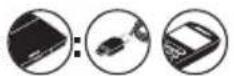
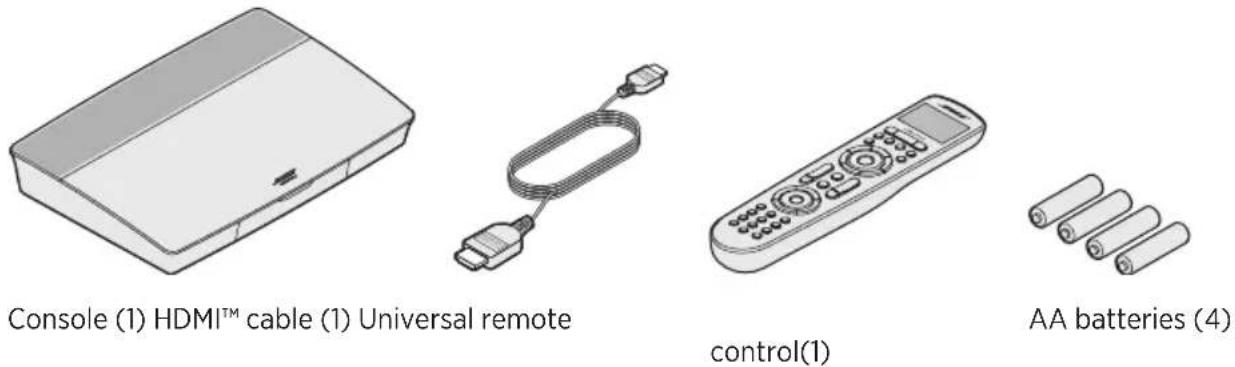
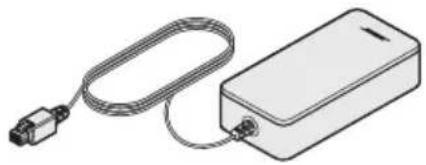
The parts of your new Lifestyle® Home Entertainment System are packaged in four layers, some of which contain multiple boxes of components. Each box is marked by icons to indicate its contents.
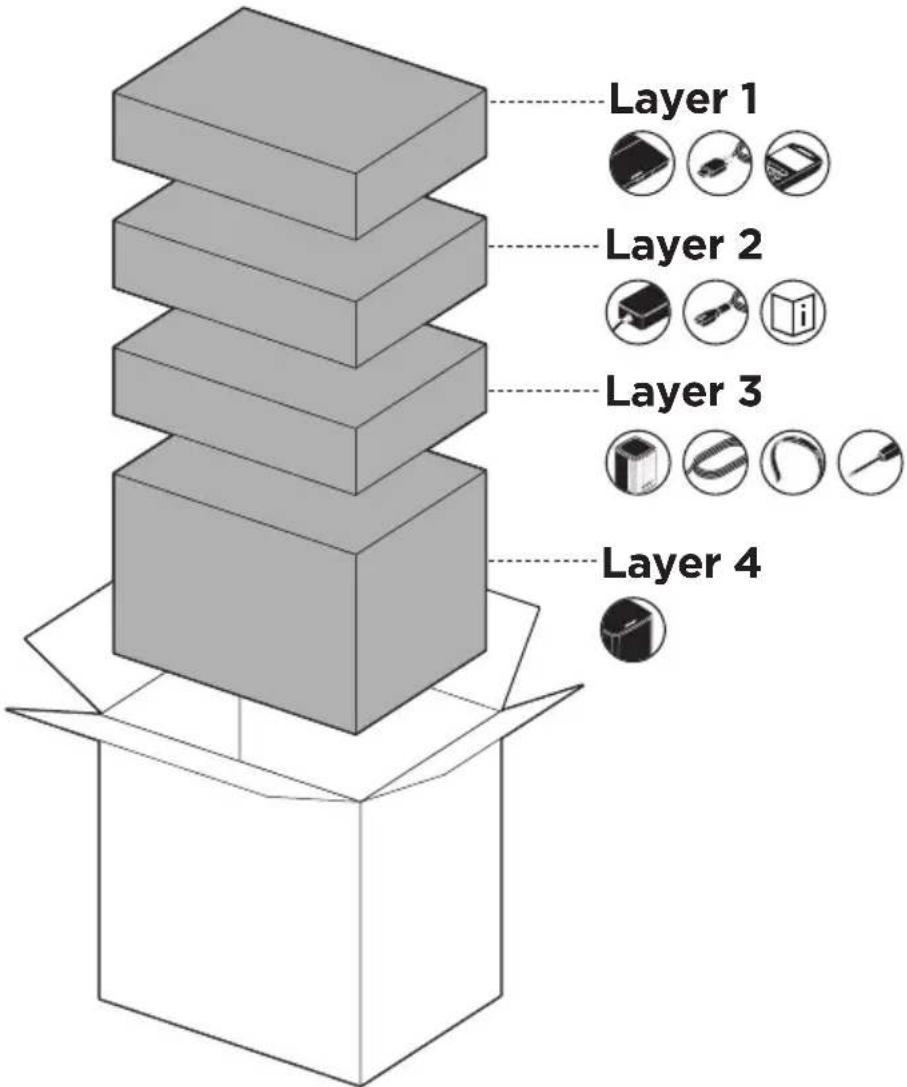
Note: If part of the system is damaged or the glass on your console or Acoustimass® wireless bass module is broken, do not use it. Contact your authorized Bose dealer or Bose customer service.
Layer 1
From box
Layer 2
From box from box :
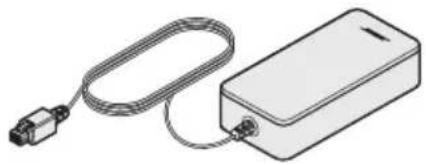
natural_image
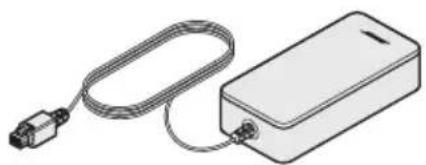
Line drawing of a rectangular electronic device with a coiled cable and connector (no text or symbols)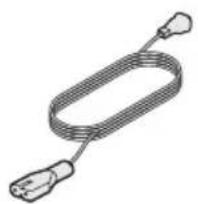
natural_image
Illustration of a coiled cable with two connectors (no text or symbols)
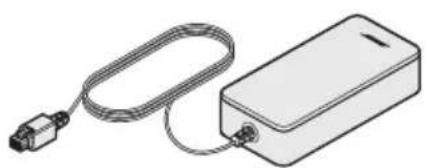
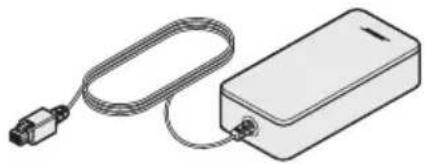
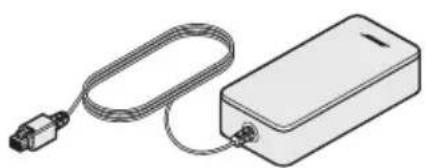
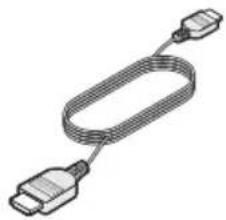
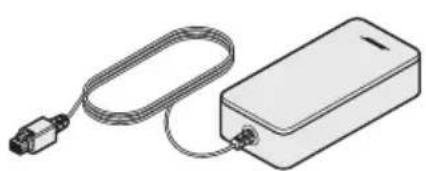
Console power supply (1) Power cords* Owner's guide (1)
*May ship with multiple power cords. Use the power cord for your region.
Layer 3
From box


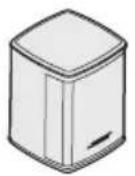
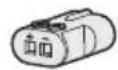
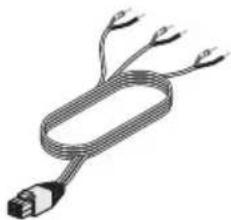
Virtually Invisible ^® series II speakers (5)
natural_image
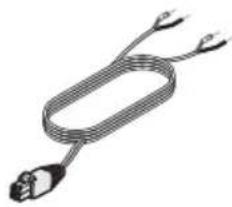
Illustration of a coiled cable with three leads (no text or symbols)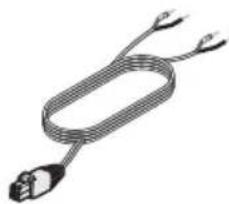
natural_image
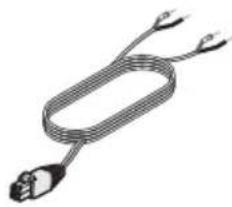
Illustration of a coiled cable or wire with two connectors (no text or symbols)AC-2 adapters (5) Front speaker cable (1) Rear speaker cable (1)
From box


natural_image
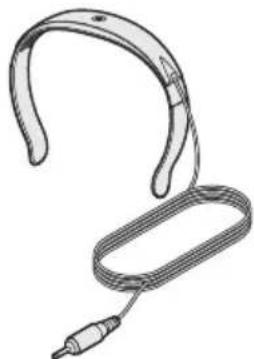
Line drawing of a medical or laboratory device with a curved handle and coiled cable (no text or symbols)ADAPTiQ ^® headset (1)
natural_image
Illustration of a coiled cable with three connectors (no text or symbols)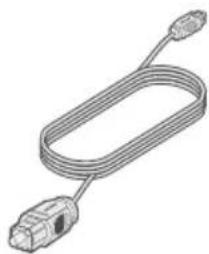
natural_image
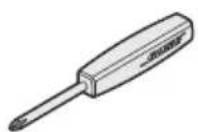
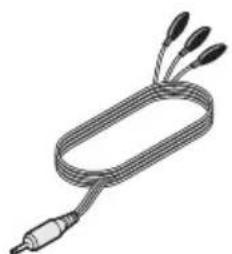
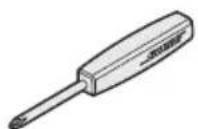
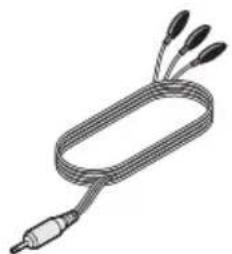
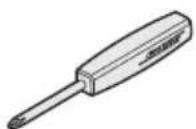
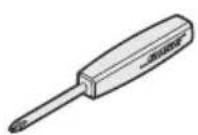
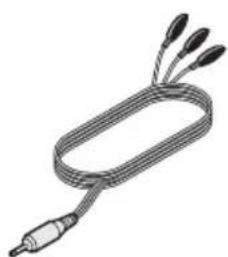
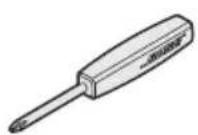
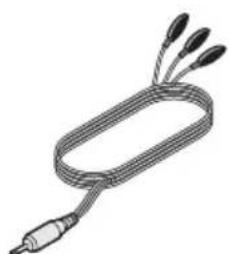
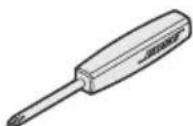
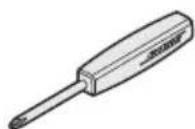
Line drawing of a U-shaped cable with connector ends (no text or symbols)Screwdriver (1) IR emitter (1) Optical cable (1)
Layer 4
From box

natural_image
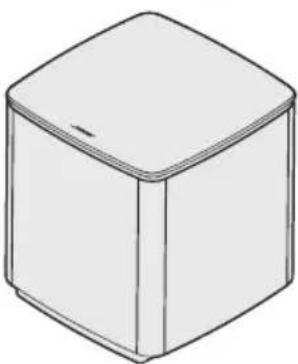
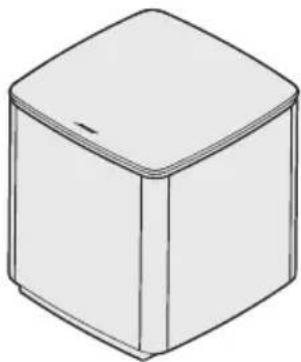
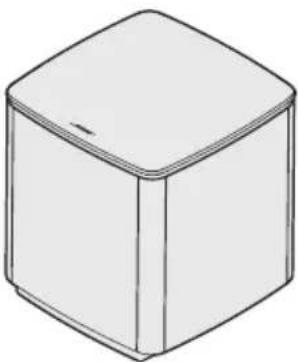
Simple line drawing of a 3D cube with no text or symbolsAcoustimass ^® wireless bass module (1)
Placement guidelines
To avoid interference, keep other wireless equipment 1 – 3 ft. (0.3 – 0.9 m) away from the system. Place your system outside of and away from metal objects and direct heat sources.
| Component Recommended placement | |
| Console | Place the console near your components. The recommended placement is near your TV.Do NOT place the TV or any other components on top of your console.Place your console in a well-ventilated area.Make sure there is an AC (mains) outlet nearby.Note: Until your system is completely installed, keep the control console positioned for easy access to its rear connector panel. |
| Acoustimass®wirelessbass module | Stand the bass module on its rubber feet along the same wall as your TV, or along any other wall in the front third of the room.Choose a stable and level surface. Vibration can cause the bass module to move, particularly on smooth surfaces like marble, glass or highly polished wood.Keep the front side of the bass module at least 3 in. (8 cm) from any other surface. Blocking the port on the bottom of this side can affect acoustic performance.Make sure there is an AC (mains) outlet nearby. |
| Front speakers | Place one speaker to the left and one speaker to the right of the TV.Place the center speaker on a stable and level surface directly above or below your TV.If placing the speakers in an enclosed bookcase shelf, position them at the front edge of the shelf. |
| Rear speakers | Place the rear speakers toward the back of the room behind the viewers at ear height (when seated) or higher, if possible.Place one speaker on the left side and one speaker on the right side.If placing the speakers in an enclosed bookcase shelf, position them at the front edge of the shelf.For a sound that is directed straight at the listener, aim the speakers in towards the listener.For a sound that reflects off the walls to fill the room, aim the speakers out towards a rear or side wall. |
Sample system placement
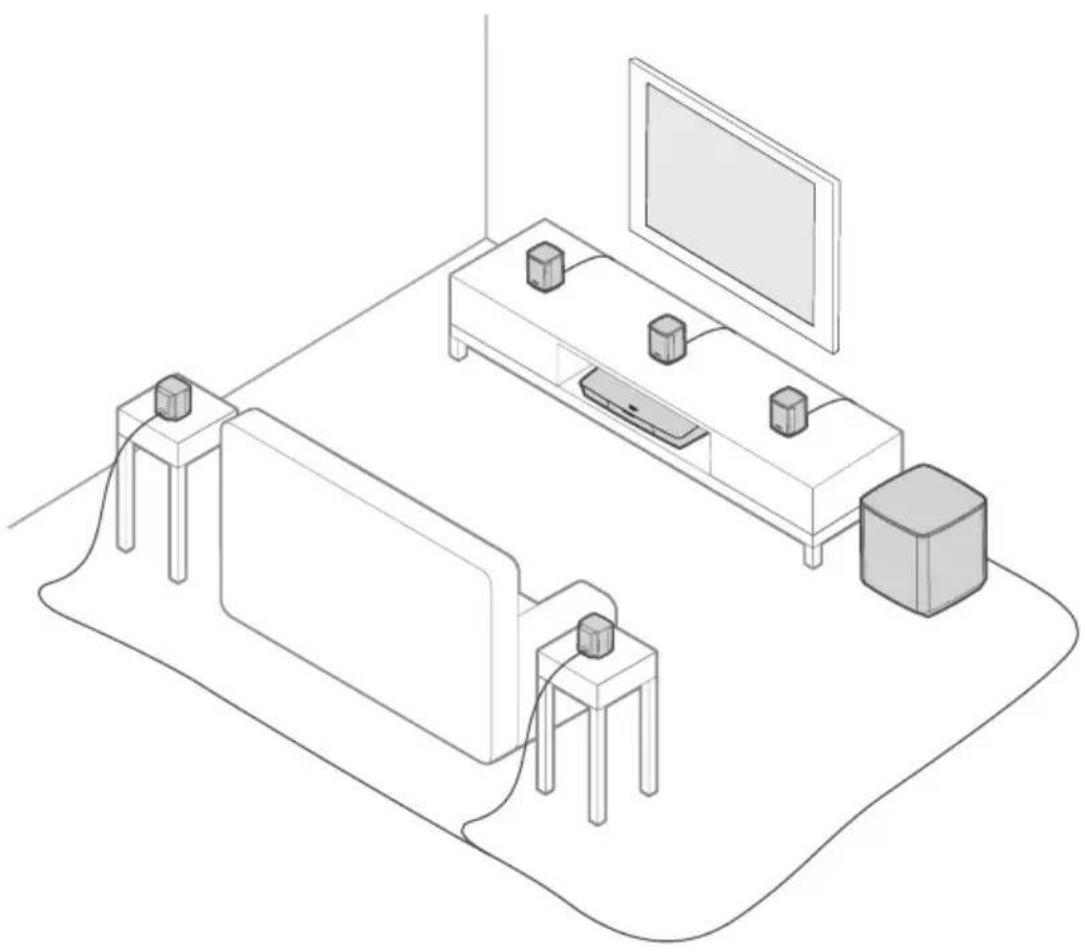
natural_image
Isometric line drawing of a home office setup with TV, sofa, and monitor (no text or symbols)UNIFY® system overview
The UNIFY intelligent integration system guides you through the initial process of setting up and configuring your system. It helps you choose the correct cables and inputs and programs the Bose remote control to operate your connected devices.
Note: Before you begin, make sure you have one hour set aside for system setup.
| Menu item What you can do | |
| Bluetooth Setup Manage your Bluetooth devices. | |
| Device Management Add another device or accessory to your system. | |
| Network Setup Connect your system to your home network. | |
| Software Update Perform a system software update. | |
| Power Macro | Customize the Power button on your remote control to power on/off your system, TV and another HDMITM source simultaneously. |
| Auto-off Disable your system from powering off automatically when there is no signal after 20 minutes. | |
| Headphone Connector | Set the default usage of your front headphones/AUX input (see page 35). |
| CEC Settings Adjust the CEC functionality of your console.Default On: CEC is enabledAlternate On: Prevents CEC-enabled devices from changing the currently selected sourceOff: CEC is turned off | |
| ADAPTiQ® | Start the ADAPTiQ audio calibration process. Once completed, this menu option disables or enables ADAPTiQ. |
| TV Remote Setup Program your remote to control your TV. | |
| Advanced TV Audio Setup | Learn more about HDMI (ARC) and set up your preferred usage. |
| Speaker Management | Revisit your system's speaker setup or add an additional Acoustimass® wireless bass module. |
| Language Select Change the language of the on-screen display. | |
| Tutorial A series of optional procedures to help guide you through the system's key features, such as SoundTouch®. | |
| Exit Close the UNIFY menu. | |
UNIFY® setup
The following steps are part of the initial UNIFY setup process:
| Step Objective | |
| Pair the remote control | Connect the system's remote control to the console. |
| Choose language Select | your language from the on-screen list. |
| Connect to network Select | and connect to your home Wi-Fi network or Ethernet. |
| Software update Update | system software to provide the most current functionality. |
| Wired speakers Connect | the front and rear speakers to the console. |
| Wireless bass module | Connect the Acoustimass® wireless bass module to the console. |
| TV remote Set up the system's remote control to control your TV. | |
| Adding devices Connect | your additional sources. |
| ADAPTiQ®setup | Customizes the sound of the system to the acoustics of your listening area. |
| Tutorial A series of optional procedures to help guide you through the rest of your system's features, such as SoundTouch®. | |
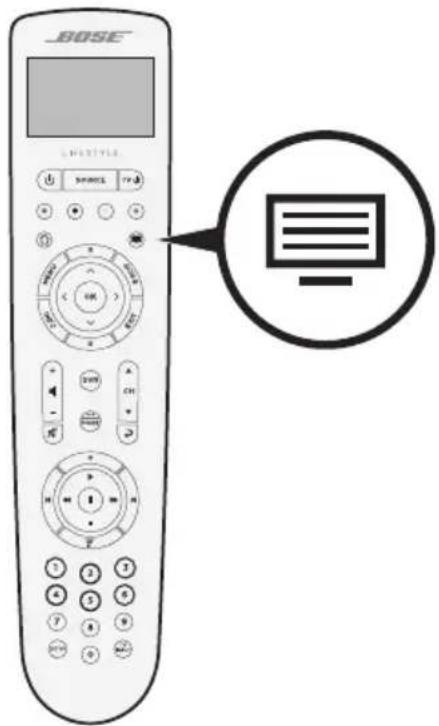
After completing the initial setup, you can access the UNIFY menu at any time to change your system setup and configuration. Press these buttons on the remote control to start UNIFY setup.
Remote control overview
The Bose advanced RF (radio frequency) remote control works from anywhere in your room without requiring you to aim the remote control at the console.
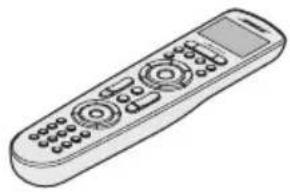
The remote control's display is an essential part of your Lifestyle® experience. It guides you through your sources and system settings.
Note: The Bose remote control does not control functions specific to devices that are connected to the front HDMI™ input.
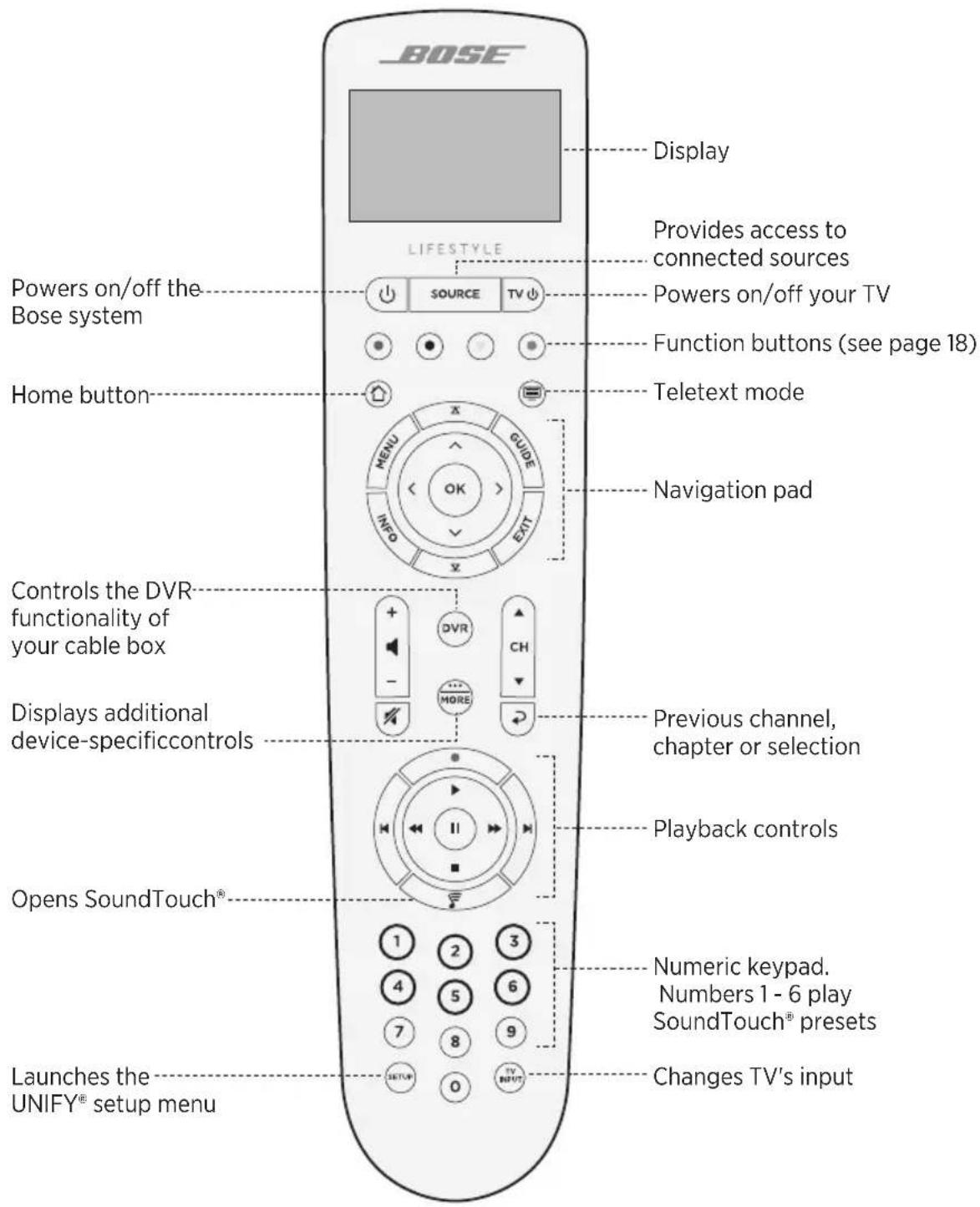
Using the SOURCE button
The SOURCE is used to switch between connected sources. Access sources using the navigation pad on your remote control.
Once a source is highlighted, press OK to select it.
Function buttons
The red, green, yellow and blue buttons on the remote control correspond with the color-coded function buttons on your cable/satellite box or teletext functions.
- Cable/satellite box functions: refer to your cable/satellite box owner's guide.
- Teletext functions: correspond with color-coded page numbers, headings or shortcuts on a teletext display.
Adjusting volume
To see your volume level, refer to your remote control's display.
- Press + to increase the volume.
- Press – to decrease the volume.
- Press to mute or unmute the audio.
Note: If you still hear audio from your TV's speakers after setting up your system, disable the speakers through your TV's settings menu.
Using the MORE button
The MORE button ⓤets you access additional selections through the remote control's display that pertain to your currently-selected source, as well as other system control functionality.
- Press MORE
- Press ▲ to select a function on your remote control's display.
- Press OK.
The AV OUTPUT menu
The AV OUTPUT menu displays the current video resolution, frame rate, audio format and number of audio channels for the currently selected source.
- Press on your remote control.
- Select AV OUTPUT.
- Press the OK button.
- Press EXIT.
The AV SETTINGS menu
The AV SETTINGS menu lets you adjust certain system settings. The number of items that appear depends on the currently-selected source. To access the menu:
- Press on your remote control.
- Select AV SETTINGS.
- Press the OK button to display the AV SETTINGS menu for the current source.
- Press ▲ to highlight the option you want to change.
- Press OK to select the setting.
- Press EXIT when done.
| AV setting Objective | |
| SYSTEM AV Adjust your system's treble, bass, center and surround audio levels. | |
| SOURCE AV | AUDIO:-Normal mode provides balanced playback for most listeningsituations.-Dialogue mode enhances speech clarity.-Night mode adjusts dialog and volume during loud scenes.-Direct mode is designed for the purest, most life-like audio experience; recommended for listening to music.AV SYNC:Adjust the timing between your device's audio and video.AUDIO TRACK:Select between multiple language tracks. |
| NOTIFICATION Enables a flash on your remote control's display to notify you when an input is required. | |
| RESTORE DEFAULTS | Restores your audio to default values. |
| REMOTE INFO Displays your remote control's serial number and software version. | |
Remote glow button
Press - on the rear of the remote control to illuminate the button backlighting for dark viewingsituations.
The SoundTouch ^® app lets you set up and control SoundTouch ^® from your smartphone, tablet or computer. Using the app, your smart device acts as a remote for your console.
From the app, you can manage your SoundTouch® settings, add music services, explore local and global Internet radio stations, set and change presets and stream music. New features are added periodically.
Note: If you have already set up SoundTouch ^® for another system, see page 21.
Download and install the SoundTouch® app
On your smartphone or tablet, download the Bose SoundTouch ^® app.
SoundTouch® app
- Apple users: download from the App Store
- Android™ users: download from the Google Play™ store
- Amazon Kindle Fire users: download from the Amazon Appstore for Android


Follow the instructions in the app to complete setup, including adding the speaker to your Wi-Fi network, creating a SoundTouch account, adding a music library and using music services.
Once you set up the speaker on your home Wi-Fi network, you can control it from any smartphone or tablet on the same network.
Notes:
- You must use the same SoundTouch® account for all devices connected to your console.
- If you have already added your system to your Wi-Fi network, select SYSTEM ALREADY ON NETWORK when prompted in the app.
SoundTouch® Owner's Center
worldwide.Bose.com/Support/LS550
This website provides access to the owner support center, which includes: owner's manuals, articles, tips, tutorials, a video library, and the owner community where you can post questions and answers.
Add the system to an existing account
If you have already set up SoundTouch® on another system, you do not need to download the SoundTouch® app again.
From within the app, select > Settings > Add or Reconnect Speaker.
The app guides you through setup.
Connect the system to a new network
If your network information changes, add your system to your new network. You can do this by putting your system into setup mode.
- From within the app, select > Settings > System Speaker and select your system.
- Select CONNECT SPEAKER.
The app guides you through setup.
You can personalize six presets to your favorite streaming music services, stations, playlists, artists, albums or songs from your music library. You can access your music, at any time, with a simple touch of a button using the SoundTouch® app.
Before using presets, note the following:
- You can set presets from the app and the remote control.
- If the preset source is your music library, make sure the computer storing your music library is on and connected to the same network as the SoundTouch® console.
- You cannot set presets to a Bluetooth stream or cabled mobile device.
Set a preset
- Stream music using the app.
- While the music is playing, press and hold a preset in the app.
Play a preset
Once you personalize your presets, press a preset in the app to play it.
Set a preset using your remote control
- Press the 📞 on your remote control to access the SoundTouch ^® source.
- Press and hold a number (from 1 - 6) on the numeric keypad to assign a new preset. A tone notifies you that a new preset has been set.
Select a preset using your remote control
- Assign your favorite stations as presets within the app.
- Press the SoundTouch ^® button on your remote control to switch to the SoundTouch source.
- Select a preset by pressing a number (1 - 6) on the numeric keypad.
Bluetooth wireless technology lets you stream music from Bluetooth smartphones, tablets, computers or other devices to your console. Before you can stream music from a mobile device, you must connect the mobile device with your console.
Choosing your pairing method
You can connect your mobile device with the console using Bluetooth wireless technology or Near Field Communication (NFC).
What is NFC?
NFC is a technology that enables devices to establish wireless communication with each other by simply tapping the devices together. Refer to your device owner's guide to see if your model supports NFC.
| If your device does not support NFC or if you are unsure: | Follow the instructions for “Connect your mobile device.” |
| If your device supports NFC: Follow the instructions for “Connect a device with NFC” on page 24. | |
Note: If your device supports Bluetooth pairing via NFC, you can use either pairing method.
Connect a mobile device
- Press the better in your remote control and select Bluetooth on your remote control's display.
- Follow the on-screen instructions to place your console in pairing mode.
- From within the SoundTouch ^® app, select your system from the device tray.
- Select Bluetooth ✝
- Select CONNECT.
- Select your Lifestyle ^® system from the mobile device list.
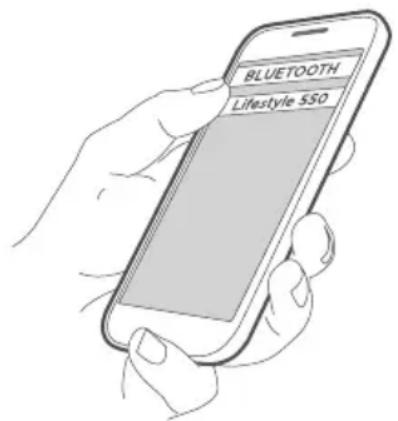
Tip: Look for the name you entered for your system in the app. If you didn't name your system, the default name appears.
Once connected, your system's name appears connected in the device list.
Connect a device with NFC
-
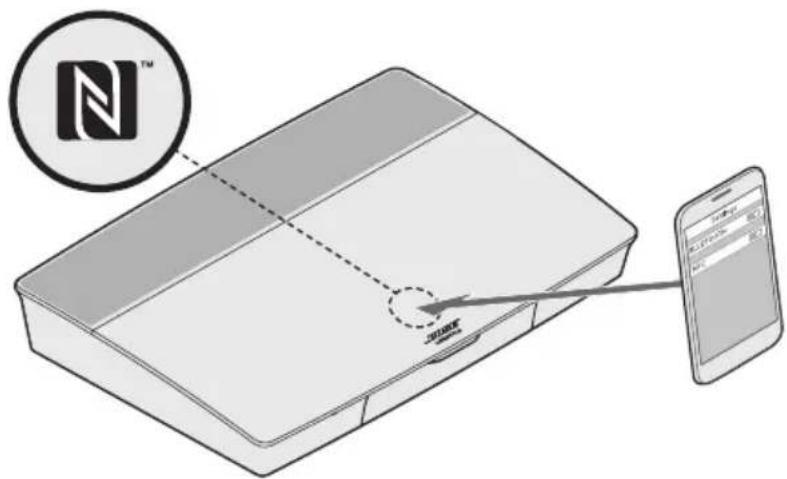
With your system powered on, unlock your device and turn on the Bluetooth and NFC features. Refer to your device owner's guide to learn more about these features.
-
Gently tap the NFC touchpoint on your mobile device to the area above the Bose logo on the top of your Lifestyle® console.
Your mobile device may prompt you to accept pairing.
Control your connected mobile device from the remote control
Once connected, you can use the remote control to access your connected mobile devices. Select Bluetooth from the SOURCE menu. To connect a device, see page 23.
You can use the remote to control the following subset of Bluetooth features on your system:
- Connect devices.
• View available artist information.
• Control playback (play, pause, stop, skip to the next track, etc.). - Clear the pairing list.
Connect using the Bluetooth feature on your mobile device
- On your mobile device, turn on the Bluetooth feature.
Tip: The Bluetooth menu is usually found in the Settings menu.
- Select your system from the mobile device list.
Connect using your remote control
You can stream audio from a device to your console.
- Turn on the Bluetooth feature on your device.
- On your remote control, choose the Bluetooth source through the SOURCE menu.
The console connects to the last device that streamed music to the system. - On the device, play music.
Disconnect a mobile device
Turn off the Bluetooth feature on your mobile device.
Connect another mobile device
To connect another device, press the SETUP button and select Bluetooth Setup (see page 23).
Reconnect a device
- When powered on, the console tries to reconnect with the most recently connected device.
Note: The device must be within range and powered on. - If your device supports NFC, gently tap the NFC touchpoint on your mobile device to the area above the Bose logo on the top of your console.
Clear the system's Bluetooth pairing list
From within the app, select ➞ Settings > Speaker Settings > Select Speaker > Bluetooth > Clear Bluetooth Pairing List > Clear.
The pairing list clears.
You can also clear your system's pairing list on the console.
- Press the SETTUR.
- Select Bluetooth Setup.
- Select Clear Bluetooth pairing list.
Disabling Wi-Fi capability
- Press and hold your console's SOURCE for 10 seconds.
- Release the source
Re-enabling Wi-Fi capability
Your system's Wi-Fi automatically re-enables when powering on your system.
Updating the system software
If your system is connected to your home network, it checks for software updates every time the system is used. If an update is available, it begins downloading automatically.
If an update was fully downloaded, on-screen text prompts you when powering down the console that it is ready to be installed. Your system shuts down automatically afterinstallation.
System status indicators
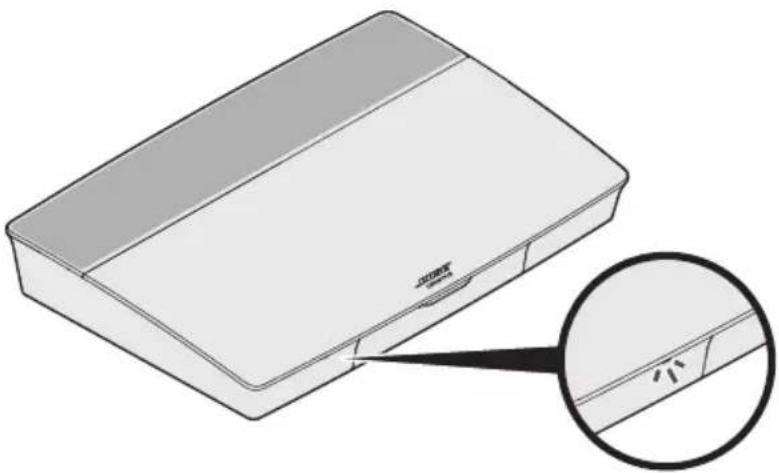
The front of the console has an LED indicator that shows system status. The LED glows according to system state.
Console LED indicator
natural_image
Illustration of a rectangular electronic device with a close-up inset showing a small component labeled '小' (small) (no text or symbols on the device itself)| Indicator activity System state | |
| Off System is off | |
| Blinking white System is powering on | |
| Solid white System powered on | |
| Blinking amber Downloading system software update | |
| Solid amber No network connection | |
| Solid red Firmware error - contact Bose customer service | |
Acoustimass® wireless bass module LED indicator
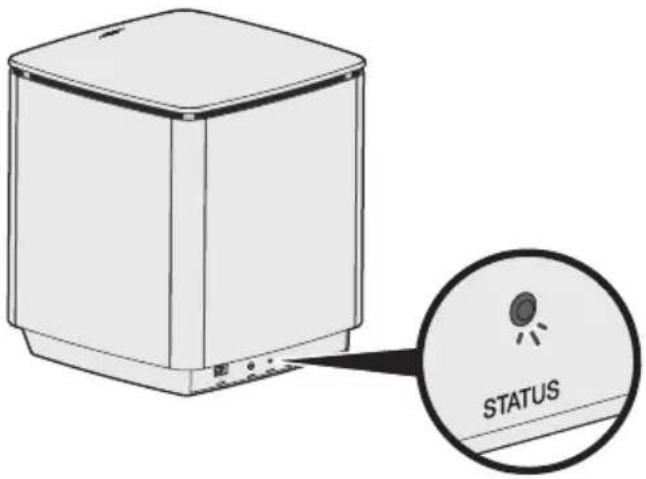
| Indicator activity System state | |
| Blinking amber Ready to connect | |
| Solid white Connected to the console | |
| Solid amber (dim) Disconnected from the console | |
| Blinking white Downloading system software update | |
| Blinking red Firmware error - contact Bose customer service |
Cleaning

Do not allow liquids to spill onto the system or into any openings.
- Clean the exterior of the system with the provided cleaning cloth or another soft, dry cloth.
- Do not use any sprays near the system.
- Do not use any solvents, chemicals or cleaning solutions containing alcohol, ammonia or abrasives.
- Do not allow objects to drop into any openings.
Customer service
For additional help using the system:
- Visit worldwide.Bose.com/Support/LS550
- Contact Bose customer service.
Limited warranty
The system is covered by a limited warranty. Visit our website at global.Bose.com/warranty for details of the limited warranty.
To register your product, visit global.Bose.com/register for instructions. Failure to register will not affect your limited warranty rights.
Technical information
U.S.A./Canada/International:
• Console: 10VDC 3.3A, 44VDC 1.25A
- Acoustimass® wireless bass module: 100-240V 50/60 Hz, 180W
If you experience problems with your home entertainment system:
- Make sure that all system components are connected to an AC (mains) outlet.
- Secure all cables.
- Check the state of system status indicators (see page 27).
- Move the system away from possible interference (wireless routers, cordless phones, televisions, microwaves, etc.).
- Verify the system is within the recommended range of wireless router or mobile device for proper operation.
If you could not resolve your issue, see the table below to identify symptoms and solutions to common problems. If you are unable to resolve your issue, contact Bose customer service.
Common solutions
The following table lists symptoms and possible solutions to common problems.
| Symptom Solution | |
| The system is not responding to initial operation of remote control | Power on the control console manually from the front of the unit by pressing thePowerbutton. Press any button on your remote control. The system status indicator on the control console should blink with each press.Make sure the remote control's batteries are installed correctly and do not need replacement (see page 41).Unplug the power cord for the console, wait 30 seconds and plug it firmly into a live AC (mains) outlet. |
| The remote does not control a device added during initial setup | Connect your IR emitter (see page 33). |
| The TV is still playing sound | Disable your TV speakers through your TV's settings menu. |
| Poor video connection from a source | Press theSETUPon the control console and select your device's setup options. Follow the on-screen instructions to change a video connection. |
| System does not respond • Select a connected device from the menSOURCEUnplug the power cord for the console, wait 30 seconds and plug it firmly into a live AC (mains) outlet. | |
| Problems related to HDMI (ARC) | Make sure that the system's HDMITMCable is inserted into a connector on your TV labeledARCorAudio Return Channel.If your TV does not have an HDMI ARC connector, press theSETUPbutton on the remote control and selectAdvanced TV Audio Setupfrom the UNIFY®menu (see page 15). |
| Problems related to CEC If the | console is connected to your TV's HDMI ARC connector, make sure thatConsumer Electronics Control (CEC)is enabled in your TV system menu. Your TV may refer to CEC by a different name.For more information, refer to your TV owner's guide or press theSETUPbutton on the remote control and selectCEC Settingsfrom the UNIFY®menu (see page 15). |
| A connected device switches on its own | Press theSETUPon the remote control andselectAlternate Onfrom the CEC Settings UNIFY®menu item (see page 15). |
| No sound from the system | Increase the volume.Press theMutebutton%on the remote control to make sure the system is not muted.Make sure you have selected the correct source.Cycle through and test different sources.Make sure that the HDMITMCable is inserted into a connector on your TV labeledARCorAudio Return Channel. If your TV does not have an HDMI ARC connector, use a secondary audio cable in addition to the HDMI cable.If using a secondary audio cable, insert the cable into a connector on your TV labeledOutput or OUT.Unplug the power cord for the console, wait 30 seconds and plug it firmly into a live AC (mains) outlet. |
| Cannot complete network setup | Select the correct network name and enter password (case sensitive).Connect to the network using an Ethernet cable.Restart your modem and router. |
| Cannot complete SoundTouch®setup | Connect the mobile device and the system to the same Wi-Fi network.If you have already added your system to your Wi-Fi network, selectSYSTEM ALREADY ON NETWORKwhen prompted in the app.Enable Wi-Fi on the mobile device you are using for setup.Test your internet connection.Restart your mobile device.Restart your modem and router.Uninstall the app, reinstall the app, reset the system and restart setup. |
| Acoustimass®wireless bass module status LED is a solid amber (dim) | Follow the on-screen troubleshooting prompts.Press theSETUPon the control console or your remote and selectSpeaker Managements to rerun setup (see page 15).Connect the bass module using a 3.5 mm stereo c able (see page 42).Unplug the power cord for the Acoustimass, wait 30 seconds and plug it firmly into a live AC (mains) outlet. |
| Bass is too heavy or low • Adjust the bass setting of the system (see page 19).Run ADAPTiQ® audio calibration (see page 16).Move the bass module away from nearby walls and corners. | |
| Sound is distorted | Cycle through and test different sources.Reduce the volume output level from any devices connected to the control console.Make sure the audio input cable from your source device is connected and not damaged.If you have not previously run ADAPTiQ®, select ADAPTiQ® from the UNIFY® menu (see page 15).Unplug the power cord for the console, wait 30 seconds and plug it firmly into a live AC (mains) outlet. |
| No sound from a connected device | Power on the device.Cycle through and test different sources.Refer to the device owner's manual. |
| No TV picture, but audio is heard | Make sure the TV video input selection is correct for the video source. |
| A connected device is not responding consistently to remote commands | Try setting up the device again. Press the SETUP on the control console. Select the device options and follow the on-screen instructions to set up the device again.Replace your remote's batteries (see page 41).Set up your IR emitter (see page 33). |
| Intermittent audio dropouts heard on coaxial digital audio devices | Confirm that the audio cable is properly connected to the console and the coaxial digital audio device.Cycle through and test different sources.Try setting up the device again. Press the SETUP on the control console. Select the coaxial digital audio device options and follow the on-screen instructions to set up the device again.Unplug the power cord for the console, wait 30 seconds and plug it firmly into a live AC (mains) outlet. |
| Not all remote buttons have the desired function while controlling a TV or source device | Press the SETUP on your remote control and select TV Remote Setup > Advanced setup. |
| Connecting to a new network or different network | Press the SETUP and select Network Setup.If your network information has changed or to connect your system to another network, refer to the SoundTouch® in-app help.If having problems connecting wirelessly, connect to the network using an Ethernet cable. |
| Cannot playBluetoothaudio | On your system:Connect a mobile device using theBluetoothSOURCE screen.Clear the system’s pairing list using the remote control:- In theBluetoothsource, press theMOREbuttonon your remote.-SelectClear Pairing List.Try connecting a different mobile device.On your mobile device:Disable and re-enable theBluetoothfeature.Remove the system from theBluetoothmenu. Connect again.Refer to your device’s documentation.See “No sound from the system” on page 31. |
Setting up your IR emitter
If you are having issues with the responsiveness of your remote and your connected devices, Bose recommends using the provided IR emitter.
Note: Use the IR emitter only if you are having remote control issues from a third party device.
- Remove the IR emitter from box
- Insert the emitter into the IR connector on the back of the console.
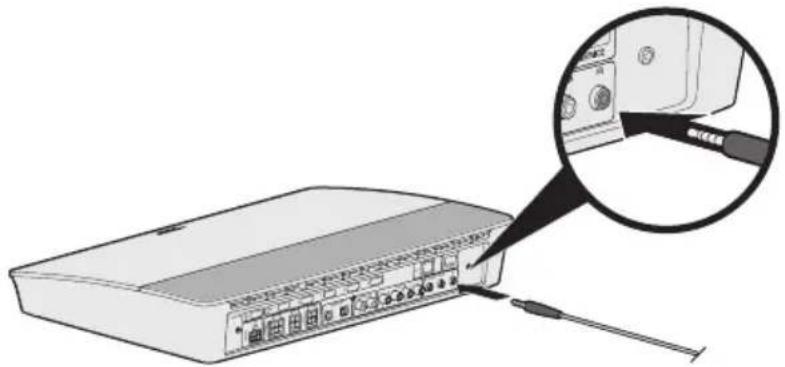
natural_image
Diagram of a network device with an inset showing a close-up of its internal components (no text or symbols visible)- Remove three adhesive pads from the plastic sheet included with the emitter and place them on the flat bottoms of the three emitter beads.
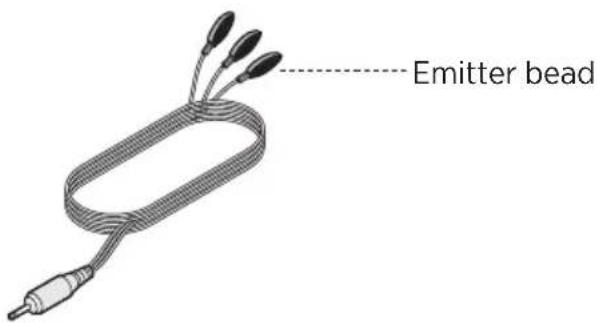
- Remove the plastic backing from the adhesive pads.
- Place the three IR beads into the cabinet housing your device or directly in front of the device itself.
- Test the responsiveness of your remote. If problems still exist, reposition the IR beads and test again.
Checking for sound
- Power on your TV.
- If you are using a cable/satellite box or other secondary source:
• Power on this source. -
If your secondary source is connected to your TV, select the appropriate TV input.
-
Power on your console.
You should hear sound coming from the bass module.
Note: If you do not hear sound from the bass module, see page 32.
Front console panel
The front of the console has the following inputs:
- Headphones
- HDMI™ input
These inputs appear in the SOURCEs AUX IN and HDMI (Front) when a device is connected. They can be used to connect digital cameras, video cameras, media players and your preferred mobile device.

Front Headphones/AUX input
You can use this 3.5 mm input with your headphones or as an audio option with your favorite mobile device. The headphone setting is the default option.
To use this input as an AUX IN, press the SETUP button on your remote control and select Headphone Connector from the on-screen display. Select AUX IN from the SOURCE menu when a device is connected.
Front HDMI™ input
You can use this input for devices that have an HDMI output.
Note: The Bose remote control does not control functions specific to devices that are connected to the front HDMI™ input.
Back console panel
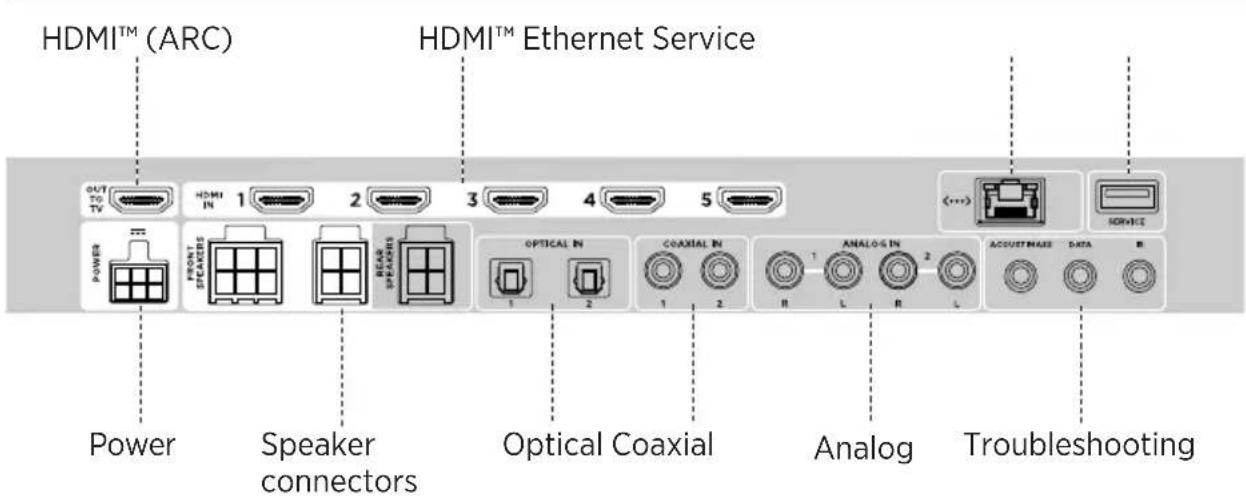
Connecting an AC-2 adapter
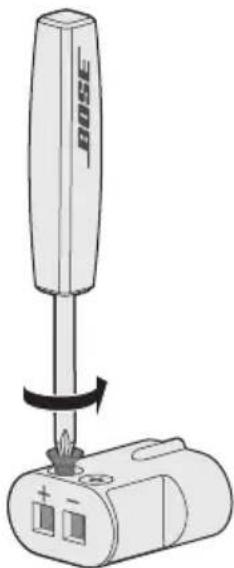
- Using the screwdriver, turn the screws to the left (counterclockwise) to loosen the wire terminals.
natural_image
Diagram of a BOSE screwdriver with a battery and switch, showing no text or symbols- For front speakers: Insert the bare ends of the four-pin cable into the adapter by placing the red wire marked L+, C+ or R+ into the red terminal (+) and the plain wire into the plain silver terminal (-).
For rear speakers: Insert the bare ends of the two-pin cable into the adapter by placing the red wire marked L+ or R+ into the red terminal (+) and the plain wire into the plain silver terminal (-).
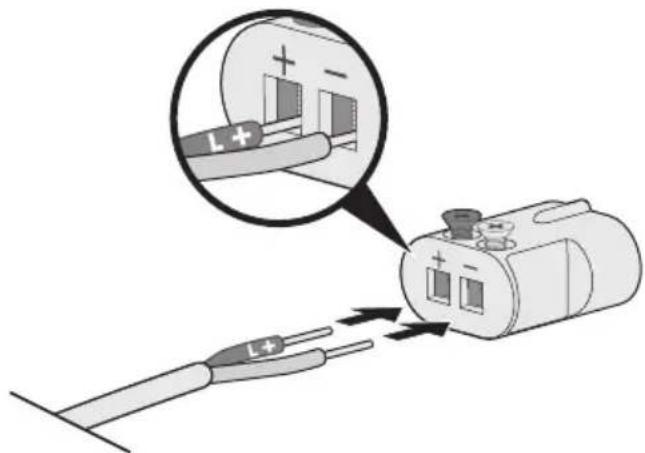
Note: Be sure to only insert the bare ends of each exposed wire to avoid clamping the wire's insulation.
-
Using the screwdriver, turn the screws right (clockwise) to secure the wires into the terminals.
-
Repeat steps 1 - 4 to connect the other adapter.
Installing the front speakers
UNIFY® setup guides you through the initial installation of your front speakers during the “Wired speakers” step (see page 16).
If you are moving your system but have already completed setup, refer to the following instructions in order to reassemble the rear portion of your home entertainment system.
CAUTION: Do not connect your speakers while your console is connected to an AC (mains) adapter.
What you need:
From box


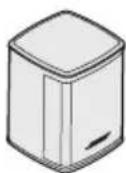
Virtually Invisible ^® series II speakers (3)
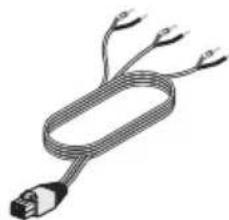
natural_image
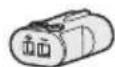
Coiled cable with multiple wires, no text or symbols visibleAC-2 adapters (3) Front speaker cable (1)
From box


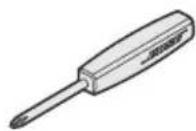
Screwdriver (1)
Connecting the front speakers to the console
- Connect the AC-2 adapters to the bare ends of the speaker wire. See "Connecting an AC-2 adapter" on page 36.
- Insert the adapter connected to the wire marked L+ into the speaker on the left of your TV.
- Insert the adapter connected to the wire marked R+ into the speaker on the right of your TV.
- Insert the adapter connected to the wire marked C+ into the speaker in the center.
- Connect the remaining end of the six-pin cable into the six-pin FRONT SPEAKERS connector on the back of your console.
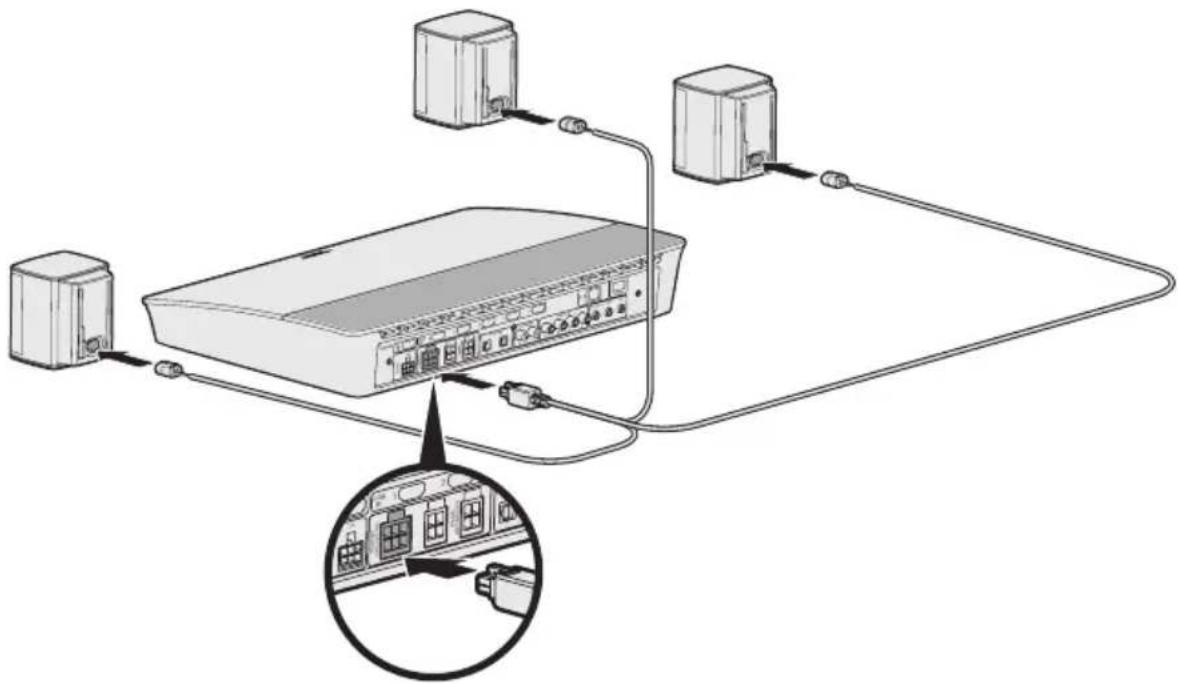
Note: The four-pin FRONT SPEAKERS connector on the back of your console is not used.
Installing the rear speakers
UNIFY® setup guides you through the initial installation of your rear speakers during the "Wired speakers" step (see page 16).
If you are moving your system but have already completed setup, refer to the following instructions in order to reassemble the rear portion of your home entertainment system.
What you need:
From box


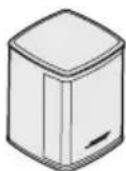
Virtually Invisible ^® series II speakers (2)
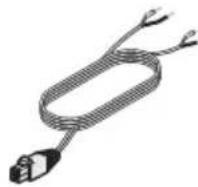
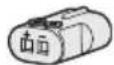
Rear speaker cable (1) AC-2 adapters (2)
From box


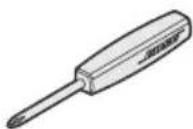
Screwdriver (1)
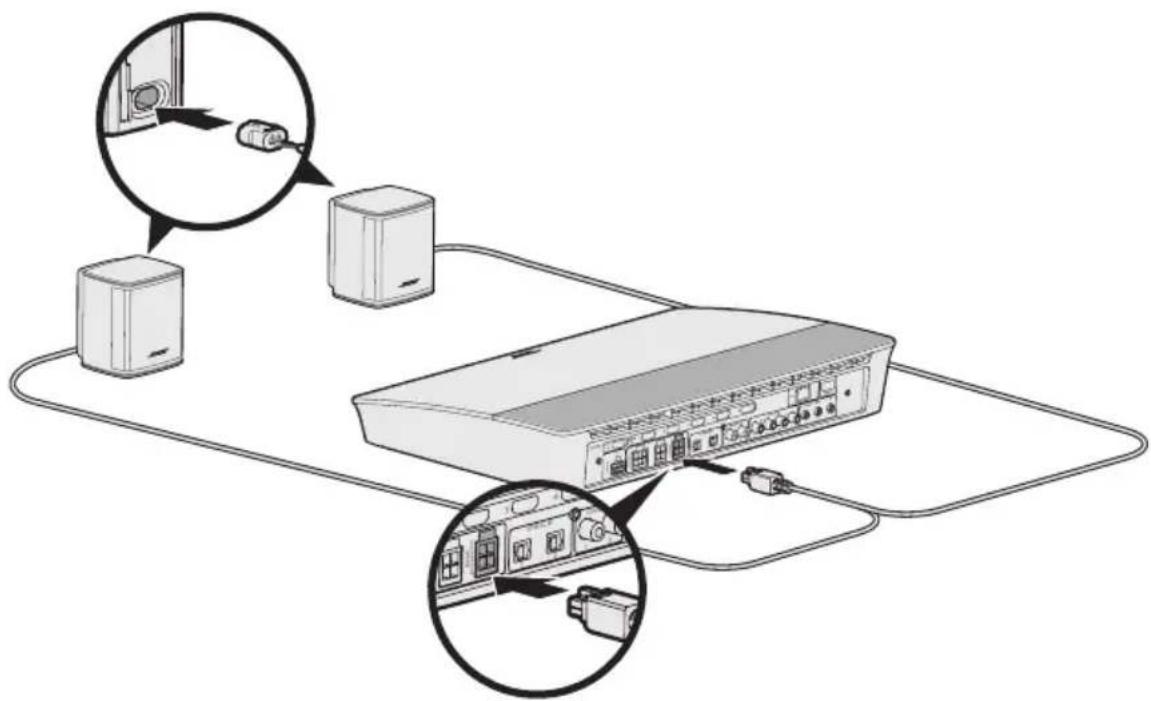
Connecting the rear speakers to the console
- Connect the AC-2 adapters to the bare ends of the speaker wire. See "Connecting an AC-2 adapter" on page 36.
- Insert the adapter connected to the wire marked L+ into the speaker on the left side of the room.
- Insert the adapter connected to the wire marked R+ into the speaker on the right side of the room.
- Connect the four-pin cable into the four-pin REAR SPEAKERS connector on the back of your console.
Mounting the speakers
You can mount the speakers on wall brackets, floor stands or table stands. To purchase these accessories, contact your local Bose dealer or visit www.Bose.com
CAUTIONS:
- Only use Bose hardware to mount the speakers. Using unauthorized mounts may damage your Bose system and its components.
- The speaker wire and interconnect cables included with this system are not approved for in-wall installation. Please check your local building codes for the correct type of wire and cable required for in-wall installation.
Replacing the remote control's batteries
Replace all four batteries when there is a noticeable decrease in range.
-
Slide open the battery compartment cover on the back of the remote control.
-
Install four AA (IEC LR6) 1.5V batteries. Match the + and - symbols on the batteries with the + and - markings inside the compartment.
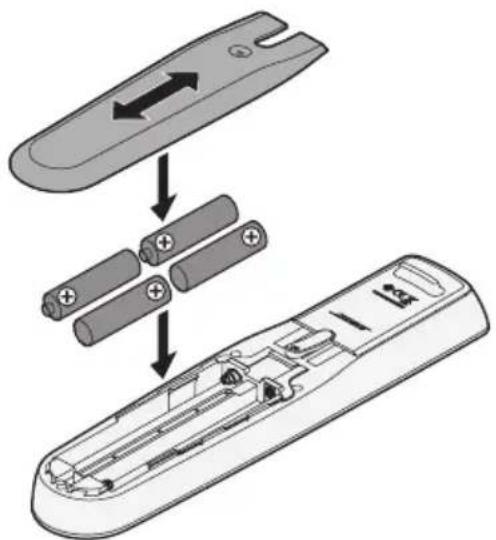
- Slide the battery compartment cover back into place.
Unable to connect the Acoustimass® wireless bass module with the console
If you are having issues wirelessly connecting your bass module to your console, you can also connect it using a 3.5 mm stereo cable (not provided).
Note: If you do not have a 3.5 mm stereo cable, contact your authorized Bose dealer or Bose customer service.
To install the 3.5 mm stereo cable:
-
On your remote control, press SETUP.
-
Select Speaker Management.
-
Follow the on-screen instructions until "The following steps will show you how to set up your bass module" message displays.
-
Press, then follow the on-screen instructions to finish setup.
Management Regulation for Low-power Radio-frequency Devices
Artikel XII
SoundTouch ^® Owner's Center 20
Eksisterende SoundTouch®-brugere
natural_image
Illustration of four electronic devices: a rectangular box, a cable with connector, a remote control, and three cylindrical batteries (no text or symbols)Konsol (1) HDMI™-kabel (1) Universalfjernbetjening (1) AA-batterier (4)
Lag 2
Fra æske

natural_image
Illustration of a connected electrical device with a cable and connector (no text or symbols)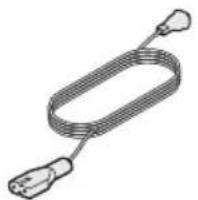
natural_image
Illustration of a coiled cable or wire with two connectors (no text or symbols)natural_image
Illustration of a coiled cable with multiple wires (no text or symbols)natural_image
Illustration of a coiled cable with two connectors (no text or symbols)natural_image
Line drawing of a handheld electronic device with a coiled cable (no text or symbols)ADAPTiQ®-hovedtelefoner (1)
natural_image
Line drawing of a coiled cable with four connectors (no text or symbols)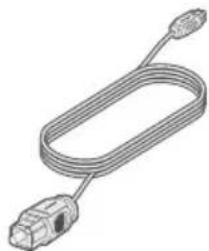
natural_image
Line drawing of a U-shaped cable with two connectors (no text or symbols)natural_image
Simple line drawing of a 3D cube with no text or symbolsnatural_image
Isometric line drawing of a home office setup with TV, monitor, and two small furniture items (no text or symbols)Oversigt over UNIFY®-systemet
SoundTouch® Owner's Center
worldwide.Bose.com/Support/LS550
natural_image
Illustration of a rectangular electronic device with a close-up inset showing a small component labeled '小' (small), no text or symbols present.USA/Canada/International:
• Konsol: 10VDC 3,3A, 44VDC 1,25A
- Trådløst Acoustimass®-basmodul: 100-240V 50/60 Hz, 180W
natural_image
Diagram of a network device with an inset showing a close-up of its internal components (no text or symbols visible)natural_image
Diagram of a BOSE screwdriver with a battery and switch, showing no text or symbolsnatural_image
Coiled cable with multiple connectors (no text or symbols visible)Fra æske :
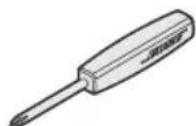
Skruetrækker (1)
- Skub låget til batterirummet på plads.
natural_image
Illustration of a rectangular device with a connector and a coiled cable (no text or symbols)Konsole (1) HDMI™-Kabel
(1)
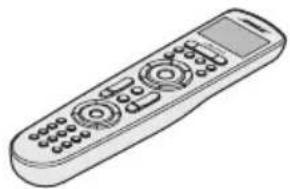
natural_image
Line drawing of a remote control with multiple ports and buttons (no text or symbols)natural_image
Line drawing of a rectangular electronic device with a coiled cable and connector (no text or symbols)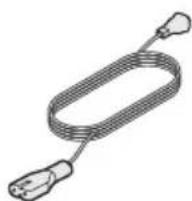

natural_image
Illustration of a coiled cable or connector with multiple leads (no text or symbols)natural_image
Illustration of a coiled cable with two leads (no text or symbols)natural_image
Line drawing of a flexible medical device with a curved handle and attached cable (no text or symbols)ADAPTiQ ^® -Headset (1)
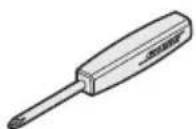
natural_image
Illustration of a coiled cable with four earbuds (no text or symbols)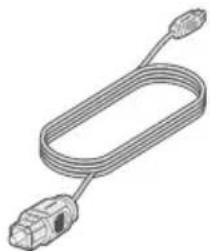
natural_image
Line drawing of a U-shaped cable with connector ends (no text or symbols)Ebene 4
Aus Karton

natural_image
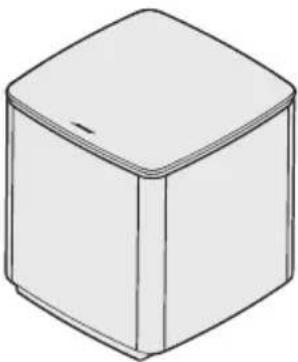
Simple line drawing of a 3D cube with no text or symbolsAcoustimass ^® Wireless-Bassmodul (1)
natural_image
Isometric line drawing of a home office setup with TV, monitor, and two small furniture items (no text or symbols)worldwide.Bose.com/Support/LS550
natural_image
Illustration of a rectangular electronic device with a close-up inset showing a small component labeled '小' (small), no text or symbols present.natural_image
Illustration of a network switch device with a magnified inset showing internal components (no text or symbols)natural_image
Diagram of a BOSE screwdriver with a battery and switch, showing no text or symbolsnatural_image
Illustration of a coiled cable with multiple wires (no text or symbols)SoundTouch ^® Owner's Center.... 20
natural_image
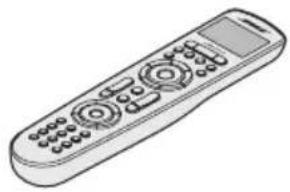
Illustration of a rectangular electronic device with a cable and connector, no text or symbols present.Console (1) HDMI™-kabel (1) Universele
natural_image
Line drawing of a remote control with keypad and scroll (no text or symbols)afstandsbediening (1)
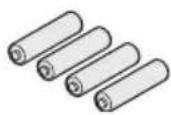
AA-batterijen (4)
Laag 2
Uit doos 📄it doos :
natural_image
Line drawing of a rectangular electronic device with a coiled cable and connector (no text or symbols)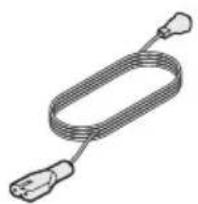
natural_image
Illustration of a coiled cable with two connectors (no text or symbols)
natural_image
Illustration of a multi-core cable with multiple leads (no text or symbols)natural_image
Illustration of a coiled cable or wire with two leads (no text or symbols)natural_image
Line drawing of a curved cable with a connector (no text or symbols)ADAPTiQ ^® -headset (1)
natural_image
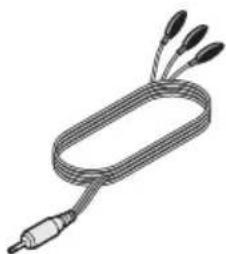
Line drawing of a coiled cable with three connectors (no text or symbols)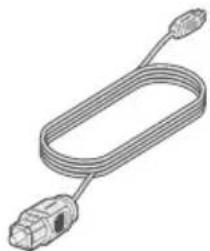
natural_image
Line drawing of a U-shaped cable with connector ends (no text or symbols)Schroevendraaier (1) IR-zender (1) Optische kabel (1)
Laag 4
Uit doos

natural_image
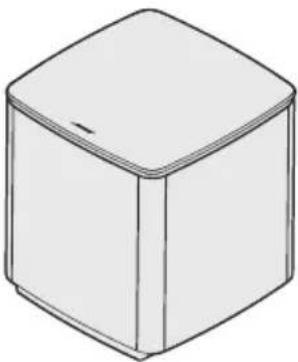
Simple line drawing of a 3D cube with no text or symbolsAcoustimass® draadloze basmodule (1)
natural_image
Isometric line drawing of a home office setup with TV, sofa, and monitor (no text or symbols)SoundTouch® Owner's Center
worldwide.Bose.com/Support/LS550
natural_image
Illustration of a rectangular electronic device with a close-up inset showing a small component (no text or symbols)natural_image
Illustration of a network switch device with an inset magnified view showing internal components (no text or symbols)natural_image
Diagram of a Bosch 2 screwdriver with a battery and two ports, showing a rotating mechanism (no text or symbols)natural_image
Coiled cable with multiple connectors (no text or symbols visible)natural_image
Line drawing of a rectangular electronic device with a coiled cable and connector (no text or symbols)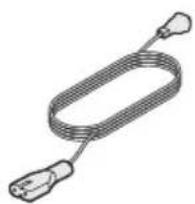
natural_image
Illustration of a coiled cable or connector with two connectors (no text or symbols)
natural_image
Illustration of a coiled cable with multiple wires (no text or symbols)Cable del altavoz delantero (1)
natural_image
Illustration of a coiled cable with two connectors (no text or symbols)natural_image
Line drawing of a medical or laboratory device with a curved handle and coiled cable (no text or symbols)Auriculares ADAPTiQ® (1)
natural_image
Line drawing of a coiled cable or connector with three pins (no text or symbols)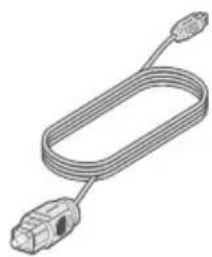
natural_image
Line drawing of a USB cable with connector port (no text or symbols)natural_image
Simple line drawing of a 3D cube with no text or symbolsnatural_image
Isometric line drawing of a home office setup with TV, monitor, and two small furniture items (no text or symbols)worldwide.Bose.com/Support/LS550
natural_image
Illustration of a rectangular electronic device with a close-up inset showing a small component (no text or symbols)natural_image
Diagram of a network device with an inset showing a close-up of its internal components (no text or symbols present)natural_image
Diagram of a BOSE screwdriver with a battery and switch, showing no text or symbolsnatural_image
Coiled cable with multiple connectors (no text or symbols visible)Adaptadores AC-2 (3) Cable del altavoz delantero (1)
En la caja


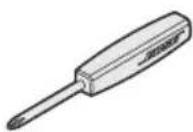
Destornillador (1)
natural_image
Illustration of four different electronic devices: a rectangular box, a cable with connector, a remote control, and three cylindrical batteries (no text or symbols present)natural_image
Three technical illustrations: a rectangular device with cable, a wire cord, and a cube with an 'i' symbol (no text or labels)natural_image
Coiled cable with three leads, no text or symbols visible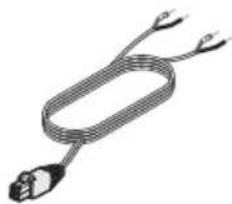
natural_image
Illustration of a coiled cable with two connectors (no text or symbols)natural_image
Line drawing of a curved medical device with a coiled cable (no text or symbols)natural_image
Line drawing of a coiled cable with four connectors (no text or symbols)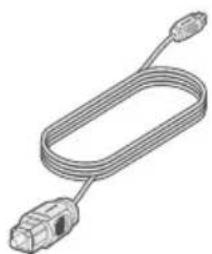
natural_image
Line drawing of a U-shaped cable with connector ends (no text or symbols)natural_image
Simple line drawing of a 3D cube with no text or symbolsnatural_image
Isometric line drawing of a home office setup with TV, monitor, and two small furniture items (no text or symbols)worldwide.Bose.com/Support/LS550
natural_image
Illustration of a rectangular electronic device with a close-up inset showing a small component (no text or symbols)natural_image
Illustration of a network switch device with an inset magnified view showing internal components (no text or symbols)natural_image
Diagram of a BOSE screwdriver with a battery and switch, showing no text or symbolsnatural_image
Coiled cable with multiple connectors (no text or symbols visible)Laatikosta


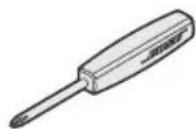
Ruuvitaltta (1)
natural_image
Technical line drawing of a rectangular device with a cable and connector, shown in two views (no text or symbols)natural_image
Line drawing of a remote control device with keypad and buttons (no text or symbols)universelle (1)
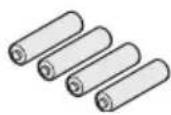
Piles AA (4)
Boîte 2
Dans le carton
natural_image
Illustration of a connected electrical device with a cable and plug (no text or symbols)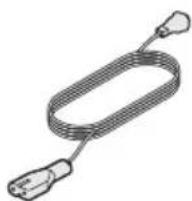

natural_image
Coiled cable with multiple connectors (no text or symbols visible)natural_image
Illustration of a coiled cable or wire with two leads (no text or symbols)natural_image
Line drawing of a flexible medical device with a curved handle and coiled cable (no text or symbols)Casque ADAPTiQ ^® (1)
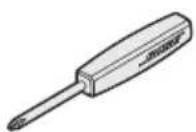
natural_image
Line drawing of a coiled cable with four connectors (no text or symbols)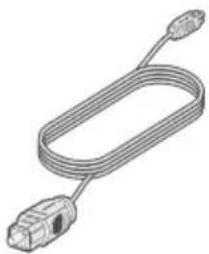
natural_image
Line drawing of a U-shaped cable with two connectors (no text or symbols)Boîte 4
Dans le carton

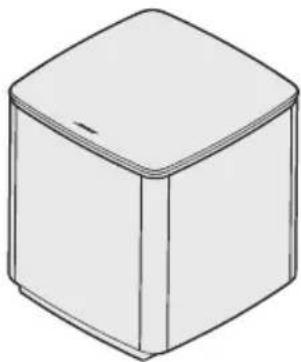
natural_image
Simple line drawing of a 3D cube with no text or symbolsModule de graves sans fil Acoustimass® (1)
natural_image
Isometric line drawing of a home office setup with TV, sofa, and monitor (no text or symbols)worldwide.Bose.com/Support/LS550
natural_image
Illustration of a rectangular electronic device with a close-up inset showing a small component labeled '小' (small) (no text or symbols on the device itself)- Consultez la page worldwide.Bose.com/Support/LS550
- Contactez le service client de Bose.
Garantie limitée
natural_image
Illustration of a network switch device with an inset magnified view showing internal components (no text or symbols)natural_image
Line drawing of a coiled cable with three terminal connectors (no text or symbols)Support d'émetteur
natural_image
Diagram of a BOSE screwdriver with a battery and switch, showing no text or symbolsnatural_image
Coiled cable with multiple connectors (no text or symbols visible)natural_image
Illustration of four electronic devices: a rectangular box, a cable with connector, a remote control, and three batteries (no text or symbols)Console (1) Cavo HDMI™(1) Telecomando universale (1) Batterie AA (4)
Livello 2
Dalla scatola

natural_image
Line drawing of a rectangular electronic device with a coiled cable and connector (no text or symbols)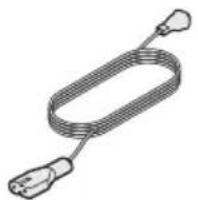
natural_image
Line drawing of a coiled cable or connector with two connectors (no text or symbols)
natural_image
Illustration of a USB cable with multiple leads (no text or symbols)natural_image
Illustration of a coiled cable or wire with two leads, no text or symbols presentnatural_image
Line drawing of a medical or laboratory device with a curved handle and coiled cable (no text or symbols)Cuffie ADAPTiQ ^® (1)
natural_image
Illustration of a coiled cable with four connectors (no text or symbols)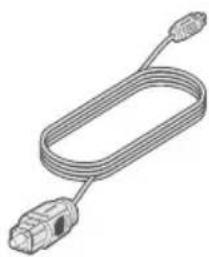
natural_image
Line drawing of a U-shaped cable with two connectors (no text or symbols)Livello 4
Dalla scatola

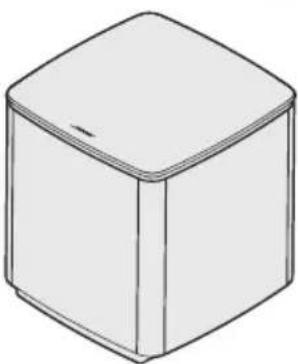
natural_image
Simple line drawing of a 3D cube with no text or symbolsModulo bassi wireless Acoustimass ^® (1)
natural_image
Isometric line drawing of a home office setup with TV, monitor, and two small furniture items (no text or symbols)worldwide.Bose.com/Support/LS550
natural_image
Illustration of a rectangular electronic device with a close-up inset showing a small component (no text or symbols)natural_image
Illustration of a network switch device with an inset showing a close-up of its internal components (no text or symbols present)natural_image
Line drawing of a coiled cable with three connectors (no text or symbols)natural_image
Diagram of a BOSE screwdriver with a battery and switch, showing no text or symbolsnatural_image
Coiled cable with multiple wires, no text or symbols visibleDalla scatola
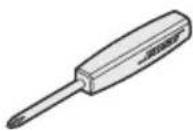
Cacciavite (1)
natural_image
Isometric illustration of a rectangular electronic device with a lid and mounting bracket (no text or symbols)Konzol (1) HDMI™-kábel
natural_image
Line drawing of a USB cable with two connectors (no text or symbols)(1)
natural_image
Line drawing of a remote control with keypad and buttons (no text or symbols)natural_image
Line drawing of a rectangular electronic device with a coiled cable and connector (no text or symbols)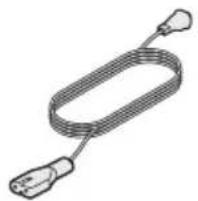
natural_image
Illustration of a coiled cable or connector with two connectors (no text or symbols)
natural_image
Illustration of a coiled cable with multiple leads (no text or symbols)natural_image
Illustration of a coiled cable with two connectors (no text or symbols)natural_image
Line drawing of a medical or electronic device with a curved handle and coiled cable (no text or symbols)natural_image
Illustration of a coiled cable with three connectors (no text or symbols)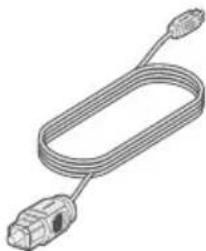
natural_image
Line drawing of a U-shaped cable with two connectors (no text or symbols)4. réteg
natural_image
Simple line drawing of a 3D cube with no text or symbolsnatural_image
Isometric line drawing of a home office setup with TV, monitor, and two small furniture items (no text or symbols)worldwide.Bose.com/Support/LS550
natural_image
Illustration of a rectangular electronic device with a close-up inset showing a small component (no text or symbols)natural_image
Diagram of a network switch device with an inset showing a close-up of its internal components (no text or symbols present)natural_image
Diagram of a BOSE screwdriver with a battery and switch, showing no text or symbolsnatural_image
Line drawing of a coiled cable with multiple wires (no text or symbols)Management Regulation for Low-power Radio-frequency Devices
Artikkel XII
natural_image
Illustration of four electronic devices: a box, cable, remote control, and batteries (no text or symbols)Konsoll (1) HDMI™-kabel (1) Universalfjernkontroll (1) AA-batterier (4)
Lag 2
Fra boks
natural_image
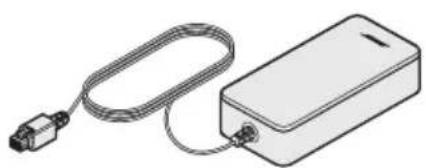
Line drawing of a rectangular electronic device with a cable and connector (no text or symbols)
natural_image
Coiled cable with four terminal connectors (no text or symbols)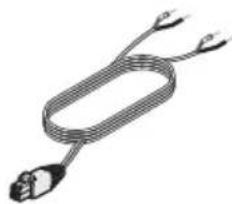
natural_image
Illustration of a coiled cable with two connectors (no text or symbols)natural_image
Line drawing of a medical or electronic device with a curved handle and coiled cable (no text or symbols)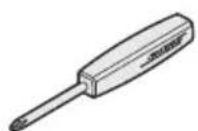
natural_image
Line drawing of a coiled cable with three connectors (no text or symbols)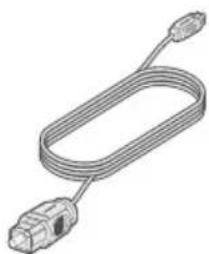
natural_image
Illustration of a U-shaped cable with connector ends (no text or symbols)ADAPTiQ®-hodetelefoner (1)
Skrujern (1) IR-sender (1) Optisk kabel (1)
Lag 4
Fra boks

natural_image
Simple line drawing of a 3D cube with no text or symbolsAcoustimass® trådløs bassmodul (1)
Veiledning for plassering
natural_image
Isometric line drawing of a home office setup with TV, sofa, and monitor (no text or symbols)worldwide.Bose.com/Support/LS550
natural_image
Illustration of a rectangular electronic device with a close-up inset showing a small component labeled '小' (small), no text or symbols present.natural_image
Diagram of a network switch device with an inset showing a close-up of its internal components (no text or symbols present)natural_image
Diagram of a BOSE screwdriver with a battery and switch, showing no text or symbolsnatural_image
Coiled cable with multiple connectors (no text or symbols visible)Fra boks


Skrujern (1)
Koble fronthøyttalerne til konsollen
Montere høyttalerne
natural_image
Illustration of four different electronic devices: a rectangular box, a cable with connectors, a remote control, and three cylindrical batteries (no text or symbols present)Konsola (1) Kabel HDMI™ (1) Pilot uniwersalny (1) Baterie AA (4)
Warstwa 2
Zawartość pudełka

Zawartość pudełka


natural_image
Line drawing of a rectangular electronic device with a coiled cable and connector (no text or symbols)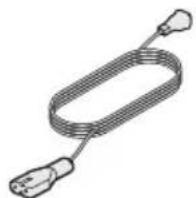

natural_image
Illustration of a coiled cable or connector with multiple leads (no text or symbols)natural_image
Illustration of a coiled cable or wire with two connectors (no text or symbols)natural_image
Line drawing of a medical or laboratory device with a curved handle and coiled cable (no text or symbols)natural_image
Illustration of a coiled cable with four connectors (no text or symbols)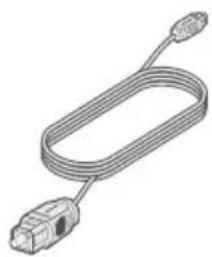
natural_image
Line drawing of a U-shaped cable with two connectors (no text or symbols)natural_image
Simple line drawing of a 3D cube with no text or symbolsnatural_image
Isometric line drawing of a home office setup with TV, monitor, and two small furniture items (no text or symbols)worldwide.Bose.com/Support/LS550
natural_image
Illustration of a rectangular electronic device with a close-up inset showing a small component (no text or symbols)natural_image
Diagram of a network switch device with an inset magnified view showing internal components (no text or symbols)natural_image
Diagram of a Bosch 2 screwdriver with a battery, showing the shaft and base (no text or symbols present)natural_image
Illustration of a coiled cable with multiple wires (no text or symbols)Zawartość pudełka


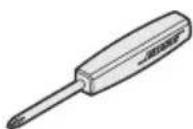
Wkrętak (1)
Mocowanie głośników
natural_image
Illustration of four different electronic devices: a rectangular box, a cable with connector, a remote control, and three cylindrical batteries (no text or symbols present)Console (1) Cabo HDMI™ (1) Controle remoto
universal (1)
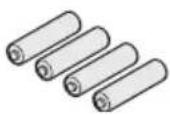
Pilhas AA (4)
Camada 2
Da caixa a caixa :
natural_image
Line drawing of a rectangular electronic device with a coiled cable and connector (no text or symbols)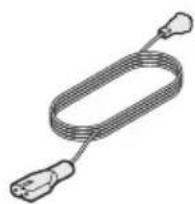
natural_image
Illustration of a coiled cable with two connectors (no text or symbols)
natural_image
Illustration of a USB cable with multiple leads (no text or symbols)natural_image
Illustration of a coiled cable with two connectors (no text or symbols)natural_image
Line drawing of a flexible medical device with a curved handle and coiled cable (no text or symbols)natural_image
Line drawing of a coiled cable with three pins (no text or symbols)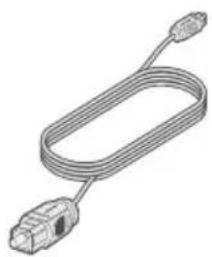
natural_image
Line drawing of a U-shaped cable with connector ends (no text or symbols)Chave de fenda (1) Emissor de IV (1) Cabo óptico (1)
Camada 4
Da caixa

natural_image
Simple line drawing of a 3D cube with no text or symbolsMódulo de graves sem fio Acoustimass® (1)
natural_image
Isometric line drawing of a home office setup with TV, monitor, and two small furniture items (no text or symbols)worldwide.Bose.com/Support/LS550
natural_image
Illustration of a rectangular electronic device with a close-up inset showing a small component (no text or symbols)natural_image
Diagram of a network switch device with an inset showing a close-up of its internal components (no text or symbols present)natural_image
Illustration of a coiled cable with three connectors (no text or symbols)Esfera do emissor
natural_image
Diagram of a BOSE screwdriver with a battery and switch, showing no text or symbolsnatural_image
Line drawing of a coiled cable with multiple wires (no text or symbols)natural_image
Illustration of four electronic devices: a rectangular box, a cable with connector, a remote control, and three cylindrical batteries (no text or symbols)Konsol (1) HDMI™-kabel (1) Generell fjärrkontroll (1) AA-batterier (4)
Lager 2
Från lådan

:


natural_image
Line drawing of a rectangular electronic device with a cable and connector (no text or symbols)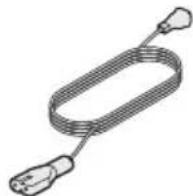

natural_image
Illustration of a coiled cable with multiple connectors (no text or symbols)Kabel till fronthögtalare (1)
natural_image
Illustration of a coiled cable with two connectors (no text or symbols)natural_image
Line drawing of a curved cable with a connector (no text or symbols)ADAPTiQ ^® -headset (1)
natural_image
Line drawing of a coiled cable with four connectors (no text or symbols)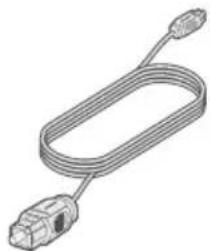
natural_image
Line drawing of a U-shaped cable with connector ends (no text or symbols)Lager 4
Från lådan

natural_image
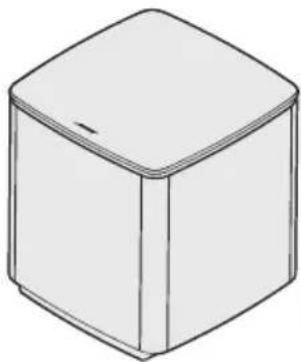
Simple line drawing of a 3D cube with no text or symbolsTrådlös Acoustimass®-basmodul (1)
natural_image
Isometric line drawing of a home office setup with TV, monitor, and two small furniture items (no text or symbols)worldwide.Bose.com/Support/LS550
natural_image
Illustration of a rectangular electronic device with a close-up inset showing a small component (no text or symbols)natural_image
Illustration of a network switch device with a magnified inset showing internal components (no text or symbols)natural_image
Diagram of a Bosch 2 screwdriver with a battery and indicator lights, showing the working principle (no text or symbols present)natural_image
Coiled cable with multiple wires, no text or symbols visibleFrån lådan :
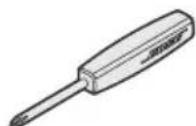
Skruvmejsel (1)
Montera högtalarna
- Sätt tillbaka batterifackets lucka.
worldwide.Bose.com/Support/LS550


global.Bose.com/warranty
812121-0020

- Please read and keep all safety, security, and use instructions.
- Important Safety Instructions
- Management Regulation for Low-power Radio-frequency Devices
- Article XII
- Article XIV
- CAN ICES-3(B)/NMB-3(B)
- For Europe:
- Remote Control:
- Product Power State Table
- External Power Supply Technical Information
- Please complete and retain for your records
- Security Information
- Dolby Audio
- HDMI
- SoundTouch® app
- IP address
- Getting Started
- Setting Up the System
- Using the Remote Control
- SoundTouch® App Setup
- Existing SoundTouch® Users
- Preset Personalization
- Bluetooth® Technology
- Advanced Features
- Getting System Information
- Care and Maintenance
- Troubleshooting
- Appendix A: Installation Reference
- Appendix B: System Maintenance
- Appendix C: Alternative Wired Setup
- Unpacking
- Layer 1
- From box
- Layer 2
- From box from box :
- Layer 3
- Layer 4
- Placement guidelines
- Sample system placement
- UNIFY® system overview
- UNIFY® setup
- Remote control overview
- Using the SOURCE button
- Function buttons
- Adjusting volume
- Using the MORE button
- The AV OUTPUT menu
- The AV SETTINGS menu
- Remote glow button
- Download and install the SoundTouch® app
- Notes:
- SoundTouch® Owner's Center
- worldwide.Bose.com/Support/LS550
- Add the system to an existing account
- Connect the system to a new network
- Set a preset
- Play a preset
- Set a preset using your remote control
- Select a preset using your remote control
- Choosing your pairing method
- What is NFC?
- Connect a mobile device
- Connect a device with NFC
- Control your connected mobile device from the remote control
- Connect using the Bluetooth feature on your mobile device
- Connect using your remote control
- Disconnect a mobile device
- Connect another mobile device
- Reconnect a device
- Clear the system's Bluetooth pairing list
- Disabling Wi-Fi capability
- Re-enabling Wi-Fi capability
- Updating the system software
- System status indicators
- Acoustimass® wireless bass module LED indicator
- Cleaning
- Customer service
- Limited warranty
- Technical information
- U.S.A./Canada/International:
- Common solutions
- Setting up your IR emitter
- Checking for sound
- Front console panel
- Front Headphones/AUX input
- Front HDMI™ input
- Back console panel
- Connecting an AC-2 adapter
- Installing the front speakers
- What you need:
- Connecting the front speakers to the console
- Installing the rear speakers
- Connecting the rear speakers to the console
- Mounting the speakers
- CAUTIONS:
- Replacing the remote control's batteries
- Unable to connect the Acoustimass® wireless bass module with the console
- Artikel XII
- Eksisterende SoundTouch®-brugere
- Lag 2
- Fra æske
- Oversigt over UNIFY®-systemet
- USA/Canada/International:
- Fra æske :
- Ebene 4
- Aus Karton
- Laag 2
- Uit doos 📄it doos :
- Laag 4
- Uit doos
- En la caja
- Laatikosta
- Boîte 2
- Dans le carton
- Boîte 4
- Garantie limitée
- Livello 2
- Dalla scatola
- Livello 4
- réteg
- Artikkel XII
- Fra boks
- Lag 4
- Veiledning for plassering
- Koble fronthøyttalerne til konsollen
- Montere høyttalerne
- Warstwa 2
- Zawartość pudełka
- Mocowanie głośników
- Camada 2
- Da caixa a caixa :
- Camada 4
- Da caixa
- Lager 2
- Från lådan
- Lager 4
- Montera högtalarna
Brand : BOSE
Model : Lifestyle 550
Category : Home Theater