
RW466305 - Wine cellar GAGGENAU - Free user manual and instructions
Find the device manual for free RW466305 GAGGENAU in PDF.


| Product Type | Wine cellar |
| Brand | Gaggenau |
| Model | RW466305 |
| Bottle capacity | 46 bottles |
| Dimensions (H x W x D) | 82.0 x 59.5 x 57.5 cm |
| Net weight | 45 kg |
| Electrical supply | 220-240 V, 50/60 Hz |
| Energy class | F |
| Annual consumption | 180 kWh |
| Noise level | 38 dB |
| Temperature range | 5 °C to 20 °C |
| Temperature zones | 2 independent zones |
| Cooling type | Compressor |
| Defrost | Automatic |
| Lighting | Interior LED |
| Humidity control | Yes |
| Reversible door | Yes |
| Safety | Child lock |
| Charcoal filter | Integrated |
| Temperature display | Digital |
| Material | Stainless steel |
| Color | Matte black |
| Installation | Built-in |
| Spare parts | Available (after-sales service) |
| Repairability | Repairability index 8.0/10 |
Frequently Asked Questions - RW466305 GAGGENAU
User questions about RW466305 GAGGENAU
0 question about this device. Answer the ones you know or ask your own.
Ask a new question about this device
Download the instructions for your Wine cellar in PDF format for free! Find your manual RW466305 - GAGGENAU and take your electronic device back in hand. On this page are published all the documents necessary for the use of your device. RW466305 by GAGGENAU.
USER MANUAL RW466305 GAGGENAU
natural_image
Hand holding smartphone with floating icons of kitchen appliances on a dark screen (no text or symbols)EN Connect your refrigerator to the future. 8
Welcome to the connected home!
Congratulations on your new smart appliance with Home Connect, designed to simplify your life and make it more enjoyable.*
Home Connect helps you to manage your home appliances with ease and comfort, providing a variety of functions beyond simple remote control.
The Home Connect app gives you important and useful information about your home appliance, allowing you to customize and trigger certain functionalities and actions. Furthermore, the app offers support on how to properly maintain your home appliance and also inspires with a variety of recipes. Explore our ecosystem of partners and gain even more functionalities and services.
Home Connect opens up a world of possibilities exceeding your expectations of a home appliance.
* The availability of the Home Connect function depends on the availability of Home Connect services in your country. Home Connect services are not available in every country. You can find more information on www.home-connect.com
Explore: With the Home Connect app you can...

Manage your appliance
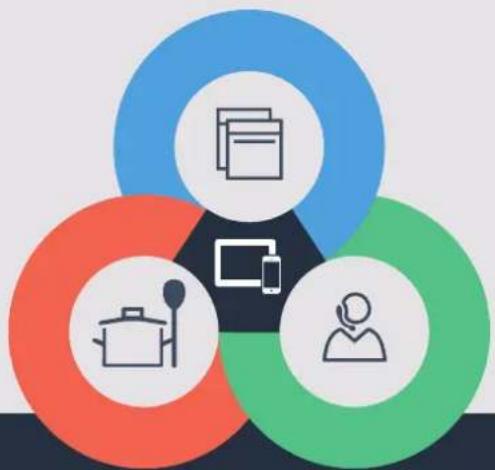
In the app's appliance section you have an overview of your connected home appliances, offering a variety of functions beyond simple remote control. Monitor the home appliance's progress, change or pause programs, change settings, trigger actions, and receive notifications.

Be inspired
The recipe section provides a variety of inspiring recipes, tips and videos, that will make cooking and baking even more enjoyable.

Get support
The service section gives helpful information on how to maintain and operate your home appliance properly.

Discover even more benefits
We are constantly expanding our ecosystems of partners. Please refer to www.home-connect.com for an overview of all partners.
Let's get started!
What you need
1 | Your refrigerator must be installed properly and turned on.
2 | A smartphone or tablet equipped with a current version of iOS or Android operating system.
3 | Your refrigerator within the Wi-Fi signal of your home network.
4 | The name of your Wi-Fi network (SSID) and its password (key).
5 | This installation guide.
Important information:
Data security: Home Connect values customer data, ensuring the transfer of data is encrypted. Home Connect utilizes a variety of security measures, which are periodically reviewed. For further information visit www.home-connect.com
Appliance safety: To ensure safe operation of your appliance with Home Connect functionality, please consult the safety information in the appliance instruction manual.
Step 1: Download the Home Connect app and create a user account
1 | Open the App Store (Apple devices) or Google Play Store (Android devices) on your smartphone or tablet.
2 | Search for the "Home Connect" app in the store's search and install it.
The Home Connect app:

3 | Open the app and register to create a Home Connect account.
4 | Write down your Home Connect account credentials (user account and password), you will need them later.
√ The app will guide you through the steps of adding your appliance to Home Connect. It will refer to this guide only when needed.
Step 2: Connect your refrigerator with your home network
1 | Your dishwasher must be installed properly and turned on.
2 | Open your Home Connect app to add your refrigerator.
3 | Please follow the directions in the app and refer to this guide only when prompted to by the app.
Information:
We are constantly working to improve the Home Connect app, which may lead to differences in the setup steps. Please rely on the instructions in the latest version of the Home Connect app to guide you through the setup process.
Step 2.1: Connect the refrigerator to your home network with WPS
Please enter step 2.1 only when prompted to by the app. The following steps describe operations at the home appliance itself.
1 | Press the S button to open the main menu.
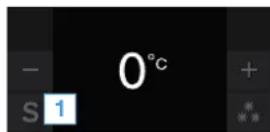
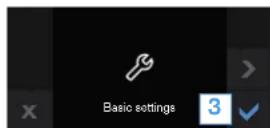
2 | Press button < to scroll to the Basic settings menu item.
3 | Press button √ to open the menu item.
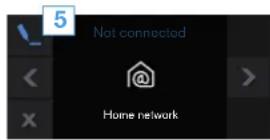
4 | Press button < to scroll to the Home network menu item.
5 | Press button _ to open the menu item.
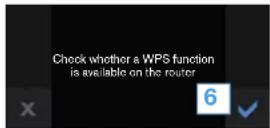
√ The following message appears on the control panel of your refrigerator: Check whether a WPS function is available on the router.
6 | Press button √ to confirm.
7 | Select Automatic (WPS) to start the automatic network connection.
8 | Activate the WPS function on your home network router within the next 2 minutes.
√ The following message appears on the control panel of your refrigerator: Network connection successful.
√ The app will get notified once your refrigerator has been successfully connected to your Wi-Fi network.
9 | Follow the instructions in the app.
Information:
If the connection could not be established within 2 minutes, make sure your refrigerator is within the range of your Wi-Fi network.
For some appliances the WPS mode is also called "automatic mode".
Step 2.2: Manually connecting your refrigerator to your home network (Wi-Fi)
Please enter step 2.2 only when prompted to by the app. The following steps describe operations at the appliance itself.
1 | Press the S button to open the main menu.
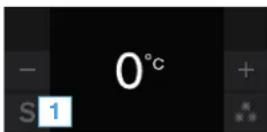
2 | Press button < to scroll to the Basic settings menu item.
3 | Press button √ to open the menu item.
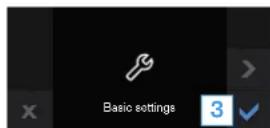
4 | Press button < to scroll to the Home network menu item.
5 | Press button _ to open the menu item.
√ The following message appears on the control panel of your refrigerator: Check whether a WPS function is available on the router.
6 | Press button √ to confirm.
7 | Select Manual to start the automatic network connection.
√ The following message appears on the control panel of your refrigerator: Continue with manual network connection in the app.
8 | Press button √ to confirm.
√ The appliance will open a temporary Wi-Fi network, "Home Connect" for 2 minutes.
Using this temporary Wi-Fi network, the app will transfer the name (SSID) and the password of your home network to the refrigerator, thereby enabling the refrigerator to connect to your home network.
√ The following message appears on the control panel of your refrigerator: Network connection successful.
9 | Follow the instructions in the app.
Information:
For some appliances the step-by-step mode is also called "SAP mode" or "manual mode". If the step-by-step mode does not work please check:
- Your appliance is in the range of the Wi-Fi network.
- Your smartphone/tablet is connected to your home Wi-Fi network.
- Your smartphone/tablet and appliance are connected to the same home Wi-Fi network.
Step 3: Connect your refrigerator to the Home Connect app
Please enter step 3 only when prompted to by the app. The following steps describe operations at the appliance itself.
1 | Open the Home network menu on your refrigerator.
2 | Press button < to move to menu item Connect to app.
3 | Press _ button to open the menu item.
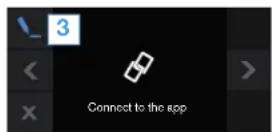
4 | The following message appears on the control panel of your refrigerator:. Connect to mobile device.
5 | Press button √ to confirm.
√ The app will now attempt to connect to the refrigerator. The following message appears on the control panel of your refrigerator: Synchronization is running.
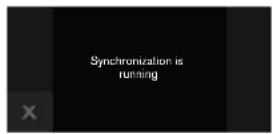
6 | Follow the instructions in the app to complete the process.
√ When connection is successful, the following message appears on the control panel of your refrigerator: Connection to app successful.
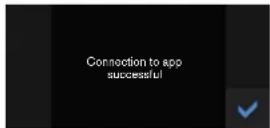
7 | Press button √ to confirm.
√ The following message appears in the status bar of the control panel
8 | Follow the instructions in the app.
Information:
If the connection could not be established make sure your smartphone/tablet is within range of your Wi-Fi network.
Home Connect opens up a world of possibilities exceeding your expectations of a home appliance.
To learn more about smart appliances with Home Connect and the partner ecosystem visit www.home-connect.com
Installation instructions in other languages can be found under "Home Connect" in the instruction manual supplied with your appliance.
If you have any questions, just visit us at www.home-connect.com
natural_image
Abstract diagram with three colored circles containing icons: a document, a kitchen pot, and a person (no text or symbols)
Home Connect is a service of BSH Home Appliances Corporation.
Apple App Store and iOS are Apple Inc. trademarks, Google Play Store and Android are Google Inc. trademarks, Wi-Fi is a Wi-Fi Alliance trademark.


- Welcome to the connected home!
- Explore: With the Home Connect app you can...
- Manage your appliance
- Be inspired
- Get support
- Discover even more benefits
- Let's get started!
- What you need
- Important information:
- Step 1: Download the Home Connect app and create a user account
- Step 2: Connect your refrigerator with your home network
- Information:
- Step 2.1: Connect the refrigerator to your home network with WPS
- Step 2.2: Manually connecting your refrigerator to your home network (Wi-Fi)
- Step 3: Connect your refrigerator to the Home Connect app
Brand : GAGGENAU
Model : RW466305
Category : Wine cellar