
Giga Party Audio MX-T70 - Hi-Fi System SAMSUNG - Free user manual and instructions
Find the device manual for free Giga Party Audio MX-T70 SAMSUNG in PDF.


| Product Type | Hi-Fi System (Sound Tower) |
| Model Number | MX-T70 |
| Dimensions (W x H x D) | 463.0 x 884.0 x 455.0 mm |
| Weight | 26.5 kg |
| Power Supply | AC, refer to label on product |
| Rated Output Power | Tweeter: 150W x 2 (12 ohm), Middle: 300W x 2 (6 ohm), Woofer: 600W x 1 (3 ohm) |
| Bluetooth Version | Bluetooth 4.2 or later (max transmitter power 100mW at 2.4GHz) |
| USB Ports | USB1 (5V/2.1A) and USB2 (5V/0.5A) |
| Audio Inputs | AUX1 (3.5mm), AUX2 (RCA), Bluetooth, USB |
| Microphone Inputs | 2 x 6.3mm jacks (MIC1, MIC2) with separate volume and echo controls |
| Lighting Modes | AMBIENT, PARTY, DANCE, THUNDERBOLT, STAR, OFF |
| Sound Modes | PARTY, STANDARD, HIPHOP, EDM, ROCK, LATIN, HOUSE, REGGAE |
| DJ Effects | NOISE, FILTER, CRUSH, CHORUS, WAHWAH |
| Group Play | Wireless up to 10 units, wired via RCA |
| Stereo Mode | Connect two units for left/right channels |
| Bluetooth Multi Connection | Up to 2 devices simultaneously |
| Auto Power Down | Yes (20 min no input, 8 hours in AUX mode, can be disabled) |
| Operating Temperature | +5°C to +35°C |
| Operating Humidity | 10% to 75% |
| Care and Cleaning | Wipe with a dry cloth; avoid moisture and direct sunlight |
| Safety | Read user manual; do not open; disconnect during thunderstorms |
| Spare Parts and Repairability | Contact Samsung customer service or visit samsung.com/support |
| General Info | Manufacturer: Samsung; Sound Tower formerly known as Giga Party Audio |
Frequently Asked Questions - Giga Party Audio MX-T70 SAMSUNG
User questions about Giga Party Audio MX-T70 SAMSUNG
0 question about this device. Answer the ones you know or ask your own.
Ask a new question about this device
Download the instructions for your Hi-Fi System in PDF format for free! Find your manual Giga Party Audio MX-T70 - SAMSUNG and take your electronic device back in hand. On this page are published all the documents necessary for the use of your device. Giga Party Audio MX-T70 by SAMSUNG.
USER MANUAL Giga Party Audio MX-T70 SAMSUNG
Thank you for purchasing this Samsung product.
To receive more complete service, please register
your product at www.samsung.com/register
SAFETY INFORMATION
SAFETY WARNINGS
TO REDUCE THE RISK OF ELECTRIC SHOCK, DO NOT REMOVE THE COVER (OR BACK).
NO USER-SERVICEABLE PARTS ARE INSIDE.
REFER SERVICING TO QUALIFIED SERVICE PERSONNEL.
Refer to the table below for an explanation of symbols which may be on your Samsung product.
 | CAUTIONRISK OF ELECTRIC SHOCK.DO NOT OPEN. |  |
 | This symbol indicates that high voltage is present inside. It is dangerous to make any kind of contact with any internal part of this product. | |
 | This symbol indicates that this product has included important literature concerning operation and maintenance. | |
 | Class II product: This symbol indicates that it does not require a safety connection to electrical earth (ground). If this symbol is not present on a product with a power cord, the product MUST have a reliable connection to protective earth (ground). | |
 | AC voltage: This symbol indicates that the rated voltage marked with the symbol is AC voltage. | |
 | DC voltage: This symbol indicates that the rated voltage marked with the symbol is DC voltage. | |
 | Caution, Consult instructions for use: This symbol instructs the user to consult the user manual for further safety related information. | |
CAUTION
WARNING
- To reduce the risk of fire or electric shock, do not expose this appliance to rain or moisture.
CAUTION
- TO PREVENT ELECTRIC SHOCK, MATCH WIDE BLADE OF PLUG TO WIDE SLOT, FULLY INSERT.
- This apparatus shall always be connected to a AC outlet with a protective grounding connection.
- To disconnect the apparatus from the mains, the plug must be pulled out from the mains socket, therefore the mains plug shall be readily operable.
- Do not expose this apparatus to dripping or splashing. Do not put objects filled with liquids, such as vases on the apparatus.
- To turn this apparatus off completely, you must pull the power plug out of the wall socket. Consequently, the power plug must be easily and readily accessible at all times.
PRECAUTIONS
- Ensure that the AC power supply in your house complies with the power requirements listed on the identification sticker located on the rear of your product. Install your product horizontally, on a suitable base (furniture), with enough space around it for ventilation (7\~10 cm). Make sure the ventilation slots are not covered. Do not place the unit on amplifiers or other equipment which may become hot. This unit is designed for continuous use. To fully turn off the unit, disconnect the AC plug from the wall outlet. Unplug the unit if you intend to leave it unused for a long period of time.
- During thunderstorms, disconnect the AC plug from the wall outlet. Voltage peaks due to lightning could damage the unit.
- Do not expose the unit to direct sunlight or other heat sources. This could lead to overheating and cause the unit to malfunction.
-
Protect the product from moisture (i.e. vases), and excess heat (e.g. a fireplace) or equipment creating strong magnetic or electric fields. Unplug the power cable from the AC wall socket if the unit malfunctions. Your product is not intended for industrial use. It is for personal use only. Condensation may occur if your product has been stored in cold temperatures. If transporting the unit during the winter, wait approximately 2 hours until the unit has reached room temperature before using.
-
The battery used with this product contains chemicals that are harmful to the environment. Do not dispose of the battery in the general household trash. Do not expose the battery to excess heat, direct sunlight, or fire. Do not short circuit, disassemble, or overheat the battery. Danger of explosion if the battery is replaced incorrectly. Replace only with the same or equivalent type.
ABOUT THIS MANUAL
The user manual has two parts: this simple paper USER MANUAL and a detailed FULL MANUAL you can download.
natural_image
Illustration of a person sitting on a sofa using a laptop (no text or symbols visible)USER MANUAL
See this manual for safety instructions, product installation, components, connections, and product specifications.
natural_image
Illustration of a person sitting on a couch next to a computer (no text or symbols visible)
FULL MANUAL
You can access the FULL MANUAL on Samsung's on-line customer support centre by scanning the QR code. To see the manual on your PC or mobile device, download the manual in document format from Samsung's website. (http://www.samsung.com/support)
Design and specifications are subject to change without prior notice. Sound Tower is a new name for Giga Party Audio.
CONTENTS
01 Checking the Components 2
Inserting Batteries before using the Remote Control (AAA batteries X 2)
02 Product Overview 3
Top Panel of the Sound Tower 3 Rear Panel of the Sound Tower 4
03 Connecting the Sound Tower 6
Connecting Electrical Power ____ 6 How to use Audio Group ____ 7
04 Connecting an External Device 13
Connecting using an Analogue Audio (AUX) Cable ____ 13 Connecting a mobile device via Bluetooth ____ 14 Connecting the Samsung TV via Bluetooth ____ 17
05 Connecting a USB Storage Device 18
Software Update 19
06 Using the Remote Control 20
How to Use the Remote Control ____ 20 How to use Sound Mode ____ 22 How to use the DJ Effect ____ 22
07 Using the Samsung Sound Tower (Giga Party Audio) app 23
Install Samsung Sound Tower (Giga Party Audio) App ____ 23
Launching the Samsung Sound Tower (Giga Party Audio) App ____ 23
08 Troubleshooting 24
09 Licence 25
10 Open Source Licence Notice 25
11 Important Notes About Service 25
12 Specifications and Guide 26
Specifications ____ 26
01 CHECKING THE COMPONENTS
natural_image
3D rendering of a gray cylindrical mechanical component with a circular top and flange (no text or symbols)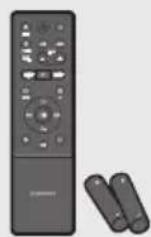
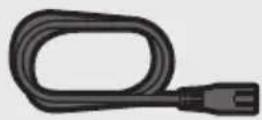
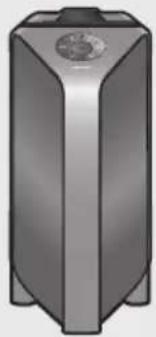
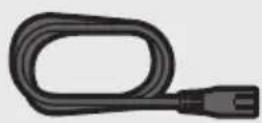
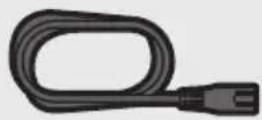
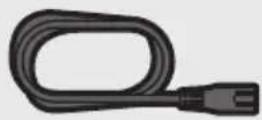
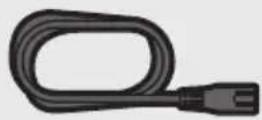
Sound Tower Main Unit Remote Control / Batteries Power Cord
- For more information about the power supply and power consumption, refer to the label attached to the product. (Label: Rear of the Sound Tower Main Unit)
- To purchase additional components or optional cables, contact a Samsung Service Centre or Samsung Customer Care.
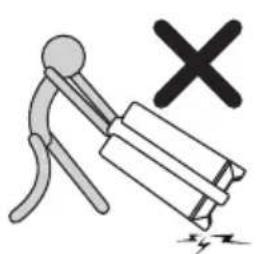
- When moving the product, do not drag or pull the product from the ground. Lift the product when moving the product.
natural_image
Illustration of a stick figure pulling a battery with a 'X' symbol (no text or labels)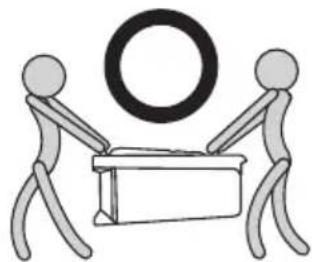
natural_image
Two stick figures carrying a large circular object, no text or symbols presentInserting Batteries before using the Remote Control (AAA batteries X 2)
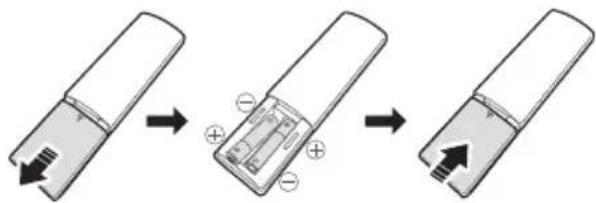
Slide the battery cover in the direction of the arrow until it is completely removed. Insert 2 AAA batteries (1.5V) oriented so that their polarity is correct. Slide the battery cover back into position.
02 PRODUCT OVERVIEW
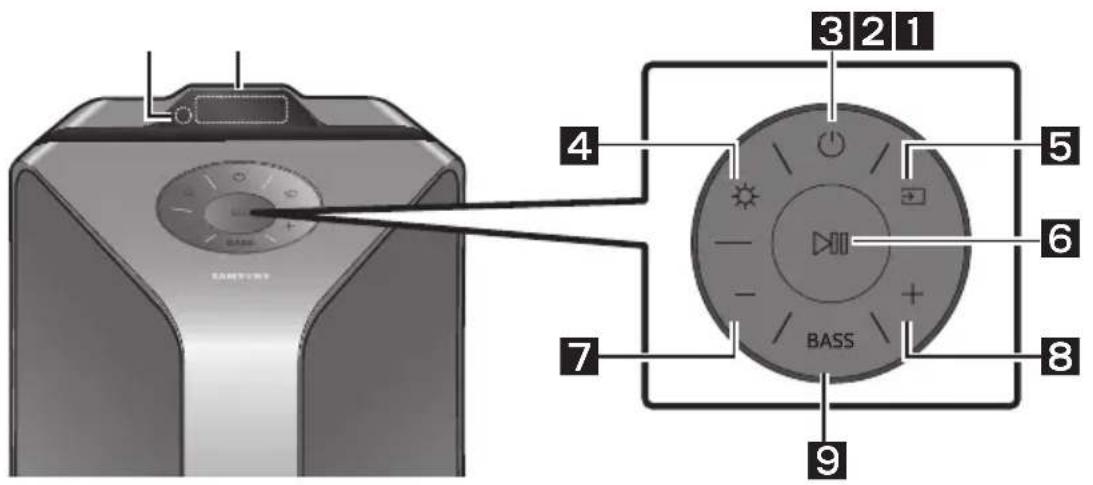
Top Panel of the Sound Tower
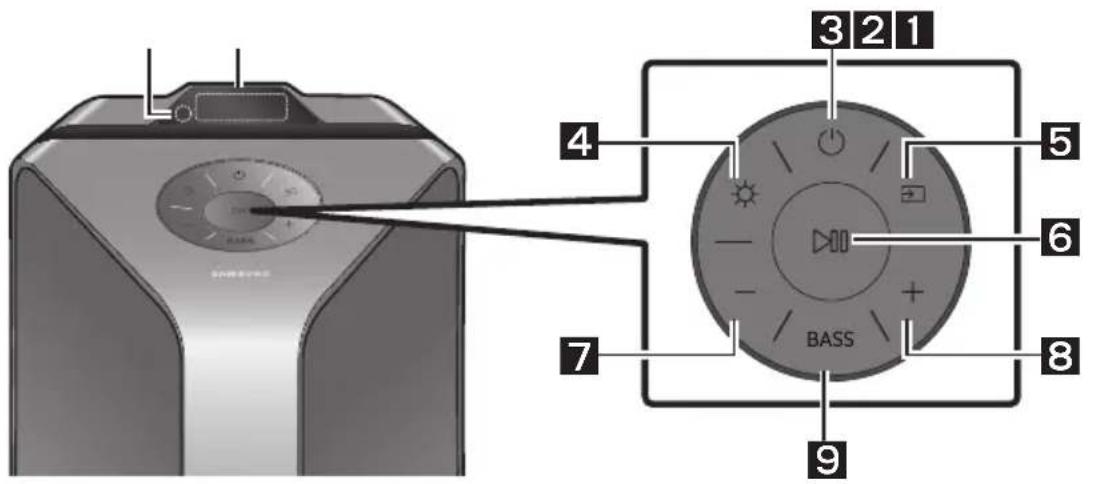
| 1 | Remote Sensor | When operating the Sound Tower system, please aim the front of the remote control at the remote sensor. |
| 2 | Display Window | Displays operating messages or current status of the Sound Tower system. |
| 3 | Power Turns the Sound Tower on and off. | |
| 4 | Light | Press the (Light) button to turn the Lighting Mode on.Press the button repeatedly to cycle through the available lighting modes: AMBIENT, PARTY, DANCE, THUNDERBOLT, STAR or OFF. |
| 5 | Source | Press to select a source connected to the Sound Tower.Press and hold the (Source) button for more than 5 seconds to enter the “SEARCHING TV” mode. |
| 6 | Play/Pause | Play/PausePress the Button to pause a music file temporarily.When you press the button again, the music file plays.Demo playPress and hold the Button for more than 5 seconds to start the Demo play while the system is turned on. “DEMO” appears on the display and it plays demo music for 60 seconds.To cancel Demo Play, press and hold the Button for more than 5 seconds during Demo Play.If you input any commands while in demo play, 60 seconds timer is refreshed.All the buttons on the remote control and rear panel are disabled while in demo play. If you want to use the remote control, cancel the demo play.Demo play is cancelled when you change the source or power off the system.Please be careful as it may play louder than the set volume. |
| 7 | Volume down | Press the -(Volume down) button to lower the volume. Press and hold the — (Volume down) button to quickly lower the volume. |
| 8 | Volume up | Press the + (Volume up) button to raise the volume. Press and hold the + (Volume up) button to quickly raise the volume. |
| 9 | BASS | Press the BASS button to use the powerful bass sound. Press it again to return to the normal sound. Press and hold the BASS button for more than 5 seconds to turn on or off the BLUETOOTH POWER function. |
Rear Panel of the Sound Tower
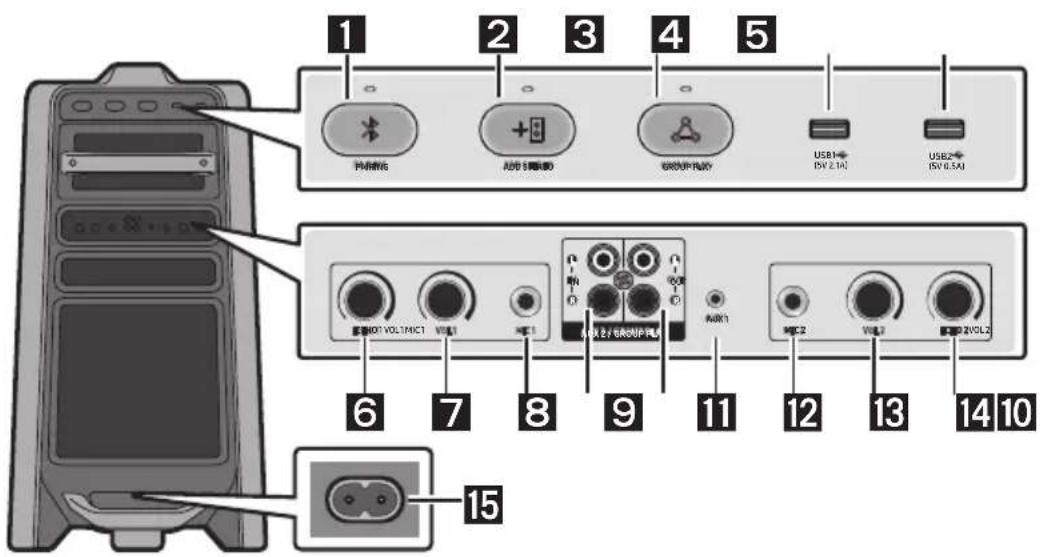
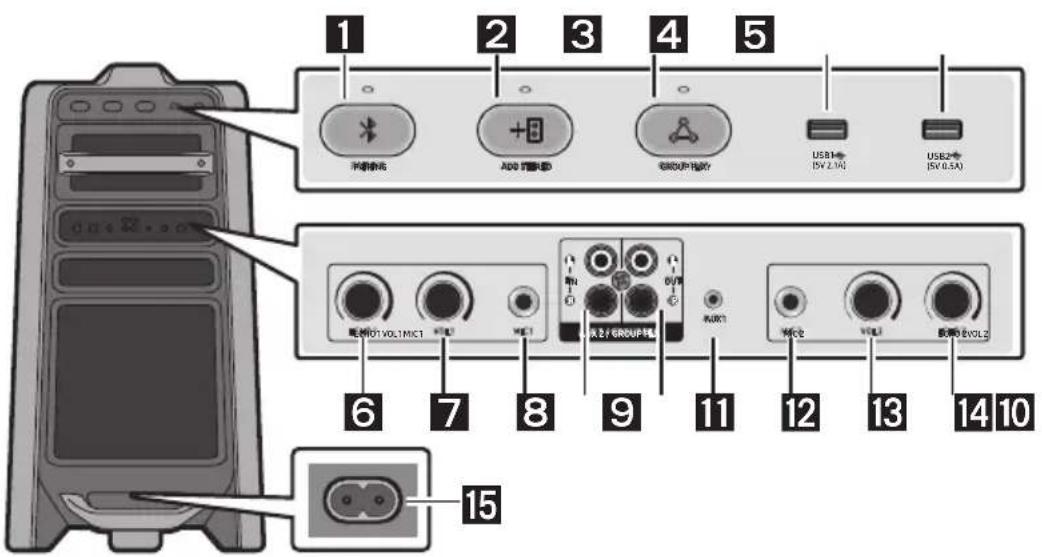
| 1 | Bluetooth PAIRING | Press the ➕ PAIRING button to enter the “BT PAIRING” mode. You can connect the Sound Tower to a new Bluetooth device in this mode by selecting the Sound Tower from the Bluetooth device's search list. |
| 2 | ADD STEREO | Press the ADD STEREO button to connect to another Sound Tower wirelessly. Press the ADD STEREO button again before connecting another Sound Tower to exit Stereo Group mode. When the connection is made, you can enjoy stereo sound. Press and hold the ADD STEREO button for more than 5 seconds to disconnect the Stereo Group mode. |
| 3 | GROUP PLAY | Press the GROUP PLAY button to connect up to ten Sound Tower systems wirelessly. Press the GROUP PLAY button again before connecting other Sound Tower to exit wireless Group Play. When the connection is made, you can use multiple Sound Tower systems at the same time using Group Play mode. Press and hold the GROUP PLAY button for more than 5 seconds to disconnect the wireless Group Play mode. |
| 4 | USB1 | Connect a USB device to the USB1 or USB2 ports on the main unit. If you connect your cell phone to the USB1 port, you can charge it. • Press the ➔ (Source) button to select USB1 or USB2. |
| 5 | USB2 | |
| 6 | ECHO1 | You can give an echo effect to the sound from a connected microphone (MIC1) by adjusting the ECHO1 knob.If you turn clockwise, the echo effect goes up, and if you turn counter-clockwise, the echo effect goes down. |
| 7 | VOL1 | Use the VOL1 knob to adjust the volume of a connected microphone (MIC1).If you turn clockwise, the volume goes up, and if you turn counter-clockwise, the volume goes down. |
| 8 | MIC1 Connect your microphone to the MIC1 jack. | |
| 9 | AUX2/ GROUP PLAY IN Terminals | Use an Audio Cable (not supplied) to connect AUX2 (IN) terminals on the main unit to Audio Out on an external analogue output device.Be sure to match connector colours.If the external analogue output device has only one Audio Out jack, connect either left or right.Press the → (Source) button to select AUX2.If the product is in AUX2 mode with no playback and no command input for more than 20 minutes, the system will turn off.If the product is in AUX2 mode with playback for more than 8 hours and no command input, the system will turn off. |
| 10 | GROUP PLAY OUT Terminals | Use an Audio Cable (not supplied) to connect GROUP PLAY (OUT) terminals on the main unit to Audio In on an external analogue output device.Be sure to match connector colours.If the external analogue output device has only one Audio In jack, connect either left or right. |
| 11 | AUX1 | Use an Audio (AUX) Cable (not supplied) to connect AUX1 jack on the main unit to Audio Out on an external device.If the product is in AUX1 mode with no playback and no command input for more than 20 minutes, the system will turn off.If the product is in AUX1 mode with playback for more than 8 hours and no command input, the system will turn off. |
| 12 | MIC2 Connect your microphone to the MIC2 jack. | |
| 13 | VOL2 | Use the VOL2 knob on the main unit to adjust the volume of a connected microphone (MIC2).If you turn clockwise, the volume goes up, and if you turn counter-clockwise, the volume goes down. |
| 14 | ECHO2 | You can give an echo effect to the sound from a connected microphone (MIC2) by adjusting the ECHO2 knob.If you turn clockwise, the echo effect goes up, and if you turn counter-clockwise, the echo effect goes down. |
| 15 | Power | Connect the power cord to the Power jack and connect the other end of the power cord to a wall socket to supply electrical power to the Sound Tower. |
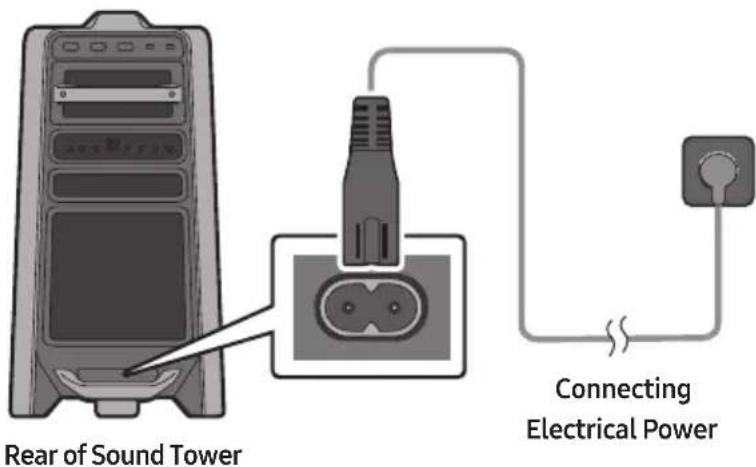
Connecting Electrical Power
Use the power cord to connect the Sound Tower to an electrical outlet in the following order:
Connect the power cord to the Sound Tower and then to a wall socket.
See the illustrations below.
- For more information about the required electrical power and power consumption, refer to the label attached to the product. (Label: Rear of the Sound Tower)
How to use Audio Group
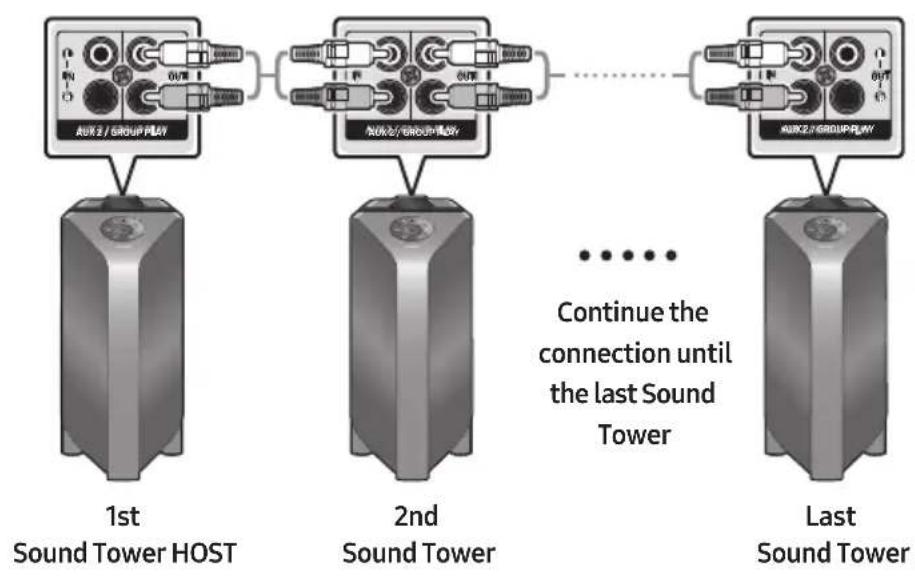
You can connect multiple audio systems in a group to create a party environment and produce higher sound output. Set one Sound Tower as the HOST and any music played on it will be shared among any other Sound Tower systems in the Audio group.
Connecting the wired Group Play mode
flowchart
graph LR
    A["1st Sound Tower HOST"] --> B["Group Play"]
    C["2nd Sound Tower"] --> D["Group Play"]
    E["Last Sound Tower"] --> F["Group Play"]
    B -.-> D
    D -.-> F
    style A fill:#f9f,stroke:#333
    style C fill:#f9f,stroke:#333
    style E fill:#f9f,stroke:#333
    style B fill:#ccf,stroke:#333
    style D fill:#ccf,stroke:#333
    style F fill:#ccf,stroke:#333
Set up Group Play by connecting all the systems using audio cables (not supplied). Use the AUX or → (Source) button to change the source to AUX2 for every Sound Tower system except the 1st (or HOST) Sound Tower system.
NOTES
• The 1st Sound Tower HOST can play music from any source.
- Depending on the length or characteristics of the cable, there may be a difference in operating distance.
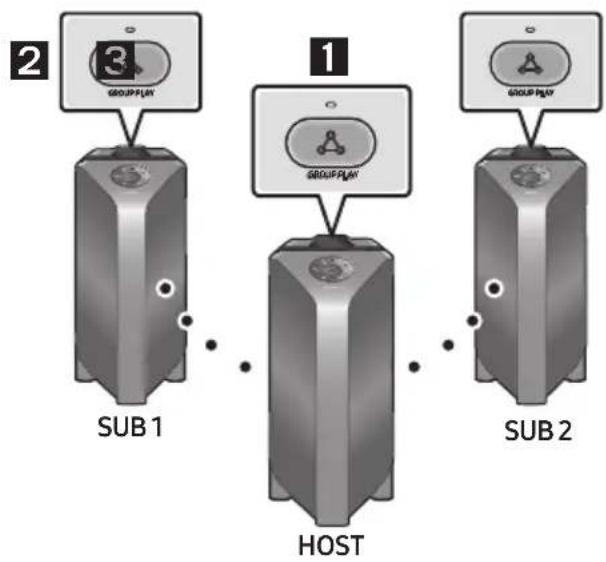
Connecting the wireless Group Play mode
You can connect up to ten Sound Tower systems with the wireless Group Play function.
flowchart
graph TD
    A["2"] --> B["SUB 1"]
    C["1"] --> D["HOST"]
    E["3"] --> F["SUB 2"]
    style A fill:#f9f,stroke:#333
    style C fill:#f9f,stroke:#333
    style E fill:#f9f,stroke:#333
    style B fill:#ccf,stroke:#333
    style D fill:#ccf,stroke:#333
    style F fill:#ccf,stroke:#333
- Press the GROUP PLAY button on the HOST Sound Tower system. The "HOST" message appears on the display of the HOST Sound Tower and the LED blinks on the GROUP PLAY button.
- Press the GROUP PLAY button on the 2nd Sound Tower system (SUB 1). The "GROUP PLAY CONNECTED" message appears on the display and the GROUP PLAY button on both systems stops blinking.
- Press the GROUP PLAY button on the 3rd Sound Tower system (SUB 2). The "GROUP PLAY CONNECTED" message appears on the display and the GROUP PLAY button on the system stops blinking.
- If you want to add more Sound Tower systems, repeat step 3.
- Play music on the HOST Sound Tower. Sound outputs from all the connected systems.
NOTES
- If Sound Tower is connected with Samsung TV, Wireless Group Play is not available.
- The wireless Group Play connection is available for any Sound Tower system.
- Environmental conditions or other factors with connected devices may have effect on playback quality.
- If the red LED is on the GROUP PLAY button, an error has occurred in the wireless Group Play connection. Try step 1 to step 5 again.
- The ADD STEREO button and ✗ PAIRING button on the SUB Sound Tower systems are not available while in wireless Group Play mode.
- The ADD STEREO button on the HOST Sound Tower system is not available while in wireless Group Play mode.
-
When adding a SUB unit, if you press and hold GROUP PLAY on the SUB, before the "GROUP PLAY CONNECTED" message appears, it will become the HOST unit instead.
-
All SUB units must be connected one by one. For example, after HOST is connected, press GROUP PLAY button on SUB 1 to connect, and after SUB 1 is connected, you should connect SUB 2 and SUB 3 one by one sequentially.
- While using Group Play, currently connected Bluetooth devices are disconnected and Bluetooth connection is disabled.
- Bluetooth devices can search and connect with the HOST Sound Tower only.
- When in Group Play mode, the SUB cannot connect to a Bluetooth device.
- If you power off and then power on the Sound Tower or select any source other than BT on a SUB unit, in Group Play mode, the Group Play mode is disconnected.
- This product does not support aptX audio stream with Wireless Group Play mode.
Disconnecting the wireless Group Play mode
- Press and hold the GROUP PLAY button over 5 seconds (HOST or SUB) after Group Play is connected or press the GROUP PLAY button (HOST or SUB) before Group Play is connected.
- "OFF-GROUP PLAY" appears on the display and the LED above the GROUP PLAY button is off.
- If you select any source other than BT on the SUB units or turn off the HOST Sound Tower, the Group Play mode is disconnected.
- If the disconnection is made from the HOST Sound Tower, Group Play is disconnected.
LED Indications
| LED STATE Description | ||
| Green | Blink Waiting for a wireless Group Play connection. | |
| Solid The wireless Group Play connection was successful. | ||
| Red | Solid | There is an error with the wireless Group Play connection. |
NOTE
- In wireless connection, Playback quality can be unstable depending on Bluetooth environment. For better play, please keep the device in wired Group Play mode.
Using a Smartphone and Stereo Group mode
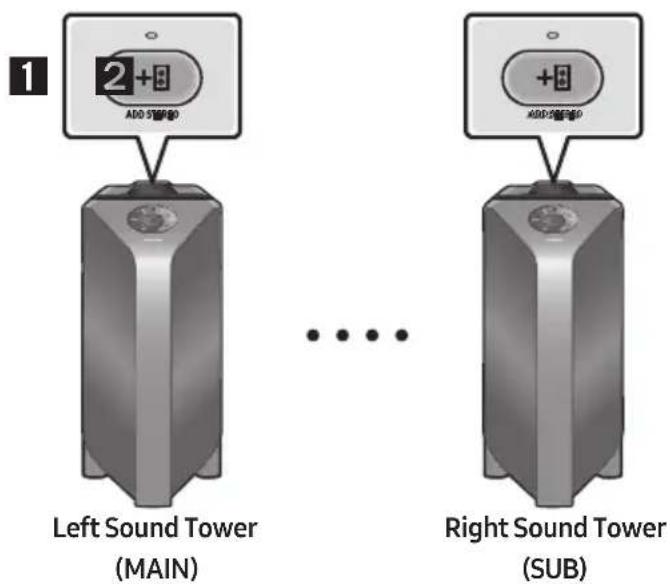
Connect two Sound Tower and use them with your smartphone to enjoy stereo sound.
-
Press the ADD STEREO button on the left Sound Tower system. The "SEARCHING STEREO" message appears on the display and the LED blinks on the ADD STEREO button.
-
Press the ADD STEREO button on the right Sound Tower system. The "SEARCHING STEREO" message appears on the display and the LED blinks on the ADD STEREO button.
-
When the connection is made, The "LEFT" message appears on the MAIN Sound Tower system and "RIGHT" appears on the SUB Sound Tower system.
- The MAIN Sound Tower system outputs left channel sound and the SUB Sound Tower system outputs right channel sound. Press the ADD STEREO button on the MAIN or SUB Sound Tower to change the sound channel of the Sound Tower.
- Play music by connecting your smartphone to the MAIN Sound Tower and Bluetooth. Sound is output from both Sound Tower.
NOTES
- To use the Stereo Group mode, both Sound Tower systems must be the same model.
- Environmental conditions or other factors with connected devices may have effect on playback quality.
- If the red LED is on the ADD STEREO, an error has occurred in the Stereo Group connection. Try step 1 and step 3 again.
- Remote Controller, BT PAIRING, GROUP PLAY and → (Source) buttons on the SUB Sound Tower systems are disabled while in Stereo Group mode.
- The GROUP PLAY button on the MAIN Sound Tower system is not available while in Stereo Group mode.
- In mode other than "BT" (ex. USB, AUX mode), music is played only in MAIN Sound Tower and music is not played in SUB Sound Tower.
- The lighting colours between MAIN Sound Tower and SUB Sound Tower may vary.
- The Bluetooth device has the same name as MAIN Sound Tower and SUB Sound Tower when connected to the Bluetooth device, and only the MAIN Sound Tower can be connected.
- This product does not support aptX audio stream with Stereo Group mode.
- If you try to connect a Bluetooth device while Stereo Group is connecting, the Stereo Group mode may fail.
Terminate the Stereo Group mode
Press the ADD STEREO button (MAIN or SUB) for at least 5 seconds after the Stereo Group is connected.
- "OFF-STEREO MODE" appears on the display and the LED above the ADD STEREO button is off.
LED Indications
| LED STATE Description | |
| Green | Blink Waiting for a Stereo Group connection. |
| Solid The Stereo Group connection is successful. | |
| Red Solid There is an error with the Stereo Group connection. | |
Using Samsung TV and Stereo Group mode
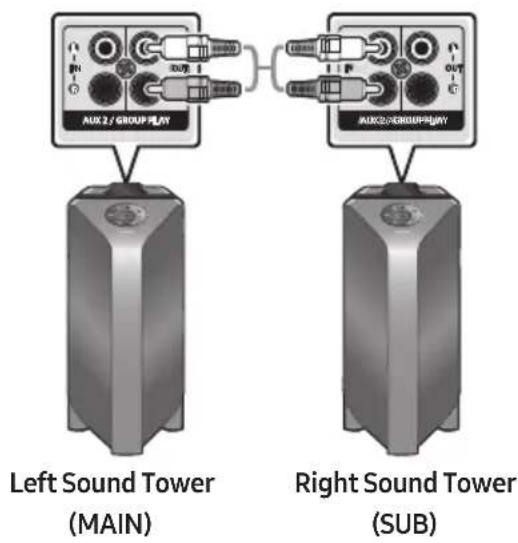
Connect two Sound Tower by wire and use them with Samsung TV to enjoy stereo sound.
-
Refer to "Using a Smartphone and Stereo Group mode" to connect the two Sound Tower in a Stereo Group.
-
Connect the RCA cable to the AUX2 OUT on the MAIN and AUX2 IN on the SUB as shown by using the RCA cable (not supplied).
-
In "BT" mode, press the "AUX" button on the MAIN Sound Tower remote control for at least 5 seconds. "SEARCHING TV STEREO" appears on the display.
-
When the connection is complete, "TV STEREO MODE" appears in the display and then the current output CHANNEL is displayed.
-
When the connection is complete, a "SEARCHING TV" message appears in the MAIN Sound Tower display and a "SUB" appears in the SUB Sound Tower display.
- The MAIN Sound Tower outputs the left channel sound and the SUB Sound Tower outputs the right channel sound. Press the ADD STEREO button on the MAIN or SUB Sound Tower to change the sound channel of the Sound Tower.
- Connect a TV and MAIN Sound Tower via Bluetooth to play music. Sound is output from both Sound Tower.
NOTES
- To use Stereo Group mode, both Sound Tower must be the same model.
- A red light on the LED on the ADD STEREO button indicates an error in the Stereo Group connection. Try Step 1 to 5 again.
- In Stereo Group mode, the remote control, BT PAIRING, GROUP PLAY, and → (Source) buttons on the SUB Sound Tower are disabled.
- The GROUP PLAY button on the MAIN Sound Tower is not available in Stereo Group mode.
- If Samsung TV supports a simple connection, the connection pop-up is automatically displayed on the TV, and if you select "Yes", it connects to the TV. If there is a previous connection history between Samsung TV and Sound Tower, it will be connected to Samsung TV without pop-up. For a simple connection to Samsung TV, refer to page 17.
- The lighting colours may vary between the MAIN Sound Tower and the SUB Sound Tower.
- When connecting to a TV, the names of the MAIN and SUB Sound Tower are the same in the Bluetooth list on the TV, and only the MAIN Sound Tower can be connected.
Terminating the Stereo Group mode connection
Press the ADD STEREO button (MAIN or SUB) for at least 5 seconds after the Stereo Group is connected.
- "OFF-STEREO MODE" appears in the display and the LED on the ADD STEREO button turns off.
04 CONNECTING AN EXTERNAL DEVICE
Connect to an external device via a wired or wireless network to play the external device's sound through the Sound Tower.
Connecting using an Analogue Audio (AUX) Cable
BD / DVD player / Set-top box / Game console
flowchart
graph TD
    A["Mobile device / MP3 / PMP"] -->|3.5 mm stereo cable (not supplied)| B["AUX1"]
    B --> C["Rear of the Sound Tower"]
    C --> D["AUX 2 / GROUP PLAY"]
    D --> E["Output"]
    style A fill:#f9f,stroke:#333
    style B fill:#ccf,stroke:#333
    style C fill:#cfc,stroke:#333
    style D fill:#fcc,stroke:#333
    style E fill:#cff,stroke:#333
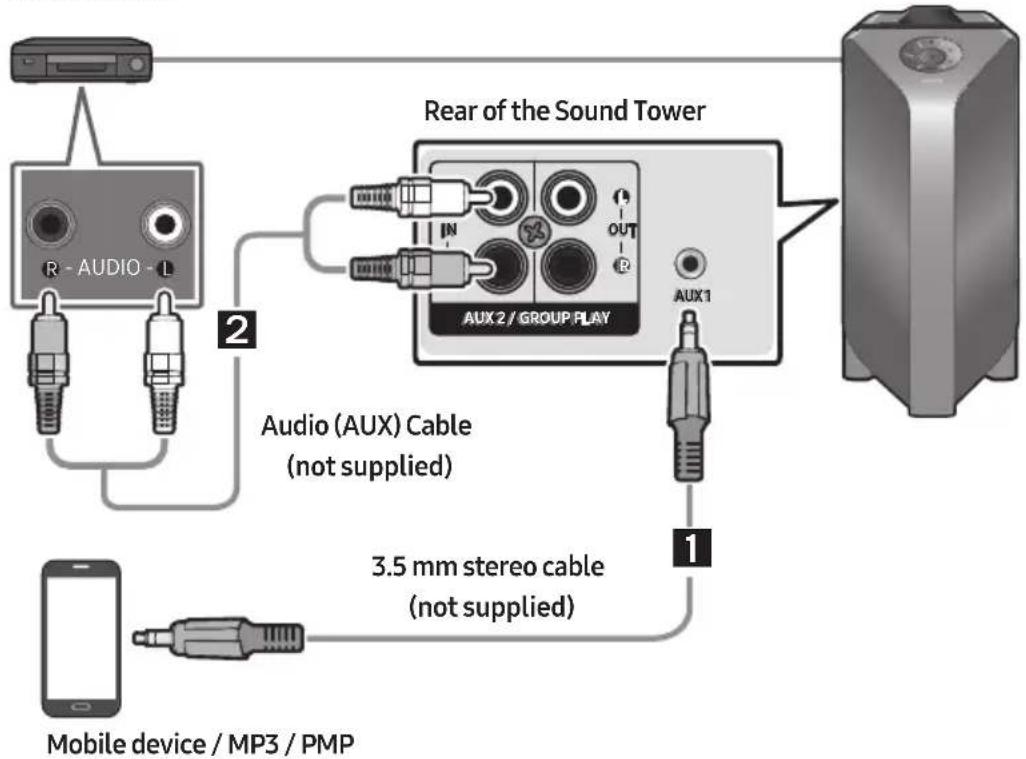
1 3.5 mm stereo Cable (AUX1)
- Connect AUX1 jack on the main unit to the AUDIO OUT jack of the Source Device using an 3.5 mm stereo cable.
- Select "AUX1" mode by pressing the → (Source) button on the top panel or on the remote control.
- You can also select a source using AUX button on the remote control.
2 Audio Cable (AUX2)
-
Connect AUX2 (IN) terminals on the main unit to the AUDIO OUT terminals of the Source Device using an audio cable.
-
Select "AUX2" mode by pressing the → (Source) button on the top panel or on the remote control.
- You can also select a source using AUX button on the remote control.
Connecting a mobile device via Bluetooth
When a mobile device is connected using Bluetooth, you can hear stereo sound without the hassle of cabling.
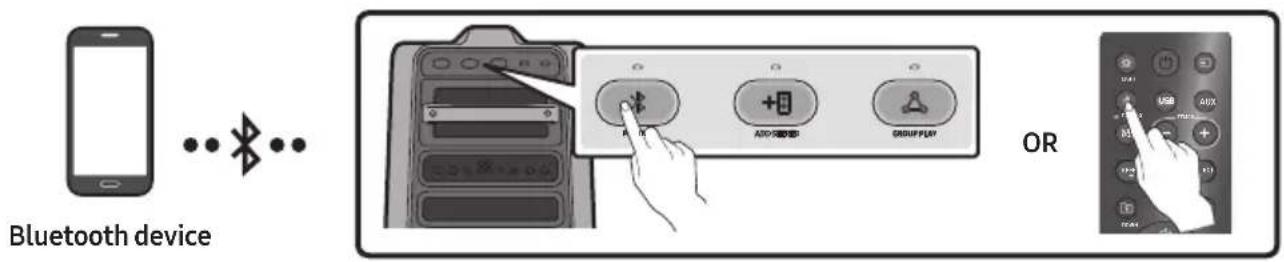
The initial connection
- Press and hold the ✝ PAIRING button on the remote control for more than 5 seconds to enter the "BT PAIRING" mode.
(OR) Press the ✝ PAIRING button on the rear panel.
- On your device, select "[AV]MX-T70" from the list that appears.
- When the Sound Tower is connected to the Bluetooth device, [Bluetooth Device Name] → "BT" appears in the front display.
- Play music files from the device connected via Bluetooth through the Sound Tower.
If the device fails to connect
- If a previously connected Sound Tower listing (e.g. "[AV] MX-T70") appears in the list, delete it.
- Then repeat steps 1 and 2.
What is the difference between BT READY and BT PAIRING?
- BT READY : In this mode, you can search for previously connected TVs or connect a previously connected mobile device to the Sound Tower.
- BT PAIRING : In this mode, you can connect a new device to the Sound Tower.
(Press and hold the ✗ PAIRING button on the remote control for more than 5 seconds or press the
* PAIRING button on the rear of the Sound Tower to enter the "BT PAIRING" mode.)
Bluetooth Multi connection
Sound Tower supports up-to two simultaneous Bluetooth device connections. Sound Tower can play music through one of the connected Bluetooth devices without disconnecting the second device.
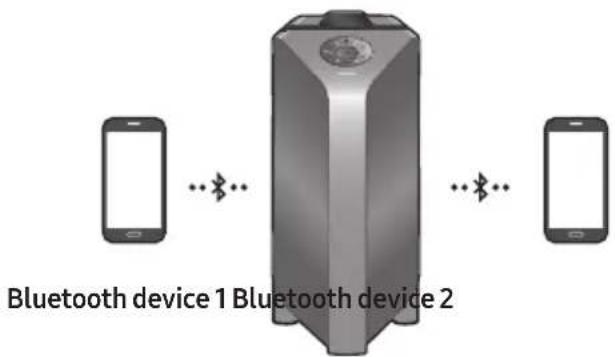
-
Connect Sound Tower to the first device and the second device respectively for the first time. (See page 14)
-
Music can be played on only one of the two connected devices, and when the music is played on the other device, the music on the playing device is paused.
NOTES
- If you want to connect Sound Tower to a third device, you can disconnect Sound Tower from one of the two currently connected devices and then connect Sound Tower to the third device.
- With the Sound Tower and two devices currently connected, when pairing to a new Bluetooth device, the devices currently connected maybe disconnected.
- You can connect to two Bluetooth devices at the same time.
- If asked for a PIN code when connecting a Bluetooth device, enter <0000>.
- Environmental conditions or other factors with connected devices may have effect on playback quality.
- The Sound Tower automatically turns off after 20 minutes with no command input in the ready state.
- The Sound Tower may not perform Bluetooth search or connection correctly under the following circumstances:
- If there is a strong electrical field around the Sound Tower.
- If several Bluetooth devices are simultaneously paired with the Sound Tower.
- If the Bluetooth device is turned off, not in place, or malfunctions.
- Electronic devices may cause radio interference. Devices that generate electromagnetic waves must be kept away from the Sound Tower main unit - e.g., microwaves, wireless LAN devices, etc.
- When the Sound Tower is connected to your TV by Bluetooth connection, the video on the TV and audio from the Sound Tower may not be synchronised because the distance between the Sound Tower and the TV is too far. It is recommended to move the Sound Tower closer to your TV within 1 meter.
- When the speaker is in the Bluetooth Multi connection mode, you will need to connect the other Bluetooth device and speaker within a few minutes (Approx. 1 minute). Otherwise Bluetooth Multi connection mode will be cancelled.
- Bluetooth Multi connection may not be supported depending on the connected device's specifications.
- Removable/detachable Bluetooth devices (Ex:Dongle etc..),windows phone, laptops, TV, etc. do not support Bluetooth Multi connection.
- After Bluetooth Multi connection pairing, there may be a slight delay before music starts playing depending on the Bluetooth devices.
- If you move too far out of range from the Sound Tower without first disconnecting your Bluetooth device, it may take a few minutes to connect other Bluetooth devices. If you turn the Sound Tower off and back on, you can connect other Bluetooth devices without waiting.
LED Indications
| LED STATE Description | ||
| Blue | Fast Blink BT PAIRING mode | |
| Blink BT READY mode | ||
| Solid A Bluetooth device is connected. | ||
Using Bluetooth Power On
When the Sound Tower is turned off, you can connect your smart device via a Bluetooth connection to turn it on.
- Press and hold the BASS button on the remote control or on the top panel to set the Bluetooth Power On function on. "ON-BLUETOOTH POWER" appears on the display.
- When the Sound Tower is off, connect your smart device via Bluetooth. (For information on Bluetooth connections, refer to your smart device's manual.)
- When the connection is complete, the Sound Tower turns itself on automatically in Bluetooth mode.
- Select the desired music to play from your smart device.
NOTE
- Press and hold the BASS button for more than 5 seconds on the remote control or on the top panel to turn the Bluetooth Power On function on or off.
Each time you press the BASS button, the Sound Tower displays :
ON-BLUETOOTH POWER → OFF-BLUETOOTH POWER
Connecting the Samsung TV via Bluetooth
If Sound Tower connected with Samsung TV via Bluetooth, Sound Tower can be controlled by TV UI.
(Volume +/-, Mute On/Off and Power On/Off)
Easy connect with Samsung TV (SEARCHING TV mode)
Sound Tower has "SEARCHING TV" mode for easy connect with Samsung TV.
- Press and hold → (Source) button on remote control or top panel then Sound Tower will start to search Samsung TV. The "SEARCHING TV" message appears on the display. (Or, when the wired Stereo Group mode connection is complete, the "SEARCHING TV" mode is automatically activated.)
- If Samsung TV support easy connection, connection popup will be displayed on TV. If Samsung TV has connected with Sound Tower before, Samsung TV will be connected without popup.
- If Sound Tower can not find any Samsung TV within 5 minutes, Sound Tower will terminate "SEARCHING TV" mode and turn to "BT PAIRING" mode. If find any Samsung TV, Sound Tower will request connection to those TV.
NOTES
- While in wireless Group Play mode, searching TV is not available.
- To stop searching Samsung TV, turn off the Sound Tower or press the → (Source) or ✗ PAIRING button.
- Sound Tower does not support multi connection if Samsung TV is connected.
- While Samsung TV is connected, Sound mode is PARTY and SOUND MODE button is not available.
- While Samsung TV is connected, Sound Tower APP can not connect with Sound Tower.
- Connection popup may not be displayed according to TV spec.
- You can select and connect directly from the Bluetooth speaker list on your TV when the connection pop-up does not appear on your TV.
05 CONNECTING A USB STORAGE DEVICE
You can play music files located on USB storage devices through the Sound Tower.
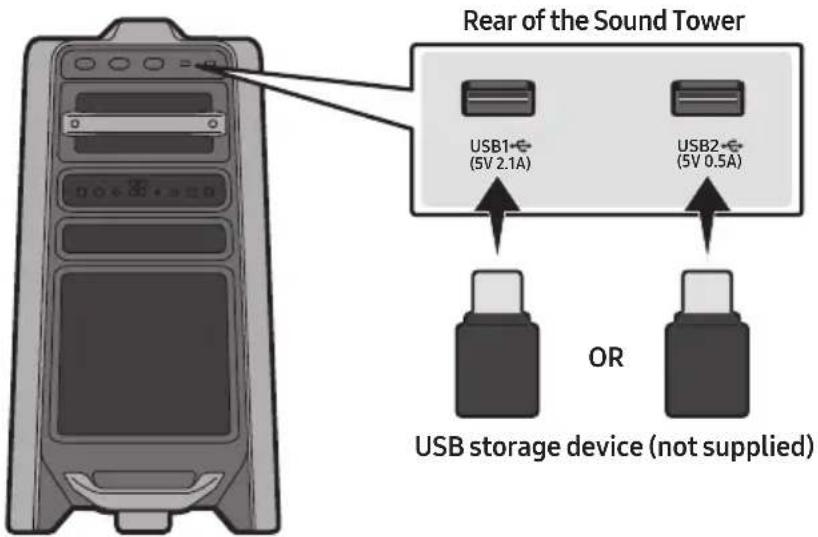
-
Connect a USB storage device to the USB1 or USB2 jacks on your Sound Tower.
-
Press the → (Source) button on the top panel or on the remote control, and then select "USB1" or "USB2".
- You can also select a source using USB button on the remote control.
-
"USB1" or "USB2" appears in the display screen.
-
Play music files from the USB storage device through the Sound Tower.
- The Sound Tower automatically turns off (Auto Power Down) if USB device is not connected, playback stopped, or there is no input for more than 20 minutes.
NOTES
- This product only supports USB storage devices that are formatted in the FAT and FAT32 file system.
- This product does not support HDD storage or storage on mobile devices.
- A maximum of 999 files can be played per USB storage device.
- A maximum of 256 folders can be read per USB storage device.
Supported Audio Formats
| File Extension | Audio Codec | Sampling Rate | Bit Rate |
| *.mp3 | MPEG 1 Layer3 32 kHz ~ 48 kHz 32 kbps ~ 320 kbps | ||
| MPEG 2 Layer3 16 kHz ~ 24 kHz 8 kbps ~ 160 kbps | |||
| MPEG 2.5 Layer3 8 kHz ~ 12 kHz 8 kbps ~ 160 kbps | |||
| *.wma WMA7/8/9 8 kHz ~ 48 kHz 32 kbps ~ 320 kbps | |||
| *.aac | AAC 8 kHz ~ 96 kHz < 1728 kbps | ||
| AAC-LC | 8 kHz ~ 96 kHz | < 1728 kbps | |
| HE-AAC | 8 kHz ~ 96 kHz < 1728 kbps | ||
| *.wav | PCM/LPCM/IMA_ADPCM | 8 kHz ~ 192 kHz | < 5 Mbps |
| *flac | - | 8 kHz ~ 192 kHz | < 5 Mbps |
NOTES
• This product does not support WMA Professional codec.
- The above table shows supported sampling rates and bit rates. Files in formats that are not supported will not play.
• AAC files only support the ADTS native format.
Software Update
Samsung may offer updates for the Sound Tower's system firmware in the future.
If an update is offered, you can update the firmware by connecting a USB device with the firmware update stored on it to the USB1 or USB2 port on your Sound Tower. For more information about how to download update files, go to the Samsung website at www.samsung.com→Support.
Then, enter or select the model number of your Sound Tower, select the Software & Apps option, and then Downloads. Note that the option names can vary.
06 USING THE REMOTE CONTROL
How to Use the Remote Control
| 1 | Power | Turn the Sound Tower on and off. |
| 2 | LIGHT LIGHT | Press the (LIGHT) button to turn the Lighting Mode on. Press the button repeatedly to cycle through the available light modes: AMBIENT, PARTY, DANCE, THUNDERBOLT, STAR or OFF. |
| 3 | Source | Press to select a source connected to the Sound Tower. Press the button repeatedly to cycle through the available sources: BT, USB1, USB2, AUX1 or AUX2. |
| 4 | Bluetooth PAIRING | Press to select a source connected directly to "BT" mode. Press and hold the button for more than 5 seconds to enter the "BT PAIRING" mode. You can connect the Sound Tower to a new Bluetooth device in this mode by selecting the Sound Tower from the Bluetooth device's search list. |
| 5 | USB USB | Press to select the USB1 or USB2 sources connected to the Sound Tower. |
| 6 | AUX AUX | Press to select the AUX1 or AUX2 sources connected to the Sound Tower. |
| 7 | SOUND MODE | Press the button repeatedly to cycle through the available sound effects: PARTY, STANDARD, HIPHOP, EDM, ROCK, LATIN, HOUSE or REGGAE. |
| 8 | 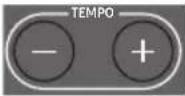 TEMPO +, - TEMPO +, - | Press the TEMPO + or TEMPO - buttons to change the tempo of the music up or down.This function only works in the USB1 and USB2 mode. |
| 9 |  DJ DJ | This function lets you turn on the DJ effect function.Press the button repeatedly to cycle through the available DJ sound effects:NOISE, FILTER, CRUSH, CHORUS, WAHWAH or OFF. |
 EFFECT +, - EFFECT +, - | Press the EFFECT + or EFFECT - buttons to change the level of the each DJ sound effect up or down. | |
| 10 |  Folder DOWN Folder DOWN | Press the (DOWN) button to move to the next folder in the USB device. |
| 11 |  Folder UP Folder UP | Press the (UP) button to move to the previous folder in the USB device. |
| 12 |  Volume up, Volume down / Skip Volume up, Volume down / Skip | • Volume up, Volume downPress the + (Volume up) or - (Volume down) to adjust the volume level up or down.• Music SkipPress the button to select the next music file. Press the button to select the previous music file.Press and hold the button or the button for more than 3 seconds in USB play mode to search forward or search backward. Press and hold the button or the button for more than 3 seconds again to get back to normal play. |
| 13 |  Play / Pause Play / Pause | Press the button to pause a music file temporarily.When you press the button again, the music file plays.• Auto Power Down FunctionTo turn off Auto Power Down function while the unit is in AUX1, AUX2 mode, press and hold the button for more than 5 seconds. ON-AUTO POWER DOWN / OFF-AUTO POWER DOWN appears on the display. |
| 14 |  Mute Mute | Press the (Mute) button to mute the sound.Press it again to unmute the sound. |
| 15 |  Repeat Repeat | Press the (Repeat) button to use the Repeat function in “USB1” and “USB2” mode. Press the button repeatedly to cycle through the available repeat functions:ONE, FOLDER, ALL, RANDOM or OFF. |
| 16 |  BASS BASS | Press the BASS button to use the powerful bass sound. Press it again to return to the normal sound. Press and hold the BASS button for more than 5 seconds to turn on or off the BLUETOOTH POWER function. |
How to use Sound Mode
Your Sound Tower provides predefined equaliser settings that are optimised for particular music genres.
- Press the SOUND MODE button on the Remote control.
- Each time you press the SOUND MODE button, the Sound Tower cycles through the available sound effects: PARTY, STANDARD, HIPHOP, EDM, ROCK, LATIN, HOUSE or REGGAE.
NOTES
- Default sound mode is PARTY.
- When turned off, press and hold the ▶ button on product or remote control for more than 5 seconds to turn on in the default Sound Mode setting.
How to use the DJ Effect
The DJ Effect function lets you add DJ sound effects to your music. The level of each effect is adjustable.
- Press the DJ button on the Remote control.
-
Each time you press the DJ button, the Sound Tower cycles through the available DJ Effects:
-
NOISE : Create white noise and mixed with the original sound through the filter and output.
• FILTER : Creates an effect similar to the sound of only treble or bass.
• CRUSH : Creates an effect that makes the original sound sharper.
• CHORUS : Creates an effect similar to a singing chorus. -
WAHWAH: Creates a 'Wah\~ Wah\~' effect.
• DJ EFFECT OFF : Turns off the DJ Effect. -
Press the EFFECT + or EFFECT - buttons to raise or lower the level of each of the DJ sound effects from -15 to +15.
NOTE
- When turned off, press and hold the ▶ button on product or remote control for more than 5 seconds to turn on in the default DJ Effect setting.
07 USING THE SAMSUNG SOUND TOWER (GIGA PARTY AUDIO) APP
Install Samsung Sound Tower (Giga Party Audio) App
To control this product with your Smart Device and the Samsung Sound Tower (Giga Party Audio) app, download the Samsung Sound Tower (Giga Party Audio) App from the Google Play Store or Apple App Store, and install it on your Smart Device.
NOTES
- The Samsung Sound Tower (Giga Party Audio) app is compatible with Android mobile phone devices running Android OS 6.0 or later.
- The Samsung Sound Tower (Giga Party Audio) app is compatible with Apple mobile devices running iOS 10.0 or later.
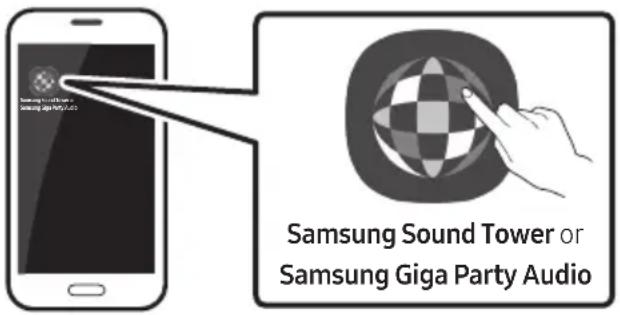
Market search : Samsung Sound Tower or Samsung Giga Party Audio


Launching the Samsung Sound Tower (Giga Party Audio) App
To launch and use the Samsung Sound Tower (Giga Party Audio) app, touch the Samsung Sound Tower (Giga Party Audio) icon on your smart device, and then follow the directions on the screen.
08 TROUBLESHOOTING
Before seeking assistance, check the following.
The unit will not turn on.
Is the power cord plugged into the outlet?
→Connect the power plug to the outlet.
A function does not work when the button is pressed.
Is there static electricity in the air?
→Disconnect the power plug and connect it again.
Sound dropouts occur in BT mode.
→See the Bluetooth connection sections on page 14.
Sound is not produced.
Is the Mute function on?
→ Press the ⚫ (Mute) button to cancel the mute function.
Is the volume set to minimum?
→Adjust the Volume.
The remote control does not work.
Are the batteries drained?
→Replace them with new batteries.
Is the distance between the remote control and Sound Tower main unit too far?
→ Move the remote control closer to the Sound Tower main unit.
Stereo Group connection is not working.
Is the system in wireless Group Play mode?
→Disconnect the wireless Group Play mode and try Stereo Group connection again.
It cannot make a Bluetooth connection.
Is the system connected to another system in wireless Group Play mode or Stereo Group mode?
→Try Bluetooth connection again after disconnecting the wireless Group Play or Stereo Group connection.
Are the two Bluetooth devices already connected?
→Try Bluetooth connection again after disconnecting other Bluetooth connections.
The \*PAIRING button is not working.
Is the system in wireless Group Play mode or Stereo Group mode?
→Try again after disconnecting the wireless Group Play or Stereo Group connection.
I want to switch the HOST (MAIN) system to the other in wireless Group Play or Stereo Group connection.
→Disconnect Group Play mode, press the Speaker which you want make to HOST first, and after it displays "HOST" message, connect the others one by one.
→ With Stereo Group mode, MAIN is fixed. You can not change others as MAIN.
I want to play AUX1 or AUX2 more than 8 hours without control input.
→Press and hold the button for more than 5 seconds in AUX1 or AUX2 mode to disable Auto Power Down Function. Change from ON-AUTO POWER DOWN to OFF-AUTO POWER DOWN.
I can't connect a SUB to Group play.
→After 1 hour, the HOST will block any additional SUB from being added.
Press the GROUP PLAY button on HOST, after it display "HOST" message, the SUB can be reconnected.
It cannot make a "Wireless/Wired Group/Add Stereo/Bluetooth" connection.
Is the distance between systems too far?
→It is recommended to make a "Wireless/Wired Group/Add Stereo/Bluetooth" pairing within 1 meter from the system.
→The recommended operating distance between Sound Tower systems is closer than 10 meters.
09 LICENCE

Bluetooth®
The Bluetooth® word mark and logos are registered trademarks owned by the Bluetooth SIG, Inc. and any use of such marks by Samsung Electronics Co., Ltd. is under license. Other trademarks and trade names are those of their respective owners.

Qualcomm ^ aptX ^TM
Qualcomm aptX is a product of Qualcomm Technologies, Inc. and/or its subsidiaries. Qualcomm is a trademark of Qualcomm Incorporated, registered in the United States and other countries. aptX is a trademark of Qualcomm Technologies International, Ltd., registered in the United States and other countries.
10 OPEN SOURCE LICENCE NOTICE
To send inquiries and requests regarding open sources, contact Samsung via Email (oss.request@samsung.com).
11 IMPORTANT NOTES ABOUT SERVICE
- Figures and illustrations in this User Manual are provided for reference only and may differ from actual product appearance.
- An administration fee may be charged if either
(a) an engineer is called out at your request and there is no defect with the product (i.e. where the user manual has not been read).
(b) you bring the unit to a repair centre and there is no defect with the product (i.e. where the user manual has not been read). - You will be informed of the administration fee amount before a technician visits.
12 SPECIFICATIONS AND GUIDE
Specifications
| Model Name MX-T70 | ||
| USB1/USB2 | USB1: 5V/2.1AUSB2: 5V/0.5A | |
| Weight 26.5 kg | ||
| Dimensions (W x H x D) 463.0 x 884.0 x 455.0 mm | ||
| Operating Temperature Range +5°C to +35°C | ||
| Operating Humidity Range 10% ~ 75% | ||
| AMPLIFIER Rated Output power | Tweeter 150W x 2, 12 ohm | |
| Middle 300W x 2, 6 ohm | ||
| Woofer 600W x 1, 3 ohm | ||
| WIRELESS DEVICE OUTPUT POWERBT max transmitter power | 100mW at 2.4GHz – 2.4835GHz | |
| Overall Standby Power Consumption (W) 2.0W | ||
| BluetoothPort deactivation method | Press and hold theBASSbutton for more than 5 seconds to turn off Bluetooth Power function. | |
NOTES
- Samsung Electronics Co., Ltd reserves the right to change the specifications without notice.
• Weight and dimensions are approximate.
- Hereby, Samsung, declares that this equipment is in compliance with Directive 2014/53/EU.
The full text of the EU declaration of conformity is available at the following internet address: http://www.samsung.com go to Support > Search Product Support and enter the model name.
This equipment may be operated in all EU countries.
[Correct disposal of batteries in this product]
(Applicable in countries with separate collection systems)
This marking on the battery, manual or packaging indicates that the batteries in this product should not be disposed of with other household waste at the end of their working life. Where marked, the chemical symbols Hg, Cd or Pb indicate that the battery contains mercury, cadmium or lead above the reference levels in EC Directive 2006/66.
If batteries are not properly disposed of, these substances can cause harm to human health or the environment.
To protect natural resources and to promote material reuse, please separate batteries from other types of waste and recycle them through your local, free battery return system.
Correct Disposal of This Product
(Waste Electrical & Electronic Equipment)
(Applicable in countries with separate collection systems)
This marking on the product, accessories or literature indicates that the product and its electronic accessories (e.g. charger, headset, USB cable) should not be disposed of with other household waste at the end of their working life. To prevent possible harm to the environment or human health from uncontrolled waste disposal, please separate these items from other types of waste and recycle them responsibly to promote the sustainable reuse of material resources.
Household users should contact either the retailer where they purchased this product, or their local government office, for details of where and how they can take these items for environmentally safe recycling.
Business users should contact their supplier and check the terms and conditions of the purchase contract. This product and its electronic accessories should not be mixed with other commercial wastes for disposal.
For information on Samsung's environmental commitments and product specific regulatory obligations e.g. REACH, WEEE, Batteries, visit:
www.samsung.com/uk/aboutsamsung/sustainability/environment/our-commitment/data/
SIKKERHEDSINFORMATIONER
SIKKERHEDSINFORMATIONER
FOR AT MINDSKE RISIKO FOR ELEKTRISK ST∅D MÅ BAGBEKLÆDNINGEN IKKE AFTAGES.
ENHEDENS INDVENDIGE DELE MÅ KUN EFTERSES AF FAGKYNDIGE. OVERLAD ALT REPARATIONSARBJEDE TIL AUTORISEREDE SERVICEFORHANDLERE.
natural_image
Illustration of a person sitting on a sofa using a laptop (no text or symbols)BRUGERVEJLEDNING
natural_image
Illustration of a person sitting on a sofa next to a desk with a laptop (no text or symbols visible)
KOMPLET BRUGERVEJLEDNING
natural_image
3D rendering of a gray cylindrical mechanical component with a circular top and flange (no text or symbols)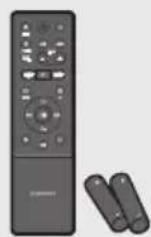
natural_image
Illustration of a stick figure pulling a battery with a 'X' symbol (no text or labels)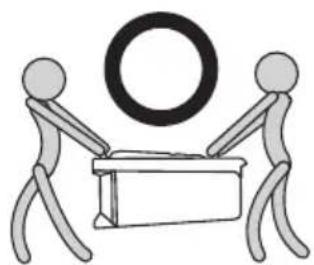
natural_image
Two stick figures handling a large cylindrical object, no text or symbols present02 PRODUKTOVERSIGT
Top Panelet af Sound Tower
Installér Samsung Sound Tower (Giga Party Audio) App
The Bluetooth® word mark and logos are registered trademarks owned by the Bluetooth SIG, Inc. and any use of such marks by Samsung Electronics Co., Ltd. is under license. Other trademarks and trade names are those of their respective owners.

Qualcomm aptX™
Qualcomm aptX is a product of Qualcomm Technologies, Inc. and/or its subsidiaries. Qualcomm is a trademark of Qualcomm Incorporated, registered in the United States and other countries. aptX is a trademark of Qualcomm Technologies International, Ltd., registered in the United States and other countries.
10 BEMAERKNING VEDR. OPEN SOURCE-LICENS
www.samsung.com/uk/aboutsamsung/sustainability/environment/our-commitment/data/
TURVALLISUUSOHJEET
TURVAOHJEITA
SÄHKÖISKUVAARAN VÄHENTÄMISEKSI ÄLÄ IRROTA TAKAKANTTA.
EI SISÄLLÄ OSIA, JOITA KÄYTTÄJÄ VOISI
KORJATA. JÄTÄ HUOLTO- JA KORJAUSTYÖT
VALTUUTETUN HUOLTOLIIKKEEN TEHTÄVIKSI.
natural_image
Illustration of a person sitting on a sofa using a laptop (no text or symbols visible)KÄYTTÖOPAS
natural_image
Illustration of a person sitting on a couch next to a desk with a laptop (no text or symbols visible)
TÄYDELLINEN KÄYTTÖOPAS
natural_image
3D rendering of a gray cylindrical device with a circular top and two side legs (no text or symbols visible)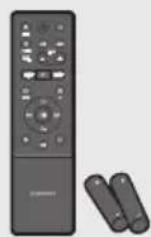
natural_image
Illustration of a person using a tool to lift a block with a 'X' symbol and lightning bolt (no text or labels)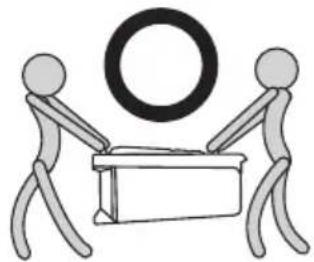
natural_image
Two stick figures carrying a large circular object, no text or symbols present02 LAITTEEN YLEISKUVAUS
The Bluetooth® word mark and logos are registered trademarks owned by the Bluetooth SIG, Inc. and any use of such marks by Samsung Electronics Co., Ltd. is under license. Other trademarks and trade names are those of their respective owners.

Qualcomm aptX ^TM
Qualcomm aptX is a product of Qualcomm Technologies, Inc. and/or its subsidiaries. Qualcomm is a trademark of Qualcomm Incorporated, registered in the United States and other countries. aptX is a trademark of Qualcomm Technologies International, Ltd., registered in the United States and other countries.
10 AVOIMEN LÄHDEKIELEN LISENSSI- ILMOITUS
www.samsung.com/uk/aboutsamsung/sustainability/environment/our-commitment/data/
SIKKERHETSINFORMASJON
SIKERHETSFORANSTALTNINGER
FOR Å REDUSERE FAREN FOR ELEKTRISK ST∅T, TA IKKE AV BAKDEKSLET.
INNVENDIGE DELER KAN IKKE REPARERES AV BRUKEREN. OVERLAT ALL SERVICE TIL KVALIFISERT PERSONELL.
natural_image
Illustration of a person sitting on a sofa using a laptop (no text or symbols visible)BRUKERHÅNDBOKEN
natural_image
Illustration of a person sitting on a couch next to a laptop and a desk (no text or symbols)
FULLSTENDIG BRUKERHÅNDBOK
natural_image
3D rendering of a gray cylindrical device with a circular top and two side legs (no text or symbols visible)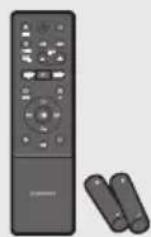
Sound Tower hovedenhet Fjernkontroll/batterier Strømledning
natural_image
Illustration of a person using a tool to lift a block with a 'X' symbol and lightning bolt (no text or labels)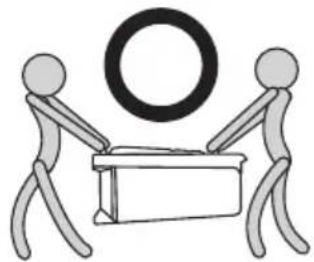
natural_image
Two stick figures carrying a large circular object, no text or symbols present02 PRODUKTOVERSIKT
The Bluetooth® word mark and logos are registered trademarks owned by the Bluetooth SIG, Inc. and any use of such marks by Samsung Electronics Co., Ltd. is under license. Other trademarks and trade names are those of their respective owners.

Qualcomm aptX™
Qualcomm aptX is a product of Qualcomm Technologies, Inc. and/or its subsidiaries. Qualcomm is a trademark of Qualcomm Incorporated, registered in the United States and other countries. aptX is a trademark of Qualcomm Technologies International, Ltd., registered in the United States and other countries.
10 LISENSMERKNADER OM ÅPEN KILDEKODE
Hvis du har spørsmål eller kommentarer rundt åpen kildekode kan du ta kontakt med Samsung på e-post (oss.request@samsung.com).
11 VIKTIG MERKNAD OM SERVICE
www.samsung.com/uk/aboutsamsung/sustainability/environment/our-commitment/data/
SÄKERHETSINFORMATION
WARNING
FÖR ATT MINSKA RISKEN FÖR ELEKTRISKA STÖTAR SKALL DU INTE TA BORT HÖLJET (ELLER BAKSIDAN).
DET FINNS INGA DELAR INUTI SOM DU KAN REPARERA. ÖVERLÄMNA SERVICEÅTAGANDEN TILL KVALIFICERAD PERSONAL.
natural_image
Illustration of a person sitting on a sofa using a laptop (no text or symbols visible)ANVÄNDARHANDBOK
natural_image
Illustration of a person sitting on a couch next to a desk with a laptop (no text or symbols visible)
FULLSTÄNDIG HANDBOK
INNEHÅLLSFÖRTECKNING
01 Kontrollera komponenterna 2
Sound Tower – Bakre panel 4
03 Anslut Sound Tower 6
natural_image
3D rendering of a gray cylindrical device with a circular top and three legs (no text or symbols visible)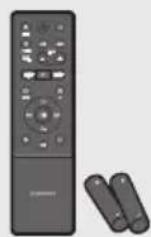
natural_image
Illustration of a person using a tool to lift a block with a 'X' symbol and lightning bolt (no text or labels)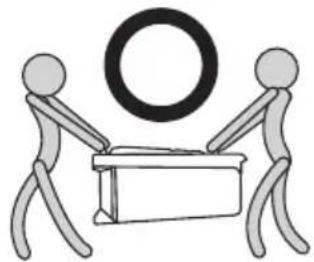
natural_image
Two stick figures carrying a large circular object, no text or symbols present02 PRODUKTÖVERSIKT
Sound Tower – Bakre panel
Första anslutning
05 ANSLUT ETT USB-MINNE
The Bluetooth® word mark and logos are registered trademarks owned by the Bluetooth SIG, Inc. and any use of such marks by Samsung Electronics Co., Ltd. is under license. Other trademarks and trade names are those of their respective owners.

Qualcomm aptX™
Qualcomm aptX is a product of Qualcomm Technologies, Inc. and/or its subsidiaries. Qualcomm is a trademark of Qualcomm Incorporated, registered in the United States and other countries. aptX is a trademark of Qualcomm Technologies International, Ltd., registered in the United States and other countries.
10 LICENSMEDDELANDE FÖR OPEN SOURCE
www.samsung.com/uk/aboutsamsung/sustainability/environment/our-commitment/data/
© 2019 Samsung Electronics Co., Ltd. All rights reserved.
Contact SAMSUNG WORLD WIDE
If you have any questions or comments relating to Samsung products, please contact the SAMSUNG customer care Centre.
| Area Contact Centre | [IMAGE] | Web Site |
| ▪Europe | ||
| UK 0333 000 0353 | www.samsung.com/uk/support | |
| IRELAND (EIRE) 0818 717100 | www.samsung.com/ie/support | |
| GERMANY 06196 77 555 77 | www.samsung.com/de/support | |
| FRANCE 01 48 63 00 00 | www.samsung.com/fr/support | |
| ITALIA 800-SAMSUNG (800.7267864) | www.samsung.com/it/support | |
| SPAIN 91175 00 15 | www.samsung.com/es/support | |
| PORTUGAL 808 207 267 | www.samsung.com/pt/support | |
| LUXEMBURG 261 03 710 | www.samsung.com/be_fr/support | |
| NETHERLANDS 088 90 90 100 | www.samsung.com/nl/support | |
| BELGIUM 02-201-24-18 | www.samsung.com/be/support (Dutch)www.samsung.com/be_fr/support (French) | |
| NORWAY 21629099 | www.samsung.com/no/support | |
| DENMARK 707 019 70 | www.samsung.com/dk/support | |
| FINLAND 030-6227 515 | www.samsung.com/fi/support | |
| SWEDEN | 0771 726 786 | www.samsung.com/se/support |
| POLAND | 801-172-678* lub +48 22 607-93-33*Specjalistyczna infolinia do obstugi zapytań dotyczących telefonów komórkowych: 801-672-678** (opłata według taryfy operatora) | http://www.samsung.com/pl/support/ |
| HUNGARY | 0680SAMSUNG (0680-726-7864) | www.samsung.com/hu/support |
| AUSTRIA 0800 72 67 864 (0800-SAMSUNG) | www.samsung.com/at/support | |
| SWITZERLAND | 0800 726 786 | www.samsung.com/ch/support (German)www.samsung.com/ch_fr/support (French) |
| Area Contact Centre | Web Site | |
| CZECH | 800 - SAMSUNG (800-726786) | www.samsung.com/cz/support |
| SLOVAKIA | 0800 - SAMSUNG (0800-726 786) | www.samsung.com/sk/support |
| CROATIA | 072 726 786 | www.samsung.com/hr/support |
| BOSNIA | 055 233 999 | www.samsung.com/support |
| NORTH MACEDONIA | 023 207 777 | www.samsung.com/mk/support |
| MONTENEGRO | 020 405 888 | www.samsung.com/support |
| SLOVENIA | 080 697 267 (brezplačna številka) | www.samsung.com/si/support |
| SERBIA | 011 321 6899 | www.samsung.com/rs/support |
| KOSOVO | 0800 10 10 1 | www.samsung.com/support |
| ALBANIA 045 620 202 | www.samsung.com/al/support | |
| BULGARIA | *3000 Цена на един градски разговор 0800 111 31 Безплатен за всички оператори | www.samsung.com/bg/support |
| ROMANIA | *8000 (apel in retea)08008-726-78-64 (08008-SAMSUNG)Apel GRATUITAtenție: Dacă efectuați apelul din rețeaua Digi (RCS/RDS), vă rugăm să ne contactați formând numărulTelverde fără ultimele două cifre, astfel: 0800872678. | www.samsung.com/ro/support |
| CYPRUS | 8009 4000 only from landline, toll free | www.samsung.com/gr/support |
| GREECE | 80111-SAMSUNG (80111 726 7864) only from land line(+30) 210 6897691 from mobile and land line | |
| LITHUANIA 8-800-77777 | www.samsung.com/lt/support | |
| LATVIA | 8000-7267 | www.samsung.com/lv/support |
| ESTONIA | 800-7267 | www.samsung.com/ee/support |
- SAFETY INFORMATION
- SAFETY WARNINGS
- CAUTION
- WARNING
- PRECAUTIONS
- ABOUT THIS MANUAL
- USER MANUAL
- FULL MANUAL
- CONTENTS
- Checking the Components 2
- Product Overview 3
- Connecting the Sound Tower 6
- Connecting an External Device 13
- Connecting a USB Storage Device 18
- Using the Remote Control 20
- Using the Samsung Sound Tower (Giga Party Audio) app 23
- Troubleshooting 24
- Licence 25
- Open Source Licence Notice 25
- Important Notes About Service 25
- Specifications and Guide 26
- CHECKING THE COMPONENTS
- Sound Tower Main Unit Remote Control / Batteries Power Cord
- Inserting Batteries before using the Remote Control (AAA batteries X 2)
- PRODUCT OVERVIEW
- Connecting Electrical Power
- How to use Audio Group
- Connecting the wired Group Play mode
- NOTES
- Connecting the wireless Group Play mode
- Disconnecting the wireless Group Play mode
- LED Indications
- NOTE
- Using a Smartphone and Stereo Group mode
- Terminate the Stereo Group mode
- Using Samsung TV and Stereo Group mode
- Terminating the Stereo Group mode connection
- CONNECTING AN EXTERNAL DEVICE
- Connecting using an Analogue Audio (AUX) Cable
- 3.5 mm stereo Cable (AUX1)
- Audio Cable (AUX2)
- Connecting a mobile device via Bluetooth
- The initial connection
- If the device fails to connect
- What is the difference between BT READY and BT PAIRING?
- Bluetooth Multi connection
- Using Bluetooth Power On
- Connecting the Samsung TV via Bluetooth
- Easy connect with Samsung TV (SEARCHING TV mode)
- CONNECTING A USB STORAGE DEVICE
- Software Update
- USING THE REMOTE CONTROL
- How to use Sound Mode
- How to use the DJ Effect
- USING THE SAMSUNG SOUND TOWER (GIGA PARTY AUDIO) APP
- Install Samsung Sound Tower (Giga Party Audio) App
- Launching the Samsung Sound Tower (Giga Party Audio) App
- TROUBLESHOOTING
- The unit will not turn on.
- It cannot make a Bluetooth connection.
- The \*PAIRING button is not working.
- I can't connect a SUB to Group play.
- It cannot make a "Wireless/Wired Group/Add Stereo/Bluetooth" connection.
- Is the distance between systems too far?
- LICENCE
- Bluetooth®
- Qualcomm ^ aptX TM
- OPEN SOURCE LICENCE NOTICE
- IMPORTANT NOTES ABOUT SERVICE
- SPECIFICATIONS AND GUIDE
- [Correct disposal of batteries in this product]
- (Applicable in countries with separate collection systems)
- Correct Disposal of This Product
- (Waste Electrical & Electronic Equipment)
- SIKKERHEDSINFORMATIONER
- BRUGERVEJLEDNING
- KOMPLET BRUGERVEJLEDNING
- PRODUKTOVERSIGT
- Installér Samsung Sound Tower (Giga Party Audio) App
- Qualcomm aptX™
- BEMAERKNING VEDR. OPEN SOURCE-LICENS
- TURVALLISUUSOHJEET
- TURVAOHJEITA
- KÄYTTÖOPAS
- TÄYDELLINEN KÄYTTÖOPAS
- LAITTEEN YLEISKUVAUS
- Qualcomm aptX TM
- AVOIMEN LÄHDEKIELEN LISENSSI- ILMOITUS
- SIKKERHETSINFORMASJON
- SIKERHETSFORANSTALTNINGER
- BRUKERHÅNDBOKEN
- FULLSTENDIG BRUKERHÅNDBOK
- Sound Tower hovedenhet Fjernkontroll/batterier Strømledning
- PRODUKTOVERSIKT
- LISENSMERKNADER OM ÅPEN KILDEKODE
- VIKTIG MERKNAD OM SERVICE
- SÄKERHETSINFORMATION
- ANVÄNDARHANDBOK
- FULLSTÄNDIG HANDBOK
- INNEHÅLLSFÖRTECKNING
- Kontrollera komponenterna 2
- Anslut Sound Tower 6
- PRODUKTÖVERSIKT
- Första anslutning
- ANSLUT ETT USB-MINNE
- LICENSMEDDELANDE FÖR OPEN SOURCE
- Contact SAMSUNG WORLD WIDE
Brand : SAMSUNG
Model : Giga Party Audio MX-T70
Category : Hi-Fi System