
DVP445E - DVD player HITACHI - Free user manual and instructions
Find the device manual for free DVP445E HITACHI in PDF.


| Product Type | DVD Player |
| Brand | Hitachi |
| Model | DVP445E |
| Dimensions (L x W x H) | 360 x 215 x 41 mm |
| Weight | 1.3 kg |
| Power Supply | 110-240V ~ 50/60Hz |
| Power Consumption | 12 W |
| Compatible Disc Types | DVD-VIDEO, DVD±R, DVD±RW, CD-R, CD-RW, Audio CD |
| Supported Video Systems | PAL / NTSC (Auto switch) |
| Video Output | Composite (1.0 Vp-p, 75 ohms), SCART (CVBS/RGB) |
| Audio Output | Analog stereo (RCA), Digital coaxial (SPDIF) |
| Audio Frequency Response | CD: 20 Hz - 20 kHz; DVD: 20 Hz - 22 kHz (48 kHz) / 20 Hz - 44 kHz (96 kHz) |
| Signal-to-Noise Ratio | > 65 dB |
| Remote Control Batteries | 2 x AAA (not supplied) |
| Operating Temperature | 5°C to 35°C |
| Operating Humidity | 5% to 90% |
| Spare Part - Remote Control | Part No. 1-3000-A815-0000-R |
| Laser Class | Class 1 |
| Region Code | Check rear panel (not specified in manual) |
| Maintenance | Wipe with soft cloth from center outward; do not use solvents |
Frequently Asked Questions - DVP445E HITACHI
User questions about DVP445E HITACHI
0 question about this device. Answer the ones you know or ask your own.
Ask a new question about this device
Download the instructions for your DVD player in PDF format for free! Find your manual DVP445E - HITACHI and take your electronic device back in hand. On this page are published all the documents necessary for the use of your device. DVP445E by HITACHI.
USER MANUAL DVP445E HITACHI
natural_image
Black Hitachi DVD remote device and external console (no visible text or symbols)Contents
Safety Warnings....4
Unpacking....7
Product Overview 8
Front Panel 8
Rear Panel 8
Remote Control 9
Installing the Batteries....11
Handling the Batteries 11
Handling the Remote Control....12
Remote Control Operation Range....12
Connections 13
-
Connecting to a TV with a SCART Cable....13
-
Connecting to a TV with an Audio/Video Cable....13
-
Connecting to an Amplifier Equipped with a Digital Audio Input and TV....13
Connecting to the Mains Socket....14
Compatible Disc Types 14
Supported Formats....14
Region Code 14
Start-up 15
Basic Playback.... 15
Stop Playback....15
Previous and Next....15
Fast Forward and Fast Reverse....16
Pause Playback 16
Single Step Playback....16
Volume Adjustment....16
Advanced Playback 16
V.MODE....16
Search 17
Program....17
Cancel Program Function 17
OSD....18
Title 18
Subtitle Language 18
Repeat....18
A-B Repeat....18
Clear....18
Zoom....18
Angle....19
Audio Channel....19
JPEG Disc Playback.... 19
Playback (Normal)....19
File Mode 19
Thumbnail Mode: 19
System Setup 20
Language Setup....20
Screen Setup 21
Audio Setup....23
Custom Setup....24
Maintenance 26
Handling Discs....26
Cleaning Discs....26
Storing Discs....26
Hints and Tips 27
Specifications.... 29
Safety Warnings
- Read all the instructions carefully before using the unit and keep them for future reference.
- Retain the manual. If you pass the unit onto a third party make sure to include this manual.
- Check that the voltage marked on the rating label matches your mains voltage.
Damage
- Please inspect the unit for damage after unpacking.
- Do not continue to operate the unit if you are in any doubt about it working normally, or if it is damaged in any way - switch off, withdraw the mains plug and consult your dealer.
Location of Unit
- The unit must be placed on a flat stable surface and should not be subjected to vibrations.
- Do not place the unit on sloped or unstable surfaces as the unit may fall off or tip over.
- The mains socket must be located near the unit and should be easily accessible.
• This unit is designed for indoor use only.
Temperature
- Avoid extreme degrees of temperature, either hot or cold. Place the unit well away from heat sources such as radiators or gas/electric fires.
- Avoid exposure to direct sunlight and other sources of heat.
Naked Flames
- Never place any type of candle or naked flame on the top of or near the unit.
Moisture
- To reduce the risk of fire, electric shock or product damage, do not expose this unit to rain, moisture, dripping or splashing. No objects filled with liquids, such as vases, should be placed on the unit.
- If you spill any liquid into the unit, it can cause serious damage. Switch it off at the mains immediately. Withdraw the mains plug and consult your dealer.
Ventilation
- To prevent the risk of electric shock or fire hazard due to overheating, ensure that curtains and other materials do not obstruct the ventilation vents.
- Do not install or place this unit in a bookcase, built-in cabinet or in another confined space. Ensure the unit is well ventilated.
Safety
• Always disconnect the unit from the mains supply before connecting/disconnecting other devices or moving the unit.
- Unplug the unit from the mains socket before a lightning storm.
Mains Cable
- Make sure the unit is not resting on top of the mains cable, as the weight of the unit may damage the mains cable and create a safety hazard.
- If the mains cable is damaged it must be replaced by the manufacturer, its service agent, or similarly qualified persons in order to avoid a hazard.
Standby
- The button on the remote control does not switch off the unit completely. The unit will continue to draw electricity from the mains supply while in standby. In the interests of safety and to avoid unnecessary energy consumption, never leave the unit in standby while unattended for long periods of time, e.g. overnight, while on holiday or while out of the house. Switch it off and disconnect the mains plug from the mains socket.
Interference
- Do not place the unit on or near appliances which may cause electromagnetic interference. If you do, it may adversely affect the operating performance of the unit, and cause a distorted picture or sound.
Batteries
- Batteries used in the remote control for this unit are easily swallowed by young children and this is dangerous.
- Keep loose batteries away from young children and make sure that the battery holder tray is secure in the remote control. Seek medical advice if you believe a cell has been swallowed.
- Please dispose of batteries correctly by following the guidance in this manual.
Supervision
• Children should be supervised to ensure that they do not play with the unit and the remote control.
- Never let anyone especially children push anything into the holes, slots or any other openings in the case - this could result in a fatal electric shock.
DVD
• Class 1 Laser Product
• This unit utilises a laser. Use of controls, adjustments or performance of
procedures other than those specified herein may result in hazardous radiation exposure.
- Before moving the unit, ensure the disc tray is empty.
• Always remove the disc when the unit is not in use. - Failure to do so will risk severely damaging the disc and the unit.
- Do not stack devices, heat from other devices may affect the performance of the unit.



The lightning flash with arrowhead symbol, within an equilateral triangle, is intended to alert the user to the presence of uninsulated “dangerous voltage” within the unit’s enclosure that may be of sufficient magnitude to constitute a risk of electric shock.

The exclamation point within an equilateral triangle is intended to alert the user to the presence of important operating and maintenance (servicing) instructions in the manual accompanying the unit.
Service
- To reduce the risk of electric shock, do not remove screws. The unit does not contain any user-serviceable parts. Please leave all maintenance work to qualified personnel.
- Do not open any fixed covers as this may expose dangerous voltages.
Maintenance
- Ensure to unplug the unit from the mains socket before cleaning.
- Do not use any type of abrasive pad or abrasive cleaning solutions as these may damage the unit's surface.
• Do not use liquids to clean the unit.
SOME DOS AND DON'TS ON THE SAFE USE OF EQUIPMENT
This equipment has been designed and manufactured to meet international safety standards but, like any electrical equipment, care must be taken if you are to obtain the best results and safety is to be assured.
**********************************************************************
• DO read the operating instructions before you attempt to use the equipment.
- DO ensure that all electrical connections (including the mains plug, extension leads and inter-connections between the pieces of equipment) are properly made and in accordance with the manufacturer's instructions. Switch off and withdraw the mains plug before making or changing connections.
- DO consult your dealer if you are ever in doubt about the installation, operation or safety of your equipment.
• DO be careful with glass panels or doors on equipment.
- DO route the mains lead so that it is not likely to be walked on, crushed, chafed, or subjected to excessive wear and tear or heat.
**********************************************************************
- DON'T remove any fixed cover as this may expose dangerous voltages.
- DON'T obstruct the ventilation openings of the equipment with items such as newspapers, tablecloths, curtains, etc. Overheating will cause damage and shorten the life of the equipment.
- DON'T allow electrical equipment to be exposed to dripping or splashing, or objects filled with liquids, such as vases, to be placed on the equipment.
- DON'T place hot objects or naked flame sources such as lighted candles or nightlights on, or close to equipment. High temperatures can melt plastic and lead to fires.
- DON'T use makeshift stands and NEVER fix legs with wood screws - to ensure complete safety always fit the manufacturer's approved stand or legs with the fixings provided according to the instructions.
- DON'T use equipment such as personal stereos or radios so that you are distracted from the requirements of traffic safety. It is illegal to watch television whilst driving.
- DON'T listen to headphones at high volume, as such use can permanently damage your hearing.
- DON'T leave equipment switched on when it is unattended unless it is specifically stated that it is designed for unattended operation or has a stand-by mode. Switch off using the switch on the equipment and make sure that your family know how to do this. Special arrangements may need to be made for infirm or handicapped people.
- DON'T continue to operate the equipment if you are in any doubt about it working normally, or if it is damaged in any way - switch off, withdraw the mains plug and consult your dealer.
ABOVE ALL
- NEVER let anyone especially children push anything into holes, slots or any other opening in the case - this could result in a fatal electrical shock.
- NEVER guess or take chances with electrical equipment of any kind, it is better to be safe than sorry!
Thank you for purchasing your new Hitachi DVD Player.
We recommend that you spend some time reading this instruction manual in order that you fully understand all the operational features it offers. You will also find some hints and tips to help you resolve any issues.
Read all the safety instructions carefully before use and keep this instruction manual for future reference.
GB
Unpacking
Remove all packaging from the unit. Retain the packaging. If you dispose of it please do so according to local regulations.
The following items are included:

DVD Player
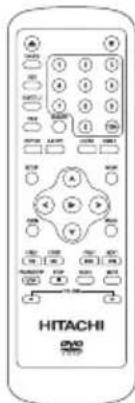
Remote Control
P.N.: 1-3000-A815-0000-R
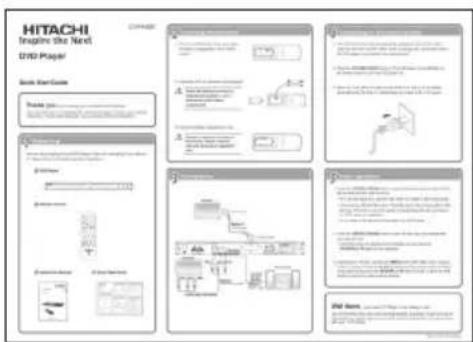
Quick Start Guide
P.N.: 1-3010-A815-0000-R
/1-3010-A815-0001-R
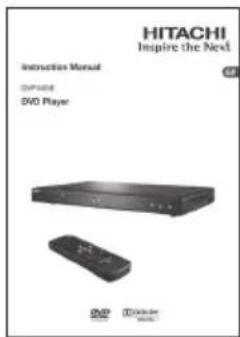
Instruction Manual
P.N.: 1-3090-A815-0000-R
If items are missing or damaged, please contact partmaster (UK only).
Tel: 0844 800 3456 for assistance.
Front Panel
GB

| No Control Function | ||
| 1 | Disc Tray To load a disc into the disc drive. | |
| 2 | ▲ OPEN/CLOSE button | Opens and closes the disc tray. |
| 3 | Remote Control Sensor Receives infrared signals from the remote control. | |
| 4 | LED Screen Shows information about the current status of the DVD player. | |
| 5 | PLAY/PAUSE button To start playback/Stop playback momentarily. | |
| 6 | STOP button Stops playback. | |
| 7 | STANDBY/ON button | Turns the power on or restores the DVD player to standby mode. |
| 8 | Power Indicator illuminates red when the DVD player is in standby mode and turns off when the DVD player is power on. | |
Rear Panel

| No | Control Function | |
| 1 P | Power Line Input | Connects the supplied mains cable to the mains socket. |
| 2 2 | Channels Audio Output | Connects audio cables to a stereo system equipped with an AUDIO input terminal. |
| 3 C | OAXIAL Output | Connects a coaxial cable to the corresponding digital audio in socket on your receiver. |
| 4 V | DEO Output | Connects a composite VIDEO cable to the video input socket on the TV. |
| 5 | SCART Output | Connects a SCART cable to a TV or monitor equipped with a SCART video input terminal. |
Remote Control
| No Control Function | ||
| 1 OPEN/CLOSE ▲ | To open or close the DVD disc tray. | |
| 2 V.MODE To set VIDEO | O output to either “CVBS” or “RGB” | |
| 3 OSD (On screen Display) | To display the disc information. | |
| 4 SUBTITLE To switch | between different subtitle languages. (Available languages depend on the DVD features) | |
| 5 TITLE To go back to | the previous menu or show the title menu. | |
| 6 SEARCH To search and start playback from a selected point on the disc. | ||
| 7 REPEAT To select between different repeat modes - REPEAT CHAPTER, REPEAT TITLE, REPEAT ALL. | ||
| 8 A-B RPT To repeat playback between 2 particular points on a disc. | ||
| 9 SETUP To display the Setup Menu of the DVD player. | ||
| 10 ENTER/PLAY ▶ | To confirm the selection or play the DVD disc. | |
| 11 ZOOM To enlarge the picture on the TV. | ||
| 12 F.REV ◀◀ | To fast reverse during playback. | |
| 13 F.FWD ▶▶ | To fast forward during playback. | |
| 14 PAUSE/STEP II / II▶ | To pause or move the playback forward frame by frame. | |
| 15 STOP ■ | To stop the playback. | |
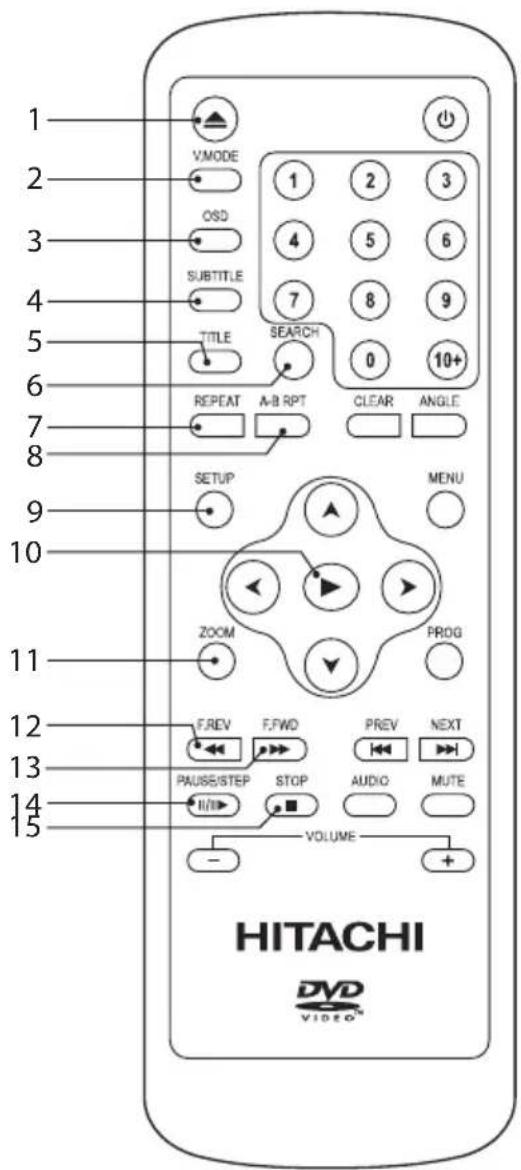

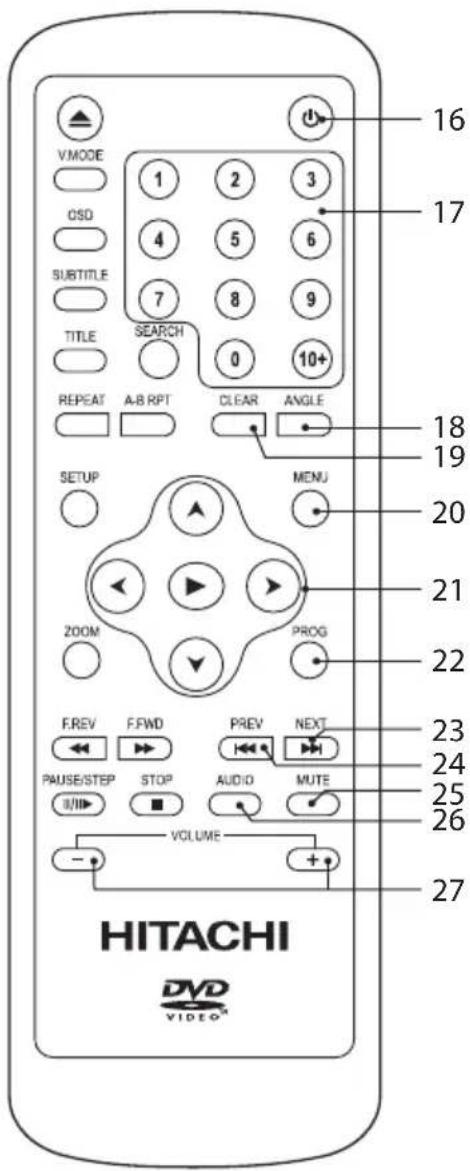
| No | Control Function | |
| 16 | STANDBY | To turn the power on or restore the DVD player to standby mode. |
| 17 | 0-10+ To select the numeric items in a menu. | |
| 18 | ANGLE To switch / change the camera angle during playback. (If available in the DVD features) | |
| 19 | CLEAR To clear and cancel the previous input information. | |
| 20 | MENU To enter or exit the disc contents menu. | |
| 21 | CURSOR ▲▼◀▶ | To move up, down, left and right in the Setup Menu. |
| 22 | PROG To program and view the selected starting point of a chapter and title on a DVD disc. | |
| 23 | NEXT ▶▶ | To skip to the next title, chapter or track. |
| 24 | PREVI◀◀ | To return back to the previous title, chapter or track. |
| 25 | MUTE To mute and restore your DVD sound output. | |
| 26 | AUDIO To change the audio mode. | |
| 27 | VOLUME +/- To increase and decrease the volume. | |
Installing the Batteries
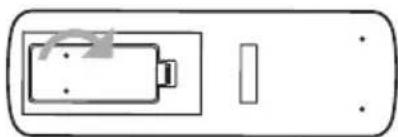
- Press and lift the back cover up to open the battery compartment of the remote control.
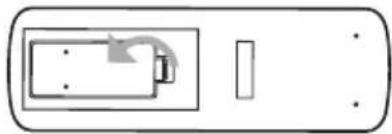
natural_image
Simple line drawing of a rectangular object with a small rectangular component and an arrow, no text or symbols present.- Insert two AAA size batteries (not supplied).

Install the batteries correctly by following the polarity (+ and -) indications in the battery compartment.
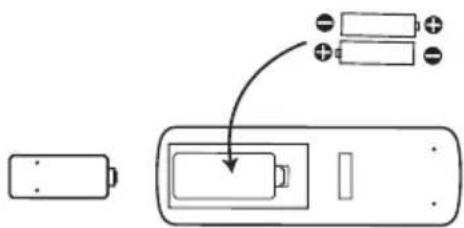
- Close the battery compartment cover.

Danger of explosion if battery is incorrectly replaced. Replace only with the same or equivalent type.
natural_image
Simple line drawing of a battery inside a rectangular frame with a vertical bar and dots (no text or symbols)Handling the Batteries
- Improper or incorrect use of batteries may cause corrosion or battery leakage, which could cause fire, personal injury or damage to property.
- When the batteries are exhausted, the remote will not function. Replace both batteries at the same time with new ones.
• Only use the battery type indicated in this manual.
• Do not install new batteries with used one and do not mix different types of batteries. - Do not dispose of used batteries as domestic waste. Dispose of them in accordance with local regulations.
Handling the Remote Control
• Take care of your fingernails when you press and hold the battery release tab.
- To avoid possible failure, read the following instructions and handle the remote control properly.
• Do not drop or cause impact to the remote control.
- Do not spill water or any liquid on the remote control.
• Do not place the remote control on a wet object.
- Do not place the remote control under direct sunlight or near sources of excessive heat.
- Remove the batteries from the remote control when not in use for a long period of time, as it could cause corrosion or battery leakage and may result in physical injury and/or property damage including fire.
Remote Control Operation Range
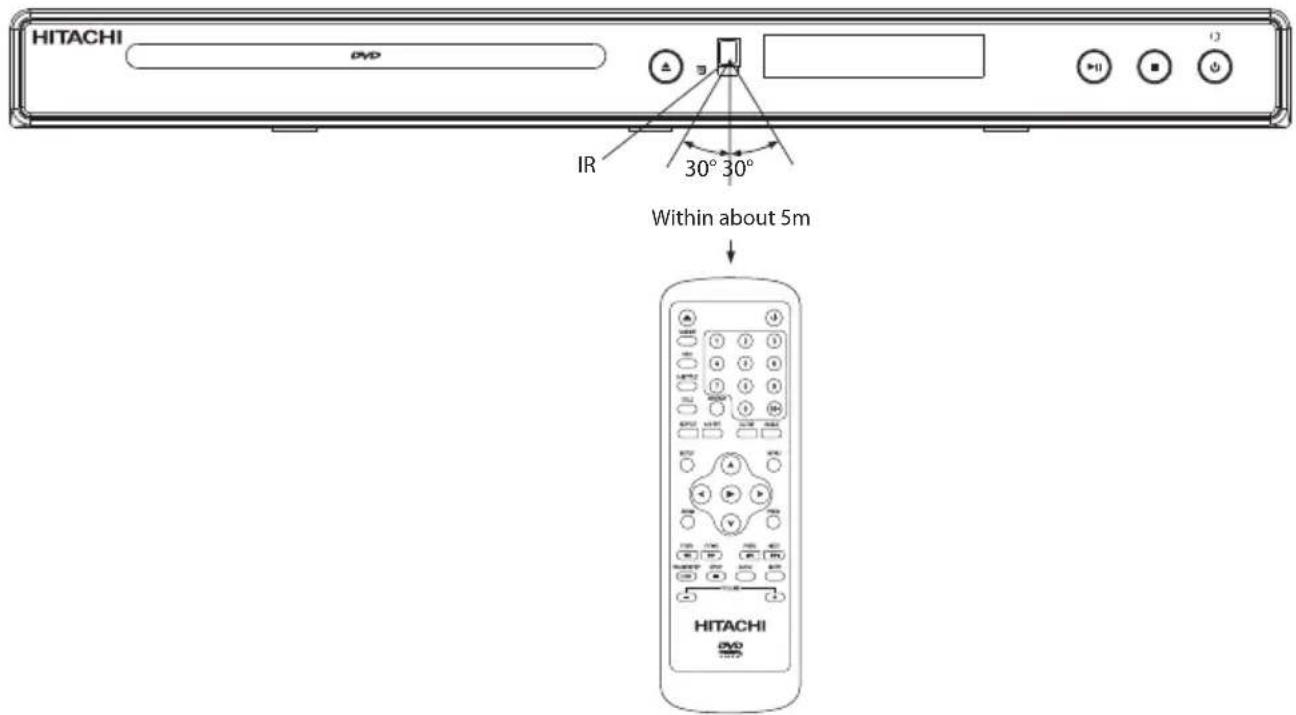
Point the remote control at the DVD player no more than 5 metres from the remote control sensor and within 60° of the front of the DVD player. The operating distance may vary depending on the brightness of the room.
flowchart
graph TD
    A["Television"] -->|To SCART input| B["Method 1 SCART cable"]
    B --> C["To SCART output"]
    D["Television"] -->|To audio inputs of the amplifier| E["Method 2 VDIEO/AUDIO cable"]
    E --> F["Method 3 COAXIAL cable"]
    F --> G["Stereo system"]
    style A fill:#f9f,stroke:#333
    style D fill:#f9f,stroke:#333
    style E fill:#ccf,stroke:#333
    style F fill:#cfc,stroke:#333
    linkStyle 0 stroke:#000,stroke-width:2px
    linkStyle 1 stroke:#000,stroke-width:2px
    linkStyle 2 stroke:#000,stroke-width:2px
    linkStyle 3 stroke:#000,stroke-width:2px
    linkStyle 4 stroke:#000,stroke-width:2px
    linkStyle 5 stroke:#000,stroke-width:2px
    linkStyle 6 stroke:#000,stroke-width:2px
    linkStyle 7 stroke:#000,stroke-width:2px
    linkStyle 8 stroke:#000,stroke-width:2px
    linkStyle 9 stroke:#000,stroke-width:2px
    linkStyle 10 stroke:#000,stroke-width:2px
    linkStyle 11 stroke:#000,stroke-width:2px
    linkStyle 12 stroke:#000,stroke-width:2px
    linkStyle 13 stroke:#000,stroke-width:2px
    linkStyle 14 stroke:#000,stroke-width:2px
    linkStyle 15 stroke:#000,stroke-width:2px
    linkStyle 16 stroke:#000,stroke-width:2px
    linkStyle 17 stroke:#000,stroke-width:2px
    linkStyle 18 stroke:#000,stroke-width:2px
    linkStyle 19 stroke:#000,stroke-width:2px
    linkStyle 20 stroke:#000,stroke-width:2px
    linkStyle 21 stroke:#000,stroke-width:2px
    linkStyle 22 stroke:#000,stroke-width:2px
    linkStyle 23 stroke:#000,stroke-width:2px
    linkStyle 24 stroke:#000,stroke-width:2px
    linkStyle 25 stroke:#000,stroke-width:2px
    linkStyle 26 stroke:#000,stroke-width:2px
    linkStyle 27 stroke:#000,stroke-width:2px
    linkStyle 28 stroke:#000,stroke-width:2px
    linkStyle 29 stroke:#000,stroke-width:2px
    linkStyle 30 stroke:#000,stroke-width:2px
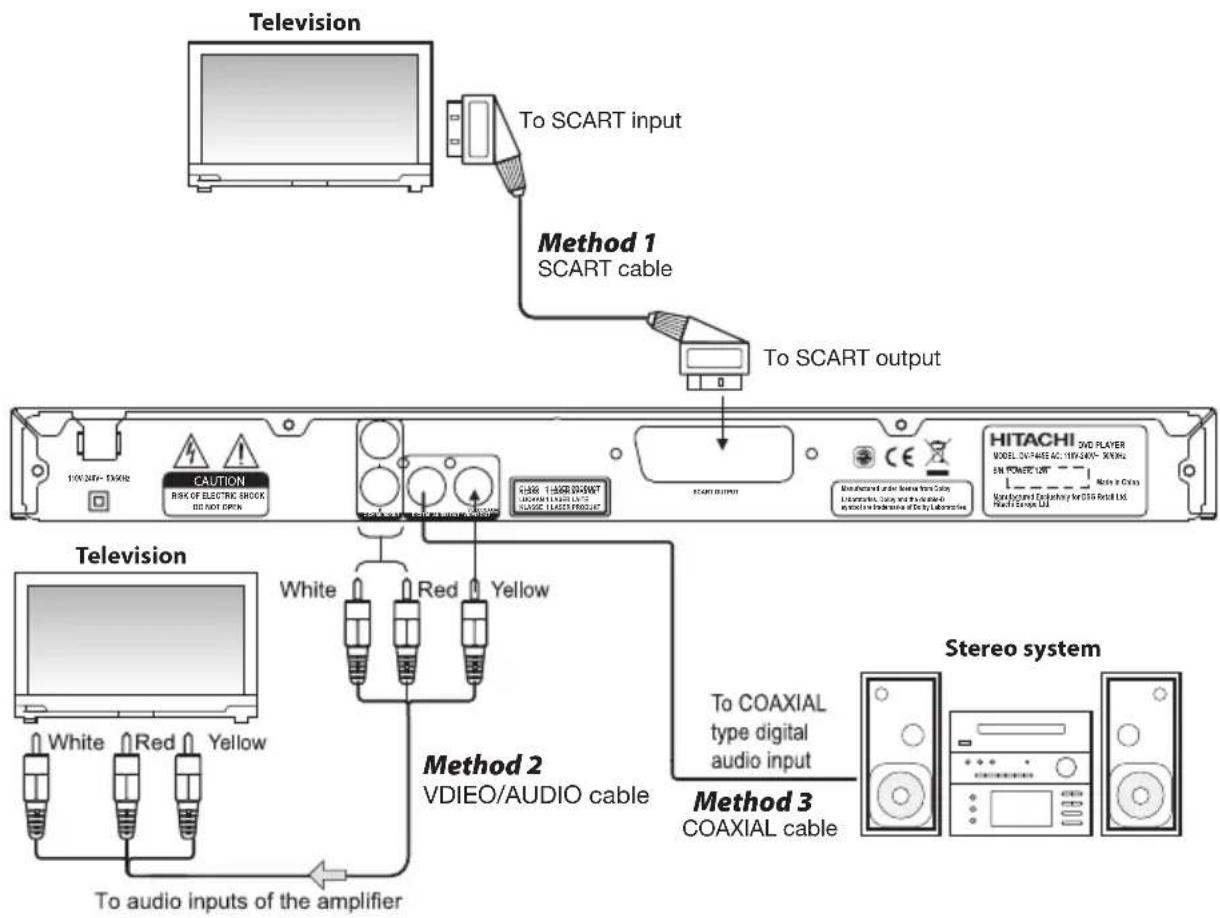
1. Connecting to a TV with a SCART Cable
Use a SCART cable (not supplied) to connect between the DVD player's SCART OUT and TV's SCART IN.
2. Connecting to a TV with an Audio/Video Cable
Use audio/video cables (not supplied) to connect between the DVD player's AUDIO/VIDEO OUT and the TV's AUDIO/VIDEO IN. (Audio Left = White, Audio Right = Red and Video = Yellow)
3. Connecting to an Amplifier Equipped with a Digital Audio Input and TV
Use a coaxial cable (not supplied) to connect between the DVD player's COAXIAL OUT and the amplifier's COAXIAL IN.
Connecting to the Mains Socket
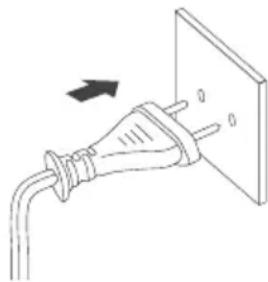
- After all connections have been properly completed, connect the mains cable into the mains socket. Never make or change any connections when the DVD player is connected to the mains socket.
- Press the STANDBY/ON button on the DVD player or the button on the remote control to turn the DVD player on.
- When the DVD player is power on and there is no disc in it, the display panel will show "No Disc" to indicate there is no disc in the DVD player.
natural_image
Simple line drawing of a plug inserted into a wall socket, with an arrow indicating direction (no text or symbols)Compatible Disc Types
| Disc Types Disc Logo Recorded Content | ||
| DVD-VIDEO (Digital Versatile Disc) |  | AUDIO + VIDEO |
| DVD±RW (Audio/Video format or JPEG files) |  | AUDIO + VIDEO + JPEG |
| DVD±R (DVD Recordable - Audio/Video format or JPEG files) |  | AUDIO + VIDEO + JPEG |
| CD-R (CD Recordable - Audio/Video format or JPEG files) |  | AUDIO + VIDEO + JPEG |
| CD-RW (CD-Rewritable - Audio/Video format or JPEG files) |  | AUDIO + VIDEO + JPEG |
| AUDIO-CD (Compact Disc Digital Audio) |  | AUDIO |
Supported Formats
JPEG
• The file extension has to be .jpg and not .jpeg.
• Pictures encoding must comply with ISO format.
• This DVD player can only display DCF-standard still pictures or JPEG pictures such as TIFF.

Some recorded files may not be able to be played due to the type and format of disc or condition of the recording.
Region Code
Both the DVD player and the discs are coded by region. These regional codes must match in order to play the disc. If the codes do not match, the disc will not play.
The Region Number for this DVD player is described on the rear panel of the DVD player.
| Disc Type DVD-VIDEO | |
| Region code | |
Start-up
Press the STANDBY/ON ⏻ button on the DVD player or the remote control. Turn on the TV, it will automatically switch to SCART mode and the opening screen of the DVD player will show on the TV.
Basic Playback
- Press the OPEN/CLOSE ▲ button to open the disc tray, place a disc into the disc try with the label side facing up.
• For a double-sided disc, load the side which you want to play facing down.
- There are two different disc sizes. Place the disc in the correct guide on the disc tray. If the disc is out of the guide, it may damage the disc and cause the DVD player to malfunction.
- Do not place a disc which is unplayable in the DVD player.
- Press the OPEN/CLOSE ▲ button to close the disc tray, the playback will automatically start.
- Some discs may not playback automatically, you can press the PLAY/PAUSE button on the unit or the ENTER/PLAY▶ button on the remote control to start playback.
- Depending on the disc, pressing the MENU button will make a menu appear on the TV screen. Press the ▲◀▶buttons on the remote control to select menu options and press the ENTER/PLAY▶ button to start, or press the 0-9 buttons to select the menu options directly.
Stop Playback
- Press the STOP ■ button to go to pre-stop mode. The TV screen will show the pre-stop logo "▶■ With some discs, the DVD player can recall the stopped location, such as on DVDs.
- Press the PLAY/PAUSE button on the unit or the ENTER/PLAY▶ button on the remote control to resume playback from the location where playback was stopped or from the beginning of the disc.
- Press the STOP ■ button twice to stop completely.
Previous and Next
- During playback, press the PREV ◀ button to go back to the start of the previous chapter. Each press of this button will skip back a chapter until the start of the disc.
- Each press the NEXT ▶ button during playback will skip the current chapter and play the next one.
Fast Forward and Fast Reverse
- Press the F.FWD▶ button to fast forward through the disc. Each time the F.FWD▶ button is pressed, the fast forward motion speed changes.
- Press the PLAY/PAUSE button on the unit or the ENTER/PLAY▶ button on the remote control to resume normal playback.
- Press the F.REV ◀ button to fast reverse through the disc. Each time the F.REV ◀ button is pressed, the fast reverse motion speed changes.
- Press the PLAY/PAUSE button on the unit or the ENTER/PLAY▶ button on the remote control to resume normal playback.
Pause Playback
- Press the PAUSE/STEP Ⅲ/Ⅲ▶ button once to pause playback (still mode). The sound will be muted during still mode.
- Press the PLAY/PAUSE button on the unit or the ENTER/PLAY▶ button on the remote control to resume normal playback.
Single Step Playback
- Press the PAUSE/STEP Ⅱ/Ⅲ▶ button repeatedly during PAUSE mode to play in step.
- Press the PLAY/PAUSE button on the unit or the ENTER/PLAY▶ button on the remote control to resume normal playback.
Volume Adjustment
- Press the VOLUME + / - buttons to adjust the volume.
- Press the MUTE button to switch the sound off. Press the MUTE button again or the VOLUME + / - buttons to cancel this function.

" may appear on the TV screen during operation. A " means that the operation is not permitted by the DVD player or the disc.
Advanced Playback
The following functions are only applicable to DVD discs if available in the DVD features.
V.MODE
To set VIDEO output to either "CVBS" or "RGB".

If the display on your TV turns off after pressing the V.MODE button, press repeatedly until the display reappears. If there is picture interference or no picture, press the V.MODE button to try and correct it.
Search
Method 1 – Search by Title and Character
-
Press the SEARCH button once, then press the ▲▼◀▶ buttons to select Title / Chapter. Press the ENTER/PLAY▶ button to confirm.
-
The playback will skip to the chosen title / chapter.
06/37 01/38
Remarks:
: Title Number
☐: Chapter Number
Method 2 - Search by Time
-
Press the SEARCH button once, then press the 0-9 buttons to input a valid number. Press the ENTER/PLAY▶button to confirm.
-
The playback will skip to the chosen title / time.
01/16 -: - ①
The time entered cannot exceed the chapter time.
Remarks:
: Title Number
①: Time
Program
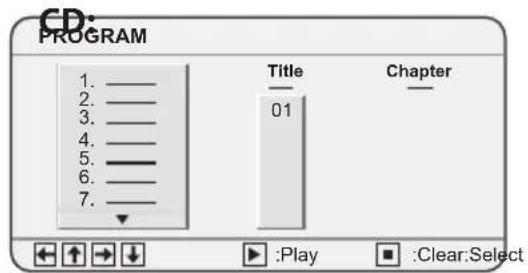
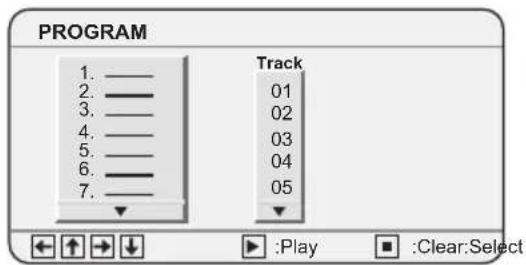
- Press the PROG button and the screen will display program mode window.
- Press the ▲▼ buttons to select the program number that you want, then press the ▲▼◀▶ buttons to select the title and chapter. Press the ENTER/PLAY▶ button to confirm.
- Press the ENTER/PLAY ▶ button to play. At this time the DVD player will start program playback and the screen will display the "P logo.
DVD:
Cancel Program Function
- Press the PROG button to enter program mode.
- Press the STOP ■ button to clear all the program numbers.
- Press the PROG button to exit.
OSD
Press the OSD button and the screen will display some information about the disc, such as:
"1/37 4/38 Title Elapsed 00:01:00",
"1/37 4/38 Title Remain 00:58:00",
“1/37 4/38 Chapter Elapsed 00:01:00”,
“1/37 4/38 Chapter Remain 00:19:00”,
“□□□: Danish 6/10 : English 1/2 Digital 5.1CH : ____”.
Title
With some DVD discs, press the TITLE button to display the title menu. You can press the 0-9 buttons to select the preferred chapters. Press the ENTER/PLAY▶ button to play.
Subtitle Language
- Press the SUBTITLE button repeatedly to switch between different subtitle languages that are available on the disc.
- The screen will display "Subtitle: XXXXX 01/XX", "XXXXXX" indicates the language of disc region; "01" indicates the original number for this language; and "XX" indicates the total number of languages available on the disc.
Repeat
Press the REPEAT button repeatedly to select different repeat modes.
| Press Once | Chapter (Repeat Chapter) |
| Press Twice | Title (Repeat Title) |
| Press Three Times | All (Repeat All) |
| Press Four Times All | repeat functions are cancelled |
A-B Repeat
Repeat a section between points A and B within a Title / Chapter / Track.
- Press the A-B RPT button to choose a starting point A.
- Press the A-B RPT button again to set an ending point B and complete the setting.
- The selected section A-B will be repeated. Press the A-B RPT button a third time to cancel and exit.
Clear
Press the CLEAR button during information input to cancel the previous input.
Zoom
- Press the ZOOM button to enlarge pictures. Each time the ZOOM button is pressed, the picture enlarges in sequence.
- Press the ▲▼ buttons to navigate in the enlarged picture.
Angle
Press the ANGLE button repeatedly to switch between different camera angles that are available on the disc.

Only applicable to DVDs which offer multiple angles.
Audio Channel
Press the AUDIO button on the remote control repeatedly to change the audio mode.
For example:
JD: Dolby D 2 CH English 1/2
: Dolby D 5.1 CH English 2/2
The number of audios tracks depend on the disc.
JPEG Disc Playback
Playback (Normal)
When a JPEG disc is inserted into the unit, an automatic slide show is launched. Each picture will be displayed consecutively in a slide show fashion and will be scaled to fit on the whole TV screen. Use the ANGLE button to select one of the slide show transition modes. The picture can be rotated by the ▲▼◀▶ buttons while playing. Each press of the ZOOM button will enlarge the picture. In this mode, you can move the picture with the ▲▼◀▶ buttons.
File Mode
- Press the MENU button during the slide show, the file mode menu will be displayed.
- File Type:
To choose file type for playing - Sort File:
To choose mode for playing - Press the ▲▼◀▶ buttons to select, then press the ENTER/PLAY▶ button to confirm or to play.
Thumbnail Mode:
- Press the STOP ■ button during the slide show, and the thumbnail mode menu will be displayed.
- Rotate:
Rotate function. Choose "Rotate" first, then press the ▲▼ buttons to choose pictures for rotating. Press the ENTER/PLAY▶ button to confirm.
- Reset:
To reset all rotating settings.
- Return:
To return back to thumbnail mode
- Slide Show:
Normal playing
- Press the ▲▼◀▶ buttons to select, then press the ENTER/PLAY▶ button to play.
System Setup
When you press the SETUP button on the remote control, the setup menu will be displayed.
- Within the setup menu, you can use the ▲◀▶buttons on the remote control to move the cursor, and then press the ENTER/PLAY▶ button to make your selection. Press the ◀ button to return to the previous menu.
- To exit the setup menu, press the SETUP button.
GB
Language Setup
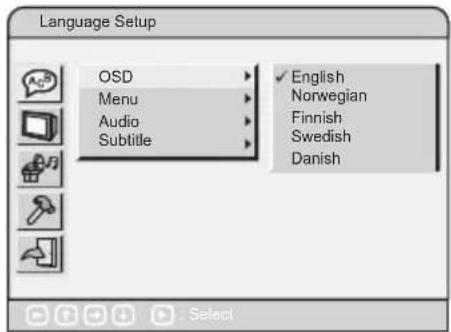
OSD (On Screen Display)
Allows you to select the setup menu and OSD language.
Menu
Allows you to choose the preferred menu language of your disc. If the preferred language is not available on the disc, the DVD player will automatically use the DVD disc default language.
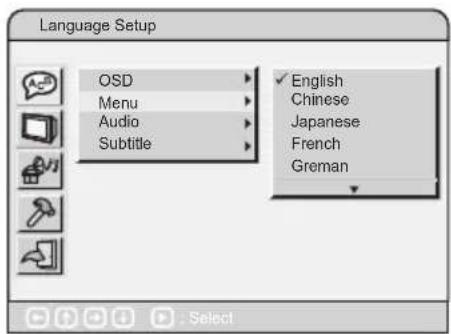
Audio
Allows you to choose the preferred audio language of your disc. If the preferred language is not available on the disc, the DVD player will automatically use the DVD disc default language.
Subtitle
Allows you to choose the preferred subtitle language of your disc. If the preferred language is not available on the disc, the DVD player will automatically use the DVD disc default language. (Default: Off)
Screen Setup
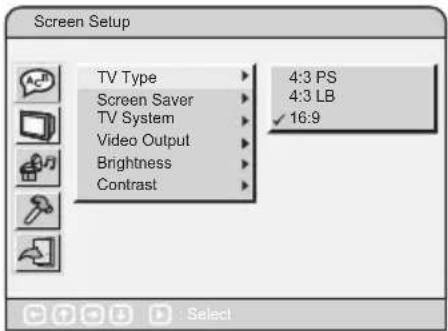
TV Type
In order to display the playback in the correct size format, both the DVD player and the TV should select the same display size format.
• 4:3PS (Pan Scan)
Select this if you have a standard TV and want both sides of the picture to be trimmed or formatted to fit your TV screen.
• 4:3LB (Letter Box)
Select this if you have a standard TV and want to display upper and lower bands with a wide-screen picture display.
16:9
Select this if you have a wide-screen TV.

- No matter which display format is selected, a picture recorded in standard 4:3 format always displays in the 4:3 aspect ratio.
- The display format of DVD titles may vary; please refer to the information that accompanies your specific DVD title.
- If the DVD title is recorded in 16:9 wide display format while the TV is a standard 4:3 screen, horizontal compression of the image will result.
- Some DVD titles may be recorded in special formats. In such cases, the DVD titles will always appear on the screen in their original format, regardless of which TV display format you select.

Screen Saver
-
Select ON to display the screen saver. A moving DVD logo appears on a dark screen when disc playback is stopped, paused, or you have not used the DVD player or the remote control for more than 3 minutes while the power is still on.
-
Select OFF to turn off the screen saver function.
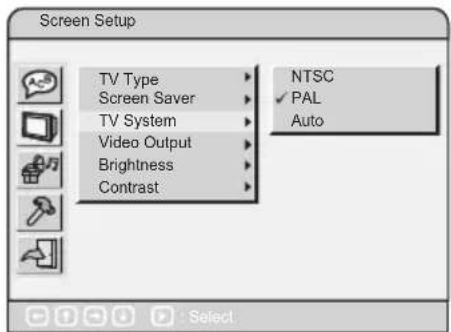
TV System
This DVD player supports different TV outputs, including Auto, NTSC, and PAL systems. In order for the disc to play, the colour system of the DVD player, disc and TV should match. If your TV supports only NTSC or PAL and you have inadvertently selected the wrong TV type, the TV image will flicker and become black-and-white. If this occurs, press the SETUP button to set as the TV System.
How To Set The TV System?
• You may switch the NTSC/PAL setting of the DVD player to match the video signal of your TV.
- The table shows what kinds of disc are compatible with each setting (AUTO, PAL and NTSC)
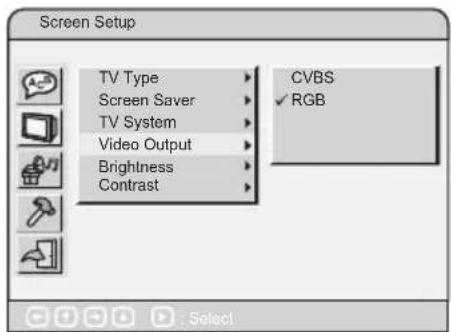
Video Output
To set the video output.
Brightness
Set the brightness level among "Normal", "Bright", "Soft".
Contrast
Set the contrast level of video output.
| Disc | Output Format | |||
| Type | Format | Selected TV System Mode | ||
| NTSC | PAL | AUTO | ||
| DVD | NTSC | NTSC | PAL | NTSC |
| PAL | ---- | PAL | PAL | |
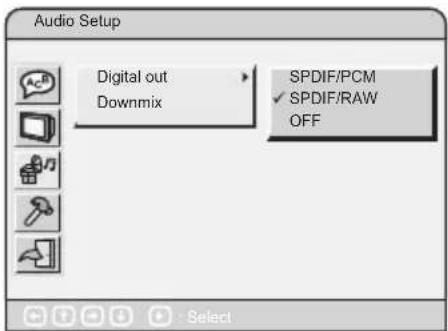
Audio Setup
Digital Out
To set the audio outputs.
- SPDIF/PCM
Only if your receiver is not capable of decoding multi-channel audio.
- SPDIF/RAW
If you have connected your DIGITAL AUDIO OUT to a multi-channel decoder/receiver.
- SPDIF Off
Turns off the SPDIF output.
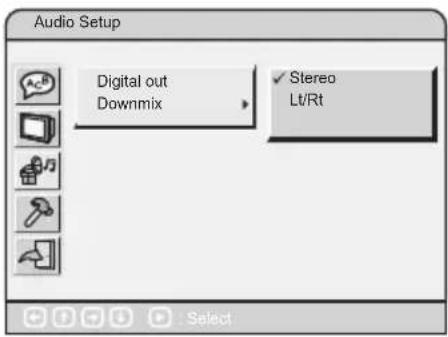
Downmix
Set front speakers to STEREO or LT/RT.
- Stereo
Select this option to change channel output to stereo which delivers sound from only the two front speakers.
• LT/RT (Left Total / Right Total)
Select this option if your DVD player is connected to a Dolby decoder.

Custom Setup
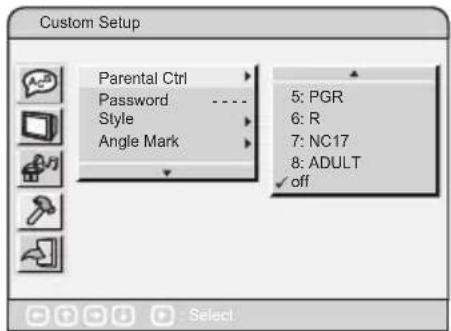
Parental Control
This feature allows you to block disc playback with specific ratings. The rating levels are from 1 to 8 and are country dependent. You can prohibit the playing of certain discs that are not suitable for your children, or you can have certain discs played with alternative scenes.
- Unlock the disc by entering the 4-digit password you have set in PASSWORD setup before you can access the RATING menu.

If you change this set, you must input password. (Initial password: 9922)
- Use the 0-9 buttons to enter the 4-digit password again.
- The DVD discs that are rated above the selected level will not be played unless the 4-digit password is entered.
• To disable the parental control and allow the DVD player to play all discs, select Off.

The following disc types will not be affected by the Parental Control feature:
• Discs that are not coded by the disc manufacturer.
- Discs that are not coded by the disc manufacturer despite having a movie rating printed on the disc cover.
• CDs as they have no rating level indication.
• Most copied DVD discs.
Password
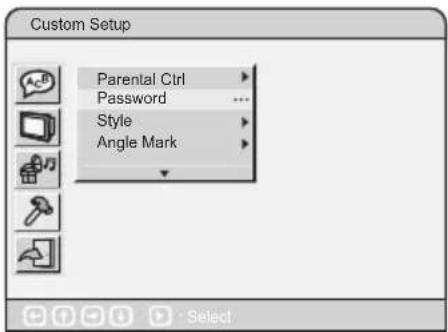
The Parental Control can be set up in the DVD player to block video and to change password.
A 4-digit password will be required to play a prohibited disc.
If the disc is locked and the system prompts you to enter the password.
• Use the 0-9 buttons to enter your password.

In case you forgot your password, the master password is "9922".
To change your password, you will need to unlock the system by entering your password or the master password "9922".
- Once the lock icon is unlocked, you need to enter your new 4-digit password.
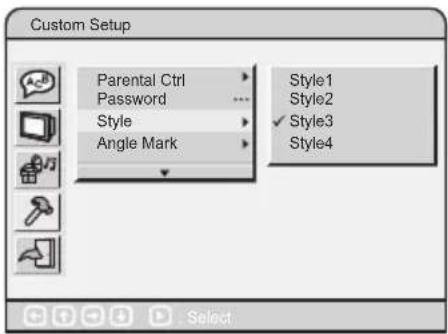
Style
This function allows users to set the operating interface style. There are four styles to choose from.
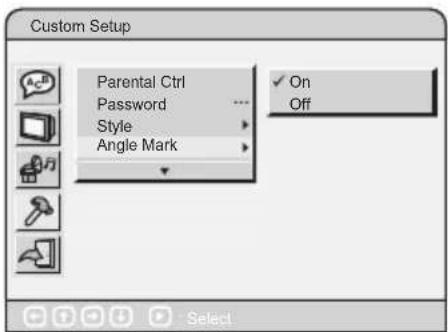
Angle Mark
Users can select a particular camera angle when playing a DVD which offers multiple angles.
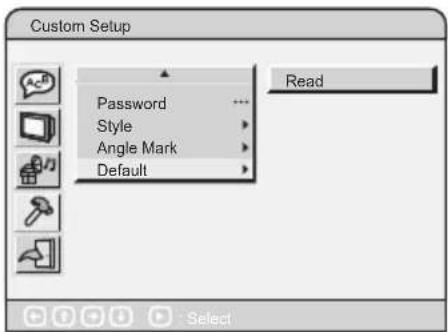
Default
Resets the DVD player to all the manufacturer's original settings. Press the ENTER/PLAY▶button to perform the reset.
Old:
New: ____
Verify:____

Maintenance
Handling Discs
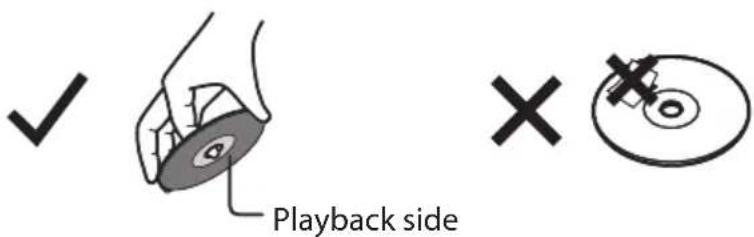
• Do not touch the playback side of the disc.
• Do not attach paper or tape to the disc.

Cleaning Discs
- Fingerprints and dust on the disc cause picture and sound deterioration. Wipe the disc from the centre outwards with a soft cloth. Always keep the disc clean.
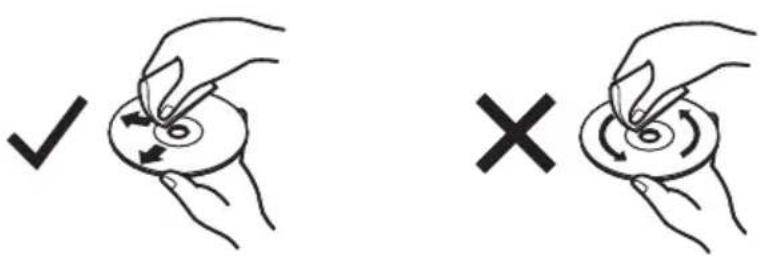
- If you cannot wipe off the dust with a soft cloth, wipe the disc lightly with a slightly moistened soft cloth and finish with a dry cloth.
- Do not use any type of solvent such as thinner, benzine, commercially available cleaners or antistatic spray. They may damage the disc.
Storing Discs
- Do not store discs in places subjected to direct sunlight or near heat sources.
- Do not store discs in places subjected to moisture and dust such as a bathroom or near a humidifier.
- Storing discs vertically in a case, stacking discs or placing objects on discs outside of their cases may cause warping.
Hints and Tips
| Problem Solution | |
| No operation can be performed with the remote control. | Check the batteries in the remote control. They may need replacingOperate the remote control at a distance of no more than 6m.Removes batteries and hold down one or more buttons for several minutes to drain the microprocessor inside the remote control to reset it. Reinstall batteries and try to operate the remote control again. |
| Disc does not play. | Ensure that the disc is installed with the label side facing up.Check the region number of the DVD. |
| Disc Menu does not appear. | Check if the disc has a Menu. |
| No power | Press the STANDBY/OD button on the DVD or on the Remote Control to turn on the unit.Make sure the mains socket has power. |
| The picture is distorted or turns in black and white colour during playback. | The disc does not match with the TV colour system standard (PAL/NTSC).The disc is dirty. Clean the disc.Sometimes a small amount of picture distortion may appear. This is not a malfunction of the unit. |
| The screen aspect ratio cannot be changed. | The Screen Aspect Ratio is fixed on your DVDs.Depending on the TV, it may not be possible to change the Screen Aspect Ratio.This is not a problem with the player. |
| No audio. Make sure you have securely connected the DVD player and other devices.Make sure the TV and the amplifier are in good condition and are setup properly. | |
| Not able to select some items in the setup/ system menu. | Press the STOP button twice before selecting the setup/system menu.Depending on the disc availability, some menu items cannot be selected. |

| Problem Solution | |
| The DVD player does not start the playback. | Insert a readable disc with the playback side facing down.Check the disc type, colour system (PAL/NTSC) and region code.Check for any scratches or smudges on the disc.Press theSETUPbutton to turn off the setup menu.Enter the password in order to change the parental rating level or to unlock the disc for playback.Moisture may have condensed inside the system. Remove the disc and leave the system turned on for about an hour.Disconnect the mains cable from the mains socket for a few minutes. Reconnect the mains cable and try to operate again as usual. |
| Picture freezes momentarily during playback. | Check the disc for fingerprint or scratches, and clean with a soft cloth wiping from the centre to the edge. |
Specifications
| Supported Video Systems PAL/NTSC | |
| Audio Frequency Response | CD: 20Hz-20KHz(EIAJ)DVD: 20Hz-22KHz(48KHz)(Sample result)20Hz-44KHz(96KHz)(Sample result) |
| Audio S/N Ratio >65 dB | |
| Video/Picture MPEG2 | |
| Audio MPEG1 standard | |
| Audio Output(Analog Audio) | Electric level output: 1.8V ± 0.2resistance: 10K ohms |
| Video Output | Electric level output: 1.0Vp--presistance: 75 ohms Unbalanced negative |
| Power 110V - 240V ~ 50/60Hz | |
| Power Consumption 12W | |
| Dimensions L: 360mm W: 215mm H: 41mm | |
| Unit Weight 1.3 kg | |
| Operating Temperature 5°C to 35°C (41°F to 95°F) | |
| Operating Humidity | 5% to 90% |
Features and specifications are subject to change without notice.
| NOTE: If you require a replacement for any of the items listed below, please quote their corresponding part numbers: | |
| Replacement Part Part Number | |
| Remote Control 1-3000-A815-0000-R | |
Notes for battery disposal
The batteries used with this product contain chemicals that are harmful to the environment. To preserve our environment, dispose of used batteries according to your local laws or regulations. Do not dispose of batteries with normal household waste.
For more information, please contact the local authority or your retailer where you purchased the product.
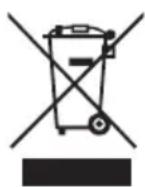
The mark is in compliance with the Waste Electrical and Electronic Equipment Directive 2002/96/EC (WEEE). The mark indicates the requirement NOT to dispose the equipment including any spent or discarded batteries as unsorted municipal waste, but use the return and collection systems available. If the batteries or accumulators included with this equipment, display the
chemical symbol Hg, Cd, or Pb, then it means that the battery has a heavy metal content of more than 0.0005% Mercury, or more than 0.002% Cadmium or more than, 0.004% Lead.
HDMI, the HDMI Logo and High-Definition Multimedia Interface are trademarks or registered trademarks of HDMI Licensing LLC.
All trademarks are the property of their respective owners and all rights are acknowledged.
- Contents
- Safety Warnings....4
- Unpacking....7
- Product Overview 8
- Connections 13
- Compatible Disc Types 14
- Start-up 15
- Basic Playback.... 15
- Advanced Playback 16
- JPEG Disc Playback.... 19
- System Setup 20
- Maintenance 26
- Hints and Tips 27
- Specifications.... 29
- Safety Warnings
- Damage
- Location of Unit
- Temperature
- Naked Flames
- Moisture
- Ventilation
- Safety
- Mains Cable
- Standby
- Interference
- Batteries
- Supervision
- DVD
- • Class 1 Laser Product
- Service
- Maintenance
- SOME DOS AND DON'TS ON THE SAFE USE OF EQUIPMENT
- ABOVE ALL
- Thank you for purchasing your new Hitachi DVD Player.
- Unpacking
- Front Panel
- Rear Panel
- Remote Control
- Installing the Batteries
- Handling the Batteries
- Handling the Remote Control
- Remote Control Operation Range
- Connecting to a TV with a SCART Cable
- Connecting to a TV with an Audio/Video Cable
- Connecting to an Amplifier Equipped with a Digital Audio Input and TV
- Connecting to the Mains Socket
- Supported Formats
- JPEG
- Region Code
- Start-up
- Basic Playback
- Stop Playback
- Previous and Next
- Fast Forward and Fast Reverse
- Pause Playback
- Single Step Playback
- Volume Adjustment
- Advanced Playback
- V.MODE
- Search
- Method 1 – Search by Title and Character
- Method 2 - Search by Time
- Program
- Cancel Program Function
- OSD
- Title
- Subtitle Language
- Repeat
- A-B Repeat
- Clear
- Zoom
- Angle
- Audio Channel
- JPEG Disc Playback
- Playback (Normal)
- File Mode
- Thumbnail Mode:
- System Setup
- Language Setup
- OSD (On Screen Display)
- Menu
- Audio
- Subtitle
- Screen Setup
- TV Type
- • 4:3PS (Pan Scan)
- • 4:3LB (Letter Box)
- 16:9
- Screen Saver
- TV System
- How To Set The TV System?
- Video Output
- Brightness
- Contrast
- Audio Setup
- Digital Out
- - SPDIF/PCM
- - SPDIF/RAW
- - SPDIF Off
- Downmix
- - Stereo
- • LT/RT (Left Total / Right Total)
- Custom Setup
- Parental Control
- Password
- Style
- Angle Mark
- Default
- Handling Discs
- Cleaning Discs
- Storing Discs
- Hints and Tips
- Notes for battery disposal
Brand : HITACHI
Model : DVP445E
Category : DVD player