PDV342E - DVD player HITACHI - Free user manual and instructions
Find the device manual for free PDV342E HITACHI in PDF.


| Product Type | Portable DVD Player |
| Brand | Hitachi |
| Model | PDV342E |
| Dimensions (approx.) | 20 x 15 x 3 cm |
| Weight (approx.) | 1.2 kg |
| Power Supply | AC 100-240V, 50/60 Hz; rechargeable Li-ion battery |
| Playable Discs | DVD, DVD±R/RW, CD, CD-R/RW |
| Playable File Formats | MP3, JPEG, DivX, XviD |
| Display | 7-inch TFT LCD, 16:9 |
| Video Output | Composite AV (yellow), component (optional) |
| Audio Output | Stereo RCA (red/white), headphone jack 3.5mm |
| Other Ports | USB 2.0, SD/MMC card slot |
| Remote Control | Included, IR |
| Battery Life (approx.) | 2-3 hours continuous play |
| Region Code | 2 (default, may be changed via manual) |
| Maintenance | Clean with soft dry cloth; avoid liquids; use lens cleaning disc for laser lens |
| Safety Precautions | Keep away from water and heat; do not disassemble; use only supplied adapter |
| Spare Parts Availability | Remote, battery, AC adapter available from Hitachi service centers |
| Repairability | Moderate; battery and lens replaceable; refer to service manual |
| General Information | Portable DVD player with swivel screen; ideal for travel; supports multiple formats |
Frequently Asked Questions - PDV342E HITACHI
User questions about PDV342E HITACHI
0 question about this device. Answer the ones you know or ask your own.
Ask a new question about this device
Download the instructions for your DVD player in PDF format for free! Find your manual PDV342E - HITACHI and take your electronic device back in hand. On this page are published all the documents necessary for the use of your device. PDV342E by HITACHI.
USER MANUAL PDV342E HITACHI
7" Portable DVD Player
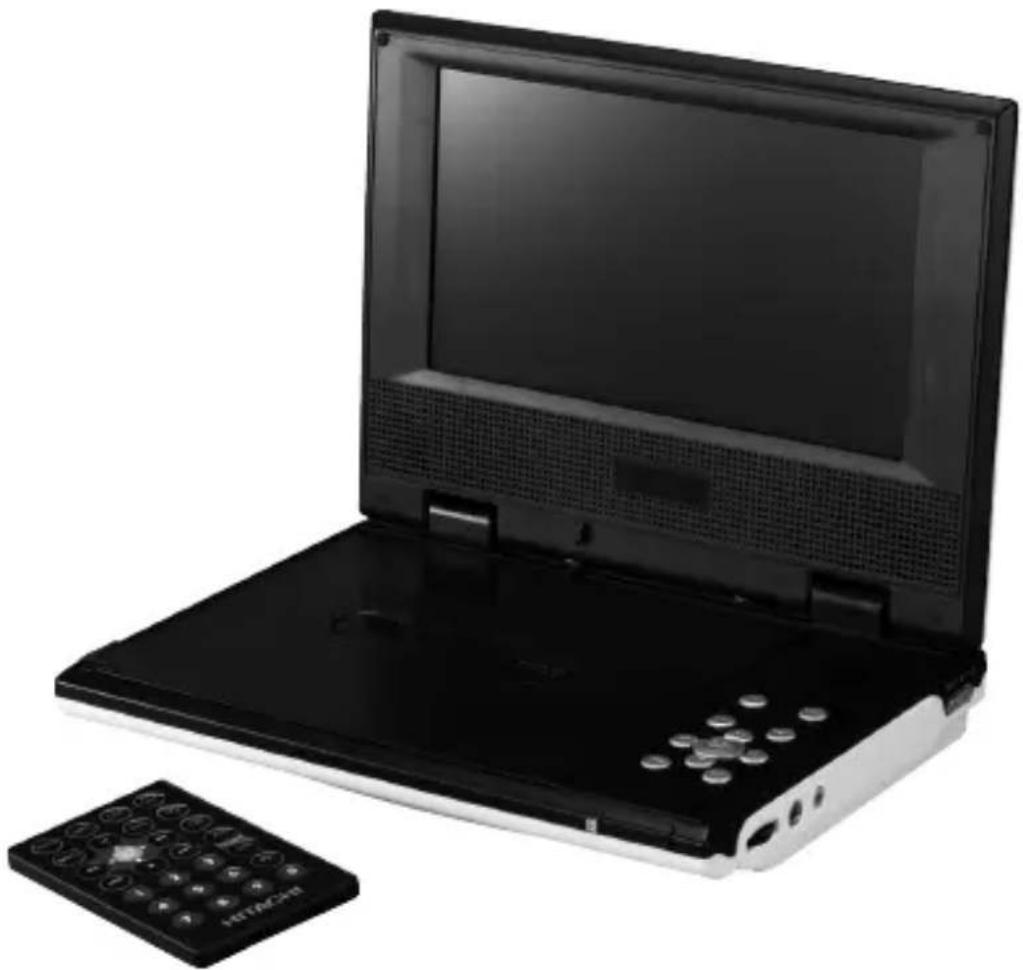
natural_image
Black-and-white photo of a portable electronic device with a remote control unit beside it (no visible text or symbols)

Content
Safety Warnings....6
Unpacking......8
Product overview 9
Front View....9
Rear View....10
Right Side View 10
Remote Control....11
Remove the Insulating Strip from the Remote Control 12
Battery Installation for the Remote Control....12
Remote Control Operation Range 14
Charging the Battery 14
Power Source 15
Mains Power 15
Turning on the Power....15
DVD Playback....16
Basic DVD Playback....16
Stop Playback....16
Previous and Next....17
Fast Forward and Fast Reverse....17
Pause Playback ....17
INFO 17
Volume Adjustment....17
A-B Repeat....17
1/All Repeat....18
Audio Channel 18
Subtitle Language....18
Angle Selection ....18
Compatible Disc Types 19
Supported Formats....19
Region Code 19
Audio CD, JPEG Picture CD Playback....20
Loading a disc....20
Playing an Audio CD....20
Playing JPEG Picture CD 21
The Playback Navigator and Settings 22
Program Playback 24
Adding files to the Program List....24
Deleting files to the Program List ....25
To Return to Program List....25
Customising the Language Settings 26
Language 26
Subtitle 26
Audio....26
DVD menu....26
Customising the Video Settings 27
Aspect Ratio 27
View Mode....27
TV System....27
Picture Mode....27
Customising the Rating Settings 28
Parental control....28
Set Password....28
Customising the Miscellaneous Settings 29
Use Default Settings 30
Screen Saver 30
View Mode Setup....30
Aspect Ratio Setting 30
Back Light Setting....30
Connections 31
Connecting a TV....31
Watching a DVD on your TV....31
Using Earphones....31
Maintenance 32
Hints and Tips....33
Specifications....35
SOME DOS AND DON'TS ON THE SAFE USE OF EQUIPMENT
This equipment has been designed and manufactured to meet international safety standards but, like any electrical equipment, care must be taken if you are to obtain the best results and safety is to be assured.
DO read the operating instructions before you attempt to use the equipment.
DO ensure that all electrical connections (including the mains plug, extension leads and inter-connections between the pieces of equipment) are properly made and in accordance with the manufacturer's instructions. Switch off and withdraw the mains plug before making or changing connections.
DO consult your dealer if you are ever in doubt about the installation, operation or safety of your equipment.
DO be careful with glass panels or doors on equipment.
DO route the mains lead so that it is not likely to be walked on, crushed, chafed, or subjected to excessive wear and tear or heat.
DON'T remove any fixed cover as this may expose dangerous voltages.
DON'T obstruct the ventilation openings of the equipment with items such as newspapers, tablecloths, curtains, etc. Overheating will cause damage and shorten the life of the equipment.
DON'T allow electrical equipment to be exposed to dripping or splashing, or objects filled with liquids, such as vases, to be placed on the equipment.
DON'T place hot objects or naked flame sources such as lighted candles or nightlights on, or close to equipment. High temperatures can melt plastic and lead to fires.
DON'T use makeshift stands and NEVER fix legs with wood screws - to ensure complete safety always fit the manufacturer's approved stand or legs with the fixings provided according to the instructions.
DON'T use equipment such as personal stereos or radios so that you are distracted from the requirements of traffic safety.
DON'T listen to headphones at high volume, as such use can permanently damage your hearing.
DON'T leave equipment switched on when it is unattended unless it is specifically stated that is designed for unattended operation or has a stand-by mode. Switch off using the switch on the equipment and make sure that your family knows how to do this. Special arrangements may need to be made for infirm or handicapped people.
DON'T continue to operate the equipment if you are in any doubt about it working normally, or if it is damaged in any way – switch off, withdraw the mains plug and consult your dealer.
ABOVE ALL
- NEVER let anyone especially children push anything into holes, slots or any other opening in the case – this could result in a fatal electric shock;
- NEVER guess or take chances with electrical equipment of any kind;
– it is better to be safe than sorry!
Used correctly, domestic batteries are a safe and dependable source of portable power. Problems can occur if they are misused or abused – resulting in leakage or, in extreme cases, fire or explosion.
Here are some simple guidelines to safe battery use designed to eliminate any such problems.
natural_image
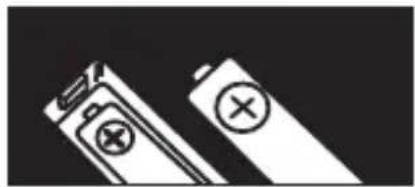
Two batteries with different charging symbol icons, one open and one closed, against a black background (no text or symbols)Take care to fit your batteries correctly, observing the plus and minus marks on the battery and appliance. Incorrect fitting can cause leakage or, in extreme cases, fire or even an explosion.
natural_image
Diagram showing battery arrangement with arrows indicating flow direction (no text or symbols)Replace the whole set of batteries at one time, taking care not to mix old and new batteries or batteries of different types, since this can result in leakage or, in extreme cases, fire or even an explosion.
natural_image
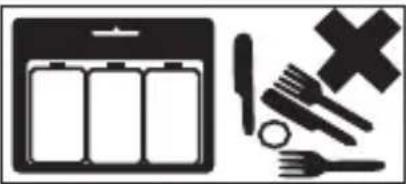
Icon set showing battery, crossed-out fork, and cross symbol (no text or labels)Store unused batteries in their packaging and away from metal objects which may cause a short-circuit resulting in leakage or, in extreme cases, fire or even an explosion.
natural_image
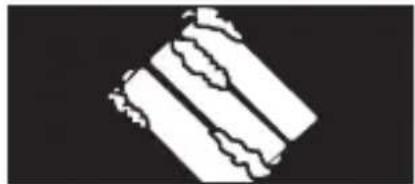
Abstract geometric pattern with diagonal stripes and wavy lines on black background (no text or symbols)Remove dead batteries from equipment and all batteries from equipment you know you are not going to use for a long time. Otherwise the batteries may leak and cause damage.
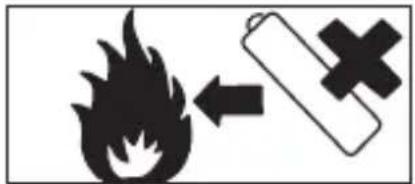
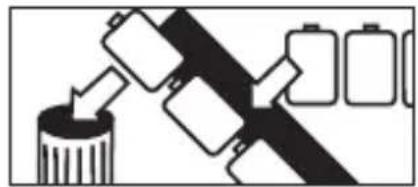
Never dispose of batteries in fire as this can cause them to explode. Please recycle dead batteries; do not put with the normal household waste.
natural_image
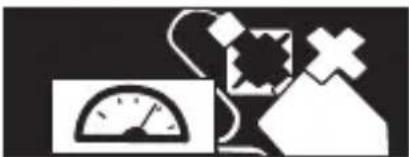
Pure electrical circuit lines without any symbolsNever attempt to recharge ordinary batteries, either in a charger or by applying heat to them. They may leak, cause fire or even explode. There are special rechargeable batteries which are clearly marked as such.
natural_image
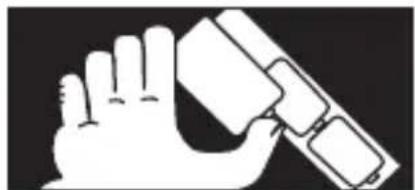
Illustration of a hand holding a tool or device (no text or symbols visible)Supervise children if they are replacing batteries themselves in order to ensure these guidelines are followed.
natural_image
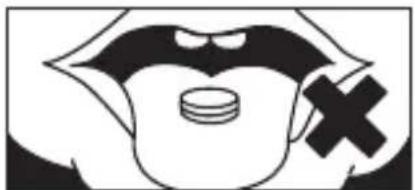
Black-and-white illustration of a stylized open mouth with a pill and a cross symbol (no text or numbers)Remember that small button cell batteries such as used in some hearing aids, toys, games and other appliances, are easily swallowed by young children and this can be dangerous.
natural_image
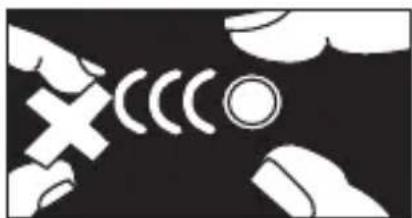
Abstract black-and-white graphic with white hand gestures and curved lines (no text or symbols)Keep loose button cells away from young children.
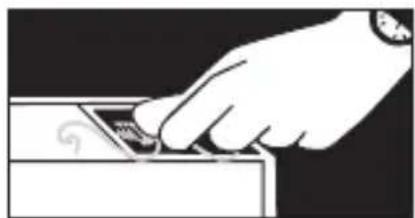
natural_image
Hand inserting a small electronic component into a device (no text or symbols visible)Make sure battery compartments are secure.
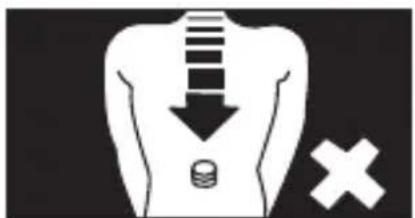
natural_image
Diagram of a human torso with a downward arrow and a cross symbol, no text or labels presentSeek medical advice if you believe a cell has been swallowed.
Safety Warnings
- Read all the instructions carefully before using the unit and keep them for future reference.
- Retain the manual. If you pass the unit onto a third party make sure to include this manual.
- Check that the voltage marked on the rating label matches your mains voltage.
Damage
- Please inspect the unit for damage after unpacking.
- Do not continue to operate the unit if you are in any doubt about it working normally, or if it is damaged in any way - switch off, withdraw the mains plug and consult your dealer.
Location of Unit
- The unit must be placed on a flat stable surface and should not be subjected to vibrations.
- Do not place the unit on sloped or unstable surfaces as the unit may fall off or tip over.
- The mains socket must be located near the unit and should be easily accessible.
Temperature
- Avoid extreme degrees of temperature, either hot or cold. Place the unit well away from heat sources such as radiators or gas/electric fires.
- Avoid exposure to direct sunlight and other sources of heat.
Naked Flames
- Never place any type of candle or naked flame on the top of or near the unit.
Moisture
- To reduce the risk of fire, electric shock or product damage, do not expose this unit to rain, moisture, dripping or splashing. No objects filled with liquids, such as vases, should be placed on the unit.
- If you spill any liquid into the unit, it can cause serious damage. Switch it off at the mains immediately. Withdraw the mains plug and consult your dealer.
Ventilation
- To prevent the risk of electric shock or fire hazard due to overheating, ensure that curtains and other materials do not obstruct the ventilation vents.
- Do not install or place this unit in a bookcase, built-in cabinet or in another confined space. Ensure the unit is well ventilated.
Safety
- Always disconnect the unit from the mains supply before connecting/ disconnecting other devices or moving the unit.
- Unplug the unit from the mains socket before a lightning storm.
Mains Adapter Cable
- Make sure the unit is not resting on top of the mains adapter cable, as the weight of the unit may damage the cable and create a safety hazard.
Interference
- Do not place the unit on or near appliances which may cause electromagnetic interference. If you do, it may adversely affect the operating performance of the unit, and cause a distorted picture or sound.
Mains Adaptor
- The mains adaptor will continue to draw electricity from the mains supply when plugged in the mains socket. In the interests of safety and to avoid unnecessary energy consumption, never leave the adaptor plugged in the mains socket while unattended for long periods of time. Disconnect the adaptor from the power supply.
Earphones
- Listening to loud sounds for prolonged periods of time may permanently damage your hearing.
- Before putting on earphones, turn the volume down then put the earphones on and slowly increase the volume until you reach a comfortable listening level.
Batteries
- Batteries used in the remote control for this unit are easily swallowed by young children and this is dangerous.
- Keep loose batteries away from young children and make sure that the battery holder tray is secure in the remote control. Seek medical advice if you believe a cell has been swallowed.
- Please dispose of batteries correctly by following the guidance in this manual.
Supervision
- Children should be supervised to ensure that they do not play with the unit and the remote control.
- Never let anyone especially children push anything into the holes, slots or any other openings in the case - this could result in a fatal electric shock.
DVD
• Class 1 Laser Product
This unit utilises a laser. Use of controls, adjustments
or performance of procedures other than those specified herein may result in hazardous radiation exposure.
- Before moving the unit, ensure the disc tray is empty.
• Always remove the disc when the unit is not in use.
- Failure to do so will risk severely damaging the disc and the unit.
- Do not stack devices, heat from other devices may affect the performance of the unit.

CAUTION
RISK OF ELECTRIC SHOCK
DO NOT OPEN


The lightning flash with arrowhead symbol, within an equilateral triangle, is intended to alert the user to the presence of uninsulated "dangerous voltage" within the unit's enclosure that may be of sufficient magnitude to constitute a risk of electric shock.

The exclamation point within an equilateral triangle is intended to alert the user to the presence of important operating and maintenance (servicing) instructions in the manual accompanying the unit.
GB
Service
- To reduce the risk of electric shock, do not remove screws. The unit does not contain any user-serviceable parts. Please leave all maintenance work to qualified personnel.
- Do not open any fixed covers as this may expose dangerous voltages.
Maintenance
- Ensure to unplug the unit from the power supply before cleaning.
- Do not use any type of abrasive pad or abrasive cleaning solutions as these may damage the unit's surface.
• Do not use liquids to clean the unit.
Thank you for purchasing your new HITACHI 7" Portable DVD Player.
We recommend that you spend some time reading this instruction manual in order that you fully understand all the operational features it offers. You will also find some hints and tips to help you resolve any issues.
Read all the safety instructions carefully before use and keep this instruction manual for future reference.
Unpacking
Remove all packaging from the unit. Retain the packaging. If you dispose of it please do so according to local regulations.
The following items are included:
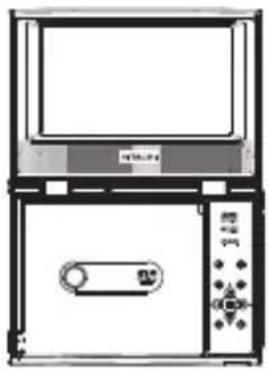
natural_image
Line drawing of a microwave oven with control panel and door (no text or symbols)The Main Unit
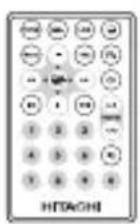
Remote Control (P.N.: 92-251-20200)
natural_image
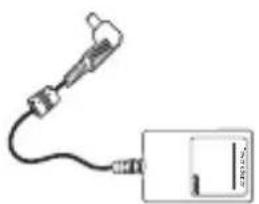
Simple line drawing of a handheld device connected to a rectangular device (no text or symbols)Mains Adapter (P.N.: 43-111-492)
Quick Start Guide (P.N.: 82-251-00880 & 82-251-00920)

This set has been designed to operate only from the supplied AC adapter and must not be connected to a car, caravan or boat battery.
Front View
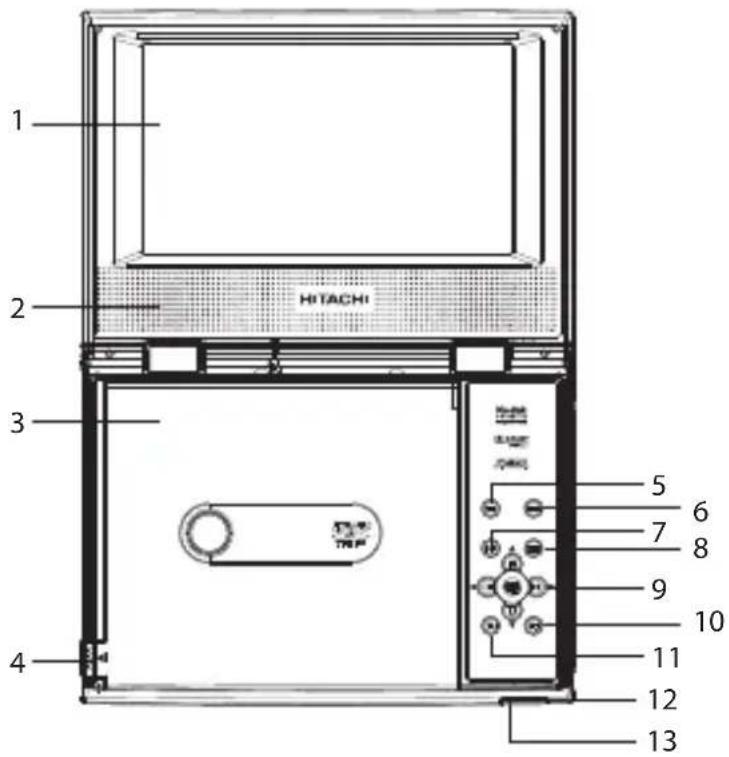
GB
- LCD Screen
- Speakers
- Disc Cover
- OPEN/CLOSE Handle
- LCD Button
- SETUP Button
- INFO Button
Show status information on the screen.
- MENU Button
- / SEARCH Buttons
Perform fast reverse / fast forward playback.
PAUSE Button
Pause playback.
STOP Button
Stop playing a disc.
PLAY/SEL. Button
Start or resume playback of a disc or confirm selections.
Cursor Buttons
Move between selections on a menu screen and adjusts certain settings.
- NEXT Button
Move forward to next chapters/ titles/tracks on a disc.
- IRREVIOUS Button
Move back to previous chapters/ titles/tracks on a disc.
- LED Indicator
Illuminates green when the ON/OFF switch is in the ON position.
Illuminates red when the battery is being charged.
- Remote Sensor
Receives signals from the remote control.
Rear View
GB
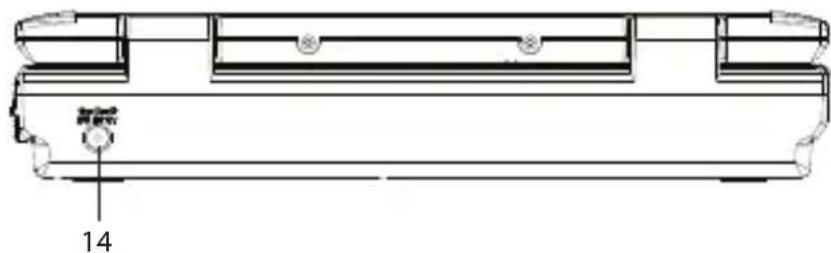
- DC IN 12V Jack
Right Side View
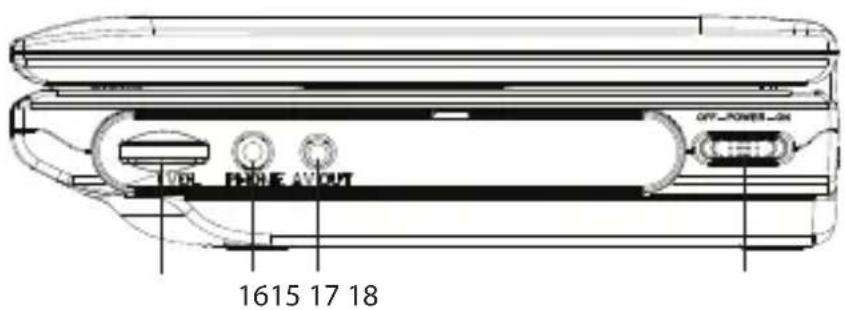
- VOLUME Dial
Adjusts the volume.
-
AV-OUT Socket
-
Power ON/OFF Switch
-
PHONE Socket
Remote Control
1. Info. Button
Show status information on the screen.
2. Setup Button
Display the SETUP menu.
3. Menu Button
Enter the main DVD menu (if available).
4. SEARCH Buttons
SEARCH: Fast reverse playback.
SEARCH: Fast forward playback.
Cursor Buttons
Move between selections on a menu screen and adjusts certain settings.
PAUSE Button
Pause playback.
STOP Button
Stop playing a disc.
PLAY/SEL. Button
Start or resume playback of a disc or confirm selections.
5. PREVIOUS Button
Move back to previous chapters/titles for DVD; or previous track for CD.
6. Number 0-9 Buttons
Enter parental control password or locate a title/chapter/track.
7. LCD Button
Display the View Mode menu.
8. SUBTITLE Button
Select one of the subtitle languages programmed on a DVD (if available).
9. Title Button
Enter the title menu (if available).
10. ANGLE Button
Switch between multiple camera angles when the DVD you are playing has been programmed with multiple camera angles.
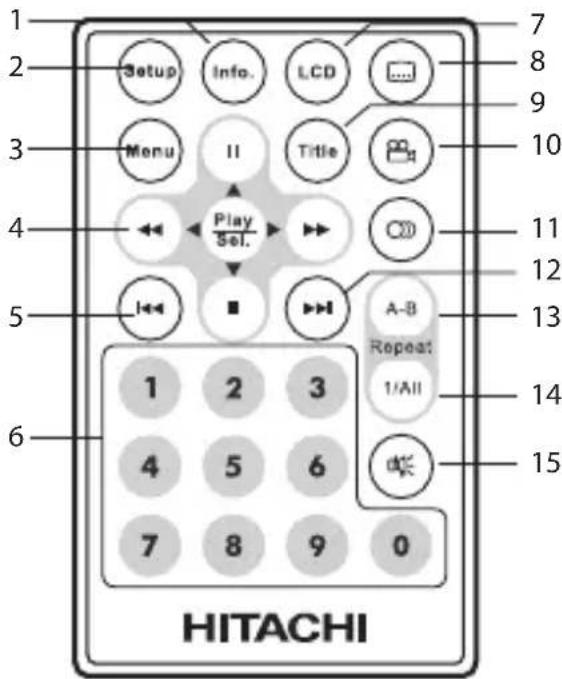
11. AUDIO Button
Select one of the audio sound tracks on a DVD (if more than one is available) or select the audio output mode on a CD.
12. NEXT Button
Move forward to next chapters/titles for DVD; or next track for CD.
13. A-B REPEAT Button
Repeat the playing time from A to B.
14. 1/All REPEAT Button
• Repeat a DVD chapter or title.
- Repeat a CD track or the entire disc.
15. Mute Button
Mute your DVD Player sound.
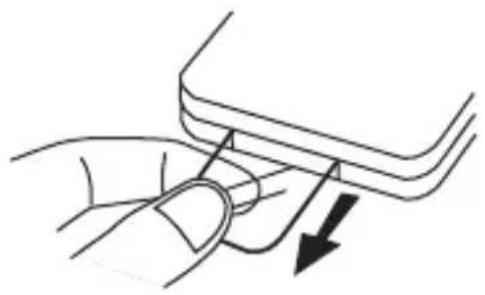
Remove the Insulating Strip from the Remote Control
Remove the insulating mylar strip from the battery if the battery is being used for the first time. It is located at the bottom back side of the remote control.
natural_image
Illustration of a finger pressing down on a curved object with an arrow indicating force (no text or symbols)Battery Installation for the Remote Control
The remote control requires a CR2025, 3V Lithium battery.
-
Slide and hold the battery release tab in the direction of the arrow.
-
Pull out the battery holder and remove the old battery.
-
Replace with a new one battery.
-
Insert the battery holder back into the remote control.
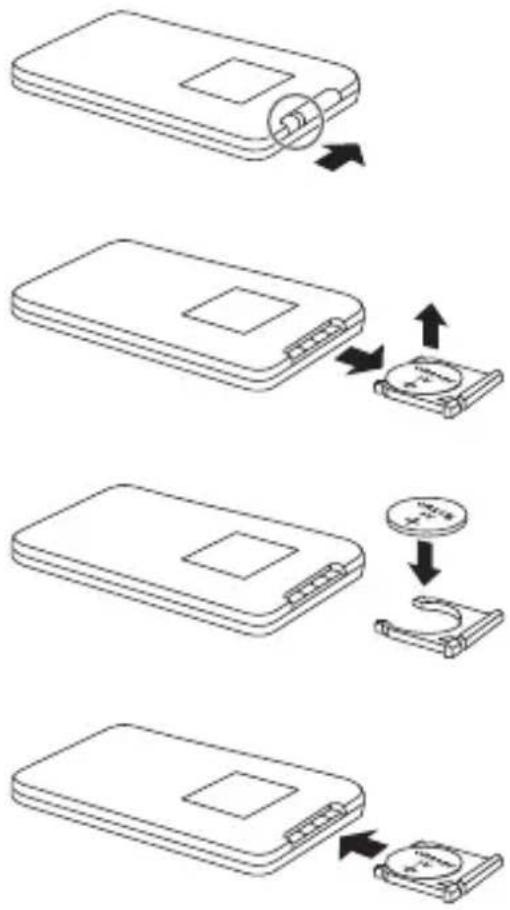
flowchart
graph TD
    A["Rectangular Component"] --> B["Internal Components"]
    B --> C["Device with Battery"]
    C --> D["Cell with Battery"]
    D --> E["Cell with Battery"]
Handling the Battery
- Improper or incorrect use of batteries may cause corrosion or battery leakage, which could cause fire, personal injury or damage to property.
- Install the battery correctly by following the polarity (+ and −) indications in the battery compartment.
- When the battery is exhausted, the remote control will not function.
• Only use the battery type indicated in this manual. - Do not dispose of the used battery as domestic waste. Dispose of it in accordance with the local regulations.
- Small button cell batteries such as the one used in the remote control are easily swallowed by young children and this is dangerous. Keep loose button cells away from young children and make sure that the battery holder tray is secure in the remote control. Seek medical advice if you believe a cell has been swallowed.
Handling the Remote Control
• Take care of your fingernails when you press and hold the battery release tab.
- Do not drop or cause impact to the remote control.
- Do not spill water or any liquid on the remote control.
- Do not place the remote control on a wet object.
- Do not place the remote control under direct sunlight or near sources of excessive heat.
- Remove the battery from the remote control when not in use for a long period of time, as it could cause corrosion or battery leakage and may result in physical injury and/or property damage including fire.
Remote Control Operation Range
Point the remote control at the unit no more than 5 metres from the remote control sensor and within 60^ of the front of the unit. The operating distance may vary depending on the brightness of the room
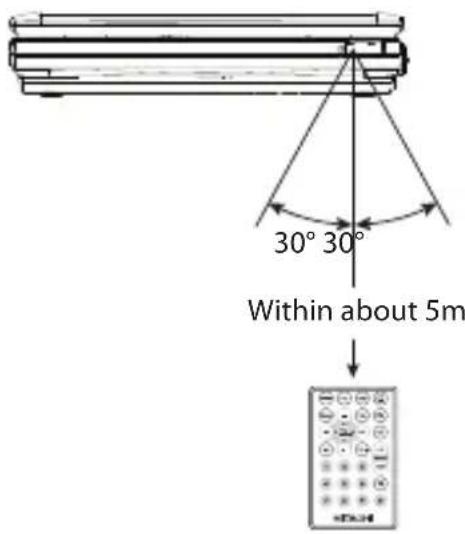
Charging the Battery
- Connect the DC IN jack to power via supplied mains adapter.
- The LED indicator lights up red indicating the battery is in charging mode. When the battery is charged to full capacity, the LED indicator goes off.
- Remove the mains adapter. The battery is now ready for use.
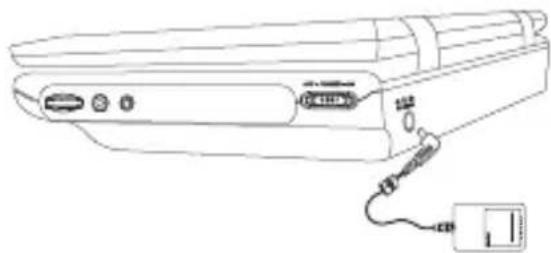
natural_image
Line drawing of a device with ports and cables, no text or symbols presentTo the mains socket

- The battery is partially charged at shipment. Charge the battery to full for the first time use and when the low battery (☐) indication appears on the screen. It takes about 4 hours at fully charged.
- Battery will not charge when the DVD player is switched on the power. Turn off the power to charge the battery.
Mains Power
• This unit operates with a DC 12V 0.83A mains adapter (included).
- Connecting the unit to any other power source may cause damage to the unit. Unwind the mains adapter to its full length. Connect the mains adapter to the AC socket on the rear of the unit and a mains socket. Make sure the mains adapter is fully inserted into the mains socket. The unit is now connected and ready to use.
• To switch the unit off completely, withdraw the mains adapter from the mains socket.
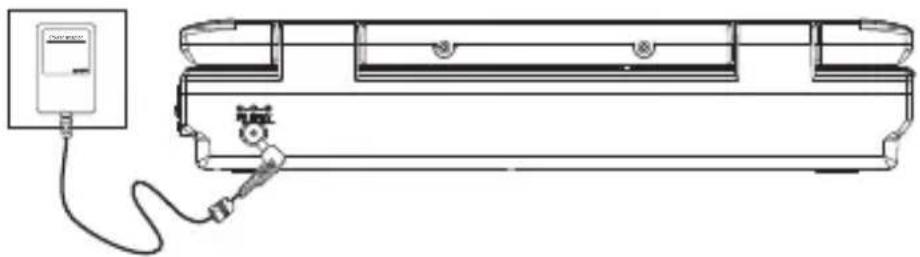
natural_image
Line drawing of a device connected to a power outlet (no text or symbols)
- Turn off the unit before unplugging the mains adapter from the unit to avoid the unit being damaged.
- When the unit is not going to be used for a long period of time, disconnect the mains adapter from the mains socket.
- The mains socket must be located near the unit and should be easily accessible. If a malfunction occurs, disconnect the plug from the mains socket at once.
- When the mains adapter is plugged in, the unit is not completely disconnected from the main power source, even when the unit is turned off.
Turning on the Power
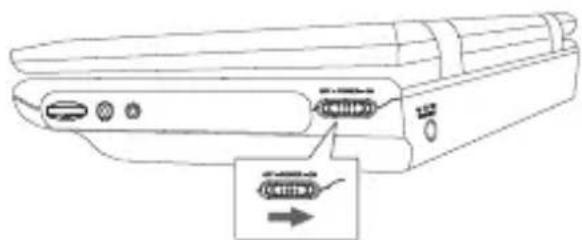
After the power adapter is connected to wall outlet, the LED indicator will be illuminated in red. Slide the ON/OFF switch to ON position on the right panel, and the LED indicator will be illuminated in green. The start-up picture will appear on the screen.
natural_image
Line drawing of a device rear panel with ports and connectors, showing internal wiring (no text or symbols)
After use, slide the ON/OFF switch on the DVD Player to the OFF position.

Ensure that the screen protection film is removed before use.

This instruction manual explains the basic instructions for operating this unit. Some DVDs are produced in a manner that allows for specific or limited operation during playback. Therefore, this unit may not respond to all operating commands. This is not a defect.
Please refer to the instructions accompanying the specific DVD in question for more information about the options available on that DVD.
"may appear on the screen during operation. A " means that the desired operation is not permitted by the unit or disc.
Basic DVD Playback
- Slide the POWER ON/OFF switch to ON position.
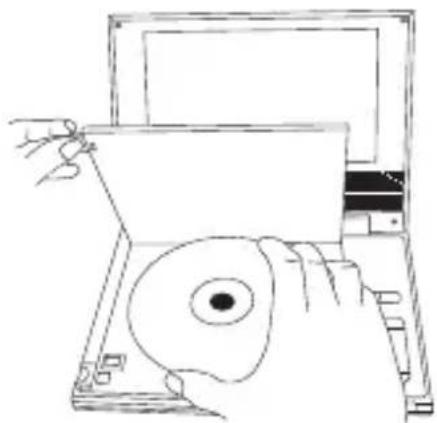
- Lift OPEN/CLOSE handle to open the DVD disc cover.
-
Hold the disc by its sides and carefully place onto the disc holder with the label side facing up. Gently push the disc down until you hear a "click" sound.
-
Close the disc cover.
natural_image
Line drawing of a hand operating a laptop with a circular device on the screen (no text or symbols)- Close the disc cover and the portable DVD player starts playback if the disc does not have any menus recorded on it.
-
If the disc has one or more titles recorded on it, a menu screen will appear on the screen.
-
To play a title, press the ◀▲▼▶ / 0-9 buttons on the remote control to highlight it and then press the PLAY/SEL. button.
Stop Playback
- Press the ■ STOP button on the unit or the remote control to go to pre-stop mode, the TV screen will display "■ STOP". With some discs, the DVD player can recall the stopped location, such as on DVDs.
- Press the PLAY/SEL. button on the unit or the remote control to resume playback from the location where playback was stopped or from the beginning of the disc.
- Press the ■ STOP button on the unit or the remote control twice to stop completely.
Previous and Next
- During playing, press the PREVIOUS button on the unit or the remote control to go back to the start of the previous chapter. Each press of this button will skip a chapter until the start of the disc.
- Each press of the NEXT button on the unit or the remote control during playing will skip the current chapter and play the next one.
Fast Forward and Fast Reverse
- Press the ◀◀▶▶ buttons on the unit or the remote control to fast reverse / fast forward through the disc. Each time the ◀◀▶▶ buttons on the unit or the remote control is pressed, the fast reverse / fast forward motion speed changes. There are 4 levels of speed available: x2, x4, x8 and x16.
- Press the PLAY/SEL. button on the unit or the remote control to resume normal playback.
Pause Playback
- Press the II PAUSE button on the unit or the remote control to pause playback (still mode). The sound will be muted during still mode.
- Press the PLAY/SEL. button on the unit or the remote control to resume normal playback.
INFO
While playing the disc, press the INFO button on the unit or the remote control to go to information menu if the function is available in the disc.
Volume Adjustment
- Turn the VOL control on the unit to adjust the volume on the unit.
- Press the Mute button on the remote control to switch the sound off, the player will display "”. Press the Mute button on the remote control again.
A-B Repeat
Repeat a section between points A and B within a Title / Chapter / Track.
- Press the A-B button to choose a starting point A.
- Press the A-B button again to set an ending point B and complete the setting. The selected section A-B will be repeated.
- Press the A-B button the third time to cancel and exit, the RepAB OFF will display on the screen.
1/All Repeat
Press the 1/All REPEAT button on the remote control repeatedly to select different repeat modes.
| Menu Description | |
| First Press Repeat Chapter | |
| Second Press Repeat Title | |
| Third Press Repeat all | |
| Forth Press Repeat off |
Audio Channel
Press the AUDIO button on the remote control repeatedly to select different audio languages.
Subtitle Language
Press the SUBTITLE button on the remote control repeatedly to switch between different subtitle languages that are available in the disc.
Angle Selection
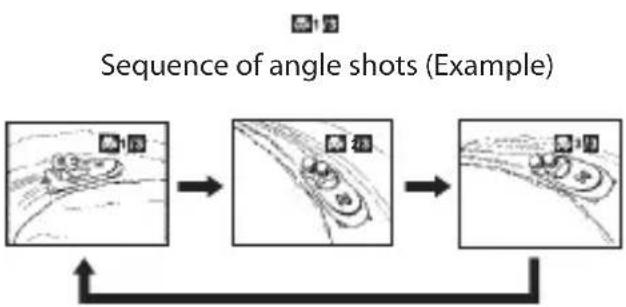
Some DVDs contain scenes which have been shot from a number of different angles. For these discs, the same scene can be viewed from each of these different angles.
- While you are playing a DVD with different angles recorded, press the ANGLE button on the remote control to view the number of current angles available.
- Press the ANGLE on the remote control button repeatedly to change the scene to the next recorded angle.
• After approximately two seconds, playback will continue from the new angle you selected.
- If no button is pressed within 10 seconds, playback continues without changing the current angle.

- This function can only be used for discs on which scenes shot from multiple angles have been recorded.
• If only one angle is recorded, 11 is displayed.
flowchart
graph LR
    A["Step 1: Image"] --> B["Step 2: Waveform"]
    B --> C["Step 3: Waveform"]
Compatible Disc Types
| Disc Types Disc Logo Recorded Content | ||
| DVD-VIDEO (Digital Versatile Disc) AUDIO | + V  | |
| DVD±RW (Audio/Video format or JPEG files) |  | AUDIO + VIDEO + JPEG |
| DVD±R (DVD Recordable - Audio/Video format or JPEG files) |  --- --- | AUDIO + VIDEO + JPEG |
| CD-R (CD Recordable - Audio/Video format or JPEG files) |  | AUDIO + VIDEO + JPEG |
| CD-RW (CD-Rewritable - Audio/Video format or JPEG files) |  | AUDIO + VIDEO + JPEG |
| AUDIO-CD (Compact Disc Digital Audio) | AUD  | |
| Kodak Picture CD JPEG |  | |
Supported Formats
JPEG
• The file extensions has to be .jpg and not .jpeg
• Pictures encoding must comply with JPEG/ISO format.

• Only finalised discs of DVD-R and DVD-RW multi-border are supported.
- Both finalised and un-finalised discs of DVD+R and DVD+RW multi-border are not supported.
- Some recorded files may not be able to be played due to the type and format of disc or condition of the recording.
Region Code
Both the DVD player and the discs are coded by region. These regional codes must match in order to play the disc. If the codes do not match, the disc will not play.
The Region Number for this DVD player is described on the bottom of the DVD player.
| Disc Type DVD-VIDEO | |
| Region code | |
Loading a disc
- Slide the POWER ON/OFF switch to ON position.
- Lift OPEN/CLOSE handle to open the DVD disc cover.
- Hold the disc by its sides and carefully place onto the disc holder with the label side facing up. Gently push the disc down until you hear a "click" sound.
- Close disc cover.
Playing an Audio CD
- Press the 11 buttons on the unit or press the buttons on the remote control to highlight an audio track file and then press the PLAY/SEL. button on the unit or the remote control to playback.
- If the files are inside a folder, press the PLAY/SEL. button on the unit or the remote control to enter into the folder
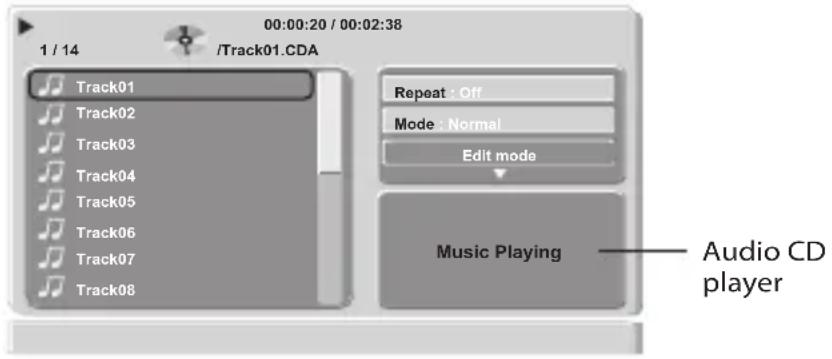
- Press the 📁 buttons on the unit or press the 🔊 button on the remote control to select the Root folder 🔒 and press the PLAY/SEL. button on the unit or the remote control to return the upper menu.
- To stop the playback, press the ☑TOP button on the unit or the remote control.

The unit will automatically play Track01 after disc has been loaded without pressing any button.
Playing JPEG Picture CD
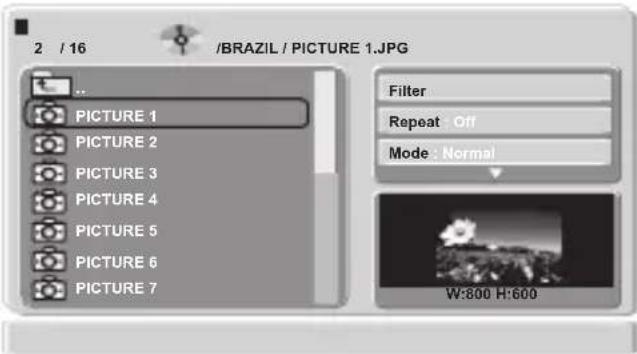
- To display the file list, press the Button once on the unit or the remote control.
-
Press the All buttons on the unit or press the buttons on the remote control to highlight a JPEG file and then press the PLAY/SEL. button on the unit or the remote control to slide show the picture.
-
If the files are inside a folder, select the folder and press the PLAY/SEL. button on the unit or the remote control to enter into the folder.
-
In stop mode, press the button on the unit or press the button on the remote control to select the Root folder and press the PLAY/SEL. button on the unit or the remote control to return the upper level.
-
To slideshow the picture, press the PLAY/SEL. button on the unit or the remote control.
-
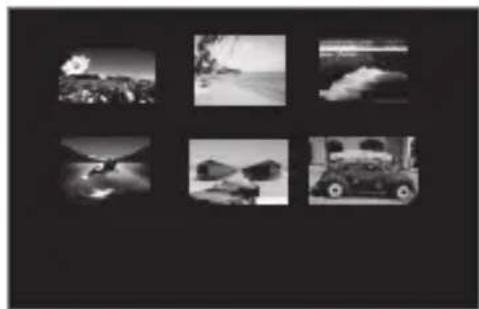
Press the Menu button on the remote control during the slide show to enter the thumbnail mode.
natural_image
Six black-and-white photos showing various scenes including cars, landscapes, and a vintage car (no visible text or symbols)- Press the /◀/ ▶/1 buttons on the unit or press the ◀ buttons on the remote control to select the preferred picture and then press the PLAY/SEL. button on the unit or the remote control to play in a full screen.
natural_image
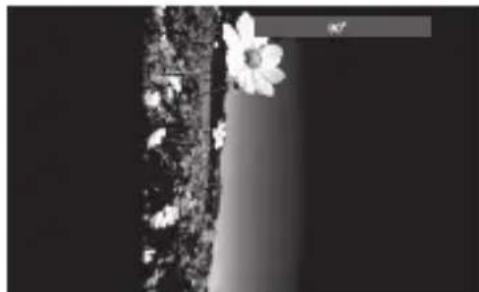
Black and white close-up of a tree trunk with small white flowers, no visible text or symbols- Press the buttons on the unit or press the buttons on the remote control to rotate the photo by 90^/180^/270^ clockwise or anti-clockwise during the photo playback.
• All the rotation effects will be cancelled after exiting the slideshow mode.
- Press the STOP button on the unit or the remote control to return to the play list browser.
The Playback Navigator and Settings

-
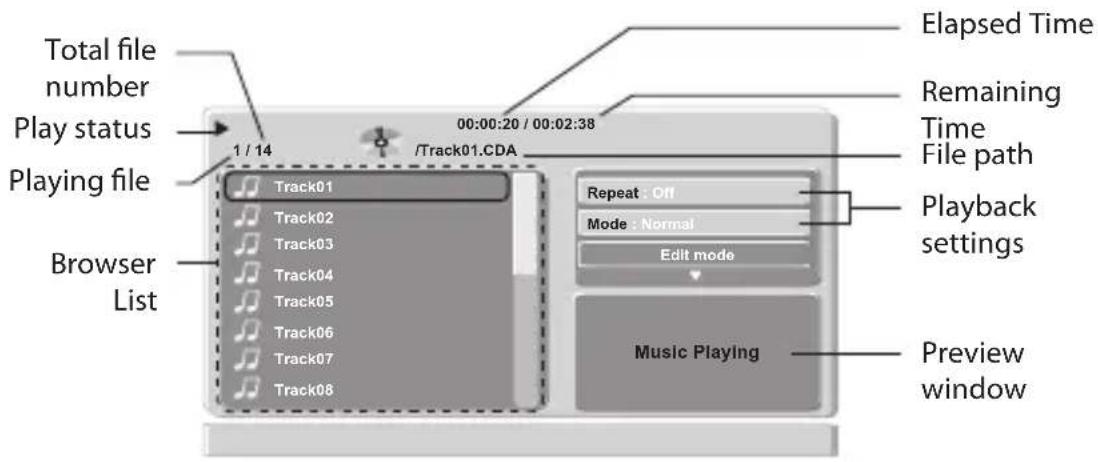
In stop mode, press the buttons on the unit or press the / button on the remote control to enter the right screen of playback setting of the navigator.
-
Press the 11 buttons on the unit or press the / button or the / button on the remote control to select the items. Always confirm by pressing the PLAY/SEL. button on the unit or the remote control.
- For Filter setting, press the PLAY/SEL. button on the unit or the remote control to bring up the drop-down menu, and press the IV buttons on the unit or press the ▲ button or the /▼button on the remote control to select an option, then press the PLAY/SEL. button on the unit or the remote control.
| Menu Options Description | ||
| Filter Audio, Photo, Video | Allows to sort the file format displayed in the browser list. The filter settings will sort out the file types being displayed in the Browser list on the left screen of the navigator.To leave the settings, press thebutton. The filter settings will sort out the file types being displayed in the Browser list on the left screen of the navigator.To leave the settings, press thebutton. | |
| Repeat Off, Single, Folder, All | To set the repeat mode of the playing files. | |
| Mode Normal, Shuffle, Music Intro | To set the file playing sequence in the Disc mode.Music Intro mode to playback the start of every song.Just like browsing the music list on the Disc. | |
| Edit Mode | — · Allow to select the files to be programmed in the program list.Refer to “Program playback” section on the next page. | |
| Program View | Program view, Browser view | Switch to view all files in the current directory or the selected files in the program list.Refer to “Program playback” section in the next page. |
| Add to Program | Add to program, Clear program | Add or delete the selected files in the program list.Refer to “Program playback” section on the next page. |
* In Audio CD mode, the browser will hide the "Filter" and the "Repeat Folder" functions in Repeat mode.
Adding files to the Program List
-
In full stop mode, press the buttons on the unit or press the / button on the remote control to enter the right screen of the navigator.
-
Press the 11 button on the unit or press the / button or the / button on the remote control to select Edit mode, then press the PLAY/SEL. button on the unit or the remote control to highlight the Edit mode.
- To leave the Edit mode, press the PLAY/SEL. button on the unit or the remote control again to cancel the highlight.
- Press the button on the unit or press the / button on the remote control to skip to the left screen. Press the I/ button on the unit or press the / button or the ▼ button on the remote control to select a file in the preview list, then press the PLAY/SEL. button on the unit or the remote control to tick the file.
- Press the PLAY/SEL. button on the unit or the remote control again to cancel the tick.
- Press the // button on the unit or press the /▲button or the / button on the remote control to select another file and press the PLAY/SEL. button on the unit or the remote control repeatedly to tick more files.
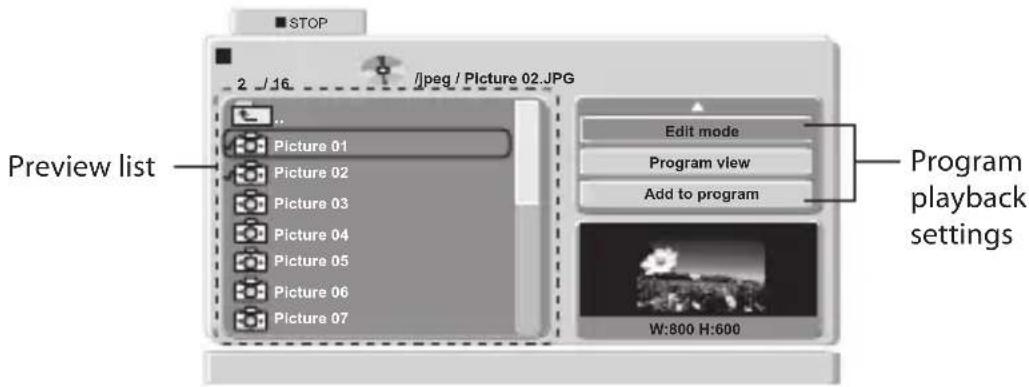
-
Press the button on the unit or press the / button on the remote control to skip to the right screen, then press the // button on the unit or press the / ▲ // button or the ▼ / ■ button on the remote control to select Add to program and then press the PLAY/SEL. button on the unit or the remote control to confirm. Now the ticked files have been programmed in the Program view, you can press the // button on the unit or press the /▲ button or the / button on the remote control to select Program view and then press the PLAY/SEL. button on the unit or the remote control to view the ticked files in Browser view.
-
Press the / button on the unit or press the / button or the / button on the remote control to select Edit mode, then press the PLAY/SEL. button on the unit or the remote control to leave the Edit mode.
-
Press the button on the unit or press the / button on the remote control to skip to the left screen. Then press the // button on the unit or press the /▲ // button or the ▼ button on the remote control to select a file you want to play from the Preview list.
Deleting files to the Program List
- Repeat steps 1 and 2 as described in "Adding files to the Program List" section.
- Press the button on the unit or press the / button on the remote control to skip to the left screen in Browser view. Press the // button on the unit or press the ▲ button or the / button on the remote control to select a file you want to delete, and then press the PLAY/SEL. button on the unit or the remote control to tick the file.
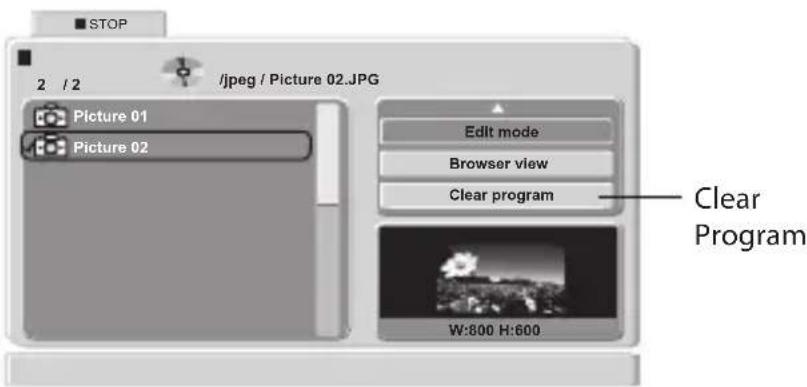
- Press the button on the unit or press the / button on the remote control to skip to the right screen, then press the // button on the unit or press the /▲ // button or the ▼ button on the remote control to select Clear program to delete the ticked files in Browser view.
To Return to Program List
- Press the All button on the unit or press the / button or the / button on the remote control to select the Browser view, then press the PLAY/SEL. button on the unit or the remote control to change from "Browser view" to "Program view".

The preview list will display all the tracks available on the disc.
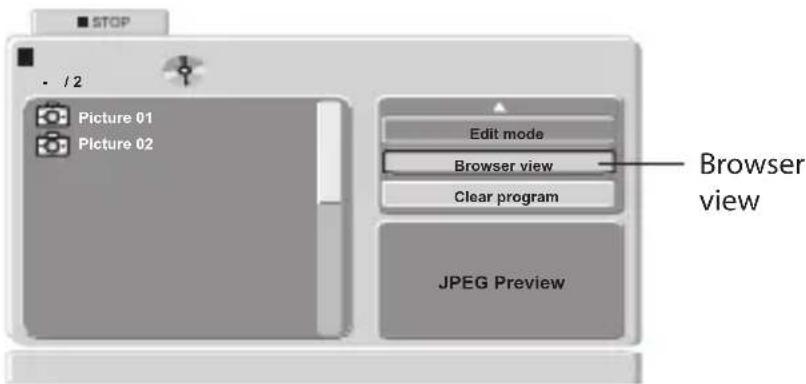
- Press the All button on the unit or press the / button or the / button on the remote control to select Edit mode, then press the PLAY/SEL. button on the unit or the remote control to leave the Edit mode.
Customising the Language Settings
-
Press the Setup button on the unit or the remote control to display the system setup menu.
-
Press the ▲ button on the unit or press the ▲ / ▲ button or the ▼ button on the remote control to select Language and then press the ▶ button on the unit or press the / ▶ ▶ button on the remote control.
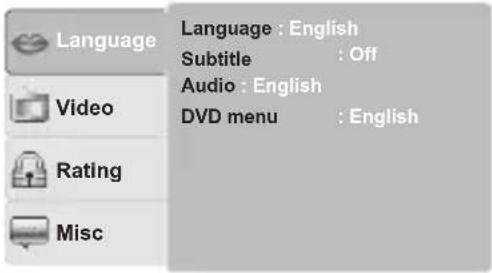
-
Press the ▶ button on the unit or press the / button or the / button on the remote control to select Language / Subtitle / Audio / DVD menu and then press the ▶ button on the unit or press the / button on the remote control.
-
Press the / button on the unit or press the / button or the / button on the remote control to select an option, then press the PLAY/SEL. button on the unit or the remote control to confirm.
-
Press the Setup button on the unit or the remote control on the remote control to exit the menu.
Language
Select the system display language.
Subtitle
Select the default subtitle language you wish to play on the screen. If the selected language is not recorded on the disc, the player will play the top-priority language of the disc.
Audio
Select the default sound track you wish to play if your DVD supports multi-language sound tracks.
DVD menu
Select the default DVD menu language you wish to play on the screen. If the selected language is not recorded on the disc, the player will play the top-priority language of the disc.
- Press the Setup button on the unit or the remote control to display the system setup menu.
- Press the ▲ button on the unit or press the ▲/□ button or the ▼ button on the remote control to select Video and then press the ▶ button on the unit or press the ▶/ □ button on the remote control.
- Press the All button on the unit or press the / button or the / button on the remote control to select Aspect Ratio / View Mode / TV System / Picture Mode and then press the button on the unit or press the / button on the remote control.
- Press the All button on the unit or press the / button or the / button on the remote control to select an option, then press the PLAY/SEL. button to confirm.
- Press the Setup button on the unit or the remote control to exit the menu.
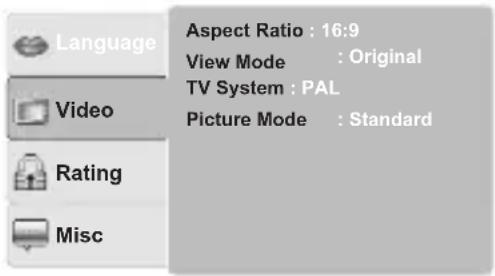
Aspect Ratio
Select the aspect ratio of viewing screen if the disc has more than one aspect ratio.
4:3: Select "Aspect Ratio: 4:3" for outputting 4:3 ratio video for a conventional size TV. Black bands might appear on the screen if playing non 4:3 video.
16:9: Select "Aspect Ratio: 16:9" for outputting 16:9 ratio video for a widescreen TV. Black bands might appear on the screen if playing non 16:9 video.
View Mode
Select the picture viewing size.
Fill: Plays the video to fill the height or width by resizing the image ratio. Black bands may appear on top/down or left/right.
Original: Plays the video in its original size without any resize.
Auto Fit: When widescreen video is played in this mode on a conventional screen, black bands appear at the top and bottom of the screen.
Pan Scan: When widescreen video is played, the images will be cropped on the right and left sides of the image so that it can be viewed on a conventional screen. Some DVD may not support this feature.
TV System
Select the TV playing system according to the local TV system (NTSC/PAL).
Picture Mode
Picture Mode setting allows user to adjust the picture's brightness (Standard / Bright / Soft / User).
Customising the Rating Settings
Parental control
- Press the Setup button on the unit or the remote control to display the system setup menu.
- Press the □ button on the unit or press the ▲ / □ button or the ▼ button on the remote control to select Rating and then press the ▶ button on the unit or press the ▷ button on the remote control.
- Press the ▲ button on the unit or press the ▲ / ▲ button or the ▼ button on the remote control to select Parental control and then press the PLAY/SEL. button on the unit or the remote control, a password screen will appear.
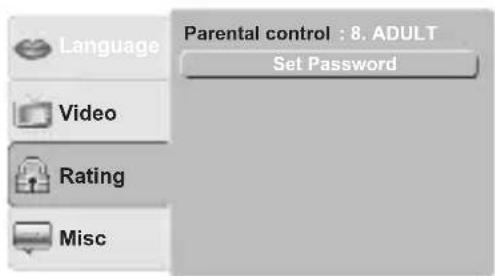
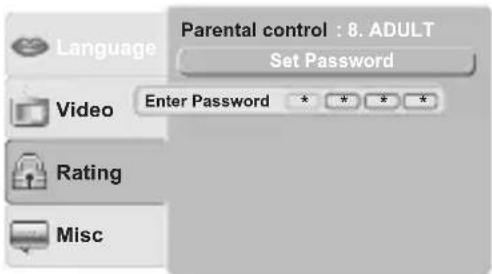
- Press the 0-9 buttons on the remote control to input the old password (The factory pre-set password is "0000" for the first time setup) and then press the PLAY/SEL. button on the unit or the remote control to confirm.
- Press the button on the unit or press the / button on the remote control and then press the // button on the unit or press the / button or the / button on the remote control to select Parent lock levels.
The parental lock levels are equivalent to the following ratings:
- Kid Safe: Kid safe; it is safe even for kids.
- G: General audience; recommended as acceptable for viewers of all ages.
- PG: Parental Guidance suggested.
- PG 13: Material is unsuitable for children under the age of 13.
- PG R: Parental Guidance-restricted; recommended that parents restrict children under age 17 from viewing or allow children to view only when supervised by a parent or adult guardian.
- R: Restricted, children under 17 would not be admitted without an accompanying parent or adult guardian.
- NC 17: No children under the age of 17, not recommended viewing for children under age 17.
-
ADULT: Adult only.
-
Press the PLAY/SEL. button on the unit or the remote control to confirm. (Rating 1 has the most restrictions while rating 8 can virtually playback all DVD's.)
-
Press the Setup button on the unit or the remote control to exit the menu.
Set Password
- Press the Setup button on the unit or the remote control to display the system setup menu.
- Press the ▲ button on the unit or press the ▲/□ button or the ▼ button on the remote control to select Rating and then press the ▶ button on the unit or press the ▶/ ▶ button on the remote control.
- Press the ▲ button on the unit or press the ▲/□ button or the ▼ button on the remote control to select Set Password.
- Press the 0-9 buttons on the remote control to input the old password (The factory pre-set
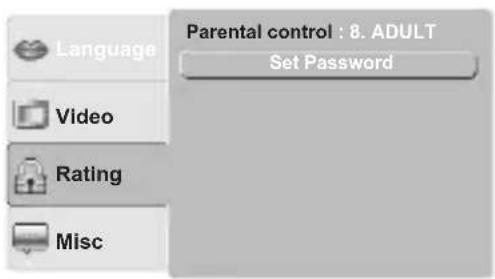
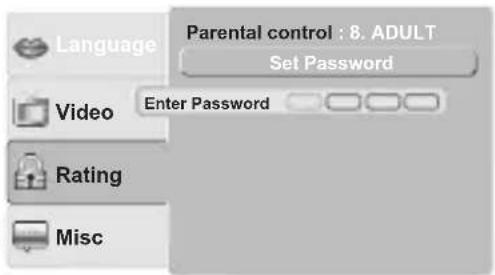
password is "0000" for the first time setup) and then press the PLAY/SEL. button on the unit or the remote control to confirm. If you input the wrong password, the screen will show Incorrect Password.
- Press the 0-9 buttons on the remote control to input the new password, press the PLAY/SEL. button on the unit or the remote control to confirm.
- Enter the new password again to verify. After verified, the screen will show Set Password Successful.
- Press the Setup button on the unit or the remote control to exit the menu.
Customising the Miscellaneous Settings
- Press the Setup button on the unit or the remote control to display the system setup menu.
- Press the ▲ button on the unit or press the ▲/□button or the ▼ button on the remote control to select Misc and then press the ▶ button on the unit or press the ▶/ ▶button on the remote control.
- Press the / button on the unit or press the / button or the / button on the remote control to select Use default Settings or Screen saver and then press the button on the unit or press the / button on the remote control.
- Press the All button on the unit or press the / button or the / button on the remote control to select an option, then press the PLAY/SEL. button on the unit or the remote control to confirm.
- Press the Setup button on the unit or the remote control to exit the menu.
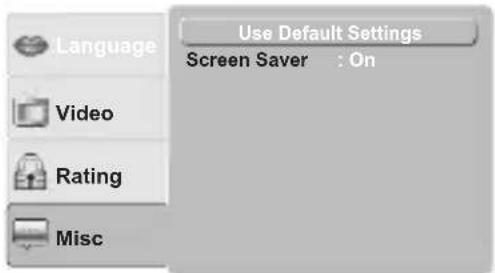
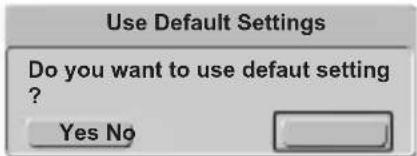
Use Default Settings
Choosing this function will reset all your settings to the factory's default except your own password.
Screen Saver
Select the screen saver to on or off.
GB
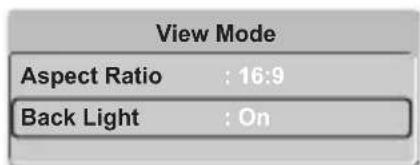
View Mode Setup
Aspect Ratio Setting
- Press the LCD button on the unit or on the remote control to view the View Mode window on the screen.
- Press the □ button on the unit or press the / ▲ □ button or the ▼ button on the remote control to select Aspect Ratio.
- Press the PLAY/SEL. button on the unit or the remote control to confirm the selection.

- Select "Aspect Ratio: 4:3" to play the 4:3 aspect ratio videos. Black bands might appear if you play non 4:3 ratio video.
-
Select "Aspect Ratio: 16:9" to play the 16:9 aspect ratio videos. Black bands might appear if you play non 16:9 ratio video.
-
To leave View Mode, press the LCD button on the unit or the remote control.
Back Light Setting
- Press the LCD button to bring up the View Mode window.
- Press the buttons to select Back Light.
- Press the ◀▶ buttons or the PLAY/SEL. button to choose On or Off.
- To leave View Mode window, press the LCD button.
Connecting a TV
If your TV has Audio/Video inputs, you can connect the DVD Player to your TV using the 3.5mm to RCA AV Cable (not included).
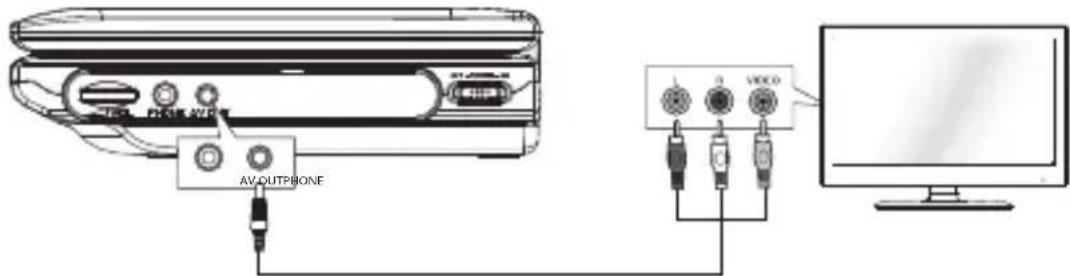
3.5mm RCA AV cable
Watching a DVD on your TV
- Connect your TV to the DVD Player using the 3.5mm to RCA AV Cable (not included).
- Turn on the DVD Player.
- Turn on the TV and follow the instructions included with it to play the DVD.

Make sure to use the correct Audio/Video cable. Connecting the plugs incorrectly may cause a weak signal.
Using Earphones
Turn down the volume before connecting the earphones. Slowly raise the volume with the earphones on until you reach your desired volume. When earphones are connected, the speaker is automatically disabled.
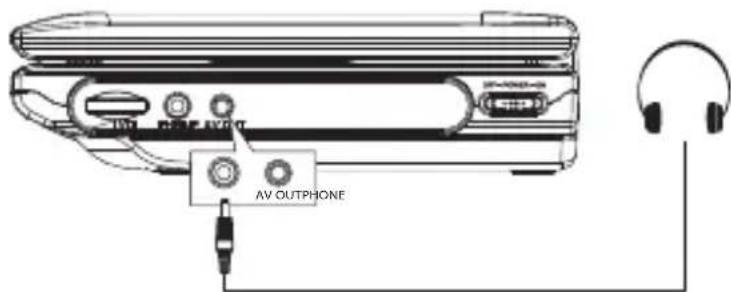

Avoid excessive volume levels and listening to sound for a long period of time when using headphones, as this may impair your hearing.
Handling Discs

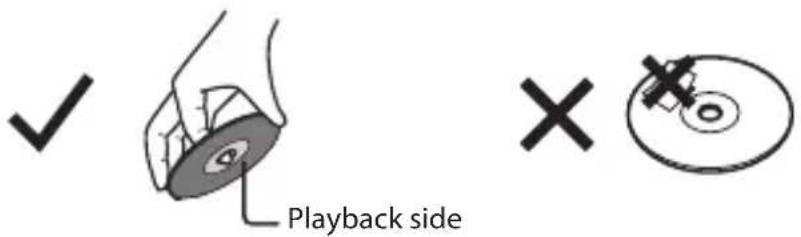
• Do not touch the playback side of the disc.
• Do not attach paper or tape to the disc.
Cleaning Discs
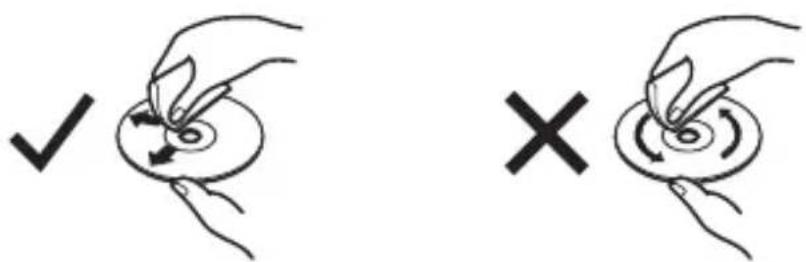
- Fingerprints and dust on the disc cause picture and sound deterioration. Wipe the disc from the centre outwards with a soft cloth. Always keep the disc clean.
- If you cannot wipe off the dust with a soft cloth, wipe the disc lightly with a slightly moistened soft cloth and finish with a dry cloth.
- Do not use any type of solvent such as thinner, benzine, commercially available cleaners or antistatic spray. They may damage the disc.
Storing Discs
- Do not store discs in places subjected to direct sunlight or near heat sources.
- Do not store discs in places subjected to moisture and dust such as a bathroom or near a humidifier.
- Storing discs vertically in a case, stacking discs or placing objects on discs outside of their cases may cause warping.
If a problem does occur, it may often be due to something very minor. The following table contains various tips.
| Menu Description | |
| No power. · Ensure the mains adapter is connected.Make sure that the unit is turned on.Make sure that you select ON mode.Make sure the battery is charged up on the DVD player. | |
| The remote control does not function. | Use the remote control near the unit.Point the remote control at the remote sensor on the unit.Replace the battery in the remote control with a new one.Make sure the plastic sheet has been removed from the remote control.Remove any obstacles between the remote control and the unit. |
| Very little or no sound is coming from a DVD. | Make sure the unit is not paused. Press the PLAY/SEL. button on the unit or the remote control.Make sure the unit is not in fast-forward or fast-reverse mode. Press the PLAY/SEL. button on the unit or the remote control.Make sure the AUDIO/VIDEO input/output connections are correct.This unit does not support DTS audio decoding system. Press the button on the remote control to change the audio setting to 2-Channel Analogue mode.The unit has overheated. Shut it off for 30 minutes to allow it to cool down.The volume control is too low. Increase the volume. |
| No picture. · The region number of the disc doesn't match the region number of this unit.Make sure the Back Light is set ON on the main unit. | |
| The picture is not clear. | The DVD is dirty. Gently clean the disc.The disc is scratched.Please adjust the LCD's brightness, contrast and colour using the LCD button on the unit or the remote control.Setup Video Picture Mode User on Main unit. |
| Loud hum or noise is heard. | The plugs and sockets are dirty. Wipe them with a cloth slightly moistened with alcohol.Clean the disc.The disc is scratched or the file is corrupt. |
GB

| Menu Description | |
| The disc does not play. | There is no disc inside the unit ("No Disc" appears on the screen).Insert the disc correctly with the graphics facing up.Clean the disc.A non-valid disc has been inserted, or the disc region number does not match the region number of the unit.Condensation may have formed inside the unit due to a sudden change in temperature. Wait about an hour for it to clear and try again.It may not be possible to play CD-R/RW or DVD-R/RW in all cases due to the type of disc or condition of the recording. If you are having trouble playing a certain disc, remove the disc and try a different one. Improperly formatted discs will not play on this DVD Player. |
| File from Disc does not play | Check the file format. |
| The unit does not respond when pressing any buttons | The unit may freeze up during use.Switch the unit off and then on again to reset the unit. |
Specifications
| Model PDV342E | |
| Disc Format DVD, CD, CD-R, CD-RW, JPEG Picture CD | |
| Video System PAL, NTSC | |
| Video Decompression MPEG-2 | |
| LCD Display 7" Wide-Screen Active-Matrix TFT Type | |
| Audio:Audio CharacteristicDolby Digital Decoding | 2-Channel AnalogueYes |
| Speaker 2 Built-in stereo speaker | |
| Terminals:DVD Player | AV OUT Socket x 1, Headphone Socket x 1 |
| Power Adapter:Power SupplyPower Consumption | AC 100-240V 50/60Hz (Mains Adapter), Approx. 10W |
| Remote Control Infra-red with one CR2025 (3V) battery (for the DVD Player use only) | |
| Battery Operation Time Approx. 2 hours | |
| Weight: 760g | |
| Dimensions: 207mm(L) x 152mm(W) x 42.5mm(H) | |
Features and specifications are subject to change without notice.
Rovi Proprietary Rights
This item incorporates copy protection technology that is protected by U.S. patents and other intellectual property rights of Rovi Corporation. Reverse engineering and disassembly are prohibited.
Restriction on Use & Rovi Trade Mark Rights
Use of the copyright protection technology contained in this product must be authorised by Rovi Corporation and is intended for home and other limited viewing uses only unless otherwise authorised by Rovi Corporation. The names “Rovi Corporation” and “Macrovision” are protected by trademarks.
Notes for battery disposal
The batteries used with this product contain chemicals that are harmful to the environment. To preserve our environment, dispose of used batteries according to your local laws or regulations. Do not dispose of batteries with normal household waste.
For more information, please contact the local authority or your retailer where you purchased the product.
natural_image
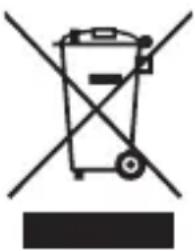
Symbol of a trash bin crossed out by two crossed lines, with no text or labels present.The above mark is in compliance with the Waste Electrical and Electronic Equipment Directive 2002/96/EC (WEEE).
The mark indicates the requirement NOT to dispose the equipment including any spent or discarded batteries as unsorted municipal waste, but use the return and collection systems available. If the batteries or accumulators included with this equipment display the chemical symbol Hg, Cd or Pb, then it means that the battery has a heavy metal content of more than 0.0005% Mercury, or more than 0.002% Cadmium or more than, 0.004% Lead.
In the unlikely event of a problem developing, please contact the store where you purchased your equipment.
We continually strive to improve our products; specifications may change without prior notice.
For advice on where to purchase accessories, please contact the store where you purchased your equipment.
The product complies with the KODAK Picture CD format and will display KODAK Picture CDs. The "KODAK Picture CD Compatible" logo is a trademark of Eastman Kodak Company and is used with permission.
All trademarks are the property of their respective owners and all rights are acknowledged.
