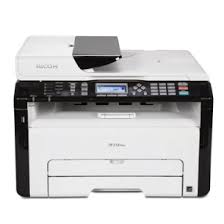
AFICIO SP 213SFNW - Multifunction Printer RICOH - Free user manual and instructions
Find the device manual for free AFICIO SP 213SFNW RICOH in PDF.


| Product type | Monochrome laser multifunction printer |
| Brand | RICOH |
| Model | AFICIO SP 213SFNW |
| Functions | Print, copy, scan, fax, automatic duplex |
| Print speed | 22 ppm (A4) / 23 ppm (Letter) |
| Max print resolution | 1200 x 600 dpi |
| Paper capacity | Main tray: 150 sheets, Bypass tray: 1 sheet |
| Supported paper sizes | A4, A5, A6, B5, B6, Letter, Legal, Executive, Half-letter, 16K, custom |
| Paper weight | 52 to 130 g/m² |
| Power supply | 220-240 V, 5 A, 50/60 Hz (Europe/Asia) / 120 V, 8 A, 60 Hz (North America) |
| Max power consumption | 780 W |
| Dimensions (W x D x H) | 402 x 360 x 293 mm (with ADF) |
| Weight | 11.1 kg (with ADF and consumables) |
| Memory | 128 MB |
| Connectivity | Ethernet 10/100, Wi-Fi, USB 2.0 |
| Document feeder capacity | 35 sheets (ADF) |
| Toner cartridge | Black, up to 1500 pages (standard) or 2600 pages (high capacity) |
| Maintenance | Clean the exposure glass and interior with a dry cloth |
| Security | Administrator password protection, auto power-off in energy-saving mode |
| Spare parts | Toner cartridge, paper tray, transfer belts |
| Repairability | Easy replacement of print cartridge and paper guides |
Frequently Asked Questions - AFICIO SP 213SFNW RICOH
User questions about AFICIO SP 213SFNW RICOH
0 question about this device. Answer the ones you know or ask your own.
Ask a new question about this device
Download the instructions for your Multifunction Printer in PDF format for free! Find your manual AFICIO SP 213SFNW - RICOH and take your electronic device back in hand. On this page are published all the documents necessary for the use of your device. AFICIO SP 213SFNW by RICOH.
USER MANUAL AFICIO SP 213SFNW RICOH
| Guide to the Machine | 1 |
| Loading Paper | 2 |
| Printing Documents | 3 |
| Copying Originals | 4 |
| Scanning Originals | 5 |
| Sending and Receiving a Fax | 6 |
| Configuring the Machine Using the Control Panel | 7 |
| Configuring the Machine Using Utilities | 8 |
| Maintaining the Machine | 9 |
| Troubleshooting | 10 |
| Appendix | 11 |
TABLE OF CONTENTS
How to Read This Manual. 7
Introduction. 7
Legal Prohibition. 7
Disclaimer. 7
About IP Address. 8
Differences in Performance/Functions between Different Models. 8
Note to Administrator. 9
Model-Specific Information. 11
Important Safety Instructions Region A 12
User Information on Electrical & Electronic Equipment. 12
Environmental Advice for Users. 12
Note for the Battery and/or Accumulator Symbol (For EU countries only). 13
Notes to Users of Facsimile Unit. 14
Important Safety Instructions Region B 15
Notes to Users in the State of California. 15
ENERGY STAR Program. 16
1. Guide to the Machine
Guide to Components. 19
About Operation Tools 26
Initial Setup. 27
Installing the Driver and Software. 28
Network Quick Install 28
PC FAX Driver 28
Configuring Network Settings 29
Configuring the IP Address Settings 29
Wireless LAN Setup. 31
2. Loading Paper
Supported Paper. 35
Non-Recommended Paper Types. 37
Print Area. 38
Loading Paper 41
Loading Paper into Tray 1. 41
Loading Paper into Bypass Tray. 45
Specifying Paper Type and Paper Size Using Control Panel. 47
Placing Originals. 49
About Originals 49
Placing Originals on the Exposure Glass. 51
Placing Originals in the Auto Document Feeder 52
3. Printing Documents
Basic Operation. 55
Printing on Both Sides of Sheets. 55
Canceling a Print Job. 56
4. Copying Originals
Copier Mode Screen 59
Basic Operation 61
Canceling a Copy. 62
Making Enlarged or Reduced Copies 63
Specifying Reduce/Enlarge 63
Making Combined/2-sided Copies 65
68
Copying Both Sides of an ID Card onto One Side of Paper. 70
70
Copying an ID Card. 71
73
Adjusting Image Density. 73
Selecting the Document Type According to Original. 73
5. Scanning Originals
Scanner Mode Screen. 75
Registering Scan Destinations. 76
Modifying Scan Destinations 81
82
Basic Operation. 83
Scan to E-mail/FTP/Folder. 83
Basic Operation for Scan to USB. 86
Specifying the Scan Settings 88
Specifying the Scanning Size According to the Size of the Original 88
Adjusting Image Density 88
Specifying Resolution 89
Scanning from a Computer 90
Using TWAIN scanner. 90
TWAIN Scanning. 90
Basic Operation for WIA Scanning 95
6. Sending and Receiving a Fax
Fax Mode Screen 97
Setting the Date and Time. 98
99
Registering Fax Destinations 100
Registering Fax Destinations Using the Control Panel 100
Sending a Fax. 103
Selecting Transmission Mode 103
Basic Operation for Sending a Fax. 104
Specifying the Fax Destination. 107
Useful Sending Functions. 111
Specifying the Scan Settings. 114
Using the Fax Function from a Computer (PC FAX) 116
Basic Operation for Sending Faxes from a Computer 116
Configuring Transmission Settings. 117
Configuring the PC FAX Address Book. 117
Editing a Fax Cover Sheet 119
Receiving a Fax. 120
Selecting Reception Mode 120
Forwarding or Storing Faxes in Memory 122
Printing Out Faxes Stored in Memory 125
Lists/Reports Related to Fax. 126
7. Configuring the Machine Using the Control Panel
Basic Operation 127
Menu Chart. 129
Copier Features Settings 130
Scanner Features Settings. 133
Fax Transmission Features Settings. 135
Fax Features Settings. 137
Address Book Settings. 142
System Settings. 143
Printing Lists/Reports 148
Printing the Configuration Page 148
Types of Lists/Reports 148
Printer Features Settings. 150
Network Settings. 153
Administrator Settings 157
8. Configuring the Machine Using Utilities
Using Web Image Monitor 163
Displaying Top Page 164
Changing the Interface Language 165
Checking the System Information. 166
Status Tab. 166
Counter Tab. 167
Machine Information Tab. 168
Configuring the System Settings. 169
Sound Volume Adjustment Tab. 169
Tray Paper Settings Tab. 169
Copier Tab. 170
Fax Tab. 171
Toner Management Tab. 172
Interface Tab. 172
Shortcut to Function Tab. 173
Registering Destinations. 174
Configuring the Fax Received File. 175
Configuring the Network Settings. 176
Network Status Tab. 176
IPv6 Configuration Tab. 177
Network Application Tab. 177
DNS Tab. 178
Auto E-mail Notification Tab. 179
SNMP Tab. 180
SMTP Tab. 181
POP3 Tab. 182
Wireless Tab. 182
Configuring the IPsec Settings. 185
IPsec Global Settings Tab. 185
IPsec Policy List Tab. 185
Printing Lists/Reports 189
Configuring the Administrator Settings 190
Administrator Tab. 190
Reset Settings Tab. 190
Backup Setting Tab. 191
Restore Setting Tab. 191
Set Date/Time Tab. 192
Energy Saver Mode Tab. 193
9. Maintaining the Machine
Replacing the Print Cartridge 195
Cautions When Cleaning. 197
Cleaning the Inside of the Machine 198
Cleaning the Exposure Glass. 199
Cleaning the Auto Document Feeder 200
10. Troubleshooting
Common Problems. 201
Paper Feed Problems. 202
Removing Printing Jams 203
Removing Scanning Jams 208
Print Quality Problems 210
Checking the Condition of the Machine 210
Printer Problems. 211
Print Positions Do Not Match Display Positions 212
Copier Problems 213
Scanner Problems 214
Fax Problems. 215
Error and Status Messages on the Screen 217
11. Appendix
Notes About the Toner 225
Moving and Transporting the Machine 226
Disposal. 226
Where to Inquire 226
Consumables. 227
Print Cartridge 227
Specifications of the Machine 228
General Function Specifications 228
Printer Function Specifications 230
Copier Function Specifications. 230
Scanner Function Specifications. 231
Fax Function Specifications 232
Trademarks 234
INDEX 237
How to Read This Manual
Introduction
This manual contains detailed instructions and notes on the operation and use of this machine. For your safety and benefit, read this manual carefully before using the machine. Keep this manual in a handy place for quick reference.
Legal Prohibition
Do not copy or print any item for which reproduction is prohibited by law.
Copying or printing the following items is generally prohibited by local law:
bank notes, revenue stamps, bonds, stock certificates, bank drafts, checks, passports, driver's licenses.
The preceding list is meant as a guide only and is not inclusive. We assume no responsibility for its completeness or accuracy. If you have any questions concerning the legality of copying or printing certain items, consult with your legal advisor.
Disclaimer
Contents of this manual are subject to change without prior notice.
To the maximum extent permitted by applicable laws, in no event will the manufacturer be liable for any damages whatsoever arising out of failures of this machine, losses of the registered data, or the use or non-use of this product and operation manuals provided with it.
Make sure that you always copy or have backups of the data registered in this machine. Documents or data might be erased due to your operational errors or malfunctions of the machine.
In no event will the manufacturer be responsible for any documents created by you using this machine or any results from the data executed by you.
For good output quality, the manufacturer recommends that you use genuine toner from the manufacturer.
Two kinds of size notation are employed in this manual.
Some illustrations or explanations in this guide may differ from your product due to improvement or change in the product.
About IP Address
In this manual, "IP address" covers both IPv4 and IPv6 environments. Read the instructions that are relevant to the environment you are using.
Differences in Performance/Functions between Different Models
The differences in main performance/functions between different models are as follows:
| SP 211SU Region A (mainly Europe and Asia) | SP 213SNw | SP 213SUw Region A (mainly Europe and Asia) | SP 211SF Region A (mainly Europe and Asia) | SP 213SFNw | SP 213SFw Region A (mainly Europe and Asia) | |
| Type | Type 1 | Type 2 | Type 3 | Type 4 | Type 5 | Type 6 |
| Fax | Not available | Not available | Not available | Available (Standard) | Available (Standard) | Available (Standard) |
| ADF | Not available | Available (Standard) | Not available | Available (Standard) | Available (Standard) | Available (Standard) |
| PCL driver | Not available | Available | Available | Not available | Available | Available |
| GDI driver | Available | Not available | Not available | Available | Not available | Not available |
| Ethernet Port (Network) | Not available | Available | Not available | Not available | Available | Not available |
| Wireless LAN | Not available | Available | Available | Not available | Available | Available |
| Scan to Email/FTP/Folder | Not available | Available | Available | Not available | Available | Available |
| Web Image Monitor | Not available | Available | Available | Not available | Available | Available |
| Toner Management (Toner Level Indication) | Available | Available | Available | Available *1 | Available *1 | Available *1 |
| Paperless FAX*2 | Not available | Not available | Not available | Not available | Available | Available |
- 1 Depending on the [Toner End Option] setting, the toner management (toner level indication) function may not be available. For [Toner End Option], see page 143 "System Settings".
*2 "Paperless FAX" refers to the function that allows you to store faxes in memory and print only the ones you want, thus saving paper. "Paperless FAX" refers to [Reception File Processing] and [Notify Forward Status] that can be specified using the machine's control panel and [Fax Received File Processing] that can be specified using Web Image Monitor. For details, see page 137 "Fax Features Settings" and see page 169 "Configuring the System Settings".
Note to Administrator
Password
Certain configurations of this machine can be password-protected to prevent unauthorized modifications by others. We strongly recommend you to create your own password immediately.
The following are the operations that can be password-protected:
- Configuring the [Address Book], [Network Settings], or [Admin. Tools] menu using the control panel
You can access these menus without a password by factory default.
The setting for creating a password can be found in [Admin. Tools].
- Configuring the [System Settings], [Quick Dial Destination], [Scan Destination], [Fax Speed Dial Destination], [Fax Received File], [Network Settings], [IPsec Settings], or [Administrator Tools] menu using Web Image Monitor
By default, the access to the machine via Web Image Monitor is not password-protected.
The setting for configuring the password can be found in [Administrator Settings].
- For details about creating passwords, see page 157 "Administrator Settings" or page 190 "Configuring the Administrator Settings".
Model-Specific Information
This section explains how you can identify the region your machine belongs to.
There is a label on the rear of the machine, located in the position shown below. The label contains details that identify the region your machine belongs to. Read the label.
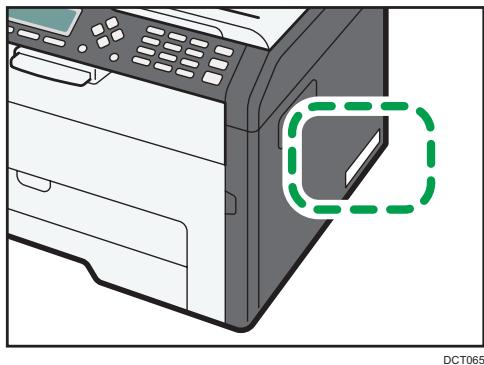
The following information is region-specific. Read the information under the symbol that corresponds to the region of your machine.
Region A (mainly Europe and Asia)
If the label contains the following, your machine is a region A model:
CODEXXXX-27,-29
220-240V
Region B (mainly North America)
If the label contains the following, your machine is a region B model:
CODEXXXX-17
120V

Note
- Dimensions in this manual are given in two units of measure: metric and inch. If your machine is a Region A model, refer to the metric units. If your machine is a Region B model, refer to the inch units.
Important Safety Instructions
User Information on Electrical & Electronic Equipment
Users in the countries where this symbol shown in this section has been specified in national law on collection and treatment of E-waste
Our Products contain high quality components and are designed to facilitate recycling.
Our products or product packaging are marked with the symbol below.
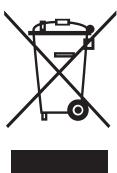
The symbol indicates that the product must not be treated as municipal waste. It must be disposed of separately via the appropriate return and collection systems available. By following these instructions you ensure that this product is treated correctly and help to reduce potential impacts on the environment and human health, which could otherwise result from inappropriate handling. Recycling of products helps to conserve natural resources and protect the environment.
For more detailed information on collection and recycling systems for this product, please contact the shop where you purchased it, your local dealer or sales/service representatives.
All Other Users
If you wish to discard this product, please contact your local authorities, the shop where you bought this product, your local dealer or sales/service representatives.
Environmental Advice for Users
Users in the EU, Switzerland and Norway
Consumables yield
Please refer to either the User's Manual for this information or the packaging of the consumable.
Recycled paper
The machine can use recycled paper which is produced in accordance with European standard EN 12281:2002 or DIN 19309. For products using EP printing technology, the machine can print
on 64g / m^2 paper, which contains less raw materials and represents a significant resource reduction.
Duplex printing (if applicable)
Duplex printing enables both sides of a sheet of paper to be used. This saves paper and reduces the size of printed documents so that fewer sheets are used. We recommend that this feature is enabled whenever you print.
Toner and ink cartridge return program
Toner and ink cartridge for recycling will be accepted free of charge from users in accordance with local regulations.
For details about the return program, please refer to the Web page below or consult your service person.
https://www.ricoh-return.com/
Energy efficiency
The amount of electricity a machine consumes depends as much on its specifications as it does on the way you use it. The machine is designed to allow you to reduce electricity costs by switching to Ready mode after it prints the last page. If required, it can immediately print again from this mode.
If no additional prints are required and a specified period of time passes, the device switches to an energy saving mode.
In these modes, the machine consumes less power (watts). If the machine is to print again, it needs a little longer to return from an energy saving mode than from Ready mode.
For maximum energy savings, we recommend that the default setting for power management is used.
Products that comply with the Energy Star requirement are always energy efficient.
Note for the Battery and/or Accumulator Symbol (For EU countries only)
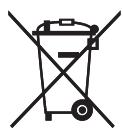
In accordance with the Battery Directive 2006/66/EC Article 20 Information for end-users Annex II, the above symbol is printed on batteries and accumulators.
This symbol means that in the European Union, used batteries and accumulators should be disposed of separately from your household waste.
In the EU, there are separate collection systems for not only used electrical and electronic products but also batteries and accumulators.
Please dispose of them correctly at your local community waste collection/recycling centre.
Notes to Users of Facsimile Unit
C E
Declaration of Conformity
Notice to Users in EEA Countries
This product complies with the essential requirements and provisions of Directive 1999/5/EC of the European Parliament and of the Council of 9 March 1999 on radio equipment and telecommunications terminal equipment and the mutual recognition of their conformity.
Notice to Users Accessing Analog PSTN in EEA Countries
This product is designed to be able to access analog PSTN in all EEA countries. Local PSTN compatibility is dependent on software switch settings. Please contact your service representative if relocating this product to another country. In the event of problems, please contact your service representative in the first instance.
The CE Declaration of Conformity is available by accessing the URL:
http://www.ricoh.co.jp/fax/ce_doc/ and selecting the product applicable.
Important Safety Instructions
Notes to Users in the State of California
Perchlorate Material - special handling may apply. See: www.dtsc.ca.gov/hazardouswaste/ perchlorate
ENERGY STAR Program
ENERGY STAR® Program Requirements for Imaging Equipment

The ENERGY STAR® Program Requirements for Imaging Equipment encourage energy conservation by promoting energy efficient computers and other office equipment.
The program backs the development and dissemination of products that feature energy saving functions.
It is an open program in which manufacturers participate voluntarily.
Targeted products are computers, monitors, printers, facsimiles, copiers, scanners, and multifunction devices. Energy Star standards and logos are internationally uniform.
This machine is equipped with the following Energy Saver modes: Energy Saver mode 1 and Energy Saver mode 2. The machine recovers from Energy Saver mode when it receives a print job, prints a received fax, or when any key is pressed.
Energy Saver mode 1
This machine automatically enters Energy Saver mode 1 about 30 seconds after the last operation is completed.
Energy Saver mode 2
This machine automatically enters Energy Saver mode 2 1 minute after the last operation is completed.
Specifications
| Energy Saver mode 1 | Power Consumption*1 | 39.1 W |
| Default Interval | 30 seconds | |
| Recovery Time*1 | 10 seconds | |
| Energy Saver mode 2 | Power Consumption*1 | 4.3 W |
| Default Interval | 1 minute | |
| Recovery Time*1 | 25 seconds |
- 1 Recovery time and power consumption may differ depending on the conditions and environment of the machine.
Guide to Components
This section introduces the names of the various parts on the front and rear side of the machine and outlines their functions.
Exterior

Important
- Type 1 and 3 model is not equipped with an Auto Document Feeder (ADF).
- Type 1, 3, 4 and 6 models do not come with an Ethernet port.
- Type 1, 2 and 3 models do not come with a line port or TEL port.
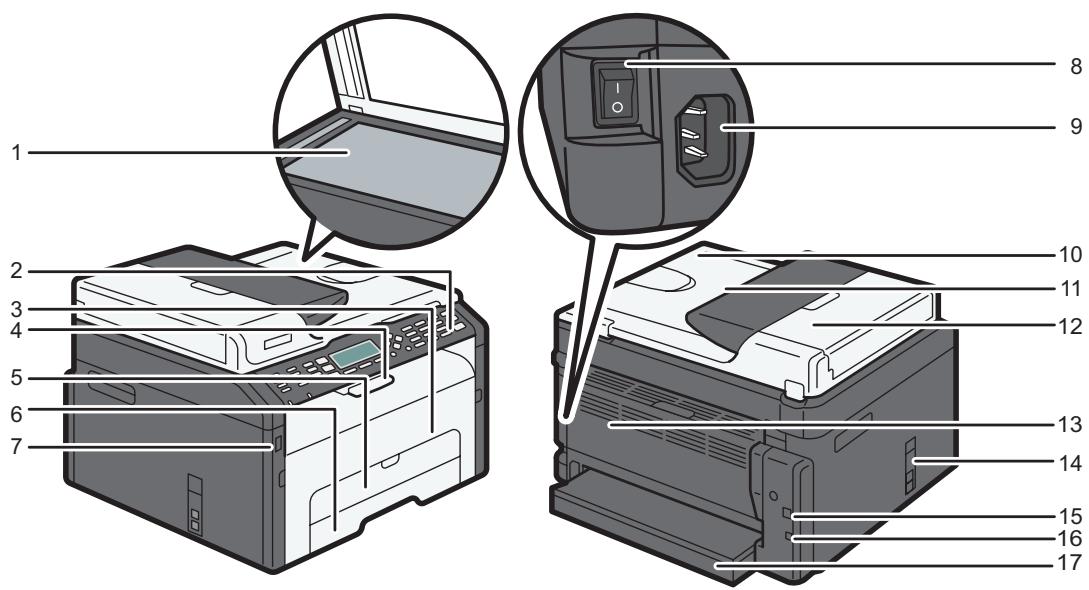
DCT067
- Exposure Glass
Place originals here sheet by sheet.
- Control Panel
Contains a screen and keys for machine control. For details, see page 21 "Control Panel".
- Front Cover
Open this cover to replace consumables or clear a paper jam.
- Stop Fences
Raise this fence to prevent paper from falling off.
- Bypass Tray
This tray can hold one sheet of plain paper.
- Tray 1
This tray can hold up to 150 sheets of plain paper.
- USB Flash Disk Port
Insert a USB flash disk to store scanned files using the Scan to USB function.
- Power Switch
Use this switch to turn the power on or off.
- Power Connector
Connect the power cord to the machine here. Insert the other end of the cable into a nearby wall outlet.
- Auto Document Feeder (Exposure Glass Cover)
The ADF is integrated with the exposure glass cover. Open this cover to place documents on the exposure glass.
- Input Tray for the ADF
Place stacks of originals here. They will feed in automatically. This tray can hold up to 15 sheets of plain paper.
- ADF Cover
Open this cover to remove originals jammed in the ADF.
- Rear Cover
Open this cover to deliver sheets face up or remove jammed paper.
-
Line and TEL Port
-
Upper port: Port for external telephone connection.
-
Lower port: G3 (analog) line Interface port for telephone line connection.
-
USB Port
Use this port to connect the machine to a computer using a USB cable.
- Ethernet Port
Use this port to connect the machine to a network using a network cable.
- Tray Cover
Attach this cover when you extend the tray.
Interior
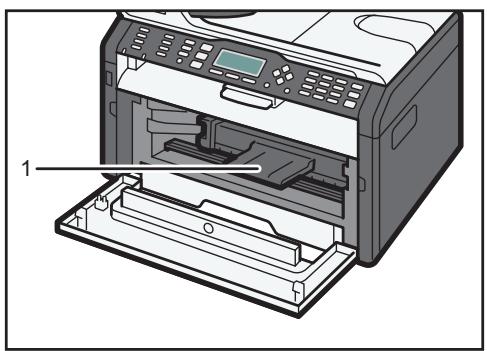
DCT064
1. Print Cartridge
A replacement consumable that is required to make prints on paper. For details about replacing the cartridge, see page 195 "Replacing the Print Cartridge".
Control Panel
On the Right
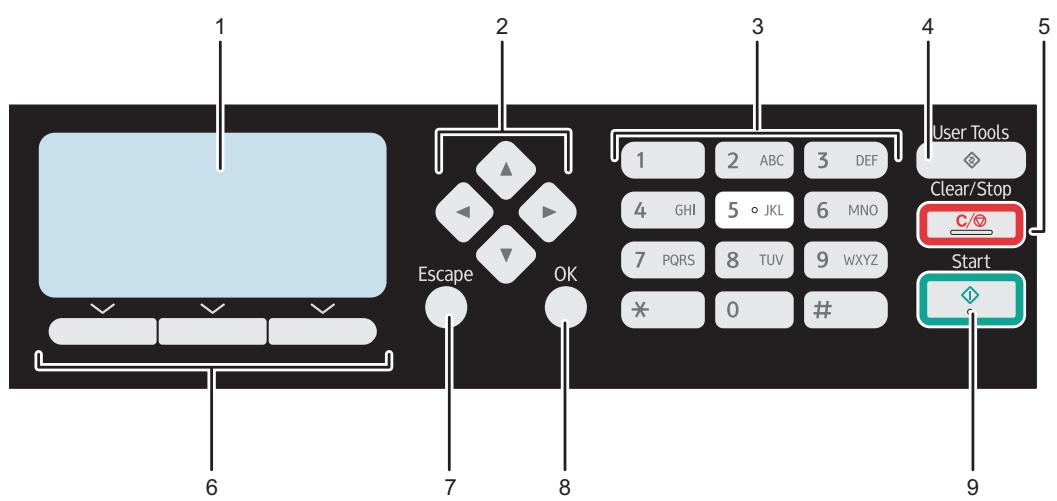
DCT890
1. Screen
Displays current status and messages.
2.Scroll Keys
Press these keys to move the cursor in each direction.
3. Number Keys
Use to enter numerical values when specifying settings such as fax numbers and copy quantities, or enter letters when specifying names.
4. [User Tools] key
Press to display the menu for configuring the machine's system settings.
5. [Clear/Stop] key
Use this key to cancel or stop a print job, document copying, scanning, fax transmission/reception, and other actions in progress.
6. Selection keys
Press the key that corresponds to an item shown on the bottom line of the screen to select it.
7. [Escape] key
Press to cancel the last operation or exit to the previous level of the menu tree.
8. [OK] Key
Use this key to confirm settings and specified values, or move to the next menu level.
9. [Start] key
Use this key to start fax transmission/reception, scan, or copy.
On the Left

Important
- Depending on the model, the position of the keys may differ.
Type 1, Type 2, Type 3
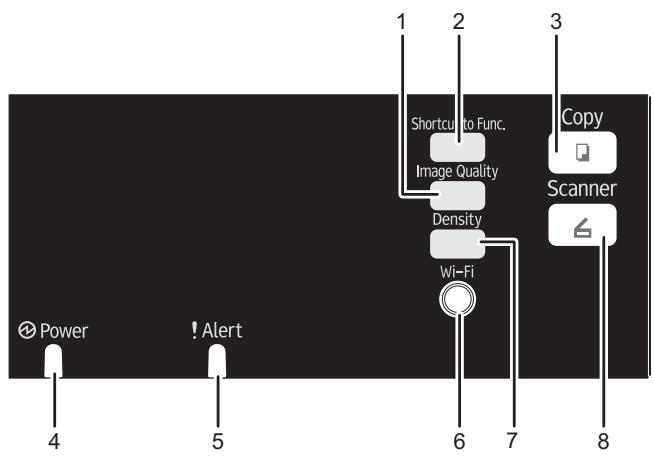
DCT892
1. [Image Quality] key
Press to select the image quality for the current job.
- Copier mode: select Text, Photo, or Mixed.
- Scanner mode: select the resolution.
2. [Shortcut to Func.] key
Press to enter ID card copy mode for the current job.
If you do not use the ID card copy mode frequently, configure [Shortcut to Function] in [Admin. Tools] to make this key available for displaying scan file destinations. For [Shortcut to Function], see page 157 "Administrator Settings".
3. [Copy] key (Type 2, Type 3 only)
Use this key to switch the machine to copier mode.
4. Power Indicator
This indicator lights up blue when the machine is turned on.
5. Alert Indicator
This indicator lights continuously in red when the machine runs out of paper or consumables or if another error occurs.
6. [Wi-Fi] key (Type 2, Type 3 only)
To switch to wireless LAN, press this key.
Press this key to display the menu for manually configuring the settings in Infrastructure or Ad-Hoc mode selected in [Wi-Fi Key]. By holding down the key, you can display the menu for configuring the WPS using the PIN code or in PBC mode. This key cannot be used if [Wi-Fi Enable] is set to [Disable].
7. [Density] key
Press to adjust image density for the current job.
- Copier mode: select from 5 levels of density.
- Scanner mode: select from 5 levels of density.
8. [Scanner] key (Type 2, Type 3 only)
Use this key to switch the machine to scanner mode.
Type 4, Type 5, Type 6
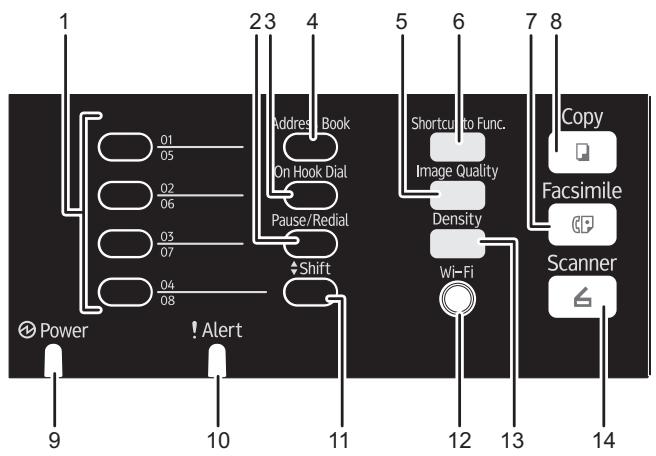
DCT891
1. One Touch buttons
Press to select a scan or fax Quick Dial destination.
2. [Pause/Redial] key
- Pause
Press to insert a pause in a fax number. The pause is indicated by "P".
- Redial
Press to display the last used scan or fax destination.
3. [On Hook Dial] key
Press to use on-hook dialing to check the destination's status when sending a fax.
4. [Address Book] key
Press to select a scan or fax destination from the Address Book.
5. [Image Quality] key
Press to select the image quality for the current job.
- Copier mode: select Text, Photo, or Mixed.
- Scanner mode: select the resolution.
- Fax mode: select Standard, Detail, or Photo.
6. [Shortcut to Func.] key
Press to enter ID card copy mode for the current job.
If you do not use the ID card copy mode frequently, configure [Shortcut to Function] in [Admin. Tools] to make this key available for sending faxes immediately or displaying scan file destinations. For [Shortcut to Function], see page 157 "Administrator Settings".
7. [Facsimile] key
Use this key to switch the machine to fax mode.
8. [Copy] key
Use this key to switch the machine to copier mode.
9. Power Indicator
This indicator lights up blue when the machine is turned on.
10. Alert Indicator
This indicator lights up red when the machine runs out of paper or consumables, when the paper settings do not match the settings specified by the driver, or when other errors occur. It flashes slowly when the machine is running out of toner.
11. [Shift] key
Press to switch between Quick Dial numbers 1 to 4 and 5 to 8 when specifying a scan or fax destination using the One Touch buttons.
12. [Wi-Fi] key (Type 5, Type 6 only)
To switch to wireless LAN, press this key.
Press this key to display the menu for manually configuring the settings in Infrastructure or Ad-Hoc mode selected in [Wi-Fi Key]. By holding down the key, you can display the menu for configuring the WPS using the PIN code or in PBC mode. This key cannot be used if [Wi-Fi Enable] is set to [Disable].
13. [Density] key
Press to adjust image density for the current job.
- Copier mode: select from 5 levels of density.
- Scanner mode: select from 5 levels of density.
- Fax mode: select from 3 levels of density.
14. [Scanner] key (Type 5, Type 6 only)
Use this key to switch the machine to scanner mode.
About Operation Tools
This section explains the operation tools of this machine.

Important
- Depending on the model, Web Image Monitor may not be available. For details about model-specific differences, see page 8 "Differences in Performance/Functions between Different Models".
Control Panel
The control panel contains a screen and keys for controlling the machine. Using the control panel, you can configure the machine's various settings. For details about how to use the control panel, see page 127 "Configuring the Machine Using the Control Panel".
Web Image Monitor
You can check the machine's status and configure its settings by accessing the machine via Web Image Monitor. For details about how to use Web Image Monitor, see page 163 "Using Web Image Monitor".
Initial Setup
When you turn this machine on for the first time, you must set the following items. Select each setting using the [] , [] , or number keys, and then press the [OK] key.
Display language
The selected language here is used for displaying messages, etc.
Country\*3
The selected country is used for configuring the settings related to fax transmissions with appropriate default values for the country of use.
User fax number\*1
The registered number is used as the fax number of the machine. The user fax number can contain 0 to 9, spaces, and "+"
```bash User name*1
The name entered here is used as the name of the fax sender.
Date/Time
The time and date entered here are used for the machine's internal clock.
Area\*2\*3
By selecting the area in which the machine is being used, you can narrow down the choice of display language and other settings.
- 1 This setting is only available with Type 4, 5 and 6 models.
2 This setting is only available with Type 1, 2 and 3 models.
3 This setting may not be available depending on the region in which the machine is being used.
Installing the Driver and Software
Network Quick Install
- Turn on the power of the computer.
- Insert the CD-ROM into the CD-ROM drive.
- Select a language and product for the interface, and then click [OK].
- Click [Network Quick Install].
- Read the entire license agreement carefully. If you accept its terms, click [I accept the agreement]., and then click [Next >].
- Select [Add a new printer], and then click [Next>].
- Select the printer detection method, and then click [Next>].
To search for printers automatically, select [Search for printers automatically].
To search for a printer by its IP address, select [Search for printers by specified IP Address].
To select a port or specify a new port, select [Select a port or specify a new port]. If a dialog box for selecting the port type appears, it is recommended to select the standard TCP/IP port.
- Follow the instructions in the installation wizard.
PC FAX Driver
- Turn on the power of the computer.
- Insert the CD-ROM into the CD-ROM drive.
- Select a language and product for the interface, and then click [OK].
- Click [PC FAX Driver].
- Read the entire license agreement carefully. If you accept its terms, click [I accept the agreement]., and then click [Next >].
- Select the same port as the one selected in the printer driver.
- Follow the instructions in the installation wizard.
Configuring Network Settings
This section explains how to configure network settings.

Important
- Ethernet and wireless LAN settings cannot be enabled at the same time.
Configuring the IP Address Settings
The procedure for configuring network settings differs depending on whether the IP address is assigned automatically by the network (DHCP), is specified manually.

Note
- The password for accessing the [Admin. Tools] menu can be specified in [Admin. Tools Lock].
- For details about configuring the IPv4 address, see the Setup Guide.
- For details about printing the configuration page, see page 148 "Printing Lists/Reports".
Specifying settings to receive an IPv6 address automatically

Important
-
A DHCP server is required on the network for the machine to receive an IPv6 address automatically.
-
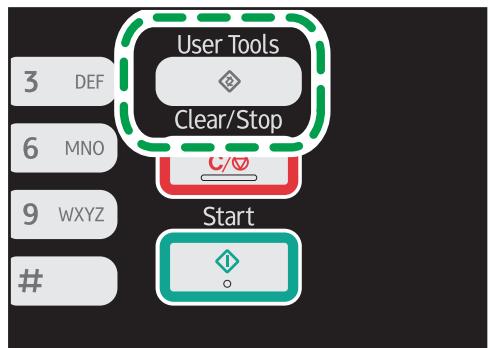
Press the [User Tools] key.

DCT845
- Press the [] or [] key to select [Network Settings], and then press the [OK] key.
- If you are requested to enter a password, enter the password using the number keys, and then press the [OK] key.
- Press the [] or [] key to select [IPv6 Configuration], and then press the [OK] key.
-
Press the [] or [] key to select [IPv6], and then press the [OK] key.
-
Press the [ ] or [ ] key to select [Active], and then press the [OK] key.
- Press the [] or [] key to select [DHCP], and then press the [OK] key.
- Press the [] or [] key to select [Active], and then press the [OK] key.
- Press the [User Tools] key to return to the initial screen.
After a setting is changed, the machine automatically restarts.
- Print the configuration page to confirm the setting.
The IPv6 address setting will appear under "IPv6 Configuration" on the configuration page.
Assigning the machine's IPv6 address manually

Important
-
The IPv6 address assigned to the machine must not be used by any other device on the same network.
-
Press the [User Tools] key.
DCT845
- Press the [] or [] key to select [Network Settings], and then press the [OK] key.
- If you are requested to enter a password, enter the password using the number keys, and then press the [OK] key.
- Press the [] or [] key to select [IPv6 Configuration], and then press the [OK] key.
- Press the [] or [] key to select [IPv6], and then press the [OK] key.
- Press the [] or [] key to select [Active], and then press the [OK] key.
- Press the [] or [] key to select [DHCP], and then press the [OK] key.
- Press the [] or [] key to select [Inactive], and then press the [OK] key.
- Press the [] or [] key to select [Manual Config. Address], and then press the [OK] key.
- Press the [] or [] key to select [Manual Config. Address], and then press the [OK] key.
- Enter the machine's IPv6 address using the number keys, and then press the [OK] key.
-
Press the [] or [] key to select [Prefix Length], and then press the [OK] key.
-
Enter the prefix length using the number keys, and then press the [OK] key.
- Press the [] or [] key to select [Gateway Address], and then press the [OK] key.
- Enter the gateway address using the number keys, and then press the [OK] key.
- Press the [User Tools] key to return to the initial screen.
After a setting is changed, the machine automatically restarts.
- Print the configuration page to confirm the setting.
The IPv6 address setting will appear under "IPv6 Configuration" on the configuration page.
Wireless LAN Setup
This section explains how to configure the wireless LAN settings manually using the control panel. For easy setup using WPS (Wi-Fi Protected Setup), see Wi-Fi Settings Guide.

Important
- If [Disable] is specified for the [Wi-Fi Enable] setting, you cannot use the [Setup Wizard]. Specify [Enable] for the [Wi-Fi Enable] setting first. If you change the [Wi-Fi Enable] setting, the machine must be restarted.
Infrastructure mode
Use the following procedure to connect to the wireless LAN router or access point manually.

Important
- Ensure that the router, access point, or device equipped with a wireless LAN, etc., is turned on.
-
Check the authentication method and the name of the router, access point, or device equipped with a wireless LAN (SSID/IBSS) in advance.
-
Press the [User Tools] key.
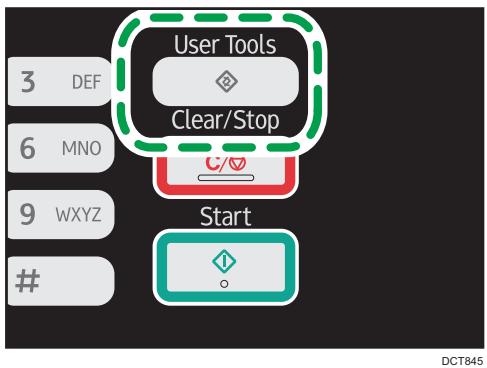
-
Press the [] or [] key to select [Network Settings], and then press the [OK] key.
-
If you are requested to enter a password, enter the password using the number keys, and then press the [OK] key.
- Press the [] or [] key to select [Wi-Fi], and then press the [OK] key.
- Press the [] or [] key to select [Setup Wizard], and then press the [OK] key.
- Select [Infrastructure], and then press [Next].
- Press the [ ] or [ ] key to select the destination SSID, and then press [Next].
If you cannot find the destination SSID, check if the device is turned on.
When entering the SSID, select [Input SSID], and then press [Next].
The SSID entry screen appears. Enter the SSID using the number keys, and then press [Next].
- Press the [] or [] key to select the authentication method, and then press [Next].
Select the same method that the router or access point is using.
If you have selected [WPA2-PSK] or [Mix Mode WPA2/WPA], proceed to Step 10.
- Press the [] or [] key to select the encryption method, and then press [Next].
Select the same method that the router or access point is using.
- Enter the encryption key using the number keys, and then press [Connect].
If you selected [Shared Key] or [Open System] in Step 8, it is necessary to enter the ID. The ID is used for identifying the encryption key. You can register four encryption keys (ID 1 to 4). Use the [] or [] key to switch between the encryption key and ID settings.
- Press [Yes].
After connecting to the network, the Wi-Fi screen is displayed.
- Press the [] or [] key to select [Wi-Fi Status], and then press the [OK] key.
When "Connected" is displayed, the connection has been established.
When "Disconnected" is displayed, the connection has not been established. Start again from the beginning.
Ad Hoc mode
This section explains how to connect directly to devices equipped with a wireless LAN, such as computers on a peer-to-peer network.

Important
- Make sure [Wi-Fi Key] is set to [Ad-Hoc Mode]. For [Wi-Fi Key], see page 153 "Network Settings".
- In Ad Hoc network, every device must be manually assigned an IP address for TCP/IP if there is no DHCP server.
- In Ad Hoc mode, only Open System or WEP encryption is supported. WPA2-PSK and Mix Mode WPA2/WPA authentication methods are not supported.
1. Press the [Wi-Fi] key.
![RICOH AFICIO SP 213SFNW - Press the [Wi-Fi] key. - 1](/content/2019/10/8743/images/bf75936b47ca1dbf28cad8c8ddf75a67811737d8809b494bb98a6fab674da4fe.jpg)
If [Disable] is specified for the [Wi-Fi Enable] setting, you cannot use the [Wi-Fi] key.
- Press the [] or [] key to select a communication channel, and then press [Next].
Select a channel that corresponds to the device that you are going to connect with.
- Press the [] or [] key to select the destination device name (IBSS), and then press [Next].
If you cannot find the destination, check that the device is turned on.
When entering the device name, select [Input SSID], and then press [Next]. The SSID entry screen appears. Enter the device name using the number keys, and then press [Next].
- Press the [] or [] key to select the authentication method, and then press [Next].
- Press the [] or [] key to select the encryption method, and then press [Next].
- Enter the encryption key and ID using the number keys, and then press [Connect].
The ID is used for identifying the encryption key. You can register four encryption keys (ID 1 to 4).
- Press [Yes].
- Check the connection using [Wi-Fi Status].
When "Connected" is displayed, the connection has been established.
When "Disconnected" is displayed, the connection has not been established. Start again from the beginning.
Supported Paper
Paper Size
A4
8^1 / 2^ × 11^ (Letter)
- 8^1 / 2'' × 14'' (Legal)
B5JIS
5^1 / 2^ × 8^1 / 2^ (Half Letter)
7^1 / 4^ × 10^1 / 2^ (Executive)
A5
A6
B6JIS
16K (197× 273mm)
16K (195× 270mm)
16K (184× 260mm)
- Custom Size
The following paper sizes are supported as custom paper sizes:
Horiz
Tray1: Approximately 100-216 mm (3.9-8.5 inches)
Bypass Tray: Approximately 90-216 mm (3.6-8.5 inches)
- Vert
Approximately 148-356 mm (5.8-14 inches)
Paper Type
- Plain Paper (65-99 g/m² (17-26 lb.))
Recycled Paper (75-90 g/m² (20-24 lb.))
Thin Paper (52-64 g/m² (14-17 lb.))
Thick Paper (100-130 g/m² (26.6-34 lb.))
Paper Capacity
Trayl
150 sheets
(70g / m^2,19lb.)
- Bypass Tray
1 sheet
(70g / m^2,19lb.)
Non-Recommended Paper Types
Do not use the following types of paper:
- Ink-jet printer paper
- GelJet special paper
- Bent, folded, or creased paper
- Curled or twisted paper
- Wrinkled paper
Damp paper - Dirty or damaged paper
- Paper that is dry enough to emit static electricity
- Paper that has already been printed onto, except a preprinted letterhead paper.
Malfunctions are especially likely when using paper printed on by other than a laser printer (e.g. monochrome and color copiers, ink-jet printers, etc.)
- Special paper, such as thermal paper and carbon paper
- Paper weighing heavier or lighter than the limit
- Paper with windows, holes, perforations, cutouts, or embossing
- Adhesive label paper on which glue or base paper is exposed
- Paper with clips or staples

Note
- When loading paper, take care not to touch the surface of the paper.
- Even if paper is adequate for the machine, poorly stored paper can cause paper misfeeds, print quality degradation, or malfunctions.
Print Area
The diagram below shows the area of the paper that the machine can print on.
From the printer driver
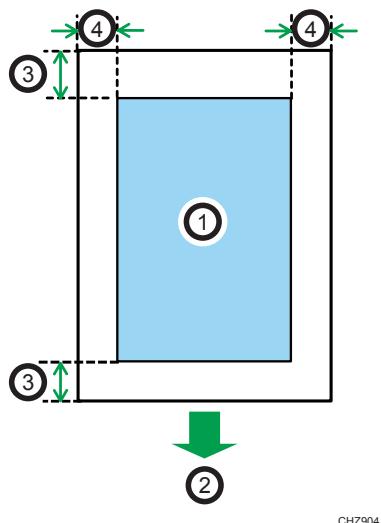
- Print area
- Feed direction
- Approx. 4.2 mm (0.2 inches)
- Approx. 4.2 mm (0.2 inches)
Note
- The print area may vary depending on the paper size and printer driver settings.
- Adjust the print position by specifying [Printer Registration] in [System Settings].
Copier function
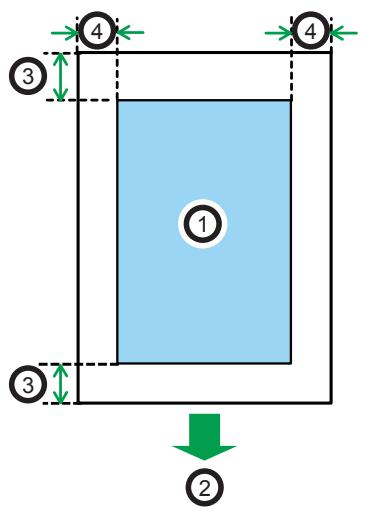
CHZ904
- Print area
- Feed direction
- Approx. 4 mm (0.2 inches)
- Approx. 3 mm (0.1 inches)
Note
The print area may vary depending on the paper size.
Fax function
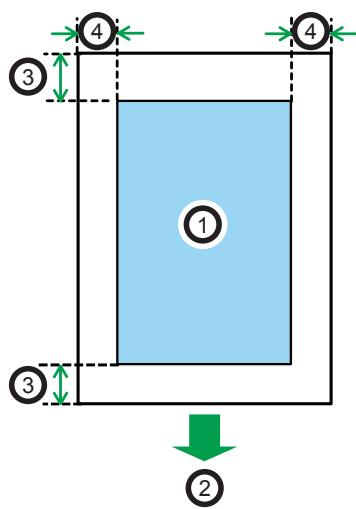
CHZ904
- Print area
-
Feed direction
-
Approx. 4.2 mm (0.2 inches)
- Approx. 2 mm (0.08 inches)

Note
- The print area may vary depending on the paper size.
Loading Paper
Load a stack of paper for printing in the input tray.

Important
- When loading paper, be sure to configure the paper size and paper type for the bypass tray and Tray 1. When printing a document, specify the paper size and paper type and select the paper tray in the printer driver so that the settings configured when paper is loaded can be used for printing.
Loading Paper into Tray 1
- Pull Tray 1 out slowly, and then remove it using both hands.
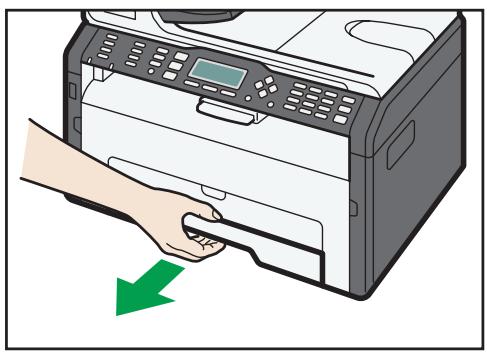
DCT063
Place the tray on a flat surface.
- Pinch the clips on the side paper guides and slide them to match the standard size.
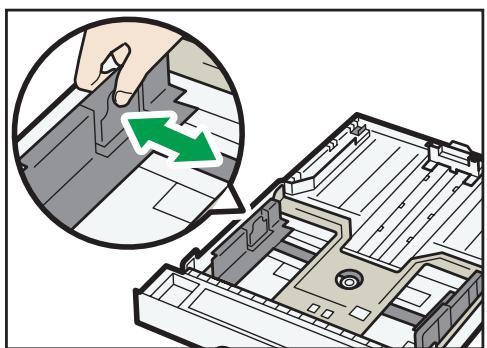
DCT030
- Pinch the end paper guide and slide it inward to match the standard size.
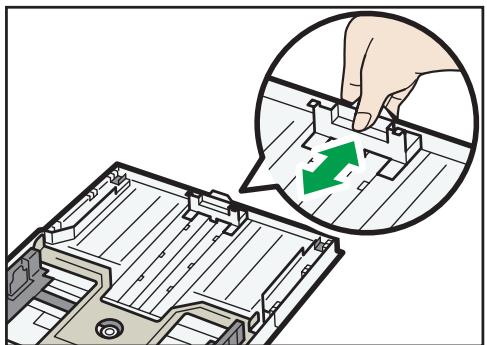
DCT031
When loading A4 or letter size paper, align the paper guide to the following position:
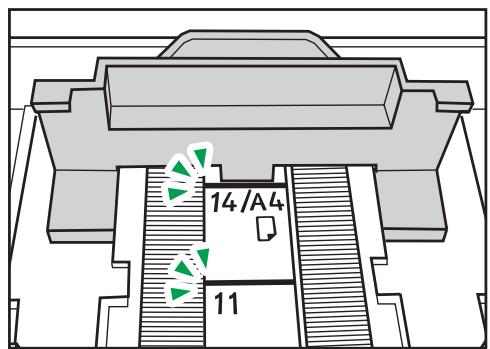
DCT871
- Fan the paper before loading it in the tray.
- Load the new paper stack print side down.
Make sure paper is not stacked higher than the upper limit marked inside the tray.
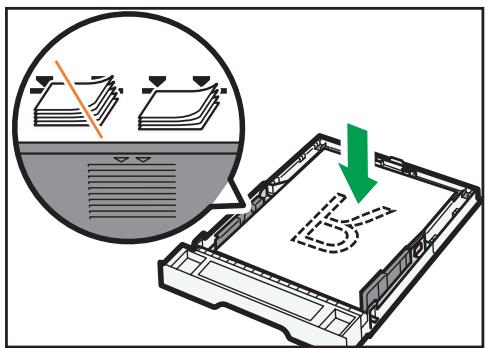
DCT032
- Check there are no gaps between the paper and the paper guides (both side and end paper guides).
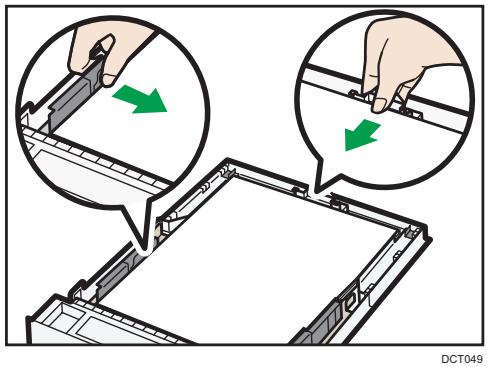
- Carefully push Tray 1 straight into the machine.
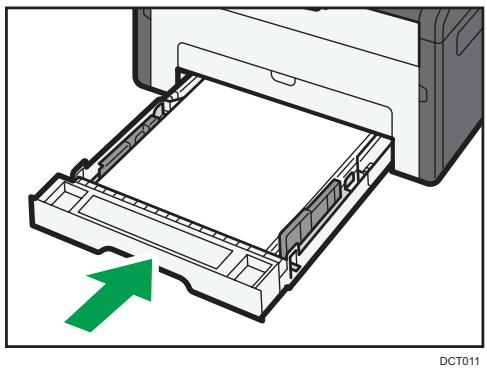
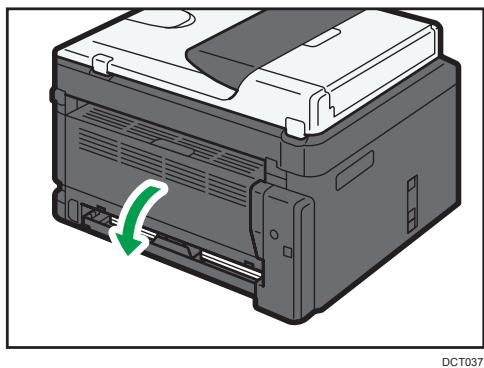
To avoid paper jams, make sure the tray is securely inserted. To deliver the sheets face up, open the rear cover.
Extending Tray 1 to load paper
-
Pull Tray 1 out slowly, and then remove it using both hands.
-
Release the extender locks on both sides of the tray, and then pull out the extender.
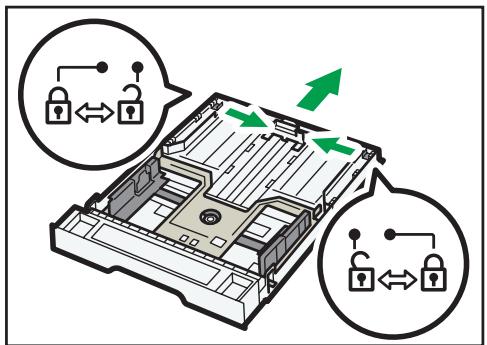
DCT034
Make sure the extender's inner surface and the scale are aligned.
You can adjust the length of the extender in three steps. When using A4 or letter size paper, adjust the length to the position indicated by the mark n(2) in the tray.

DCT042
- Pull out the extender and lock it.

DCT033
- Follow Steps 2 to 7 in "Loading Paper into Tray 1".
5. Attach the tray cover.
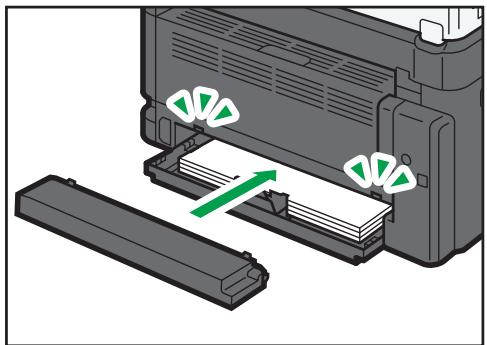
DCT038

Note
- Legal paper or custom-size paper longer than A4 must be loaded without attaching the tray cover. (Region A only)
Loading Paper into Bypass Tray

Important
- Do not load paper in the bypass tray unless the message "Ready" is displayed.
1. Open the bypass tray.
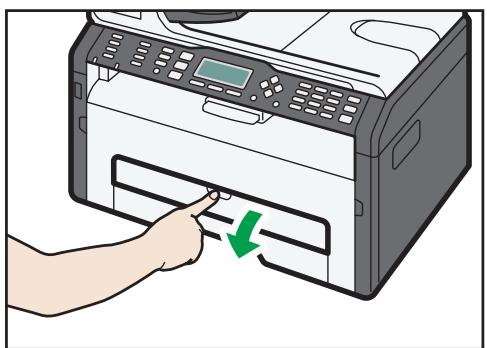
DCT029
- Slide the side guides outward, load paper with the print side up, and then push in until it stops against the machine.
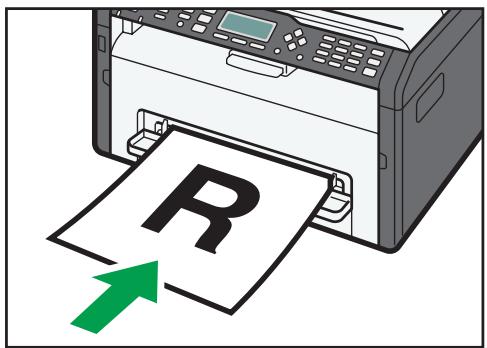
DCT013
- Adjust the side guides to the paper width.
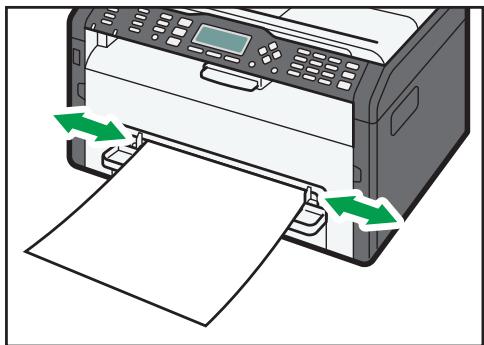
DCT014
To deliver the sheets face up, open the rear cover.
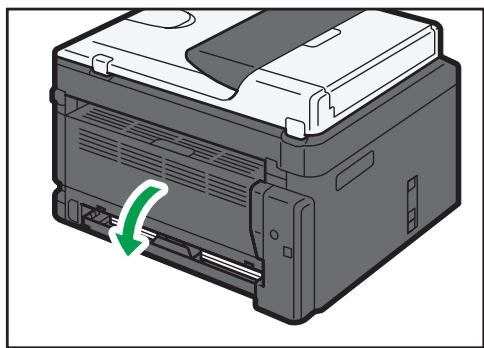
DCT037
Specifying Paper Type and Paper Size Using Control Panel
Specifying the paper type
- Press the [User Tools] key.
- Press the [] or [] key to select [System Settings], and then press the [OK] key.
- Press the [] or [] key to select [Tray Paper Settings], and then press the [OK] key.
- Press the [] or [] key to select the paper type setting for the desired tray, and then press the [OK] key.
- Press the [] or [] key to select the desired paper type, and then press the [OK] key.
- Press the [User Tools] key to return to the initial screen.
Specifying the standard paper size
- Press the [User Tools] key.
- Press the [] or [] key to select [System Settings], and then press the [OK] key.
-
Press the [] or [] key to select [Tray Paper Settings], and then press the [OK] key.
-
Press the [] or [] key to select the paper size setting for the desired tray, and then press the [OK] key.
- Press the [], [], [], or [] key to select the desired paper size, and then press the [OK] key.
- Press the [User Tools] key to return to the initial screen.
Specifying a custom paper size
- Press the [User Tools] key.
DCT845
- Press the [] or [] key to select [System Settings], and then press the [OK] key.
- Press the [] or [] key to select [Tray Paper Settings], and then press the [OK] key.
- Press the [] or [] key to select the paper size setting for the desired tray, and then press the [OK] key.
- Press the [], [], [] , or [] key to select [Custom Size], and then press the [OK] key.
- Press the [ ] or [ ] key to select [mm] or [inch], and then press the [OK] key.
- Enter the width using number keys, and then press the [OK] key. To enter a decimal point, press the [] key.
- Enter the length using number keys, and then press the [OK] key. To enter a decimal point, press the [水 ] key.
- Press the [User Tools] key to return to the initial screen.
Placing Originals
This section describes the types of originals you use set and how to place them.
About Originals
Recommended size of originals
Exposure glass
- Up to 216 mm (8.5 inches) in width, up to 297 mm (11.7 inches) in length
ADF
- Paper size: 140 to 216mm (5.5 to 8.5 inches) in width, 140 to 356mm (5.5 to 14 inches) in length
- Paper weight: 60 to 90 g/m^2 (16 to 24 lb .)
Up to 35 sheets of an original can be placed in the ADF at once (when using paper weighing 80 g/m², 21.3 lb.).
Types of originals not supported by the Auto Document Feeder
If placed in the ADF, the following types of originals might be damaged, become jammed, or result in gray or black lines appearing on prints:
- Originals larger or heavier than the recommended amount
- Stapled or clipped originals
- Perforated or torn originals
- Curled, folded, or creased originals
- Pasted originals
- Originals with any kind of coating, such as thermal fax paper, art paper, aluminum foil, carbon paper, or conductive paper
- Originals with perforated lines
- Originals with indexes, tags, or other projecting parts
- Sticky originals such as translucent paper
- Thin, highly flexible originals
- Thick originals such as postcards
- Bound originals such as books
-
Transparent originals such as OHP transparencies or translucent paper
-
Originals that are wet with toner or white out
Unscannable image area
Even if you correctly place originals, margins of a few millimeters on all four sides of the original may not be scanned.
Margins when using exposure glass
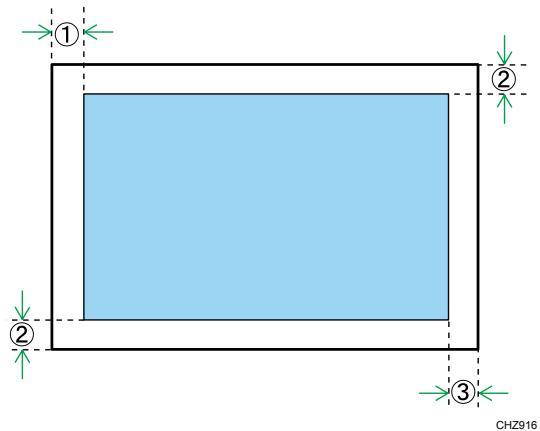
Copier, Fax
On printed documents
- Approx. 4 mm (0.2 inches)
- Approx. 3 mm (0.1 inches)
- Approx. 4 mm (0.2 inches)
Scanner
- Approx. 0 mm (0 inches)
2.Approx. 0mm 0 inches
3.Approx. 0mm (0 inches)
Margins when using ADF
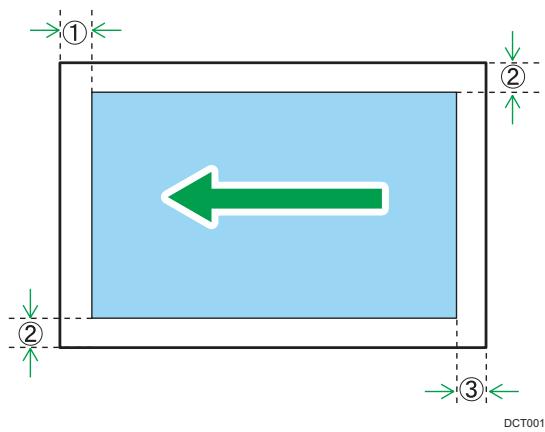
Copier, Fax
On printed documents
- Approx. 4 mm (0.2 inches)
- Approx. 3 mm (0.1 inches)
- Approx. 4.3 mm (0.2 inches)
Scanner
1.Approx. 0mm (0 inches)
2.Approx. 0mm 0 inches
3.Approx. 2mm 0.08 inches
Placing Originals on the Exposure Glass

Important
-
Do not place originals until all correction fluid or toner becomes completely dry. Doing so may create marks on the exposure glass that will appear on copies.
-
Lift the exposure glass cover.
-
Place the original face down on the exposure glass. The original should be aligned to the rear left corner.
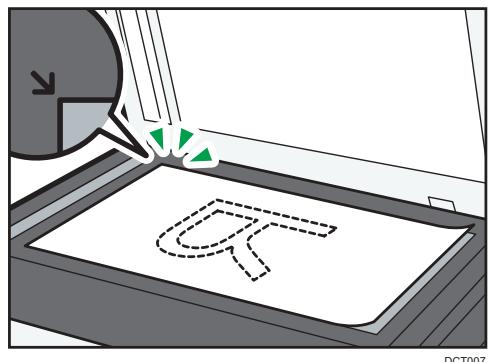
- Lower the exposure glass cover.
Hold down the cover with your hands when using thick, folded, or bound originals and when the cover cannot be lowered completely.
Placing Originals in the Auto Document Feeder

Important
- Do not place originals mixed with different in the ADF all at once.
-
To prevent multiple sheets from being fed at once, fan the bundle of your original before placing them in the ADF.
-
Open the input tray for the ADF.
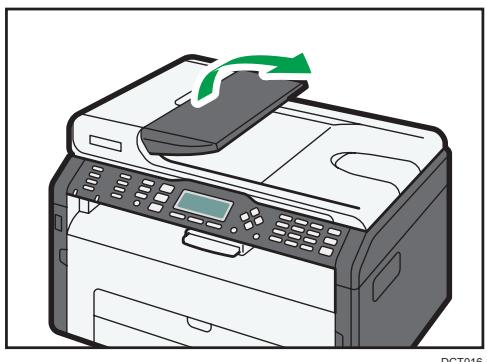
- Adjust the guides according to the size of the originals.
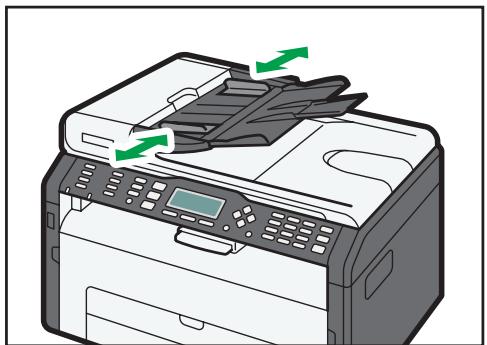
DCT017
- Place the aligned originals face up in the ADF. The last page should be on the bottom.
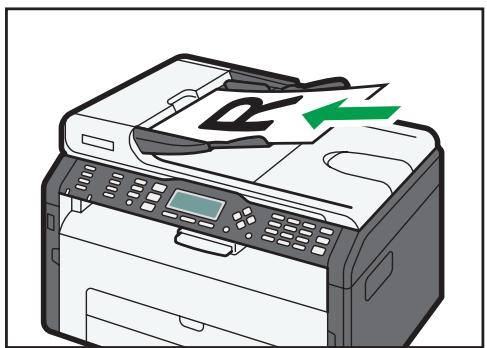
DCT018
3. Printing Documents
Basic Operation
Use the printer driver to print a document from your computer.
- After creating a document, open the [Printing Preferences] dialog box in the document's native application.
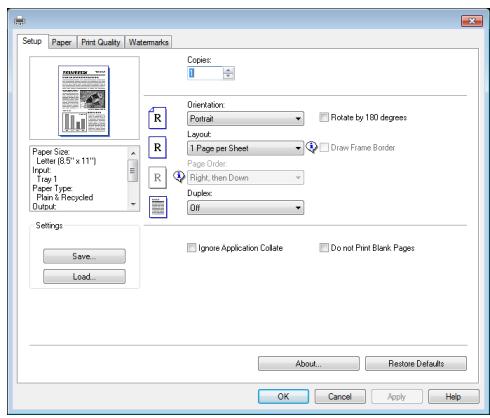
- Change any print settings if necessary.
For details about each setting items, click [Help].
- When setting changes are completed, click [OK].
- Print the document using the print function in the document's native application.

Note
- If a paper jam occurs, printing stops halfway. Open the front cover, remove the print cartridge, and then remove the jammed paper. If the paper cannot be removed in this way, remove it by opening the fusing cover. Printing will resume automatically once the cover is closed.
Printing on Both Sides of Sheets

Important
-
This function cannot be available with the bypass tray.
-
After creating a document, open the [Printing Preferences] dialog box in the document's native application.
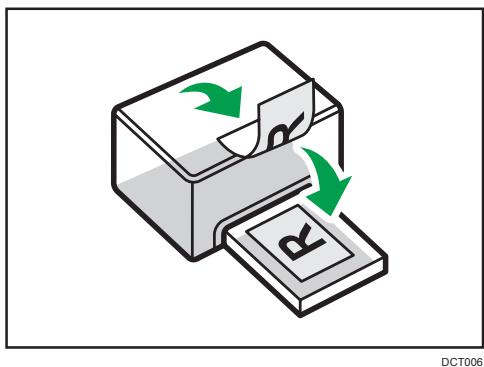
- On the [Setup] tab, in the [Duplex:] list box, select how you want to open the bound output.
-
After making any additional settings, click [OK].
-
Start printing.
- Take out all of the prints from the output tray and place them in Tray 1.
To print on the reverse side of the prints, turn them over so that the blank side faces down and place them in Tray 1. Fan the paper well before loading it.
Portrait
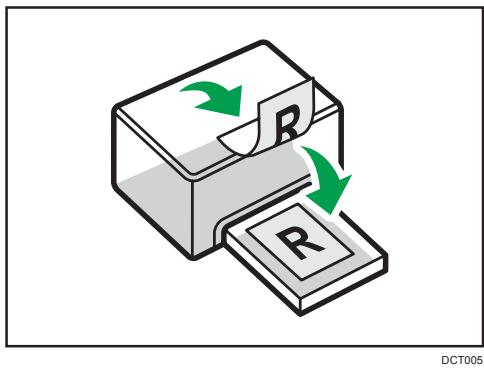
Landscape
- Press [Continue].

Note
- If the rear cover is open, the paper is delivered face up from the rear. Rearrange the printed sheets in the correct order.
Canceling a Print Job
You can cancel print jobs using either the machine's control panel or your computer, depending on the status of the job.
Canceling a print job before printing has started
- Double-click the printer icon on the task tray of your computer.
- Select the print job you want to cancel, click the [Document] menu, and then click [Cancel].

Note
- If you cancel a print job that has already been processed, printing may continue for a few pages before being canceled.
It may take a while to cancel a large print job.
Canceling a print job while printing
1. Press the [Clear/Stop] key.
![RICOH AFICIO SP 213SFNW - Press the [Clear/Stop] key. - 1](/content/2019/10/8743/images/14da619580f7bab2f3cd7718099b56fd762a9255cdc6ee8c34202ba4ec92704d.jpg)
DCT846
Copier Mode Screen
This section provides information about the screen when the machine is in copier mode.
By default, the display shows the copier screen when the machine is turned on.
If the scanner or fax screen is shown on the display, press the [Copy] key on the control panel to switch to the copier screen.
Type 1 models do not have the [Copy] key. If ID card copy mode is being displayed, press the [Shortcut to Func.] key again to switch to normal copier mode.
DCT848
Standby mode screen
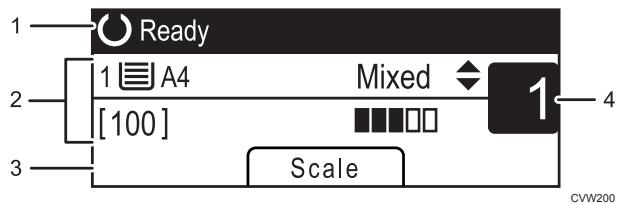
- Current status or messages
Displays the current status or messages.
- Current settings
Displays the current tray, reproduction ratio, and scan settings.
- Selection key items
Displays the functions you can use by pressing the corresponding selection keys.
- Copy quantity
Displays the current copy quantity. You can change the copy quantity using the number keys.

Note
- The start-up mode can be specified in the [Function Priority] setting under [Admin. Tools]. For details, see page 157 "Administrator Settings".
Basic Operation

Important
-
The original in the ADF takes precedence over the original on the exposure glass if you place originals both in the ADF and on the exposure glass.
-
Press the [Copy] key.
DCT848
With Type 1 models, start from Step 2. If ID card copy mode is being displayed, press the [Shortcut to Func.] key again to switch to normal copier mode.
- Place the original on the exposure glass or in the ADF.
- To make multiple copies, enter the number of copies using the number keys.
- Press the [Start] key.
DCT847

Note
- If a paper jam occurs, printing stops halfway. Open the front cover, remove the print cartridge, and then remove the jammed paper. If the paper cannot be removed in this way, remove it by opening the fusing cover. Printing will resume automatically once the cover is closed.
-
If there is a paper jam in the ADF, open the ADF cover, and then remove the jammed paper. Specify the copy setting again from the page where the paper jammed.
-
To print on paper fed from Tray 1, remove the paper loaded in the bypass tray. Otherwise, the paper in the bypass tray is fed first.
- [Sort] and [Duplex/Combine] cannot be used with the bypass tray.
- When making multiple copies of a multi-page document, you can select whether copies are output in collated sets, or in page batches in the [Sort] setting under [Copier Features].
Canceling a Copy
If copying is canceled while scanning an original placed on the exposure glass, copying is canceled immediately and there is no printout. If copying is canceled while scanning a multiple-page original placed in the ADF, scanning stops halfway at the current page.
- Press the [Copy] key.
With Type 1 models, start from Step 2.
- Press the [Clear/Stop] key.
DCT846
Making Enlarged or Reduced Copies
There are two ways to set the scaling ratio: using a preset ratio or manually specifying a customized ratio.
Preset ratio
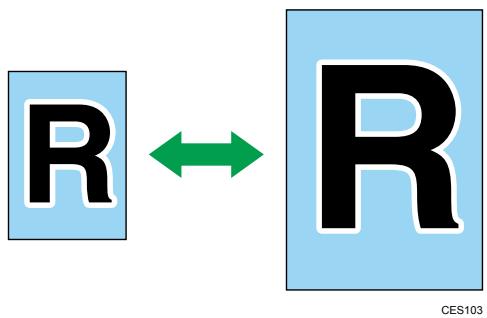
Region A (mainly Europe and Asia)
50%, 71% A4 → A5, 82% B5 JIS → A5, 93%, 122% A5 → B5 JIS, 141% A5 → A4, 200%, 400%
Region B (mainly North America)
50%, 65% LT → HLT, 78% LG → LT, 93%, 129% HLT → LT, 155% HLT → LG, 200%, 400%
Custom ratio
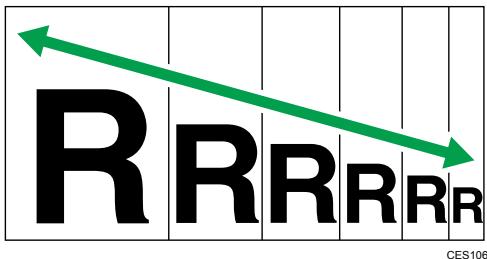
25% to 400% in 1% increments.
Specifying Reduce/Enlarge
1. Press [Scale].
![RICOH AFICIO SP 213SFNW - Press [Scale]. - 1](/content/2019/10/8743/images/5d20e6994ee62eba44603063859ca20a272ec6afe05dc2b8171306b0ddb891cc.jpg)
- Press [Reduce], [Enlarge], or [Zoom].
For [Reduce] or [Enlarge], press the [] , [] , [] , or [] key to select the desired ratio. For [Zoom], specify the desired ratio using the number keys.
- Press the [OK] key.
Making Combined/2-sided Copies
This section describes how to combine and print a multiple pages (two or four pages) on one side or both sides of paper.

Important
- This function is only available when the original is set in the ADF, not when it is set on the exposure glass.
To use this function, the paper size used for printing copies must be set to A4, Letter or Legal.
There are following copy modes. Select a copy mode according to your original and how you want the copy outputs to appear.
Combined copy on one side
In this mode, a two or four-page original is combined and printed on one side of paper.
Comb. 2 on 1
| Original | Copy | |
| Portrait | R | R |
| Landscape | R | R |
CMF250
Comb. 4 on 1
| Original | Copy | ||
| Portrait | R | Left to Right | Top to Bottom |
| Landscape | R | Left to Right | Top to Bottom |
DCT002
Combined copy on both sides
In this mode, a multiple-page original is combined and printed on both sides of paper.
Comb. 2 on 1
| Original | Copy | ||
| Portrait | R | Top to Top | Top to Bottom |
| Landscape | R | Top to Top | Top to Bottom |
CMF255
Comb. 4 on 1
DCT003
| Original | Copy | ||
| Portrait | R | Left to Right, Top to Top 6←5 8←7 | Left to Right, Top to Bottom L←8 9←9 |
| Top to Bottom, Top to Top 7←5 8←6 | Top to Bottom, Top to Bottom 9←8 9← | ||
DCT004
| Original | Copy | ||
| Landscape | R | Left to Right, Top to Top 6←5 8→7 | Left to Right, Top to Bottom 8←9 |
| Top to Bottom, Top to Top 7←5 8→6 | Top to Bottom, Top to Bottom 9←8 8←9 | ||
2-sided copy
In this mode, one-sided pages are printed on the front and back sides of paper without being combined.
| Original | Copy | ||
| Portrait | R | Top to Top | Top to Bottom |
| Landscape | R | Top to Top | Top to Bottom |
CMF261
Specifying Combined and 2-sided Copies
- Press the [Copy] key.
With Type 1 models, start from Step 2. If ID card copy mode is being displayed, press the [Shortcut to Func.] key again to switch to normal copier mode.
- Press the [4] or [+] key.
- Press [Duplex/Combine].
- Press the [] or [] key to select the desired copy mode, and then press the [OK] key.
- Press the [] or [] key to select paper orientation and page order, and then press the [OK] key.
The screen will show the selected copy mode.

Note
- After you place the originals, press the [Start] key within the time specified in [System Auto Reset Timer]. Otherwise, the job is canceled. For details, see page 157 "Administrator Settings".
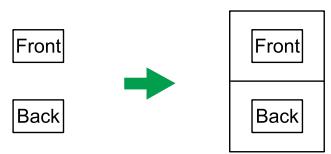
Copying Both Sides of an ID Card onto One Side of Paper
This section describes how to copy the front and back sides of an ID card or other small documents onto either side of a sheet of paper.
When copying onto A4 paper, you can copy documents that are smaller than A5. Likewise, when copying onto Letter size paper, you can copy documents that are smaller than Half Letter size.

Important
- To use this function, the paper size used for printing copies must be set to A6, A5, A4, Half Letter, or Letter.
CES165
Specifying the ID Card Copy Setting
You can specify the ID Card copy setting.

Important
-
Be sure to check the size of the card to copy before specifying [ID Card Size].
-
Press the [Copy] key.
With Type 1 model, start from Step 2.
- Press the [4] or [b] key.
- Press the [] or [] key to select [ID Card Settings], and then press the [OK] key.
For [ID Card Settings], see page 130 "Copier Features Settings".
- Press the [] or [] key to select [ID Card Copy], and then press the [OK] key.
- Press the [] or [] key to select [On], and then press the [OK] key.
- Press the [] or [] key to select [ID Card Center Line], and then press the [OK] key.
Select [Print] to print the center line; otherwise select [Do not Print], and then press the [OK] key.
- Press the [] or [] key to select [ID Card Size], and then press the [OK] key.
-
Press the [] or [] key to select [mm] or [inch], and then press the [OK] key.
-
Enter the horizontal length (Horiz.) of the card to be placed on the exposure glass, and then press the [OK] key.
- Enter the vertical length (Vert.) of the card to be placed on the exposure glass, and then press the [OK] key.
Copying an ID Card
- Press the [Shortcut to Func.] key.
With Type 1 model, if normal copier mode is being displayed, press the [Shortcut to Func.] key again to switch to ID card copy mode.
If the ID card copy mode does not appear when you press the [Shortcut to Func.] key, set [Shortcut to Function] to [ID Card Copy Mode], and then press the [Shortcut to Func.] key again. Alternatively, set [ID Card Copy] to [On] in [ID Card Settings] in [Copier Features].
- To make multiple copies, enter the number of copies using the number keys.
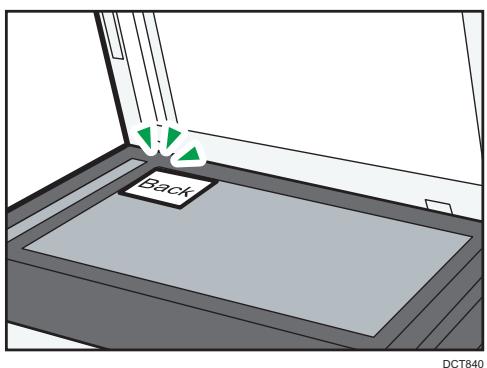
- Place the original in the upper-left corner of the exposure glass.
4. Press the [Start] key.
![RICOH AFICIO SP 213SFNW - Press the [Start] key. - 1](/content/2019/10/8743/images/6c26e139a3df5da0ce6d1d016b582786b8aef7063f471267328492e313929e43.jpg)
DCT847
- Within 60 seconds, place the original back side down with the upper-left corner on the exposure glass, and then press the [Start] key.
![RICOH AFICIO SP 213SFNW - Press the [Start] key. - 2](/content/2019/10/8743/images/1ba2d75b1fde7f98aeba279de451c6c0df9bd2e2a531c3a92b95533961ed5e59.jpg)
Note
- After you place the originals, press the [Start] key within the time specified in [System Auto Reset Timer]. Otherwise, the job is canceled. For details, see page 157 "Administrator Settings".
Specifying the Scan Settings
This section describes how to specify image density and scan quality for the current job.
Adjusting Image Density
There are five image density levels. The higher the density level, the darker the printout.
- Press the [Density] key.
DCT874
- Press the [A] or [B] key to select the desired density level, and then press the [OK] key.

Note
- You can change the machine's default [Density] setting to always make copies with a specific density level. For details, see page 130 "Copier Features Settings".
Selecting the Document Type According to Original
There are three document types:
Text
Select this when the original contains only text and no photographs or images.
Photo
Select this when the original contains only photographs or images. Use this mode for the following types of original:
Photographs
Pages that are entirely or mainly composed of photographs or images, such as magazine pages.
Mixed
Select this when the original contains both text and photographs or images.
Specifying the Original Type
- Press the [Image Quality] key.
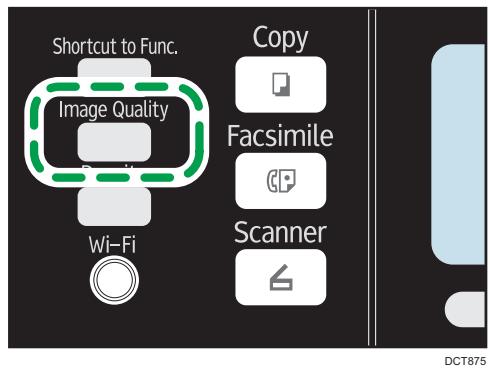
- Press the [], [], [], or [] key to select the desired document type, and then press the [OK] key.

Note
- You can change the machine's default [Original Type] setting to always make copies with a specific document type. For details, see page 130 "Copier Features Settings".
Scanner Mode Screen
This section provides information about the screen in scanner mode.
By default, the display shows the copier screen when the machine is turned on. If the copier or fax screen is shown on the display, press the [Scanner] key on the control panel to switch to the scanner screen.
Screen in standby mode
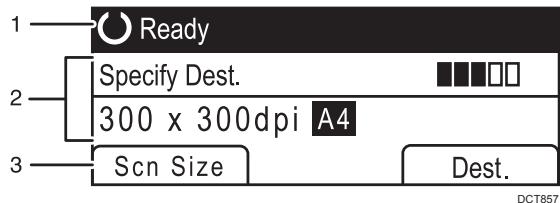
1. Current status or messages
Displays the current status or messages.
2. Current settings
Displays the current scanning mode and scan settings.
- When "Specify Dest." is displayed:
Scan to E-mail, Scan to FTP, or Scan to Folder functions can be used.
3. Selection key items
Displays the functions you can use by pressing the corresponding selection keys.

Note
- The machine's default mode at power on can be specified in the [Function Priority] setting under [Admin. Tools]. For [Function Priority], see page 157 "Administrator Settings".
Registering Scan Destinations
This section describes how to register scan destinations in the Address Book. To send scanned files to an e-mail address (Scan to E-mail), FTP server (Scan to FTP), or a shared folder on a network computer (Scan to Folder), you must first register the destination in the Address Book using Web Image Monitor.
Important
- The Address Book data could be damaged or lost unexpectedly. The manufacturer shall not be responsible for any damages resulting from such data loss. Be sure to create backup files of the Address Book data periodically.
- Depending on your network environment, the Scan to FTP and Scan to Folder functions may require a user name and password to be correctly entered in the destination information. In such cases, after registering destinations, check that the user name and password are correctly entered by sending test documents to those destinations.
The Address Book can contain up to 100 entries, including 8 Quick Dial entries.
Destinations registered as Quick Dial entries can be selected by pressing the corresponding One Touch button.
- Start the Web browser, and access the machine by entering its IP address.
- Click [Quick Dial Destination] or [Scan Destination].
- From the [Destination Type] list, select [E-mail Address], [FTP] or [Folder].
- Register information as necessary.
The information you must register varies depending on the destination type. For details, see the tables.
- Enter the administrator password if required.
- Click [Apply].
- Close the Web browser.
Scan to E-mail Settings
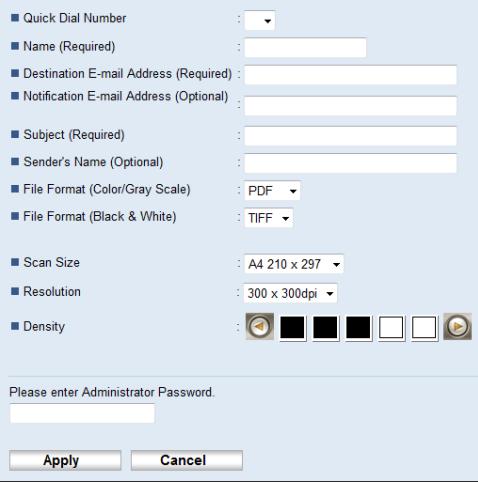
Program/Change E-mail Address Destination
| Item | Setting | Description |
| Quick Dial Number | Optional | Select when setting the destination as a Quick Dial entry. |
| Name | Required | Name of the destination. The name specified here will be shown on the screen when selecting a scan destination. Can contain up to 16 characters. |
| Destination E-mail Address | Required | E-mail address of the destination. Can contain up to 64 characters. |
| Notification E-mail Address | Optional | E-mail address to which a notification is sent after transmission. Can contain up to 64 characters. |
| Subject | Required | Subject of the e-mail. Can contain up to 64 characters. |
| Sender's Name | Optional | Name of e-mail sender. The name specified here will be shown under "From" or a similar field of the recipient's email application. Can contain up to 32 characters. |
| File Format (Color/Gray Scale) | Required | File format of the scanned file when scanning in color. PDF or JPEG can be selected. PDF supports multiple pages in a document, but JPEG does not. |
| File Format (Black & White) | Required | File format of the scanned file when scanning in black and white. PDF or TIFF can be selected. Both formats support multiple pages in a document. |
| Scan Size | Optional | Select the scanning size for the original from A5, B5, A4, Executive, Half Letter, Letter, Legal, 16K, or custom size. If you select custom size, select [mm] or [Inch], and then specify the width and length. |
| Resolution | Optional | Select the scan resolution from 100×100, 150×150, 200×200, 300×300, 400×400, or 600×600 dpi. |
| Density | Optional | Specify the image density by clicking the right or left buttons. These keys increase or decrease the image density in single increments up to 5. |
Scan to FTP Settings
Program/Change FTP Destination
Quick Dial Number
Name (Required)
- Hostname or IP Address (Required)
File Format (Color/Gray Scale)
File Format (Black & White)
FTP User Name (Optional)
FTP Password (Optional)
- Directory (Optional)
■ Notification E-mail Address (Optional)
Scan Size
Resolution
Density




























1
1,2,3 1,3,4 2,3,4 3,4,5 4,5,6 5,6 6,7 7,8 .
Please enter Administrator Password.
1 + u7 = 7038
Apply
Apply
Cancel
Item
Setting
Description
Quick Dial Number
Optional
Select when setting the destination as a Quick Dial entry.
| Item | Setting | Description |
| Name | Required | Name of the destination. The name specified here will be shown on the screen when selecting a scan destination. Can contain up to 16 characters. |
| Hostname or IP Address | Required | Name or IP address of the FTP server. Can contain up to 64 characters. |
| File Format (Color/Gray Scale) | Required | File format of the scanned file when scanning in color. PDF or JPEG can be selected. PDF supports multiple pages in a document, but JPEG does not. |
| File Format (Black & White) | Required | File format of the scanned file when scanning in black and white. PDF or TIFF can be selected. Both formats support multiple pages in a document. |
| FTP User Name | Optional | User name for logging in to the FTP server. Can contain up to 32 characters. |
| FTP Password | Optional | Password for logging in to the FTP server. Can contain up to 32 characters. |
| Directory | Optional | Name of the FTP server directory where scanned files are stored. Can contain up to 64 characters. |
| Notification E-mail Address | Optional | E-mail address to which a notification is sent after transmission. Can contain up to 64 characters. |
| Scan Size | Optional | Select the scanning size for the original from A5, B5, A4, Executive, Half Letter, Letter, Legal, 16K, or custom size.If you select custom size, select [mm] or [Inch], and then specify the width and length. |
| Resolution | Optional | Select the scan resolution from 100×100, 150×150, 200×200, 300×300, 400×400, or 600×600 dpi. |
| Density | Optional | Specify the image density by clicking the right or left buttons. These keys increase or decrease the image density in single increments up to 5. |
Scan to Folder Settings
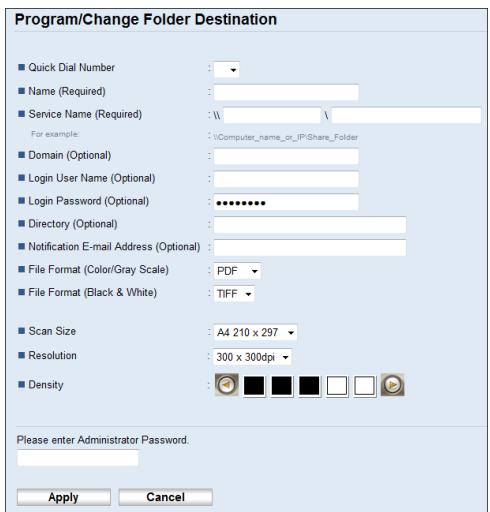
| Item | Setting | Description |
| Quick Dial Number | Optional | Select when setting the destination as a Quick Dial entry. |
| Name | Required | Name of the destination. The name specified here will be shown on the screen when selecting a scan destination. Can contain up to 16 characters. |
| Service Name | Required | Path to the directory where scanned files will be stored. Consists of the IP address or name of the destination computer (can contain up to 64 characters), and name of the shared folder (can contain up to 32 characters). |
| Domain | Optional | Specify the name of the domain to which the computer belongs. Can contain up to 15 characters. |
| Login User Name | Optional | User name for logging in to the destination computer. Can contain up to 32 characters. |
| Login Password | Optional | Password for logging in to the destination computer. Can contain up to 32 characters. |
| Directory | Optional | Directory within the shared folder for storing scanned files. Can contain up to 64 characters. |
| Notification E-mail Address | Optional | E-mail address to which a notification is sent after transmission. Can contain up to 64 characters. |
| File Format (Color/Gray Scale) | Required | File format of the scanned file when scanning in color. PDF or JPEG can be selected. PDF supports multiple pages in a document, but JPEG does not. |
| File Format (Black & White) | Required | File format of the scanned file when scanning in black and white. PDF or TIFF can be selected. Both formats support multiple pages in a document. |
| Scan Size | Optional | Select the scanning size for the original from A5, B5, A4, Executive, Half Letter, Letter, Legal, 16K, or custom size. If you select custom size, select [mm] or [Inch], and then specify the width and length. |
| Resolution | Optional | Select the scan resolution from 100×100, 150×150, 200×200, 300×300, 400×400, or 600×600 dpi. |
| Density | Optional | Specify the image density by clicking the right or left buttons. These keys increase or decrease the image density in single increments up to 5. |

Note
To send files via e-mail, SMTP and DNS settings must be configured properly.
- If you are using the Scan to E-mail function, select a time zone according to your geographic location to send email with correct transmission date and time.
- To send files to an FTP server or computer, the user name, password, and directory must be configured properly.
- On a network that uses a DNS server, specify a computer name in [Service Name] and the name of the domain to which the computer belongs in [Domain]. In this case, also configure the DNS related settings using Web Image Monitor.
- Scan destinations cannot be registered using the control panel.
Modifying Scan Destinations
This section describes how to modify the information of registered destinations.
- Start the Web browser, and access the machine by entering its IP address.
- Click [Scan Destination].
-
Click the [E-mail Address], [FTP], or [Folder] tab.
-
Select the entry to modify, and then click [Change].
- Modify settings as necessary.
- Enter the administrator password if required.
- Click [Apply].
- Close the Web browser.

Note
- You can unassign a Quick Dial entry from a One-touch button from the [Quick Dial Destination] page. To do this, select the desired entry, click [Delete], and then click [Apply] again on a confirmation page.
Deleting Scan Destinations
This section describes how to delete registered destinations.
- Start the Web browser, and access the machine by entering its IP address.
- Click [Scan Destination].
- Click the [E-mail Address], [FTP], or [Folder] tab.
- Select the entry to delete, and then click [Delete].
- Confirm that the entry you have selected is the entry that you want to delete.
- Enter the administrator password if required.
- Click [Apply].
- Close the Web browser.
Basic Operation
Scanning using the control panel allows you to send scanned files via e-mail (Scan to E-mail), to an FTP server (Scan to FTP), or to the shared folder of a computer on a network (Scan to Folder), or to a USB flash disk (Scan to USB).
The Scan to E-mail, Scan to FTP, and Scan to Folder functions are available only through a network connection. No network connection is required for the Scan to USB function; you can send scanned files directly to a USB flash disk inserted into the front of the machine.
Scan to E-mail/FTP/Folder
This section describes the basic operation for sending scanned files via e-mail, to an FTP server, or to a computer, depending on the specified destination.

Important
- The original in the ADF takes precedence over the original on the exposure glass if you place originals both in the ADF and on the exposure glass.
- When using the Scan to E-mail, Scan to FTP or Scan to Folder function, you must first register the destination in the Address Book using Web Image Monitor. For details, see page 76 "Registering Scan Destinations".
-
Depending on the model, the Scan to E-mail/FTP/Folder function may not be available. For details about the differences between models, see page 8 "Differences in Performance/Functions between Different Models".
-
Place the original on the exposure glass or in the ADF.
To place the original, see page 49 "Placing Originals".
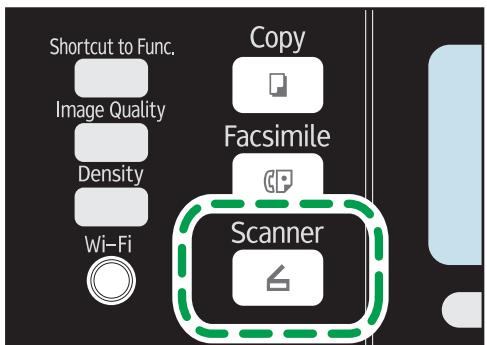
- Press the [Scanner] key.
DCT850
- Press the [Address Book] key or [Dest].
Alternatively, you can press the [Shortcut to Func.] key if [Shortcut to Function] under administrator settings is set to [Select Scanner Dest.]. For [Shortcut to Function], see page 157 "Administrator Settings".
- Press the [] or [] key to select [Search Address Book], and then press the [OK] key.
If you want to search for a specific entry by its name, enter the first letters of the name using the number keys, and then press the [OK] key. Each time you enter a character, the display changes to show the matching name.
- Search for the desired destination by pressing the [] or [] key to scroll the Address Book, and then press the [OK] key.
When you specify a scan destination, the machine's scan settings change automatically according to the information registered for that destination in the Address Book. If necessary, you can change the scan settings using the control panel. For scan settings, see page 88 "Specifying the Scan Settings".
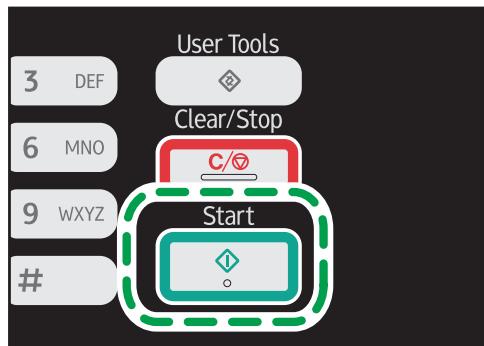
- Press the [Start] key.
DCT847
Depending on the machine's settings, you may see the following screen on the display when scanning from the exposure glass.
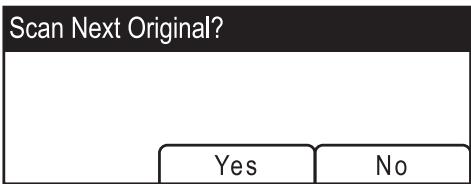
If you see this screen, proceed to the next step.
- If you have more originals to scan, place the next original on the exposure glass, and then press [Yes]. Repeat this step until all originals are scanned.
- When all originals have been scanned, press [No] to start sending the scanned file.

Note
- To cancel scanning, press the [Scanner] key, and then press the [Clear/Stop] key. The scan files are discarded.
- You can configure the machine to scan documents in black and white, color, or grayscale by changing the [Scanning Mode] setting under scan settings. For details, see page 133 "Scanner Features Settings".
- You can also specify a destination using the One Touch buttons, [Pause/Redial] key.
- If the [Limitless Scan] setting under scan settings is enabled, you can place originals on the exposure glass repeatedly in a single scan procedure. For details, see page 133 "Scanner Features Settings".
- If [File Type] under scan settings is set to [Multi-page], you can scan multiple pages to create a single PDF or TIFF file containing all pages. However, if the file format is JPEG, a single-page file will be created for every page scanned. For details, see page 133 "Scanner Features Settings".
- If paper is jammed in the ADF, the scan job will be discarded. Remove the jammed paper and scan the entire originals again. For the direction to remove paper jammed in the ADF, see page 202 "Paper Feed Problems".
Specifying the scan destination using the One Touch buttons or [Pause/Redial] key
This section describes how to specify a destination using the following keys:
- One Touch buttons
Use these to specify destinations registered as Quick Dial entries.
- [Pause/Redial] key
Press this to specify the last used destination as the destination for the current job.
Using the One Touch buttons
Press the One Touch button to which the desired Quick Dial entry is registered.
Press the [Shift] key to use the Quick Dial entries Nos. 5 to 8.
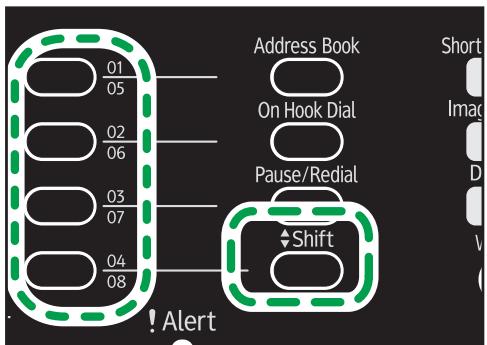
DCT878
Using the [Pause/Redial] key
Press the [Pause/Redial] key to select the last used destination.
![RICOH AFICIO SP 213SFNW - Using the [Pause/Redial] key - 1](/content/2019/10/8743/images/297f85ac28aacbf3821fd95e3f5905c06ba4995fdc1656f4cbf5207bdbebcdb2.jpg)
DCT877
![RICOH AFICIO SP 213SFNW - Using the [Pause/Redial] key - 2](/content/2019/10/8743/images/435c9684c4a98465da0fc2ffbd9ea9c005503522408813da926efb3808e4287b.jpg)
Note
- When you specify a scan destination, the machine's scan settings change automatically according to the information registered for that destination in the Address Book. If necessary, you can change the scan settings using the control panel. For scan settings, see page 88 "Specifying the Scan Settings".
- The [Pause/Redial] key is not effective for the first scan job after the machine is turned on.
- To select destinations not registered as Quick Dial entries, use the [Address Book] key. For specifying destinations using the [Address Book] key, see page 83 "Scan to E-mail/FTP/Folder".
Basic Operation for Scan to USB
This section describes the basic operation for sending scanned files to a USB flash disk.

Important
- Copier and fax functions are not available when a USB flash disk is inserted to Type 1 models.
- If the machine fails to switch to Scan to USB mode after the USB flash disk is inserted, set [Save Scn Data to USB] to [Active].
- The original in the ADF takes precedence over the original on the exposure glass if you place originals both in the ADF and on the exposure glass.
-
This machine does not support the use of USB flash disks connected to external USB hubs. Insert your USB flash disk directly into the USB flash disk port located at the top left corner of the machine.
Certain types of USB flash disks cannot be used. -
Insert your USB flash disk into the USB flash disk port.
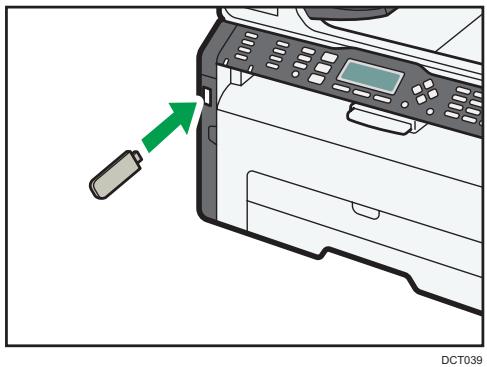
"Loading..." appears on the display. Wait until the display changes to show "Save Scn Data to USB" (the duration depends on your USB flash disk).
- Place the original on the exposure glass or in the ADF.
If necessary, configure advanced scan settings. For details, see page 88 "Specifying the Scan Settings".
- Press the [Start] key.
- Select file format.
- If you have more originals to scan, place the next original on the exposure glass, and then press [Yes]. Repeat this step until all originals are scanned.
- When all originals have been scanned, press [No] to start sending the scanned file.
- Confirm that "Ready" appears on the display.
The scanned file is created in the root directory of the USB flash disk.
- Remove the USB flash disk from the machine.
Note
- To cancel scanning, press the [Scanner] key, and then press the [Clear/Stop] key. The scan files are discarded.
Specifying the Scan Settings
When you specify a scan destination, the machine's scan settings change automatically according to the information registered for that destination in the Address Book. If necessary, you can change the scan settings for the current job using the control panel.
Specifying the Scanning Size According to the Size of the Original
This section describes how to specify the scanning size according to the size of the current original.
- Press [Scn Size].
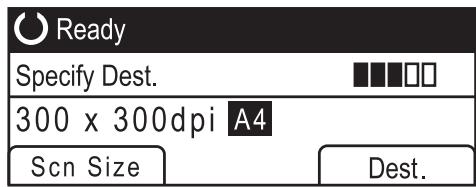
- Press the [] or [] key to select the size of the original, and then press the [OK] key. If you selected anything other than [Custom Size], you do not need to perform the remaining steps of the procedure.
- Press the [ ] or [ ] key to select [mm] or [inch], and then press the [OK] key.
- Enter the width using the number keys, and then press the [OK] key. To enter a decimal point, press the [] key.
- Enter the length using the number keys, and then press the [OK] key. To enter a decimal point, press the [] key.

Note
- You can change the machine's default [Scan Size] setting to always scan originals with a specific scanning size. For details, see page 133 "Scanner Features Settings".
Adjusting Image Density
This section describes how to adjust image density for the current job. There are five image density levels. The higher the density level, the darker the scanned image.
1. Press the [Density] key.
![RICOH AFICIO SP 213SFNW - Press the [Density] key. - 1](/content/2019/10/8743/images/553491e660299bca5fda1ef3e87a25e7330080cb5e91c86722baac0e391c0063.jpg)
DCT874
2. Press the [A] or [B] key to select the desired density level, and then press the [OK] key.
![RICOH AFICIO SP 213SFNW - Press the [A] or [B] key to select the desired density level, and then press the [OK] key. - 1](/content/2019/10/8743/images/37093ce3d1a28a651ddb98e3fb84fe78e796de194225e323745dd4061d1f483e.jpg)
Note
- You can change the machine's default [Density] setting to always scan with a specific density level. For details, see page 133 "Scanner Features Settings".
Specifying Resolution
This section describes how to specify the scan resolution for the current job.
There are six resolution settings. The higher the resolution, the higher the quality but greater the file size.
1. Press the [Image Quality] key.
![RICOH AFICIO SP 213SFNW - Press the [Image Quality] key. - 1](/content/2019/10/8743/images/199ffe20b9990ff5b16c6df9d59e191ec3161229162629624c3309b0df9a07c7.jpg)
DCT875
2. Press the [], [], [] , or [] key to select the desired resolution, and then press the [OK] key.
![RICOH AFICIO SP 213SFNW - Press the [], [], [] , or [] key to select the desired resolution, and then press the [OK] key. - 1](/content/2019/10/8743/images/b1236a974614315df9139583c327801a9f0ac83a41f8fbc5fd4a6748fe42ded7.jpg)
Note
- You can change the machine's default [Resolution] setting to always scan with a specific resolution level. For details, see page 133 "Scanner Features Settings".
Scanning from a Computer
Scanning from a computer (TWAIN scanning and WIA scanning) allows you to operate the machine from your computer and scan originals into your computer directly.
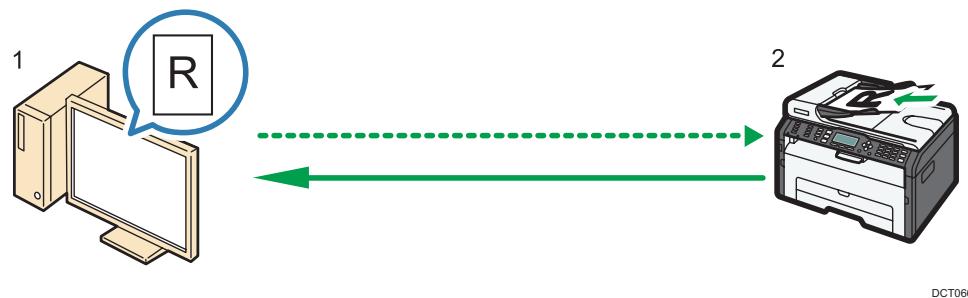
- Your Computer (TWAIN driver already installed)
Instruct the machine to start scanning the original that is set on the machine.
- This Machine
The original that is set on the machine is scanned, and its data is sent to a client computer.
Using TWAIN scanner
This section describes the preparations and procedure for using the TWAIN scanner.

Important
- To use the TWAIN scanner, you must install the TWAIN driver, which is on the supplied CD-ROM.
- To use the TWAIN scanner, a TWAIN-compliant application must be installed.
To use the machine as a TWAIN scanner, first do the following:
Install the TWAIN driver.
Install a TWAIN-compliant application.
TWAIN Scanning
TWAIN scanning is possible if your computer is running a TWAIN-compatible application.
The following procedure uses Windows 7 and Microsoft Office Document Scanning as an example.
-
Place the original.
-
On the [Start] menu, point to [All Programs], point to [Microsoft Office], point to [Microsoft Office Tools], and then click [Microsoft Office Document Scanning].
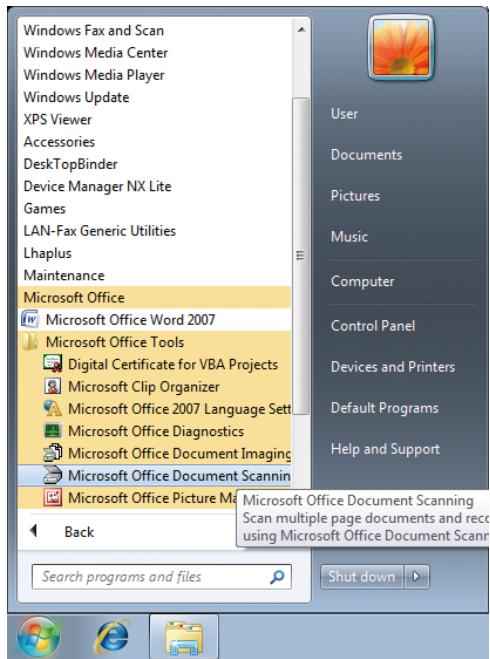
- Click [Scanner...].
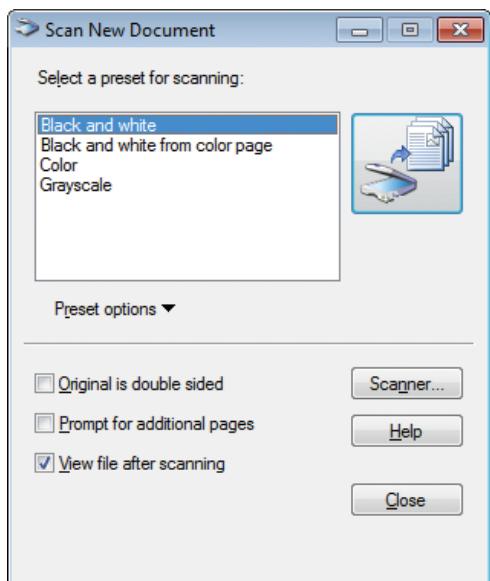
- Select the scanner you want to use.
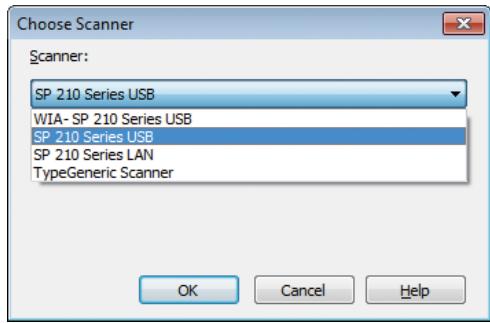
- Select the [Show scanner driver dialog before scanning] check box.
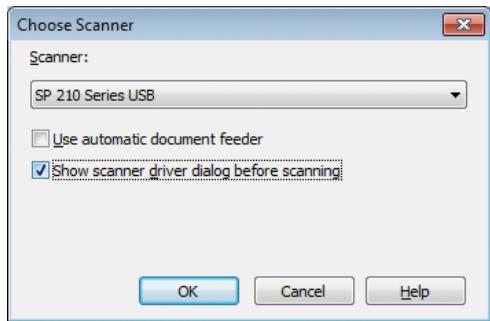
- Click [OK].
- Click the Scan button.
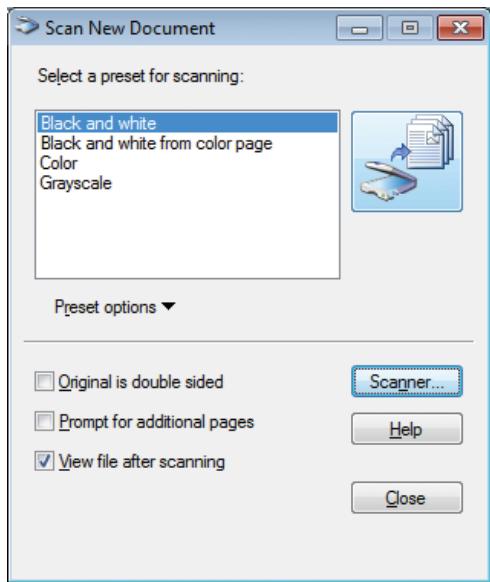
The scanner driver dialog box appears.
8. Click [Scan].
![RICOH AFICIO SP 213SFNW - Click [Scan]. - 1](/content/2019/10/8743/images/ed17b9f274fecf3c6e59fbe34430e09a10fc489a539c877c510d35a9017f6bed.jpg)
9. Click [Close].
Settings you can configure in the TWAIN dialog box
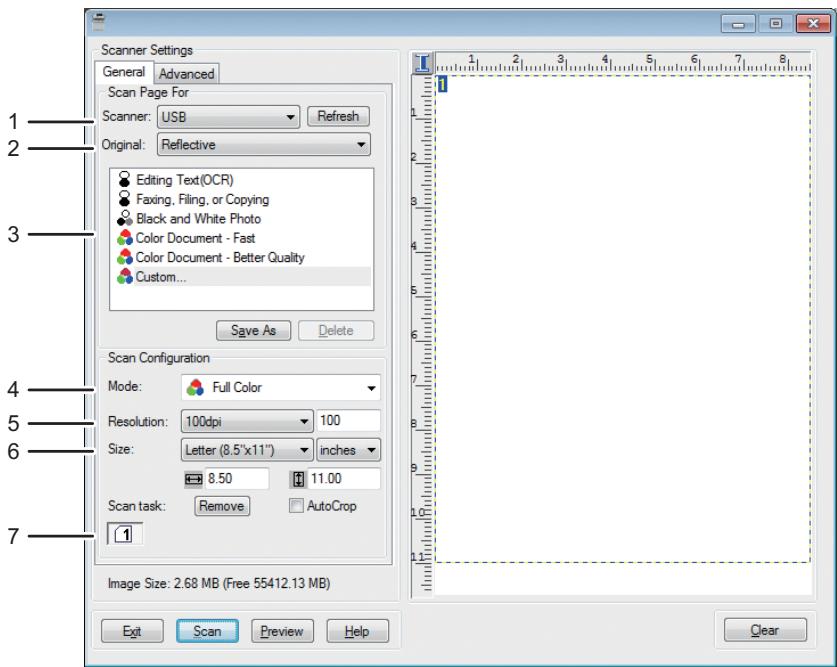
DAC525
1. Scanner:
Select the scanner you want to use. The scanner you select becomes the default scanner. Click [Refresh] to discover all available scanners connected via USB or the network.
2. Original:
Select [Reflective] to scan from the exposure glass, or [Automatic Document Feeder] to scan from the ADF.
3. Original type
According to your original, select a setting from the list of options detailed below, or select [Custom...] to configure your own scan settings. "Mode:", "Resolution:", and "Size:" under "Scan Configuration" will change according to the Original type setting you selected here.
- When using the exposure glass: [Editing Text(OCR)]
[Faxing, Filing, or Copying]
[Black and White Photo]
[Color Document - Fast]
[Color Document - Better Quality]
[Custom...] - When using the ADF:
[ADF-Faster]
[ADF-Better]
[ADF - Gray]
[Custom...]
4. Mode:
Select from full color, grayscale, or black-and-white.
5. Resolution:
Select a resolution from the list. If you select [User defined], enter a resolution value directly in the edit box. Note that increasing the resolution also increases the file size and scanning time.
Selectable resolutions vary depending on where the original is set.
- When using the exposure glass:
75, 100, 150, 200, 300, 400, 500, 600, 1200, 2400, 4800, 9600, 19200 dpi, User defined - When using the ADF:
75, 100, 150, 200, 300, 400, 500, 600 dpi, User defined
6. Size:
Select the scanning size. If you select [User defined], enter the scanning size directly in the edit box. Also, you can change the scanning size with your mouse in the preview area. You can select the unit of measure from [cm], [inches], or [pixels]. Selectable resolutions vary depending on where the original is set. For details, see the TWAIN Help.
7. Scan task: (when using the exposure glass)
Displays up to 10 previously used scan areas. To remove a scan task, select the number of the task, and then click [Remove]. You can select [AutoCrop] to let the scanner automatically detect the size of your original.
Note
- For details, see the TWAIN driver Help.
Basic Operation for WIA Scanning
- Place the original.
- On the [Start] menu, click [Devices and Printers].
- Right-click the icon of the printer model you want to use, and then click [Start scan].
- Configure the scan settings as required, and then click [Scan].
6. Sending and Receiving a Fax
Fax Mode Screen
This section provides information about the screen in fax mode.
By default, the display shows the copier screen when the machine is turned on.
If the copy or scanner screen is shown on the display, press the [Facsimile] key on the control panel to switch to the fax screen.
Standby mode screen
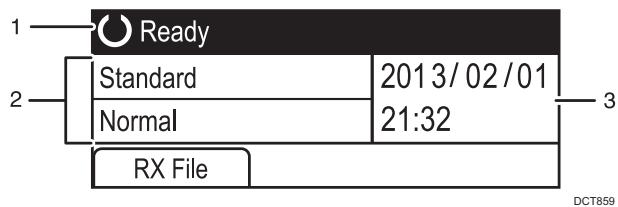
1. Current status or messages
Displays the current status or messages.
2. Current settings
Displays the current density and resolution settings.
3. Current date and time
Shows the current date and time.
Note
- The machine's default mode at power on can be specified in the [Function Priority] setting under [Admin. Tools]. For [Function Priority], see page 157 "Administrator Settings".
- The display format for time and date can be specified in [Set Date/Time] under [Admin. Tools]. For setting the date and time, see page 98 "Setting the Date and Time".
Setting the Date and Time
- Press the [User Tools] key.
- Press the [] or [] key to select [Admin. Tools], and then press the [OK] key.
- If you are requested to enter a password, enter the password using the number keys, and then press the [OK] key.
- Press the [] or [] key to select [Set Date/Time], and then press the [OK] key.
- Press the [] or [] key to select [Set Date], and then press the [OK] key.
- Press the [] or [] key to select the desired date format, and then press the [OK] key. For the date and time display format, see page 157 "Administrator Settings".
- Enter the current date using the number keys, and then press the [OK] key. You can press the [] or [] key to move between fields.
- Press the [] or [] key to select [Set Time], and then press the [OK] key.
-
Press the [] or [] key to select the desired time format, and then press the [OK] key.
-
Enter the current time using the number keys, and then press the [OK] key. If you selected [12-hour Format], press the [ ] or [ ] key to select [AM] or [PM]. You can press the [ ] or [ ] key to move between fields.
- Press the [User Tools] key to return to the initial screen.
Note
- A password for accessing the [Admin. Tools] menu can be specified in [Admin. Tools Lock]. For [Admin. Tools Lock], see page 157 "Administrator Settings".
Entering Characters
To enter characters, use keys as follows:
To enter a digit
Press a number key.
To delete a character
Press the [key.
To enter a fax number
To enter a number
Use the number keys.
- To enter characters other than digits
"*": Press the [ ] key.
"#": Press the [#] key.
"P"(Pause): Press the [Pause/Redial] key.
To enter a name
Letters, numbers, and symbols can be entered using the number keys.
To enter two characters that use the same number key successively, press the [▶] key after entering the first character.
| Number key | Number of key press | ||||||||||||||||||||||||||||||
| 1 | 2 | 3 | 4 | 5 | 6 | 7 | 8 | 9 | 10 | 11 | 12 | 13 | 14 | 15 | 16 | 17 | 18 | 19 | 20 | 21 | 22 | 23 | 24 | 25 | 26 | 27 | 28 | 29 | 30 | 31 | |
| 1 | 1 | ||||||||||||||||||||||||||||||
| 2 | A | B | C | a | b | c | Ä | Ä | Ä | Ä | Ç | à | á | ã | ã | ä | æ | ç | 2 | ||||||||||||
| 3 | D | E | F | d | e | f | É | è | é | ê | ë | 3 | |||||||||||||||||||
| 4 | G | H | I | 9 | h | i | i | i | i | i | 4 | ||||||||||||||||||||
| 5 | J | K | L | j | k | l | 5 | ||||||||||||||||||||||||
| 6 | M | N | O | m | n | o | Ñ | Ö | Ö | Ø | CE | ñ | ò | ó | ô | ö | ö | ø | ø | 6 | |||||||||||
| 7 | P | Q | R | S | p | q | r | s | β | 7 | |||||||||||||||||||||
| 8 | T | U | V | t | u | v | ü | ù | ú | ü | ü | 8 | |||||||||||||||||||
| 9 | W | X | Y | Z | w | x | y | z | ý | 9 | |||||||||||||||||||||
| 0 | 0 | - | . | ! | ” | , | ; | : | ^ | ` | - | = | / | | | ' | ? | $ | @ | % | & | + | ( ) | [ ] | { } | < | > | ~ | \ | |||
| * | * | ||||||||||||||||||||||||||||||
| # | # | ||||||||||||||||||||||||||||||
DCT843
Registering Fax Destinations
This section describes how to register fax destinations in the Address Book using the control panel. For entering characters, see "Entering Characters".
The Address Book can also be edited using Web Image Monitor.
Important
- The Address Book data could be damaged or lost unexpectedly. The manufacturer shall not be responsible for any damages resulting from such data loss. Be sure to create backup files of the Address Book data periodically. For details about creating backup files, see page 190 "Configuring the Administrator Settings".
The Address Book can contain up to 108 entries (8 Quick Dial entries and 100 Speed Dial entries).
Quick Dial entries
Destinations registered as Quick Dial entries can be selected by pressing the corresponding One Touch button.
Speed Dial entries
Destinations registered as Speed Dial entries can be selected from the Address Book. Press the [Address Book] key, select [Search Address Book], and then select the desired entry using the [] or [] key.
Registering Fax Destinations Using the Control Panel
- Press the [User Tools] key.
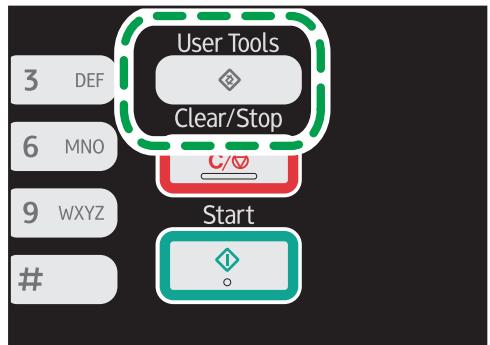
DCT845
- Press the [] or [] key to select [Address Book], and then press the [OK] key.
- If you are requested to enter a password, enter the password using the number keys, and then press the [OK] key.
-
Press the [] or [] key to select [Quick Dial Dest.] or [Fax Speed Dial Dest.], and then press the [OK] key.
-
Press the [] or [] key to select [No.], and then enter the desired Quick Dial number (1 to 8) or Speed Dial number (1 to 100) using the number keys.
If a destination is already registered for the input number, the fax number and fax name registered for that number appear.
- Press the [] or [] key to select [Fax No.], and then enter the fax number (up to 40 characters).
- Press the [] or [] key to select [Name], and then enter the fax name (up to 20 characters).
- Confirm the setting, and then press the [OK] key.
- Press the [User Tools] key to return to the initial screen.

Note
- For entering characters, see page 99 "Entering Characters".
- A fax number can contain 0 to 9, pause, "X", "#", and space.
- If necessary, insert a pause in the fax number. The machine pauses briefly before it dials the digits following the pause. You can specify the length of the pause time in the [Pause Time] setting under fax transmission settings. For [Pause Time], see page 135 "Fax Transmission Features Settings".
- To use tone services on a pulse-dialing line, insert "※" in the fax number. "※" switches the dialing mode from pulse to tone temporarily.
- If the machine is connected to the telephone network through a PBX, make sure to enter the outside line access number specified in [PBX Access Number] before the fax number. For [PBX Access Number], see page 157 "Administrator Settings".
- A password for accessing the [Address Book] menu can be specified in [Admin. Tools Lock]. For [Admin. Tools Lock], see page 157 "Administrator Settings".
Modifying or deleting fax destinations
- Press the [User Tools] key.
- Press the [] or [] key to select [Address Book], and then press the [OK] key.
- If you are requested to enter a password, enter the password using the number keys, and then press the [OK] key.
- Press the [] or [] key to select [Quick Dial Dest.] or [Fax Speed Dial Dest.], and then press the [OK] key.
- Press the [] or [] key to select [No.], and then enter the desired Quick Dial number (1 to 8) or Speed Dial number (1 to 100) using the number keys.
The fax number and fax name registered for that number appear.
- Press the [] or [] key to select [Fax No.], and then modify the fax number (up to 40 characters).
If you want to delete the fax number, press the [ ] key until the current number is deleted.
- Press the [] or [] key to select [Name], and then modify the fax name (up to 20 characters).
If you want to delete the fax name, press the [<] key until the current name is deleted.
- Confirm the setting, and then press the [OK] key.
- Press the [User Tools] key to return to the initial screen.
Note
- For details about entering characters, see page 99 "Entering Characters".
- A password for accessing the [Address Book] menu can be specified in [Admin. Tools Lock].
Sending a Fax

Important
- It is recommended that you call the receiver and confirm with them when sending important documents.
Selecting Transmission Mode
There are two transmission modes: Memory Transmission and Immediate Transmission.
Memory Transmission
In this mode, the machine scans several originals into memory and sends them all at once. This is convenient when you are in a hurry and want to take the document away from the machine. In this mode, you can send a fax to multiple destinations.
The number of radial attempts is preset to two or three times, depending on the [Country] setting under [Admin. Tools], in five-minute intervals. For details, see page 135 "Fax Transmission Features Settings".
Immediate Transmission
In this mode, the machine scans the original and faxes it simultaneously, without storing it in memory. This is convenient when you want to send an original quickly. In this mode, you can only specify one destination.
- Press the [Facsimile] key, and then press the [] or [] key.
Alternatively, you can press the [Shortcut to Func.] key if [Shortcut to Function] under administrator settings is set to [Fax Immediate TX]. For [Shortcut to Function], see page 157 "Administrator Settings".
-
Press the [] or [] key to select [Immediate TX], and then press the [OK] key.
-
Press the [] or [] key to select [Off], [On], or [Next Fax Only], and then press the [OK] key.
For Memory Transmission, select [Off].
For Immediate Transmission, select [On] or [Next Fax Only].
- Press the [User Tools] key to return to the initial screen.
Basic Operation for Sending a Fax

Important
-
The original in the ADF takes precedence over the original on the exposure glass if you place originals both in the ADF and on the exposure glass.
-
Press the [Facsimile] key.
- Place the original on the exposure glass or in the ADF.
To place the originals, see page 49 "Placing Originals".
- Enter the fax number (up to 40 characters) using the number keys, or specify a destination using the One Touch buttons or Speed Dial function.
For details about entering characters, see page 99 "Entering Characters". For details about specifying destinations using the One Touch buttons or Speed Dial function, see page 107 "Specifying the Fax Destination".
- If the machine is connected to the telephone network through a PBX, make sure to enter the outside line access number specified in [PBX Access Number] before the fax number. For [PBX Access Number], see page 157 "Administrator Settings".
4. Press the [Start] key.
![RICOH AFICIO SP 213SFNW - Press the [Start] key. - 1](/content/2019/10/8743/images/fecd49eb38aba201f113e418fd250c26ba440485c890192554642cd2e0c1fad9.jpg)
DCT847
- Depending on the machine's settings, you may be prompted to enter the fax number again if you manually entered the destination fax number. In this case, re-enter the number within 60 seconds, press [OK], and then press the [Start] key. If the fax numbers do not match, go back to Step 3. For fax number confirmation, see page 157 "Administrator Settings".
- When using the exposure glass in Memory Transmission mode, you will be prompted to place another original. In this case, proceed to the next step.
5. If you place the original on the exposure glass and have more originals to scan, press [Yes] within 60 seconds, place the next original on the exposure glass, and then press [OK]. Repeat this step until all originals are scanned.
If you do not press [Yes] within 60 seconds, the machine will start to dial the destination.
6. When all originals have been scanned, press [No] to start sending the fax.
![RICOH AFICIO SP 213SFNW - When all originals have been scanned, press [No] to start sending the fax. - 1](/content/2019/10/8743/images/39d2ec1778c10454d71203ce84d4820c233f548ca92c0476f18cd638d4dc30ae.jpg)
Note
- A fax number can contain 0 to 9, pause, "X", "#", and space.
- If necessary, insert a pause in a fax number. The machine pauses briefly before it dials the digits following the pause. You can specify the length of the pause time in the [Pause Time] setting under fax transmission settings. For [Pause Time], see page 135 "Fax Transmission Features Settings".
- To use tone services on a pulse-dialing line, insert "X" in a fax number. "X" switches the dialing mode from pulse to tone temporarily.
- You can specify multiple destinations and broadcast the fax you are sending. For sending a fax using the broadcast function, see page 107 "Specifying the Fax Destination".
- The machine prompts you to enter the fax number twice only when you dial the destination manually. Destinations specified using the One Touch buttons, Speed Dial function, or [Pause/Redial] key need not be confirmed.
-
When in Memory Transmission mode, you can enable the [Auto Redial] setting under fax transmission settings to set the machine to automatically redial the destination if the line is busy or an error occurs during transmission. For [Auto Redial], see page 135 "Fax Transmission Features Settings".
-
When in Memory Transmission mode, the machine's memory may become full while scanning the originals. In this case, the screen prompts you to cancel the transmission or to send only the pages that have been scanned successfully.
- If paper is jammed in the ADF, the jammed page has not been scanned properly. When the machine is in Immediate Transmission mode, resend the fax starting from the jammed page. When in Memory Transmission mode, scan the entire originals again. For details about removing paper jammed in the ADF, see page 202 "Paper Feed Problems".
Canceling a fax
Follow the procedure below to cancel sending a fax.
When in Immediate Transmission mode
If you cancel sending a fax while the machine is scanning the original, the fax transmission process is canceled immediately. In this case, an error is displayed on the other party's machine.
When in Memory Transmission mode
If you cancel sending a fax while the machine is scanning the original, the machine will not send the document.
If you cancel sending a fax during transmission, the fax transmission process is canceled immediately. In this case, an error is displayed on the other party's machine.
1. Press the [Facsimile] key.
![RICOH AFICIO SP 213SFNW - Press the [Facsimile] key. - 1](/content/2019/10/8743/images/b8070c9a6c2dbac4ad3d103c62e3a47f7673f1de1822b95274f3382d343a704e.jpg)
DCT849
2. Press the [Clear/Stop] key.
![RICOH AFICIO SP 213SFNW - Press the [Clear/Stop] key. - 1](/content/2019/10/8743/images/9600bab610bfc3480998564743286f1a5c68aa5db6e4475804236536b7a85a58.jpg)
DCT846
![RICOH AFICIO SP 213SFNW - Press the [Clear/Stop] key. - 2](/content/2019/10/8743/images/c85c22fc7154303cdcb3d3012bc57e27e794660f2badd945774bf4e3610981e7.jpg)
Note
- If you cancel sending a fax while broadcasting, only the fax to the current destination is canceled. The fax will be sent to the subsequent destinations as normal.
- Using [Delete TX Standby File] in [Fax Features], you can delete files waiting to be sent. Select [Delete Selected File] to delete the corresponding file. You can also delete a file currently being sent. Select [Delete All Files] to delete all files waiting to be sent. This will not affect the file currently being sent.
Specifying the Fax Destination
Other than entering the destination fax number using the number keys, you can specify destinations using the following functions:
- One Touch buttons
- Speed Dial
- Broadcast function
- Redial function
Specifying the destination using the One Touch buttons
1. Press the [Facsimile] key.
![RICOH AFICIO SP 213SFNW - Press the [Facsimile] key. - 1](/content/2019/10/8743/images/ae638bcf45e6f306df451ee8ce072fb3bb73869d812a6e24af6818812d539022.jpg)
2. Press the One Touch button to which the desired Quick Dial entry is registered.
For registering the Quick Dial entries, see page 100 "Registering Fax Destinations".
Press the [Shift] key if you want to use Quick Dial entries Nos. 5 to 8 before pressing a One Touch button.
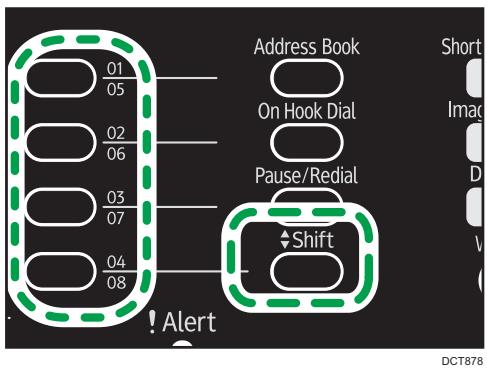

Note
- You can check the registered names and fax numbers by printing a report. For printing the Quick Dial list, see page 148 "Printing Lists/Reports".
Specifying the destination using Speed Dial
1. Press the [Facsimile] key.
![RICOH AFICIO SP 213SFNW - Press the [Facsimile] key. - 1](/content/2019/10/8743/images/46c2df1c2797069355af055728b21446f9dc6174871bbc31646917634ef262cd.jpg)
2. Press the [Address Book] key.
![RICOH AFICIO SP 213SFNW - Press the [Address Book] key. - 1](/content/2019/10/8743/images/90d6acc8c324686b4f744212dc15281f6c737aa0a1bb9efd3196598416d0ae5f.jpg)
3. Press the [] or [] key to select [Search Address Book], and then press the [OK] key.
If you want to search for a specific entry by its registration number or name, use the following procedure:
- Searching by the registration number
Press the [Address Book] key again, enter the number using the number keys, and then press the [OK] key.
- Searching by the name
Enter the first letters of the name using the number keys, and then press the [OK] key. Each time you enter a character, the display changes to show the matching name.
4. Press the [] or [] key to select the desired Speed Dial entry, and then press the [OK] key.
For registering the Speed Dial entries, see page 100 "Registering Fax Destinations".
![RICOH AFICIO SP 213SFNW - Press the [] or [] key to select the desired Speed Dial entry, and then press the [OK] key. - 1](/content/2019/10/8743/images/98c736fe151185207d68cee053f1a8b884ccfa44d046605c3a2d1246cff0b8ed.jpg)
Note
-
The Address Book shows only the Speed Dial entries. Use the One Touch buttons to specify Quick Dial destinations.
-
You can check the registered names and fax numbers by printing a report. For printing the Speed Dial list, see page 148 "Printing Lists/Reports".
**Specifying the destination using the broadcast function**
You can send a fax to multiple destinations (up to 100 destinations) simultaneously.
Faxes are sent to destinations in the order they were specified.
1. Press the [Facsimile] key.
![RICOH AFICIO SP 213SFNW - Press the [Facsimile] key. - 1](/content/2019/10/8743/images/94d41008582dfdfa50e55a620d02314d8a856c7e48ff0ac82e3f9634244558db.jpg)
2. Add a destination by using one of the following methods:
- To add a Quick Dial destination: press a corresponding One Touch button.
- To add a Speed Dial destination: press the [Address Book] key, select [Search Address Book], select a destination, and then press the [OK] key.
- To add a manually-specified destination: confirm that [No.key] is pressed, and then enter the destination fax number using the number keys.
3. Press the [OK] key.
Press [List] to see the list of destinations that have been added so far.
Go back to Step 2 to add further destinations.
![RICOH AFICIO SP 213SFNW - Press the [OK] key. - 1](/content/2019/10/8743/images/c3f619980e11cef38effb3c85f5bb175e323ef17fccbcb5b51d930acaa25b001.jpg)
Note
- While specifying multiple destinations, you can press the [Clear/Stop] key to clear all destinations.
- If you specify multiple destinations in Immediate Transmission mode, the mode switches to Memory Transmission mode temporarily.
- While broadcasting, pressing the [Clear/Stop] key cancels the fax to the current destination only.
**Specifying the destination using the radial function**
You can specify the last used destination as the destination for the current job.
This function saves time when you are sending to the same destination repeatedly, as you do not have to enter the destination each time.
- Press the [Facsimile] key.
DCT849
- Press the [Pause/Redial] key.
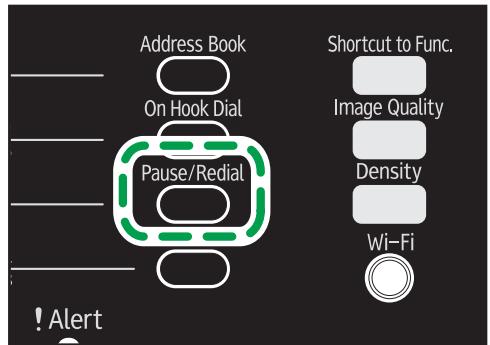
DCT877
Useful Sending Functions
You can check the status of the other party's machine easily before sending a fax by using the On Hook Dial function. Using an extra telephone, you can talk and send a fax in one call.

Important
- This function is available in Immediate Transmission mode only. Even if [Immediate TX] is set to [Off], it automatically switches to [On].
The procedure differs depending on whether [Operation] is set to [Easy Mode] or [Advanced Mode] in [Fax Features].
Sending a fax using On Hook Dial
The On Hook Dial function allows you to check the destination's status while listening to the tone from the internal speaker. This function is useful when you want to ensure that the fax will be received.

Important
-
The On Hook Dial function cannot be used when [Fax Number Confirmation] under administrator settings is enabled.
-
Place the original on the exposure glass or in the ADF.
If [Operation] is set to [Easy Mode], you cannot send faxes using the exposure glass.
- Press the [Facsimile] key.
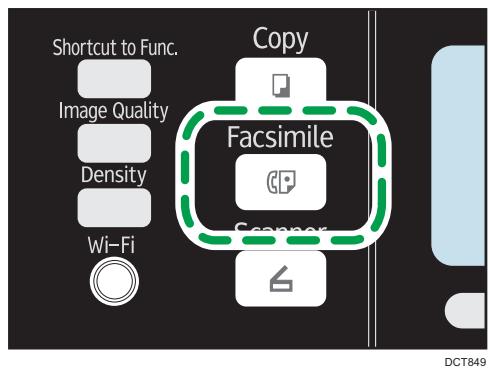
- Press the [On Hook Dial] key.
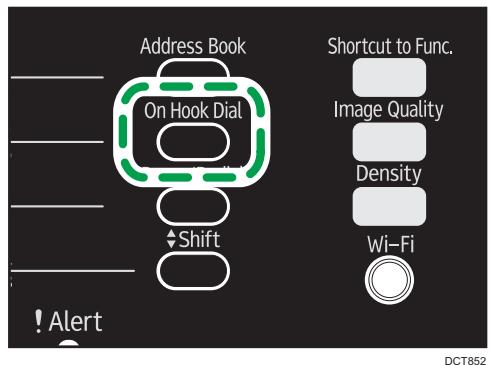
"On Hook" appears on the screen.
-
Specify the destination using the number keys.
-
If you hear a high pitched tone, press the [Start] key.
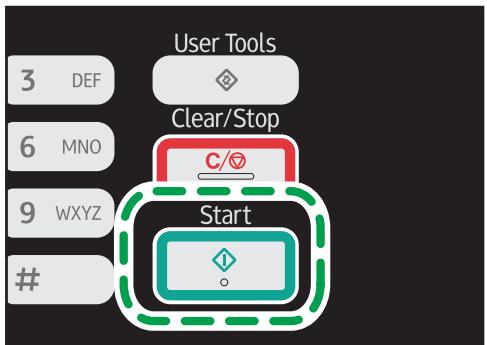
DCT847
If [Operation] is set to [Easy Mode], Step 6 does not apply.
- If the original is placed on the exposure glass, press [TX], and then press the [Start] key.

Note
- For details about selecting the transmission mode, see page 103 "Selecting Transmission Mode".
- For details about [Fax Number Confirmation], see page 157 "Administrator Settings".
- For details about [Operation], see page 137 "Fax Features Settings".
Sending a fax after a conversation
An external telephone allows you to send a fax after finishing your conversation without having to disconnect and redial. This function is useful when you want to ensure that the fax has been received.
- Place the original on the exposure glass or in the ADF.
If [Operation] is set to [Easy Mode], you cannot send faxes using the exposure glass.
- Press the [Facsimile] key.
DCT849
- Pick up the handset of the external telephone.
- Specify the destination using the external telephone.
-
When the other party answers, ask them to press their fax start button.
-
If you hear a high pitched tone, press the [Start] key.
DCT847
If [Operation] is set to [Easy Mode], proceed to Step 8.
- If the original is placed on the exposure glass, press [TX], and then press the [Start] key.
- Replace the handset.

Note
- For details about [Operation], see page 137 "Fax Features Settings".
Specifying the Scan Settings
Adjusting image density
This section describes how to adjust image density for the current job.
There are three image density levels. The darker the density level, the darker the printout.
- Press the [Density] key.
DCT874
- Press the [] or [] key to select the desired density level, and then press the [OK] key.

Note
- You can change the machine's default [Density] setting to always scan with a specific density level. For [Density], see page 135 "Fax Transmission Features Settings".
Specifying the resolution
This section describes how to specify the scan resolution for the current job.
There are three resolution settings:
Standard
Select this when the original is a printed or typewritten document with normal-sized characters.
Detail
Select this when the original is a document with small print.
Photo
Select this when the original contains images such as photographs or shaded drawings.
- Press the [Image Quality] key.
- Press the [] or [] key to select the desired resolution setting, and then press the [OK] key.

Note
- You can change the machine's default [Resolution] setting to always scan with a specific resolution level. For [Resolution], see page 135 "Fax Transmission Features Settings".
Using the Fax Function from a Computer (PC FAX)
This section describes how to use the fax function of the machine from a computer.
You can send a document directly from a computer through this machine to another fax machine, without printing the document.
Basic Operation for Sending Faxes from a Computer
This section describes the basic operation for sending faxes from a computer.
You can select a destination from the PC FAX address book or enter a fax number manually. You can send faxes to up to 100 destinations at once.
The procedure in this section is an example based on Windows 7.

Important
-
Before sending a fax, the machine stores all the fax data in memory. If the machine's memory becomes full while storing this data, the fax transmission will be canceled. If this happens, lower the resolution or reduce the number of pages and try again.
-
Open the file you want to send.
- On the [File] menu, click [Print...].
- Select the PC FAX driver as the printer, and then click [Print].
-
Specify a destination.
-
To specify a destination from the PC FAX address book:
Select a destination from [User List:], and then click [Add to List].
Repeat this step to add more destinations.
To enter a fax number directly:
Click the [Specify Destination] tab, and enter a fax number (up to 40 digits) in [Fax Number:], and then click [Add to List].
Repeat this step to add more destinations.
- To attach a cover sheet, click [Edit Cover Sheet] on the [Specify Destination] tab, and then select the [Attach a Cover Sheet] check box.
- Click [Send].

Note
- For details, see the PC FAX driver Help.
-
A fax number can contain 0 to 9, "P" (pause), "X", and "#".
-
To use tone services on a pulse-dialing line, insert "X" in a fax number. "X" switches the dialing mode from pulse to tone temporarily.
- To delete an entered destination, select the destination in [Destination List:], and then click [Delete from List].
Canceling a fax
You can cancel sending a fax using either the machine's control panel or your computer, depending on the status of the job.
Canceling while the machine is receiving a fax from the computer
If the machine is shared by multiple computers through a print server, be careful not to cancel another user's fax.
- Double-click the printer icon on the task bar of your computer.
- Select the print job you want to cancel, click the [Document] menu, and then click [Cancel].
Canceling a fax using the control panel
Cancel the fax using the control panel.
- Press the [Facsimile] key.
- Press the [Clear/Stop] key.
Configuring Transmission Settings
This section describes how to configure transmission settings in the PC FAX driver's properties.
Properties are set separately for each application.
- On the [File] menu, click [Print...].
- Select the PC Fax driver as the printer, and then click a button such as [Preferences]. PC FAX driver properties dialog box appears.
- Configure settings as necessary, and then click [OK].
Configuring the PC FAX Address Book
This section describes the PC FAX address book. Configure the PC FAX address book on the computer. The PC FAX address book allows you to specify PC FAX destinations quickly and easily.
The PC FAX address book can contain up to 1000 entries, including individual destinations and groups of destinations.
Opening the PC FAX address book
This section describes how to open the PC FAX address book.
- On the [Start] menu, click [Devices and Printers].
- Right-click the PC FAX driver icon, and then click [Printing Preferences...].
- Click the [Address Book] tab.
Registering destinations
This section describes how to register destinations in the PC FAX address book.
- Open the PC FAX address book, and then click [Add User].
- Enter the destination information.
You must enter a contact name and fax number.
- Click [OK].
Registering groups
This section describes how to register groups of destinations.
A group can contain up to 100 individual destinations.
- Open the PC FAX address Book, and then click [Add Group].
- Enter the group name in [Group Name].
- Select the destination you want to include in the group from [User List:], and then click [Add].
- Click [OK].
Exporting/Importing PC FAX Address Book data

Important
- The following procedure is based on Windows 7 as an example. If you are using another operating system, the procedure might vary slightly.
Exporting PC FAX Address Book data
PC FAX Address Book data can be exported to a file in CSV (Comma Separated Values) format. Follow this procedure to export PC FAX Address Book data.
- Open the PC FAX Address Book, and then click [Export].
- Navigate to the location to save the PC FAX Address Book data, specify a name for the file, and then click [Save].
Importing PC FAX Address Book data
PC FAX Address Book data can be imported from files in CSV format. You can import address book data from other applications if the data is saved as a CSV file.
Follow this procedure to import PC FAX Address Book data. To import address book data from other applications, you must select the appropriate items to import.
- Open the PC FAX Address Book, and then click [Import].
- Select the file containing the address book data, and then click [Open].
A dialog box for selecting the items to import appears.
- For each field, select an appropriate item from the list.
Select [^empty^] for fields for which there is no data to import. Note that [^empty^] cannot be selected for [Name] and [Fax].
- Click [OK].
For details about the settings, see the PC FAX driver Help.

Note
- CSV files are exported using Unicode encoding.
PC FAX Address Book data can be imported from CSV files whose character encoding is Unicode or ASCII. - Group data cannot be exported or imported.
- Up to 1000 destinations can be registered in the PC FAX Address Book. If this limit is exceeded during importing, the remaining destinations will not be imported.
Editing a Fax Cover Sheet
This section describes how to edit a fax cover sheet in the PC FAX driver's properties.
- On the [File] menu, click [Print...].
- Select the PC FAX driver as the printer, and then click [Print].
- Click the [Specify Destination] tab, and then click [Edit Cover Sheet].
- Configure settings as necessary, and then click [OK].
For details about the settings, see the PC FAX driver Help.
Receiving a Fax

Important
- When receiving an important fax, we recommend you confirm the contents of the received fax with the sender.
- The machine may not be able to receive faxes when the amount of free memory space is low.

Note
- An external telephone is required to use this machine as a telephone.
- Only A4, Letter, or Legal size paper can be used for printing faxes.
Selecting Reception Mode
The reception modes are as follows:
When using the machine only as a fax machine
Select the following mode when no external telephone or telephone answering device is connected:
- Fax Only mode (auto reception)
In this mode, the machine is used only as a fax machine and receives faxes automatically.
When using the machine with an external device
Select one of the following modes when the handset, external telephone or telephone answering device is connected:
- FAX/TEL Manual mode (manual reception)
In this mode, you must answer calls with the handset, external telephone. If a call is a fax call, you must start the fax reception manually.
- Fax Only mode (auto reception)
In this mode, the machine automatically answers all incoming calls in fax reception mode.
- FAX/TAD mode (auto reception)
In this mode, you can use the machine with an external telephone answering device.
- Press the [User Tools] key.
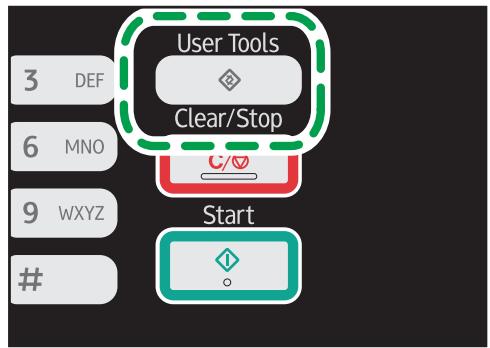
DCT845
- Press the [] or [] key to select [Fax Features], and then press the [OK] key.
- Press the [] or [] key to select [Reception Settings], and then press the [OK] key.
- Press the [] or [] key to select [Switch Reception Mode], and then press the [OK] key.
- Press the [], [], [] , or [] key to select the desired reception mode, and then press the [OK] key.
- Press the [User Tools] key to return to the initial screen.
Receiving a fax in FAX/TEL Manual mode

Important
- The procedure differs depending on whether [Operation] is set to [Easy Mode] or [Advanced Mode] in [Fax Features].
-
To receive taxes, be sure to first remove any originals loaded in the ADF.
-
Pick up the handset of the external telephone to answer the call.
A normal telephone call starts.
The sender can first phone you to tell you they are sending a fax.
- When you hear a fax calling tone or no sound, press the [Facsimile] key.
- Press the [Start] key.
If [Operation] is set to [Easy Mode], proceed to Step 6.
- Press [RX].
- Press the [Start] key.
- Replace the handset.

Note
- For details about [Operation], see page 137 "Fax Features Settings".
Receiving a fax in Fax Only mode
When the reception mode is set to Fax Only mode, the machine automatically answers all incoming calls in fax reception mode.
Note
- You can specify the number of times the machine rings before answering a call in the [Number of Rings] setting under [Fax Features]. For [Number of Rings], see page 137 "Fax Features Settings".
- If you answer a call with the external telephone while the machine is ringing, a normal telephone call starts. If you hear a fax calling tone or no sound, receive the fax manually. To receive the fax manually, see page 121 "Receiving a fax in FAX/TEL Manual mode".
Receiving a fax in FAX/TAD mode
When the reception mode is set to FAX/TAD mode, the external telephone answering device answers and records messages when the machine receives telephone calls. If the incoming call is a fax call, the machine receives the fax automatically.
- When there is an incoming call, the external telephone answering device rings.
If the external telephone answering device does not answer, the machine starts to receive the fax automatically.
If you answer a call with the external telephone while the machine is ringing, a normal telephone call starts. If you hear a fax calling tone, wait until "Receiving..." appears on the display. The machine starts to receive faxes. If the message "Receiving..." does not appear, receive the fax manually.
-
If the external telephone answering device answers, the machine monitors silence on the line for 30 seconds (silence detection).
-
If a fax calling tone or no sound is detected, the machine starts to receive the fax automatically.
- If a voice is detected, a normal telephone call starts. The external telephone answering device records messages.
Note
- You can manually receive a fax during silence detection.
- Silence detection does not terminate for 30 seconds even if the external telephone answering device goes on-hook, unless you press the [Clear/Stop] key and disconnect the call.
Forwarding or Storing Faxes in Memory
To prevent unauthorized users from seeing sensitive faxes, you can set the machine to forward received faxes to a preset destination, or store them in memory without printing them out.

Important
- This function is available for the Type 5 and 6 models only.

Note
- The table below shows what happens after forwarding succeeds or fails depending on the machine's configuration.
| Forwarding | [Print Received File] | Results |
| Success | Automatic | The machine prints out the fax and deletes it from memory. |
| Success | Manual | The machine stores the fax in memory for later manual printing. |
| Failure | Automatic | The machine prints out a forwarding failure report, prints out the fax, and then deletes it from memory. |
| Failure | Manual | The machine prints out a forwarding failure report and stores the fax in memory for later manual printing. |
- If the machine is unable to print out a fax due to machine errors such as an empty paper tray or a paper jam, the fax will remain in memory. The remaining pages will start printing as soon as the problem is resolved.
- The number of forwarding attempts and the attempt interval time can be specified using Web Image Monitor. For details about the forwarding destination, forwarding trials and interval settings, see page 169 "Configuring the System Settings".
Forwarding settings
To specify the forwarding conditions for received faxes, configure the machine as follows:
- Press the [User Tools] key.
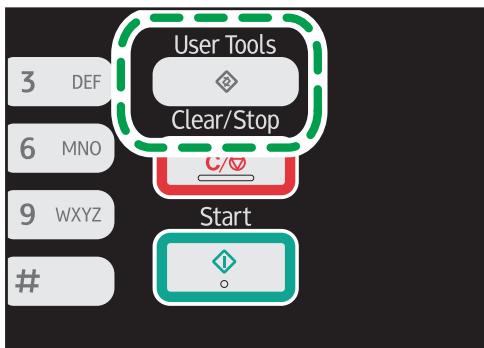
DCT845
- Press the [] or [] key to select [Fax Features], and then press the [OK] key.
- Press the [] or [] key to select [Reception Settings], and then press the [OK] key.
- Press the [] or [] key to select [Reception File Processing], and then press the [OK] key.
- Press the [] or [] key to select [Forward & Print], and then press the [OK] key.
To send e-mail notifications after faxes are forwarded, proceed to Step 6. If not, proceed to Step 8.
- Press the [] or [] key to select [Notify Forward Status], and then press the [OK] key.
-
Press the [] or [] key to select [On], and then press the [OK] key.
-
[On]: Send an e-mail notification after forwarding. E-mail notification destination depends on how the forwarding destination is configured.
-
[Off]: An e-mail notification is not sent.
-
Press the [User Tools] key to return to the initial screen.
**Specifying the forwarding destination using Web Image Monitor**
- Start the Web browser, and access the machine by entering its IP address.
- Click [System Settings].
- Click the [Fax] tab.
- Specify the forwarding destination in [Forwarding Destination].
[E-mail Address]: Enter a destination e-mail address.
[Scan Destination]: Select a scan destination as a forwarding destination.
- Click [OK].
- Close the Web browser.
For details about using Web Image Monitor, see page 163 "Using Web Image Monitor".
Configuring the storing conditions
To specify the storing conditions for received taxes, configure the machine as follows:
- Press the [User Tools] key.
- Press the [] or [] key to select [Fax Features], and then press the [OK] key.
- Press the [] or [] key to select [Reception Settings], and then press the [OK] key.
- Press the [] or [] key to select [Reception File Processing], and then press the [OK] key.
- Press the [] or [] key to select [Print] or [Forward & Print], and then press the [OK] key.
-
Press the [] or [] key to select [Print Received File], and then press the [OK] key.
-
Press the [] or [] key to select [Automatic] or [Manual], and then press the [OK] key.
-
[Automatic]: Automatically print out the received faxes and delete from memory.
-
[Manual]: Store the received faxes in memory for later manual printing.
-
Press the [User Tools] key to return to the initial screen.
When the fax is successfully printed out, it will be deleted from memory.
If the machine is unable to print out a fax due to machine errors such as an empty paper tray or a paper jam, the fax will remain in memory. The remaining pages will start printing as soon as the problem is resolved.
Printing Out Faxes Stored in Memory
This section explains how to print out received faxes stored in the machine's memory.
If the Power indicator flashes, there is a fax in machine's memory. Follow the procedure below to print the fax.
- Press the [User Tools] key.
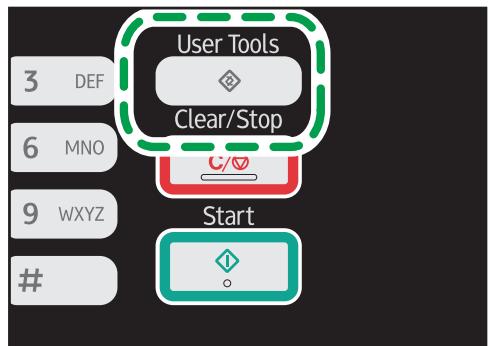
DCT845
- Press the [] or [] key to select [Fax Features], and then press the [OK] key.
- Press the [] or [] key to select [Reception Settings], and then press the [OK] key.
- Press the [] or [] key to select [RX Store File], and then press the [OK] key.
- Press the [] or [] key to select [Print Selected File], and then press the [OK] key.
- Press the [] or [] key to select the print job, and then press the [OK] key.
- Press [Yes].
- Press the [User Tools] key to return to the initial screen.
Lists/Reports Related to Fax
The lists and reports related to the fax function are as follow:
Fax Journal
Prints a fax transmission and reception journal for the last 100 jobs.
TX Status Report
Prints out the latest Transmission result.
TX/RX Standby File List
Prints a list of unsent fax jobs remaining in the machine's memory.
Power Failure Report
Prints a report when the machine's power has been interrupted while sending or receiving a fax, or images stored in the machine's memory have been lost due to the machine being turned off for a prolonged period of time.
- Fax Speed Dial Dest. List
Prints a list of Speed Dial entries.
- Quick Dial Dest. List
Prints a list of scan and fax Quick Dial entries.
Forward Failure Report
This report is printed if forwarding fails.
Note
For more information on Fax Journal and TX Status Report, see page 137 "Fax Features Settings".
- Repots will be printed on A4, Letter or Legal size paper. Load one of these sizes of paper into the tray before printing reports. For details about loading paper, see page 41 "Loading Paper".
7. Configuring the Machine Using the Control Panel
Basic Operation
There are two main ways to access the machine settings:
- Press the [User Tools] key to access the System or Network settings.
- Press the [<] or [>] key to access the Copy, Scan, or Fax settings.
To check which category the function you want to configure belongs to, see page 129 "Menu Chart".
- If you want to configure the machine's system settings, press the [User Tools] key.
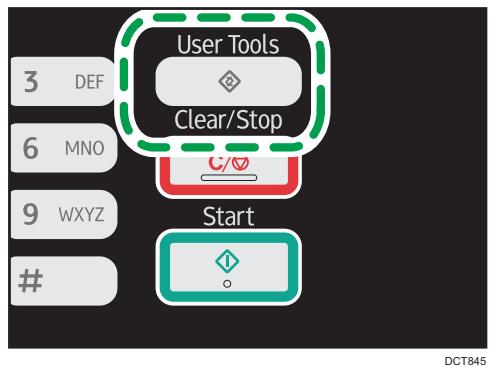
Otherwise, press the [<] or [>] key while "Ready" is displayed on the initial screen of the Copy, Scan, and Fax settings.
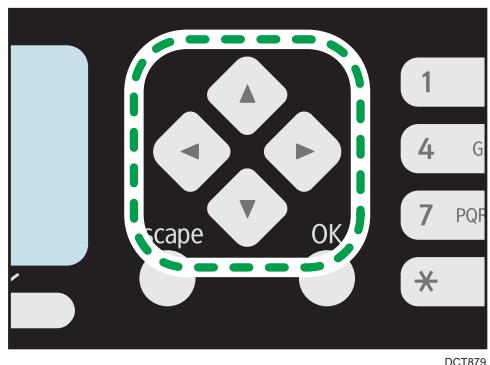
- Press the [] or [] key to select the settings you want to use.
If you select [Address Book], [Network Settings], or [Admin. Tools] menu, you might be requested to enter a password. Enter the four-digit password, and then press the [OK] key. For details about the password, see [Admin. Tools Lock] on page 157 "Administrator Settings".
- To confirm setting items and values displayed, press the [OK] key.
- To go back to the previous item, press the [Escape] key.

Note
- To return to the initial screen, press the [Escape] key the same amount of times as the number of selected items, or press the [User Tools] key once.
- With Type 1 models, press the [▲] or [▼] key to access the Copy setting. To specify [Scan Settings], insert the USB flash drive and select the settings using the [▲] or [▼] key.
Menu Chart
This section lists the parameters included in each menu.
For details about configuring the machine using Web Image Monitor, see page 163 "Configuring the Machine Using Utilities".

Important
- Some items might not appear depending on the model type or machine's configuration.
- Some items can also be configured using Web Image Monitor.
Copier Features ([4] [key setting)
For details, see page 130 "Copier Features Settings"
Scan Settings ([4] [key setting)
For details, see page 133 "Scanner Features Settings"
Fax TX Settings ([<] [>] key setting)
For details, see page 135 "Fax Transmission Features Settings"
Fax Features ([User Tools] key setting)
For details, see page 137 "Fax Features Settings"
Address Book ([User Tools] key setting)
For details, see page 142 "Address Book Settings"
System Settings ([User Tools] key setting)
For details, see page 143 "System Settings"
Network Settings ([User Tools] key setting)
For details, see page 153 "Network Settings"
Print List/Report ([User Tools] key setting)
For details, see page 148 "Printing Lists/Reports"
Admin. Tools ([User Tools] key setting)
For details, see page 157 "Administrator Settings"
Printer Features ([User Tools] key setting)
For details, see page 150 "Printer Features Settings"
Copier Features Settings
Select Paper Tray
Select the paper tray used for copying.
Default: [Tray 1]
- Tray 1
- Bypass Tray
Sort
Configures the machine to sort the output pages into sets when making multiple copies of a multi-page document (P1, P2, P1, P2...).
Default:[Off]
On
- Off
Original Type
Specifies the content of originals, to optimize copy quality.
Default: [Mixed]
- Mixed
Select this when the original contains both text and photographs or pictures.
Text
Select this when the original contains only text and no photographs or pictures.
- Photo
Select this when the original contains photographs or pictures. Use this mode for the following types of original:
Photographs
Pages that are entirely or mainly photographs or pictures, such as magazine pages.
Density
Specifies the image density for photocopying.
Increase the level (black squares) to increase the density.
Default: The default setting is the middle of 5 adjustment levels.
Reduce/Enlarge
Specifies the percentage by which copies are enlarged or reduced.
Default: [100%]
Region A (mainly Europe and Asia)
50%, 71% (A4->A5), 82% (B5J->A5), 93%, 100%, 122% (A5->B5J), 141% (A5->A4), 200%, 400%
Region B (mainly North America)
50%, 65% LT->HLT, 78% LG->LT, 93%, 100%, 129% HLT->LT, 155% HLT->LG, 200%, 400%
- Zoom 25-400%
Duplex/Combine
Specifies combined copying. Select a copy mode according to your original and how you want the copy outputs to appear. For more details, see page 65 "Making Combined/2-sided Copies".
Note that enabling combined copying automatically disables ID card copying.
Default:[Off]
- Off
- 1Sd 2Orig->Comb 2on1 1Sd
Copy will be made on 1 side, on which 2 pages of 1-sided original will be printed.
- Portrait
-
Landscape
-
1Sd 4Orig->Comb 4on1 1Sd
Copy will be made on 1 side, on which 4 pages of 1-sided original will be printed.
- Portrait: L to R
- Portrait: T to B
- Landscape: L to R
- Landscape: T to B
1 Sided Orig->2 Sided Copy
Copies two 1-sided pages on one 2-sided page.
- Portrait: T to T
- Portrait: T to B
- Landscape: T to T
-
Landscape: T to B
-
1Sd 4Orig->Comb 2on1 2Sd
Copies four 1-sided pages on two 2-sided pages.
- Portrait: T to T
- Portrait: T to B
- Landscape: T to T
-
Landscape: T to B
-
1Sd 8Orig->Comb 4on1 2Sd
Copies eight 1-sided pages on four 2-sided pages.
- Portrait: L to R, T to T
- Portrait: L to R, T to B
- Portrait: T to B, T to T
- Portrait: T to B, T to B
- Landscape: L to R, T to T
- Landscape: L to R, T to B
- Landscape: T to B, T to T
- Landscape: T to B, T to B
ID Card Settings
You can specify the ID Card Copy setting.
ID Card Copy
If you set this to [On], the settings specified in [ID Card Settings] are applied to printed copies.
Default:[Off]
On
- Off
ID Card Center Line
Specify whether to draw a center line when making ID card copy.
Default: [Do not Print]
-
Do not Print
-
ID Card Size
You can change the ID card copy scanning size.
mm
- inch
Default:
Region A (mainly Europe and Asia)
Horiz: 54 mm
Vert: 86 mm
Region B (mainly North America)
Horiz: 2.12 inch
Vert: 3.38 inch
Scanner Features Settings
Scan Size
Specifies the scanning size according to the size of the original.
Default:
Region A (mainly Europe and Asia)
[A4]
Region B (mainly North America)
[81/2×11]
- 81 / 2 × 14, 81 / 2 × 11, 81 / 2 × 51 / 2, 71 / 4 × 101 / 2, A4, B5, A5, 16K, Custom Size
Scanning Mode
Specifies the scanning mode using the control panel.
Default: [B&W]
B&W
The machine creates 1-bit black-and-white images. Images contain only black and white colors.
Color
The machine creates 8-bit color images. Images are full color.
Gray Scale
The machine creates 8-bit black-and-white images. Images contain black and white, and intermediate gray colors.
Max. E-mail Size
Specifies the maximum size of a file that can be sent by e-mail.
Default: [1 MB]
1MB
- 2 MB
- 3 MB
4MB
- 5 MB
No Limit
Density
Specifies the image density for scanning originals.
Increase the level (black squares) to increase the density.
Default: The default setting is the middle of 5 adjustment levels.
Resolution
Specifies the resolution for scanning the original.
Default: [300 × 300dpi]
100× 100dpi
150× 150dpi
200× 200dpi
300× 300dpi
400× 400dpi
600× 600dpi
Compression (Color)
Specifies the color compression ratio for JPEG files. The lower the compression ratio, the higher the quality but greater the file size.
Default: [Medium]
Low
Medium
High
Limitless Scan
Sets the machine to request next originals when scanning with the exposure glass.
Default: [Off]
- Off
On
File Type
Specifies whether to create a multi-page file containing all pages or separate single-page files when scanning multiple pages.
Note that a scanned file can contain multiple pages only when the file format is PDF or TIFF. If the file format is JPEG, a single-page file is created for each scanned page.
Default: [Multi-page]
Multi-page
A multi-page file containing all pages is created.
- Single Page
A single-page file is created for each page.
Fax Transmission Features Settings
Immediate TX
Sets the machine to send a fax immediately when the original is scanned.
Default: [Off]
- Off
Select this when using Memory Transmission.
On
Select this when using Immediate Transmission.
Next Fax Only
Select this when using Immediate Transmission for the next transmission only.
Resolution
Specifies the resolution to use for scanning originals.
Default: [Standard]
Standard
Select this when the original is a printed or typewritten document with normal-sized characters.
- Detail
Select this when the original is a document with small print.
- Photo
Select this when the original contains images such as photographs or shaded drawings.
Density
Specifies the image density to use for scanning originals.
Default: [Normal]
Light
Normal
Dark
Pause Time
Specifies the length of pause time when a pause is inserted between the digits of a fax number.
Default: 3 seconds
1 to 15 seconds
Auto Redial
Sets the machine to radial the fax destination automatically when the line is busy or a transmission error occurs, if the machine is in Memory Transmission mode. The number of radial attempts is
preset to two or three times, depending on the [Country] setting under [Admin. Tools], in five-minute intervals.
Default: [On]
- Off
On
Print Fax Header
Sets the machine to add a header to every fax you send. The header includes the current date and time, user fax name and fax number of the machine, job ID, and page information.
Default:[On]
- Off
On
Fax Features Settings
Reception Settings
Specifies the settings for receiving a fax.
- Switch Reception Mode
Specifies the reception mode.
Default: [Fax Only]
- Fax Only
The machine automatically answers all incoming calls in fax reception mode.
FAX/TEL(Mnl.)
The machine rings when it receives incoming calls. The machine receives faxes only when you manually receive faxes.
- FAX/TAD
The machine receives faxes automatically when a fax call is received. Otherwise, the connected telephone answering device answers the call.
- Auto Reduction
Sets the machine to reduce the size of a received fax if it is too large to print on a single sheet of paper.
Note that the machine only reduces the size down to 74% . If further reduction is required to fit the fax on a single sheet, it will be printed on separate sheets without being reduced.
Default:[On]
(Default may be [Off] depending on the [Country] setting under [Admin. Tools].)
- Off
On
Number of Rings
Specifies the number of times the machine rings before it starts to receive faxes in Fax Only mode.
Default: 3 times
3 to 5 times, in increments of 1
RX Store File
You can print or delete received faxes.
- Print Selected File
You can select and print received faxes.
- Delete Selected File
You can select and delete received faxes.
-
Delete All Files
-
Reception File Processing
Sets the machine to store received faxes into memory for printing or forward them to a preset destination.
Use Web Image Monitor to specify the forwarding destination (for details, see page 169 "Configuring the System Settings").
Default: [Print]
-
Print
Forward & Print -
Print Received File
Sets the machine to automatically print the faxes received into memory or store them for later manual printing.
Default: [Automatic]
Automatic
Automatically print out the received faxes and delete from memory.
- Manual
Store the received faxes in memory for manual printing.
- Notify Forward Status
Sets the machine to send e-mail notifications after faxes are forwarded. The e-mail notification destination depends on how the forwarding destination is configured using Web Image Monitor (for details, see page 169 "Configuring the System Settings").
Default:[Off]
On
- Off
Delete TX Standby File
Deletes unsent fax jobs remaining in the machine's memory. The machine can store up to 5 unsent fax jobs.
This function is only performed when selected.
- Delete Selected File
To delete a fax job, select the desired job, and then select [Yes]. Selecting [No] exits to the previous level of the menu tree without deleting the fax job.
- Delete All Files
To delete the fax jobs, select [Yes]. Selecting [No] exits to the previous level of the menu tree without deleting the fax job.
Communication Settings
- ECM Transmission
Sets the machine to automatically resend parts of the data that are lost during transmission.
Default:[On]
-
Off
On -
ECM Reception
Sets the machine to automatically receive parts of the data that are lost during reception.
Default:[On]
-
Off
On -
Dial Tone Detect
Sets the machine to detect a dial tone before the machine begins to dial the destination automatically.
Default: [Detect]
(Default may be [Not Detect] depending on the [Country] setting under [Admin. Tools].)
- Detect
- Not Detect
Transmission Speed
Specifies the transmission speed for the fax modem.
Default: [33.6 Kbps]
33.6Kbps
14.4 Kbps
9.6 Kbps
7.2 Kbps
4.8Kbps
2.4 Kbps
- Reception Speed
Specifies the reception speed for the fax modem.
Default: [33.6 Kbps]
33.6Kbps
14.4 Kbps
9.6 Kbps
7.2 Kbps
4.8Kbps
2.4Kbps
Report Print Settings
Print TX Status Report
Sets the machine to print a transmission report automatically after a fax transmission.
When the machine is in Immediate Transmission mode, the image of the original will not be reproduced on the report, even if [Error Only (Image Attached)] or [Every TX (Image Attached)] is selected.
Note that if a memory error occurs for PC FAX transmission, a transmission report will always be printed regardless of this setting.
Default: [Error Only (Image Attached)]
- Error Only
Prints a report when a transmission error occurs.
- Error Only (Image Attached)
Prints a report with an image of the original when transmission error occurs.
Every TX
Prints a report for every fax transmission.
- Every TX (Image Attached)
Prints a report with an image of the original for every fax transmission.
- Do not Print
Print Fax Journal
Sets the machine to print a fax journal automatically for every 50 fax jobs (both sent and received).
Default: [Auto Print]
Auto Print
- Do not Auto Print
Operation
You can simplify the procedure for sending and receiving faxes by disabling the use of the exposure glass. If originals are loaded in the ADF, you can fax them using the ADF in either mode by pressing the [Start] key.
Default: [Advanced Mode]
Easy Mode
If you select [Easy Mode], you can receive faxes by pressing the [Start] key. The exposure glass cannot be used in this mode.
Advanced Mode
If you select [Advanced Mode], you can specify whether to send or receive taxes after pressing the [Start] key.
Address Book Settings
Quick Dial Dest.
Specifies the fax number and name for Quick Dial entries. You can register up to 8 Quick Dial entries.
No.
Specifies the Quick Dial number.
Fax No.
Specifies the fax number for Quick Dial entries. The fax number can contain up to 40 characters, including 0 to 9, pause, "×", "#", and space.
Name
Specifies the name for Quick Dial entries. The name can contain up to 20 characters.
Fax Speed Dial Dest.
Specifies the fax number and name for Speed Dial entries. You can register up to 100 Speed Dial entries.
No.
Specifies the Speed Dial number.
Fax No.
Specifies the fax number for Speed Dial entries. The fax number can contain up to 40 characters, including 0 to 9, pause, "*", "#", and space.
Name
Specifies the name for Speed Dial entries. The name can contain up to 20 characters.
System Settings
Adjust Sound Volume
Specifies the volume of the sounds produced by the machine.
Default: [Low] for [Panel Key Sound], and [Middle] for other parameters.
- Panel Key Sound
Specifies the volume of the beep that sounds when a key is pressed.
-
Off
Low
Middle
High -
On Hook Mode
Specifies the volume of the sound from the speaker during on hook mode.
- Off
Low
Middle
High
Job End Tone
Specifies the volume of the beep that sounds when a job is complete.
- Off
Low
Middle
High
Job Error Tone
Specifies the volume of the beep that sounds when a fax transmission error occurs.
- Off
Low
Middle
High
Alarm Volume
Specifies the volume of the alarm that sounds when an operation error occurs.
- Off
Low
Middle
High
Tray Paper Settings
Paper Size: Tray 1
Specifies the paper size for Tray 1.
Default:
Region A (mainly Europe and Asia)
[A4]
Region B (mainly North America)
[8^1 / _2× 11]
- A4, B5 JIS, A5, B6 JIS, A6, 8 1/2 × 14, 8 1/2 × 11, 5 1/2 × 8 1/2, 7 1/4 × 10 1/2, 16K (197 × 273), 16K (195 × 270), 16K (184 × 260), Custom Size
Paper Size: Bypass Tray
Specifies the paper size for bypass tray.
Default:
Region A (mainly Europe and Asia)
[A4]
Region B (mainly North America)
[8^1 / _2× 11]
- A4, B5 JIS, A5, B6 JIS, A6, 8 1/2 × 14, 8 1/2 × 11, 5 1/2 × 8 1/2, 7 1/4 × 10 1/2, 16K (197 × 273), 16K (195 × 270), 16K (184 × 260), Custom Size
Paper Type: Tray 1
Specifies the paper type for Tray 1.
Default: [Plain Paper]
- Plain Paper, Recycled Paper, Thick Paper, Thin Paper
Paper Type: Bypass Tray
Specifies the paper type for bypass tray.
Default: [Plain Paper]
- Plain Paper, Recycled Paper, Thick Paper, Thin Paper
Size Mismatch Detection
Sets the machine to report an error if the paper size does not match the print job's settings.
Default: [Off]
- Off
On
I/O Timeout
USB
Specifies how many seconds the machine waits for print data, if the data is interrupted while it is being sent from the computer via USB. If the machine does not receive any more data within the time specified here, the machine only prints the data it has received. If printing is frequently interrupted by data from other ports, increase the timeout period.
Default: [60 sec.]
15 sec.
60 sec.
300 sec.
Network
Specifies how many seconds the machine waits for print data, if the data is interrupted while it is being sent from the computer via network. If the machine does not receive any more data within the time specified here, the machine only prints the data it has received. If printing is frequently interrupted by data from other ports, increase the timeout period.
Default: [60 sec.]
15 sec.
60 sec.
300 sec.
- Fixed USB Port
Specifies whether the same printer/PC FAX driver can be used for multiple machines or not under USB connection.
Default: [Off]
- Off
You must install the printer/PC FAX driver separately for individual machines, because the machine other than the original will be recognized as a new device upon USB connection.
On
The same printer/PC FAX driver you have installed in your computer can be used with any machine other than the one originally used for installation, if the machine is of the same model.
Auto Continue
Sets the machine to ignore an error with paper size and continue printing. The printing stops temporarily when an error is detected, and restarts automatically after about ten seconds using the settings made on the control panel. However, if the size of paper specified on the control panel and that of the paper loaded in the paper tray or the paper size specified for the print job do not match when printing restarts, it may cause a paper jam.
Default: [Off]
- Off
On
Toner Saving
Sets the machine to print using a reduced amount of toner (for prints made by the copier function only).
Default: [Off]
- Off
On
Toner End Option
This setting is used to monitor the toner level.
Default: [Stop Printing]
- Stop Printing
Monitoring the toner level is enabled. The remaining toner level can be checked in the control panel and on the Web Image Monitor.
- Continue Printing
The machine no longer monitors the toner level. Even when the toner runs out, printing will continue and no messages will be displayed.
Supplies Status
- Print Cart.
Displays information about consumables. This information is displayed only if [Toner End Option] has been set to [Stop Printing].
If [Toner End Option] is set to [Continue Printing], "***" is displayed instead of the indicator above.
Printer Registration
Adjusts the position of the input tray. Adjust the value by using the [] or [] key.
To check the registration, print a test page.
Default: [0]
- Horiz: Tray 1 (-6 to +6 mm, in 1 mm increments)
- Vert: Tray 1 (-6 to +6 mm, in 1 mm increments)
- Horiz: Bypass Tray (-6 to +6 mm, in 1 mm increments)
- Vert: Bypass Tray (-6 to +6 mm, in 1 mm increments)
Low Humidity Mode
When the machine is used in a low humidity environment, black stripes with a few millimeters width may appear. Selecting [On] should prevent such black stripes from appearing.
Default: [Off]
On
- Off
Image Density
Adjusts the density of printing.
Default: 0
-3to+3
Fusing Unit Amelrtn.Mode
If the toner is not transferred properly, causing the paper to be stained, select [On] to improve transferability.
Default:[Off]
- Off
On
Printing Lists/Reports
Printing the Configuration Page
- Press the [User Tools] key.
DCT845
- Press the [] or [] key to select [Print List/Report], and then press the [OK] key.
- Press the [] or [] key to select [Configuration Page], and then press the [OK] key.
- Press [Yes] in the confirmation screen.
Types of Lists/Reports

Note
- Reports will be printed on A4, Letter or Legal size paper. Load one of these sizes of paper into the tray before printing reports.
Configuration Page
Prints general information and the current configurations of the machine.
You can check the firmware version on the configuration page.
By updating the firmware, you can resolve problems or add a number of new functions. For details about updating the firmware, see the Firmware Update Guide.
You can download the Firmware Update Guide from our Web site.
Fax Journal
Prints a fax transmission and reception journal for the last 50 jobs.
TX/RX Standby File List
Prints a list of fax jobs remaining in the machine's memory to be printed, sent, or forwarded.
Quick Dial Dest. List
Prints a list of scan and fax Quick Dial entries.
Fax Speed Dial Dest. List
Prints a list of Speed Dial entries.
- Sort by Speed Dial No.
Prints the list with the entries sorted by Speed Dial registration number.
Sort by Name
Prints the list with the entries sorted by name.
Scanner Dest. List
Prints a list of scan destinations.
Scanner Journal
Prints a scanner journal for the last 100 Scan to E-mail, Scan to FTP, and Scan to Folder transmissions.
Maintenance Page
Prints the maintenance page.
Test Page
Checks the results of print position adjustment.
This setting is only available with Type 1 and 4 models.
Printer Features Settings
List/Test Print
Prints lists showing configurations on the machine.
- Config. Page
Prints general information and the current configurations of the machine.
- Menu List
Prints the machine's function menus.
Test Page
Prints a test page for checking the single-sided printing condition. The test page contains network settings.
- PCL Font List
Prints installed PCL font list.
System
- Copies
Sets the machine to print the specified number of sets.
This setting is disabled if the number of pages to print is specified by the printer driver.
Default: 1
1 to 999
- Sub Paper Size
Sets the machine to print onto paper of another size if the specified paper is not loaded in any tray. Alternative sizes are preset to A4 and Letter.
Default: [Auto]
-
Auto
-
Off
-
Default Page Size
Specifies the paper size to be used when the paper size is not specified in the print job.
Default:
Region A (mainly Europe and Asia)
[A4]
Region B (mainly North America)
[ [81 / 2 \times 11] ]
A4,B5JIS,A5,B6JIS,A6,81/2×14,81/2×11,51/2×81/2,71/4×101/2,16K(197×273),16K(195×270),16K(184×260)
- Blank Page Print
Sets the machine to print blank pages.
When cover sheet printing is enabled from the printer driver, cover sheets are inserted even if you select [Off].
Note that this setting has lower priority than the printer driver's blank page setting.
Default:[On]
On
- Off
- Print Error Report
Sets the machine to print an error page when the machine detects a printer or memory error.
Default:[Off]
On
- Off
PCL Menu
Specifies conditions when using PCL for printing.
Orientation
Specifies the page orientation.
Default: [Portrait]
- Portrait
-
Landscape
-
Form Lines
Specifies the number of lines per page between 5 and 128.
Default:
Region A (mainly Europe and Asia)
[64]
Region B (mainly North America)
[60]
- Font Number
Specifies the ID of the default font you want to use between 0 and 89.
Default: 0
- Point Size
Specifies the point size you want to use for the default font between 4.00 and 999.75 in 0.25 increments.
Default: 12.00 points
Font Pitch
Specifies the number of characters per inch you want to use for the default font between 0.44 and 99.99 in 0.01 increments.
This setting is effective only for fixed-space fonts.
Default: 10.00 pitch
Symbol Set
Specifies the character set for the default font. The following sets are available:
Default: [PC-8]
-
Roman-8, Roman-9, ISO L1, ISO L2, ISO L5, PC-8, PC-8 D/N, PC-850, PC-852, PC-858, PC8-TK, Win L1, Win L2, Win L5, Desktop, PS Text, VN Intl, VN US, MS Publ, Math-8, PS Math, VN Math, Pifont, Legal, ISO 4, ISO 6, ISO 11, ISO 15, ISO 17, ISO 21, ISO 60, ISO 69, Win 3.0, MC Text, ISO L6, ISO L9, PC-775, PC-1004, Win Baltic
-
Courier Font
Specifies a courier-type font.
Default: [Regular]
- Regular
Dark
Ext.A4Width
Sets the machine to extend the width of the printable area of A4 size paper, reducing side margin width.
Default: [Off]
On
- Off
- Append CR to LF
Sets the machine to append a CR code to each LF code to print text data clearly.
Default:[Off]
On
- Off
Resolution
Specifies the print resolution in dots per inch.
Default: [600 × 600 dpi]
Network Settings

Important
- Depending on the settings you change, the machine might need to be restarted.
Ethernet
- MAC Address
Displays the machine's MAC address.
- Ethernet Speed
Displays the current Ethernet speed setting.
100Mbps Full Duplex
100Mbps Half Duplex
10Mbps Full Duplex
10Mbps Half Duplex
- Ethernet Unavailable
Appears when a network cable is not connected.
- Set Ethernet Speed
Specifies the speed for Ethernet communication. Select a speed that matches your network environment.
For most networks, the default setting is the optimum setting.
Default: [Auto Select]
- Auto Select
100Mbps Full Duplex
100Mbps Half Duplex
10Mbps Full Duplex
10Mbps Half Duplex
Wi-Fi
Wi-Fi Enable
Select whether to enable or disable Wireless LAN.
Default: [Enable]
- Disable
- Enable
If [Disable] is set, [Wi-Fi Key], [Wi-Fi Status], [MAC Address], [Current Connection], and [Setup Wizard] are not displayed.
Wi-Fi Key
Select the mode that appears if the [Wi-Fi] key is pressed.
Default: [Infrastructure Mode]
Infrastructure Mode
- Ad-Hoc Mode
Wi-Fi Status
Displays the current connection status.
- MAC Address
Displays the machine's MAC address.
- Current Connection
Displays detailed information about the connection, such as the SSID and the wireless signal strength.
- Setup Wizard
Displays the procedure for manually connecting to a wireless LAN. It leads you step-by-step through configuring the settings for connecting with a wireless LAN.
IPv4 Configuration
DHCP
Sets the machine to receive its IPv4 address, subnet mask, and default gateway address automatically from a DHCP server.
Default: [Active]
Inactive
Active
IP Address
Specifies the machine's IPv4 address when DHCP is not used.
Use this menu to check the current IP address when DHCP is used.
Default: XXX.XXX.XXX.XXX
The numbers represented by "X" vary according to your network environment.
- Subnet Mask
Specifies the machine's subnet mask when DHCP is not used.
Use this menu to check the current subnet mask when DHCP is used.
Default: XXX.XXX.XXX.XXX
The numbers represented by "X" vary according to your network environment.
- Gateway Address
Specifies the machine's default gateway address when DHCP is not used.
Use this menu to check the current default gateway address when DHCP is used.
Default: XXX.XXX.XXX.XXX
The numbers represented by "X" vary according to your network environment.
- IP Address Method
Displays the IP address acquisition method.
- IP Not Ready
DHCP - Auto IP
- Manual Config.
- Default IP
IPv6 Configuration
IPv6
Select whether to enable or disable IPv6.
Default: [Active]
Active
Inactive
DHCP
Sets the machine to receive its IPv6 address from a DHCP server.
Default: [Inactive]
Active
Inactive
- IP Address (DHCP)
Displays the IPv6 address obtained from a DHCP server.
-
Manual Config. Address
-
Manual Config. Address
Specifies the machine's IPv6 address when DHCP is not used. Can contain up to 39 characters.
For details about entering characters, see page 99 "Entering Characters".
- Prefix Length
Specifies the prefix length, using a value between 0 and 128.
- Gateway Address
Specifies the IPv6 address of the default gateway. Can contain up to 39 characters.
For details about entering characters, see page 99 "Entering Characters".
- Stateless Address
Displays the IPv6 stateless addresses obtained from a Router Advertisement.
- Stateless Address 1
- Stateless Address 2
- Stateless Address 3
-
Stateless Address 4
-
Link-local Address
Displays the IPv6 link local address.

Note
- Contact your network administrator for information about the network configuration.
Administrator Settings
Set Date/Time
Sets the date and time of the machine's internal clock.
- Set Date
Specifies the date of the machine's internal clock.
Only dates that correspond with the year and month can be set. Incompatible dates will be refused.
Default
Date format: Region A (mainly Europe and Asia) [Day/Month/Year], Region B (mainly North America) [Year/Month/Day]
- Date format: Month/Day/Year, Day/Month/Year, or Year/Month/Day
Year: 2000 to 2099
Month: 1 to 12
Day: 1 to 31
- Set Time
Sets the time of the machine's internal clock.
Default
Time format: Region A (mainly Europe and Asia) [24-hour Format], Region B (mainly North America) [12-hour Format]
Time format: 12-hour Format, 24-hour Format
AM/PM stamp: AM, PM (for 12-hour Format)
Hour: 0 to 23 (for 24-hour Format), or 1 to 12 (for 12-hour Format)
Minute: 0 to 59
Program Fax Information
Specifies the fax name and fax number of the machine.
Number:
Specifies the fax number of the machine using up to 20 characters, including 0 to 9, space, and "+"
Name:
Specifies the fax name of the machine using up to 20 alphanumeric characters and symbols.
Dial/Push Phone
Specifies the line type of the telephone line.
To configure this setting, contact your telephone company and select the setting based on your telephone line. Selecting a wrong setting may cause failures in fax transmissions.
[Dial Phone (20PPS)] may not appear depending on the country setting of the machine.
Default: [Push Phone]
- Push Phone
- Dial Phone (10PPS)
- Dial Phone (20PPS)
PSTN / PBX
Sets the machine to connect to the public switched telephone network (PSTN) or a private branch exchange (PBX).
Default: [PSTN]
PSTN
PBX
PBX Access Number
Specifies the dial number to access the outside line when the machine is connected to a PBX.
Make sure that this setting matches the setting of your PBX. Otherwise, you may not be able to send faxes to outside destinations.
Default: 9
0 to 999
Function Priority
Specifies the mode that is activated when the power is turned on, or if the time specified for [System Auto Reset Timer] elapses without activity while the initial screen of the current mode is displayed.
Default: [Copier]
- Copier
- Facsimile
- Scanner
System Auto Reset Timer
Sets the machine to return to the mode specified in [Function Priority].
This setting is also applied to the timeout for copying the next document while ID card copy.
Default: [On] (1 min.)
- On (30 sec., 1 min., 2 min., 3 min., 5 min., 10 min.)
- Off
Energy Saver Mode
Sets the machine to enter Energy Saver mode, Energy Saver mode 1 or Energy Saver mode 2, to reduce power consumption. The machine recovers from Energy Saver mode when it receives a print job, prints a received fax, or when any key is pressed.
EnergySaverMode 1
The machine enters Energy Saver mode 1 if the machine has been idle for about 30 seconds. It takes less time to recover from Energy Saver mode 1 than from power-off state or Energy Saver mode 2, but power consumption is higher in Energy Saver mode 1 than in Energy Saver mode 2.
Default:[Off]
- Off
- On (30 seconds)
EnergySaverMode 2
The machine enters Energy Saver mode 2 after the period of time specified for this setting is passed. The machine consumes less power in Energy Saver mode 2 than in Energy Saver mode 1, but it takes longer to recover from Energy Saver mode 2 than from Energy Saver mode 1.
Europe
Default: [1 minute]
The time can be set from 1 to 30 minutes.
Countries other than European countries
Default: [On] (1 minute)
- On (1 to 240 minutes, in 1 minute increments)
- Off
Language
Specifies the language used on the screen and in reports.
Area (Europe only)
By selecting the area in which the machine is being used, you can narrow down the choice of display language and other settings.
You can also specify this setting during the initial setup after turning the power on for the first time.
Default: [Europe]
Europe
Asia
Oceania
Americas
Africa
Country
Selects the country in which the machine is used. The country you specify determines the time and date display format and the default values of the fax transmission-related settings.
Make sure to select the country code correctly. Selecting a wrong country may cause failures in fax transmissions.
The default value for this setting is the country code you have specified during the Initial Setup, which is required after turning on the machine for the first time.
Reset Settings
Be sure not to clear the settings by mistake.
- Reset All Settings
Reset the machine's settings to their defaults except the following: language for the screen, country setting, network settings, and fax Quick Dial/Speed Dial destinations.
Press [Yes] to execute. Press [No] to exit to the previous level of the menu tree without clearing the settings.
- Reset Network Settings
Resetsthe network settings to their defaults.
Press [Yes] to execute. Press [No] to exit to the previous level of the menu tree without clearing the settings.
- Clear Address Book
Cleared the fax Quick Dial/Speed Dial destinations.
Press [Yes] to execute. Press [No] to exit to the previous level of the menu tree without clearing the destinations.
Shortcut TO Function
Assigns one of the following functions to the [Shortcut to Func.] key on the control panel.
Default: [ID Card Copy Mode]
- ID Card Copy Mode
Press the key to switch to the ID card copy mode.
- Fax Immediate TX
Press the key to switch to the [Immediate TX] menu.
- Select Scanner Dest.
Press the key to switch to the scanner destination selection menu.
Admin. Tools Lock
Specifies a four-digit password for accessing the [Address Book], [Network Settings], and [Admin. Tools] menus.
Do not forget this password.
On (0000 to 9999)
- Off
IPsec
Selects whether to enable or disable IPsec.
This function appears only when a password is specified under [Admin. Tools Lock].
Default: [Inactive]
Active
- Inactive
Fax Number Confirmation
Sets the machine to require a fax number to be entered twice when specifying a destination manually.
When this function is enabled, you cannot use the On Hook Dial function.
This function appears only when a password is specified under [Admin. Tools Lock].
Default: [Off]
On
- Off
Save Scn Data to USB
Specify whether to enable or disable Scan to USB.
This function appears only when a password is specified under [Admin. Tools Lock].
Default: [Active]
Active
- Inactive
8. Configuring the Machine Using Utilities
Using Web Image Monitor

Note
- To operate the machine via Web Image Monitor, you must first configure the machine's TCP/IP or wireless LAN settings. For details, see page 153 "Network Settings" or see page 176 "Configuring the Network Settings".

Important
- Some items might not appear, depending on the model type you are using.
- Some items can also be configured using the control panel.
Available operations
The following operations can be performed remotely using Web Image Monitor on a computer:
- Displaying the machine's status or settings
- Configuring the machine's settings
- Registering the scan and fax destinations
- Configuring the network settings
- Configuring the IPsec settings
- Printing reports
- Setting the administrator password and e-mail address
- Resetting the machine's configuration to the factory default
- Creating backup files of the machine's configuration
- Restoring the machine's configuration from backup files
- Configuring the machine's date and time
- Configuring the machine's Energy Saver mode setting
Supported Web browsers
Internet Explorer 6-11
- Firefox 3.0 - 23
Displaying Top Page
When you access the machine using Web Image Monitor, the top page appears in your browser's window.
- Launch the Web browser.
- In the Web browser's address bar, enter "http:///(machine's IP address)/" to access the machine.
If a DNS or WINS server is used and the machine's host name has been specified, you can enter the host name instead of the IP address.
The top page of Web Image Monitor appears.
Top page
Every Web Image Monitor page is divided into the following areas:
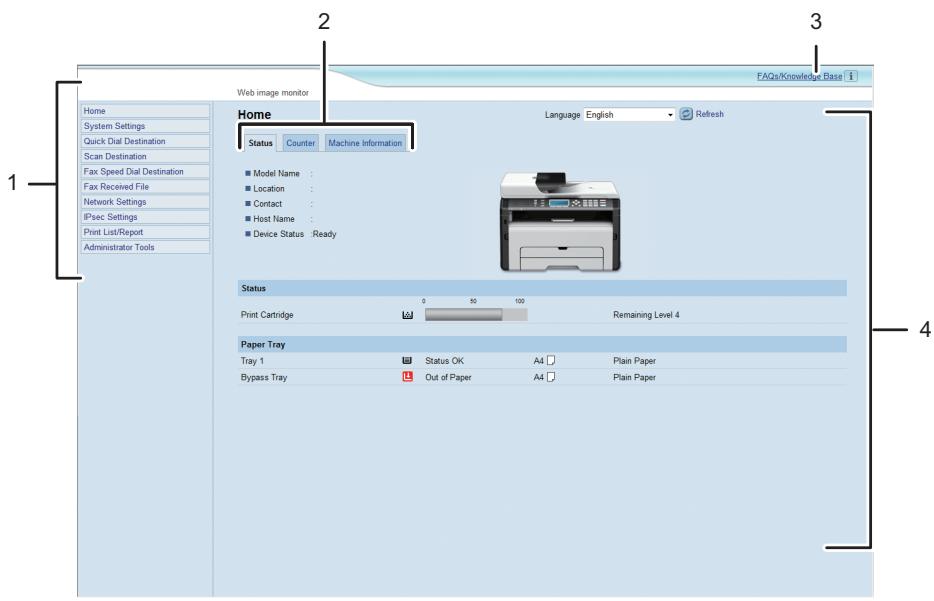
DCT841
- Menu area
Clicking a menu shows its contents in the main area.
- Tab area
Contains tabs for switching between information and settings you want to see or configure.
- FAQs/Knowledge Base
Provides answers to frequently asked questions and other useful information about using this machine.
An internet connection is required to view this information.
4. Main area
Displays the contents of the item selected in the menu area.
Information in the main area is not automatically updated. Click [Refresh] at the upper-right in the main area to update the information. Click the Web browser's [Refresh] button to refresh the entire browser screen.

Note
- If you use an older version of a supported Web browser or the Web browser has JavaScript and cookies disabled, display and operation problems may occur.
- If you are using a proxy server, configure the Web browser settings as necessary. For details about the settings, contact your network administrator.
- The previous page may not appear even if the back button of the Web browser is clicked. If this happens, click the refresh button of the Web browser.
- The FAQs (Frequently Asked Questions)/Knowledge Base are not available in certain languages.
Changing the Interface Language
Select the desired interface language from the [Language] list.
Checking the System Information
Click [Home] to display the main page of Web Image Monitor. You can check the current system information on this page.
This page contains three tabs: [Status], [Counter], and [Machine Information].
Status Tab
| Item | Description |
| Model Name | Shows the name of the machine. |
| Location | Shows the location of the machine as registered on the [SNMP] page. |
| Contact | Shows the contact information of the machine as registered on the [SNMP] page. |
| Host Name | Shows the host name specified in [Host Name] on the [DNS] page. |
| Device Status | Shows the current messages on the machine's display. |
Status
| Item | Description |
| Print Cartridge | Displays the remaining toner level. |
Paper Tray
| Item | Description |
| Tray 1 | Shows the current state and paper size/type setting of Tray 1. |
| Bypass Tray | Shows the current state and paper size/type setting of the bypass tray. |
Counter Tab
Page Counter
| Item | Description |
| Printer | Shows the following for pages printed using the printer function: • Total number of pages printed using the printer function, and lists/ reports printed from the [List/Test Print] menu under [Printer Features] • Number of color pages (always shows 0) • Number of black-and-white pages printed using the printer function |
| Scanner | Shows the following for pages scanned using the scanner function: • Total number of pages • Number of color pages • Number of black-and-white pages |
| Copier | Shows the following for pages printed using the copier function: • Total number of pages • Number of color pages (always shows 0) • Number of black-and-white pages |
| Fax | Shows the following for telephone line faxes: • Total number of pages sent and received • Number of pages sent • Number of pages received |
Print Counter
| Item | Description |
| Page Total | Shows the total number of all prints from the machine: ·Pages printed using the printer, copy, and fax functions ·Lists/Reports printed from the [Print List/Report] menu ·Lists/Reports printed from the [List/Test Print] menu under [Printer Features] |
Machine Information Tab
Machine Information
| Item | Description |
| Firmware Version | Shows the version of firmware installed on the machine. |
| Engine FW Version | Shows the version of firmware for the machine engine. |
| Machine ID | Shows the identification number of the machine. |
| Fax Card | Shows that a fax card is installed. |
| Total Memory | Shows the total memory installed on the machine. |
Configuring the System Settings
Click [System Settings] to display the page for configuring the system settings.
This page contains the following tabs: [Sound Volume Adjustment], [Tray Paper Settings], [Copier], [Fax], [Toner Management], [Interface] and [Shortcut to Function].
Sound Volume Adjustment Tab
Sound Volume Adjustment
| Item | Description |
| Panel Key Sound | Select the volume of the beep that sounds when a key is pressed from [Off], [Low], [Middle], or [High]. |
| On Hook Mode | Select the volume of the sound from the speaker during on hook mode from [Off], [Low], [Middle], or [High]. |
| Job End Tone | Select the volume of the beep that sounds when a job is complete from [Off], [Low], [Middle], or [High]. |
| Job Error Tone | Select the volume of the beep that sounds when a fax transmission error occurs from [Off], [Low], [Middle], or [High]. |
| Alarm Volume | Select the volume of the alarm that sounds when an operation error occurs from [Off], [Low], [Middle], or [High]. |
Tray Paper Settings Tab
Tray 1
| Item | Description |
| Paper Size | Select the paper size for Tray 1 from the following: A4, B5 JIS, A5, B6 JIS, A6, 8 1/2 × 14, 8 1/2 × 11, 5 1/2 × 8 1/2, 7 1/4 × 10 1/2, 16K (197 × 273mm), 16K (195 × 270mm), 16K (184 × 260mm), Custom Size |
| Paper Type | Select the paper type for Tray 1 from the following: Plain Paper, Recycled Paper, Thick Paper (100 to 130g/m2), Thin Paper (52 to 64g/m2) |
Bypass Tray
| Item | Description |
| Paper Size | Select the paper size for the bypass tray from the following: A4, B5 JIS, A5, B6 JIS, A6, 8 1/2 × 14, 8 1/2 × 11, 5 1/2 × 8 1/2, 7 1/4 × 10 1/2, 16K (197 × 273mm), 16K (195 × 270mm), 16K (184 × 260mm), Custom Size |
| Paper Type | Select the paper type for the bypass tray from the following: Plain Paper, Recycled Paper, Thick Paper (100 to 130g/m2), Thin Paper (52 to 64g/m2) |
Size mismatch detection
| Item | Description |
| Size mismatch detection | Select whether to set the machine to report an error if the paper size does not match the print job's settings. |
Copier Tab
Select Paper
| Item | Description |
| Select Paper | Select the paper tray used for copying. |
Separation Line
| Item | Description |
| Separation Line | Specify whether to print a line in the middle of the printed paper when making ID card copy or combined copy. |
Fax Tab
Fax Number Confirmation
| Item | Description |
| Fax Number Confirmation | Enable this setting to configure the machine to require a fax number to be entered twice when specifying a destination manually. This setting appears only when the administrator password is set in the [Administrator] page. |
Fax Received File Processing
| Item | Description |
| Received File Processing | Select whether received faxes are stored into the machine's memory for printing or forwarded to a destination specified for [Forwarding Destination]. |
| Print Automatically | Select whether the faxes received into the machine's memory are printed automatically or stored for later manual printing. |
| Notify Forward Status | Select whether e-mail notifications are sent after forwarding faxes or not.Email notification destination depends on how [Forwarding Destination] is specified:If specified with [E-mail Address]: the notification will be sent to the administrator e-mail address specified in [Administrator E-mail Address] in the [Administrator] page.If specified with [Scan Destination]: the notification will be sent to the notification destination specified for the selected scan destination.Note that if a destination e-mail address is not specified, no notification will be sent even if this setting is enabled. |
| Forwarding Destination | Specifies the forwarding destination.[E-mail Address]: Enter a destination e-mail address. Can contain up to 64 characters.[Scan Destination]: Select a scan destination as a forwarding destination. |
| Number of Trials of Forwarding (time) | Specifies how many times the machine attempts to forward a fax (1 to 255 times). |
| Interval of Forwarding Trial (min.) | Specifies how many minutes the machine waits between forwarding attempts (1 to 255 minutes). |
Toner Management Tab
Toner Saving
| Item | Description |
| Toner Saving | Enable this setting to print using a reduced amount of toner when printing out copies. |
Supply End Option
| Item | Description |
| Supply End Option | This setting is used to monitor the toner level. • Stop Printing Monitoring the toner level is enabled. The remaining toner level can be checked in the control panel and on the Web Image Monitor. • Continue Printing The machine no longer monitors the toner level. Even when the toner runs out, printing will continue and no messages will be displayed. |
Interface Tab
Interface
| Item | Description |
| Fixed USB Port | Specifies whether the same printer/PC FAX driver can be used for multiple machines or not under USB connection. If this setting is enabled, the same printer/PC FAX driver you have installed in your computer can be used with any machine other than the one originally used for installation, if the machine is of the same model. If disabled, you must install the printer/PC FAX driver separately for individual machines, because the machine other than the original will be recognized as a new device upon USB connection. |
Shortcut to Function Tab
Shortcut to Function
| Item | Description |
| Shortcut to Function Settings | Assigns one of the following functions to the [Shortcut to Func.] key on the control panel. • [ID Card Copy Mode] • [Fax Immediate TX] • [Select Scanner Destination] |
Registering Destinations
Scan and fax destinations can be registered using Web Image Monitor.
Up to 100 scan destinations and 108 fax destinations (8 Quick Dial and 100 Speed Dial destinations) can be registered. See the scan and fax sections for more information on registering destinations.

Note
- For details about registering scan destinations, see page 76 "Registering Scan Destinations".
Configuring the Fax Received File
You can print or delete received faxes.
- Print Selected File
You can select and print received faxes.
- Delete Selected File
You can select and delete received faxes.
- Delete All Files
You can delete all received faxes.
Configuring the Network Settings
Click [Network Settings] to display the page for configuring the network settings.
This page contains the following tabs: [Network Status], [IPv6 Configuration], [Network Application], [DNS], [Auto E-mail Notification], [SNMP], [SMTP], [POP3], and [Wireless].

Important
- Depending on the settings you change, the machine might need to be restarted.
- Depending on the model you are using, some items might not appear.
Network Status Tab
General Status
| Item | Description |
| Ethernet Speed | Shows the type and speed of the network connection. |
| IPP Printer Name | Shows the name used to identify the machine on the network. |
| Network Version | Shows the version of the machine's network module (a part of the machine firmware). |
| Ethernet MAC Address | Shows the Ethernet MAC address of the machine. |
| Active Interface | Shows the active communication method. |
TCP/IP Status
| Item | Description |
| DHCP | Select whether the machine should receive a dynamic IPv4 address automatically using DHCP. To use DHCP, select [Active]. When enabled, the items below cannot be configured. |
| IP Address | Enter the IPv4 address for the machine. |
| Subnet Mask | Enter the subnet mask of the network. |
| Gateway | Enter the IPv4 address of the network gateway. |
IPv6 Configuration Tab
IPv6
| Item | Description |
| IPv6 | Select whether to enable or disable IPv6. You cannot disable IPv6 using Web Image Monitor if the machine is currently in use in an IPv6 environment. In this case, use the control panel to disable [IPv6] under network settings. When disabled, [DHCP], [Manual Configuration Address], [Prefix Length], and [Gateway Address] below cannot be configured. |
IPv6 Address
| Item | Description |
| DHCP | Select whether or not the machine obtains its IPv6 address from a DHCP server. |
| IP Address (DHCP) | Displays the IPv6 address obtained from the DHCP server when [DHCP] is set to [Active]. |
| Stateless Address | Displays up to four stateless auto addresses. |
| Gateway Address | Displays the machine's default gateway address. |
| Link-local Address | Displays the link local address of the machine. The link local address is an address that is valid only inside the local network (local segment). |
| Manual Configuration Address | Enter the machine's IPv6 address. Can contain up to 39 characters. |
| Prefix Length | Enter the prefix length, using a value between 0 and 128. |
| Gateway Address | Enter the default gateway's IPv6 address. Can contain up to 39 characters. |
Network Application Tab
Scanner Send Setting
| Item | Description |
| Select to enable the Scan to E-mail feature. | |
| Max. E-mail Size | Select the maximum size of scan files that can be attached to an e-mail message (1 to 5 MB, or no limit). |
| FTP | Select to enable the Scan to FTP feature. |
| Folder | Select to enable the Scan to Folder feature. |
Network Print Setting
| Item | Description |
| IPP | Select to enable network printing using Internet Print Protocol (via TCP port 631/80). |
| FTP | Select to enable network printing using an embedded FTP server in the machine (via TCP port 20/21). |
| RAW | Select to enable network raw printing. |
| Port No. | Enter the TCP port number to use for raw printing. The valid range is 1024 to 65535, except 53550 and 49999 (default is 9100). |
| LPR | Select to enable network printing using LPR/LPD (via TCP port 515). |
mDNS Setting
| Item | Description |
| mDNS | Select to enable Multicast DNS (via UDP port 5353). If disabled, the item below cannot be configured. |
| Printer Name | Enter the name of the machine. Can contain up to 32 characters. |
DNS Tab
DNS
| Item | Description |
| DNS Method | Select whether to specify domain name servers manually or receive DNS information from the network automatically. When set to [Auto-Obtain (DHCP)], [Primary DNS Server], [Secondary DNS Server], and [Domain Name] below become unavailable. |
| Primary DNS Server | Enter the IPv4 address of the primary DNS. |
| Secondary DNS Server | Enter the IPv4 address of the secondary DNS. |
| Domain Name | Enter the IPv4 domain name for the machine. Can contain up to 32 characters. |
| IPv6 DNS Method | Select whether to specify the domain server manually or have the machine obtain its DNS information automatically. When set to [Auto-Obtain (DHCP)], [Primary IPv6 DNS Server], [Secondary IPv6 DNS Server], and [IPv6 Domain Name] below become unavailable. |
| Primary IPv6 DNS Server | Enter the IPv6 address of the primary IPv6 DNS server. Can contain up to 39 characters. |
| Secondary IPv6 DNS Server | Enter the IPv6 address of the secondary IPv6 DNS server. Can contain up to 39 characters. |
| IPv6 Domain Name | Enter the IPv6 domain name of the machine. Can contain up to 32 characters. |
| DNS Resolve Priority | Select whether to give priority to IPv4 or IPv6 for DNS name resolution. |
| DNS Timeout (seconds) | Enter the number of seconds the machine waits before considering a DNS request to have timed out (1 to 999 seconds). |
| Host Name | Enter a host name for the machine. Can contain up to 15 characters. |
Auto E-mail Notification Tab
E-mail Notification 1/E-mail Notification 2
| Item | Description |
| Display Name | Enter a sender name for notification e-mail. Can contain up to 32 characters. |
| E-mail Address | Enter the address of the recipient of the alert email. Can contain up to 64 characters. |
| Paper Misfeed | Select to send an alert e-mail to the specified address if a paper jam occurs. |
| Replace Print Cartridge Soon | Select to send an alert e-mail to the specified address if toner becomes low. |
| Replace Print Cartridge | Select to send an alert e-mail to the specified address if toner runs out. |
| Out of Paper | Select to send an alert e-mail to the specified address if paper runs out. |
| Call Service | Select to send an alert e-mail to the specified address if the machine requires servicing. |
| Cover Open | Select to send an alert e-mail to the specified address if a cover is open. |
SNMP Tab
SNMP
| Item | Description |
| SNMP | Select whether to enable the machine to use SNMP services. |
Trap
| Item | Description |
| Target Trap | Select whether to enable the machine to send traps to the management host (NMS).When disabled, [SNMP Management Host 1] and [SNMP Management Host 2] below become unavailable. |
| SNMP Management Host 1 | Enter the IP address or host name of a management host. Can contain up to 64 characters. |
| SNMP Management Host 2 | Enter the IP address or host name of a management host. Can contain up to 64 characters. |
Community
| Item | Description |
| Get Community | Enter the community name to use for authentication of Get requests. Can contain up to 32 characters. |
| Trap Community | Enter the community name to use for authentication of Trap requests. Can contain up to 32 characters. |
System
| Item | Description |
| Location | Enter the location of the machine. The location entered here is displayed on the main page. Can contain up to 64 characters. |
| Contact | Enter the contact information of the machine. The contact information entered here is displayed on the main page. Can contain up to 64 characters. |
SMTP Tab
SMTP
| Item | Description |
| Primary SMTP Server | Enter the IP address or host name of the SMTP server. Can contain up to 64 characters. |
| Port No. | Enter the port number for SMTP (1 to 65535). |
| Authentication Method | Select an authentication method from the following:[Anonymous]: The user name and password are not necessary.[SMTP]: The machine supports NTLM and LOGIN authentication.[POP before SMTP]: The POP3 server is used for authentication. When sending e-mails to an SMTP server, you can enhance the SMTP server security level by connecting to the POP server for authentication. |
| User Name | Enter the user name for logging in to the SMTP server. Can contain up to 32 characters. |
| Password | Enter the password for logging in to the SMTP server. Can contain up to 32 characters. |
| Device E-mail Address | Enter the machine's e-mail address.This address is used as the sender's address of e-mail messages sent from this machine, such as notification e-mails. Can contain up to 64 characters. |
| Server Timeout(seconds) | Enter the number of seconds the machine waits before considering an SMTP operation to have timed out (1 to 999). |
| Time Zone | Select a time zone according to your geographic location. Selecting a different time zone may cause transmission date and time to be incorrect for email sent by the Scan to E-mail function, even when the machine's clock is set correctly. |
POP3 Tab
POP3 Settings
| Item | Description |
| POP3 Server | Enter the IP address or host name of the POP3 server for e-mail reception. The POP3 server specified here will be used for [POP before SMTP]. Can contain up to 64 characters. |
| User Account | Enter the user name for logging in to the POP3 server. Can contain up to 32 characters. |
| User Password | Enter the password for logging in to the POP3 server. Can contain up to 32 characters. |
| Authentication | Select an authentication method from the following: [None]: Password will not be encrypted. [APOP Authentication]: Password will be encrypted. [Auto]: Password will be encrypted or not encrypted according to the POP3 server's settings. |
Wireless Tab
Wireless LAN Status
| Item | Description |
| Wireless LAN Status | Displays the status of the connection to the wireless LAN. |
| MAC Address | Displays the MAC address. |
| Communication Mode | Displays the communication mode that the machine is connecting in. |
| SSID | Displays theSSID of the access point that the machine is connected to. |
| Channel | Displays the channel information of the current wireless LAN settings if [Ad-Hoc] is selected for [Communication Mode]. |
| Wireless Signal Status | Displays the strength of the wireless signal that is being received. |
| Wireless | Specifies whether or not to use the wireless LAN. |
Wireless LAN Settings
| Item | Description |
| SSID | Enter theSSID of the access point.TheSSID can contain up to 32 characters.When you click [Scan List], a list of available access points is displayed.You can select theSSID from the list. |
| Communication Mode | Select the mode to connect in.If the machine will be connected to a wireless router or access point, select [Infrastructure]. If the machine will be connected to a device equipped with a wireless LAN directly, select [Ad-Hoc]. |
| Ad-Hoc Channel | If [Ad-Hoc] is selected for [Communication Mode], select a channel. |
| Authentication | Select an authentication method.If [Ad-Hoc] is selected for [Communication Mode], you can select only [Open System] and [Shared Key]. |
| Encryption | Select an encryption method.If [Ad-Hoc] is selected for [Communication Mode], you can select only [None] and [WEP]. |
| WPA Passphrase | If [WPA2-PSK] or [Mixed Mode WPA/WPA2] is selected for [Authentication], enter the WPA encryption key. |
| WEP Key Length | If [WEP] is selected for [Encryption], select 64 bits or 128 bits for the length of the encryption key. |
| WEP Transmit Key ID | Select an ID number to identify each WEP key in case multiple WEP connections are configured. |
| WEP Key Format | Select a format for entering the WEP key. |
| WEP Key | Enter the WEP key. The number and type of characters you can enter vary depending on the length and format selected for the key. See the following: · WEP key length: [64bit], Format: [Hexadecimal] WEP key max length: 10 characters (0-9, A-F, a-f) · WEP key length: [64bit], Format: [ASCII] WEP key max length: 5 characters (0x20-0x7e) · WEP key length: [128bit], Format: [Hexadecimal] WEP key max length: 26 characters (0-9, A-F, a-f) · WEP key length: [128bit], Format: [ASCII] WEP key max length: 13 characters (0x20-0x7e) |

Note
- If you are configuring the connection settings manually, check the SSID, authentication method, or encryption key of the access point or wireless router in advance.
Configuring the IPsec Settings
Click [IPsec Settings] to display the page for configuring the IPsec settings.
This page contains the following tabs: [IPsec Global Settings] and [IPsec Policy List].

Important
- This function is available only when an administrator password is specified.
IPsec Global Settings Tab
| Item | Description |
| IPsec Function | Select whether to enable or disable IPsec. |
| Default Policy | Select whether to allow for the default IPsec policy. |
| Broadcast and Multicast Bypass | Select the services that you do not want to apply IPsec from the following: [DHCPv4], [DHCPv6], [SNMP], [mDNS], [NetBIOS], [UDP Port 53550] |
| All ICMP Bypass | Select whether to apply IPsec to ICMP packets (IPv4 and IPv6) from the following: [Active]: All ICMP packets will be bypassed without IPsec protection. "ping" command (echo request and echo reply) is not encapsulated by IPsec. [Inactive]: Some ICMP message types will be bypassed without IPsec protection. |
IPsec Policy List Tab
| Item | Description |
| No. | IPsec policy number. |
| Name | Displays the name of the IPsec policy. |
| Address Settings | Displays the IP address filter of the IPsec policy as below: Remote address/Prefix length |
| Action | Displays the action of the IPsec policy as "Allow", "Drop", or "Require Security". |
| Status | Displays the status of the IPsec policy as "Active" or "Inactive". |
To configure IPsec policies, select the desired IPsec policy, and then click [Change] to open the "IPsec Policy Settings" page. The following settings can be made on the "IPsec Policy Settings" page.
IP Policy Settings
| Item | Description |
| No. | Specify a number between 1 and 10 for the IPsec policy. The number you specify will determine the position of the policy in the IPsec Policy List. Policy searching is performed according to the order of the list. If the number you specify is already assigned to another policy, the policy you are configuring will take the number of the earlier policy, and the earlier policy and any subsequent policies will be renumbered accordingly. |
| Activity | Select whether to enable or disable the policy. |
| Name | Enter the name of the policy. Can contain up to 16 characters. |
| Address Type | Select IPv4 or IPv6 as the type of IP address to be used in IPsec communication. |
| Local Address | Displays the IP address of this printer. |
| Remote Address | Enter the IPv4 or IPv6 address of the device with which to communicate. Can contain up to 39 characters. |
| Prefix Length | Enter the prefix length of the Remote Address, using a value between 1 and 128. If this setting is left blank, "32" (IPv4) or "128" (IPv6) will be automatically selected. |
| Action | Specify how the IP packets are processed from the following: • [Allow]: IP packets are both sent and received without IPsec applied to them. • [Drop]: IP packets are discarded. • [Require Security]: IPsec is applied to IP packets that are both sent and received. If you have selected [Require Security], you must configure [IPsec Settings] and [IKE Settings]. |
IPsec Settings
| Item | Description |
| Encapsulation Type | Specify the encapsulation type from the following: • [Transport]: Select this mode to secure only the payload section of each IP packet when communicating with IPsec compliant devices. • [Tunnel]: Select this mode to secure every section of each IP packet. We recommend this type for communication between security gateways (such as VPN devices). |
| Security Protocol | Select the security protocol from the following: • [AH]: Establishes secure communication that supports authentication only. • [ESP]: Establishes secure communication that supports both authentication and data encryption. • [ESP&AH]: Establishes secure communication that supports both data encryption and authentication of packets, including packet headers. Note that you cannot specify this protocol when [Tunnel] is selected for [Encapsulation Type]. |
| Authentication Algorithm for AH | Specify the authentication algorithm to be applied when [AH] or [ESP&AH] is selected for [Security Protocol] from the following: [MD5], [SHA1] |
| Encryption Algorithm for ESP | Specify the encryption algorithm to be applied when [ESP] or [ESP&AH] is selected for [Security Protocol] from the following: [None], [DES], [3DES], [AES-128], [AES-192], [AES-256] |
| Authentication Algorithm for ESP | Specify the authentication algorithm to be applied when [ESP] is selected for [Security Protocol] from the following: [MD5], [SHA1] |
| Life Time | Specify the life time of the IPsec SA (Security Association) as a time period or data volume. The SA will expire when the time period you specify elapses or the volume of data you specify reaches the volume carried. If you specify both a time period and a data volume, the SA will expire as soon as either is reached, and a new SA will then be obtained by negotiation. To specify the life time of the SA as a time period, enter a number of seconds. To specify the life time of the SA as a data volume, enter a number of KBs. |
| Key Perfect Forward Secrecy | Select whether to enable or disable PFS (Perfect Forward Secrecy). |
IKE Settings
| Item | Description |
| IKE Version | Displays the IKE version. |
| Encryption Algorithm | Specify the encryption algorithm from the following: [DES], [3DES], [AES-128], [AES-192], [AES-256] |
| Authentication Algorithm | Specify the authentication algorithm from the following: [MD5], [SHA1] |
| IKE Life Time | Specify the life time of the ISAKMP SA as a time period. Enter a number of seconds. |
| IKE Diffie-Hellman Group | Select the IKE Diffie-Hellman Group to be used in the generation of the IKE encryption key from the following: [DH1], [DH2] |
| Pre-Shared Key | Specify the PSK (Pre-Shared Key) to be used for authentication of a communicating device. Can contain up to 32 characters. |
| Key Perfect Forward Secrecy | Select whether to enable or disable PFS (Perfect Forward Secrecy). |
Printing Lists/Reports
Click [Print List/Report] to display the page for printing reports. Then, select an item and click [Print] to print out information for that item.
Print List/Report
| Item | Description |
| Configuration Page | Prints general information about the machine and its current configuration. |
| Fax Journal | Prints a fax transmission and reception journal for the last 50 jobs. For details about automatic fax journal printing, see page 137 "Fax Features Settings". |
| Fax TX/RX Standby File List | Prints a list of fax jobs remaining in the machine's memory to be printed, sent, or forwarded. |
| Quick Dial Destination List | Prints a list of Quick Dial entries. |
| Fax Speed Dial Destination List | Prints a list of Speed Dial entries. |
| Scanner Destination List | Prints a list of scan destinations. |
| Scanner Journal | Prints a scanner journal for the last 100 Scan to E-mail, Scan to FTP, and Scan to Folder transmissions. |
| Maintenance Page | Prints the maintenance page. |

Note
- Reports cannot be printed via Web Image Monitor if other jobs are printing. Before printing reports, confirm that machine is not printing.
- Reports will be printed on A4, Letter or Legal size paper. Load one of these sizes of paper into the tray before printing reports.
Configuring the Administrator Settings
Click [Administrator Tools] to display the page for configuring the administrator settings.
This page contains the following tabs: [Administrator], [Reset Settings], [Backup Setting], [Restore Setting], [Set Date/Time], and [Energy Saver Mode].
Administrator Tab
Administrator Settings
| Item | Description |
| Change Password | Check this to configure the administrator password. |
| New Password | Enter the new administrator password. Can contain up to 16 characters. |
| Confirm New Password | Enter the same password again, to confirm. |
| Change E-mail Address | Check this to configure the administrator e-mail address. |
| Administrator E-mail Address | Enter the administrator e-mail address. If the machine's e-mail address is not configured in the [SMTP] page, this address will be used as the sender's address of e-mails sent from this machine, such as notification e-mails. Can contain up to 64 characters. |
Reset Settings Tab
Reset Settings
| Item | Description |
| Reset Network Settings | Select to restore settings configured under the [Network Settings] and [Administrator Tools]. |
| Reset Menu Settings | Select to restore settings that are not related to the network to their defaults. |
| Clear Scan Destination | Select to clear the scan destinations. |
| Clear Address Book | Select to clear the fax destinations. |
| Reset IPsec Settings | Select to clear the IPsec settings. |

Note
- [Reset IPsec Settings] appears only when the administrator password is specified.
Backup Setting Tab

Important
- When sending the machine for repair, it is important that you create backup files in advance. The machine's settings are returned to the default after repair.
Backup Setting
| Item | Description |
| Back up Network Settings | Backs up settings configured under the [Network Settings] and [Administrator Tools].Note that, however, [Max. E-mail Size] setting under [Network Application] will not be backed up here; it will be backed up by [Back up Menu Settings] instead. |
| Back up Menu Settings | Backs up settings that are not related to the network. |
| Back up Scan Destination | Backs up scan destinations to a file. |
| Back up Address Book | Backs up fax destinations to a file. |
| Back up IPsec Settings | Backs up the IPsec settings to a file. |
Follow the procedure below to create configuration backup files.
- Select the radio button for the type of data you wish to back up.
- Enter the administrator password if required.
- Click [OK].
- Click [Save] in the confirmation dialog box.
- Navigate to the location to save the backup file.
- Specify a name for the file, and click [Save].

Note
- [Back up IPsec Settings] appears only when the administrator password is specified.
Restore Setting Tab

Important
- When the machine is returned from repair, it is important that you restore the machine's settings from the backup files. The machine's settings are returned to the default after repair.
Restore Setting
| Item | Description |
| File to Restore | Enter the path and name of the file to restore, or click [Browse...] to select the file. |
Follow the procedure below to restore configuration backup files.
- Click [Browse...].
- Navigate to the directory containing the backup file to restore.
- Select the backup file, and click [Open].
- Enter the administrator password if required.
- Click [OK].

Note
- If the settings are not restored successfully, an error message appears. Try again to restore the file completely.
Set Date/Time Tab
Set Date
| Item | Description |
| Year | Enter the current year (2000 to 2099). |
| Month | Enter the current month (1 to 12). |
| Day | Enter the current day (1 to 31). |
| Date Format | Select the date format from [MM/DD/YYYY], [DD/MM/YYYY], or [YYYY/MM/DD]. |
Set Time
| Item | Description |
| Time Format | Select 24- or 12-hour time format. |
| Time (AM/PM) | Select [AM] or [PM] if 12-hour time format is selected. |
| hour (0-23) | Enter the current hour if 24-hour time format is selected (0-23). |
| hour (1-12) | Enter the current hour if 12-hour time format is selected (1-12). |
| min. (0-59) | Enter the current minute (0-59). |
Energy Saver Mode Tab
Energy Saver Mode
| Item | Description |
| Energy Saver Mode 1 | Select [Active] to set the machine to enter Energy Saver mode 1 if the machine has been idle for about 30 seconds.It takes less time to recover from Energy Saver mode 1 than from power-off state or Energy Saver mode 2, but power consumption is higher in Energy Saver mode 1 than in Energy Saver mode 2. |
| Energy Saver Mode 2 | Select [Active] to set the machine to enter Energy Saver mode 2 after the period of time specified for [Waiting Time (1-240 minutes)] is passed (1 to 240 minutes). [Active] and [Inactive] may not be selected depending on the area in which the machine is being used. The available Waiting Time range may also vary depending on where the machine is being used.The machine consumes less power in Energy Saver mode 2 than in Energy Saver mode 1, but it takes longer to recover from Energy Saver mode 2 than from Energy Saver mode 1. |
Replacing the Print Cartridge

Important
- If "Replacement Required: Print Cartridge" is displayed in the control panel, replace the print cartridge by following the procedure described below. However, this message will not be displayed if [Toner End Option] has been set to [Continue Printing]. Replace the print cartridge if the printed image becomes pale or blurred.
- Store print cartridges in a cool dark place.
- Actual printable numbers vary depending on image volume and density, number of pages printed at a time, paper type and size, and environmental conditions such as temperature and humidity. Toner quality degrades over time.
- For good print quality, the manufacturer recommends that you use genuine toner from the manufacturer.
-
The manufacturer shall not be responsible for any damage or expense that might result from the use of parts other than genuine parts from the manufacturer with your office products.
-
Open the front cover, and then carefully lower it.
- Carefully pull out the print cartridge horizontally, holding its center.
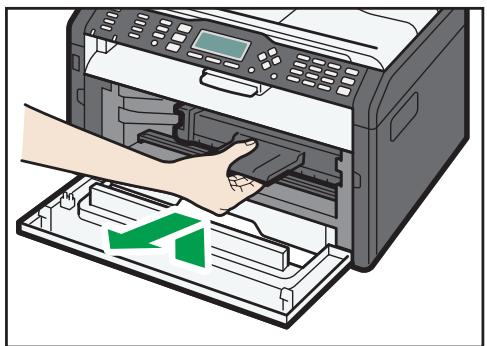
DCT024
- Take the new print cartridge out of the box, and then take it out of the plastic bag.
- Hold the print cartridge and shake it from side to side five or six times.
Shake the print cartridge horizontally in the direction. The first few printed pages may appear blurred or smeared if the cartridge has not been shaken properly.
- Slide the print cartridge in horizontally, and then slowly push it in all the way. Finally, push the cartridge down until it clicks into place.
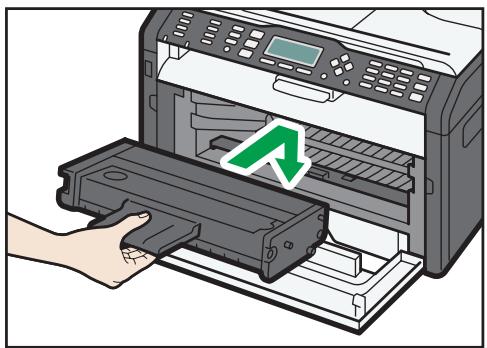
DCT026
- Carefully push up the front cover until it closes.
Cautions When Cleaning
Clean the machine periodically to maintain high print quality.
Dry wipe the exterior with a soft cloth. If dry wiping is not sufficient, wipe with a soft, damp cloth that has been wrung out thoroughly. If you still cannot remove the stain or grime, use a neutral detergent, wipe over the area with a thoroughly-wrung damp cloth, and then dry wipe the area and allow it to dry.

Important
- To avoid deformation, discoloration, or cracking, do not use volatile chemicals, such as benzine and thinner, or spray insecticide on the machine.
- If there is dust or grime inside the machine, wipe with a clean, dry cloth.
- You must disconnect the plug from the wall outlet at least once a year. Clean away any dust and grime from the plug and outlet before reconnecting. Accumulated dust and grime pose a fire hazard.
- Do not allow paper clips, staples, or other small objects to fall inside the machine.
Cleaning the Inside of the Machine
- Open the front cover, and then carefully lower it.
- Carefully pull out the print cartridge horizontally, holding its center.
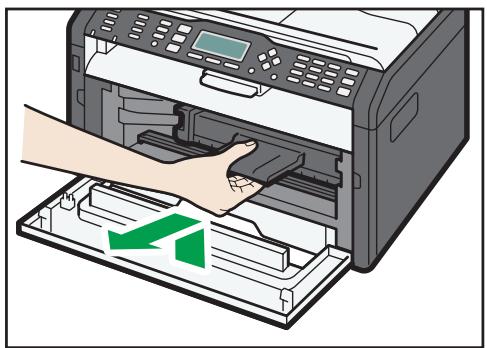
DCT024
- Use a cloth to wipe the inside of the machine toward and away from yourself.
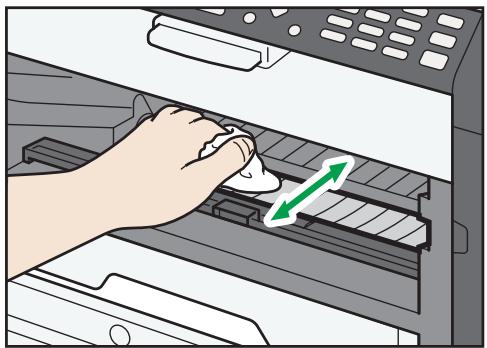
DCT040
Wipe carefully so as not to touch any protrusions inside the machine.
- Slide the print cartridge in horizontally, and then slowly push it in all the way. Finally, push the cartridge down until it clicks into place.
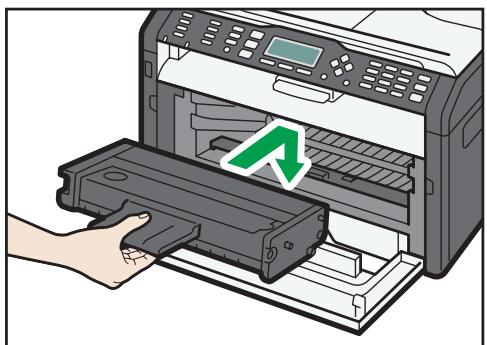
DCT026
- Carefully push up the front cover until it closes.
Cleaning the Exposure Glass
- Lift the exposure glass cover.
Be careful not to hold the input tray when lifting the exposure glass cover, for the tray might be damaged.
- Clean the parts indicated with arrows with a soft damp cloth and then wipe the same parts with a dry cloth to remove any remaining moisture.
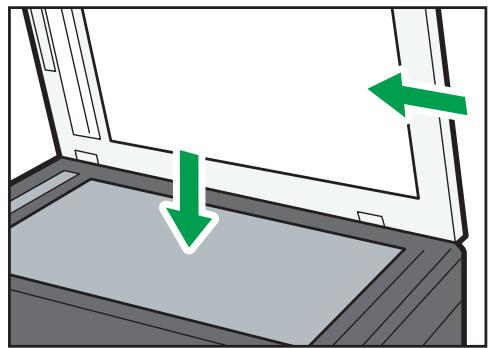
DCT008
Cleaning the Auto Document Feeder
- Lift the ADF.
Be careful not to hold the input tray when lifting the ADF, for the tray might be damaged.
- Clean the parts indicated with arrows with a soft damp cloth and then wipe the same parts with a dry cloth to remove any remaining moisture.
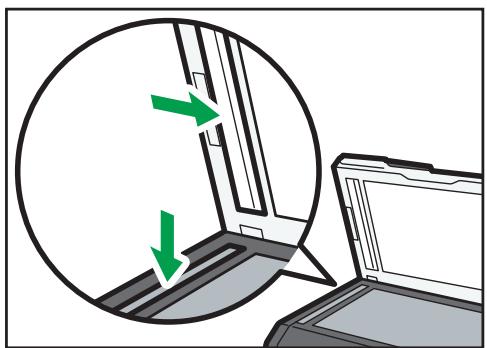
DCT009
Common Problems
This section describes how to troubleshoot common problems that may occur while operating the machine.
| Problem | Possible cause | Solution |
| The machine does not turn on. | The power cord is not connected properly. | • Make sure that the power plug is firmly inserted into the wall outlet. • Make sure that the wall outlet is not defective by connecting another working device. |
| Pages are not printed. | The USB cable or network cable is not connected correctly. | Reconnect the USB cable or network cable. |
| Strange noise is heard. | The consumable is not properly installed. | Check that the consumable is properly installed. |

Note
- If any of these problems persist, turn off the power, pull out the power cord, and contact your sales or service representative.
Paper Feed Problems
If the machine is operating but paper will not feed or paper jams occur frequently, check the condition of the machine and paper.
| Problem | Solution |
| Paper does not feed smoothly. | ·Use supported types of paper. See page 35 "Supported Paper". ·Load paper correctly, making sure that the paper guides are properly adjusted. See page 41 "Loading Paper". ·If the paper is curled, straighten the paper. ·Take out the paper from tray and fan it well. Then, reverse the top and bottom of the paper, and put it in the tray. |
| Paper jams occur frequently. | ·If there are gaps between the paper and the paper guides, adjust the paper guides to remove the gaps. ·Avoid printing on both sides of paper when printing images that contain large areas of solid color, which consume a lot of toner. ·Use supported types of paper. See page 35 "Supported Paper". ·Load paper only as high as the upper limit markings on the paper guide. |
| Multiple sheets of paper are fed at one time. | ·Fan the paper well before loading. Also make sure that the edges are even by tapping the stack on a flat surface such as a desk. ·Make sure that the paper guides are in the right position. ·Use supported types of paper. See page 35 "Supported Paper". ·Load paper only as high as the upper limit markings on the paper guide. ·Check that paper was not added while there was still some left in the tray. Only add paper when there is none left in the tray. |
| Paper gets wrinkles. | • Paper is damp. Use paper that has been stored properly. • Paper is too thin. See page 35 "Supported Paper". • If there are gaps between the paper and the paper guides, adjust the paper guides to remove the gaps. |
| The printed paper is curled. | • Load the paper upside down in the input tray. • Paper is damp. Use paper that has been stored properly. |
| Images are printed diagonally to the pages. R CER091 | If there are gaps between the paper and the paper guides, adjust the paper guides to remove the gaps. |
Removing Printing Jams

Important
- Jammed paper may be covered in toner. Be careful not to get toner on your hands or clothes.
- Toner on prints made immediately after clearing a paper jam may be insufficiently fused and can smudge. Make test prints until smudges no longer appear.
- Do not forcefully remove jammed paper, as it may tear. Torn pieces remaining inside the machine will cause further jams and possibly damage the machine.
- Paper jams can cause pages to be lost. Check your print job for missing pages and reprint any pages that did not print out.
- The jammed paper may be ejected automatically when opening and then closing the front cover or when turning the power off and then back on.
Removing Jammed Paper from Tray 1
- Pull Tray 1 halfway out, and check for jammed paper. If there is jammed paper, remove it carefully.
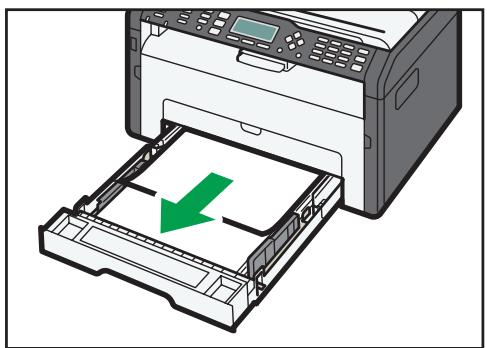
DCT012
- Carefully slide Tray 1 back in until it stops.
- Open the front cover, and then carefully lower it.
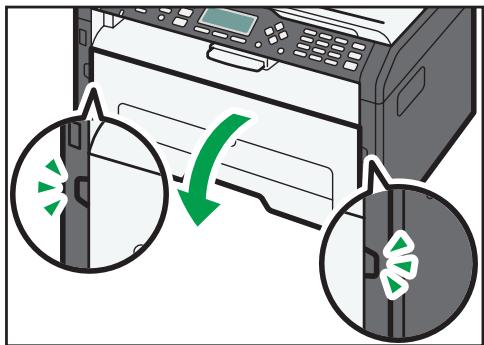
DCT027
- Carefully pull out the print cartridge horizontally, holding its center.
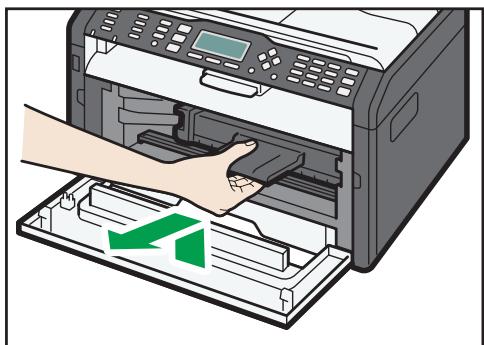
DCT024
- Do not shake the removed print cartridge. Doing so can cause remaining toner to leak.
-
Place the print cartridge on paper or similar material to avoid dirtying your workspace.
-
Lifting the guide plate, remove the jammed paper carefully.

DCT025
- Slide the print cartridge in horizontally, and then slowly push it in all the way. Finally, push the cartridge down until it clicks into place.
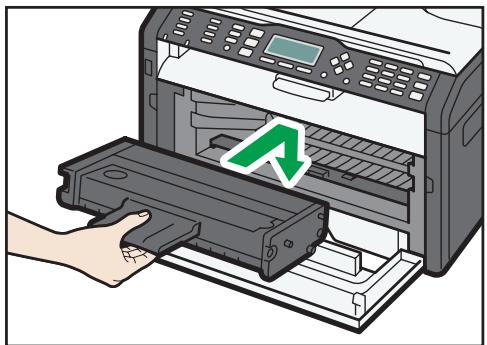
DCT026
- Carefully push up the front cover until it closes.
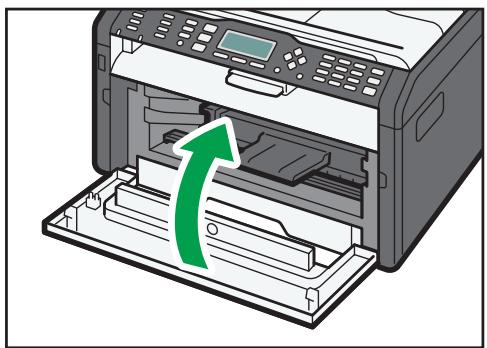
DCT028
If the error display continues to appear, perform the procedure described in "Opening the Rear Cover to Remove Jammed Paper".
Removing Jammed Paper from the Bypass Tray

Important
-
Since the temperature around the guide is high, wait for it to cool before checking for jammed paper.
-
If paper is jammed in the bypass tray input area, remove the jammed paper carefully.
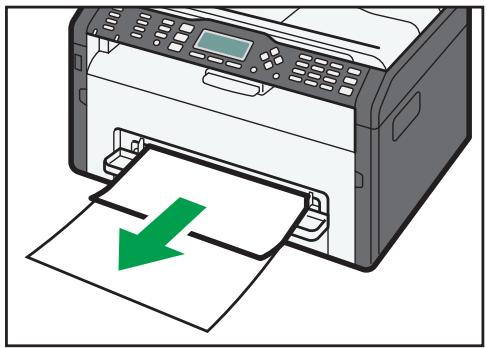
DCT015
- Close the bypass tray.
- Follow Steps 3 to 7 in "Removing Jammed Paper from Tray 1".
If the error display continues to appear, perform the procedure described in "Opening the Rear Cover to Remove Jammed Paper".
Opening the Rear Cover to Remove Jammed Paper

Important
-
Since the temperature around the guide is high, wait for it to cool before checking for jammed paper.
-
Open the rear cover.
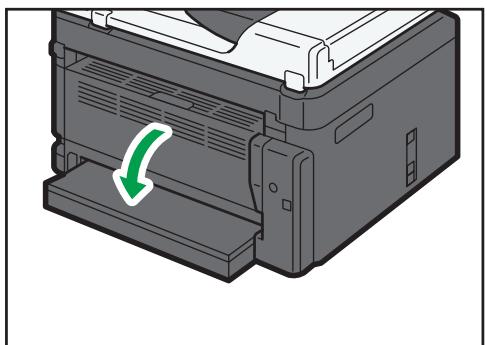
DCT022
2. Open the fusing cover.
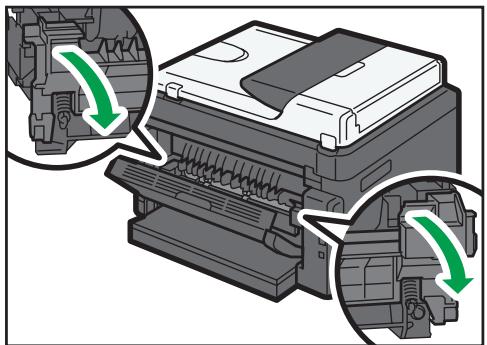
DCT035
3. Push the levers on the sides down with your thumbs.
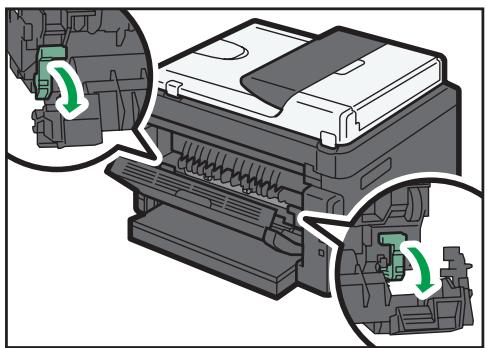
DCT036
4. Remove the jammed paper carefully.
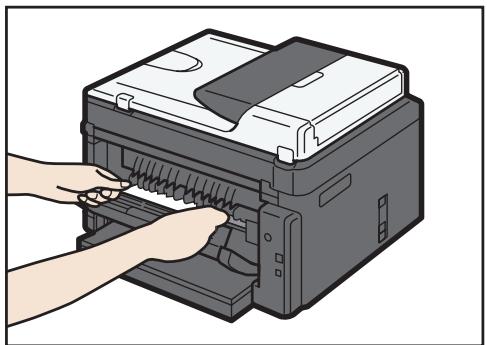
DCT068
5. Push the levers on the sides up with your thumbs.
6. Close the fusing cover.
7. Close the rear cover.
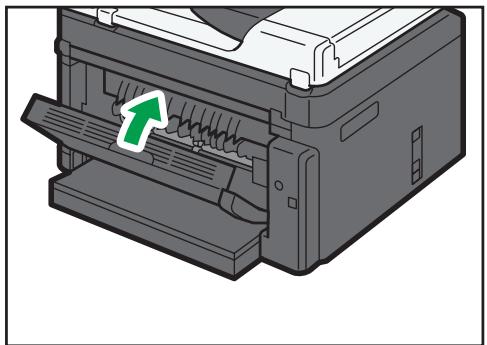
DCT023
Removing Scanning Jams
1. Open the ADF cover.
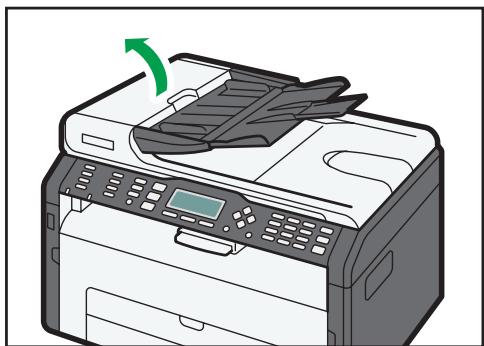
DCT019
- Gently pull the jammed original to remove it. Be careful not to pull the original too hard, as it may tear.
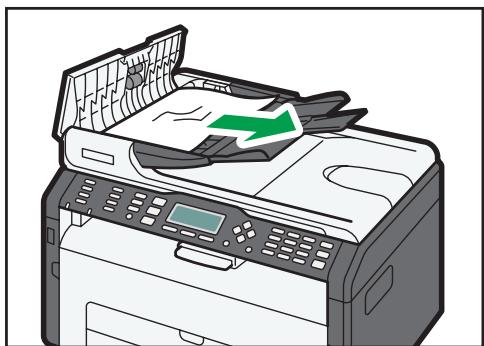
DCT021
3. Close the ADF cover.
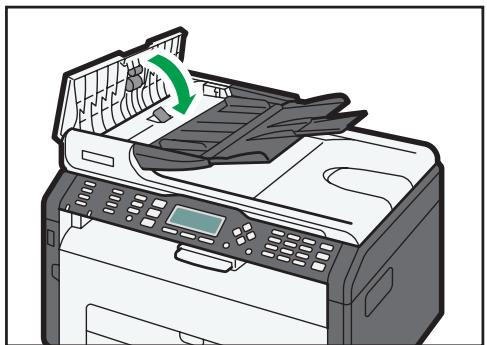
DCT020
- Lift the ADF, and if there is original remaining in the ADF, gently pull the jammed original to remove it.
Be careful not to hold the input tray when lifting the ADF, for the tray might be damaged.

DCT010
5. Close the ADF.
Print Quality Problems
Checking the Condition of the Machine
If there is a problem with the quality of printing, first check the condition of the machine.
| Possible Cause | Solution |
| There is a problem with the machine's location. | Make sure that the machine is on a level surface. Place the machine where it will not be subject to vibration or shock. |
| An unsupported type of paper is used. | Make sure that the paper being used is supported by the machine. See page 35 "Supported Paper". |
| The paper type setting is incorrect. | Make sure that the paper type setting of the printer driver matches the type of paper loaded. See page 35 "Supported Paper". |
| A non-genuine print cartridge is being used. | Non-genuine print cartridges reduce print quality and can cause malfunctions. Use genuine print cartridges only. See page 227 "Consumables". |
| An old print cartridge is being used. | Print cartridges should be opened before their expiration date and used within six months of being opened. |
| The machine is dirty. | See page 195 "Maintaining the Machine", and clean the machine as required. |
Printer Problems
| Problem | Solution |
| An error occurs. | If an error occurs when printing, change the computer or printer driver settings. ·Check the printer icon name does not exceed 32 alphanumeric characters. If it does, shorten it. ·Check whether other applications are operating. Close any other applications, as they may be interfering with printing. If the problem is not resolved, close unneeded processes too. ·Check that the latest printer driver is being used. |
| A print job is canceled. | ·Set I/O Timeout to a larger value than the current settings. |
| There is considerable delay between the print start command and actual printing. | ·Processing time depends on data volume. High volume data, such as graphics-heavy documents, take longer to process. Wait for a while. ·To speed up printing, reduce the printing resolution using the printer driver. |
| The whole printout is blurred. | ·Paper is damp. Use paper that has been stored properly. See page 35 "Supported Paper". ·If you enable [Toner Saving], printing is generally less dense. ·Condensation may have collected. If rapid change in temperature or humidity occurs, use this machine only after it has acclimatized. |
| Cannot print properly when using a certain application, or cannot print image data properly. Some characters are printed faintly or not printed. | ·Change the print quality settings. |
| The print position is misaligned. | Specify [Printer Registration] in [System Settings] to adjust the print position. |
Print Positions Do Not Match Display Positions
If the position of items on the printed page differs from the position displayed on the computer screen, the cause may be one of the following.
| Possible Cause | Solution |
| Page layout settings are not configured properly. | Check that the page layout settings are properly configured in the application. |
Copier Problems
| Problem | Solution |
| Photocopied paper is blank. | The original was placed with the front and back reversed.See page 49 "Placing Originals". |
| Copied pages are too dark or too light. | Adjust the image density. |
| Copied pages do not look the same as the originals. | Select the correct scan mode according to the type of original. |
| Black spots appear when photocopying a photographic print. | The original may have stuck to the exposure glass due to high humidity. Place the original on the exposure glass, and then place two or three sheets of white paper on top of it. Leave the exposure glass cover open when copying. |
| A moiré pattern is produced. R → R | The original probably has heavily lined or dotted areas. Switching the setting for image quality between [Photo] and [Mixed] may eliminate the moiré pattern. |
| Photocopied paper is dirty. | ·Image density is too high. Adjust the image density. ·Toner on the printed surface is not dry. Do not touch printed surfaces immediately after copying. Remove freshly printed sheets one by one, taking care not to touch printed areas. ·The scanning part is dirty. ·Before placing originals on the exposure glass, make sure that toner or correction fluid is dry. |
| When copying from the exposure glass, the print area of the copy is out of alignment with the original. | Place the original copy side down, making sure that it is aligned to the rear left corner and pressed flat against the exposure glass. |
| The paper size setting does not match the paper loaded. | Check whether the paper size specified on the machine matches that of the loaded paper. |
Scanner Problems
| Problem | Solution |
| The scanned image is dirty. | ·The scanning part is dirty. ·Before placing originals on the exposure glass, make sure that toner or correction fluid is dry. |
| The scanned image is distorted or out of position. | The original was moved during scanning. Do not move the original during scanning. |
| The scanned image is upside down. | The original was placed upside down. Place the original in the correct orientation. See page 49 "Placing Originals". |
| The scanned image is blank. | The original was placed with the front and back reversed. |
| The scanned image is too dark or too light. | Adjust the image density. |
Fax Problems
When an error code appears on the fax journal or transmission status report
The table below describes the meaning of error codes that appear under "Results" on the fax journal or transmission status report, and what to do when a particular error code appears.
"X" indicates a number in an error code that appear differently depending on a specific situation.
| Error Code | Solution |
| 1XXX11 | An original has been jammed inside the ADF while sending a fax in Immediate Transmission mode. • Remove jammed originals, and then place them again. See page 202 "Paper Feed Problems". • Check the originals are suitable for scanning. See page 49 "Placing Originals". |
| 1XXX21 | The line could not be connected correctly. • Confirm that the telephone line is properly connected to the machine. • Disconnect the telephone line from the machine, and connect a standard telephone in its place. Confirm that you can make calls using the telephone. If you cannot make calls this way, contact your telephone company. • If the problem persists, contact your sales or service representative. |
| 1XXX22 to 1XXX23 | Dial fails when trying to send faxes. • Confirm that the fax number you dialed is correct. • Confirm that the destination is a fax machine. • Confirm that the line is not busy. • You may need to insert a pause between dial digits. Press the [Pause/Redial] key after, for example, the area code. • Confirm that [PSTN / PBX] under [Admin. Tools] is set properly for your connection method to the telephone network. See page 157 "Administrator Settings". |
| 1XXX32 to 1XXX84 | An error occurred while sending a fax. ·Confirm that the telephone line is properly connected to the machine. ·Disconnect the telephone line from the machine, and connect a standard telephone in its place. Confirm that you can make calls using the telephone. If you cannot make calls this way, contact your telephone company. ·If the problem persists, contact your sales or service representative. |
| 2XXX14 | The machine was not able to print the received fax, or the machine's memory reached capacity while receiving a fax because the document was too large. ·The paper tray was empty. Load paper in the paper tray. See page 41 "Loading Paper". ·The paper tray did not contain A4, Letter, or Legal size paper. Load valid size paper in the tray, and configure the paper size settings under [System Settings] accordingly. ·A cover or tray was open. Close the cover or tray. ·There was a paper jam. Remove the jammed paper. See page 202 "Paper Feed Problems". ·A print cartridge was empty. Replace the print cartridge. See page 195 "Replacing the Print Cartridge". ·The received fax was too large. Ask the sender to re-send the document in parts as several smaller individual faxes, or to send at a lower resolution. |
| 2XXX32 to 2XXX84 | An error occurred while receiving a fax. ·Confirm that the telephone line is properly connected to the machine. ·Disconnect the telephone line from the machine, and connect a standard telephone in its place. Confirm that you can make calls using the telephone. If you cannot make calls this way, contact your telephone company. ·If the problem persists, contact your sales or service representative. |
Error and Status Messages on the Screen
Messages are listed in alphabetical order in the table below.
"X" indicates the parts of the messages that appear differently depending on a specific situation, such as the paper sizes, paper types, or tray names.
| Message | Causes | Solutions |
| 2XXX14 | The machine was not able to print the received fax, or the machine's memory reached capacity while receiving a fax because the document was too large. | ·The paper tray was empty. Load paper in the paper tray. See page 41 "Loading Paper". ·The paper tray did not contain A4, Letter, or Legal size paper. Load valid size paper in the tray, and configure the paper size settings under [System Settings] accordingly. ·A cover or tray was open. Close the cover or tray. ·There was a paper jam. Remove the jammed paper. See page 202 "Paper Feed Problems". ·A print cartridge was empty. Replace the print cartridge. See page 195 "Replacing the Print Cartridge". ·The received fax was too large. Ask the sender to resend the document in parts as several smaller individual faxes, or to send at a lower resolution. |
| ADF Orig. Misfeed Open ADF Cover and remove paper. | An original has been jammed inside the ADF. | ·Remove jammed originals, and then place them again. See page 202 "Paper Feed Problems". ·Check the originals are suitable for scanning. See page 49 "Placing Originals". |
| Available: IDCard Copy A4/A5/A6/8.5x11/5.5x8.5 | ID card copy could not be performed because the tray does not contain the valid size papers, which are A4, A5, A6, 8.5 x 11 or 5.5 x 8.5 size. | Specify the A4, A5, A6, 8.5 x 11 or 5.5x8.5 for the tray selected for printing copies. See page 143 "System Settings". |
| Busy | Fax transmission could not be completed because the destination's line was busy. | Wait for a while and send the fax again. |
| Cannot Copy This Setting Comb.: 2 on 1 / 4 on 1 | Combined copying could not be performed because the tray does not contain the valid size paper, which are A4, Letter, or Legal size. | Specify the A4, Letter, or Legal size paper for the tray selected for printing copies. See page 143 "System Settings". |
| Cannot copy. Set original to ADF. | Combined copying could not be performed because the originals were not placed in the ADF. | • Use the ADF, even when copying a single sheet. • If you need to use the exposure glass, turn off combined copying in [Duplex/Combine] under copy settings, and then try again. See page 130 "Copier Features Settings". |
| Check Paper Size | The paper size set for the document differs from the size of the paper in the indicated tray. | Press [FormFeed] to begin printing, or press [JobReset] to cancel the job. |
| Connection Failed | The line could not be connected correctly. | • Confirm that the telephone line is properly connected to the machine. • Disconnect the telephone line from the machine, and connect a standard telephone in its place. Confirm that you can make calls using the telephone. If you cannot make calls this way, contact your telephone company. |
| Cooling down... | The engine has overheated. | Wait until the message disappears. |
| Cover open | A cover is open. | Close the cover completely. |
| Dest. is not Programmed | No Quick Dial entry is associated with the One Touch button you pressed. | Press a different One Touch button. Assign a registered destination to the One Touch button. See page 76 "Registering Scan Destinations". |
| Dial Failed | The fax could not be sent. | Confirm that the fax number you dialed is correct. Confirm that the destination is a fax machine. Confirm that the line is not busy. You may need to insert a pause between dial digits. Press the [Pause/Redial] key after, for example, the area code. |
| Exceeded Max.E-mail Size | The scan file exceeds the size limit for files that can be sent through e-mail. | Configure [Resolution] under scan settings to reduce the scanning resolution. See page 133 "Scanner Features Settings". Configure [Max. E-mail Size] under scan settings to increase the allowed size. See page 133 "Scanner Features Settings". |
| Fax Job Memory Overflow | The number of fax jobs in memory (unsent or unprinted faxes) has reached maximum, so new jobs cannot be stored. | Wait until pending jobs have been transmitted or printed. |
| Indep.Sply.Prt.Cart. | A non-supported print cartridge is installed. | Remove and replace it with a print cartridge specified by an authorized dealer. |
| Internal Misfeed | Paper has been jammed in the machine. | Remove the jammed paper. See page 202 "Paper Feed Problems". |
| Memory Almost Full | Memory has almost reached capacity during sort copy. | If several originals are still to be scanned, it is recommended to start printing now, and copy the remaining originals separately. If originals are being scanned from the ADF, remove any remaining pages from the ADF. |
| Memory Overflow | The data is too large or complex to print. | If using the PCL printer driver, set [Resolution] in [Print Quality] to [600 × 600 dpi]. |
| Memory Overflow | · The machine's memory reached capacity while scanning the first page of the original to store a fax job in memory before transmission. · The machine's memory reached capacity while storing a fax in memory in Memory Transmission mode. | Resend the fax in parts as several smaller individual faxes, or send at a lower resolution. |
| Memory Overflow TX Cancel | Memory has reached capacity while scanning the second or later pages of the original when trying to send a fax in Memory Transmission mode. | Press [TX] to send only the pages that have been scanned in memory, or press [Cancel] to cancel. |
| Misfeed: BypassTray | Paper has been jammed in the bypass tray. | Remove the jammed paper. See page 202 "Paper Feed Problems". |
| Misfeed: Stnd. Tray | Paper has been jammed in the paper exit area. | Remove the jammed paper. See page 202 "Paper Feed Problems". |
| Misfeed: Tray 1 | Paper has been jammed in the tray 1 paper input area. | Remove the jammed paper. See page 202 "Paper Feed Problems". |
| Net Communication Error | Connection with the server was lost while sending or receiving data. | Contact the network administrator. |
| Network is not Ready | A scanned file could not be sent because the machine has not received IP address information from the DHCP server completely. | Wait until the machine receives the IP address information completely, and then try the operation again. |
| On Hook or Stop key | The machine has been off-hook for an extended period of time. | Put down the handset or press the [Clear/Stop] key. |
| Out of Paper: X | The indicated tray has run out of paper. | Load paper to the indicated tray. See page 41 "Loading Paper". |
| Restart Machine... | The machine needs to be restarted. | The machine automatically reboots. |
| Print Cart. Set Error | The print cartridge has not been installed or has not been installed correctly. | Reinstall the print cartridge. See page 195 "Replacing the Print Cartridge". |
| Remove Paper: Bypass Tray | The machine failed to proceed with the print job, because tray 1 was specified as the input tray but paper was set in the bypass tray. | Remove paper from the bypass tray. |
| Replace Required Soon: Print Cartridge | The print cartridge is almost empty. | Prepare a new print cartridge. |
| Replacement Required: Print Cartridge | The machine has run out of toner. | Replace the print cartridge. See page 195 "Replacing the Print Cartridge". |
| RX Comm. Error | A reception error occurred, and the fax could not be received correctly. | If possible, contact the sender of the fax and ask them to resend it. |
| Scan (NW) Disconnected | A scanned file could not be sent because the network cable was not connected properly. | Reconnect the network cable properly, and then try the operation again. |
| Scan (USB) Disconnected | The USB cable was disconnected while scanning from a computer. | Reconnect the USB cable properly, and then try the operation again. |
| Server Connection Failed | A scanned file could not be sent because the destination could not be reached. | Confirm that the destination is registered correctly, and then try the operation again. |
| Server Response Error | An error occurred in communication with the server before beginning transmission. | Confirm that the destination is registered correctly, and then try the operation again. If the problem could not be solved, contact the network administrator. |
| Service call - X | A fatal hardware error has occurred, and the machine cannot function. | Contact your sales or service representative. |
| Set Correct Paper | The paper tray does not contain A4, Letter, or Legal size paper. | While the message is displayed, press the [OK] key. A menu for changing the paper size of the current tray appears. Load A4/Letter/ Legal size paper in the tray, and then select the corresponding paper size using [▲] or [▼] key and press the [OK] key. The machine will then print out the fax. Note that the paper size setting for the tray under system settings will be changed. See page 143 "System Settings". |
| Set Original to ADF Cannot use exposure glass with set. in [Scan Size]. | Scanning could not be performed because the originals were not placed in the ADF, even though the machine is set to scan originals larger than Legal size. | • Use the ADF, even when scanning Legal or smaller size originals. • If you need to use the exposure glass, set A4/Letter or smaller size in [Scn Size], and then try again. See page 88 "Specifying the Scan Settings". |
| Sort Copy was Cancelled | The machine's memory reached capacity while originals were being scanned from the ADF to perform sort copying. | Press [Exit] to print the originals that were successfully scanned into memory. Then, copy again the originals left in the ADF. |
| TX Comm. Error | A transmission error occurred, and the fax could not be transmitted correctly. | If the [Auto Redial] setting is enabled, the machine will redial the number and try again. If all attempts fail, or if the machine is in Immediate Transmission mode, the fax will not be transmitted. Try the operation again. |
Notes About the Toner
- Proper operation cannot be guaranteed if any third-party toner is used.
Depending on printing conditions, there are cases where the printer cannot print the number of sheets indicated in the specifications. -
When operating the machine for the first time, use the print cartridge supplied with this machine. If this cartridge is not initially used, the following problems may occur:
-
"Replacement Required: Print Cartridge" will be displayed before the toner runs out.
-
"Replacement Required: Print Cartridge" will not be displayed when the toner runs out, but instead the printed image suddenly becomes pale or blurred.
-
To continue printing after "Replacement Required: Print Cartridge" is displayed, set [Toner End Option] to [Continue Printing]. However, since any trouble caused by using this setup is outside of the scope of the manufacturer's warranty, this setup should be used with care. For details about [Toner End Option], see page 143 "System Settings".
- If [Toner End Option] is first set to [Continue Printing] and then to [Stop Printing], be sure to use a new print cartridge. If a used print cartridge is installed, there will be a discrepancy between the remaining toner level displayed and the actual remaining toner, and accordingly, "Replacement Required: Print Cartridge" will not be displayed at the appropriate timing.
- The lifetime of the photo conductor, which is built into the print cartridge, is taken into account in displaying "Replacement Required: Print Cartridge". If the photo conductor stops working before the toner runs out, "Replacement Required: Print Cartridge" may be displayed.
Moving and Transporting the Machine
This section provides cautions that you must follow when moving the machine both short and long distances.
Repack the machine in its original packing materials when moving it over a long distance.

Important
- Be sure to disconnect all cables from the machine before transporting it.
- The machine is a precision piece of machinery. Be sure to handle it carefully when moving it.
- Make sure to move the machine horizontally. Take extra caution when carrying the machine up or down stairs.
- Do not remove the print cartridge when moving the machine.
-
Be sure to hold the machine level while carrying it. To prevent toner from spilling, move the machine carefully.
-
Be sure to check the following points:
-
The power switch is turned off.
- The power cord is unplugged from the wall outlet.
-
All other cables are unplugged from the machine.
-
Lift the machine using the inset grips on both sides of the machine, and then move it horizontally to the place where you want to use it.

Note
- To move the machine over a long distance, pack it well. Take care not to tip or tilt the machine during transit.
- Toner might spill inside the machine if the machine is not kept level during transit.
- For more information about moving the machine, contact your sales or service representative.
Disposal
Ask your sales or service representative for information about correct disposal of this machine.
Where to Inquire
Contact your sales or service representative for further information about the topics included in this manual or to inquire about other topics not included in this manual.
Consumables
Print Cartridge
| Print cartridge | Average printable number of pages per cartridge *1 |
| Black | 1,500 pages, 2,600 pages |
*1 The printable number of pages is based on pages that are compliant with ISO/IEC 19752 with the image density set as the factory default. ISO/IEC 19752 is an international standard for measurement of printable pages, set by the International Organization for Standardization.
Note
- Unless a print cartridge is replaced before toner runs out, printing will become impossible. To facilitate cartridge replacement, we recommend you purchase and store extra print cartridges.
- The actual number of printable pages varies depending on the image volume and density, number of pages printed at a time, paper type and paper size used, and environmental conditions such as temperature and humidity.
- Print cartridges may need to be changed sooner than indicated above due to deterioration over the period of use.
- Print cartridges are not covered by warranty. However, if there is a problem, contact the store where you purchased them.
- The supplied print cartridge can print approximately 700 pages.
- This machine periodically performs cleaning. During cleaning, toner will be used to maintain print quality.
Specifications of the Machine
This section lists the machine's specifications.
General Function Specifications
Configuration
Desktop
Print process
Laser electrostatic transfer
Maximum paper size for scanning using the exposure glass
216mm× 297mm (8.5× 11.7 inches)
Maximum paper size for scanning using the ADF
216mm× 356mm (8.5×14 inches)
Maximum paper size for printing
216mm× 356mm (8.5×14 inches)
Warm-up time
- Type 1, Type 4
Less than 25 seconds (23 °C, 71.6 °F)
- Type 2, Type 3, Type 5, Type 6
Less than 27 seconds (23 °C, 71.6 °F)
Paper sizes
A4, 8^1 / 2 " × 11 " (Letter), 8^1 / 2 " × 14 " (Legal), B5, 5^1 / 2 " × 8^1 / 2 " (Half Letter), 7^1 / 4 " × 10^1 / 2
" (Executive), A5, A6, B6, 16K (197 × 273 mm), 16K (195 × 270 mm), 16K (184 × 260 mm),
Custom Paper Size
Note
-
The following paper sizes are supported as custom paper sizes:
-
Width
Tray1: Approximately 100-216 mm (3.9-8.5 inches)
Bypass Tray: Approximately 90-216 mm (3.6-8.5 inches)
Length
Approximately 148-356 mm (5.8-14 inches)
Paper type
Plain Paper (65-99 g/m² (17-26 lb.)), Recycled Paper (75-90 g/m² (20-24 lb.)), Thin Paper (52-64 g/m² (14-17 lb.)), Thick Paper (100-130 g/m² (26.6-34 lb.))
Paper input capacity
- Tray 1
150 sheets (70g / m^2, 19lb.)
- Bypass Tray
1 sheet (70g / m^2, 19lb.)
Maximum loading height
15.5 mm (0.6 inches)
Paper output capacity
Output Tray
50 sheets (70g / m^2,19lb.)
Rear
1 sheet (70g / m^2, 19lb.)
ADF capacity
35 sheets (80g / m^2, 21.3lb)
Memory
128 MB
Power requirements
Region A (mainly Europe and Asia)
220-240 V, 5 A, 50/60 Hz
Region B (mainly North America)
120V,8A,60Hz
Power consumption
Maximum power consumption
780W
Energy Saver mode 1
39.1 W
Energy Saver mode 2
4.3 W
- The power level when the main switch is turned off and the power cord is plugged into an outlet: 1W or less
Machine dimensions (Width × Depth × Height)
- Type 1, Type 3
$$ 4 0 2 \times 3 6 0 \times 2 5 2 \mathrm {m m} (1 5. 8 \times 1 4. 2 \times 1 0. 1 \text {i n c h e s}) $$
- Type 2, Type 4, Type 5, Type 6
$$ 4 0 2 \times 3 6 0 \times 2 9 3 \mathrm {m m} (1 5. 8 \times 1 4. 2 \times 1 1. 5 \text {i n c h e s}) $$
Weight (machine body with consumables)
- Type 1, Type 3
Approximately 9.9kg (22 lb.) or less
- Type 2, Type 4, Type 5, Type 6
Approximately 11.1kg (24.5 lb.) or less
Printer Function Specifications
Printing speed
Region A (mainly Europe and Asia)
Region B (mainly North America)
23 pages per minute (Letter)
Resolution
600 × 600 dpi (maximum: 1200 × 600 dpi)
First print speed
10 seconds or less (From the completion of data processing to the completion of paper delivery)
Interface
- Ethernet (10BASE-T, 100BASE-TX)
USB2.0
Wi-Fi
Printer language
GDI, PCL
Copier Function Specifications
Maximum resolution (scanning and printing)
- Exposure glass
Scanning: 600 × 600 dpi
Printing: 600 × 600 dpi
- ADF
Scanning: 600 × 300 dpi
Printing: 600 × 600 dpi
First copy speed (A4/Letter, at 23^ , 71.6°F)
32 seconds or less
Multiple copy speed
Countries other than European countries
22 pages per minute
Reproduction ratio
Region A (mainly Europe and Asia)
Fixed ratio: 50% , 71% , 82% , 93% , 122% , 141% , 200% , 400%
Region B (mainly North America)
Fixed ratio: 50% , 65% , 78% , 93% , 129% , 155% , 200% , 400%
Zoom ratio: 25% to 400%
Copy quantity
99
Scanner Function Specifications
Maximum scanning area (horizontal × vertical)
- Exposure glass
216 × 297 ~mm (8.5 × 11.7 inches)
- ADF
216 × 356 ~mm (8.5 × 14 inches)
Maximum resolution when scanning from the control panel (Scan to E-mail, Scan to FTP, Scan to Folder, Scan to USB)
600× 600 dpi
Maximum resolution when scanning from a computer (TWAIN)
- Exposure glass
4800 × 4800 dpi
ADF
600× 600 dpi
Maximum resolution when scanning from a computer (WIA)
$$ 6 0 0 \times 6 0 0 d p i $$
ADF throughput
Black and white: 64 mm per second
Color: 22 mm per second
Interface
- Scanning from the control panel
Ethernet (10BASE-T, 100BASE-TX), USB2.0, Wi-Fi
- Scanning from a computer
Ethernet (10BASE-T, 100BASE-TX), USB2.0, Wi-Fi
Fax Function Specifications
Access line
Public switched telephone networks (PSTN)
- Private branch exchange (PBX)
Transmission mode
ITU-T Group 3 (G3)
Scan line density
8 dots per mm × 3.85 line per mm (200 × 100 dpi)
8 dots per mm × 7.7 line per mm (200 × 200 dpi)
Transmission time
3 seconds (8 dots per mm × 3.85 line per mm, 33.6 kbps, MMR, ITU-T # 1 chart)
Transfer rate
33.6 kbps to 2400 bps (auto shift down system)
Data compression methods
MH, MR, MMR
Memory capacity
Transmission: Up to 5 jobs; up to 10 pages per job
Reception: Up to 50 jobs; up to 100 pages in the total of all jobs
Address book
- Speed dial
100 items - Quick dial
8 items
Number of redials for Fax 1
Trademarks
Firefox is a registered trademark of the Mozilla Foundation.
Microsoft, Windows, Windows Server, Windows Vista, and Internet Explorer are either registered trademarks or trademarks of Microsoft Corporation in the United States and/or other countries.
Other product names used herein are for identification purposes only and might be trademarks of their respective companies. We disclaim any and all rights to those marks.
The proper names of Internet Explorer 6, 7, 8, 9, 10 and 11 are as follows:
Microsoft® Internet Explorer® 6
Windows® Internet Explorer® 7
Windows® Internet Explorer® 8
Windows® Internet Explorer® 9
Internet Explorer 10
Internet Explorer® 11
The proper names of the Windows operating systems are as follows:
The product names of Windows XP are as follows:
Microsoft® Windows® XP Professional
Microsoft® Windows® XP Home Edition
Microsoft® Windows® XP Professional x64 Edition
The product names of Windows Vista are as follows:
Microsoft® Windows Vista® Ultimate
Microsoft® Windows Vista® Business
Microsoft® Windows Vista® Home Premium
Microsoft® Windows Vista® Home Basic
Microsoft® Windows Vista® Enterprise
The product names of Windows 7 are as follows:
Microsoft® Windows® 7 Home Premium
Microsoft® Windows® 7 Professional
Microsoft® Windows® 7 Ultimate
Microsoft® Windows® 7 Enterprise
The product names of Windows 8 are as follows:
Microsoft® Windows® 8
Microsoft® Windows® 8 Pro
Microsoft® Windows® 8 Enterprise
- The product names of Windows 8.1 are as follows: Microsoft® Windows® 8.1 Microsoft® Windows® 8.1 Pro Microsoft® Windows® 8.1 Enterprise
- The product names of Windows Server 2003 are as follows: Microsoft® Windows Server® 2003 Standard Edition Microsoft® Windows Server® 2003 Enterprise Edition
- The product names of Windows Server 2003 R2 are as follows: Microsoft® Windows Server® 2003 R2 Standard Edition Microsoft® Windows Server® 2003 R2 Enterprise Edition
- The product names of Windows Server 2008 are as follows: Microsoft® Windows Server® 2008 Foundation Microsoft® Windows Server® 2008 Standard Microsoft® Windows Server® 2008 Enterprise
- The product names of Windows Server 2008 R2 are as follows: Microsoft® Windows Server® 2008 R2 Foundation Microsoft® Windows Server® 2008 R2 Standard Microsoft® Windows Server® 2008 R2 Enterprise
- The product names of Windows Server 2012 are as follows: Microsoft® Windows Server® 2012 Foundation Microsoft® Windows Server® 2012 Essentials Microsoft® Windows Server® 2012 Standard
- The product names of Windows Server 2012 R2 are as follows: Microsoft® Windows Server® 2012 R2 Foundation Microsoft® Windows Server® 2012 R2 Essentials Microsoft® Windows Server® 2012 R2 Standard Microsoft® Windows Server® 2012 R2 Datacenter
Microsoft product screen shots reprinted with permission from Microsoft Corporation.
2-sided copies. 65
A
Address book. 76, 100, 142
Address book (PC FAX) 118
ADF (Auto Document Feeder) 200
Administrator password. 9, 190
Administrator settings. 157, 190
Auto e-mail notification settings. 179
B
Backup settings. 191
Basic operation. 55, 61, 83, 127
Broadcast function. 110
Bypass tray. 45
C
Canceling a copy. 62
Canceling a fax. 106, 117
Cleaning. 197, 198, 199, 200
Combine copy. 65
Common problems. 201
Condition of the machine. 210
Configuration page. 148, 189
Consumables. 227
Control panel. 21
Copier features. 130
Copier function. 230
Copier mode screen. 59
Copier problems. 213
Counter information. 167
D
Date. 98
Date and time settings. 192
Date setting. 192
Default settings. 190
DHCP. 29
Differences in Performance/Functions between Different Models. 8
Disclaimer. 7
DNS setting. 178
Duplex. 55
E
Energy saver mode. 193
ENERGY STAR program. 16
Enlarge. 63
Enlarged or reduced copies. 63
Entering characters. 99
Error messages. 217
Exposure glass. 199
Exterior. 19
F
Fax destinations. 100, 174
Fax features. 137
Fax function. 232
Fax mode screen. 97
Fax transmission settings. 135
FAX/TAD mode. 122
FAX/TEL manual mode. 121
Forwarding. 122, 123
1
ID Card copy. 70
Image density. 73, 88, 114
Immediate transmission. 103
Important Safety Instructions. 12, 15
Initial setup. 27
Installing the driver and software. 28
Interface. 172
Interior. 21
Introduction. 7
IP address. 8, 29
IPsec global settings. 185
IPsec policy settings. 185
IPsec settings. 185
IPv6 configuration. 177
J
Job cancel. 56
L
Language. 165
Legalprohibition. 7
Lists. 126, 148, 189
Loading paper. 41
M
Machine information. 168
Manual IP address. 30
Memory reception. 122
Memory transmission. 103
Menu chart. 129
Models. 11
Moving 226
N
Network application. 177
Network settings. 29, 153, 176
Network status. 176
Non-recommended paper. 37
0
On hook dial. 111
One Touch buttons. 85
Operation tools. 26
Original type. 73
Originals. 49
P
Paper feed problems. 202
Paper jam. 203, 206, 208
Pause/Redial key. 85
PC FAX. 116
Placing originals. 51, 52
POP3 settings. 182
Print area. 38
Print cartridge. 195, 227
Print quality problems. 210
Printer features. 150
Printer function. 230
Printer problems. 211
R
Receiving a fax. 120
Reception mode. 120
Recommended size of originals. 49
Redial function. 110
Reduce. 63
Replace. 195
Reports. 126, 148, 189
Reset settings. 190
Resolution. 89, 115
Restore settings. 191
S
Scan destinations. 76, 81, 82, 85, 174
Scan size. 88
Scan to E-mail. 76,83
Scan to Folder. 76, 83
Scan to FTP. 76, 83
Scan to USB. 86
Scanner Features Settings. 133
Scanner function. 231
Scanner mode screen. 75
Scanner problems. 214
Scanning. 90
Sending a fax. 103, 104
Set date. 192
Set time. 192
Shortcut to Func. key. 173
Shortcut to function. 173
SMTP settings. 181
SNMP settings. 180
Sound volume adjustment. 169
Specifications. 228, 230, 231, 232
Specifying a custom paper size. 48
Specifying the paper type 47
Specifying the standard paper size. 47
Speed Dial. 109
Status information. 166
Status messages. 217
Supported paper. 35
System information. 166
System settings. 143, 169
T
Time. 98
Time setting. 192
Toner. 166, 225
Toner management. 172
Top page. 164
Trademarks 234
Transmission mode. 103
Tray 1. 41
Tray paper settings. 144, 169
Troubleshooting.....201, 202, 210, 211, 212, 213
214, 215, 217
TWAIN. 90
Types of originals not supported by the ADF....49
U
Unscannable image area. 50
W
Web Image Monitor. 163
WIA. 95
Wireless LAN settings. 182
Wireless LAN setup. 31
MEMO




- TABLE OF CONTENTS
- How to Read This Manual. 7
- Model-Specific Information. 11
- Important Safety Instructions Region A 12
- Important Safety Instructions Region B 15
- ENERGY STAR Program. 16
- Guide to the Machine
- Guide to Components. 19
- About Operation Tools 26
- Initial Setup. 27
- Installing the Driver and Software. 28
- Configuring Network Settings 29
- Loading Paper
- Supported Paper. 35
- Non-Recommended Paper Types. 37
- Print Area. 38
- Printing Documents
- Copying Originals
- Scanning Originals
- Sending and Receiving a Fax
- Configuring the Machine Using the Control Panel
- Configuring the Machine Using Utilities
- Maintaining the Machine
- Troubleshooting
- Appendix
- How to Read This Manual
- Introduction
- Legal Prohibition
- Disclaimer
- About IP Address
- Differences in Performance/Functions between Different Models
- Note to Administrator
- Password
- Model-Specific Information
- Note
- Important Safety Instructions
- User Information on Electrical & Electronic Equipment
- Users in the countries where this symbol shown in this section has been specified in national law on collection and treatment of E-waste
- All Other Users
- Environmental Advice for Users
- Users in the EU, Switzerland and Norway
- Consumables yield
- Recycled paper
- Duplex printing (if applicable)
- Toner and ink cartridge return program
- Energy efficiency
- Note for the Battery and/or Accumulator Symbol (For EU countries only)
- Notes to Users of Facsimile Unit
- C E
- Notice to Users in EEA Countries
- Notice to Users Accessing Analog PSTN in EEA Countries
- Notes to Users in the State of California
- ENERGY STAR Program
- Energy Saver mode 1
- Energy Saver mode 2
- Specifications
- Guide to Components
- Exterior
- Important
- Interior
- Print Cartridge
- Control Panel
- On the Right
- Screen
- 2.Scroll Keys
- Number Keys
- [User Tools] key
- [Clear/Stop] key
- Selection keys
- [Escape] key
- [OK] Key
- [Start] key
- On the Left
- Type 1, Type 2, Type 3
- [Image Quality] key
- [Shortcut to Func.] key
- [Copy] key (Type 2, Type 3 only)
- Power Indicator
- Alert Indicator
- [Wi-Fi] key (Type 2, Type 3 only)
- [Density] key
- [Scanner] key (Type 2, Type 3 only)
- Type 4, Type 5, Type 6
- One Touch buttons
- [Pause/Redial] key
- [On Hook Dial] key
- [Address Book] key
- [Image Quality] key
- [Shortcut to Func.] key
- [Facsimile] key
- [Copy] key
- Power Indicator
- Alert Indicator
- [Shift] key
- [Wi-Fi] key (Type 5, Type 6 only)
- [Density] key
- [Scanner] key (Type 5, Type 6 only)
- About Operation Tools
- Web Image Monitor
- Initial Setup
- Display language
- Country\*3
- User fax number\*1
- ```bash User name*1
- Date/Time
- Area\*2\*3
- Installing the Driver and Software
- Network Quick Install
- PC FAX Driver
- Configuring Network Settings
- Configuring the IP Address Settings
- Specifying settings to receive an IPv6 address automatically
- Assigning the machine's IPv6 address manually
- Wireless LAN Setup
- Infrastructure mode
- Ad Hoc mode
- Press the [Wi-Fi] key.
- Supported Paper
- Paper Size
- Paper Type
- Paper Capacity
- Non-Recommended Paper Types
- Print Area
- From the printer driver
- Copier function
- Fax function
- Loading Paper
- Loading Paper into Tray 1
- Extending Tray 1 to load paper
- Attach the tray cover.
- Loading Paper into Bypass Tray
- Open the bypass tray.
- Specifying Paper Type and Paper Size Using Control Panel
- Specifying the paper type
- Specifying the standard paper size
- Specifying a custom paper size
- Placing Originals
- About Originals
- Recommended size of originals
- Exposure glass
- ADF
- Types of originals not supported by the Auto Document Feeder
- Unscannable image area
- Margins when using exposure glass
- Margins when using ADF
- Placing Originals on the Exposure Glass
- Placing Originals in the Auto Document Feeder
- Basic Operation
- Printing on Both Sides of Sheets
- Portrait
- Landscape
- Canceling a Print Job
- Canceling a print job before printing has started
- Canceling a print job while printing
- Press the [Clear/Stop] key.
- Copier Mode Screen
- Standby mode screen
- Canceling a Copy
- Making Enlarged or Reduced Copies
- Preset ratio
- Custom ratio
- Specifying Reduce/Enlarge
- Press [Scale].
- Making Combined/2-sided Copies
- Combined copy on one side
- Combined copy on both sides
- 2-sided copy
- Specifying Combined and 2-sided Copies
- Copying Both Sides of an ID Card onto One Side of Paper
- Specifying the ID Card Copy Setting
- Copying an ID Card
- Press the [Start] key.
- Specifying the Scan Settings
- Adjusting Image Density
- Selecting the Document Type According to Original
- Text
- Photo
- Mixed
- Specifying the Original Type
- Scanner Mode Screen
- Screen in standby mode
- Current status or messages
- Current settings
- Selection key items
- Registering Scan Destinations
- Scan to E-mail Settings
- Scan to FTP Settings
- Program/Change FTP Destination
- Scan to Folder Settings
- Modifying Scan Destinations
- Deleting Scan Destinations
- Scan to E-mail/FTP/Folder
- Specifying the scan destination using the One Touch buttons or [Pause/Redial] key
- Using the One Touch buttons
- Using the [Pause/Redial] key
- Basic Operation for Scan to USB
- Specifying the Scanning Size According to the Size of the Original
- Press the [Density] key.
- Press the [A] or [B] key to select the desired density level, and then press the [OK] key.
- Specifying Resolution
- Press the [Image Quality] key.
- Press the [], [], [] , or [] key to select the desired resolution, and then press the [OK] key.
- Scanning from a Computer
- Using TWAIN scanner
- TWAIN Scanning
- Click [Scan].
- Click [Close].
- Settings you can configure in the TWAIN dialog box
- Scanner:
- Original:
- Original type
- Mode:
- Resolution:
- Size:
- Scan task: (when using the exposure glass)
- Basic Operation for WIA Scanning
- Fax Mode Screen
- Current date and time
- Setting the Date and Time
- Entering Characters
- To enter a digit
- To delete a character
- To enter a fax number
- To enter a name
- Registering Fax Destinations
- Quick Dial entries
- Speed Dial entries
- Registering Fax Destinations Using the Control Panel
- Modifying or deleting fax destinations
- Sending a Fax
- Selecting Transmission Mode
- Memory Transmission
- Immediate Transmission
- Basic Operation for Sending a Fax
- If you place the original on the exposure glass and have more originals to scan, press [Yes] within 60 seconds, place the next original on the exposure glass, and then press [OK]. Repeat this step until all originals are scanned.
- When all originals have been scanned, press [No] to start sending the fax.
- Canceling a fax
- When in Immediate Transmission mode
- When in Memory Transmission mode
- Press the [Facsimile] key.
- Press the [Clear/Stop] key.
- Specifying the Fax Destination
- Specifying the destination using the One Touch buttons
- Press the One Touch button to which the desired Quick Dial entry is registered.
- Specifying the destination using Speed Dial
- Press the [Address Book] key.
- Press the [] or [] key to select [Search Address Book], and then press the [OK] key.
- Press the [] or [] key to select the desired Speed Dial entry, and then press the [OK] key.
- **Specifying the destination using the broadcast function**
- Add a destination by using one of the following methods:
- Press the [OK] key.
- **Specifying the destination using the radial function**
- Useful Sending Functions
- Sending a fax using On Hook Dial
- Sending a fax after a conversation
- Specifying the resolution
- Standard
- Detail
- Using the Fax Function from a Computer (PC FAX)
- Basic Operation for Sending Faxes from a Computer
- Canceling while the machine is receiving a fax from the computer
- Canceling a fax using the control panel
- Configuring Transmission Settings
- Configuring the PC FAX Address Book
- Opening the PC FAX address book
- Registering destinations
- Registering groups
- Exporting/Importing PC FAX Address Book data
- Exporting PC FAX Address Book data
- Importing PC FAX Address Book data
- Editing a Fax Cover Sheet
- Receiving a Fax
- Selecting Reception Mode
- When using the machine only as a fax machine
- When using the machine with an external device
- Receiving a fax in FAX/TEL Manual mode
- Receiving a fax in Fax Only mode
- Receiving a fax in FAX/TAD mode
- Forwarding or Storing Faxes in Memory
- Forwarding settings
- **Specifying the forwarding destination using Web Image Monitor**
- Configuring the storing conditions
- Printing Out Faxes Stored in Memory
- Lists/Reports Related to Fax
- Menu Chart
- Copier Features Settings
- Select Paper Tray
- Sort
- Original Type
- Density
- Reduce/Enlarge
- Duplex/Combine
- ID Card Settings
- Scanner Features Settings
- Scan Size
- Scanning Mode
- Max. E-mail Size
- Resolution
- Compression (Color)
- Limitless Scan
- File Type
- Fax Transmission Features Settings
- Immediate TX
- Pause Time
- Auto Redial
- Print Fax Header
- Fax Features Settings
- Reception Settings
- Delete TX Standby File
- Communication Settings
- Report Print Settings
- Operation
- Address Book Settings
- Quick Dial Dest.
- Fax Speed Dial Dest.
- System Settings
- Adjust Sound Volume
- Tray Paper Settings
- I/O Timeout
- Auto Continue
- Toner Saving
- Toner End Option
- Supplies Status
- Printer Registration
- Low Humidity Mode
- Image Density
- Fusing Unit Amelrtn.Mode
- Printing Lists/Reports
- Printing the Configuration Page
- Types of Lists/Reports
- Configuration Page
- Fax Journal
- TX/RX Standby File List
- Quick Dial Dest. List
- Fax Speed Dial Dest. List
- Scanner Dest. List
- Scanner Journal
- Maintenance Page
- Test Page
- Printer Features Settings
- List/Test Print
- System
- PCL Menu
- Network Settings
- Ethernet
- Wi-Fi
- IPv4 Configuration
- IPv6 Configuration
- Administrator Settings
- Set Date/Time
- Program Fax Information
- Dial/Push Phone
- PSTN / PBX
- PBX Access Number
- Function Priority
- System Auto Reset Timer
- Energy Saver Mode
- Language
- Area (Europe only)
- Country
- Reset Settings
- Shortcut TO Function
- Admin. Tools Lock
- IPsec
- Fax Number Confirmation
- Save Scn Data to USB
- Using Web Image Monitor
- Available operations
- Supported Web browsers
- Displaying Top Page
- Top page
- Main area
- Changing the Interface Language
- Checking the System Information
- Status Tab
- Counter Tab
- Machine Information Tab
- Configuring the System Settings
- Sound Volume Adjustment Tab
- Tray Paper Settings Tab
- Copier Tab
- Fax Tab
- Toner Management Tab
- Interface Tab
- Shortcut to Function Tab
- Configuring the Fax Received File
- Configuring the Network Settings
- Network Status Tab
- IPv6 Configuration Tab
- Network Application Tab
- DNS Tab
- Auto E-mail Notification Tab
- SNMP Tab
- SMTP Tab
- POP3 Tab
- Wireless Tab
- Configuring the IPsec Settings
- Configuring the Administrator Settings
- Administrator Tab
- Reset Settings Tab
- Backup Setting Tab
- Restore Setting Tab
- Set Date/Time Tab
- Energy Saver Mode Tab
- Replacing the Print Cartridge
- Cautions When Cleaning
- Cleaning the Inside of the Machine
- Cleaning the Exposure Glass
- Cleaning the Auto Document Feeder
- Common Problems
- Paper Feed Problems
- Removing Printing Jams
- Removing Jammed Paper from Tray 1
- Removing Jammed Paper from the Bypass Tray
- Opening the Rear Cover to Remove Jammed Paper
- Open the fusing cover.
- Push the levers on the sides down with your thumbs.
- Remove the jammed paper carefully.
- Push the levers on the sides up with your thumbs.
- Close the fusing cover.
- Close the rear cover.
- Removing Scanning Jams
- Open the ADF cover.
- Close the ADF cover.
- Close the ADF.
- Print Quality Problems
- Checking the Condition of the Machine
- Print Positions Do Not Match Display Positions
- Fax Problems
- When an error code appears on the fax journal or transmission status report
- Error and Status Messages on the Screen
- Notes About the Toner
- Moving and Transporting the Machine
- Disposal
- Where to Inquire
- Consumables
- Print Cartridge
- Specifications of the Machine
- General Function Specifications
- Configuration
- Print process
- Maximum paper size for scanning using the exposure glass
- Maximum paper size for scanning using the ADF
- Maximum paper size for printing
- Warm-up time
- Paper sizes
- Paper input capacity
- Maximum loading height
- Paper output capacity
- ADF capacity
- Memory
- Power requirements
- Power consumption
- Machine dimensions (Width × Depth × Height)
- Weight (machine body with consumables)
- Printer Function Specifications
- Printing speed
- First print speed
- Interface
- Printer language
- Copier Function Specifications
- Maximum resolution (scanning and printing)
- Scanner Function Specifications
- Maximum resolution when scanning from a computer (WIA)
- ADF throughput
- Fax Function Specifications
- Access line
- Transmission mode
- Scan line density
- Transmission time
- Transfer rate
- Data compression methods
- Memory capacity
- Address book
- Trademarks
- A
- B
- C
- D
- E
- F
- 1
- J
- L
- M
- N
- 0
- P
- R
- S
- T
- U
- W
Brand : RICOH
Model : AFICIO SP 213SFNW
Category : Multifunction Printer