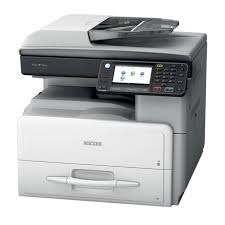
AFICIO MP301SPF - Multifunction Printer RICOH - Free user manual and instructions
Find the device manual for free AFICIO MP301SPF RICOH in PDF.


Pick your language and provide your email: we'll send you a specifically translated version.
| Brand | RICOH |
| Model | AFICIO MP301SPF |
| Category | Multifunction printer |
| Product type | Monochrome laser multifunction printer |
| Main functions | Print, copy, scan, fax |
| Paper size | A4, A5, A6, B5, Letter, Legal |
| Print speed | Up to 30 ppm (A4) |
| Print resolution | 1200 x 1200 dpi |
| Monthly duty cycle | Up to 40,000 pages |
| Paper tray capacity | 550 sheets (standard tray), 100 sheets (multi-purpose tray) |
| Power supply | 220-240 V, 50/60 Hz |
| Power consumption | Standby mode: 0.5 W, Printing: 600 W |
| Dimensions (W x D x H) | 420 x 410 x 430 mm |
| Weight | Approximately 20 kg |
| Connectivity | USB 2.0, Ethernet 10/100/1000, Wi-Fi (optional) |
| Supported operating systems | Windows, macOS, Linux |
| Display | Backlit LCD screen |
| Maintenance and cleaning | Clean the drum and tray regularly with a soft cloth |
| Consumables | High-capacity toner cartridge (8,000 pages) |
| Repairability | Spare parts available on request |
| General information | User manual downloadable in PDF format |
Frequently Asked Questions - AFICIO MP301SPF RICOH
How to load paper in the main tray?
Open the main tray, adjust the side guides to the paper width, insert the stack of paper with the printable side up, then adjust the length guide. Close the tray and make sure the paper type matches the one selected on the screen.
How to replace the toner?
Open the front cover, pull out the old toner by the handle, unpack the new toner and shake it gently. Insert it until it clicks, then close the cover. Start the replacement cycle via the Maintenance menu.
What to do in case of a paper jam?
Follow the instructions on the screen. Open the front cover, remove the drum, then gently remove the jammed paper from the path. Also check the output tray and the fuser unit. Close all covers and restart printing.
How to configure automatic duplex printing?
In your software's print settings, select the Duplex or Double-sided option. On the printer, you can set the default mode in the Print Settings > Layout menu.
How to scan a document to email?
Place the document on the glass or in the feeder. Press Scan, select Email, enter the recipient address and confirm. You can configure saved address books in the Settings menu.
How to connect the printer to a Wi-Fi network?
Use the control panel: go to Settings > Network > Wi-Fi, select your network, enter the password and confirm. Make sure the access point is on.
How to clean the transfer roller?
Access the Maintenance menu on the screen, select Roller cleaning. Follow the prompts: open the cover, remove the toner, wipe the roller with a lint-free cloth, then replace everything.
Where to find the device serial number?
The serial number is on a label stuck on the back of the printer, near the Ethernet port. You can also display it in the Information > Device Status menu.
How to update the firmware?
Download the latest version from the RICOH website. Connect the printer via Ethernet, go to Settings > Update > Firmware, then select the file. The update may take several minutes.
What to do if the screen displays 'Empty waste toner bottle'?
The waste toner bottle is located under the toner. Open the front cover, remove the toner, then pull out the black bottle towards you. Empty it into a trash bag, put it back in place and close everything. The alert should disappear.
User questions about AFICIO MP301SPF RICOH
0 question about this device. Answer the ones you know or ask your own.
Ask a new question about this device
No questions yet. Be the first to ask one.
Download the instructions for your Multifunction Printer in PDF format for free! Find your manual AFICIO MP301SPF - RICOH and take your electronic device back in hand. On this page are published all the documents necessary for the use of your device. AFICIO MP301SPF by RICOH.
USER MANUAL AFICIO MP301SPF RICOH

Manual assistant
Powered by Anthropic
Waiting for your message
Product information
Brand : RICOH
Model : AFICIO MP301SPF
Category : Multifunction Printer