
SCW 5 A2 - Action Camera SILVERCREST - Free user manual and instructions
Find the device manual for free SCW 5 A2 SILVERCREST in PDF.


| Product Type | Action Camera |
| Brand | SilverCrest |
| Model | SCW 5 A2 |
| Connectivity | Wi-Fi |
| Companion App | SilverCrest Action Camcorder (Android) |
| App Control | Full control via smartphone (live view, recording, settings) |
| Recording Modes | Video recording, Photography |
| Media Album | On-camera and on-smartphone storage management |
| Download to Smartphone | Select and download recordings from camera to phone |
| Video Editing | Cutting (trimming) videos on smartphone |
| Sharing Options | Email, Bluetooth, Internet (e.g., YouTube, Picasa) |
| DLNA Playback | Play recordings on DLNA-compatible devices |
| Camera Settings | Adjustable via app (photo and video parameters) |
| Live Preview | Real-time view from camera on smartphone |
| Wi-Fi Connection Setup | Direct Wi-Fi link between camera and smartphone |
| Photo Review | Full-screen viewing with left/right navigation |
| Video Playback | Play videos directly on smartphone |
| Batch Download | Download all recordings at once |
| Multiple Selection | Select multiple recordings for download or deletion |
| Delete Recordings | Delete from camera via app |
| Zoom in/out Timeline | During video editing for precise cutting |
| Cutting Marks | Set start and end marks for trimming |
| Save Edited Video | Save trimmed video to smartphone |
Frequently Asked Questions - SCW 5 A2 SILVERCREST
User questions about SCW 5 A2 SILVERCREST
0 question about this device. Answer the ones you know or ask your own.
Ask a new question about this device
Download the instructions for your Action Camera in PDF format for free! Find your manual SCW 5 A2 - SILVERCREST and take your electronic device back in hand. On this page are published all the documents necessary for the use of your device. SCW 5 A2 by SILVERCREST.
USER MANUAL SCW 5 A2 SILVERCREST
Action Camcorder App
Android version
Contents
Introduction......2
Launching the SilverCrest Action Camcorder app....2
Recording mode 2
The Media album....3
Loading recordings to the smartphone....5
Editing (cutting) video recordings....6
Introduction
The SilverCrest Action Camcorder app lets you control your action camcorder from your smartphone. Start installing the "SilverCrest Action Camcorder" app on your smartphone and then establish a WiFi connection to your action camcorder. Please read the "WiFi mode / Controlling the action camcorder from the App" chapter in your action camcorder User's Manual.
Launching the SilverCrest Action Camcorder app
Tap the SilverCrest Action Camcorder app icon to launch it. The app will automatically start in Recording mode.
Recording mode
The Recording mode shows the live picture captured by your action camcorder. The following functions are available:
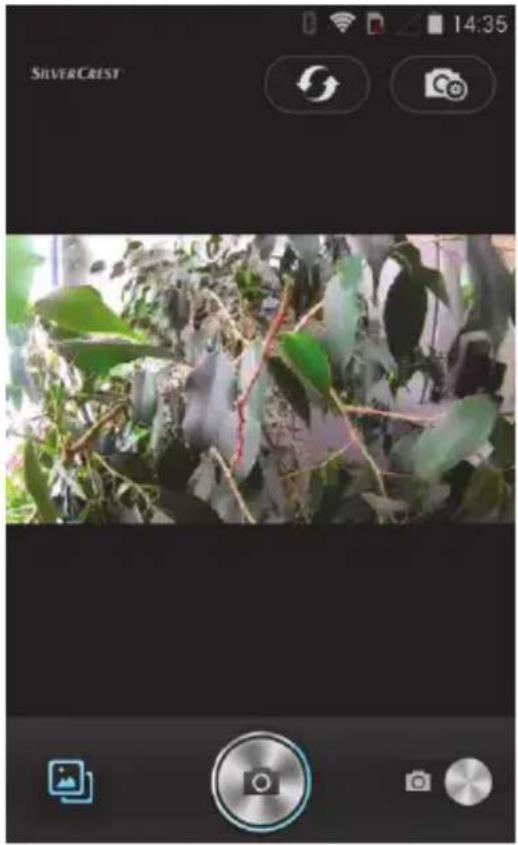
natural_image
Photo of a leafy plant with green leaves, captured in a mobile app interface (no readable text or symbols on the plant itself)| Establish connection with the action camcorder (in case that no connection exists and no live picture is shown) | |
 | Open camera settings |
 | Photography mode is currently active (tap to toggle the operating mode) |
 | Video recording mode is currently active (tap to toggle the operating mode) |
 | Take picture (Photography mode) |
 | Start video recording (Video mode) |
 | Stop video recording (Video mode) (flashing red dot) |
 | Open media album |
The Media album
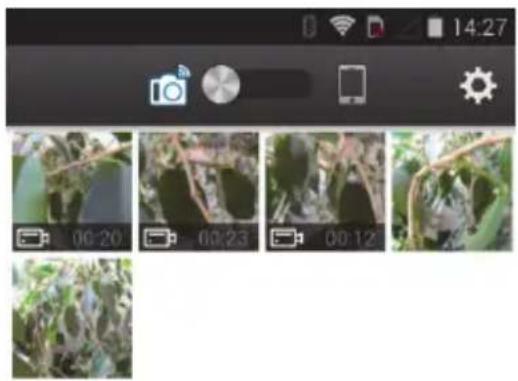
The media album lets you manage your recordings. The following functions are available:
natural_image
Mobile app interface showing camera, gear, and multiple video thumbnails of nature scenes (no readable text or symbols)| Displays recordings stored on the camcorder (tap to toggle the operating mode) | |
| Displays recordings stored on the smartphone (tap to toggle the operating mode) | |
| Customise settings (download quality, WiFi settings, etc.) | |
| Load recordings to the smartphone | |
| Select recordings (you can select multiple recordings at once) | |
| Switch to Recording mode |

natural_image
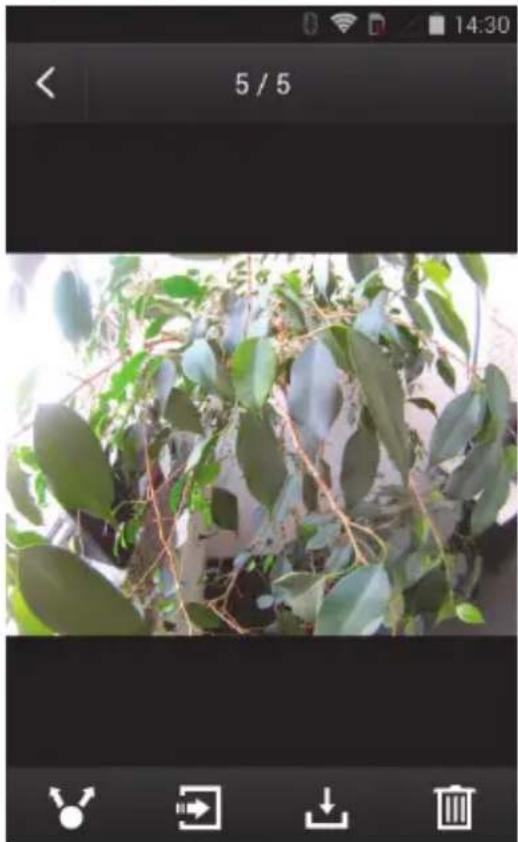
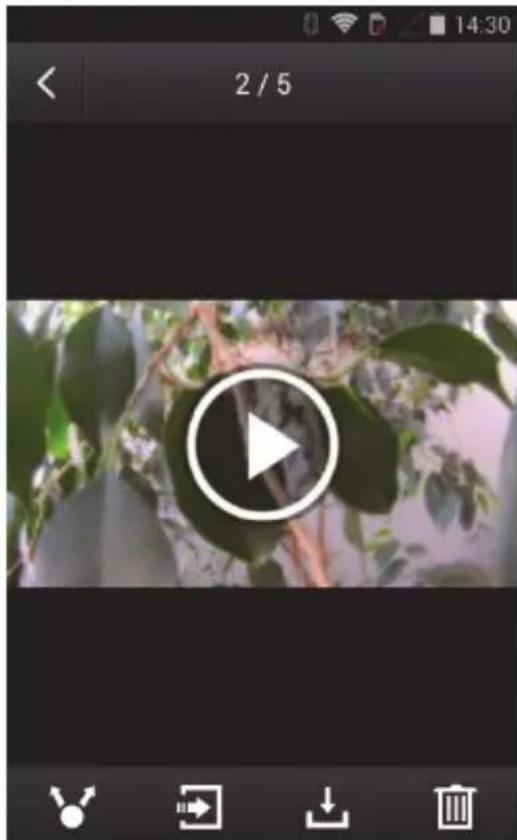
Three UI icons: a camera, a grid of squares with a checkmark, and a download symbol (no text or labels)Tap on a recording to show it full size. Use the bars to navigate to the right or left through the recordings.
Captured photo
natural_image
Close-up of green leafy plant branches with visible veins, captured in a mobile app interface (no text or symbols on the plant itself)Recorded video
natural_image
Mobile app interface showing a video player with a play button overlay, surrounded by green foliage (no text or symbols on the player or background)The following functions are available:
 | Delete the current recording |
 | Download the current recording to the smartphone |
 | Play the current recording on a DLNA device |
 | Forward the current recording via e-mail or Bluetooth or share it over the Internet (e.g. YouTube, Picasa...) |
| Play the current video recording |
Tap theicon to return to the recordings thumbnail view.
4 - English
Loading recordings to the smartphone
Tap the icon to choose the recordings to be downloaded to the smartphone. Next, tap on the recordings that you want to download.
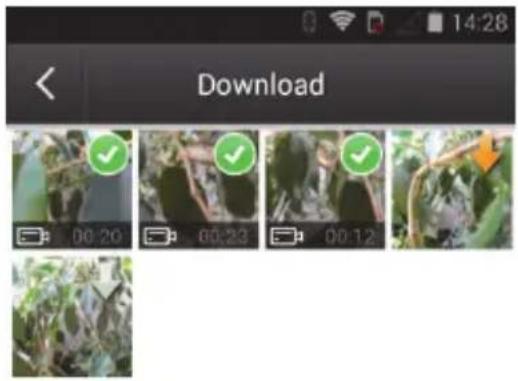
| The icons on the recordings have the following meaning: | |
| The recording has been downloaded | |
| The recording is currently being downloaded | |
| The recording is queued for download | |

Tap "Download all" to download all recordings. Tap "Cancel" to cancel the download immediately.
Tap the icon to return to the recordings thumbnail view.
Editing (cutting) video recordings
As soon as a video recording has been downloaded to a smartphone, it can be edited (cut). To do so, tap the icon. The following functions are available:
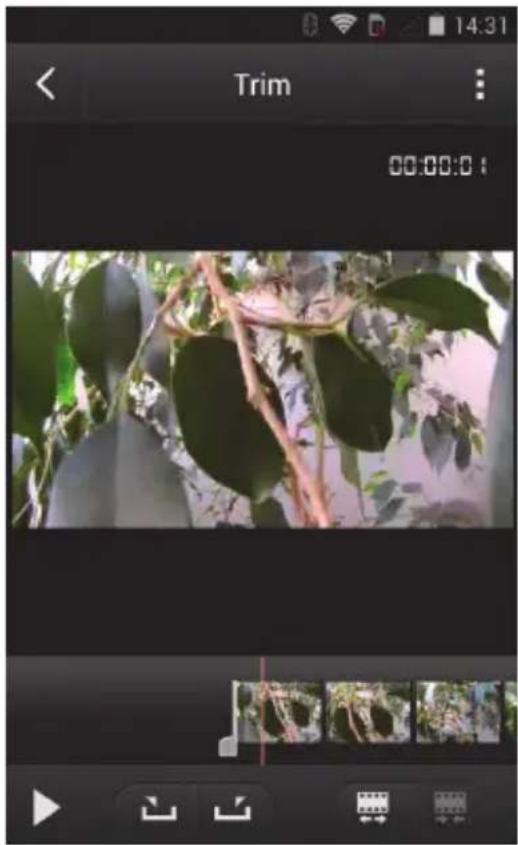
| Save the current recording, forward it via e-mail or Bluetooth or share it over the Internet (e.g. YouTube, Picasa) | |
| Zoom-out the timeline | |
| Zoom-in the timeline | |
| Start playback | |
| Set cutting end mark | |
| Set cutting start mark |
After the start and end marks for a cutting segment have been set, tap the icon and then on "Save" to save the video.
Tap the icon to exit video editing.