
ONDIO - Mp3 player ARCHOS - Free user manual and instructions
Find the device manual for free ONDIO ARCHOS in PDF.
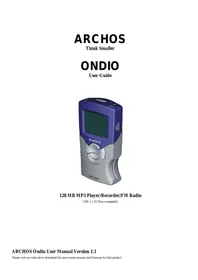


| Product type | MP3 player with FM radio and recorder |
| Brand | ARCHOS |
| Model | ONDIO |
| Internal memory | 128 MB Flash (approx. 2 hours of MP3 at 128 kbps) |
| Supported audio formats | MP3 (30 to 320 kbps, VBR) |
| Screen | Backlit LCD, 112x64 pixels |
| FM tuner | 87.5 – 108 MHz, 30 presets, auto search |
| Recording | Built-in microphone, stereo line input, FM radio; real-time MP3 encoding (VBR up to 128 kbps) |
| Special features | 30-second retro-record, incremental, voice recorder, text file reading, playlists |
| Connections | USB 1.1 (Mini-B), 3.5 mm stereo headphone jack, 3.5 mm stereo line input |
| Power | 3 AAA batteries (included) |
| Battery life | Up to 12 hours of playback |
| Dimensions | 81 x 47 x 25 mm |
| Weight | 60 g |
| Memory expansion | MultiMediaCard (MMC) up to 128 MB |
| Included software | MusicMatch Jukebox, drivers for Windows 98 SE |
| Box contents | Ondio, 3 AAA batteries, USB cable, stereo headphones, audio cable, carrying case, CD with software and manual, quick start guide |
| Safety | Do not expose to moisture, do not open (risk of electric shock), use only recommended batteries |
| Maintenance | Clean with a soft dry cloth; do not use abrasive products |
| Repairability | Spare parts available: batteries, cables, MMC card; repair by an authorized service center |
| Warranty | Limited warranty (see conditions in the manual) |
Frequently Asked Questions - ONDIO ARCHOS
User questions about ONDIO ARCHOS
0 question about this device. Answer the ones you know or ask your own.
Ask a new question about this device
Download the instructions for your Mp3 player in PDF format for free! Find your manual ONDIO - ARCHOS and take your electronic device back in hand. On this page are published all the documents necessary for the use of your device. ONDIO by ARCHOS.
USER MANUAL ONDIO ARCHOS
Please visit our web site to download the most recent manual and firmware for this product.
Warranty and Limited Liability
This product is sold with a limited warranty and specific remedies are available to the original purchaser in the event the product fails to conform to the limited warranty. Manufacturer's liability may be further limited in accordance with its sales contract.
In general, the manufacturer shall not be responsible for product damages caused by natural disasters, fire, static discharge, misuse, abuse, neglect, improper handling or installation, unauthorized repair, alteration or accident. In no event shall the manufacturer be liable for loss of data stored on disk media.
MANUFACTURER SHALL NOT BE LIABLE FOR ANY SPECIAL, INCIDENTAL OR CONSEQUENTIAL DAMAGES. EVEN IF INFORMED OF THE POSSIBILITY THEREOF IN ADVANCE.
Archos licensor(s) makes no warranties, express or implied, including, without limitation, the implied warranties of merchantability and fitness for a particular purpose, regarding the licensed materials. Archos's licensor(s) does not warrant, guarantee or make any representations regarding the use or the results of the use of the licensed materials in terms of its correctness, accuracy, reliability, correctness or otherwise. The entire risk as to the results and performance of the licensed materials is assumed by you. The exclusion of implied warranties is not permitted by some jurisdictions. The above exclusion may not apply to you.
In no event will Archos' licensor(s), and their directors, officers, employees or agents (collectively Archos' licensor) be liable to you for any consequential, incidental or indirect damages (including damages for loss of business profits, business interruption, loss of business information, and the like) arising out of the use of inability to use the licensed materials even if Archos' licensor has been advised of the possibility of such damages. Because some jurisdiction do not allow the exclusion or limitation of liability for consequential or incidental damages, the above limitations may not apply to you.
Please see your sales contract for a complete statement of warranty rights, remedies and limitation of liability.
Furthermore, warranty does not apply to:
- Damages or problems resulting from misuse, abuse, accident, alteration or incorrect electrical current or voltage. • Any product tampered-with or damaged warranty seal or serial number label. • Any product without a warranty or serial number label.
- Batteries and any consumable items delivered with or in the equipment.
Warnings and Safety Instructions
CAUTION
To prevent risks of electric shock, this unit must only be opened by qualified service personnel.
Power off and disconnect the power supply cable before opening the unit.
WARNING
To prevent fire or shock hazard, do not expose the unit to rain or moisture.
Use of this product is for personal use only. Copying CDs or loading music, video, or picture files for sale or other business purposes is or may be a violation of copyright law. Copyrighted materials, works of art, and/or presentations may require authorization to be fully or partially recorded. Please be aware of all such applicable laws concerning the recording and use of such for your country and jurisdiction.
FCC Warning Statement
FCC Compliance
This equipment has been tested and found to comply with limits for a Class B digital device, pursuant to Part 15 of the FCC Rules. These limits are designed to provide reasonable protection against harmful interference in a residential installation. This equipment generates, uses and can radiate radio frequency energy and, if not installed and used in accordance with instructions, may cause harmful interference to radio communications. However, there is no guarantee that interference will not occur in a particular installation. If this equipment does cause harmful interference to radio or television reception, which can be determined by turning the equipment off and on, the user is encouraged to try to correct the interference by one or more of the following measures:
• Reorient or relocate the receiving antenna. - Increase the separation between the equipment and receiver. - Connect the equipment into an outlet on a circuit different from that to which the receiver is connected. - Consult the dealer or an experienced radio/TV technician for help.
Note: During file transfer or in the PC mode, if the EUT or computer suddenly freezes or does not respond, it may be due to the electrostatic phenomenon. Please follow the procedures below to recover the operation:
Unplug the USB cable from the EUT
Close the software application in the computer (or re-boot the computer if necessary)
Re-connect the USB cable to the EUT.
CAUTION: Modifications not authorized by the manufacturer may void users authority to operate this device.
FCC Part 15 - Operation is subject to the following two conditions:
- This device may not cause harmful interference;
- This device must accept any interference received, including interference that may cause undesired operation.
Copyright Notice
Copyright ARCHOS © 2002 All rights reserved.
This document may not, in whole or in part, be copied, photocopied, reproduced, translated, or reduced to any electronic medium or machine-readable form without prior consent, in writing, from ARCHOS. All brands and product names are registered trademarks and the property of their respective owners. Specifications are subject to change without notification. Errors and omissions accepted. Images and illustrations may not always match contents. Copyright ® ARCHOS. All rights reserved.
Disclaimer of warranty: to the extent allowed by applicable law, representations and warranties of non-infringement of copyrights or other intellectual property rights resulting from the use of the product under conditions other than as here above specified, are hereby excluded.
Table of Contents
1 Technical Specifications....4
2 Product Introduction .... 5
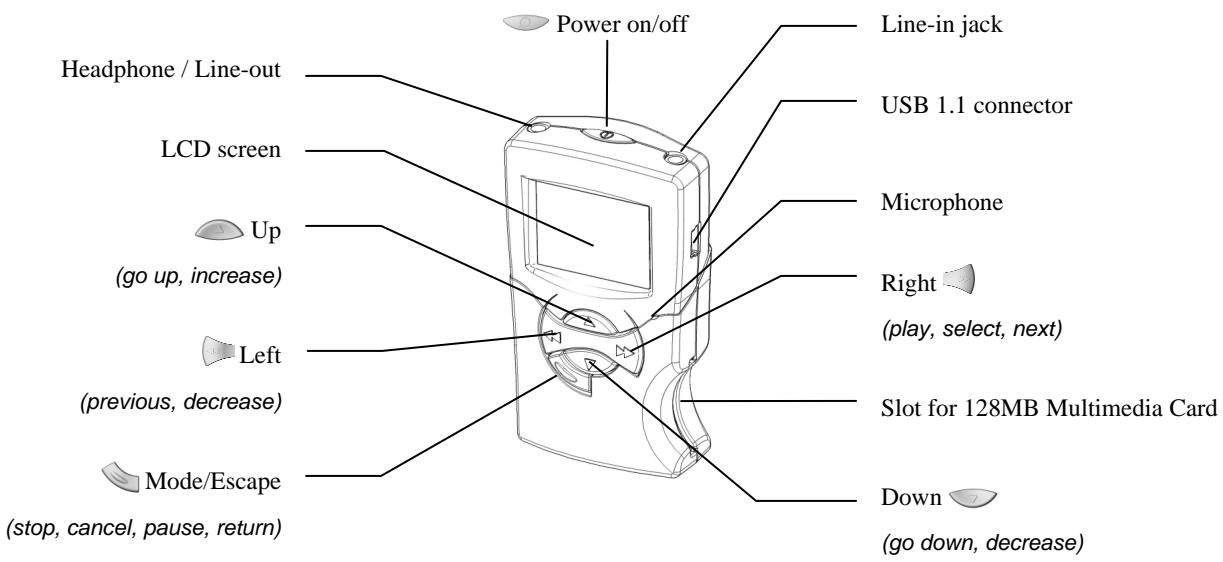
2.1 Buttons and Controls....5 2.2 Starting up the Ondio....6
3 FM Radio Mode....7
3.1 How to Adjust the Volume 7 3.2 How to Select a new Station 7 3.3 How to Create a Station Preset .... 7 3.4 How to Delete a Station Preset 7 3.5 How to Rename a Station Preset....8 3.6 How to Go to a Station Preset....8 3.7 How to Increase the signal quality....8 3.8 How to set the Ondio to HOLD 8
4 Browser Mode (file system) 9
4.1 How to Navigate the file structure....9 4.2 How to Recognize file types....9 4.3 How to Display file information....9 4.4 How to Delete a file or folder 9 4.5 How to Create a new folder .... 10 4.6 How to use the Text Input mode....10 4.7 How to Read Text files....10
5 Playing MP3 Music files....11
5.1 How to Play an MP3 file.... 11 5.2 How to Play a Playlist.... 11 5.3 How to Create a Playlist 12 5.4 How to Adjust the Sound Settings 13
6 Recorder Mode 14
6.1 How to Record from the Radio.... 14 6.2 How to Record Your Voice (Dictaphone™)....15
Instant-Record 15
Traditional Recording Method....15
6.3 How to Record from your Hi-Fi unit 16 6.4 How to Change the Recording Bit Rate and Sampling Resolution....17 6.5 How to make Incremental Recordings....17 6.6 How to use the Retro-Record Feature....17
7 Settings and Multimedia Card Expansion....19
7.1 How to Adjust the Settings 19 7.2 How to Expand the Ondio with a Multimedia Card....19
8 Connecting the ONDIO to a PC or Mac 20
8.1 Connecting Ondio to a PC 20 8.2 Disconnecting the Ondio from a PC 21 8.3 Use the Ondio file format 21 8.4 Connecting Ondio to your Macintosh....21
9 MusicMatch™ Software 22
10 Technical Support 23
11 Appendix A - Settings Table....24
12 Appendix B - Recording Bit Rate Table 25
13 Appendix C - Screen & Button Descriptions....26
1 Technical Specifications
| Capacity | 128 MB Flash memory (2 hours of MP3 music at 128 kbps, 3 hours of radio recording at 96 kbps, 4.3 hours of voice recording at 64 kbps or 128 MB of data).* Memory capacity can be enhanced by adding MultimediaCards. |
| Interface and transfer to computer | USB 1.1 (PC and Mac) |
| Supported formats | MP3 playback (30 to 320 kbps - VBR). MP3 recording (VBR up to 128 kbps), real-time encoding (from any analog audio source). 30 second retro-capture buffer function for radio. |
| Built-in FM tuner | FM band 87.5 to 108 MHz - scan function - 30 preset stations. |
| Display | LCD, 112x64 pixels |
| Audio specifications | Stereo Analog Line-In, Stereo Analog Line-Out & Earphone Jack.Signal to noise ratio >90 dB. Max. output power: 100mW, Frequency. response 20 HZ – 20 kHz. Harmonic distortion: <0.1%. Built-in microphone. |
| Sound settings and play mode | Volume, bass, treble, loudness, balance and bass boost.Normal, Single, Repeat all, shuffle, Queue, Scan |
| Continuous playback time | Up to 12 hours. |
| Software scalability | Downloadable firmware updates from Internet www.archos.com. |
| Power source | Internal: 3 AAA batteries |
| Dimensions | 81 x 47 x 25mm (3,1" x 1,8" x 0,9") |
| Weight | 60 g (2.1 oz) |
| System Requirements: | PC*: Windows 98 SE, ME, 2000, XP (USB mass-storage). 32 MB RAM (64 MB recommended). CD-ROM drive with digital audio extraction support.Mac*: OS 9.x. or X |
| Package includes | ONDIO, 3 AAA batteries, USB 1.1 cable (Mini B-A ), stereo headphones, audio-stereo cable, carrying pouch, MusicMatchTM Jukebox software, driver and manual on CD plus a Quick Start Guide in English, French, German, Spanish and Italian. |
2 Product Introduction
Dear Customer,
Thank you for purchasing the new Ondio 128MB MP3 player/recorder/FM receiver. Please take the time to read through this user manual in order to get the fullest use of this product. Our engineers packed this product with many functions and capabilities. The better you know how to use it, the more enjoyment you will get from it. Remember, with the Ondio, you can...
We hope you receive years of enjoyment from your Ondio. If you are really into MP3 music, you may also want to check out the big brother of the Ondio, the ARCHOS Jukebox FM Recorder which does all the same things as the Ondio but with 20GB of storage. Thanks again for purchasing our product. If there is something you think we should improve upon, please don't hesitate to write to us and let us know. We are always interested in improving our products to suit our customers' needs.
- Listen to FM stereo radio
- Listen to MP3 files • Use it as a Dictaphone • Record music directly from your hi-fi or other audio source • Store MP3, text, or any data file • Record from the built-in FM Radio
- Edit cut-in and cut-out points from radio recordings • Create music Playlists • Create radio station presets
- Read text files
- Add an additional 128MB with a multimedia card
Wishing you the best music listening experience, The team at ARCHOS
2.1 Buttons and Controls
Opening the battery cover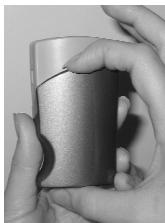
First install the three included AAA batteries. As shown in the photo, press downward on the top of the battery cover and pull outward. The bottom will hinge outward and then snap out. Be sure to install the batteries with the + positive and - negative as indicated.
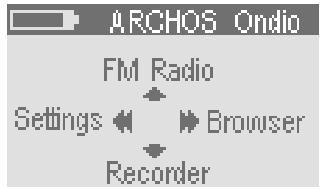
Main Menu
To start the Ondio, hold the ON/OFF button for 3 seconds. The main menu screen will appear. To shut off the Ondio, press and hold the ON/OFF button for three seconds, and it will shut off. Be careful to hold the button. If you accidentally double-click it while it is running, you will enter the Instant-Record feature.
Master Reset: If for some strange reason the Ondio freezes operation (Electrostatic phenomenon) or does not seem to shut off, you can hold the ON/OFF button for 8 seconds which will force the Ondio to execute a master reset. It will NOT erase the Ondio files.
3 FM Radio Mode
This section explains
How to...
3.1 Adjust the volume 3.2 Select a new station 3.3 Create a station preset 3.4 Delete a station preset 3.5 Rename a station preset 3.6 Go to a station preset 3.7 Increase the signal quality 3.8 Set the Ondio to HOLD
Typical FM Radio playing screen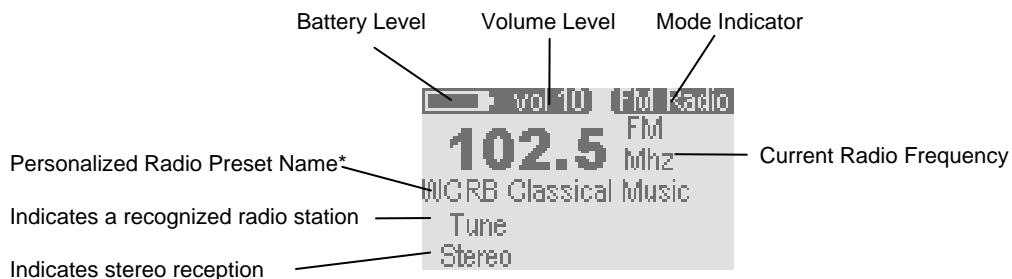
* The user must enter the personalized text. The default name would have been Radio 102.5.
3.1 How to Adjust the Volume
While the radio is playing, you can adjust the volume either by the thumbwheel control on the cord of the included headphones, or by pressing on the 🔒 to increase the volume or ⏻ to decrease it. The volume indicator on the top of the screen will reflect only the changes made with the buttons.
3.2 How to Select a new Station
To select a radio station, click once on the right button to increase the frequency by .1 Mhz (move up on the FM dial). If you hold down this button, the frequency will increase rapidly. When you release the button, the Ondio will stop at the next recognized radio station (scan for station feature). Use the left button to decrease the frequency in the same way. If the frequency keeps increasing or decreasing automatically beyond where you want it to stop, click quickly on the Right or Left button again to stop it.
3.3 How to Create a Station Preset
To create a station preset, tune the Ondio to the station you would like to create the preset for. Hold down the Mode button 📄 for three seconds.
You will then be asked what you would like to do. Use the Down button 📋 to highlight item 3 “Save” for example. Then press the Right button
to select this response. This will save the current station as a preset in the Radio list. The default name of the station will be Radio XX.X where
the Xs stand for the frequency. You can create a personalized name for the station another time.
If you would like to create a personalized name for the preset radio station at the moment you create your preset, do as explained above, except that when you are asked what you would like to do, scroll down to item 4 “Save as...” and you will be taken to the text input mode where you can give the preset station a personalized name. See the section BROWSER MODE for instructions on how to enter a name in the text input screen.
3.4 How to Delete a Station Preset
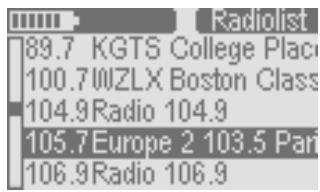
Radiolist Screen
While in the FM Radio mode, hold down the Mode button 📋 for three seconds. You will then be asked what you would like to do. Using the Down button 📋, highlight item 2 “go to Radiolist” and then click on the Right button to select it. You will be brought to the Radiolist screen. Once in the Radiolist screen, use your Up and Down buttons to find the preset station that you would like to delete. Click on the Left button 📋 to delete the preset station.
3.5 How to Rename a Station Preset
To give a personalized name to a radio station, you have to rename it. While in the FM Radio mode, hold down the Mode button 📋 for three seconds. You will then be asked what you would like to do. Using the Down button 🔒, highlight item 2 “go to Radiolist” and then click on the Right button to select it. You will be brought to the Radiolist screen. Once in the Radiolist screen, use your Up and Down buttons to highlight the preset station that you would like to rename. Click the Right button to select it. You will then be asked what you would like to do. Scroll down to item 3 “rename” and then click on the right button. you will be taken to the Text Input mode where you can give the preset station a personalized name. See the section BROWSER MODE for instructions on how to enter a name in the text input screen.
3.6 How to Go to a Station Preset
While in the FM Radio mode, hold down the Mode button 📋 for three seconds. You will then be asked what you would like to do. Using the Down button 🔒, highlight item 3 “go to Radiolist” and then click on the Right button to select it. You will be brought to the Radiolist screen. Once in the Radiolist screen, use your Up and Down buttons to select the station you would like to listen to. The station will change as you scroll through the station presets. Once at the desired station, click on the Mode button to return to the FM Radio mode.
3.7 How to Increase the signal quality
Sometimes, the FM signal may not be very clear. You can change the tuner sensitivity (DX if you are far from the radio station or Local if you are near the radio station). You can also turn on and off the FM stereo mode. Sometimes a station will come in more clearly if you have the FM Stereo mode shut off.
While in the FM Radio mode, hold down the Mode button for three seconds. You will then be asked what you would like to do. Using the Down button, you can scroll down to the various options. Toward the bottom of the list, you will see the options for FM Stereo and FM sensitivity. Click on the right button to execute the function you want. You will then be brought to a screen with the list of possible options for that function. Highlight the option you desire, then click on play. The item with the circular mark in the front of it is the item which is currently implemented. Click once on mode to return to the FM Stereo mode.
3.8 How to set the Ondio to HOLD
Sometimes, while you are playing the radio or an MP3 file, you don't want buttons to react to any accidental bumping. To deactivate the buttons of the Ondio, you need to put the Ondio into HOLD mode. To do this, hold down on the Mode button while you are listening to the radio or an MP3 file. The first option is to set the Ondio on HOLD. Click on the right button. The Ondio will now go into HOLD mode where the buttons will not react. If you do nothing when presented with the list of options, it will automatically go to HOLD mode in 10 seconds. You will see a HOLD indication on the top right of the screen.
To deactivate the HOLD mode, press and hold down on the Mode button for 3 seconds. The HOLD indicator on the screen will disappear.
4 Browser Mode (file system)
This section explains
Typical Browser Mode Screen
How to...
4.1 Navigate the file structure 4.2 Recognize file types 4.3 Display file information 4.4 Delete a file or folder 4.5 Create a new folder 4.6 Use the Text Input mode 4.7 Read Text files
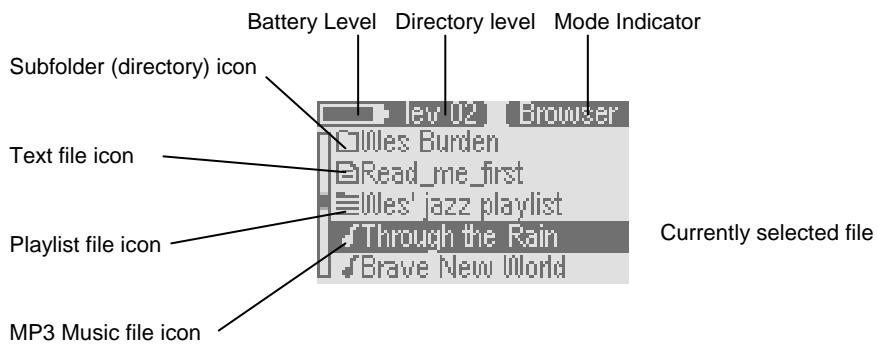
Notice the vertical scroll bar on the left of the screen. This indicates that there are more files at this level. Use the Up and Down buttons to see the files.
**Although the Ondio will store any type of file, only the files with extensions.mp3,.m3u,.txt and folders will be displayed on the screen.
4.1 How to Navigate the file structure
Notice carefully the directory level lev 02 on the top of the screen in the example above. This tells you at what depth you are in the file system. When you turn on the Ondio, you are at the root level, level 0. From there, each time you enter a folder (Click Right button to enter a folder), you go down one level. This indicator gives you a sense of how deep in the file system hierarchy you are. To go back up one level, you will click on the left button. If, for example, you are at level 02, then you should click on the Left button two times to return to the root level of the file system.
4.2 How to Recognize file types
The Browser mode allows you to view all your MP3 files. The Ondio will store any type of file (think of it as a 128MB hard drive). However, when you go into the Browser Mode, you will only see the files with the extensions .mp3 (music), .m3u (Playlist), and .txt (text file). As shown in the screen above, each of these recognized file types has its specific icon type.
4.3 How to Display file information
If you would like to view information about an MP3 file, you must first play it. While it is playing or is paused, you can hold down the Mode button which will bring you to a Question screen. Scroll down using the Down button to the option File info. When you execute this option, you will see information about the file such as bit rate, sample resolution, size, and file name.
4.4 How to Delete a file or folder
While in the browser mode, navigate to the file you want to delete. Once highlighted, hold down on the Mode button until the question screen appears. You can then scroll down (using the down button) to the delete option. Click on the right button to make the delete happen. You will then be asked to validate your response.
4.5 How to Create a new folder
Go to the folder (directory) where you would like to create a new folder. Hold down the Mode button until the questions screen appears. You can then scroll down (using the down button) to the Make directory option. Click on the right button to select this option. You will then be sent directly to the Text input screen where you can enter a name for the newly created directory. See section 3.6 on how to enter text.
4.6 How to use the Text Input mode
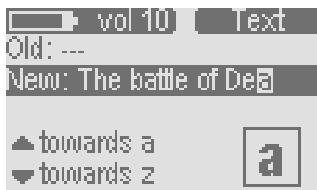
Text Input Screen
When you create a folder or change the name of a file, you are sent to the Text input screen in order to enter your text. We highly recommend that you use your computer's file management system to rename files and create new folders. The Ondio's text entering screen can become very tedious to use if you have to enter more than one or two text items.
To enter text, you will use the Up button to scroll the alphabet towards the letter a. Using the Down button will scroll toward the end of the alphabet. After the letter z, you will go through the Upper case characters A – Z, after these, through the numbers 0-9 and then finally through special characters. By holding down on the Up or Down button, it will scroll through the alphabet faster and faster.
Click on the Right button to accept the current letter and advance one place forward. Click on the Left button as a backspace, to delete the previous letter. Hold down on the Left button to delete the entire line and start anew. To validate your text, click on the Mode button. You will see a question screen asking you to accept the text you have input, or to escape from the text input mode leaving the original text unchanged. Note that if you are making a new folder and you escape from the text mode, no new folder will be created.
4.7 How to Read Text files
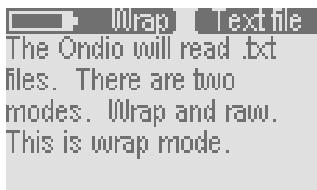
Text Reading Mode (Wrap)
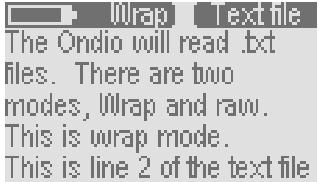
In the Browser mode, the Ondio will display file names which have the .txt extension. Because of Ondio's small screen, we recommend you read .txt files from your computer. However, there are times when you'd like to be able to read a .txt document without having to connect the Ondio to your computer. Click the Right button on a highlighted .txt file to open it. The top right of the screen will display Text to indicate that you are in the text file reading screen. The top left will display the reading mode.
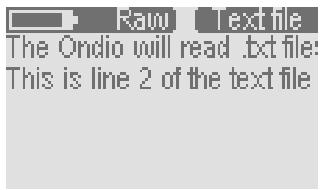
Same text file in Raw mode
Hold down on the Mode button to toggle between Wrap and Raw reading modes. Reading a text file in Raw mode will not introduce the automatic wrapping that allows you to read it line after line. A text line may have 200 or more characters, and thus you must use the Left and Right buttons to shift the text display to the right and left in order to read all the words.
In Wrap mode, the Ondio will wrap the sentences around to the next line. You will then use the Up and Down buttons to scroll up and down through the text file. In this mode, the Left and Right buttons will bring you to the beginning and end of the text file respectively.
5 Playing MP3 Music files
This section explains
Typical MP3 File Playing Screen
How to...
5.1 Play an MP3 file 5.2 Play a Playlist 5.3 Create a Playlist 5.4 Adjust the Sound Quality
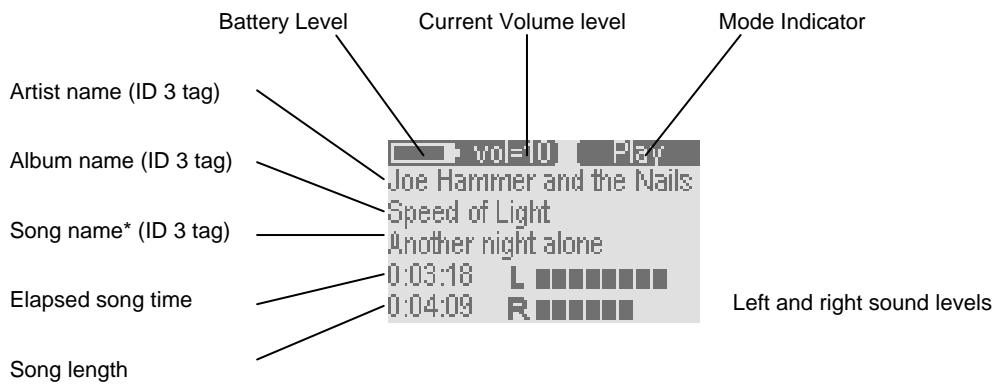
* If there is no ID3 tag information in the MP3 file, the file name will be displayed
5.1 How to Play an MP3 file
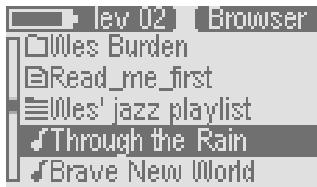
View of files and folders
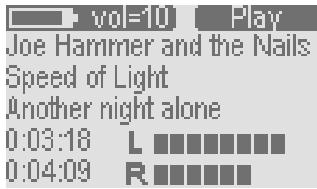
Typical playing Screen
From the Main menu, go to the Browser mode (Right button) to see the files and folders on your Ondio. As shown on the left, once in the Browser mode, (Browser displayed in the top right of the screen), you will see MP3 files with a music note icon in front of them.
Use the Up or Down button to locate the file you would like to play. Once the desired MP3 file is highlighted, click on the Right button to play it. The second image on the left shows you the typical playing screen.
If you want to pause the music, click on the mode button once. To recommence from a pause, click on the Right button. If you want to stop the music and go back to the Browser, click twice on the Mode button, once to go to pause, and the second time to stop.
If you are listening to a song and would like to listen to the next song in the current folder, just click on the right button. If you would like to fast forward or fast reverse through the song, hold down on either the Left or Right button.
5.2 How to Play a Playlist
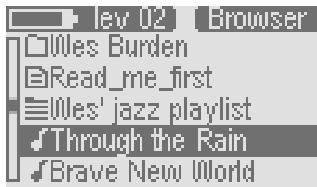
Browser showing all viewable file types
A Playlist is a file that contains a list of music tracks to play. This feature allows you to compile a list of your favorite songs and store them in a file for playback later. Playlists can support up to 999 songs and can contain songs from multiple folders. A playlist is really nothing more than a text file with the list of files to be played. When you first turn on your Ondio, your current default Playlist is empty and needs to be populated with songs before you can play or save it. If you delete a song from a Playlist, you are not deleting the song, but just its entry in that particular list.
From the Main menu, go to the Browser mode (Right button) to see the files and folders on your Ondio. As shown on the left, once in the Browser mode, (Browser displayed in the top right of the screen), you will see a Playlist file such as 'Wes' jazz playlist'. Playlist files have a list icon ≡ in front of them.
Use the Up or Down button to locate the Playlist you would like to play. Once the desired Playlist file is highlighted, click on the Right button to play it. There is a setting in the Music Settings Submenu which will allow you to have the music tracks in the Playlist played in random order (shuffle).
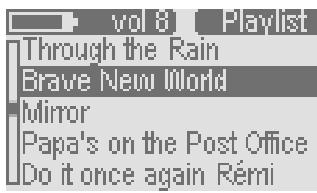
View of the Playlist
The Playlist exists in the Ondio's internal memory first, then it is saved for later use. If you create a Playlist without saving it, it will be lost the next time you turn on the Ondio. To put a song into the Playlist, first you will highlight it in the Browser mode. Now, hold down on the Mode button until you see the Question screen appear. The first option will be to add the song to the Playlist. Since this option is highlighted already, just click on the Right button to accept this choice. This song is now in the Playlist. Navigate through your folders, and add in this same way, all the songs you would like for the current Playlist.
When you're done adding all your songs to the Playlist, you should save it. To do so, go to the Settings mode (Main menu then Left button). Once in the Settings mode, you will scroll down (Down button) to the option Open Playlist. Click on the Right button to open it. You will now see the Ondio's Playlist. In the Playlist screen you can do all your Playlist manipulations. To delete a song from the Playlist, click on the Left button. Click on the Right button to go to the Question screen to see your options.
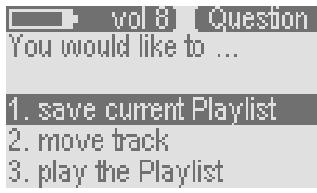
Playlist Question screen
- Save Playlist: Your first option will be to save the current playlist. Since it is already highlighted, simply click the Right button to accept it. You will then be sent automatically to the Text Input screen in order to name your file.
- Move Track: You will also notice that in the question screen, you can move a track. After selecting this option, you can move the current song up or down in the playlist order. Use the Up and Down buttons to change the song's position. Click the Right button to set it into place.
- Preview: You can also listen to a preview of the current song if you have forgotten what it sounds like. Clicking on this option plays the song and then goes back to the Playlist screen when you click on Mode.
- Play Playlist: You can simply just play the playlist without saving it. Remember though that it will be lost when you shut off the Ondio if you do not save it.
- Clear Playlist: You can clear the entire playlist with this option.
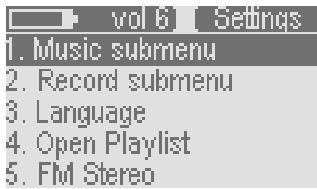
Go to music submenu via the Settings Menu
As shown to the left, the sound settings can be reached by going to the Settings mode. Typically however, you will want to change your sound settings while you are listening to your music, either the radio or an MP3 file.
While listening to an MP3 file, press and hold the Mode button 📋 until the Question Screen appears. You can then scroll down through the various sound settings such as Bass and Treble. Use the Left and Right buttons to increase or decrease the value. The changes will take effect immediately and you will be able to hear the difference. Click on Mode when finished to return to the play screen.
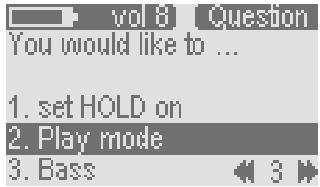
Hold 📋 to go to settings directly from playing music
| You would like to set... | |
| 1. | HOLD on |
| 2. | File info |
| 3. | Play Mode |
| 4. | Bass |
| 5. | Treble |
| 6. | Loudness |
| 7. | Balance |
| 8. | Base Boost |
| 9. | Flat |
| 10. | Edit |
MP3 Question screen options
| You would like to... | |
| 1. | set HOLD on |
| 2. | go to Radiolist |
| 3. | save |
| 4. | save as |
| 5. | set stereo |
| 6. | set sensitivity |
| 7. | go to music submenu |
Radio Question screen options
While listening to the Radio, press and hold the Mode button 📋 until the Question screen appears. Scroll down the list to the last option, Music Submenu, and click on the right button to select it. You will then be taken to the music submenu where you can adjust the sound settings such as Bass and Treble. Click on Mode to return to the FM radio screen.
6 Recorder Mode
This section explains
How to...
6.1 Record from the Radio 6.2 Record your voice (Dictaphone™) 6.3 Record from your Hi-Fi unit 6.4 Change the recording and sampling bit rate 6.5 Make Incremental Recordings 6.6 Use the Retro-Record Feature
Typical Recording Screen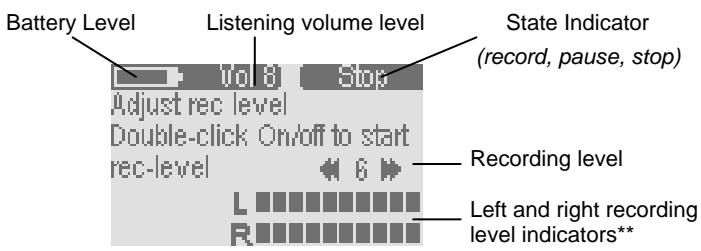
* During radio recordings, neither the elapsed time nor the recording level indicators will be active. **The last bar of the recording indicator will display '!' if the sound level is too high. Optimum level should be set just before the indicators flash the '!' mark.
6.1 How to Record from the Radio
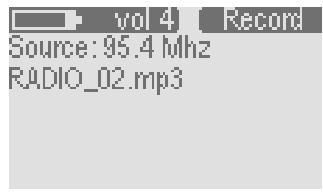
Recording Screen
To record from the radio, you will use the Instant-Record function. When you hear a song that you want to record, you don't want to have to fiddle with the recording level, bit rate, or other parameters. Thus, the Ondio will use the preset parameters to record with (you can change these in the Record Settings Submenu).
While listening to the radio, you will double-click on the power button. This will make the Ondio go instantly to the RECORD mode and start recording. The file name will be pre-determined as Radio_xx where xx is the next consecutive number of the radio recordings. The recording gain level will be preset according to the default value in the recording settings submenu. If you would like to pause the recording, click once on the Power button. The top right of the screen will display Pause. If you would like to recommence your recording, click once again on the power button. The mode indicator will then display Record once more. When you want to stop your recording, double-click once more. You will then return to the regular FM Radio mode that you were in.
ATTENTION: In order to avoid any radio frequency interference, the Ondio purposely does not display the elapsed time nor the recording levels. You can be assured however that it is recording via the Record indicated on the display.
There are two ways to record from the built-in microphone. You can either use the Instant-Record feature which transfers you to the Record mode with settings already made and the recording started or via the RECORD main menu. If you want to be able to control file name, bit, and sample rates before you begin your voice recording, you should use the traditional recording method via the Record mode.
Instant-Record
Recording Screen
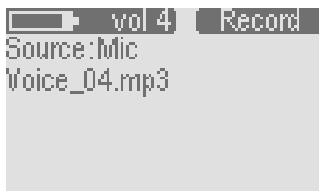
While at the Main menu or in the Browser mode, you can start an Instant Recording by double-clicking on the Power button. You will be sent to the recording mode with all the settings preset and the recording started. The file name will be preset to Voice_xx where xx is the next incremental number for voice recordings. The source will, of course, be set to Microphone. The preset record level will be the value that was set in the RECORD submenu settings in the Settings mode. While recording, click once on the Power button to pause. You will see that the state indicator displays Pause. Click on Power again to recommence your recording. Double-click on the Power button to stop your recording. You will then be sent back to the BROWSER mode where you will be able to see the MP3 voice file.
Traditional Recording Method
Recording Screen
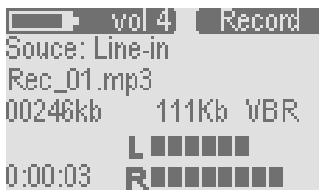
Using the Mode button, click it until you return to the Ondio main menu screen. Click now on the Down button to indicate that you want to go into the Record mode. The screen to your left will be displayed. You will notice that the recording Source will be either Mic or Line-in. Hold down now on the Mode button for three seconds. You will go to a question screen.
Question Screen
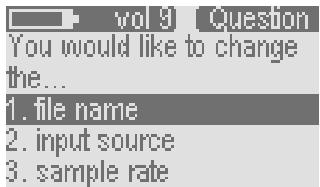
The Ondio will now give you a list of items to choose from. Use the Down button to highlight item 2, input source, then click on Right in order to change the input source. You will see two input sources. Scroll to Microphone and click on the right button to select it. You will then be sent back to the Recording screen. You can also do the same thing to change the name of the file that will be recorded, the sample rate, or the bit rate. Typically you will find it much quicker to use the Instant-Record method to record your voice. That method, however, is less versatile.
Now that your recording level and parameters are all set, double-click on the Power button to start the recording. If you need to pause, click once on the Mode button. To resume from the pause, click on the Right button. To stop the recording, click the Mode button once to pause the recording, and then click the Mode button a second time to definitively stop it. The recording is now saved as an MP3 file. During a voice recording, the Power button also can control the Pause and Stop as in the case of Instant-Recording.
Recording Screen
To record from your Hi-fi unit, you can use the included audio cable*. Plug one end into the Ondio's Line-in jack. This is the jack on the top of the Ondio on the right. Plug the other end of the cable into the Line-out jacks (Left and Right) from your Hi-fi unit, Cassette deck, CD player, or VCR. Next, return to the Main menu (by clicking on the Mode button) and then select the Recorder mode by clicking on the down button.
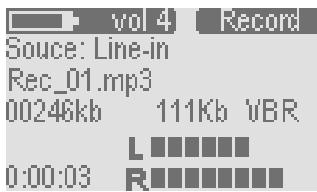
You will see a screen as shown on the left. Before recording, check for a good recording level by playing the sound to be recorded from the Hi-fi unit while watching the left and right record level indicators on the screen. Use the Left and Right buttons to decrease and increase the recording sensitivity. The bars should go up to the very end of the scale without causing the final bar to flash a ! mark. If you see the ! mark, this means you are overdriving the input and you need to reduce the sensitivity a little bit.
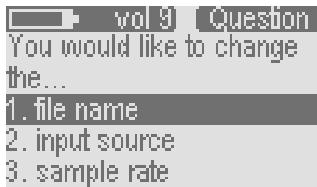
Question Screen
To change the default file name Rec xx where xx is the next consecutive recording number, you can press and hold down on the mode button. This will go to the QUESTION screen and ask you if you would like to change the file name. You can also press and hold the Mode button to change the bit rate and sample rate of the recording.
Now that your recording level and parameters are all set, double-click on the Power button to start the recording. If you need to pause, click once on the Mode button. To recommence from the pause, click on the Right button. To stop the recording, click the Mode button once to pause the recording, and then click the Mode button a second time to definitively stop it. The recording is now saved as an MP3 file.
*The included audio cable connects to your Hi-fi unit via two (left and right) RCA type connectors. If you would like to record from a device which has only a headphone jack, such as a portable radio or boombox, you will need to purchase an audio cable which have the male stereo 3.5mm jacks on BOTH ends.
These settings allow you to control the quality of the recording. There are default bit rate settings in the Record Submenu in SETTINGS. Go to the main menu by clicking on the Mode button. Click on the left button to go to the SETTINGS mode. Once there, scroll down with the down button to highlight the Record submenu. Click the Right button to enter into this submenu. Here, you will find all the recording presets. See also Appendix B for technical details.
There are two default recording bit rate settings. Rec bit rate for the Radio and Line-in recordings, and mic bit rate for microphone recordings. Scroll to the menu item and click the Left and Right buttons to increase or decrease the setting. You can now click on the mode button to return to the Settings menu, and then on Mode again to go back to the Main menu. Remember, when making a recording the traditional way via the Recorder Mode (as opposed to Instant-Recording), you can always adjust the recording bit rate and sampling resolution at that time (see the instructions on how to record).
The sampling resolution is changed in the same way. The higher the sampling resolution, the higher the quality of your music or voice will be. However, the MP3 file sizes will also be larger. Decreasing the sampling resolution will decrease the sound quality and the MP3 file size. The suggested settings for sampling resolution are 44.1 kHz for the Radio/Line-in recordings and 22 kHz for microphone recordings.
6.5 How to make Incremental Recordings
If you are recording multiple music tracks, for example, from your audio cassette where there are short periods of silence between each song, you can use the Incremental Recording feature. Attention: This feature only works in the traditional recording mode, not in Instant-Recording. While you are recording, wait until you hear the beginning of the silence between songs. At this moment, click on the right button 🏠. This will stop and close off the first recording, and immediately start a new recording. The name of the new recording will be the previous name with the suffix b. Then for the next incremental recording it will be suffixed with the letter c. For example, after making a few incremental recordings, you might have MP3 file names of, Rec_07a, Rec_07b, and Rec_07c. Note also, that when the Ondio switches from the end of one incremental recording to the beginning of another, it will say Please Wait. Don't worry, the recording is taking place during this message.
6.6 How to use the Retro-Record Feature
The Retro-Record feature allows you to record from the radio without missing the beginning of a song. For example, you hear a song that you like and would like to record it. You double-click on the Power button which starts an Instant Recording. With the Retro-Record parameter set to On in the SETTINGS menu, your Instant Recording actually starts 30 seconds BEFORE you double-clicked, thus capturing the beginning of the song that you missed. Later, after you stop your recording (double-click on the Power button again), you will be able to Edit that song to neatly trim away the beginning and end of your recording.
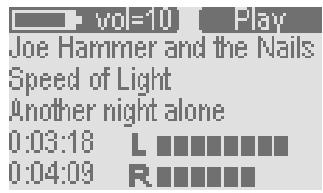
Select song to edit
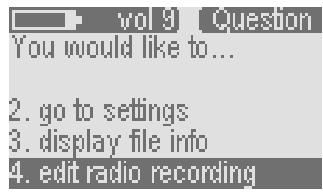
Select edit recording
To edit your song, you must first play it. Once it is playing, hold down on the Mode button 📄. If the selected song was recorded from the radio AND the Retro-Record setting was on when it was made AND the song has not already been edited, only then will there be the option in the QUESTION screen to Edit the song. You will have to use the Down button to scroll downward to see it since it will be the last option on the list.
Now comes the tricky part. Once you select the item 'Edit', you will go to the EDIT mode and you will hear your recording start to play. As shown in the image to the left, you are to make your Cut-in (where you really want the song to start) and your Cut-out points (where you want the song to end). The Left and Right buttons have two functions so be careful. By holding down on either button, you will fast forward or fast reverse through the file. When you let go of the button, the music will play normally. When you have found the exact spot you would like the Cut-in to happen, give a simple click on the left button. Then, let the song continue playing (or fast forward toward the end) and then when you arrive at the point
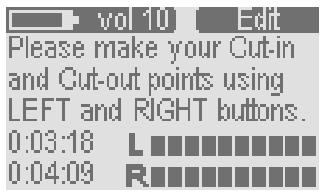
Editing your recording
where you want the Cut-out (song end), give a simple click on the right button.
Now that you have made your edit, you can continue to use the Left and Right buttons to listen to the entire song to verify that the edit points are as you want them to be. To finish, click on the Mode button. The Ondio will ask you if you want to save the edit or not. If you accept your edit, it is definitive and you cannot re-edit the music track again. If you do not accept your edit, you will be sent back to the Browser mode with your recording untouched. It can be edited at another time.
7 Settings and Multimedia Card Expansion
This section explains
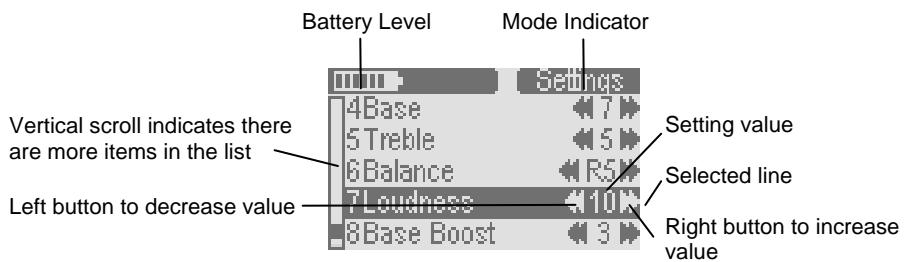
Typical Settings Screen
How to...
7.1 Adjust the Settings 7.2 Expand Ondio with a multimedia card
7.1 How to Adjust the Settings
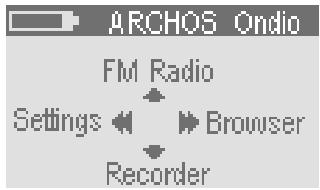
Main menu
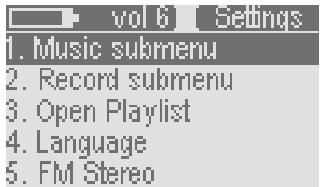
Settings Screen
Click on the Left button from the Main menu to go to the SETTINGS screen. If you are not at the main menu, click once or twice on the Mode button and you will return to this main screen. Click on the Left button to enter into the Settings screen.
You will use the Up and Down buttons to select the parameter you would like to change. If the parameter's value is a number, such as the Treble parameter, use your Left and Right button to adjust the value. The change takes place immediately. If it is a text item to adjust, such as Language, you will be taken to another screen where the options are displayed. Use the Up and Down button to highlight the option you would like and then click on the Right button to select it. The round indicator will then move to that option indicating that this is the currently validated option.
You can also enter the two submenus (Items 1 and 2) for Music settings and change those parameters in the same way. Click on Mode to return to the previous screen. See appendix A for a complete list of parameters and their default values.
7.2 How to Expand the Ondio with a Multimedia Card
Your Ondio has a built-in capacity of 128 Megabytes (Flash memory). If you would like to expand that capacity, you can purchase a Multimedia Memory Card (MMC) which slides right into the side of the Ondio. These can usually be purchased at the same store you bought your Ondio from. These cards currently have capacities of up to 128 Megabytes of storage space (and perhaps more as manufacturers continually try to increase the storage capacity of these tiny cards).
You can insert the card into the Ondio while the Ondio is on or off. The Multimedia Memory Card (MMC) takes the place of the built-in Flash memory. This means that you either listen to and record onto the built in memory OR the expansion MMC memory. When you insert a new (and blank) Multimedia Memory Card, you will not see any of your MP3 files or folder because the Ondio will be looking only at what is on the inserted memory card. If you want to listen to your previously recorded music, voice, or radio, simply pull out the memory card and your Ondio will revert to the contents of its internal flash memory.
8 Connecting the ONDIO to a PC or Mac
This section explains
How to...
8.1 Connecting Ondio to a PC 8.2 Disconnecting Ondio from a PC 8.3 Use the Ondio file format 8.4 Connect the Ondio to a Mac
Data is being transferred between the Ondio and your computer.
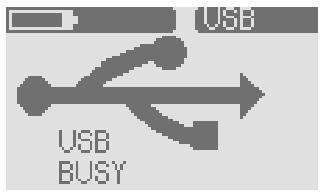
Ondio connected screen
Ondio is connected to your computer
***NOTE***
The Ondio can only be used as an external storage device when it is connected to a computer. You cannot use the buttons on the front to play music from it.
8.1 Connecting Ondio to a PC
The Ondio connects to your computer via the USB 1.1 standard. Thus either a 1.1 or 2.0 USB port on your computer will work. Start up your computer and make sure it has completely booted up the Windows operating system. Connect the included USB cable to your computer's USB port (larger end of cable) and then the other side (mini USB connector) to the Ondio's mini USB port (right side). You should connect the cable to the Ondio while it is on. For Windows ME, 2000, and XP, no special software driver needs to be installed. These operating systems will recognize the Ondio as a mass storage device and simply assign a new drive letter, (e: for example) to the Ondio. See the next section below on how to safely disconnect the Ondio from a PC.
When you connect the Ondio to a computer running Windows 98 SE (Second Edition), it will recognize that a new USB device has been connected to the computer and start up its Add New Hardware Wizard as shown below.
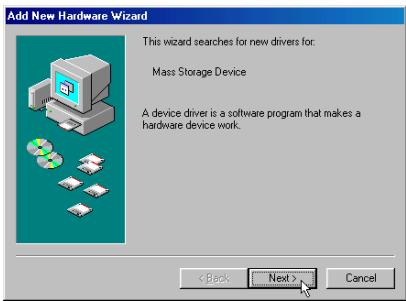
- Windows has recognized a new piece of hardware (the Ondio) and starts its wizard. Click on Next.
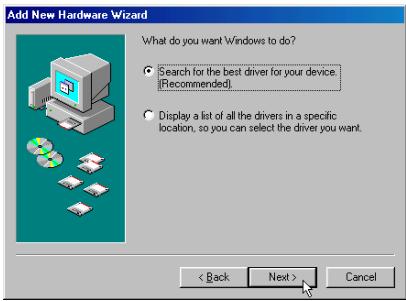
- Click on the button Search for the best driver. Open up the CD tray on your computer and insert the included Archos CD-ROM and then close the tray. Now click on Next.
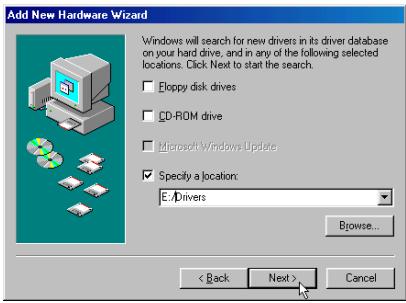
- Uncheck the box Floppy disk drives if it is checked, and then check the box Specify a location. Type in the drive letter of your CD player (usually D) followed by:/Drivers. Click on Next and Windows will then load the correct drivers.

Removable Disk (F:)
Seen here as a removable disk. Just copy files to and from the Ondio.
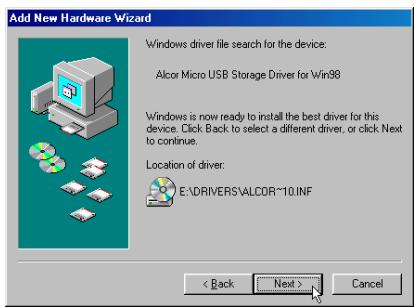
- Windows will now go and copy from the CD to your hard drive, all the files it needs to make the USB connection operational. Click on Next to tell Windows to install the driver.
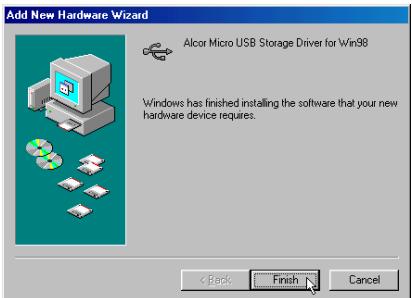
- Windows will indicate when it has finished copying the drivers. Click on Finish.
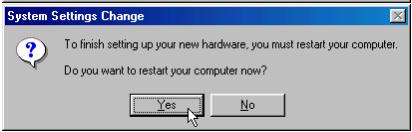
- You will be asked to restart the computer. Upon restarting your computer, it will again ask to find the correct drivers to load. Go through the exact same process again, directing Windows to the drivers on the CD-ROM. Ondio will now be seen as another drive in your file management system.
1. Safe remove icon here
2. Safe remove button
3. Safe remove message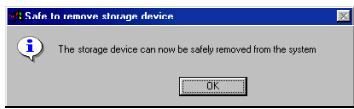
If you are running Windows 98 SE, you can simply disconnect the USB cable from the Ondio and then use the Ondio as normal. Attention: Make sure you do not disconnect the Ondio while data is being transferred to or from it. Ondio displays the message BUSY under the USB graphic when it is transferring data.
For Windows ME, 2000, and XP, you must remove the Ondio in a special ‘safe’ manner. You will see a small card icon with a green arrow in the system tray (bottom right of screen [1]). Click on this icon and then click again on the “Remove Safely” message [2]. Wait a few seconds and a message will appear on the center of the screen [3] saying that you can remove the storage device. You can now safely unplug the Ondio’s USB cable.
Warning: Failure to safely disconnect the Ondio as explained above may cause the operating system or Ondio to freeze and/or lose data.
8.3 Use the Ondio file format
The format of the data inside the Ondio's flash memory is the same as that of a small hard drive (FAT). Using the Windows defragmenting tool will not corrupt the data on the Ondio. However, because there is only 128 megabytes of memory on the Ondio, doing this is really not necessary. If you think there may be problems with the memory, you can reformat the Ondio's Flash memory. You will, of course, lose all of your data if you do not back it up on your computer's hard drive beforehand.
8.4 Connecting Ondio to your Macintosh
The Ondio connects to your Macintosh via the USB 1.1 standard. Thus either a 1.1 or 2.0 USB port on your computer will work. Start up your computer and make sure it has completely booted up the Mac operating system. Connect the included USB cable to your computer's USB port (larger end of cable) and then the other side (mini USB connector) to the Ondio's mini USB port (right side). You should connect the cable to the Ondio while it is on. After a short wait, the Mac will automatically recognize the Ondio as a mass storage device and place an icon on your desktop representing the Ondio. You can now drag and drop files as if it were another hard drive.
Warning: Before disconnecting the Ondio from your Macintosh, drag the Ondio icon to the trash in order to unmount it from the operating system. Failure to do so could lead to unpredictable results.
9 MusicMatch™ Software
The best way to use your Ondio is by employing the included MusicMatch™ software. This software will help you to create Playlists, rename files, change ID 3 tag information (Artist, Album, Song title), and execute other useful MP3 related functions such as transforming you personal CDs into MP3 files for playing on the Ondio. Using MusicMatch™ is easier than managing and naming your files via the text input function of the Ondio. Furthermore, you can download additional MP3 tracks from MusicMatch at http://www.musicmatch.com/get_music/
Installing MusicMatch™ software on your PC or Mac is quite simple. Just slip the included CD into your CD-ROM drive and the autorun system will present you with a list of installation options. You can then choose MusicMatch™ in the language of your choice. When installing MusicMatch™, it will ask you to enter a serial number. You will find the serial number printed on the paper pouch that the CD was packaged in. If for some reason the autorun does not present the menu when you place the CD into your computer, you can run the installation via the executable program in the folder MUSICMATCH. You will see a number of languages offered.
QUESTIONS ABOUT MUSICMATCH™?
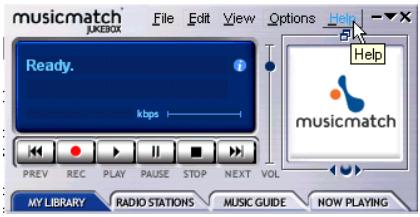
There is an extensive help section in MusicMatch™ to show you how to use it. Just click on the help button as shown below once you have installed it.
10 Technical Support
- If technical support determines that your product needs to be returned, please contact the place of purchase to have your product repaired or replaced (depending on problem type).
- There is an FAQ – Frequently Asked Questions section at the Archos Website www.archos.com that can help answer many of your questions.
- If you need technical help, you may contact ARCHOS directly in your own language via these phone numbers. For other countries, please use e-mail technical support.
Telephone Support:
| 949-609-1400 | (USA, Canada) | 09-1745-6224 | (Spain) |
| 01 70 20 00 30 | (France) | 02-4827-1143 | (Italy) |
| 0207-949-0115 | (UK) | 02-050-405-10 | (Netherlands) |
| 069-6698-4714 | (Germany) |
E-mail Support:
technical-support@archos.com (United States and Canada customers) English
support-technique@archos.com (Europe and rest of the planet) English and French
To respond to your e-mails efficiently, when sending one, please indicate the product name and question type in the Subject of the e-mail.
For example:
To: technical-support@archos.com
Subject: Ondio - USB connection to Macintosh
| United States & Canada | Europe & Asia | United Kingdom |
| ARCHOS Technology | ARCHOS S.A. | ARCHOS (UK) Limited |
| 3, Goodyear – Unit A | 12, rue Ampère | Regus HouseWindmill Hill Business ParkWhitehill Way |
| Irvine, CA 92618USA | 91430 IgnyFrance | Swindon Wiltshire SN5 6QRUK |
| Phone: 1 949-609-1400 | Phone: +33 (0) 169 33 169 0 | Phone: +44 (0) 1793 44 15 10 |
| Fax: 1 949-609-1414 | Fax: +33 (0) 169 33 169 9 | Fax: +44 (0) 1793 44 16 10 |
http://www.archos.com
11 Appendix A - Settings Table
Numeric values can be changed with Left and Right buttons
| Settings (in order) | Multiple Choice Values | Default Value |
| 1. Music Submenu | Goes to Music settings submenu | |
| 2. Record Submenu | Goes to Record settings submenu | |
| 3. Language | English, Français, Deutsche | English |
| 4. Open Playlist | Opens playlist | |
| 5. FM Stereo | On,Off | On |
| 6. FM sensitivity | Local, DX (Local = 0db and DX = -16db) | DX |
| 7. Firmware | current value | |
| 8. Flash | Diagnostic & memory available to write | Space |
| 9. Auto-off | 0 (never),1,2,3,4,5,6,7,8,9,10 minutes | 3 |
| 10. Retro-Record | On, Off | Off |
| 11. Contrast | LCD screen contrast | 5 |
| Music settings submenu | Values | Default Value |
| 1. Play mode | Normal, Single, Repeat All, Shuffle, Queue, Scan | Normal |
| 2. Base | -5,-4,-3,-2,-1,0,1,2,3,4,5 | 3 |
| 3. Treble | -5,-4,-3,-2,-1,0,1,2,3,4,5 | 3 |
| 4. Loudness | L5,L4,L3,L2,L1,0,R1,R2,R3,R4,R5 | 0 |
| 5. Balance | 0,1,2,3,4,5,6,7,8,9,10 | 3 |
| 6. Base boost | 0,1,2,3,4,5,6,7,8,9,10 | 3 |
| 7. Flat | Resets Music Setting parameters to default | |
| Record Settings Submenu | Values | Default Value |
| 1. Rec sample rate | 16 Khz, 22.5 Khz, 24 Khz, 32 Khz, 44.1 Khz, 48 Khz | 44.1 Khz |
| 2. Rec bit rate | 0,1,2,3,4,5,6,7 | 5 |
| 3. Rec level | 0,1,2,3,4,5,6,7,8,9,10 | 5 |
| 4. Voice sample rate | 16 Khz, 22.5 Khz | 22.5 Khz |
| 5. Voice bit rate | 0 - 3 | 3 |
| 6. Voice rec level | 1 - 15 | 12 |
12 Appendix B - Recording Bit Rate Table
| Average bit rates for Ondio Recording Perameters* | ||
| Radio and Line-in(44.1 Khz Music) | Microphone(22.05 Khz voice) | |
| Setting 0 | 78 Kb/s | 36 Kb/s |
| Setting 1 | 81 Kb/s | 38 Kb/s |
| Setting 2 | 87 Kb/s | 40 Kb/s |
| Setting 3 | 95 Kb/s | 43 Kb/s** |
| Setting 4 | 117 Kb/s | |
| Setting 5 | 144 Kb/s** | |
| Setting 6 | 165 Kb/s | |
| Setting 7 | 166 Kb/s | |
| ** Suggested Settings* These figures are averages since the Ondio uses Variable Bit Rate (VBR) recording. Depending on the type of music or voice you record, the actual bit rates will vary slightly. | ||
13 Appendix C - Screen & Button Descriptions
| Reading Text Files Screen |  | Scroll down one line of textHold: scroll down high speed | |
| You arrive here via the browser mode with the user having clicked on a text file. Ondio will default to RAW mode. RAW = Ondio does not add carriage returns.WRAP= Ondio does auto return so that text is visible without scrolling to the right. |  | Scroll up one line of textHold: scroll up high speed | |
 | Wrap mode: Go to beginning of text file.Raw mode: move to the right | ||
 |  | Wrap mode: Go to end of text file.Raw mode: move to the left | |
 | Single click: Return to Browser modeLong press: changes between Wrap and Raw modes. |
| Text Input Screen | 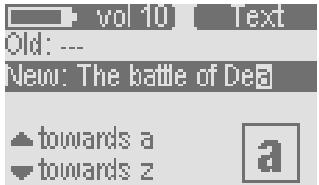 |  | Scrolls alphabet towards a Hold for high speed scrolling |
| User arrives at this screen when he needs to enter some text.VARIABLE RAPID SCROLLING: The longer the user holds down on a button, the faster the scrolling goes. |  | Scroll alphabet towards z Hold for high speed scrolling | |
 | Destructive back spaceHold: erase entire line and restart | ||
 | Accept current letter and advance one space | ||
 | Click or Long press: go to Question screen. “Would you like to ...”1. accept name2. escape |
| Question Screen | 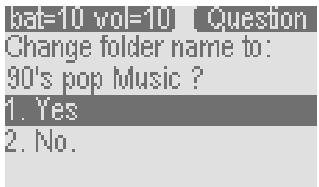 |  | Scroll up one response line |
| If Ondio needs to ask a question of the user, it uses the question screen. If there are multiple responses, the user will need to scroll down to see the rest of the available responses. |  | Scroll down one scroll line. Lines are numbered so that user has sense of where he is. | |
| Does nothing | |||
 | Accept the response which is highlighted. | ||
| Escape/cancel, go back to the previous screen. |
| Browser Mode | 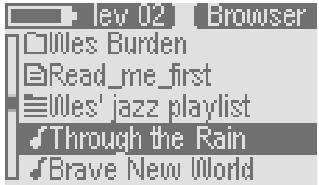 |  | Move highlight up vertically. |
| The currently selected file or folder is the one in reverse video (white with black background) to which actions are applied. | — | Move highlight down vertically. | |
| Actions possible:1. play a song2. open a folder3. traverse the directory structure4. start playing a playlist5. display a text file6. add song to play list7. add all.MP3 in folder to playlistlev = directory level; 00=root |  | Go back one level in the directory structure. (go to parent folder) | |
| - | 1 click: enter highlighted folder, play Playlist, display text file, play song.Long press: go to Question screen.“Would you like to ...”1. add song to Playlist2. delete3. make directory4. rename | ||
 | |||
 | Long press: go to Question screen.“Would you like to ...”1. add song to Playlist2. delete3. Rename4. Make directory | ||
| FM Radio Mode | 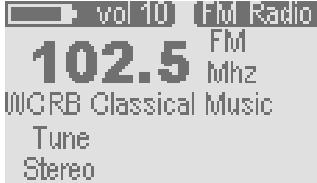 |  | Increases sound volume |
| When the FM receiver captures a station signal, Tune will appear. If the stereo signal is captured then the Stereo indicator will display also. If the frequency happens to have been named in the radio list, the name will appear below the frequency. | Decreases sound volume | ||
 | One click go back 100Khz. Hold down to find next station decrementing the frequency | ||
 | 1 click: go forward 100Khz. Hold down to find next station incrementing the frequency. | ||
 | 1 click: go to main menuLong press: go to Question screen."Would you like to ..."1. set HOLD on2. go to Radiolist3. save4. Save as ...5. FM Sensitivity6. FM Stereo7. Music Submenu |
| Settings Mode | 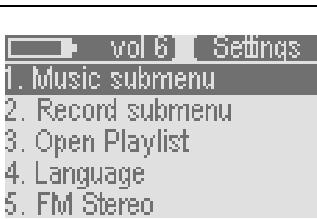 |  | Move the highlight up |
| On settings with numeric values, adjust the values directly. Changes take effect immediately. |  | Move the highlight down | |
 | If the setting is a value, then decrease value | ||
 | If the setting is a value, then increase value. If a non-value setting, go to list of choices. |
| Edit Screen | 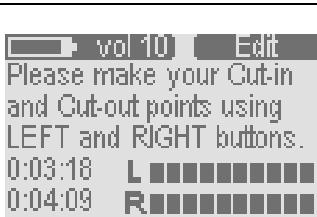 |  | Increase sound volume |
| We come to this screen from the play mode if the song has been retro-recorded from the radio. | Decrease sound volume | ||
 | Single click: Make Cut-in edit pointLong press: fast reverse with sound | ||
 | Single click: Make Cut-out edit pointLong press: fast forward with sound | ||
 | Single click: close editing session and go back to play mode. Question mode will ask you yes or no to confirm your edit. | ||
| Play Screen | ### : vol=10 PlayJoe Hammer and the NailsSpeed of LightAnother night alone0:03:18 L 0:04:09 R | △ | Increase sound volume |
| One comes to this screen from Browser mode when RIGHT is clicked for a music track. Top right will display the status: Play, Pause, FF, Rew. Depending on what the user is doing. Bottom right shows elapsed time and total time.During hold, the top right mode indicator will flash “HOLD”. | ▽ | Decrease sound volume | |
| Play previous song in folder or play list if playing from a play list.Long press: review (with sound) going backward | |||
| Click: Play next song in folder or play list if playing from a play list (or play after being paused).Long press: fast forward (with sound) | |||
| First click: pause the song. Second click, stop and display the browser.Long press: Question mode: “You would like to ...”1. set HOLD on*2. display file info3. Play mode4. Base5. Treble6. Loudness7. Balance8. Base boost9. Flat10. edit recording*** automatically activates in 10 seconds if no other choice is made. Hold the Mode button for 4 seconds to deactivate the Hold mode.** will not be visible if non-radio recording |
| Record Mode | Adjust listening volume up | ||
| User arrives at this screen either from Instant-Record feature, or from the main menu settings button. |  | Adjust listening volume down | |
 | Before recording: decrease recording level sensitivity. | ||
 | Before recording: increase recording level sensitivity.During recording: next (incremental recording) or unpause from pause state.For incremental recording, files are suffixed with a,b,c. ex: rec_28e for the fifth recording started with rec_28a. | ||
 | During recording: Click once to pause.During recording pause: Click to stop.Before recording: Long press: Go to question screen:"Would you like to change the..."1. file name2. input source3. sample rate4. bit rate | ||
 | Double-click = start recordingSingle-click = pause recordingSingle-click again = unpause recordingDouble-click again = stop recording | ||
| Radio List Screen | 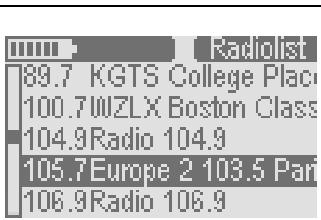 |  | Move the cursor up the list |
| You arrive at this screen from item 2 of question screen in FM radio mode.As one clicks the up/down buttons, the station heard will change to the one indicated. |  | Move the cursor down the list | |
| Click to delete current radio station. | |||
 | 1 Click: goes to question screen and asks “Would you like to...”1. delete this station2. rename this station | ||
 | 1 click: Goes back to FM mode.Long press: goes to question screen and asks “Would you like to...”1. delete this station2. rename this station |
| Playlist Screen | 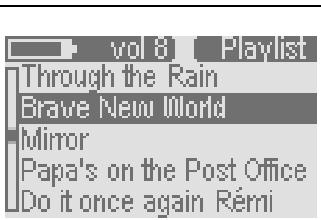 | Move the cursor up the list |
| You arrive at this screen from item 4 of the Settings mode (Open Playlist). | Move the cursor down the list | |
| Click to delete current song.Hold to clear the entire Playlist. | ||
| 1 click: go to question screen “You would like to...”1. Save current Playlist2. Move track*3. 5 second song preview4. Start playing the Playlist | ||
| * a circle will indicate this item to be moved with the up/down buttons. Right button to cement item into new position. | ||
| 1 click: Return to previous screen.Long press: go to question screen “You would like to...”1. Save current Playlist2. Move track*3. Hear preview4. Start playing the Playlist5. Clear Playlist | ||
| * dual arrows will indicate this item to be moved with the up/down buttons. Mode button to cement item into new position |
| Instant Recording (I-rec) | Inststai with and can or F |  | to eye ols, It ser, |  | |
| FM mode: record radio | |||||
| Main or Browser modes: record voice. | |||||
| Parameters are taken from the Record Settings submenu. |  | ||||
 | |||||
| Double-click = start recordingSingle-click = pause recordingSingle-click again = unpause recordingDouble-click again = stop recording |


- WARRANTY AND LIMITED LIABILITY
- MANUFACTURER SHALL NOT BE LIABLE FOR ANY SPECIAL, INCIDENTAL OR CONSEQUENTIAL DAMAGES. EVEN IF INFORMED OF THE POSSIBILITY THEREOF IN ADVANCE
- FURTHERMORE, WARRANTY DOES NOT APPLY TO
- WARNINGS AND SAFETY INSTRUCTIONS
- CAUTION
- WARNING
- FCC WARNING STATEMENT
- FCC COMPLIANCE
- COPYRIGHT NOTICE
- COPYRIGHT ARCHOS © 2002 ALL RIGHTS RESERVED
- TABLE OF CONTENTS
- TECHNICAL SPECIFICATIONS
- PRODUCT INTRODUCTION
- FM RADIO MODE
- BROWSER MODE (FILE SYSTEM)
- PLAYING MP3 MUSIC FILES
- RECORDER MODE
- SETTINGS AND MULTIMEDIA CARD EXPANSION
- CONNECTING THE ONDIO TO A PC OR MAC
- MUSICMATCH™ SOFTWARE
- TECHNICAL SUPPORT
- APPENDIX A - SETTINGS TABLE
- APPENDIX B - RECORDING BIT RATE TABLE
- APPENDIX C - SCREEN & BUTTON DESCRIPTIONS
- BUTTONS AND CONTROLS
- THIS SECTION EXPLAINS
- HOW TO
- HOW TO ADJUST THE VOLUME
- HOW TO SELECT A NEW STATION
- HOW TO CREATE A STATION PRESET
- HOW TO DELETE A STATION PRESET
- HOW TO RENAME A STATION PRESET
- HOW TO GO TO A STATION PRESET
- HOW TO INCREASE THE SIGNAL QUALITY
- HOW TO SET THE ONDIO TO HOLD
- TYPICAL BROWSER MODE SCREEN
- HOW TO NAVIGATE THE FILE STRUCTURE
- HOW TO RECOGNIZE FILE TYPES
- HOW TO DISPLAY FILE INFORMATION
- HOW TO DELETE A FILE OR FOLDER
- HOW TO CREATE A NEW FOLDER
- HOW TO USE THE TEXT INPUT MODE
- HOW TO READ TEXT FILES
- TYPICAL MP3 FILE PLAYING SCREEN
- HOW TO PLAY AN MP3 FILE
- HOW TO PLAY A PLAYLIST
- HOW TO RECORD FROM THE RADIO
- INSTANT-RECORD
- TRADITIONAL RECORDING METHOD
- HOW TO MAKE INCREMENTAL RECORDINGS
- HOW TO USE THE RETRO-RECORD FEATURE
- TYPICAL SETTINGS SCREEN
- HOW TO ADJUST THE SETTINGS
- HOW TO EXPAND THE ONDIO WITH A MULTIMEDIA CARD
- CONNECTING ONDIO TO A PC
- USE THE ONDIO FILE FORMAT
- CONNECTING ONDIO TO YOUR MACINTOSH
- QUESTIONS ABOUT MUSICMATCH™
Brand : ARCHOS
Model : ONDIO
Category : Mp3 player