
2 Vision - Mp3 player ARCHOS - Free user manual and instructions
Find the device manual for free 2 Vision ARCHOS in PDF.


| Product Type | MP3 Player |
| Brand | ARCHOS |
| Model | 2 Vision |
| Dimensions (approx.) | 90 x 40 x 10 mm |
| Weight (approx.) | 40 g |
| Battery Type | Rechargeable lithium-ion |
| Charging Method | USB cable (included) |
| Battery Life (approx.) | Up to 12 hours of music playback |
| Supported Audio Formats | MP3, WMA, WAV |
| Storage Capacity | Internal memory (varies by version) or microSD slot |
| Display | LCD screen with backlight |
| FM Radio | Yes, with presets |
| Voice Recording | Yes, built-in microphone |
| Headphone Jack | 3.5 mm |
| USB Port | Mini USB (for charging and data transfer) |
| Operating System Compatibility | Windows, Mac, Linux (mass storage) |
| Maintenance | Clean with a dry, soft cloth; do not use liquids |
| Safety Precautions | Keep away from water and extreme temperatures; do not disassemble |
| Spare Parts Available | Replacement battery, headphones, USB cable |
| Repairability | Battery is user-replaceable; other repairs by qualified service |
| Manual | Free download in PDF from notice-facile.com |
Frequently Asked Questions - 2 Vision ARCHOS
User questions about 2 Vision ARCHOS
0 question about this device. Answer the ones you know or ask your own.
Ask a new question about this device
Download the instructions for your Mp3 player in PDF format for free! Find your manual 2 Vision - ARCHOS and take your electronic device back in hand. On this page are published all the documents necessary for the use of your device. 2 Vision by ARCHOS.
USER MANUAL 2 Vision ARCHOS
ARCHOS | 2 vision EN
Synchronize with Windows Media® Player 11 On your computer, start Windows Media Player 11, then select the files you want to transfer into the device.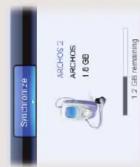
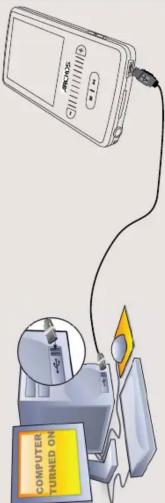
Charging: Whenever your ARCHOS is connected to a running computer, it will charge automatically (even if you unmount it with the safe removal icon -- see below).
Connecting: When you connect the USB cable to your computer, the ARCHOS will connect as an external hard drive. Windows® Explorer will show it as ARCHOS 2 (E:) for example. For Macintosh computers, it will also appear as an external hard drive.

To change the language of your device, use the slide scroller until you see SETTINGS, then press the Select button and use the slide scroller to select LANGUAGE and then the desired language.
DISCONNECTING THE ARCHOS FROM A COMPUTER
8. Volume
- Repeat Mode (Play one song, Repeat one song, Play all songs, Play & repeat all songs, play song intro)
- Play mode (Normal, Shuffle)
- File's encoded bit rate
- Volume control
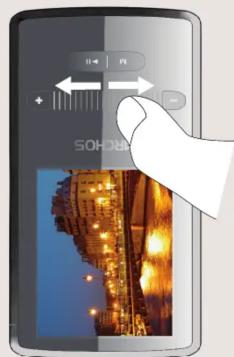
(slide left) Fast reverse (slide & hold)
- Next song (slide right) Fast forward
(slide & hold)


MUSIC PLAYBACK
- Audio Frequency Graph (or song lyrics if the folder contains a .lrc file with same name as the song)
- Elapsed time
- Play/Invoc Status
- Song duration
If a lyrics file (text file of type .LRC) is found in the same folder and has the same name as the song playing, the song lyrics will be shown while the song plays. The ARCHOS 2 vision will not play DRM protected music.
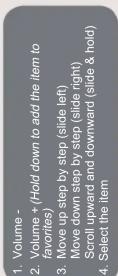

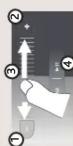

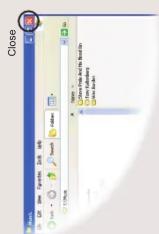
PHOTO PLAYBACK
TROUBLESHOOTING
PROBLEM: The music file is not visible in the library or cannot play when I select it in the file browser. SOLUTION: Make sure you put all your music in the folder named 'Music.' Not all music formats are readable. The ARCHOS 2 can play MP3, WMA, WAV, FLAC, and APE file types. If it is an M4A file type (typically from Macintosh computers), it will need to be converted to one of the above formats before being able to play. PROBLEM: The device is frozen and doesn't respond to pressing on the buttons. SOLUTION: Turn off the device by sliding and holding the power button for 3 seconds and then restart as normal. You can also press the reset button on the back of the device by using an object such as a toothpick.
PROBLEM: I would like to charge my device with the PC but listen to it at the same time. SOLUTION: By 'removing safely' the device as explained above, but not unplugging the USB cable, you can use your ARCHOS product while it charges. This charge and listen function is not possible with Windows Vista™ computers. PROBLEM: I added new music to my ARCHOS but it does not show up in the Music browser. SOLUTION: You must place your files in the Music folder on the ARCHOS. If it does not have music tags, it will be listed under . Select Update Library (bottom item on list) which will update the Library with all the latest added music.
PROBLEM: I cannot see a file that I just copied to my ARCHOS. SOLUTION: Remember that when you are browsing in the Music or Photo folders, the files that are not of those types will not be visible - even though they are there. Use the Files browser to see all your files.
Note: This device is also capable of displaying simple text (.txt) files!
USER SETTINGS
By going to the main menu's SETTINGS screen, you can personalize how you want your ARCHOS 2 vision to operate. Music: Allows you to decide if you want your music to repeat, to play in shuffle mode or not, and what equalizer adjustments you want.
Record: Allows you to set the quality and the volume for voice recordings using the built-in microphone. Slideshow pause: Allows you to set the length of time between images shown during a slide show. Display: Allows you to set the backlight (how long the screen stays on), Brightness (the screen brightness) and Backlight mode (screen dims or goes totally off) Sleep Timer: Sets the continuous playing time before the player is turned off automatically. Language: Allows you to set your interface language
Note: This device is also capable of displaying simple text (.txt) files!


Opening the photo browser will allow you to view the stored photos one by one or as an automatic slide show. If you have inserted a micro-SD card, you will be given the option to choose to view pictures on the card or those stored in the built-in memory. Highlight the desired photo file, then press Play to view it. Slide your finger up or down to view the next or previous photo. Press the Play/Pause button to start a slide show. Press Play/Pause again to stop the slide show. The speed of the slideshow can be adjusted through the settings.
ARCHOS 2 vision
Windows Media® Player 11

Brand : ARCHOS
Model : 2 Vision
Category : Mp3 player