
QV-R4 - Digital Camera CASIO - Free user manual and instructions
Find the device manual for free QV-R4 CASIO in PDF.


| Product type | Digital camera |
| Brand | CASIO |
| Model | QV-R4 |
| Effective resolution | 4.00 million pixels (4.13 MP CCD sensor) |
| Optical zoom | 3x |
| Digital zoom | 3.2x (total zoom 9.6x) |
| Display | 1.6-inch color TFT (LED backlight) |
| Internal memory | 11 MB |
| Storage media | SD card / MultiMediaCard (MMC) |
| Battery | Rechargeable lithium-ion NP-30 (included), BC-20 charger |
| Battery life (recording) | Approx. 110 minutes (660 shots) |
| Battery life (playback) | Approx. 220 minutes |
| Flash range | 0.4 m to 2.8 m (approx.) |
| Shooting modes | Auto, Night Scene, Manual, Continuous, Coupling Shot, Pre-shot, Best Shot, Video |
| Special features | Best Shot, Triple Self-timer, Live Histogram, HTML Album, DPOF, PRINT Image Matching II |
| Connectivity | USB (special USB cable included) |
| Weight (with battery) | Approx. 170 g |
| Dimensions (W x H x D) | Approx. 87 x 67 x 28 mm |
| External power supply | AC adapter AD-C40 (optional) |
| Included software | Photo Loader, Photohands (CD-ROM) |
Frequently Asked Questions - QV-R4 CASIO
User questions about QV-R4 CASIO
0 question about this device. Answer the ones you know or ask your own.
Ask a new question about this device
Download the instructions for your Digital Camera in PDF format for free! Find your manual QV-R4 - CASIO and take your electronic device back in hand. On this page are published all the documents necessary for the use of your device. QV-R4 by CASIO.
USER MANUAL QV-R4 CASIO
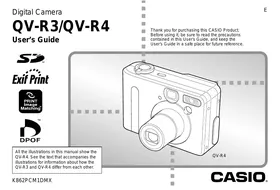
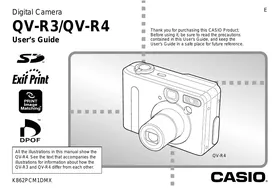
Thank you for purchasing this CASIO Product. Before using it, be sure to read the precautions contained in this User's Guide, and keep the User's Guide in a safe place for future reference.




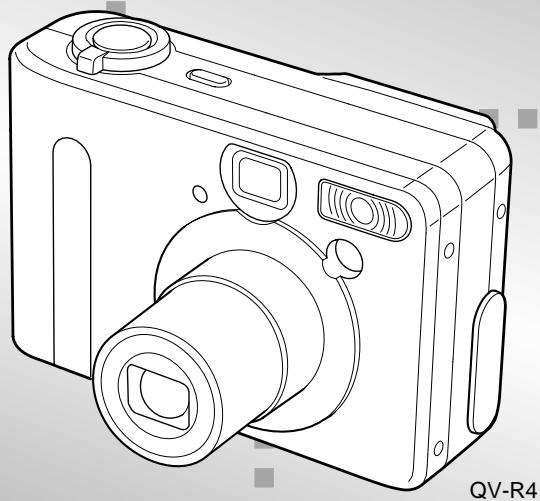
All the illustrations in this manual show the QV-R4. See the text that accompanies the illustrations for information about how the QV-R3 and QV-R4 differ from each other.
Unpacking
Check to make sure that all of the items shown below are included with your camera. If something is missing, contact your dealer as soon as possible.
Camera
Strap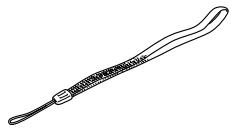
Rechargeable lithium ion battery (NP-30)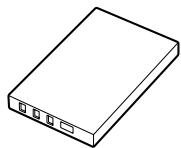
CD-ROM
Special USB Cable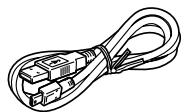
Charger Unit (BC-20)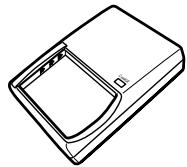
User's Guide
Contents
2 INTRODUCTION
Unpacking 2
Contents 3
Features 8
Precautions 9
General Precautions 9
Data Error Precautions 11
Operating conditions 11
Condensation 12
LED Backlight 12
Lens 12
Other 12
14 QUICK START GUIDE
Getting Ready 14
To record an image 14
To view a recorded image 15
To delete an image 15
16 GETTING READY
General Guide 16
Front 16
Bottom 16
Back 17
Monitor Screen Contents 18
Recording Mode 18
Play Mode 19
Changing the Contents of the Monitor Screen 20
Indicator Lamps 20
Attaching the Strap 21
Using the Soft Case (Option) 21
Power Requirements 23
Using the Charger Unit 23
To load the battery into the camera 25
Battery Life 26
Power Supply Precautions 28
Using AC Power 31
Turning the Camera On and Off 32
Configuring Power Saving Settings 33
Using the On-screen Menus 34
Configuring Display Language and Clock Settings ... 36
38 BASIC IMAGE RECORDING
Recording an Image 38
Recording Precautions 40
INTRODUCTION
About Auto Focus 41
About the Recording Mode Monitor Screen 41
Previewing the Last Image Recorded 42
Deleting an Image in a Recording Mode 42
Using the Optical Viewfinder 43
Adjusting the View of the Optical Viewfinder 43
Using Zoom 44
Optical Zoom 44
Digital Zoom 45
Using the Flash 46
Flash Unit Status 47
Changing the Flash Intensity Setting 48
Flash Precautions 48
Using the Self-timer 49
Specifying Image Size and Quality 51
To specify the image size 51
To specify the image quality 52
53 OTHER RECORDING FUNCTIONS
Selecting the Focus Mode 53
Using Auto Focus 53
Using the Macro Mode 54
Using the Infinity Mode 55
Using Manual Focus 55
Using Focus Lock 57
Exposure Compensation (EV Shift) 58
Recording Consecutive Images
(Continuous Shutter Mode) 59
Combining Shots of Two People into a Single Image
(Coupling Shot) 60
Recording a Subject onto an Existing Background
Image (Pre-shot) 62
Using the Best Shot Mode 64
Creating Your Own Best Shot Setup 65
Using the Night Scene Mode 67
Shooting with Manual Exposure 67
Using the Movie Mode 69
Shooting at Fixed Intervals 70
Adjusting the White Balance 72
Adjusting White Balance Manually 73
Selecting the Metering Mode 74
Using the Histogram 75
Recording Mode Settings 76
Specifying Sensitivity 77
Enhancing Specific Colors 77
Using the Filter Function 78
Specifying Color Saturation 78
Specifying Contrast 79
Specifying Outline Sharpness 79
Turning the On-screen Grid On and Off 80
Specifying Power On Default Settings 80
Resetting the Camera 81
82 PLAYBACK
Basic Playback Operation 82
Zooming the Displayed Image 83
Resizing an Image 84
Cropping an Image 85
Playing a Movie 86
Displaying the 9-image View 87
Selecting a Specific Image in the 9-image View 88
89 DELETING FILES
Deleting a Single File 89
Deleting All Files 90
91 FILE MANAGEMENT
Folders 91
Memory Folders and Files 91
Protecting Files 92
To protect and unprotect a single file 92
To protect all files in memory 92
DPOF 93
To configure print settings for a single image 93
To configure print settings for all images 94
PRINT Image Matching II 95
Exif Print 95
96 OTHER SETTINGS
Specifying the File Name Serial Number Generation Method....96
Turning the Key Tone On and Off 96
Specifying an Image for the Startup Screen 97
Using the Alarm 97
To set an alarm 97
Stopping the Alarm 98
Changing the Date and Time Setting 99
Changing the Date Format 99
Using World Time 100
To switch between the home time and World Time screens 100
To configure World Time settings 100
To configure summer time (DST) settings 101
Changing the Display Language 102
Formatting Built-in Memory 103
104 USING A MEMORY CARD
Using a Memory Card 105
To insert a memory card into the camera 105
To remove a memory card from the camera 105
Formatting a Memory Card 106
Memory Card Precautions 107
Copying Files 107
To copy all the files in built-in memory to a memory card 107
To copy a file from a memory card to built-in memory 108
110 USING THE CAMERA WITH A COMPUTER
Installing the Software from the CD-ROM .... 110
About the bundled CD-ROM 110
Computer System Requirements.... 111
Installing Software from the CD-ROM in Windows .... 112
Getting Started 112
Selecting a Language 112
Viewing the Contents of the "Read me" File 113
Installing an Application 113
Viewing User Documentation (PDF Files) 114
Exiting the Menu Application 114
Installing Software from the CD-ROM
on a Macintosh 114
Installing Software 114
Viewing User Documentation (PDF Files) 117
Transferring Files to a Computer 118
Transferring Files Over a USB Connection 118
Transferring Files Using a Memory Card 120
Memory Data 121
Memory Directory Structure 122
Supported Image Files 123
Built-in Memory and Memory Card Precautions 123
Using the Album Feature 124
Creating an album 124
Selecting an Album Layout 125
Configuring Detailed Album Settings 126
Viewing Album Files 128
Saving an Album 130
131 APPENDIX
Menu Reference 131
Recording Mode Menu 131
PLAY Mode Menu 132
Indicator Lamp Reference 133
Recording Mode 133
Play Mode 134
Charger Unit 135
Troubleshooting Guide 136
Display Messages 139
Specifications 140
Main Specifications 140
IMPORTANT!
- The contents of this manual are subject to change without notice.
- CASIO COMPUTER CO., LTD. assumes no responsibility for any damage or loss resulting from the use of this manual.
- CASIO COMPUTER CO., LTD. assumes no responsibility for any loss or claims by third parties which may arise through the use of the QV-R3/QV-R4.
- CASIO COMPUTER CO., LTD. shall not be held liable for any damages or losses suffered by you or any third party due to the use of Photo Loader and/or Photohands.
- CASIO COMPUTER CO., LTD. assumes no responsibility for any damage or loss caused by deletion of data as a result of malfunction, repairs, or battery replacement. Be sure to back up all important data on other media to protect against its loss.
- The SD logo is a registered trademark.
- Windows, Internet Explorer, and DirectX are registered trademarks of Microsoft Corporation. • Macintosh is a registered trademark of Apple Computer, Inc.
- MultiMediaCard™ is a trademark of Infineon Technologies AG of Germany, and licensed to the MultiMediaCard Association (MMCA).
- Acrobat and Acrobat Reader are trademarks of Adobe Systems Incorporated.
- The USB driver (mass storage) uses Phoenix Technologies Ltd. software. Compatibility Software Copyright © 1997 Phoenix Technologies Ltd., All Rights Reserved.
- Other company, product and service names used herein may also be trademarks or service marks of others.
- Photo Loader and Photohands are the property of CASIO COMPUTER CO., LTD. Except as stipulated above, all copyrights and other related rights to these applications revert to CASIO COMPUTER CO., LTD.
Features
- High-resolution primary color CCD Everything from rich skin tones in portraits to fine details in scenery shots come out with amazingly realistic clarity.
- Effective Pixels QV-R3: 3.20 million pixels (3.34 million total pixels) QV-R4: 4.00 million pixels (4.13 million total pixels) • 1.6-inch TFT color LCD monitor screen
- 9.6X seamless zoom 3X optical zoom, 3.2X digital zoom
- 11MB flash memory Images can be recorded without using a memory card.
- Support for SD memory cards and MMC (MultiMedia Cards) for memory expansion
- Coupling Shot and Pre-shot Coupling Shot lets you combine two subjects into a single image, while Pre-shot lets you add a subject to a previously recorded background image. This means you can create images that include you and your friend, even if you are the only two people around.
- Triple Self-timer Mode The self-timer can be set up to repeat three times, automatically.
- Best Shot Simply select the sample scene that matches the type of image you are trying to record and the camera performs troublesome setups automatically for beautiful pictures every time. • Real-time histogram An on-screen histogram lets you adjust exposure as you view the effect on overall image brightness, which makes shooting under difficult lighting conditions easier than ever before.
- World Time A simple operation sets the current time for your current location. You can select from among 162 cities in 32 time zones.
- Alarm A built-in alarm helps to keep you on time for important events, and even can be used in place of an alarm clock. You can even have a specific image appear on the monitor screen when the alarm time is reached.
- Album Function HTML files are generated automatically to create an album of recorded images. Album contents can be viewed and printed using a standard Web browser. Images can also be incorporated into Web pages quickly and easily.
INTRODUCTION
- Easy Image Transfer Transfer images to a computer simply by connecting the camera with a USB cable.
- Bundled with Photo Loader and Photohands Your camera comes bundled with the latest version of Photo Loader, the popular application that automatically loads images from your camera to your PC. Also included is Photohands, an application that makes image retouching quick and easy.
- DCF Data Storage: The DCF (Design rule for Camera File system) data storage protocol provides image inter-compatibility between digital cameras and printers. Digital Print Order Format (DPOF): Images can be printed easily in the sequence you want using a DPOF compatible printer. DPOF can also be used when specifying images and quantities for printing by professional print services. PRINT Image Matching II Compatible: Images include PRINT Image Matching II data (mode setting and other camera setup information). A printer that supports PRINT Image Matching II reads this data and adjusts the printed image accordingly, so your images come out just the way you intended when you recorded them.
Precautions
General Precautions
Be sure to observe the following important precautions whenever using the QV-R3/QV-R4.
All references in this manual to "this camera" or "the camera" refer to the CASIO QV-R3/QV-R4 Digital Camera.
- Never try to take pictures or use the built-in display while operating a motor vehicle or while walking. Doing so creates the danger of serious accident.
- Never try to open the case of the camera or attempt your own repairs. High-voltage internal components create the risk of electric shock when exposed. Always leave maintenance and repair work up to CASIO service center.
- Never look at the sun or any other bright light through the camera's viewfinder. Doing so can damage your eyesight.
- Keep the small parts and accessories of this camera out of the reach of small children. If swallowed accidentally, contact your physician immediately.
- Never fire the flash in the direction of a person operating a motor vehicle. Doing so can interfere with the driver's vision and create the danger of accident.
- Never fire the flash while it is too close to the subject's eyes. Intense light from the flash can cause eye damage if it is fired too close to the eyes, especially with young children. When using the flash, the camera should be at least one meter from the eyes of the subject.
INTRODUCTION
- Keep the camera away from water and other liquids, and never let it get wet. Moisture creates the danger of fire and electric shock. Never use the camera outdoors in the rain or snow, at the seashore or beach, in the bathroom, etc.
- Should foreign matter or water ever get into the camera, immediately turn power off, unplug the AC adaptor from the power outlet, and contact your dealer or nearest CASIO service center. Using the camera under these conditions creates the danger of fire and electric shock.
- Should you ever notice smoke or a strange odor coming out of the camera, immediately turn power off and unplug the AC adaptor from the power outlet. Using the camera under these conditions creates the danger of fire and electric shock. After making sure there is no more smoke coming from the camera, take it to your nearest CASIO service center for repair. Never attempt your own maintenance.
- Never use the AC adaptor to power any other device besides this camera. Never use any other AC adaptor besides the one that comes with this camera.
- Never cover the AC adaptor with a quilt, blanket, or other cover while it is in use, and do not use it near a heater.
- At least once a year, unplug the AC adaptor from the power outlet and clean the area around the prongs of the plug. Dust build up around the prongs can create the danger of fire.
- If the camera's case should ever become cracked due to dropping it or otherwise subjecting it to rough treatment, immediately turn power off, unplug the AC adaptor from the power outlet, and contact your nearest CASIO service center.
- Never use the camera inside of an aircraft or in any other areas where its use is prohibited. Doing so can result in an accident.
- Physical damage and malfunction of this camera can cause the data stored in its memory to be deleted. Be sure to always keep backup copies of data by transferring them to personal computer memory.
- Never open the battery cover, disconnect the AC adaptor from the camera or unplug it from the wall socket while recording images. Doing so will not only make storage of the current image impossible, it can also corrupt other image data already stored in camera memory.
Data Error Precautions
- Your digital camera is manufactured using precision digital components. Any of the following creates the risk of corruption of data in camera memory.
— Removing the battery while image recording or data communication is in progress. — Removing a memory card while image recording is in progress. — Removing the battery, removing the memory card, or connecting the USB cable while the green operation lamp is still flashing after you turn off the camera. — Disconnecting the USB cable that connects the camera to a computer, while a data communication operation is being performed. — Using a battery that is low. — Other abnormal operations.
Any of the above conditions can cause an error message to appear on the monitor screen (page 139). Follow the instructions provided by the message to correct the situation.
Operating conditions
- This camera is designed for use in temperatures ranging from 0°C to 40°C (32°F to 104°F).
- Do not use or keep the camera in the following areas.
— In areas subject to direct sunlight — In areas subject to high humidity or dust — Near air conditioners, heaters, or other areas subject to temperature extremes — Inside of a closed vehicle, especially one parked in the sun — In areas subject to strong vibration
Condensation
- When you bring the camera indoors on a cold day or otherwise expose it to a sudden change of temperature, there is the possibility that condensation can form on the exterior or on interior components. Condensation can cause malfunction of the camera, so you should avoid exposing it to conditions that might cause condensation.
- To keep condensation from forming, place the camera into a plastic bag before moving it into a location that is much warmer or colder than your current location. Leave it in the plastic bag until the air inside the bag has a chance to reach the same temperature as the new location. If condensation does form, remove the battery from the camera and leave the battery cover open for a few hours.
LED Backlight
- The monitor screen is illuminated by an LED backlight. A dark monitor screen indicates that the LED backlight has reached the end of its service life, and needs to be replaced by a CASIO service center. Note that you will be charged for LED backlight replacement. The LED backlight brightness is reduced by half after about 1,000 hours of use.
Lens
- Never apply too much force when cleaning the surface of the lens. Doing so can scratch the lens surface and cause malfunction.
- Fingerprints, dust, or any other soiling of the lens can interfere with proper image recording. Never touch the lens with your fingers. You can remove dust particles from the lens surface by using a lens blower to blow them off. Next, wipe the surface of the lens with a soft lens cloth.
Other
- The camera may become slightly warm during use. This does not indicate malfunction.
GUIDELINES LAID DOWN BY FCC RULES FOR USE OF THIS UNIT IN THE U.S.A. (not applicable to other areas).
This device complies with Part 15 of the FCC Rules. Operation is subject to the following two conditions: (1) this device may not cause harmful interference, and (2) this device must accept any interference received, including interference that may cause undesired operation.
NOTICE
This equipment has been tested and found to comply with the limits for a Class B peripheral, pursuant to Part 15 of the FCC Rules. These limits are designed to provide reasonable protection against harmful interference in a residential installation. This equipment generates, uses and can radiate radio frequency energy and, if not installed and used in accordance with the instructions, may cause harmful interference to radio communications. However, there is no guarantee that interference will not occur in a particular installation. If this equipment does cause harmful interference to radio or television reception, which can be determined by turning the equipment off and on, the user is encouraged to try to correct the interference by one or more of the following measures:
- Reorient or relocate the receiving antenna.
- Increase the separation between the equipment and receiver.
- Connect the equipment into an outlet on a circuit different from that to which the receiver is connected.
- Consult the dealer or an experienced radio/TV technician for help.
FCC WARNING
Changes or modifications not expressly approved by the party responsible for compliance could void the user's authority to operate the equipment.
Declaration of Conformity
Model Number: QV-R3/QV-R4
Trade Name: CASIO COMPUTER CO.,LTD.
Responsible party: CASIO INC.
Address: 570 MT. PLEASANT AVENUE, DOVER, NEW JERSEY 07801
Telephone number: 973-361-5400
This device complies with Part 15 of the FCC Rules.
Operation is subject to the following two conditions:
(1) This device may not cause harmful interference, and (2) this device must accept any interference received, including interference that may cause undesired operation.
CASIO COMPUTER CO., LTD. QV-R3/QV-R4

Tested To Comply
With FCC Standards
FOR HOME OR OFFICE USE
Getting Ready
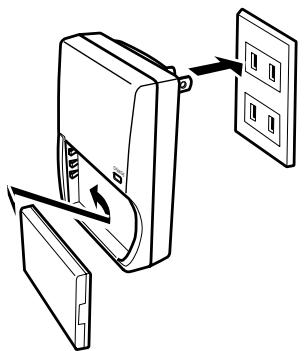
- Attach the battery to the charger unit, and then charge it (page 23).
- It takes about two hours to achieve a full charge.
- Load the battery into the camera (page 25).
- Configure screen message language, home time zone, and current time settings (page 36).
To record an image
(See page 38 for details.)
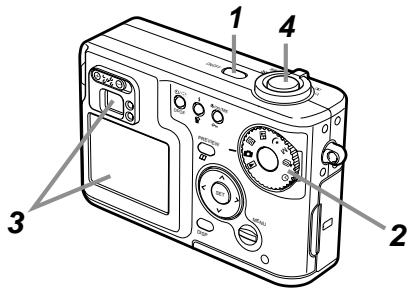
- Press the power button to turn on the camera.
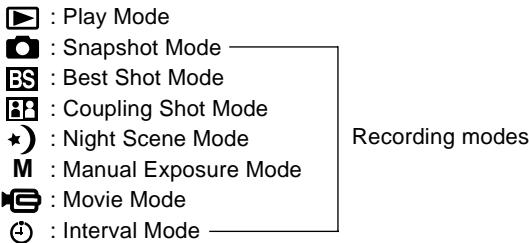
- Align the mode dial with 📄 (Snapshot Mode).
- Point the camera at the subject, use the monitor screen or viewfinder to compose the image, and then press the shutter release button half way.
- Holding the camera still, gently press the shutter release button the rest of the way down.
To view a recorded image
(See page 82 for details.)
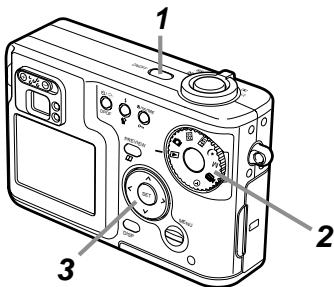
- Press the power button to turn on the camera.
- Align the mode dial with ▶ (Play Mode).
- Use [<] and [>] to scroll through the images.
To delete an image
(See page 89 for details.)
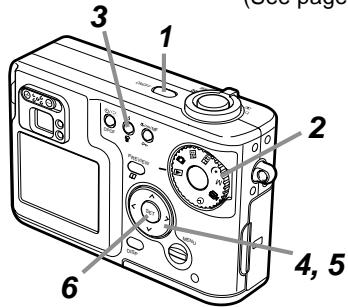
- Press the power button to turn on the camera.
- Align the mode dial with ▶ (Play Mode).
- Press ⏻.
- Use [<] and [>] to display the image you want to delete.
- Use [^] and [∨] to select "Delete."
- To exit the image delete operation without deleting anything, select "Cancel."
- Press SET to delete the image.
GETTING READY
This section contains things you need to know and do before trying to use the camera.
General Guide
The following illustrations show the names of each component, button, and switch on the camera.
Front
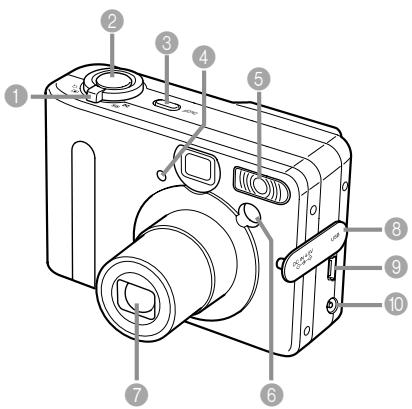
1 Zoom controller 2 Shutter release button 3 Power button 4 Self-timer lamp 5 Flash 6 AF assist lamp 7 Lens 8 Terminal panel cover 9 USB port 10 DC IN 4.5V terminal
Open Terminal Panel Cover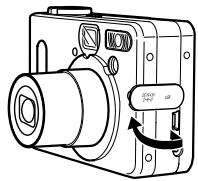
Bottom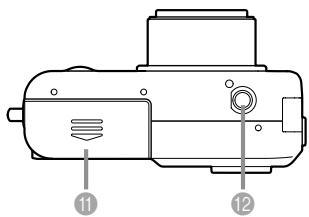
11 Battery compartment cover 12 Tripod screw hole * Use this hole when attaching to a tripod.
Back
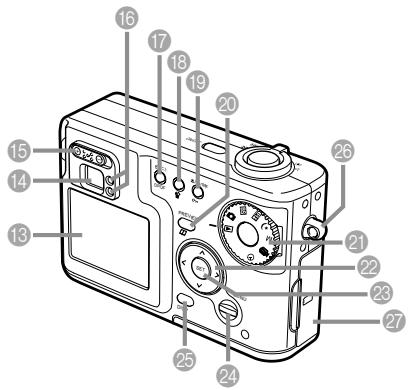
13 Monitor Screen 14 Viewfinder 15 Diopter slider 16 Operation lamp 17 Self-timer/Continuous Shutter/DPOF button 18 Flash/Delete button 19 Macro/Infinity/Manual Focus/Protect button 20 Preview/Album button 21 Mode dial
22 [Up]/[Down]/[Left]/[Right] 23 SET button 24 MENU button 25 DISP button 26 Strap ring 27 Memory card slot cover
Monitor Screen Contents
The monitor screen uses various indicators and icons to keep you informed of the camera's status.
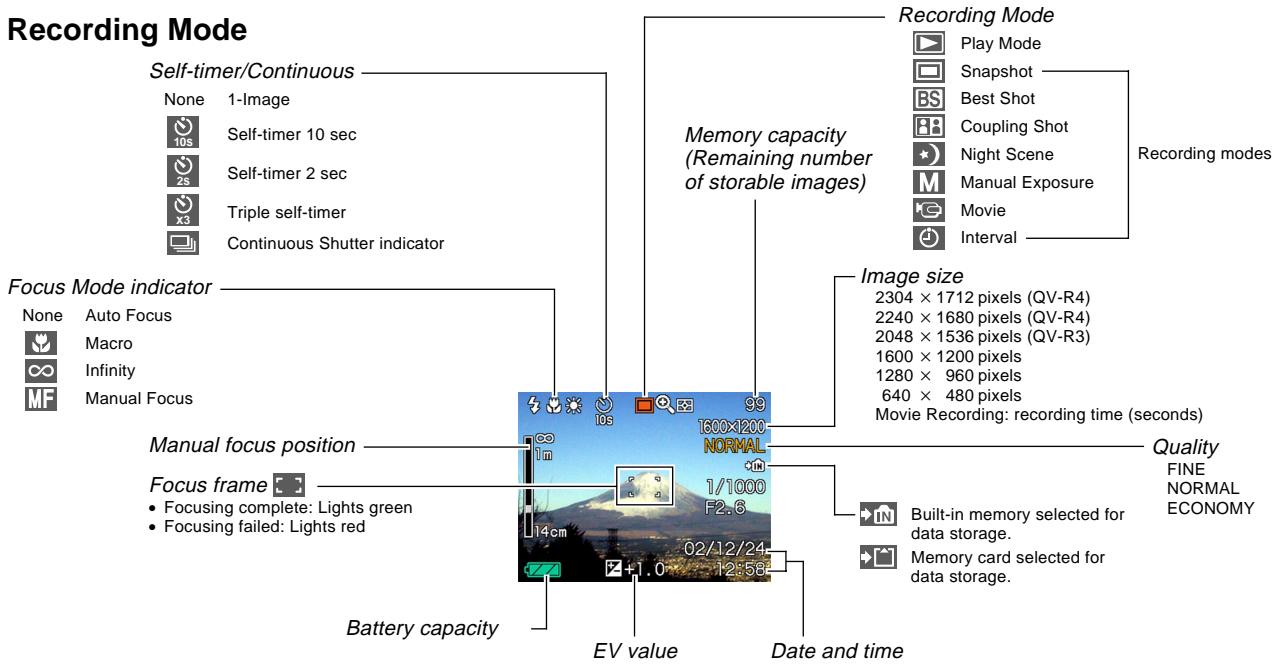
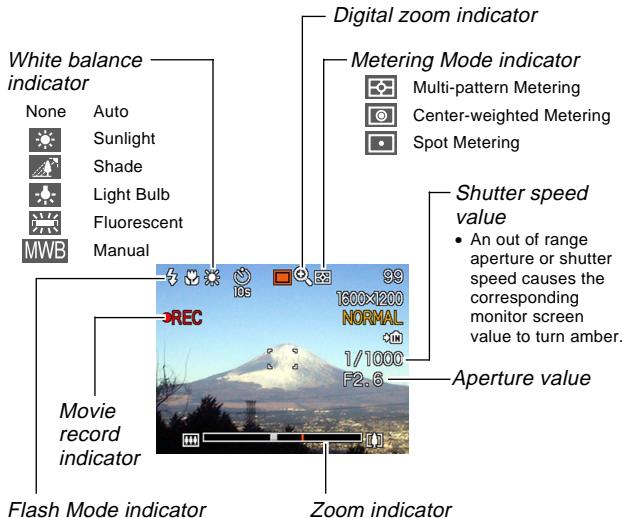
None
Auto

Flash Off

Flash On

Red-eye reduction
- When auto flash is selected, the flash indicator appears when the shutter button is pressed half way to indicate that the flash will fire.
Left side indicates optical zoom.
Right side indicates digital zoom.
Play Mode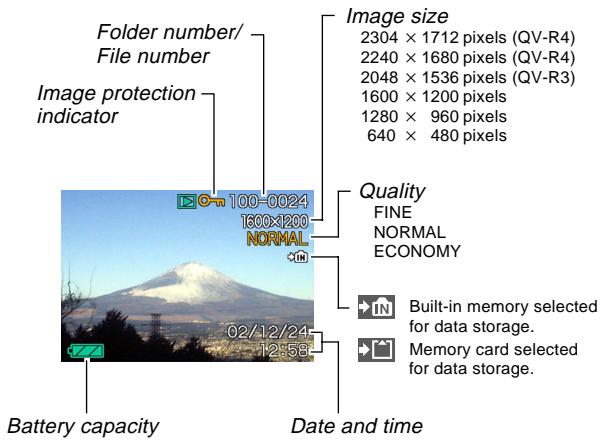
Changing the Contents of the Monitor Screen
Each press of the DISP button changes the contents of the monitor screen as shown below.
![graph LR A["Indicators on (page 18)"] --> B["Histogram on (page 75)"] B --> C["Indicators off"] C --> D["Monitor* screen off"] D --> E](/content/2025/01/86772/images/832d0b0a283ae448c506a3733278dbaeddfe6fcba2f63dd58adcdc4ec8420e2e.jpg)
* You cannot turn off the monitor screen in the Play Mode.
Indicator Lamps
The color and condition (lit, unlit, flashing) of the indicator lamps keep you informed about the current status of the camera. For details, see “Indicator Lamp Reference” on page 133.
Green operation lamp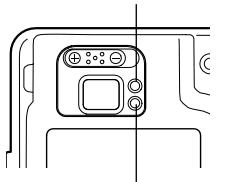
Red operation lamp
Self-timer lamp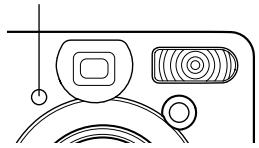
Attaching the Strap
Attach the strap to the strap ring as shown in the illustration.
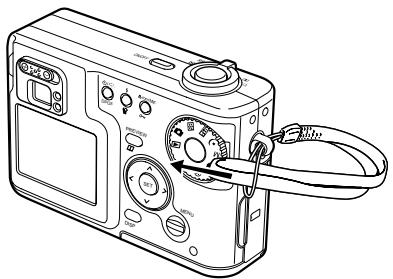
IMPORTANT!
- Be sure to keep the strap around your wrist when using the camera to protect against accidentally dropping it.
- The supplied strap is intended for use with this camera only. Do not use it for any other application.
- Never swing the camera around by the strap.
Using the Soft Case (Option)
We recommend that you keep the camera in the optional soft case when it is not in use.
Attach the strap of the soft case to the ring as shown in the illustration.
Soft case : QSC-4
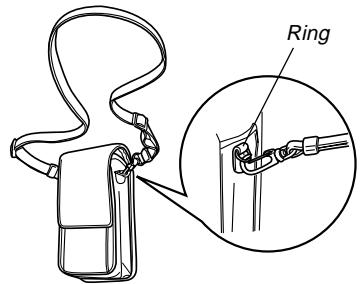
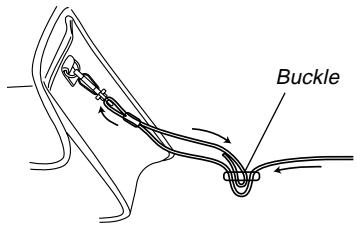
Use the buckle on the soft case strap to adjust its length.
GETTING READY
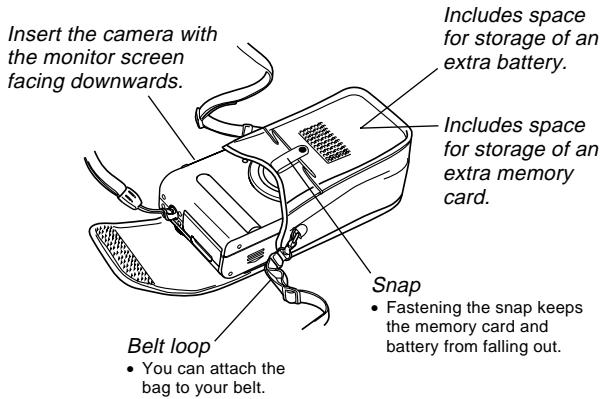
IMPORTANT!
- Use the soft case for storage of this camera, and its battery and memory card only.
- The strap that comes with the soft case is intended for use with the soft case only. Never use it for any other purpose.
- Never swing the camera around by the soft case strap.
- Wearing the soft case strap around your neck and allowing the camera to swing freely creates the risk of accident and personal injury caused by impact from the camera, by the camera becoming caught in a door, etc.
- Keep this camera out of the reach of small children. Children handling the camera creates the risk of serious accident should the soft case strap accidentally become wound around the neck.
Power Requirements
Your camera can operate on either battery power or AC power.
- Battery
One NP-30 rechargeable lithium ion battery
The battery is not charged when you purchase the camera. You need to charge the battery before using the camera for the first time.
• Household AC Power
AC Adaptor: AD-C40 (Option)
Using the Charger Unit
■ Charger Unit General Guide
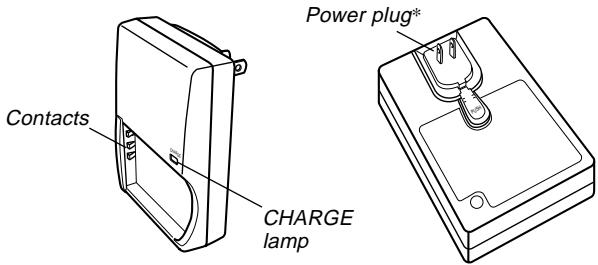
* The shape of the power plug on the charger unit that comes with the camera depends on the geographic area where you purchase it.
■ Attaching the Battery to the Charger Unit
Making sure that the positive and negative contacts are aligned correctly, affix the battery to the charger unit. Note that the battery will not charge properly if it is not positioned correctly on the charger unit.
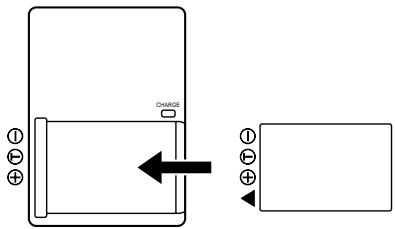
■ To charge the battery
- Positioning the positive and negative terminals of the battery as shown in the illustration, attach the battery to the charger unit.
- Plug the charger unit into a household power outlet.
- The CHARGE lamp on the charger unit should turn red, indicating that charging has started.
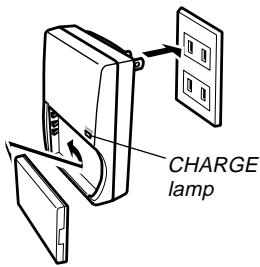
- Charging is complete when CHARGE lamp turns green. Unplug the charger unit from the power outlet, and then remove the battery from the charger unit.
IMPORTANT!
- It takes about two hours to achieve a full charge. Actual charging time depends on current battery capacity and charging conditions.
- Use only the charger unit (BC-20) that comes with the camera to charge the special rechargeable lithium ion battery (NP-30). Never use any other charger device.
- Charging may not start immediately if you have just finished using the camera or if you are trying to charge the battery where it is very hot or very cold. This condition is indicated when the CHARGE lamp is flashing at slow speed. If this happens, simply move the battery to an area where temperature is more moderate (around 25°C ( 77°F )). The CHARGE lamp will turn red and charging will start when the battery temperature returns to the allowable charging temperature range.
- The CHARGE lamp flashes red at high speed during charging if the battery is not attached to the charger unit properly. Try removing it and then re-attaching the battery. If this does not correct the problem, it can mean there is something wrong with the charger unit or battery.
- If the charger unit contacts or battery terminals become dirty, wipe them clean with a cloth or cotton swab.
- Even though it looks removable, never try to remove the power plug from the charger unit.
■ Optionally Available Battery
You can purchase additional NP-30 rechargeable lithium ion battery for use this with camera as required.
Rechargeable Lithium Ion Battery: NP-30
- When an extra battery is not in use, keep it in the storage case that comes with each battery.
- Storing a battery with its terminals exposed creates the risk of shorting.
- If you are using only one battery, you should normally keep it loaded in the camera during transport. The battery that is bundled with the camera does not come with a storage case.
■ Inserting a Battery into Its Storage Case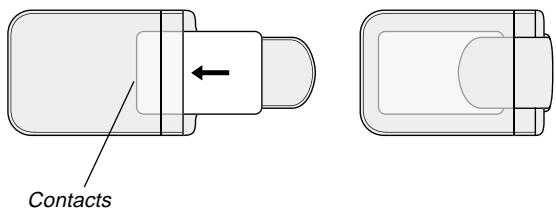
To load the battery into the camera
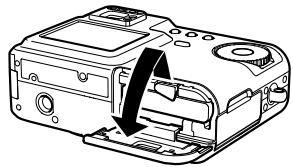
- Slide the battery cover on the side of the camera in the direction indicated by the arrow and then swing it open.
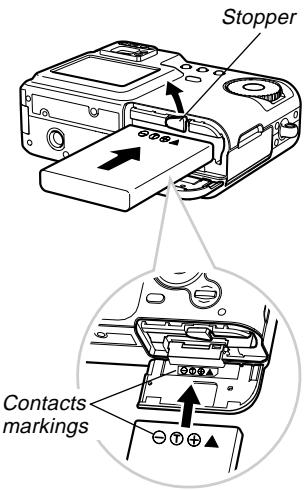
- Slide the stopper in the direction indicated by the arrow in the illustration and hold it.
- Orienting the battery so the contacts markings on the side of the battery are in the same order, from left to right, as the markings on the inside of the battery cover, slide the battery into the battery slot.
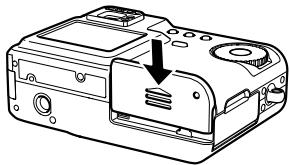
- Swing the battery cover up and then slide it closed as you press down at the point indicated by the arrow in the illustration.
IMPORTANT!
- Use only the special NP-30 rechargeable lithium ion battery to power this camera. Use of any other type of battery is not supported.
NOTE
- To remove the battery from the camera, open the battery cover and hold the stopper so it does not stop the battery. Taking care to keep the battery from suddenly falling, angle the bottom of the camera downwards until the battery starts to come out. Next, pull the battery out the rest of the way.
Battery Life
■ Battery Life Guidelines
The battery life guideline values given below indicate the amount of time at standard temperature (25°C (77°F)) until power automatically turns off due to battery failure. They do not guarantee that the battery will provide the amount of service indicated. Low temperatures and continued use reduce battery life.
| Operation | Approximate Battery Life | |
| Continuous Recording*1 | QV-R3 | 120 minutes (720 shots) |
| QV-R4 | 110 minutes (660 shots) | |
| Continuous Playback*2(Continuous Snapshot Recording) | QV-R3 | 220 minutes |
| QV-R4 | 220 minutes | |
*1 Continuous Recording Conditions
• Normal temperature: 25°C (77°F)
- Flash: Off
- Monitor screen: On
- Image recorded about every 10 seconds using the following operations: Zoom to full wide angle → Auto Focus → Zoom to full close-up → Auto Focus → Image recording
*2 Continuous Playback Conditions
• Normal temperature: 25°C (77°F)
- Scroll one image about every 10 seconds
GETTING READY
- The above values are based on a new battery starting from a full charge. Repeated charging shortens battery life.
- Battery life is greatly affected by how much you use flash, zoom and other functions, and how long you leave power turned on.
■ Tips to Make the Battery Last Longer
- If you do not need the flash while recording, select (flash off) for the flash mode. See page 46 for more information.
- Enable the Auto Power Off and the Sleep features (page 33) to protect against wasting battery power when you forget to turn off the camera.
- Use the DISP button to turn off the monitor screen.
■ Low Battery Indicator
The following shows how the battery capacity indicator on the monitor screen changes as battery power is used. If you continue to use the camera while the battery level is low, camera power will automatically turn off. When this happens, charge the battery as soon as possible.
| Battery Level | High←→Low |
| Indicator |
- Pressing the shutter release button while the low battery indicator is displayed immediately shuts off the camera.
Power Supply Precautions
■ Battery Handling Precautions
● SAFETY PRECAUTIONS
Congratulations upon your selection of this CASIO product. Be sure to read the following Safety Precautions before trying to use it for the first time. Keep these safety precautions and operating instructions on hand for future reference.
NOTE
- All mentions of "the battery" in the following precautions refer to the CASIO NP-30 Rechargeable Lithium Ion Battery.
- Failure to observe any of the following precautions while using the battery creates the risk of over-heating, fire, and explosion.
— Never use any other type of charger except the one specially specified for the battery. — Use this battery only with a product for which it is expressly specified. — Never use or leave the battery near open flame. — Never place the battery in a microwave oven, throw it into fire, or otherwise expose it to high heat. — Make sure the battery is oriented correctly when it is connected to the charger unit. — Never carry or store the battery together with items that can conduct electricity (necklaces, pencil lead, etc.). — Never try to take the battery apart, modify it in any way, or expose it to strong impact. — Do not immerse the battery in fresh water or salt water. — Do not use or leave the battery under direct sunlight, in an automobile parked in the sun, or in any other area subject to high temperatures.
- Should you ever notice leakage, strange odor, heat generation, discoloration, deformation, or any other abnormal condition while using, charging, or storing a battery, immediately remove it from the camera or charger unit and keep it away from open flame.
GETTING READY
- If the battery does not achieve full charge after the normal charging time has passed, stop charging. Continued charging creates the risk of overheating, fire, and explosion.
- If battery fluid accidentally gets into your eyes, it can damage your eyes. Immediately rinse your eyes with clean tap water and then consult a physician.
- Be sure to read the User's Guide that comes with the camera and special charger unit before using or charging the battery.
- If the battery is to be used by young children, make sure that a responsible adult makes them aware of the precautions and proper handling instructions as contained in the User's Guide, and make sure that they handle the battery correctly.
- Should fluid from the battery accidentally get onto clothing or your skin, immediately rinse it off with clean tap water. Prolonged contact with battery fluid can cause skin irritation.
● PRECAUTIONS DURING USE
- This battery is designed for use with a CASIO digital camera only. See your camera's User's Guide to find out if it supports use of this battery.
- Use only the special charger unit to charge the battery. Never use any other type of charger unit for charging.
- This battery is initially not charged. Be sure to charge the battery before using it for the first time.
- Use of a battery in cold environments shortens the operating time you can expect on a full charge.
- Charge the battery in a location where the temperature is in the range of 10°C to 35°C (50°F to 95°F). Charging outside this temperature range can cause charging to take longer than normal or even cause charging to fail.
- Very limited operation following a full charge indicates that the battery has reached the end of its service life. Replace the battery with a new one.
● BATTERY STORAGE PRECAUTIONS
- Make sure you remove the battery from your camera when you do not plan to use the camera for a long time. A battery left in the camera discharges very small amounts of power even when camera power is turned off, which can lead to a dead battery or a longer charging time.
- Store the battery in a cool, dry place (20°C (68°F) or lower).
● USING THE BATTERY
- See the User's Guide that comes with the special charger unit and the digital camera for information about charging procedures and charging time.
- When transporting a battery, keep it either loaded in the digital camera or stored in its case.
■ Charger Unit Precautions
- Never plug the charger unit into an outlet whose voltage rating is different from that marked on the charger unit. Doing so creates the risk of fire, malfunction, and electric shock.
- Never plug in or unplug the charger unit while your hands are wet. Doing so creates the risk of electric shock.
- Do not plug the charger unit into an outlet or extension cord that is shared by other devices. Doing so creates the risk of fire, malfunction, and electric shock.
- The charger unit becomes slightly warm during charging. This is normal and does not indicate malfunction.
- Unplug the charger unit from the power outlet whenever you are not using it.
Using AC Power
Use the adaptor as shown below to power the camera from a household power outlet.
- Open the camera's terminal panel cover.
- Plug the AC adaptor to the DC IN 4.5V terminal.
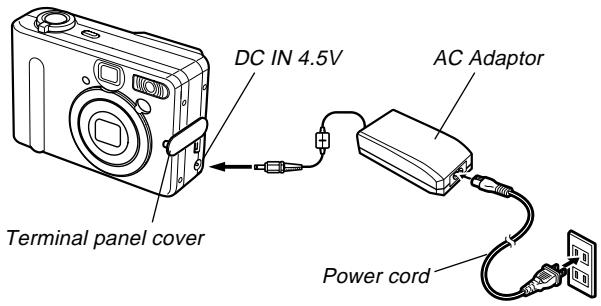
- AC adaptor: AD-C40
The AC adaptor can be used with any power source rated from 100V to 240V AC. If you plan to use the AC adaptor in another country, it is up to you to purchase the applicable power cord that matches the configuration of power receptacles in that country.
■ Adaptor Precautions
- Never use an electrical outlet whose voltage is outside the rating marked on the AC adaptor. Doing so can create the danger of fire or electric shock. Use only the optional AC adaptor specified for this camera.
- Do not allow the AC adaptor power cord to become cut or damaged, do not place heavy objects on it, and keep it away from heat. A damaged power cord creates the risk of fire and electric shock.
- Never try to modify the AC adaptor power cord, or subject it to severe bending, twisting, or pulling. Doing so creates the risk of fire and electric shock.
- Never touch the AC adaptor while your hands are wet. Doing so creates the risk of electric shock.
- Do not overload extension cords or wall outlets. Doing so creates the danger of fire and electric shock.
- Should the cord of the AC adaptor become damaged (exposed internal wiring), request a replacement from a CASIO service center. A damaged AC adaptor cord creates the danger of fire or electric shock.
- Be sure to turn off power before connecting or disconnecting the adaptor.
- Always turn camera power off before disconnecting the AC adaptor, even if the camera has a battery installed. If you don't, the camera will turn off automatically when you disconnect the AC adaptor. You also run the risk of damaging the camera whenever you disconnect the AC adaptor without first turning power off.
GETTING READY
- The AC adaptor may become warm to touch after extended periods of use. This is normal and is not cause for alarm.
- After using the camera, turn it off and unplug the adaptor from the AC outlet.
- The camera automatically switches over to AC adaptor powered operation whenever the AC adaptor is plugged into the camera.
- Always use the AC adaptor to power the camera whenever it is connected to a computer.
- Never place a blanket or any other cover on the AC adaptor. Doing so creates the risk of fire.
Turning the Camera On and Off
Press the power button to turn the camera on and off.
Pressing the power button to turn on the camera causes the green operation lamp to flash. Press the power button again to turn off the camera.
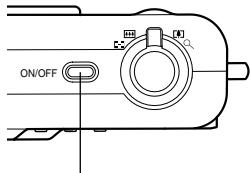
Power button
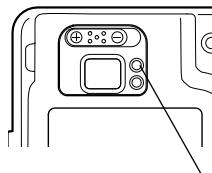
Green operation lamp
IMPORTANT!
- If camera power is turned off by the Auto Power Off feature, press the power button to turn it back on again.
- Turning on camera power while the mode dial is set to recording mode causes the lens to extend from the camera. Make sure there is nothing in front of the camera that can be hit by the lens when you turn on the camera.
Configuring Power Saving Settings
You can configure the settings described below to conserve battery power.
Auto Power Off: Turns off power if you do not perform any operation for a specified amount of time.
Sleep: Automatically turns off the monitor screen if no operation is performed for a specified amount of time in a recording mode. Performing any button operation causes the monitor screen to turn back on.
- Align the mode dial with 📄 (Snapshot Mode).
- Press MENU.
- Use [<] and [>] to select the "Set Up" tab.
- Use [^] and [∨] to select the feature whose setting you want to configure, and then press SET.
See page 34 for information about how to use menus.
| To configure this feature: | Select this setting: |
| Auto Power Off | Auto Power Off |
| Sleep | Sleep |
- Use [^] and [∨] to change the currently selected setting, and then press SET.
- Available Auto Power Off settings are: 3 min, 5 min, and off.
- Available Sleep settings are: 30 sec, 1 min, 2 min, and off.
- Note that the Sleep feature does not operate in the Play Mode.
- Pressing any button while the camera is in the Sleep state immediately turns the monitor screen back on.
- The Auto Power Off and Sleep features are disabled while the camera is connected to a computer via the USB port.
Using the On-screen Menus
Pressing the MENU button displays a menu of operations on the camera's monitor screen. The contents of the menu depend on whether the camera is in a recording mode or the Play Mode. The following explanation of basic menu operations uses the recording mode menu.
1. Turn on the camera, and then align the mode dial with 📷.
- If you want to enter the Play mode instead, you would align the mode dial with ▶.
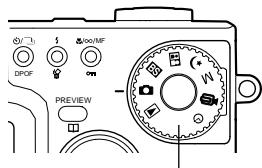
Mode dial
2. Press MENU.
- This displays the menu screen.
![SET MENU MENU DISP [∧][∨][⩽][>]](/content/2025/01/86772/images/9c08b71298da48371a2749aadcdb2aaa3dc1c00b7c86b1961f1f5c4fa950ac8c.jpg)
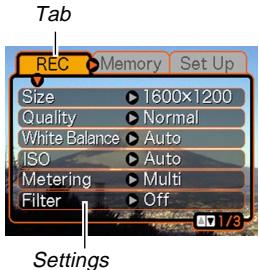
Selection cursor (indicates the currently selected item)
● Menu Screen Operations
| When you want to do this: | Do this: |
| Move between tabs | Press [<] and [>]. |
| Move from the tab to the settings | Press [∨]. |
| Move from the settings to the tab | Press [∧]. |
| Move between the settings | Press [∧] and [∨]. |
| Display the options available for a setting | Press [>] or press SET. |
| Select an option | Press [∧] and [∨]. |
| Register an option selection and exit the menu screen | Press SET. |
| Register an option selection and return to the menu screen | Press [<]. |
| Exit the menu screen | Press the MENU button. |
- Press [<] or [>] to select the tab you want, and then press SET to move the selection cursor from the tab to the settings.
- Use [^] and [∨] to select the feature whose setting you want to configure, and then press [>].
- Instead of pressing [>], you could also press SET.
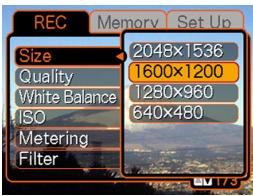
Example: To select the "Size" item.
- Use [^] and [∨] to change the currently selected setting, and then press SET.
• This applies the setting.
NOTE
- The recording mode menu appears if you press the MENU button before starting a record operation. It will not appear if you press the MENU button during a setup procedure, while the camera is standing by for recording of the second image of a Coupling Shot operation, etc.
- See “Menu Reference” on page 131 for more information about menus.
Configuring Display Language and Clock Settings
Be sure to configure the following settings before using the camera to record images.
- Display language
- Home city
- Date and time
Note that the current date and time settings are used by the camera to generate the date and time that is stored along with image data, etc.
IMPORTANT!
- The camera's clock settings are cleared if power to the camera is totally cut off for about 12 hours. This can happen if the battery goes dead while the camera is not being supplied power by the AC adaptor. The clock setting screen will appear automatically the next time you turn on power after the settings are cleared. Set the date and time before using the camera.
- You also need to configure clock settings whenever you replace the battery.
- Recording images without configuring the clock settings causes incorrect time information to be registered. Be sure to configure the clock settings before using the camera.
- Press the power button to turn on the camera.
- Use [^] and [∨] to select the language you want, and then press SET.
Japanese
English
French
German
Spanish
Italian
- Use [^], [∨], [<], and [>] to select the geographical area where you live, and then press SET.
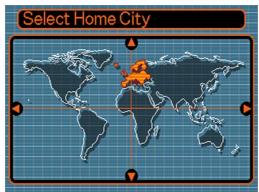
- Use [^] and [∨] to select the name of the city where you live, and then press SET.
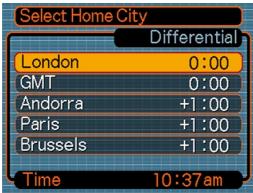
- Use [^] and [∨] to select the summer time (DST) setting you want, and then press SET.
| When you want to do this: | Select this setting: |
| Keep time using standard time | Off |
| Keep time using summer time (Daylight Saving Time) | On |
- Set the current date and the time.
| To do this: | Do this: |
| Move the cursor between settings | Press [^] and [∨]. |
| Change the setting at the current cursor location | Press [<] and [>]. |
| Toggle between 12-hour and 24-hour timekeeping | Press DISP. |
- Press SET to register the settings and exit the setting screen.
BASIC IMAGE RECORDING
This section describes the basic procedure for recording an image.
Recording an Image
Your camera is equipped with a variety of different recording modes. The explanation in this section is presented using the Snapshot Mode. The camera automatically adjusts shutter speed and aperture settings in accordance with the brightness of the subject. Images you record are stored in the camera's built-in flash memory.
- You can also use optionally available SD memory cards and MultiMedia Cards (MMC) to store images (page 104).
1. Press the power button to turn on the camera.
- This causes an image or a message to appear on the monitor screen.
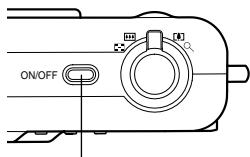
Power button
- Align the mode dial with 📄 (Snapshot Mode).
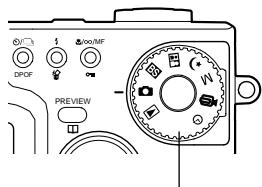
Mode dial
3. Compose the image on the monitor screen so the main subject is within the focus frame.
- The focusing range of the camera is approximately 40cm (1.3') to infinity (∞).
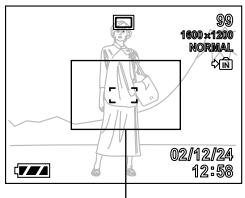
Focus frame
- You can compose images using either the monitor screen or the optical viewfinder (page 43).
- When using the optical viewfinder to compose images, you can use the DISP button to turn off the monitor screen and conserve battery power.
4. Press the shutter release button half way to focus the image.
- When you press the shutter release button half way, the camera's Auto Focus feature automatically focuses the image, and displays the shutter speed and aperture values.
- You can tell whether the image is focused by observing the focus frame and the green operation lamp.
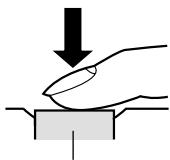
Shutter release button
Green operation lamp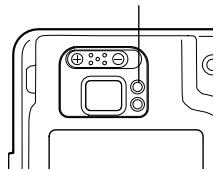
● Operation Lamp and Focus Frame Operation
| When you see this: | It means this: |
| Green focus frameGreen operation lamp | The image is focused. |
| Red focus frameFlashing green operation lamp | The image is not in focus. |
- Make sure you are not blocking the lens, the AF assist lamp, or the flash with your fingers while recording an image.
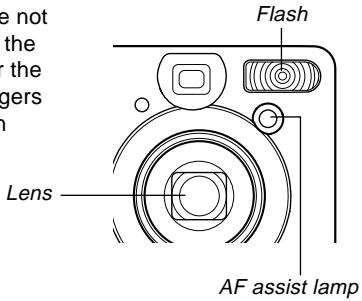
5. After making sure that the image is focused properly, press the shutter release button the rest of the way down to record.
- The recorded image is stored temporarily into buffer memory. After that, it is saved in the camera's built-in flash memory or onto a memory card, if one is loaded in the camera. You can record consecutive Continuous Shutter images as long as there is still buffer memory available to store them.
- The number of images that can be stored in memory depends on the resolution setting you are using (page 140).
- Press the shutter release button gently to avoid camera movement.
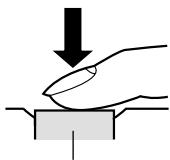
Shutter release button
Recording Precautions
- Never open the battery cover while the green operation lamp is flashing. Doing so not only causes the current image to be lost, it can also corrupt images already stored in camera memory and even lead to malfunction of the camera.
- Never remove the memory card while an image is being recorded to the memory card.
- Fluorescent lighting actually flickers at a frequency that cannot be detected by the human eye. When using the camera indoors under such lighting, you may experience some brightness or color problems with recorded images.
- The camera automatically adjusts its sensitivity in accordance with the brightness of the subject. This can cause some static noise to appear in images of relatively dark subjects.
- For a dimly lit subject, the camera raises the sensitivity and uses a faster shutter speed. Because of this, you need to guard against camera movement if you have flash turned off (③) when recording a dimly lit subject (page 46).
About Auto Focus
- Auto Focus tends not to work well if the camera is moved during recording, or when recording the types of subjects listed below. — Solid color walls or objects with little contrast — Strongly backlit objects — Polished metal or other brightly reflective objects — Venetian blinds or other horizontally repeating patterns — Multiple images that are varying distances from the camera — Subjects in poorly lit areas — Moving subjects
- Note that a green operation lamp and focus frame do not necessarily guarantee that an image is in focus.
- If Auto Focus does not produce the results you want for some reason, try using focus lock (page 57) or manual focus (page 55).
About the Recording Mode Monitor Screen
- The image shown on the monitor screen in a recording mode is a simplified image for composing purposes. The actual image is recorded in accordance with the image quality setting currently selected on your camera. The image saved on memory has much better resolution and detail than a recording mode monitor screen image.
- Certain levels of subject brightness can cause the response of the monitor screen in a recording mode to slow down, which causes some static noise in the monitor screen image.
Previewing the Last Image Recorded
Use the following procedure to preview the last image recorded, without leaving the current recording mode.
1. Press the PREVIEW button to display the last image recorded.
- Pressing the PREVIEW button again returns to the recording mode.
- The PREVIEW button does not perform any operation if you press it immediately after turning on camera power or immediately after entering to the recording mode from the Play mode.
- Image preview cannot be used in the Movie Mode. The preview image is cleared automatically whenever the recording mode is changed.
Deleting an Image in a Recording Mode
You can use following procedure to delete the last image you recorded without leaving the current recording mode.
IMPORTANT!
- Note that the image delete operation cannot be undone. Make sure you really do not need an image before you delete it.
- In a recording mode, press the PREVIEW button to display the last image you recorded.
- Press ↓ ⏻.
- In response to the confirmation message that appears, select "Delete."
- Select "Cancel" to cancel the delete operation without deleting anything.
- Press SET.
- This deletes the image and returns to the recording mode.
Using the Optical Viewfinder
Turning off the camera's monitor screen and using its optical viewfinder to compose images helps to conserve battery power.
Focus Frame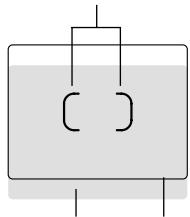
Short distance to subject Viewfinder frame
IMPORTANT!
- The frame that is visible inside of the viewfinder indicates the image recorded at a distance of about three meters (9.8'). When the subject is closer or further away than three meters, the recorded image will be different from what you see inside the viewfinder frame.
- The monitor screen turns on automatically whenever you select the Macro Mode or Manual Focus Mode. Always use the monitor screen to compose images in these modes.
Adjusting the View of the Optical Viewfinder
You can use the diopter slider to adjust the view of the viewfinder to match your eyesight. Adjust the diopter slider so the image in the viewfinder is clear.
Diopter slider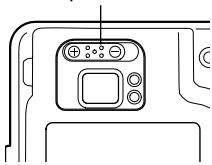
IMPORTANT!
- The diopter slider does not work when the camera is turned off or in Play Mode. Be sure to enter a recording mode before adjusting the diopter setting.
Using Zoom
Your camera is equipped with two types of zoom: optical zoom and digital zoom.
Optical Zoom
Optical zoom alters the focal distance of the lens. The range of the zoom factor is shown below.
Zoom Factor Range: 1X to 3X
- Enter a recording mode.
- Shift the zoom controller to change the zoom factor.
(Wide Angle): Zooms out.
[▲] (Telephoto) : Zooms in.
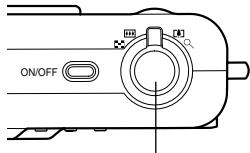
Zoom controller
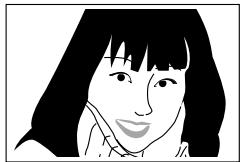
Zoom in

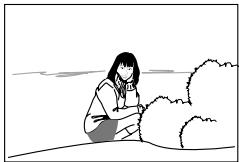
Zoom out
- Compose the image and then press the shutter release button.
NOTES
- The optical zoom factor also affects the lens aperture.
- Use of a tripod is recommended to protect against hand movement when using the telephoto setting (zoom in).
Digital Zoom
Digital zoom is activated after you reach the maximum optical zoom factor (3X). It enlarges the part of the image at the center of the image screen. The range of the digital zoom factor is shown below.
Zoom Factor Range: 3X to 9.6X
(in combination with optical zoom)
- In a recording mode, press MENU.
- Use [<] and [>] to select the "REC" tab.
- Use [^] and [∨] to select "Digital Zoom," and then press [>].
- Select "On," and then press SET.
- Selecting "Off" disables digital zoom.
- Slide the zoom controller towards [▲] (Telephoto)/ 🔒 to change the zoom factor.
- When zoom reaches maximum optical zoom, it stops momentarily. Keep the zoom controller pressed to the [+] (Telephoto)/ ○ side and zoom will switch over to digital zoom.
- This causes the zoom indicator to appear on the monitor screen. The zoom indicator shows the current approximate zoom factor.
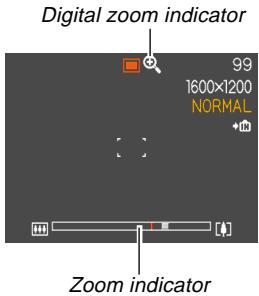
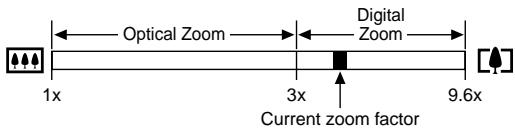
- Compose the image and then press the shutter release button.
IMPORTANT!
- Digital zoom is disabled whenever the monitor screen is turned off (page 20).
Using the Flash
Perform the following steps to select the flash mode you want to use.
- In a recording mode, press MENU.
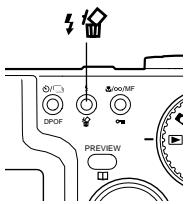
- Press ↓ to select the flash mode.
• Each press of ⏻ cycles through the flash mode settings shown below on the monitor screen.
Flash mode indicator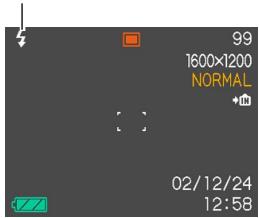
| To do this: | Select this setting: |
| Have the flash fire automatically when required (Auto Flash) | None |
| Turn off the flash (Flash Off) | [CBH4] |
| Always fire the flash (Flash On) |  |
| Fire a pre-flash followed by image recording with flash, reducing the chance of red-eye in the image (Red-eye reduction)Have the flash fire automatically when required | [HSWA] |
3. Record the image.
IMPORTANT!
- The flash unit of this camera fires a number of times when you record an image. The initial flashes are pre-flashes, which the camera uses to obtain information that it uses for exposure settings. The final flash is for recording. Make sure that you keep the camera still until the shutter releases.
- Image recording may not be performed if you press the shutter release button while the red operation lamp is flashing.
■ About Red-eye Reduction
Using the flash to record at night or in a dimly lit room can cause red spots inside the eyes of people who are in the image. This is caused when the light from the flash reflects off of the retina of the eye. When red-eye reduction is selected as the flash mode, the camera performs two pre-flash operations, one designed to cause the irises in the eyes of any people in the image to close, and one for the Auto Focus operation. This is followed by another flash operation for actual recording of the image.
IMPORTANT!
Note the following important points when using red-eye reduction.
- Red-eye reduction does not work unless the people in the image are looking directly at the camera during the pre-flash or AF assist lamp flash operation. Before pressing the shutter release button, call out to the subjects so they all look at the camera while one of the pre-flash operations is performed.
- Red-eye reduction may not work very well if the subjects are located far away from the camera.
Flash Unit Status
You can find out the current flash unit status by pressing the shutter release button half way and checking the monitor screen and red operation lamp.
The indicator is also shown on the monitor screen when the flash unit is ready to fire.
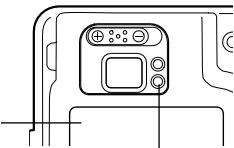
Red operation lamp*
* Red operation lamp
| When the red operation lamp is this: | It means this: |
| Flashing | Flash unit is charging |
| Lit | Flash unit is ready to fire |
Changing the Flash Intensity Setting
Perform the following steps to change the flash intensity setting.
- In a recording mode, press MENU.
- Use [<] and [>] to select the "REC" tab.
- Use [^] and [∨] to select "Flash Intensity," and then press [>].
- Select the setting you want and then press SET.
| To do this: | Select this setting: |
| Fire the flash with strong intensity | Strong |
| Fire the flash with normal intensity | Normal |
| Fire the flash with weak intensity | Weak |
- Flash intensity may not change if the subject is too far or too close to the camera.
Flash Precautions
Take care that your fingers do not block the flash when you hold the camera. Covering the flash with your finger can greatly reduce its effectiveness.
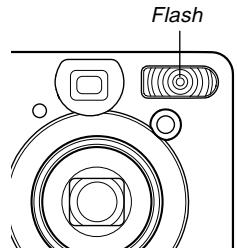
- The approximate effective range of the flash is shown below. The flash is unable to adequately illuminate a subject that is outside this range.
QV-R3: 0.4 meter to 3.2 meters (1.3' to 10.5')
QV-R4: 0.4 meter to 2.8 meters (1.3' to 9.2')
- The flash takes anywhere from a few seconds to as long as 10 seconds to attain full charge after being fired. The actual time required depends on the battery level, temperature, and other conditions.
- The flash does not fire in the Movie Mode and in the Continuous Shutter Mode. This is indicated by ⚙️ (Flash Off) on the monitor screen.
- The flash unit may not be able to charge when battery power is low. Low battery power is indicated by 📋 (Flash Off) on the monitor screen, and when the flash fails to fire properly resulting in poor image exposure. When these symptoms occur, charge the camera's battery as soon as possible.
BASIC IMAGE RECORDING
- When the red-eye reduction mode (☐) is being used, flash intensity is adjusted automatically in accordance with the exposure. The flash may not fire at all when the subject is brightly lit.
- White balance is fixed while the flash is being used, so sunlight, fluorescent lighting, or other sources of illumination in the immediate area may affect the coloring of the recorded image.
Using the Self-timer
The self-timer lets you select either a 2-second or 10-second delay of the shutter release after you press the shutter release button. A Triple Self-timer feature lets you perform three consecutive self-timer operations to record three images.
- In a recording mode, press 🎨/☐ DPOF to select the self-timer setting you want.
- Each press of 🎨/☐ DPOF cycles the self-timer between the settings described below.
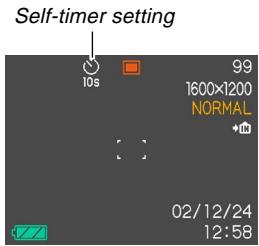
| To do this: | Select this setting: |
| Disable the self-timer | No icon displayed |
| Specify a 10-second self-timer | [unknown] |
| Specify a 2-second self-timer | [0x2x3] |
| Specify Triple Self-timer | [unknown] |
| Specify Continuous Shutter recording (no self-timer) | [2438] |
- See page 59 for information about Continuous Shutter recording.
- With the Triple Self-timer, the first image is recorded after a 10-second countdown. After that the second image is recorded after a 3-second countdown, and the third image is recorded after another 3-second countdown.
2. Record the image.
- When you press the shutter release button, the self-timer lamp flashes and the shutter releases after the self-timer reaches the end of its countdown.
- You can interrupt an ongoing self-timer countdown by pressing the shutter release button while the self-timer lamp is flashing.
NOTES
- The hand-shake limiter is enabled when you use a slow shutter speed and the two-second self-timer at the same time.
- You cannot use the self-timer in combination with the Continuous Shutter Mode (page 59).
Self-timer lamp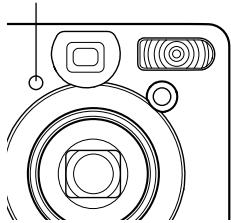
Specifying Image Size and Quality
You can specify the image size and image quality to suit the type of image you are recording.
To specify the image size
- In a recording mode, press MENU.
- Use [<] and [>] to select the "REC" tab.
- Use [^] and [∨] to select "Size," and then press [>].
- Use [^] and [∨] to change the current setting, and then press SET.
| To record an image of this size: | Select this setting: |
| 2304 X 1712 pixels (QV-R4) | 2304 X 1712 |
| 2240 X 1680 pixels (QV-R4) | 2240 X 1680 |
| 2048 X 1536 pixels (QV-R3) | 2048 X 1536 |
| 1600 X 1200 pixels | 1600 X 1200 |
| 1280 X 960 pixels | 1280 X 960 |
| 640 X 480 pixels | 640 X 480 |
NOTE
- Use the larger pixel settings when you plan to produce a large print of the image. Use 640 X 480 when you need to economize on space because you plan to send images in e-mail, etc.
To specify the image quality
- In a recording mode, press MENU.
- Use [<] and [>] to select the "REC" tab.
- Use [^] and [∨] to select "Quality," and then press [>].
- Use [^] and [∨] to change the current setting, and then press SET.
| To get this: | Select this setting: |
| Very high quality, but large file size | Fine |
| Normal quality | Normal |
| Small file size, but low quality | Economy |
NOTE
- Use the “Fine” setting when image quality is your top priority, and file size is secondary. Conversely, use the “Economy” setting when file size is your top priority and image quality is secondary.
IMPORTANT!
- Actual file size depends on the type of image you record. This means that the remaining image capacity noted on the monitor screen may not be exactly accurate (pages 18 and 140).
- UNPACKING
- CONTENTS
- INTRODUCTION
- QUICK START GUIDE
- GETTING READY
- BASIC IMAGE RECORDING
- OTHER RECORDING FUNCTIONS
- PLAYBACK
- DELETING FILES
- FILE MANAGEMENT
- OTHER SETTINGS
- USING A MEMORY CARD
- USING THE CAMERA WITH A COMPUTER
- APPENDIX
- IMPORTANT
- FEATURES
- PRECAUTIONS
- GENERAL PRECAUTIONS
- DATA ERROR PRECAUTIONS
- OPERATING CONDITIONS
- CONDENSATION
- LED BACKLIGHT
- LENS
- OTHER
- GUIDELINES LAID DOWN BY FCC RULES FOR USE OF THIS UNIT IN THE U.S.A. (NOT APPLICABLE TO OTHER AREAS)
- NOTICE
- FCC WARNING
- DECLARATION OF CONFORMITY
- TO RECORD AN IMAGE
- TO VIEW A RECORDED IMAGE
- TO DELETE AN IMAGE
- GENERAL GUIDE
- FRONT
- BACK
- MONITOR SCREEN CONTENTS
- CHANGING THE CONTENTS OF THE MONITOR SCREEN
- INDICATOR LAMPS
- ATTACHING THE STRAP
- USING THE SOFT CASE (OPTION)
- POWER REQUIREMENTS
- USING THE CHARGER UNIT
- CHARGER UNIT GENERAL GUIDE
- ATTACHING THE BATTERY TO THE CHARGER UNIT
- TO CHARGE THE BATTERY
- OPTIONALLY AVAILABLE BATTERY
- TO LOAD THE BATTERY INTO THE CAMERA
- NOTE
- BATTERY LIFE
- BATTERY LIFE GUIDELINES
- TIPS TO MAKE THE BATTERY LAST LONGER
- LOW BATTERY INDICATOR
- POWER SUPPLY PRECAUTIONS
- BATTERY HANDLING PRECAUTIONS
- ● SAFETY PRECAUTIONS
- ● PRECAUTIONS DURING USE
- ● BATTERY STORAGE PRECAUTIONS
- ● USING THE BATTERY
- CHARGER UNIT PRECAUTIONS
- USING AC POWER
- ADAPTOR PRECAUTIONS
- TURNING THE CAMERA ON AND OFF
- CONFIGURING POWER SAVING SETTINGS
- USING THE ON-SCREEN MENUS
- TURN ON THE CAMERA, AND THEN ALIGN THE MODE DIAL WITH 📷
- PRESS MENU
- CONFIGURING DISPLAY LANGUAGE AND CLOCK SETTINGS
- RECORDING AN IMAGE
- PRESS THE POWER BUTTON TO TURN ON THE CAMERA
- COMPOSE THE IMAGE ON THE MONITOR SCREEN SO THE MAIN SUBJECT IS WITHIN THE FOCUS FRAME
- PRESS THE SHUTTER RELEASE BUTTON HALF WAY TO FOCUS THE IMAGE
- AFTER MAKING SURE THAT THE IMAGE IS FOCUSED PROPERLY, PRESS THE SHUTTER RELEASE BUTTON THE REST OF THE WAY DOWN TO RECORD
- RECORDING PRECAUTIONS
- ABOUT AUTO FOCUS
- ABOUT THE RECORDING MODE MONITOR SCREEN
- PREVIEWING THE LAST IMAGE RECORDED
- PRESS THE PREVIEW BUTTON TO DISPLAY THE LAST IMAGE RECORDED
- DELETING AN IMAGE IN A RECORDING MODE
- USING THE OPTICAL VIEWFINDER
- ADJUSTING THE VIEW OF THE OPTICAL VIEWFINDER
- USING ZOOM
- OPTICAL ZOOM
- NOTES
- DIGITAL ZOOM
- USING THE FLASH
- RECORD THE IMAGE
- ABOUT RED-EYE REDUCTION
- FLASH UNIT STATUS
- CHANGING THE FLASH INTENSITY SETTING
- FLASH PRECAUTIONS
- USING THE SELF-TIMER
- SPECIFYING IMAGE SIZE AND QUALITY
- TO SPECIFY THE IMAGE SIZE
- TO SPECIFY THE IMAGE QUALITY
Brand : CASIO
Model : QV-R4
Category : Digital Camera