
GV-10 - Digital Camera CASIO - Free user manual and instructions
Find the device manual for free GV-10 CASIO in PDF.


| Product type | Digital camera |
| Brand | CASIO |
| Model | GV-10 |
| Dimensions (W x H x D) | 100.5 x 74.0 x 49.0 mm |
| Weight (without batteries) | Approx. 250 g |
| Power source | 4 AA batteries (alkaline, lithium or Ni-MH) or AC adapter AD-C620/C630 |
| Sensor | 1/3.2-inch CCD, 1.31 million pixels (1.23 million effective) |
| Lens | Fixed focal length 4.6 mm (35 mm equivalent), F2.8 aperture |
| Digital zoom | 2x (640×480 pixels when zoom enabled) |
| Focus | Fixed, with macro mode (10 cm) / normal (60 cm to ∞) |
| Shutter | 1 to 1/1500 s, electronic + mechanical |
| Built-in flash | Auto, forced, off; range 0.6 to 2 m |
| Display | 1.6-inch TFT LCD, 61,380 pixels |
| Storage | CompactFlash Type I card (8 MB included) |
| Image formats | JPEG (Exif 2.1, DCF), AVI (Motion JPEG) |
| Photo resolution | 1600×1200, 1280×960, 640×480 pixels |
| Video | 320×240 pixels, up to 10 s per clip |
| Water and dust resistance | IP66/IP67 (immersion 1 m for 30 min) |
| Shock resistance | Rugged construction (G-SHOCK technology) |
| Shooting modes | Auto, burst, self-timer (10 s), macro, Best Shot (18 scenes) |
| Battery life (alkaline batteries) | Approx. 170 min / 850 photos (continuous, flash off) |
| Battery life (lithium batteries) | Approx. 340 min / 1700 photos (continuous, flash off) |
| Connectivity | USB Mini-B, AC adapter |
| Supplied accessories | 4 AA batteries, USB cable, 8 MB CF card, wrist strap, lens cap, CD-ROM, manuals |
Frequently Asked Questions - GV-10 CASIO
User questions about GV-10 CASIO
0 question about this device. Answer the ones you know or ask your own.
Ask a new question about this device
Download the instructions for your Digital Camera in PDF format for free! Find your manual GV-10 - CASIO and take your electronic device back in hand. On this page are published all the documents necessary for the use of your device. GV-10 by CASIO.
USER MANUAL GV-10 CASIO
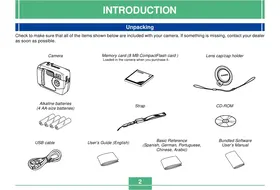
Check to make sure that all of the items shown below are included with your camera. If something is missing, contact your dealer as soon as possible.
Camera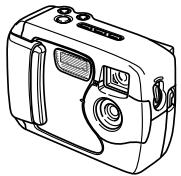
Alkaline batteries (4 AA-size batteries)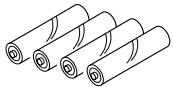
USB cable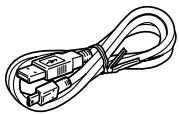
Memory card (8 MB CompactFlash card) Loaded in the camera when you purchase it.
Strap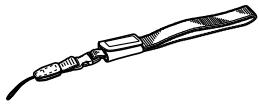
User's Guide (English)
Basic Reference (Spanish, German, Portuguese, Chinese, Arabic)
Lens cap/cap holder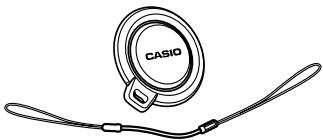
CD-ROM
Bundled Software User's Manual
Contents
2 INTRODUCTION
Unpacking 2
Quick Reference 6
Getting Ready 6
Recording an Image 7
Playback 8
9
Features 11
Water Resistance and Dust Resistance 12
Operating Environment 13
Operating Precautions 13
Wipe the camera dry after it becomes wet. 14
Location Precautions 14
General Precautions 15
Inspecting the Cover O-rings 16
If you find dirt on an O-ring... 16
Before putting your camera away after using it... 17
Precautions 18
General Precautions 18
Data Error Precautions 19
Operating conditions 19
Condensation 20
About the camera's backlight... 20
Lens Precautions 20
22 GETTING ACQUAINTED
General Guide 22
Front 22
Back 23
Terminals and Ports 24
Bottom 24
Monitor Screen Indicators 25
Changing the Contents of the Monitor Screen 27
Indicator Lamps 27
Using the Bundled Accessories 28
Attaching the Strap 28
Attaching the Lens Cap 29
Power Requirements 30
Loading Batteries 30
Battery Handling Precautions 34
Low Battery Indicator 34
Using AC Power 35
Turning the Camera On and Off 37
Power Save Settings 37
Memory Cards 38
Inserting a Memory Card into the Camera 38
Removing a Memory Card from the Camera 39
Memory Card Precautions 42
Setting the Current Date and Time 42
Setting the Date and Time 43
Selecting the Date Format 44
INTRODUCTION
45 RECORDING IMAGES
Recording a Simple Snapshot 45
About the REC Mode Monitor Screen 46
Recording Precautions 46
Image Recording when Batteries are Low 47
Using Zoom 47
Using the Flash 48
Flash Status Indicators 49
Precautions when Using Flash 49
Recording Macro Images 51
Using the Optical Viewfinder 52
Recording Consecutive Images
(Continuous Shutter Mode) 53
Recording with the self-timer 53
Recording an Image Using a
Best Shot Mode Scene 54
Recording a Movie (Movie Mode) 55
Specifying Image Size and Quality 56
Exposure Compensation 57
Selecting White Balance 59
60 PLAYBACK
Basic Playback Operation 60
Playing a Movie 61
Enlarging the Playback Image 61
Displaying the 9-image View 62
Selecting a Specific Image in the 9-image View 63
64 DELETING IMAGES
Deleting the Displayed Image 64
Deleting All Images 65
66 MANAGING IMAGES
Folders and Files 66
66
Files 66
DPOF 67
To configure printing for a particular image 67
To print all images 68
PRINT Image Matching 69
INTRODUCTION
70 OTHER SETTINGS
Changing the Display Language 70
Turning the Confirmation Beep On and Off 70
Specifying the Opening Screen 71
Selecting the USB Mode 71
72 CONNECTING TO EXTERNAL EQUIPMENT
Transferring Images to a Computer 73
USB Connection 73
To connect to a computer 73
Disconnecting the USB Cable 75
Using a Memory Card to Transfer Image Data 75
Memory Card Data 76
DCF Protocol 76
Memory Card File Structure 77
Image Files Supported by the Camera 77
Precautions when Using a Memory Card on a
Computer 77
Using the Camera as a PC Camera 78
To connect to a computer 78
Other Requirements 79
PC Camera Mode Precautions 80
81 REFERENCE
SETUP Menu 81
Troubleshooting 82
Messages 85
Specifications 87
Quick Reference
Getting Ready
1
Load batteries and the memory card.
pages 30, 38
1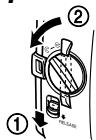
2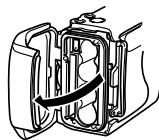
3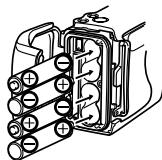
4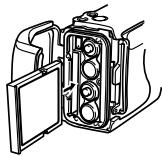
5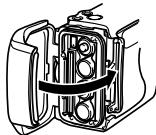
6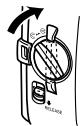
- Check for and wipe any sand, dirt, or other foreign matter from the O-ring and its contact surfaces.
2
Set the current time and date.
(page 42)
Recording an Image (page 45)
3
Point the camera at the subject and use the monitor screen or optical viewfinder to compose the image.
2
Align the dial with (snapshot mode).

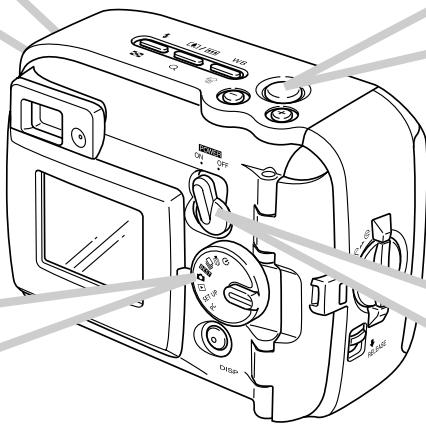
4
Press the shutter release button.
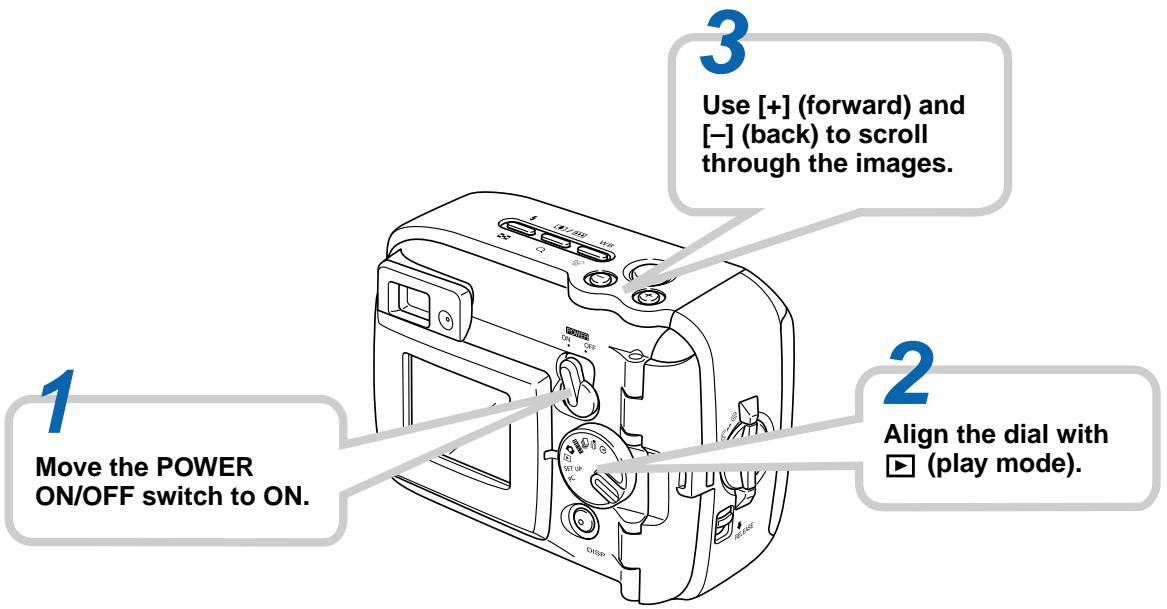
Move the POWER ON/OFF switch to ON.
Playback (page 60)
Deleting Images (page 64)
Use [+] and [-] to display the image you want to delete.
Check to make sure you really want to delete the currently displayed image.
If you want to cancel the procedure, press DISP.
Press WB

Press the shutter release button to delete the image.
Align the dial with (play mode).
Move the POWER ON/OFF switch to ON.
INTRODUCTION
IMPORTANT!
- The contents of this manual are subject to change without notice.
- CASIO COMPUTER CO., LTD. assumes no responsibility for any damage or loss resulting from the use of this manual.
- CASIO COMPUTER CO., LTD. assumes no responsibility for any loss or claims by third parties which may arise through the use of the GV-10.
- CASIO COMPUTER CO., LTD. assumes no responsibility for any damage or loss caused by deletion of data as a result of malfunction, repairs, or battery replacement. Be sure to back up all important data on other media to protect against its loss.
- This digital camera makes it possible for you to record images for your own personal use. Never use it in a way that infringes upon the copyrights or other rights of others.
- Windows, Internet Explorer, and DirectX are registered trademarks of Microsoft Corporation.
- Macintosh is a registered trademark of Apple Computer, Inc.
- CompactFlash™ and the CompactFlash logo are registered trademarks of SanDisk Corporation.
- The USB driver (mass storage) uses Phoenix Technologies Ltd. software.
Compatibility Software Copyright © 1997
Phoenix Technologies Ltd., All Rights Reserved.
- Other company, product and service names used herein may also be trademarks or service marks of others.
INTRODUCTION
Features
Water-resistant and dust-resistant
Your camera conforms to IEC 60529 [Degrees of protection provided by enclosures (IP Code)] IP66/IP67.
This means you can take the camera along just about anywhere, without needing to worry about it getting wet. In addition, the design of your camera also shuts out sand, dust, and dirt.
- Tough, shock-resistant construction
G-SHOCK technology has been used to create one of the toughest cameras ever. Your new digital camera represents an exciting new development in the evolution of digital imaging.
Best Shot
The Best Shot feature includes new sample scenes that include ski and sea images. Simply select the sample scene that matches the type of image you are trying to record and the camera sets up automatically for beautiful pictures every time.
1.23-megapixel CCD
The 1.23-megapixel CCD (1.31 million total pixels) not only provides plenty of resolution for normal image recording, it also creates images that are perfectly suited for editing and manipulation on a PC. An interpolation process can be used to store 1,600 x 1,200-pixel images that are equivalent to those produced by a 2-megapixel camera.
- Fixed focus lens for quick operation
Fixed focus eliminates the need for lens movement, which shortens startup time and shooting time. Zoom operations are performed digitally.
- Continuous Shutter and Movie Modes
A high-speed continuous shutter mode provides stop-action imaging, while a movie mode is just the thing for recording sports action.
Built-in PC Camera Mode
Connect with the USB cable to send real-time digital video images to your PC. Perfect for net meetings and other PC camera applications.
- Mini USB port
The camera's mini USB port supports a new USB standard for greatly expanded versatility. Connection is as easy as ever.
- Design rule for Camera File system (DCF)
DCF support provides better compatibility for images transferred between different devices.
- Digital Print Order Format (DPOF)
DPOF support lets you make print specifications for printing images using a digital DPE service.
- EPSON PRINT Image Matching
EPSON PRINT Image Matching support lets you reproduce exactly the colors you want when printing on an EPSON PRINT Image Matching printer.
- Bundled with Photo Loader 2 and Photohands
Your camera comes bundled with the latest version of Photo Loader, the popular application that automatically loads images from your camera to your PC. Photo Loader includes a feature that automatically attaches images to e-mail messages. Also bundled with the camera is Photohands, an application that makes image retouching quick and easy.
Water Resistance and Dust Resistance
The camera is designed to conform to the following water resistance and dust resistance standard. However, performance is not guaranteed under the conditions described below.
IEC 60529
[Degrees of protection provided by enclosures (IP Code)] IP66/IP67
Water Resistance
- Water shall not enter the enclosure when it is immersed in a container of standard temperature still tap water to a depth of 1 meter (3.3') for approximately 30 minutes (immersion resistant).
- Direct jetting water from any direction shall not enter the enclosure.
Dust Resistance
- Particles with a diameter of 75 μm or less shall not enter the enclosure.
Operating Environment
Since this camera is water-resistant, dust-resistant, and shock-resistant, you can handle it while your hands are wet, you can wash it with water, and even use it in the areas listed below.
- At the beach
- Around a pool
- On a river bank
- On a ski slope in the rain
Operating Precautions
- Always make sure that the battery cover and terminal cover are closed securely.
Battery cover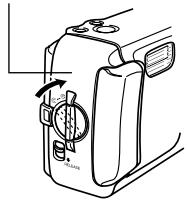
Terminal cover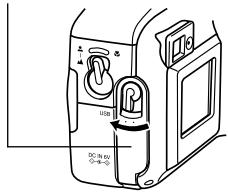
This is not an underwater camera!
Do not use this camera in areas where it is exposed to high water pressure, never wash it using high-pressure water, and never leave it submersed for long periods. Also, never immerse the camera in seawater, in swimming pool water, or in hot spring water.

Never immerse the camera in water that contains soap or detergent.

INTRODUCTION
Wipe the camera dry after it becomes wet.
- Water remaining on the camera after it becomes wet can collect in the seams between controls and the camera body, etc. Carrying the camera around while it is wet can cause water to leak from the seams and cause your clothing or bag to become wet. Make sure you carefully wipe all remaining water from the camera after it becomes wet.
Location Precautions
Note the following precautions whenever using the camera in the locations indicated.
- At the beach or around a swimming pool Never put the camera down directly on the sand. Should seawater, pool water, or sand ever get on the camera, rinse it off in a sink or other container filled with still tap water.
- In the rain
- The camera is designed so it can withstand moderately strong rain ranging from about 10 mm per hour or less to about 15 mm per hour. Never open the battery cover or terminal cover while the camera is in the rain or while your hands are wet.
- Washing
The camera can be washed with a relatively weak stream of clean water from a standard household tap under the following conditions.
Outlet Diameter: 20 mm (0.8")
Maximum Pressure: 98 kPa (1 kgf/cm²)
Rub the camera lightly with your hands, and never use a brush or other implement.
IMPORTANT!
- The above precautions are not exclusive. Even following the above precautions does not guarantee that exposure to certain conditions will not cause problems with proper camera operation. Repair of the camera may be impossible or may be charged to you if it is determined that a problem is due to misuse of the camera by you.
INTRODUCTION
General Precautions
- Even very fine pieces of foreign matter (a single hair, a single grain of sand, etc.) on the battery cover or terminal cover O-ring can result in incomplete sealing and problems when the camera is immersed in water. Whenever closing a cover, use a soft, dry cloth to wipe off all water droplets, sand, dirt, etc.
- Whenever there is seawater, detergent, sand, mud, or other similar matter on the camera, rinse it in a sink or other container filled with still tap water. Do not use running water from a tap, which creates the risk of dirt or sand working its way under buttons and into other openings. Always make sure that the battery cover and terminal cover are closed securely.
- Use a soft, dry cloth to wipe any water remaining on the camera after it becomes wet.
- Do not carry the camera around while it is wet. Doing so creates the risk of internal shorting.
- Moisture on the camera can freeze in very cold environments. Ice left on the camera can lead to malfunction. Do not allow moisture to remain on the camera under cold conditions.
- Though the camera is designed to withstand the effects of dropping and impact occurring during normal daily use, very strong impact due to very rough handling such as throwing the camera or dropping it from excessive heights can result in serious damage. Even if a drop does not result in functional problems, it can cause scratching and other cosmetic damage to the camera.
- To ensure proper water resistance, you should have the battery cover and terminal cover O-rings replaced every two years, regardless of their condition. Note that you will be charged for O-ring replacement. Contact your nearest authorized CASIO maintenance service provider to have the O-rings replaced.
Inspecting the Cover O-rings
The battery cover and terminal cover are fitted with rubber gaskets called "O-rings" that keep water from entering the camera. Even very fine pieces of foreign matter (a single hair, a single grain of sand, etc.) on an O-ring can result in incomplete sealing and allow water to leak inside. Note that water leaking inside the camera results in unrepairable damage. Make sure you periodically inspect the O-rings, O-ring grooves, and contact surfaces for cracks, deformation, dirt, and dust. Use a soft, dry cloth to wipe all dirt and dust from the O-rings and their contact surfaces.
Battery cover Terminal cover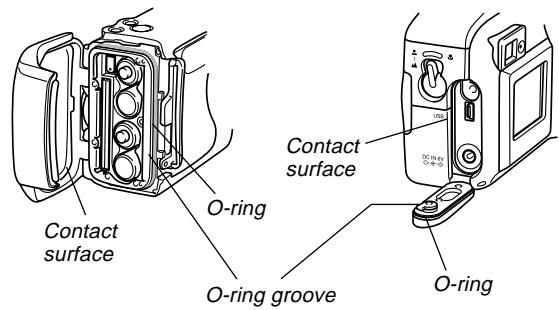
If you find dirt on an O-ring...
- Carefully remove the O-ring. Use a cotton swab moistened with water to wipe dirt from the O-ring groove and contact surface.
- Wash the O-ring in water, dry it off, and then replace it into the O-ring groove.
- Make sure the O-ring enters the groove securely, as far as it will go.
IMPORTANT!
- Never pull on an O-ring with excessive force or try to expand an O-ring.
- Never apply grease or oil to an O-ring.
- Never use a pointed object to remove an O-ring. Doing so can damage the O-ring and lead to leaking.
- Excessive twisting of an O-ring can cause leaking. Always handle O-rings with care.
- Have an O-ring replaced whenever it becomes cut, damaged, or deformed. You should also have O-rings replaced every two years, regardless of their condition. Take your camera to your nearest CASIO maintenance service provider to have O-rings replaced. Note that you will be charged for O-ring replacement. If you frequently use your camera where it is exposed to water, sand, or dust, we recommend that you have the O-rings replaced once a year.
INTRODUCTION
Before putting your camera away after using it...
After using your camera in a location where it was exposed to sand, mud, or water, you should wash it off before opening the battery cover or terminal cover.
IMPORTANT!
- Use plain tap water that is 30°C or lower to wash the camera.
- The interior of the camera is not water-resistant. Make sure that the battery cover and terminal cover are securely closed before washing the camera.
1. Immerse the camera in water and wash it.
- Fill a bucket or other container with water and immerse the camera. Rub the camera lightly with your fingers to remove dust, dirt, sand, and other matter.
- Never rub the surfaces of the lens, viewfinder, monitor screen, or flash while there is dirt on the camera.
2. Wipe the camera dry.
- Use a clean, dry, soft cloth to wipe off the camera, and leave it in a shady place to dry.
- Never leave the camera in direct sunlight to dry it off.
IMPORTANT!
- Never use detergent, hot water, or strongly running water to clean the camera. Doing so creates the risk of leaking and malfunction.
- Never swing the camera around to remove water, or use a dryer or other intense heat to dry it.
- Never try to wash the camera in a washing machine.
- If your camera becomes very dirty, contact your nearest authorized CASIO maintenance service provider.
Precautions
General Precautions
Be sure to observe the following important precautions whenever using the GV-10.
All references in this manual to "this camera" and "the camera" refer to the CASIO GV-10 Digital Camera.
- Never try to take pictures or use the built-in display while operating a motor vehicle or while walking. Doing so creates the danger of serious accident.
- Never try to open the case of the camera or attempt your own repairs. High-voltage internal components create the risk of electric shock when exposed. Always leave maintenance and repair work up to authorized CASIO service providers.
- Never fire the flash in the direction of a person operating a motor vehicle. Doing so can interfere with the driver's vision and create the danger of accident.
- Never fire the flash while it is too close to the subject's eyes. Intense light from the flash can cause eye damage if it is fired too close to the eyes, especially with young children. When using the flash, the camera should be at least one meter from the eyes of the subject.
- Keep the camera away from water and other liquids, and never let it get wet. Moisture creates the danger of fire and electric shock. Never use the camera outdoors in the rain or snow, at the seashore or beach, in the bathroom, etc.
- Should foreign matter or water ever get into the camera, immediately turn power off, unplug the AC adaptor from the power outlet, and contact your dealer or nearest CASIO service provider. Using the camera under these conditions creates the danger of fire and electric shock.
- Should you ever notice smoke or a strange odor coming out of the camera, immediately turn power off and unplug the AC adaptor from the power outlet. Using the camera under these conditions creates the danger of fire and electric shock. After making sure there is no more smoke coming from the camera, take it to your nearest CASIO service provider for repair. Never attempt your own maintenance.
- At least once a year, unplug the AC adaptor from the power outlet and clean the area around the prongs of the plug. Dust build up around the prongs can create the danger of fire.
- If the camera's case should ever become cracked due to dropping it or otherwise subjecting it to rough treatment, immediately turn power off, unplug the AC adaptor from the power outlet, and contact your nearest CASIO service provider.
- Never use the camera inside of an aircraft or in any other areas where its use is prohibited. Doing so can result in an accident.
- Physical damage and malfunction of this camera can cause the image data stored in its memory to be deleted. Be sure to always keep backup copies of data by transferring them to personal computer memory.
- Never open the battery compartment cover, disconnect the AC adaptor from the camera or unplug it from the wall socket while recording images. Doing so will not only make storage of the current image impossible, it can also corrupt other image data already stored in camera memory.
Data Error Precautions
- Your digital camera is manufactured using precision digital components. Any of the following creates the risk of corruption of data in camera memory.
- Opening the battery cover or disconnecting the AC adaptor while data is being saved
- Removing a memory card while image recording is in progress
- Removing batteries, unplugging the AC adapter, opening the battery cover, or removing the memory card while the operation lamp is still lit after camera power is turned off
- Disconnecting the data communication cable Using low batteries
- Other abnormal operations
Any of the above can cause a MEMORY CARD ERROR! message or NOT FORMATTED message to appear on the monitor screen. See page 85 for information about what you need to do when these messages appear.
Operating conditions
- This camera is designed for use in temperatures ranging from 0°C to 40°C.
- Do not use or keep the camera in the following areas.
In areas subject to direct sunlight Near air conditioners, heaters, or other areas subject to temperature extremes — Inside of a closed vehicle, especially one parked in the sun In areas subject to strong vibration
Condensation
- When you bring the camera indoors on a cold day or otherwise expose it to a sudden change of temperature, there is the possibility that condensation can form on the exterior or on interior components. Condensation can cause malfunction of the camera, so you should avoid exposing it to conditions that might cause condensation.
- To keep condensation from forming, place the camera into a plastic bag before moving it into a location that is much warmer or colder than your current location. Leave it in the plastic bag until the air inside the bag has a chance to reach the same temperature as the new location. If condensation does form, remove the batteries from the camera and leave the battery cover open for a few hours.
About the camera's backlight...
- The camera is equipped with a fluorescent light source to provide the back lighting for its LCD.
- The normal service life of the backlight is approximately six years, when the camera is used for about two hours a day.
- Should the LCD image appear abnormally dark, take the camera to your dealer or an authorized CASIO service provider to have the light source replaced. Note that you will be charged for this replacement.
- Under very cold conditions, the backlight may require more time than normal to light, or reddish bands may appear in the displayed image. These conditions do not indicate malfunction, and normal operation should return at higher temperatures.
Lens Precautions
- Fingerprints, dust, or any other soiling of the lens can interfere with proper image recording. Never touch the lens with your fingers. You can remove dust particles from the lens surface by using a lens blower to blow them off. Next, wipe the surface of the lens with a soft lens cloth.
GUIDELINES LAID DOWN BY FCC RULES FOR USE OF THIS UNIT IN THE U.S.A. (not applicable to other areas).
This device complies with Part 15 of the FCC Rules. Operation is subject to the following two conditions: (1) this device may not cause harmful interference, and (2) this device must accept any interference received, including interference that may cause undesired operation.
NOTICE
This equipment has been tested and found to comply with the limits for a Class B peripheral, pursuant to Part 15 of the FCC Rules. These limits are designed to provide reasonable protection against harmful interference in a residential installation. This equipment generates, uses and can radiate radio frequency energy and, if not installed and used in accordance with the instructions, may cause harmful interference to radio communications. However, there is no guarantee that interference will not occur in a particular installation. If this equipment does cause harmful interference to radio or television reception, which can be determined by turning the equipment off and on, the user is encouraged to try to correct the interference by one or more of the following measures:
- Reorient or relocate the receiving antenna.
- Increase the separation between the equipment and receiver.
- Connect the equipment into an outlet on a circuit different from that to which the receiver is connected.
- Consult the dealer or an experienced radio/TV technician for help.
FCC WARNING
Changes or modifications not expressly approved by the party responsible for compliance could void the user's authority to operate the equipment.
Properly shielded cables with ferrite core must be used for connection to host computer and/or peripherals in order to meet FCC emission limits.
THE SPECIAL VIDEO CABLE THAT COMES WITH THE CAMERA
THE CAMERA TO A VIDEO IN TERMINAL OF A COMPUTER
THE SPECIAL CONNECTION CABLE THAT COMES WITH QV-Link SOFTWARE
THE CAMERA TO A PROPER TERMINAL OF A COMPUTER
Declaration of Conformity
Model Number: GV-10
Trade Name: CASIO COMPUTER CO.,LTD.
Responsible party: CASIO INC.
Address: 570 MT. PLEASANT AVENUE, DOVER, NEW JERSEY 07801
Telephone number: 973-361-5400
This device complies with Part 15 of the FCC Rules.
Operation is subject to the following two conditions:
(1) This device may not cause harmful interference, and (2) this device must accept any interference received, including interference that may cause undesired operation.
CASIO COMPUTER CO.,LTD. GV-10

Tested To Comply
With FCC Standards
FOR HOME OR OFFICE USE
GETTING ACQUAINTED
This section contains important information you should know when trying to operate the camera.
General Guide
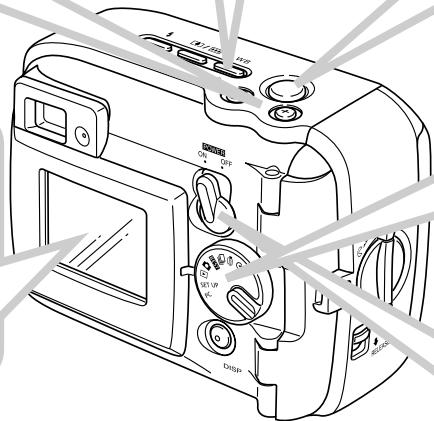
The following illustrations show the names of each component, button, and switch on the camera.
Front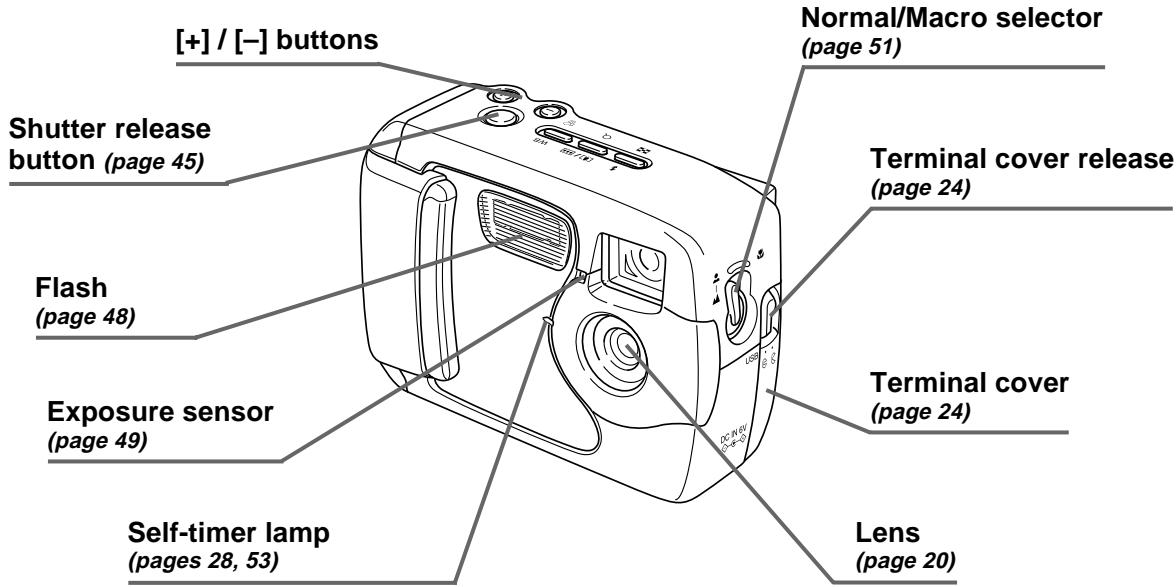
GETTING ACQUAINTED
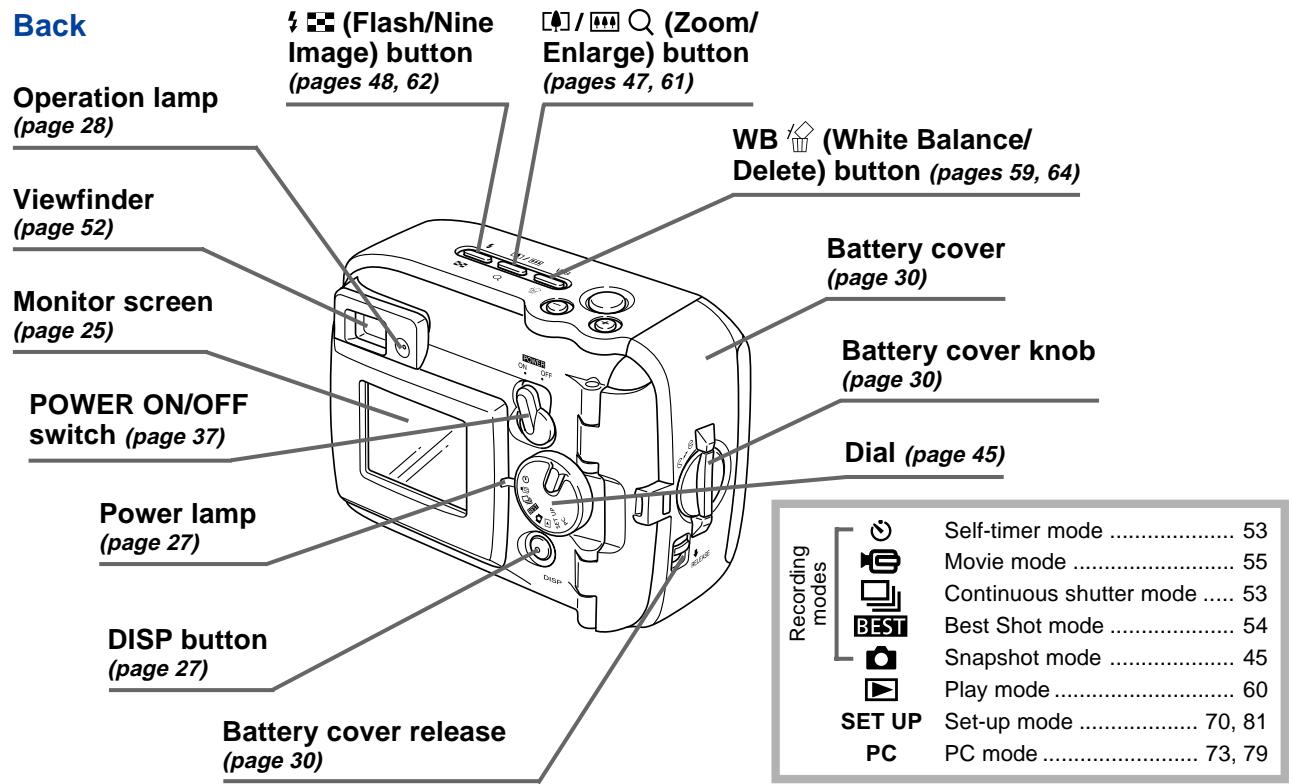
GETTING ACQUAINTED
Terminals and Ports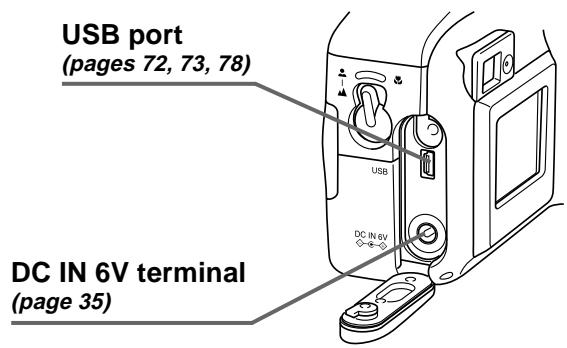
Bottom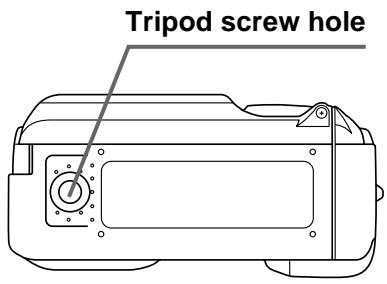
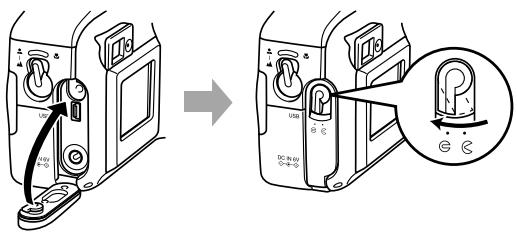
Opening and Closing the Terminal Cover Open Close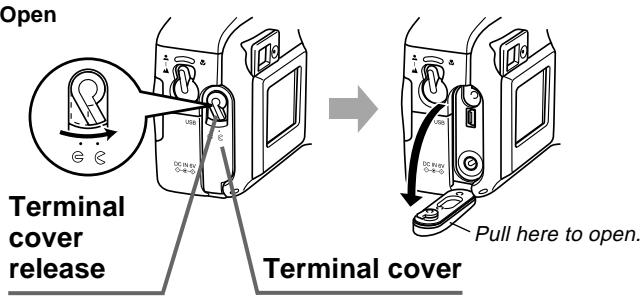
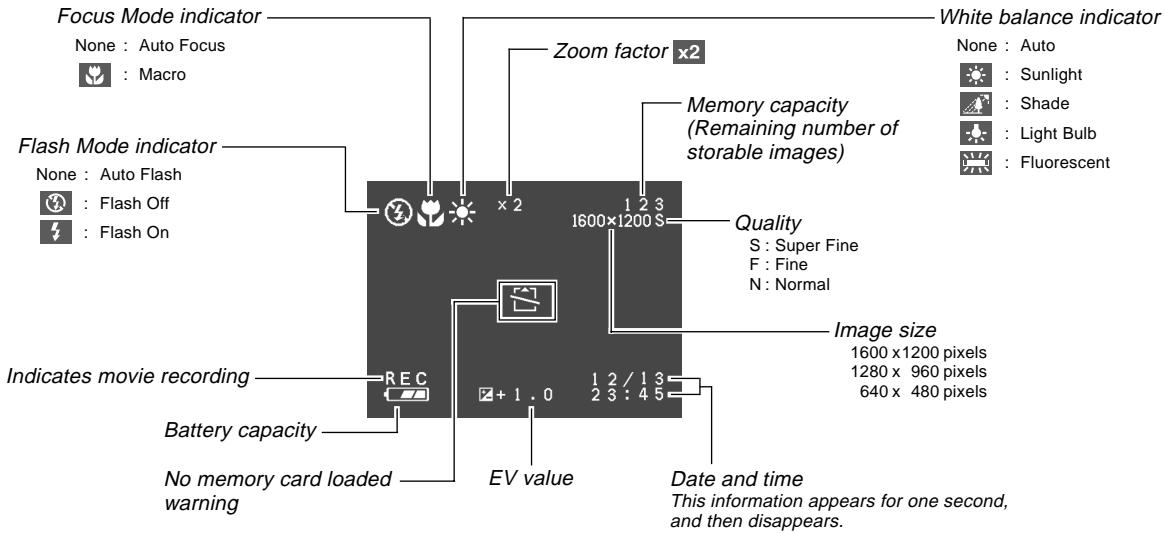
Monitor Screen Indicators
The following describes the different indicators and markings that appear on the camera's monitor screen.
• Recording Modes
This camera is equipped with the following recording modes: snapshot mode, continuous shutter mode, self-timer mode, movie mode, Best Shot mode
GETTING ACQUAINTED
● Play Mode SETUPMode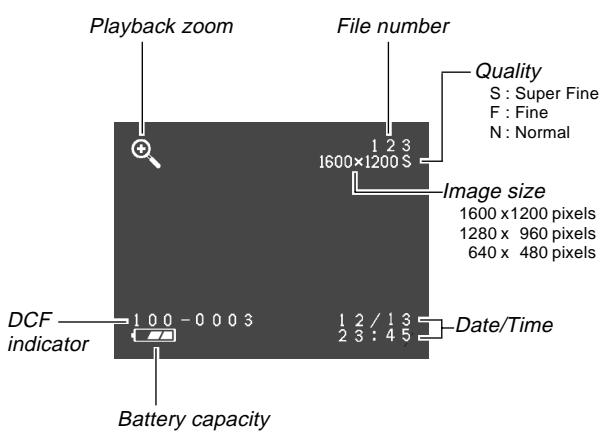
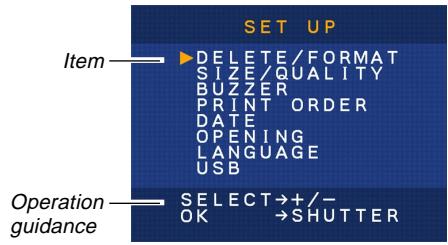
Changing the Contents of the Monitor Screen
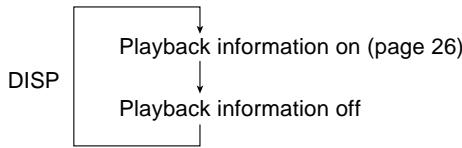
Each press of DISP in a recording mode or the play mode changes the contents of the monitor screen as shown below.
■ Recording Modes

- You cannot turn off the monitor screen while in the macro mode, continuous shutter mode, or movie mode.
Play Mode
Indicator Lamps
The camera has three indicator lamps, an operation lamp, a power lamp, and a self-timer lamp. These lamps indicate the current operational status of the camera by lighting, flashing, and changing color.
Power Lamp
| When the lamp is this: | It means this: |
| Flashing green | Camera is powering up or powering down. |
| Lit green | Camera is on and ready to shoot. |
| Flashing red | Battery power is low. |
Power lamp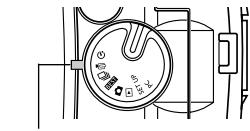
Operation Lamp
| When the lamp is this: | It means this: |
| Flashing amber | Flash unit is charging. |
| Lit amber | Flash is ready to fire. |
| Flashing green | Movie is recording or self-timer countdown is in progress. |
| Flashing red | Memory card problem |
Operation lamp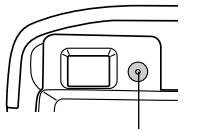
Self-timer Lamp
| When the lamp is this: | It means this: |
| Flashing red | Self-timer countdown is in progress. |
Self-timer lamp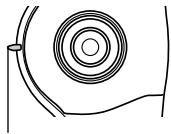
Using the Bundled Accessories
Attaching the Strap
Attach the strap to the strap bar as shown in the illustration.
- Remove the strap from the buckle before installing.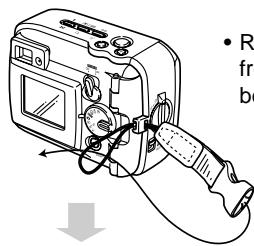
- The buckle and strap must be oriented correctly to connect to each other. If you have trouble connecting, rotate the strap 180 degrees.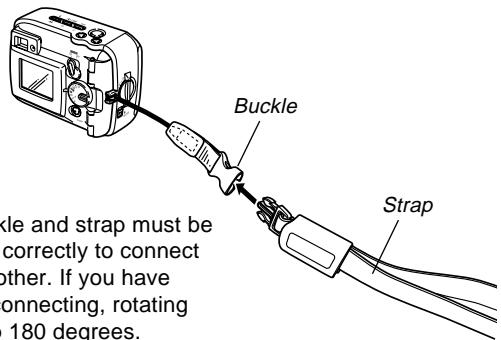
Using the Strap
The strap easily connects to and disconnects from the buckle. The end of the strap also has a snap, which means you can disconnect it for attachment to a bag or other item.
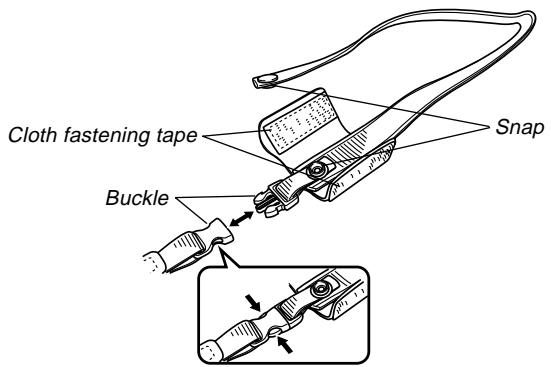
IMPORTANT!
- When using the camera, always pass your hand through the strap to protect against accidentally dropping it.
- The supplied strap is intended for use with this camera only. Never use it for any other purpose.
- Never swing the camera around by its strap.
- The buckle and strap must be oriented correctly to connect to each other. If you have trouble connecting, rotate the strap 180 degrees.
Attaching the Lens Cap
Attach the lens cap to the lens whenever you are not using the camera.
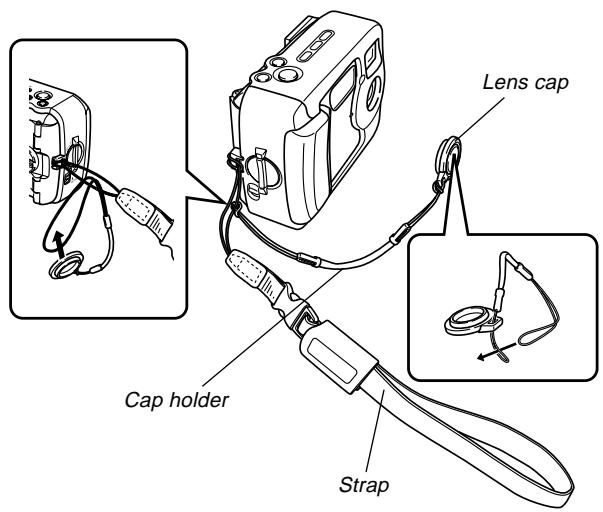
- Attaching the lens cap to the cap holder on the strap helps to prevent loss of the lens cap.
- Note that the water resistance of the camera is not affected by removing the lens cap.
Power Requirements
Your camera features a two-way power supply that lets you use either AA-size batteries or household AC current.
A set of AA-size alkaline batteries is supplied with the camera. The other items listed below are available separately.
Batteries
- Four AA-size alkaline batteries: LR6
- Four AA-size lithium batteries: FR6
- Four AA-size nickel-metal hydride rechargeable batteries: NP-H3
Household Current
- AC Adaptor: AD-C620/C630
- AC Adaptor/Charger: BC-3HA
Loading Batteries
Make sure that camera power is turned off whenever loading or replacing batteries.
- Before opening the battery cover, carefully wipe any sand or moisture from the camera to ensure that none of it gets inside the battery compartment.
- Slide the battery cover release in the direction indicated by the arrow.
- Rotate the battery cover knob to the setting, and then open the cover.
- Load batteries as indicated in the illustration.
Battery cover knob Battery cover release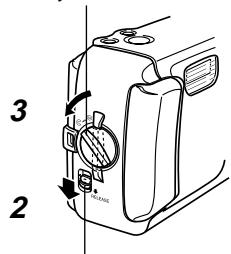
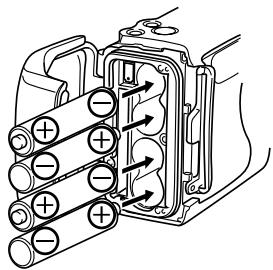
GETTING ACQUAINTED
- Check to make sure the O-ring and contact surface of the battery compartment is not damaged and is free of dirt and dust.
Contact surface
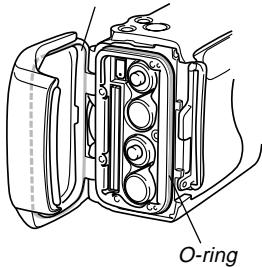
- Securely close the battery cover and rotate the battery cover knob to the position.
- Rotate the knob until the battery cover lock clicks securely into place.
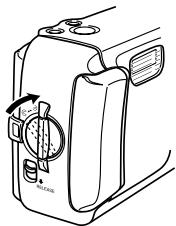
See page 38 for information about loading the memory card.
IMPORTANT!
- Do not use manganese batteries to power this camera. Use only the specified types of AA-size batteries.
- Never open the battery cover while the operation lamp is flashing. Doing so can cause the image record operation to fail, and even damage the memory card.
- Never open the battery cover in an area where water is present. Doing so creates the risk of water getting inside the camera, resulting in unrepairable damage.
- Moving the camera from a warm room to the cold outdoors makes pressure build up inside the camera, which can make it difficult to open the battery cover.
- Using an O-ring that is damaged or soiled can result in a loss of water resistance, which can lead to water getting inside the camera and unrepairable damage.
- Whenever an O-ring becomes damaged or deformed, take your camera to the nearest authorized CASIO maintenance service provider to have it replaced. Note that you will be charged for O-ring replacement.
Battery Life Guidelines
The battery life guideline values given below indicate the amount of time at standard temperature (25°C) until power automatically turns off due to battery failure. They do not guarantee that batteries will provide the amount of service indicated. Low temperatures and continued use reduce battery life.
| Type of Operation | AA-size Alkaline Batteries LR6 | AA-size Lithium Batteries FR6 | AA-size Ni-MH Batteries NP-H3 |
| ContinuousPlayback | 240 minutes | 370 minutes | 220 minutes |
| ContinuousRecording | 170 minutes(850 shots) | 340 minutes(1700 shots) | 170 minutes(850 shots) |
- The above figures are approximations only.
- The above guidelines are based on the following battery types:
Alkaline: MX1500 (AA) DURACELL ULTRA
Lithium: Energizer
- Figures are based on continuous recording under the following conditions: Flash turned off, normal temperature (25°C).
- Recording one image per minute under the above conditions reduces battery life to about one fifth of that noted above.
- Battery life is greatly affected by how much you use flash, zoom and other functions, and how long you leave power turned on.
CAUTION!
- Battery life differs greatly by manufacturer. We recommend use of MX 1500 (AA) DURACELL ULTRA alkaline batteries with this product.
- Tips for Prolonging Battery Life
Use to turn off the flash when you are not using it.
- Alkaline Battery Life
The actual life of alkaline batteries is affected by a variety of factors, including the battery manufacturer, the amount of time the batteries spend in storage before you use them, temperature while you are recording, and photographic conditions. As a rule, we recommend the use of lithium batteries or Ni-MH batteries, which have longer lives than alkaline batteries.
GETTING ACQUAINTED
The following examples show how alkaline battery life changes under different conditions.
Example 1: Intermittent use of the camera shortens battery life.
Conditions
Temperature: 25°C - Repeat of a cycle of recording of one shot per minute for 10 minutes, followed by one minute of playback, and a nine minutes of power off - Flash on
Approximate Battery Life: 190 minutes (173 shots)
Example 2: Low temperatures shorten battery life.
Conditions
Temperature: 0°C - Repeat of a cycle of recording of one shot per minute for 10 minutes, followed by one minute of playback, and nine minutes of power off - Flash on
Approximate Battery Life: 30 minutes (28 shots)
- About rechargeable batteries
Use only the nickel-metal hydride batteries (NP-H3) that are available from your dealer as options for this camera. Proper camera operation is not guaranteed when other rechargeable batteries are used.
AC Adaptor/Charger: BC-3HA
Nickel-metal hydride batteries (4-battery set)/Quick
Charger Set: BC-1HB4
Nickel-metal hydride batteries (4-battery set): NP-H3P4
IMPORTANT!
- Be sure to keep all four batteries together as a set at all times, for both charging and powering the camera. Mixing batteries from different sets can shorten overall battery life and cause malfunction of the camera.
- Rechargeable batteries cannot be charged while they are loaded in the camera.
Battery Handling Precautions
Caution!
- Incorrect use or handling of batteries can cause them to leak or burst and create the danger of serious damage to your camera. Be sure to note the following important precautions to avoid problems with batteries.
- Always make sure that the plus (+) and minus (-) ends of the batteries are facing correctly, as noted by the markings on the camera itself. Improper loading of batteries can result in bursting or leaking of batteries, creating the danger of personal injury or soiling of objects nearby.
- Never mix old batteries with new ones. Doing so can result in bursting or leaking of batteries, creating the danger of fire or personal injury.
- Never mix batteries of different types.
- Use only LR6 type alkaline or FR6 type lithium or Ni-MH (nickel-metal hydride) dry cell batteries with this camera.
- Never recharge non-rechargeable type batteries, never allow direct connection between two ends of a battery, and never try to take batteries apart.
- Do not expose batteries to direct heat or dispose of them by burning. Doing so can create the danger of explosion.
- Dead batteries are susceptible to leakage, which can cause serious damage to your camera. Remove batteries from the camera as soon as you notice they are dead.
- Remove batteries from the camera if you do not plan to use it for more than two weeks.
- The batteries that power the camera normally become warm as they discharge.
Low Battery Indicator
The following shows how the battery capacity indicator on the monitor screen and the indicator display changes as battery power is used. Replace all four batteries as soon as possible after they go dead. If you continue to use the camera while the battery level is low, camera power will automatically turn off.
| Battery Capacity | High | ←→ | Low |
| Monitor Screen | → | → |
Using AC Power
Use the adaptor as shown below to power the camera from a household power outlet.
- Before opening the terminal cover, carefully wipe any sand or moisture from the camera to ensure that none of it gets inside the camera.
- Move the terminal cover release to the open position and then open the cover.
- Plug the AC adaptor to the DC IN 6V terminal.
IMPORTANT!
- Note that the camera is not water-resistant while the terminal cover is open. Keep it away from sand and water. After you are finished, make sure you securely close the terminal cover and then move the terminal cover release to the closed position.
DC IN 6V (AC power terminal)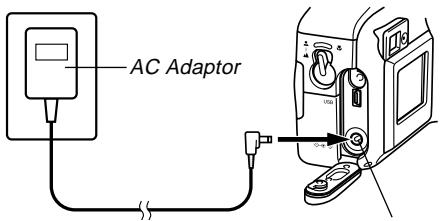
- AC Adaptor: AD-C620/C630 (Option)
- AC Adaptor/Charger: BC-3HA (Option) The BC-3HA functions both as an AC adaptor and as a charger unit for AA-size nickel-metal hydride batteries. It comes complete with four rechargeable nickel-metal hydride batteries. This AC adaptor/charger unit can be used with any household power outlet rated for 100V to 240V AC.

Caution!
AC Adaptor precautions
- Never use an electrical outlet whose voltage is outside the rating marked on the AC adaptor. Doing so can create the danger of fire or electric shock. Use only the optional AC adaptor specified for this camera.
- Do not allow the AC adaptor power cord to become cut or damaged, do not place heavy objects on it, and keep it away from heat. A damaged power cord creates the risk of fire and electric shock.
- Never try to modify the AC adaptor power cord, or subject it to severe bending, twisting, or pulling. Doing so creates the risk of fire and electric shock.
- Never touch the AC adaptor while your hands are wet. Doing so creates the risk of electric shock.
- Do not overload extension cords or wall outlets. Doing so creates the danger of fire and electric shock.
- Should the cord of the AC adaptor become damaged (exposed internal wiring), request a replacement from an authorized CASIO service provider. A damaged AC adaptor cord creates the danger of fire or electric shock.
- Be sure to turn off power before connecting or disconnecting the adaptor.
- Always turn camera power off before disconnecting the AC adaptor, even if the camera has batteries installed. If you don't, the camera will turn off automatically when you disconnect the AC adaptor. You also run the risk of damaging the camera whenever you disconnect the AC adaptor without first turning power off.
- The AC adaptor may become warm to touch after extended periods of use. This is normal and is not cause for alarm.
- After using the camera, turn it off and unplug the adaptor from the AC outlet.
- The camera automatically switches over to AC adaptor powered operation whenever the AC adaptor is plugged into the camera.
- Always use the AC adaptor to power the camera whenever it is connected to a computer.
Turning the Camera On and Off
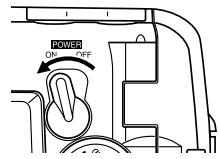
Use the POWER ON/OFF switch to turn the camera on and off.
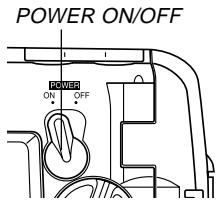
ON: Power on
OFF: Power off
IMPORTANT!
- If camera power is turned off by the Auto Power Off feature, move the POWER ON/OFF switch to OFF and then back to ON again to restore power.
Power Save Settings
Auto Power Off
Auto Power Off conserves battery power by automatically turning off the camera if you do not perform any operation for a preset amount of time. The amount of time depends on the mode the camera is in.
| Mode | Time to Power Down |
| Snapshot | 2 minutes |
| Continuous Shutter | |
| Self-timer | |
| Movie | |
| Play | 5 minutes |
| Set-up | |
| PC |
- Auto Power Off is automatically disabled under any one of the following conditions.
While the camera's USB port is connected to a computer or other external device, or while the camera is being controlled by an external device. While the AC adaptor is connected to the camera.
Memory Cards
This camera supports use of a CompactFlash memory card (CF TYPE I) for image storage.
IMPORTANT!
Note that this camera does not support the use of a Microdrive for image data storage. Make sure that the power of the camera is turned off before you insert or remove a memory card. When inserting a memory card into the camera, make sure that the card is oriented correctly. Make sure that the correct side of the card is facing up, and that you insert the correct end of the card into the camera.
Inserting a Memory Card into the Camera
- Before opening the battery cover, carefully wipe any sand or moisture from the camera to ensure that none of it gets inside the camera.
- Slide the battery cover release in the direction indicated by the arrow.
- Rotate the battery cover knob to the open setting, and then open the cover.
Battery cover knob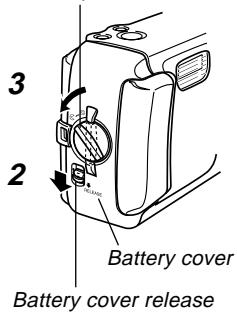
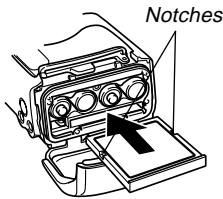
- Making sure that the notches in the memory card (indicating the back of the card) are facing towards the front of the camera, carefully insert the card into the slot as far as it will go.
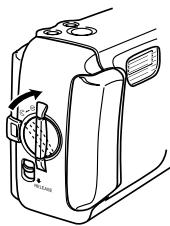
- Securely close the battery cover and rotate the battery cover knob to the lock position to secure it in place.
- Make sure you always turn off the camera before inserting or removing a memory card.
- Be sure to orient the card correctly when inserting it. Never try to force a memory card into the slot when you feel resistance.
Removing a Memory Card from the Camera
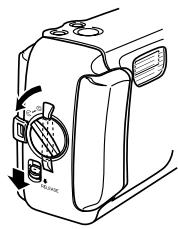
- Before opening the battery cover, carefully wipe any sand or moisture from the camera to ensure that none of it gets inside the camera.
- Slide the battery cover release in the direction indicated by the arrow.
- Rotate the battery cover knob to the setting, and then open the cover.
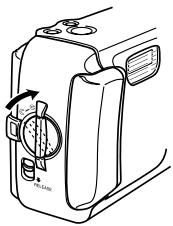
- Press the card eject button at the point marked . This causes the eject button to extend from the camera.
Eject button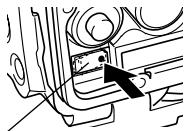
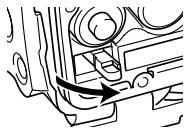
GETTING ACQUAINTED
- Press the card eject button as far as it will go.
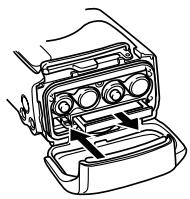
- Remove the memory card from the camera.
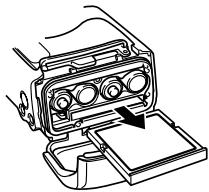
- Securely close the battery cover and rotate the battery cover knob to the position to secure it in place.
- Rotate the knob until the battery cover lock clicks securely into place.
IMPORTANT!
- Insert only memory cards into the memory card slot. Inserting any other type of card can cause malfunction.
- Should water or any other foreign matter get into the memory card slot, immediately turn off power, unplug the AC adaptor, and contact your dealer or nearest CASIO Service Provider.
- Never eject the memory card while the card slot is facing downwards. Doing so creates the danger of the memory card falling, which can corrupt image data on the card.
- Never remove a card from the camera while the operation lamp is flashing. Doing so can cause the image save operation to fail, and even damage the memory card.
GETTING ACQUAINTED
Formatting a Memory Card
You can format a memory card to delete all of the data stored on it.
IMPORTANT!
- Data deleted by a memory card format operation cannot be recovered! Be sure to carefully check and confirm that you no longer need the data stored on a memory card before formatting it.
- Turn on the camera, and then align the dial with SET UP.
- Use [+] and [-] to select "DELETE/FORMAT" and then press the shutter release button.
- Use [+] and [-] to select "FORMAT" and then press the shutter release button.
- Use [+] and [-] to select "YES" and then press the shutter release button.
| To do this: | Select this option: |
| Cancel the procedure without formatting | NO |
| Format the memory card | YES |
Memory Card Precautions
- Images cannot be recorded with this camera unless a memory card is installed in it.
- Be sure to use only CASIO brand CompactFlash cards. Proper operation with other memory cards is not guaranteed.
- Electrostatic charge, electrical noise, and other phenomena can cause data to become corrupted or even lost. Always make sure that you always back up important data on other media (MO disc, computer hard disk, etc.).
- If a memory card starts to behave abnormally, you can restore normal operation by reformatting it. However, we recommend that you always take along more than one memory card whenever using the camera far away from the home or office.
- We recommend that you format a memory card before using it for the first time after purchasing it, or whenever the card you are using seems to be the cause of abnormal images.
- Before starting a format operation, connect the AC adaptor for power or load a full set of fresh alkaline or lithium batteries. Power interruption during the format operation can result in improper formatting, and even damage the memory card and make it unusable.
Setting the Current Date and Time
Be sure to set the date and time on the camera before using it to record images.
The date and time kept by the camera's clock is used for file names, file information, and other purposes.
IMPORTANT!
- The time and date settings are cleared if the camera is left for about 24 hours without battery and AC power being supplied. If this happens, restore power and make new time and date settings before using the camera again.
- A flashing time display indicates that the time and date (clock) settings have been cleared. Use the procedure on the next page to make the correct time and date settings.
- If you do not set the camera's built-in clock to the current date and time, all images are recorded with the default date and time, which probably is not your correct current date and time. Be sure to correctly set the clock before you use the camera.
GETTING ACQUAINTED
Setting the Date and Time
- Turn on the camera, and then align the dial with SET UP.
- Use [+] and [-] to select "DATE" and then press the shutter release button.
- Use [+] and [-] to select "CLOCK" and then press the shutter release button.
- Select and adjust each item to set the date and time.
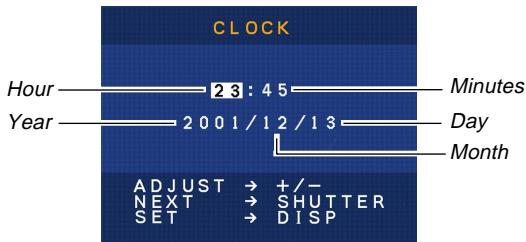
| To do this: | Press this button: |
| Move the highlighting between settings | Shutter release |
| Change the number at the currently highlighted position | [+] or [-] |
- Press DISP to register your settings.
Selecting the Date Format
- Turn on the camera, and then align the dial with SET UP.
- Use [+] and [-] to select "DATE" and then press the shutter release button.
- Use [+] and [-] to select "STYLE" and then press the shutter release button.
- Use [+] and [-] to select the style you want and then press the shutter release button.
Example: October 18
MONTH/DAY: 10/18
DAY/MONTH: 18/10
RECORDING IMAGES
This section describes the basic procedure for recording an image.
Recording a Simple Snapshot
Use the snapshot mode to record simple snapshots. Your camera automatically adjusts shutter speed and aperture settings in accordance with the brightness of the subject.
1. Move the POWER ON/OFF switch to ON.
- This causes an image or a message to appear on the monitor screen.
2. Align the dial with (snapshot mode).
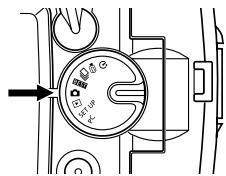
3. Compose the image on the monitor screen.
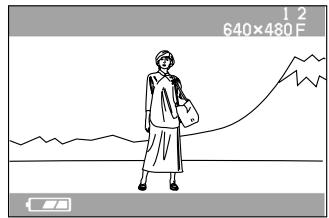
- The focusing range of the camera is approximately 60 cm (23.6") to infinity (∞).
- You can compose images using either the monitor screen or the optical viewfinder (page 52).
- When using the optical viewfinder to compose images, you can use DISP to turn off the monitor screen and conserve battery power.
- Press the shutter release button about half way to lock the exposure (AE Lock).
Shutter release button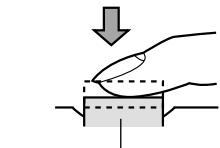
- When performing this step, take care so your fingers do not block the lens or any of the sensors.
- Press the shutter release button the rest of the way to record the image.
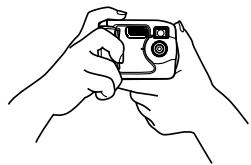
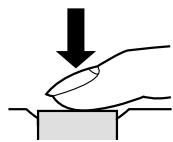
- Recorded images are temporarily stored in a buffer, from which they are saved on the memory card installed in the camera. You can continue to store images as long as there is space available in the buffer.
- The number of images you can store in the camera depends on the storage medium and the image quality setting (page 56) you are using.
- To avoid hand movement, press the shutter release button gently.
- When available lighting is dim, use of a tripod is recommended to protect against hand movement.
About the REC Mode Monitor Screen
- The image shown on the monitor screen in the REC mode is a simplified image for composing purposes. The actual image is recorded in accordance with the image quality setting currently selected on your camera. The image saved on the memory card has much better resolution and detail than the REC mode monitor screen image.
- Certain levels of subject brightness can cause the response of the REC mode monitor screen to slow down, which causes some static noise in the monitor screen image.
Recording Precautions
- Never open the battery cover, disconnect the AC adaptor from the camera, or unplug the adaptor from the wall socket while the operation lamp is flashing green. Doing so will not only make storage of the current image impossible, it can also corrupt other image data already saved on the camera's memory card.
- Never remove batteries, unplug the AC adapter, or remove the memory card while the camera is saving images.
- Fluorescent lighting actually flickers at a frequency that cannot be detected by the human eye. When using the camera indoors under such lighting, you may experience some brightness or color problems with recorded images.
Image Recording when Batteries are Low
Normally, the camera temporarily stores images you record into buffer memory, and then transfers them to the memory card. This is done in order to shorten the wait time between shots. When the battery level is indicated by on the monitor screen, however, the camera bypasses buffer memory and saves images directly to the memory card. This causes the wait interval between shots to become longer than it usually is.
Using Zoom
You can use the digital zoom feature of your camera to zoom in on the center of an image. Performing a zoom operation toggles the zoom factor between 2X and 1X.
- In a recording mode, press [ ]/ [ ] to change the zoom factor.
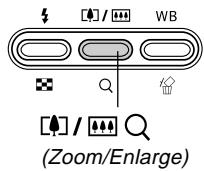
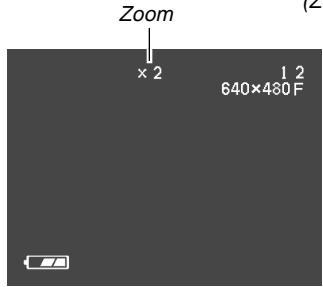
Each press of [ ]/Q toggles between the two available zoom factors and displays the current setting on the monitor screen. Note that digital zoom is disabled in the case of a 1600 x 1200 size image and in the movie mode.
RECORDING IMAGES
Using the Flash
The following describes various flash settings you can make to suit the type of image you are trying to record.
- In a recording mode, press to cycle through the flash mode settings until the one you want is indicated on the monitor screen.
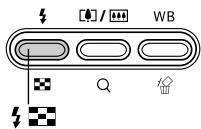
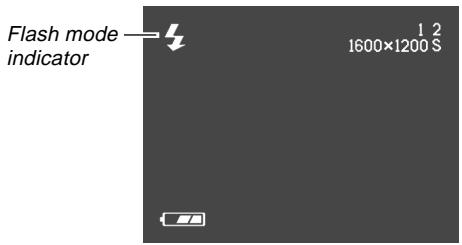
Each press of the button cycles through the available flash modes described below.
| To do this: | Select this setting: |
| Have the flash fire automatically when required (Auto Flash) | No display |
| Always fire the flash (Flash On) | |
| Turn off the flash (Flash Off) |
Flash Status Indicators
You can find out the current flash unit status by checking the monitor screen and the operation lamp.
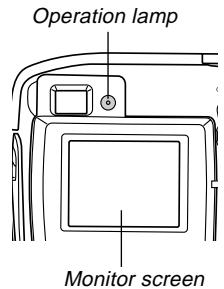
Operation Lamp
| If the operation lamp is doing this: | It means this: |
| Flashing amber | Flash unit is charging. |
| Flashing red | Flash unit cannot charge for some reason. |
Monitor Screen
is shown on the monitor screen when auto flash is selected.
Precautions when Using Flash
- Make sure that you do not touch or block the flash or the exposure sensor with your fingers. Doing so can soil these components and interfere with correct flash operation.
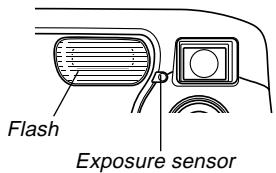
- The effective range for the built-in flash is approximately 0.6 m to 2 m (2.0' to 6.6') (at full aperture). Note that you may not be able to obtain the desired flash result outside the ranges noted above.
- Depending on operating conditions (type of batteries being used, temperature, etc.), it may take up to 10 seconds for the flash unit to charge.
- The flash does not fire in the continuous shutter mode or movie mode. This is indicated on the monitor screen.
RECORDING IMAGES
- The flash unit does not charge when battery power is too low to charge the flash. The (Flash Off) indicator appears to warn you that the flash will not fire correctly, which may affect exposure of the image. Replace batteries as soon as possible when this happens.
- White balance is fixed while the flash is being used, so sunlight, fluorescent lighting, or other sources of illumination in the immediate area may affect the coloring of the recorded image.
RECORDING IMAGES
Recording Macro Images
You can select either normal or macro (close-up) recording using the selector located on the left side of the camera. The table below describes the two settings available with the selector.
| To do this: | Select this setting: |
| Shoot normal images, at a distance of about 60cm (23.6~) to infinity (Normal) | 2-▲ |
| Shoot close-ups, at a distance of about 10cm (3.9~) (Macro) | 3 |
- The distances indicated above represent the distance from the camera's lens surface to the subject.
Normal/Macro selector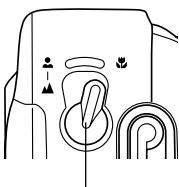
- Selecting the macro mode causes the indicator to appear on the monitor screen.
- Normally, you should leave the Normal/Macro selector setting at -
RECORDING IMAGES
Using the Optical Viewfinder
Note the following points whenever you use the optical viewfinder to compose images.
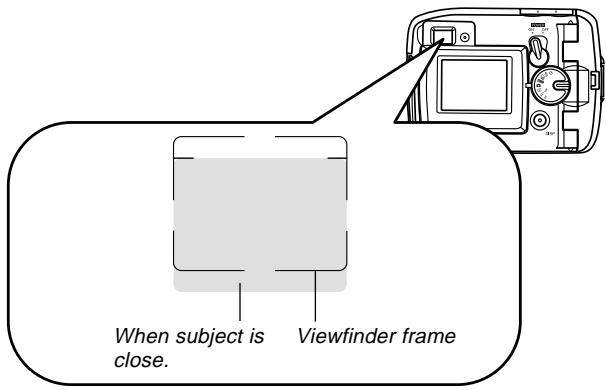
The frame that is visible inside of the viewfinder indicates the image recorded at a distance of about three meters (9.8'). When the subject is closer or further away than three meters (9.8'), the recorded image will be different from what you see inside the viewfinder frame.
When recording a subject that is closer than 10 cm (0.4 in) from the lens, set the Normal/Macro selector to
- Entering the macro mode or continuous shutter mode causes the monitor screen to turn on automatically. Use the monitor screen to compose images in these modes.
Recording Consecutive Images (Continuous Shutter Mode)
The continuous shutter mode records images as long as you keep the shutter release button depressed. Note that the length of the interval between images depends on the image quality setting.
- Align the dial with the continuous shutter mode icon.
- Hold down the shutter release button to record the images you want.
- Images start to be saved to the memory card when you release the shutter release button.
IMPORTANT!
- The flash does not fire during continuous shutter recording.
- You cannot use the self-timer in combination with the continuous shutter mode.
- Continuous shutter recording is disabled while the battery indicator is on the monitor screen.
- Never remove the batteries or memory card from the camera or unplug the AC adaptor while images are being saved to memory.
- The continuous shutter mode is disabled when "1600 x 1200 SUPER" is selected for "SIZE/QUALITY". In this case, you must use the snapshot mode.
Recording with the self-timer
The self-timer counts down for 10 seconds before releasing the shutter.
- Align the dial with (self-timer mode).
- Compose the image and then press the shutter release button.
- The self-timer lamp flashes and the shutter releases in about 10 seconds.
- The monitor screen turns off while the countdown is being performed.
- You can interrupt an ongoing self-timer countdown by pressing the shutter release button while the self-timer lamp is flashing.
Self-timer lamp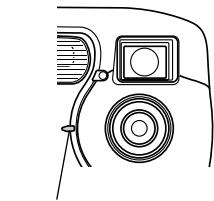
Recording an Image Using a Best Shot Mode Scene
Selecting one of the 18 Best Shot scenes automatically sets up the camera for recording a similar type of image.
Recording Example
Select "PORTRAIT" to record the image of a person with vertical (portrait) orientation.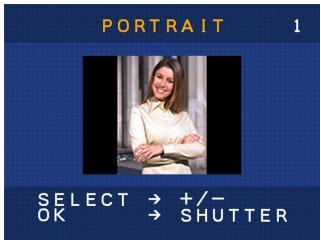
Composition Outline
Selecting certain Best Shot scenes causes a composition outline to appear on the monitor screen. Use the composition outline to compose your image and achieve proper balance.
Composition outline
Example: Portrait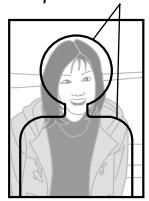
- Align the dial with BEST (Best Shot mode).
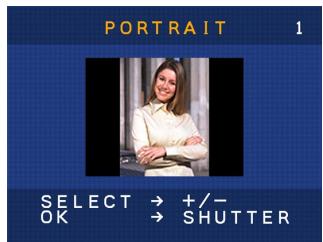
- Use [+] and [-] to select the Best Shot scene you want to use and then press the shutter release button.
- Compose the image and then press the shutter release button.
NOTES
- Best Shot scenes were not recorded using this camera. They are provided as samples only.
- Images recorded using a Best Shot scene may not produce the results you expected due to shooting conditions and other factors.
- The first scene that appears when you enter the Best Shot mode is the one that was on the display when you last exited the mode.
- You cannot use exposure compensation (EV shift) in the Best Shot mode.
- After you select a Best Shot scene, you can change to another scene using [+] and [-].
Recording a Movie (Movie Mode)
You can record movies up to 10 seconds long.
- File Format: AVI. AVI format conforms to the Motion JPEG format promoted by the Open DML Group. Note, however, that this camera does not support audio data.
- Image Size: 320 × 240 pixels
- Movie Size
Storage Capacity: Approximately 300 KB per second. Maximum Length Per Movie: 10 seconds
- Align the dial with ▷ (movie mode).
- Press the shutter release button all the way down to start recording.
- Recording continues for 10 seconds.
- You can interrupt movie recording before 10 seconds are up by pressing the shutter release button again. Saving of the movie to the memory card starts at this time.
IMPORTANT!
- The flash does not fire during movie recording.
- To view an AVI file under Windows 98 or 2000, install DirectX from the CD-ROM that comes bundled with the camera.
Specifying Image Size and Quality
You can specify the image size and image quality to suit the type of image you are recording.
- Align the dial with SET UP.
- Use [+] and [-] to select "SIZE/QUALITY" and then press the shutter release button.
- Use [+] and [-] to select the setting you want and then press the shutter release button.
Size/Quality Setting
| Image size (pixels) | Quality | File size |
| 1600x1200 | SUPER | 850KB |
| 1280x960 | FINE | 500KB |
| NORMAL | 350KB | |
| 640x480 | FINE | 150KB |
| NORMAL | 90KB |
IMPORTANT!
- The values in the table above are all approximate, and are affected by the types of images you record and other factors.
- To determine the number of images that can be stored on a memory card of a different capacity, multiply the capacities in the table above by the appropriate value.
- The maximum number of images indicated on the monitor screen is 999.
Exposure Compensation
Whenever program AE, shutter speed priority AE, or aperture priority AE is selected as the exposure mode, you can adjust the exposure compensation value (EV value) within the range shown below in order to compensate for current lighting conditions. This setting can be used to obtain better results when shooting with backlighting, indirect indoor lighting, a dark background, etc.
EV Value Range: -2EV to +2EV
Steps: 1/3EV
- In a recording mode, use [+] and [-] to perform exposure compensation (EV Shift).
- This causes the exposure compensation value to appear on the monitor screen.
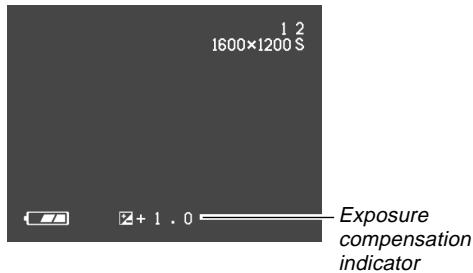
RECORDING IMAGES
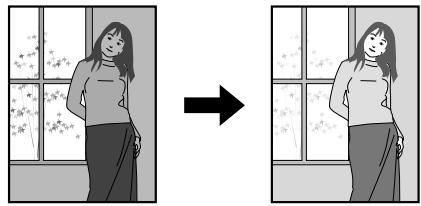
[+]: Increases the EV value. A higher EV value is best used for light-colored subjects and backlit subjects.
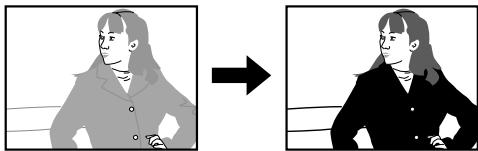
[-]: Decreases the EV value. A lower EV value is best for dark-color subjects and for shooting outdoors on a clear day.
- To return exposure compensation to its standard default setting, use [+] and [-] to change the setting on the monitor screen until the boxed 2 disappears.
- Compose the image and then press the shutter release button.
IMPORTANT!
- When shooting under very dark or very bright conditions, you may not be able to obtain satisfactory results even after performing exposure compensation.
RECORDING IMAGES
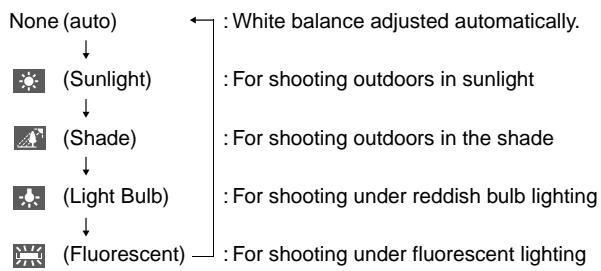
Selecting White Balance
Selecting the right type of white balance can help to make the colors of a subject appear most natural under the type of lighting that is available.
- In a recording mode, press WB to change the white balance setting.
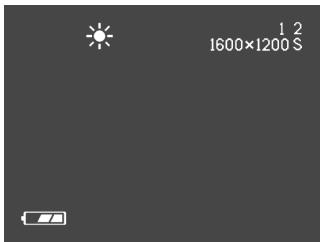
Each press of WB cycles through the white balance settings on the monitor screen in the sequence shown below.
PLAYBACK
You can use the camera's built-in monitor screen to play back recorded images.
Basic Playback Operation
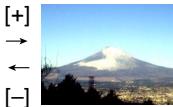
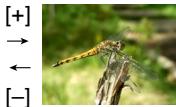
Use the following procedure to scroll through recorded images stored in the camera's memory.
- Align the dial with ▶ (play mode).
- Use [+] and [-] to scroll through images on the monitor screen.

| To do this: | Press this button: |
| Scroll forward | [+] |
| Scroll back | [-] |
NOTES
- Holding down [+] or [-] scrolls images at high speed.
- In order to allow for faster playback image scrolling, the image that initially appears on the monitor screen is a preview image, which is of somewhat lower quality than the actual display image. The actual display image appears about three seconds after the preview image. This does not apply to images copied from another digital camera.
Playing a Movie
Use the following procedure to play back a movie recorded in the movie mode.
- Align the dial with ▶ (play mode).
- Use [+] and [-] to scroll through the movies in camera memory until you find the one you want.
Movie mode indicator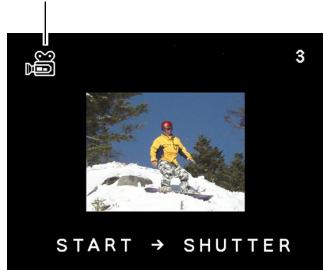
- Press the shutter release button to play back the movie.
- Press or to stop movie playback.
Enlarging the Playback Image
Perform the following procedure to zoom the image currently on the monitor screen.
- Align the dial with ▸ (play mode).
- Use [+] and [-] to scroll through images until the one you want is displayed.
- Press [ ]/ [ ] to enlarge the currently displayed image.
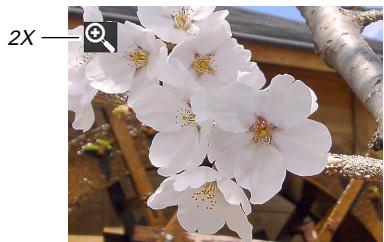
Each press of [ ] / [ ] toggles the zoom factor between 1X and 2X.
PLAYBACK
| To do this: | Press this button: |
| Scroll the enlarged image to the right. | [+] |
| Scroll the enlarged image to the left. | [-] |
| Exit image enlargement | Shutter release |
IMPORTANT!
- You cannot enlarge a movie image.
Displaying the 9-image View
The following procedure displays nine images on the monitor screen at the same time.
- Align the dial with ▸ (play mode).
- Press
- This displays the 9-image view.
| 1 | 2 | 3 | [+] | 10 | 11 | 12 | [+] | 19 | 20 | 21 |
| 4 | 5 | 6 | ←[-] | 13 | 14 | 15 | →[-] | 22 | 23 | 24 |
| 7 | 8 | 9 | 16 | 17 | 18 | 25 |
| To do this: | Press this button: |
| Scroll forward | [+] |
| Scroll back | [-] |
- To exit the 9-image screen, press any button besides [+] , [-] , and DISP.
PLAYBACK
Selecting a Specific Image in the 9-image View
- Display the 9-image screen.
- Press DISP.
- This causes a selection frame to appear on the display.
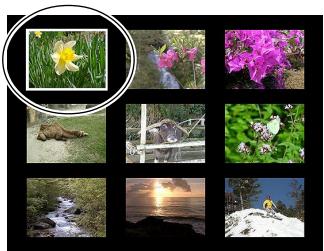
- Use [+] and [-] to move the selection frame to the image you want to display, and then press the shutter release button.
- This displays the full-size version of the image you selected.

DELETING IMAGES
You can delete images individually (displayed image), or you can delete images in memory that are not protected.
IMPORTANT!
- Note that image deletion cannot be undone. Once you delete an image, it is gone. Make sure you really do not need an image anymore before you delete it. Especially when deleting all images, make sure you check all the images you have stored on the camera before proceeding.
Deleting the Displayed Image
Use the following procedure when you want to delete the image that is currently on the monitor screen.
- Align the dial with ▸ (play mode).
- Use [+] and [-] to scroll through images until the one you want to delete is displayed.
- Press WB 1
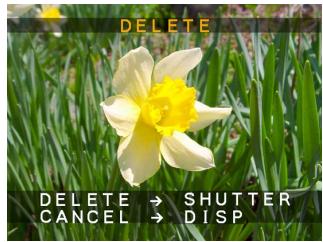
- A message appears to confirm whether you really want to delete the displayed image.
- If you want to cancel the procedure without deleting the image, press DISP.
5. Press the shutter release button to delete the image.
NOTE
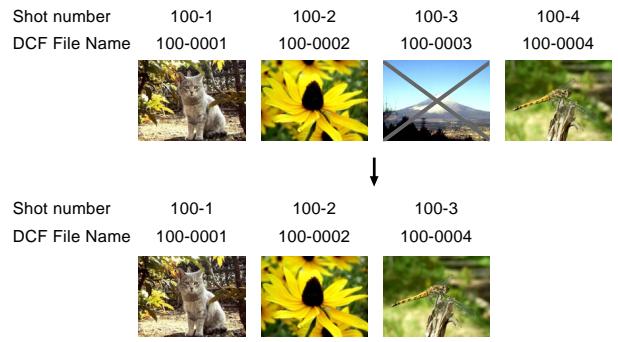
- The camera does not maintain open spaces in its memory. Deleting an image causes images following the deleted image to be shifted up to fill in the empty space. Note, however, that file names are not changed.
Deleting All Images
The following procedure deletes all unprotected images currently in memory.
- Align the dial with SET UP.
- Use [+] and [-] to select "DELETE/FORMAT" and then press the shutter release button.
- Use [+] and [-] to select "DELETE ALL" and then press the shutter release button.
- Use [+] and [-] to select "YES" and then press the shutter release button.
- To cancel the delete operation without deleting anything, select "NO" instead of "YES" and then press the shutter release button.
MANAGING IMAGES
This section contains information about how images are stored in memory. It also explains how you can specify print settings.
Folders and Files
Your camera automatically creates a directory of folders on the memory card to store images.
Folders
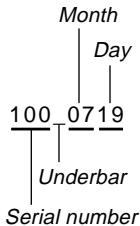
A folder is created automatically whenever you shoot the first image on a particular date. The name assigned to the folder is based on the current date, as described below. You can have up to 900 folders on a memory card at the same time (subject to storage capacity restrictions).
Example: Folder created on July 19, which is the 100th folder on the memory card
Files
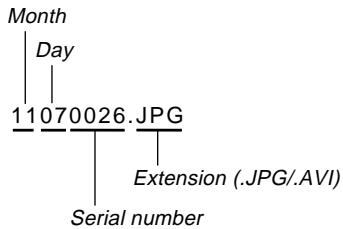
The names assigned to files are based on the current date, as shown below.
Example: 26th image shot on November 7
- In addition to image files, memory cards also contain a number of other files used by the system for image data management.
- The actual number of files you will be able to store on a memory card depends on the capacity of the card, image quality settings, etc.
DPOF
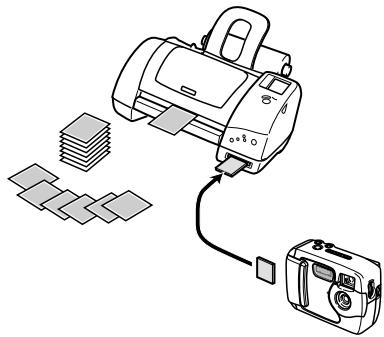
The letters "DPOF" stand for "Digital Print Order Format", which is a format for recording on a memory card or other medium which digital camera images should be printed and how many copies of the image should be printed. Then you can print on a DPOF-compatible printer or at a professional print service from the memory card in accordance with the images and number of copies settings recorded on the card.
DPOF Settings
Images, number of copies, date

To configure printing for a particular image
- Align the dial with SET UP.
- Use [+] and [-] to select "PRINT ORDER" and then press the shutter release button.
- Use [+] and [-] to select "SELECT IMAGES" and then press the shutter release button.
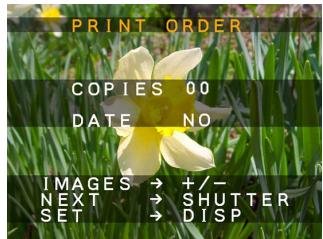
- If the memory card does not have DPOF settings already configured on it, skip step 4 and proceed from step 5.
- If the memory card is already configured with DPOF settings, use [+] and [-] to select "RESET" or "EDIT" and then press the shutter release button.
| To do this: | Select this option: |
| Delete the existing settings | RESET |
| Edit the existing settings | EDIT |
- Use [+] and [-] to select the image you want to print and then press the shutter release button.
- Use [+] and [-] to specify the number of copies you want to print and then press the shutter release button.
- Use [+] and [-] to specify whether or not you want to insert a date stamp into the image and then press the shutter release button.
- Some printers may not support date stamp printing.
- Repeat steps 5 through 7 to configure settings for other images, if you want.
- Press DISP to complete the procedure.
To print all images
- Align the dial with SET UP.
- Use [+] and [-] to select "PRINT ORDER" and then press the shutter release button.
- Use [+] and [-] to select "ALL IMAGES" and then press the shutter release button.
- If the memory card does not have DPOF settings already configured on it, skip step 4 and proceed from step 5.
- If the memory card is already configured with DPOF settings, use [+] and [-] to select "RESET" or "EDIT" and then press the shutter release button.
| To do this: | Select this option: |
| Delete the existing settings | RESET |
| Edit the existing settings | EDIT |
- Use [+] and [-] to specify the number of copies you want to print and then press the shutter release button.
- Use [+] and [-] to specify whether or not you want to insert a date stamp into the image and then press the shutter release button.
- Some printers may not support date stamp printing.
- Press DISP to complete the procedure.
PRINT Image Matching
This camera supports PRINT Image Matching, which means that images recorded with it include information about the mode settings, camera setup, etc. When you print an image on a printer that supports PRINT Image Matching, the printer reads this data and adjusts the printed image accordingly, so your images come out just the way you intended when you recorded them. See the documentation that came with your printer for full details about PRINT Image Matching.

- PRINT Image Matching is a term for the print command that is embedded in the header file of the image created by a digital camera. It contains color setting and image parameter information.
- SEIKO EPSON Corporation holds the copyright for PRINT Image Matching Version 1.0.
OTHER SETTINGS
Changing the Display Language
You can use the following procedure to select one of six languages as the display language.
- Align the dial with SET UP.
- Use [+] and [-] to select "LANGUAGE" and then press the shutter release button.
- Use [+] and [-] to select the setting you want and then press the shutter release button.
| To specify this display language: | Select this option: |
| English | ENGLISH |
| Spanish | ESPÁÑOL |
| German | DEUTSCH |
| French | FRANÇAIS |
| Italian | ITALIANO |
| Japanese | JAPANESE |
Turning the Confirmation Beep On and Off
Perform the following steps to turn the button confirmation beep on and off.
- Align the dial with SET UP.
- Use [+] and [-] to select "BUZZER" and then press the shutter release button.
- Use [+] and [-] to select the setting you want and then press the shutter release button.
| To do this: | Select this option: |
| Turn on the confirmation beep | ON |
| Turn off the confirmation beep | OFF |
Specifying the Opening Screen
Use the following procedure to specify the format of the opening screen that appears whenever the camera is turned on or off.
- Align the dial with SET UP.
- Use [+] and [-] to select "OPENING" and then press the shutter release button.
- Use [+] and [-] to select the opening screen you want and then press the shutter release button.
| To do this: | Select this option: |
| Display Opening Screen 1 whenever power is turned on or off | TYPE 1 |
| Display Opening Screen 2 whenever power is turned on or off | TYPE 2 |
| Turn the opening screen off (no display) | OFF |
Selecting the USB Mode
The USB port of your camera supports both mass storage class and image class. Use the following procedure to select the mode that suits the type of USB connection you need.
- Align the dial with SET UP.
- Use [+] and [-] to select "USB" and then press the shutter release button.
- Use [+] and [-] to select the setting you want and then press the shutter release button.
| To do this: | Select this option: |
| Save images you record on a computer hard disk (mass storage class, page 73) | NORMAL |
| Use the camera as a PC camera for video conferencing (image class, page 78) | PC CAMERA |
IMPORTANT!
- Use the AC adaptor to power the camera whenever transferring data over a USB connection.
CONNECTING TO EXTERNAL EQUIPMENT
The camera is equipped with a USB port, which you can use to connect to a computer.
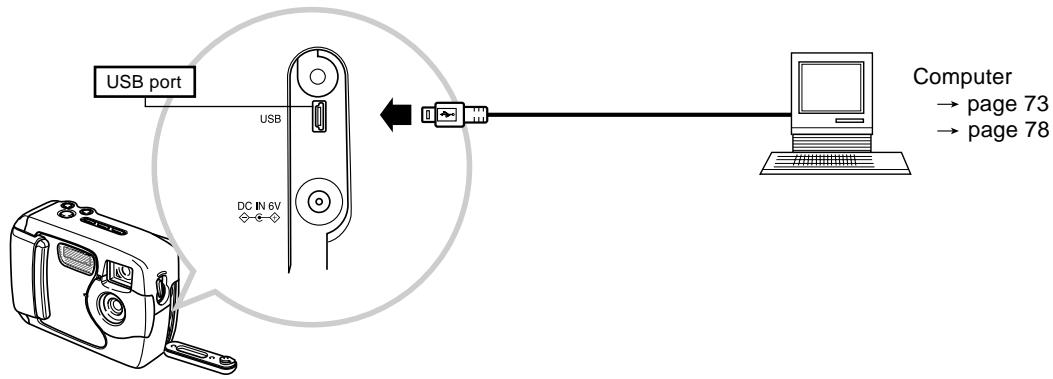
IMPORTANT!
- Be sure to turn off both the camera and the other equipment before making any connections.
- Check the documentation that comes with your other equipment for information you may need to know when making connections.
- Leaving the same image displayed on a computer display screen for very long periods can cause the image to be "burned in" on the screen. When this happens, a faint after-image remains on the screen, even after you disconnect the camera. To avoid this, you should not leave the same image displayed on such a screen for very long periods.
- This camera does not support cable transfer of data with other CASIO digital cameras.
- You cannot connect this camera to a computer's serial port (RS-232C or RS-422).
Transferring Images to a Computer
The CD-ROM that comes bundled with your camera contains a copy of Photo Loader, which is an application that lets you transfer the contents of the camera's memory to your computer quickly and easily. You can connect to a computer that is equipped with a USB port. You can also transfer images using the memory card, if your computer is equipped to read memory cards.
USB Connection
If your computer has a USB port, you can connect it to the camera's USB port for quick and easy image data transfer. Use the USB cable that comes with the camera to connect to a computer.
The first time you connect to your computer, you will need to install the USB driver. After that, the camera becomes a peripheral (card reader/writer) recognized by your computer whenever they are connected.
Installing Photo Loader on your computer makes image transfer even easier. See the documentation that comes with the software for full details about installing and using the USB driver and Photo Loader.
IMPORTANT!
- The PC mode of this camera may not be compatible with certain computers.
- Operation is not guaranteed when the camera is connected to a USB hub or expansion USB board.
To connect to a computer
- Install the USB driver onto a computer equipped with a USB port.
- Also install the Photo Loader application, which provides automatic image data transfer and tools for image management.
- See the "Bundled Software User's Manual" for information about installing the driver.
- Select "NORMAL" as the camera's USB mode (page 71).
- Open the terminal cover and then use the USB cable to connect the camera to the computer.
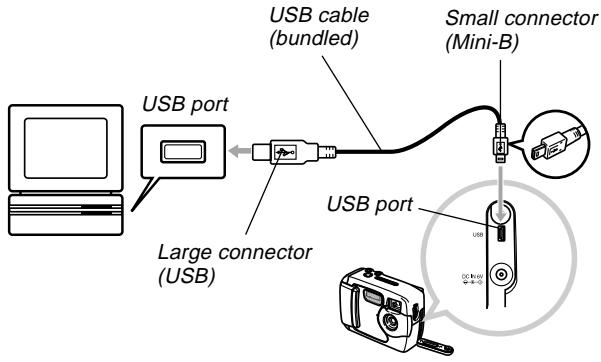
4. Move the POWER ON/OFF switch to ON and then align the dial with PC (PC mode).
- In the PC mode, all buttons and controls, including the POWER ON/OFF switch are disabled.
- The monitor screen turns off, and the operation lamp lights green.
5. Import the images to the computer.
6. After image data transfer is complete, disconnect the USB cable.
- For details, see "Disconnecting the USB Cable" (page 75).
- Take care when connecting the USB cable to the camera. The USB port and the cable plug are shaped for proper positioning, so make sure you position the plug correctly when inserting it into the port.
- Plug the USB cable into the ports securely, as far as it will go. Proper operation is not possible if connections are not correct.
- The camera does not draw power over the USB cable. After connecting the cable, turn on the camera.
- Low battery power can cause the camera to power down suddenly during data communication. Always use the optional AC adaptor to power the camera whenever performing data communication with a computer.
- Never disconnect the USB cable while data communication is in progress. Doing so can cause data to become corrupted.
Disconnecting the USB Cable
Windows Me or 98
Disconnect the USB cable from the camera, and then turn off the camera.
- After completing data communication over a USB connection, use one of the prescribed procedures below to disconnect the USB cable.
- You cannot turn off the camera while the USB cable is connected. Disconnect the USB cable before turning off the camera.
Windows XP or 2000
Click card services in the task tray on your computer screen, and disable the drive number assigned to the camera. Next, disconnect the USB cable from the camera, and then turn off the camera.
Macintosh
In Finder, drag the camera to the trashcan. Next, disconnect the USB cable from the camera and then turn off the camera.
Using a Memory Card to Transfer Image Data
In addition to the cable connections described in the previous sections, you can also exchange data between your camera and computer by reading it directly from the memory card. The Photo Loader software that comes on the bundled CD-ROM disc automatically reads the images from the memory card and stores them in folders on your computer's hard disk.
The following provides general information about how to directly read images from a memory card. Certain details may be different depending on the type of computer you are using.
Computer Equipped with a CompactFlash Card Slot Simply insert the memory card into your computer's CompactFlash card slot.
Computer Equipped with a PC Card Slot
For this configuration, you will need to purchase a separately available CASIO PC Card Adapter (CA-10). See the instructions that come with the PC Card Adapter for information about how to use it.
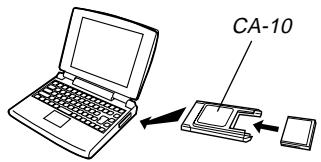
Another Computer
To access the contents on the memory card on a computer that does not have a CompactFlash card slot or PC card slot, use a commercially available PC card reader/writer in combination with a separately available CASIO PC Card Adapter (CA-10). See the instructions that come with the PC card reader/writer and the PC Card Adapter for information about how to use them.
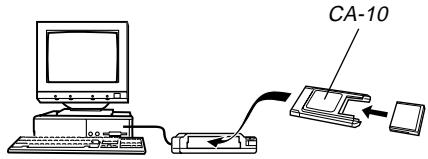
Memory Card Data
Images recorded with this camera and other data are stored on the memory card using DCF (Design rule for Camera File system) protocol. DCF protocol is designed to make it easier to exchange image and other data between digital cameras and other devices.
DCF Protocol
DCF devices (digital cameras, printers, etc.) can exchange images with each other. DCF protocol defines the format for image file data and the directory structure for the memory card, so images can be viewed using another manufacturer's DCF camera or printed on a DCF printer. In addition to support for the DCF protocol, your CASIO digital camera also uses dates in image folder names and image file names, which helps to make data management easier.
Memory Card File Structure
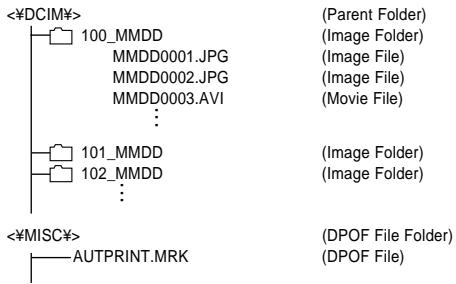
Folder and File Contents
- Parent Folder Contents: All files used by the digital camera
- Image Folder Contents: Image files recorded by the camera
- Image File Contents: Still image file recorded by the camera
- Movie File Contents: Movie file recorded by the camera
- DPOF File Folder Contents: DPOF files
Image Files Supported by the Camera
- Image files recorded with the CASIO GV-10 Digital Camera
- DCF protocol image files
- Certain DCF functions may not be supported.
- It may take a long time to display an image recorded with another type of camera.
Precautions when Using a Memory Card on a Computer
- When saving memory card contents to a computer hard disk, MO disk, or other medium, be sure to transfer data in DCIM folder units. Changing the name of the DCIM folder to a date or similar type of name is a good way to keep track of multiple DCIM folders. When moving a folder back to the camera's memory card, however, be sure to change its name back to DCIM. This camera does not recognize any folder name besides DCIM.
- The above is also true for the names of folders inside the DCIM folder. These names must be returned to the names assigned to them by the camera whenever you copy the folder back to the memory card for playback on the camera.
- We also strongly recommend that after transferring data from a memory card to other external storage you reformat the memory card and delete its contents before using it to store more images.
Using the Camera as a PC Camera
You can connect your camera to a PC and use it as a PC camera for video conferencing, Web chatting, etc.
IMPORTANT!
- The PC camera mode operation is not supported for the Apple Macintosh.
To connect to a computer
- Install the USB driver onto a computer equipped with a USB port.
- If you already installed the USB driver following the procedure under "Transferring Images to a Computer" on page 73, you do not need to install it again here.
- See the "Bundled Software User's Manual" for information about installing the driver.
- Select "PC CAMERA" as the camera's USB mode (page 71).
- Open the terminal cover and then use the USB cable to connect the camera to the computer.
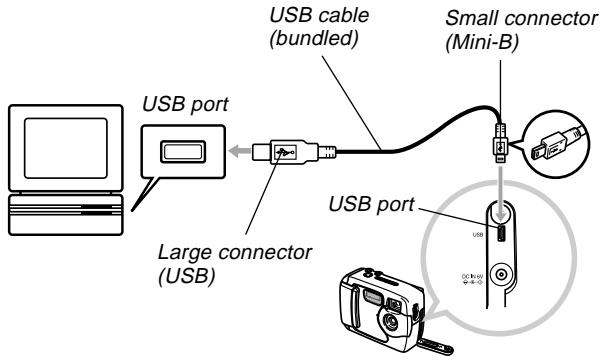
- Move the POWER ON/OFF switch to ON and then align the dial with PC (PC mode).
- All camera buttons are disabled in PC mode, including the POWER ON/OFF switch.
- The monitor screen turns off, and the operation lamp lights green.
- Use the PC camera with the computer for net meetings or other similar purposes.
- After you are finished, disconnect the USB cable.
- For details, see "Disconnecting the USB Cable" (page 75).
Other Requirements
You also need to obtain and install video conferencing software in order to use the camera as a PC camera.
Example: Microsoft NetMeeting
In addition, video conferencing also requires network devices such as a modem and terminal adapter, as well as speakers, microphone, etc.
PC Camera Mode Precautions
- This camera is not supplied power from your computer over the USB cable. The camera must be supplied power from its own power supply.
- Make image size and frame rate settings on your computer.
- Use the procedures described in the documentation that comes with your PC camera application to perform PC camera operations.
- See the user documentation that comes with the PC camera application you use for information about whether you can save PC camera still images and movies.
IMPORTANT!
- The PC Camera mode of this camera may not be compatible with certain computers.
- Operation is not guaranteed when the camera is connected to USB hub or expansion USB board.
REFERENCE
SETUPMenu
The following shows the settings available on the SET UP menu.
| Item | Settings |
| DELETE / FORMAT | DELETE ALL / FORMAT |
| SIZE / QUALITY | 1600 x 1200 / SUPER 1280 x 960 / FINE 1280 x 960 / NORMAL 640 x 480 / FINE 640 x 480 / NORMAL |
| BUZZER | ON / OFF |
| PRINT ORDER | SELECT IMAGES / ALL IMAGES |
| DATE | STYLE / CLOCK |
| OPENING | TYPE1 / TYPE2 / OFF |
| LANGUAGE | ENGLISH / ESPÁÑOL / DEUTSCH / FRANÇAIS / ITALIANO / JAPANESE |
| USB | NORMAL / PC CAMERA |
Troubleshooting
| Problem | Possible Cause | Action | |
| Power | Power does not turn on. | 1. Batteries are not oriented correctly. 2. Batteries are dead. 3. Wrong AC adaptor type being used. | 1. Orient batteries correctly (page 30). 2. Replace batteries with a full set of new ones (page 30). 3. Use only an AD-C620/C630 AC adaptor. |
| Camera suddenly powers down. | 1. Auto Power Function activated (page 37). 2. Batteries are dead. | 1. Turn power back on. 2. Replace batteries with a full set of new ones (page 30). | |
| indicator on the monitor screen | Batteries are low. | Replace batteries with a full set of new ones (page 30). | |
| Recording | No recording when the shutter release button is pressed | 1. Dial is not set to a recording mode. 2. Flash unit is being charged. 3. The message “MEMORY FULL” is on the monitor screen. 4. No memory card is loaded in the camera. | 1. Set the dial to a recording mode. 2. Wait until flash unit charging finishes. 3. Delete images you no longer need, or use a different memory card. 4. Load a memory card. |
| Camera powers down during self-timer countdown. | Batteries are dead. | Replace batteries with a full set of new ones (page 30). | |
| Monitor screen image is out of focus. | 1. Macro mode being used for scenery or portraits. 2. Normal mode -▲ being used for macro image. | 1. Set the Normal/Macro selector to ▲-▲ (Normal) for scenery and portraits. 2. Set the Normal/Macro selector to ▲ (Macro) for macro images. |
REFERENCE
| Problem | Possible Cause | Action | |
| Recording | Recorded images are not saved in memory. | 1. Camera powers down before the save operation is complete. 2. Opening of the memory card slot cover before the image save operation is complete. | 1. If the indicator is on the monitor screen, replace batteries with a full set of new ones as soon as possible. 2. Keep the memory card cover closed until the image save operation is complete. |
| Playback | Color of the playback image is different from the image on the monitor screen during recording. | 1. Sunlight or light from another source is shining directly into the lens during recording. 2. Image quality setting | 1. Position the camera so sunlight does not shine directly into the lens. 2. Change to a higher image quality for recording. |
| [+] and [-] operations do not work while the 9-image view is on the monitor screen. | You are operating [+] and [-] while the scroll operation is still being performed. | Wait until image scrolling is complete before pressing [+] or [-]. | |
| Images are not displayed. | A memory card with non-DCF images recorded with another camera is loaded in the camera. | This camera cannot display non-DCF images recorded onto a memory card using another digital camera. | |
| Other | All buttons and switches are disabled. | Circuit problem caused by electrostatic charge, impact, etc. while the camera was connected to another device. | Remove the camera's batteries, disconnect the AC adaptor, replace the batteries, and turn on power again. |
| Monitor screen is off. | 1. USB cable is connected. 2. Monitor screen is turned off in a recording mode. | 1. After confirming that the computer is not accessing the memory card, disconnect the USB cable. 2. Press DISP to turn on the monitor screen. |
REFERENCE
| Problem | Possible Cause | Action | |
| Other | Cannot transfer images or perform PC camera operations after connecting to a computer with the USB cable. | 1. Wrong USB mode is selected. 2. USB driver is not installed. 3. Camera is turned off. | 1. Select the USB mode that suits the operation you are trying to perform (page 71). 2. Install the USB driver in accordance with the “Bundled Software User's Manual”. 3. Turn on the camera (page 37). |
Messages
| Battery power is low. | |
| NO IMAGES ON THIS MEMORY CARD! | There are currently no images in memory. |
| RECORD ERROR | Image data save operation failed. Record the image again. |
| DECODE ERROR | • Image is a format (JPG, AVI) that is not sup- ported by this camera. • Image file is corrupted or the file is a type that cannot be displayed by this camera. |
| DCF ERROR | Indicates that the DCIM folder contains two or more folders with the same serial number (due to using your computer to transfer folders to the memory card, etc.) Use your computer to access the memory card and change folder serial numbers so they are all unique. Example: Folders named 100_1214 and 100_ABCD have the same serial number (100), which will cause this error. Access the card and change the serial number of one of the folders to a three-digit value. |
| DIAL ERROR | Indicates that the dial is positioned between two settings (icons). Correctly position the dial at the setting you want to use. |
| MEMORY FULL CHANGE SIZE / QUALITY OR DELETE UNNEEDED IMAGES. | • No more images can be stored under the current image quality and size settings, but further recording is possible with different settings. Change the image quality and size settings, or delete images you no longer need (page 64). • Memory is full. If you want to record more images, delete images you no longer need (page 64). • This message also appears after data is transferred to a memory card from a computer when a DCIM folder or other required files (page 77) cannot be created because there is not enough memory card space. Use your computer to free up space by deleting files you no longer need. |
| NOT FORMATTED FORMAT → SHUTTER | The memory card is not formatted. Format the memory card (page 41). |
| INSERT MEMORY CARD! | There is no memory card in the camera. Load a memory card (page 38). |
MEMORY CARD
ERROR!
RESTART CAMERA...
FORMAT IF THIS
MESSAGE APPEARS
AGAIN.
FORMAT →
SHUTTER
Some problem occurred with the memory card. Perform the following steps to correct it.
Important!
Performing this procedure deletes all files on the memory card. Before proceeding, try transferring recoverable files to a computer or some other storage device.
1. Press the shutter release button to delete the image.
- Before starting a format operation, connect the AC adaptor for power or load a full set of fresh alkaline or lithium batteries. Power interruption during the format operation can result in improper formatting, and even damage the memory card and make it unusable. The message "NO IMAGES ON THIS MEMORY CARD!" appears on the monitor screen after the format operation is complete. This indicates that the format operation was completed successfully.
Specifications
Description. Digital camera
Model . . . . . . . . . . . . . . . . . . . . . . . . . . . . . . . . . . . . . . . . . . . . . . . . . . . . . . . . . . . . . . . . . . . . . . . . . . . . GV-10
Recorded Image
File Format . Still images: JPEG (Exif. Ver. 2.1), DCF standard (Design rule for Camera File system),DPOF compatible Movies:AVI (Motion JPEG)
Recording Medium........... CompactFlash card (Type I)
Recorded Image Size 1600 x 1200 pixels, 1280 x 960 pixels, 640 x 480 pixels
Computer Output Image Size
| Image size (pixels) | Quality | File size |
| 1600 | SUPER | 850KB |
| x | ||
| 1200 | ||
| 1280 | FINE | 500KB |
| x | ||
| 960 | NORMAL | 350KB |
| 640 | FINE | 150KB |
| x | ||
| 480 | NORMAL | 90KB |
| Movie (320 x 240 pixels) | |
| Storage Capacity | Approximately 300KB/second |
| Recording Time | 10 seconds per movie |
- The above figures are approximations only.
Image Deletion ............ Single image; all images in memory (with image protection)
Effective Pixels 1.23 million
Imaging Element. 1/3.2-inch CCD (Total Pixels: 1.31 million)
Lens F2.8; f = 4.6 mm (equivalent to 35mm lens for 35mm film)
Zoom. Digital zoom: 2X Image size is 640× 480 pixels when digital zoom is used.
Focusing Fixed focus with macro mode
Focus Range. Normal focus: Approximately 60cm to ∞ (23.6" to ∞ ) Macro focus: Approximately 10cm (3.9")
Exposure Control
Light Metering: Center-weighted by CCD
Exposure: Program AE
Exposure
Compensation: -2EV to +2EV (1/3EV units)
Shutter: CCD electronic shutter; mechanical shutter, 1 to 1/1500 second
REFERENCE
Aperture: F2.8, F9.7, auto switching
White Balance: Automatic, fixed (4 modes)
Self-timer: 10 seconds
Built-in Flash
Flash Modes: AUTO, OFF, ON
Flash Range: Approximately 0.6 to 2 meters (2.0' to 6.6')
Recording Functions: Normal, continuous shutter, movie, self-timer, macro, Best Shot
Monitor: 1.6" TFT, color LCD (61,380 pixels, 279 x 220)
Viewfinder: LCD Monitor or optical viewfinder
Clock. Built-in quartz digital timepiece for time and date recording and storage with image data; auto calendar up to 2049
Input/Output Terminals .... USB port (Mini-B port), AC adaptor connector
Power Supply: Four AA-size alkaline or lithium batteries; Four AA-size nickel-metal hydride rechargeable batteries (NP-H3); AC adaptor (AD-C620/C630); AC adaptor charger (BC-3HA)
Battery Life
The values noted below indicate the number of hours before battery failure under normal operating temperature (25°C). These values are for reference only, and do not guarantee that any particular set of batteries actually will provide the service life indicated. Low temperatures shorten battery life.
| Type of Operation | AA-size Alkaline Batteries LR6 | AA-size Lithium Batteries FR6 | AA-size Ni-MH Batteries NP-H3 |
| ContinuousPlayback | 240 minutes | 370 minutes | 220 minutes |
| ContinuousRecording | 170 minutes(850 shots) | 340 minutes(1700 shots) | 170 minutes(850 shots) |
- The above figures are approximations only. The above guidelines are based on the following battery types: Alkaline: MX1500 (AA) DURACELL ULTRA; Lithium: Energizer
- Battery life varies with brand.
Continuous recording values show the number of shots without using the flash. The number of shots depends on use of the flash and whether flash is turned on or off.
Power Consumption ............ Approximately 5.2W
Dimensions: 100.5(W) x 74.0(H) x 49.0(D) mm (4.0"(W) x 2.9"(H) x 1.9"(D))
Weight: Approximately 250g (8.8oz) (excluding batteries)
REFERENCE
Standard Accessories ....... 8MB CompactFlash memory card, Strap; lens cap; cap holder; USB cable; CD-ROM; four LR6 alkaline batteries; User's Guide (English), Bundled Software User's Manual, Basic Reference (Spanish, German, Portuguese, Chinese, Arabic)
- This camera does not have a separate battery to power its clock. Clock settings are cleared whenever power to the camera is cut off (by batteries going dead while the camera is not connected to an AC power outlet with the AC adaptor) for about 24 hours. After power is resumed, either by loading fresh batteries or connecting to an AC power outlet, you will have to set the correct time and date again.
- The liquid crystal panel built into this camera is the product of precision engineering, with a pixel yield of 99.99%. This also means, however, that 0.01% of the pixels can be expected to fail to light or to remain lit at all times.
IMPORTANT!
Please keep your manual and all information handy for future reference.

CASIO ELECTRONICS CO., LTD. Unit 6, 1000 North Circular Road London NW2 7JD. U.K.
- CONTENTS
- INTRODUCTION
- GETTING ACQUAINTED
- RECORDING IMAGES
- PLAYBACK
- DELETING IMAGES
- MANAGING IMAGES
- OTHER SETTINGS
- CONNECTING TO EXTERNAL EQUIPMENT
- REFERENCE
- QUICK REFERENCE
- GETTING READY
- RECORDING AN IMAGE (PAGE 45)
- PLAYBACK (PAGE 60)
- DELETING IMAGES (PAGE 64)
- IMPORTANT
- FEATURES
- WATER RESISTANCE AND DUST RESISTANCE
- OPERATING ENVIRONMENT
- OPERATING PRECAUTIONS
- THIS IS NOT AN UNDERWATER CAMERA
- WIPE THE CAMERA DRY AFTER IT BECOMES WET
- LOCATION PRECAUTIONS
- GENERAL PRECAUTIONS
- INSPECTING THE COVER O-RINGS
- IF YOU FIND DIRT ON AN O-RING
- BEFORE PUTTING YOUR CAMERA AWAY AFTER USING IT
- IMMERSE THE CAMERA IN WATER AND WASH IT
- WIPE THE CAMERA DRY
- PRECAUTIONS
- DATA ERROR PRECAUTIONS
- OPERATING CONDITIONS
- CONDENSATION
- ABOUT THE CAMERA'S BACKLIGHT
- LENS PRECAUTIONS
- GUIDELINES LAID DOWN BY FCC RULES FOR USE OF THIS UNIT IN THE U.S.A. (NOT APPLICABLE TO OTHER AREAS)
- NOTICE
- FCC WARNING
- DECLARATION OF CONFORMITY
- GENERAL GUIDE
- MONITOR SCREEN INDICATORS
- RECORDING MODES
- CHANGING THE CONTENTS OF THE MONITOR SCREEN
- PLAY MODE
- INDICATOR LAMPS
- POWER LAMP
- OPERATION LAMP
- SELF-TIMER LAMP
- USING THE BUNDLED ACCESSORIES
- ATTACHING THE STRAP
- USING THE STRAP
- ATTACHING THE LENS CAP
- POWER REQUIREMENTS
- BATTERIES
- HOUSEHOLD CURRENT
- LOADING BATTERIES
- BATTERY LIFE GUIDELINES
- CAUTION
- TIPS FOR PROLONGING BATTERY LIFE
- ALKALINE BATTERY LIFE
- CONDITIONS
- ABOUT RECHARGEABLE BATTERIES
- BATTERY HANDLING PRECAUTIONS
- LOW BATTERY INDICATOR
- USING AC POWER
- AC ADAPTOR PRECAUTIONS
- TURNING THE CAMERA ON AND OFF
- POWER SAVE SETTINGS
- MEMORY CARDS
- INSERTING A MEMORY CARD INTO THE CAMERA
- REMOVING A MEMORY CARD FROM THE CAMERA
- FORMATTING A MEMORY CARD
- MEMORY CARD PRECAUTIONS
- SETTING THE CURRENT DATE AND TIME
- SETTING THE DATE AND TIME
- SELECTING THE DATE FORMAT
- RECORDING A SIMPLE SNAPSHOT
- MOVE THE POWER ON/OFF SWITCH TO ON
- ALIGN THE DIAL WITH (SNAPSHOT MODE)
- COMPOSE THE IMAGE ON THE MONITOR SCREEN
- IMAGE RECORDING WHEN BATTERIES ARE LOW
- USING ZOOM
- USING THE FLASH
- FLASH STATUS INDICATORS
- MONITOR SCREEN
- PRECAUTIONS WHEN USING FLASH
- RECORDING MACRO IMAGES
- USING THE OPTICAL VIEWFINDER
- RECORDING CONSECUTIVE IMAGES (CONTINUOUS SHUTTER MODE)
- RECORDING WITH THE SELF-TIMER
- RECORDING AN IMAGE USING A BEST SHOT MODE SCENE
- RECORDING EXAMPLE
- COMPOSITION OUTLINE
- NOTES
- RECORDING A MOVIE (MOVIE MODE)
- SPECIFYING IMAGE SIZE AND QUALITY
- EXPOSURE COMPENSATION
- SELECTING WHITE BALANCE
- BASIC PLAYBACK OPERATION
- PLAYING A MOVIE
- ENLARGING THE PLAYBACK IMAGE
- DISPLAYING THE 9-IMAGE VIEW
- SELECTING A SPECIFIC IMAGE IN THE 9-IMAGE VIEW
- DELETING THE DISPLAYED IMAGE
- PRESS THE SHUTTER RELEASE BUTTON TO DELETE THE IMAGE
- NOTE
- DELETING ALL IMAGES
- FOLDERS AND FILES
- FOLDERS
- FILES
- DPOF
- DPOF SETTINGS
- TO CONFIGURE PRINTING FOR A PARTICULAR IMAGE
- TO PRINT ALL IMAGES
- PRINT IMAGE MATCHING
- CHANGING THE DISPLAY LANGUAGE
- TURNING THE CONFIRMATION BEEP ON AND OFF
- SPECIFYING THE OPENING SCREEN
- SELECTING THE USB MODE
- TRANSFERRING IMAGES TO A COMPUTER
- USB CONNECTION
- TO CONNECT TO A COMPUTER
- MOVE THE POWER ON/OFF SWITCH TO ON AND THEN ALIGN THE DIAL WITH PC (PC MODE)
- IMPORT THE IMAGES TO THE COMPUTER
- AFTER IMAGE DATA TRANSFER IS COMPLETE, DISCONNECT THE USB CABLE
- DISCONNECTING THE USB CABLE
- WINDOWS XP OR
- MACINTOSH
- USING A MEMORY CARD TO TRANSFER IMAGE DATA
- COMPUTER EQUIPPED WITH A PC CARD SLOT
- ANOTHER COMPUTER
- MEMORY CARD DATA
- DCF PROTOCOL
- MEMORY CARD FILE STRUCTURE
- FOLDER AND FILE CONTENTS
- IMAGE FILES SUPPORTED BY THE CAMERA
- PRECAUTIONS WHEN USING A MEMORY CARD ON A COMPUTER
- USING THE CAMERA AS A PC CAMERA
- OTHER REQUIREMENTS
- PC CAMERA MODE PRECAUTIONS
- SETUPMENU
- MESSAGES
- SPECIFICATIONS
- BATTERY LIFE
Brand : CASIO
Model : GV-10
Category : Digital Camera