
EXILIM EX-Z600 - Digital Camera CASIO - Free user manual and instructions
Find the device manual for free EXILIM EX-Z600 CASIO in PDF.


| Product Type | Digital Camera |
| Brand | CASIO |
| Model | EXILIM EX-Z600 |
| Effective Resolution | 6.0 Megapixels |
| Sensor | 1/2.5 inch CCD (6.18 million pixels) |
| Lens | 3x Optical Zoom (35mm equivalent: 38-114mm) |
| Digital Zoom | 4x (12x combined with optical zoom) |
| Screen | 2.7-inch TFT LCD, 153,600 pixels |
| Internal Memory | 8.3 MB |
| Storage Media | SD Card, MultiMediaCard |
| Image Formats | JPEG (Exif 2.2), AVI (Motion JPEG), WAV |
| Focus Modes | AF, Macro, Pan Focus, Infinity, Manual |
| ISO Sensitivity | Auto, 50, 100, 200, 400 (800 in Anti Shake mode) |
| Built-in Flash | Modes: Auto, On, Off, Red-eye Reduction, Soft |
| Power Source | Rechargeable lithium-ion battery NP-40 |
| Battery Life (CIPA standard) | Approx. 550 photos |
| Dimensions (W × H × D) | 88.5 × 57 × 20.5 mm |
| Weight (without battery) | Approx. 112 g |
| Operating Temperature | 0°C to 40°C |
| Connectivity | USB dock, AV output, USB 2.0 |
| Special Features | BEST SHOT, Anti Shake, Business Shot, photo restoration, voice recording, triple self-timer |
| Cleaning | Soft dry cloth for exterior; blower for lens |
| Usage Precautions | Avoid water, shocks, do not obstruct flash |
Frequently Asked Questions - EXILIM EX-Z600 CASIO
User questions about EXILIM EX-Z600 CASIO
0 question about this device. Answer the ones you know or ask your own.
Ask a new question about this device
Download the instructions for your Digital Camera in PDF format for free! Find your manual EXILIM EX-Z600 - CASIO and take your electronic device back in hand. On this page are published all the documents necessary for the use of your device. EXILIM EX-Z600 by CASIO.
USER MANUAL EXILIM EX-Z600 CASIO
Thank you for purchasing this CASIO product.
- Before using it, be sure to read the precautions contained in this User's Guide.
- Keep the User's Guide in a safe place for future reference.
- For the most up-to-date information about this product, visit the official EXILIM Website at http://www.exilim.com/.
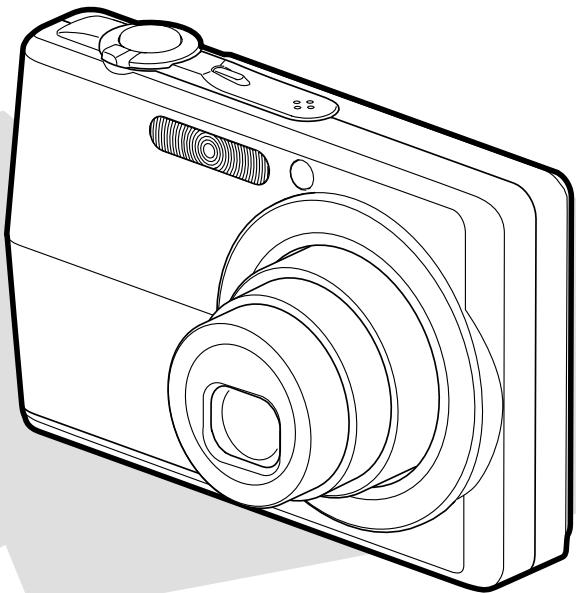
INTRODUCTION
Unpacking
Check to make sure that all of the items shown below are included with your camera. If something is missing, contact your dealer as soon as possible.
Camera
Rechargeable Lithium Ion Battery (NP-40)
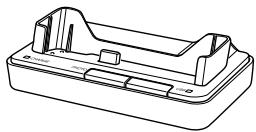
USB Cradle (CA-29)
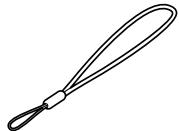
Strap
CD-ROM
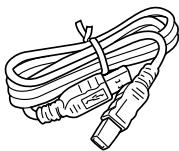
USB Cable
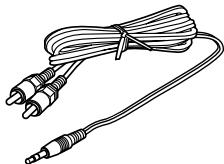
AV Cable
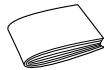
Basic Reference
- Note that the shape of the AC adaptor depends on the area where you purchased the camera.
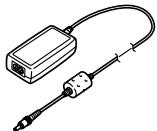
Special AC Adaptor (Inlet Type) (AD-C52G)
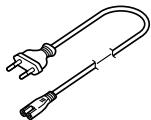
The shape of the AC power cord plug varies according to country or geographic area.
AC Power Cord
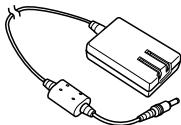
Special AC Adaptor (Plug-in Type) (AD-C52J)
Contents
2 INTRODUCTION
Unpacking 2
Features 9
Precautions 12
18 QUICK START GUIDE
First, charge the battery! 18
To configure display language and clock settings .... 19
To record an image 20
To view a recorded image 21
To delete an image 21
22 GETTING READY
About This Manual 22
General Guide 23
Camera 23
USB Cradle 25
Monitor Screen Contents 26
REC Mode 26
PLAY Mode 28
Changing the Contents of the Monitor Screen 30
Attaching the Strap 31
Power Requirements 32
Loading the Rechargeable Battery 32
To charge the battery 33
To replace the battery 38
Power Supply Precautions 38
Turning the Camera On and Off 42
Configuring Power Saving Settings 43
Using the On-screen Menus 45
Configuring Display Language and Clock Settings... 47
To configure display language and clock settings 48
51 BASIC IMAGE RECORDING
Recording an Image 51
Aiming the Camera 51
Recording an Image 52
Using Zoom 58
Optical Zoom 58
Digital Zoom 60
Using the Flash 62
Flash Unit Status 64
Changing the Flash Intensity Setting 65
Using Flash Assist 65
INTRODUCTION
Using the Self-timer 67
Specifying Image Size 70
Specifying Image Quality 71
OTHER RECORDING FUNCTIONS
Selecting the Focus Mode 73
Using Auto Focus 74
Using the Macro Mode 77
Using Pan Focus 78
Using the Infinity Mode 78
Using Manual Focus 79
Using Focus Lock 80
Exposure Compensation (EV Shift) 81
Adjusting White Balance 83
Configuring the White Balance Setting Manually 84
Using Continuous Shutter 86
Normal-speed continuous shutter 87
High-speed continuous shutter 87
Flash continuous shutter 87
Using the BEST SHOT Mode 88
Displaying Sample Scenes Individually 90
Creating Your Own BEST SHOT Setup 91
To delete a BEST SHOT user setup 92
Reducing the Effects of Hand or Subject
Movement 93
Shooting with High Sensitivity 94
Recording Images of Business Cards and
Documents (Business Shot) 95
Before recording with Business Shot 96
To use Business Shot 96
Restoring an Old Photograph 97
Before trying to restore an old photograph 97
To restore an old photograph 98
Recording a Movie 100
Specifying Movie Image Quality 101
Recording a Movie 102
Recording Audio 104
Adding Audio to a Snapshot 104
Recording Your Voice 105
Using the Histogram 107
REC Mode Camera Settings 110
Assigning Functions to the [A] and [B] Keys 110
Turning the On-screen Grid On and Off 111
Turning Image Review On and Off 112
Using Icon Help 112
113
115
Selecting the Metering Mode 116
Using the Filter Function 118
Specifying Outline Sharpness 118
Specifying Color Saturation 119
119
Resetting the Camera 120
121 PLAYBACK
BasicPlaybackOperation 121
Playing an Audio Snapshot 122
Zooming the Display Image 123
Resizing an Image 124
Cropping an Image 125
Keystone Correction 127
Using Color Restoration to Correct the Color of an Old Photograph 128
Playing and Editing a Movie 130
Playing a Movie 130
Editing a Movie 131
Capturing a Still Image from a Movie (MOTION PRINT) 135
Displaying the 9-image View 136
Displaying the Calendar Screen 137
Playing a Slideshow 138
Using the Photo Stand Feature 141
Rotating the Display Image 142
Adding Audio to a Snapshot 143
To re-record audio 144
Playing Back a Voice Recording File 145
Displaying Camera Images on a TV Screen 146
Selecting the Video Output System 148
149 DELETING FILES
Deleting a Single File 149
Deleting All Files 150
151 FILE MANAGEMENT
151
Memory Folders and Files 151
Protecting Files 152
To protect a single file 152
To protect all files in memory 153
Using the FAVORITE Folder 153
To copy a file to the FAVORITE folder 153
To display a file in the FAVORITE folder 155
To delete a file from the FAVORITE folder 156
To delete all files from the FAVORITE folder 156
157 OTHER SETTINGS
Configuring Sound Settings 157
To configure sound settings 157
To set the confirmation tone volume level 157
To set the audio volume level for movie and audio snapshot playback 158
Specifying an Image for the Startup Screen 158
Specifying the File Name Serial Number
Generation Method 159
Setting the Clock 160
To select your Home Time zone 160
To set the current time and date 161
Changing the Date Format 161
Using World Time 162
To display the World Time screen 162
To configure World Time settings 162
Editing the Date and Time of an Image 163
Changing the Display Language 164
Changing the Brightness of the Monitor Screen .... 165
Changing the USB Port Protocol 166
Configuring [REC] and [PLAY]
Power On/Off Functions 167
Formatting Built-in Memory 168
169 USING A MEMORY CARD
Using a Memory Card 170
To insert a memory card into the camera 170
To replace the memory card 171
Formatting a Memory Card 172
Copying Files 173
To copy all the files in built-in memory to a memory card 174
To copy a specific file from a memory card to built-in memory 175
176 PRINTING IMAGES
DPOF 177
To configure print settings for a single image 178
To configure print settings for all images 179
Using PictBridge or USB DIRECT-PRINT 180
Date Printing 184
PRINT Image Matching III 185
Exif Print 185
186 VIEWING IMAGES ON A COMPUTER
Using the Camera with a Windows Computer 186
Using the Camera with a Macintosh Computer 194
Using a Memory Card to Transfer Images to a Computer 198
Memory Data 199
DCF Protocol 199
Memory Folder Structure 200
Image Files Supported by the Camera 201
203 USING THE CAMERA WITH A COMPUTER
Using the Camera with a Windows Computer 203
Selecting the Software You Need 203
Computer System Requirements 205
Managing Images on a PC 206
Retouching, Reorienting, and Printing a Snapshot 209
Playing a Movie 211
Viewing User Documentation (PDF Files) 212
User Registration 212
Exiting the Menu Application 212
Using the Camera with a Macintosh Computer 213
Selecting the Software You Need 213
Computer System Requirements 214
Managing Images on a Macintosh 215
Playing a Movie 216
Viewing User Documentation (PDF Files) 216
To register as a camera user 217
218 APPENDIX
Menu Reference 218
Indicator Lamp Reference 221
Troubleshooting Guide 224
If you have problems installing the USB driver... 229
Display Messages 230
Specifications 232
INTRODUCTION
IMPORTANT!
- The contents of this manual are subject to change without notice.
- CASIO COMPUTER CO., LTD. assumes no responsibility for any damage or loss resulting from the use of this manual.
- CASIO COMPUTER CO., LTD. assumes no responsibility for any loss or claims by third parties which may arise due to the use or malfunction of the EX-Z600.
- CASIO COMPUTER CO., LTD. shall not be held liable for any damages or losses suffered by you or any third party due to the use of Photo Loader and/or Photohands.
- CASIO COMPUTER CO., LTD. assumes no responsibility for any damage or loss caused by deletion of data as a result of malfunction, repairs, or battery replacement. Be sure to back up all important data on other media to protect against its loss.
Note that the example screens and product illustrations shown in this User's Guide may differ somewhat by the screens and configuration of the actual camera. - The SD logo is a registered trademark.
-
Windows, Internet Explorer, Windows Media, and DirectX are registered trademarks of Microsoft Corporation.
-
Macintosh and QuickTime are trademarks of Apple Computer, Inc.
- MultiMediaCard is a trademark of Infineon Technologies AG of Germany, and licensed to the MultiMediaCard Association (MMCA).
- Adobe and Reader are either registered trademarks or trademarks of Adobe Systems Incorporated in the United States and/or other countries.
- Other company, product and service names used herein may also be trademarks or service marks of others.
- Photo Loader and Photohands are the property of CASIO COMPUTER CO., LTD. Except as stipulated above, all copyrights and other related rights to these applications revert to CASIO COMPUTER CO., LTD.
INTRODUCTION
LCD Panel
The LCD panel is a product of the latest LCD manufacturing technology that provides a pixel yield of 99.99% . This means that less than 0.01% of the total pixels are defective (they do not turn on or always remain turned on).
Copyright Restrictions
Except for the purposes of your own personal enjoyment, unauthorized copying of snapshot files, movie files, and audio files violates copyright laws and international contracts.
Distribution to third parties of such files over the Internet without permission of the copyright holder, whether for profit or for free, violates copyright laws and international contracts.
Features
- 6.0 million effective pixels
The CCD provides 6.18 million total pixels for images of outstanding resolution and detail.
2.7-inch TFT color LCD monitor screen
8.3MB built-in memory
Images can be recorded without using a memory card.
- Bundled with a USB Cradle
The bundled USB cradle can be used to charge the camera's battery (page 33), to view images on a TV screen (page 146), and to transfer images to a computer (page 186). A Photo Stand feature lets you view images while the camera is on the cradle (page 141).
- REC mode or PLAY mode power up (page 42)
Press [REC] or [PLAY] to turn on the camera and enter the mode you want to use.
- AF assist light (page 55)
Improves auto focus accuracy when shooting under dim lighting.
12X zoom (page 58)
3X optical zoom, 4X digital zoom
- Flash Assist (page 65)
This feature compensates when flash intensity is not strong enough, so images are better illuminated.
INTRODUCTION
- Triple Self-timer (page 67)
The self-timer can be set up to repeat three times, automatically.
- Auto Macro (page 74)
Auto Macro automatically switches to the macro mode when the distance between the camera and subject it shorter than the Auto Focus range.
- Quick Shutter (page 75)
When you press the shutter button all the way down without pausing, the camera immediately records the image without waiting for Auto Focus to be performed. This helps to avoid missing a special moment while you wait for the camera to Auto Focus.
- Auto Focus Area Selection (page 76)
When Multi is selected for the Auto Focus area, the camera takes simultaneous meter readings at nine different points and automatically selects the best one.
- Three continuous shutter modes (page 86)
In addition to normal-speed continuous shutter, you can also select high-speed continuous shutter or flash continuous shutter.
- BEST SHOT (page 88)
Simply select the sample scene that matches the type of image you are trying to record and the camera performs troublesome setups automatically for beautiful images every time. New BEST SHOT sample scenes include setups for High Sensitivity and Anti Shake. A [BS] (BEST SHOT) button provides direct access to BEST SHOT sample scenes.
Business Shot (page 95)
Business Shot automatically corrects rectangular shapes when recording the image of a business card, document, whiteboard, or similar subjects from an angle.
- Restoring an Old Photograph (page 97)
You can use the procedure in this section to restore an old, faded photograph with the color provided by modern digital camera technology.
- Movie recording with audio (page 100)
VGA size, 30 fps, Motion JPEG format
Audio Snapshot mode (page 104)
Use this mode to record snapshots that also include audio.
Voice Recording (page 105)
Quick and easy recording of voice input.
INTRODUCTION
Real-time RGB histogram (page 107)
An on-screen histogram lets you adjust exposure as you view the effect on overall image brightness, which makes shooting under difficult lighting conditions easier than ever before.
- Keystone Correction (page 127)
A simple operation corrects for keystoning, which occurs when you record the image of a blackboard or poster from an angle.
Color Correction (page 128)
Simply record the image of an old photograph to restore its colors.
MOTION PRINT (page 135)
Capture frames from a movie and create still images that are suitable for printing.
- Calendar screen (page 137)
A simple operation displays a full-month calendar on the camera's monitor screen. Each day of the full-month calendar shows a thumbnail of the first file recorded for that date, which helps to make searching for a particular file quicker and easier.
World Time (page 162)
A simple operation sets the current time for your current location. You can select from among 162 cities in 32 time zones.
- Support for SD memory cards and MMC (MultiMedia Cards) for memory expansion (page 169)
- Digital Print Order Format (DPOF) (page 177)
Images can be printed easily in the sequence you want using a DPOF compatible printer. DPOF can also be used when specifying images and quantities for printing by professional print services.
- PictBridge and USB DIRECT-PRINT support (page 180)
Connect directly to a PictBridge or USB DIRECT-PRINT compatible printer and you can print images without going through a computer.
- PRINT Image Matching III Compatible (page 185)
Images include PRINT Image Matching III data (mode setting and other camera setup information). A printer that supports PRINT Image Matching III reads this data and adjusts the printed image accordingly, so your images come out just the way you intended when you recorded them.
- DCF Data Storage (page 199)
DCF (Design rule for Camera File system) data storage protocol provides image compatibility between the digital camera and printers.
INTRODUCTION
- Bundled with Photo Loader and Photohands (pages 206, 209, 215)
Your camera comes bundled with Photo Loader, the popular application that automatically loads images from your camera to your PC. It also comes with Photohands, and application that makes image retouching quick and easy.
Precautions
General Precautions
Be sure to observe the following important precautions whenever using the EX-Z600.
All references in this manual to "camera" refer to the CASIO EX-Z600 Digital Camera.
- Never try to take pictures or use the built-in display while operating a motor vehicle or while walking. Doing so creates the risk of serious accident.
- Never try to open the case of the camera or attempt your own repairs. High-voltage internal components create the risk of electric shock when exposed. Always leave maintenance and repair work up to a CASIO authorized service center.
- Keep the small parts and accessories of this camera out of the reach of small children. If swallowed accidentally, contact your physician immediately.
- Never fire the flash in the direction of a person operating a motor vehicle. Doing so can interfere with the driver's vision and create the risk of accident.
INTRODUCTION
- Never fire the flash while it is too close to the subject's eyes. Intense light from the flash can cause eye damage if it is fired too close to the eyes. This is especially true with young children. When using the flash, the camera should be at least one meter (3.3') from the eyes of the subject.
- Keep the camera away from water and other liquids, and never let it get wet. Moisture creates the risk of fire and electric shock. Never use the camera outdoors in the rain or snow, at the seashore or beach, in the bathroom, etc.
- Should foreign matter or water ever get into the camera, immediately turn it off. Next, remove the camera's battery and/or unplug the AC adaptor power cord from the power outlet, and contact your dealer or nearest CASIO authorized service center. Using the camera under these conditions creates the risk of fire and electric shock.
-
Should you ever notice smoke or a strange odor coming out of the camera, immediately turn it off. Next, taking care you do not burn your fingers, remove the camera's battery and/or unplug the AC adaptor power cord from the power outlet, and contact your dealer or nearest CASIO authorized service center. Using the camera under these conditions creates the risk of fire and electric shock. After making sure there is no more smoke coming from the camera, take it to your nearest CASIO authorized service center for repair. Never attempt your own maintenance.
-
Never use the AC adaptor to power any other device besides this camera. Never use any other AC adaptor besides the one that comes with this camera.
- Never cover the AC adaptor with a quilt, blanket, or other cover while it is in use, and do not use it near a heater.
- At least once a year, unplug the AC adaptor power cord from the power outlet and clean the area around the prongs of the plug. Dust build up around the prongs can create the risk of fire.
- If the camera's case should ever become cracked due to dropping it or otherwise subjecting it to rough treatment, immediately turn it off. Next, remove the camera's battery and/or unplug the AC adaptor power cord from the power outlet, and contact your dealer or nearest CASIO authorized service center.
- Never use the camera inside of an aircraft or in any other area where its use is prohibited. Doing so creates the risk of accident.
- Physical damage and malfunction of this camera can cause the data stored in its memory to be deleted. Always keep backup copies of data by transferring them to personal computer memory.
INTRODUCTION
- Never open the battery cover, disconnect the AC adaptor from the camera, or unplug the AC adaptor from the wall socket while an image is being recorded. Doing so will not only make storage of the current image impossible, it can also corrupt other image data already stored in file memory.
■ Test for proper operation before using the camera!
Before using the camera to record important images, make sure you first record a number of test images and check the results to ensure that the camera is configured correctly and operating properly.
INTRODUCTION
Data Error Precautions
-
Your digital camera is manufactured using precision digital components. Any of the following creates the risk of corruption of data in file memory.
-
Removing the battery or memory card, or setting the camera onto the USB cradle while the camera is performing a record or memory access operation
- Removing the battery, removing the memory card, or placing the camera onto the USB cradle while the operation lamp is still flashing green after you turn off the camera
- Disconnecting the USB cable, removing the camera from the USB cradle, or disconnecting the AC adaptor from the USB cradle while a data communication operation is being performed
Low battery power - Other abnormal operations
Any of the above conditions can cause an error message to appear on the monitor screen (page 230). Follow the instructions provided by the message to eliminate the cause of the error.
Operating conditions
- This camera is designed for use in temperatures ranging from 0^ to 40^ ( 32^ to 104^ ).
- Do not use or keep the camera in the following areas.
In areas subject to direct sunlight
In areas subject to high humidity or dust
Near air conditioners, heaters, or other areas subject to temperature extremes
— Inside of a closed vehicle, especially one parked in the sun
In areas subject to strong vibration
INTRODUCTION
Condensation
- When you bring the camera indoors on a cold day or otherwise expose it to a sudden change of temperature, there is the possibility that condensation can form on the exterior or on interior components. Condensation can cause malfunction of the camera, so you should avoid exposing it to conditions that might cause condensation.
- To keep condensation from forming, place the camera into a plastic bag before moving it into a location that is much warmer or colder than your current location. Leave it in the plastic bag until the air inside the bag has a chance to reach the same temperature as the new location. If condensation does form, remove the battery from the camera and leave the battery cover open for a few hours.
Power Supply
- Use only the special NP-40 rechargeable lithium ion battery to power this camera. Use of any other type of battery is not supported.
- This camera does not have a separate battery for the clock. The date and time will reset whenever the camera is not supplied power by the battery and/or the USB cradle for about 30 hours. Be sure to reconfigure these settings after power is interrupted (page 160).
Lens
- Never apply too much force when cleaning the surface of the lens. Doing so can scratch the lens surface and cause malfunction.
- You may sometimes notice some distortion in certain types of images, such as a slight bend in lines that should be straight. This is due to the characteristics of lens, and does not indicate malfunction of the camera.
INTRODUCTION
Caring for your camera
- Fingersprints, dust, or any other soiling of the lens can interfere with proper image recording. Never touch the lens with your fingers. You can remove dust particles from the lens surface by using a lens blower to blow them off. Next, wipe the surface of the lens with a soft lens cloth.
- Fingersprints, dirt, and other foreign matter on the flash can interfere with proper operation of the camera. Avoid touching the flash. If the flash becomes dirty, wipe it clean with a soft, dry cloth.
- If the exterior of the camera needs cleaning, wipe it with a soft, dry cloth.
Other
- The camera may become slightly warm during use. This does not indicate malfunction.
First, charge the battery!
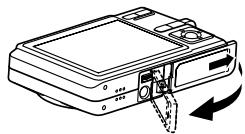
- Load the battery into the camera (page 32).
1

2
3
-
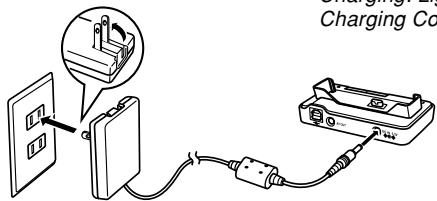
Place the camera onto the USB cradle to charge the battery (page 33).
-
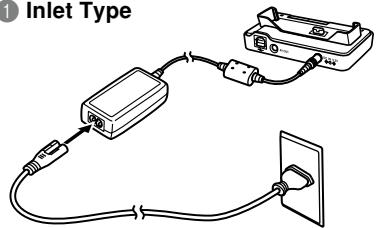
Note that the shape of the AC adaptor depends on the area where you purchased the camera.
It takes about 180 minutes to achieve a full charge.
1 Inlet Type
2
Plug-in Type
[CHARGE] lamp
Charging: Lights red
Charging Complete: Lights green
To configure display language and clock settings
- Be sure to configure the following settings before using the camera to record images. See page 47 for details.
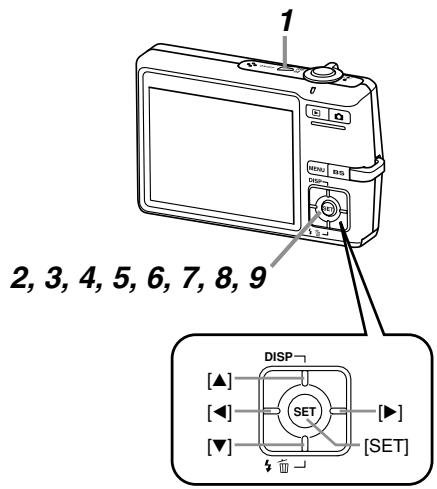
- Press the power button to turn on the camera.
- Use [], [], [] , and [] to select the language you want.
- Press [SET] to register the language setting.
- Use [], [], [] , and [] to select the geographical area you want, and then press [SET].
- Use [] and [] to select the city you want, and then press [SET].
- Use [] and [] to select the summer time (DST) setting you want, and then press [SET].
- Use [] and [] to select the date format setting you want, and then press [SET].
- Set the date and the time.
- Press [SET] to register the clock settings and exit the setting screen.
To record an image
See page 51 for details.
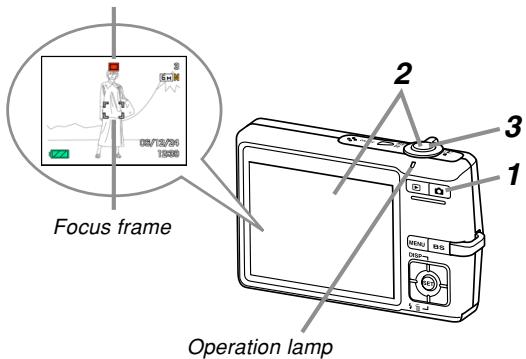
Auto recording icon
Before using a commercially available memory card, be sure to first format it using the camera's formatting procedure. For details about formatting a memory card, see page 172.
-
Press [O] (REC).
-
This enters the REC (recording) mode.
-
Point the camera at the subject, use the monitor screen to compose the image, and then press the shutter button half way.
-
When the camera finishes its Auto Focus operation, the focus frame will turn green and the operation lamp lights green.
-
Holding the camera still, gently press the shutter button all the way down.
To view a recorded image
See page 121 for details.
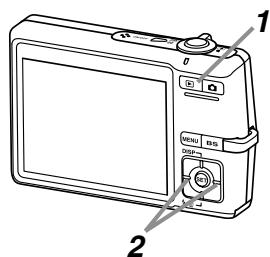
- Press [▶] (PLAY).
- This enters the PLAY (playback) mode.
- Use [<] and [> ] to scroll through the images.
To delete an image
See page 149 for details.
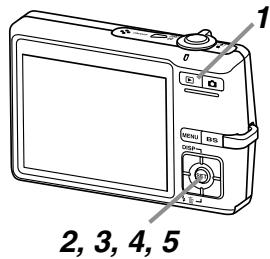
- Press [▶] (PLAY).
- Press [v] (½).
- Use [<] and [> ] to display the image you want to delete.
-
Use [] and [] to select "Delete".
-
To exit the image delete operation without deleting anything, select "Cancel".
-
Press [SET] to delete the image.
GETTING READY
This section contains information about things you need to know about and do before trying to use the camera.
About This Manual
This section contains information about the conventions used in this manual.
Terminology
The following table defines the terminology used in this manual.
| This term as used in this manual: | Means this: |
| “camera” | The CASIO EX-Z600 Digital Camera |
| “file memory” | The location where the camera is currently storing images you record (page 52) |
| “battery” | The NP-40 Rechargeable Lithium Ion Battery |
| “charger” | The optionally available CASIO BC-30L charger |
| This term as used in this manual: | Means this: |
| “digital noise” | Tiny flecks or “snow” in a recorded image or on the monitor screen, which makes the image look grainy. |
■ Button Operations
Button operations are indicated by the button name inside of brackets ([ ]).
On-screen Text
On-screen text is always enclosed by double quotation marks (“”).
Supplementary Information
- IMPORANT! indicates very important information you need to know in order to use the camera correctly.
NOTE indicates information that is useful when operating the camera.
GETTING READY
File Memory
The term "file memory" in this manual is a general term that refers to the location where your camera is currently storing the images you record. File memory can be any one of the following three locations.
The camera's built-in memory
An SD memory card loaded in the camera
- A MultiMediaCard loaded in the camera
For more information about how the camera stores images, see page 199.
General Guide
The following illustrations show the names of each component, button, and switch on the camera.
Camera
Front

1 Zoom controller
2 Shutter button
3 Power button
4 Microphone
5 AF assist light/ self-timer lamp
6 Lens
Flash
Back
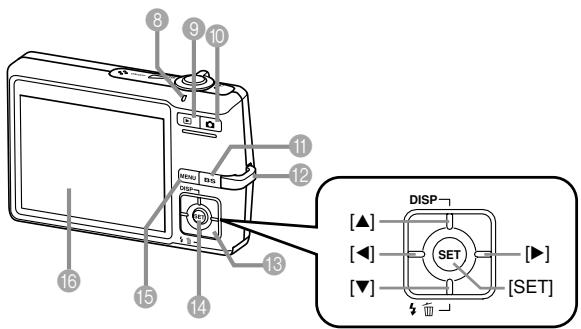
Operation lamp
9 [PLAY mode) button
10 [REC mode) button
[BS] (BEST SHOT) button
12 Strap ring
13 [▲][▼][[▶]
14 [SET] button
15 [MENU] button
16 Monitor Screen
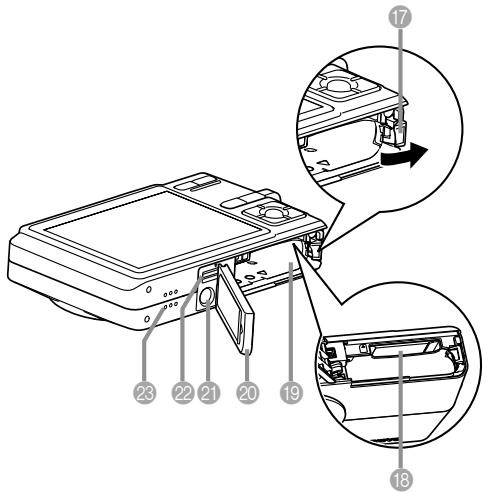
Bottom
17 Stopper
Memory card slot
19 Battery compartment
20 Battery cover
Tripod screw hole
- Use this hole when attaching to a tripod.
22 Connector
Speaker
USB Cradle
Simply placing your CASIO digital camera onto the USB cradle lets you perform the following tasks.
- Battery charging (page 33)
Viewing of images using the Photo Stand slideshow feature (page 141). - TV connectability for viewing of images on a television screen (page 146).
- Direct connection to a printer for printing (page 180)
Automatic transfer of images to a computer (page 186)
IMPORTANT!
- Use only the USB cradle (CA-29) that comes with the camera. Other USB cradles are not supported.
Front
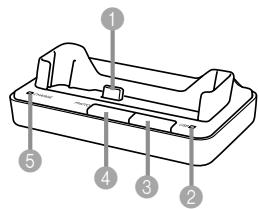
1 Camera connector
2 [USB] lamp
[USB] button
4 [PHOTO] button
[CHARGE] lamp
Back
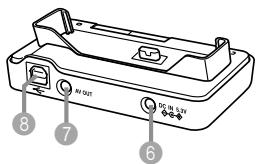
[DC IN 5.3V]
(AC adaptor connector)
[AV OUT]
(AV output port)
8 [-] (USB port)
Monitor Screen Contents
The monitor screen uses various indicators and icons to keep you informed of the camera's status.
- Note that the example screens in this chapter are for illustrative purposes only. They do not exactly match the screen contents actually produced on the camera.
REC Mode
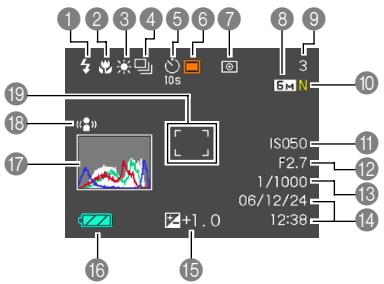
■ Screen Indicators
1 Flash mode indicator (page 62)

Auto Flash

Flash Off

Flash On

Soft Flash

Red-eye reduction
- A appears momentarily when you select Auto Flash as the flash mode, and then disappears.
- If the camera detects that flash is required while auto flash is selected, the flash on indicator will appear when the shutter button is pressed half way.
Focus mode indicator (page 73)

Auto Focus

Macro

Pan Focus

Infinity

Manual Focus
- When you select Auto Focus with Key Customize (page 110), AF appears only briefly, and then disappears from the display.
White balance indicator (page 83)

Auto

Daylight

Cloudy

Shade

Day White

Daylight

Tungsten

Manual
- When you select Auto with Key Customize (page 110), AWE appears only briefly, and then disappears from the display.
4 Continuous Shutter mode (page 86)
None
Single shot

Normal-speed
Continuous Shutter

High-speed
Continuous Shutter

Flash Continuous
Shutter

Self-timer (page 67)
None
1-Image

Self-timer 10 sec

Self-timer 2 sec

Triple self-timer

Recording types

Auto recording

BEST SHOT

Movie
Voice Recording
GETTING READY
7 Metering mode indicator (page 116)
None Multi

Center Weighted
Spot
- Snapshots: Image size (page 70)
9 - Snapshots: Memory capacity (pages 54, 232)
Movies: Remaining recording time (page 102)
10 Snapshots: Image quality (page 71)
F:Fine
N:Normal
E:Economy
Movies: Image quality (page 101)
HQ : High Quality
NORMAL : Normal
LP : Long Play
ISO sensitivity (page 115)
12 Aperture value (page 54)
13 Shutter speed value (page 54)
14 Date and time (page 160)
15 EV value (page 81)
16 Battery capacity (page 37)
17 Histogram (page 107)
13 Anti Shake indicator (page 93)
19 Focus frame
(page 53)
- Focusing complete: Green
- Focusing failed: Red
NOTE
- An out of range aperture, shutter speed, or ISO sensitivity setting causes the corresponding monitor screen value to turn amber.
- Changing the setting of any one of the following functions will cause Icon Help (page 112) text to appear on the monitor screen. You can turn off Icon Help if you want.
Flash mode, Focus mode, White balance, Self-timer, Recording type, EV shift
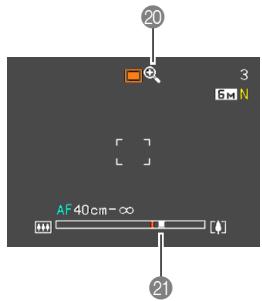

Digital zoom indicator (page 60)

Zoom indicator (page 60)
- Left side indicates optical zoom.
- Right side indicates digital zoom.
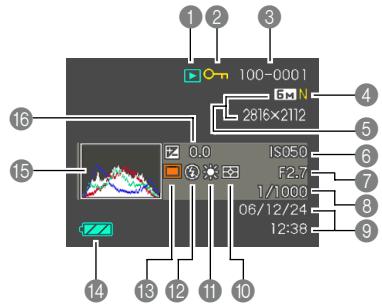
PLAY Mode

PLAY mode file type
Snapshot
Movie
Audio Snapshot
Voice Recording

Image protection indicator (page 152)

Folder name/File name
(page 151)
Example : When a file named
CIMG0023.JPG is stored in a folder named 100CASIO

Folder name File name

- Snapshots: Image quality (page 71)
F:Fine
N:Normal
E: Economy
Movies: Recording time (page 102)
GETTING READY
5 Snapshots: Image Size (page 70)
Movies: Image quality (page 101)
HQ : High Quality
NORMAL : Normal
LP : Long Play
ISO sensitivity (page 115)
7 Aperture value (page 54)
Shutter speed value (page 54)
Date and time (page 160)
10 Metering mode indicator (page 116)

Multi

Center Weighted

Spot
White balance indicator (page 83)

Auto

Daylight

Cloudy

Shade

Day White

Daylight

Tungsten

Manual
12 Flash mode indicator (page 62)

Flash On

Flash Off

Soft Flash

Red-eye reduction
13 Recording types

Auto recording

BEST SHOT
14 Battery capacity (page 37)
15 Histogram (page 107)
16 EV value (page 81)
IMPORTANT!
- Some information may not display properly if you display an image that was recorded using a different digital camera model.
Changing the Contents of the Monitor Screen
Each press of [▲] (DISP) changes the contents of the monitor screen as shown below.
REC Mode
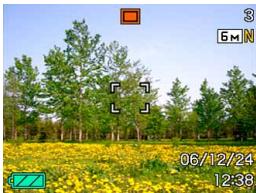
Indicators on

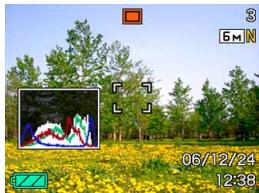
Histogram on
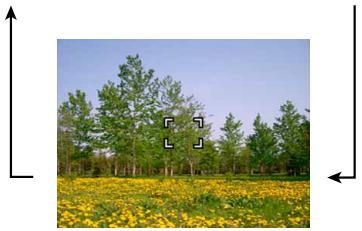
Indicators off
PLAY Mode
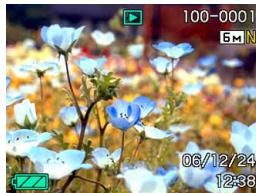
Indicators on

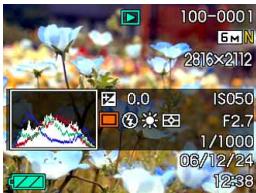
Histogram/Details on
Indicators off
IMPORTANT!
- Pressing [▲] (DISP) will not change monitor screen contents during standby or recording of an audio snapshot.
- You can use [] (DISP) to turn off the monitor screen only when voice recording in the REC mode. You cannot turn off the monitor screen for any other recording function.
- Pressing [▲] (DISP) in the Voice Recording REC mode toggles the monitor screen on ("indicators on") and off. While a Voice Recording file is displayed in the PLAY mode, pressing [▲] (DISP) toggles between "indicators on" and "indicators off".
- When playing back the content of a Voice Recording file while "indicators off" is selected (Voice Recording file icon only on the monitor screen), the monitor screen will go black about two seconds after you press [SET] to start playback. The Voice Recording file icon (indicators off) will reappear after playback is complete.
Attaching the Strap
Attach the strap to the strap ring as shown in the illustration.
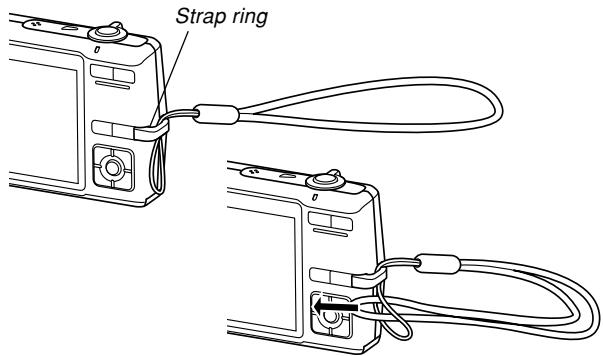
IMPORTANT!
- Be sure to keep the strap around your wrist when using the camera to protect against accidentally dropping it.
- The supplied strap is intended for use with this camera only. Do not use it for any other purpose.
- Never swing the camera around by the strap.
Power Requirements
Your camera is powered by a rechargeable lithium ion battery (NP-40).
Loading the Rechargeable Battery
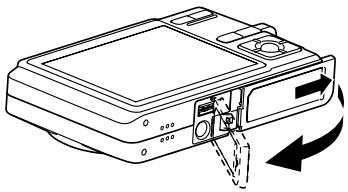
- Slide the battery cover in the direction indicated by the arrow, and then swing it open.
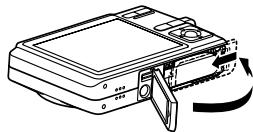
- While pulling the stopper in the direction indicated by the arrow in the illustration, align the arrow mark on the battery with the arrow mark on the camera and slide the battery into the camera.
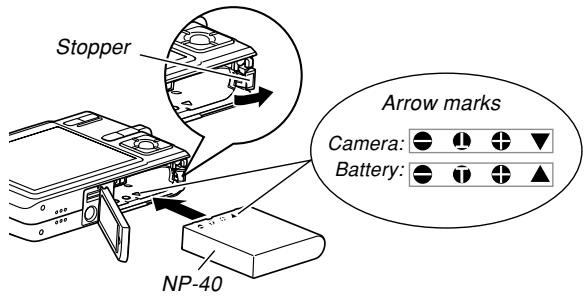
- Push the bottom of the battery, and make sure that the stopper securely locks the battery in place.
GETTING READY
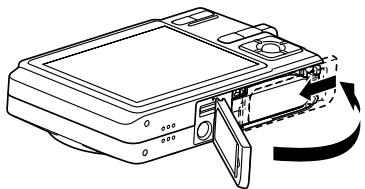
- Swing the battery cover closed, and then slide it in the direction indicated by the arrow.
IMPORTANT!
- Use only the special NP-40 rechargeable lithium ion battery to power this camera. Use of any other type of battery is not supported.
The battery is not fully charged when you use the camera for the first time after purchasing it. You need to charge the battery before using the camera for the first time.
To charge the battery
-
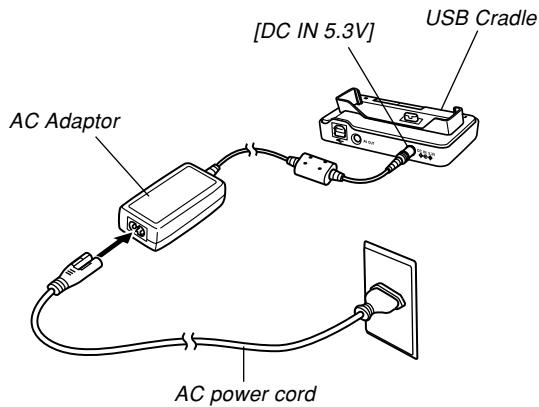
Connect the bundled AC adaptor to the [DC IN 5.3V] connector of the USB cradle, and then plug it in to a household power outlet.
-
Note the shape of the AC adaptor depends on the area where you purchased the camera.
GETTING READY
NOTE
- The bundled AC adaptor is designed for operation with any power supply in the range of 100V to 240V AC. Note, however, that the shape of the AC power cord plug varies according to country or geographic area. If you plan to use the AC adaptor in a geographic area where the power receptacle shape is different from that in your area, replace the AC power cord with one of the other ones that comes with the camera, or purchase a commercially available AC power cord that is compatible with the power outlets in that area.
- Never use the AC adaptor with a voltage converter.
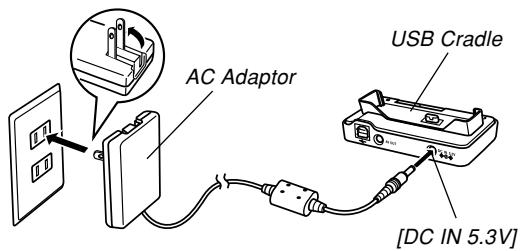
NOTE
- The AC adaptor is designed for operation on power ranging from 100V AC to 240V AC. Note, however, that the shape of the power cord plug varies according to country or geographic area. It is up to you to find out if the shape of the AC adaptor power cord plug is compatible with local power outlets when traveling abroad.
- Never use the AC adaptor with a voltage converter.
2. Turn off the camera.
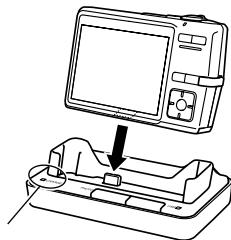
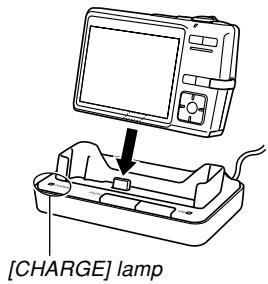
3. With the camera positioned with the monitor screen facing forward as shown in the illustration, place it onto the USB cradle.
- Do not place the camera onto the USB cradle while it is turned on.
GETTING READY
- The [CHARGE] lamp on the USB cradle should turn red, indicating that charging has started. When charging is complete, the [CHARGE] lamp will turn green.
- It takes about 180 minutes to achieve a full charge. Actual charging time depends on current battery capacity and charging conditions.
4. After charging is complete, remove the camera from the USB cradle.
IMPORTANT!
- Use only the USB cradle (CA-29) that comes with the camera or the optionally available charger (BC-30L) to charge the special NP-40 rechargeable lithium ion battery. Never use any other charging device.
- Use only the bundled AC adaptor. Never use any other type of AC adaptor. Do not use optionally available AD-C30, AD-C40, AD-C620 and AD-C630 AC adaptors with this camera.
- Make sure that the camera connector of the USB cradle is securely inserted into the camera's connector as far as it will go.
- The [CHARGE] lamp may remain amber colored and the charge operation may not start right away if you try to charge immediately after using the camera (which causes battery to become warm) or when it is too hot or too cold where you are performing the charge operation. If this happens, simply wait until the battery reaches normal temperature. The [CHARGE] lamp will turn red and charging will start when the battery temperature returns to the allowable charging temperature range.
GETTING READY
- If the [CHARGE] lamp starts flashing red, it means that an error occurs while charging. An error can be caused by any of the following: a problem with the USB cradle, a problem with the camera, or a problem with the battery or how it is loaded. Remove the camera from the USB cradle and see if it works normally.
- The only operations that can be performed while the camera is on the USB cradle are: battery charging, Photo Stand, image output to a TV, and USB data communication.
If the camera does not work normally
This can mean there is a problem with how the battery is loaded. Perform the following steps.
- Remove the battery from the camera and check the battery contacts for dirt. If the contacts are dirty, wipe them clean with a dry cloth.
-
Check to make sure that the AC adaptor's power cord is connected securely to the power outlet and USB cradle.
-
If the same symptoms occur again when you place the camera on the USB cradle after taking the above steps, contact a CASIO authorized service center.
GETTING READY
Low Battery Indicator
The following shows how the battery capacity indicator on the monitor screen changes as battery power is used. The indicator means that remaining battery power is low. Note that you will not be able to record images while the battery indicator is. Charge the battery immediately whenever either of these indicators appears.
| Battery Level | High | ←→ | Low |
| Indicator | → | → |
IMPORTANT!
- Due to differences in the power requirements of each mode, the battery indicator may show a lower level in the PLAY mode than what it shows in the REC mode. This is normal, and does not indicate malfunction.
Tips to Make the Battery Last Longer
- If you do not need the flash while recording, select (flash off) for the flash mode. See page 62 for more information.
- Enable the Auto Power Off and the Sleep features (page 43) to protect against wasting battery power when you forget to turn off the camera.
- Use the "0" monitor screen brightness setting to consume less power (page 165).
To replace the battery
- Open the battery cover.
-
Pull the stopper in the direction indicated by the arrow.
-
This will cause the battery to come part way out of the slot.
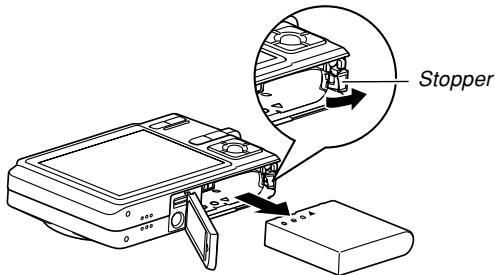
- Release the stopper and pull the battery from the camera.
Take care so you do not drop the battery. - Load a new battery into the camera (page 32).
Power Supply Precautions
Note the following precautions when handling or using the battery and the optional charger.
■ Battery Handling Precautions
SAFETY PRECAUTIONS
Be sure to read the following Safety Precautions before using the battery for the first time.
NOTE
- The term "battery" in this manual refers to the CASIO NP-40 Rechargeable Lithium Ion Battery.
- Use only the USB cradle (CA-29) that comes with the camera or the optionally available charger (BC-30L) to charge the special NP-40 rechargeable lithium ion battery. Never use any other charging device.
GETTING READY
- Failure to observe any of the following precautions while using the battery creates the risk of overheating, fire, and explosion.
- Never use any other type of charger except the optional charger specified for the battery.
- Never try to use the battery to power any device other than this camera.
- Never use or leave the battery near open flame.
- Never place the battery in a microwave oven, throw it into fire, or otherwise expose it to intense heat.
Make sure the battery is oriented correctly when you load it into the camera or attach it to the optional charger. - Never carry or store the battery together with items that can conduct electricity (necklaces, pencil lead, etc.)
- Never try to take the battery apart, modify it in any way, or expose it to strong impact.
- Do not immerse the battery in fresh water or salt water.
-
Do not use or leave the battery under direct sunlight, in an automobile parked in the sun, or in any other area subject to high temperatures.
-
Should you ever notice any of the following conditions while using, charging, or storing a battery, immediately remove it from the camera or charger, and keep it away from open flame:
Fluid leaking
Emission of a strange odor
Heat emission
Battery discoloration
Battery deformation
Any other battery abnormality
- If the battery does not achieve full charge after the normal charging time has passed, stop charging. Continued charging creates the risk of overheating, fire, and explosion.
- Battery fluid can damage your eyes. Should battery fluid get into your eyes accidentally, immediately rinse them with clean tap water and then consult a physician.
- Be sure to read page 33 of this User's Guide and the instructions that come with the optional charger before using or charging the battery.
- If the battery is to be used by young children, make sure that a responsible adult makes them aware of the precautions and proper handling instructions and make sure that they handle the battery correctly.
- Should fluid from the battery accidentally get onto clothing or your skin, immediately rinse it off with clean tap water. Prolonged contact with battery fluid can cause skin irritation.
GETTING READY
PRECAUTIONS DURING USE
- The battery is designed for use with this CASIO digital camera only.
- Use only the USB cradle that comes with the camera or the specified optional charger to charge the battery. Never use any other type of charger for charging.
- Use of a battery in cold environments shortens the operating time you can expect on a full charge. Charge the battery in a location where the temperature is in the range of 10^ to 35^ ( 50^ to 95^ ). Charging outside this temperature range can cause charging to take longer than normal or even cause charging to fail.
- Very limited operation following a full charge indicates that the battery has reached the end of its service life. Replace the battery with a new one.
- Never wipe the battery with thinner, benzene, alcohol, or other volatile agents or chemically treated rags. Doing so can cause deformation of the battery and lead to malfunction.
BATTERY STORAGE PRECAUTIONS
- Make sure you remove the battery from the camera when you do not plan to use it for a long time. A battery left in the camera discharges very small amounts of power even when power is turned off, which can lead to a dead battery or the need for longer charging before the next use.
- Store the battery in a cool, dry place (20^ (68^) or lower).
USING THE BATTERY
- See page 33 of this manual or the instructions that come with the optional charger for information about charging procedures and charging times.
- When transporting a battery, keep it either loaded in the camera or stored in its case.
USB Cradle and AC Adaptor Precautions

Caution!
- Never use an electrical outlet whose voltage is outside the rating marked on the AC adaptor. Doing so can create the risk of fire or electric shock. Use only the AC adaptor bundled with this camera.
- Do not allow the AC adaptor cord to become cut or damaged, do not place heavy objects on it, and keep it away from heat. A damaged power cord creates the risk of fire and electric shock.
- Never try to modify the AC adaptor cord, or subject it to severe bending, twisting, or pulling. Doing so creates the risk of fire and electric shock.
- Never touch the AC adaptor while your hands are wet. Doing so creates the risk of electric shock.
- Do not overload extension cords or wall outlets. Doing so creates the risk of fire and electric shock.
- Should the cord of the AC adaptor become damaged (exposed internal wiring), contact your dealer or nearest CASIO authorized service center. A damaged AC adaptor cord creates the risk of fire or electric shock.

Caution!
- Use the AC adaptor where it will not be splashed with water. Water creates the risk of fire and electric shock.
-
Do not place a vase or any other container filled with liquid on top of the AC adaptor. Water creates the risk of fire and electric shock.
-
Make sure you always remove the camera from the USB cradle before connecting or disconnecting the AC adaptor.
- Charging, USB data communication, and using the Photo Stand feature can cause the AC adaptor to become warm. This is normal and does not indicate malfunction.
- Unplug the AC power cord from the power outlet whenever you are not using it.
- Never place a blanket or any other cover on the AC adaptor. Doing so creates the risk of fire.
Turning the Camera On and Off
To turn on the camera
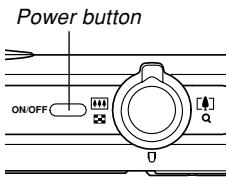
Press the power button, [REC] or [PLAY]. The operation lamp will light green momentarily, and then power will turn on. The mode the camera enters depends on which button you pressed to turn it on.
| To enter this mode at startup: | Press this button to turn on the camera: |
| REC | Power button or [REC] (REC) |
| PLAY | [PLAY] (PLAY) |
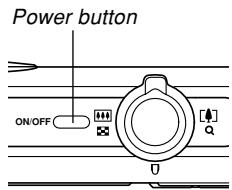
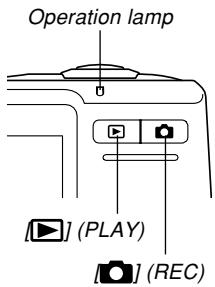
NOTE
- Pressing [REC] to turn on the camera enters the REC mode, while pressing [PLAY] enters the PLAY mode.
- Pressing [PLAY] while in the REC mode switches to the PLAY mode. The lens retracts about 10 seconds after switching modes.
IMPORTANT!
- If camera power is turned off by the Auto Power Off feature, press the power button, [O] (REC) or [D] (PLAY) to turn it back on again.
- Pressing the power button or [REC] to turn on the camera also causes the lens to extend. Take care to avoid any interference with the lens operation or allowing anything to strike the lens when it is extended.
To turn off the camera
Press the power button to turn off the camera.
NOTE
- You can setup the camera so it does not turn on when you press [O] (REC) or [D] (PLAY), or to turn off when you press [O] (REC) or [D] (PLAY). For details, see "Configuring [O] (REC) and [D] (PLAY) Power On/Off Functions" on page 167.
Configuring Power Saving Settings
You can configure the settings described below to conserve battery power.
Sleep
: Automatically turns off the monitor screen if no operation is performed for a specified amount of time in the REC mode. Performing any button operation causes the monitor screen to turn back on.
Auto Power Off : Turns off power if you do not perform any operation for a specified amount of time.
- Turn on the camera.
- Press [MENU].
- Use [] and [] to select the "Set Up" tab.
- Use [] and [] to select the feature whose setting you want to configure, and then press [] .
GETTING READY
See "Using the On-screen Menus" (page 45) for information about how to use menus.
| To configure this feature: | Select this setting: |
| Sleep | Sleep |
| Auto Power Off | Auto Power Off |
-
Use [] and [] to change the currently selected setting, and then press [SET].
-
Available Sleep settings are: "30 sec", "1 min", "2 min", and "Off".
- Available Auto Power Off settings are: "2 min" and "5 min".
- Note that the Sleep feature does not operate in the PLAY mode.
-
Pressing any button while the camera is in the Sleep state immediately turns the monitor screen back on.
-
The Auto Power Off and Sleep features are disabled in the following cases.
-
When the camera is connected to a computer or some other device through the USB cradle
While a slideshow is in progress
While playing back a voice recording file
While a movie is being recorded
While playing back a movie
NOTE
- You also can conserve battery power by selecting "0" for the monitor screen brightness setting (page 165).
Using the On-screen Menus
Pressing [MENU] displays menus on the monitor screen that you can use to perform various operations. The menu that appears depends on whether you are in the REC mode or the PLAY mode. The following shows an example menu procedure in the REC mode.
-
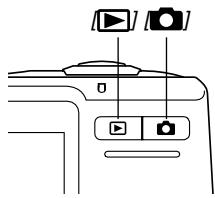
Press the power button or [O] (REC).
-
If you want to enter the PLAY mode instead, press [▶] (PLAY).
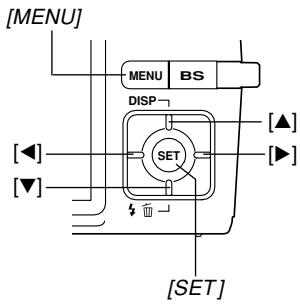
- Press [MENU].
Selection cursor (indicates the currently selected item)
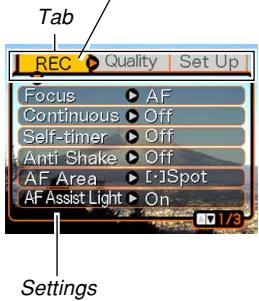
- Menu Screen Operations
| When you want to do this: | Do this: |
| Move between tabs | Press [▲] and [▶]. |
| Move from the tab to the settings | Press [▼]. |
| Move from the settings to the tab | Press [▲]. |
| Move between the settings | Press [▲] and [▼]. |
| Display the options available for a setting | Press [▶] or press [SET]. |
| Select an option | Press [▲] and [▼]. |
| Apply the setting and exit the menu screen | Press [SET]. |
| Apply the setting and return to tab selection | Press [▲]. |
| Exit the menu screen | Press [MENU]. |
-
Press [<] or [▶] to select the tab you want, and then press [SET] to move the selection cursor from the tab to the settings.
-
Use [▲] and [▼] to select the feature whose setting you want to configure, and then press [▶].
Instead of pressing [▶], you could also press [SET].
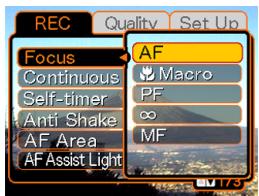
Example: To select the
"Focus" item.
- Use [] and [] to change the currently selected setting.
GETTING READY
6. Perform one of the following operations to apply the setting you configured.
| To do this: | Perform this key operation: |
| Apply the setting and exit the menu screen. | Press [SET]. |
| Apply the setting and return to feature selection in step 4. | Press [▲]. |
| Apply the setting and return to tab selection in step 3. | 1. Press [▲]. 2. Use [▲] to move back up to tab selection. |
- See "Menu Reference" on page 218 for more information about menus.
Configuring Display Language and Clock Settings
Be sure to configure the following settings before using the camera to record images.
- Display language
Home city - Date Style
- Date and time
Note that the current date and time settings are used by the camera to generate the date and time that are stored along with image data, etc.
IMPORTANT!
- Recording images without configuring the clock settings causes incorrect time information to be registered. Be sure to configure the clock settings before using the camera.
GETTING READY
- A built-in backup battery retains the date and time settings of the camera for about 30 hours if the camera is not supplied with power. Date and time settings will be cleared when the backup battery goes dead. The following are the conditions when power is not being supplied to the camera.
- When the rechargeable battery is dead or removed from the camera
- When power is not being supplied to the camera from the USB cradle while the rechargeable battery is dead or removed from the camera
- The date and time setting screen will appear on the monitor screen the next time you turn on the camera after the date and time settings have been cleared. If this happens, reconfigure the date and time settings.
- If you make a mistake when setting the language or clock with the following procedure, you will need to use the camera's menu to individually change the language (page 164) or clock (page 160) settings.
- Even if you configure date and time settings, the date and time are not stamped into the images themselves. Note, however, that you can specify inclusion of the date inside of an image when printing (page 184).
To configure display language and clock settings
- Press the power button, [O] (REC) or [▶] (PLAY) to turn on the camera.
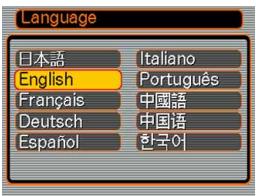
- Use [], [], [] , and [] to select the language you want, and then press [SET].
日本語 :Japanese
English : English
François : French
Deutsch : German
Espanol : Spanish
Italiano : Italian
Portugues: Portuguese
中国语 : Chinese (Simplified)
Korean
GETTING READY
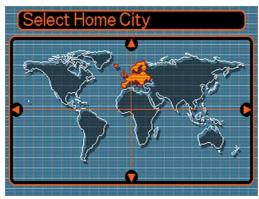
- Use [▲], [▼], [▲], and [▶] to select the geographical area where you live, and then press [SET].
- Use [▲] and [▼] to select the name of the city where you live, and then press [SET].
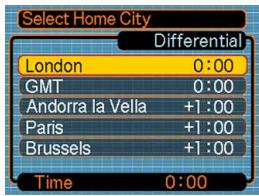
- Use [] and [] to select the summer time (DST) setting you want, and then press [SET].
| When you want to do this: | Select this setting: |
| Keep time using summer time (Daylight Saving Time) | On |
| Keep time using standard time | Off |
- Use [▲] and [▼] to select the date format setting you want, and then press [SET].
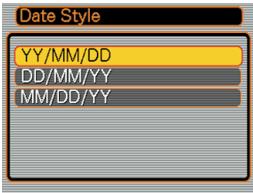
Example: December 24, 2006
| To display the date like this: | Select this format: |
| 06/12/24 | YY/MM/DD |
| 24/12/06 | DD/MM/YY |
| 12/24/06 | MM/DD/YY |
GETTING READY
7. Set the current date and the time.
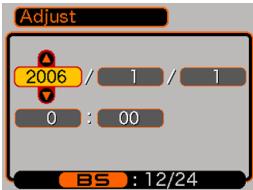
| To do this: | Do this: |
| Change the setting at the current cursor location | Press [▲] and [▼]. |
| Move the cursor between settings | Press [▲] and [▼]. |
| Toggle between 12-hour and 24-hour timekeeping | Press [BS]. |
8. Press [SET] to register the settings and exit the setting screen.
BASIC IMAGE RECORDING
This section describes the basic procedure for recording an image.
Recording an Image
Aiming the Camera
Use both hands to hold the camera still when shooting an image. Holding the camera with one hand increases the chance of movement, which can blur your images.
Horizontal
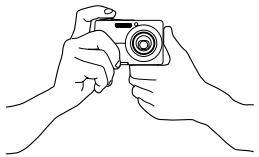
Hold the camera still in both hands, with your arms firmly against your sides.
Vertical
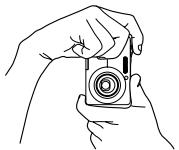
When holding the camera vertically, make sure that the flash is above the lens. Hold the camera still with both hands.
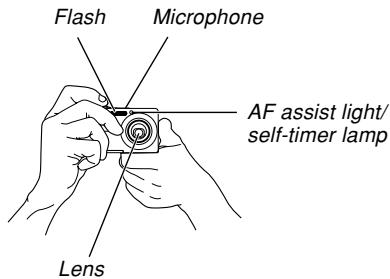
IMPORTANT!
- Make sure your fingers and the strap do not block the flash, microphone, AF assist light/self-timer lamp or lens.
BASIC IMAGE RECORDING
- There is a speaker on the bottom of the camera. The operation sound and other sounds can become difficult to hear if you cover the speaker with your hand while holding it.
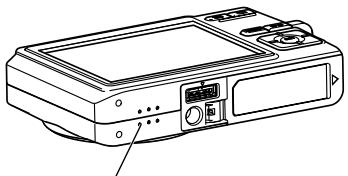
Speaker
NOTE
- Moving the camera as you press the shutter button or while the Auto Focus operation is being performed (when you press the shutter button half way) can cause blurring of the image. Press the shutter button carefully, taking care to avoid camera movement. This is especially important when available lighting is low, which slows down the shutter speed.
Recording an Image
Your camera automatically adjusts shutter speed in accordance with the brightness of the subject. Images you record are stored in the camera's built-in memory, or to a memory card if you have one loaded in the camera.
- When an optionally available SD memory card or MultiMediaCard (MMC) is loaded in the camera, images are stored on the card (page 169).
After purchasing a memory card, be sure to load it into the camera and format it before trying to use it (page 172).
1. Press the power button or [REC] to turn on the camera.
![CASIO EXILIM EX-Z600 - Press the power button or [REC] to turn on the camera. - 1](/content/2025/01/86756/images/f41cef38b114c476d6a6a054fe890852afa86ed517330ede0bf57b302d49abdd.jpg)
![CASIO EXILIM EX-Z600 - Press the power button or [REC] to turn on the camera. - 2](/content/2025/01/86756/images/fd38fbb355fc8d08f0178322056cdd7559f9ed88b03c6930ae5f33047b26ebad.jpg)
- This causes the image and the auto recording icon (回) to appear on the monitor screen, and then enters the currently selected recording mode. If the auto recording icon (回) is not displayed, use the procedure on page 88 to select the "Auto" scene. This should cause the auto recording icon to appear.
- If the camera is in the PLAY mode when it turns on, the message "There are no files." will appear if you do not have any images stored in memory yet. In addition, the icon will be visible at the top of the display. If this happens, press [REC] to enter the currently selected recording mode.
2. Compose the image on the monitor screen so the main subject is within the focus frame.
- The focusing range of the camera depends on focus mode you are using (page 73).
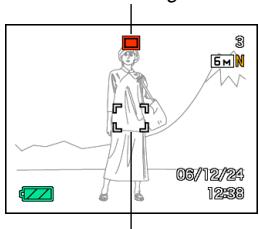
Auto recording icon
Focus frame
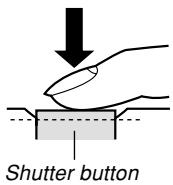
3. Press the shutter button half way to focus the image.
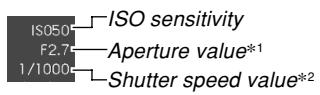
- When you press the shutter button half way, the camera's Auto Focus feature automatically focuses the image, and displays the shutter speed value, the aperture value, and the ISO sensitivity.
- You can tell whether the image is focused by observing the focus frame and the operation lamp.
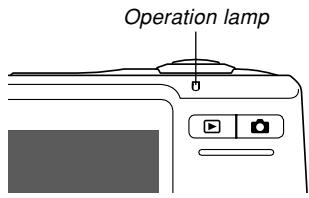
Operation Lamp and Focus Frame Operation
| When you see this: | It means this: |
| Green focus frame Green operation lamp | The image is in focus. |
| Red focus frame Flashing green operation lamp | The image is not in focus. |
- The monitor screen uses various indicators and icons to keep you informed of the camera's status.
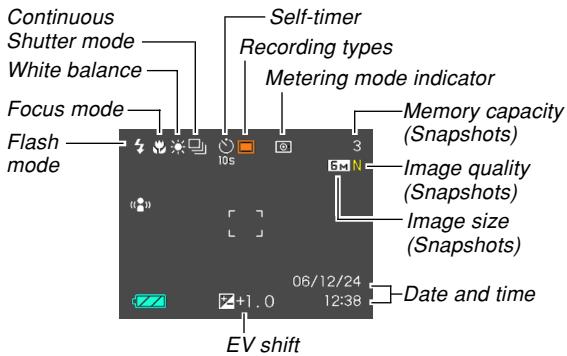
BASIC IMAGE RECORDING
1 The size of the opening (aperture) that allows light passing through the lens to reach the CCD. A larger aperture value indicates a smaller opening for light to pass through. The camera adjusts this setting automatically.
2 The amount of time the shutter remains open, allowing light passing through the lens to reach the CCD. A larger shutter speed value indicates that the shutter remains open longer, which means more light reaches the CCD. The camera adjusts this setting automatically.
-
After making sure that the image is focused properly, press the shutter button the rest of the way down to record.
-
The number of images you can record depends on the image size and the image quality setting you are using (pages 70, 71, 232).
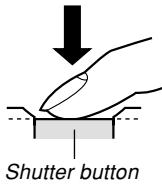
IMPORTANT!
- When the "REC" tab's "Quick Shutter" setting is turned on (page 75), the camera immediately records the image without waiting for Auto Focus to be performed when you press the shutter release all the way down without pausing. This helps to ensure that you are able to capture exactly the moment you want.
About AF Assist Light
The AF assist light/self-timer lamp operates automatically to assist the Auto Focus operation whenever you are shooting where lighting is dim.
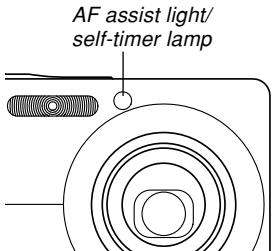
BASIC IMAGE RECORDING
You can turn the AF assist light on or off. It is recommended that you turn off the AF assist light when recording images of nearby people, etc.
- In the REC mode, press [MENU].
- Use [] and [] to select the "REC" tab.
- Use [] and [] to select "AF Assist Light", and then press [] .
- Use [] and [] to select the setting you want, and then press [SET].
| To do this: | Select this setting: |
| Turn on the AF assist light | On |
| Turn off the AF assist light | Off |
IMPORTANT!
- Do not look directly at the AF assist light/self-timer lamp or point it directly at the subject's eyes.
■ Recording Precautions
- Never open the battery cover or place the camera onto the USB cradle while the operation lamp is flashing green. Doing so not only causes the current image to be lost, it can also corrupt images already stored in file memory and even lead to malfunction of the camera.
- Never remove the memory card while an image is being recorded to the memory card.
- Fluorescent lighting actually flickers at a frequency that cannot be detected by the human eye. When using the camera indoors under such lighting, you may experience some brightness or color problems with recorded images.
- When "Auto" is selected for the ISO sensitivity setting (page 115), the camera automatically adjusts its sensitivity in accordance with the brightness of the subject. This can cause some digital noise (graininess) to appear in images of relatively dark subjects.
BASIC IMAGE RECORDING
- When recording a dimly lit subject while "Auto" is selected for the ISO sensitivity setting (page 115), the camera increases sensitivity and uses a faster shutter speed. Because of this, you need to guard against camera movement if you have flash turned off (page 62).
- Bright light shining on the lens can cause images to appear "washed out". This tends to happen when recording images outdoors in bright sunlight. To protect against this, use your free hand to shade the lens from the light.
About Auto Focus
- Proper focus may be difficult or even impossible when shooting the following types of subjects.
Solid color walls or subjects with little contrast
Strongly backlit subjects
— Very shiny objects
— Venetian blinds or other horizontally repeating patterns - Multiple subjects that are varying distances from the camera
- Subjects in poorly lit areas
- Moving subjects
- Subjects outside the shooting range of the camera
- Proper focus may also be difficult or impossible if the camera is moving.
- Note that a green operation lamp and focus frame do not necessarily guarantee that the resulting image will be in focus.
- If Auto Focus does not produce the results you want for some reason, try using focus lock (page 80) or manual focus (page 79).
■ About the REC Mode Monitor Screen
- The image shown on the monitor screen in the REC mode is a simplified image for composing purposes. The actual image is recorded in accordance with the image quality setting currently selected on your camera. The image saved in file memory has much better resolution and detail than the REC mode monitor screen image.
- Certain levels of subject brightness can cause the response of the REC mode monitor screen to slow down, which causes some digital noise (graininess) in the monitor screen image.
- Very bright light inside of an image can cause a vertical band to appear in the monitor screen image. This is a CCD phenomenon known as "vertical smear", and does not indicate malfunction of the camera. Note that vertical smear is not recorded with the image in the case of a snapshot, but it is recorded in the case of a movie (page 100).
Using Zoom
Your camera is equipped with two types of zoom: optical zoom and digital zoom. Normally, the camera automatically switches over to digital zoom after you reach the maximum limit for optical zoom. You can, however, configure the camera to disable digital zoom, if you want.
Optical Zoom
The optical zoom range is 1X to 3X.
1. In the REC mode, move the zoom controller left or right to zoom.
- Moving the zoom controller as far as it goes in either direction will zoom at high speed.
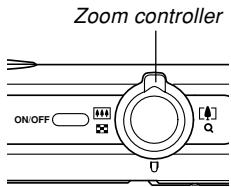
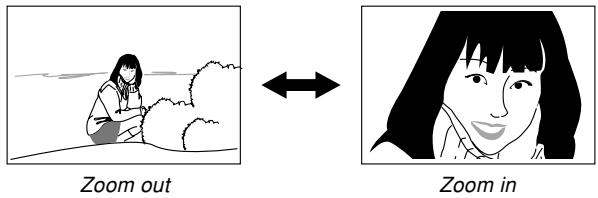
| To do this: | Move the zoom controller in this direction: |
| Zoom out for a wider view (main subject becomes smaller) | Wide Angle |
| Zoom in for a closer view (main subject becomes larger) | Telephoto |
- Compose the image, and then press the shutter button.
NOTE
- The optical zoom factor also affects the lens aperture.
- Use of a tripod is recommended to protect against hand movement when using the telephoto setting (zoom in).
- Whenever you perform an optical zoom operation while recording with the Auto Focus mode, Macro mode or manual focus, a value will appear on the monitor screen to tell you the focusing range (pages 75, 77, 80).
- Optical zoom is disabled during movie recording. Digital zoom only is available. Make sure you select the optical zoom setting you want to use before you press the shutter button to start movie recording (page 100).
Digital Zoom
Digital zoom digitally enlarges the part of the image at the center of the image screen. The range of digital zoom is 3X to 12X (in combination with optical zoom).
IMPORTANT!
- When you perform a digital zoom operation, the camera manipulates the image data to enlarge the center of the image. Unlike optical zoom, an image enlarged with digital zoom appears coarser than the original.
To record an image using digital zoom
-
In the REC mode, hold the zoom controller towards [4] (telephoto) side.
-
This causes the zoom indicator to appear on the display.
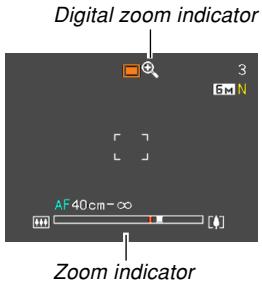
- When the zoom pointer reaches the optical/ digital zoom switch over point, it will stop.
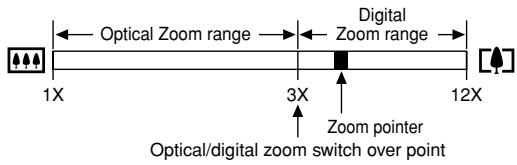
- The above shows what the zoom indicator looks like when digital zoom is turned on (page 61). The digital zoom range is not displayed when digital zoom is turned off.
BASIC IMAGE RECORDING
-
Release the zoom controller momentarily, and then slide it towards [4] (telephoto) side again to move the zoom pointer into the digital zoom range.
-
The zoom pointer will also stop when you move the pointer back to the switch over point to re-enter the optical zoom range. Release the zoom controller and then slide it towards 444 (wide angle) side again to move into the optical zoom range.
- Compose the image, and then press the shutter button.
To turn digital zoom on and off
- In the REC mode, press [MENU].
- Use [] and [] to select the "REC" tab.
- Use [] and [] to select "Digital Zoom", and then press [] .
- Use [] and [] to select the setting you want, and then press [SET].
| To do this: | Select this setting: |
| Turn on digital zoom | On |
| Turn off digital zoom | Off |
- Only the optical zoom range is displayed in the zoom indicator when digital zoom is turned off.
Using the Flash
Perform the following steps to select the flash mode you want to use.
- The approximate effective range of the flash is shown below.
Wide Angle Optical Zoom:
Approximately 0.15 to 2.8 meters
(0.5^ to 9.2^ ) (ISO Sensitivity: Auto)
Telephoto Optical Zoom:
Approximately 0.4 to 1.4 meters
(1.3' to 4.6') (ISO Sensitivity: Auto)
-
Depends on zoom factor.
-
In the REC mode, press [▼] (血).
Each press of [▼] (◇) cycles through the flash mode settings described below on the monitor screen.
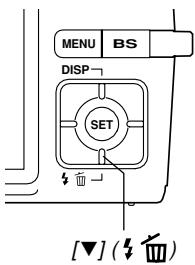
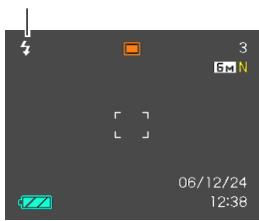
Flash mode indicator
| To do this: | Select this setting: |
| Have the flash fire automatically when required (Auto Flash)* | #A |
| Turn off the flash (Flash Off) | # |
| Always fire the flash (Flash On) | # |
| Always use soft flash, regardless of exposure conditions (Soft Flash) | #soft |
| Fire a pre-flash followed by image recording with flash, reducing the chance of red-eye in the image (Red-eye reduction)In this case, the flash fires automatically when required | # |
-
A appears momentarily when you select Auto as the flash mode, and then disappears.
-
Press the shutter button to record the image.
IMPORTANT!
- The flash unit of this camera fires a number of times when you record an image. The initial flashes are pre-flashes, which the camera uses to obtain information that it uses for exposure settings. The final flash is for recording. Make sure that you keep the camera still until the shutter releases.
- Using the flash while "Auto" is selected for the ISO Sensitivity setting increases sensitivity, which can cause large amounts of digital noise to appear in the image. You can reduce digital noise by using a lower ISO Sensitivity setting. Note, however, that this also has the effect of shortening the flash range (the range that is covered by the light from the flash) (page 115).
■ Flash On
Select (Flash On) as the flash mode when backlighting causes your subject to appear dark, even though there is enough light to keep the flash from firing automatically. This will cause the flash to fire and illuminate your subject whenever you press the shutter button (daylight synchro flash).
Soft Flash
Select (Soft Flash) as the flash mode to suppress flash intensity and shoot with a soft feel.
About Red-eye Reduction
Using the flash to record at night or in a dimly lit room can cause red spots inside the eyes of people who are in the image. This happens because the light from the flash reflects off of the retina of the eye.
IMPORTANT!
Note the following important points when using redeye reduction.
- Red-eye reduction does not work unless the people in the image are looking directly at the camera during the pre-flash. Before pressing the shutter button, call out to the subjects so they all look at the camera while the pre-flash operation is performed.
Red-eye reduction may not work very well if the subjects are located far away from the camera.
Flash Unit Status
You can find out the current flash unit status by pressing the shutter button half way and checking the monitor screen and operation lamp.
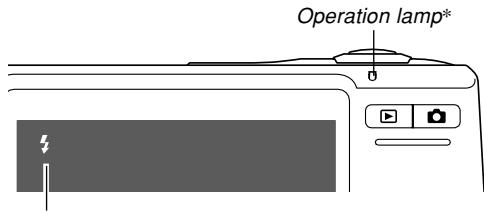
The indicator is also shown on the monitor screen when the flash unit is ready to fire.
- Operation lamp
| When the operation lamp is this: | It means this: |
| Flashing amber | Flash unit is charging |
| Lit or flashing green *1 | Flash unit is ready to fire |
*1 Flashes green when the image is not focused while using the Auto Focus mode or Macro mode.
Changing the Flash Intensity Setting
Perform the following steps to change the flash intensity setting.
- In the REC mode, press [MENU].
- Use [] and [] to select the "Quality" tab.
- Use [] and [] to select "Flash Intensity", and then press [] .
- Use [] and [] to select the setting you want, and then press [SET].
| To make flash intensity: | Select this setting: |
| Stronger | +2 |
| ↑ | +1 |
| Normal | 0 |
| ↓ | -1 |
| Weaker | -2 |
IMPORTANT!
- Flash intensity may not change if the subject is too far or too close to the camera.
Using Flash Assist
Recording a subject that is outside the flash range can cause the subject to appear dark in the resulting image, because not enough of the flash reaches the subject. When this happens, you can use flash assist to correct the brightness of the recorded subject, so it appears as if the flash illumination was sufficient.
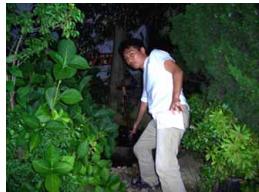
Flash assist used
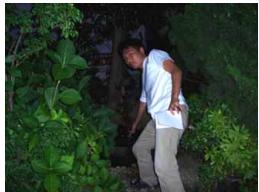
Flash assist not used
- In the REC mode, press [MENU].
- Use [] and [] to select the "Quality" tab.
- Use [] and [] to select "Flash Assist", and then press [] .
4. Use [] and [] to select the setting you want, and then press [SET].
| To do this: | Select this setting: |
| Turn on flash assist | Auto |
| Turn off flash assist | Off |
IMPORTANT!
- Flash assist may not produce the desired result for some types of subjects.
- Flash assist may have little effect on your image if you changed any of the following settings when you recorded it.
— Flash intensity (page 65)
— Exposure compensation (EV shift) (page 81)
ISO sensitivity (page 115)
- Contrast (page 119)
- Using flash assist can cause an increase of digital noise in recorded images.
■ Flash Precautions
Take care that your fingers do not block the flash when you hold the camera.
Covering the flash with your finger can greatly reduce its effectiveness.
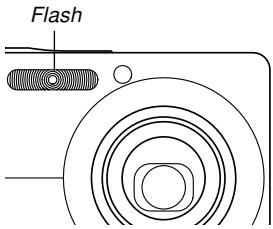
- You may not be able to achieve the desired results using the flash if the subject is too close or too far away.
- The flash takes anywhere from a few seconds to as long as 5 seconds to attain full charge after being fired. The actual time required depends on the battery level, temperature, and other conditions.
- The flash unit may not be able to charge when camera battery power is low. If this happens, the flash will not fire properly and you will not be able to obtain the desired exposure. Be sure to charge the camera's battery as soon as possible when power goes low.
BASIC IMAGE RECORDING
- When the flash is turned off ( ), mount the camera on a tripod to record images in an area where available lighting is dim. Recording images under dim lighting without the flash can cause digital noise, which makes images appear coarse.
- When red-eye reduction (O) is selected, flash intensity is adjusted automatically in accordance with the exposure. The flash may not fire at all when the subject is brightly lit.
- Using flash in combination with another light source (daylight, fluorescent light, etc.) can result in abnormal image colors.
Using the Self-timer
The self-timer lets you select either a 2-second or 10-second delay of the shutter release after you press the shutter button. A Triple Self-timer feature lets you perform three consecutive self-timer operations to record three images.
- In the REC mode, press [MENU].
- Use [] and [] to select the "REC" tab.
- Use [] and [] to select "Self-timer", and then press [] .
-
Use [] and [] to select the self-timer type you want to use, and then press [SET].
-
Selecting "Off" in step 4 disables the self-timer.
BASIC IMAGE RECORDING
| To do this: | Select this setting: |
| Specify a 10-second self-timer | 10 sec |
| Specify a 2-second self-timer | 2 sec |
| Specify Triple Self-timer | X3 |
| Disable the self-timer | Off |
- This causes an indicator identifying the selected self-timer type to appear on the monitor screen.
- With the Triple Self-timer, the camera records a series of three images in the sequence described below.
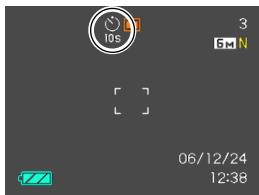
- The camera performs a 10-second countdown and then records the first image.
- The camera prepares to record the next image. The amount of time required for preparation depends on the camera's current "Size" and "Quality" settings, the type of memory (built-in or card) you are using for image storage, and whether or not the flash is charging.
- After preparation is complete, the indicator "1sec" appears on the monitor screen, and another image is recorded one second later.
- Steps 2 and 3 are repeated once more to record the third image.
5. Press the shutter button to record the image.
- When you press the shutter button, the AF assist light/self-timer lamp flashes and the shutter releases after the self-timer reaches the end of its countdown (about 10 seconds or two seconds).
- You can interrupt an ongoing self-timer countdown by pressing the shutter button while the AF assist light/self-timer lamp is flashing.
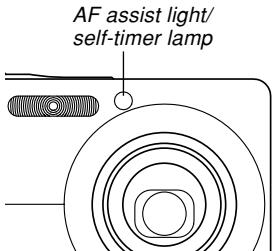
NOTE
- The "2 sec" self-timer setting is best when shooting with a slow shutter speed, because it helps to avoid blurring of images due to hand movement.
- The following functions are not available for use in combination with the Triple Self-timer. BEST SHOT recording ("Business Cards and Documents", "Whiteboard, etc.", "Old Photo"), movie recording functions
Specifying Image Size
"Image size" is the size of the image, expressed as the number of vertical and horizontal pixels. A "pixel" is one of the many tiny dots that make up the image. More pixels provide finer detail when an image is printed, but a higher pixel count also causes the image's file size to be larger. You can select an image size to suit your needs for greater detail or smaller file size.
-
Note that this setting is valid for snapshots only. For information about movie image size, see page 100.
-
In the REC mode, press [MENU].
- Use [] and [] to select the "Quality" tab.
- Use [] and [] to select "Size", and then press [] .
4. Use [] and [] to select the setting you want, and then press [SET].
- When selecting the image size, the image size value (pixels) will alternate on the display with a corresponding print size. The print size indicates the optimum paper size when you print an image that is the image size you select.
| Image Size | Print Size | ||
| 6M* | 2816 × 2112 | A3 Print | Larger Smaller |
| 6M (3:2) | 2816 × 1872 (3:2) | A3 Print (3:2 horizontal-to-vertical ratio) | |
| 4M | 2304 × 1728 | A4 Print | |
| 3M | 2048 × 1536 | A4 Print | |
| 2M | 1600 × 1200 | 3.5" × 5" Print | |
| VGA | 640 × 480 | E-mail (optimum size when attaching image to e-mail) | |
- "M" stands for "Mega."
BASIC IMAGE RECORDING
- The above print sizes are all approximate values when printing at a resolution of 200 dpi (dots per inch). Use a larger setting when you want to print at a higher resolution or when you plan to produce a larger size print.
- In order to obtain the level of resolution for which your camera is designed, recording at a maximum image size (6M) is recommended. Use a smaller image size when you want to conserve memory capacity.
- Selecting the 2816 × 1872 (3:2) image size records images with a 3:2 (horizontal:vertical) aspect ratio, which is optimal for printing on photographic paper with an aspect ratio of 3:2.
Specifying Image Quality
Compressing an image before storage can cause a deterioration of its quality. The more an image is compressed, the greater the loss of quality. The image quality setting specifies the compression ratio to be used when an image is stored in memory. You can select an image quality setting to suit your needs for higher quality or smaller file size.
-
Note that this setting is valid for snapshots only. For information about movie image quality, see page 100.
-
In the REC mode, press [MENU].
- Use [] and [] to select the "Quality" tab.
- Use [] and [] to select “ Quality”, and then press [] .
- Use [] and [] to select the setting you want, and then press [SET].
BASIC IMAGE RECORDING
| To get this: | Select this setting: | |
| High image quality, large file size | Fine | Higher Quality ↓ Lower Quality |
| Normal image quality and normal file size | Normal | |
| Low image quality, small file size | Economy | |
IMPORTANT!
- Actual file size depends on the type of image you record. This means that the remaining image capacity noted on the monitor screen may not be exactly accurate (pages 27, 232).
OTHER RECORDING FUNCTIONS
Selecting the Focus Mode
You can select one of five different focus modes: Auto Focus, Macro, Pan Focus, Infinity, and Manual Focus.
- In the REC mode, press [MENU].
- Select the "REC" tab, select "Focus", and then press [▶].
- Use [] and [] to select the setting you want, and then press [SET].
| To do this: | Select this setting: |
| Adjusts focus automatically • Auto Focus cannot be selected during movie recording. | AF (Auto Focus) |
| Close-up recording • During movie recording, Macro mode uses fixed focus that is optimized for macro recording. | Macro (Close-up) |
| Focus adjusted on a certain subject distance | PF (Pan Focus) |
| Infinity recording | ∞ (Infinity) |
| Manual focus recording | MF (Manual Focus) |
- The exposure compensation value is displayed on the monitor screen.
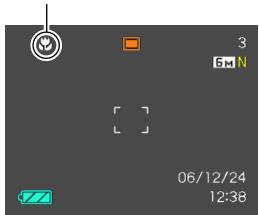
Focus mode indicator
IMPORTANT!
- You can use the key customization feature (page 110) to switch the focus mode whenever you press [▲] or [▶] while recording a snapshot or movie.
Using Auto Focus
As its name suggests, Auto Focus focuses the image automatically. The automatic focus operation starts when you press the shutter button down half way. The following is the Auto Focus range.
Range: 40cm to (1.3' to )
-
Using optical zoom causes the above range to change.
-
In the REC mode, press [MENU].
- Select the "REC" tab, select "Focus", and then press [▶].
- Use [] and [] to select “AF”, and then press [SET].
-
Compose the image so the main subject is within the focus frame, and then press the shutter button half way.
-
You can tell whether the image is focused by observing the focus frame and the operation lamp.
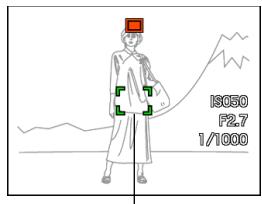
Focus frame

| When you see this: | It means this: |
| Green focus frame Green operation lamp | The image is focused. |
| Red focus frame Flashing green operation lamp | The image is not focused. |
- Press the shutter button the rest of the way to record the image.
OTHER RECORDING FUNCTIONS
NOTE
- When proper focusing is not possible because the subject is closer than the Auto Focus range, the camera automatically switches to the Macro mode range (page 77).
-
Whenever you perform an optical zoom operation (page 58) while recording with Auto Focus, a value will appear on the monitor screen as shown below to tell you the focusing range. Example: AF cm -
-
○ ○ will be replaced by the actual focusing range value.
IMPORTANT!
- Auto Focus cannot be selected during movie recording.
Quick Shutter
When Quick Shutter is turned on, the camera immediately records the image without waiting for Auto Focus to be performed when you press the shutter release all the way down. This helps to avoid missing a special moment while you wait for the camera to Auto Focus.
- In the REC mode, press [MENU].
- Select the "REC" tab, select "Quick Shutter", and then press [▶].
- Use [] and [] to select the setting you want, and then press [SET].
| To do this: | Select this setting: |
| Turn on Quick Shutter | On |
| Turn off Quick Shutter | Off |
OTHER RECORDING FUNCTIONS
■ Specifying the Auto Focus Area
You can use the following procedure to change the Auto Focus area used in the Auto Focus mode and the Macro mode. Note that the configuration of the focus frame changes in accordance with the Auto Focus area you select.
- In the REC mode, press [MENU].
- On the "REC" tab, select "AF Area", and then press [▶].
- Use [] and [] to select the Auto Focus area you want, and then press [SET].
| For this type of Auto Focus area: | Select this: |
| Very limited range in the center of the screen ·This setting works well with focus lock (page 80). | Spot |
| Automatic selection of the focus area where the subject closest to the camera is located ·With this setting, a wide focus frame, which contains nine focus points, appears on the monitor screen first. When you press the shutter button half way, all of the focus frames that are in focus among the nine focus points become green. ·This setting works well for group photos. | Multi |
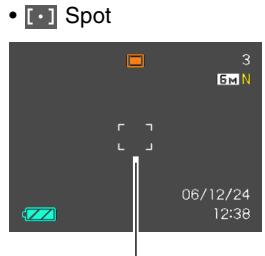
Focus frame
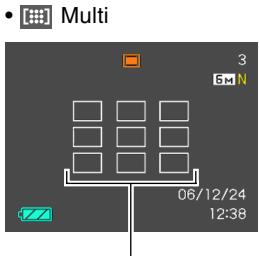
Focus frame
OTHER RECORDING FUNCTIONS
Using the Macro Mode
Use the Macro mode when you need to focus on close up subjects. The following shows the approximate focus range in the Macro mode.
Range: 15cm to 50cm (5.9" to 19.7")
-
Using optical zoom causes the above range to change.
-
In the REC mode, press [MENU].
- Select the "REC" tab, select "Focus", and then press [▶].
- Use [] and [] to select "Macro", and then press [SET].
-
Press the shutter button to record the image.
-
The focus and image recording operations are identical to those in the Auto Focus mode.
NOTE
- When the Macro mode cannot focus properly because the subject is too far away, the camera automatically switches to the Auto Focus range (page 74).
- Whenever you perform an optical zoom operation (page 58) while recording with the Macro mode, a value will appear on the monitor screen as shown below to tell you the focusing range.
Example: -
- OO will be replaced by the actual focusing range value.
IMPORTANT!
- Use of the flash along with the Macro mode can cause the light of the flash to become blocked, which can produce unwanted lens shadows in your image.
- During movie recording, Macro mode uses fixed focus that is optimized for macro recording.
OTHER RECORDING FUNCTIONS
Using Pan Focus
Pan Focus comes in handy when recording under conditions where Auto Focus is difficult for some reason, or in cases where Auto Focus operation noise is too noticeable in the movie audio.
- In the REC mode, press [MENU].
- Select the "REC" tab, select "Focus", and then press [▶].
- Use [] and [] to select “PF”, and then press [SET].
- Press the shutter button to record the image.
NOTE
-
If you press the shutter button half way, the focus distance will appear on the monitor screen. Example: 00m - 00m
-
○○ will be replaced by the actual focusing range value.
Using the Infinity Mode
The Infinity mode fixes focus at infinity () . Use this mode when recording scenery and other faraway images.
- In the REC mode, press [MENU].
- Select the "REC" tab, select "Focus", and then press [▶].
- Use [] and [] to select “ ”, and then press [SET].
- Press the shutter button to record the image.
OTHER RECORDING FUNCTIONS
Using Manual Focus
With the Manual Focus mode, you can adjust the focus of an image manually. The following shows focus range in the Manual Focus mode.
| Optical Zoom Factor | Approximate Focus Range |
| 1X | 15cm (5.9") to infinity (∞) |
| 3X | 40cm (15.7") to infinity (∞) |
-
Using optical zoom causes the above range to change.
-
In the REC mode, press [MENU].
- Select the "REC" tab, select "Focus", and then press [▶].
-
Use [▲] and [▼] to select “MF”, and then press [SET].
-
At this point, a boundary also appears on the display, indicating the part of the image that will be used for manual focus.
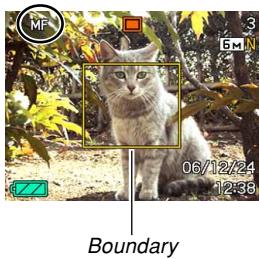
- Press [SET].
- While watching the image on the monitor screen, use [<] and [▶] to focus.
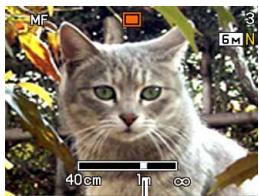
Manual focus position
| To do this: | Do this: |
| Focus in on the subject | Press [▲]. |
| Focus out on the subject | Press [►]. |
- Pressing [<] or [>] causes the area inside of the boundary displayed in step 1 to fill the monitor screen momentarily to aid in focus. The normal image will reappear a short while later.
-
If you do not adjust the focus of the enlarged image, it will return automatically to step 3. If this happens and you still want to adjust the focus, press [SET] to display the enlarged image again.
-
Press the shutter button to record the image.
OTHER RECORDING FUNCTIONS
NOTE
-
Whenever you perform an optical zoom operation (page 58) while recording with manual focus, a value will appear on the monitor screen as shown below to tell you the focusing range. Example: MF cm -
-
○ ○ will be replaced by the actual focusing range value.
Using Focus Lock
Focus lock is a technique you can use to focus on a subject that is not located within the focus frame when you record an image. You can use focus lock in the Auto Focus mode and the Macro mode ().
-
Using the monitor screen, compose the image so the main subject is within the focus frame, and then press the shutter button half way.
-
This locks the focus on the subject that is currently within the focus frame.
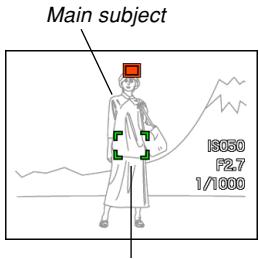
Focus frame
- Keeping the shutter button pressed half way down, re- compose the image as you like.
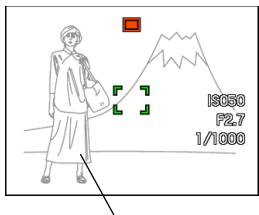
Main subject
-
When the image is composed the way you want, press the shutter button the rest of the way to record it.
-
The focus and image recording operations are identical to those in the Auto Focus mode.
NOTE
- Locking the focus also locks the exposure.
Exposure Compensation (EV Shift)
Exposure compensation lets you change the exposure setting (EV value) manually to adjust for the lighting of your subject. This feature helps to achieve better results when recording a backlit subject, a strongly lit subject indoors, or a subject that is against a dark background.
EV Shift Range: -2.0EV to +2.0EV Steps: 1/3EV
- In the REC mode, press [MENU].
- Select the "Quality" tab, select "EV Shift", and then press [▶].
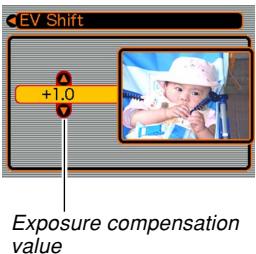
OTHER RECORDING FUNCTIONS
-
Use [▲] and [▼] to change the exposure compensation value, and then press [SET].
-
Pressing [SET] registers the displayed value.
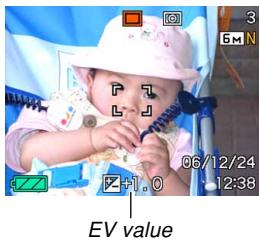
[▲] : Increases the EV value. A higher EV value is best used for light-colored subjects and backlight subjects.
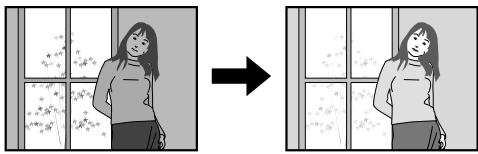
[▼]: Decreases the EV value. A lower EV value is best for dark-color subjects and for shooting outdoors on a clear day.
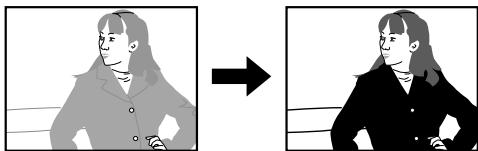
-
To cancel EV Shift, adjust the value until it becomes 0.0.
-
Press the shutter button to record the image.
IMPORTANT!
- When shooting under very dark or very bright conditions, you may not be able to obtain satisfactory results even after performing exposure compensation.
NOTE
-
Performing an EV shift operation while using multipattern metering (page 116) will cause the metering mode to switch automatically to center weighted metering. Returning the EV shift value to 0.0 causes the metering mode to change back to multi-pattern metering.
-
You can use key customization (page 110) to configure the camera to perform exposure compensation whenever you press [<] or [▶] while in the REC mode. This comes in handy when adjusting exposure compensation while viewing the on-screen histogram (page 107).
Adjusting White Balance
The wavelengths of the light produced by various light sources (daylight, light bulb, etc.) can affect the color of a subject when it is recorded. White balance lets you make adjustments to compensate for different lighting types, so the colors of an image appear more natural.
- In the REC mode, press [MENU].
- Select the "Quality" tab, select "White Balance", and then press [▶].
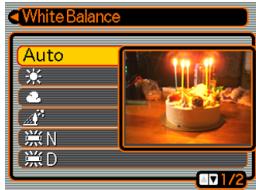
- Use [] and [] to select the setting you want, and then press [SET].
| When shooting under these conditions: | Select this setting: |
| Normal conditions | Auto |
| Outdoor daylight on a clear day | |
| Outdoor daylight on an overcast or rainy day, in the shade of a tree, etc. | |
| In the shade of a building or any other area where the color temperature is high | |
| Under white or daylight white fluorescent light (suppresses color fogging) | |
| Under daylight fluorescent light (suppresses color fogging) | |
| Under incandescent lighting | |
| Difficult lighting that requires manual control (See “Configuring the White Balance Setting Manually” (page 84).) | Manual |
NOTE
- When "Auto" is selected for the white balance setting, the camera automatically determines the white point of the subject. Certain subject colors and light source conditions can cause problems when the camera tries to determine the white point, which makes proper white balance adjustment impossible. When this happens, use daylight, cloudy, or one of the other fixed white balance settings to specify the type of lighting available.
- You can use the key customization feature (page 110) to configure the camera so the white balance setting changes whenever you press [▲] or [▶] while in the REC mode.
- If you have key customization configured to control white balance and you have Icon Help turned on (page 112), select "AWB Auto WB" to change the white balance mode to auto.
Configuring the White Balance Setting Manually
Certain complex light sources or other environmental conditions can make it impossible to obtain good results when "Auto" or one of the fixed light source settings is selected for white balance. Manual white balance lets you configure the camera for a particular light source and other conditions.
Note that you must perform manual white balance under the same conditions you will be shooting under. Have a sheet of white paper on hand before starting the following procedure.
- In the REC mode, press [MENU].
- Select a "Quality" tab, select "White Balance", and then press [▶].
OTHER RECORDING FUNCTIONS
3. Use [▲] and [▼] to select "Manual".
- This causes the object you last used to adjust manual white balance to appear on the monitor screen. If you want to use the same settings you configured during a previous manual white balance setting operation, skip step 4 and perform step 5.
![CASIO EXILIM EX-Z600 - Use [▲] and [▼] to select "Manual". - 1](/content/2025/01/86756/images/de854c9932cb01ff6d4683d7942b8232a42a5de500117672fc1f42418ad08835.jpg)
- Point the camera at a white paper or similar object under the lighting conditions for which you want to set the white balance, and then press the shutter button.
![CASIO EXILIM EX-Z600 - Use [▲] and [▼] to select "Manual". - 2](/content/2025/01/86756/images/41235dfd22a48059e01c1a04877954325ebac779c28aa72c85e698adc0c52673.jpg)
- This starts the white balance adjustment procedure. The message "Complete" appears on the monitor screen after white balance adjustment is complete.
5. Press [SET].
- This registers the white balance settings and returns to the currently selected recording mode.
NOTE
- After you adjust white balance manually, the setting remains in effect until you change it or until you turn off the camera.
Using Continuous Shutter
You can configure the camera to record only a single snapshot each time the shutter button is pressed, or to keep recording as long as the shutter button remains depressed. You can select from among the following three continuous shutter modes.
- Normal-speed continuous shutter
- You can continually record images until memory becomes full.
- High-speed continuous shutter Record up to three consecutive images at high speed.
-
Flash continuous shutter Use this mode to record up to three consecutive images, firing the flash for each one.
-
In the REC mode, press [MENU].
-
Select the "REC" tab, select "Continuous", and then press [▶].
-
Use [▲] and [▼] to select "Normal Speed", "High Speed", or "Flash Cont.", and then press [SET].
-
This causes the applicable icon to appear on the monitor screen.
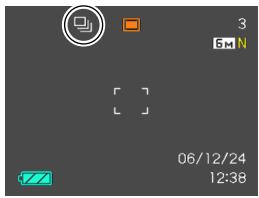
: Normal-speed Continuous Shutter
高-speed Continuous Shutter
:Flash Continuous Shutter
- With "Off", snapshots are recorded one at a time.
IMPORTANT!
- Turning off the camera automatically turns off the Continuous Shutter Mode.
Normal-speed continuous shutter
Holding down the shutter button continuously records images, as long as there is memory available to store them. Release the shutter button to stop recording.
- You can select the flash mode you want with normal-speed continuous shutter (page 62).
- The speed of continuous shutter recording depends on the type of memory card loaded in the camera. When recording to built-in memory, continuous shutter recording is relatively slow.
High-speed continuous shutter
Holding down the shutter button while high-speed continuous shutter is selected records up to three images at high speed. Shooting stops if you release the shutter button before three images are recorded.
- Flash is turned off automatically.
- Note that the resolution of images recorded with high-speed continuous shutter is somewhat lower resolution and more prone to digital noise than images recorded with normal-speed continuous shutter.
- "Auto" ISO sensitivity always is used for high-speed continuous shutter, regardless of the current ISO sensitivity setting.
Flash continuous shutter
Holding down the shutter button while flash continuous shutter is selected records up to three images, firing the flash for each one. Shooting stops if you release the shutter button before three images are recorded.
- Flash is turned on automatically.
- Note that the resolution of images recorded with flash continuous shutter is somewhat lower resolution and more prone to digital noise than images recorded with normal-speed continuous shutter.
- "Auto" ISO sensitivity always is used for flash continuous shutter, regardless of the current ISO sensitivity setting.
- With flash continuous shutter, the flash distance (range) is shorter than normal.
Using the BEST SHOT Mode
Selecting one of the BEST SHOT sample scenes automatically sets up the camera for recording a similar type of image.
Example Sample Scene
- Portrait
Night Scene

- Scenery
Night Scene Portrait

-
In the REC mode, press [BS] (BEST SHOT).
-
This enters the BEST SHOT mode and displays all 12 of the BEST SHOT scenes.
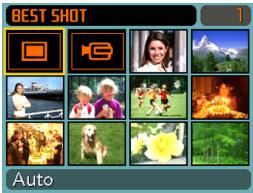
- In addition to the snapshot scenes, there is one movie scene and one voice record scene.
-
Sample scenes are arranged in sequence, starting from the upper left corner.
-
Use [], [], [] , and [] to select the sample scene you want, and then press [SET].
-
Pressing [MENU] causes the selection boundary to jump to the first sample scene ("Auto").
- Use [], [], [], and [] to move the selection boundary around the display. Scrolling past the last or the first scene scrolls to the next screen of 12-sample scenes.
- If you want to check which sample scene is currently selected or if you want to change to a different scene, press [BS].
- Selecting the "Auto" scene changes the recording type to snapshot auto recording ("□" displayed) (page 53).
OTHER RECORDING FUNCTIONS
3. Press the shutter button to record the image.
- While the "Movie" scene is recorded, pressing the shutter button starts and stops movie recording (page 100).
IMPORTANT!
- BEST SHOT scenes were not recorded using this camera. They are provided as samples only.
- Due to shooting conditions and other factors, an image recorded using the setup of a BEST SHOT scene may not produce exactly the results you expect.
-
You can change the camera settings that are configured when you select a BEST SHOT scene. The settings you can change are the same as those that are saved when you save a BEST SHOT user setup (page 92). Note, however, that some BEST SHOT scenes do not allow you to change certain settings. BEST SHOT scene settings revert to their default presets whenever you select another BEST SHOT scene or turn off the camera. If you want to save your settings for later use, save them as a BEST SHOT user setup (page 92).
-
Digital noise reduction processing is performed automatically when you are recording a night scene, fireworks, or other image that requires slow shutter speeds. Because of this, it takes longer to record images at lower shutter speeds. Make sure that you do not perform any camera button operations until the image recording operation is complete.
- When recording the image of a night scene, fireworks, or some other image using a slow shutter speed, use of a tripod is recommended to prevent hand movement.
NOTE
- Operation guidance and the currently selected BEST SHOT scene appear on the display for about two seconds if the camera is in the BEST SHOT mode when you turn it on.
OTHER RECORDING FUNCTIONS
Displaying Sample Scenes Individually
You can use the following procedure to display BEST SHOT sample scenes individually, so you can view the explanation about each scene's settings.
- In the REC mode, press [BS] (BEST SHOT).
-
Move the zoom controller in the direction of [4] (telephoto) or [4+4] (wide angle).
-
This displays the sample scene that was selected on the 12-scene screen.
- To return to the 12-sample scene screen, move the zoom controller in the direction of [A] (telephoto) or [B] (wide angle).
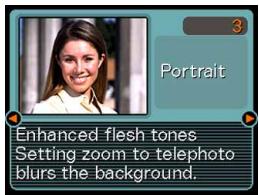
-
Use [] and [] to select the sample scene you want, and then press [SET].
-
Pressing [MENU] jumps to the first sample scene ("Auto").
-
Press the shutter button to record the image.
OTHER RECORDING FUNCTIONS
Creating Your Own BEST SHOT Setup
You can use the procedure below to save the setup of an snapshot you recorded as a BEST SHOT scene. After that, you can recall the setup whenever you want to use it.
- In the REC mode, press [BS] (BEST SHOT).
- Use [], [], [], and [] to select "Register User Scene", and then press [SET].
- Use [<] and [> ] to display the snapshots whose setup you want to register as a BEST SHOT scene.
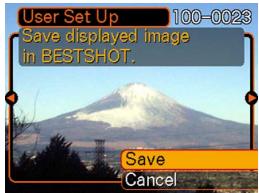
-
Use [] and [] to select "Save", and then press [SET].
-
This registers the setup. Now you can use the procedure on page 88 to select your user setup for recording.
IMPORTANT!
- BEST SHOT user setups are located in the camera's built-in memory following the built-in sample scenes.
- Selecting a user snapshot setup displays the indicator "U" in the upper right corner of the monitor screen, followed by a number (that indicates the setup number).
Note that formatting built-in memory (page 168) deletes all BEST SHOT user setups.
NOTE
- The following are the settings that are included in a snapshot setup: focus mode, EV shift value, white balance mode, flash mode, ISO sensitivity, Metering, Flash Intensity, Flash Assist, Filter, Sharpness, Saturation, and Contrast.
- Note that snapshots recorded with this camera only can be used to create a BEST SHOT user setup.
- You can have up to 999 BEST SHOT user setups in the camera's built-in memory at one time.
- You can check the current setup of a scene by displaying the various setting menus.
- BEST SHOT snapshot user setups are stored in camera built-in memory in the folder named "SCENE". File names are assigned automatically using the format "UZ600nnn.JPE", where "nnn" is a value from 000 through 999.
To delete a BEST SHOT user setup
- In the REC mode, press [BS] (BEST SHOT).
- Move the zoom controller in the direction of [4] (telephoto) or [++] (wide angle) to scroll through the available sample scenes.
- Use [<] and [> ] to display the user setup you want to delete.
- Press [] (3) to delete the user setup.
- Use [] and [] to select "Delete".
- Press [SET] to delete the file.
-
Select another scene, and then press [SET].
-
This returns to the recording state.
Reducing the Effects of Hand or Subject Movement
You can reduce the effects of subject movement, and for hand movement that tends to occur when shooting a faraway subject using telephoto, a fast-moving subject, or under dim lighting conditions.
1. Perform one of the procedures below to enable Anti Shake.
Using the BEST SHOT mode
- In the REC mode, press [BS] (BEST SHOT).
- Use [], [], [] , and [] to select the "Anti Shake" scene, and then press [SET].
Using the Menu Screen
- In the REC mode, press [MENU].
- Select the "REC" tab, select "Anti Shake", and then press [▶].
-
Use [▲] and [▼] to select "Auto", and then press [SET].
-
(Anti Shake indicator) is displayed on the monitor screen while Anti Shake is turned on.
2. Press the shutter button to record the image.
IMPORTANT!
- Anti Shake is disabled automatically when any setting other than "Auto" is selected for ISO sensitivity. If you want Anti Shake to be operational after turning it on, be sure to change the ISO sensitivity setting to "Auto" (page 115).
- Recording with Anti Shake can cause an image to appear somewhat coarser than normal and can cause slight deterioration of image resolution.
- The Anti Shake feature may not be able to eliminate the effects of hand or subject movement when shaking is severe.
- Anti Shake is disabled during movie recording.
- The Anti Shake feature may not work when using a very low shutter speed. If this happens, use a tripod to stabilize the camera.
- Though "①" (Anti Shake) is displayed on the monitor screen while the flash setting is "Auto Flash" or "Flash On", Anti Shake is disabled.
Shooting with High Sensitivity
Higher sensitivity makes it possible to record brighter images, without using flash, even when there is not enough lighting available to obtain normal exposure.
- In the REC mode, press [BS] (BEST SHOT).
- Use [], [], [], and [] to select the "High Sensitivity" scene, and then press [SET].
- Press the shutter button to record the image.
IMPORTANT!
- High Sensitivity is disabled automatically when any setting other than "Auto" is selected for ISO sensitivity. If you want High Sensitivity to be operational after turning it on, be sure to change the ISO sensitivity setting to "Auto" (page 115).
- Recording with high sensitivity can cause an image to appear somewhat coarser than normal and can cause slight deterioration of image resolution.
- A desirable level of image brightness may not be possible under very dark conditions.
- When shooting with slow shutter speeds, use a tripod to protect against the effects of hand movement.
- High Sensitivity is disabled while the flash setting is "Auto Flash" or "Flash On".
Recording Images of Business Cards and Documents (Business Shot)
Recording a business card, document, whiteboard, or similarly shaped object from an angle can cause the subject to appear misshaped in the resulting image. Business Shot automatically corrects the shape of rectangular objects to make them appear like the camera was positioned directly in front of them.
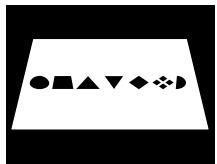
Before keystone correction

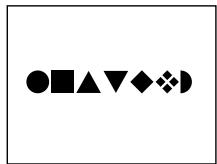
After keystone correction
Setup Sample Images
- Business cards and documents
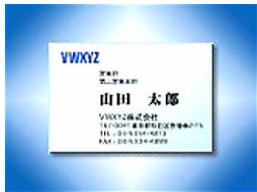
- White board, etc.
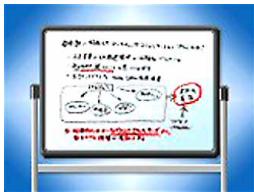
Before recording with Business Shot
- Before recording, compose the image so outline of the item you want to record fits entirely within the monitor screen.
- Make sure the object is against a background that allows its outline to stand out, and that it fills the monitor screen to the maximum extent possible.
NOTE
- When the camera is at an angle to a business card or document it is recording, the shape of the business card or document may appear distorted in the image. Auto keystone correction corrects for this distortion, which means that subjects appear normal even if you record at an angle.
To use Business Shot
-
In the REC mode, press [BS] (BEST SHOT).
-
Use [], [], [] and [] to select the Business Shot image you want, and then press [SET].
-
Press the shutter button to record the image.
-
This displays a screen that shows all of the objects in the image that qualify as candidates for keystone correction. An error message will appear (page 230) if the camera is unable to find any suitable keystone correction candidate in the image. After a short while, the original image will be stored in memory, as-is.
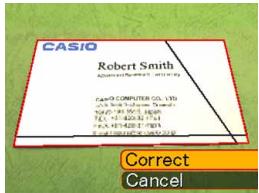
4. Use [<] and [> to select the candidate you want to correct.
5. Use [] and [] to select "Correct", and then press [SET].
- Selecting "Cancel" in place of "Correct" stores the original image as-is, without correcting it.
CASIO
Robert Smith
ACmnnnnae (rnnnne)
cacooCOMPUTER CO.,LTD. gao hui houxue.com.cn
72.4=420×1+
+X+421
10
IMPORTANT!
- Digital zoom is disabled while recording with Business Shot. However, you can use optical zoom.
-
The camera will not be able to recognize the subject in the following cases.
-
When part of the subject extends outside of the monitor screen
- When the subject is the same color as the background it is placed upon
- The maximum Business Shot image size is 1600 × 1200 pixels, even if the camera is configured for a larger image size. An image size setting smaller than 1600 × 1200 pixels records images at the specified size.
Restoring an Old Photograph
You can use the procedure in this section to restore an old, faded photograph with the color provided by modern digital camera technology.
Before trying to restore an old photograph
- Make sure the entire photograph you are trying to restore is enclosed within the monitor screen.
- Make sure the object is against a background that allows its outline to stand out, and that it fills the monitor screen to the maximum extent possible.
- Make sure that light is not reflecting off the surface of the original photograph.
- If the old photograph is portrait orientation, be sure to compose the image with the camera in landscape (horizontal) orientation.
NOTE
- When the camera is at an angle to the old photograph, one side of the recorded image may appear longer than the side opposite from it. This is called "keystoning," which is caused by the difference in distance from the camera lens to each side of the photograph. The side of the photograph that is closer to the camera looks longer and the side further from the camera looks shorter. Auto keystone correction corrects for this distortion, which means that a photograph appears normal even if you record it at an angle.
To restore an old photograph
- In the REC mode, press [BS] (BEST SHOT).
- Use [▲], [▼], [▲], and [▶] to select "Old Photo", and then press [SET].
-
Press the shutter button to record the image.
-
This displays a photograph contour confirmation screen, and then saves the original recorded image. An error message will appear (page 230), without displaying the photograph contour confirmation screen, if the camera is unable to find the contour of the photograph.
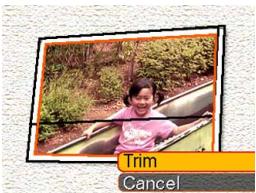
OTHER RECORDING FUNCTIONS
- Use [<] and [> ] to select the contour candidate you want to correct.
-
Use [▲] and [▼] to select "Trim", and then press [SET].
-
This displays a cropping boundary on the monitor screen.
- If you do not want to crop the image, select "Cancel" to store the image.
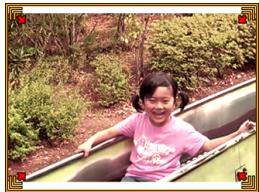
-
Use the zoom controller to make the cropping boundary larger or smaller.
-
Use [], [], [] , and [] to move the cropping boundary to the location you want, and then press [SET].
-
The camera will restore color automatically and save the image.
- If you do not want a border around the image, configure the cropping boundary so it is slightly inside of the boundary of the displayed image.
- To cancel the cropping operation at any point and save the image as-is, press [MENU].
IMPORTANT!
- Digital zoom is disabled while recording an old photograph. However, you can use optical zoom.
-
The camera will not be able to recognize an old photograph in the following cases.
-
When part of the photograph extends outside of the monitor screen
-
When the old photograph is the same color as the background it is placed upon
-
The maximum size when recording an old photograph is 1600 × 1200 pixels, even if the camera is configured for a larger image size. When the camera is configured to record images smaller than 1600 × 1200 pixels, images will be in accordance with the currently specified image size.
- Under certain conditions, restored colors may not produce the desired results.
Recording a Movie
You can record movies with audio. Movie length is limited only by the amount of memory available for storage. You can select a resolution setting to suit your needs.
- File Format: Motion JPEG AVI format
Maximum Movie Length
The length of a movie is limited only by the amount of memory available to store it.
- Approximate Movie File Size (1-minute movie):
72.8MB (Quality Setting: HQ)
43.6MB (Quality Setting: Normal)
17.5MB (Quality Setting: LP)
OTHER RECORDING FUNCTIONS
Specifying Movie Image Quality
The image quality setting determines how much the camera compresses movie images before storing them. Image quality is expressed as image size in pixels. A "pixel" is one of the many tiny dots that make up an image. More pixels (a larger image size) provide finer detail and higher image quality when a movie is played back. Before recording a movie, select the image quality setting that suits your needs.
- In the REC mode, press [MENU].
- Use [] and [] to select the "Quality" tab.
- Use [] and [] to select "Quality", and then press [▶].
- Use [] and [] to select the setting you want, and then press [SET].
| Setting | Approximate Data Rate | Frame Rate | |
| Higher Quality | HQ (640 × 480 pixels) | 10.2 megabits per second | 30 frames/second |
| Normal (640 × 480 pixels) | 6.1 megabits per second | 30 frames/second | |
| Lower Quality | LP (320 × 240 pixels) | 2.45 megabits per second | 15 frames/second |
Recording a Movie
- In the REC mode, press [BS] (BEST SHOT).
-
Use [▲] and [▶] to select the "Movie" (movie) scene, and then press [SET].
-
Selecting the "G" (movie) scene causes "G" to appear on the monitor screen.
-
Point the camera at the subject and then press the shutter button.
-
This starts movie recording.
- This starts movie recording, which is indicated by “REO” on the monitor screen.
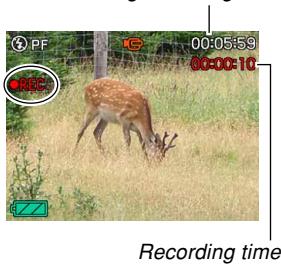
Remaining recording time
- Movie recording continues as long as remaining memory capacity allows.
-
Pan Focus (page 78) is selected automatically as the focus mode in the Movie Mode regardless of the Mode Memory "Focus" setting (page 113) and the snapshot focus mode setting. You can switch to another focus mode before you start recording, but remember that you cannot select the Auto Focus mode for movie recording.
-
To stop movie recording, press the shutter button again.
-
When movie recording is complete, the movie file is stored in file memory.
OTHER RECORDING FUNCTIONS
■ Movie Recording Precautions
- This camera also records audio. Note the following points when recording a movie.
Take care that you do not block the microphone with your fingers.
Good recording results are not possible when the camera is too far from the subject.
- Operating camera buttons during recording can cause button noise to be included in the audio.
Movie audio is recorded in monaural.
- Very bright light inside of an image can cause a vertical band to appear in the monitor screen image. This is a CCD phenomenon known as "vertical smear", and does not indicate malfunction of the camera. Note that vertical smear is not recorded with the image in the case of a snapshot, but it is recorded in the case of a movie.
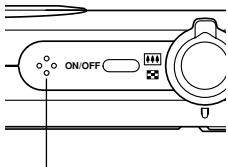
Microphone
- The movie recording capacity of built-in memory is very small. Use of a memory card (page 169) is recommended when recording movies.
- Certain types of memory cards take longer to record data, which can cause movie frames to be dropped. and REC flash on the monitor screen during recording to let you know when a frame has been dropped. Use of an SD memory card with a maximum transfer speed of at least 10MB per second is recommended.
- Optical zoom is disabled during movie recording. Digital zoom only is available. Make sure you select the optical zoom setting you want to use before you press the shutter button to start movie recording (page 58).
- The effects of camera movement in an image become more pronounced when you record close ups or recording with a large zoom factor. Because of this, use of a tripod is recommended when recording close ups or recording with a large zoom factor.
- Images may be out of focus if the subject is outside the shooting range of the camera.
- Macro uses fixed focus that is optimized for macro recording.
Recording Audio
Adding Audio to a Snapshot
You can add audio to a snapshot after you record it.
- Image Format: JPEG
JPEG is an image format that provides efficient data compression.
The file extension of a JPEG file is“.JPG”.
- Audio Format: WAVE/ADPCM recording format
This is the Windows standard format for audio recording.
The file extension of a WAVE/ADPCM file is“.WAV”.
- Recording Time:
Up to about 30 seconds per image
Audio File Size:
Approximately 165KB (30-second recording of approximately 5.5KB per second)
NOTE
-
You can play back an audio file recorded in the Audio Snapshot mode on your computer using Windows Media Player.
-
In the REC mode, press [MENU].
-
Select the "REC" tab, select "Audio Snap", and then press [▶].
-
Use [] and [] to select "On" and then press [SET].
-
This enters the Audio Snapshot mode.
-
Selecting "Off" enters the Normal Snapshot mode (no audio).
-
Press the shutter button to record the image.
After the image is recorded, the camera enters audio recording standby, with the image you just recorded on the monitor screen and displays a indicator.
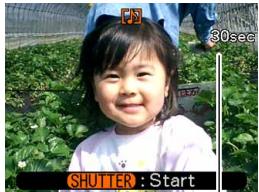
Remaining recording time
OTHER RECORDING FUNCTIONS
5. Press the shutter button to start audio recording.
- The operation lamp will flash green while recording is in progress.
6. Recording stops after about 30 seconds or when you press the shutter button.
IMPORTANT!
- Audio snapshot recording is not supported (audio cannot be recorded) for "X3" self-timer recording (Triple Self-timer).
Recording Your Voice
Voice Recording provides quick and easy recording of your voice.
- Audio Format: WAVE/ADPCM recording format This is the Windows standard format for audio recording. The file extension of a WAVE/ADPCM file is“.WAV”.
- Recording Time: Approximately 25 minutes with built-in memory
- Audio File Size: Approximately 165KB (30-second recording of approximately 5.5KB per second)
NOTE
-
You can play back files recorded with Voice Recording on your computer using Windows Media Player.
-
In the REC mode, press [BS] (BEST SHOT).
-
Use [▲], [▼], [▲] and [▶] to select the "Voice Recording" scene, and then press [SET].
-
Selecting the "Voice Recording" scene causes "U" to appear on the monitor screen.
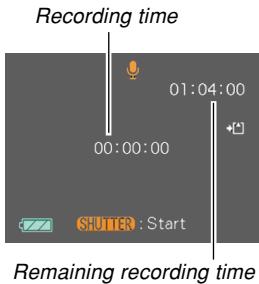
-
Press the shutter button to start voice recording.
-
The remaining recording time value counts down on the monitor screen and the operation lamp flashes green as recording is performed.
- Pressing [▲] (DISP) during voice recording turns off the monitor screen.
-
You can insert index marks while recording by pressing [SET]. See page 146 for information about jumping to an index mark during playback.
-
Recording stops when you press the shutter button, when memory becomes full, or when the battery goes dead.
Audio Recording Precautions
Take care that you do not block the microphone with your fingers.
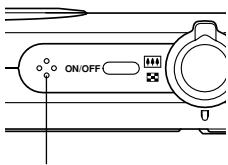
Microphone
- Good recording results are not possible when the camera is too far from the subject.
- Pressing the power button or pressing [▶] (PLAY) stops recording and stores any audio recorded up to that point.
- You can also perform "after-recording" to add audio to a snapshot after recording it, and also change the audio recorded for an image. See page 143 for more information.
Using the Histogram
You can use [▲] (DISP) to display a histogram on the monitor screen (page 30). The histogram lets you check exposure conditions as you record images. You can also display the histogram of a recorded image in the PLAY mode.
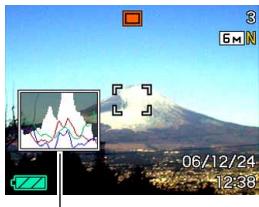
Histogram
- A histogram is a graph that represents the lightness of an image in terms of the number of pixels. The vertical axis indicates the number of pixels, while the horizontal axis indicates lightness. You can use the histogram to determine whether an image includes the shadowing (left side), mid tones (center), and highlighting (right) required to bring out sufficient image detail. If the histogram appears too lopsided for some reason, you can use EV shift (exposure compensation) to move it left or right in order to achieve better balance. Optimum exposure can be achieved by correcting exposure so the graph is as close to the center as possible.
OTHER RECORDING FUNCTIONS
- An RGB histogram that shows the distribution of R (red), G (green), and B (blue) components is also displayed. This histogram can be used to determine whether there is too much or too little of each of the color components in an image.
NOTE
-
You can use key customization (page 110) to configure the camera to perform exposure compensation whenever you press [<] or [▶] while in the REC mode. If you do this, you can adjust exposure compensation while viewing the on-screen histogram (page 81).
-
When the histogram is too far to the left, it means that there are too many dark pixels. This type of histogram results when the overall image is dark. A histogram that is too far to the left may result in "black out" of the dark areas of an image.
-
When the histogram is too far to the right, it means that there are too many light pixels. This type of histogram results when the overall image is light. A histogram that is too far to the right may result in "white out" of the light areas of an image.


OTHER RECORDING FUNCTIONS
- A centered histogram indicates that there is good distribution of light pixels and dark pixels. This type of histogram results when the overall image is at optimal lightness.

IMPORTANT!
- Note that the above histograms are shown for illustrative purposes only. You may not be able to achieve exactly the same shapes for particular subjects.
- A centered histogram does not necessarily guarantee optimum exposure. The recorded image may be over-exposed or under-exposed, even though its histogram is centered.
- You may not be able to achieve an optimum histogram configuration due to the limitations of EV shift.
- Use of the flash as well as certain shooting conditions can cause the histogram to indicate exposure that is different from the actual exposure of the image when it was recorded.
- The RGB (color component) histogram is displayed for snapshots only.
REC Mode Camera Settings
The following are the settings you can configure before recording an image using the REC mode.
- L/R key setting (key customization)
- Grid on/off
- Image Review on/off
- Icon Help on/off
Power on default settings
ISO sensitivity - Metering
- Filter
- Sharpness
- Saturation
- Contrast
- Resetting the camera
Assigning Functions to the [<] and [>]: Keys
A "key customization" feature lets you configure the [▲] and [▶] keys so they change camera settings whenever they are pressed in the REC mode. After you configure the [▲] and [▶] keys, you can change the setting assigned to them without going through the menu screen.
- In the REC mode, press [MENU].
- Select the "REC" tab, select "L/R Key", and then press [▶].
- Use [] and [] to select the setting you want, and then press [SET].
After you assign a function, you can change its setting simply by pressing the [A] and [B] keys.
— Focus (page 73)
— EV Shift (page 81)
- White Balance (page 83)
ISO (page 115)
Self-timer (page 67)
- Off: No function assigned
IMPORTANT!
- While recording a snapshot or movie, you can use [▲] and [▶] to set the functions assigned to them. However, you cannot set the self-timer during movie recording.
Turning the On-screen Grid On and Off
You can display gridlines on the monitor screen to help you compose images and ensure that the camera is straight when recording.
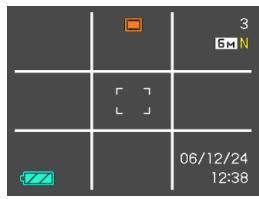
- In the REC mode, press [MENU].
- Select the "REC" tab, select "Grid", and then press [▶].
- Use [] and [] to select the setting you want, and then press [SET].
| To do this: | Select this setting: |
| Display the grid | On |
| Hide the grid | Off |
OTHER RECORDING FUNCTIONS
Turning Image Review On and Off
Image review displays the images you record on the monitor screen as soon as you record them. Use the following procedure to turn image review on and off.
- In the REC mode, press [MENU].
- Select the "REC" tab, select "Review", and then press [▶].
- Use [] and [] to select the setting you want, and then press [SET].
| To do this: | Select this setting: |
| Display images on the monitor screen for about one second immediately after they are recorded | On |
| Do not display images immediately after they are recorded | Off |
Using Icon Help
Icon Help displays guidance text about an icon when you select it on the monitor screen while in the REC mode (page 27).
-
Icon Help text is displayed for the following functions: Flash mode, focus mode, white balance, self-timer, recording type, EV shift. Note, however, that focus mode, EV shift, self-timer and white balance icon help text appears only when "Focus", "EV shift", "Self-timer" or "White Balance" is assigned to the [▲] and [▶] keys with the key customization feature (page 110).
-
In the REC mode, press [MENU].
- Select the "REC" tab, select "Icon Help", and then press [▶].
OTHER RECORDING FUNCTIONS
3. Use [] and [] to select the setting you want, and then press [SET].
| To do this: | Select this setting: |
| Display guidance text when you select an icon on the monitor screen. | On |
| Turn off Icon Help | Off |
IMPORTANT!
- The icons listed below do not appear on the display while Icon Help is turned off.
— Flash mode A icon (page 62)
— Focus mode AF icon (page 73)
- White balance AWB icon (page 83)
**Specifying Power On Default Settings**
The camera's "mode memory" feature lets you specify the power on default settings individually for the BEST SHOT mode, flash mode, focus mode, white balance mode, ISO sensitivity, AF Area, metering, self-timer, flash intensity, digital zoom mode, manual focus position and zoom position. Turning on mode memory for a mode tells the camera to remember the status of that mode when you turn off the camera, and restore it the next time you turn the camera back on. When mode memory is turned off, the camera automatically restores the initial factory default setting for the applicable mode.
The following table shows what happens when you turn mode memory on or off for each mode.
OTHER RECORDING FUNCTIONS
| Function | On | Off |
| BS BEST SHOT*1 | Setting when camera is turned off | BEST SHOT status cancel |
| Flash | Auto | |
| Focus | Auto | |
| White Balance | Auto | |
| ISO | Auto | |
| AF Area | Spot | |
| Metering | Multi | |
| Self-timer | Off | |
| Flash Intensity | 0 | |
| Digital Zoom | On | |
| MF Position | Last Auto Focus position that was in effect before you switched to manual focus | |
| Zoom Position*2 | Wide |
1 Specifies whether startup is performed with BEST SHOT scene selection as-is. When on, starts up with the last used BEST SHOT scene but turning off starts up with auto status.
2 Only the optical zoom position is remembered.
- In the REC mode, press [MENU].
- Select the "REC" tab, select "Memory", and then press [▶].
- Use [] and [] to select the item you want to change, and then press [] .
- Use [] and [] to select the setting you want, and then press [SET].
| To do this: | Select this setting: |
| Turn on mode memory so settings are restored at power on | On |
| Turn off mode memory so settings are initialized at power on | Off |
IMPORTANT!
- Note that BEST SHOT mode settings take priority over mode memory settings. If you turn the camera off while in the BEST SHOT mode, all settings except for "Zoom Position" will be configured according to the BEST SHOT sample scene when you turn it back on again, regardless of mode memory on/off settings.
Specifying ISO Sensitivity
You can change the ISO sensitivity setting for better images in places where lighting is dim or when you are using faster shutter speeds.
-
ISO sensitivity is expressed in terms of values that originally indicated the sensitivity to light for photographic film. A larger value indicates higher sensitivity, which is better for recording when available lighting is dim.
-
In the REC mode, press [MENU].
- Select the "Quality" tab, select "ISO", and then press [▶].
- Use [] and [] to select the setting you want and then press [SET].
| To get this: | Select this setting: |
| Automatic sensitivity selection | Auto |
| Lower sensitivity | ISO 50 |
| ISO 100 | |
| ISO 200 | |
| Higher sensitivity | ISO 400 |
IMPORTANT!
- Under certain conditions, a high shutter speed in combination with a high ISO sensitivity setting can cause digital noise (graininess), which makes an image appear rough. For clean, good-quality images, use the lowest ISO sensitivity setting possible.
- Using a high ISO sensitivity setting along with the flash to shoot a nearby subject may result in improper illumination of the subject.
- "Auto" ISO sensitivity always is used for movie recording, regardless of the current ISO sensitivity setting.
NOTE
- You can use the key customization feature (page 110) to configure the camera so the ISO sensitivity setting changes whenever you press [▲] and [▶] while in the REC mode.
Selecting the Metering Mode
The metering mode determines what part of the subject is metered for exposure. You can use the following procedure to change the camera's metering mode.
- In the REC mode, press [MENU].
- Select the "Quality" tab, select "Metering", and then press [▶].
- Use [] and [] to select the setting you want, and then press [SET].

Multi (Multi pattern)
Multi (Multi pattern) metering divides the image into sections and measures the light in each section for a balanced exposure reading. The camera automatically determines shooting conditions according to the measured lighting pattern, and makes exposure settings accordingly. This type of metering provides error-free exposure settings for a wide range of shooting conditions.
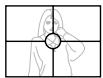

Center Weighted
Center weighted metering measures light concentrating on the center of the focus area. Use this metering method when you want to exert some control over exposure, without leaving settings totally up to the camera.

Spot
Spot metering takes readings at a very small area. Use this metering method when you want exposure to be set according to the brightness of a particular subject, without it being affected by surrounding conditions.
IMPORTANT!
- When "Multi" is selected as the metering mode, certain procedures cause the metering mode setting to change automatically as described below.
- Changing the exposure compensation setting (page 81) to a value other than 0.0 changes the metering mode setting to "Center Weighted." The metering mode changes back to "Multi" when you return the exposure compensation setting to 0.0.
- When "Multi" is selected, the icon is not displayed when you return to the REC mode information display (page 26).
Using the Filter Function
The camera's filter function lets you alter the tint of an image when you record it.
- In the REC mode, press [MENU].
- Select the "Quality" tab, select "Filter", and then press [▶].
- Use [] and [] to select the setting you want, and then press [SET].
Available filter settings are: Off, B/W, Sepia, Red, Green, Blue, Yellow, Pink, Purple
IMPORTANT!
- Using the camera's filter feature produces the same effect as attaching a color filter to the lens.
Specifying Outline Sharpness
Use the following procedure to control the sharpness of image outlines.
- In the REC mode, press [MENU].
- Select the "Quality" tab, select "Sharpness", and then press [▶].
- Use [] and [] to select the setting you want, and then press [SET].
| To get this: | Select this setting: |
| High sharpness | +2 |
| Normal sharpness | +1 |
| 0 | |
| -1 | |
| Low sharpness | -2 |
OTHER RECORDING FUNCTIONS
Specifying Color Saturation
Use the following procedure to control the intensity of the image you are recording.
- In the REC mode, press [MENU].
- Select the "Quality" tab, select "Saturation", and then press [▶].
- Use [] and [] to select the setting you want, and then press [SET].
| To get this: | Select this setting: |
| High color saturation (intensity) | +2 |
| Normal color saturation (intensity) | +1 |
| Low color saturation (intensity) | 0 |
| -1 | |
| -2 |
Specifying Contrast
Use this procedure to adjust the relative difference between the light areas and dark areas of the image you are recording.
- In the REC mode, press [MENU].
- Select the "Quality" tab, select "Contrast", and then press [▶].
- Use [] and [] to select the setting you want, and then press [SET].
| To get this: | Select this setting: |
| High contrast | +2 |
| +1 | |
| Normal contrast | 0 |
| -1 | |
| Low contrast | -2 |
OTHER RECORDING FUNCTIONS
Resetting the Camera
Use the following procedure to reset all of the camera's settings to their initial defaults as shown under "Menu Reference" on page 218.
- Press [MENU].
- Select the "Set Up" tab, select "Reset", and then press [▶].
-
Use [] and [] to select "Reset", and then press [SET].
-
To cancel the procedure without resetting, select "Cancel" and press [SET].
IMPORTANT!
- The following are not initialized when you reset the camera (page 219).
Home Time setup
World Time setup
Time setting
- Date Style
Language
Video Out
PLAYBACK
You can use the camera's built-in monitor screen to view images after you record them.
BasicPlaybackOperation
Use the following procedure to scroll through files stored in the camera's memory.
1. Press [▶] (PLAY) to turn on the camera.
- This enters the PLAY mode and causes an image or a message to appear on the monitor screen.
![CASIO EXILIM EX-Z600 - Press [▶] (PLAY) to turn on the camera. - 1](/content/2025/01/86756/images/cd733aaf2968d25e07d8083df2f588552fe745a0593003f7510575976a462816.jpg)
![CASIO EXILIM EX-Z600 - Press [▶] (PLAY) to turn on the camera. - 2](/content/2025/01/86756/images/8533c68dac4b734d1fb4f5cc90051ad16bca1ff4a8b68586249c2d3f5e05e71a.jpg)
2. Use [▶] (forward) or [←] (back) to scroll through files on the monitor screen.
![CASIO EXILIM EX-Z600 - Use [▶] (forward) or [←] (back) to scroll through files on the monitor screen. - 1](/content/2025/01/86756/images/529ae56587f4de295daa652cd4c89984c9f0ac5b214947ac7136637753f3062e.jpg)
NOTE
- Holding down [▲] or [▶] scrolls images at high speed.
- In order to allow for faster playback image scrolling, the image that initially appears on the monitor screen is a preview image, which is of somewhat lower quality than the actual display image. The actual display image appears a short while after the preview image. This does not apply to images copied from another digital camera.
Playing an Audio Snapshot
Perform the steps below to display an audio snapshot (indicated by 1 ) and play its audio.
1. In the PLAY mode, use [<] and [> ] until the image you want is displayed.
2. Press [SET].
- This plays back the audio that accompanies the displayed image.
- You can perform the following operations while audio is playing.
![CASIO EXILIM EX-Z600 - Press [SET]. - 1](/content/2025/01/86756/images/00b4f6e31707b815080fa4b0bf5fa141a4074d46fa88b37bc262192dbf1af956.jpg)
| To do this: | Do this: |
| Fast forward or fast reverse the audio | Hold down [▲] or [►]. |
| Pause and unpause audio playback | Press [SET]. |
| Adjust audio volume | Press [▼] and then use [▲] and [▼]. |
| Changing display contents | Press [▲] (DISP). |
| Cancel playback | Press [MENU]. |
IMPORTANT!
- Audio volume can be adjusted only when playback is being performed or is paused.
Zooming the Display Image
Perform the following procedure to zoom the image currently on the monitor screen up to eight times its normal size.
- In the PLAY mode, use [▲] and [▶] to display the image you want.
-
Shift the zoom controller towards () to enlarge the image.
-
This zooms the image.
- An indicator appears in the lower right corner, that shows what part of the original image is currently displayed on the monitor screen.
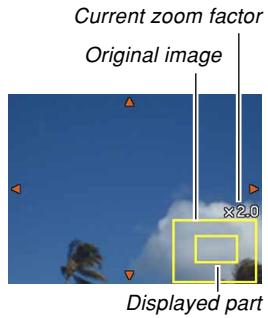
- Use [], [], [] , and [] to shift the image up, down, left, or right.
- Press [MENU] to return the image to its original size.
IMPORTANT!
- Depending on the original size of the recorded image, you may not be able to zoom a display image the full eight times normal size.
Resizing an Image
You can resize a recorded image to one of three sizes.
- In the PLAY mode, press [MENU].
- Select the "PLAY" tab, select "Resize", and then press [▶].
Note that this operation is possible only when a snapshot image is on the monitor screen.
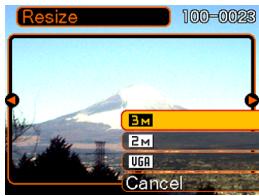
-
Use [] and [] to scroll through images and display the one you want to resize.
-
Use [] and [] to select the setting you want, and then press [SET].
-
When selecting the image size, the image size value (pixels) will alternate on the display with a corresponding print size. The print size indicates the optimum paper size when you print an image that is the image size you select.
| Image Size | Print Size | ||
| 3M | 2048 × 1536 | A4 Print | Larger ↑ Smaller |
| 2M | 1600 × 1200 | 3.5” × 5” Print | |
| VGA | 640 × 480 | E-mail (optimum size when attaching image to e-mail) | |
- "M" stands for "Mega."
- To cancel the resize operation, select "Cancel".
IMPORTANT!
- Resizing an image creates a new file that contains the image in the size you select. The file with the original image also remains in memory.
-
Note that you cannot resize the following types of images.
-
640 × 480 pixel and smaller images
Movie images and the voice recording file icon
Images created with MOTION PRINT
Images recorded with another camera -
The resize operation cannot be performed when there is not enough memory to store the resized image.
- When you display a resized image on the camera's monitor screen, the date and time that appear when the image is displayed indicate when the image was originally recorded, not when the image was resized.
- When a resized image is displayed on the calendar screen (page 137), it will appear on the date it was resized.
Cropping an Image
You can use the following procedure to crop a portion of an enlarged image.
- In the PLAY mode, use [<] and [▶] to scroll through images and display the one you want to crop.
- Press [MENU].
-
Select the "PLAY" tab, select "Trimming", and then press [▶].
-
An indicator appears in the lower right corner, that shows what part of the original image is currently displayed on the monitor screen.
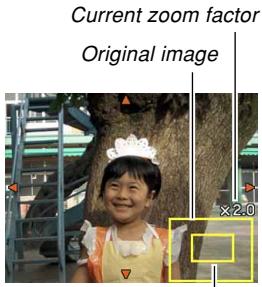
Displayed part
PLAYBACK
4. Move the zoom controller left and right to zoom the image.
- The part of the image displayed on the monitor screen is the cropped part.
5. Use [], [], [] , and [] to scroll the part to be cropped up, down, left, and right.
6. Press [SET] to extract the part of the image enclosed in the cropping boundary.
- If you want to cancel the procedure at any point, press [MENU].
IMPORTANT!
- Trimming an image causes the original (pre-trimmed) image and the new (trimmed) version to be stored as separate files.
- Note that you cannot crop the following types of images.
— Movie images and the voice recording file icon
Images created with MOTION PRINT
Images recorded with another camera
- The cropping operation cannot be performed when there is not enough memory to store the cropped image.
- When you display a cropped image on the camera's monitor screen, the date and time that appear when the image is displayed indicate when the image was originally recorded, not when the image was cropped.
- When a cropped image is displayed on the calendar screen (page 137), it will appear on the date it was cropped.
Keystone Correction
Use the following procedure to correct the snapshot of a blackboard, document, poster, photograph, or other rectangular object that is out of square because it was recorded at an angle.
- In the PLAY mode, use [<] and [▶] to scroll through images on the monitor screen and display the one you want to correct.
-
Select the "PLAY" tab, select "Keystone", and then press [▶].
-
This causes a screen that shows all of the objects in the image that qualify as candidates for keystone correction to appear.
-
Note that the above step is possible only when there is a snapshot displayed on the monitor screen.
-
Use [<] and [>] to select the candidate you want to correct.
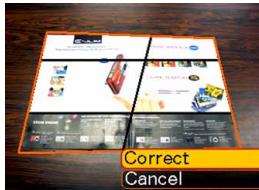
-
Use [] and [] to select "Correct", and then press [SET].
-
Select "Cancel" to exit the procedure without performing keystone correction.
IMPORTANT!
- Performing keystone correction on an image causes a new (corrected) version to be stored as a separate file.
- Keystone correction cannot be performed on the following types of images.
— Movie images and the voice recording file icon
Images created with MOTION PRINT
Images recorded with another camera
- The keystone correction operation cannot be performed if there is not enough memory to store the corrected image.
- When you display a corrected image on the camera's monitor screen, the date and time indicate when the image was originally recorded, not when the image was corrected.
- When a keystone corrected image appears on the full-month calendar screen, it is displayed on the date that it was corrected (page 137).
Using Color Restoration to Correct the Color of an Old Photograph
Color restoration let you correct the old color of a photograph shot with a digital camera. This function is useful for correcting existing old photographs, posters, etc.
- In the PLAY mode, use [<] and [> to scroll through images on the monitor screen and display the one you want to correct.
- Select the "PLAY" tab, select "Color Correction", and then press [▶].
- Use [<] and [> to select the photograph candidate you want.
-
Use [] and [] to select "Correct", and then press [SET].
-
This displays a cropping boundary on the monitor screen.
- To exit color restoration without storing anything, select "Cancel".
PLAYBACK
5. Move the zoom controller left and right to zoom the cropping boundary.
- Resize the cropping boundary as required to crop the area you want.
6. Use [], [], [] , and [] to move the cropping boundary to the location you want, and then press [SET].
- The camera will correct color automatically and save the image.
- If you do not want a border around the image, configure the cropping boundary so it is slightly inside of the boundary of the displayed image.
- To exit color restoration without saving anything, press [MENU].
IMPORTANT!
- Correcting an image causes a new (corrected) version to be stored as a separate file.
- Note that you cannot correct the following types of images.
— Movie images and the voice recording file icon
Images created with MOTION PRINT
Images recorded with another camera
- The color correct operation cannot be performed if there is not enough memory to store the corrected image.
- When you display a restored image on the camera's monitor screen, the date and time indicate when the image was originally recorded, not when the image was corrected.
- When a corrected image appears on the full-month calendar screen, it is displayed on the date that it was corrected (page 137).
NOTE
- If you want to record the image of an old photograph with this camera and restore the resulting image, see "Restoring an Old Photograph" on page 97.
Playing and Editing a Movie
Playing a Movie
Use the following procedure to play a movie you recorded with this camera.
- In the PLAY mode, use [<] and [> ] to scroll through movies on the monitor screen and display the one you want.
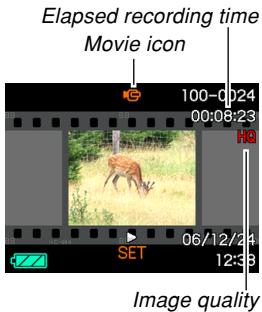
-
Press [SET].
-
This starts playback of the movie.
- You can perform the following operations while a movie is playing.
| To do this: | Do this: |
| Fast forward or fast reverse playback • Each press increases the speed one more step. | Press [▲] or [▶]. |
| Return fast forward or fast reverse movie playback to normal speed | Press [SET]. |
| Pause movie playback | Press [SET]. |
| Scroll paused playback one frame | Press [▲] or [▶]. |
| Stop movie playback | Press [MENU]. |
| Adjust the movie audio volume level | Press [▼] and then use [▲] and [▼]. |
| Toggle monitor screen indicators on and off | Press [▲] (DISP). |
| Zoom the movie image | Move the zoom controller towards (○). |
| Scroll a zoomed movie image on the monitor screen | Use [▲], [▼], [▲], [▶]. |
PLAYBACK
IMPORTANT!
- You can adjust the volume level of movie audio during movie playback only.
- You can zoom a movie up to 3.5 times normal size.
- Playback may not be possible for movies not recorded with this camera.
Editing a Movie
Use the procedure in this section to edit and delete movies. Editing operations let you cut everything before or after a specific frame, or to cut everything between two frames.
IMPORTANT!
- Cut operations cannot be undone. Make sure you really want to cut the part of the movie you are specifying before executing the cut operation.
- Movie editing is not possible for movies not recorded with this camera.
- A movie that is shorter than five seconds cannot be edited.
- Certain types of memory cards can cause the movie cut operation to take considerable time. This is normal and does not indicate malfunction.
- You will not be able to perform the cut operation if the amount of memory available is less than the size of the movie file you are cutting. If this happens, delete any files you no longer need to free up more memory.
- Splicing of two different movies into a single movie or cutting one movie into multiple parts are not supported by camera operations.
To cut everything before or after a specific frame
1. While the movie you are editing is playing, press [SET].
- This will pause movie playback.
![CASIO EXILIM EX-Z600 - While the movie you are editing is playing, press [SET]. - 1](/content/2025/01/86756/images/1ac3267106a5bf796887b95d57ae43e6a53a791e01609b2de306bc1de6b2fa79.jpg)
2. Press [▼].
- You can also display the same screen while in the PLAY mode, by pressing [MENU], selecting the "PLAY" tab, selecting "Movie Editing", and then pressing [▶].
3. Use [] and [] to select the operation you want to perform.
| To do this: | Select this setting: |
| Cut everything before a specific frame | Cut |
| Cut everything after a specific frame | Cut |
| Exit the cut mode | Cancel |
4. Display the frame where you want the cut to be located.
| To do this: | Do this: |
| Fast forward or fast reverse playback | Press [▲] or [►]. |
| Pause or unpause movie playback | Press [SET]. |
| Scroll paused playback one frame | Press [▲] or [►]. |
| Cancel the cut operation | Press [MENU]. |
- The red portion of the indicator bar shows what part will be cut.
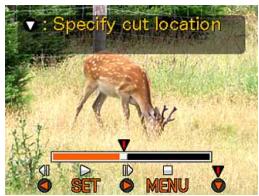
PLAYBACK
- When the frame you want is displayed, press [▼].
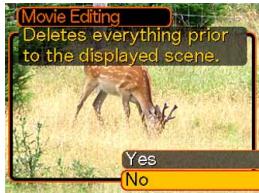
-
Use [] and [] to select "Yes," and then press [SET].
-
The message "Busy.... Please wait..." will remain on the display as the cut operation is performed. Cutting is complete when the message disappears.
- Select "No" to exit the cut mode.
To cut everything between two specific frames
-
While the movie is playing, press [SET].
-
This will pause movie playback.
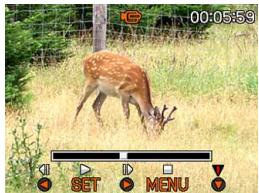
- Press [V].
- You can also display the same screen while in the PLAY mode, by pressing [MENU], selecting the "PLAY" tab, selecting "Movie Editing", and then pressing [▶].
- Use [] and [] to select "Cut", and then press [SET].
- Select "Cancel" to exit the cut mode.
4. Display the starting frame where you want the first cut to be located.
| To do this: | Do this: |
| Fast forward or fast reverse playback | Press [▲] or [►]. |
| Pause or unpause movie playback | Press [SET]. |
| Scroll paused playback one frame | Press [▲] or [►]. |
| Cancel the cut operation | Press [MENU]. |
5. When the frame you want is displayed, press [▼].
![CASIO EXILIM EX-Z600 - When the frame you want is displayed, press [▼]. - 1](/content/2025/01/86756/images/461e8b317fcd91290a91802e583ce1b86f15aee79180d0dbe13bc8114d7fd3c2.jpg)
6. Referring to step 4, search for the cut end screen. When the cut end screen is displayed, press [▼].
- The red portion of the indicator bar shows what part will be cut.
![CASIO EXILIM EX-Z600 - Referring to step 4, search for the cut end screen. When the cut end screen is displayed, press [▼]. - 1](/content/2025/01/86756/images/1926d07cc8030694123a53d92b2359554ec880407d82f9caac302e9c802cb251.jpg)
7. Use [] and [] to select "Yes", and then press [SET].
- The message "Busy.... Please wait..." will remain on the display as the cut operation is performed. Cutting is complete when the message disappears.
- Select "No" to exit the cut mode.
Capturing a Still Image from a Movie (MOTION PRINT)
The MOTION PRINT feature lets you capture a frame from an existing movie and create a still image that is suitable for printing. There are two layouts you can use when capturing an image, and the layout you select determines the final image size.
- 9 frames (1600 × 1200-pixel final image size)
Background images
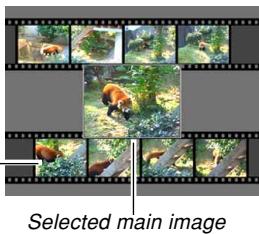
- 1 frame (640 × 480-pixel final data size)
Selected main image
To capture a still image from a movie
-
In the PLAY mode, use [<] and [▶] to scroll through movies on the monitor screen and display the one that contains the frames you want.
-
Press [MENU].
-
Select the "PLAY" tab, select "MOTION PRINT", and then press [▶].
-
Use [▲] and [▼] to select the layout ("1 frame" or "9 frames") you want to use.
-
Select "Cancel" to exit the MOTION PRINT mode.
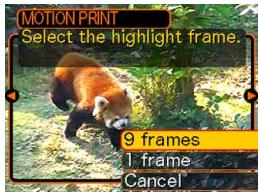
5. Use [] and [] to display the frame that you want to use as the main image.
- Holding down either button scrolls at high speed.
6. After selecting the frame you want, press [SET].
This displays the resulting still image.
- If you selected "9 frames" for the layout, the frame you selected in step 4 will be the main image, and the frames on either side of it will be used as the background frames.
- If you selected "1 frame" in step 4, an image of the frame you selected in step 6 appears here.
IMPORTANT!
- MOTION PRINT is not possible for movies not recorded with this camera.
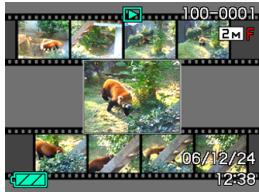
Displaying the 9-image View
The following procedure displays nine images on the monitor screen at the same time.
1. In the PLAY mode, shift the zoom controller towards (一)
- This displays the 9-image screen with the image that was on the monitor screen in step 2 in the center, with a selection boundary around it.
- If there are fewer than nine images in memory, they are displayed starting from the upper left corner. The selection boundary is located at the image that was on the display before you switched to the 9-image view.
- For a movie file (page 130), "..." is displayed at the top and bottom of the screen.
- On the 9-image screen, indicates a voice recording file (page 105).
-
? appears in place of the image when the date contains data that cannot be displayed by this camera.
-
Use [▲], [▼], [▲], and [▶] to move the selection boundary to the image you want. Pressing [▶] while the selection boundary is in the right column or [▲] while it is in the left column scrolls to the next full screen of nine images.
Example: When there are 20 images in memory, and Image 1 is displayed first
| 17 | 18 | 19 |
| 20 | 1 | 2 |
| 3 | 4 | 5 |
| 6 | 7 | 8 |
| 9 | 10 | 11 |
| 12 | 13 | 14 |
- Pressing any button besides [], [], [] , or [] displays the full-size version of the image where the selection boundary is located.
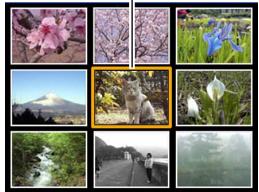
Selection boundary
Displaying the Calendar Screen
Use the following procedure to display a 1-month calendar. Each day shows the first file recorded on that day, which makes it easy to find the file you want.
-
In the PLAY mode, move the zoom controller towards (=) twice.
-
You can also display the calendar by pressing [MENU], selecting the "PLAY" tab, selecting "Calendar", and then pressing [▶] to display the calendar.
-
Use the procedure under "Changing the Date Format" on page 161 to specify the date format.
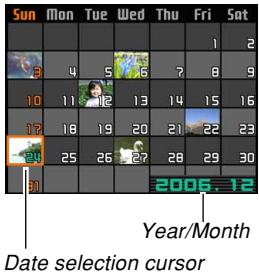
PLAYBACK
- The file displayed on the calendar for each date is the first file that was recorded on that date.
- To exit the calendar screen, press [MENU] or [BS].
- On the calendar screen, Q indicates a voice recording file (page 105).
-
appears in place of the image when the date contains data that cannot be displayed by this camera.
-
Use [], [], [] , and [] to move the selection boundary to the date you want, and then press [SET].
-
This displays an image of the first file that was recorded on the selected date.
Playing a Slideshow
A slideshow automatically plays back images in sequence at a fixed interval.

- In the PLAY mode, press [MENU].
- Select the "PLAY" tab, select "Slideshow", and then press [▶].
3. Use the screen that appears to configure the image, time, interval, and effect settings.
| Images | ·All Images Displays all images in camera memory. ·Only This icon appears only in the case of snapshots and audio snapshots. ·Only This icon appears only in the case of movies. ·One Image Displays a particular image. · Favorites Displays all images in the FAVORITE folder. |
| Time | Use [←] and [►] to specify the playback time you want (1 to 5 minutes, or 10, 15, 30, or 60 minutes). |
| Interval | Use [←] and [►] to specify the interval you want (MAX, or 1 to 30 seconds). ·When playback reaches a movie file while “MAX” is selected as the interval, only the first frame of the movie is displayed. |
| Effect | • Pattern 1, 2, 3, 4 Applies a preset effect when transitioning from one image to another. • Random Randomly applies the preset patterns (1, 2, 3, and 4). • OFF Effects turned off. |
4. Use [] and [] to select "Start", and then press [SET].
This starts the slideshow.
5. To stop the slideshow, press [SET].
- The slideshow will also stop automatically after the amount of time you specified for "Time" elapses.
PLAYBACK
IMPORTANT!
- Note that all buttons are disabled while an image change is in progress. Wait until an image is stopped on the monitor screen before performing a button operation, or hold down the button until the image stops.
- Pressing [▲] during a slideshow will scroll to the previous image, while [▶] scrolls to the next image.
- When the slideshow comes to a movie file, it plays the movie and its audio once.
- When the slideshow comes to a voice recording file or an audio snapshot, it plays the audio once.
- The audio of movies, audio snapshots, and voice recording files is not played when "MAX" is specified for the slideshow "Interval" setting. With all other "Interval" settings, movies and all audio (movies, audio snapshots, voice recording files) are played back, regardless of their length.
- During audio playback, you can adjust volume by pressing [▼] and then using [▲] and [▼].
Note that effect settings are disabled when the slideshow "Images" setting is "Favorites" or "Only", or when the slideshow "Interval" setting is "MAX", "1 sec", or "2 sec".
- Images copied from another digital camera or a computer may take longer time to appear than the slideshow interval time you specify.
- If there are indicators on the display, you can clear them by pressing [▲] (DISP) (page 30).
- When the slideshow reaches a movie while "One Image" is selected for "Images", the movie will repeat playback for the time specified by for "Time".
Using the Photo Stand Feature
The "Photo Stand" feature lets you specify what should appear on the camera's monitor screen while the camera is on its USB cradle. You can play a Photo Stand slideshow without worrying about remaining battery power, or you can specify display of a particular image. Photo Stand feature operations are performed in accordance with slideshow setting. See page 138 for information about configuring slideshow settings to suit your needs.
- Turn off the camera.
- Set the camera onto the USB cradle.
-
Press the USB cradle's [PHOTO] button.
-
This starts the Photo Stand slideshow with the images or image you specified.
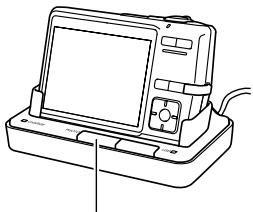
[PHOTO]
- Pressing [MENU] displays a screen for configuring slideshow settings. To restart the slideshow, press [MENU] while the menu screen is displayed, or select "Start" and then press [SET].
- During audio playback, you can adjust volume by pressing [▼] and then using [▲] and [▼].
4. To stop the Phot Stand slideshow, press [PHOTO] again.
IMPORTANT!
- The battery is not charged while a Photo Stand slideshow is in progress. To charge the battery, stop the slideshow.
Rotating the Display Image
Use the following procedure to rotate the image 90 degrees and register the rotation information along with the image. After you do this, the image is always displayed in its rotated orientation.
- In the PLAY mode, press [MENU].
-
Select the "PLAY" tab, select "Rotation", and then press [▶].
-
Note that this operation is possible only when a snapshot image is on the monitor screen.
-
Use [<] and [> ] to scroll through images until the one you want to rotate is on the monitor screen.
-
Use [▲] and [▼] to select "Rotate", and then press [SET].
Each press of [SET] rotates the image 90 degrees.
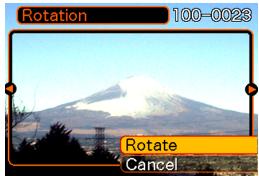
- After you are finished configuring settings, press [MENU] to exit the setting screen.
IMPORTANT!
- You cannot rotate an image that is protected. To rotate such an image, first unprotect it.
- You may not be able to rotate a digital image that was recorded with another type of digital camera.
- You cannot rotate the following types of images.
- Movie images and the voice recording file icon
- Zoomed images
- Images created with MOTION PRINT
- Image rotation is supported for single image only. You cannot rotate a 9-image screen or an image on the calendar screen.
Adding Audio to a Snapshot
The "after-recording" feature lets you add audio to snapshots after they are recorded. You can also re-record the audio of an audio snapshot (one with a icon on it).
- Audio Format: WAVE/ADPCM recording format This is the Windows standard format for audio recording. The file extension of a WAVE/ADPCM file is“.WAV”.
- Recording Time: Up to about 30 seconds per image
-
Audio File Size: Approximately 165KB (30-second recording of approximately 5.5KB per second)
-
In the PLAY mode, use [<] and [▶] to scroll through snapshots until the one to which you want to add audio is displayed.
- Press [MENU].
- Select the "PLAY" tab, select "Dubbing", and then press [▶].
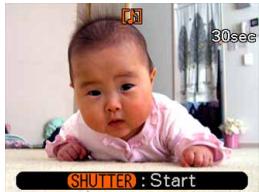
- Press the shutter button to start audio recording.
- Recording stops after about 30 seconds or when you press the shutter button.
To re-record audio
- In the PLAY mode, use [<] and [▶] to scroll through snapshots until the one whose audio you want to re-record is displayed.
- Press [MENU].
- Select the "PLAY" tab, select "Dubbing", and then press [▶].
-
Use [] and [] to select "Delete", and then press [SET].
-
If you merely want to delete the audio without rerecording, press [MENU] here to complete the procedure.
- Press the shutter button to start audio recording.
-
Recording stops after about 30 seconds or when you press the shutter button.
-
This deletes the existing audio and replaces it with the new one.
IMPORTANT!
Take care that you do not block the microphone with your fingers.
- Good recording results are not possible when the camera is too far from the subject.
- The (Audio) icon appears on the monitor screen after audio recording is complete.
- You will not be able to record audio when remaining memory capacity is low.
- You cannot add audio to the following types of images.
Movie images
Images created with MOTION PRINT
- Protected snapshot (page 152)
- Audio that is re-recorded or deleted cannot be recovered. Make sure you no longer need audio before re-recording or deleting it.
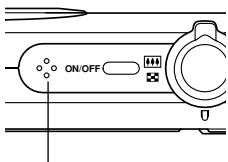
Microphone
Playing Back a Voice Recording File
Perform the following steps to play back a voice recording file.
- In the PLAY mode, use [▲] and [▶] to display the voice recording file (a file with on it) you want to play.
-
Press [SET].
-
This starts playback of the voice recording file through the camera's speaker.
- You can perform the following operations while audio is playing.
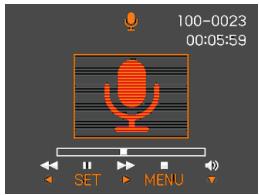
PLAYBACK
| To do this: | Do this: |
| Fast forward or fast reverse the audio | Hold down [▲] or [►]. |
| Pause and unpause audio playback | Press [SET]. |
| Adjust audio volume | Press [▼] and then use [▲] and [▼]. |
| Toggle monitor screen indicators on and off | Press [▲] (DISP). |
| Cancel playback | Press [MENU]. |
IMPORTANT!
Audio volume can be adjusted only when playback is being performed or is paused.
- If your recording has index marks (page 106) inside it, you can jump to the index mark before or after the current playback location by pausing playback and then pressing [▲] or [▶]. Next, press [SET] to resume playback from the index mark position.
Displaying Camera Images on a TV Screen
You can display recorded images on a TV screen. To display camera images on a TV, you need a television equipped with a video input terminal, USB cradle, and the AV cable that comes with the camera.
-
Connect one end of the AV cable that comes with the camera to the [AV OUT] port of the USB cradle, and the other end to the video input terminal of the TV.
-
Connect the yellow plug of the AV cable to the video input (yellow) terminal of the TV, and the white plug to the TV's audio input (white) terminal.
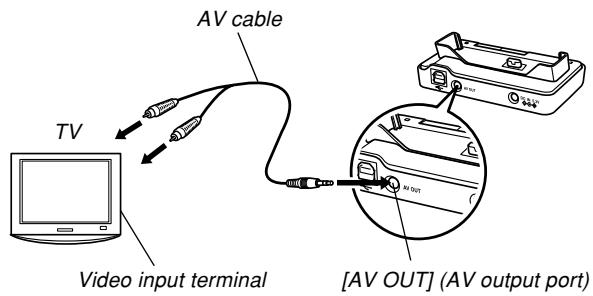
PLAYBACK
- Turn off the camera.
- Set the camera onto the USB cradle.
- Turn on the TV and select its video input mode.
- Press [▶] to turn on the camera, and then perform the required operation for playback.
IMPORTANT!
- Make sure that "Power On" or "Power On/Off" is selected for the camera's power on/off functions (page 167) when you connect to a TV to view images.
- All icons and indicators that appear on the monitor screen also appear on the TV screen.
Note that the audio output is monaural. - Pressing the USB cradle's [PHOTO] button will activate the Photo Stand feature (page 141) and display images on the TV screen.
- Depending on the size of the TV screen, recorded images may not fill the entire screen.
-
For video output, the audio volume level is initially set to maximum. Perform volume level adjustment using TV controls.
-
After using an optionally available AV cable (EMC-3A) to connect the camera's USB cradle connector directly to the AUDIO IN terminal of a TV, you can view recorded images on the TV and even use the TV screen to compose images before recording them.
NOTE
- You can use the camera's USB cradle to connect to a DVD recorder or video deck and record images from the camera. The following explains how to use the bundled AV cable.
DVD recorder or video deck: Connect to the VIDEO IN and AUDIO IN terminals.
- USB cradle: Connect to the [AV OUT] (AV output port)
- Camera: Place onto the cradle
You can play a slideshow of snapshots and movies on the camera and record it on a DVD or video tape. You can record movies by selecting "Only" for the slideshow "Images" setting (page 139). When recording images to an external device, use [▲] (DISP) to clear all indicators from the monitor screen (page 30).
Selecting the Video Output System
You can select either NTSC or PAL for the video system to match the system of the TV you are using.
- In the REC mode or the PLAY mode, press [MENU].
- Select the "Set Up" tab, select "Video Out", and then press [▶].
- Use [] and [] to select the setting you want, and then press [SET].
| If you are using a TV designed for use in this area: | Select this setting: |
| U.S., Japan, and other areas that use the NTSC system | NTSC |
| Europe and other areas that use the PAL system | PAL |
IMPORTANT!
- Images will not display properly if you select the wrong video system.
- This camera supports the NTSC and PAL video systems only. Images will not display properly if you use a TV (monitor) that is designed for a different video system.
DELETING FILES
You can delete a single file, or you can delete all files currently in memory.
IMPORTANT!
Note that file deletion cannot be undone. Once you delete a file, it is gone. Make sure you really do not need a file anymore before you delete it. Especially when deleting all files, make sure you check all the files you have stored before proceeding.
- A protected file cannot be deleted. To delete a protected file, unprotect it first (page 152).
- Delete cannot be performed when all files in memory are protected (page 153).
- Deleting an audio snapshot deletes both the image file and the audio file attached to it.
- You cannot use the procedures in this section to delete images from the FAVORITE folder. See the procedures on page 153 for details about deleting FAVORITE folder contents.
Deleting a Single File
- In the PLAY mode, press [] (4).
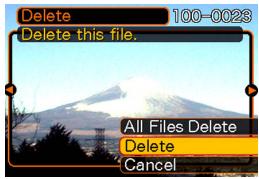
- Use [<] and [> ] to scroll through files and display the one you want to delete.
-
Use [] and [] to select "Delete".
-
To exit the file delete operation without deleting anything, select "Cancel".
- Press [SET] to delete the file.
- Repeat steps 2 through 4 to delete other files, if you want.
- Press [MENU] to exit the menu screen.
Deleting All Files
- In the PLAY mode, press [] (鱼).
- Use [] and [] to select "All Files Delete", and then press [SET].
-
Use [] and [] to select "Yes".
-
To exit the file delete operation without deleting anything, select "No".
-
Press [SET] to delete all the files.
- The message "There are no files." appears on the screen after all of the files are deleted.
FILE MANAGEMENT
The file management capabilities of the camera make it easy to keep track of images. You can protect files against deletion and store the files you want in the camera's built-in memory.
Folders
Your camera automatically creates folders in its built-in memory or on the memory card.
Memory Folders and Files
An image you record is automatically stored in a folder, whose name is a serial number. You can have up to 900 folders in memory at the same time. Folder names are generated as shown below.
Example: Name of the 100th folder.
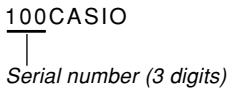
Each folder can hold files numbered up to 9,999.
Trying to store the 10,000th file in a folder causes the next serially numbered folder to be created. File names are generated as shown below.
Example: Name of the 26th file
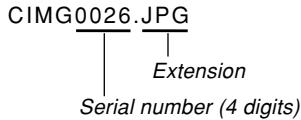
- The folder and file names described here appear when you view folders and files on a computer. See page 28 for information about how the camera displays folder and file names.
- The actual number of files you will be able to store on a memory card depends on image size and quality, card capacity, etc.
- For details about the folder structure, see "Memory Folder Structure" on page 200.
Protecting Files
Once you protect a file it cannot be deleted (page 149). You can protect files individually or you can protect all files in memory with a single operation.
IMPORTANT!
- Even if a file is protected, it still will be deleted by a memory card format operation (page 172) or a built-in memory format operation (page 168).
To protect a single file
- In the PLAY mode, press [MENU].
- Select the "PLAY" tab, select "Protect", and then press [▶].
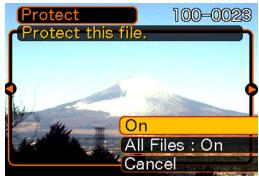
-
Use [<] and [> ] to scroll through files and display the one you want to protect.
-
Use [] and [] to select "On", and then press [SET].
-
A file that is protected is indicated by the mark.
- To unprotect a file, select "Off" in step 4, and then press [SET].
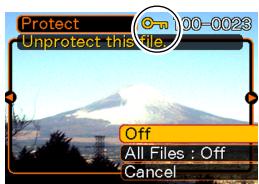
- Press [MENU] to exit the menu screen.
To protect all files in memory
- In the PLAY mode, press [MENU].
- Select the "PLAY" tab, select "Protect", and then press [▶].
-
Use [] and [] to select "All Files: On", and then press [SET].
-
To unprotected all files, press [SET] in step 3 so the setting shows "All Files: Off".
-
Press [MENU] to exit the menu screen.
Using the FAVORITE Folder
You can copy photos of family members or other special shots from the file storage folder (page 200) to the FAVORITE folder in built-in memory. Images copied to the FAVORITE folder are automatically reduced to 320 × 240 pixels. Images in the FAVORITE folder are not displayed during normal playback, so it helps to keep your personal images private as you carry them around. FAVORITE folder images are not deleted when you change memory cards, so you can always keep them on hand.
To copy a file to the FAVORITE folder
- In the PLAY mode, press [MENU].
- Select the "PLAY" tab, select " Favorites", and then press [▶].
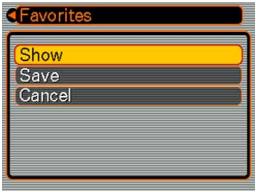
FILE MANAGEMENT
-
Use [] and [] to select "Save", and then press [SET].
-
This displays the names of the files in built-in memory or on the loaded memory card.
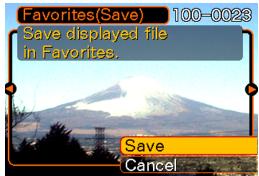
- Use [<] and [> ] to select the file you want to copy to the FAVORITE folder.
- Use [] and [] to select "Save", and then press [SET].
This copies the displayed file to the FAVORITE folder.
- After copying all of the files you want, use [▲] and [▼] to select "Cancel", and then press [SET] to exit.
NOTE
- Copying an image file with the above procedure creates a 320 × 240 -pixel QVGA-size image in the FAVORITE folder.
- A file copied into the FAVORITE folder is automatically assigned a file name that is a serial number. Though the serial number starts from 0001 and can go as high as 9999, the actual upper end of the range depends on built-in memory capacity. Remember that the maximum number of images that can be stored in built-in memory depends on the size of each image and other factors.
IMPORTANT!
Note that an image that has been copied to the FAVORITE folder and then resized cannot be returned to its original size.
- Files in the FAVORITE folder cannot be copied to a memory card.
To display a file in the FAVORITE folder
- In the PLAY mode, press [MENU].
- Select the "PLAY" tab, select "Favorites", and then press [▶].
-
Use [] and [] to select "Show", and then press [SET].
-
If the FAVORITE folder is empty, the message "No Favorites file!" appears.
-
Use [▶] (forward) and [←] (back) to scroll through the files in the FAVORITE folder.
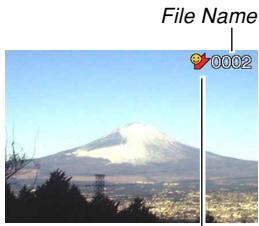
FAVORITE folder icon
- After you are finished viewing files, press [MENU] twice to exit.
IMPORTANT!
- Note that a FAVORITE folder is created in the camera's built-in memory only. No FAVORITE folder is created on a memory card when you use one. If you want to view the contents of the FAVORITE folder on your computer screen, you need to remove the memory card from the camera (if you are using one) before placing the camera onto the USB cradle to start data communication (pages 171, 186).
To delete a file from the FAVORITE folder
- In the PLAY mode, press [MENU].
- Select the "PLAY" tab, select "Favorites", and then press [▶].
- Use [] and [] to select "Show", and then press [SET].
- Press [▼] (4)
- Use [<] and [> to select the file you want to delete from the FAVORITE folder.
-
Use [] and [] to select "Delete", and then press [SET].
-
To exit the file delete operation without deleting anything, select "Cancel".
-
After deleting all of the files you want, use [▲] and [▼] to select "Cancel", and then press [SET] to exit.
To delete all files from the FAVORITE folder
- In the PLAY mode, press [MENU].
- Select the "PLAY" tab, select "Favorites", and then press [▶].
- Use [] and [] to select "Show", and then press [SET].
- Press [▼] (4 匝).
- Use [] and [] to select "All Files Delete", and then press [SET].
IMPORTANT!
- You cannot use the delete operations on page 149 to delete images from the FAVORITE folder. Performing the memory format operation (page 168), however, does delete FAVORITE folder files.
OTHER SETTINGS
Configuring Sound Settings
You can configure different sounds to play whenever you turn on the camera, press the shutter button half-way or all the way, or perform a key operation.
To configure sound settings
- Press [MENU].
- Select the "Set Up" tab, select "Sounds", and then press [▶].
- Use [] and [] to select the sound whose setting you want to configure, and then press [▶].
- Use [] and [] to change the setting, and then press [SET].
| To do this: | Select this setting: |
| Select a built-in sound | Sound 1 through Sound 5 |
| Turn off the sound | Off |
To set the confirmation tone volume level
- Press [MENU].
- Select the "Set Up" tab, select "Sounds", and then press [▶].
- Use [] and [] to select "Operation".
-
Use [<] and [> to specify the volume setting you want, and then press [SET].
-
You can set the volume in the range of 0 (no sound) to 7 (loudest).
IMPORTANT!
- The volume setting you make here also affects the video output volume level (page 146).
To set the audio volume level for movie and audio snapshot playback
- Press [MENU].
- Select the "Set Up" tab, select "Sounds", and then press [▶].
- Use [] and [] to select "Play".
-
Use [<] and [▶] to specify the playback volume setting you want, and then press [SET].
-
You can set the playback volume in the range of 0 (no sound) to 7 (loudest).
IMPORTANT!
- The volume setting you make here does not affect the video output volume level (page 146).
Specifying an Image for the Startup Screen
You can specify an image you recorded as the startup screen image, which causes it to appear on the monitor screen whenever you press the power button or [REC) to turn on the camera. The startup screen image does not appear if you press [PLAY) to turn on the camera.
- Press [MENU].
- Select the "Set Up" tab, select "Startup", and then press [▶].
- Use [<] and [> ] to display the image you want to use as the startup image.
- Use [] and [] to change the setting, and then press [SET].
| To do this: | Select this setting: |
| Use the currently displayed image as the startup screen image | On |
| Disable the startup screen | Off |
IMPORTANT!
- You can select any one of the following types of image as the startup image.
The camera's built-in image
A snapshot
The image only of an audio snapshot - Only one image can be stored in startup image memory at one time. Selecting a new startup image overwrites anything that is already stored in startup image memory. Because of this, if you want to return to a previous startup image, you need to have a separate copy of that image in the camera's standard image memory.
- The startup image is deleted if you format built-in memory (page 168).
Specifying the File Name Serial Number Generation Method
Use the following procedure to specify the method for generating the serial number used for file names (page 151).
- Press [MENU].
- Select the "Set Up" tab, select "File No.", and then press [▶].
- Use [] and [] to change the setting, and then press [SET].
| To do this for a newly saved file: | Select this setting: |
| Store the last file number used and increment it, regardless of whether files are deleted or whether the memory card is replaced with a new one | Continue |
| Restart the serial number from 0001 whenever all files are deleted or the memory card is replaced. | Reset |
Setting the Clock
Use the procedures in this section to select a Home Time Zone, and to change its date and time settings. If you want to change the time and date setting only without changing the Home Time Zone, perform the procedure under "To set the current time and date" (page 161) only.
IMPORTANT!
- Make sure you select your Home Time zone (the zone where you are currently located) before changing the time and date settings. Otherwise, the time and date setting will change automatically when you select another time zone.
To select your Home Time zone
- Press [MENU].
- Select the "Set Up" tab, select "World Time", and then press [▶].
This displays the current World Time zone. - Use [] and [] to select "Home", and then press [] .
- Use [▲] and [▼] to select "City", and then press [▶].
- Use [], [], [] , and [] to select the geographical area that contains location you want to select as your Home Time zone, and then press [SET].
- Use [] and [] to select the city you want, and then press [SET].
- After selecting the city you want, press [SET] to register its zone as your Home Time zone.
To set the current time and date
- Press [MENU].
- Select the "Set Up" tab, select "Adjust", and then press [▶].
- Set the current date and the time.
| To do this: | Do this: |
| Change the setting at the current cursor location | Press [▲] or [▼]. |
| Move the cursor between settings | Press [▲] or [▼]. |
| Toggle between 12-hour and 24-hour timekeeping | Press [BS]. |
- When all the settings are the way you want, press [SET] to register them and exit the setting screen.
Changing the Date Format
You can select from among three different formats for display of the date.
- Press [MENU].
- Select the "Set Up" tab, select "Date Style", and then press [▶].
- Use [] and [] to change the setting, and then press [SET].
Example: December 24, 2006
| To display the date like this: | Select this format: |
| 06/12/24 | YY/MM/DD |
| 24/12/06 | DD/MM/YY |
| 12/24/06 | MM/DD/YY |
Using World Time
You can use the World Time screen to select a time zone and instantly change the time setting of the camera's clock when you go on a trip, etc. World Time lets you select one of 162 cities in 32 time zones.
To display the World Time screen
- Press [MENU].
- Select the "Set Up" tab, select "World Time", and then press [▶].
- Use [] and [] to select "World".
| To do this: | Select this: |
| Display the time in your home time zone | Home |
| Display the time in the zone currently selected on the World Time screen | World |
- Press [SET] to exit the setting screen.
To configure World Time settings
- Press [MENU].
- Select the "Set Up" tab, select "World Time", and then press [▶].
- Use [] and [] to select "World", and then press [] .
-
Use [▲] and [▼] to select "City", and then press [▶].
-
To configure the summer time setting, select "DST", and then select either "On" or "Off".
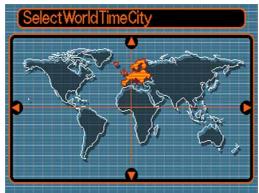
- Summer time is used in some geographical areas to advance the current time setting by one hour during the summer months.
-
Use of summer time depends on the local customs and laws.
-
Use [▲], [▼], [◁], and [▷] to select the geographical area you want, and then press [SET].
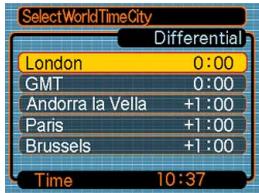
- Use [] and [] to select the city you want, and then press [SET].
- When the setting is the way you want, press [SET] to apply it and exit the setting screen.
Editing the Date and Time of an Image
Use the procedure in this section to change the date and time of a previously recorded image. This capability comes in handy when the current date and time are wrong due to the following reasons.
- Because the camera's clock settings were not configured correctly when the image was recorded (page 47)
-
Because the image was recorded using the wrong World Time zone (page 162)
-
In the PLAY mode, use [<] and [▶] to display the image whose date and time you want to edit.
- Press [MENU].
- Select the "PLAY" tab, select "Date/Time", and then press [▶].
- Set the date and the time you want.
OTHER SETTINGS
| To do this: | Do this: |
| Change the value at the cursor location | Press [▲] or [▼]. |
| Move the cursor between settings | Press [←] or [▶]. |
| Toggle between 12-hour and 24-hour timekeeping | Press [BS]. |
5. When all the settings are the way you want, press [SET] to apply them.
- After editing the time and date, display the image to confirm that the date and time are correct.
IMPORTANT!
- You cannot change the date of the following types of files.
— Movies, Voice recordings
Images created with MOTION PRINT - You cannot edit the date and time of a image that is protected. Unprotect the image and then edit the date and time.
- You can specify any date in the range of January 1, 1980 to December 31, 2049.
Changing the Display Language
You can use the following procedure to select one of ten languages as the display language.
- Press [MENU].
- Select the "Set Up" tab, select "Language", and then press [▶].
- Use [], [], [], and [] to change the setting, and then press [SET].
OTHER SETTINGS
Changing the Brightness of the Monitor Screen
You can use the following procedure to change the brightness of the monitor screen.
- Press [MENU].
- Select the "Set Up" tab, select "Screen", and then press [▶].
- Use [] and [] to select the setting you want, and then press [SET].
| When you want to do this: | Select this setting: |
| Automatic adjustment of monitor screen brightness in accordance with lighting conditions • Auto 2 adjusts to a brighter setting more quickly than Auto 1. | Auto 1 or Auto 2 |
| Higher monitor screen brightness than the +1 setting • This setting consumes more power. | +2 |
| Relatively higher monitor screen brightness than the 0 setting (for outdoor use) • This setting consumes more power. | +1 |
| Normal monitor screen brightness (for indoor use) | 0 |
Changing the USB Port Protocol
You can use the procedure below to change the communication protocol of the camera's USB port when connecting to a computer, printer, or other external device. Select the protocol that suits the device to which you are connecting.
- Press [MENU].
- Select the "Set Up" tab, select "USB", and then press [▶].
- Use [] and [] to select the setting you want, and then press [SET].
| When connecting to this type of device: | Select this setting: |
| Computer or USB DIRECT-PRINT-compatible printer (page 180) | Mass Storage (USB DIRECT-PRINT) |
| PictBridge-compatible printer (page 180) | PTP (PictBridge)* |
-
"PTP" stands for "Picture Transfer Protocol".
-
Mass Storage (USB DIRECT-PRINT) causes the camera to see the computer as an external storage device. Use this setting for normal transfer of images from the camera to a computer (using the bundled Photo Loader application).
- PTP (PictBridge) simplifies the transfer of image data to the connected device.
Configuring [O] (REC) and [O] (PLAY)
Power On/Off Functions
You can use the following procedures to configure [REC] and [PLAY] so power turns on and/or off whenever they are pressed.
- Press [MENU].
- Select the "Set Up" tab, select "REC/PLAY", and then press [▶].
- Use [] and [] to select the setting you want, and then press [SET].
| To configure this operation: | Select this setting: |
| Power turns on when [REC] or [PLAY] (PLAY) is pressed (but does not turn off) | Power On |
| Power turns on or off when [REC] or [PLAY] (PLAY) is pressed | Power On/Off |
| Power does not turn on or off when [REC] (REC) or [PLAY] is pressed | Disable |
IMPORTANT!
- When "Power On/Off" is selected, pressing [REC] in the REC mode or [PLAY] in the PLAY mode turns off the camera.
- Pressing [O] (REC) in the PLAY mode switches to the currently selected recording mode, and pressing [D] (PLAY) in the REC mode switches to the PLAY mode.
- When connecting the camera to a TV for viewing camera images, "Power On" or "Power On/Off" must be selected for the power on/off function.
NOTE
- The initial default setting is "Power On".
Formatting Built-in Memory
Formatting built-in memory deletes any data stored in it.
IMPORTANT!
- Note that data deleted by a format operation cannot be recovered. Check to make sure you do not need any of the data in memory before you format it.
-
Formatting built-in memory deletes the following.
-
Protected images
— FAVORITE folder images
BEST SHOT mode user setups
— Startup screen image -
Before starting the format operation, check to make sure that the camera's battery is not low. Battery power going low during formatting can cause improper formatting and creates the risk of camera malfunction.
-
Never open the battery cover while the format operation is being performed. Doing so creates the risk of camera malfunction.
-
Check to make sure there is no memory card loaded in the camera.
-
If there is a memory card loaded in the camera, remove it (page 171).
-
Press [MENU].
- Select the "Set Up" tab, select "Format", and then press [▶].
-
Use [] and [] to select "Format", and then press [SET]. Entering the PLAY mode after formatting built-in memory will cause the message "There are no files." to appear.
-
To exit the format operation without formatting, select "Cancel".
USING A MEMORY CARD
You can expand the storage capabilities of your camera by using a commercially available memory card (SD memory card or MultiMediaCard). You can also copy files from built-in memory to a memory card and from a built-in memory card to built-in memory.

- Normally, files are stored in built-in memory. When you insert a memory card, however, the camera automatically stores files to the card.
Note that you cannot save files to built-in memory while a memory card is installed in the camera.
IMPORTANT!
- Use only an SD memory card or a MultiMediaCard with this camera. Proper operation is not guaranteed when any other type of card is used.
-
See the instructions that come with the memory card for information about how to use it.
-
Certain types of cards can slow down processing speeds. If you are using a slow memory card, you may not be able to record a movie using the "HQ" image quality setting. Because of this, use of an SD memory card with a maximum transfer speed of at least 10MB per second is recommended.
- Certain types of memory cards take longer to record data, which can cause movie frames to be dropped.
- and flash on the monitor screen during recording to let you know when a frame has been dropped. Use of an SD memory card with a maximum transfer speed of at least 10MB per second is recommended.
- SD memory cards have a write protect switch, which you can use to protect against accidental deletion of image data. Note, however, if you write protect an SD memory card, you must remove write protection whenever you want to record to it, format it, or delete any of its files.
- Electrostatic charge, digital noise, and other phenomena can cause data to become corrupted or even lost. Always maintain backup copies of important data on other media (CD-R, CD-RW, MO disc, computer hard disk, etc.)
Using a Memory Card
IMPORTANT!
- Make sure you turn off the camera before inserting or removing a memory card.
- Be sure to orient the card correctly when inserting it. Never try to force a memory card into the slot when you feel resistance.
To insert a memory card into the camera
- Slide the battery cover in the direction indicated by the arrow, and then swing it open.
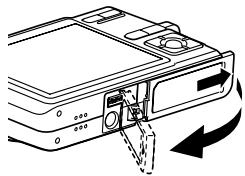
- Positioning the memory card so its back is facing in the same direction as the camera's monitor screen, carefully slide it into the card slot. Slide the card all the way in until you hear it click securely into place.
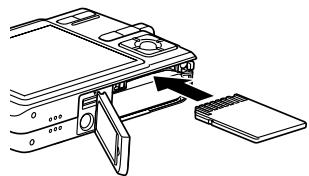
Front
Back
- Swing the battery cover closed, and then slide it in the direction indicated by the arrow.
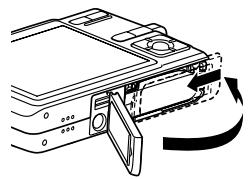
To replace the memory card
- Press the memory card into the camera and then release it. This will cause the card to come part way out of the camera.
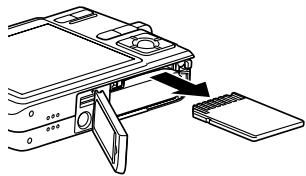
- Pull the memory card out of the slot.
- Load another memory card.
IMPORTANT!
- Never try to insert anything that is not an SD memory card or MMC (MultiMediaCard) into the camera's memory card slot. Doing so can cause malfunction of the camera.
- Should water or any foreign object ever get into the card slot, immediately turn off the camera, remove the battery, and contact your dealer or nearest CASIO authorized service center.
- Never remove a card from the camera while the operation lamp is flashing green. Doing so can cause the file save operation to fail, and even damage the memory card.
- Certain types of memory cards or camera conditions can cause the format operation to take considerable time.
Formatting a Memory Card
Formatting a memory card deletes any data already stored on it.
IMPORTANT!
- Be sure to use the camera to format a memory card. Formatting a memory card on a computer and then using it in the camera can slow down data processing by the camera. In the case of an SD card, formatting on a computer can result in non-conformity with the SD format, causing problems with compatibility, operation, etc.
- Note that data deleted by a memory card format operation cannot be recovered. Check to make sure you do not need any of the data on the memory card before you format it.
- Formatting a memory card that contains files deletes all the files, even those that are protected (page 152).
To format a memory card
- Load the memory card into the camera.
- Turn on the camera, and press [MENU].
- Select the "Set Up" tab, select "Format", and then press [▶].
-
Use [] and [] to select "Format", and then press [SET]. Entering the PLAY mode after formatting the memory card will cause the message "There are no files." to appear.
-
To exit the format operation without formatting, select "Cancel".
Memory Card Precautions
- If a memory card starts to behave abnormally, you can restore normal operation by reformatting it. However, we recommend that you always take along more than one memory card whenever using the camera far away from the home or office.
- We recommend that you format a memory card before using it for the first time after purchasing it, or whenever the card you are using seems to be the cause of abnormal images.
- As you record data to and delete data from an SD memory card a number of times, it loses its ability to retain data. Because of this, periodic re-formatting of an SD memory card is recommended.
- Before starting the format operation, check to make sure that the camera's battery is not low. Battery power going low during formatting can cause improper formatting and creates the risk of memory card malfunction.
- Never open the battery cover while the format operation is being performed. Doing so creates the risk of memory card malfunction.
Copying Files
Use the procedures below to copy files between built-in memory and a memory card.
IMPORTANT!
- Only snapshot, movie, audio snapshot, and voice recording files recorded with this camera can be copied. Other files cannot be copied.
- Files in the FAVORITE folder cannot be copied.
- Copying an audio snapshot copies both its image file and the audio file.
To copy all the files in built-in memory to a memory card
- Load the memory card into the camera.
- Turn on the camera. Next, enter the PLAY mode and press [MENU].
- Select the "PLAY" tab, select "Copy", and then press [▶].
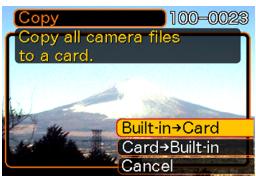
-
Use [] and [] to select "Built-in → Card", and then press [SET].
-
This starts the copy operation and displays the message "Busy.... Please wait...".
- After the copy operation is complete, the monitor screen shows the last file in the folder.
IMPORTANT!
- Copy is not possible if there is not enough memory capacity to hold all of the images you are trying to copy.
To copy a specific file from a memory card to built-in memory
- Perform steps 1 through 3 of the procedure under "To copy all the files in built-in memory to a memory card".
- Use [] and [] to select "Card Built-in", and then press [SET].
- Use [<] and [> ] to select the file you want to copy.
-
Use [] and [] to select "Copy", and then press [SET].
-
This starts the copy operation and displays the message "Busy.... Please wait...".
- The file reappears on the monitor screen after the copy operation is complete.
-
Repeat steps 3 through 4 to copy other images, if you want.
-
Press [MENU] to exit the copy operation.
NOTE
- Files are copied to the folder in built-in memory whose name has the largest number.
PRINTING IMAGES
A digital camera provides you with a variety of different ways to print the images it records. The three main printing methods are described below. Use the method that best suits your needs.
Professional Print Service
The camera's DPOF feature lets you specify which images you want to print and how many copies of each you want. For more information, see "DPOF" (page 177).
NOTE
- Certain print service providers may not support DPOF or may support different printing protocols. In this case, use the protocol supported by your print service to specify the images you want to have printed.
■ Printing Directly on a Printer Equipped with a Card Slot, or a Printer that Supports USB DIRECT-PRINT or PictBridge
After using the camera's DPOF feature to specify the images you want to print and how many copies of each should be printed, you can plug the memory card into a printer equipped with a card slot, or connect the camera to a PictBridge or USB DIRECT-PRINT printer for printing. For more information, see "DPOF" (page 177) and "Using PictBridge or USB DIRECT-PRINT" (page 180).
■ Printing with a Computer
Windows Users
The camera comes bundled with Photo Loader and Photohands applications, which can be installed on a Windows computer for image transfer, management, and printing. For more information, see "Using the Camera with a Windows Computer" (pages 186, 203).
Macintosh Users
The camera comes bundled with Photo Loader for the Macintosh, which can be installed for image transfer and management, but not for printing. Use commercially available software for printing with a Macintosh. For more information, see "Using the Camera with a Macintosh Computer" (pages 194, 213).
DPOF
The letters "DPOF" stand for "Digital Print Order Format", which is a format for recording on a memory card or other medium which digital camera images should be printed and how many copies of the image should be printed. Then you can print on a DPOF-compatible printer or at a professional print service in accordance with the file name and number of copies settings recorded on the card.

With this camera, you can select images by viewing them on the monitor screen without needing to remember file names, their locations in memory, etc.
DPOF Settings
File Name, number of copies, date
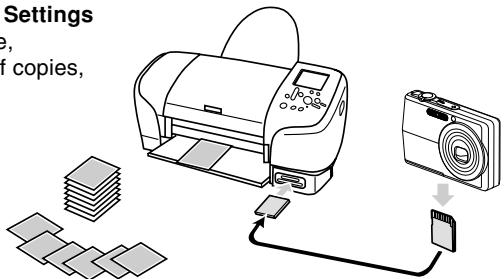
To configure print settings for a single image
- In the PLAY mode, press [MENU].
- Select the "PLAY" tab, select "DPOF", and then press [▶].
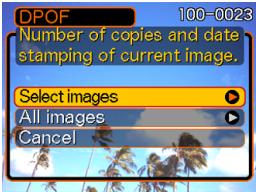
- Use [] and [] to select "Select images", and then press [] .
- Use [<] and [▶] to display the image you want.
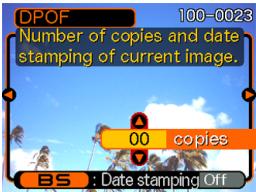
-
Use [] and [] to specify the number of copies.
-
You can specify up to 99 for the number of copies. Specify 00 if you do not want to have the image printed.
-
To turn on date stamping for the prints, press [BS] so "On" is displayed.
-
"On" indicates that date stamping is turned on.
- Turning on date stamping while "00" is specified for the number of copies will cause the number of copies other number of copies set when you turn on date sta
- To turn off date stamping for the prints, press [BS] so "Off" is displayed.
-
Repeat steps 4 through 6 if you want to configure other images for printing.
-
After all the settings are the way you want, press [SET] to apply them.
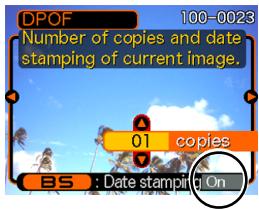
To configure print settings for all images
- In the PLAY mode, press [MENU].
- Select the "PLAY" tab, select "DPOF", and then press [▶].
- Use [] and [] to select "All images", and then press [] .
-
Use [▲] and [▼] to specify the number of copies.
-
You can specify up to 99 for the number of copies. Specify 00 if you do not want to have the image printed.
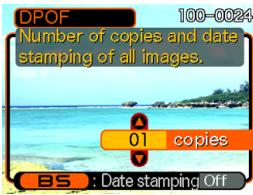
-
To turn on date stamping for the prints, press [BS] so "On" is displayed.
-
"On" indicates that date stamping is turned on.
- Turning on date stamping while "00" is specified for the number of copies will cause the number of copies to change to "01". Any other number of copies setting will remain the same when you turn on date stamping.
-
To turn off date stamping for the prints, press [BS] so "Off" is displayed.
-
After all the settings are the way you want, press [SET] to apply them.
IMPORTANT!
- DPOF settings are not cleared automatically after printing is complete. This means that if you perform another printing operation without clearing DPOF settings, printing will be performed in accordance with the last settings you configured. If you want to prevent this from happening, perform the procedure under "To configure print settings for all images" (page 179) and change the number of copies to "00". After that, you can configure new DPOF settings as required.
- If you take a memory card to a professional print service, be sure to tell them that it includes DPOF settings for the images to be printed and the number of copies. If you don't, the printing service may print all images without regard to your DPOF settings, or date printing may not be performed.
- Note that some professional print services do not support DPOF printing. Check with your service before ordering prints.
- Some printers may have settings that disable date stamp and/or DPOF printing. See the user documentation that comes with your printer for details about how to enable these features.
Using PictBridge or USB DIRECT-PRINT
You can connect the camera directly to a printer that supports PictBridge or USB DIRECT-PRINT, and perform image selection and printing using the camera monitor screen and controls. DPOF support (page 177) also lets you specify which images you want to print and how many copies of each should be printed.
- PictBridge is a standard established by the Camera and Imaging Products Association (CIPA).
- USB DIRECT-PRINT is a standard proposed by Seiko Epson Corporation.


- Press [MENU].
- Select the "Set Up" tab, select "USB", and then press [▶].
- Use [] and [] to select the setting you want, and then press [SET].
| When connecting to this type of device: | Select this setting: |
| Computer or USB DIRECT-PRINT-compatible printer | Mass Storage (USB DIRECT-PRINT) |
| PictBridge-compatible printer | PTP (PictBridge) |
- Mass Storage (USB DIRECT-PRINT) causes the camera to see the computer as an external storage device. Use this setting for normal transfer of images from the camera to a computer (using the bundled Photo Loader application).
-
PTP (PictBridge) simplifies the transfer of image data to the connected device.
-
Connect the USB cable that comes bundled with the camera to the USB cradle and a printer.
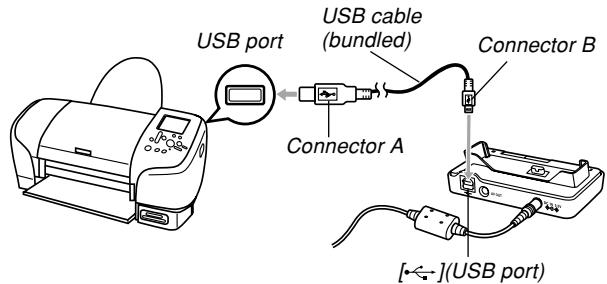
- Also, connect the AC adaptor to the USB cradle and plug the AC adaptor into an electrical outlet.
- If you are using battery power without the AC adaptor, make sure that the battery is fully charged.
- Nothing appears on the camera's monitor screen if the camera is on the USB cradle while the bundled AV cable is connected to the cradle. Be sure to disconnect the AV cable from the cradle if you want to use the camera's monitor screen to view images.
PRINTING IMAGES
- Turn off the camera, and then set the camera on the USB cradle.
- Turn on the printer.
- Load paper for printing the images into the printer.
- Press the USB cradle's [USB] button.
This displays the print menu on the camera's monitor screen.
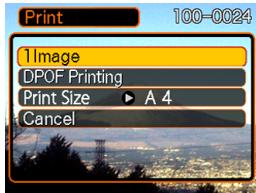
- Use [] and [] to select "Paper Size", and then press [] .
-
Use [] and [] to select the paper size you want to use for printing, and then press [SET].
-
The following are the print sizes that are available.
$$ 3. 5 ^ {\prime \prime} \times 5 ^ {\prime \prime} $$
$$ 5 ^ {\prime \prime} \times 7 ^ {\prime \prime} $$
$$ 4 ^ {\prime \prime} \times 6 ^ {\prime \prime} $$
A4
$$ 8. 5 ^ {\prime \prime} \times 1 1 ^ {\prime \prime} $$
By Printer
- Selecting "By Printer" prints using the paper size selected on the printer.
-
Available paper size settings depend on the connected printer. For full details, see the instructions that come with your printer.
-
Use [▲] and [▼] to specify the print option you want.
-
To print a single image: Select "1 Image" and then press [SET]. Next, use [<] and [>] to select the image you want to print.
- To print multiple images or all images: Select "DPOF Printing", and then press [SET]. Selecting this option will print the images selected with the DPOF settings. See page 177 for more information.
- You can toggle date stamping of the image on and off by pressing [BS]. The date stamp will be printed when "On" is indicated on the monitor screen. "On" indicates that date stamping is turned on.
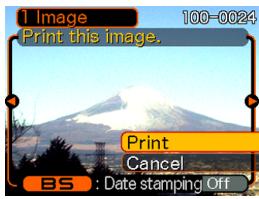
-
On the camera's monitor screen, use [▲] and [▼] to select "Print", and then press [SET].
-
This starts printing and displays the message "Busy.... Please wait..." on the monitor screen. The message will disappear after a short while, even though printing is still being performed. Pressing any of the camera's buttons while printing is in progress will cause the message to reappear.
- The print menu will appear when printing is complete.
-
If you selected "1 Image" in step 11, you can select another image for printing and then repeat this step to print.
-
After you are finished printing, press the USB cradle's [USB] button, and then turn off the camera.
Date Printing
Any one of the procedures described below can be used to include the recording date in image prints. Correct date printing requires that the current date be set on the camera before the image is recorded.
- Specifying date printing with DPOF settings (page 177)
- Some printers may have settings that disable time stamp and/or DPOF printing. See the user documentation that comes with your printer for details about how to enable these features.
Note that some professional print services do not support DPOF printing. Check with your service before ordering prints. - Specifying date printing with the Photohands software that comes with the camera
See page 23 of the Photohands User's Guide for details. The Photohands User's Guide is provided as a PDF file on the CD-ROM that comes bundled with your camera. - Specifying date printing when having printing done by a print service
Some print services do not support date printing. Check with your service for more information.
■ Printing Precautions
- See the documentation that comes with your printer for information about print quality and paper settings.
- Contact your printer manufacturer for information about models that support PictBridge and USB DIRECT-PRINT, upgrades, etc.
- Never disconnect the USB cable, or perform any camera or USB cradle operation while printing is in progress. Doing so causes a printer error.
PRINT Image Matching III
Images include PRINT Image Matching III data (mode setting and other camera setup information). A printer that supports PRINT Image Matching III reads this data and adjusts the printed image accordingly, so your images come out just the way you intended when you recorded them.
- Seiko Epson Corporation holds the copyright for PRINT Image Matching and PRINT Image Matching III.
PRINT Image Matching
Exif Print
Exif Print is an internationally supported, open standard file format that makes it possible to capture and display vibrant digital images with accurate colors. With Exif 2.2, files include a wide range of shooting condition information that can be interpreted by an Exif Print printer to produce better-looking prints.

IMPORTANT!
- Information about the availability of Exif Print compatible printer models can be obtained from each printer manufacturer.
VIEWING IMAGES ON A COMPUTER
After using the USB cradle to establish a USB connection between the camera and your computer, you can use your computer to view images in file memory and copy images to your computer's hard disk or other storage media. In order to do this, you first need to install the USB driver located on the CD-ROM that comes bundled with the camera onto your computer.
Note that the procedure you need to perform depends on whether you are using computer running under Windows (see below) or a Macintosh (see page 194).
Using the Camera with a Windows Computer
The following are the general steps for viewing and copying files from a computer running under Windows. You can find details about each operation in the procedures that follow below. Note that you should also refer to the documentation that comes with your computer for other information about USB connections, etc.
-
If you are running Windows 98SE or 98, install the USB driver onto your computer.
-
You need to perform this step only once, the first time you connect to your computer.
- If you are running Windows XP, 2000, or Me, you do not need to install the USB driver.

- Use the USB cradle to establish a connection between the camera and computer.

- View and copy the images you want.
IMPORTANT!
- Low battery power can cause the camera to power down suddenly during data communication. Use of the special AC adaptor is recommended to power the camera during data communication.
- If you are using battery power without the AC adaptor, make sure that the battery is fully charged.
- If you want to transfer files from the camera's built-in memory to a computer, make sure there is no memory card loaded in the camera before you place it onto the USB cradle.
Do not try to establish a connection between the camera and computer before installing the USB driver onto the computer. If you do, the computer will not be able to recognize the camera.
- USB driver installation is required in the case of Windows 98SE and 98. Do not connect the camera to a computer running one of the above operating systems without installing the USB driver first.
-
USB driver installation is not required in the case of Windows XP, 2000, and Me.
-
What you should do first depends on whether your computer is running under Windows XP, 2000, Me, 98SE, or 98.
Windows 98SE/98 Users
- Start from step 2 to install the USB driver.
Note that the example installation presented here uses Windows 98.
Windows XP/2000/Me Users
- Installation of the USB driver is not required, so jump directly to step 6.
VIEWING IMAGES ON A COMPUTER
2. Set the bundled CD-ROM into the CD-ROM drive of your computer.
- Use the CD-ROM whose contents label shows "USB driver".
3. On the menu screen that appears, click "English".
4. Click [USB driver B] and then [Install].
- This starts installation.
- Follow the instructions that appear on your computer screen to complete the installation.
- The following steps show installation under the English version of Windows.
5. When the final setup screen appears, click the [Exit] button on the CD-ROM menu to exit the menu, and then remove the CD-ROM from your computer.
- With some computer operating systems, a message prompting you to restart your computer may appear. If this happens, restart your computer. The CD-ROM menu will appear again after your computer restarts. Click the [Exit] button on the CD-ROM menu to exit the menu, and then remove the CD-ROM from your computer.
6. Connect the bundled AC adaptor to the [DC IN 5.3V] connector of the USB cradle, and then plug it in to a household power outlet.
- If you are using battery power without the AC adaptor, make sure that the battery is fully charged.
- Note that the shape of the AC adaptor depends on the area where you purchased the camera.
![CASIO EXILIM EX-Z600 - Connect the bundled AC adaptor to the [DC IN 5.3V] connector of the USB cradle, and then plug it in to a household power outlet. - 1](/content/2025/01/86756/images/6d3d03e0f9c60f5a611b44ffe7a249466e97dffb137495a501dc2b49cb97dbd6.jpg)
![CASIO EXILIM EX-Z600 - Connect the bundled AC adaptor to the [DC IN 5.3V] connector of the USB cradle, and then plug it in to a household power outlet. - 2](/content/2025/01/86756/images/b1b50897a05412f7f1fc00b9b102a29301c3131435c9413ef22d5a9a6a45e27b.jpg)
- Connect the USB cable that comes bundled with the camera to the USB cradle and your computer's USB port.
![CASIO EXILIM EX-Z600 - Connect the bundled AC adaptor to the [DC IN 5.3V] connector of the USB cradle, and then plug it in to a household power outlet. - 3](/content/2025/01/86756/images/9aab4671651abd58cd2a17e8debe8520f77da8b1aa9d5f488271120f5f217d7e.jpg)
- Take care when connecting the USB cable to the USB cradle or your computer. USB ports and cable plugs are shaped for proper positioning.
- Plug the USB cable plugs into the ports securely, as far as they will go. Proper operation is not possible if connections are not correct.
VIEWING IMAGES ON A COMPUTER
- Press the camera's power button to turn it on, and then press its [MENU] button.
- Select the "Set Up" tab, select "USB", and then press [▶].
- Use [▲] and [▼] to select "Mass Storage (USB DIRECT-PRINT)", and then press [SET].
- Turn off the camera.
12. Place the camera onto the USB cradle.
- Do not place the camera onto the USB cradle while it is turned on.
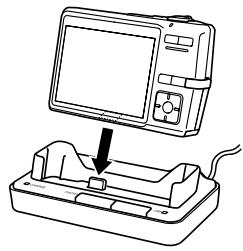
13. Press the USB cradle's [USB] button.
- This will cause your computer to create a hardware profile for camera's built-in memory or the memory card loaded in the camera. You do not need to install the USB driver every time. After you install it once, your computer will recognize the camera's built-in memory or its memory card when you establish a USB connection between the camera and your computer.
VIEWING IMAGES ON A COMPUTER
- Pressing the [USB] button enters the USB mode, which causes the USB cradle's [USB] lamp to light green (page 223).
- At this point, some operating systems will display a "Removable Disk" dialog box. If your operating system does, close the dialog box.
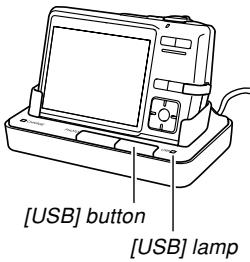
-
On your computer, double-click "My Computer".
-
If you are running Windows XP, click [Start] and then [My Computer].
-
Double-click "Removable Disk".
- Your computer sees the camera's file memory as a removable disk.
- Double-click the "Dcim" folder.
- Double-click the folder that contains the image you want.
-
Double-click the file that contains the image you want to view.
-
For information about file names, see "Memory Folder Structure" on page 200.
NOTE
- If you open a rotated image on your computer, the original unrotated version will appear (page 142). This is true both for a rotated image opened from camera memory and for a rotated image that has been copied to your computer's hard disk.
19. Depending on your operating system, perform one of the following procedures to save the files, if you want.
Windows 2000, Me, 98SE, 98
- In the camera's file memory (Removable Disk), right-click the "Dcim" folder.
- On the shortcut menu that appears, click [Copy].
- Double click [My Documents] to open it.
-
On the My Documents [Edit] menu, click [Paste].
-
This copies the "Dcim" folder (which contains the image files) to your "My Documents" folder.
Windows XP
- In the camera's file memory (Removable Disk), right-click the "Dcim" folder.
- On the shortcut menu that appears, click [Copy].
- Click [Start] and then [My Documents].
- On the My Documents [Edit] menu, click [Paste].
- This copies the "Dcim" folder (which contains the image files) to your "My Documents" folder.
NOTE
- If you already have a folder named "Dcim" in your computer's "My Documents" folder, performing the procedures under step 19 above will overwrite the existing "Dcim" folder with the newly saved folder. If you want to save the contents of the existing "Dcim" folder, change its name or move it to another location before saving a new "Dcim" folder.
IMPORTANT!
- Never use your computer to edit, delete, move, or rename images stored in the camera's file memory. Doing so can cause problems with the image management data used by the camera, which may make it impossible to display images on the camera or it may cause large error in the number of images value displayed by the camera. Always copy images to your computer before performing any edit, delete, move, or rename operation.
20. Depending on the version of Windows you are running, use one of the following procedures to terminate the USB connection.
Windows XP/98SE/98 Users
- After pressing the USB cradle's [USB] button and making sure that the [USB] lamp is not lit, remove the camera from the USB cradle.
Windows 2000/Me Users
- Click card services in the task tray on your computer screen, and disable the drive number assigned to the camera. After pressing the USB cradle's [USB] button and making sure that the [USB] lamp is not lit, remove the camera from the USB cradle.
USB Connection Precautions
- Do not leave the same image displayed on your computer screen for a long time. Doing so can cause the image to "burn in" on the screen.
- Never disconnect the USB cable, or perform any camera or USB cradle operation while data communication is in progress. Doing so can cause data to become corrupted.
Using the Camera with a Macintosh Computer
The following are the general steps for viewing and copying files from a Macintosh.
You can find details about each operation in the procedures that follow below. Note that you should also refer to the documentation that comes with your Macintosh for other information about USB connections, etc.
IMPORTANT!
-
This camera does not support operation on a computer running Mac OS 8.6 or lower, or Mac OS X 10.0. If you have a Macintosh running Mac OS 9 or OS X (10.1, 10.2, 10.3 or 10.4), use the standard USB driver that comes with your OS.
-
Use the USB cradle to establish a connection between the camera and your Macintosh.
- View and copy the images you want.
IMPORTANT!
- If you want to transfer files from the camera's built-in memory to a computer, make sure there is no memory card loaded in the camera before you place it onto the USB cradle.
1. Connect the bundled AC adaptor to the [DC IN 5.3V] connector of the USB cradle, and then plug it in to a household power outlet.
- If you are using battery power without the AC adaptor, make sure that the battery is fully charged.
- Note that the shape of the AC adaptor depends on the area where you purchased the camera.
![CASIO EXILIM EX-Z600 - Connect the bundled AC adaptor to the [DC IN 5.3V] connector of the USB cradle, and then plug it in to a household power outlet. - 1](/content/2025/01/86756/images/df70ffa2f30556af53ef331db796d3c17272d82f21624259b86ff3ab56f78e87.jpg)
![CASIO EXILIM EX-Z600 - Connect the bundled AC adaptor to the [DC IN 5.3V] connector of the USB cradle, and then plug it in to a household power outlet. - 2](/content/2025/01/86756/images/164ea52c6bdc99edef849d330be7b559aa196cc15733b06d203d1479e0457c1c.jpg)
- Connect the USB cable that comes bundled with the camera to the USB cradle and your computer's USB port.
![CASIO EXILIM EX-Z600 - Connect the bundled AC adaptor to the [DC IN 5.3V] connector of the USB cradle, and then plug it in to a household power outlet. - 3](/content/2025/01/86756/images/0b9fb889dc58f46b0db422bfc70adc363b45448fa2a6528aff7fc645486ee9c4.jpg)
- Take care when connecting the USB cable to the USB cradle or your computer. USB ports and cable plugs are shaped for proper positioning.
- Plug the USB cable plugs into the ports securely, as far as they will go. Proper operation is not possible if connections are not correct.
VIEWING IMAGES ON A COMPUTER
- Press the camera's power button to turn it on, and then press its [MENU] button.
- Select the "Set Up" tab, select "USB", and then press [▶].
- Use [▲] and [▼] to select "Mass Storage (USB DIRECT-PRINT)", and then press [SET].
- Turn off the camera.
-
Place the camera onto the USB cradle.
-
Do not place the camera onto the USB cradle while it is turned on.
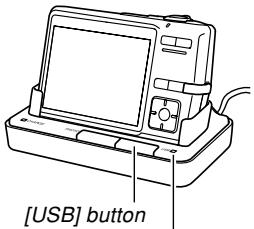
[USB] lamp
-
Press the USB cradle's [USB] button.
-
Pressing the [USB] button enters the USB mode, which causes the USB cradle's [USB] lamp to light green (page 223).
-
Your Macintosh will see the camera's file memory as a drive.
-
The appearance of the drive icon depends on the Mac OS version you are using.
-
Your Macintosh will see the camera's file memory as a drive whenever you establish a USB connection between the camera and your Macintosh.
-
Double-click the drive icon for the camera's file memory, the "DCIM" folder, and then the folder that contains the image you want.
11. Double-click the file that contains the image you want to view.
- For information about file names, see "Memory Folder Structure" on page 200.
NOTE
- If you open a rotated image on your Macintosh, the original unrotated version will appear (page 142). This is true both for a rotated image opened from camera memory and for a rotated image that has been copied to your Macintosh hard disk.
12. To copy all the files in file memory to your Macintosh hard disk, drag the "DCIM" folder to the folder to which you want to copy it.
IMPORTANT!
-
Never use your computer to edit, delete, move, or rename images stored in the camera's file memory. Doing so can cause problems with the image management data used by the camera, which may make it impossible to display images on the camera or it may cause large error in the number of images value displayed by the camera. Always copy images to your computer before performing any edit, delete, move, or rename operation.
-
To terminate the USB connection, drag the drive icon that represents the camera to Trash.
- Press the USB cradle's [USB] button. After making sure the [USB] lamp is not lit, remove the camera from the USB cradle.
USB Connection Precautions
- Do not leave the same image displayed on your computer screen for a long time. Doing so can cause the image to "burn in" on the screen.
- Never disconnect the USB cable, or perform any camera or USB cradle operation while data communication is in progress. Doing so can cause data to become corrupted.
Using a Memory Card to Transfer Images to a Computer
The procedures in this section describe how to transfer images from the camera to your computer using a memory card.
Using a Computer with a Built-in SD Memory Card Slot Insert the SD memory card directly into the slot.
Using a Computer with a Built-in PC Card Slot
Use a commercially available PC card adaptor (for an SD memory card or MMC). For full details, see the user documentation that comes with the PC card adaptor and your computer.
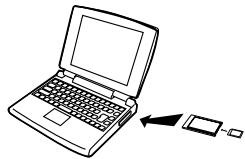
VIEWING IMAGES ON A COMPUTER
Using a Commercially Available SD Memory Card Reader/Writer
See the user documentation that comes with the SD memory card reader/writer for details about how to use it.
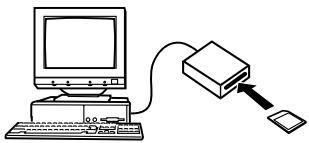
Using a Commercially Available PC Card Reader/Writer and PC Card Adaptor (for an SD memory card or MMC)
See the user documentation that comes with the PC card reader/writer and PC card adaptor for details about how to use them.
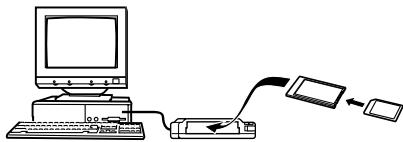
Memory Data
Images recorded with this camera and other data are stored in memory using DCF (Design rule for Camera File system) protocol. DCF protocol is designed to make it easier to exchange image and other data between digital cameras and other devices.
DCF Protocol
DCF devices (digital cameras, printers, etc.) can exchange images with each other. DCF protocol defines a format for image file data and the folder structure for file memory, so images can be viewed using another manufacturer's DCF camera or printed on a DCF printer.
Memory Folder Structure
Folder Structure
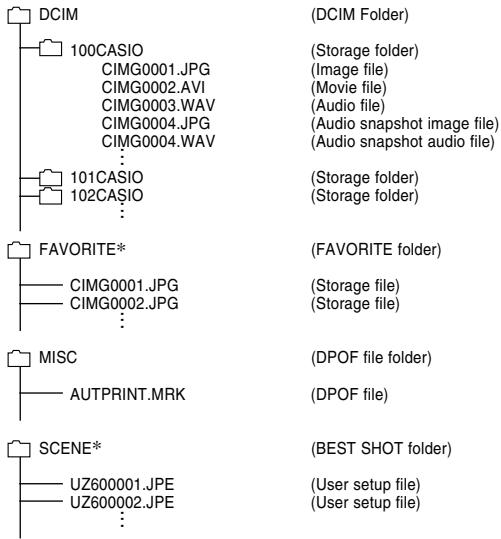
* These folders are created in built-in memory only.
Folder and File Contents
- DCIM folder
Folder that stores all of the digital camera files
- Storage folder
Folder for storing files created by the digital camera
- Image file
File that contains an image recorded with the digital camera (File Name Extension: JPG)
- Movie file
File that contains a movie recorded with the digital camera (File Name Extension: AVI)
Audio file
File that contains an audio recording (File Name Extension: WAV)
Audio snapshot image file
File that contains the image part of an audio snapshot (File Name Extension: JPG)
Audio snapshot audio file
File that contains the audio part of an audio snapshot (File Name Extension: WAV)
VIEWING IMAGES ON A COMPUTER
- FAVORITE folder (Built-in memory only)
Folder that contains Favorites image files (Image Size: 320 × 240 pixels) - DPOF file folder
- Folder that contains DPOF files
- BEST SHOT folder (Built-in memory only)
Folder that contains BEST SHOT user setup files - User setup file (Built-in memory only) Files that contain BEST SHOT user setups
Image Files Supported by the Camera
- Image files recorded with this camera
- DCF protocol image files
Certain DCF functions may not be supported. When displaying an image recorded on another camera model, it may take a long time for the image to appear on the display.
■ Built-in Memory and Memory Card Precautions
- Note that the folder named "DCIM" is the parent (top) folder of all the files in memory. When transferring memory contents to a hard disk, CD-R, MO disk, or other external storage, treat all the contents inside a DCIM folder as a set and always keep them together. You can change the name of the DCIM folder on your computer. Changing the name to a date is a good way to keep track of multiple DCIM folders. However, if you even want to copy the folders back to the camera's file memory, be sure you change the name of the DCIM folder back to "DCIM" first. The camera does not recognize any folder name other than DCIM.
- Memory Folders and files must be stored in accordance with the "Memory Folder Structure" shown on page 200 in order for the camera to be able to recognize them correctly.
USING THE CAMERA WITH A COMPUTER
This section explains the software and applications on the CD-ROM that comes bundled with the camera, and provides an overview of what you can do with them.
Note that the procedure you need to perform depends on whether you are using computer running under Windows (see below) or a Macintosh (see page 213).
Using the Camera with a Windows Computer
Your digital camera comes bundled with useful applications for using it in combination with a computer. Install the applications you need on your computer.
Selecting the Software You Need
Install the software on your computer that allows you to perform the type of operations you want.
| Purpose | Software Name | Supported Windows Versions | Required Operation |
| USB connection to a computer for image transfer | - | XP/2000/Me | Use the USB cradle to establish a connection between the camera and computer. Installation of the USB driver is not required (page 186). |
| USB driver Type B | 98SE/98 | Use the USB cradle to establish a connection between the camera and computer. Install the USB driver Type B (page 186). | |
| Management of images transferred to a computer | Photo Loader 2.3* DirectX 9.0c | XP/2000/Me/98SE/98 | Install Photo Loader 2.3 (page 206).* If the computer does not have DirectX 9.0 or higher installed, install DirectX 9.0c (page 208). |
USING THE CAMERA WITH A COMPUTER
| Purpose | Software Name | Supported Windows Versions | Required Operation |
| Snapshot retouching, reorientation, printing | Photohands 1.0 | XP/2000/Me/98SE/98 | Install Photohands 1.0 (page 209). |
| Movie playback | * DirectX 9.0c | XP/2000/Me/98SE/98 | Windows Media Player is not included on the CD-ROM that comes bundled with the camera, but it is included with Windows. Use the Windows Media Player application that is installed with Windows for playback. *If you are running Windows 2000, 98SE or 98 with a DirectX version that is lower than 9.0, install DirectX 9.0c (page 208). |
| Viewing of user documentation (PDF) files | Adobe Reader 6.0 | XP/2000/Me/98SE | If your computer does not already have Adobe Reader or Adobe Acrobat Reader installed, install Adobe Reader 6.0 (page 212). |
| - | 98 | If your computer does not already have Adobe Reader or Adobe Acrobat Reader installed, go to the Adobe Systems Incorporated website and install Acrobat Reader 5.0.5. |
Computer System Requirements
Computer system requirements are different for each of the applications. Be sure to check the requirements for the particular application you are trying to use. Note that the values provided here are minimum requirements for running each application. Actual requirements are greater, depending on the number of images and the sizes of the images being handled.
USB driver Type B
OS: 98SE/98
- In the case of Windows XP, 2000, or Me, connect the camera to the computer using the bundled USB cradle. You do not need to install the USB driver from the bundled CD-ROM.
- Correct operation is not guaranteed on a computer that has been upgraded from Windows 95 or 3.1.
Photo Loader 2.3
OS: XP/2000/Me/98SE/98
Memory: At least 16MB
HD: At least 7MB
Other: Internet Explorer 5.5 or higher; DirectX 9.0 or higher
USING THE CAMERA WITH A COMPUTER
Photohands 1.0
OS: XP/2000/Me/98SE/98
Memory: At least 64MB
HD: At least 10MB
DirectX 9.0c
OS: XP/2000/Me/98SE/98
HD: At least 65MB free space during installation, 18MB after installation is complete.
Adobe Reader 6.0
OS: XP/2000/Me/98SE
CPU: Pentium
Memory: 32MB
HD:60MB
Other: Internet Explorer 5.01 or higher
IMPORTANT!
- For details about Windows minimum system requirements, see the "Read me" file on the CD-ROM that comes bundled with the camera.
Managing Images on a PC
To manage images on a PC, you need to install the Photo Loader application from the CD-ROM that comes with the camera.
- Use the CD-ROM whose contents label shows "Photo Loader".
NOTE
- If you already have Photo Loader installed on your computer, check its version. If the bundled version is newer than the one you have, uninstall the old version of Photo Loader and then install the newer version.
The CD-ROM includes the software and user documentation for various languages. Check the CD-ROM menu screen to see if applications and user documentation are available for a particular language.
Getting Started
Start up your computer and insert the CD-ROM into its CD-ROM drive. This will automatically launch the menu application, which displays a menu screen on your computer.
- The menu application may not start up automatically on some computers. If this happens, navigate to the CD-ROM and double-click "menu.exe" to launch the menu application.
Selecting a Language
First select a language. Note that some software is not available in all languages.
- On the menu screen, click the tab for the language you want.
Viewing the Contents of the "Read me" File
You should always read the "Read me" file for "Photo Loader" before installing it. The "Read me" file contains information you need to know when installing the application.
- Click the "Read me" button for "Photo Loader".
IMPORTANT!
- Before upgrading or reinstalling Photo Loader, or before installing it onto another computer, be sure to read the "Read me" file for information about retaining existing libraries.
■ Installing Photo Loader
- Click the "Install" button for "Photo Loader".
- Follow the instructions that appear on your computer screen.
IMPORTANT!
- Be sure to follow the instructions carefully and completely. If you make a mistake when installing Photo Loader, you may not be able to browse your existing library information and HTML files that are created automatically by Photo Loader. In some cases, image files may be lost.
Checking for the Proper Version of DirectX
In order to manage images using Photo Loader, your computer also needs to have DirectX 9.0 or higher installed. You can check the installed version of DirectX using your PC's DirectX Diagnostic Tool.
- On your PC, click [Start], [All Programs], [Accessories], [System Tools], and then [System Information].
- On the [Tools] menu of the window that appears, select [DirectX Diagnostic Tool].
- On the [System] tab, check to make sure that the version shown for the "DirectX Version" item is 9.0 or higher.
4. Click [Exit] to exit DirectX Diagnostic Tool.
- If your PC already has DirectX 9.0 or higher installed, you do not need to install DirectX 9.0c from the bundled CD-ROM.
- If your PC does not have DirectX 9.0 or higher installed, install DirectX 9.0c from the bundled CD-ROM.
Retouching, Reorienting, and Printing a Snapshot
In order to retouch, reorient, or print snapshots on your PC, you need to install Photohands from the CD-ROM that comes bundled with the camera.
- Use the CD-ROM whose contents label shows "Photohands".
NOTE
- If you already have Photohands installed on your computer, check its version. If the bundled version is newer than the one you have, uninstall the old version of Photohands and then install the newer version.
The CD-ROM includes the software and user documentation for various languages. Check the CD-ROM menu screen to see if applications and user documentation are available for a particular language.
Getting Started
Start up your computer and insert the CD-ROM into its CD-ROM drive. This will automatically launch the menu application, which displays a menu screen on your computer.
- The menu application may not start up automatically on some computers. If this happens, navigate to the CD-ROM and double-click "menu.exe" to launch the menu application.
Selecting a Language
First select a language. Note that some software is not available in all languages.
- On the menu screen, click the tab for the language you want.
Viewing the Contents of the "Read me" File
You should always read the "Read me" file for "Photohands" before installing it. The "Read me" file contains information you need to know when installing the application.
- Click the "Read me" button for "Photohands".
■ Installing Photohands
- Click the "Install" button for "Photohands".
- Follow the instructions that appear on your computer screen.
Playing a Movie
Windows Media Player, which is already installed on most computers, can be used for movie playback.
Movie Playback Precautions
- Be sure to move the movie data to the hard disk of your PC before trying to play it. Proper movie playback may not be possible for data accessed over a network, from a memory card, etc.
- Proper movie playback may not be possible on some computers. If you experience problems, try the following.
Try recording movies with a quality setting of "Normal" or "LP".
Try upgrading Windows Media Player to the latest version.
- Quit any other applications you have running, and stop resident applications.
Even if proper playback is not possible on the computer, you can use the AV cable that comes bundled with the camera to connect to the video input terminal a TV or computer and play back movies that way.
IMPORTANT!
- The above is the recommended environment. Configuring this environment does not guarantee proper operation.
- Even if your computer meets the recommended requirements described above, certain settings and other installed software may interfere with proper playback of movies.
Viewing User Documentation (PDF Files)
1. In the "Manual" area, click the name of the manual you want to read.
IMPORTANT!
- You must have Adobe Reader or Adobe Acrobat Reader installed on your computer in order to view the contents of a PDF file. If you do not already have Adobe Reader installed, you can install it from the bundled CD-ROM.
User Registration
You can perform user registration over the Internet. To do so, of course, you need to be able to connect to the Internet with your computer.
1. Click the "Register" button.
- This starts up your Web browser and accesses the user registration website. Follow the instructions that appear on your computer screen to register.
Exiting the Menu Application
- On the menu screen, click "Exit" to exit the menu.
Using the Camera with a Macintosh Computer
Your digital camera comes bundled with useful applications for using it in combination with a computer. Install the applications you need on your computer.
Selecting the Software You Need
Install the software on your Macintosh that allows you to perform the type of operations you want.
| Purpose | Software Name | Mac OS Versions | Required Operation |
| USB connection to a Macintosh for image transfer | - | OS 9/OS X | Use the USB cradle to establish a connection between the camera and your Macintosh. USB driver is not required (page 194). |
| Managing of Images on a Macintosh | Photo Loader 1.1 | OS 9 | Install Photo Loader 1.1 (page 215). |
| - | OS X | Use iPhoto, which comes bundled with your operating system (page 215). | |
| Movie playback | - | OS 9/OS X | QuickTime is not included on the CD-ROM that comes bundled with the camera, but it is included with your Macintosh operating system. Use the QuickTime application that is installed with your operating system for playback (page 216). |
| Viewing of user documentation (PDF) files | - | OS 9/OS X | Use Adobe Reader or Adobe Acrobat Reader, which comes bundled with your operating system (page 216). |
Computer System Requirements
Computer system requirements are different for each of the applications. Be sure to check the requirements for the particular application you are trying to use. Note that the values provided here are minimum requirements for running each application. Actual requirements are greater, depending on the number of images and the sizes of the images being handled.
Photo Loader 1.1
OS: OS 9
Memory: 32MB
HD: At least 3MB
- USB connection is supported on a Macintosh running OS 9 or X. Operation is supported using the standard USB driver that comes with the operating system, so all you need to do is connect the camera to your Macintosh using the USB cable.
IMPORTANT!
- For details about Macintosh minimum system requirements, see the "Readme" file on the CD-ROM that comes bundled with the camera.
- The software on the CD-ROM that comes bundled with the camera does not support operation under Mac OS X.
Managing Images on a Macintosh
To manage images on a Macintosh running OS 9
Install the Photo Loader application from the CD-ROM that comes with the camera.
- Use the CD-ROM whose contents label shows "Photo Loader".
To install Photo Loader
- Open the folder named "Photo Loader".
- Open the folder named "English", and then open the file named "Important".
- Open the folder named "Installer", and then open the file named "README".
- Follow the instructions in the "README" file to install Photo Loader.
IMPORTANT!
- If you are upgrading to the new version of Photo Loader from a previous version and you want to use library management data and HTML files created using the old version of Photo Loader, be sure to read the "Important" file in the "Photo Loader" folder. Follow the instructions in the file to use your existing library management files. Failure to follow this procedure correctly can result in loss or corruption of your existing files.
To manage images on a Macintosh running OS X
Use iPhoto, which comes bundled with the operating system. iPhoto enables management of snapshots.
Playing a Movie
You can use QuickTime, which comes bundled with your operating system, to play back movies.
Movie Playback Precautions
- Even if your computer meets the minimum requirements described above, certain settings and other installed software may interfere with proper playback of movies.
- Proper movie playback may not be possible on some Macintosh models. If you experience problems, try the following.
Try recording movies with a quality setting of "Normal" or "LP".
Try upgrading to the latest version of QuickTime.
- Quit any other applications that are running.
Even if proper playback is not possible on your Macintosh, you can use the AV cable that comes bundled with the camera to connect to the video input terminal a TV or Macintosh and play back movies that way.
Viewing User Documentation (PDF Files)
You must have Adobe Reader or Adobe Acrobat Reader installed on your computer in order to view the contents of a PDF file.
If you don't, go to the Adobe Systems Incorporated website and install Acrobat Reader.
To view the camera user's guide
- On the CD-ROM, open the "Manual" folder.
- Open the "Digital Camera" folder, and then open the folder for the language whose user's guide you want to view.
-
Open the file named "camera_xx.pdf".
-
"xx" is the language code (Example: camera_e.pdf is for English.)
To view the Photo Loader user's guide
- On the CD-ROM, open the "Manual" folder.
- Open the "Photo Loader" folder and then open the "English" folder.
- Open "PhotoLoader_english".
To register as a camera user
Internet registration only is supported. Visit the following CASIO website to register: http://world.casio.com/qv/register/
APPENDIX
Menu Reference
The following shows lists of menus that appear in the REC mode and the PLAY mode, and their settings.
- The settings that are underlined in the following table are initial defaults.
REC Mode
REC Tab Menu
| Focus | AF (Auto Focus) / Macro / PF (Pan Focus) / Infinity / MF (Manual Focus) |
| Continuous | Normal Speed / High Speed / Flash Cont. / Off |
| Self-timer | 10 sec / 2 sec / X3 / Off |
| Anti Shake | Auto / Off |
| AF Area | L Spot Multi |
| AF Assist Light | On / Off |
| L/R Key | Focus / EV Shift / White Balance / ISO / Self-timer / Off |
| Quick Shutter | On / Off |
| Audio Snap | On / Off |
| Grid | On / Off |
| Digital Zoom | On / Off |
| Review | On / Off |
| Icon Help | On / Off |
| Memory | BS BEST SHOT: On / Off Flash: On / Off Focus: On / Off White Balance: On / Off ISO: On / Off AF Area: On / Off Metering: On / Off Self-timer: On / Off Flash Intensity: On / Off Digital Zoom: On / Off MF Position: On / Off Zoom Position: On / Off |
Quality Tab Menu
| Size | 6M (2816 × 2112) / 6M (3:2) (2816 × 1872 (3:2)) / 4M (2304 × 1728) / 3M (2048 × 1536) / 2M (1600 × 1200) / VGA (640 × 480) |
| Quality (Snapshots) | Fine / Normal / Economy |
| Quality (Movies) | HQ / Normal / LP |
| EV Shift | -2.0 / -1.7 / -1.3 / -1.0 / -0.7 / -0.3 / 0.0 / +0.3 / +0.7 / +1.0 / +1.3 / +1.7 / +2.0 |
| White Balance | Auto / Daylight / Cloudy / (Shade) / Day White / (Daylight) / (Tungsten) / Manual |
| ISO | Auto / ISO 50 / ISO 100 / ISO 200 / ISO 400 |
| Metering | Multi / Center weighted / Spot |
| Filter | Off / B/W / Sepia / Red / Green / Blue / Yellow / Pink / Purple |
| Sharpness | +2 / +1 / 0 / -1 / -2 |
| Saturation | +2 / +1 / 0 / -1 / -2 |
| Contrast | +2 / +1 / 0 / -1 / -2 |
| Flash Intensity | +2 / +1 / 0 / -1 / -2 |
| Flash Assist | Auto / Off |
Set Up Tab Menu
| Screen | Auto 2 / Auto 1 / +2 / +1 / 0 |
| Sounds | Startup / Half Shutter /Shutter / Operation / Operation / Play |
| Startup | On (Selectable image) / Off |
| File No. | Continue / Reset |
| World Time | Home / World |
| Home Time setup (city, DST, etc.) | |
| World Time setup (city, DST, etc.) | |
| Adjust | Time setting |
| Date Style | YY/MM/DD / DD/MM/YY / MM/DD/YY |
| Language | 日本語 / English / Français / Deutsch / Espanol / Italiano / Português / 中國語 / 中国語 /韓국어 |
| Sleep | 30 sec / 1 min / 2 min / Off |
| Auto Power Off | 2 min / 5 min |
| REC / PLAY | Power On / Power On/Off / Disable |
| USB | Mass Storage (USB DIRECT- PRINT) / PTP (PictBridge) |
| Video Out | NTSC / PAL |
| Format | Format / Cancel |
| Reset | Reset / Cancel |
PLAY Mode
- PLAY Tab Menu
| Slideshow | Start / Images / Time / Interval / Effect / Cancel |
| Calendar | - |
| MOTION PRINT | 9 frames / 1 frame / Cancel |
| Movie Editing | Cut (Before) / Cut (Between) / Cut (After) / Cancel |
| Keystone | - |
| Color Correction | - |
| Favorite | Show / Save / Cancel |
| DPOF | Select images / All images / Cancel |
| Protect | On / All Files : On / Cancel |
| Date/Time | - |
| Rotation | Rotate / Cancel |
| Resize | 3M / 2M / VGA / Cancel |
| Trimming | - |
| Dubbing | - |
| Copy | Built-in → Card / Card → Built-in / Cancel |
- Set Up Tab Menu
- The contents of the PLAY mode set up tab menu are identical to those of the REC mode set up tab menu.
Indicator Lamp Reference
The camera has two indicator lamps: an operation lamp and an AF assist light/self-timer lamp. These lamps light and flash to indicate the current operational status of the camera.
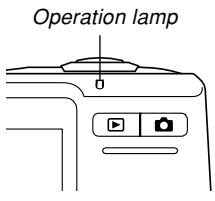
AF assist light / self-timer lamp
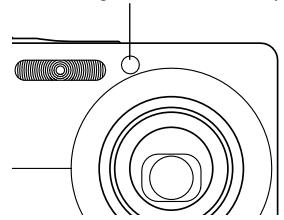
* There are three lamp flash patterns. Pattern 1 flashes once per second, Pattern 2 flashes twice per second, and Pattern 3 flashes four times per second. The table below explains what each flash pattern indicates.
REC Mode
| Operation Lamp | AF assist light/self-timer lamp | Meaning | ||
| Green | Red | Amber | Red | |
| Lit | Operational (Power on, recording enabled) | |||
| Pattern 3 | Flash is charging. | |||
| Lit | Auto Focus operation was successful. | |||
| Pattern 3 | Cannot Auto Focus. | |||
| Lit | Monitor screen is off. / Sleep state | |||
| Pattern 2 | Storing image | |||
| Pattern 1 | Storing movie data / processing image data | |||
| Pattern 1 | Self-timer countdown (10 to 3 seconds) | |||
| Pattern 2 | Self-timer countdown (3 to 0 seconds) | |||
| Pattern 1 | Cannot charge flash. | |||
APPENDIX
| Operation Lamp | AF assist light / self-timer lamp | Meaning | ||
| Green | Red | Amber | Red | |
| Pattern 2 | Memory card problem / Memory card is unformatted. / BEST SHOT setup cannot be registered. | |||
| Lit | Memory card is locked. / Cannot create folder. / Memory is full. / Write error | |||
| Pattern 3 | Low battery alert | |||
| Pattern 3 | Formatting card | |||
| Pattern 3 | Powering down | |||
IMPORTANT!
- When you are using a memory card, never remove the card from the camera while the operation lamp is flashing green. Doing so will cause recorded images to be lost.
PLAY Mode
| Operation Lamp | AF assist light / self-timer lamp | Meaning | |
| Green | Red | Red | |
| Lit | Operational (Power on, recording enabled) | ||
| Pattern 3 | One of the following operations is being performed: delete, DPOF, image protect, copy, format, power down, image resizing, image trimming, after recording, MOTION PRINT, movie editing | ||
| Pattern 2 | Memory card problem / Memory card is unformatted. | ||
| Lit | Memory card is locked. / Cannot create folder. / Memory is full. | ||
| Pattern 3 | Low battery alert | ||
USB Cradle Indicator Lamps
The USB cradle has two indicator lamps: a [CHARGE] lamp and a [USB] lamp. These lamps light and flash to indicate the current operational status of the USB cradle and camera.
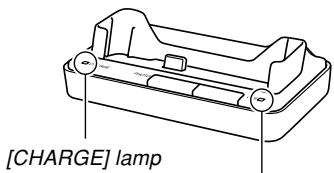
[USB] lamp
| [CHARGE] lamp | [USB] lamp | Meaning | ||
| Color | Status | Color | Status | |
| Red | Lit | Charging | ||
| Green | Lit | Charging complete | ||
| Amber | Lit | Charge standby | ||
| Red | Flashing | Charge error | ||
| Green | Lit | USB connection | ||
| Green | Flashing | Accessing memory | ||
Troubleshooting Guide
| Symptom | Possible Cause | Action | |
| Power Supply | Power does not turn on. | 1) The battery is not oriented correctly. 2) The battery is dead. | 1) Orient the battery correctly (page 32). 2) Charge the battery (page 33). If the battery goes dead soon after being charged, it means the battery has reached the end of its life and needs to be replaced. Purchase a separately available NP-40 rechargeable lithium ion battery. |
| Camera suddenly powers down. | 1) Auto Power Off activated (page 43). 2) The battery is dead. | 1) Turn power back on. 2) Charge the battery (page 33). | |
| Image Recording | Image is not recorded when the shutter button is pressed. | 1) The camera is in the PLAY mode. 2) Flash unit is being charged. 3) Memory is full. | 1) Press [REC] (REC) to enter the REC mode. 2) Wait until the flash unit finishes charging. 3) Transfer files you want to keep to your computer and then delete files from image memory, or use a different memory card. |
APPENDIX
| Symptom | Possible Cause | Action | |
| Image Recording | Auto Focus does not focus properly. | 1) The lens is dirty. 2) The subject is not located in the center of the focus frame when you compose the image. 3) The subject you are shooting is a type that is not compatible with Auto Focus operation (page 57). 4) You are moving the camera. | 1) Clean the lens. 2) Make sure the subject is centered in the focus frame when composing the image. 3) Use manual focus (page 79). 4) Turn on Anti Shake or mount the camera on a tripod (page 93). |
| The subject is out of focus in the recorded image. | The image is not focused properly. | When composing the image, make sure the subject on which you want to focus is located inside the focus frame (page 53). | |
| Scenery shots are out of focus. | 1) The image is not focused properly. 2) The wrong focus mode is selected. 3) The wrong BEST SHOT scene is selected. | 1) When composing the image, make sure the subject on which you want to focus is located inside the focus frame (page 53). 2) Change the focus mode to “AF” (Auto Focus, page 74) or “∞” (infinity, page 78). 3) Change the BEST SHOT scene to “Scenery” (page 88). | |
| The flash does not fire. | 1) “∞” (flash off) is selected as the flash mode. 2) The battery is dead. 3) A scene that selects “∞” (flash off) as the flash mode is selected in the BEST SHOT mode. | 1) Select a different flash mode (page 62). 2) Charge the battery (page 33). 3) Select a different flash mode (page 62) or BEST SHOT scene (page 88). |
APPENDIX
| Symptom | Possible Cause | Action | |
| Image Recording | Camera powers down during self-timer countdown. | The battery is dead. | Charge the battery (page 33). |
| Monitor screen image is out of focus. | 1) You are using the Manual Focus mode and have not focused the image. 2) You are trying to use the Macro mode (▲) when shooting a scenery or portrait shot. 3) You are trying to use Auto Focus or the Infinity mode (○) when shooting a close-up shot. | 1) Focus the image (page 79). 2) Use Auto Focus for scenery and portrait shots. 3) Use the Macro mode (▲) for close-ups. | |
| Recorded images are not saved in memory. | 1) Camera powers down before the save operation is complete. 2) Removing the memory card before the save operation is complete. | 1) When the battery indicator shows “▲”, charge the battery as soon as possible (page 33). 2) Do not remove the memory card before the save operation is complete. | |
| Though available lighting is bright, the faces of human subjects appear dark. | Not enough light is reaching the subjects. | ·Change the flash mode setting to “▲” (flash on) for daylight synchro flash (page 63). ·Increase the EV shift value (page 81). | |
| Subjects are too dark when recording images on a seashore or at a ski area. | Sunlight reflected by water, sand, or snow, can cause underexposure of images. | ·Change the flash mode setting to “▲” (flash on) for daylight synchro flash (page 63). ·Increase the EV shift value (page 81). |
APPENDIX
| Symptom | Possible Cause | Action | |
| Movies | Vertical lines on the monitor screen. | Recording a very brightly lit subject can cause a vertical band to appear in the monitor screen image. | This is a CCD phenomenon known as “vertical smear”, and does not indicate malfunction of the camera. Note that vertical smear is not recorded with the image in the case of a snapshot, but it is recorded in the case of a movie. |
| Out of focus images. | The subject is outside the shooting range of the camera. | Record within the allowable shooting range. | |
| Digital noise in images. | Sensitivity is increased automatically for dark subjects. Greater sensitivity increases the chance of digital noise. | Use a light or some other means to illuminate the subject. | |
| Playback | Color of the playback image is different from the image on the monitor screen during recording. | Sunlight or light from another source is shining directly into the lens during recording. | Position the camera so sunlight does not shine directly into the lens. |
| Images are not displayed. | A memory card with non-DCF images recorded with another camera is loaded in the camera. | This camera cannot display non-DCF images recorded onto a memory card using another digital camera. |
APPENDIX
| Symptom | Possible Cause | Action | |
| Other | All buttons and switches are disabled. | Circuit problem caused by electrostatic charge, impact, etc. while the camera was connected to another device. | Remove the battery from the camera, reinsert it, and then try again. |
| Monitor screen is off. | USB communication is in progress. | After confirming that the computer is not accessing camera memory, disconnect the USB cable. | |
| Cannot transfer files over a USB connection. | 1) Camera is not set securely on the USB cradle. 2) USB cable is not connected securely. 3) USB driver is not installed. 4) Camera is turned off. | 1) Check the connection between the camera and USB cradle. 2) Check all connections. 3) Install the USB driver on your computer (page 186). 4) Press the [USB] button on the USB cradle. |
APPENDIX
If you have problems installing the USB driver...
You may not be able to install the USB driver properly if you use the USB cable to connect the camera to a computer running Windows 98SE/98 before installing the USB driver from the bundled CD-ROM, or if you have another type of driver installed. This will make it impossible for the computer to recognize the digital camera when it is connected. If this happens, you will need to re-install the camera's USB driver. For information about how to re-install the USB driver, see the USB driver's "Read me" file on the CD-ROM that comes bundled with the camera.
Display Messages
| Battery is low. | The battery is dead. |
| Cannot correct image! | Keystone correction cannot be performed for some reason. The image will be stored as-is, without correction (pages 96, 98). |
| Can not find the file. | The camera cannot find a image specified by the slideshow "Images" setting. Specify another image (page 139). |
| Cannot register any more files. | • You are attempting to save a BEST SHOT scene when there are already 999 scenes in the "SCENE" folder (page 91). • You are attempting to copy a FAVORITE file when the "FAVORITE" folder already contains 9999 files (page 153). |
| Card ERROR | Some problem occurred with the memory card. Turn off the camera, and remove and then reinsert the memory card. If the same message appears, format the memory card (page 172). IMPORTANT! Formatting the memory card deletes all files on the memory card. Before formatting, try transferring recoverable files to a computer or some other storage device. |
| Check connections! | ·You are attempting to connect the camera to a printer while the camera's USB settings are not compatible with the USB system of the printer (page 166). ·You are attempting to connect to a computer that does not have a USB driver installed (page 186). |
| File could not be saved because battery is low. | The battery is dead, so the recorded image could not be saved. |
| Folder cannot be created. | This message appears when you try to record an image while there are 9,999 files stored in the 999th folder. If you want to record more files, delete files you no longer need (page 149). |
| LENS ERROR | If the lens comes into contact with some obstacle while it is extending, this message appears, the lens retracts, and the camera turns off. Take action to remove the obstacle, and try turning on power again. |
| Load paper! | The camera is in the Printer mode, and the printer is out of paper. |
| Memory Full | Memory is full. If you want to record more files, delete files you no longer need (page 149). |
| No Favorites file! | There is no FAVORITE file. |
APPENDIX
| Printing Error | One of the following problems occurred during printing. • Printer power off • Printer internal error |
| Record Error | Image compression could not be performed during image data storage for some reason. Record the image again. |
| Replenish ink! | The camera is in the Printer mode, and the printer is running low on ink or is out of ink. |
| SYSTEM ERROR | Your camera system is corrupted. Contact your retailer or a CASIO service center. |
| The card is locked. | The LOCK switch of the SD memory card is locked. You cannot store images to or delete images from a memory card that is locked. |
| There are no files. | • There are no files in built-in memory or on the memory card. • This message will appear if you rename the files or folders in camera memory or if you move them to different locations. If this happens, move the files or folders back to their original locations in camera memory and return them to their original preset names (pages 200, 202). |
| There are no printing images. | There are no DPOF settings specifying images and the number of copies of each for printing. |
| Set up DPOF. | Configure the required DPOF settings (page 177). |
| There is no image to register. | The image or movie whose setup you are trying to save is not supported by BEST SHOT. |
| This card is not formatted. | The memory card loaded in the camera is not formatted. Format the memory card (page 172). |
| This file cannot be played. | The image file or audio file is corrupted, or is a type that cannot be displayed by this camera. |
| This function cannot be used. | You attempted to copy files from built-in memory to a memory card loaded in the camera while there is no memory card in the camera (page 173). |
| This function is not supported for this file. | The function you are trying to perform is not supported for the file on which you are trying to perform it. |
Specifications
Product Digital Camera
Model EX-Z600
Camera Functions
Image Files Format
Snapshots JPEG (Exif Ver.2.2); DCF (Design rule for Camera File system) 1.0 standard; DPOF compliant
Movies AVI (Motion JPEG)
Audio . WAV
Recording Media 8.3MB built-in memory SD Memory Card MultiMediaCard
Data Size
- Snapshots
| File Size (pixels) | Quality | Approximate Image File Size | Built-in memory 8.3MB | SD Memory Card 256MB* |
| 6M 2816 × 2112 | Fine | 3.63MB | 2 shots | 65 shots |
| Normal | 2.3MB | 3 shots | 107 shots | |
| Economy | 1.21MB | 6 shots | 186 shots | |
| 6M (3:2) 2816 × 1872 (3:2) | Fine | 3.22MB | 2 shots | 73 shots |
| Normal | 2.15MB | 3 shots | 110 shots | |
| Economy | 1.08MB | 7 shots | 206 shots | |
| 4M 2304 × 1728 | Fine | 2.43MB | 3 shots | 97 shots |
| Normal | 1.62MB | 4 shots | 143 shots | |
| Economy | 810KB | 9 shots | 271 shots | |
| 3M 2048 × 1536 | Fine | 1.92MB | 4 shots | 121 shots |
| Normal | 1.28MB | 6 shots | 180 shots | |
| Economy | 640KB | 11 shots | 348 shots | |
| 2M 1600 × 1200 | Fine | 1.17MB | 6 shots | 196 shots |
| Normal | 780KB | 9 shots | 286 shots | |
| Economy | 390KB | 18 shots | 530 shots | |
| VGA 640 × 480 | Fine | 360KB | 21 shots | 625 shots |
| Normal | 240KB | 32 shots | 938 shots | |
| Economy | 120KB | 59 shots | 1742 shots |
APPENDIX
Movies
| Image Size (Pixels) | Maximum Recording Time Per File | Approximate Data Rate (Frame Rate) | Approximate Recording Time for Built-in Memory 8.3 MB | Approximate Recording Time for SD Memory Card 256MB |
| HQ 640 × 480 | Until memory full | 10.2 megabits per second (30 frames / second) | 6 seconds | 3 minutes and 16 seconds |
| Normal 640 × 480 | Until memory full | 6.1 megabits per second (30 frames / second) | 11 seconds | 5 minutes and 27 seconds |
| LP 320 × 240 | Until memory full | 2.45 megabits per second (15 frames / second) | 27 seconds | 13 minutes and 34 seconds |
- Based on Matsushita Electric Industrial Co., Ltd. products. Capacity depends on card manufacturer.
- To determine the number of images that can be stored on a memory card of a different capacity, multiply the capacities in the table by the appropriate value.
Delete Single-file, all files (with protection)
Effective Pixels 6.0 million
Imaging Element. 1/2.5-inch square pixel color CCD (Total pixels: 6.18 million)
Lens/Focal Distance
Lenses F2.7 (W) to 5.2 (T); f = 6.2 (W) to 18.6mm (T) (equivalent to approximately 38 (W) to 114mm (T) for 35mm film) 6 lenses in 5 groups, with aspherical lens
Zoom 3X optical zoom; 4X digital zoom (12X in combination with optical zoom)
Focusing. Contrast Detection Auto Focus Focus Modes: Auto Focus, Macro mode, Pan Focus, Infinity mode, manual focus AF Area: spot, multi; AF Assist Light
Approximate Focus Range (from lens surface)
Auto Focus 40cm to (1.3' to )
Macro 15cm to 50cm (5.9" to 19.7")
Infinity Mode.
Manual 15cm to (5.9" to )
- Using optical zoom causes the above ranges to change.
APPENDIX
Exposure Control
Light Metering .... Multi-pattern, center-weighted, spot by CCD
Exposure Program AE
Exposure Compensation.....-2EV to +2EV (1/3EV units)
Shutter CCD electronic shutter; mechanical shutter
Snapshot mode (Auto): 1/8 to 1/2000 second
- Shutter speed is different for the following BEST SHOT scenes.
Night Scene: 4 to 1/2000 second
Fireworks: 2 seconds (fixed)
Aperture . F2.7/4.3, auto switching
- Using optical zoom causes the aperture to change.
White Balance Auto WB, fixed (6 modes), manual switching
Sensitivity........................... Snapshots: Auto, ISO 50, ISO 100, ISO 200, ISO 400
Maximum sensitivity is ISO 800 when the BEST SHOT Anti Shake or High Sensitivity scene is being used.
Movies: Auto
Self-timer 10 seconds, 2 seconds, Triple Self-timer
Built-in Flash
Flash Modes............ Auto Flash, ON, OFF, Red eye reduction, Soft Flash
Flash Range . Wide Angle Optical Zoom:
0.15 to 2.8 meters (0.5' to 9.2')
Telephoto Optical Zoom:
0.4 to 1.4 meters (1.3' to 4.6')
- Flash Continuous Shutter
Wide Angle Optical Zoom:
0.7 to 1.6 meters (2.3' to 5.2')
Telephoto Optical Zoom:
0.4 to 0.8 meters (1.3' to 2.6')
-
ISO Sensitivity: "Auto"
-
Depends on zoom factor.
Recording Functions ......... Snapshot; audio snapshot; macro; self-timer; Continuous shutter; BEST SHOT mode; movie with audio ; Voice Recording
Audio recording is monaural.
Audio Recording Time
Audio Snapshot............Approximately 30 seconds maximum per image
Voice Recording............ Approximately 25 minutes with built-in memory
After Recording ............ Approximately 30 seconds maximum per image
Monitor Screen 2.7-inch TFT color LCD
153,600 pixels (640× 240)
APPENDIX
Viewfinder . Monitor screen
Timekeeping Functions .... Built-in digital quartz clock
Date and Time Recorded with image data
Auto Calendar . To 2049
World Time City; Date; Time; Summer time;
162 cities in 32 time zones
Input/Output Terminals .... Cradle connector
USB USB 2.0 (Full-Speed) compatible
Microphone . Monaural
Speaker . Monaural
Power Requirements
Power Requirements .... Rechargeable lithium ion battery (NP-40) × 1
Approximate Battery Life:
The values below indicate the amount of time under the conditions defined below, until power automatically turns off due to battery failure. They do not guarantee that you will be able to achieve this level of operation. Low temperatures shorten battery life.
| Operation | Approximate Battery Life |
| Number of Shots (CIPA Standard)*1(Operating Time) | 550 shots (275 minutes) |
| Number of Shots, Continuous Recording*2 (Operating Time) | 1300 shots (320 minutes) |
| Continuous Snapshot Playback*3 | 560 minutes |
| Continuous Movie Recording*4 | 240 minutes |
| Continuous Voice Recording*5 | 600 minutes |
Supported Battery: NP-40 (Rated Capacitance: 1300mAh)
Storage Medium: SD Memory Card
*1 Number of Shots (CIPA Standard)
- Temperature: 23^ C( 73^ F)
Monitor Screen: On - Zoom operation between full wide to full telephoto every 30 seconds, during which two images are recorded, one image with flash; power turned off and back on every time 10 images are recorded.
APPENDIX
*2 Continuous Recording Conditions
Temperature: 23^ (73^)
Monitor screen: On
- Flash: Off
- Image recorded every 15 seconds, alternating full wide-angle and full telephoto zoom
*3 Continuous Snapshot Playback Conditions
Temperature: 23^ (73^)
- Scroll one image about every 10 seconds
4 Approximate time for continuous movie recording, without using zoom.
5 Voice recording times are based on continuous recording.
Power Consumption 3.7V DC Approximately 3.6W
Dimensions 88.5(W) × 57(H) × 20.5(D) mm
(3.48^ (W)× 2.2^ (H)× 0.81^ (D))
(excluding projections; 18.6mm (0.73") at thinnest part)
Weight Approximately 112 g (4.0 oz)
(excluding battery and accessories)
Bundled Accessories....... Rechargeable lithium ion battery (NP
40); USB cradle (CA-29); Special AC adaptor; AC power cord; USB cable; AV Cable; Strap; CD-ROM; Basic Reference
Rechargeable Lithium Ion Battery (NP-40)
Rated Voltage 3.7 V
Rated Capacitance 1300 mAh
Operating Temperature
Range 0°C to 40°C (32°F to 104°F)
Dimensions 38.5(W) × 38.0(H) × 9.3(D) mm
(1.53^ (W)× 1.50^ (H)× 0.37^ (D))
Weight Approximately 34 g (1.2 oz)
USB Cradle (CA-29)
Input/Output Terminals .... Camera connector; USB port; AC adaptor terminal (DC IN 5.3V) /
Power Consumption 5.3V DC Approximately 3.2W
Dimensions 105(W) × 16(H) × 61(D) mm
(4.1^ (W)× 0.6^ (H)× 2.4^ (D))
(excluding projections)
Weight. Approximately 60 g (2.1 oz)
APPENDIX
Special AC Adaptor (Inlet Type) (AD-C52G)
Power Requirement 100 to 240V AC, 50/60Hz, 83 mA
Output 5.3V DC, 650 mA
Dimensions 50(W) × 20(H) × 70(D) mm
(2.0^ (W)× 0.8^ (H)× 2.8^ (D))
(excluding projections and cable)
Weight. Approximately 90 g (3.2 oz)
Special AC Adaptor (Plug-in Type) (AD-C52J)
Power Requirement 100 to 240V AC, 50/60Hz, 83mA
Output 5.3V DC, 650mA
Dimensions 50(W) × 18(H) × 70(D) mm
(2.0^ (W)× 0.7^ (H)× 2.8^ (D))
(excluding projections and cable)
Weight. Approximately 90 g (3.2 oz)
CASIO
CASIO COMPUTER CO.,LTD.
6-2, Hon-machi 1-chome
Shibuya-ku, Tokyo 151-8543, Japan
- INTRODUCTION
- Unpacking
- Contents
- INTRODUCTION
- QUICK START GUIDE
- GETTING READY
- BASIC IMAGE RECORDING
- OTHER RECORDING FUNCTIONS
- PLAYBACK
- DELETING FILES
- FILE MANAGEMENT
- OTHER SETTINGS
- USING A MEMORY CARD
- PRINTING IMAGES
- VIEWING IMAGES ON A COMPUTER
- USING THE CAMERA WITH A COMPUTER
- APPENDIX
- IMPORTANT!
- LCD Panel
- Copyright Restrictions
- Features
- Precautions
- General Precautions
- ■ Test for proper operation before using the camera!
- Data Error Precautions
- Operating conditions
- Condensation
- Power Supply
- Lens
- Caring for your camera
- Other
- First, charge the battery!
- To configure display language and clock settings
- To record an image
- To view a recorded image
- To delete an image
- GETTING READY
- About This Manual
- Terminology
- ■ Button Operations
- On-screen Text
- Supplementary Information
- File Memory
- General Guide
- Camera
- Front
- Back
- Bottom
- USB Cradle
- Monitor Screen Contents
- REC Mode
- Flash mode indicator (page 62)
- Focus mode indicator (page 73)
- White balance indicator (page 83)
- Continuous Shutter mode (page 86)
- Self-timer (page 67)
- Recording types
- NOTE
- Changing the Contents of the Monitor Screen
- PLAY Mode
- Attaching the Strap
- Power Requirements
- Loading the Rechargeable Battery
- To charge the battery
- Turn off the camera.
- With the camera positioned with the monitor screen facing forward as shown in the illustration, place it onto the USB cradle.
- After charging is complete, remove the camera from the USB cradle.
- If the camera does not work normally
- Low Battery Indicator
- Tips to Make the Battery Last Longer
- To replace the battery
- Power Supply Precautions
- ■ Battery Handling Precautions
- PRECAUTIONS DURING USE
- BATTERY STORAGE PRECAUTIONS
- USING THE BATTERY
- USB Cradle and AC Adaptor Precautions
- Turning the Camera On and Off
- To turn on the camera
- To turn off the camera
- Configuring Power Saving Settings
- Using the On-screen Menus
- - Menu Screen Operations
- Perform one of the following operations to apply the setting you configured.
- Configuring Display Language and Clock Settings
- Set the current date and the time.
- Press [SET] to register the settings and exit the setting screen.
- BASIC IMAGE RECORDING
- Recording an Image
- Aiming the Camera
- Press the power button or [REC] to turn on the camera.
- Compose the image on the monitor screen so the main subject is within the focus frame.
- Press the shutter button half way to focus the image.
- Operation Lamp and Focus Frame Operation
- ■ Recording Precautions
- About Auto Focus
- ■ About the REC Mode Monitor Screen
- Using Zoom
- Optical Zoom
- In the REC mode, move the zoom controller left or right to zoom.
- Digital Zoom
- To record an image using digital zoom
- Using the Flash
- ■ Flash On
- Soft Flash
- About Red-eye Reduction
- Flash Unit Status
- Changing the Flash Intensity Setting
- Using Flash Assist
- Use [] and [] to select the setting you want, and then press [SET].
- ■ Flash Precautions
- Using the Self-timer
- Press the shutter button to record the image.
- Specifying Image Size
- Specifying Image Quality
- Selecting the Focus Mode
- Using Auto Focus
- Quick Shutter
- ■ Specifying the Auto Focus Area
- Using the Macro Mode
- Using Pan Focus
- Using the Infinity Mode
- Using Manual Focus
- Using Focus Lock
- Exposure Compensation (EV Shift)
- Adjusting White Balance
- Configuring the White Balance Setting Manually
- Use [▲] and [▼] to select "Manual".
- Press [SET].
- Using Continuous Shutter
- Normal-speed continuous shutter
- High-speed continuous shutter
- Flash continuous shutter
- Using the BEST SHOT Mode
- Example Sample Scene
- Press the shutter button to record the image.
- Displaying Sample Scenes Individually
- Creating Your Own BEST SHOT Setup
- To delete a BEST SHOT user setup
- Reducing the Effects of Hand or Subject Movement
- Perform one of the procedures below to enable Anti Shake.
- Using the Menu Screen
- Press the shutter button to record the image.
- Shooting with High Sensitivity
- Recording Images of Business Cards and Documents (Business Shot)
- Setup Sample Images
- Before recording with Business Shot
- To use Business Shot
- Use [<] and [> to select the candidate you want to correct.
- Use [] and [] to select "Correct", and then press [SET].
- CASIO
- Robert Smith
- Restoring an Old Photograph
- Before trying to restore an old photograph
- To restore an old photograph
- Recording a Movie
- Specifying Movie Image Quality
- ■ Movie Recording Precautions
- Recording Audio
- Adding Audio to a Snapshot
- Press the shutter button to start audio recording.
- Recording stops after about 30 seconds or when you press the shutter button.
- Recording Your Voice
- Audio Recording Precautions
- Using the Histogram
- REC Mode Camera Settings
- Assigning Functions to the [<] and [>]: Keys
- Turning the On-screen Grid On and Off
- Turning Image Review On and Off
- Using Icon Help
- Use [] and [] to select the setting you want, and then press [SET].
- **Specifying Power On Default Settings**
- Specifying ISO Sensitivity
- Selecting the Metering Mode
- Multi (Multi pattern)
- Center Weighted
- Spot
- Using the Filter Function
- Specifying Outline Sharpness
- Specifying Color Saturation
- Specifying Contrast
- Resetting the Camera
- PLAYBACK
- BasicPlaybackOperation
- Press [▶] (PLAY) to turn on the camera.
- Use [▶] (forward) or [←] (back) to scroll through files on the monitor screen.
- Playing an Audio Snapshot
- In the PLAY mode, use [<] and [> ] until the image you want is displayed.
- Press [SET].
- Zooming the Display Image
- Resizing an Image
- Cropping an Image
- Move the zoom controller left and right to zoom the image.
- Use [], [], [] , and [] to scroll the part to be cropped up, down, left, and right.
- Press [SET] to extract the part of the image enclosed in the cropping boundary.
- Keystone Correction
- Using Color Restoration to Correct the Color of an Old Photograph
- Move the zoom controller left and right to zoom the cropping boundary.
- Use [], [], [] , and [] to move the cropping boundary to the location you want, and then press [SET].
- Playing and Editing a Movie
- Playing a Movie
- Editing a Movie
- To cut everything before or after a specific frame
- While the movie you are editing is playing, press [SET].
- Press [▼].
- Use [] and [] to select the operation you want to perform.
- Display the frame where you want the cut to be located.
- Display the starting frame where you want the first cut to be located.
- When the frame you want is displayed, press [▼].
- Referring to step 4, search for the cut end screen. When the cut end screen is displayed, press [▼].
- Use [] and [] to select "Yes", and then press [SET].
- Capturing a Still Image from a Movie (MOTION PRINT)
- To capture a still image from a movie
- Use [] and [] to display the frame that you want to use as the main image.
- After selecting the frame you want, press [SET].
- Displaying the 9-image View
- In the PLAY mode, shift the zoom controller towards (一)
- Displaying the Calendar Screen
- Playing a Slideshow
- Use the screen that appears to configure the image, time, interval, and effect settings.
- Use [] and [] to select "Start", and then press [SET].
- To stop the slideshow, press [SET].
- Using the Photo Stand Feature
- To stop the Phot Stand slideshow, press [PHOTO] again.
- Rotating the Display Image
- To re-record audio
- Playing Back a Voice Recording File
- Displaying Camera Images on a TV Screen
- Selecting the Video Output System
- DELETING FILES
- Deleting a Single File
- Deleting All Files
- FILE MANAGEMENT
- Folders
- Memory Folders and Files
- Protecting Files
- To protect a single file
- To protect all files in memory
- Using the FAVORITE Folder
- To copy a file to the FAVORITE folder
- To display a file in the FAVORITE folder
- To delete a file from the FAVORITE folder
- To delete all files from the FAVORITE folder
- OTHER SETTINGS
- Configuring Sound Settings
- To configure sound settings
- To set the confirmation tone volume level
- To set the audio volume level for movie and audio snapshot playback
- Specifying an Image for the Startup Screen
- Specifying the File Name Serial Number Generation Method
- Setting the Clock
- To select your Home Time zone
- To set the current time and date
- Changing the Date Format
- Using World Time
- To display the World Time screen
- To configure World Time settings
- Editing the Date and Time of an Image
- When all the settings are the way you want, press [SET] to apply them.
- Changing the Display Language
- Changing the Brightness of the Monitor Screen
- Changing the USB Port Protocol
- Configuring [O] (REC) and [O] (PLAY)
- Power On/Off Functions
- Formatting Built-in Memory
- USING A MEMORY CARD
- To insert a memory card into the camera
- To replace the memory card
- Formatting a Memory Card
- To format a memory card
- Memory Card Precautions
- Copying Files
- To copy all the files in built-in memory to a memory card
- To copy a specific file from a memory card to built-in memory
- PRINTING IMAGES
- Professional Print Service
- ■ Printing Directly on a Printer Equipped with a Card Slot, or a Printer that Supports USB DIRECT-PRINT or PictBridge
- ■ Printing with a Computer
- Windows Users
- Macintosh Users
- DPOF
- DPOF Settings
- To configure print settings for a single image
- To configure print settings for all images
- Using PictBridge or USB DIRECT-PRINT
- Date Printing
- ■ Printing Precautions
- PRINT Image Matching III
- PRINT Image Matching
- Exif Print
- VIEWING IMAGES ON A COMPUTER
- Using the Camera with a Windows Computer
- Do not try to establish a connection between the camera and computer before installing the USB driver onto the computer. If you do, the computer will not be able to recognize the camera.
- Windows 98SE/98 Users
- Windows XP/2000/Me Users
- Set the bundled CD-ROM into the CD-ROM drive of your computer.
- On the menu screen that appears, click "English".
- Click [USB driver B] and then [Install].
- When the final setup screen appears, click the [Exit] button on the CD-ROM menu to exit the menu, and then remove the CD-ROM from your computer.
- Connect the bundled AC adaptor to the [DC IN 5.3V] connector of the USB cradle, and then plug it in to a household power outlet.
- Place the camera onto the USB cradle.
- Press the USB cradle's [USB] button.
- Depending on your operating system, perform one of the following procedures to save the files, if you want.
- Windows 2000, Me, 98SE, 98
- Windows XP
- Depending on the version of Windows you are running, use one of the following procedures to terminate the USB connection.
- Windows XP/98SE/98 Users
- Windows 2000/Me Users
- USB Connection Precautions
- Using the Camera with a Macintosh Computer
- Connect the bundled AC adaptor to the [DC IN 5.3V] connector of the USB cradle, and then plug it in to a household power outlet.
- Double-click the file that contains the image you want to view.
- To copy all the files in file memory to your Macintosh hard disk, drag the "DCIM" folder to the folder to which you want to copy it.
- Using a Memory Card to Transfer Images to a Computer
- Using a Computer with a Built-in PC Card Slot
- Using a Commercially Available SD Memory Card Reader/Writer
- Using a Commercially Available PC Card Reader/Writer and PC Card Adaptor (for an SD memory card or MMC)
- Memory Data
- DCF Protocol
- Memory Folder Structure
- Folder Structure
- Folder and File Contents
- Image Files Supported by the Camera
- ■ Built-in Memory and Memory Card Precautions
- USING THE CAMERA WITH A COMPUTER
- Selecting the Software You Need
- Computer System Requirements
- USB driver Type B
- Photo Loader 2.3
- Photohands 1.0
- DirectX 9.0c
- Adobe Reader 6.0
- Managing Images on a PC
- Getting Started
- Selecting a Language
- Viewing the Contents of the "Read me" File
- ■ Installing Photo Loader
- Checking for the Proper Version of DirectX
- Click [Exit] to exit DirectX Diagnostic Tool.
- Retouching, Reorienting, and Printing a Snapshot
- Movie Playback Precautions
- Viewing User Documentation (PDF Files)
- In the "Manual" area, click the name of the manual you want to read.
- User Registration
- Click the "Register" button.
- Exiting the Menu Application
- Photo Loader 1.1
- Managing Images on a Macintosh
- To manage images on a Macintosh running OS 9
- To manage images on a Macintosh running OS X
- To view the camera user's guide
- APPENDIX
- Menu Reference
- REC Tab Menu
- Quality Tab Menu
- Set Up Tab Menu
- - PLAY Tab Menu
- Indicator Lamp Reference
- USB Cradle Indicator Lamps
- If you have problems installing the USB driver...
- Display Messages
- Specifications
- Camera Functions
- Image Files Format
- Data Size
- Lens/Focal Distance
- Approximate Focus Range (from lens surface)
- Exposure Control
- Built-in Flash
- Audio Recording Time
- Approximate Battery Life:
- Special AC Adaptor (Inlet Type) (AD-C52G)
- Special AC Adaptor (Plug-in Type) (AD-C52J)
Brand : CASIO
Model : EXILIM EX-Z600
Category : Digital Camera