
Skypad 7s - Tablet Skytex - Free user manual and instructions
Find the device manual for free Skypad 7s Skytex in PDF.


| Product Type | Tablet |
| Brand | Skytex |
| Model | Skypad 7s |
| Display Size | 7 inches |
| Display Resolution | 1024 x 600 pixels (HD) |
| Display Type | Capacitive multi-touch |
| Processor | 1.2 GHz Dual Core + Mali 400MPx2 GPU |
| Operating System | Android 4.2 Jelly Bean |
| Internal Storage | 8GB (approx. 1.5GB used by OS and pre-installed apps) |
| RAM | 1GB |
| Memory Card Support | MicroSD up to 32GB |
| Wireless Connectivity | Wi-Fi 802.11b/g/n |
| Bluetooth | Yes |
| HDMI | Mini-HDMI output |
| Cameras | VGA front camera, 2MP rear camera |
| Audio | Built-in speaker, 3.5mm headphone jack |
| Ports | Micro-USB (OTG), MicroSD slot |
| Battery | Up to 7.5 hours (theoretical) |
| Dimensions | 7.4 x 4.2 x 0.3 inches |
| Weight | 10 oz (approx. 283 g) |
| Power Adapter | 110-240VAC, 50/60Hz, 5V output (UL listed) |
| Cloud Storage | 10GB free via CloudLink Toolbox |
| Warranty | 1 year parts and labor |
| Package Contents | Tablet, USB cable, AC adapter |
Frequently Asked Questions - Skypad 7s Skytex
User questions about Skypad 7s Skytex
0 question about this device. Answer the ones you know or ask your own.
Ask a new question about this device
Download the instructions for your Tablet in PDF format for free! Find your manual Skypad 7s - Skytex and take your electronic device back in hand. On this page are published all the documents necessary for the use of your device. Skypad 7s by Skytex.
USER MANUAL Skypad 7s Skytex
User ManualSP729
IMPORTANT NOTICES
This package may contain plastic bags or other materials that pose a hazard to children. Be sure to dispose of all packaging materials after opening.
To avoid damaging the screen, do not touch it with excessive force or with any object other than your finger. For best response, make sure your hands are clean before using the touch screen controls.
The battery used in this Tablet may present a fire or chemical burn if misused. Don't heat or incinerate the Tablet. Don't leave it in a place subject to direct sunlight, or in a car with windows closed. Don't connect to a power source from another manufacturer. This may result in the risk of fire or electric shock.
SKYTEX is not responsible for any loss or damages incurred from your access to third party content, Apps, or services and expressly disclaims all warranties of any kind.
To avoid damage and data corruption do not remove a memory card while data is being written to or read from the card. As an example, do not remove the card while playing a video or music file stored on the card. The available menu items are dependent on the unit. All illustrations are for reference only.
Customer Use Only:
Enter the model number of your tablet and save for reference.
Model #: ____
Serial #: ____
Be especially cautious with applications that request access to many functions or to a significant amount of your data. You are responsible for the results of applications installed on your tablet.
The Tablet's "mass storage mode" is compatible with many operating systems including: Windows® XP, Vista, 7, 8 or higher, Mac OS X or Linux.
For recycling or disposal information about this product, visit our website, or contact your local recycling centers or the Electronics Industries Alliance: www.eiae.org.
Company Trademarks
SKYTEX logo is a trademark of SKYTEX TECHNOLOGY INC. Android is a trademark of Google Inc. Use of this trademark and Google Play are subject to Google Permission. HDMI, the HDMI logo are trademarks or registered trademarks of HDMI Licensing, LLC. All other trademarks and logos are property of their respective owners unless indicated otherwise.
FCC COMPLIANCE
This Table complies with Part 15 of the FCC Rules. Operation is subject to the following two conditions:
(1) This Tablet may not cause harmful interference, and
(2) This Tablet must accept any interference received, including interference that may cause undesired operation.
Note: This Tablet has been tested and found to comply with the limits for Class B digital devices, pursuant to Part 15 of the FCC rules.
These limits are designed to provide reasonable protection against harmful interference in a residential installation. This Tablet generates, uses and can radiate radio frequency energy and, if not installed and use in accordance with the instructions, may cause harmful interference to radio communications. However, there is no guarantee that interference will not occur in a particular installation. If this Tablet does cause harmful interference to radio or television reception, which can be determined by turning the Tablet off and on, the user is encouraged to attempt to correct the interference by one of the following measures:
- Reorient or relocate the receiving antenna.
- Increase the separation between the Tablet and receiver.
- Connect the equipment into an outlet on a circuit different from that to which the receiver is connected.
- Consult the dealer or an experienced radio/TV technician for help.
Use of shielded cable is required to comply with Class B limits in Subpart B of part 15 of the FCC rules. Do not make any changes or modifications to the Tablet unless otherwise specified in the manual. If such changes or modifications should be made, you could be required to stop using the Tablet.
SAFETY NOTICES
- Read and retain these instructions for future reference.
- Warnings on the product and User Manual instructions should always be adhered to.
- Cleaning: Do not use liquid cleaners or aerosol cleaner. Use a damp soft cloth for cleaning.
- Adapters: Use UL certified adapters recommended by SKYTEX. Other adapters may be hazardous or void your warranty.
- Moisture & Water: Do not use near water such as a bath tub, kitchen sink, laundry tub, or swimming pool.
- Ventilation: Should there be slots and openings in the Tablet, they are provided for ventilation to ensure reliable operation of and protection from overheating. These openings should never be blocked by placing the product on a bed, sofa, rug, or other similar surface.
- Power Sources: This Tablet should be operated from the type of power source indicated on the rating label. Consult your product dealer or our website for more information. For products intended to operate from battery power or other sources, refer to the operating instructions.
-
Overloading: Do not overload wall outlets, extension cords, or integral convenience receptables as this can result in a risk of fire or electric shock.
-
Object and Liquid Entry: Never put objects of any kind on to or into this product through openings as they may touch dangerous voltage points or short out parts that could result in a fire or electric shock. Never spill liquid of any kind on the product.
-
Servicing: Do not attempt to service this product yourself as opening or removing covers may expose you to dangerous voltage or other hazards and will void your warranty. Refer all servicing to qualified service personnel.
-
Damage Requiring Service: Unplug this product from the wall outlet and refer servicing to qualified service personnel: a) when the power-supply is damaged; b) if liquid has been spilled; c) if the product has been exposed to rain or water; d) if the product does not operate normally; e) if the product has been dropped or damaged in any way (voids warranty); f) when the product exhibits a distinct change in performance.
-
Heat: The product should be kept away from heat sources such as radiator, heat register, stove, or other products that generate heat.
-
Replacement Parts: Unauthorized substitutions when servicing this product may result in fire, electric shock, or other hazards. Make sure your service technician has used parts specified by the manufacturer.
TABLE OF CONTENTS
Important Notices ....1
FCC Compliance 2
Safety Notices ....3
Table of Contents 4
Introduction......5
Tablet Controls & Descriptions 6-7
Charging Your Tablet 8
Power ON/OFF/STANDBY....9
Connecting To a Wireless Network 10
Connecting to Bluetooth....11
Install Apps....12
Browse the Web 13
Settings: Date, Time, Screen Time Out....14
Home Screen Applications 15
Discover Application Shortcuts....16
Notifications Bar / Connecting HDMI to HDTV / Using micro-USB....17
Transfer Music / Video / Photos 18
Playing Music / Video 19
Video Streaming / Insert Memory Card 20
Camera & Video Chat....21
Setting Up Your Email 22
Troubleshooting....23
Specifications 24
Warranty & Support 25
INTRODUCTION
Thank you for purchasing the new SKYTEX SKYPAD 7s 7" Dual Core Tablet with high resolution 1024x600 multi-touch display. It is designed to keep you entertained and engaged for hours at a time. With 8GB of internal storage and MicroSD card slot (for up to an additional 32GB), you can house a large library of games, movies, music, eBooks, photos and document files. View in high definition 1080p through your HDTV when connected to HDMI®. The Tablet also features a web cam and 2MP rear camera for life's special moments.
Discover and download thousands of your favorite Android Apps from the SKYTEX App Store*. Skytex Apps are optimized specifically for your screen size bringing you the best experience possible in which to view them. In addition, 10GB of free cloud storage is provided through the CloudLinkToobox which includes many of today's business friendly Apps.
It is recommended that you read this user manual I information and update FAQ's.
PACKAGE CONTENTS: SKYPAD 7 Tablet, USB Cable, AC Adapter.
* Approximately 1.5GB of Internal storage is used for the OS, system files and pre-installed Apps.
**Powered by Good e-Reader.
TABLET CONTROLS AND DESCRIPTIONS

- Front camera Front facing camera for video chat.
- Volume + Press and hold to increase volume.
- Volume - Press and hold to decrease volume.
- Power On/Off Press and hold momentarily to turn on; when powering off you will be asked to confirm.
- 3.5mm Jack Audio connection to listen to stereo earphones or powered speakers.
- Reset Press to reset the tablet.
TABLET CONTROLS AND DESCRIPTIONS
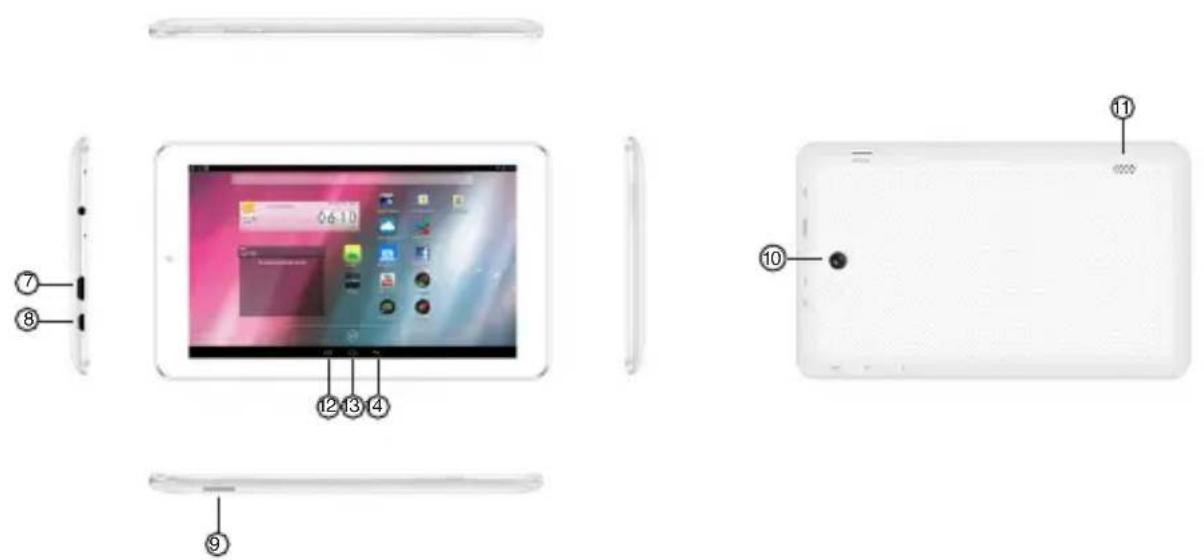
- Mini-HDMI Connect to an HDTV or HD projector to view images in high definition resolution.
- Micro-USB OTG Connect to a computer to transfer files or use with a keyboard/mouse.
- MicroSD Card Slot Load external storage memory card (up to an additional 32GB).
- Rear camera Take photos using the display as viewfinder.
- Speaker Listen through speaker unless earphone jack is connected. Sound will mute.
- Open Apps Key Tap to view open applications. Swipe to the left to close and save battery life.
- Home Key Tap to go to the Home Launcher Screen.
- Back Key Tap to go back to the previous page.
CHARGING YOUR TABLET
The Tablet comes with a built-in rechargeable battery that should be charged fully prior to first use. Connect the AC adapter to your Tablet via the micro-USB Input on the bottom of the Table (illustrated below). Disconnect the Tablet when it is fully charged.
A full charge and discharge (15% or below) cycle is recommended to maximize the battery's life and performance.
If the battery is completely drained please allow the Tablet at least 10-15 minutes to recharge prior to turning it on.
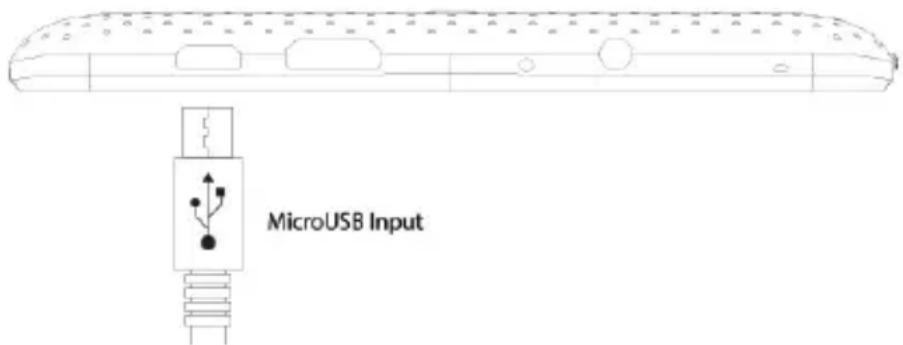
NOTE: When charging the Tablet while powered OFF, the battery indicator appears momentarily. Although the battery indicator disappears, the Tablet will continue to charge. To view if the battery is continuing to charge, tap the Power button once.
POWER ON/OFF/STANDBY MODE
ON: Press and hold the Power button until the Tablet's loading screen appears. Once the lock screen appears, unlock the Tablet by swipping your finger from the left 'Unlock' icon to the right 'Unlock' icon (illustrated below). Should the display 'Timeout' (or go black) before you are able to unlock the Tablet, press the Power button for one second then turn the display back on.
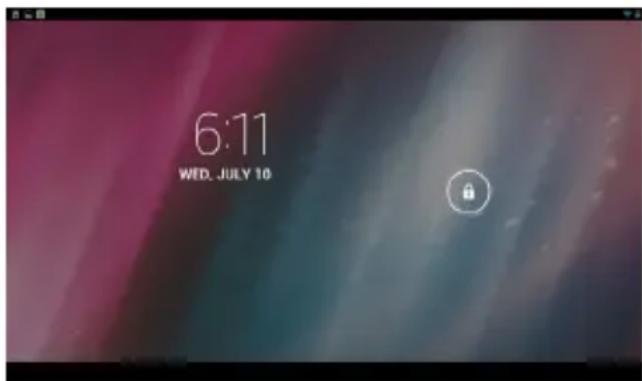
NOTE: Leaving the Tablet in Standby Mode when not in use will result in battery drain. Switch the Tablet off completely to conserve power between charges.

OFF: Press and hold the Power button until the Tablet options appear. The options will prompt you to tap 'OK' to power the Tablet off or 'Cancel' to return back to the Home screen.
STANDBY: To enter Standby Mode, simply tap and release the Power button. To wake from Standby, tap and release the Power button.
CONNECTING TO A WIRELESS NETWORK
NOTE: To connect your Tablet to the Internet you must have an Internet connection and a wireless network.
A. Open the Apps Tray □□□ > Select 'Settings' > Switch the 'Wi-Fi' option from 'OFF' to 'ON' by tapping the 'OFF' icon.
B. A list of networks will appear to the right of the screen > Select your network and enter the password/network key.
C. Tap 'Connect' to complete the connection ( ^1 ) WiFi
Tip: Check the "Show Password" box to verify password was entered correctly.

REQUIREMENTS:
A wireless router or an access point through a broadband Internet connection is required. You must know the name of your network, password, and whether your network is secured. The settings may be found on your wireless router and/or its user manual.
NOTE: If you were connected to a network previously, your Tablet will automatically reconnect once your Wi-Fi is turned 'ON'. If your network ID is not listed, tap the SCAN icon located on the top right corner of the screen.
CONNECTING A BLUETOOTH DEVICE
A. Open the App Tray >>>> select "Settings" > Switch the "Bluetooth" option from "OFF" to "ON" by tapping the "OFF" icon.
B. A list of available devices will appear to the right of the screen > Select the desired device to connect.
C. Follow the instructions to complete the pairing. If you're prompted to enter a passcode, consult with the documentation that came with the device.
D. When pairing is successful, your Tablet will connect to the device.
NOTE: Transmission range of Bluetooth devices may vary.

INSTALL APPS
A. Tap the App and search or browse by Category for popular apps to download on to your Tablet. Select the desired App to download and install. (You must be connected to a wireless network.)
B. NOTE: When your download has completed, you will be prompted to install the App. Tap 'Install' and when completed the App will appear in your App Tray.
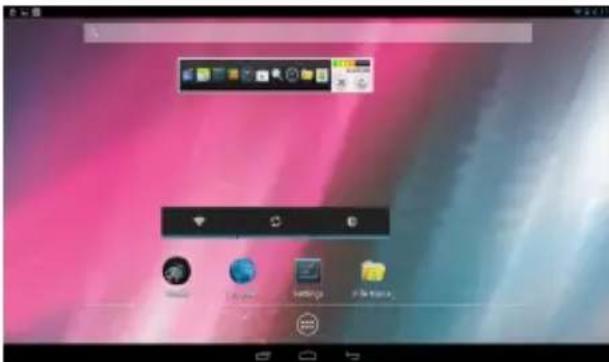
Discover and manage pre-populated productivity apps within CloudLink's Toobox that includes 5GB of free cloud storage; Catch Notes; Office Suite to view docs, spreadsheets; PowerPoint; premium Apps available.
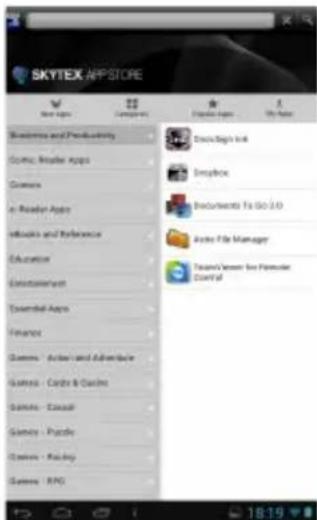
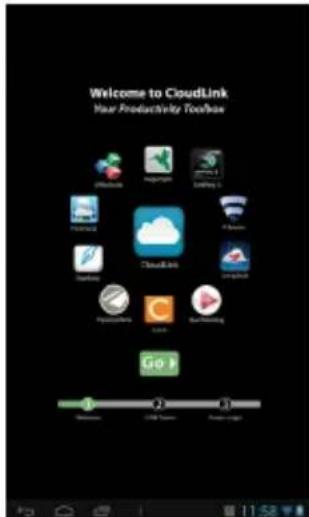
The Skytex App Store is stocked with the most popular free Apps that have been “optimized” specifically for the screen size on your Tablet. Hundred more are optimized for release weekly.
Purchase Apps from the Amazon App Store. Check their Free App of the Day Promotion featured daily.
BROWSE THE WEB
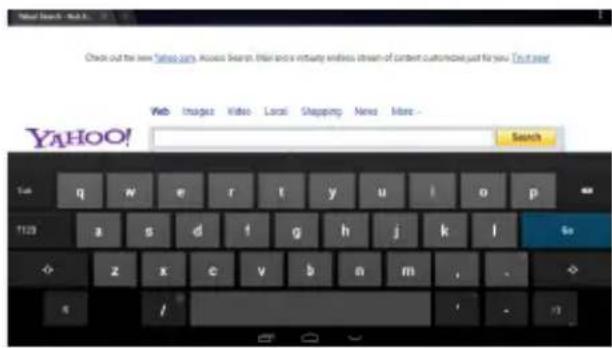
Bookmark a Favorite Page
A. Scroll to the top of the desired web page.
B. Tap the start on the URL ☆ > Tap 'OK.'
Your Tablet is equipped with a full HTML Web Browser that enables you to view web pages.
A. To access the Web Browser select the icon from the App Tray.
B. To enter a URL, tap the URL field at the top of the browser and enter the desired link using the QWERTY keyboard.
C. Tap 'Go' to load the page.

SETTINGS: Date, Time, & Screen Timeout
Manual Time Setting
A. Open the App Tray > Select 'Settings' > Scroll down to and tap 'Date & Time' > Select 'Set Time' > Set the hour and minute by tapping the arrow keys; then tap 'Set.'
Manual Date Setting
A. Open the App Tray >>>> Select 'Settings' > Scroll down to and tap 'Date & Time' > Select 'Set Date' > Set the month, date, and year by tapping the arrow keys; then tap 'Set.'

Screen Timeout
A. Open the App Tray □□□ > Select 'Settings' > 'Display' > 'Sleep.'
B. A dialogue box will appear with several options to choose from. Tap the length of time (in seconds or minutes) before the Tablet goes black (to conserve battery life).

Auto Date & Time
A. Open the App Tray ▪> Select 'Settings'
Scroll down to and tap 'Date & Time' > Select 'Automatic Date & Time' to check the box.
NOTE: The 'Automatic Date & Time' option sets the date and time using the network provided. Should an incorrect time zone appear, tap 'Select Time Zone' and find the appropriate time zone.
HOME SCREEN APPLICATIONS
Home Launcher Screen
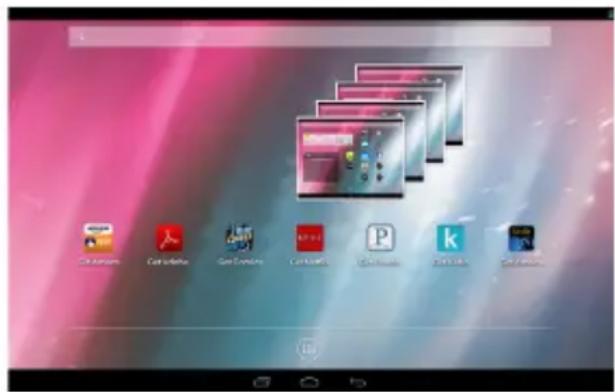
This is your starting point. The Home Launcher screen consists of 5 screens (slide finger left or right across the screen to view). You'll find pre-installed AppLink shortcuts of the most popular Apps used today, that are ready for download once you connect to the Internet.

NOTE: Apps that are running in the background will take up valuable memory and drain battery resources. Take the icon to view any open Apps, then swipe toward the left to close them.

Add or Remove Favorite Apps from App Tray
A. To open the App Tray tap the 🎯icon located at the upper right hand corner of the Tablet to display all of the applications that have been pre-installed or downloaded to your Tablet.
B. To add to the Home Launcher screen, tap and hold the desired App. Release the icon onto the Home screen.
C. To remove an App from the Home Launcher screen, tap and hold the icon until it enlarges, then slide to remove to Trash.
DISCOVER APP SHORTCUTS
Your Home launcher screens feature pre-installed Apps shortcuts and AppLinks for your convenience. They are ready for download once you connect to the Internet. Several examples are described below.

Music - Access music files installed on your Tablet.

App Tray - Access all Apps that are installed on to your Tablet.

Settings - View and modify settings for Wireless network, display, battery, menu language, etc.

Internet Browser - Access the world wide web when connected to a wireless network.

File Manager - View all your files installed on your Tablet.

Gallery - Access photos and videos you have installed on your Tablet.

Skytex App Store - Thousands of the most popular Android Apps specifically optimized for your tablet display!

Get Kindle - Download and gain access to millions of eBooks, magazines, newspapers, audio books, games, blogs, and more.
Cloudlink - Discover and manage pre-populated productivity suite content from CloudLink's Toobox including 5GB of free cloud storage.

Get Amazon - One of (up to 12) pre-installed AppLinks direct you to download the actual App once connected to a wireless network. When installed the App will be located in your App Tray. It is recommended to delete the "Get" AppLink once the actual App is downloaded and installed, to reserve space on your Home screen.
NOTIFICATIONS BAR / CONNECT TO TV / USING micro-USB
NOTIFICATIONS BAR
The Notifications Bar, located at the top left of the Home Launcher screen displays new messages, alerts and icons that show the time, wireless network status, battery charge, progress of download, connectivity of Bluetooth* or micro-USB, alarm setup, and more.

Back

Home

Open Apps

App Tray
Back - Tap to go back to the previous page.
Home - Tap to go to the Home Launcher Screen.
Open Apps - Tap to view open applications. Swipe to the left to close and save battery life.
App Tray - Access all applications installed on to the Tablet.

HDMI\*
Your Tablet features an HDMI output to display its content digitally to your HDTV. Enjoy the benefits of high definition video by connecting an optional mini-HDMI HD cable (available at the SKYTEX store at www.skytex.com).
Micro-USB
Your Tablet offers true versatility when using the micro-USB port. Cables are available at the SKYTEX online store.
Keyboard/Mouse - connect an optional keyboard or mouse using an optional micro-USB OTG cable.
Ethernet Adapter - connect your Tablet to a wired Internet network using an optional Ethernet to USB dongle.
3G Wireless - connect an optional 3G wireless modem dongle. Insert your SIM card into it and use your Tablet when Wi-Fi isn't available.
Transfer Files & Additional Storage - connect a flash drive using the cable provided with your Tablet.
* When available
A. Connect your Tablet to your PC via the USB cable.
B. A USB symbol will appear in the Notifications Bar / Bottom Bar.
C. Select the symbol that appears > Tap USB Connect > Turn on USB Storage.
D. You are now able to drag-and-drop your music, video, and photo files between your Tablet and PC.
NOTE: Your Tablet will be recognized as an external drive. Once completed, tap 'Turn off USB Storage' and remove Tablet from your PC.

A. Go to the App Tray and select 'Gallery'
B. Select the video file to view.
C. Once the video begins, you may select playback.

View Photos
A. Go to the App Tray and select 'Gallery'
B. Tap on photo files you would like to view.

Play Music
A. Go to the App Tray then tap 'Music' 🎨 App.
B. Select the desired song and adjust volume settings to your liking.
C. To exit out of the App, tap 'Home' or 'Back.'
D. To stop music playback, go back to the Music App and tap 'Pause.'

natural_image
Industrial scene with glowing hot metal structures and smoke, displayed in a video player interface (no readable text or symbols)NOTE: Hearing experts advise against the constant use of headphones played at high volume. Constant exposure to higher volumes may lead to hearing loss. Should you experience ringing in the ears or hearing loss, discontinue use.
Your Tablet is capable of streaming videos directly from the Internet or via 3^rd party streaming applications. Popular streaming video applications are available through the Skytex App Store for download on to the Tablet. Prior to streaming movie files, download the application of your choice.
INSERTING A MICROSD CARD
Your Tablet will accept a MicroSD memory card to add up to an additional 32GB of storage for videos, music, photos, documents, and more.
Align an optional memory card with the card slot. Make certain the metal contacts are facing downward. Slide the card carefully into the spring-loaded slot until it clicks securely.
To remove safely, enter SETTINGS and STORAGE to view options. Tap UNMOUNT SD card, then push the memory card with your thumbnail further into the slot until it springs outward of the slot. Do not remove card while any apps is in use.

NOTE:
Do not attempt to insert objects other than a MicroSD memory card into the card slot. A compatible memory card should fit easily into the card slot. If you encounter resistance, check the alignment of the card. Do not attempt to force the card in. Avoid touching the gold contacts of the memory card.
CAMERA & VIDEO CHAT

natural_image
Close-up photo of a smiling man and child with camera interface overlay (no readable text or symbols)Web Camera Functions
A. Tap the Trash Can icon to delete.
B. Tap Menu > 'Set Picture As' to set the photo as the Tablet's background.
Video Chat
A. Download and install your favorite video chat app from the Skytex App Store or 1Mobile Market.
B. The Webcam is set as the default camera for video chat.
Rear Camera Functions
A. Open the 'Camera' application by tapping the Camera icon
B. Switch between front and rear camera by tapping the Switch icon.
C. Capture images shown on the display by tapping
D. Tap the thumbnail of an image that appears to view or edit the photo.
E. You may also view your photos with the 'Gallery' app

natural_image
Portrait of a woman wearing a headset, with an inset photo of a person in red (no visible text or symbols)SETTING UP YOUR EMAIL
A. From your App Tray, tap the 'Email' icon to enter the Email client.
B. Enter an Email address and a password.
C. After you have entered your information press 'Next' to move to the next step.
D. The Email app will test the incoming and outgoing mail servers. Once completed you will be prompted to enter an account name and your name.
E. The account name is used to identify the name of the account on the Tablet.
F. Your name will be displayed on all outgoing messages sent from the Email app on your Tablet.
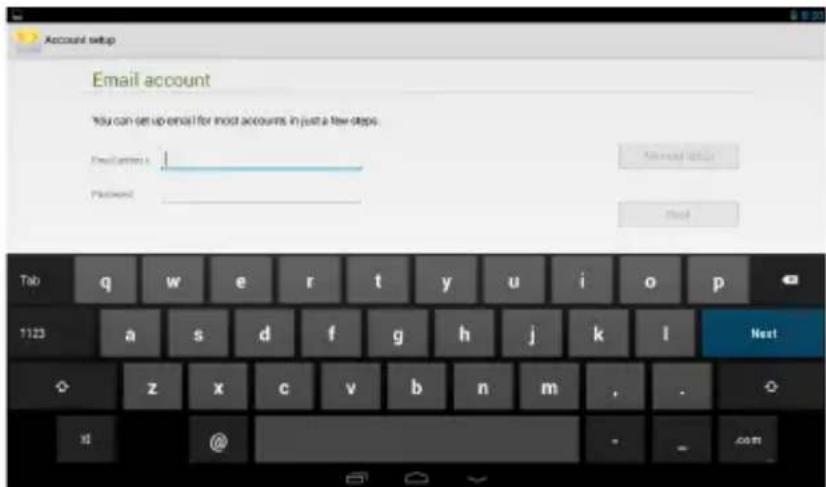
NOTE: Certain Email providers will require you to enter more details about the type of account you are using. You will have three choices: POP3, IMAP, and Exchange. If unsure of your account type, please contact your Email provider for more information.
TROUBLESHOOTING
For more updated FAQs and troubleshooting tips, visit us at www.skytex.com/support.
Symptom Solution
My touchscreen is not responding. How do I reset the tablet?
The battery drained completely and now it won't turn on...
I inserted a MicroSD card. Where are my files located?
1 Mobile Market states a 'Network Error' message when I attempt a download.
My Wi-Fi says it's 'Disconnected' after I attempt to connect.
To reset, first make sure the power source is unplugged. Press and hold the Power button for 10 seconds and then plug the power source back in. Press the Power button for another 2-3 seconds. To erase all data on the Tablet go to Settings > Backup & reset > Factory Data Reset. ALL DATA WILL BE LOST.
After inserting the card, find your files in the "File Manage" application. Go to the App tray; open 'File Manager', Select SD card icon to access files.
The App requires an update to the most recent version. Visit http://www.1mobile.com on your Tablet's browse and download the updated version.
The Disconnected status means that the tablet is not connected to any network. Make sure the correct password is entered when connecting to your wireless network. This password could be on the bottom of the router or a password that was created by someone when the Wi-Fi device was originally set up.
SPECIFICATIONS
HD Display Type:
Processor Type:
Operating System:
Storage Capacity:
Internal Memory:
Memory Card Supported:
Wireless LAN:
Bluetooth
HDMI:
Cameras:
Micro-USB:
Stereo Headphone Output:
Tablet Dimensions:
Tablet Weight:
Battery Capacity:
Input Voltage, Power Adapter:
Limited Warranty
7" 1024 x 600 Hi-Res Capacitive Touchscreen Display
1.2GHz Dual Core Processor + Mali 400MPx2 GPU
Android 4.2 Jelly Bean
8GB* Internal Storage ^1
1GB RAM
MicroSD Expansion to 32GB
802.11b/g/n
Yes
Yes
VGA Front / 2MP Rear
Yes
3.5mm
7.4"(L) × 4.2"(W) × 0.3"(D)
10 oz.
Up to 7.5 hours ^2
110V-240VAC, 50/60Hz, 5V Output (UL Listed)
1 Year Parts & Labor
NOTE:
1 - * Available storage capacity will be less due to operating system and pre-installed software applications.
2 - Based on theoretical discharge speed. Actual usage may be lower.
WARRANTY & SUPPORT
SKYTEX Technology Inc. warrants against defects in material and workmanship for a period of one year from original purchase date when purchased from an authorized U.S. reseller/retailer by the original purchaser or is a consumer who received the Tablet as a gift. You must retain and provide the original bill of sale (or photocopy) as proof of purchase in case the Tablet requires service. Retain the original box and inner packaging to ship if necessary.
Your Responsibility
Warranty service shall be provided after a return authorization number (RMA#) is provided to you by our customer support representative. For one year, SKYTEX will provide at no charge, service repairs using new or replacement parts. In certain cases your Tablet may be replaced with a refurbished model that meets or exceeds factory specifications. Service provided or refurbished replacement is warranted for the duration of the original warranty period or 45 days, whichever is greater. Warranty extends to defects in materials or workmanship and does not cover cosmetic imperfections, damage incurred during shipment to SKYTEX, misuse, accidental drops that crack the screen, connection to improper equipment, or repairs by an authorized party. Write the RMA number on the package; include a copy of the store receipt and description of the issue with the product and serial number.
How to Obtain Warranty Service
If after following the User Guide, should you find it necessary to contact Customer Support, email or call between 8:30AM - 5:30 PM Monday - Friday (Pacific Time). Have your date of purchase, serial number, and a full understanding of the issue ready for your representative. You are responsible for the transportation costs and protective packaging associated with shipping the product to SKYTEX safely. Ship the Tablet using a service that provides tracking information.
Customer Support
Monday - Friday 8:30 AM - 5:30 PM
Phone: (888) 759-8399
Email: support@skytex.com
Website: www.skytex.com
- IMPORTANT NOTICES
- Customer Use Only:
- Company Trademarks
- FCC COMPLIANCE
- SAFETY NOTICES
- TABLE OF CONTENTS
- INTRODUCTION
- CHARGING YOUR TABLET
- POWER ON/OFF/STANDBY MODE
- CONNECTING TO A WIRELESS NETWORK
- REQUIREMENTS:
- CONNECTING A BLUETOOTH DEVICE
- INSTALL APPS
- BROWSE THE WEB
- Bookmark a Favorite Page
- SETTINGS: Date, Time, & Screen Timeout
- Manual Time Setting
- Manual Date Setting
- Screen Timeout
- Auto Date & Time
- HOME SCREEN APPLICATIONS
- Home Launcher Screen
- Add or Remove Favorite Apps from App Tray
- DISCOVER APP SHORTCUTS
- NOTIFICATIONS BAR / CONNECT TO TV / USING micro-USB
- NOTIFICATIONS BAR
- HDMI\*
- Micro-USB
- View Photos
- Play Music
- INSERTING A MICROSD CARD
- NOTE:
- CAMERA & VIDEO CHAT
- Web Camera Functions
- Video Chat
- Rear Camera Functions
- SETTING UP YOUR EMAIL
- TROUBLESHOOTING
- Symptom Solution
- SPECIFICATIONS
- WARRANTY & SUPPORT
- Your Responsibility
- How to Obtain Warranty Service
Brand : Skytex
Model : Skypad 7s
Category : Tablet