
FVXTM30B2V1B - Uncategorized DAIKIN - Free user manual and instructions
Find the device manual for free FVXTM30B2V1B DAIKIN in PDF.


| Product Type | Split System Air Conditioner (Indoor Unit) |
| Model | FVXTM30B2V1B |
| Brand | Daikin |
| Refrigerant | R32 (GWP 675) |
| Operation Modes | Automatic, Cooling, Heating, Fan Only, Drying |
| Advanced Features | Flash Streamer Air Cleaning, Floor Warming, Powerful Operation, Heat Plus, Econo, Outdoor Unit Quiet, Automatic Air Outlet Selection |
| Timer Functions | 24h/12h OFF/ON Timer, Weekly Timer (up to 4 reservations per day) |
| Wireless Connectivity | Wi-Fi via ONECTA app (compatible with Android/iOS) |
| Multi-System Support | Yes (Priority Room, Night Quiet, Cooling/Heating Mode Lock) |
| Air Filter Type | Washable Air Filter + Titanium Apatite Deodorising Filter |
| Filter Maintenance | Air filter: clean every 2 weeks; Titanium apatite filter: clean every 6 months, replace every 3 years |
| User Interface | Wireless Remote Control with LCD Display |
| Safety Features | Auto Restart after Power Failure, Refrigerant Leak Detection (on compatible units), Child Lock (via remote) |
| Protection | Overvoltage, Freeze-up, High Pressure, Overload, Fan Lock |
| Dimensions (Indoor Unit, approx.) | 286 x 795 x 243 mm (H x W x D) |
| Weight (Indoor Unit, approx.) | 9 kg |
| Operating Temperature Range (Cooling/Heating) | Cooling: Indoor 18-32°C DB, Outdoor -10-46°C DB; Heating: Indoor 10-30°C DB, Outdoor -30-24°C DB (for FVXTM model) |
| Warranty | Standard manufacturer warranty (refer to installer) |
Frequently Asked Questions - FVXTM30B2V1B DAIKIN
User questions about FVXTM30B2V1B DAIKIN
0 question about this device. Answer the ones you know or ask your own.
Ask a new question about this device
Download the instructions for your Uncategorized in PDF format for free! Find your manual FVXTM30B2V1B - DAIKIN and take your electronic device back in hand. On this page are published all the documents necessary for the use of your device. FVXTM30B2V1B by DAIKIN.
USER MANUAL FVXTM30B2V1B DAIKIN
User reference guide
Split system air conditioners
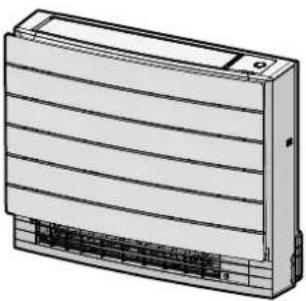
natural_image
Technical line drawing of a rectangular electronic device with horizontal striped panels and a base panel (no text or symbols)
Download the ONECTA app

STAND BY ME
Discover our service offer
Table of contents
1 About the documentation 4
1.1 About this document.... 4
2 General safety precautions 5
2.1 About the documentation.... 5
2.1.1 Meaning of warnings and symbols.... 5
3 User safety instructions 7
3.1 General 7
3.2 Instructions for safe operation 8
4 About the system 13
4.1 Indoor unit 13
4.1.1 Daikin eye indication lamp.... 14
4.2 About the user interface 15
4.2.1 Components: Wireless remote control 15
4.2.2 Status: Wireless remote control LCD 16
4.2.3 To operate the wireless remote control 17
5 Before operation 18
5.1 Overview: Before operation.... 18
5.2 To turn on the power supply.... 18
5.3 To insert the batteries.... 18
5.4 To mount the wireless remote control holder 19
5.5 The clock setting.... 19
5.5.1 To set the clock 19
5.6 Brightness of the indoor unit display 20
5.6.1 To set the brightness of the indoor unit display 20
6 Operation 21
6.1 Operation range 21
6.2 When to use which feature.... 21
6.3 Operation mode and temperature setpoint.... 23
6.3.1 To start/stop operation mode and to set the temperature 23
6.4 Airflow rate 24
6.4.1 To adjust the airflow rate 24
6.5 Airflow direction.... 24
6.5.1 To adjust vertical airflow direction.... 25
6.5.2 To adjust the louvers (vertical blades) 25
6.6 Air outlet selection 26
6.6.1 To set automatic air outlet selection or top air outlet only.... 27
6.7 Floor warming operation 27
6.7.1 To start/stop Floor warming operation.... 28
6.8 Powerful and Heat plus operation 28
6.8.1 Powerful operation 28
6.8.2 Heat plus operation 29
6.8.3 To start/stop Powerful and Heat plus operation 29
6.9 Econo and Outdoor unit quiet operation 30
6.9.1 Econo operation.... 30
6.9.2 Outdoor unit quiet operation.... 30
6.9.3 To start/stop Econo and Outdoor unit quiet operation 30
6.10 Flash Streamer (air cleaning) operation 31
6.10.1 To start/stop Flash Streamer (air cleaning) operation 31
6.11 OFF/ON timer operation 31
6.11.1 24 hour clock OFF/ON timer setting 32
6.11.2 12 hour countdown OFF/ON timer setting.... 33
6.12 Weekly timer operation 34
6.12.1 To set Weekly timer operation.... 35
6.12.2 To copy reservations.... 36
6.12.3 To confirm reservations 37
6.12.4 To deactivate and reactivate Weekly timer operation 37
6.12.5 To delete reservations.... 37
6.13 Wireless LAN connection 38
6.13.1 Precautions when using the wireless LAN.... 39
6.13.2 To install the ONECTA app.... 39
6.13.3 To set the wireless connection.... 39
6.14 About Multi system 42
6.14.1 Priority room setting.... 42
6.14.2 Night quiet mode 44
6.14.3 Cooling/heating mode lock in Multi-system 44
7 Energy saving and optimum operation 45
8 Maintenance and service 47
8.1 Overview: Maintenance and service 47
8.2 To clean the indoor unit and wireless remote control.... 48
8.3 To clean the front panel 49
8.4 About the air filters 50
8.5 To remove the filters 50
8.6 To clean the air filter 50
8.7 To clean the titanium apatite deodorising filter 51
8.8 To replace the titanium apatite deodorising filter 51
8.9 To reinstall the filters 52
8.10 To re-install the front panel 52
8.11 To take following items into account before a long idle period 53
9 Troubleshooting 54
9.1 Troubleshooting for wireless LAN connection.... 57
9.2 Symptoms that are NOT system malfunctions.... 57
9.2.1 Symptom: Airflow temperature is NOT high enough during Heat plus operation 58
9.2.2 Symptom: A sound like water flowing is heard.... 58
9.2.3 Symptom: A blowing sound is heard.... 58
9.2.4 Symptom: A ticking sound is heard.... 58
9.2.5 Symptom: A whistling sound is heard 58
9.2.6 Symptom: A clicking sound during operation or idle time is heard 58
9.2.7 Symptom: A clapping sound is heard 58
9.2.8 Symptom: White mist comes out of a unit (Indoor unit).... 58
9.2.9 Symptom: The units can give off odours.... 58
9.2.10 Symptom: The outdoor fan rotates while the air conditioner is not in operation.... 59
9.2.11 Symptom: Fan speed does NOT correspond with the setpoint 59
9.2.12 Symptom: The fan setting during thermo off (keep dry function) differs from setting in the ONECTA app 59
9.3 Solving problems based on error codes 59
10 Disposal 62
11 Glossary
63
1 About the documentation
1.1 About this document
Thank you for purchasing this product. Please:
- Keep the documentation for future reference.
Target audience
End users

INFORMATION
This appliance is intended to be used by expert or trained users in shops, in light industry, and on farms, or for commercial and household use by lay persons.
Documentation set
This document is part of a documentation set. The complete set consists of:
■ General safety precautions:
- Safety instructions that you must read before operating your system
- Format: Paper (in the box of the indoor unit)
- Operation manual:
- Quick guide for basic usage
- Format: Paper (in the box of the indoor unit)
- User reference guide:
- Detailed step-by-step instructions and background information for basic and advanced usage
- Format: Digital files on https://www.daikin.eu. Use the search function 🔒 to find your model.
Latest revisions of the supplied documentation may be available on the regional Daikin website or via your installer.
Scan the QR code below to find the full documentation set and more information about your product on Daikin website.
The original instructions are written in English. All other languages are translations of the original instructions.
2 General safety precautions
2.1 About the documentation
- The original instructions are written in English. All other languages are translations of the original instructions.
- The precautions described in this document cover very important topics, follow them carefully.
- The installation of the system, and all activities described in the installation manual and in the installer reference guide MUST be performed by an authorised installer.
2.1.1 Meaning of warnings and symbols

DANGER
Indicates a situation that results in death or serious injury.

DANGER: RISK OF ELECTROCUTION
Indicates a situation that could result in electrocution.

DANGER: RISK OF BURNING/SCALDING
Indicates a situation that could result in burning/scalding because of extreme hot or cold temperatures.

DANGER: RISK OF EXPLOSION
Indicates a situation that could result in explosion.

WARNING
Indicates a situation that could result in death or serious injury.

WARNING: FLAMMABLE MATERIAL

A2L
WARNING: MILDLY FLAMMABLE MATERIAL
The refrigerant inside this unit is mildly flammable.

CAUTION
Indicates a situation that could result in minor or moderate injury.

NOTICE
Indicates a situation that could result in equipment or property damage.

INFORMATION
Indicates useful tips or additional information.
Symbols used on the unit:
| Symbol Explanation | |
 | Before installation, read the installation and operation manual, and the wiring instruction sheet. |
 | Before performing maintenance and service tasks, read the service manual. |
 | For more information, see the installer and user reference guide. |
 | The unit contains rotating parts. Be careful when servicing or inspecting the unit. |
Symbols used in the documentation:
| Symbol Explanation | |
 | Indicates a figure title or a reference to it.Example: "1-3 Figure title" means "Figure 3 in chapter 1". |
 | Indicates a table title or a reference to it.Example: "1-3 Table title" means "Table 3 in chapter 1". |
3 User safety instructions
Always observe the following safety instructions and regulations.
3.1 General

WARNING
If you are NOT sure how to operate the unit, contact your installer.

WARNING
This appliance can be used by children aged from 8 years and above and persons with reduced physical, sensory or mental capabilities or lack of experience and knowledge if they have been given supervision or instruction concerning use of the appliance in a safe way and understand the hazards involved.
Children SHALL NOT play with the appliance.
Cleaning and user maintenance SHALL NOT be made by children without supervision.

WARNING
To prevent electrical shocks or fire:
Do NOT rinse the unit.
- Do NOT operate the unit with wet hands.
- Do NOT place any objects containing water on the unit.

CAUTION
- Do NOT place any objects or equipment on top of the unit.
- Do NOT sit, climb or stand on the unit.
- Units are marked with the following symbol:
This means that electrical and electronic products may NOT be mixed with unsorted household waste. Do NOT try to dismantle the system yourself: dismantling the system, treatment of the refrigerant, of oil and of other parts MUST be done by an authorised installer and MUST comply with applicable legislation.
Units MUST be treated at a specialised treatment facility for reuse, recycling and recovery. By ensuring this product is disposed of correctly, you will help to prevent potential negative consequences for the environment and human health. For more information, contact your installer or local authority.
- Batteries are marked with the following symbol:

This means that the batteries may NOT be mixed with unsorted household waste. If a chemical symbol is printed beneath the symbol, this chemical symbol means that the battery contains a heavy metal above a certain concentration.
Possible chemical symbols are: Pb: lead (>0.004%).
Waste batteries MUST be treated at a specialised treatment facility for reuse. By ensuring waste batteries are disposed of correctly, you will help to prevent potential negative consequences for the environment and human health.
3.2 Instructions for safe operation

INFORMATION
FVXTM-B unit has NO refrigerant leakage sensor. All information related to refrigerant leakage sensor are applicable only for CVXM-B and FVXM-B units.

WARNING
If the supply cord is damaged, it MUST be replaced by the manufacturer, its service agent or similarly qualified persons in order to avoid a hazard.

A2L
WARNING: MILDLY FLAMMABLE MATERIAL
The refrigerant inside this unit is mildly flammable.

CAUTION
The indoor unit contains radio equipment; the minimum separation distance between the radiating part of the equipment and the user is 30 cm.
Only for CVXM-B and FVXM-B:

CAUTION
This unit is equipped with a leak detection system for safety. To be effective, the unit must be electrically powered at all times after installation, other than when servicing.

CAUTION
Do NOT insert fingers, rods or other objects into the air inlet or outlet. When the fan is rotating at high speed, it will cause injury.

WARNING
- Do NOT modify, disassemble, remove, reinstall or repair the unit yourself as incorrect dismantling or installation may cause an electrical shock or fire. Contact your dealer.
- In case of accidental refrigerant leaks, make sure there are no naked flames. The refrigerant itself is entirely safe, non-toxic and mildly flammable, but it will generate toxic gas when it accidentally leaks into a room where combustible air from fan heaters, gas cookers, etc. is present. Always have qualified service personnel confirm that the point of leakage has been repaired or corrected before resuming operation.

CAUTION
- ALWAYS use a user interface (e.g. wireless remote control) to adjust the angle of the flap. When the flap is swinging and you move it forcibly by hand, the mechanism will break.
- Be careful when adjusting the louvers. Inside the air outlet, a fan is rotating at high speed.

CAUTION
NEVER expose little children, plants or animals directly to the airflow.

WARNING
Do NOT place objects below the indoor and/or outdoor unit that may get wet. Otherwise condensation on the unit or refrigerant pipes, air filter dirt or drain blockage may cause dripping, and objects under the unit may get dirty or damaged.

WARNING
Do NOT place a flammable spray bottle near the air conditioner and do NOT use sprays near the unit. Doing so may result in a fire.

CAUTION
Do NOT operate the system when using a room fumigation-type insecticide. Chemicals could collect in the unit, and endanger the health of people who are hypersensitive to chemicals.

WARNING
Keep any required ventilation openings clear of obstructions.

WARNING
- The refrigerant inside the unit is mildly flammable, but normally does NOT leak. If the refrigerant leaks in the room and comes in contact with fire from a burner, a heater, or a cooker, this may result in fire, or the formation of a harmful gas.
- Turn OFF any combustible heating devices, ventilate the room, and contact the dealer where you purchased the unit.
- Do NOT use the unit until a service person confirms that the part from which the refrigerant leaked has been repaired.

WARNING
- Do NOT pierce or burn refrigerant cycle parts.
- Do NOT use cleaning materials or means to accelerate the defrosting process other than those recommended by the manufacturer.
- Be aware that the refrigerant inside the system is odourless.

WARNING
The appliance shall be stored in a room without continuously operating ignition sources (example: open flames, an operating gas appliance or an operating electric heater).
Only for CVXM-B and FVXM-B:

WARNING
The R32 refrigerant leakage sensor must be replaced after every detection or at the end of its lifetime. ONLY authorised persons may replace the sensor.

DANGER: RISK OF ELECTROCUTION
To clean the air conditioner or air filter, be sure to stop operation and turn all power supplies OFF. Otherwise, an electrical shock and injury may result. In case the unit is equipped with a refrigerant leakage sensor, turn the power supply breaker back ON immediately after cleaning in order to maintain detection functionality.
Only for CVXM-B and FVXM-B:

CAUTION
When replacing the R32 refrigerant leakage sensor, replace it with the sensor specified by the manufacturer (refer to the spare parts list).

WARNING
To prevent electrical shocks or fire:
- Do NOT rinse the unit.
- Do NOT operate the unit with wet hands.
- Do NOT place any objects containing water on the unit.

CAUTION
After a long use, check the unit stand and fitting for damage. If damaged, the unit may fall and result in injury.

WARNING
Improper detergents or cleaning procedure may cause damage on plastic components or water leakage. Splashed detergent on electric components, such as motors, may cause failure, smoke or ignition.

DANGER: RISK OF ELECTROCUTION
Before cleaning, be sure to stop the operation, turn the breaker OFF or pull out the supply cord. Otherwise, an electrical shock and injury may result. In case the unit is equipped with a refrigerant leakage sensor, turn the power supply breaker back ON immediately after cleaning in order to maintain detection functionality.

WARNING
Do NOT let the indoor unit get wet. Possible consequence: Electrical shock or fire.

CAUTION
Be careful when opening and handling the front panel; sharp edge of the front panel may cause injury.

WARNING
Stop operation and shut OFF the power if anything unusual occurs (burning smells etc.).
Leaving the unit running under such circumstances may cause breakage, electrical shock or fire. Contact your dealer.

WARNING
In case the unit is equipped with a refrigerant leakage sensor, turn off the unit using the ON/OFF button on the user interface only.
4 About the system

A2L
WARNING: MILDLY FLAMMABLE MATERIAL
The refrigerant inside this unit is mildly flammable.

CAUTION
The indoor unit contains radio equipment; the minimum separation distance between the radiating part of the equipment and the user is 30 cm.
Only for CVXM-B and FVXM-B:

CAUTION
This unit is equipped with a leak detection system for safety. To be effective, the unit must be electrically powered at all times after installation, other than when servicing.

NOTICE
Do NOT use the system for other purposes. In order to avoid any quality deterioration, do NOT use the unit for cooling precision instruments, food, plants, animals, or works of art.
4.1 Indoor unit

CAUTION
Do NOT insert fingers, rods or other objects into the air inlet or outlet. When the fan is rotating at high speed, it will cause injury.

INFORMATION
The sound pressure level is less than 70 dBA.

WARNING
- Do NOT modify, disassemble, remove, reinstall or repair the unit yourself as incorrect dismantling or installation may cause an electrical shock or fire. Contact your dealer.
- In case of accidental refrigerant leaks, make sure there are no naked flames. The refrigerant itself is entirely safe, non-toxic and mildly flammable, but it will generate toxic gas when it accidentally leaks into a room where combustible air from fan heaters, gas cookers, etc. is present. Always have qualified service personnel confirm that the point of leakage has been repaired or corrected before resuming operation.
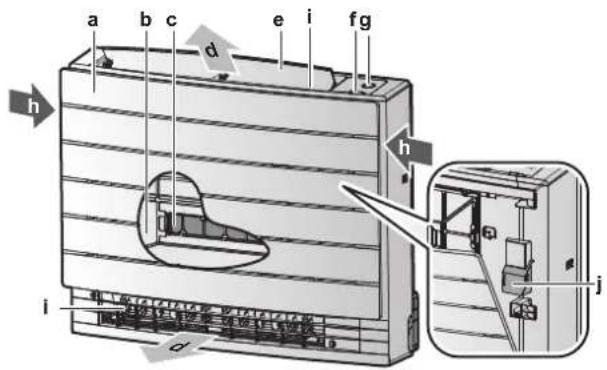
a Front panel
b Air filter
c 2× titanium apatite deodorising filter
d Air outlet
e Flap (horizontal blade)
f Infrared signal receiver for the wireless remote control
g ON/OFF button, Daikin eye and timer lamp
h Air inlet
i Louvers (vertical blades)
j Room temperature sensor
ON/OFF button
If the user interface (e.g. wireless remote control) is missing, you can use the ON/OFF button on the indoor unit to start/stop operation. When operation is started using this button, the following settings are used:
- Operation mode = Automatic
- Temperature setting = 25°C
- Airflow rate = Automatic
4.1.1 Daikin eye indication lamp
The Daikin eye colour will change according to operation.
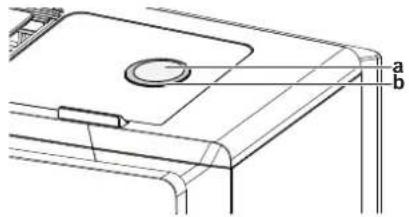
a ON/OFF button
b Daikin eye
| Operation Daikin eye colour | |
| Automatic Red/blue | |
| Drying Green | |
| Cooling Blue | |
| Heating Red | |
| Fan only White | |
| Timer operation Orange | (a) |
(1) When the OFF/ON timer or Weekly timer operation is set, the Daikin eye periodically changes to orange. After lighting orange for about 10 seconds, it returns to the colour of the operation mode for 3 minutes. Example: When the timer is set during cooling operation, the Daikin eye will periodically light orange for 10 seconds, and then switch to blue for 3 minutes.
4.2 About the user interface
Wireless remote control

INFORMATION
The indoor unit is delivered with the wireless remote control as the user interface. This manual describes only operation with this user interface. If another user interface is connected, refer to the operation manual of the connected user interface.
- Direct sunlight. Do NOT expose the wireless remote control to direct sunlight.
- Dust. Dust on the signal transmitter or receiver will reduce sensitivity. Wipe off dust with a soft cloth.
- Fluorescent lights. Signal communication might be disabled if fluorescent lamps are in the room. In that case, contact your installer.
- Other appliances. If the wireless remote control signals operate other appliances, move the other appliances, or contact your installer.
- Curtains. Make sure that curtains or other objects do NOT block the signal between the unit and the wireless remote control.

NOTICE
- Do NOT drop the wireless remote control.
- Do NOT let the wireless remote control get wet.
4.2.1 Components: Wireless remote control
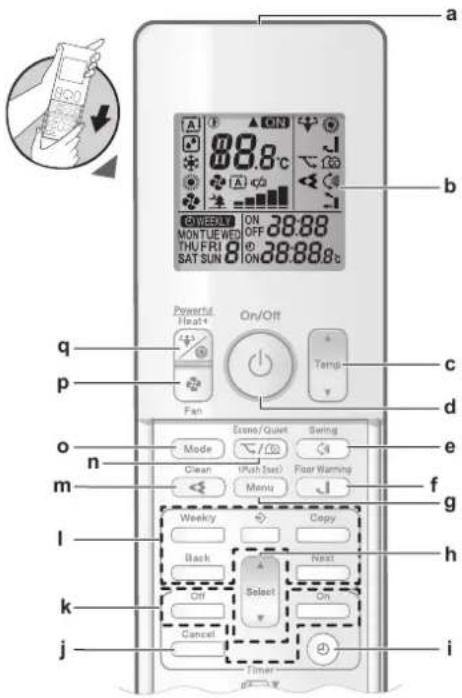
a Signal transmitter
b LCD display
c Temperature adjustment button
d ON/OFF button
e Vertical swing button
f Floor warming button
g Menu button
h Select button
i Clock setting button
j Cancel button
k OFF/ON timer operation buttons
I Weekly timer operation buttons
m Flash Streamer (air cleaning) operation button
n Econo and Outdoor unit quiet operation button
- Mode button
p Fan button
q Powerful button and Heat plus button
4.2.2 Status: Wireless remote control LCD
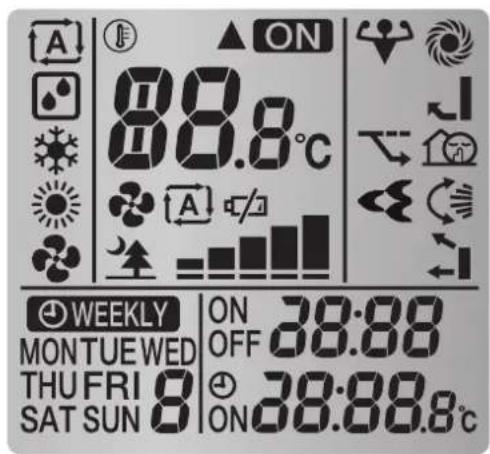
| Icon Description | |
| Operation mode = Automatic | |
| Operation mode = Drying | |
| Operation mode = Cooling | |
| Operation mode = Heating | |
| Operation mode = Fan only | |
| ▲ | The indoor unit receives a signal from the wireless remote control |
| Operation is active | |
| Current temperature setting | |
| Battery replacement notification symbol (low battery) | |
| Airflow rate = Automatic | |
| Airflow rate = Indoor unit quiet | |
| Airflow rate = High | |
| Airflow rate = Medium high | |
| Airflow rate = Medium | |
| Airflow rate = Medium low | |
 --- --- | Airflow rate = Low |
| [BHHH] | Powerful operation is active |
| [OCAA] | Econo operation is active |
| [22DH3] | Flash Streamer (air cleaning) is active |
 | Heat plus is active |
 | Floor warming is active |
 | Outdoor unit quiet operation is active |
| [K48E2] | Automatic vertical swing is active |
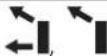 | Automatic air outlet or top air outlet only is active |
 | ON timer is active |
 | OFF timer is active |
 | Weekly timer is active |
 | Day of the week |
 | Current time |
4.2.3 To operate the wireless remote control
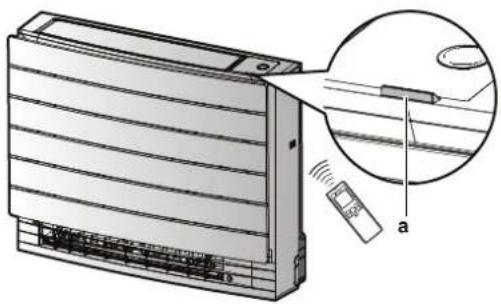
natural_image
Diagram of an air conditioner unit with a close-up view showing internal components and a sensor device (no text or symbols present)a Infrared signal receiver
1 Aim the signal transmitter at the infrared signal receiver on the indoor unit (maximum distance for communication is 7 m).
Result: When the indoor unit receives a signal from the wireless remote control, you will hear a sound:
| Sound Description | |
| Beep-beep Operation starts. | |
| Beep Setting changes. | |
| Long beep Operation stops. |
5 Before operation
5.1 Overview: Before operation
This chapter describes what you have to do before operating the unit.
Typical workflow
Before operation usually consist of the following stages:
- Turning on the power supply.
- Inserting the batteries in the wireless remote control.
- Setting the clock.
- Setting the brightness of the Daikin eye lamp.
- Mounting the wireless remote control holder to the wall or another surface.
5.2 To turn on the power supply
1 Turn the circuit breaker on.
5.3 To insert the batteries
The batteries will last for about 1 year.
1 Remove the front cover.
2 Insert both batteries at once.
3 Put back the front cover.
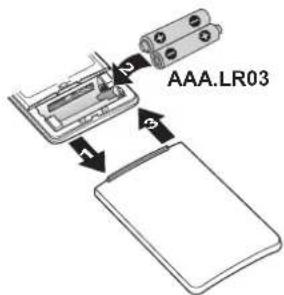

INFORMATION
- Low energy of battery is indicated by 10V on the LCD display.
- ALWAYS replace both batteries together.
5.4 To mount the wireless remote control holder
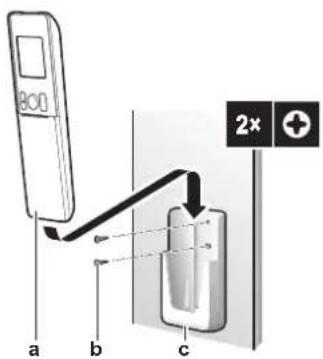
a Wireless remote control
b Screws (field supply)
c Wireless remote control holder
1 Choose a place where the signal can reach the unit.
2 Fix the holder (accessory) to the wall or a similar location using 2 M3×20L screws (field supply).
3 Insert the wireless remote control into the holder.
5.5 The clock setting
If the indoor unit's internal clock is NOT set to the correct time, the ON timer, OFF timer and weekly timer will NOT operate correctly. The clock must be set again:
• After a circuit breaker has turned the unit OFF.
■ After a power failure.
■ After replacing batteries in the wireless remote control.
5.5.1 To set the clock
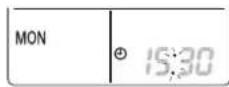
Note: If the time is NOT set, MONaD blink
1 Press.
Result: MOND block
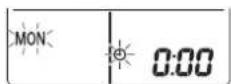
2 Press d to set the current day of the week.
| Display Day of the week | |
| MON | Monday |
| TUE | Tuesday |
| WED | Wednesday |
| THU | Thursday |
| FRI | Friday |
| SAT | Saturday |
| SUN | Sunday |
3 Press.
Result: eblinks.
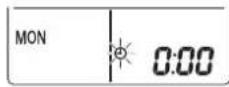
4 Press or select to set the correct time.
Note: Holding down Select increases or decreases the time setting rapidly.
5 Press.
Result: Setting is complete. blinks.
5.6 Brightness of the indoor unit display
Adjust the brightness of the indoor unit display as desired, or turn OFF the display.
5.6.1 To set the brightness of the indoor unit display
1 On the home screen, press for at least 2 seconds.
Result: The selection menu number; appears on the display. is blinking.
2 Press to enter the setting.
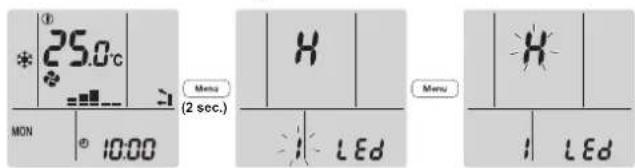
3 Press of select to change the setting as follows:

| Blinking Brightness | |
| H | High |
| L | Low |
| oF | Off |
4 Press to confirm the selected setting.
Result: The brightness setting is changed.
Note: The display automatically returns to the default screen after 60 seconds. To return to the default screen sooner, press Cancel
6 Operation

INFORMATION
The indoor unit is delivered with the wireless remote control as the user interface. This manual describes only operation with this user interface. If another user interface is connected, refer to the operation manual of the connected user interface.
6.1 Operation range
Use the system in the following temperature and humidity ranges for safe and effective operation.
| CVXM, FVXM50 | ||
| Cooling and drying(a)(b) | Heating(a) | |
| Outdoor temperature -10~46°C DB | -15~24°C DB | |
| Indoor temperature 18~32°C DB | 14~23°C WB | 10~30°C DB |
| Indoor humidity ≤80% | (b) | — |
(a) A safety device might stop the operation of the system if the unit runs outside its operation range.
(b) Condensation and water dripping might occur if the unit runs outside its operation range.
| FVXM25+35 | ||
| Cooling and drying(a)(b) | Heating(a) | |
| Outdoor temperature -10~50°C DB | -20~24°C DB | |
| Indoor temperature 18~32°C DB | 14~23°C WB | 10~30°C DB |
| Indoor humidity ≤80% | (b) | — |
(a) A safety device might stop the operation of the system if the unit runs outside its operation range.
(b) Condensation and water dripping might occur if the unit runs outside its operation range.
| FVXTM | ||
| Cooling and drying(a)(b) | Heating(a) | |
| Outdoor temperature -10~46°C DB | -30~24°C DB | |
| Indoor temperature 18~32°C DB | 14~23°C WB | 10~30°C DB |
| Indoor humidity ≤80% | (b) | — |
(a) A safety device might stop the operation of the system if the unit runs outside its operation range.
(b) Condensation and water dripping might occur if the unit runs outside its operation range.
6.2 When to use which feature
You can use the following table to determine which features to use:
| Feature Tasks | |
| Basic features | |
| Operation modes and temperature | To start/stop the system and to set the temperature:In Heating and Cooling mode, heat up or cool down a room.In Fan only mode, blow air in a room without heating or cooling.In Drying mode, decrease the humidity in a room.In Automatic mode, an appropriate operation mode is automatically selected based on the set temperature. |
| Airflow direction | To adjust the airflow direction (swing or fixed position). |
| Airflow rate | To adjust the amount of air blown into the room. |
| Advanced features | |
| Streamer | To remove airborne allergens such as pollen, adjuvant substances and to clean the air in the room. |
| Econo | To use the system when you are also using other power-consuming appliances.To save energy. |
| Outdoor unit quiet | To decrease the noise level of the outdoor unit.Example: At night. |
| Automatic air outlet selection | To let the unit automatically decide the blow pattern, depending on the operation mode and room conditions. This function is factory set as the default and recommended setting. |
| Top outlet only | To set the airflow from top air outlet only, regardless of the operation mode or room conditions. |
| Floor warming | To heat from the bottom air outlet only. Use this function when you don’t want to feel the hot airflow directly. |
| Heat plus | To increase the airflow temperature coming from the unit. The air temperature will be higher than during normal heating operation. This function is recommended when you want to feel more warmth. |
| Powerful | To cool down or heat up the room quickly. |
| ON timer + OFF timer | To automatically turn ON or OFF the system. |
| Weekly timer | To automatically turn ON or OFF the system on a weekly basis. |
| Additional features | |
| Wireless LAN connection To operate the unit using smart appliances. | |
6.3 Operation mode and temperature setpoint
When. Adjust the system operation mode and set the temperature when you want to:
- Heat up or cool down a room
- Blow air in a room without heating or cooling
■ Decrease the humidity in a room
What. The system operates differently, depending on the user selection.
| Setting Description | |
| [XY64] Automatic | The system cools down or heats up a room to the temperature setpoint. It automatically switches between cooling and heating if necessary. |
| [ES6D] Drying | The system decreases the humidity in a room. |
 Heating Heating | The system heats up a room to the temperature setpoint. |
| [DSWW] Cooling | The system cools down a room to the temperature setpoint. |
 Fan Fan | The system only controls the airflow (airflow rate and airflow direction).The system does NOT control the temperature. |
Additional info:
- Outside temperature. The system's cooling or heating effect decreases when the outside temperature is too high or too low.
- Defrost operation. During heating operation, frost might occur on the outdoor unit and decrease the heating capacity. In that case, the system automatically switches to defrosting operation to remove the frost. During defrosting operation, hot air is NOT blown from the indoor unit.
6.3.1 To start/stop operation mode and to set the temperature
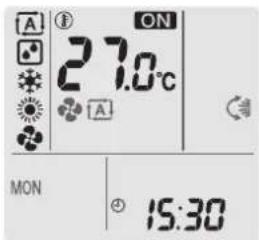

Unit is operating

Operation mode = Automatic

Operation mode = Drying

Operation mode = Cooling

Operation mode = Heating

Operation mode = Fan only

8c: Shows the set temperature.
1 Press done or more times to select the operation mode.
Result: The mode will be set as follows:

2 Press to start operation.
Result: CN is played on the LCD. The Daikin eye indication lamp changes colour according to the operation. See "4.1.1 Daikin eye indication lamp" [▶ 14].
3 Press or one or more times to lower or raise the temperature.
| Cooling operation Heating operation Automatic operation | Drying or Fan only operation | |
| 18~32°C 10~30°C 18~30°C — |
Note: When using drying or fan only mode, you cannot adjust the temperature.
4 Press to stop operation.
Result: ON appears from the LCD. The Daikin eye indication lamp goes off.
6.4 Airflow rate
1 Press to choose:
| 5 airflow rate levels, from "to" | |
| Automatic airflow rate operation | |
| Indoor unit quiet operation. When the airflow rate is set to "the noise from the unit will be reduced. |
6.4.1 To adjust the airflow rate
1 Press to change the airflow setting as follows:

flowchart
graph LR
    A["Start"] --> B["A"]
    B --> C["B"]
    C --> D["C"]
    D --> E["D"]
    E --> F["Bar Chart"]
6.5 Airflow direction
When. Adjust the airflow direction as desired.
What. The system directs the airflow differently, depending on the user selection.
| Setting Display | Airflow direction |
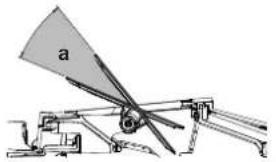
| Vertical auto swing Swinging or fixed | d position of the horizontal blades (flaps). |
| Horizontal airflow [—] | Position of the vertical blades (louvers) is set manually. |
natural_image
Technical diagram of a mechanical device with labeled component 'a' (no text or symbols beyond label)a Movable range of the flaps

CAUTION
- ALWAYS use a user interface (e.g. wireless remote control) to adjust the angle of the flap. When the flap is swinging and you move it forcibly by hand, the mechanism will break.
- Be careful when adjusting the louvers. Inside the air outlet, a fan is rotating at high speed.

INFORMATION
In vertical auto swing, the flaps will stop in up position if the air flow rate becomes weak.
6.5.1 To adjust vertical airflow direction
1 Press .
Result: 📄 appears on the LCD. The flaps (horizontal blades) will begin to swing.
2 To use fixed position, press when the flaps reach the desired position.
Result: Disappears from the LCD. The flaps will stop moving.
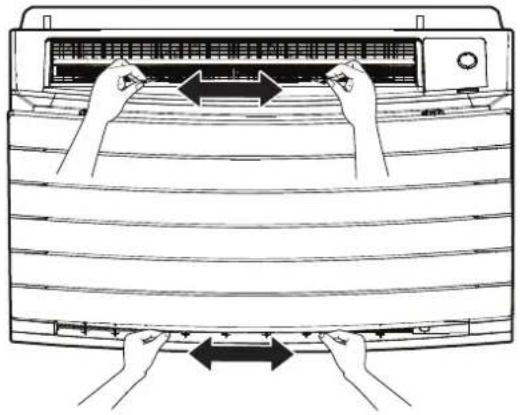
6.5.2 To adjust the louvers (vertical blades)
1 Adjust horizontal blades using the user interface (e.g. wireless remote control) so you can easily access the knobs on the vertical blades.
2 Hold the knobs and move them up slightly.
3 Adjust left or right to the desired position while holding the knobs.
natural_image
Line drawing of a double door with hands adjusting the panel, showing airflow direction (no text or symbols)
INFORMATION
When the unit is installed in a corner of a room, the direction of the louvers should be facing away from the wall. Efficiency will drop if a wall blocks the air.
6.6 Air outlet selection
Use this feature to let the unit decide automatically which air outlet should be used or set the top air outlet only. The default setting is automatic air outlet selection.
| Setting Display | Airflow direction | |
| Automatic air outlet selection | [T3x6] | The unit decides automatically the best air outlet depending on the operation mode or room conditions. |
| Top air outlet only The airflow is set to top air outlet, regardless of the operation mode or room conditions. | ||
| Setting Operation mode Situation Air outlet selection | |||
| Drying Any situation | 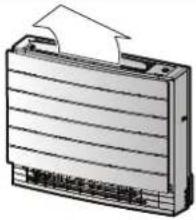 | ||
| Cooling When the room temperature reaches the setpoint or the total operation time at high humidity reaches 1 hour. | |||
| When the setpoint temperature is NOT reached yet, or the total operation time at high humidity is less than 1 hour. | 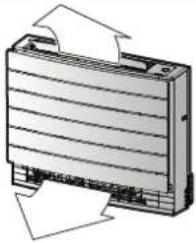 | ||
| Heating, fan only Any situation | |||
 | Drying, cooling, heating, fan only | Any situation | 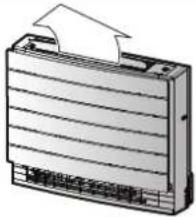 |

INFORMATION
- During drying operation the airflow comes from the top air outlet only. See "6.3 Operation mode and temperature setpoint" [▶ 23] for setting.
- During Floor warming operation, the airflow comes from the bottom air outlet only. See "6.7 Floor warming operation" [▶ 27] for setting. Floor warming can be set only with the automatic air outlet selection setting.
- If you change the setting from the automatic air outlet selection to the top air outlet only in the heating operation, heating is temporarily stopped to protect the unit.
- Cooling/heating ability is lower when the top air outlet only is set.
■ While the air outlet selection is changing, a sound of the moving damper can be heard.
6.6.1 To set automatic air outlet selection or top air outlet only
Prerequisite: The default setting is automatic air outlet selection.
1 On the home screen, press for at least 2 seconds.
Result: The selection menu appears. The menu number is blinking.
2 Press do select to select menu number.
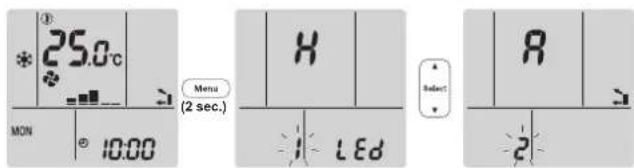
3 Press to enter the setting.
Result: "8 is blinking.
4 Press Select or Select to change the setting. "A" = automatic air outlet selection or "'I'" = top air outlet only.
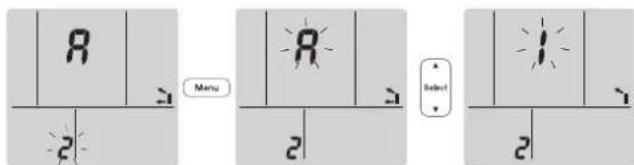
5 Press to confirm the selected setting.
Result: The setting is changed.
Note: The display automatically returns to the default screen after 1 minute. To return to the default screen sooner, press ☐once!
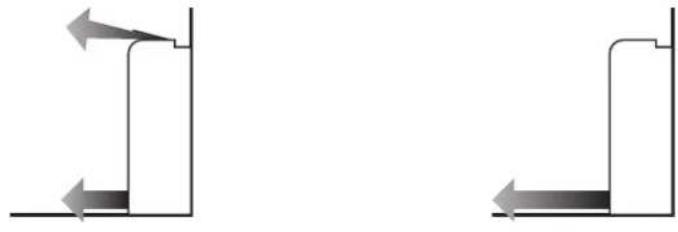
6.7 Floor warming operation
This operation can effectively warm large floor areas by closing the top air outlet and increasing the air velocity to reach distant floor surfaces.
Normal operation Floor warming operation
natural_image
Two identical mechanical or architectural diagrams showing vertical supports with directional arrows indicating movement (no text or symbols)
INFORMATION
- Floor warming operation can be used in heating operation mode only and with the automatic air outlet selection setting.
- If the room temperature is low, the room may not get warm enough.
6.7.1 To start/stop Floor warming operation
Prerequisite: This operation can be set only in heating operation mode and with the automatic air outlet selection setting.
1 Press .
Result: is displayed on the LCD and the operation starts.
2 To stop operation, press .
Result: _d disappears from the LCD and operation stops.
6.8 Powerful and Heat plus operation
6.8.1 Powerful operation
This operation quickly maximizes the cooling/heating effect in any operation mode. You can get the maximum capacity.
| Mode Airflow rate | |
| Cooling/Heating • To maximize the cooling | ing/heating effect, the capacity of outdoor unit is increased. • The airflow rate is fixed to the maximum setting. • The temperature and airflow settings CANNOT be changed. |
| Drying • The temperature setting is lowered by 2.5°C. • The airflow rate is slightly increased. | |
| Fan only The airflow rate is fixed to the | maximum setting. |

INFORMATION
- Powerful operation cannot be used together with Heat plus, Floor warming, Econo and Outdoor unit quiet operation. The last selected function takes priority.
- Powerful operation will NOT increase the capacity of the unit if it already operates at maximum capacity.
6.8.2 Heat plus operation
This operation increases the airflow temperature coming from the unit. The airflow temperature is higher than during the normal heating operation. Use this operation when you want to feel more warmth. This operation has a 30 minute duration.

INFORMATION
- Heat plus operation can be used in heating operation mode only.
- If the room temperature is low, the room may not get warm enough.
- Do NOT stay close to the air outlet in the direct path of discharged air for a long time.
■ After the HEAT PLUS operation ends, depending on the temperature set for HEAT operation, the power may be temporarily reduced.
In Multi system connection, the airflow temperature may be insufficient.
6.8.3 To start/stop Powerful and Heat plus operation
1 Press one or more times to select operation.
Result: The setting will change as follows.

| Display Operation | |
| Powerful | |
| Heat plus | |
| — Both deactivated |
- Powerful operation runs for 20 minutes; after that, operation returns to the previously set mode.
- Heat plus operation runs for 30 minutes; after that, operation returns to the previously set mode.
2 To stop operation, press until both symbols disappear from the LCD.
Note: Powerful operation and Heat plus can be set only when the unit is running.
If you press operation will be cancelled; and disappear from the LCD.
6.9 Econo and Outdoor unit quiet operation
6.9.1 Econo operation
This is a function which enables efficient operation by limiting the maximum power consumption value. This function is useful for cases in which attention should be paid to ensure a circuit breaker will not trip when the product runs alongside other appliances.

INFORMATION
- Powerful, Heat plus, Floor warming and Econo operation CANNOT be used at the same time. The last selected function takes priority.
- Econo operation is only available in automatic, cooling, heating and drying operation modes.
- Econo operation reduces power consumption of the outdoor unit by limiting the rotation speed of the compressor. If power consumption is already low, Econo operation will NOT further reduce power consumption.
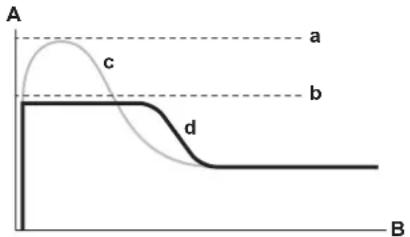
A Running current and power consumption
B Time
a Maximum during normal operation
b Maximum during Econo operation
c Normal operation
d Econo operation
- The diagram is for illustrative purposes only.
- The maximum running current and power consumption of the air conditioner in Econo operation varies with the connected outdoor unit.
6.9.2 Outdoor unit quiet operation
Use Outdoor unit quiet operation when you want to decrease the noise level of the outdoor unit. Example: At night.

INFORMATION
- Powerful, Heat plus, Floor warming and Outdoor unit quiet operation CANNOT be used at the same time. The last selected function takes priority.
- Outdoor unit quiet operation is only available in automatic, cooling, and heating operation.
- Outdoor unit quiet operation limits the rotation speed of the compressor. If the rotation speed of compressor is already low, Outdoor unit quiet operation will NOT further reduce the compressor rotation speed.
6.9.3 To start/stop Econo and Outdoor unit quiet operation
1 Press one or more times.
Result: The setting will change as follows.

flowchart
graph LR
    A["Start"] --> B["Step 1"]
    B --> C["Step 2"]
    C --> D["Step 3"]
    D --> E["End"]
| Display Operation | |
| Econo | |
| Outdoor unit quiet | |
| + +ONO and Outdoor unit quiet | |
| — Both deactivated |
2 To stop operation, press until both symbols disappear from the LCD.
Note: Econo operation can be only set when the unit is running. Pressing ⏻ cancels the setting and disappears from the LCD.
Note: Remains on the LCD, even if you turn off the unit using the wireless remote control or indoor unit ON/OFF switch.
6.10 Flash Streamer (air cleaning) operation

INFORMATION
- The high-speed electrons are generated and go away inside the unit to ensure safe operation.
The Streamer discharge may generate a fizzing sound. - If the airflow becomes weak, the Streamer discharge may stop temporarily to prevent ozone smell.
6.10.1 To start/stop Flash Streamer (air cleaning) operation
Prerequisite: Make sure the unit is operating ON displayed on the wireless remote control LCD).
1 Press.
Result: ≤slant displayed on the LCD and the air in the room is cleaned when the unit is operating.
2 To stop operation, press.
Result: <disappears from the LCD and operation stops.

INFORMATION
- You can set the Flash Streamer operation when the unit is both ON or OFF, but operation starts only when the unit is operating.
- When the setting is done while the unit is NOT operating, v is displayed on the wireless remote control LCD, but operation does NOT start.
6.11 OFF/ON timer operation
Timer functions are useful for automatically switching the air conditioner off/on at night or in the morning. You can also use OFF timer and ON timer in combination.
There are two types of OFF/ON timer setting:
- 24 hour clock OFF/ON timer (default). The unit will stop/start operating at the set time. Example: The ON timer is set to 13:30, the unit will start operating at 13:30.
- 12 hour countdown OFF/ON timer. The unit will stop/start operating after the set number of hours. Example: The ON timer is set at 10:30 to 3 hours, the unit will start operating at 13:30.
Note: It is possible to combine both timer setting types.

INFORMATION
Program the timer again in case of:
A breaker has turned the unit off.
A power failure.
■ After replacing batteries in the wireless remote control.

INFORMATION
The clock MUST be set correctly before using any timer functions. Refer to "5.5.1 To set the clock" [▶ 19].
6.11.1 24 hour clock OFF/ON timer setting
To start/stop OFF timer operation
1 Press to start.
Result: It displayed on the LCD and blinks OFF and the day of the week disappear from the LCD.
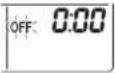
2 Press a Select to change the time setting.
3 Press again!
Result: OFF and the set time are displayed on the LCD. The Daikin eye lights orange.

INFORMATION
Each time for is pressed, the time setting advances by 10 minutes. Holding the button down will change the setting rapidly.
4 To cancel the timer setting, press . Cancel
Result: The set time and OFF appear from the LCD. and the day of the week are displayed on the LCD. The Daikin eye stops lighting orange.
To start/stop ON timer operation
1 Press to start.
Result: 6:00 is displayed on the LCD and ON blinks. ⊕ and the day of the week disappear from the LCD.
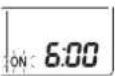
2 Press a select to change the time setting.
3 Press again
Result: ON and the set time are displayed on the LCD. The Daikin eye lights orange.

INFORMATION
Each time is pressed, the time setting advances by 10 minutes. Holding the button down will change the setting rapidly.
4 To cancel the timer setting, press . Cancel
Result: The set time and ONsappear from the LCD. and the day of the week are displayed on the LCD. The Daikin eye stops lighting orange.
To combine OFF timer and ON timer
1 To set the timers, refer to "To start/stop OFF timer operation" [▶ 32] and "To start/stop ON timer operation" [▶ 32].
Result: OFF and ON are displayed on the LCD.
Example:
| Display Current time Set while... Operation | ||
| OFF 7:00ON 14:00 | 6:00 the unit is | operating. Stops at 7:00 and starts at 14:00. |
| the unit is NOT operating. Starts at 14:00. | ||
Note: If the timer setting is active, the current time is NOT displayed on the LCD.
6.11.2 12 hour countdown OFF/ON timer setting
To start/stop countdown OFF/ON timer operation
1 Press and hold or for about 5 seconds; when blinks, release ▲ the button.
Result:

For the OFF timer, "appears on the LCD and bOFFs, and the day of the week disappear from the LCD.

For the ON timer, it appears on the LCD and bONs. and the day of the week disappear from the LCD.
2 Press Select or Select to change the time setting. The time can be set between 1\~12 hours. Each pressing of the button increases or decreases the time setting by 1 hour.
3 Press or to confirm the setting.
Result: OFF and/or ON and the set time are displayed on the LCD. The Daikin eye lights orange. The time displayed on the LCD will automatically count down by 1 hour for every hour that passes.
Example: If the OFF timer is set to 3 hours, the displayed time will change as follows: 3hr 2hr 1hr blank (OFF)
4 To change the setting back to 24 hour OFF/ON timer, repeat step 1 when on the home screen when AND/or AND NOT blinking.
5 To cancel the timer setting, press . Cancel
To combine the timer display modes
Different display modes (24 hour and 12 hour countdown OFF/ON timer) can be used for the OFF timer and ON timer simultaneously.
1 For setting, see "To start/stop OFF timer operation" [▶ 32], "To start/stop ON timer operation" [▶ 32] and "To start/stop countdown OFF/ON timer operation" [▶ 33].
Example:
| Display Current time | Set while... Operation | |
 | 22:00 the unit is | operating. |
 | ||
 |
Note: If the timer setting is active, the current time is NOT displayed on the LCD.
6.12 Weekly timer operation

INFORMATION
Do not use the Weekly timer setting simultaneously with the ONECTA app schedule timer. Both settings are independent of each other. Use only one of them.

INFORMATION
The following setting procedure is for the wireless remote control only. However, we recommend to perform the weekly timer setting using the ONECTA app. Refer to "6.13 Wireless LAN connection" [▶ 38] for more information.
With this operation, you can save up to 4 timer settings for each day of the week.
Example: Create a different setting from Monday to Friday and a different setting for weekends.
| Day of the week Setting example | |
| MondayMake up to 4 settings. | 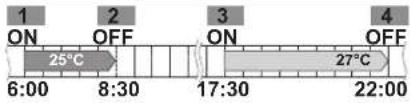 |
| Tuesday~FridayUse the copy mode if the settings are the same as for Monday. | 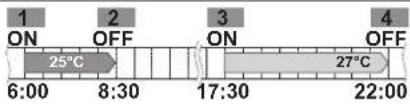 |
| SaturdayNo timer setting | — |
| SundayMake up to 4 settings. | 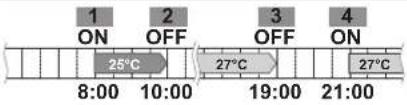 |
- ON-ON-ON-ON setting. Enables scheduling the operation mode and set temperature.
- OFF-OFF-OFF-OFF setting. Only the turn off time can be set for each day.
Note: Be sure to aim the wireless remote control at the indoor unit and check for a receiving tone when setting the Weekly timer operation.

INFORMATION
The clock MUST be set correctly before using any timer functions. Refer to "5.5.1 To set the clock" [▶ 19].

INFORMATION
- Weekly timer and OFF/ON timer operation CANNOT be used at the same time. The OFF/ON timer operation takes priority. Weekly timer will be in standby, WEEKLY disappears from the LCD. When the OFF/ON timer is completed, the Weekly timer becomes active.
- The day of the week, OFF/ON timer mode, time and temperature (only for ON timer) can be set with the Weekly timer. Other settings are based on previous ON timer setting.
6.12.1 To set Weekly timer operation
1 Press.
Result: The day of the week and the reservation number of the current day are displayed.
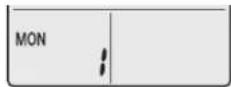
2 Press or to select the day of the week and the reservation number.
3 Press . Next
Result: The day of the week is set. Ⓧ WEEKLY link. ON
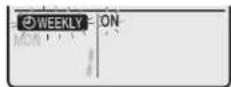
4 Press or to select the mode.
Result: The setting will change as follows:

| Display Feature | |
| ON | ON timer |
| OFF | OFF timer |
| Blank Deletes reservation |
5 Press . Next
Result: The OFF/ON timer mode is set. Ⓧ WEEKLY e time blink.
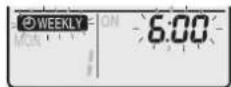
Note: Press to return to the previous screen. If blank is selected, continue to step 9.
6 Press Select or Select to select the time. The time can be set between 0:00\~23:50 in 10-minute intervals.
7 Press . Next
Result: The time is set and Ⓧ WEEKLY e temperature blink.
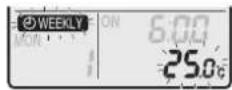
Note: Press tBAreturn to the previous screen. If OFF timer is selected, continue to step 9.
8 Press or to select the desired temperature.
Note: The set temperature for the weekly timer is displayed only when setting the weekly timer mode.

INFORMATION
The temperature can be set between 10\~32°C on the wireless remote control, however:
- in cooling and automatic operation mode, the unit will operate at minimum 18°C, even if is set to 10\~17°C;
- in heating and automatic operation mode, the unit will operate at maximum 30°C, even if is set to 31\~32°C.
9 Press . Next
Result: The temperature and time are set for the ON timer. The time is set for the OFF timer. The Daikin eye lights orange.
Result: A new reservation screen will appear.
10 Repeat the previous procedure to set another reservation or press to complete the setting.
Result: Ⓞ WEEKLY played on the LCD.
Note: A reservation can be copied with the same settings to another day. Refer to "6.12.2 To copy reservations" [▶ 36].
6.12.2 To copy reservations
A reservation can be copied to another day. The complete reservation of the selected day of the week will be copied.
1 Press
2 Press of Select to select the day of the week to be copied.
3 Press . Copy
Result: The reservation of the selected day of the week will be copied.
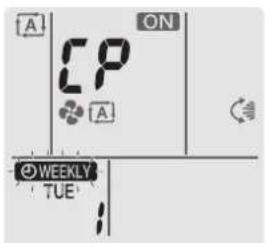
4 Press a select to select the destination day.
5 Press . Copy
Result: The whole reservation is copied to the selected day and the Daikin eye lights orange.
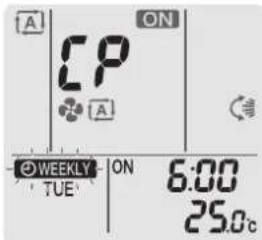
Note: To copy to another day, repeat the procedure.
6 Press to complete the setting.
Result: Ⓑ WEEKLY layed on the LCD.
Note: To change the reservation setting after copying, refer to "6.12.1 To set Weekly timer operation" [▶ 35].
6.12.3 To confirm reservations
You can confirm if all reservations are set to your needs.
1 Press.
Result: The day of the week and the reservation number of the current day are displayed.
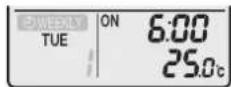
2 Press of to select the day of the week and reservation number to be confirmed and check the reservation details.
Note: To change the reservation setting, refer to "6.12.1 To set Weekly timer operation" [▶ 35].
3 Press to exit the confirmation mode.
6.12.4 To deactivate and reactivate Weekly timer operation
1 To deactivate the Weekly timer, press Weekly is displayed on the LCD.
Result: Ⓗ WEEKLY ears from the LCD and the Daikin eye stops lighting orange.
2 To reactivate the Weekly timer, press a weekly
Result: The last set reservation mode will be used.
6.12.5 To delete reservations
To delete individual reservations
Use this function if you want to delete a single reservation setting.
1 Press.
Result: The day of the week and the reservation number are displayed.
2 Press dr to select the day of the week to be deleted.
3 Press . Next
Result: Ⓤ WEEKLY ON blink.OFF
4 Press or and select "blank".
Result: The setting will change as follows:

5 Press . Next
Result: The selected reservation is deleted.
6 Press to exit.
Result: Remaining reservations are active.
To delete a reservation for each day of the week
Use this function if you want to delete all reservation settings for one day of the week. This can be used in confirmation or setting mode.
1 Press.
2 Press or to select the day of the week to be deleted.
3 Hold for about 5 seconds.
Result: All reservations for the selected day are deleted.
4 Press to exit
Result: Remaining reservations are active.
To delete all reservations
Use this function if you want to delete all reservations for all days of the week in one go. This procedure CANNOT be used in the setting mode.
1 Hold for Weekout 5 seconds while in the default display.
Result: All reservations will be deleted.
6.13 Wireless LAN connection
The customer is responsible for providing:
- Smartphone or tablet with minimum supported version of Android or iOS, specified on app.daikineurope.com.
- Internet line and communication device, such as a modem, router, etc.
■ Wireless LAN access point - Installed free ONECTA application
Note: If needed, the SSID number and the KEY are located on the unit. Unit is shipped with an additional sticker with SSID number and password, attached on the casing.
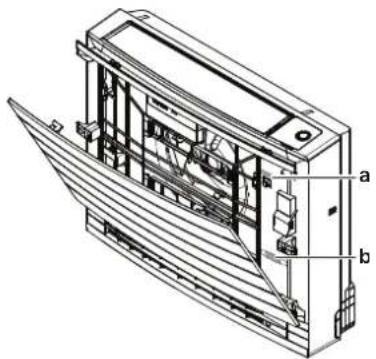
a Label with SSID number, password and key
b Additional sticker with SSID number, password and key
6.13.1 Precautions when using the wireless LAN
Do NOT use near:
- Medical equipment. E.g. persons using cardiac pacemakers or defibrillators. This product may cause electromagnetic interference.
- Auto-control equipment. E.g. automatic doors or fire alarm equipment. This product may cause faulty behaviour of the equipment.
- Microwave oven. It may affect wireless LAN communications.
6.13.2 To install the ONECTA app
1 Go to Google Play (for Android devices) or the App Store (for iOS devices) and search for "ONECTA".
2 Follow the directions on the screen to install the ONECTA app.

INFORMATION
Scan the QR code to download and install the ONECTA app on your mobile phone or tablet:
6.13.3 To set the wireless connection
There are two options to connect the wireless adapter with your smart device.
- Connect the wireless LAN to your smart device directly.
- Connect the wireless LAN to your home network. The wireless LAN will communicate with your smart device in your home network using a modem, router or a similar device.
For more information and FAQ refer to app.daikineurope.com.
1 Stop operation before setting the wireless connection.
2 Use the wireless remote control to select the wireless LAN setting menu.
Note: During setting, always aim the wireless remote control at the infrared signal receiver on the unit.
| Menu Description | |
| 1 | Connection status check |
| 2 | Connection using WPS button |
| 3 | Connection using SSID and KEY |
| R | Reset to factory default |
| oFF | Wireless LAN OFF |
To confirm the wireless LAN connection status
1 On the home screen, press operating.

at least 5 seconds while the unit is not
Result: SP appears on the display. † is blinking.
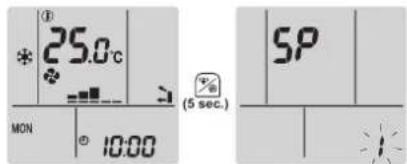
2 Press to confirm the selection.
Result: / is blinking.
3 Check the Daikin eye.
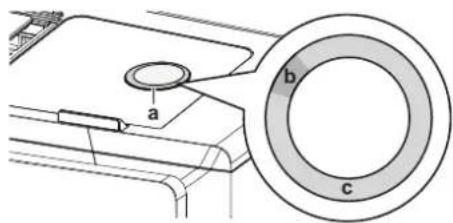
a Daikin eye
b Partly green
c Red, orange, blue or white
| Daikin eye colour alternates between partly green and... | ...then wireless adapter is... |
| red not connected | |
| orange running and ready to connect to the home network via WPS button; see "To connect using the WPS button" [▶ 40]. | |
| blue | • connected to the home network via SSID + KEY.or• connected to the home network via WPS button on the router. |
| white off | |
4 Press to exit the menu.
Result: The display will return to the home screen.
To connect the wireless LAN to your home network
The wireless adapter can be connected to your home network using the:
- WPS button (Wi-Fi Protected Setup) on the router (if present),
- The SSID (Service Set Identifier) and the KEY (password) - located on the unit.
To connect using the WPS button
1 On the home screen, press for at least 5 seconds while the unit is not operating.
Result: SP appears on the display. I is blinking.
2 Press to change the SP menu to .
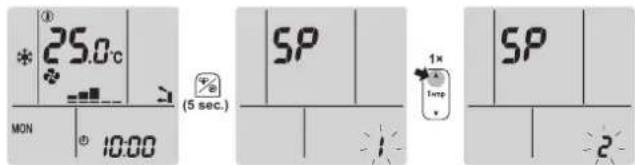
3 Press to confirm the selection.
Result: is blinking. The Daikin eye colour alternates between orange and partly green.
4 Press the WPS button on your communication device (e.g. router) within approximately 1 minute. Refer to the manual of your communication device.
Result: If the connection was successful, the Daikin eye colour alternates between blue and partly green.

INFORMATION
If the connection with your router is not possible, try procedure "To connect using SSID and KEY number" [▶ 41].
5 Press to go the menu.
Result: The display will return to the home screen.
To connect using SSID and KEY number
1 On the home screen, press for at least 5 seconds while the unit is not operating.
Result: SP appears on the display. I is blinking.
2 Press twice to change the SP menu to . 3
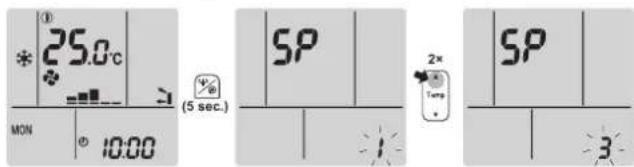
3 Press to confirm the selection.
Result: 3 is blinking. The Daikin eye colour alternates between red and partly green.
4 Open the ONECTA application on your smart device and follow the steps on the screen.
Result: If the connection was successful, the Daikin eye colour alternates between blue and partly green.
5 Connect your smart device to the same home network as the unit.
6 Press to exit the menu.
Result: The display will return to the home screen.
To reset the connection setting to the factory default
Reset the connection setting to the factory default in case you want to:
- disconnect the wireless LAN and the communication device (e.g. router) or smart device
- repeat the setting if the connection was unsuccessful.
1 On the home screen, press for at least 5 seconds while the unit is not operating.
Result: SP appears on the display. I is blinking.
2 Press twice to change the SP menu to . R
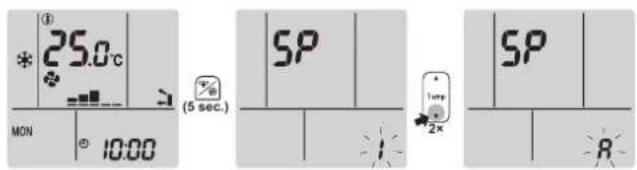
3 Hold for at least 2 seconds to confirm the selection.
Result: Ris blinking. The setting is reset to the factory default.
4 Press to go to the menu.
Result: The display will return to the home screen.
To turn off the wireless LAN connection
If you want to turn off the wireless connection function:
1 On the home screen, press for at least 5 seconds while the unit is not operating.
Result: SP appears on the display. I is blinking.
2 Press change the SP menu to . off
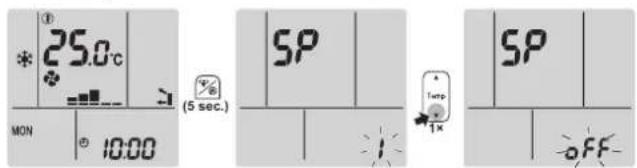
3 Hold for at least 2 seconds to confirm the selection.
Result: off blinking. Communication is OFF.
4 Press to exit the menu.
Result: The display will return to the home screen.
6.14 About Multi system
In Multi system, 1 outdoor unit is connected to multiple indoor units. Example:
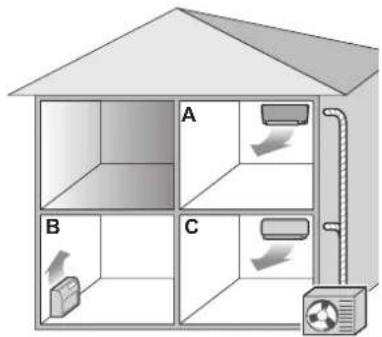
6.14.1 Priority room setting
Priority room setting requires initial programming during installation. Please consult your authorized dealer for assistance.
When priority room setting is inactive or not present
When more than 1 indoor unit is operating, priority is given to the first unit that was turned on. Set other units to the same operation mode. Otherwise, they will enter the standby mode, and the Daikin eye will flash (does NOT indicate malfunction).
Exceptions: If the first unit that was turned on is set to fan only, and then in the other room heating mode is set, priority will be given to the unit set to the heating mode. The first unit will go in standby and the Daikin eye will flash.

INFORMATION
- The cooling, drying, and fan only operation modes may be used at the same time.
- The automatic operation mode automatically selects cooling or heating, depending on the room temperature and the temperature setting. If the automatic operation mode is selected for all units, all units will operate in the mode of the first unit that was turned on.
Priority when using Outdoor unit quiet operation
Refer to "6.9.2 Outdoor unit quiet operation" [▶ 30].
1 Set Outdoor unit quiet operation in all rooms using the wireless remote controls of the units.
2 To cancel Outdoor unit quiet operation, you may stop operation in 1 room using a wireless remote control.
Result: Operation will stop in all rooms. with remain on the display of the other wireless remote controls.
3 To remove the symbol from the other wireless remote controls, stop Outdoor unit quiet operation in all rooms separately.
Result: The symbol will disappear.
When priority room setting is active
You can select a different operation mode for each room.
Example: Room A has priority, cooling operation mode is selected.
| Operation mode in room B and C Status of room B and C | |
| Cooling, drying or fan only Current operation mode maintained | |
| Heating | Standby mode. Operation resumes when room A stops operating. |
| Automatic | If cooling operation continues. If heating units enter standby mode. Operation resumes when room A stops operating. |
Priority when using Powerful operation
Example: Room A has priority. Rooms B and C are operating.
1 Set Powerful operation in room A.
Result: Capacity in room A is increased. Cooling or heating efficiency in rooms B and C may be slightly reduced.
Priority when using Outdoor unit quiet operation
Example: Room A has priority.
2 Set Outdoor unit quiet operation on one unit.
Result: All units enter the Outdoor unit quiet operation mode at once.
6.14.2 Night quiet mode
The Night quiet mode requires initial programming during installation. Please consult your dealer for assistance. This mode reduces the operation noise of the outdoor unit during the night by reducing the cooling efficiency.
The Night quiet mode is activated automatically when the temperature drops ≥5^ below the highest temperature recorded that day.
6.14.3 Cooling/heating mode lock in Multi-system
The cooling/heating mode lock can be set via the Multi outdoor unit. Please consult your authorized dealer for assistance. The cooling/heating mode lock sets the unit forcibly to either cooling or heating operation. Activate this function if you wish to set all indoor units connected in a Multi-system to 1 operation mode.

INFORMATION
The Cooling/heating mode lock CANNOT be activated together with the priority room setting.
7 Energy saving and optimum operation

INFORMATION
Even if the unit is turned OFF, it consumes electricity.
- When the power turns back on after a power break, the previously selected mode will be resumed.

CAUTION
NEVER expose little children, plants or animals directly to the airflow.

NOTICE
Do NOT place objects below the indoor and/or outdoor unit that may get wet. Otherwise condensation on the unit or refrigerant pipes, air filter dirt or drain blockage may cause dripping, and objects under the unit may get dirty or damaged.

WARNING
Do NOT place a flammable spray bottle near the air conditioner and do NOT use sprays near the unit. Doing so may result in a fire.

WARNING
Keep any required ventilation openings clear of obstructions.

CAUTION
Do NOT operate the system when using a room fumigation-type insecticide. Chemicals could collect in the unit, and endanger the health of people who are hypersensitive to chemicals.
Observe the following precautions to ensure the system operates properly.
- Prevent direct sunlight from entering a room during cooling operation by using curtains or blinds.
- Make sure the area is well ventilated. Do NOT block any ventilation openings.
- Ventilate often. Extended use requires special attention to ventilation.
- Keep doors and windows closed. If the doors and windows remain open, air will flow out of your room causing a decrease in the cooling or heating effect.
- Be careful NOT to cool or heat too much. To save energy, keep the temperature setting at a moderate level.
- NEVER place objects near the air inlet or the air outlet of the unit. Doing so may cause a reduced heating/cooling effect or stop operation.
- Turn the breaker off when the unit is NOT used for longer periods of time. If the breaker is on, the unit consumes electricity. Before restarting the unit, turn the breaker on 6 hours before operation to ensure smooth running.
- Condensation may form if the humidity is above 80% or if the drain outlet gets blocked.
- Adjust the room temperature properly for a comfortable environment. Avoid excessive heating or cooling. Notice that it may take some time for the room temperature to reach the set temperature. Consider using the timer setting options.
7 | Energy saving and optimum operation
- Adjust the air flow direction to avoid cool air from gathering on the floor or warm air against the ceiling. (Up during cooling or dry operation to the ceiling and down during heating operation.)
- Avoid direct air flow to room inhabitants.
- Operate the system within the recommended temperature range (26\~28°C for cooling and 20\~24°C for heating) to save energy.
8 Maintenance and service
8.1 Overview: Maintenance and service
The installer has to perform a yearly maintenance.
Periodical inspections for refrigerant leaks may be required depending on the applicable legislation. Contact your installer for more information.
About the refrigerant
This product contains fluorinated greenhouse gases. Do NOT vent gases into the atmosphere.
Refrigerant type: R32
Global warming potential (GWP) value: 675

NOTICE
Applicable legislation on fluorinated greenhouse gases requires that the refrigerant charge of the unit is indicated both in weight and CO_2 equivalent.
Formula to calculate the quantity in CO_2 equivalent tonnes: GWP value of the refrigerant × total refrigerant charge [in kg]/1000
Contact your installer for more information.

NOTICE
Maintenance MUST be done by an authorised installer or service agent.
We recommend performing maintenance at least once a year. However, applicable legislation might require shorter maintenance intervals.

WARNING
- The refrigerant inside the unit is mildly flammable, but normally does NOT leak. If the refrigerant leaks in the room and comes in contact with fire from a burner, a heater, or a cooker, this may result in fire, or the formation of a harmful gas.
- Turn OFF any combustible heating devices, ventilate the room, and contact the dealer where you purchased the unit.
- Do NOT use the unit until a service person confirms that the part from which the refrigerant leaked has been repaired.

WARNING
- Do NOT pierce or burn refrigerant cycle parts.
- Do NOT use cleaning materials or means to accelerate the defrosting process other than those recommended by the manufacturer.
- Be aware that the refrigerant inside the system is odourless.

DANGER: RISK OF ELECTROCUTION
To clean the air conditioner or air filter, be sure to stop operation and turn all power supplies OFF. Otherwise, an electrical shock and injury may result. In case the unit is equipped with a refrigerant leakage sensor, turn the power supply breaker back ON immediately after cleaning in order to maintain detection functionality.
Only for CVXM-B and FVXM-B:

CAUTION
When replacing the R32 refrigerant leakage sensor, replace it with the sensor specified by the manufacturer (refer to the spare parts list).

WARNING
To prevent electrical shocks or fire:
Do NOT rinse the unit.
- Do NOT operate the unit with wet hands.
- Do NOT place any objects containing water on the unit.

CAUTION
After a long use, check the unit stand and fitting for damage. If damaged, the unit may fall and result in injury.

CAUTION
Do NOT touch the heat exchanger fins. These fins are sharp and could result in cutting injuries.
Following symbols may occur on the indoor unit:
Symbol Explanation
Measure the voltage at the terminals of main circuit capacitors or electrical components before servicing.
8.2 To clean the indoor unit and wireless remote control

WARNING
Improper detergents or cleaning procedure may cause damage on plastic components or water leakage. Splashed detergent on electric components, such as motors, may cause failure, smoke or ignition.

DANGER: RISK OF ELECTROCUTION
Before cleaning, be sure to stop the operation, turn the breaker OFF or pull out the supply cord. Otherwise, an electrical shock and injury may result. In case the unit is equipped with a refrigerant leakage sensor, turn the power supply breaker back ON immediately after cleaning in order to maintain detection functionality.

NOTICE
- Do NOT use gasoline, benzene, thinner, polishing powder or liquid insecticide. Possible consequence: Discoloration and deformation.
- Do NOT use water or air of 40°C or higher. Possible consequence: Discoloration and deformation.
- Do NOT use polishing compounds.
- Do NOT use a scrubbing brush. Possible consequence: The surface finishing peels off.
- As an end user, you may NEVER clean inside parts of the unit by yourself; this work must be performed by a qualified service person. Contact your dealer.
1 Clean with a soft cloth. If it is difficult to remove stains, use water or a neutral detergent.
8.3 To clean the front panel

WARNING
Do NOT let the indoor unit get wet. Possible consequence: Electrical shock or fire.

NOTICE
- Do NOT use gasoline, benzene, thinner polishing powder or liquid insecticide. Possible consequence: Discoloration and deformation.
- Do NOT use water or air of 50°C or higher. Possible consequence: Discoloration and deformation.
- Do NOT scrub firmly when washing the blade with water. Possible consequence: The surface sealing peels off.
You can remove the front panel to clean it.

CAUTION
Be careful when opening and handling the front panel; sharp edge of the front panel may cause injury.
1 Slide both sliders in the direction of the arrows until they click.
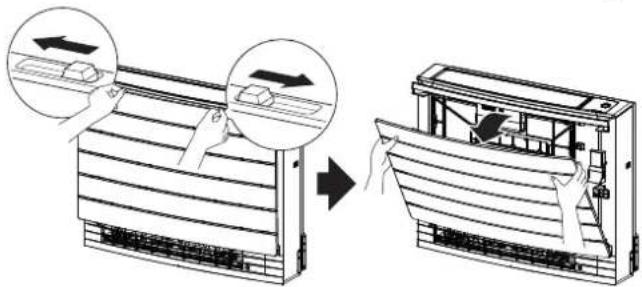
2 Open the front panel and undo the string.
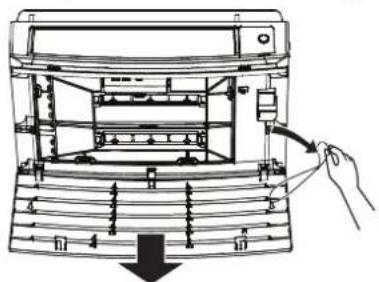
3 Remove the front panel.
4 Wipe it with a soft cloth soaked in water.
5 Let it dry in the shade after washing.
6 To reinstall and close the front panel, see "8.10 To re-install the front panel" [▶ 52].
8.4 About the air filters
Operating the unit with dirty filters means that the filter:
- CANNOT deodorise the air,
- CANNOT clean the air,
- poor heating/cooling,
- causes odour.
8.5 To remove the filters
1 Remove the front panel. Refer to "8.3 To clean the front panel" [▶ 49].
2 Carefully remove the air filter tabs from the claws (a) on the sides. Hold the air filter by the filter knob (b) and unhook the air filter tab from the claw (c) on the top. Pull the filter up to remove the filter tabs from the claws on the bottom (d).
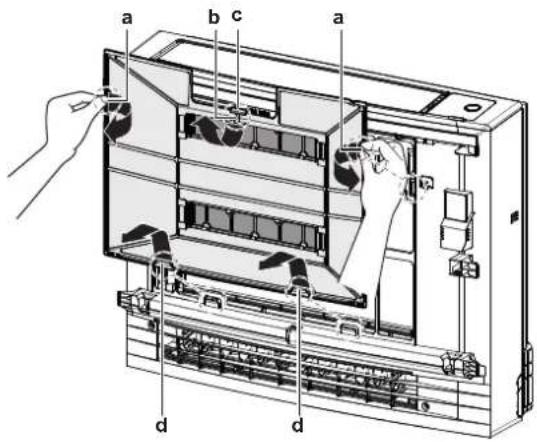
a Tabs for claws on the side
b Filter knob
c Tab for the claw on the top
d Tabs for claws on the bottom
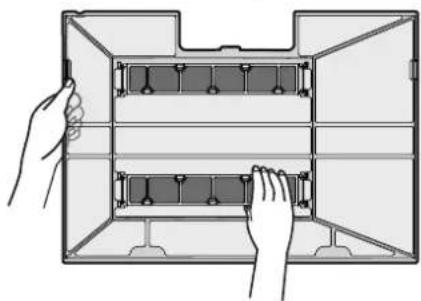
3 Remove both titanium apatite deodorising filters from the claws (4 on each).
natural_image
Illustration of hands installing or adjusting a mechanical device inside an open storage unit (no text or symbols visible)8.6 To clean the air filter
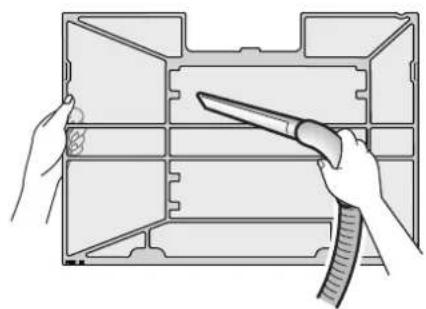
1 Wash the air filter with water or clean it with a vacuum cleaner.
natural_image
Illustration of hands holding a tool interacting with a plastic housing (no text or symbols visible)
INFORMATION
If the dust does NOT come off easily, wash them with a neutral detergent diluted in lukewarm water. Dry the air filters in the shade.
It is recommended to clean the air filters every 2 weeks.
8.7 To clean the titanium apatite deodorising filter

INFORMATION
Clean the filter with water every 6 months.
1 Remove the dust from the filter with a vacuum cleaner.
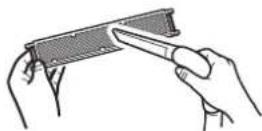
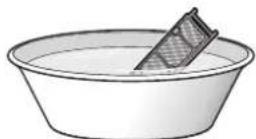
2 Soak the filter for 10 to 15 minutes in warm water. Do NOT remove the filter from the frame.
3 After washing, shake off remaining water and dry the filter in the shade. Do NOT wring out the filter when removing water.
8.8 To replace the titanium apatite deodorising filter

INFORMATION
Replace the filter every 3 years.
1 Remove the filter from the tabs of the filter frame and replace the filter with a new one.
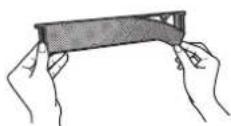

INFORMATION
Do NOT throw away the filter frame, but use it again.
- Dispose of the old filter as non-flammable waste.
8.9 To reinstall the filters
1 Hook both titanium apatite deodorising filters to the claws (4 on each).
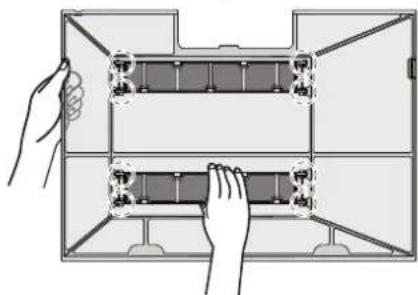
natural_image
Diagram of hands installing or adjusting a mechanical component inside a transparent housing (no text or symbols visible)2 Insert the filter tabs to the claws on the bottom (d). Hold the air filter by the filter knob (b) and insert the air filter tab to the claw (c) on the top. Insert the air filter tabs to the claws (a) on the sides. Make sure the air filter is securely fixed in all positions.
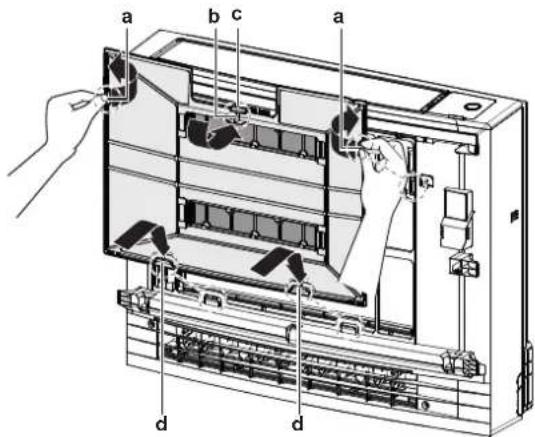
a Tabs for claws on the side
b Filter knob
c Tab for the claw on the top
d Tabs for claws on the bottom
8.10 To re-install the front panel
1 Insert the front panel into the grooves of the unit (3 places) and attach the string.
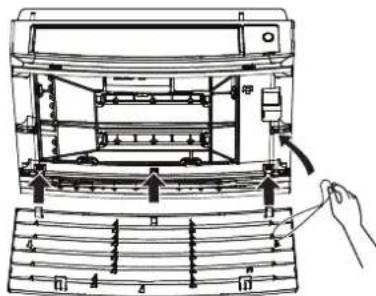
2 Close the front panel and slide both sliders until they click.
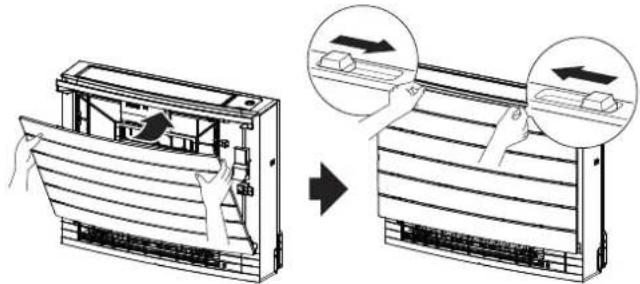
natural_image
Diagram showing airflow or ventilation system changes between two air ducts, with arrows indicating movement direction (no text or symbols present)3 Push on the sides of the front panel to make sure the front panel is securely fixed.
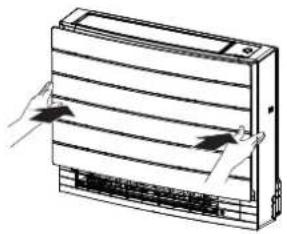
natural_image
Diagram of a airflow system inside a refrigerated air duct, showing airflow direction arrows (no text or labels)8.11 To take following items into account before a long idle period
Operate the unit several hours in fan only mode to dry the inside of the unit.
1 Press and select operation.
2 Press and start operation.
3 After operation stops, turn the breaker OFF.
4 Clean the air filters and replace them in their original positions.
5 Remove the batteries from the wireless remote control.

INFORMATION
It is recommended to have periodical maintenance performed by a specialist. For specialist maintenance, contact your dealer. Maintenance costs shall be borne by the customer.
In certain operating conditions the inside of the unit may get dirty after several seasons of use. This results in poor performance.
9 Troubleshooting
If one of the following malfunctions occurs, take the measures shown below and contact your dealer.

WARNING
Stop operation and shut OFF the power if anything unusual occurs (burning smells etc.).
Leaving the unit running under such circumstances may cause breakage, electrical shock or fire. Contact your dealer.

WARNING
In case the unit is equipped with a refrigerant leakage sensor, turn off the unit using the ON/OFF button on the user interface only.
The system MUST be repaired by a qualified service person.
| Malfunction Measure | |
| If a safety device such as a fuse, a breaker or an earth leakage breaker frequently actuates or the ON/OFF switch does NOT function properly. | Turn OFF the main power switch. |
| If water leaks from the unit. Stop operation. | |
| The operation switch does NOT function properly. | Turn OFF the power supply. |
| The Daikin eye flashes and you can check the error code by the wireless remote control. To display the error code, see "9.3 Solving problems based on error codes" [▶ 59]. | Notify your installer and report the error code. |
If the system does NOT operate properly except for the above mentioned cases and none of the above mentioned malfunctions is evident, investigate the system in accordance with the following procedures.
| Malfunction Measure | |
| If the system does NOT operate at all. | Check if there is no power failure. Wait until power is restored. If a power failure occurs during operation, the system automatically restarts immediately after power is restored.Check if no fuse has blown or breaker is activated. Change the fuse or reset the breaker if necessary.Check the batteries of the wireless remote control. |
| The system suddenly stops operating. | Check if the air inlet or outlet of the outdoor or indoor unit is NOT blocked by obstacles. Remove any obstacles and make sure the air can flow freely.The air conditioner may stop operating after sudden large voltage fluctuations to protect the system. It automatically resumes operation after about 3 minutes. |
| The system operates, but cooling or heating is insufficient. | Check the airflow rate setting. Refer to "6.4 Airflow rate" [▶ 24].Check the temperature setting. Refer to "6.3.1 To start/stop operation mode and to set the temperature" [▶ 23].Check if the airflow direction setting is appropriate. Refer to "6.5 Airflow direction" [▶ 24].Check if the air inlet or outlet of the outdoor indoor unit is NOT blocked by obstacles. Remove any obstacles and make sure the air can flow freely. |
| The system operates, but cooling or heating is insufficient (air is NOT blown from the unit). | The air conditioner may be warming up for heating operation. Wait for 1 to 4 minutes.The unit may be in defrost operation. |
| The system operates, but cooling or heating is insufficient (air is blown from the unit). | Check if the air filters are clogged. Clean the air filters. See "8 Maintenance and service" [▶ 47].Check for open doors or windows. Close doors and windows to prevent wind from coming in.Check if the unit operates in Econo operation. Refer to "6.9.1 Econo operation" [▶ 30].Check if there is any furniture directly next to the indoor unit. Move the furniture. |
| An abnormal function happens during operation. | The air conditioner may malfunction because of lightning or radio waves. Turn the breaker OFF and back ON. |
| The unit does NOT receive signals from the wireless remote control. | Check the batteries of the wireless remote control.Make sure that the transmitter is NOT exposed to direct sunlight.Check if there are any electronic starter type fluorescent lamps in the room. Contact your dealer. |
| The wireless remote control display is blank or displays | Replace the batteries of the wireless remote control. |
| You can check the error code by the user interface (wireless remote control). | Consult your local dealer. Refer to "9.3 Solving problems based on error codes" [▶ 59] for how to check error codes and for a detailed list of error codes. |
| Other electric appliances start to operate. | If the wireless remote control signals operate other electric appliances, move the other appliances away, and contact your dealer. |
Applicable for units with refrigerant leakage sensor only:
| Malfunction Measure | |
| The fan is rotates, even when the unit is turned off. (Operation lamp blinks) | Refrigerant leakage sensor started working:If the error code "" AS shown on the user interface (wireless remote control) display, there may be refrigerant leakage. Ventilate the room and contact your dealer.If the error code" A0is NOT shown on the user interface (wireless remote control) display, there is no refrigerant leakage or detection is still going. If no leak is detected, the fan will turn off automatically after a few minutes. |
| The unit does not heat or cool and the ventilation setting has switched to "Strong air flow". (Operation lamp blinks) | |
| The fan of the indoor or outdoor unit rotates, even when the unit is turned off. | |
| The error code "A0s shown on the user interface (wireless remote control) display. | |
| Continuous beeping is heard and the user interface (wireless remote control) error code AO | Refrigerant leakage sensor started working:Confirmed refrigerant leakage. Ventilate the room and contact your dealer. |
| The error code "CHs shown on the user interface display. | Malfunction of refrigerant leakage sensor.Cable of refrigerant leakage sensor is broken.Cable connection of refrigerant leakage sensor is not complete.Malfunction of main printed circuit board.Contact your dealer. |
| For Multi combination only: The unit does NOT operate (operation lamp blinks), error code "CHs displayed | There may be refrigerant leakage detected at other connected unit with refrigerant leakage sensor. Check all connected CVXM and FVXM units for error R0T . CH |
Error codes for refrigerant leakage sensor
The code indication changes as shown below.
| Main code Contents | |
| RO | Detection of refrigerant leak. |
| CH | Abnormality of refrigerant leakage sensor. |

INFORMATION
To stop the audio signalization (continuous beep) in case of refrigerant leakage detection, press fGance seconds.
After checking all the items above, if it is impossible to fix the problem yourself, contact your installer and state the symptoms, the complete model name of the unit (with manufacturing number if possible) and the installation date.
9.1 Troubleshooting for wireless LAN connection
The following table provides a brief description of how to deal with some problems. If none of the following solutions fix the problem, go to app.daikineurope.com for more information and FAQ.
| Problem Measure | |
| Connection to the wireless LAN is not possible (Daikin eye is NOT blinking during wireless LAN connection setting). | Try operating the unit with the wireless remote control.Check if the power is on.Turn the unit off and back on again. |
| The wireless LAN is NOT visible on the unit overview screen (Home screen) after configuration of the WLAN adapter (WPS option). | Make sure the wireless LAN is close enough to the communication device.Check if communication is OK.Make sure that the smart device is connected to the same wireless network as the wireless LAN.Try resetting to the factory default and repeat the setting. See "To reset the connection setting to the factory default" [▶ 41]. |
| The wireless LAN is NOT visible in the available Wi-Fi networks list on the smart device (Access point option). | Try switching between access point and WPS setting to change the wireless channel. The wireless channel MUST be between 1~13.Check if communication is OK.Try resetting to the factory default and repeat the setting. See "To reset the connection setting to the factory default" [▶ 41]. |
| The indoor/outdoor temperature value displayed in the ONECTA app differs from the value measured by other appliances. | The ONECTA app displays the indoor/outdoor temperature for the area surrounding the indoor/outdoor unit only.The measured temperature for other appliances may differ due to different conditions around the unit (e.g. direct sunlight, frost accumulation...)The temperature displayed in the ONECTA app is for information only. |
9.2 Symptoms that are NOT system malfunctions
The following symptoms are NOT system malfunctions:
9.2.1 Symptom: Airflow temperature is NOT high enough during Heat plus operation
- When the outdoor temperature is low and falls below freezing point, the airflow temperature may be insufficient.
- During multi-room operation with multi outdoor unit connection, discharge air temperature may be unable to reach a sufficient value.
9.2.2 Symptom: A sound like water flowing is heard
This sound is caused by the refrigerant flowing in the unit.
- This sound may be generated when water is flowing away from the unit during cooling or drying operation.
9.2.3 Symptom: A blowing sound is heard
This sound is generated when the direction of the refrigerant flow is changed (e.g. when switching from cooling to heating).
9.2.4 Symptom: A ticking sound is heard
This sound is generated when the unit slightly expands or contracts with changes in temperature.
9.2.5 Symptom: A whistling sound is heard
This sound is generated by the refrigerant flowing during defrost operation.
9.2.6 Symptom: A clicking sound during operation or idle time is heard
This sound is generated when the refrigerant control valves or electrical parts operate.
9.2.7 Symptom: A clapping sound is heard
This sound is generated when an external device sucks air out of the room (e.g. exhaust fan, extractor hood) while the doors and windows in the room are closed. Open the doors or windows, or turn off the device.
9.2.8 Symptom: White mist comes out of a unit (Indoor unit)
- When humidity is high during cooling operation (in oily and dusty places). If the interior of an indoor unit is extremely contaminated, the temperature distribution inside a room becomes uneven. It is necessary to clean the interior of the indoor unit. Ask your dealer for details on cleaning the unit. This operation requires a qualified service person.
- When the air conditioner is changed over to heating operation after defrost operation. Moisture generated by defrost becomes steam and exits.
9.2.9 Symptom: The units can give off odours
The unit can absorb the smell of rooms, furniture, cigarettes, etc., and then emit it again.
9.2.10 Symptom: The outdoor fan rotates while the air conditioner is not in operation
- After operation has stopped. The outdoor fan continues to rotate for another 30 seconds for system protection.
- While the air conditioner is not in operation. When the outdoor temperature is very high, the outdoor fan starts to rotate for system protection.
9.2.11 Symptom: Fan speed does NOT correspond with the setpoint
- During cooling operation in Multi system, the indoor unit may change the fan speed to high, regardless of the user setting, in order to defrost the indoor unit heat exchanger.
- During Indoor unit quiet operation, when both outdoor and indoor ambient temperature is very high, the indoor unit increases the fan speed to protect the system.
9.2.12 Symptom: The fan setting during thermo off (keep dry function) differs from setting in the ONECTA app
If the fan setting during thermo off (keep dry function) is changed only by the ONECTA app, setting will be cancelled by the wireless remote control.
9.3 Solving problems based on error codes
Fault diagnosis by the wireless remote control
If the unit runs into a problem, you can identify the fault by checking the error code by the wireless remote control. It is important to understand the problem and take measures before resetting the error code. This should be done by a licensed installer or your local dealer.

INFORMATION
See the service manual for:
■ The complete list of error codes
- A more detailed troubleshooting guideline for each error
To check the error code by the wireless remote control
1 Aim the wireless remote control at the unit and press Cancel for about 5 seconds.
Result: 88 links in the temperature setting display section.
2 Aim the wireless remote control at the unit and press repeatedly until a continuous beep is heard.
Result: The code is now displayed on the display.

INFORMATION
- A short beep and 2 consecutive beeps indicate non-corresponding codes.
- To cancel the code display, hold Cancel for 5 seconds. The code will also disappear from the display if the button is NOT pressed within 1 minute.
System
| Error code Description | |
| oo | Normal |
| uo | Refrigerant shortage |
| u2 | Overvoltage detection |
| u3 | Transmission malfunction |
| u4 | Signal transmission error (between indoor and outdoor unit) |
| u8 | Indoor/outdoor unit combination fault |
| uH | System malfunction |
Indoor unit
| Error code Description | |
| AC | Detection of refrigerant leak(a) |
| R1 | Indoor unit PCB abnormality |
| RS | Freeze-up protection or high-pressure control |
| AS | Fan motor (DC motor) abnormality |
| AH | Streamer unit error |
| CH | Abnormality of refrigerant leakage sensor(a) |
| CY | Indoor heat exchanger thermistor abnormality |
| CG | Room temperature thermistor abnormality |
| CC | Humidity sensor error |
(a) Applicable for units with refrigerant leakage sensor only.
Outdoor unit
| Error code Description | |
| ER | 4-way valve abnormality |
| E1 | Outdoor unit PCB abnormality |
| E3 | Actuation of high pressure switch (HPS) |
| ES | Overload activation (compressor overload) |
| E6 | Compressor lock |
| E7 | DC fan lock |
| F3 | Discharge pipe temperature control |
| F6 | High-pressure control (in cooling mode) |
| HO | Compressor system sensor abnormality |
| H3 | Malfunction of high pressure switch (HPS) |
| H6 | Position sensor abnormality |
| H8 | DC voltage / current sensor abnormality |
| H9 | Outdoor temperature thermistor abnormality |
| J3 | Discharge pipe thermistor abnormality |
| J6 | Outdoor heat exchanger thermistor abnormality |
| J8 | Malfunction of liquid pipe thermistor (refrigerant circuit and others) |
| L3 | Electrical parts heat error |
| L4 | Radiation fin temperature rise |
| L5 | Inverter instantaneous overcurrent (DC) |
| P4 | Radiation fin thermistor abnormality |
| F8 | Compressor internal temperature error |
10 Disposal

NOTICE
Do NOT try to dismantle the system yourself: dismantling of the system, treatment of the refrigerant, oil and other parts MUST comply with applicable legislation. Units MUST be treated at a specialised treatment facility for reuse, recycling and recovery.
11 Glossary
DHW = Domestic hot water
Hot water used, in any type of building, for domestic purposes.
LWT = Leaving water temperature
Water temperature at the water outlet of the unit.
Dealer
Sales distributor for the product.
Authorised installer
Technical skilled person who is qualified to install the product.
User
Person who is owner of the product and/or operates the product.
Applicable legislation
All international, European, national and local directives, laws, regulations and/or codes that are relevant and applicable for a certain product or domain.
Service company
Qualified company which can perform or coordinate the required service to the product.
Installation manual
Instruction manual specified for a certain product or application, explaining how to install, configure and maintain it.
Operation manual
Instruction manual specified for a certain product or application, explaining how to operate it.
Accessories
Labels, manuals, information sheets and equipment that are delivered with the product and that need to be installed according to the instructions in the accompanying documentation.
Optional equipment
Equipment made or approved by Daikin that can be combined with the product according to the instructions in the accompanying documentation.
Field supply
Equipment NOT made by Daikin that can be combined with the product according to the instructions in the accompanying documentation.
- Table of contents
- About the documentation 4
- General safety precautions 5
- User safety instructions 7
- About the system 13
- Before operation 18
- Operation 21
- Energy saving and optimum operation 45
- Maintenance and service 47
- Troubleshooting 54
- Disposal 62
- Glossary
- About the documentation
- About this document
- Target audience
- INFORMATION
- Documentation set
- ■ General safety precautions:
- - Operation manual:
- - User reference guide:
- General safety precautions
- About the documentation
- Meaning of warnings and symbols
- DANGER
- DANGER: RISK OF ELECTROCUTION
- DANGER: RISK OF BURNING/SCALDING
- DANGER: RISK OF EXPLOSION
- WARNING
- WARNING: FLAMMABLE MATERIAL
- A2L
- WARNING: MILDLY FLAMMABLE MATERIAL
- CAUTION
- NOTICE
- User safety instructions
- General
- Instructions for safe operation
- About the system
- Indoor unit
- ON/OFF button
- Daikin eye indication lamp
- About the user interface
- Wireless remote control
- Components: Wireless remote control
- Status: Wireless remote control LCD
- To operate the wireless remote control
- Before operation
- Overview: Before operation
- Typical workflow
- To turn on the power supply
- To insert the batteries
- To mount the wireless remote control holder
- The clock setting
- To set the clock
- Brightness of the indoor unit display
- To set the brightness of the indoor unit display
- Operation
- Operation range
- When to use which feature
- Operation mode and temperature setpoint
- Additional info:
- To start/stop operation mode and to set the temperature
- Airflow rate
- To adjust the airflow rate
- Airflow direction
- To adjust vertical airflow direction
- To adjust the louvers (vertical blades)
- Air outlet selection
- To set automatic air outlet selection or top air outlet only
- Floor warming operation
- To start/stop Floor warming operation
- Powerful and Heat plus operation
- Powerful operation
- Heat plus operation
- To start/stop Powerful and Heat plus operation
- Econo and Outdoor unit quiet operation
- Econo operation
- Outdoor unit quiet operation
- To start/stop Econo and Outdoor unit quiet operation
- Flash Streamer (air cleaning) operation
- To start/stop Flash Streamer (air cleaning) operation
- OFF/ON timer operation
- 24 hour clock OFF/ON timer setting
- To start/stop OFF timer operation
- To start/stop ON timer operation
- Press again
- To cancel the timer setting, press . Cancel
- To combine OFF timer and ON timer
- 12 hour countdown OFF/ON timer setting
- To start/stop countdown OFF/ON timer operation
- Result:
- To combine the timer display modes
- Weekly timer operation
- To set Weekly timer operation
- To copy reservations
- To confirm reservations
- To deactivate and reactivate Weekly timer operation
- To delete reservations
- To delete individual reservations
- To delete a reservation for each day of the week
- To delete all reservations
- Wireless LAN connection
- Precautions when using the wireless LAN
- To install the ONECTA app
- To set the wireless connection
- To confirm the wireless LAN connection status
- To connect the wireless LAN to your home network
- To connect using the WPS button
- To connect using SSID and KEY number
- To reset the connection setting to the factory default
- To turn off the wireless LAN connection
- About Multi system
- Priority room setting
- When priority room setting is inactive or not present
- Priority when using Outdoor unit quiet operation
- When priority room setting is active
- Priority when using Powerful operation
- Night quiet mode
- Cooling/heating mode lock in Multi-system
- Energy saving and optimum operation
- | Energy saving and optimum operation
- Maintenance and service
- Overview: Maintenance and service
- About the refrigerant
- Symbol Explanation
- To clean the indoor unit and wireless remote control
- To clean the front panel
- About the air filters
- To remove the filters
- To clean the air filter
- To clean the titanium apatite deodorising filter
- To replace the titanium apatite deodorising filter
- To reinstall the filters
- To re-install the front panel
- To take following items into account before a long idle period
- Troubleshooting
- Error codes for refrigerant leakage sensor
- Troubleshooting for wireless LAN connection
- Symptoms that are NOT system malfunctions
- Solving problems based on error codes
- Fault diagnosis by the wireless remote control
- To check the error code by the wireless remote control
- Disposal
- DHW = Domestic hot water
- LWT = Leaving water temperature
- Dealer
- Authorised installer
- User
- Applicable legislation
- Service company
- Installation manual
- Operation manual
- Accessories
- Optional equipment
- Field supply
Brand : DAIKIN
Model : FVXTM30B2V1B
Category : Uncategorized