
TSL-SWI-WIFI1 - Switch TESLA - Free user manual and instructions
Find the device manual for free TSL-SWI-WIFI1 TESLA in PDF.


| Product Type | Smart Switch |
| Model | TSL-SWI-WIFI1 |
| Brand | Tesla |
| Dimensions (H x W x D) | 86 x 86 x 37.5 mm |
| Weight | Approx. 100 g |
| Input Power | 200–240 V AC, 50/60 Hz |
| Resistive Load | INC 3•300W, LED 5•300W |
| Communication | WiFi 2.4 GHz IEEE 802.11b/g/n |
| Standby Power | ≤0.5 W |
| Working Temperature | -10°C to 45°C |
| Working Humidity | <90% |
| Life Cycle | 50,000 times |
| Functions | Voice control, APP remote control, smart home automation, silent switch with LED indicator |
| Installation | Requires neutral line, wall mounting, suitable for 1/2/3 gang boxes |
| Maintenance & Cleaning | Clean with a dry, soft cloth. Do not use water or cleaning agents. |
| Safety | Risk of electric shock – turn off breaker before installation. Hire qualified electrician if unsure. |
| Spare Parts & Repairability | No spare parts listed; contact manufacturer for service. Non-user-serviceable. |
| General Information | Compatible with Tesla Smart app. Reset by holding button 5 seconds. Max range 25 m from router. |
Frequently Asked Questions - TSL-SWI-WIFI1 TESLA
User questions about TSL-SWI-WIFI1 TESLA
0 question about this device. Answer the ones you know or ask your own.
Ask a new question about this device
Download the instructions for your Switch in PDF format for free! Find your manual TSL-SWI-WIFI1 - TESLA and take your electronic device back in hand. On this page are published all the documents necessary for the use of your device. TSL-SWI-WIFI1 by TESLA.
USER MANUAL TSL-SWI-WIFI1 TESLA
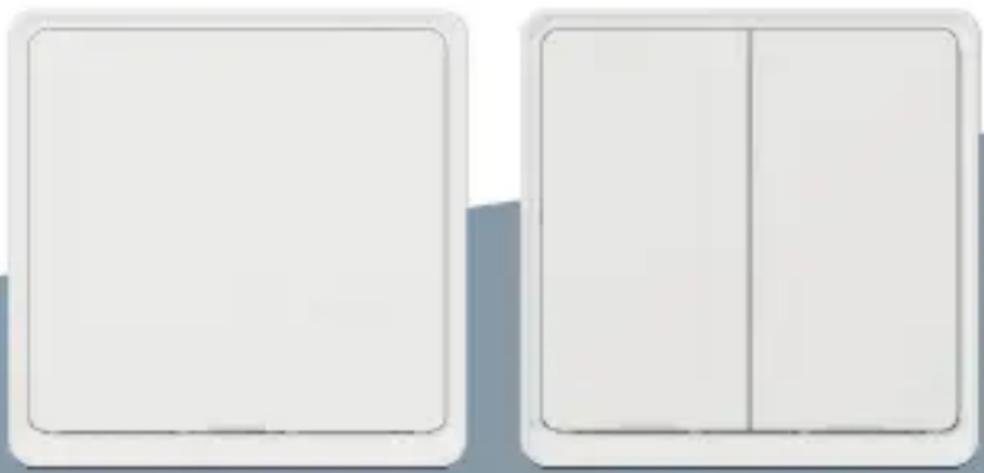
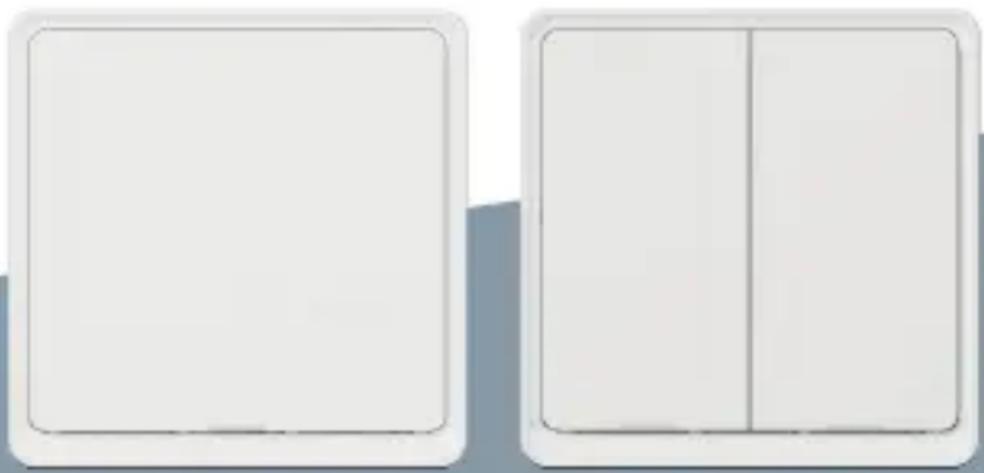
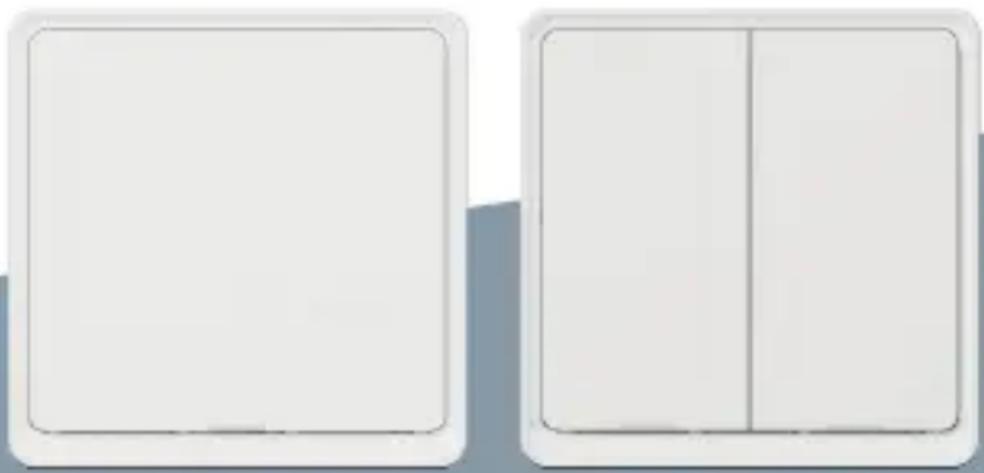
TSL-SWI-WIFI1/ TSL-SWI-WIFI2

TESLA
natural_image
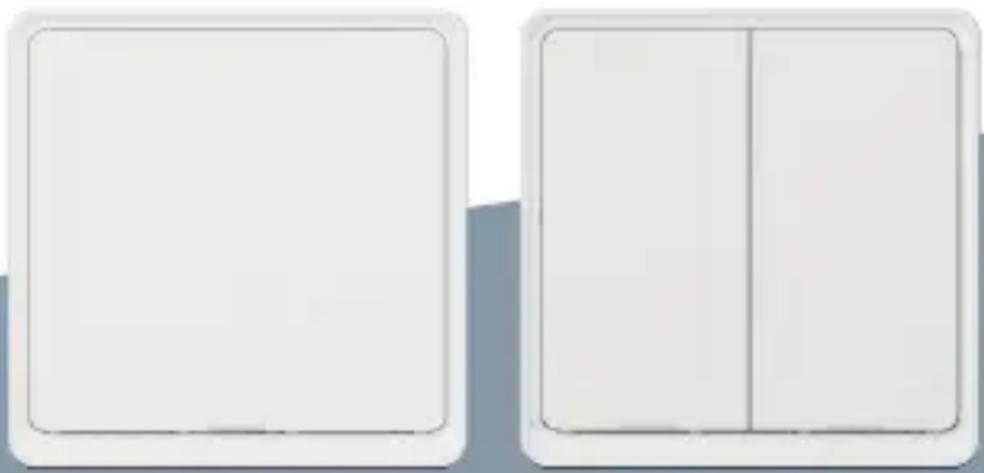
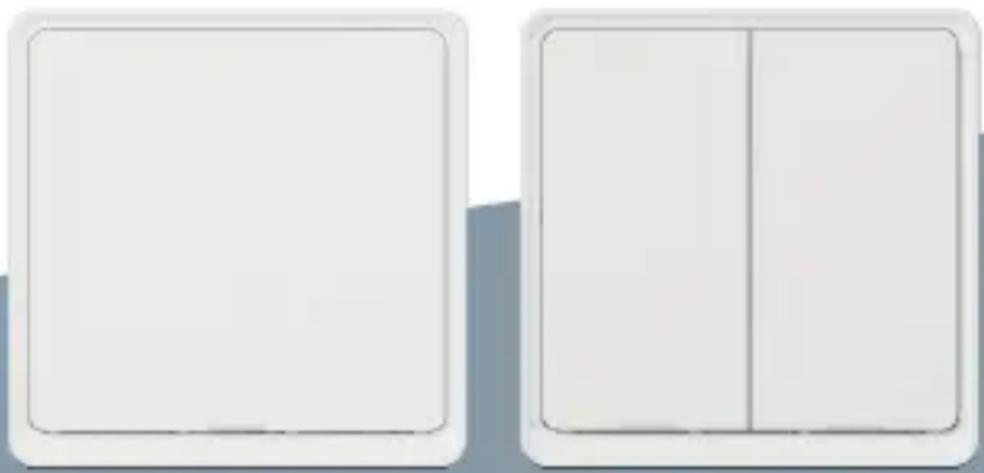
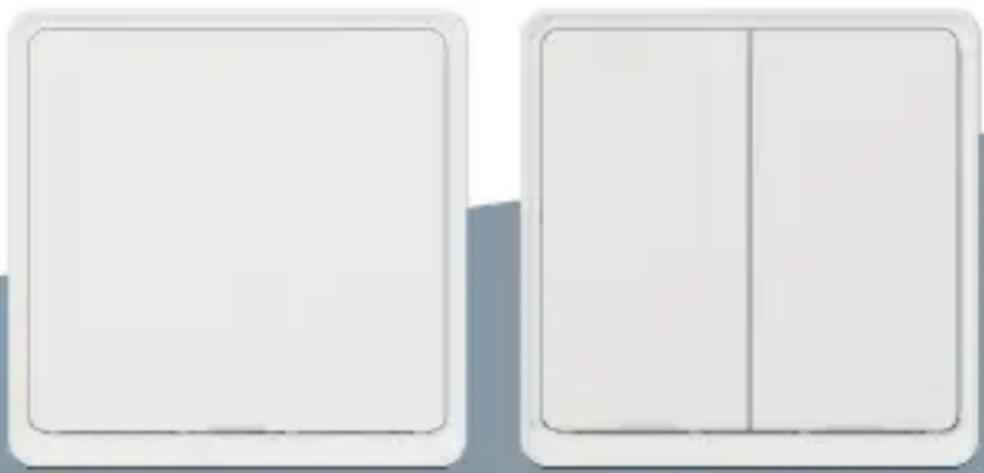
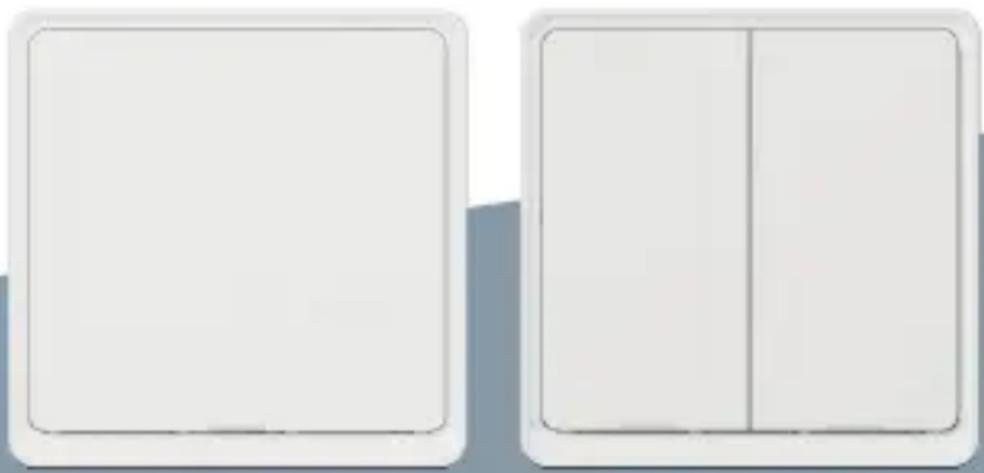
Two white rectangular panels with rounded corners, one side blank and one side split vertically (no text or symbols)TESLA SMART SWITCH/DUAL
(With Neutral Required)
QUICK START GUIDE
- Voice/APP Control
- Smart Home Automation with Multi devices
- Silent switch with LED Indication
Product Indtoruction
Smart switch products are suitable for electrical equipment such as lightning, fans, curtains, etc., through the network, voice and APP remote control functions, with various sensors to easily achieve home automation.
Specification
| Input Power: 200~240V AC 50/60Hz |
| Resistive load: INC 3•300W, LED 5•300W |
| Communication: WiFi 2.4G |
| Standby Power: ≤0.5W |
| Working Temperature: -10°C ~ 45°C |
| Working Humidity: <90% |
| Life Cycle: 50k times |
| Dimension: 86x86x37.5mm |
Product outline
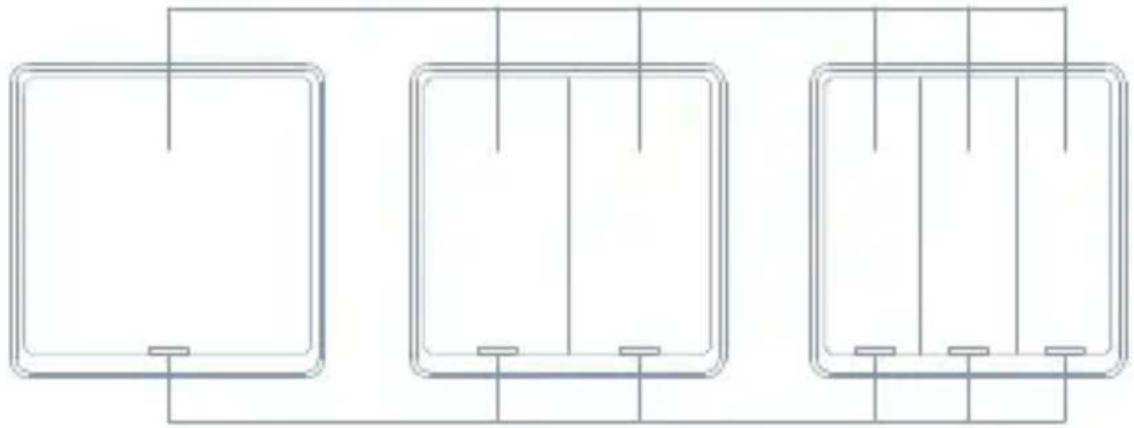
On/Off button
natural_image
Three identical rectangular panels with vertical lines and small base blocks, connected by a horizontal line (no text or symbols)Indicator LED
Indicator Light Status
| Light Color Green Light Status Switch Status: | ||
| White OFF The switch | turn off | |
| ON The switch | turn on | |
| Flicker The switch is in quickconfigure mode | ||
| Green ON The switch | turn off | |
| OFF The switch | turn on | |
Contents Supplied
natural_image
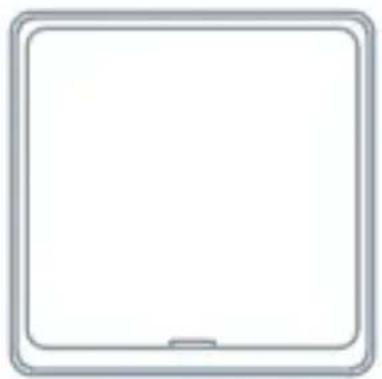
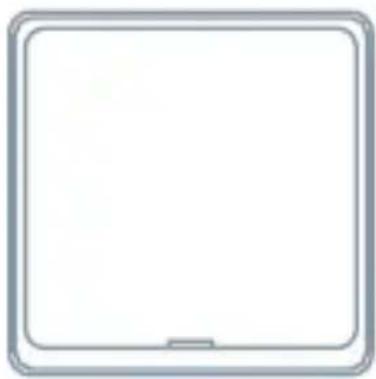
Blank white square tablet with rounded corners and a small screen at the bottom (no text or symbols)Switch
Screws
Tools You'll Need

Screwdriver

Flat-head Screwdriver

Voltage tester
natural_image
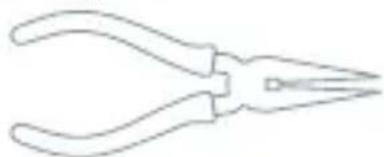
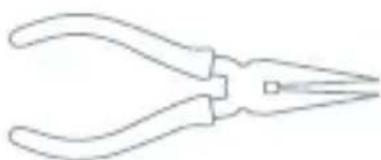
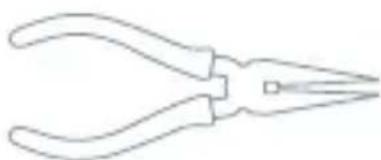
Line drawing of a pair of needle pliers (no text or symbols)Pliers
pie
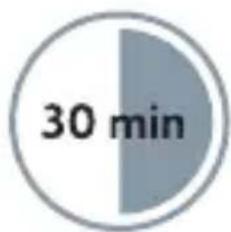
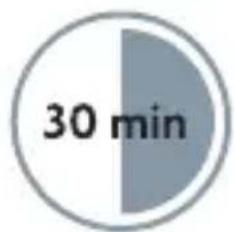
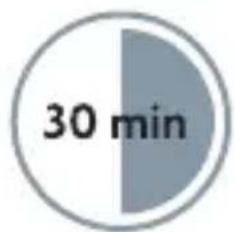
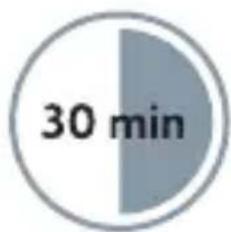
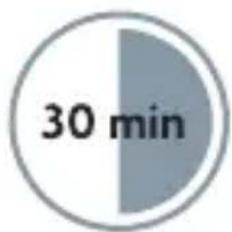
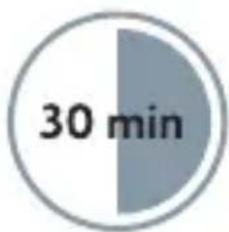
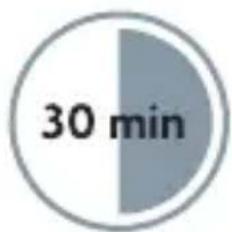
| Timeframe | Value | | --------- | ----- | | Total | 30 min |Approximately 30 minutes of your time to install and setup the Switch
Installation
WARNING: RISK OF ELECTRIC SHOCK
This product installation requires handling 100-240 volt wiring. Follow each step carefully. If any concerns handling wiring, hire a qualified electrician. Ensure all work meets applicable local and national codes.
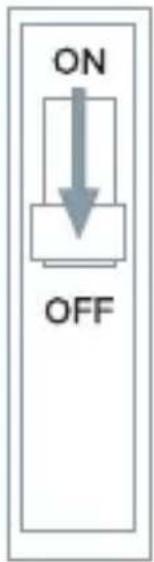
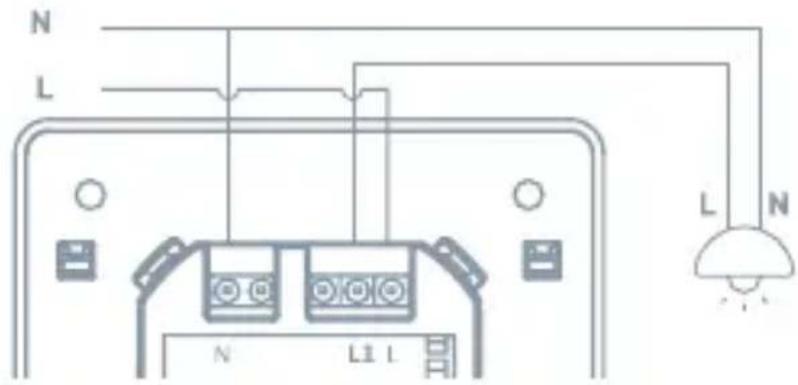
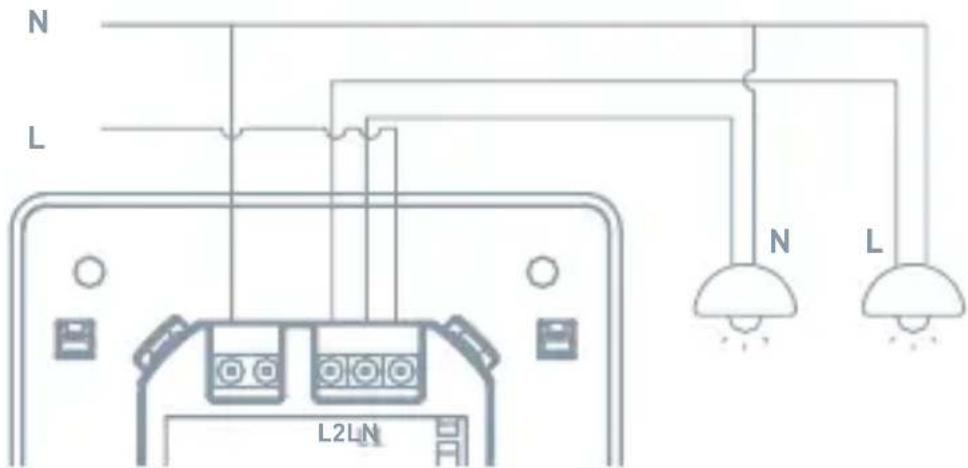
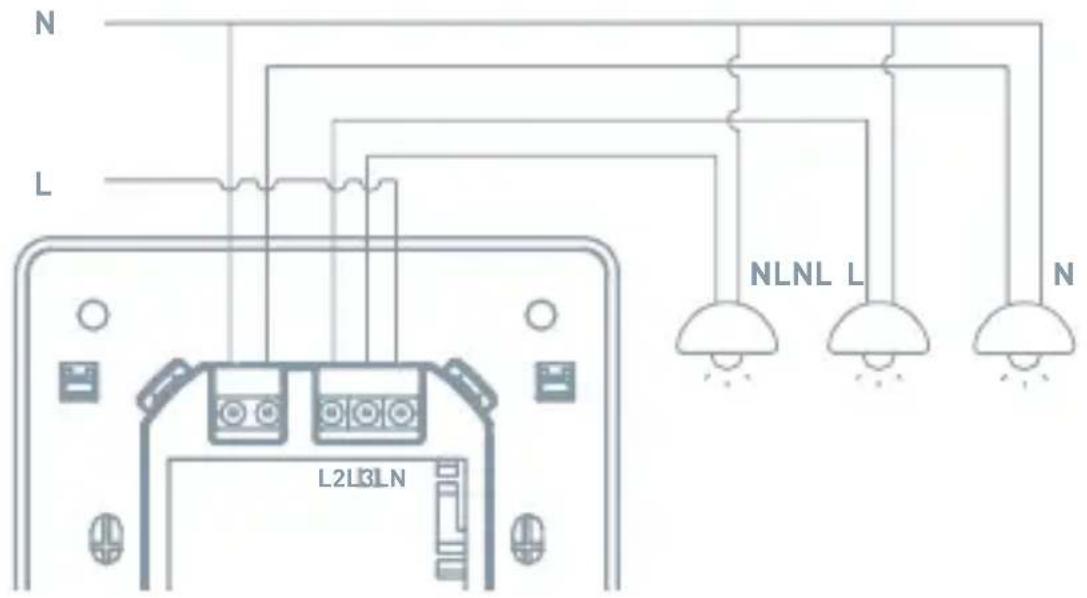
1 Turn Off The Breaker
Turn off the circuit break and use the electrical tester to test the power.
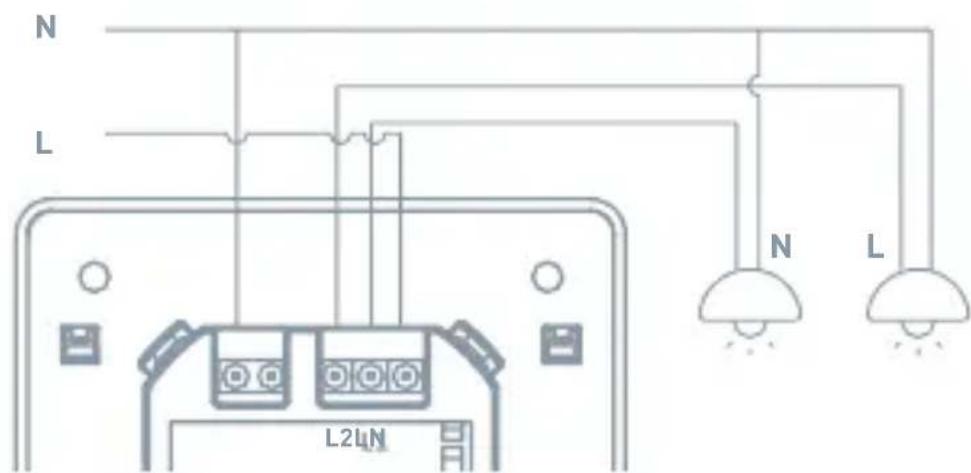
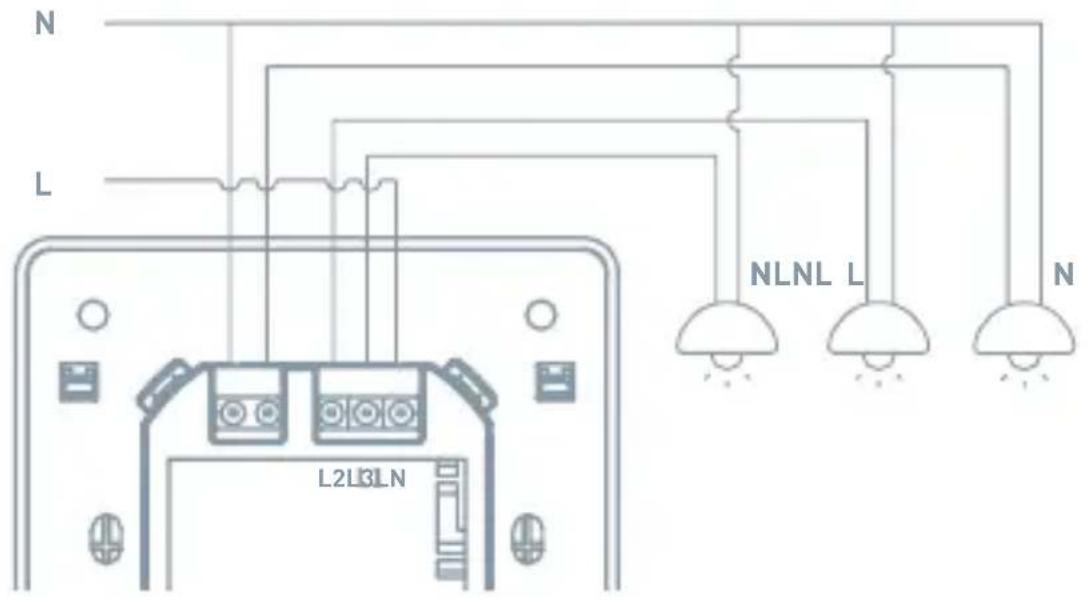
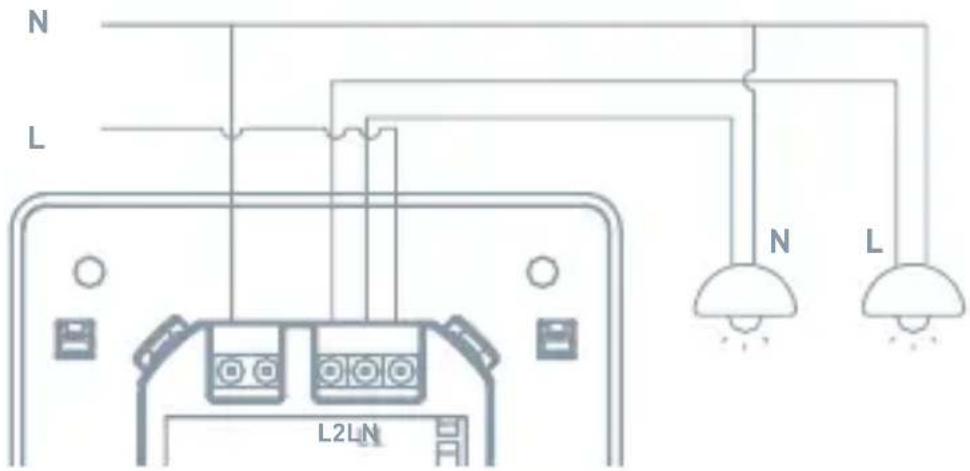
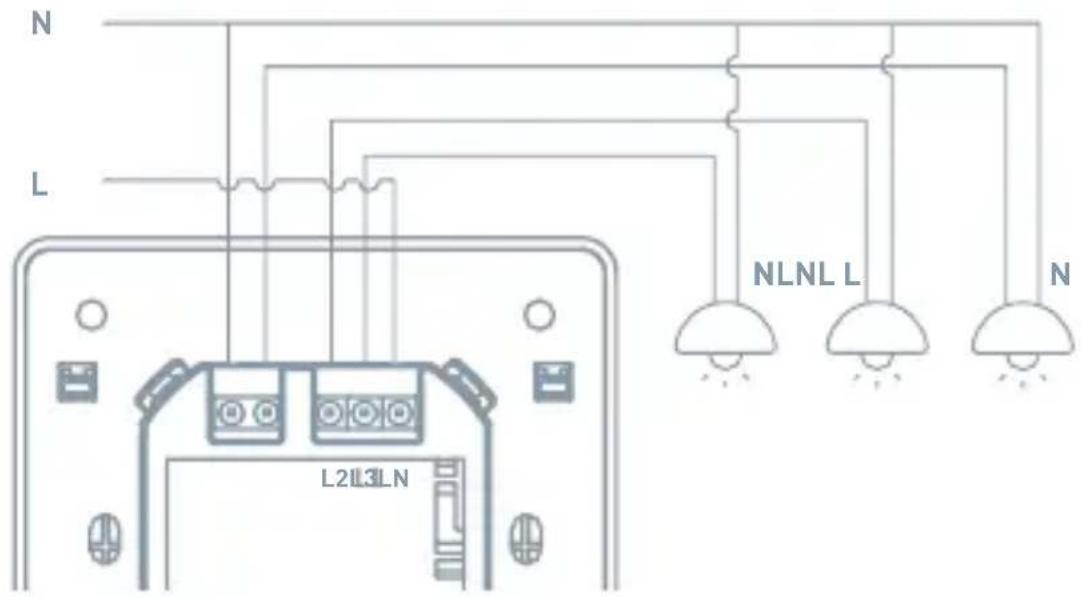
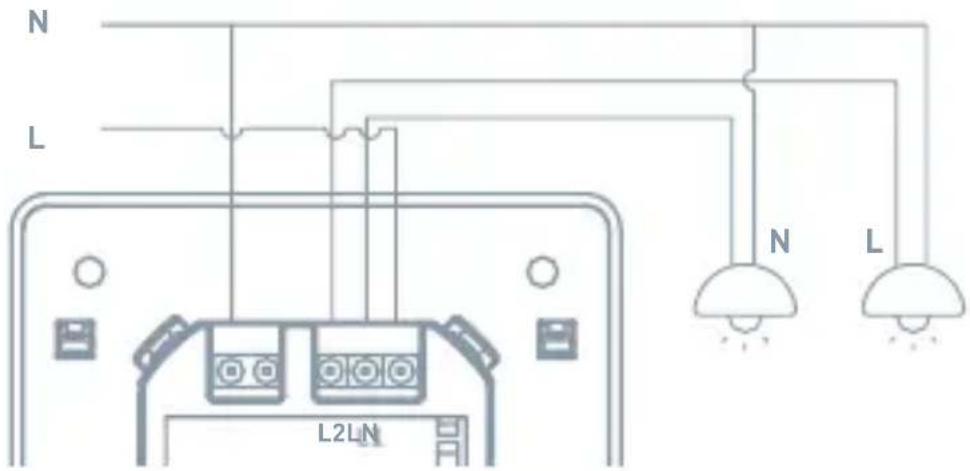
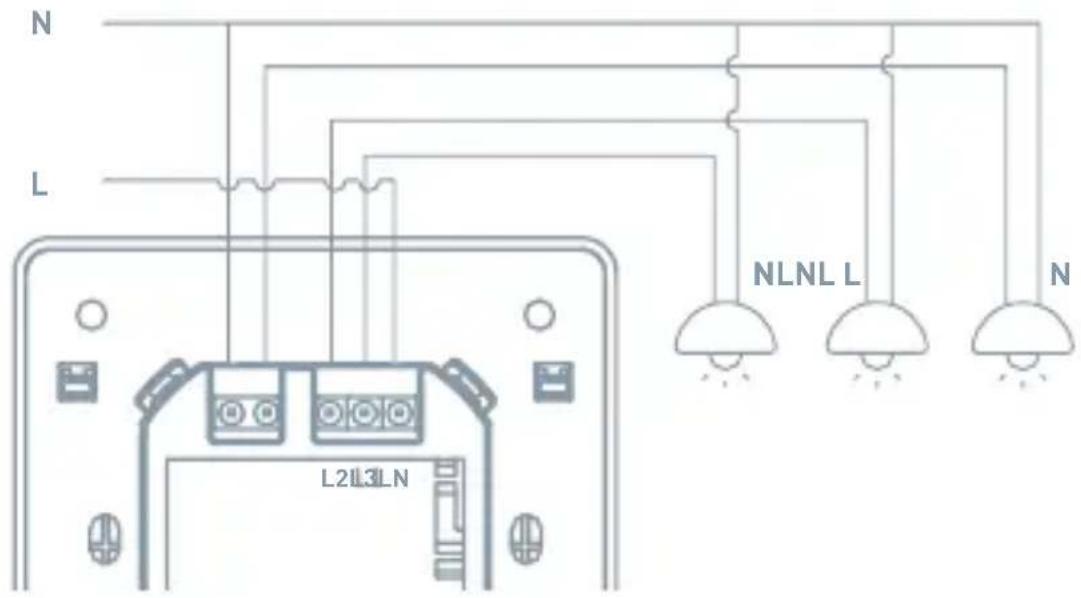
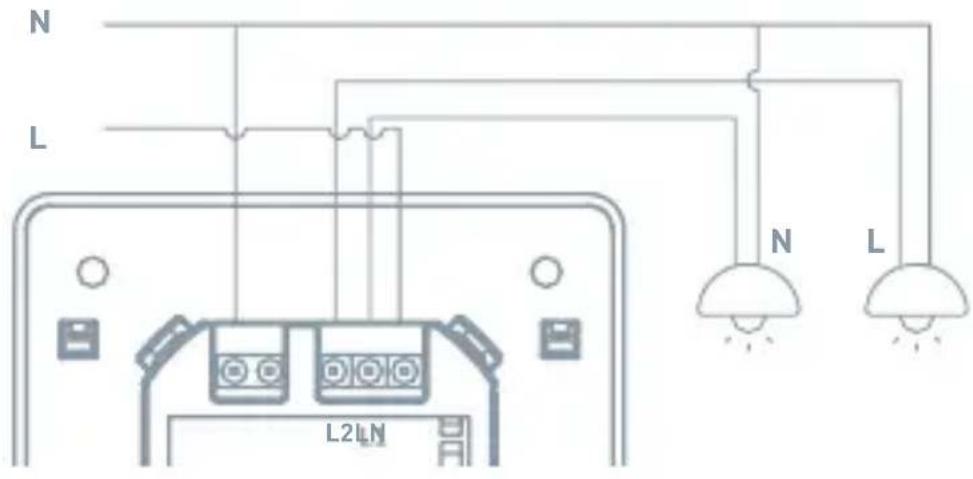
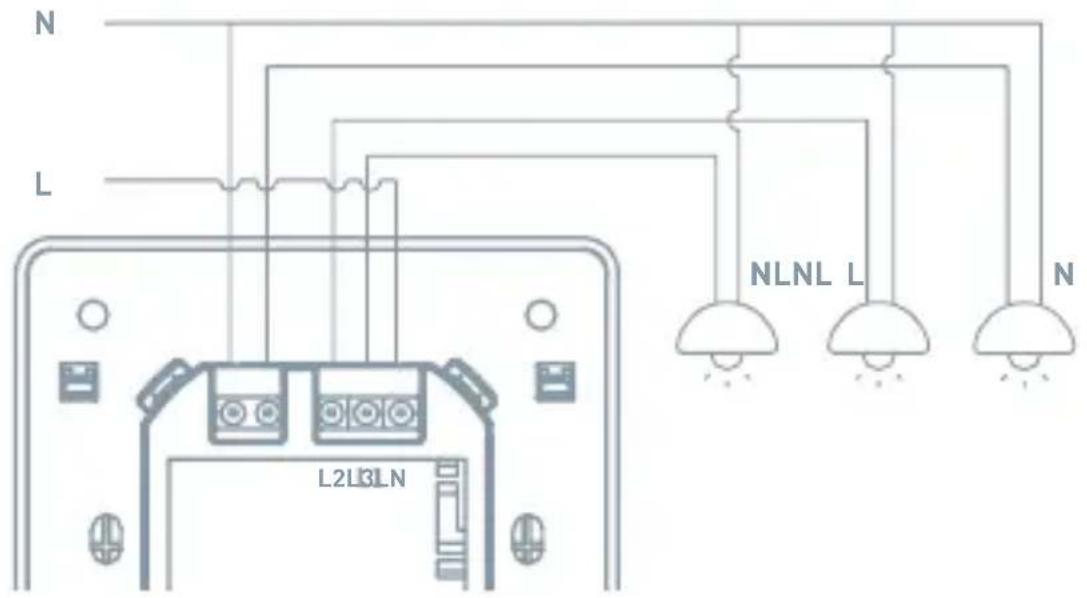
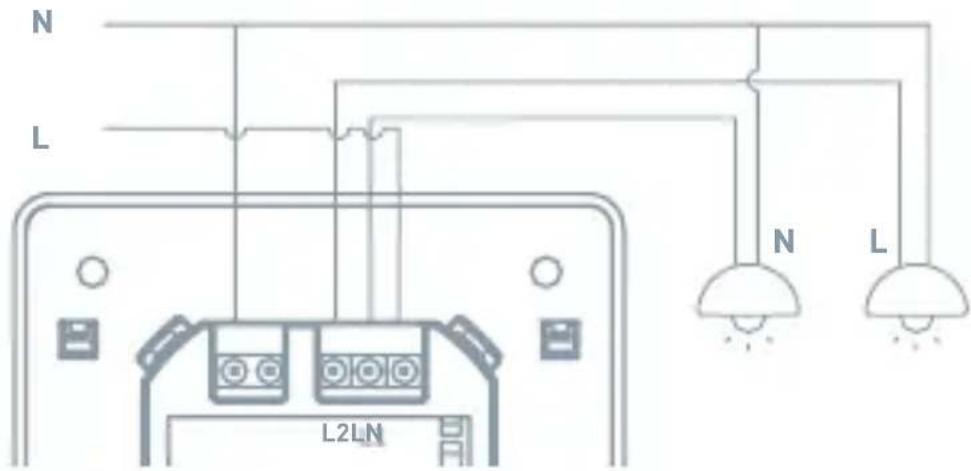
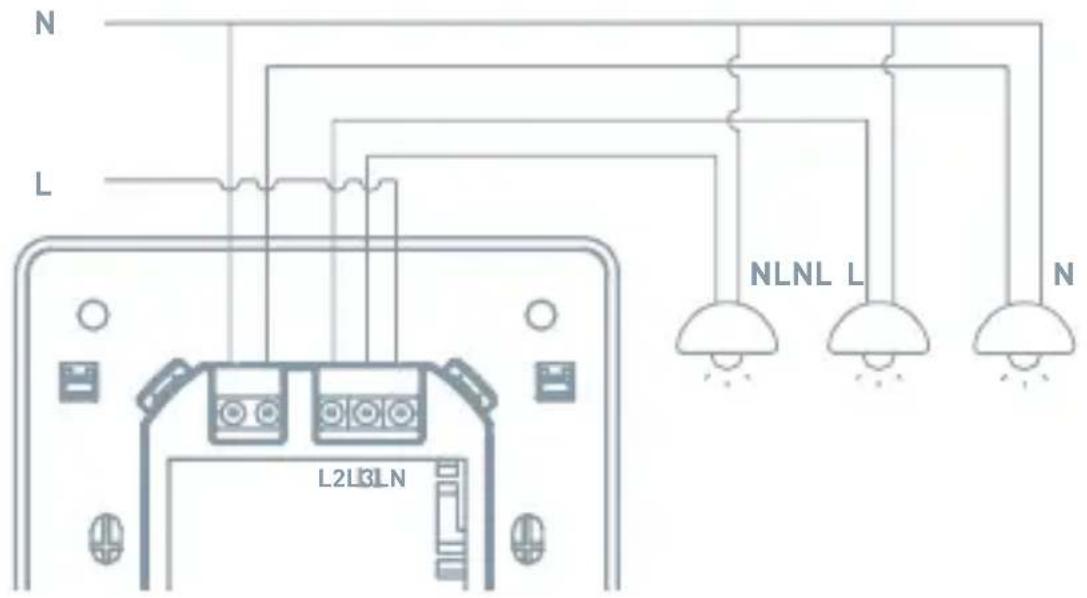
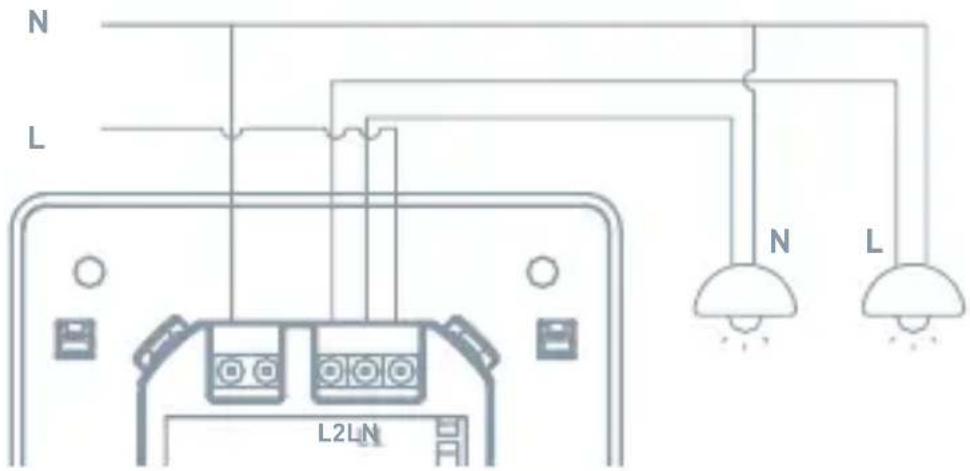
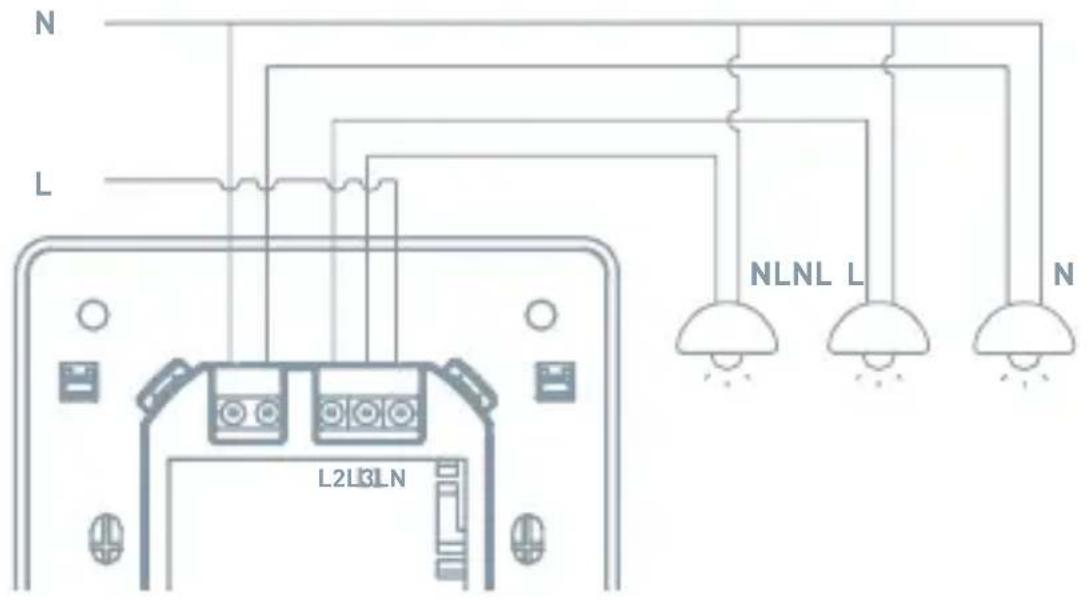
2 Connection Diagram
1 GANG
2 GANG
3 GANG
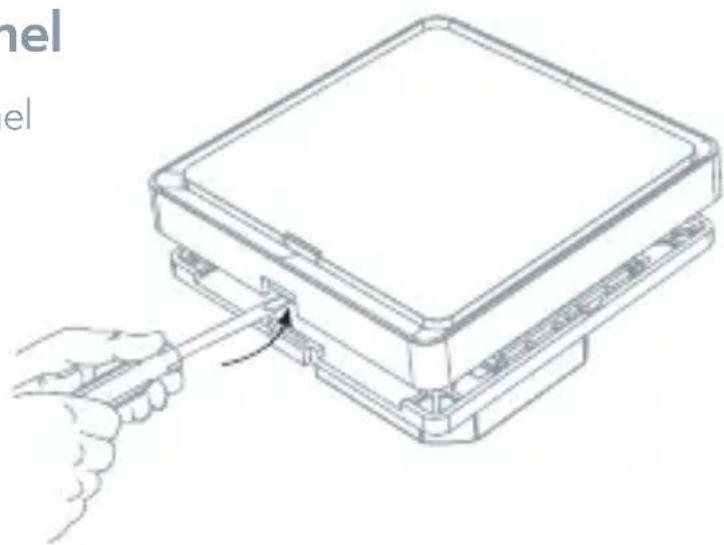
3 Remove The Panel
Remove the switch panel cover of the switch.
natural_image
Line drawing of a mechanical assembly with a hand holding a tool, no text or symbols present4 Mount The Switch
Use the screws provided.
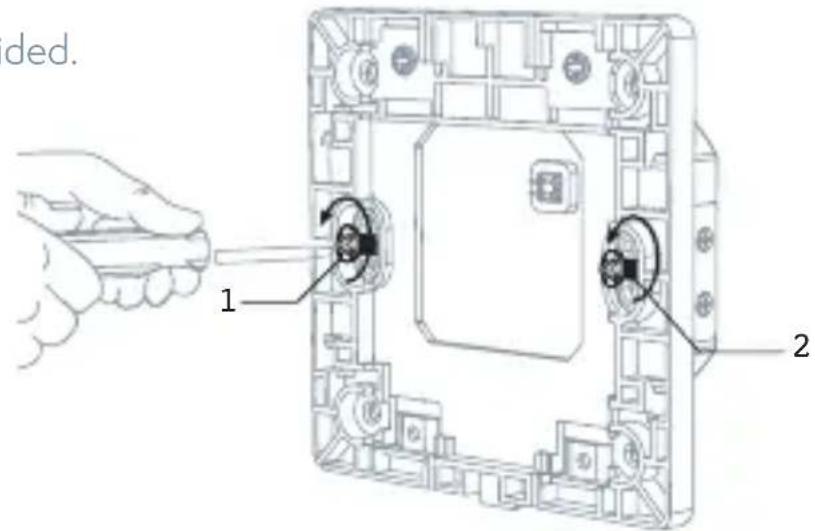
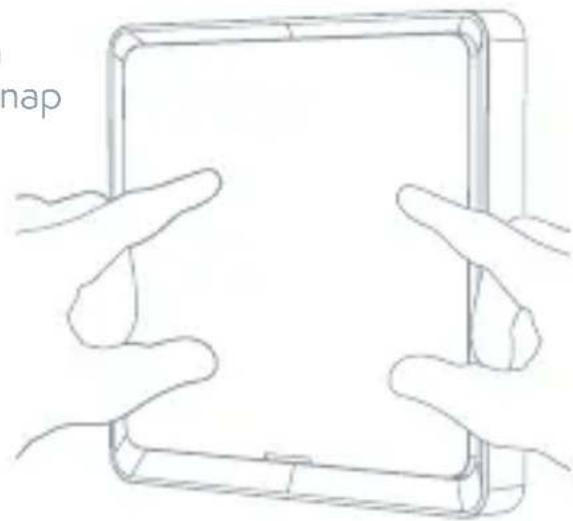
5 Attach The Wallplate
Attach the adapter to the switch using the screws provided and snap on the wallplate.
natural_image
Line drawing of two hands holding a tablet device (no text or symbols)
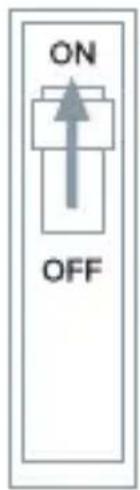
Turn On The power
Turn the power back on at the circuit breaker
APP Operation
1 Preparation for use
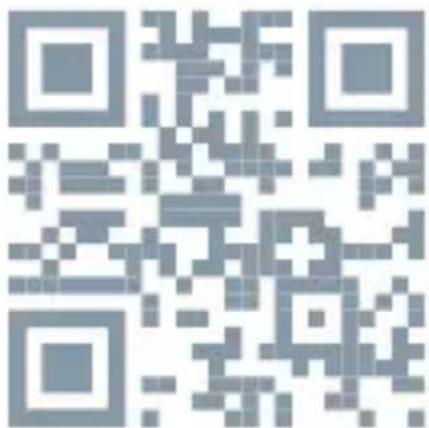
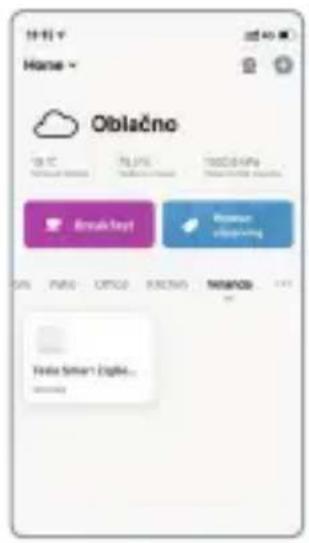
- Tesla Smart is available for both iOS and Android OS. Search the name 'Tesla Smart' in App Store or Android Market, or scan the QR-Code to download the App and register or login your account.
• Make sure that the smartphone is connected to the 2.4Ghz network.

2 Connect the device
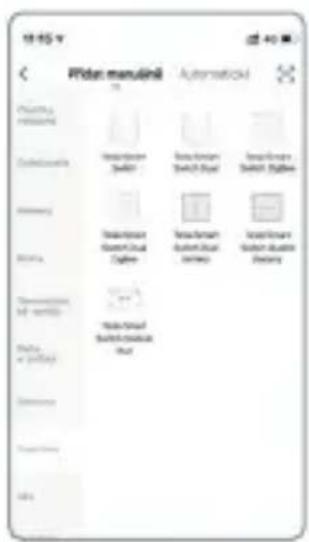
- Open Tesla Smart app and click "+" sign to Add new device
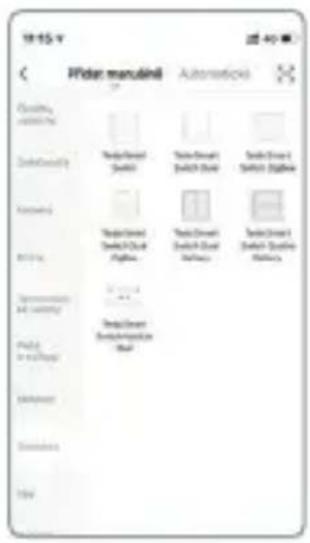
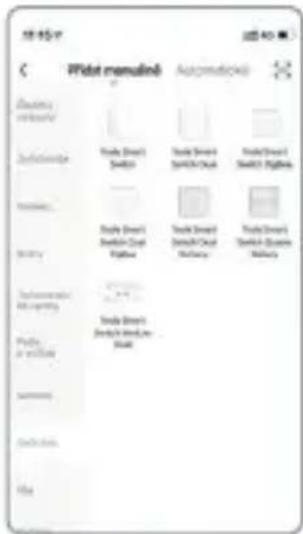
- Select Switches - Tesla Smart Switch
- Please follow the instructions to add the Tesla Smart Switch step by step
3 Control Switch
• Control switch with APP
Troubleshooting
- Switch has not power on? The smart switch products need to be powered by the neutral line. If there is no neutral line in the inch-Manor location, the smart switch can not work
- Can not connect to APP? Make sure the mobile phone and devices (gateways) in a same Wi-Fi network, and the device power an get into pair mode, make sure the device has good signal to support communication.
- How far can be controlled? Please make sure that the distance between the product and the Wi-Fi router or gateway does no- exceed 25 meters, If the partition wall is used but the material and thickness of the wall will have a greater impact communication, based on the actual situation, users can consider adjusting the location of the Wi-Fi router or gateway or increasing Wi-Fi routers or gateways to ensure normal product communication.
- Can the Switch still work if the network is disconnected? In the event of a network disconnection, the status indicator will flash. At this time, all APP control, smart linkage and other network functions will be invalid but the local control will not be affected.
Reset
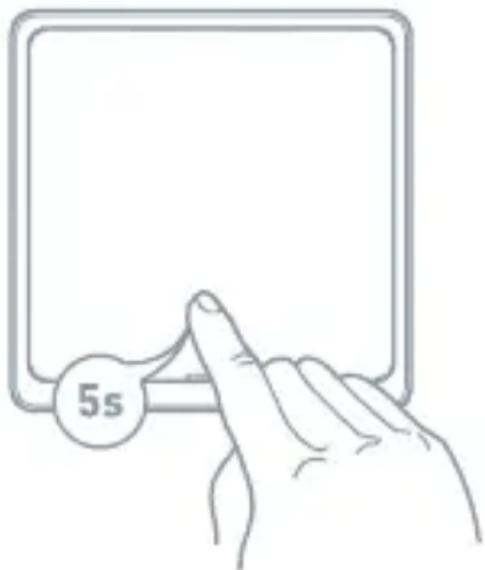
Press and hold switch button for 5s until LED flash to reset the switch and get into quick configure mode.
Remark:
- Smart phone and device must connect to same Wi-Fi during setup mode
- The device must be added to the account before it can be controlled remotely
- After the device is successfully accessed, other users can obtain control of the product through the sharing function.
natural_image
Hand holding a tablet device with a 5-second label (no other text or symbols)INFORMATION ABOUT DISPOSAL AND RECYCLING
This product is marked with the symbol for separate collection. The product must be disposed of in accordance with the regulations for disposal of electrical and electronic equipment (Directive 2012/19/EU on waste electrical and electronic equipment). Disposal together with regular municipal waste is prohibited. Dispose of all electrical and electronic products in accordance with all local and European regulations at the designated collection points which hold the appropriate authorisation and certification in line with the local and legislative regulations. Correct disposal and recycling help to minimise impacts on the environment and human health. Further information regarding disposal can be obtained from the vendor, authorised service centre or local authorities.
EU DECLARATION OF CONFORMITY
Hereby, Tesla Global Limited declares that the radio equipment type ESW-1WAA-EU, ESW-2WAA-EU is in compliance with EU directives. The full text of the EU declaration of conformity is available at the following internet address: tsl.sh/doc
Connectivity: Wi-Fi 2,4 GHz IEEE 802.11b/g/n
Frequency band: 2.412 - 2.4835 MHz
Max. radio-frequency power (EIRP): < 20 dBm

Manufacturer
Tesla Global Limited Far East Consortium Building, 121 Des Voeux Road Central Hong Kong www.teslasmart.com
TSL-SWI-WIFI1/ TSL-SWI-WIFI2

TESLA
natural_image
Two white rectangular panels with rounded corners, one side blank and one side split vertically (no text or symbols)TESLA SMART SWITCH/DUAL
natural_image
Three identical rectangular panels with vertical lines and small base markers, connected by a horizontal line (no text or symbols)LED-Kontrollleuchte
natural_image
Blank white square with rounded corners and a small rectangular cutout at the bottom (no text or symbols)Schalter
Schrauben
natural_image
Line drawing of a pair of needle pliers (no text or symbols)Zange
pie
| Timeframe | Value | | --------- | ----- | | Total | 30 min |WARNUNG: STROMSCHLAGGEFAHR
2 GANG
3 GANG

natural_image
Line drawing of two hands holding a tablet device (no text or symbols)
natural_image
Illustration of a hand pressing a 5-second cable on a tablet device (no text or symbols beyond the label)Far East Consortium Building,
121 Des Voeux Road Central
Hong Kong
www.teslasmart.com
TSL-SWI-WIFI1/ TSL-SWI-WIFI2

TESLA
natural_image
Two white rectangular panels with rounded corners, one side blank and one side with vertical lines (no text or symbols)TESLA SMART SWITCH/DUAL
natural_image
Three identical rectangular panels with vertical lines and small base blocks, connected by a horizontal line (no text or symbols)LED kontrolka
Stav kontrolky
natural_image
Blank white square with rounded corners and a small rectangular cutout at the bottom (no text or symbols)Spínač
Šroubky
Potřebné nářadí

Šroubovák

Plochý šroubovák

Zkoušečka napětí
natural_image
Line drawing of a pair of needle pliers (no text or symbols)Kleště
pie
| Timeframe | Value | | --------- | ----- | | Slice | 30 min |2 GANG
3 GANG
3 Sejměte panel
natural_image
Line drawing of a mechanical device with a hand operating a tool, no text or symbols presentnatural_image
Line drawing of two hands holding a tablet device (no text or symbols)
Zapněte napájení
3 Ovládejte vypínač
natural_image
Line drawing of a hand pressing a 5-second tag on a tablet device (no text or symbols beyond the label)INFORMACE O LIKVIDACI A RECYKLACI
Far East Consortium Building,
121 Des Voeux Road Central
Hong Kong
www.teslasmart.com
TSL-SWI-WIFI1/ TSL-SWI-WIFI2

TESLA
natural_image
Two white rectangular panels with rounded corners, one side blank and one side split vertically (no text or symbols)TESLA SMART SWITCH/DUAL
natural_image
Three identical rectangular panels with vertical lines and small base markers, connected by a horizontal line (no text or symbols)LED kontrolka
Stav kontrolky
natural_image
Blank white square tablet with rounded corners and a small screen at the bottom (no text or symbols)Spínač
Skrutky
Potrebné náradie

Skrutkovač

Plochý skrutkovač

Skúšačka napätia
natural_image
Line drawing of a pair of needle pliers (no text or symbols)Kliešte
pie
| Timeframe | Value | | --------- | ----- | | Total | 30 min |2 GANG
3 GANG
3 Odstráňte panel
natural_image
Line drawing of two hands holding a tablet device (no text or symbols)
Zapnite napájanie
2 Pripojenie zariadenia
Far East Consortium Building,
121 Des Voeux Road Central
Hong Kong
www.teslasmart.com
TSL-SWI-WIFI1/ TSL-SWI-WIFI2

TESLA
natural_image
Two white rectangular panels with rounded corners, one side blank and one side with vertical lines (no text or symbols)TESLA SMART SWITCH/DUAL
natural_image
Three identical rectangular panels with vertical lines and small base markers, connected by a horizontal line (no text or symbols)Kontrolka LED
Stan kontrolki
natural_image
Blank white square frame with rounded corners and a small rectangular cutout at the bottom (no text or symbols)Włącznik
Śrubki
Potrzebne narzędzia

Wkrętak

Wkrętak płaski

Wskaźnik napięcia
natural_image
Line drawing of a pair of needle pliers (no text or symbols)Kleszcze
pie
| Timeframe | Value | | --------- | ----- | | Total | 30 min |2 GANG
3 GANG
3 Usuń panel
natural_image
Line drawing of a device with a hand inserting a cable into a housing (no text or symbols)

natural_image
Line drawing of two hands holding a tablet device (no text or symbols)
Włącz zasilanie
3 Obsługa Włącznika
natural_image
Line drawing of a hand pressing a 5-second tag on a tablet device (no text or symbols beyond the label)INFORMACJE O UTYLIZACJI I RECYKLINGU
Far East Consortium Building,
121 Des Voeux Road Central
Hong Kong
www.teslasmart.com
TSL-SWI-WIFI1/ TSL-SWI-WIFI2

TESLA
natural_image
Two white rectangular panels with rounded corners, one side blank and one side with vertical lines (no text or symbols)TESLA SMART SWITCH/DUAL
natural_image
Three identical rectangular panels with vertical lines and small base blocks, connected by a horizontal line (no text or symbols)LED ellenőrzőfény
natural_image
Blank white square tablet with rounded corners and a small icon at the bottom (no text or symbols)Kapcsoló
Kis csavarok
natural_image
Line drawing of a pair of pliers (no text or symbols)Fogó
pie
| Timeframe | Value | | --------- | ----- | | Total | 30 min |2 GANG
3 GANG

natural_image
Line drawing of two hands holding a tablet device (no text or symbols)
natural_image
Illustration of a hand pressing a button on a tablet device labeled '5s' (no other text or symbols)MEGSEMMISÍTÉSI ÉS ÚJRAHASZNOSÍTÁSI INFORMÁCIÓK
Far East Consortium Building,
121 Des Voeux Road Central
Hong Kong
www.teslasmart.com
TSL-SWI-WIFI1/ TSL-SWI-WIFI2

TESLA
natural_image
Two white rectangular panels with rounded corners, one side blank and one side with vertical lines (no text or symbols)TESLA SMART SWITCH/DUAL
natural_image
Three identical rectangular panels with vertical lines and small square bases, connected by a horizontal line (no text or symbols)Kontrolna lučka LED
Stanje kontrolne lučke
| Barva lučke Stanje | lučke Stanje stikala | |
| Bela OFF Izklopljeno | stikalo | |
| ON Vklopljeno stikalo | ||
| Utripa Stikalo je v načinu hitre konfiguracije | ||
| Zelena ON Izklopljeno | stikalo | |
| OFF Vklopljeno stikalo |
Vsebina pakiranja
natural_image
Blank white square frame with rounded corners and a small rectangular cutout at the bottom (no text or symbols)Stikalo
Vijaki
Potrebno orodje

Izvijač

Ploski izvijač

Preizkuševalec toka
natural_image
Line drawing of a pair of needle pliers (no text or symbols)Klešče
pie
| Timeframe | Value | | --------- | ----- | | Segment | 30 min |2 GANG
3 GANG

natural_image
Line drawing of two hands holding a tablet device (no text or symbols)
Vklopite napajanje
2 Povezava naprave
natural_image
Line drawing of a hand holding a tablet with a 5-second label (no other text or symbols)INFORMACIJE O ODSTRANJEVANJU IN RECIKLIRANJU
Far East Consortium Building,
121 Des Voeux Road Central
Hong Kong
www.teslasmart.com

TESLA
TESLA SMART SWITCH
Manufacturer
Tesla Global Limited
Far East Consortium Building,
121 Des Voeux Road Central
Hong Kong
www.teslasmart.com


- TESLA SMART SWITCH/DUAL
- Product Indtoruction
- Product outline
- Contents Supplied
- Tools You'll Need
- Installation
- WARNING: RISK OF ELECTRIC SHOCK
- Turn Off The Breaker
- Connection Diagram
- GANG
- GANG
- GANG
- Remove The Panel
- Mount The Switch
- Attach The Wallplate
- Turn On The power
- APP Operation
- Preparation for use
- Connect the device
- Control Switch
- Troubleshooting
- Reset
- INFORMATION ABOUT DISPOSAL AND RECYCLING
- EU DECLARATION OF CONFORMITY
- Manufacturer
- WARNUNG: STROMSCHLAGGEFAHR
- Potřebné nářadí
- Sejměte panel
- Zapněte napájení
- Ovládejte vypínač
- INFORMACE O LIKVIDACI A RECYKLACI
- Potrebné náradie
- Odstráňte panel
- Zapnite napájanie
- Pripojenie zariadenia
- Potrzebne narzędzia
- Usuń panel
- Włącz zasilanie
- Obsługa Włącznika
- INFORMACJE O UTYLIZACJI I RECYKLINGU
- MEGSEMMISÍTÉSI ÉS ÚJRAHASZNOSÍTÁSI INFORMÁCIÓK
- Vsebina pakiranja
- Potrebno orodje
- Vklopite napajanje
- Povezava naprave
- INFORMACIJE O ODSTRANJEVANJU IN RECIKLIRANJU
- TESLA SMART SWITCH
Brand : TESLA
Model : TSL-SWI-WIFI1
Category : Switch