
Pad 6 Max - Tablet Xiaomi - Free user manual and instructions
Find the device manual for free Pad 6 Max Xiaomi in PDF.


| Product Type | Tablet |
| Brand | Xiaomi |
| Model | Pad 6 Max |
| Display Size | 14.0 inches |
| Display Resolution | 2880 x 1800 pixels |
| Processor | Snapdragon 8+ Gen 1 |
| RAM | 8 GB / 12 GB / 16 GB |
| Storage | 256 GB / 512 GB / 1 TB |
| Operating System | MIUI Pad based on Android |
| Battery Capacity | 10000 mAh |
| Charging | USB-C, 67W fast charging |
| Dimensions | 318.5 x 220.1 x 6.5 mm |
| Weight | 750 g |
| Camera (Rear) | 50 MP + 2 MP |
| Camera (Front) | 20 MP |
| Speakers | Quad speakers, Dolby Atmos |
| Connectivity | Wi-Fi 6, Bluetooth 5.3 |
| Stylus Support | Xiaomi Smart Pen (2nd gen) |
| Keyboard Support | Xiaomi Smart Keyboard |
| Maintenance | Clean with a soft, dry cloth. Avoid liquid cleaners. |
| Safety | Use original charger and cable. Do not expose to moisture. |
| Spare Parts & Repairability | Contact Xiaomi authorized service centers for genuine parts. |
Frequently Asked Questions - Pad 6 Max Xiaomi
User questions about Pad 6 Max Xiaomi
0 question about this device. Answer the ones you know or ask your own.
Ask a new question about this device
Download the instructions for your Tablet in PDF format for free! Find your manual Pad 6 Max - Xiaomi and take your electronic device back in hand. On this page are published all the documents necessary for the use of your device. Pad 6 Max by Xiaomi.
USER MANUAL Pad 6 Max Xiaomi
Generic User Guide for MIUI 14
Contents
Chapter 1 Get started .... 1
About the user guide....1
Tablet overview....1
Power on the tablet 2
Finish the setup wizard....2
Connect to Wi-Fi....2
Add accounts....2
Copy your data 3
Turn the screen on or off 3
Chapter 2 Basic features....3
Gestures and shortcuts 3
Home screen 6
Notifications icons and status icons 7
Control center 9
Recents windows 10
Widgets....11
Lock and unlock the screen....12
Adjust the volume....13
App Downloads 13
Screenshots and Screen recording.... 15
Transfer files 18
Charging 19
Chapter 3 Personalize your tablet....20
Wallpapers....20
Sound 21
Display 22
Lock screen 24
Home screen 26
Notifications & Control center....28
Date and time 30
Languages and regions....32
Chapter 4 Battery and maintenance .... 32
View battery capacity....33
Enable Battery saver 33
View power consumption in detail 33
View the battery temperature 33
Enable Reverse wireless charging....33
Chapter 5 Networks and connection ....34
Wi-Fi 34
Chapter 6 Connection and sharing....36
Bluetooth 36
Connection & sharing 38
Chapter 7 Camera ....40
Camera overview 40
Open Camera....41
Take photos 41
Switch between camera modes 42
Basic features....42
Useful features 44
Set a timer 44
Take a selfie....47
Take videos....48
Take Documents mode photos....48
Take photos in Night mode....49
Take videos in Short video mode 49
Take photos in Panorama mode 50
Take videos in Dual video mode 51
Take photos in Director mode 51
Camera settings 51
Chapter 8 Gallery ....56
Gallery overview 56
Photos....57
Albums 61
Edit a video with Video editor....62
Create a collage 63
Create a clip 64
Edit a picture with Cutout 64
Edit a picture with Art....64
Free up space....65
Gallery Settings 66
Chapter 9 Apps....68
Calculator 68
Clock....70
Downloads....72
File Manager....72
Document view....73
Google 74
Mi Browser....76
Mi Video....78
Notes 80
Recorder 83
Scanner 84
Security 84
Services & Feedback 91
Weather 92
Chapter 10 Security and safety 93
Passwords and security 93
Security status 96
Privacy 96
Apps....99
Location 104
Chapter 11 Accessibility....105
General 105
Vision 106
Hearing 108
Physical 109
Digital Wellbeing & parental controls 110
Chapter 12 Special features.... 111
Learn to use floating windows....112
Turn on Second space 113
Chapter 13 Reboot, update, reset, and restore.... 113
Power off the tablet....113
Reboot the tablet 114
Update MIUI version....114
Update system apps....114
Manage System apps updater....114
Back up and restore 114
Factory reset....115
Chapter 14 About device and accounts ...... 115
About the tablet 115
Memory extension....115
Xiaomi Account....115
Google 115
Accounts & sync....116
Enable Auto-sync data 116
Services & feedback......116
Disclaimer....116
Chapter 1 Get started
About the user guide
Thanks for choosing Xiaomi tablet, please read the user guide carefully before you start. This is the tablet generic user guide for the MIUI 14 version. If you are not sure which software version your device is running, you can go to Settings > About tablet to view the MIUI version information.
For more MIUI features, see global miui com for more information.
Tablet overview
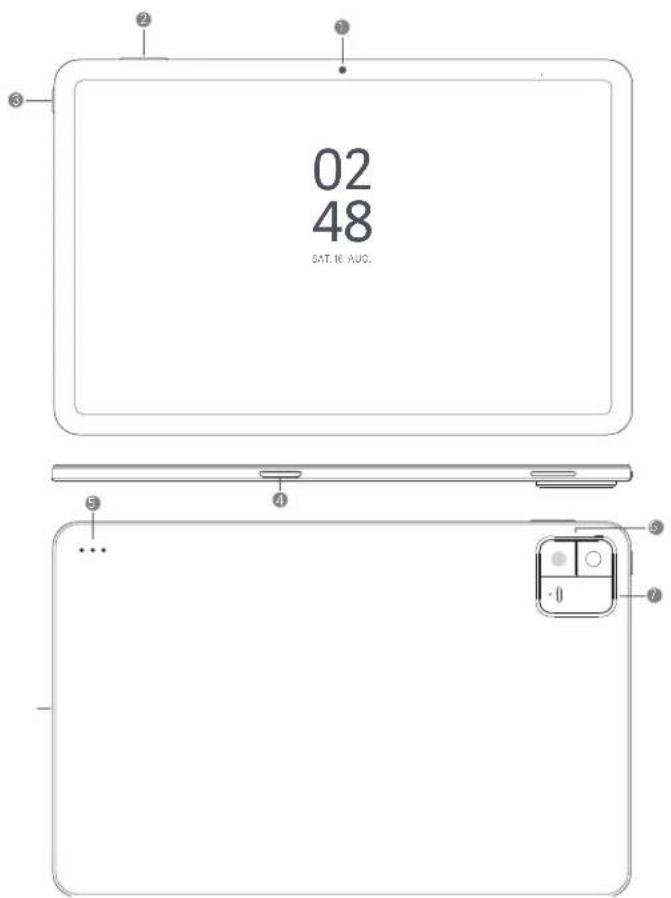
| 1. Front camera 2. Volume buttons 3. Power button | |
| 4. Smart pen charger 5. Keyboard connector 6. Rear cameras | |
| 7. Flash |
①Note
The illustration is for reference only.
Power on the tablet
- Press and hold the Power button until the tablet vibrates.

natural_image
Simple diagram with a blue circle at the top-left corner and a grid of gray squares inside, enclosed in a rounded rectangle (no text or symbols)- Finish the setup wizard.
① Note
The first time you power on the tablet, a setup wizard helps you personalize your tablet, connect to a Wi-Fi network, choose to copy Apps and data, sign in with a Google account or Xiaomi Account, set screen lock, set up Google Assis- tant, and other basic settings.
Finish the setup wizard
If you do not finish all basic settings in the setup wizard when you power on the tablet at the first time, a notification shows on the notification panel after you start the tablet.
You can swipe down the notification panel to see the notification of Android Setup. You can tap the notification to follow the onscreen instructions to finish the setup wizard.
Connect to Wi-Fi
- Go to Settings > Wi-Fi.
- Tap to enable Wi-Fi.
- Select an available network to connect.
Note
You need to enter a password for an encrypted Wi-Fi network.
Tip
You can swipe down the status bar at the upper-right corner of the tablet, then tap Wi-Fi on the Control center to connect the same Wi-Fi next time.
Add accounts
Sign in to your Google Account
Google Account enables you to access Google Cloud Storage and Apps installed from your account, and make full use of the Android features.
- Go to Settings > Accounts & sync.
- Tap Add account.
- Choose Google.
- Sign in with your Google Account.
iNote
If you do not have an account, you can tap Create account to create one. See Google for more information.
Sign in to your Xiaomi Account
Xiaomi Account enables you to access exclusive Mi content and make full use of Mi Apps.
- Go to Settings > Xiaomi Account.
- Sign in with your Xiaomi Account.
Note
You can create a Xiaomi Account with an email address.
Copy your data
When you power on your tablet for the first time in setup wizard, you can follow the onscreen instructions to copy your data with cables or use other methods.
Turn the screen on or off
You can quickly press the Power button to turn the screen on or off.
The tablet turns off the screen automatically to save power, secure your privacy, and goes to sleep when you are not using it. The tablet can be locked or unlocked depending on your screen lock settings.
Chapter 2 Basic features
Gestures and shortcuts
You can learn gestures and shortcuts to interact with the tablet.
The feature may vary by device.
Basic gestures
You can use the simple gestures to control your tablet and Apps.
| Gesture Definition Examples for gesture effects | ||
 | Touch and hold | ·Move an app icon on the Home screen.·Activate a list to choose multiple items. |
 | Swipe · Browse a list quickly. | |
 | Scroll | ·Drag a list up or down to see more information. |
 | Zoom in | ·View photos with more details.·Browse websites clearly. |
 | Zoom out · Check maps in full view. | |
Button shortcuts
You can take actions with physical buttons to use basic functions or activate other features.
Gesture Description | Power off and rebootPress and hold the Power button until the Power off and Reboot menu appears. |
 | Increase the volumePress the Volume up button. |
 | Decrease the volumePress the Volume down button. |
 | Take a screenshotSimultaneously press the Volume down button and the Power button. |
 | Launch Google Assistant*Press and hold the Power button until the Google assistant appears. |
① Note
* Launch Google Assistant may not be available to your models.
Take a screenshot
You can use the gestures to take a screenshot and a partial screenshot.
| Gesture Description | |
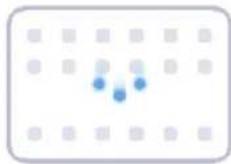 | Take a screenshotSlide 3 fingers down. |

natural_image
Grid pattern with three blue dots at intersections (no text or symbols)Take a partial screenshot
Press and hold with 3 fingers.
① Note
Before you can use the gestures, you need to enable the shortcuts. See Enable Take a screenshot shortcut and Enable Partial screenshot shortcut for more information.
Home screen
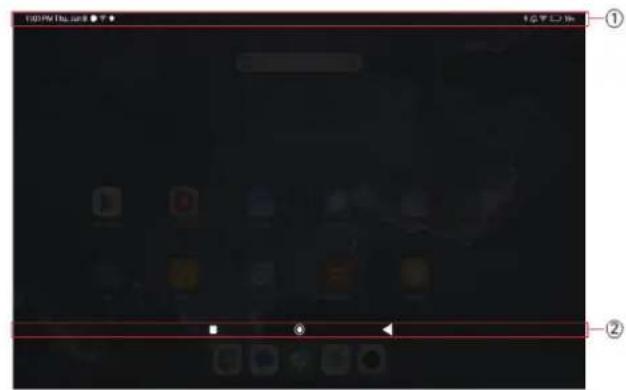

-
Status bar
-
System navigation buttons
-
Full screen indicator
System navigation buttons

- Tap to return to the previous step.

- Tap to return to the Home screen.
- Press and hold to use Google Assistant.

- Tap to view recently-opened Apps in Recents.
Note
See Set system navigation buttons for more information.
Full screen gestures
Gesture Description
 | Go to Home screenSwipe up from the bottom of the screen. |
 | Open RecentsSwipe up from the bottom of the screen and pause. |
 | Go backSwipe left or right from the edge of the screen. |
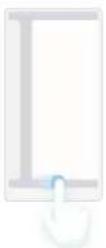 | Switch between appsSwipe left or right from the full screen indicator or bottom of the screen. |
① Note
You can use the above gestures only when you choose full screen gestures mode. You can see Set full screen gestures for more information.
Notifications icons and status icons
Notifications icons and status icons inform you of the newest events, such as news or messages from apps and the statuses of your tablet, such as the Wi-Fi network strength or battery condition.
Notification icons and status icons

Airplane mode enabled Wi-Fi network connected

Portable hotspot enabled Lock screen
 | Do not disturb Silent mode |  | |
 | Vibrate in silent mode |  | Alarm |
 | Headset |  | Headset with a microphone connected |
 | Microphone in use indicator | Cam  e indicator e indicator | |
 | Bluetooth enabled Location send |  | |
 | Battery saver Low battery |  | |
 | Charging Mi Turbo Charge enable |  |
Note
Because functions vary among different models, some notification icons and status icons may not be available to your models.
View the notifications
- Swipe down from the upper-left of the tablet to open the notification panel.
- Tap a notification to view in details.
Clear the notifications
- Swipe down from the upper-left of the tablet to open the notification panel.
- Swipe right on a notification reminder to clear the notification.

Tip
You can tap at the bottom of the notification panel to clear all notifications.
Control center
You can quickly access the feature shortcuts on the Control center.
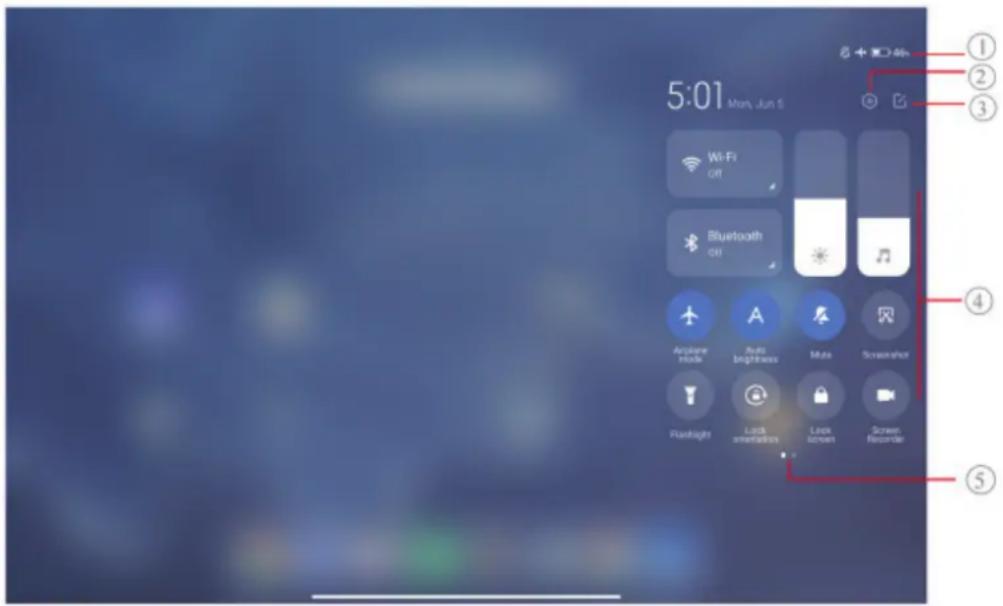
| 1. View notification icons and status icons | 2. Go to Settings 3. Add or delete toggles |
| 4. Tap to enable or disable a feature/Touch and hold to access the feature settings | 5. Swipe left or right to re- veal more shortcut toggles |
Toggles on the Control center
 | Bluetooth Aeroplane mode |  | |
 | Auto brightness Mute |  | |
 | Screenshot Flashlight |  | |
 | Lock orientation Lock screen |  | |
 | Screen Recorder |  | Scanner |
 | Reading mode Dark mode |  | |
 | DND Battery saver |  | |
 | Ultra battery saver Cast |  | |
 | Mi Share Floating windows |  | |
 | Vibrate Hotspot |  | |
 | Nearby Share NFC |  | |
 | Dolby Atmos Location |  | |
 | Focus mode Bedtime mode |  | |
 | Performance mode |  | Reverse wireless charging |
Note
The toggles may not be available to some models.
Open the Control center
When you use New version of the Control center, pull down the status bar on the right to open the Control center. When you use the Old version of the Control center, pull down status bar to open the Control center. See Choose Control center style for more information.
Recents windows
Recents windows enable you to view recently-used apps and switch between apps.

natural_image
Blue background with six white rectangular blocks, each containing a colored square marker (no text or symbols)Open recently-opened apps in Recents
-
Open Recents windows.
-
Swipe up from the bottom of the screen in full screen mode.
-
Tap ■ when use system navigation buttons.
-
Tap an app window.
Remove recently-opened Apps in Recents
-
Open Recents windows.
-
Swipe up from the bottom of the screen when in full screen mode.
-
Tap ■ when use system navigation buttons.
-
Swipe an App window left or right.
①Note
You can tap to clear all recently-opened Apps.
Widgets
Widgets enables you to quickly access the functions of apps such as Cleaner function, Clock information, or Weather information.
Add a widget to Home screen
-
Enter the screen editing mode.
-
Pinch on the Home screen.
-
Touch and hold an empty space on the Home screen.
-
Tap Widgets Widgets to view all widgets.
- Choose a widget and tap the widget to add it to the Home screen.
- Tap ☑ at the upper-left corner of the tablet or zoom in the page.

Tip
If there is not enough space, you can drag the widget to a different Home screen page.
Move a widget on Home screen
- Touch and hold a widget until the pop-up window shows.
- Move the widget to other places on the Home screen.
Remove a widget from Home screen
- Touch and hold a widget until the pop-up window shows.
- Tap Remove.
Lock and unlock the screen
You can lock and unlock the screen without password. In the case, you can turn on and off the screen easily. You can also add a screen lock and other lock types to secure your tablet.
Lock the screen with the Power button
Press the Power button.
Lock the screen with Widgets
When you are not convenient to press the Power button, tap the lock icon on the Home screen to quickly lock the screen.
- Enter the screen editing mode.
- Pinch on the Home screen.
-
Touch and hold an empty space on the Home screen.
-
Tap 📄 widgets Widgets to view all widgets.
-
Tap Lock from Quick functions.
-
Tap ⬇ at the upper-left corner of the tablet or zoom in the page.
-
Tap 🔒 Lock to lock the screen.
Unlock the screen with a pattern, PIN, or password
If you do not know or want a pattern, PIN, or password, you can see Set up Screen lock for more information.
- Press the Power button to wake up the tablet.
- Swipe up from the bottom of the screen.
- Draw the pattern, or enter the PIN or password to unlock the screen.
Unlock the screen with face data
When you are not convenient with fingers, you can use face unlock to unlock your tablet with face identification.
Add a screen lock password before you add the face data. See Set up a face lock for more information.
- Press the Power button to wake up the tablet.
- Look at the screen until the lock icon changes from 😊 to 🕒
- Swipe up from the bottom of the screen.
①Note
You keep the screen stay on when you are looking at the screen.
Adjust the volume
Press the Volume up button or Volume down button to adjust the volume.
Tip
You can also swipe down the status bar to adjust the volume bar on the Control center.
App Downloads
Download Apps from Google Play Store
Google Play Store App is pre-installed on the Home screen. You can download Apps on the tablet.
- Open Play Store App.
-
Choose an app that you want to download.
-
Tap Install to download and install the App.
iNote
You need to sign in with your Google Account. See Sign in to your Google Account for more information.
The app icon automatically shows on the Home screen when the it is downloaded.
Download Apps from other resources
When your tablet allows to download apps from other resources, you can follow the instructions of the resources. If your tablet does not allow other resources to download apps, see Allow to install unknown Apps for more information.
Caution
Downloading apps from unknown or unreliable resources may damage your tablet.
Allow to install unknown apps
The feature allows the tablet to download and install apps from some apps.
-
Go to Settings > Privacy protection > Special permissions.
-
Tap Install unknown apps to view all apps.
-
Choose the app that you want to download apps from.
-
Tap to enable Allow from this resource.
Caution
Your tablet and personal data are more vulnerable to attack by unknown apps.
Apps and app folders
Downloaded apps and pre-installed apps are shown on the Home screen. You can manage apps and add them to the personalized app folders.
Open an app from the Home screen
Tap an app icon on the Home screen.
Move an app on the Home screen
-
Touch and hold an app icon until the pop-up window shows.
-
Move the app to other places on the Home screen.
Remove or uninstall an App from the Home screen
- Touch and hold an app icon until the pop-up window shows.
- Choose Remove or Uninstall in the pop-up window.
Create app folders on the Home screen
- Touch and hold an app icon until the pop-up window shows, then drag the app icon to cover another app icon on the Home screen.
The system automatically shows an app folder for the two apps.
- Release the app icon into the app folder.
Move apps to an app folder
- Touch and hold an app icon until the pop-up window shows, then drag the app icon to an app folder.
- Release the app icon.
Rename an app folder
- Tap an app folder to open the folder.
- Tap the folder name and enter the new text.
- Tap the screen or √ to confirm the new name.
Screenshots and Screen recording
Take a screenshot in three ways
You can take a screenshot with the following three ways:
- Press the Volume down button and the Power button simultaneously to take a screenshot. See Enable Take a screenshot shortcut for more information.
- Slide three fingers down to take a screenshot. See Enable Take a screenshot shortcut for more information.
- Swipe down from the status bar to open the Control center and tap 📄 Screenshot to take a screenshot.
Enable Take a screenshot shortcut
When you enable the feature, you can slide 3 fingers down on the screen or press the Volume down button and Power button simultaneously to take a screenshot.
- Go to Settings > Additional settings > Gesture shortcuts > Take a screenshot.
- Choose to enable take a screenshot shortcut.
- Tap to enable Slide 3 ingers down.
- Tap to enable Volume down + Power.
Take a partial screenshot
You can adjust the coverage and choose a shape when you take a partial screen-shot on the screen.
Before you can use the feature, you need to enable the shortcut. See Enable Partial screenshot shortcut for more information.
- Press and hold with three fingers on the screen.
- Choose a shape at the upper-right corner of the tablet.
- Move with one finger to draw the coverage.

- Tap Save.
Enable Partial screenshot shortcut
When you enable the feature, you can press and hold with 3 fingers on the screen to take a partial screenshot.
-
Go to Settings > Additional settings > Gesture shortcuts > Partial screenshot.
-
Tap to enable Press and hold with 3 fingers.
Take a scrolling screenshot
When you want to take a screenshot that contains more content, you can take a scrolling screenshot to save the content in one long screenshot.
- Take a screenshot. See Take a screenshot in three ways for more information.
- Tap Scroll on the screenshot at the upper-right corner.
- Scroll up to determine where to end the scrolling screenshot or wait for the page goes down automatically.
- Tap DONE.
- Tap √ to save the scrolling screenshot.
Note
If you want to view and save the scrolling screenshot, you need to give the Gallery Editor permissions to certain folders.
Record the screen
You can use the feature to record a meeting or your game performance.
- Swipe down the status bar to open the Control center.
- Tap 📄 Screen Recorder.
- Tap ● to start recording.
- Tap Ⓞ to stop recording.
Tip
Set up Screen Recorder
-
Go to Settings > Additional settings > Screen Recorder.
-
Choose to set up Screen Recorder.
-
Tap Resolution to select video resolution.
- Tap Video quality to select video quality. Higher quality means bigger ile size.
- Tap Orientation to select orientation of recorded videos.
- Tap Sound source to select system sounds, microphone, or mute.
- Tap to enable Fixed frame rate to enhance playback on social media platforms.
- Tap Frame rate to select frame rates. Higher frame rates reduce motion blur.
- Tap to enable Lock screen to end. End recording and save video when the screen is locked.
- Tap to enable Show touch gestures. Visualize gestures with a white dot.
- Tap to enable Show button taps. Visualize navigation button taps.
Transfer files
Transfer files with the ShareMe App
You can use the ShareMe app to transfer files without an internet connection.
Before the tablets transfer files, you need to install ShareMe on both tablet A and tablet B. See App Downloads for more information.
- Open ShareMe on both tablets separately.
- Tap Receive on tablet B to receive files.
TabletB displays a QR code until it establishes a connection with tablet A.
- Tap Send on tablet A to select ile items to send.
- Tap SEND on tablet A to connect with tablet B.
- Choose to transfer iles.
- Use tablet A to scan the QR code on tablet B to connect.
- Wait for the tablet A to search for tablet B, then tap the tablet B name to connect.
Tablet A automatically transfers the selected files to tablet B after the connection is established.
①Note
You can tap Share more files to share more files between tablet A and tablet B.
Transfer files with a computer
-
Connect both your tablet A and tablet B to a computer with an available cable separately.
-
Choose to use USB for File Transfer/Android Auto in the pop-up windows on both tablets.
-
Select the files of tablet A, and then copy and paste or drag and drop the files to folders of tablet B on the computer.
Note
When you copy files from tablet A to tablet B, make sure that the folder names are the same on both tablets.
Charging
You can charge the tablet with a power adapter and a USB cable. Some models also support wireless charging.
Charge the tablet
When the battery is running low, you need to charge the tablet.
-
Connect the USB cable to the tablet.
-
Plug the cable into the adapter.
-
Connect the adapter to a power outlet.
-
Disconnect the charger when the tablet is fully charged.

Caution
Make sure that the charger and the USB cable are available. To avoid severe damage and explosions, do not use unauthorized devices to charge the tablet.
Wireless charging
You can charge your tablet with a wireless charger.
To ensure the safety of charging, please click https://www.mi.com/global/ to purchase a wireless charger and USB cable.
- Plug the power adapter of the wireless charger into a power outlet and the USB cable into the wireless charger.
- Place your tablet on the center of the wireless charger with the tablet screen facing up.
Note
- Wireless charging may not be available to some tablet models. In addition, the support functionality may vary depending on your device.
- Charging speed may vary depending on device usage, charging conditions and other factors.
Tip
Some tablet models may also support reverse wireless charging. You can go to Enable Reverse wireless charging to check whether your device supports the feature.
After the wireless charger connects to your tablet, the tablet displays the charging status.
Chapter 3 Personalize your tablet
Wallpapers
Wallpaper enables you to personalize your tablet. You can use wallpapers to change the backgrounds of your tablet.
Change the wallpaper
You can change the background of your Home screen and Lock screen.
- Open Wallpapers settings.
- Go to Settings > Wallpaper.
-
Choose a new wallpaper such as a live image.
-
Tap Apply.
-
Choose Set as Lock screen, Set as Home screen, or Set both.
- Tap Set as Lock screen to apply the wallpaper to the Lock screen.
- Tap Set as Home screen to apply the wallpaper to the Home screen.
- Tap Set both to apply the wallpaper both to the Lock screen and Home screen.
Sound
Adjust volume
You can adjust the volume of media, ringtone, and alarm when you are in quiet environment.
- Go to Settings > Sound.
- Drag the sliders to adjust the Media, Notifications, Alarm volume separately.
Change the ringtones of Notifications and Alarm
You can customize your ringtones of Notifications and Alarm sound. You can set the preset sounds or add the sound from local files or online ringtones.
- Go to Settings > Sound.
- Tap Notifications or Alarm to enter the Ringtones page.
- Tap a ringtone to hear a preview and select it.
Tip
You can also tap Choose local ringtone to set ringtones from local files.
Adjust media sound in multiple Apps
You can adjust sound for individual Apps while multiple Apps play audio simultaneously.
- Go to Settings > Sound > Sound assistant.
- Tap to enable Adjust media sound in multiple apps.
Enable Silent mode
The feature allows the tablet to silence calls and notifications.
- Go to Settings > Sound.
- Tap to enable Silent mode.
You can also swipe down from the upper-right corner of the tablet to enable ⚪Mute in Control center.
Enable Do not disturb
With the mode enabled, there are no reminders for incoming notifications.
-
Go to Settings > Sound.
-
Tap Do not disturb, then tap to enable Do not disturb.
Display
Select Light mode or Dark mode
Light mode adjusts the tablet to fit in strong-light environments. Dark mode applies a dark color scheme to the tablet to fit in low-light environments.
-
Go to Settings > Display.
-
Select Light mode or Dark mode to apply to the system.
Schedule Dark mode
You can schedule Dark mode to turn on at night.
-
Go to Settings > Display > Schedule Dark mode.
-
Tap to enable Schedule Dark mode.
-
Choose Sunset to sunrise or Custom.
- Tap Sunset to sunrise. Dark mode applies to your tablet at sunset and is turned off at sunrise.
- Tap Custom. You can turn Dark mode on and off at scheduled time.
Enable Automatic brightness
The tablet automatically adjusts the brightness when in different light conditions.
-
Go to Settings > Display > Brightness level.
-
Tap to enable Automatic brightness.
①Note
Screen brightness is optimized according to ambient light. You can still make minor adjustments manually.
Tip
You can also swipe down from the upper-right corner of the tablet to enable Automatic brightness on the Control center.
Adjust screen brightness level manually
You can adjust the brightness level to make the tablet dimmer or brighter.
- Go to Settings > Display > Brightness level.
- Drag the slider of Screen brightness to adjust the screen brightness manually.
Tip
You can also swipe down from the upper-right corner of the tablet to drag the slider in the brightness level bar on the Control center.

natural_image
Illustration of a hand pressing down on a cylindrical object with a sun icon and directional arrows (no text or symbols)Choose a color scheme
You can adjust the color of the screen.
- Go to Settings > Display > Color scheme.
- Select a color scheme from Vivid, Saturated, Original color PRO, or Advanced settings for more color scheme options.
Enable Adaptive colors
Adaptive colors adjust colors to ambient light.
- Go to Settings > Display > Color scheme.
- Tap to enable Adaptive colors.
①Note
You can adjust the color temperature in COLOR TEMPERATURE.
Choose a refresh rate
You can change the refresh rate to get a high-performance gaming experience.
-
Go to Settings > Display > Refresh rate.
-
Choose Default or Custom.
- Tap Default to adjust fresh rate dynamically based on scenarios to balance performance with power consumption.
- Tap Custom to select a refresh rate.
①Note
Higher refresh rate makes viewing experience smoother but consumes more power.
Change the text size
You can change the text size to fit your eyes.
-
Go to Settings > Display > Text size.
-
Drag the slider from xxs to XXL to change the text size.
Enable Auto-rotate screen
The tablet automatically rotates the screen between portrait and landscape position when your rotate the tablet.
-
Go to Settings > Display.
-
Tap to enable Auto-rotate screen.
Tip
If you want to lock the screen orientation, you can disable the Auto-rotate screen or swipe down from the upper-right corner of the tablet to enable Lock orientation on the Control center.
Lock screen
Set screen sleep time
Set sleep time to lock the screen automatically.
- Go to Settings > Lock screen > Sleep.
- Choose an inactivity interval.
The screen locks if you do not wake up the tablet in the interval.
Raise to wake
When you raise the tablet, the screen wakes up.
- Go to Settings > Lock screen.
- Tap to enable Raise to wake.
Double tap to wake or turn off screen when device is locked
You can double tap to turn the screen off only when pre-installed themes are applied.
- Go to Settings > Lock screen.
- Tap to enable Double tap to wake or turn off screen when device is locked.
Set Lock screen clock format
- Go to Settings > Lock screen > Lock screen clock format.
- Choose a Lock screen clock layout.
Note
- You cannot change the format when Dual clock is on.
- You cannot change the Lock screen layout for the third party themes.
Display charging animation after device is unlocked
Charging animation keeps displaying after your tablet is unlocked except for video playback and other similar full screen scenes.
-
Go to Settings > Lock screen.
-
Tap to enable Display charging animation after device is unlocked.
Home screen
Change the size of App folder
You can personalize the Home screen with different sizes of app folders.
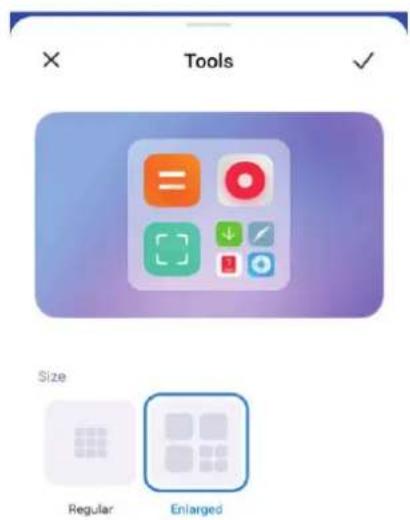
- Touch and hold an app folder on the Home screen until the pop-up window shows.
- Tap Edit folder to view the available sizes.
- Choose Regular or Enlarged.
- Tap √ .
Don't show text below App icons
Do not show text below the app icons on the Home screen.
- Go to Home screen settings.
- Go to Settings > Home screen.
- Pinch on the Home screen or touch and hold an empty space on the Home screen to enter the screen editing mode. Then tap 🔒 to set Home screen layout.
- Tap to enable Don't show text.
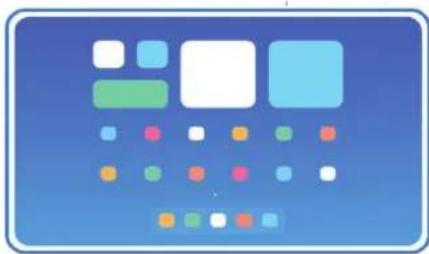
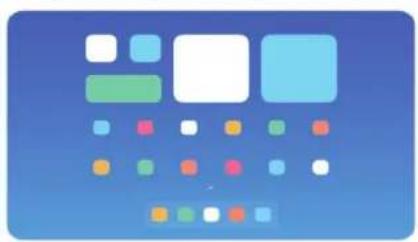
Set App display on Home screen
You can choose not to display apps or display the used apps in the app drawer or display bigger UI elements.
natural_image
Abstract graphic with blue background and scattered colored squares (no text or symbols)Classic
natural_image
Abstract graphic with colored squares and shapes on a blue background (no text or symbols)With App drawer
-
Go to Settings > Home screen
-
Tap Home screen to choose App display on Home screen.
- Tap Classic to not to display Apps.
- Tap With App drawer to display the used Apps in the drawer when you swipe up on Home screen.
Set system navigation buttons
You can interact with your tablet with system navigation buttons.
-
Go to Settings > Home screen.
-
Tap System navigation to select system navigation methods.
-
Choose Buttons to use system navigation buttons. See System navigation buttons for more information.
Set full screen gestures
You can interact with your tablet with full screen gestures to quickly navigate, multitask, and access features.
-
Go to Settings > Home screen.
-
Tap System navigation to select system navigation methods.
-
Choose Gestures to use full screen gestures. See Full screen gestures for more information.
①Note
You can tap to enable Gesture confirmation.
Adjust the icon size
You can change the size of icons based on your needs.
-
Go to Settings > Home screen > Icon size.
-
Drag the slider to adjust the icon size.
Notifications & Control center
Enable Lock screen notifications
Allow the app notifications to show on the Lock screen.

Lock screen
- Go to Settings > Notifications & Control center.
- Tap Lock screen in NOTIFICATIONS.
- Tap beside an app to enable Lock screen notifications.
Tip
You can tap Format to choose Show notification and content or Don't show Lock screen notifications.
Enable Floating notifications
Allow the app notifications to show on the floating notification banners.
natural_image
Simple blue horizontal bar inside a rounded rectangle (no text or symbols)Floating notifications
- Go to Settings > Notifications & Control center.
- Tap Floating notifications in NOTIFICATIONS.
- Tap beside an app to enable Floating notifications.
Hide floating notifications
You can swipe up on a floating notification to temporarily hide upcoming ones.
- Go to Settings > Notifications & Control center.
- Tap Floating notifications in NOTIFICATIONS.
- Tap beside an app to enable Floating notifications.
- Tap Hide temporarily to set hide time for floating notifications.
Enable app notification badges
Allow the app notification numbers to show on the badges. A notification badge is a red circle with a number in it. The number shows how many notifications you receive.

Badges
- Go to Settings > Notifications & Control center.
- Tap Badges in NOTIFICATIONS.
- Tap beside an app to enable the notification badges.
Items shown on the Lock screen after swiping down
You can swipe down the notification panel on the Lock screen. If you use the new version of Control center, you can also swipe down the Control center on the right part of the Lock screen and set the Smart home.
- Go to Settings > Notifications & Control center > Items shown on the Lock screen
after swiping down.
- Tap to enable Notification shade.
Note
If you use the new version of Control center, you can tap ☐ to enable Control center and tap ☐ to enable Smart home.
Show notification icons
Show notification icons on the Status bar.
-
Go to Settings > Notifications & Control center > Status bar.
-
Tap to enable Show notification icons.
Choose Battery indicator
-
Go to Settings > Notifications & Control center > Status bar > Battery indicator.
-
Choose one battery indicator style to apply.

Date and time
Change the date and time
The date and time are set automatically over the network based on your location. You can adjust the date and time manually.
-
Go to Settings > Additional settings > Date & time.
-
Tap to disable Set time automatically.
-
Tap Date or Time to change the date or time.
-
Tap OK.
Note
On some models, the UI names for the feature may vary. The UI name can be Set time automatically or Use network-provided time depending on your device.
Set time automatically
The tablet adjusts time automatically with the network.
- Go to Settings > Additional settings > Date & time.
- Tap ☐ to enable Set time automatically or Use network-provided time based on your models.
Set time zone automatically
Use the time provided by the carrier network.
- Go to Settings > Additional settings > Date & time.
- Tap ☐ to enable Set time zone automatically or Use network-provided time zone based on your models.
Note
If you disable the feature, you can select time zone according to your region.
Use location to set time zone
The automatic time zone is off and you can use your location to set time zone.
- Go to Settings > Additional settings > Date & time.
- Tap to enable Use location to set time zone.
Note
The feature may not be available to some models.
Choose time format
- Go to Settings > Additional settings > Date & time > Time format.
- Choose 12-hour 1:00 PM, 24-hour 13:00, or Auto (based on system language).
Enable Dual clock
The tablet shows Dual clock when current time is different from that on the second clock.
-
Go to Settings > Additional settings > Date & time.
-
Tap to enable Dual clock.
Note
- You can tap Second clock to choose the region or time zone of the second clock.
- Dual clock is displayed on the Lock screen, Home screen, and turned off screen.
Languages and regions
You can change the languages and regions when you are in travel or move.
Set the language
- Go to Settings > Additional settings > Languages & input > Languages.
- Choose and set the language from the language list.
Set the region
- Go to Settings > Additional settings > Region.
- Choose and set the region from the region list.
Chapter 4 Battery and maintenance
The tablet allows you to check the battery health and manage the usage and maintenance of the battery. You can go to battery settings with two methods:
- Go to Settings > Battery.
- Go to Security > Battery.
①Note
The battery features may not be available to some models.
View battery capacity
The feature enables you to check the remaining use time and battery capacity.
- Go to battery settings. See Go to battery settings for more information.
- Open the Battery saver page.
- View the battery capacity.
Tip
When your tablet is charged, you can view the remaining fully charging time and charged battery capacity.
Enable Battery saver
Use Battery saver mode to save power. It can reduce background activity of Apps, stop sync, and minimize system animations.
- Go to the battery settings. See Go to battery settings for more information.
- Open the Battery saver page.
- Tap to enable Battery saver.
Tip
You can also swipe down from the upper-right corner of the tablet to enable 📄Battery saver on the Control center.
View power consumption in detail
You can check the battery usage tendency and the power consumption percentage of the apps.
- Go to battery settings. See Go to battery settings for more information.
- Open the Battery saver page.
- Tap the line chart and view the power consumption in detail below.
View the battery temperature
You can check the current battery temperature and how many times you have charged today.
- Go to the battery settings. See Go to battery settings for more information.
- Tap Battery or swipe left to enter the Battery page.
- View the temperature and charged times.
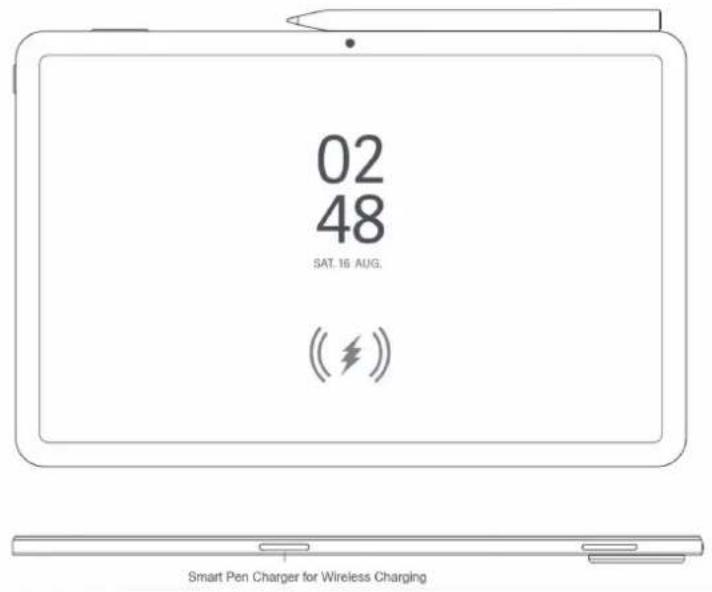
Enable Reverse wireless charging
Reverse wireless charging of your tablet supports only the charging of a capacitive stylus through the smart pen charger. For example, you can charge a capacitive stylus supporting reverse wireless charging.
- Go to battery settings. See Go to battery settings for more information.
- Tap Battery or swipe left to enter Battery page.
- Tap Reverse wireless charging.
- Tap to enable Reverse wireless charging.

Tip
You can drag the slider of Charging limit to set the battery capacity. When the battery reaches the charging limit, the tablet stops reverse wireless charging.

Note
The feature may not be available to your models.
Chapter 5 Networks and connection
Wi-Fi
You can go to Settings > Wi-Fi to connect to a Wi-Fi network. See Connect to Wi-Fi for more information.
①Note
Available networks show up when you enable Wi-Fi.
Disconnect a Wi-Fi network
If you want to switch to a new network, you can disconnect a connected Wi-Fi network.
- Go to Settings > Wi-Fi.
- Tap ➤ to view the connected Wi-Fi network details.
- Tap Forget network.
- Tap OK.
Your device stops connecting to the network automatically. You may need to enter the password when you connect to the network again.
Connect to a hidden Wi-Fi network
Hidden networks do not broadcast their names. If you want to connect to it, you need to enter the information manually. You can ask the network administrator for the name and password before you begin.
- Go to Settings > Wi-Fi.
- Tap to enable Wi-Fi.
- Tap Add network at the bottom of the Wi-Fi nternetwork list.
- Enter the information about the Wi-Fi nternetwork.
• Network name: Type the name of the network.
- Security: Select a security option from the list, and enter the password if required.
- Privacy: Select a media access control address (MAC address).
- Hidden network: Select whether the network is hidden.
- Tap √.
Manage network acceleration
You can use the features to optimize connection and accelerate network.
-
Go to Settings > Wi-Fi > Network acceleration.
-
Choose to manage network acceleration.
- Tap Dual band Wi-Fi speed boost to boost Wi-Fi speed by connecting to auxiliary networks.
- Tap to enable Use mobile data to boost speed. The feature allows the device to use mobile data to boost connection speed. Use the feature may generate additional carrier fees.
Note
The features may not be available to some models. And the feature paths on different models may vary.
Manage advanced settings
-
Go to 📁 Settings > Wi-Fi > Additional settings.
-
Manage advanced settings.
- Manage saved networks: Delete the saved networks.
• Install certificates: Install Wi-Fi certificates from local files.
- Wi-Fi Direct: Wi-Fi Direct enables the tablet to connect other Wi-Fi Direct devices at anywhere and anytime, even when there is no access to a Wi-Fi network nearby.
Chapter 6 Connection and sharing
Bluetooth
You can connect your tablet with earphones, speakers, and other devices with Bluetooth functionality. You can also use Bluetooth to share data between your tablet and other devices.
Pair a Bluetooth device
You can connect to compatible Bluetooth devices. For example, you can connect tablets, wireless Bluetooth earphones, and wearable devices.
The following steps take the connection between Xiaomi tablets as an example.
-
Go to Settings > Bluetooth.
-
Tap to enable Bluetooth on both devices.
Available devices show up when you enable Bluetooth.
-
Tap the name of tablet B in tablet A.
-
Tap Pair in the pop-up windows of the two devices.
①Note
- In the pop-up windows, you can also choose to block the Bluetooth device if you do not want to connect to the device.
- The two devices need to enable Bluetooth and stay in an effective distance. The tablet searches for devices automatically, then you can see the names of available devices.
Tip
You can also swipe down from the upper-right corner of the tablet to enable Bluetooth on the Control center.
Unpair a Bluetooth Device
- Go to 📁 Settings > Bluetooth.
- Tap to enable Bluetooth.
The saved Bluetooth names show up below the Bluetooth version.
- Tap to > view the paired Bluetooth device details.
- Tap Unpair.
Rename a device
When you enable Bluetooth, other nearby devices can see the name.
- Go to Settings > Bluetooth > Device name.
- Enter a device name.
- Tap √ .
Manage advanced settings
-
Go to 📁 Settings > Bluetooth > Additional settings.
-
Manage advanced settings.
-
Pair compatible devices: You can quickly connect to earphones, speakers, and other compatible devices.
- Bluetooth blocklist: View the blocked Bluetooth devices.
- Show Bluetooth devices without names: The names of the Bluetooth devices are not displayed and only the MAC addresses are displayed.
Portable hotspot
Enable Portable hotspot
Turn on the Portable hotspot and your tablet can provide an internet access to other devices.
- Go to Settings > Connection & sharing > Portable hotspot.
- Tap to enable Portable hotspot.
Tip
- You can tap Share QR code to share Wi-Fi network.
- You can swipe down from the upper-right corner of the tablet to enable Hotspot on the Control center.
Turn off hotspot automatically
- Go to Settings > Connection & sharing > Portable hotspot.
- Tap to enable Turn off hotspot automatically.
Change the name and password of portable hotspot
You can change the portable hotspot name and password to secure your privacy or data usage.
- Go to Settings > Connection & sharing > Portable hotspot.
- Tap Set up portable hotspot to change the portable hotspot name or password.
- Tap √.
Connection & sharing
Enable Mi Share
Mi Share allows you to send items wirelessly to other nearby devices.
-
Go to Settings > Connection & sharing > Mi Share.
-
Tap to enable Mi Share.
Note
If you share items with other tablets, make sure that both of the tablets turn on Mi Share. You can check the list of supported devices on the official website of any selected brand.
Tip
You can also swipe down from the upper-right corner of the tablet to enable Mi Share on the Control center.
Enable Cast
You can enable Cast to project the items from your tablet screen on a bigger external monitor.
①Note
You need to turn off Portable hotspot before you enable Cast.
- Go to Settings > Connection & sharing > Cast.
- Tap to enable Cast.
- Select an available device to start casting.
Tip
- You can go to Settings > Connection & sharing > Cast > Help to learn casting information.
- You can also swipe down from the upper-right corner of the tablet, then tap ☐ to enable Cast on the Control center.
Add VPN
A Virtual Private Network (VPN) enables you to send and receive data across shared or public networks. A VPN encrypts the connection between the device and the internet and it can increase the functionality, security, and management of the private network.
iNote
You need to set a screen lock to save your VPN settings. See Set up Screen lock for more information.
- Go to Settings > Connection & sharing > VPN.
- Tap Add VPN at the bottom of the screen.
- Enter the corresponding information such as Name, Type, Server address, IPSec identifier, IPSec CA certificate, IPSec server certificate, Username, and Password of the VPN.
- Tap √ to save the VPN.
Enable VPN
You need to set a screen lock to save your VPN settings. See Set up Screen lock for more information.
- Go to Settings > Connection & sharing > VPN.
- Tap to enable VPN.
- Choose a VPN to connect.
Note
If you connect a VPN successfully, you can see that the VPN icon shows at the upper-right corner of the tablet.
Enable Airplane mode
- Go to Settings > Connection & sharing.
- Tap to enable Aeroplane mode.
Note
On some models, the UI names for the feature can be Aeroplane mode or Airplane mode.
Tip
You can also swipe down from the upper-right corner of the tablet to enable +Aeroplane mode on the Control center.
Chapter 7 Camera
Camera overview
You can get a full view of the Camera layout.
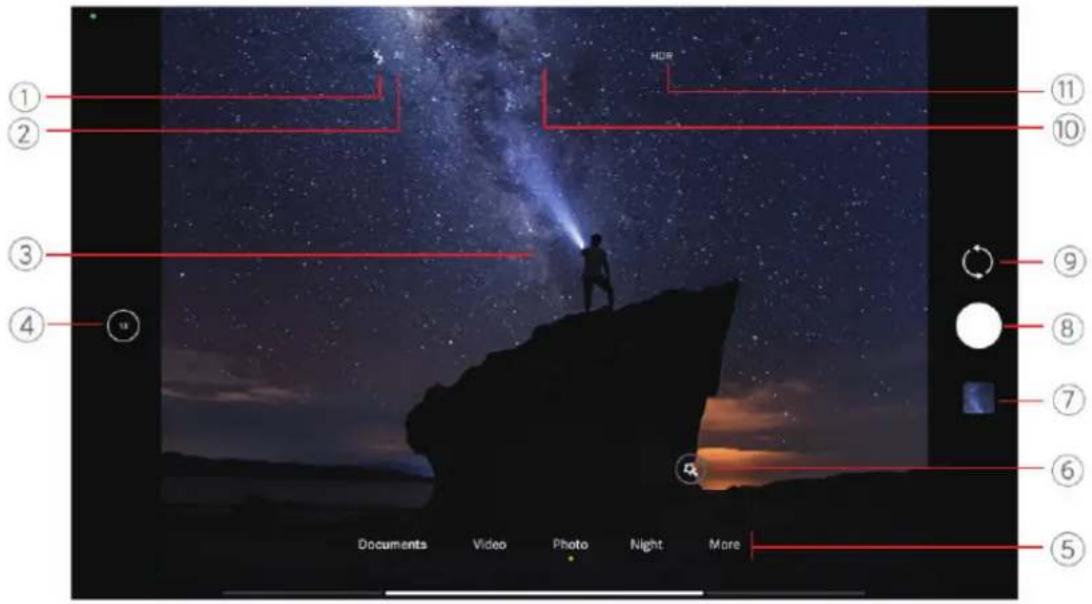
| 1. Flash 2. AI camera 3. Viewfinder | |
| 4. Zoom level 5. Camera modes 6. Beautify and Filters | |
| 7. Gallery 8. Shutter button 9. Switch button | |
| 10. More 11. HDR |
① Note
Some features may not be available to your models. The Camera layout and the place of the icons may vary depending on your models.
Open Camera
You can open Camera with the following methods:
- Tap ● Camera on the Home screen.
- Double press the Volume down button to open Camera when the screen is locked.
Tip
You will not be able to see your Gallery items if you launch Camera on the Lock screen without verifying your password.
Take photos
The default camera mode is Photo, you can swipe left or swipe right to choose other modes to shoot.
-
Open ● Camera.
-
Adjust the basic camera features based on your needs. See Basic features for more information.
-
Tap ○ to take a photo.
Switch between camera modes
Photo mode is the first camera mode when you open Camera. You can swipe left or right on the camera screen to select the following camera modes:
- Documents: Take a picture for a document. See Take Documents mode photos for more information.
- Dual video: Take a video with the front and rear cameras at the same time. See Take videos in Dual video mode for more information.
- Night: Take photos or videos in low-light environment. See Take photos in Night mode for more information.
- Panorama: Take a panoramic landscape or other scenes. See Take photos in Panorama mode for more information.
- Portrait : Apply Cinematic, Beautify, or Filters effects to your photos. See Take photos in Portrait mode for more information.
- Short video: Shoot videos up to 10 seconds long and apply filters effects. See Take videos in Short video mode for more information.
• Video: Shoot a video. See Take videos for more information. - Director mode: Create cinematic brilliance with just one tap.
①Note
- Camera modes may not be available to some models.
- Camera features may vary in different models.
Basic features
You can use the basic features to adjust the brightness and exposure of the photo or zoom in or out to customize your shot.
Set the focus
-
Open 📄 Camera.
-
Tap the screen to show the focus ring and exposure setting.
- Tap the area that you want to focus on.
Adjust the exposure
When you take a photo in a low-light or an overexposed environment, adjust the exposure to adjust the brightness of your photo.
- Open ● Camera.
- Tap the screen to show the focus ring and exposure setting.
- Drag 🙏 up or down beside the focus ring to adjust the exposure.
Zoom in or out
- Open ● Camera.
- Pinch the screen to zoom in or out on the viewfinder.
Tip
On some models, you can also toggle the zoom levels such as 0.6X, 1X, and 2X to zoom in or zoom out.
Turn on the flash
When you take a photo in a low-light environment, turn on the flash to make your photos clearer.
-
Open ● Camera.
-
Tap ✗.
-
Choose flash types.
- Tap to enable automatic flash.
- Tap 4 to enable flash after you tap ○
- Tap 🔍 to make flash always on.
Scan QR codes
- Open ● Camera.
- Point the camera at the QR code, then tap the notification that appears.
①Note
If you want to enable Scan QR codes, see Enable Smart suggestions for more information.
Useful features
You can use the useful features such as the Gridlines and Tilt-shift to improve your shot or Timer and Voice shutter to help take group photos.
①Note
Some features may not be available to your models.
Adjust the aspect ratio
- Open ● Camera.
- Tap ▼ at the top.
- Tap Aspect ratio.
- Choose an aspect ratio such as 1:1, 3:4, 9:16, Full, or Movie.
Set a timer
You can set a countdown to give yourself time to take a photo.
- Open ● Camera.
- Tap ▼ at the top.
- Tap Timer.
- Choose 3S, 5S, or 10S.
- Tap ○ to start the timer.
Enable Voice shutter
Voice shutter enables you to control the shutter with voice to take photos.
- Open ● Camera.
- Tap ▼ at the top.
- Tap 📄 Voice shutter.
You can now say "Cheese!" to take a photo.
Show gridlines
You can use gridlines to straighten or compose your photo.
- Open ● Camera.
- Tap ▼ at the top.
- Tap Gridlines to show gridlines.
Tip
You can tap to choose different gridline types.
Enable Macro
Macro enables you to take photos or videos of an object in a close distance.
- Open ● Camera.
- Tap ▼ at the top.
- Tap 📍 Macro to enable Macro.
Note
Some models may also support Super macro features. The feature may vary depending on your device.
Enable Tilt-shift
You can use Tilt-shift to make certain area clear and other places blurred in your photo.
- Open ● Camera.
- Tap ▼ at the top.
- Tap Ⓞ Tilt-shift to enable Tilt-shift.
Note
- You can tap for circle tilt-shift or for linear tilt-shift.
- You can move the tilt-shift area to the place that you want to blur or be clear.
Enable Timed burst
You can use Timed burst to take a series of photos within the interval you set. You can use Timed burst in Photo mode.
- Open ● Camera.
- Tap ▼ at the top.
- Tap 🔒 Timed burst to enable Timed burst.
- Tap ▲ to show the sliders for Number of photos and Interval.
- Set the numbers and the interval.
iNote
The feature may vary depending on your device.
Disable automatic HDR
High dynamic range (HDR) allows you to take photos in high-contrast situations. HDR brings more highlight and shadow details to the photos.
- Open ● Camera.
- Tap HDR.
- Tap HDR.
Tip
The camera enables automatic HDR by default. You can also tap HDR to make HDR always on.
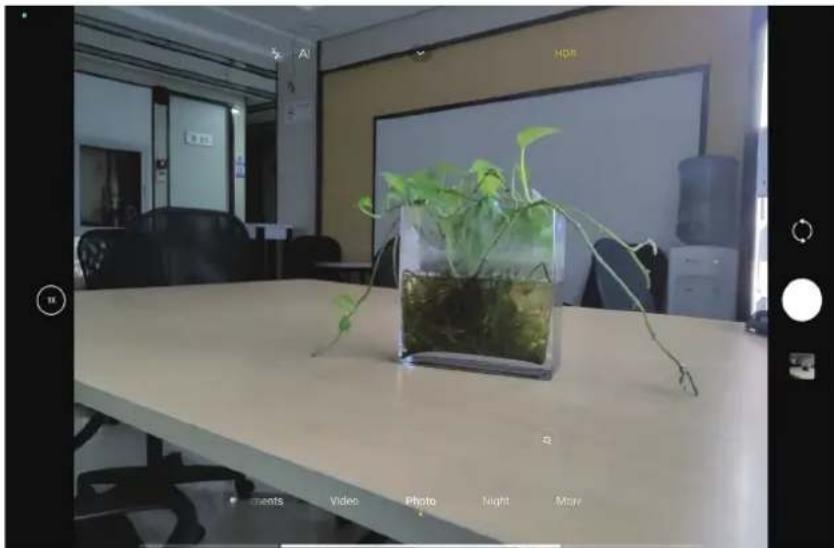
Enable AI camera
AI camera identifies subjects and scenes intelligently and optimizes the camera settings accordingly. It can identify a variety of scenes, such as blue sky, snowy weather, sunrise and sunset, greenery, and document.
- Open ● Camera.
- Tap ▼ at the top.
- Tap AI to enable AI camera.
When you are taking a photo, AI camera shows the identified icons.
For example, the camera identifies the object as green plant, then it applies suitable effects.
natural_image
Interior view of a modern office with a glass-bottomed plant in a container, surrounded by office furniture and a monitor (no visible text or symbols)Add Beautify and Filters effects
Beautify helps beautify the body part that you want to. Filters helps apply a filter effect.
You can add Beautify and Filters effects in Photo and Portrait modes and add Beautify and Bokeh effects when you take a video.
-
Open ● Camera.
-
Tap Ⓐ to choose to add Beautify and Filters effects.
- Tap Beautify and drag the slider to adjust beautify effect.
- Tap Filters and choose a filter effect.
Adjust video resolution and frame rate
-
Open ● Camera.
-
Select Video mode.
-
Tap ▼ at the top.
-
Choose a video resolution and frame rate.
Note
You can adjust video resolution and frame rate in Video mode when taking a video.
Take a selfie
Use the front camera to take a selfie in Photo or Portrait mode or to take a video. The following steps take the Photo mode as an example.
- Open ● Camera.
- Tap 🔒 to switch to the front camera.
- Tap ○ to take a selfie.

Tip
You can tap 📋 to apply Beautify and Filters effects. See Add Beautify and Filters effects for more information.
Take videos
Take videos to capture the beautiful scenes and important moments.
- Open ● Camera.
- Select the Video mode.
- Tap ● to start shooting.
- Tap ☐ to stop shooting.

Tip
When taking a video, you can tap 📄 to pause your shooting and tap ▶ to continue. You can also tap 🔒 to take a photo while shooting.
Take Documents mode photos
You can take a picture for a document such as paper, PowerPoint, and blackboard in Documents mode. It can modify lens distortion and adjust perspective and allow you to take a straight photo. Documents mode also enables you to add watermarks to protect your documents from unauthorized copying.

When you tap Documents for the first time, the option is not present. You can tap Documents again after downloading.
- Open ● Camera.
- Select Documents mode.
- Point camera at the subject and wait for the camera to identify the document area in the yellow frame.
- Tap ○ to take a photo.

Tip
- You can tap to edit the text of the protective watermark.
- You can go to Gallery to view and adjust the document area.
Take photos in Night mode
Night mode captures more details and brightens your photos in low-light conditions.
- Open ● Camera.
- Select Night.
- Tap ○.

Note
Some models support to take videos in Night mode.
Take videos in Short video mode
You can apply different effects to take a short video for 1 to 15 seconds.
When you tap Short video for the first time, the option is not present. You can tap Short video again after downloading.
- Open ● Camera.
- Select More.
- Tap ▶ Short video.
-
Choose to set up your shooting.
-
Tap to add background music.
- Tap Ⓞ to apply the speed effect.
-
Tap 📊 and choose to apply Beautify effect, Filters effect, or Kaleidoscope effect.
-
Tap ● to start shooting.
- Tap ☐ to stop shooting.
- Tap ☑ to save your shooting.
Take photos in Panorama mode
You can take a wide landscape photo or you can take a photo for large groups in Panorama mode.
- Open ● Camera.
- Select More.
- Tap ☐ Panorama.
- Point the camera at the starting scene of the Panorama photo.
- Tap ○ to start your Panorama photo.
- Keep the camera align with the arrow and move according to the arrow direction when you are shooting.
- Tap ☐ to finish the Panorama photo.
Note
- You can tap ⏻ to change the starting scene from horizontal level to vertical level. You can tap ▶ to change the start direction from left to right or from bottom to top.
- If you finish the Panorama photo all the way along the reference line, it ends automatically. You can go to

Gallery to view and edit the photo.
Take videos in Dual video mode
Dual video mode splits the scene on the viewfinder into two views. You can view and record a scene with the rear and front camera simultaneously.
- Open ● Camera.
- Select More.
- Tap Dual video.
- Tap ⏻ to adjust the places of front and rear views on the viewfinder.
- Tap • to start shooting.
- Tap ☐ to stop shooting.

Tip
You can tap to enlarge a view and narrow the other view.
Take photos in Director mode
Director mode enables you to take cinematic and brilliant videos with just one tap.
- Open ● Camera.
- Select More.
- Tap 📷 Director mode.
- Adjust the features such as WB, F, ISO, EV, Resolution, and Frame rate.
- Tap 📷 to perform multicam setup. You can set the tablet as a camera or monitor.
- Tap ● to start shooting.
Camera settings
You can go to ● Camera > ▼ > ◎ Settings to open Camera settings.
Add a watermark
You can protect your photos with watermarks or add other information such as time, location, or temperature to the photo.
- Open Camera settings.
- Tap Watermark.
-
Choose to add watermark types.
-
Tap to enable Add time stamp on photos.
- Tap to enable Device watermark.
- Tap Custom watermark to add your watermark. Before you add the custom watermark, You need to tap 🔒 to enable Device watermark first.
①Note
The feature may not be available to some models.
Enable Motion tracking focus
The feature keeps moving people or pets in focus automatically. You can also double tap any subject in the viewfinder to track.
- Open Camera settings.
- Tap to enable Motion tracking focus.
①Note
The feature may not be available to some models.
Enable Smart suggestions
- Open Camera settings.
- Tap Smart suggestions.
-
Choose smart suggestions. The features are usually enabled by default.
-
Tap to enable Document scanner. The feature displays a shortcut whenever the AI camera detects a document or presentation slide.
- Tap ☐ to enable Scan QR codes. The feature only enables the rear camera to scan QR codes in Photo mode.
Enable Motion capture
Track motion is to minimize blur on the photos of children, pets, and other active subjects.
- Open Camera settings.
- Tap to enable Motion capture.
Note
The feature may not be available to some models.
Enable Auto night mode
Auto night mode can detect low light conditions and improve image quality automatically.
- Open Camera settings.
- Tap to enable Auto night mode. The feature is usually enabled by default.
Note
The feature may not be available to some models.
Set picture quality
- Open Camera settings.
- Tap Picture quality to choose High, Standard, or Low.
Set up volume buttons function
You can customize the volume buttons shortcuts.
- Open Camera settings.
- Tap Volume buttons function to choose Shutter, Zoom, or Volume.
Enable Additional shutter
After you enable the feature, you can drag the shutter button up to create an additional shutter.
- Open Camera settings.
- Tap to enable Additional shutter.
Tap to take a photo
You can tap the viewfinder to take a photo.
-
Open Camera settings.
-
Tap to enable Tap to take a photo.
Customize the camera
You can change the camera layout, color, and sound.
- Open Camera settings.
-
Tap Customize to choose customized types.
-
Tap Feature Layout to rearrange the icons on both camera start screen and More features screen.
- Tap Camera modes to select the More tab or More panel.


natural_image
Two electronic devices with circular button patterns, one labeled 'More' tab and the other 'More' panel (no text or symbols on device surfaces)Save location info
The location information is saved when you take a photo. You can go to Gallery to view location info in the photo details.
- Open Camera settings.
- Tap to enable Save location info.
Enable the shutter sound
The camera makes a sound when you tap the shutter.
- Open Camera settings.
- Tap to enable Shutter sound. The feature is usually enabled by default.
Preserve settings
Preserve settings can preserve the previously used mode rather than automatically reset to default preferences.
- Open Camera settings.
-
Tap Preserve settings to choose to enable or disable the previous settings.
-
Tap to enable Camera mode. Camera mode preserves the previously used mode along with the front or rear camera selection.
- Tap to enable Beautify. Beautify preserves Beautify preferences selected during the previous session. The feature is enabled by default.
- Tap ☐ to enable AI camera. AI camera preserves AI camera status set during the previous session. The feature is enabled by default.
Set Anti banding
When you take a photo or video of an electronic screen, you can set the anti banding to reduce disturbances of the photo.
- Open Camera settings.
- Tap Anti banding to choose Off, 50 Hz, 60 Hz, or Auto.
Autostart
Autostart makes camera more responsive by allowing it to autostart. You can tap Autostart to manage autostart permissions in App info.
- Open Camera settings.
- Tap Restore default settings.
- Tap OK.
More settings
Set camera settings when you take a seflie
- Open ● Camera.
-
Tap 🔒 to switch to the front camera.
-
Go to ▼ > ⓄSettings to open Camera settings.
- Choose to set camera settings.
- Tap to enable Mirror front camera.
Set camera settings in Video mode
- Open ● Camera.
- Select Video mode.
- Go to ▼ > ⓄSettings to open Camera settings.
-
Choose to set camera.
-
Tap Video encoder to select high compatibility or high performance video encoder.
- Tap to enable Allow tagging videos. You can tap Tag while shooting a video to go back to tagged moment during playback.
Set camera settings in Pro mode
- Open ● Camera.
- Select Pro mode.
- Tap ☐ to switch to shoot a video.
- Go to ▼> ⓍSettings to open Camera settings.
- Tap 🔒 to enable Histogram. Histogram allows the camera to show real-time exposure feedback when you are shooting. See Set camera settings in Video mode for more information when taking a video.
Chapter 8 Gallery
Gallery overview
Open 📋 Gallery to view all the visual media stored on your tablet. You can view, edit, and manage pictures and videos.

Photos
You can view photos and videos organized by days, months, or years.
View pictures
-
Go to Gallery > Photos.
-
Tap a picture to view details.
-
Swipe left or right to view other pictures.
Edit pictures
You can crop the photo to a different aspect ratio, add filters, doodle, text, or frame, and make adjustment to beautify your photo.
-
Go to Gallery > Photos.
-
Choose a picture.
-
Tap ☑ to edit the picture.
-
Choose Basic or AI to apply different effects.
- Tap Auto to apply auto effects to your picture.
- Tap ☐ Crop to crop the picture into a different size.
- Tap & Filter to add color effects.
- Tap ≡ Adjust to adjust the exposure, brightness, contrast, saturation, vibrance, warmth, tint, highlights, fade, grain, sharpness, and vignette of the picture.
- Tap 📍 Doodle to make doodles or add different shapes.
- Tap 🔒 Text to add markup or text.
- Tap 📁 Mosaic to apply mosaics to the picture.
- Tap 📊 Erase to remove visual clutter.
- Tap 📁 Sky to add a sky background.
- Tap 📍 Sticker to make your selfies cooler with lots of funny stickers.
-
Tap ☐ Frame to add a frame to the picture and change the aspect ratio.
-
Tap √ to save your modifications.
-
Tap Save.

Tip
You can touch and hold 📄 to see the original picture and release to see the adjusted picture.
Manage pictures
You can add the photos to albums, set the photo as wallpaper, and view or edit the detailed information of the photo.
- Go to Gallery > Photos.
- Choose a picture.
-
Tap ⬙ to manage the picture.
-
Tap Add to album to move the picture to an album.
- Tap Recognize text to identify texts. You can now copy and revise the text, share the text file, or save the file to ✅ Notes app.
Note
The feature currently can support languages such as Bahasa Indonesia, Spanish, Italian, French, German, Portuguese, Chinese, and English.
- Tap Adjust to make the picture a document.
- Tap Protective watermark to add watermarks to the picture.
- Tap Set as wallpaper to set the picture as wallpaper.
- Tap Start slideshow to showcase the picture in a slideshow.
-
Tap Rename to change the picture name.
-
Tap Google Lens to identify the photo. The feature may not be available to some models.
- Tap Details to view and edit information about the picture.
Play videos
- Go to Gallery > Photos.
-
Choose a video to play.
-
Swipe left or right to play other videos.
Edit videos
You can cut the video to adjust the duration, add background music, filters, or text effects, and make other adjustments to your videos.
- Go to Gallery > Photos.
- Choose a video.
-
Tap ✗ to edit the video.
-
Tap Ⓤ to adjust the video speed.
- Tap Editor to cut the video into segments.
- Tap Filters to add visual effects.
- Tap Enhance to adjust the exposure, brightness, contrast, saturation, vibration, warmth, tint, highlights, fade, grain, sharpness, and vignette of the video.
- Tap Captions to add text.
- Tap Soundtrack to add background music.
- Tap Aspect ratio to change the aspect ratio.
- Tap Pro to switch to the Video editor to adjust the video. See Edit a video with Video editor for more information.
- Tap Save.
Manage videos
You can add the videos to albums, set the videos as wallpaper, compress the videos, and view or edit the detailed information of the videos.
- Go to Gallery > Photos.
- Choose a video.
-
Tap ⬙ to manage the video.
-
Tap Add to album to add the video to a private or other album.
- Tap Set video wallpaper to set the video as wallpaper.
- Tap Compress video to compress the video.
- Tap Rename to change the video name.
- Tap Details to view and edit information about the video.
Share photos and videos
You can share the photos and videos to your family, friends, and other media platforms.
- Go to Gallery > Photos.
- Choose a picture or video.
- Tap ↗.
- Choose a platform to share your selection.
Mark a photo or video as favorite
When you take a lot of photos, you can use the feature to mark your favorite photos or videos. All your favorite items are stored in Favorites album and you can view and edit them.
- Go to Gallery > Photos.
- Choose a picture or video.
- Tap ♥.
Note
You can go to Gallery > Settings to view the favorite photos and videos in the Favorites album.
Delete photos and videos
- Go to Gallery > Photos.
- Choose a picture or video.
- Tap ☐ .
- Tap Delete in the pop-up window.

Tip
You can also touch and hold an item to select multiple photos or videos to delete.
Albums
Your photos are organized automatically by categories, such as Favorites, Camera, Screenshots and screen recordings, and Videos. You can view the organized albums or create new albums.
Create an album
You can create albums and add photos to the albums to categorize your photos and videos.
- Go to Gallery > Albums.
- Tap + at the lower-right corner of the tablet.
- Enter an album name.
- Follow the instruction to add photos or videos to the album.

Tip
You can also choose not to add photos or videos to the album.
Rename an album
- Go to Gallery > Albums.
- Press and hold the album that you want to rename.
- Tap ☐ Rename.
- Enter a new album name.
- Tap OK.

Note
You cannot rename the default album names such as All photos, Favorites, Videos, and Screenshots and screen recordings.
Hide albums
You can hide albums to protect your privacy. The hidden albums do not show on your Settings tab.
- Go to Gallery > Albums.
- Press and hold the album that you want to hide.
- Tap ✕ Hide.
- Tap OK in the pop-up window.
Note
If you want to view the hidden albums, you can see View hidden albums for more information.
Delete albums
- Go to Gallery > Albums.
- Press and hold the album that you want to delete.
- Tap Delete.
- Tap OK in the pop-up window.
Manage albums
You can move the albums to other albums, make photos or videos in albums shown in Share without location info by default album, and set the album cover.
- Go to Gallery > Albums.
- Press and hold an album to choose the album.
-
Tap ⬙ More to manage the album.
-
Tap Show in Photos to make pictures shown on the All photos album.
- Tap Move to other albums to move the album to other albums.
- Tap Change album cover to select a new picture as an album cover.
Edit a video with Video editor
Video editor enables you to trim your videos, make contrast or brightness adjustments, change the playback speed, and apply other features and effects.
- Open Gallery.
- Tap : at the upper-right corner of the tablet.
- Tap Video editor.
- Select one or more videos.
- Tap √ to import the videos.
-
Use video editing tools to edit the video.
-
Tap Templates to select a template.
- Tap Editor to add transitions or new videos and cut the video into segments.
- Tap Filters to add a filter effect to the video.
- Tap Enhance to adjust the exposure, brightness, contrast, saturation, vibrance, warmth, tint, highlights, fade, grain, sharpness, and vignette of the video.
- Tap Aspect ratio to adjust the aspect ratio of the video.
7. Tap Save.
Create a collage
You can combine multiple photos into a single image and apply an interesting layout.
- Open Gallery.
- Tap : at the upper-right corner of the tablet.
- Tap Collage.
- Select 1 to 6 photos.
- Tap √ to import the photos.
-
Choose a collage style.
-
Tap Poster to select a poster style collage.
- Tap Layout to select a layout. Then you can tap Margins to add margins and tap Aspect ratio to change the aspect ratio of the whole collage.
- Tap Film roll to select a film roll style.
7. Tap Save.
Create a clip
You can share photos from Gallery by creating a slideshow of your pictures with video effects and music.
- Open Gallery.
- Tap: at the upper-right corner of the tablet.
- Tap Clip.
- Select 3 to 20 photos and tap √ to import the photos.
-
Use editing tools to edit the clip.
-
Tap Templates to select a template.
- Tap Audio to add background music or sound to the clip.
-
Tap Edit to add more photos or delete some photos.
-
Tap Save.
Note
You can choose to create a video for 10s or Longer video at the upper-middle of the tablet.
Edit a picture with Cutout
Cutout can automatically cut out subjects from a picture and change the background behind the subjects.
- Open Gallery.
- Tap: at the upper-right corner of the tablet.
- Tap Cutout.
- Select 1 photo.
- Wait for the system to identify the subjects in the photo.
- Select a background to change the background behind the subjects.
- Tap Save.
Edit a picture with Art
You can add an Art style to your photo.
- Open Gallery.
- Tap: at the upper-right corner of the tablet.
- Tap Art.
-
Choose an art style.
-
Tap Low poly to add a futuristic geometric background.
- Tap Etching to add an atmosphere of old master prints.
- Tap Sketch to turn backgrounds into sketches.
- Tap Watercolor to add watercolor style backgrounds.
- Tap RGB to add a cyberpunk retro effect.
- Tap Blinds to add a misplaced vertical segments effect.
- Tap Foggy window to add hazy blurs.
-
Tap Tech to add a futuristic feel.
-
Select 1 photo.
-
Wait for the system to apply the art style.
①Note
You can also choose an art style to change the current style.
- Tap Save.
Free up space
Free up space clears photos in your Gallery to free up storage space.
- Open Gallery.
- Tap: at the upper-right corner of the tablet.
- Tap Free up space.
The system starts scanning the Gallery automatically.
- Tap View or View details.
-
Select the photos that you want to delete.
-
Tap Delete selected photos.
- Tap Delete in the pop-up window.
Sort and set the album view format
You can sort albums by name, created time, or last updated time.
- Open Gallery.
- Tap: at the upper-right corner of the tablet.
- Tap Sort and view.
-
Choose to sort and set the album view format.
-
Tap Sort to sort the albums in Custom, Name, Created, or Last updated.
- Tap List view to view albums in list format.
Gallery Settings
Enable Select best photo
MIUI analyzes similar photos and marks the best photos for you. Select best photo is enabled by default. You can also disable the feature to remove marks from photos.
- Open Gallery.
- Tap: at the upper-right corner of the tablet.
- Tap Settings.
- Tap to enable Select best photo.
View hidden albums
- Open Gallery.
- Tap: at the upper-right corner of the tablet.
- Tap Settings.
- Tap View hidden albums.
Tip
If you want to hide albums, you can see Hide albums for more information.
Set the time for each slide
When you slide show the photos, you can set the interval for each slide.
-
Open Gallery.
-
Tap: at the upper-right corner of the tablet.
-
Tap Settings.
-
Tap Show each slide for, and enter an interval.
-
Tap OK.
Loop all slides
When you browse photos in slide show, you can loop all slides.
-
Open Gallery.
-
Tap: at the upper-right corner of the tablet.
-
Tap Settings.
-
Tap to enable Loop all slides.
Enable Recognise text on images
The feature allows the system to recognise text on images, and you can select or take other actions with the text.
-
Open Gallery.
-
Tap: at the upper-right corner of the tablet.
-
Tap Settings.
-
Tap to enable Recognise text on images.
Note
To recognise the text on images, see Manage pictures for more information.
Set secure sharing
Secure sharing enables you to share photos and videos without the privacy information such as location, tablet model, or metadata.
- Open Gallery.
- Tap: at the upper-right corner of the tablet.
- Tap Settings.
- Tap Secure sharing.
- Choose to set secure sharing.
- Tap to enable Share without location info by default to remove location info from shared photos. Share without location info by default is enabled by default.
- Tap to enable Share without metadata by default to remove device model, metadata, and other information. Share without metadata by default is enabled by default.
Convert HEIF before sending
The system converts HEIF images to JPEG before sending.
- Open Gallery.
- Tap: at the upper-right corner of the tablet.
- Tap Settings.
- Tap ☐ to enable Convert HEIF before sending. The feature is usually enabled by default.
Chapter 9 Apps
Note
When you use Apps, certain permissions such as the access to location info and camera need to be allowed. You can give limited permissions to the Apps and withdraw the consent at any time.
Calculator
You can use 📄 Calculator to perform basic arithmetic calculations with the standard calculator. You can also use the scientific calculator for trigonometric functions, angular radians, roots, and financial and currency measurement.
Use Calculator
- Open = Calculator.
2. Choose proper calculators.
- Tap ☐ to use the basic calculator.
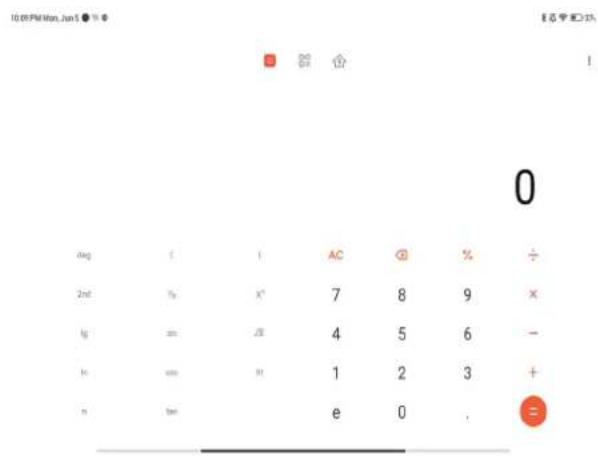
- Tap ☐ to use the Converter calculator to convert currencies and multiple units of measurement.
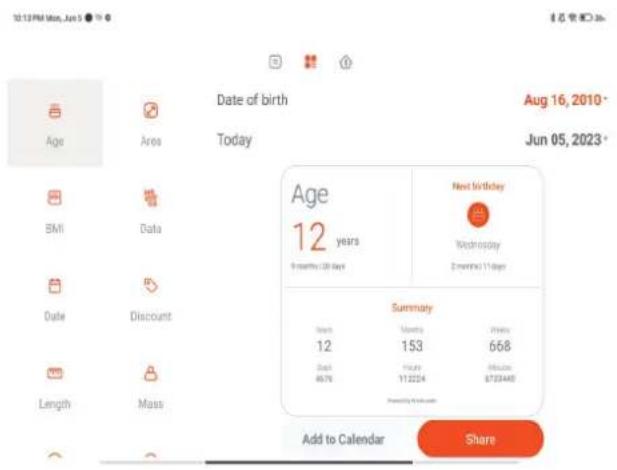
- Tap to use the Mortgage calculator to help you plan finances with adjustable repayment methods and interest rates.

Copy, delete, or clear numbers
-
Open = Calculator.
-
Tap the numbers to calculate.
-
Choose to copy, delete, or clear numbers.
-
Touch and hold the calculation result in the display, then tap Copy. You can now paste the result elsewhere.
- Tap ✗ to delete the last digit if you make a mistake when you enter a number.
- Tap C to delete the last entry or tap AC to delete all entries.
Clock
Add an alarm
You can set alarms for any time of day and have them repeat on one or more days of the week.

- Open Clock.
- Tap + on the start page to add an alarm.
- Adjust the alarm time.
- Set the ringtone, repeat frequency, and other items.
- Tap √.
The icon is shown beside the alarm time.

Tip
If you want to change the preset alarm time, tap the alarm to change the time.
Turn off the alarm
You can turn off the alarm once on the day you set or turn off the repeating alarm.
- Open ● Clock.
- Tap beside the alarm time.
- Select to turn off the alarm once or turn off the repeating alarm.
Add custom clock
You can add clocks in different countries and regions to compare the time.
- Open ● Clock.
- Tap Ⓛ.
- Tap + .
- Search for a country or city.
- Tap the location to add a custom clock to the start page.
Use stopwatch
You can use the stopwatch to measure the duration of an activity such as a match or an event.
-
Open ● Clock.
-
Tap ⏻.
-
Tap ▶ to start.
-
Tap " to pause the stopwatch.
①Note
You can tap ▶ to mark different time segments, tap ▶ to continue, or tap ▶ to reset the stopwatch.
Set a timer
You can use the timer to count down from a specified time. You can set times with duration from one second to 99 hours 59 minutes and 59 seconds.
-
Open ● Clock.
-
Tap ∅.
-
Set the time period.
-
Tap ▶ to start timing.
Note
The timer stops automatically when the timing ends. You can also tap " to pause the timer, tap ▶ to continue, or tap ▶ to reset the timer.
Tip
You can tap 🙏 to add an ambient noise. You can also choose to silence the alarm at the end of an ambient noise timer.
Downloads
You can use Downloads to manage your downloaded apps and other files.
Add a new download job
- Open ↓ Downloads.
- Tap + at the lower-right corner.
- Enter an HTTP or HTTPS link in the box.
- Tap Download.
Tip
You can swipe left from the start page to view the completed download jobs.
Delete a downloaded job
- Open ↓ Downloads.
- Swipe left or tap ☑ to open the download page on the start page.
-
Choose to delete a downloaded job.
-
Touch and hold the item, then tap 📋.
- Tap the item, then tap ☐.
File Manager
File Manager is an easy and powerful file explorer. It helps you easily manage storage on your device, network-attached storage, and cloud storages. You can also find how many files and apps you have on your device at a glance immediately after opening the app.
Document view
You can tap 📋 to view documents. They are sorted into various categories, such as images, videos, docs, music, APKs, Bluetooth & downloads, and archives. You can tap the corresponding category to locate a document.
Storage statistics
You can tap ☐ to check what files occupy the internal storage of your device at a glance and see all the items in the root folders.
Share files
- Open File Manager.
- Choose a file, and then tap the file.
- Tap 📁 Send to share the file to different platforms.
Move files to other folder
- Open File Manager.
- Choose a file, and then tap the file.
- Tap → Move to move the file to other folders.
Delete files
- Open File Manager.
- Choose a file, and then tap the file.
- Tap ☐ Delete to delete the file.
Manage files
You can make the files private, add the files to the Favorites folder, copy, rename, and make other adjustments.
- Open File Manager.
- Choose a file, and then tap the file.
-
Tap ⬙ More to manage the file.
-
Tap Copy to copy the file to other folders.
- Tap Make private to make the file private.
- Tap Add to favorites to add the file to the Favorites folder in Add to favorites of Internal storage.
- Tap Rename to rename the file.
- Tap Open in another app to open the file with other apps.
- Tap Details to view the detailed information of the file.
Clear up space
- Open File Manager.
- Tap : at the upper left corner of the tablet.
- Tap Clean up.
The system automatically scans for trash files from Cache files, Obsolete files, Packages, Residuals, and Memory.
- Choose the files that you want to clear.
- Tap Clean up.
Google service supports many apps. To learn how to use the apps, see https://support.google.com for more information. To download more apps, you can go to Play Store app or the Google official website.
Assistant
You can use 📄 Assistant to get stuff done faster. Instead of performing tasks manually by tapping your finger on the screen a gazillion times, you can get the job done by using voice commands. Assistant is smart and well-integrated with Android.
See assistant.google.com for more information.
Calendar
You can use 📋 Calendar to view schedule information, set reminders, and add tasks or events.
Contacts
You can use 🙏 Contacts to keep all your contact information in one place and reach several people at once. You can organize, review, and merge your contacts, create personal mailing lists, and quickly send messages to groups of people you contact the most, without entering their addresses individually.
Drive
With Drive, you can open, view, rename, and share files saved to your Drive cloud account.
See support.google.com/drive for more information.
Gmail
M Gmail enables you to send and receive an email with Google's web-based email service.
See support.google.com/mail for more information.
With Google, you can find online content that interests you, and turn on your personalized feed to receive customized content.
See support.google.com/websearch for more information.
Google One
With Google One, you can automatically back up your tablet and manage the Google cloud storage.
- You can use the Google account to automatically back up photos, contacts, messages, and other important things. If you break, lose or upgrade your tablet, you can restore everything to your new Android device.
①Note
Every Google account has 15 GB of free space.
- You can manage your Google account storage across Drive, Gmail, and Photos.
Maps
You can use 📷 Maps to get directions and other location-based information.
! Attention
You must enable location services to use Maps.
See support.google.com/maps for more information.
News
News is a personalized news aggregator that organizes and highlights what's happening in the world so you can discover more about the stories that matter to you.
See support.google.com/news/publisher-center for more information.
Photos
You can store and back up your photos and videos automatically to your Google Account with Photos.
See support.google.com/photos for more information.
Play Store
You can find new apps, movies and TV shows, music, books, magazines, and games in Play Store.
See support.google.com/play for more information.
Podcasts
With 📋 Podcasts, you can play the latest episodes from your favorite shows, explore podcast recommendations, and manage your listening activities.
See support.google.com/googleplay/podcasts for more information.
YouTube
You can use YouTube to watch and upload videos right from your device.
See support.google.com/youtube for more information.
YT Music
You can stream and browse playlists, albums, and artists from ⚙ YT Music.
Mi Browser
Mi Browser is a fast and secure full-featured web browser for mobile devices. You can use Mi Browser to surf the web, browse news, search for things, watch videos, shop online, and play online games. You can also use Mi Browser to download images and videos from social media, use file management tools, and set private folders.
Search or open web address
- Open Mi Browser.
- Tap Home to open the Home page.
- Type on the search bar to search or open web address.
Manage files
You can send, hide, delete, and view the detailed information.
- Open Mi Browser.
- Tap ↓ Files to view all files.
- Tap and hold a file that you want to manage.
- Choose Send, Hide, Delete, or More.
Open online games
You can play online game without loading a game App.
- Open Mi Browser.
- Tap Games to open the Games page.
- Tap a game to play.
View Bookmarks and History
You can view your stored bookmarks and browse history.
- Go to 📄 >Mi Browser >Proile.
- Tap ☆ to view bookmarks and history.
Enable Incognito mode, Dark mode, or Desktop mode
-
Go to >Mi Browser >Proile.
-
Choose to enable Incognito mode, Dark mode, or Desktop mode.
-
Incognito mode: Incognito mode allows you to browse the web safely and privately without leaving any search or browsing history.
- Dark mode: The dark color scheme can boost visual experience in low-light environment.
- Desktop mode: Desktop mode enables you to browse web pages similar to the look on computer desktop.
Mi Video
Mi Video is a powerful local video player. With Mi Video, you can play, download, stream, and manage your videos in one place. You can easily zoom in and out on the played videos.
Play videos
- Open ▶ Mi Video.
- Tap ☐ Local to view local files.
- Tap ▶ to open video page.
You can view your local videos in Videos, Folders, and Playlist categories.
- Tap a video to play.
Play musics
- Open ▶ Mi Video.
- Tap ☐ Local to view local files.
- Tap 📌 to open the music page.
- Tap a music to play.
Useful features in side panels
When you play a video, you can use useful features to add more effects to your video.
| Icons Function Icons Function | |||
 | Lock the screen Take a screenshot | ||
 | Loop the video Stretch the v |  | |
 | View the video in notification shade |  | Rotate the screen |
 | More features Share the vid |  | |
 | Cast the video Select audio |  | |
 | Adjust subtitles Mute the vi |  | |
 | Browse the playlist |  | Activate background playback |
 | Adjust play speed AB loop |  | |
Gesture shortcuts in Mi video
| Gesture Function | |
 | Double tap to rewind by 5 seconds |
 | Double tap to pause or resume |
 | Double tap to fast forward by 5 seconds |


Swipe up or down at the left part of the screen to adjust the brightness
Swipe up or down at the right part of the screen to adjust the volume
Manage videos
You can share, rename, delete, and hide the videos.
- Open Mi Video.
- Choose a video, then touch and hold the video.
-
Manage videos.
-
Tap Share to share the video to different platforms.
- Tap ☐ Rename to rename the video.
- Tap ⓘ Properties to view the detailed information of the video.
- Tap 🔒 Hide to make the video private.
- Tap Delete to delete the video.
Notes
You can take notes with text, images, audio, and mind maps.
Create a note
- Open ↗ Notes.
- Tap + in page to create a note.
- Enter the text.
- Tap √ to save the note.
Tip
- You can add audio, images, sketches, checklists, and other items in a note.
- You can also apply a heading style, bold or italic font, a bulleted or numbered list, and more items to
change the formatings.
Make a voice note
- Open 📋 Notes.
- Tap + to add a note.
- Tap "||" and speak to your tablet.
- Tap ■ to stop the recording.
- Enter the title of the voice note.
- Tap √ to save the voice note.
Delete a note
- Open ↗ Notes.
- Touch and hold a note on the ☐ page.
- Tap Delete.
Manage notes
You can hide, pin, delete, move note, and create a folder to categorize notes.
- Open 📊 Notes.
- Touch and hold a note to choose one or multiple notes.
-
Choose to manage the notes.
-
Tap Hide to hide the note.
- Tap Pin to pin the note.
- Tap Delete to delete the note.
- Tap Move to to move the note to a new folder.
Restore deleted notes
- Open 📋 Notes.
-
Tap ☐ on the start page.
-
Tap ☐ to view all folders.
-
Tap ☐ to view all deleted notes.
-
Tap the note you want to restore, then tap OK.
Create a new folder
- Open 📋 Notes.
- Tap ☐ on the start page.
-
Tap ☐ to view all folders.
-
Tap New folder.
-
Enter a folder name.
-
Tap OK.
Search notes
- Open 📋 Notes.
- Tap the search bar on the ☐ page to enter keywords of a note.
- Choose to locate the note.
View hidden notes
- Open 📋 Notes.
- Swipe down from the upper part of the screen and then release.
- Enter the privacy protection password.
- Tap a hidden note to view details.
Create a subtask checklist
You can use ↗ Notes as a reminder to remind you of the daily routines and tasks.
- Open 📋 Notes.
- Swipe left or tap √ on the top of the start page.
-
Tap + to create checklist of subtasks.
-
Enter the subtask text.
-
Tap Done.
Note
- You can set a reminder and a repeat interval of each subtask checklist.
- If you want to add more subtasks, tap √.
Recorder
You can use Recorder to record an event, a meeting, personal notes, or classroom lectures, creative ideas, and more.
Record audio
-
Open 📷 Recorder.
-
Tap to start.
-
Tap " to stop recording.
-
Tap √ to save the recording.
Tip
- The recording name is generated by default. You can edit the name to a new one.
- You can tap ▶ to mark specific segments, tap 📄 to pause the recording, and tap 🔒 to continue the recording.
View recordings
-
Open 📷 Recorder.
-
Tap the recording that you want to view.
Tip
You can also share, mark, or make the recording play fast.
Set up Recorder
-
Open 📷 Recorder.
-
Tap Ⓞ at the upper-right corner of the tablet.
-
Choose to manage Recorder settings.
-
Tap ☐ to enable Lock screen notifications to show a blue indicator on the Lock screen while recording.
- Tap to enable Name recording manually.
- Tap Recording format to select AAC, MP3, or WAV.
- Tap Delete synced recordings to delete synced recordings.
- Tap Recently deleted items to manage deleted items. Deleted items can be stored in the trash for up to 30 days.
- Tap Clear data to delete cached items, app data, and customized settings.
Scanner
You can open 📋 Scanner and place the QR code inside the frame to scan different types of QR codes and bar codes.

Caution
You do not use Scanner to take photos of the objects that contain your personal information.

Tip
You can turn on the flash in the dark environment.
Security
You can use Security to clean up tablet storage, manage Apps and permissions, and protect your tablet from hidden viruses or malicious Apps.
App lock

App lock helps protect your privacy. See App lock for more information.
Battery and performance
Use Battery to test the power consumption and optimize battery-related items. See Chapter 4
Battery and maintenance for more information.
Boost speed
Use 🔒 Boost speed to help your tablet work faster. The feature clears cache and memory of the running third-party apps, running system apps, and locked running apps.
Cleaner
Use 📄 Cleaner to delete useless items that stored on the tablet and make the tablet work fast and productively.
Clear trash
Cleaner scans trash of cache files, obsolete files, installation packages, residuals, and memory cache. You can clear up the items.
- Open Security.
- Tap 📋 Cleaner to launch an automatic scan for trash.
- Choose the items that you want to clear.
- Tap the button below to clean up the selected items.
Set the reminder
You can receive an alert notification to use Cleaner when trashes reaches the limit.
- Go to Security > Cleaner.
- Tap Ⓞ at the upper-right corner of the tablet.
- Tap to enable Remind to clean.
- Set a trash size limit and schedule an alerting frequency.
Deep clean
Use 👍 Deep clean to delete redundant or unnecessary items to free up your tablet storage.
- Delete the redundant photos: detect duplicate photos and poor-quality images in your Gallery.
- Uninstall rarely-used apps: delete rarely used apps to free up space.
- Delete app data: clear unimportant data for each app.
- Delete big files: delete unimportant big files.
- Delete unnecessary videos: delete unnecessary videos.
Deep clean settings
- Go to Security > Deep clean.
- Tap: at the upper-right corner of the tablet.
-
Choose to manage Deep clean settings.
-
Tap ☐ to enable Remind to clean, and then to set a trash size limit and schedule an alerting frequency.
- Tap to enable Scan app memory.
- Tap to enable Show Home screen shortcut.
Dual apps
Dual apps allows you to clone an existing app on your device and use it independently with a different account. See Dual apps for more information.
Facebook cleaner
Use Facebook cleaner to clean images, videos, GIFs, or Cache files.
Game Turbo
Game Turbo boosts the connection stability for games by limiting the bandwidth of background downloads and reducing network delay. This feature clears memory reserved for the background processes to give more space for the game and prevents you from notification disturbances.
Open games with Game Turbo
- Go to Security > Game Turbo.
- Swipe up or down in the left part of the screen to select a game.
- Tap Start playing to launch the game with Game Turbo.
Add games to Game Turbo
- Go to Security > Game Turbo.
-
Tap + to view games.
-
Tap ■ beside the games to add the games to Game Turbo.
Manage Booster General settings
-
Go to Security > Game Turbo >
-
Tap General Settings.
-
Choose to manage Booster General settings.
- Tap ■ to enable Game Turbo to improve gaming experience.
- Tap ■ to enable In-game shortcuts. You can swipe from the top side edge of the screen to view games.
- Tap ■ to enable Content recommendations to receive gaming-related content recommendations.
- Tap ■ to enable Remove added games from Home screen.
- Tap Uninstall games to choose to uninstall games at once.
- Tap to enable Home screen shortcut.
- Tap Add game to add games to Game Turbo.
Set up Performance mode
-
Go to Security > Game Turbo >
-
Tap Performance mode to set up Performance mode.
- Tap Performance mode to choose to enable Wi-Fi optimization or Optimized touch controls. Wi-Fi optimization reduces Wi-Fi network delay. Optimized touch controls increases touch response and sensitivity.
- Tap ■ to enable Performance optimization to avoid overheating and hardware-related issues.
- Tap Memory exceptions to add apps to exceptions and prevent them from being optimized.
- Tap ■ to enable Mi WiFi speed boost to increase connection speed by 10% to 20% when the tablet is connected to Mi/Redmi routers.
Set up Game DND
The feature restricts selected system features, buttons, and full screen gestures when you play games.
-
Go to Security > Game Turbo >
-
Tap Game DND to set up Game DND.
-
Tap Enhanced experience to choose to enable Turn off auto brightness, Turn off Reading mode, Restrict screenshot gestures, or Don't open Notification shade.
- Tap to enable Restrict buttons and gestures.
Manage GPU settings
GPU settings help select or customize the performance between Picture quality, Highest frame rate, and Gaming performance when you play a game.
- Go to Security > Game Turbo.
- Tap Custom at the bottom of the tablet.
- Tap GPU settings to choose GPU modes such as Default, Save power, Balanced, High quality, or Custom.
①Note
Custom enables you to customize Frame rate, Resolution, Anti-aliasing Anisotropic filtering, Texture filtering quality, and Optimized graphics.
Set up Touch Controls
Touch Controls helps select or customize the performance between the Classic mode (Default), Pro mode, Aiming accuracy, and Tap stability.
- Go to Security > Game Turbo.
- Tap Custom at the bottom of the tablet.
-
Tap Additional settings to choose TOUCH CONTROLS modes.
-
Tap Classic mode (Default).
- Tap Pro mode. Pro mode is designed for professional players.
- Tap Customize to personalize the Swipe response, Sensitivity to continuous taps, Aiming accuracy, and Tap stability.
Set up Touch-resistant area
The feature reduces touch sensitivity near the edges to avoid triggering touch controls.
- Go to Security > Game Turbo.
- Tap Custom at the bottom of the tablet.
- Tap Additional settings to choose Touch-resistant area.
Set up Enhanced visuals
The feature helps increase contrast and enhance details for games.
- Go to Security > Game Turbo.
- Tap Custom at the bottom of the tablet.
- Tap Additional settings to choose Enhanced visuals performances.
- Go to Security > Game Turbo.
- Tap Custom at the bottom of the tablet.
- Tap Additional settings to choose Restore default settings.
- Tap Restore.
- Tap OK.
Hide apps
Use Hide apps enables you to hide app icons so they no longer appear on your Home screen.
- Go to Security > Hide apps.
- Tap beside an app to hide the app icon.
Open hidden apps
-
Spread two fingers apart on the Home screen. A folder with hidden apps shows.
-
Tap a hidden app.
Note
If you have enabled App lock, you need to enter the password when you open the hidden folder.
Manage Hide apps
- Go to Security > Hide apps.
- Tap Ⓞ at the upper-right corner of the tablet.
- Manage Hide apps.
- Tap to enable Hide notifications to not show the notifications from hidden apps.
- Tap to enable App lock to protect private files.
Manage Apps
You can go to Security > Manage apps to update and uninstall apps or manage the permissions. See Manage apps, Dual apps, and Permissions for more information.
Privacy
Use Privacy to manage apps that request sensitive permissions, monitor how apps use sensitive permissions, and manage other privacy-related permissions. See Privacy protection for more information.
Second space
You can go to Security > Second space to create a second space to separate and secure your data.
To turn on Second space, see Turn on Second space for more information.
Security scan
Use Security scan to scan your tablet for dangerous apps and viruses. The feature timely resolves the issues related to Wi-Fi, payment environment, privacy, and viruses.
Use Security scan
Use Security scan to scan the system and get suggestions on clearing trash and checking the
new features.
-
Go to Security > Security scan.
-
Tap the suggestions to clear up space or view the new features.
Solve problems
Use 📋 Solve problems to scan and solve performance, network, settings, battery, and other issues of the tablet.
①Note
If you find some problems, you can tap Submit to report issues or suggestions in Services & feedback.
Test network
Find and solve network-related issues
Use 📋 Test network to run a network test when you encounter problems with network. You can follow the onscreen instructions to resolve the current network problems after you see the test results.
Close connected Apps
All apps currently connected to the internet are shown in the test results. You can tap an app to force stop it.
Services & Feedback
You can report the issues you encounter to our developers. Your suggestions on how to improve MIUI are welcomed. We always do our best to fix the issues you report in the upcoming updates.
Open Services & Feedback
You can access Services & feedback with one of the two following methods:
- Tap 📋 Services & feedback in Tools.
- Tap ? Services & feedback in Settings.
Submit feedback
- Open Services & feedback.
-
Tap Submit feedback.
-
Choose Issues or Suggestions to describe issues.
-
Tap Issues and describe the issues.
-
Tap Suggestions and share how you would like to improve MIUI.
-
Select the item of your feedback.
- Select how often the issue occurs and the exact time when the issue happened lately.
- Tap Send.
①Note
You can choose to add an image or video, enter your tablet number or email, or add logs when you submit a feedback.
Weather
You can use Weather to check the weather in your current location and other locations. You can view the upcoming hourly and 5-day forecast and see the air pollution and other information.
View weather info
You can open 📄Weather to view the current and the 5-day forecast weather information of your location. You can also check the 24-hour forecast, wind speed and direction, real feel, UV index, and pressure on the start page.
Add a city to your weather list
You can add and view the weather information of different cities in your weather list.
- Open Weather.
- Tap at the upper-left corner of the start page.
- Search for city.
- Tap + to add the city to the start page.
Delete a city from your weather list
- Open Weather.
- Tap + at the upper-left corner of the start page.
The weather list shows.
- Touch and hold a city.
- Tap Delete.
Manage Weather settings
You can set your preferred weather units display, the update time for weather information, and change the sound effects when the weather changes.
- Open Weather.
- Tap Ⓞ at the upper-right corner of the start page.
-
Manage Weather settings.
-
Units: allows you to set preferred temperature units, wind speed units, or atmospheric pressure units.
- Update at night automatically: allows the app to update weather info between 23:00 and 7:00.
- Sound effects: allows the weather changes with sound effects.
Chapter 10 Security and safety
Passwords and security
You can set password to protect your tablet. When you turn the tablet on or wake it, you need to enter the password to unlock the tablet.
Set up Screen lock
- Go to Settings > Passwords & security > Screen lock.
-
Choose a screen lock type.
-
Tap Pattern to draw a simple pattern with your inger to lock the tablet. See Set a pattern lock for more information.
- Tap Pin to enter 4 to 16 numbers to lock the tablet. See Set up a PIN lock for more information.
- Tap Password to enter 4 or more letters or numbers to lock the tablet. See Set up a face lock for more information.
Set a pattern lock
- Go to Settings > Passwords & security > Screen lock.
- Tap Pattern.
- Draw an unlock pattern and then tap Next.
- Draw the unlock pattern again and then tap Confirm.
Note
If you do not want to set other lock methods, tap Cancel.
Set up a PIN lock
- Go to Settings > Passwords & security > Screen lock.
- Tap Pin.
- Enter 4 to 16 digits.
- Tap Continue and then tap OK to confirm your password.
①Note
If you do not want to set other lock methods, tap Cancel.
Set up a password lock
- Go to Settings > Passwords & security > Screen lock.
- Tap Password.
- Enter 4 or more digits or letters.
- Tap Continue and then tap OK to confirm your password.
Note
If you do not want to set other lock methods, tap Cancel.
Set up a face lock
You need to set up Pattern first before you set up Face unlock. You can see Set up Screen lock for more information.
-
Go to Settings > Passwords & security > Face unlock.
-
Verify your identification with a screen unlock.
- Tap Start to add your face data.
- Tap Done.
Unlock with Bluetooth device
You can unlock the tablet with bluetooth devices such as some wearable devices made by Xiaomi.
You need to set screen lock before you set up Unlock with Bluetooth device. You can see Set up Screen lock for more information.
- Go to Settings > Passwords & security > Unlock with Bluetooth device.
- Tap to enable Unlock device.
- Verify your identification with a screen unlock.
- Tap Allow to turn on Bluetooth in the pop-up window.
- Tap an available device to connect.
Use Privacy protection password
Privacy protection password is used for the apps that might contain sensitive information.
-
Go to Settings > Passwords & security > Privacy protection password.
-
Tap to enable Use Privacy protection password.
Find my device
You can enable Use Find My Device to find, lock, or reset the tablet if it is lost.
-
Go to Settings > Passwords & security > Privacy.
-
Tap Find My Device.
-
Tap ☐ to enable Use Find My Device. Use Find My Device is usually enabled by default.
-
Tap Find My Device app or Find My Device web to find the tablet.
①Note
Find My Device app does not work until you add a Google account.
Security status
You can go to Settings > Security status to view the information about Find device,
Security update, and Google Play Protect.
①Note
Google Play Protect regularly checks your apps and tablet for harmful behavior. You are notified of any security risks found.
Privacy
View Privacy dashboard
You can view the time line of when apps used a permission in the last 24 hours.
-
Go to Settings > Privacy.
-
Tap Privacy dashboard to view which permissions are recently used.
-
Tap a permission to view the time line.
Note
The feature may not be available to some models.
Manage permissions
-
Go to Settings > Privacy.
-
Tap Permission manager to control app access to your data.
-
Tap a permission to view which apps can access the permission.
-
Tap an app to change the app permission.
Show passwords
Show passwords displays characters briefly as you type.
-
Go to Settings > Privacy.
-
Tap to enable Show passwords.
Use Autofill with Google
Autofill with Google saves and fills with passwords, credit cards, or addresses when needed.
- Go to Settings > Privacy > Autofill service from Google.
- Tap to enable Use Autoill with Google.
Enable Google location history
You can check where you go with the device.
You need to add one Google account or use myaccount.google.com to manage some settings without an account.
- Go to Settings > Privacy.
-
Tap Turn on.
-
Tap Google location history to view the Activity controls page.
Activity controls
The data saved in your account helps give you more personalized experiences across all Google services. You can choose which settings save data in your Google Account. You can go to 📁
Settings > Privacy > Activity controls to manage Web & App activity, Location History, YouTube History, and Ad personalization.
Reset advertising ID
Generate a new advertising ID that apps can use from now on.
- Go to Settings > Privacy > Ads.
- Tap Reset advertising ID.
- Tap OK.
①Note
You can also tap Opt out of Ads Personalization to see ads that are not based on your interests.
Enable Usage & diagnostics
The feature shares data to help improve Android device experience.
- Go to Settings > Privacy.
- Tap Usage & diagnostics to view information about Usage & diagnostics.
- Tap to enable Usage & diagnostics.
Privacy protection
You can go to Settings > Privacy protection to manage apps that request sensitive permissions, monitor how apps use sensitive permissions, and manage other privacy-related permissions.
Manage all permissions
You can manage apps that request sensitive permissions. See Manage permissions for more information.
Special permissions
You can monitor how apps use sensitive permissions:
- All files access: Allow an app to read, modify, and delete all files on the device or any connected storage volumes.
- Device admin apps: Allow the admin app to erase all data, change the screen lock, lock the screen, or disable some screen lock features.
- Display over other apps: Allow an app to display on the top of other apps you are using.
- Do Not Disturb access: Allow an app to enable Do Not Disturb.
- Media management apps: Allow an app to modify or delete media files created with other apps without asking you.
- Modify system settings: Allow an app to modify system settings.
- Device & app notifications: Allow an app to access notifications.
- Picture-in-picture: Allow an app to create a picture-in-picture window while the app is open or after you leave it. For example, to continue watching a video.
- Unrestricted data: Allow an app to use data unrestrictedly.
• Install unknown apps: Allow an app to install unknown apps. However, the feature may make
your tablet more vulnerable to attack by unknown apps.
- Alarms & reminders: Allow an app to set alarms and schedule time-sensitive actions. The feature lets the app run in the background, which may use more battery.
- Usage access: Allow an app to track what other apps and how often you are using, and your carrier, language settings, and other detailed information.
- VR helper services: Allow an app to run as VR helper service.
- Wi-Fi control: Allow an app to turn Wi-Fi on or off, scan and connect to Wi-Fi networks, add or remove networks, or start a local-only hotspot.
Other permissions
You can manage other privacy-related permissions. See Manage other permissions for more information.
Apps
You can go to Settings > Apps to manage apps and their permissions, set Dual apps, and set App lock.
Manage system apps
You can manage the services and settings of a system app. The system apps include Music, Recorder, Camera, Gallery, Security, System apps updater, and Xiaomi Cloud.
-
Go to Settings > Apps > System app settings.
-
Tap a system app to manage the settings.
Manage apps
Uninstall Apps
-
Go to Settings > Apps > Manage apps.
-
Tap Uninstall.
-
Choose one or more apps.
-
Tap Uninstall at the bottom of the tablet.
Set default apps
Set default apps for basic usages such as camera.
- Go to Settings > Apps > Manage apps.
- Tap: at the upper-right corner of the tablet.
- Tap Default apps.
- Select a basic function to set a default app for the function.
For example, you can tap Browser to select Chrome or Mi Browser as a default app to browse web pages.
Reset App preferences
Reset all preferences for disabled apps, disabled app notifications, default apps, and background data restrictions for apps.
- Go to Settings > Apps > Manage apps.
- Tap: at the upper-right corner of the tablet.
- Tap Reset app preferences.
- Tap Reset apps.
①Note
The feature does not erase any app data.
Manage Home screen shortcuts
You can choose to enable the Home screen shortcuts of system apps such as Themes, File Manager, Services & feedback, Downloads, Music, and Mi Video.
- Go to Settings > Apps > Manage Home screen shortcuts.
- Tap beside an app to enable the Home screen shortcut.
The app icon shows on the Home screen.
Dual apps
Dual apps allows you to clone an existing app on your device and use it independently with a
different account.
- Go to Settings > Apps > Dual apps.
- Tap Create.
- Tap beside an app to create a dual app.
- Tap Turn on.
①Note
A dual app locates next to an app name. Whenever the system requires an action from an app that has a dual app, you are asked which app is used.
Permissions
Enable autostart
The feature enables apps to start automatically when you turn on the tablet.
Some apps may incorrectly indicate that MIUI has prevented them from starting. You can check permissions that have been granted to individual apps.
- Go to Settings > Apps > Permissions.
- Tap Autostart.
- Tap beside an app to enable autostart.
iNote
You can also tap the app to choose to enable Allow apps to start automatically and Allow the app to be started by other apps.
Manage permissions
- Go to Settings > Apps > Permissions.
- Tap Permissions to enter Permission manager.
Permissions such as Calendar, Camera, or Contacts are displayed in the form of a permission list.
- Tap an item to check which apps use the permission.
- Tap an app to manage the permission.
Manage other permissions
- Go to Settings > Apps > Permissions.
-
Tap Other permissions to manage other permissions.
-
Tap an app to check or modify the permissions on the Apps page.
- Tap a permission to check or modify system settings on the Permissions page.
Install via USB
The feature allows an app to be installed on your device via USB.
- Go to Settings > Apps > Permissions.
- Tap Install via USB and follow the onscreen instructions.
App lock
Protect Apps with App lock
App lock checks apps installed on your device and recommends the apps that require protection for the first time.
- Go to Settings > Apps > App lock.
- Tap Turn on.
- Set the Pattern password.
- Choose to add or not add a Xiaomi Account.
- Select apps and tap Use App lock.
Add Apps to App lock
Use App lock to protect the data of individual apps and your privacy.
- Go to Settings > Apps > App lock.
- Enter the password to open App lock.
- Choose an app and tap beside to lock the app.

Tip
You can tap the search field at the top of the screen to search for apps.
Disable App lock
Remove the protection from all apps along with the app lock password.
- Go to Settings > Apps > App lock.
- Tap Ⓞ at the upper-right corner of the tablet.
- Tap to disable App lock.
- Tap OK.
Manage App lock settings
- Go to Settings > Apps > App lock.
- Tap Ⓞ at the upper-right corner of the tablet.
-
Manage App lock settings.
-
Tap Lock settings to choose when to apply App lock. You need to verify your App lock password when you open a protected app in the applied time.
- Tap Hide notification content to select which apps to hide notification content. The feature allows you to see You have a new message instead of the actual content when you receive a notification.
- Tap to enable Unlock all apps at once.
Manage App lock password settings
- Go to Settings > Apps > App lock.
- Tap Ⓧ at the upper-right corner of the tablet.
-
Manage App lock password settings.
-
Tap Change password type to change the app lock password type and the password itself.
- Tap to enable Face unlock. You can add a face unlock for app lock.
- Tap 📋 to enable Add Mi Account. It is recommended to add your Mi Account before you use App lock. If you forget the app lock password, you can reset it with the Mi Account. Otherwise, you can only perform a factory reset.
Location
Location may use sources like GPS, Wi-Fi, and sensors to help estimate the location of your device.
Enable Location access
Allow apps that have the location permission to get your location information.
-
Go to Settings > Location.
-
Tap to enable Location access.
Change App location permissions
You can allow the app to access the location permission all the time or only while in use, or not allowed.
-
Go to Settings > Location > App location permissions.
-
Tap an app to see the location permission.
-
Change the location permissions for the app.
①Note
On some models, you tap App access to location to change the app location permissions.
Manage location services
-
Go to Settings > Location.
-
Tap Location access to manage location services.
- Tap Emergency Location Service to use emergency location service.
- Tap Google Location Accuracy to improve location accuracy.
- Tap Google Location History to view the location history in Google apps.
- Tap Wi-Fi scanning to allow apps and services to scan for Wi-Fi networks at anytime, even when Wi-Fi is off.
- Tap Bluetooth scanning to allow apps and services to scan for nearby devices at anytime, even when Bluetooth is off.
Chapter 11 Accessibility
The accessibility features help people with difficulties in vision, physical, hearing, and other needs.
General
Enable Accessibility menu shortcut
Accessibility menu provides convenient shortcuts that allow you to control the tablet.
- Go to Settings > Additional settings > Accessibility.
- Tap Accessibility menu on the General page.
- Tap to enable Accessibility menu shortcut.
Set up Accessibility button
- Go to Settings > Additional settings > Accessibility.
- Tap Accessibility button in General tab.
-
Choose to set up Accessibility button.
-
Tap to enable Accessibility button.
- Tap Use button or gesture to choose to access accessibility features with button or gesture.
- Tap Size to set the size of the Accessibility button.
- Tap to enable Fade when not in use.
- Drag the slider left or right to adjust Transparency when not in use.
Enable Shortcut from lock screen
Allow features shortcut to turn on from the Lock screen. Hold both volume keys for a few seconds.
- Go to Settings > Additional settings > Accessibility.
- Tap to enable Shortcut from lock screen.
Vision
Use TalkBack
TalkBack provides spoken feedback so that you can use the tablet without looking at the screen.
TalkBack is intended for situations or people who have difficulty in seeing the screen.
- Go to Settings > Additional settings > Accessibility.
- Tap Vision to adjust screen readers and display on the Vision page.
- Tap TalkBack.
- Tap to enable Use TalkBack.
- Tap Allow and follow the onscreen instructions or listen to the talkback to perform actions.
Note
To turn off TalkBack, you press and hold the volume buttons for 3s simultaneously.
You can now tap the tablet screen to listen to the words or items aloud.
Enable TalkBack shortcut
- Go to Settings > Additional settings > Accessibility.
- Tap Vision to adjust screen readers and display on the Vision page.
- Tap TalkBack.
- Tap to enable TalkBack shortcut.
- Tap Allow.
①Note
You can now press and hold both the volume buttons simultaneously to turn on or turn off TalkBack.
Set up Talkback
- Go to Settings > Additional settings > Accessibility.
- Tap Vision to adjust screen readers and display on the Vision page.
-
Go to TalkBack > Settings.
-
Choose to set up Talkback.
You can set up the Text-to-speech settings, Verbosity, Sound and vibration, and customize Focus Indicator, gestures, menus, and other items.
Enable Select to Speak shortcut
When Select to Speak is on, you can tap specific items on your screen to hear the words read aloud.
- Go to Settings > Additional settings > Accessibility.
- Tap Vision to adjust screen readers and display on the Vision page.
- Tap Select to Speak.
- Tap to enable Select to Speak shortcut.
- Tap Allow and follow the onscreen instructions to perform actions.
Set up Select to Speak
- Go to Settings > Additional settings > Accessibility.
- Tap Vision to adjust screen readers and display on the Vision page.
- Go to Select to Speak > Settings.
-
Choose to set up Select to Speak.
-
Tap Text to speech settings to set the preferred engine, language, speech rate, and pitch level.
- Tap to enable Read in background.
- Tap to enable Read text on images.
Manage Text-to-speech output
- Go to Settings > Additional settings > Accessibility.
- Tap Vision to adjust screen readers and display on the Vision page.
- Tap Text-to-speech output.
-
Choose to manage Text-to-speech output.
-
Tap Preferred engine to set a speech service engine.
- Tap Language to select a Text-to-speech output language.
- Drag the slider left or right to adjust Speech rate.
- Drag the slider left or right to adjust Pitch.
Manage display
- Go to Settings > Additional settings > Accessibility.
- Tap Vision to adjust screen readers and display on the Vision page.
-
Choose to manage display.
-
Tap Display size to select an icon display size.
- Tap Magnification to enable Magnification shortcut. Magnification shortcut enables you to quickly zoom in on the screen to make content larger.
- Tap Color correction to correct colors that fit your eyes.
- Tap Color inversion to turn light screens dark or turn dark screens light.
- Tap to enable Remove animations.
Hearing
Enable Mono audio
The feature combines channels when playing audio.
- Go to Settings > Additional settings > Accessibility.
- Tap Hearing to adjust audio on the Hearing page.
- Tap to enable Mono audio.
Adjust audio balance
- Go to Settings > Additional settings > Accessibility.
- Tap Hearing to adjust audio on the Hearing page.
- Drag the slider left or right to adjust Audio balance.
Manage Caption preferences
- Go to Settings > Additional settings > Accessibility.
- Tap Hearing to adjust audio on the Hearing page.
- Tap Caption preferences.
- Manage Caption preferences.
- Tap to enable Show captions.
- Tap Caption size and style to adjust text size and caption style.
①Note
Not all apps support the caption preference.
Physical
Enable Switch Access
Switch Access lets you interact with your Android device with one or more switches instead of the touch screen. Switch Access can be useful if you cannot interact directly with your tablet. Use switches to select items, scroll, type, and more.
- Go to Settings > Additional settings > Accessibility.
- Tap Physical to adjust interaction controls and input device on the Physical page.
- Tap Switch Access.
- Tap to enable Use Switch Access.
- Tap Allow and follow the onscreen instructions to perform actions.
Enable Switch Access shortcut
- Go to Settings > Additional settings > Accessibility.
- Tap Physical to adjust interaction controls and input device on the Physical page.
- Tap Switch Access.
- Tap to enable Switch Access shortcut.
Manage interaction controls
- Go to Settings > Additional settings > Accessibility.
- Tap Physical to adjust interaction controls and input device on the Physical page.
-
Manage interaction controls.
-
Tap Touch & hold delay to select a time for a continuous touch to be responded as a touch and hold.
- Tap Time to take action (Accessibility timeout) to select a time for showing messages that ask you to take action.
- Tap to enable Auto-rotate screen.
Manage input device
- Go to Settings > Additional settings > Accessibility.
- Tap Physical to adjust interaction controls and input device on the Physical page.
- Manage input device.
- Tap Autoclick (dwell timing) to select a time for a mouse cursor to click automatically when the cursor stops moving for a certain amount of time.
- Tap to enable Larger mouse pointer.
Digital Wellbeing & parental controls
Digital Wellbeing & parental controls can reduce interruptions from your tablet. You can add content restrictions and set other limits to help your child balance their screen time.
View the screen time
You can check how long you use your tablet.
- Go to 🙏 Settings > 🚗 Digital Wellbeing & parental controls.
- Tap the dashboard circle or Dashboard to view the screen time.
Enable Bedtime mode
Apply Bedtime mode to silence the tablet and change the screen to black and white at bedtime. Only alarms can reach you.
- Go to 🙏 Settings > 🚗 Digital Wellbeing & parental controls > Bedtime mode.
- Tap to enable Do Not Disturb for Bedtime mode.
- Tap Next to set up the time and other options.
- Tap Done.
Enable Focus mode
Apply Focus mode to pause distracting apps and hide notifications.
- Go to ⚙️ Settings > ⚙️ Digital Wellbeing & parental controls > Focus mode.
- Select distracting apps on the app list.
- Tap TURN ON NOW.

Tip
You can also tap Set a schedule to set a time period for Focus mode.
Set up parental controls
Parents can supervise the tablet with the Family Link app, keep an eye on screen time and set limits as needed, add restrictions to Google services, like app approvals or content filters on Google Play.
- Go to Settings > Digital Wellbeing & parental controls.
- Tap Set up parental controls and follow the onscreen instructions to set up parental controls.

Note
The onscreen instructions guides you to Google Family Link page on Play Store. Google Family Link provides permissions for parents to access the tablets of their children. You need to download and install the app on both your tablet and the tablet of your child.
Chapter 12 Special features
①Note
The following features may not be available to some models.
Learn to use floating windows
You can go to ⚙️ Settings > ⚙️ Additional settings > Floating windows to learn how to open notifications in a floating window.
 | Floating window Drag the corner to switch to a floating window and adjust its size |
 | Opening floating windows Press and hold, and then pull down the action bar of a notification. |
 | Moving floating windows around Press and hold the action bar of a floating window to drag. |
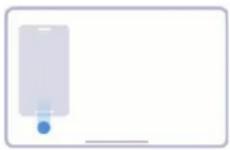 | Viewing floating windows in fullscreen mode Press and hold, and then pull down the action bar of a floating window. |
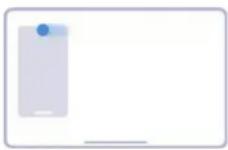 | Hiding floating windows Quickly drag the app to side of the screen to hide it. |
 | Opening multiple windows Press and hold an app icon on the dock to open a new window. |
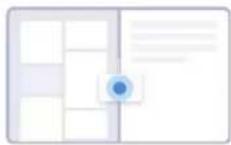
Dragging items across windows
Drag text, images, or files between the different windows of supported apps.
Turn on Second space
You can create a separate space in your tablet where you can use different accounts and IDs and store data. The data in the Second space does not affect the primary space.
- Go to Settings > Additional settings > Second space.
- Tap Turn on Second space.
- Tap Continue.
-
Choose the way to switch between spaces.
-
Tap Using a password.
-
Tap Using a shortcut.
-
Tap Continue to set the password for the second space.
①Note
- The passwords for the two spaces must be different. If you are on the primary space, you can enter the password for the second space on the Lock screen to enter the second space.
- You can tap Skip if you choose Using a shortcut to switch between spaces without a password.
After you enable Second space, the Switch icon appears on the Home screen of your tablet. You can tap ☐ to switch to the primary space.
Chapter 13 Reboot, update, reset, and restore
Power off the tablet
- Press and hold the Power button until the function menu shows.
- Tap Power off.
①Note
When the tablet cannot be used normally, you can press and hold the Power button for 15 seconds to force
the device to restart.
Reboot the tablet
- Press and hold the Power button until the function menu shows.
- Tap Reboot.
Update MIUI version
Update the MIUI system to the latest MIUI version to use the newest features.
- Go to 🙏 Settings > About tablet.
- Tap the MIUI version information.
- Tap Check for updates to update to the latest MIUI version.
①Note
The system informs you of the latest MIUI version update information. You can also enter the update page from the notification and choose whether to update or not.
Update system apps
- Go to 📁 Settings > System apps updater.
- Check the update information of apps and update the system apps.
Manage System apps updater
You can choose to update apps only when you connect to the Wi-Fi networks.
- Go to Settings > System apps updater > : > Settings.
-
Manage System apps updater.
-
Tap to enable Show update notifications.
- Tap Auto updates to choose Don't update or Update using Wi-Fi.
Back up and restore
You can back up and restore data saved on your device and computer. You can also back up the data to Xiaomi cloud.
-
Go to Settings > About tablet.
-
Tap Back up and restore.
- Choose to back up and restore the local and cloud items.
①Note
The feature needs to connect to the internet and requires some permissions to work normally.
Factory reset
You can remove all data from your tablet and reset your tablet to factory settings.
- Go to Settings > About tablet.
- Tap Factory reset and follow the onscreen instructions.
①Note
You need to back up all important items such as accounts, contacts, photos and videos, apps, backups, SD card data, and other items.
Chapter 14 About device and accounts
About the tablet
You can go to ⚙️ Settings > ☐ About tablet to view the information such as MIUI version information, important safety information, certification information, and other information.
Memory extension
You can go to Settings > Additional settings > Memory extension to add more RAM by occupying storage.
①Note
Use this feature only when there is enough storage space available on your device.
Xiaomi Account
Xiaomi Account is an authentication method used for Xiaomi devices. It works with MIUI, Xiaomi Cloud, Xiaomi Community, and other services. You can go to Settings > Xiaomi Account to sign in with your Xiaomi Account.
You can go to Settings > Google to sign in with your Google Account and set the preference services such as ads, autofill, and devices and sharing on the tablet.
Accounts & sync
You can sync the calendar, contacts, drive, mail, and other information of Google and other accounts.
Enable Auto-sync data
Any changes you make to your accounts on the web will be automatically copied to your device.
- Go to 📁 Settings > Accounts & sync.
- Tap to enable Auto-sync data.
- Tap OK.
- Tap Sync in the pop-up window.
Note
You can also tap Sync now at the bottom of the tablet to sync data manually.
Services & feedback
You can go to Settings > Services & feedback to search for issues and send feedback. See Services & Feedback for more information.
Disclaimer
This generic user guide is published by Xiaomi or its local affiliated company. Improvements and changes to this user guide necessitated by typographical errors, inaccuracies of current information, or improvements to programs and/or equipment, may be made by Xiaomi at any time and without notice. Such changes will, however, be incorporated into new online editions of the user guide (please see details at www.mi.com/global/service/userguide).
Because this generic user guide describes the comprehensive features on Xiaomi tablet models, the tablet appearance, features, functions, operating procedures, and configuration parameters may not be available to your actual tablet models. The illustrations, including but not limited to the color, size, images, and icons, may be slightly inconsistent with your actual device. All illustrations in this manual are for reference only.
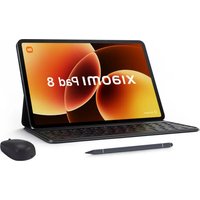
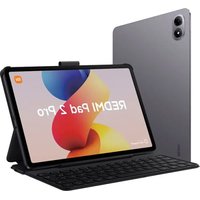

- Generic User Guide for MIUI 14
- Contents
- Chapter 1 Get started .... 1
- Chapter 2 Basic features....3
- Chapter 3 Personalize your tablet....20
- Chapter 4 Battery and maintenance .... 32
- Chapter 5 Networks and connection ....34
- Chapter 6 Connection and sharing....36
- Chapter 7 Camera ....40
- Chapter 8 Gallery ....56
- Chapter 9 Apps....68
- Chapter 10 Security and safety 93
- Chapter 11 Accessibility....105
- Chapter 12 Special features.... 111
- Chapter 13 Reboot, update, reset, and restore.... 113
- Chapter 14 About device and accounts ...... 115
- Chapter 1 Get started
- About the user guide
- Tablet overview
- ①Note
- Power on the tablet
- ① Note
- Finish the setup wizard
- Connect to Wi-Fi
- Note
- Tip
- Add accounts
- Sign in to your Google Account
- iNote
- Sign in to your Xiaomi Account
- Copy your data
- Turn the screen on or off
- Chapter 2 Basic features
- Gestures and shortcuts
- Basic gestures
- Button shortcuts
- Take a screenshot
- Take a partial screenshot
- Home screen
- System navigation buttons
- Full screen gestures
- Notifications icons and status icons
- Notification icons and status icons
- View the notifications
- Clear the notifications
- Control center
- Toggles on the Control center
- Open the Control center
- Recents windows
- Open recently-opened apps in Recents
- Remove recently-opened Apps in Recents
- Widgets
- Add a widget to Home screen
- Move a widget on Home screen
- Remove a widget from Home screen
- Lock and unlock the screen
- Lock the screen with the Power button
- Lock the screen with Widgets
- Unlock the screen with a pattern, PIN, or password
- Unlock the screen with face data
- Adjust the volume
- App Downloads
- Download Apps from Google Play Store
- Download Apps from other resources
- Caution
- Allow to install unknown apps
- Apps and app folders
- Open an app from the Home screen
- Move an app on the Home screen
- Remove or uninstall an App from the Home screen
- Create app folders on the Home screen
- Move apps to an app folder
- Rename an app folder
- Screenshots and Screen recording
- Take a screenshot in three ways
- Enable Take a screenshot shortcut
- Enable Partial screenshot shortcut
- Take a scrolling screenshot
- Record the screen
- Set up Screen Recorder
- Transfer files
- Transfer files with the ShareMe App
- Transfer files with a computer
- Charging
- Charge the tablet
- Wireless charging
- Chapter 3 Personalize your tablet
- Wallpapers
- Change the wallpaper
- Sound
- Adjust volume
- Change the ringtones of Notifications and Alarm
- Adjust media sound in multiple Apps
- Enable Silent mode
- Enable Do not disturb
- Display
- Select Light mode or Dark mode
- Schedule Dark mode
- Enable Automatic brightness
- Adjust screen brightness level manually
- Choose a color scheme
- Enable Adaptive colors
- Choose a refresh rate
- Change the text size
- Enable Auto-rotate screen
- Lock screen
- Set screen sleep time
- Raise to wake
- Double tap to wake or turn off screen when device is locked
- Set Lock screen clock format
- Display charging animation after device is unlocked
- Change the size of App folder
- Don't show text below App icons
- Set App display on Home screen
- Set system navigation buttons
- Set full screen gestures
- Adjust the icon size
- Notifications & Control center
- Enable Lock screen notifications
- Enable Floating notifications
- Hide floating notifications
- Enable app notification badges
- Items shown on the Lock screen after swiping down
- Show notification icons
- Choose Battery indicator
- Date and time
- Change the date and time
- Set time automatically
- Set time zone automatically
- Use location to set time zone
- Choose time format
- Enable Dual clock
- Languages and regions
- Set the language
- Set the region
- Chapter 4 Battery and maintenance
- View battery capacity
- Enable Battery saver
- View power consumption in detail
- View the battery temperature
- Enable Reverse wireless charging
- Chapter 5 Networks and connection
- Wi-Fi
- Disconnect a Wi-Fi network
- Connect to a hidden Wi-Fi network
- Manage network acceleration
- Manage advanced settings
- Chapter 6 Connection and sharing
- Bluetooth
- Pair a Bluetooth device
- Unpair a Bluetooth Device
- Rename a device
- Portable hotspot
- Enable Portable hotspot
- Turn off hotspot automatically
- Change the name and password of portable hotspot
- Connection & sharing
- Enable Mi Share
- Enable Cast
- Add VPN
- Enable VPN
- Enable Airplane mode
- Chapter 7 Camera
- Camera overview
- Open Camera
- Take photos
- Switch between camera modes
- Basic features
- Set the focus
- Adjust the exposure
- Zoom in or out
- Turn on the flash
- Scan QR codes
- Useful features
- Adjust the aspect ratio
- Set a timer
- Enable Voice shutter
- Show gridlines
- Enable Macro
- Enable Tilt-shift
- Enable Timed burst
- Disable automatic HDR
- Enable AI camera
- Add Beautify and Filters effects
- Adjust video resolution and frame rate
- Take a selfie
- Take videos
- Take Documents mode photos
- Take photos in Night mode
- Take videos in Short video mode
- Take photos in Panorama mode
- Take videos in Dual video mode
- Take photos in Director mode
- Camera settings
- Add a watermark
- Enable Motion tracking focus
- Enable Smart suggestions
- Enable Motion capture
- Enable Auto night mode
- Set picture quality
- Set up volume buttons function
- Enable Additional shutter
- Tap to take a photo
- Customize the camera
- Save location info
- Enable the shutter sound
- Preserve settings
- Set Anti banding
- Autostart
- More settings
- Set camera settings when you take a seflie
- Set camera settings in Video mode
- Set camera settings in Pro mode
- Chapter 8 Gallery
- Gallery overview
- Photos
- View pictures
- Edit pictures
- Manage pictures
- Play videos
- Edit videos
- Manage videos
- Share photos and videos
- Mark a photo or video as favorite
- Delete photos and videos
- Albums
- Create an album
- Rename an album
- Hide albums
- Delete albums
- Manage albums
- Edit a video with Video editor
- Tap Save.
- Create a collage
- Create a clip
- Edit a picture with Cutout
- Edit a picture with Art
- Free up space
- Sort and set the album view format
- Gallery Settings
- Enable Select best photo
- View hidden albums
- Set the time for each slide
- Loop all slides
- Enable Recognise text on images
- Set secure sharing
- Convert HEIF before sending
- Chapter 9 Apps
- Calculator
- Use Calculator
- Choose proper calculators.
- Clock
- Add an alarm
- Turn off the alarm
- Add custom clock
- Use stopwatch
- Downloads
- Add a new download job
- Delete a downloaded job
- File Manager
- Document view
- Storage statistics
- Share files
- Move files to other folder
- Delete files
- Manage files
- Clear up space
- Assistant
- Calendar
- Contacts
- Drive
- Gmail
- Google One
- Maps
- ! Attention
- News
- Play Store
- Podcasts
- YouTube
- YT Music
- Mi Browser
- Search or open web address
- Open online games
- View Bookmarks and History
- Enable Incognito mode, Dark mode, or Desktop mode
- Mi Video
- Play musics
- Useful features in side panels
- Notes
- Create a note
- Make a voice note
- Delete a note
- Manage notes
- Restore deleted notes
- Create a new folder
- Search notes
- View hidden notes
- Create a subtask checklist
- Recorder
- Record audio
- View recordings
- Set up Recorder
- Scanner
- Security
- App lock
- Battery and performance
- Boost speed
- Cleaner
- Clear trash
- Set the reminder
- Deep clean
- Deep clean settings
- Dual apps
- Facebook cleaner
- Game Turbo
- Open games with Game Turbo
- Add games to Game Turbo
- Manage Booster General settings
- Set up Performance mode
- Set up Game DND
- Manage GPU settings
- Set up Touch Controls
- Set up Touch-resistant area
- Set up Enhanced visuals
- Hide apps
- Open hidden apps
- Manage Hide apps
- Manage Apps
- Privacy
- Second space
- Security scan
- Use Security scan
- Solve problems
- Test network
- Find and solve network-related issues
- Close connected Apps
- Services & Feedback
- Open Services & Feedback
- Submit feedback
- Weather
- View weather info
- Add a city to your weather list
- Delete a city from your weather list
- Manage Weather settings
- Chapter 10 Security and safety
- Passwords and security
- Set up Screen lock
- Set a pattern lock
- Set up a PIN lock
- Set up a password lock
- Set up a face lock
- Unlock with Bluetooth device
- Use Privacy protection password
- Find my device
- Security status
- View Privacy dashboard
- Manage permissions
- Show passwords
- Use Autofill with Google
- Enable Google location history
- Activity controls
- Reset advertising ID
- Enable Usage & diagnostics
- Privacy protection
- Manage all permissions
- Special permissions
- Other permissions
- Apps
- Manage system apps
- Uninstall Apps
- Set default apps
- Reset App preferences
- Manage Home screen shortcuts
- Permissions
- Enable autostart
- Manage other permissions
- Install via USB
- Protect Apps with App lock
- Add Apps to App lock
- Disable App lock
- Manage App lock settings
- Manage App lock password settings
- Location
- Enable Location access
- Change App location permissions
- Manage location services
- Chapter 11 Accessibility
- General
- Enable Accessibility menu shortcut
- Set up Accessibility button
- Enable Shortcut from lock screen
- Vision
- Use TalkBack
- Enable TalkBack shortcut
- Set up Talkback
- Enable Select to Speak shortcut
- Set up Select to Speak
- Manage Text-to-speech output
- Manage display
- Hearing
- Enable Mono audio
- Adjust audio balance
- Manage Caption preferences
- Physical
- Enable Switch Access
- Enable Switch Access shortcut
- Manage interaction controls
- Manage input device
- Digital Wellbeing & parental controls
- View the screen time
- Enable Bedtime mode
- Enable Focus mode
- Set up parental controls
- Chapter 12 Special features
- Learn to use floating windows
- Dragging items across windows
- Turn on Second space
- Chapter 13 Reboot, update, reset, and restore
- Power off the tablet
- Reboot the tablet
- Update MIUI version
- Update system apps
- Manage System apps updater
- Back up and restore
- Factory reset
- Chapter 14 About device and accounts
- About the tablet
- Memory extension
- Xiaomi Account
- Accounts & sync
- Enable Auto-sync data
- Disclaimer
Brand : Xiaomi
Model : Pad 6 Max
Category : Tablet