
Bluebird - Mp3 player SPC - Free user manual and instructions
Find the device manual for free Bluebird SPC in PDF.


| Product Type | MP3 Player |
| Brand | SPC |
| Model | Bluebird |
| Bluetooth Version | 2.0 |
| Supported Audio Formats | MP1, MP2, MP3, WMA, WAV |
| Equalization Presets | 6 (e.g., Normal, Rock, Pop, etc.) |
| FM Radio | Yes, with automatic and manual tuning, saves up to 30 stations |
| Voice Recorder | Yes, built-in microphone (recording duration depends on memory) |
| Screen Type | Not specified (likely small LCD) |
| Headphone Jack | 3.5mm |
| MicroSD Card Slot | Yes, for expandable storage |
| USB Port | Micro USB for charging and data transfer |
| Battery Type | Internal rechargeable battery |
| Battery Charging | Via USB (PC or USB charger) |
| Power Supply | USB (5V DC) |
| Approximate Dimensions | 50 x 30 x 10 mm (estimated) |
| Approximate Weight | 30 g (estimated) |
| Box Contents | Player, earphones, USB cable, user manual, warranty card |
| Care & Cleaning | Wipe with a soft, dry cloth; avoid moisture and strong solvents |
| Safety Warnings | Keep away from water; not for children under 3 years; use only specified charger |
| Repairability / Spare Parts | Non-user serviceable; contact SPC support for service |
| General Information | SPC registered brand of Smart Products Connection S.A. |
Frequently Asked Questions - Bluebird SPC
User questions about Bluebird SPC
0 question about this device. Answer the ones you know or ask your own.
Ask a new question about this device
Download the instructions for your Mp3 player in PDF format for free! Find your manual Bluebird - SPC and take your electronic device back in hand. On this page are published all the documents necessary for the use of your device. Bluebird by SPC.
USER MANUAL Bluebird SPC
natural_image
Silhouette of a rocket inside a circular frame (no text or symbols)MP3 Player
BLUEBIRD
MANUAL DE USUARIO / USER MANUAL / GUIA DO UTILIZADOR
¡ BIENVENIDO !
This guide includes all the information to make the most out of your SPC Bluebird.
GET AN SPC ACCOUNT
Free advantages just one click away.
Before going on reading this manual, we strongly recommend you visiting www.spc-universe.com, SO YOU CAN CREATE AN SPC ACCOUNT AND REGISTER YOUR PRODUCT.
By doing this, you will be able to get into SPC universe: an exclusive club where our clients can get incredible offers and discounts and also upgrade or renew their products.
Moreover, having an account means free access to SPC services: tablet and smartphone apps, technical support...
This is SPC. A universe in technology.
BOX CONTENTS
SPC Bluebird
■ High quality stereo earphones
USB cable charger
User manual
Warranty sheet
FEATURES
Bluetooth 2.0
FM Radio
■ Supported formats: MP1, MP2, MP3, WMA, WAV
■ Voice recorder
■ 3.5mm earphones input
6 Equalizations
UNIT AND CONTROLS
EN
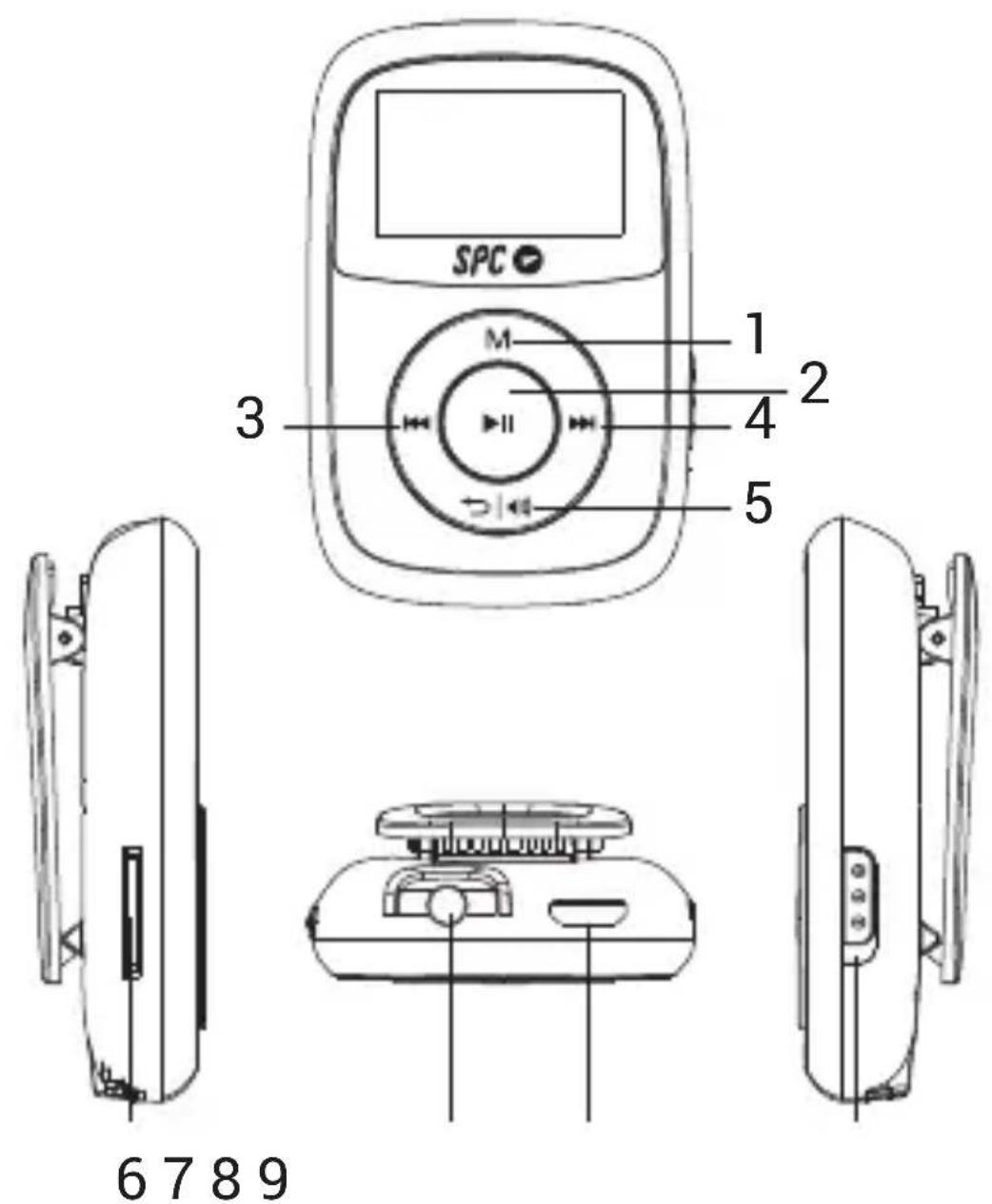
- M button
- ▶ button
- button
- ▶ button
-
-button
-
MicroSD card reader
- 3.5mm earphones input
- USB Port
- Shuffle mode switcher
UNIT OPERATION
Turn on the player keeping pressed the ▶button. You will appear directly in the device's main menu. To switch it off, keep pressed the ▶button.
NOTE: When the player is in stand-by mode, the first tap will activate the device. Then, it will respond to the action of the button you press.
MAIN MENU
With the device switched on, you will see the main menu with the following options: Music, Bluetooth, Record, Explorer, Settings.
Browse between the options pressing the keys and . Confirm your selection pressing the button ▶.
MUSIC
Once you have selected the Music option, you will see the reproduction screen with the first file the devices finds. To
play this file, press the ▶button. To pause/continue the reproduction press again the ▶button.
In the reproduction screen, if you press the button “M” you will set up the start point of a loop, when you press again the “M” button you will set up the end point of the loop. The reproduction will be played repeteadly in a loop until you press again the “M” button.
To increase or decrease the volume of the reproduction, keep pressed the ◀button in the reproduction screen. You will see the volume control. Press the ◀and buttons to increase or decrease the numeric value. Accept the configuration pressing the ▶button.
NOTE: If the files are stored in folders, the different repeat mode options and shuffle mode, will be executed in the folder in use.
BLUETOOTH
Use this feature to link the MP3 player to a Bluetooth device. With this option you will be able to listen via the Bluetooth device connected the music saved in the MP3. To do this:
Switch on the Bluetooth.
- Press the option “New” to search for a new available Bluetooth device.
■ Once the device is listed, choose it pressin the ▶ button.
The MP3 will show in screen a confirmation message. You can start the reproduction of the music files through the linked Bluetooth device. - You can manage the linked devices that you have connected to the MP3 in the list of paired devices.
NOTE: With the Bluetooth activated, you won't be able to use the Radio and Record function. The equalizations aren't available in Bluetooth mode.
RADIO
Choose the option Radio and press the ▶ button to confirm. Press the “M” button to go to the radio settings. Make an automatic research of FM stations. The device will save up to 30 different channels available. Once the stations are stored you can set the order of the channels saved. If you don’t find the desired frequency, you can search it manually.
RECORD
This device has an integrated microphone that will allow you to record voice. In the main menu, select the option Record and press the button ▶to confirm.
Press again the ▶ button to start the recording. In the screen you will see the length of the recording, and the maximum length possible of the recording, this will depend on the available memory in the device.
EXPLORER
Browse between the folders and files of the device's storage, and the microSD card inserted. From here you can delete or play an specific file.
SETTINGS
■ Music: Set here the type of the repeat mode and the equalization of the device.
■ BT Password: Choose the password for the device pairing.
■ Record settings: Set the recording quality
■ Radio: Choose the region for the FM Radio.
■ Display: Set the light time and the level of brightness.
■ Power off: Choose the time that the device will take to turn off.
■ Language: Choose the language for the device.
■ System: Shows the device info. Make a reset on the device.
CONNECTION TO THE COMPUTER
Connect the device to a computer with the USB cable provided. The computer will recognize the device automatically. You will access to the device's internal memory, and, in case there is a microSD inside the device, you will be able to access to this memory separately.
The connection with the device is carried out in the same way as with any other storage device, you can select the files to copy dropping them to the device, or copying and pasting them to the device.
NOTE: Separate the audio files in different folders so that the unit can manage better the information.
BATTERY CHARGEMENT
The device as an internal battery. You have to charge it before starting to use it, connecting the device to the PC with the USB cable included in the box.
With the computer switched on, connect one end of the USB cable in the USB connector of your PC and the other end to the device's connector. The battery will start charging. Charge the battery until a message of battery charge completed appears on the display, to ensure a maximum usage and to lengthen its useful life.
The information that this guide contains cannot be transmitted, played or distributed in any case without the written authorization of SPC.
COMERCIAL BRANDNAMES
SPC is a registered brandname of Smart Products Connection S.A.
NOTE: SPC reserves the right to modify the information of this guide in any moment. All the information and recommendations that we can find here do not guarantee anything.
BEM-VINDO
Copyright © 2017 SPC
www.spc-universe.com
Fabricante/Manufacturer/Fabricante: Smart Products Connection S.A.
Marca/Brand/Marca: SPC
Director General/General Manager/Diretor-geral
Esta declaración de conformidad está de acuerdo con la Directiva Europea 2014/53/EU. This declaration of conformity is in compliance with the European Directive 2014/53/EU. Esta declaração de conformidade respeita as normas da Diretiva Europeia 2014/53/EU.
Brand : SPC
Model : Bluebird
Category : Mp3 player