
Touch 2.1 - Smartwatch Overmax - Free user manual and instructions
Find the device manual for free Touch 2.1 Overmax in PDF.


| Product Type | Smartwatch |
| Brand | Overmax |
| Model | Touch 2.1 |
| Display | Touch screen |
| Battery | Rechargeable lithium-ion, charging time 1-2 hours |
| Connectivity | Bluetooth |
| Operating System | Proprietary |
| Compatible With | Android smartphones |
| Main Functions | Pedometer, sleep monitor, sedentary reminder, alarm, calendar, calculator, music player, camera remote shutter, anti-lost, call & message notifications, Bluetooth dialer, file manager, web browser, SIM tools, sound recorder, video player |
| Default Password | 1122 |
| Charging Method | USB clip |
| Safety Standards | CE, RoHS, R&TTE Directive |
| Care and Cleaning | Wipe with a soft, dry cloth. Avoid exposure to extreme temperatures. |
| Spare Parts & Repairability | Battery replacement possible; contact service center |
Frequently Asked Questions - Touch 2.1 Overmax
User questions about Touch 2.1 Overmax
0 question about this device. Answer the ones you know or ask your own.
Ask a new question about this device
Download the instructions for your Smartwatch in PDF format for free! Find your manual Touch 2.1 - Overmax and take your electronic device back in hand. On this page are published all the documents necessary for the use of your device. Touch 2.1 by Overmax.
USER MANUAL Touch 2.1 Overmax
Before using, please read the user manual carefully.
1. Safety notes
All the contents of the manual are subject to change without prior notice.
Please charge the device for at least 2 hours before the first use.
Password
The default password preventing unauthorized access is: 1122. To ensure the safety of your personal data, it is recommended to replace the default password with a new one.
2. Product characteristics
2.1 Illustration
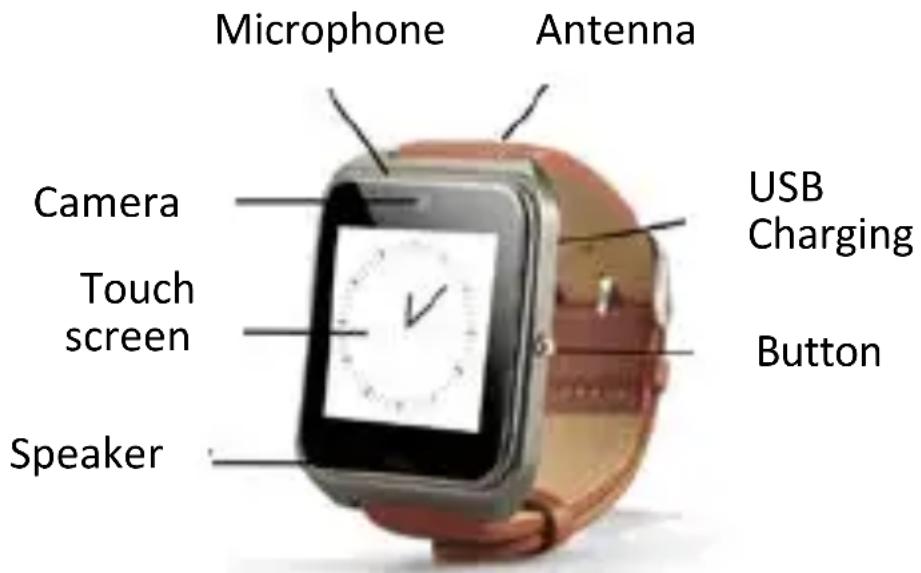
Power button:
Press it to:
- turn the device on / off;
- awake / turn off the screen;
- go back to a previous menu.
USB Clip: It allows you to transfer data between devices.
Touch screen: provides access to variety of device's functions; allows you to see data, notifications etc.
2.2 Menu navigation
Swipe your finger left to move to the next home screen page. Swipe it right to move to the previous home screen page. Swipe it down to
open the notification panel. Swipe up to go back to the main menu. If the swipe gesture is too short, it can cause abnormal screen response (or lack of it).
2.3 Clock display
natural_image
Close-up of a blue analog clock face showing 12 o'clock (no text or symbols visible)Settings:
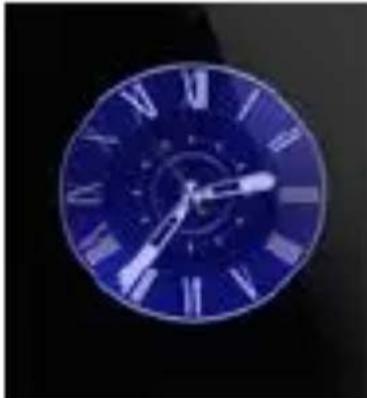
Method 1: In the clock mode, turn the device on, tap the middle of the screen and choose the preferred clock interface.
Method 2: Turn the device on, and in the main menu screen tap the following: Settings - Phone settings - Display - Screen unlock mode. Then uncheck the current choice and choose the preferred clock interface.
2.4 Theme settings
Method 1: Tap "Theme settings" and choose the preferred theme. Method 2: Turn the device on, and in the main menu screen tap the following: Settings - Phone settings - Display - Theme settings. Then uncheck the current choice and choose the preferred theme.
3. Introduction
4.1 How to download the sync application?
Scan the QR code below to download the sync app compatible with Android devices.
Note:
The application is used strictly for data synchronization between the smartwatch and a paired phone. It does not support phone's GPRS. To ensure the best operation of the app it is recommended to periodically check for updates and install them, if such are available.
4.1 How to download the activity monitor application?
Use your smartwatch to scan the QR code available after tapping the following:

Note:
If you want to download both of the apps, use your smartwatch to scan the QR code in the following icon
:
3.3 Sync app installation and usage
Android version installation:
Install the Android application in your smart phone. You can download and store it in the internal memory of your phone, or install it directly using the sync assistant.
Application usage:
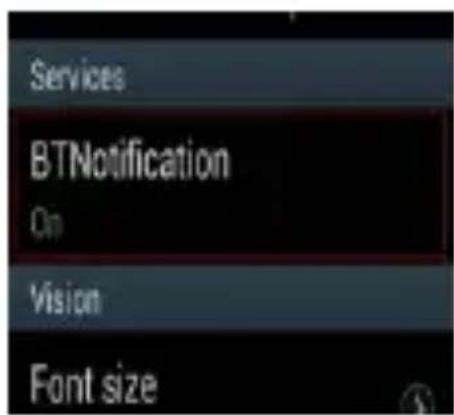
Use your smartphone to open the following: Settings - Accessibility - Bluetooth notifications, and enable the latter. Click OK when the confirmation box appears on the screen. From now on the application runs in the background, along with active data synchronization function.
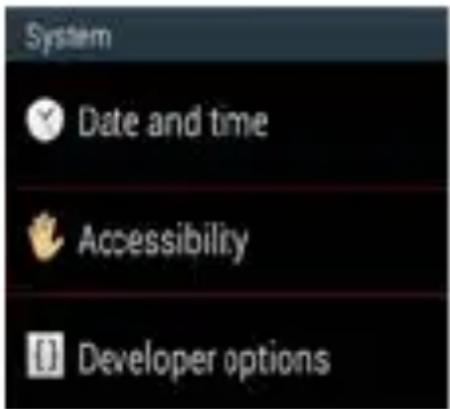
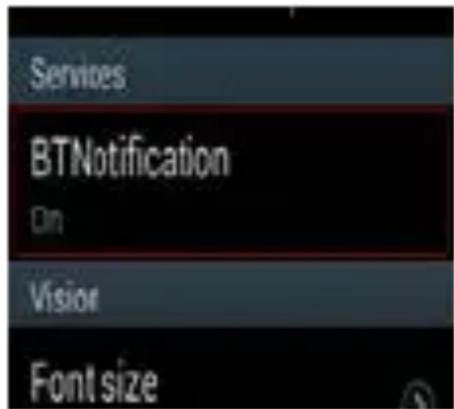
Tap "Bluetooth notifications" and tick the services you want to enable notifications for, e.g.: messages, incoming calls, etc.
Note:
Do not turn off Bluetooth after you minimize or close the application. Otherwise, the connection between the smartwatch and the phone will be cut off and further data synchronization will not be possible.
3.3 Pairing with Bluetooth devices and data synchronization
3.3.1 Using a phone
Go to the setting menu of your phone, enable Bluetooth and search for available Bluetooth devices. Choose your smartwatch (NT08 or Touch 2.1) from the list of found devices and confirm your choice. When the Contacts access request window appears on the screen, please accept it. It is also recommended to check the "Do not ask again" box to speed up pairing processes in the future.
Note:
Synchronization takes about 2-5 seconds. Then the smartwatch
informs the user about completion of the process. From now on the smartphone's messages will be displayed also on the Smartwatch's screen.
3.3.2 Using the smartwatch
Tap the following: BT dialer - Search for BT devices. Then, select your smartphone from the list of found devices and tap "Connect".
3.4. General operations
3.4.1 Messages
It allows you to use the smartwatch to browse the smartphone's messages.
3.4.2 Bluetooth
Turn the Bluetooth on or off.
3.4.3 Call logs
This feature (after pairing the devices) allows you to use the smartwatch to see the call logs of your smartphone.
You can see the information about incoming and missed calls, dialed numbers, call durations etc. You can also select a given entry to make a call to the associated number. Note, however, that the smartwatch does not have a numeric keypad, so it is not possible to use it to dial a new number.
3.4.4 BT dialer
It allows you to use a paired device to dial numbers and make phone calls.
3.4.5 Notifications
Smartwatch notifies the user of messages (SMS, Facebook or Twitter messages etc.) received by a paired smartphone.
3.4.6 Remote shutter
It allows you to use the smartwatch to remotely trigger the camera shutter of the paired smartphone. However, in order to use this feature you must first turn on the smartphone's camera manually.
3.4.7 Anti-lost
When the connection between the paired smartwatch and smartphone is lost, the devices notify you with sounds / vibrations.
3.4.8 Settings
Clock theme configuration. The default access password is:
1122.
3.4.9 Pedometer
This tool helps to plan the duration of an activity so that the results meet the user's goals as closely as possible, that is: the distance you cover, the number of burned calories, speed, time, etc.
Short press the "Power" button to go back to the main menu. The pedometer will still monitor the number of steps.
3.4.10 Sleep monitor
The tool measures the quality of your sleep based on its duration
3.4.11 Sedentary reminder
This tool allows you to set exercise reminders. When we are inactive for the period of time specified in the settings, the smartwatch reminds us about it therefore encouraging us to exercise.
3.4.12 Smart search
The tool allows you to find the smartwatch that has been lost nearby within the range of smartphone's Bluetooth.
3.4.13 Alarm
3.4.14 Calendar
3.4.15 Calculator
3.4.16 Profiles
3.4.17 File manager
3.4.18 Music player
The tool allows you to play music from a local disc or a paired smartphone (Bluetooth connection required).
3.4.19 Theme settings
3.4.20 Camera
3.4.21 Camcorder
3.4.22 Picture browser
3.4.23 Remote shooting
3.4.24 Video player
3.4.25 Sound recorder
3.4.26 Web browser
3.4.27 SIM tools
To work properly, the tool requires a SIM card installed and properly configured GPRS.
Note:
All option changes must be confirmed by the "Save" button. If you use the "Back" button, the settings will not be saved.
4. Remarks
4.1 Please fully charge the device's battery before the first use. The charging time is about 1-2 hours.
4.2 In order to charge the device's battery, use the included USB Clip and USB cable.
4.3 When the distance between the smartwatch and smartphone is too great, the Bluetooth connection can be lost. If Anti-lost is
enabled, the devices emit sounds and / or vibrations to warn you. Note: if the connection is lost, the Anti-lost feature becomes inactive until the Bluetooth connection is reestablished.
4.4 If the connection is lost for longer than 5 minutes, it is necessary to reestablish it manually. If the disconnection time is shorter, the connection is reestablished automatically. Using the smartwatch to access a smartphone's phonebook requires the consent of the user.
4.5 Due to the differences in file formats and Android devices, when using smartwatch to play music from a smartphone, the names of some files may not be displayed on the screen.
5. Common problems and solutions
5.1 I cannot turn the device on
The time of pressing the "Power" button is too short. Press and hold it for more than 3 seconds. The battery level is too low. Charge the smartwatch's battery.
5.2 The device turns off automatically
The battery level is too low. Charge the smartwatch's battery.
5.3 The battery runs out of power very quickly
The battery hasn't been fully charged. A full charging process takes at least 2 hours. When SIM services are used in low signal conditions, a considerable amount of battery power is consumed to search it.
5.4 The battery cannot be charged
Through the years of use, the service life of the battery gradually decreases. Please check, whether the battery is in good condition. The charger is damaged. Please try to charge the battery using a different charger (with identical specification). Please make sure that the USB slot isn't damaged and the USB cable is connected properly.
5.5 No contact name on the smartwatch's screen during incoming calls
The smartphone's contact list hasn't been synchronized with your smartwatch. After establishing a Bluetooth connection between the two devices, you need to synchronize the contact list.
5.6 Poor phone call quality
The distance between the smartwatch and the smartphone is too far. The Bluetooth signal is too weak. Please reduce the distance between the devices. The mobile signal in a given place is too weak. Please try to make a call in a place with stronger signal.
TOUCH 2.1
natural_image
Close-up of a blue analog clock face showing 12 o'clock (no text or symbols visible)Ustawienia:
natural_image
Close-up of a blue analog clock face showing 12 o'clock (no text or symbols visible)Nastavení:
natural_image
Close-up of a blue analog clock face showing 12 o'clock (no text or symbols visible)Nastavenie:
natural_image
Close-up of a blue analog clock face showing 12 o'clock (no text or symbols visible)Setari:
natural_image
Close-up of a blue analog clock face showing 12 o'clock (no text or symbols visible)Beállítás:
natural_image
Close-up of a blue analog clock face showing 12 o'clock (no text or symbols visible)Seaded:
Declaration of Conformity Product details
For the following
Product: Smartwatch
Model(s) : OV-Touch 2.1
Declaration & Applicable standards
We, BrandLine Group Sp. z o. o., hereby declare under our sole responsibility that the of the above referenced product complies the following directives:
R&TTE Directive 1999/5/EC
EMC Directive
2004/108/EC
Low Voltage Directive 2006/95/EC
RoHS Directive 2011/65/EU
The following harmonized standards have been applied:
Safety and Health:
EN 62479: 2010
EN 60950-1: 2006+A11: 2009+A1: 2010+A12: 2011+A2: 2013
EMC:
EN 301 489-1 V 1.9.2 (2011-09)
EN 301 489-17 V 2.2.1 (2012-09)
RF Spectrum Efficiency:
EN 300 328 V1.8.1 (2012-06)
Representative
BrandLine Group Sp. z o. o.
- Safety notes
- Password
- Product characteristics
- Illustration
- Power button:
- Menu navigation
- Clock display
- Settings:
- Theme settings
- Introduction
- How to download the sync application?
- Note:
- How to download the activity monitor application?
- Sync app installation and usage
- Android version installation:
- Application usage:
- Pairing with Bluetooth devices and data synchronization
- Using a phone
- Using the smartwatch
- General operations
- Messages
- Bluetooth
- Call logs
- BT dialer
- Notifications
- Remote shutter
- Anti-lost
- Settings
- Pedometer
- Sleep monitor
- Sedentary reminder
- Smart search
- Remarks
- Common problems and solutions
- I cannot turn the device on
- The device turns off automatically
- The battery runs out of power very quickly
- The battery cannot be charged
- No contact name on the smartwatch's screen during incoming calls
- Poor phone call quality
- TOUCH 2.1
- Ustawienia:
- Nastavení:
- Nastavenie:
- Setari:
- Beállítás:
- Seaded:
- Declaration of Conformity Product details
- Declaration & Applicable standards
- Safety and Health:
- EMC:
- RF Spectrum Efficiency:
- Representative
Brand : Overmax
Model : Touch 2.1
Category : Smartwatch